
Rainbow Hair Censored Portrait
Generates a realistic indoor street-fashion portrait with vivid rainbow hair and a square privacy censor over the face.
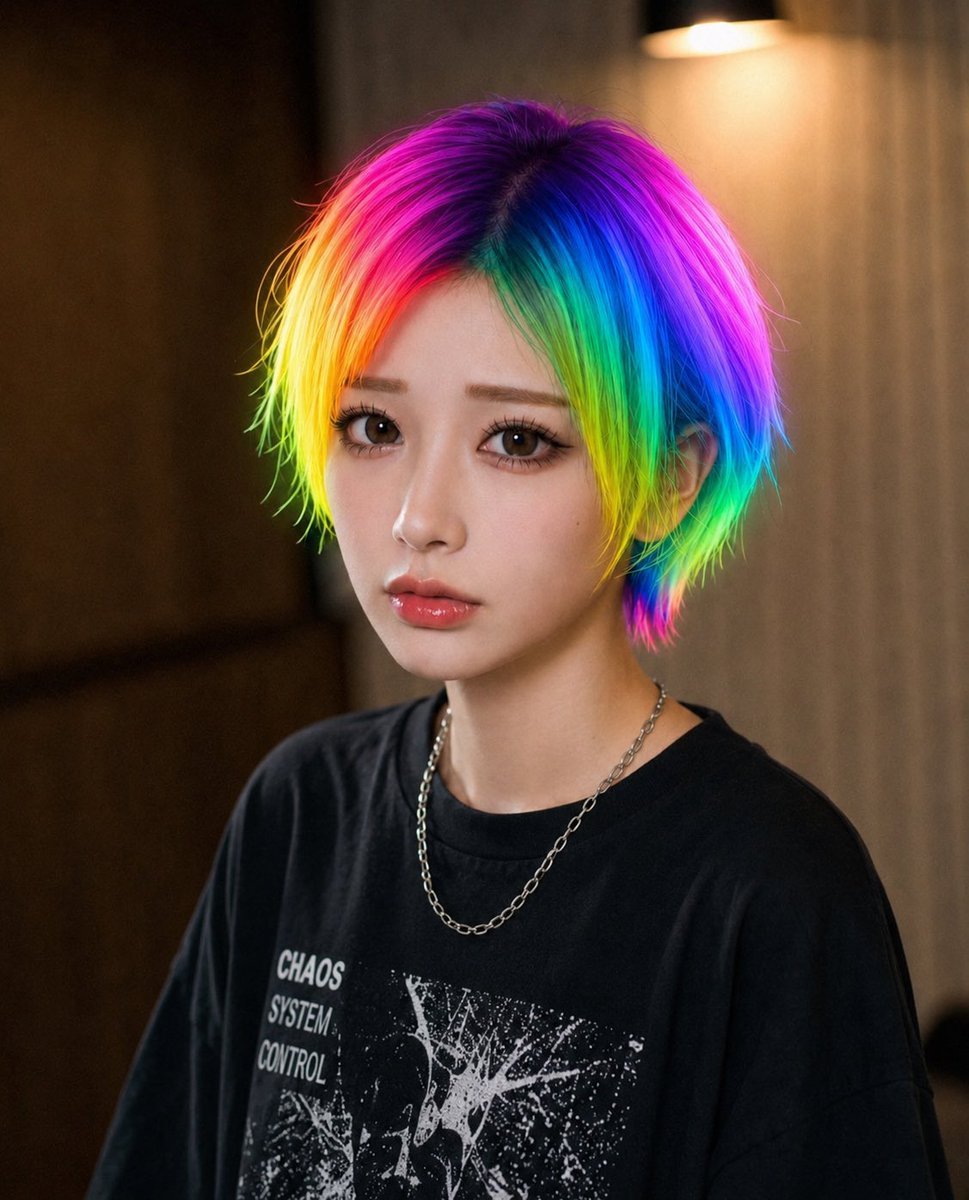
- Prompt included
- Model and format preset
- Free template
The prompt behind this image
Copy the exact prompt behind Rainbow Hair Censored Portrait, or open it in the studio and make it yours.
Create a realistic close-up portrait photo of a young person with {argument name="hair color" default="vivid rainbow neon hair"}, shaggy medium-length layered hair with a dark crown and saturated bands of magenta, violet, electric blue, cyan, green, yellow, and orange glowing around the sides. The subject is framed from chest to head, facing the camera, wearing a loose {argument name="shirt color" default="black"} graphic T-shirt with distressed white punk-style artwork and the visible words “CHAOS SYSTEM CONTROL,” plus a thin silver chain necklace. Place a large opaque square privacy block directly over the entire face, centered from forehead to chin, filled with a soft muted gradient of tan, mauve, green, and blue, hiding all facial features. Use a warm indoor background with shallow depth of field, dark wood or wall panels on the left, beige curtains on the right, and a softly glowing wall lamp near the upper right. Lighting should feel cinematic and cozy, with realistic skin on the visible neck, crisp colorful hair texture, natural camera bokeh, and a modern street-fashion editorial look.
How to use Rainbow Hair Censored Portrait in 3 steps
- 1Upload ImagePNG, JPG or paste
Add your photo
Upload the photo the template builds on. The prompt, model and format are already set.
- 2…a portrait of your subject in softgolden-hour light, 85mm…
Personalize
Edit the subject and creative details for your destination.
- 3Generate
Generate
Press Generate — your image is created in PicX Studio, so you can compare it with the original and refine one variable at a time.
More like this
Templates with the same subject, style or setup. Open one to see its prompt.
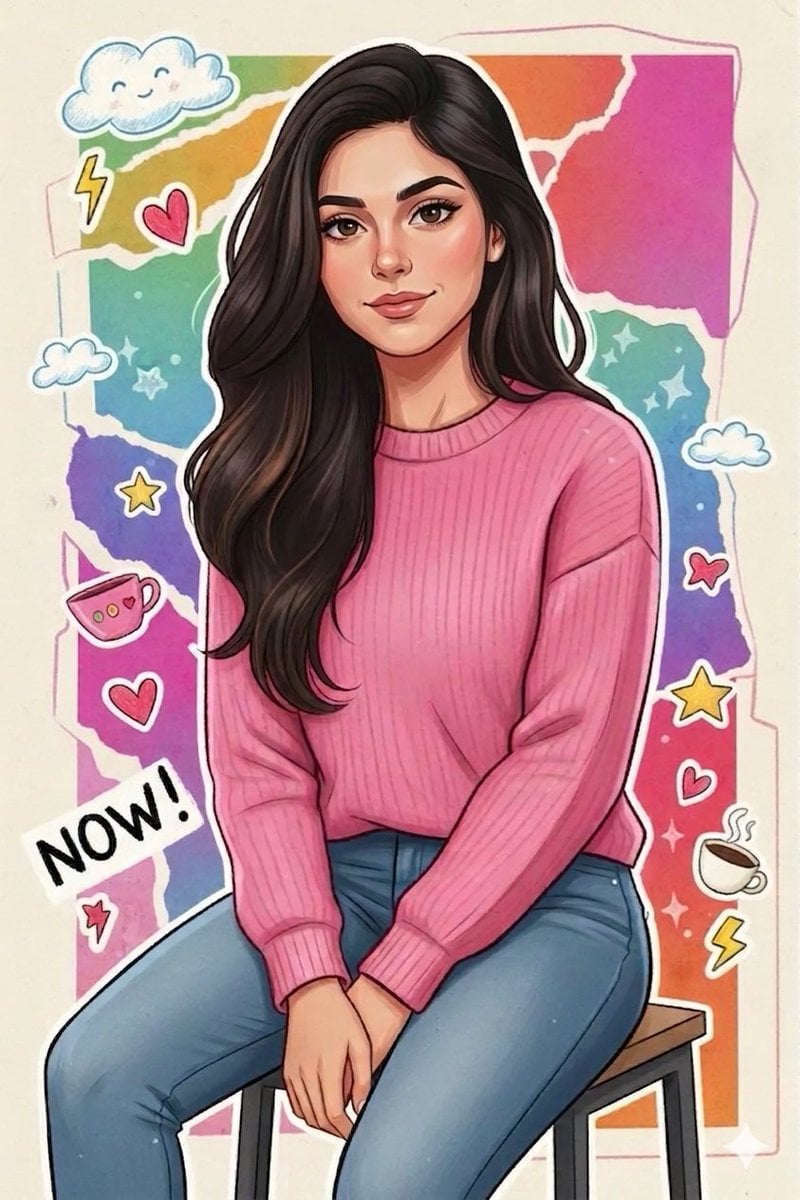
Sticker Art Style - Rainbow Girl
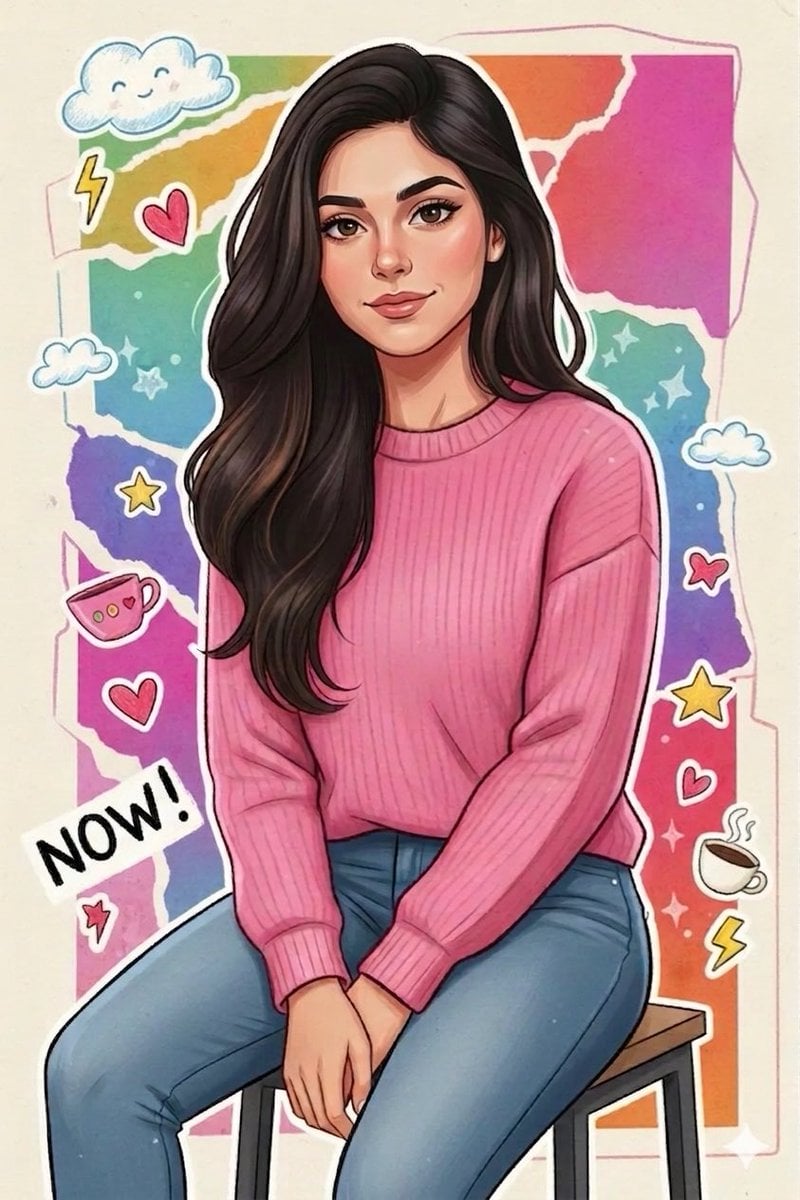
Sticker Art Style - Rainbow Girl v2
Sticker Art Style - Rainbow Girl
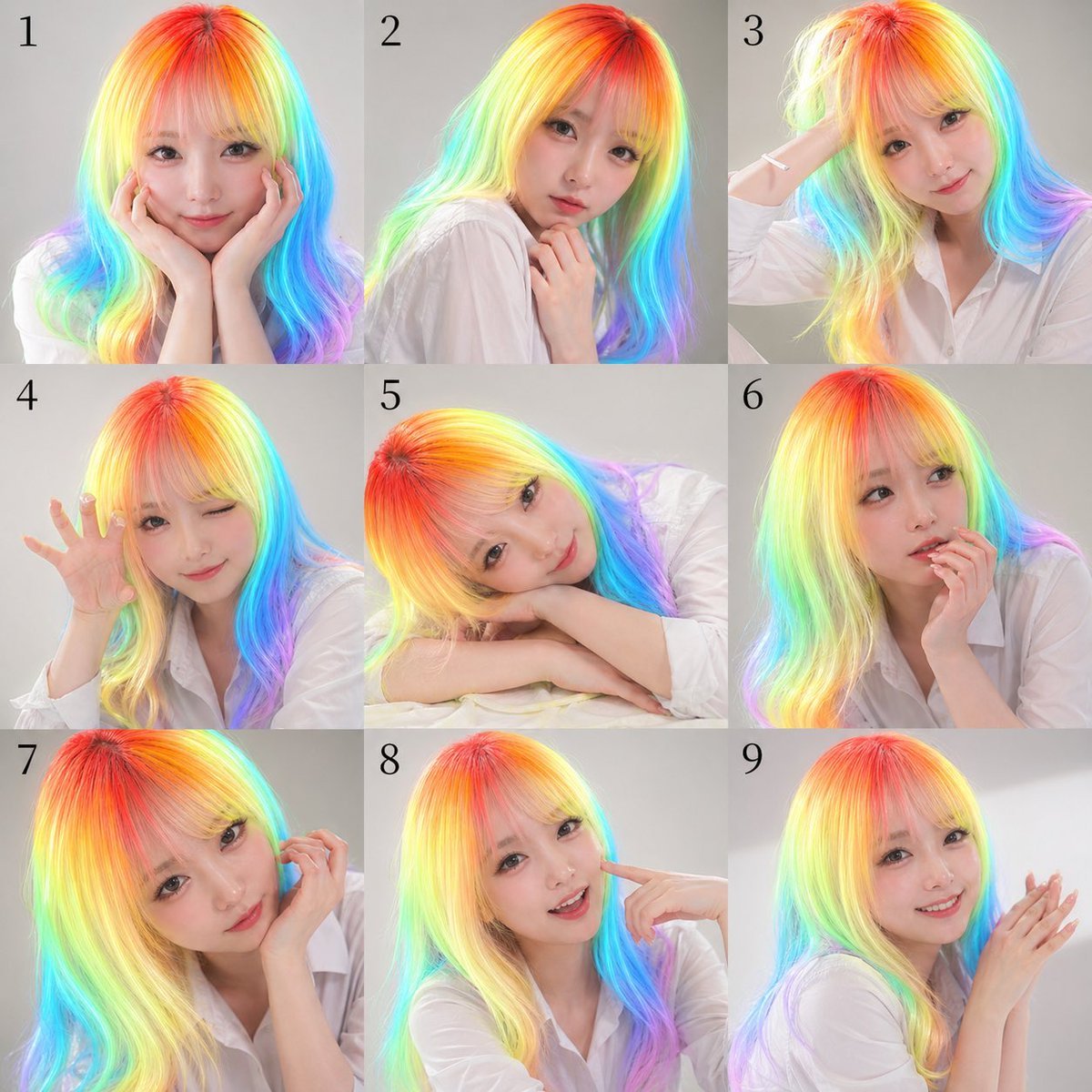
Nine-Panel Rainbow Hair Portrait Sheet

Found Photograph: Us, 1970

80s Couple Studio Portrait
80s Bollywood Star
80s Golden Hour Cinema
Me in 1985
1985 Studio Portrait

Hyper-Realistic Minecraft POV Portrait
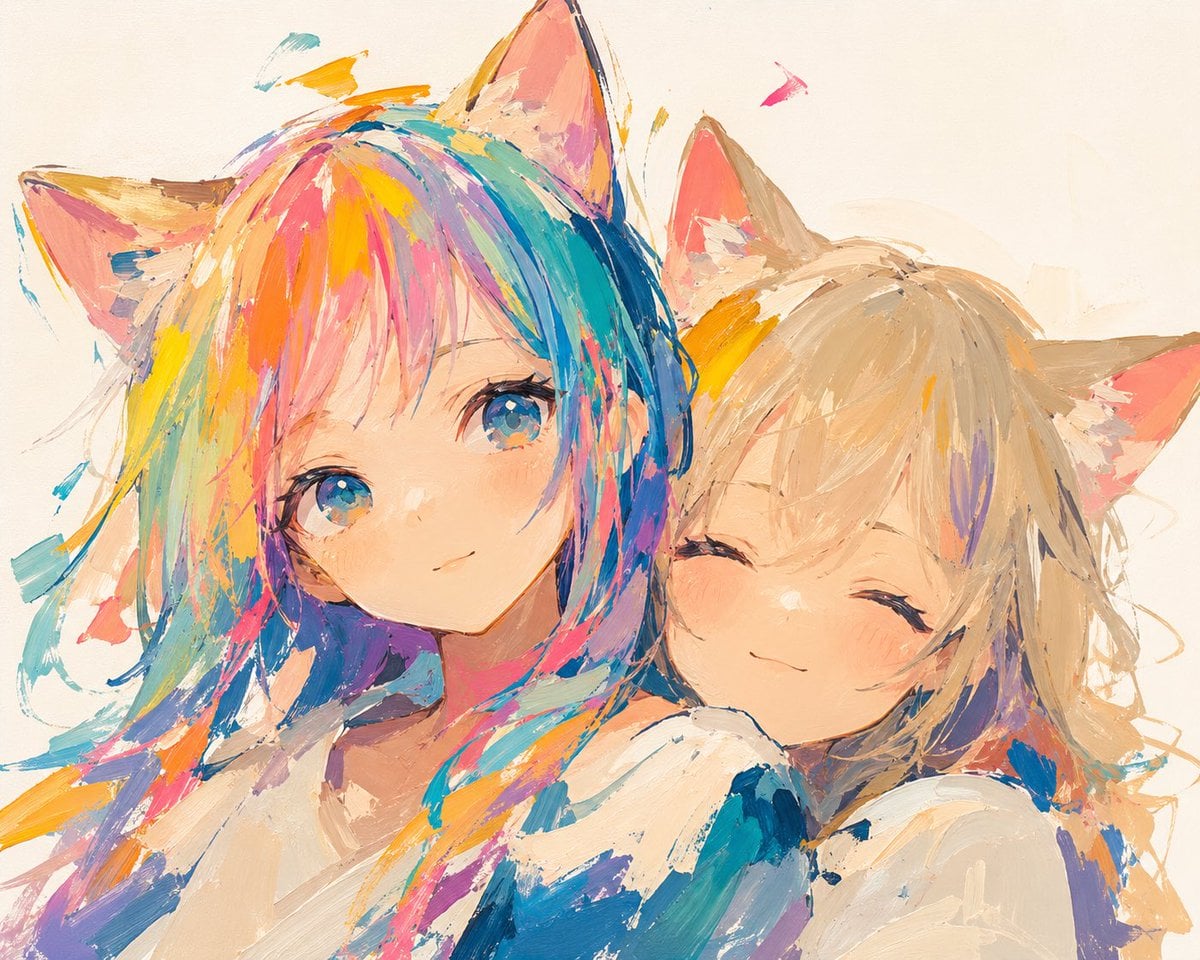
Rainbow Haired Cat Girl Illustration
Make it yours
Rainbow Hair Censored Portrait works as-is. These are the safest ways to change it without losing the look.
Change one field
Copy a single group, rewrite it, and generate again so you can see what that field is doing.
Keep the frame, change the subject
Hold the composition and light of Rainbow Hair Censored Portrait, then swap wardrobe, props or the person for a new take.
| If the result… | Why | Fix |
|---|---|---|
| The result drifts from the preview | Too many fields changed at once. | Reuse Rainbow Hair Censored Portrait as-is first, then change one group — subject, light, or setting. |
| The model over-stylizes the scene | The prose prompt leaves finish and camera underspecified. | Add one camera or lighting sentence and stay on GPT Image 2. |
More GPT Image 2 templates
Other prompts made for GPT Image 2.

Six VTuber Japanese Logo Sheet

Realistic Portrait of Woman and Deer

The Vista Modular Condo Poster

AI Model Routing Comparison Infographic

2.5D Anime Art Board

Isometric Productivity Desk Scene

New York Double Exposure Poster

Four-Panel AI Landscape Comparison

Japanese Tatami Lifestyle Magazine Cover

NESCAFÉ Coffee Map Poster
More image prompts
Fresh picks from across the catalog.
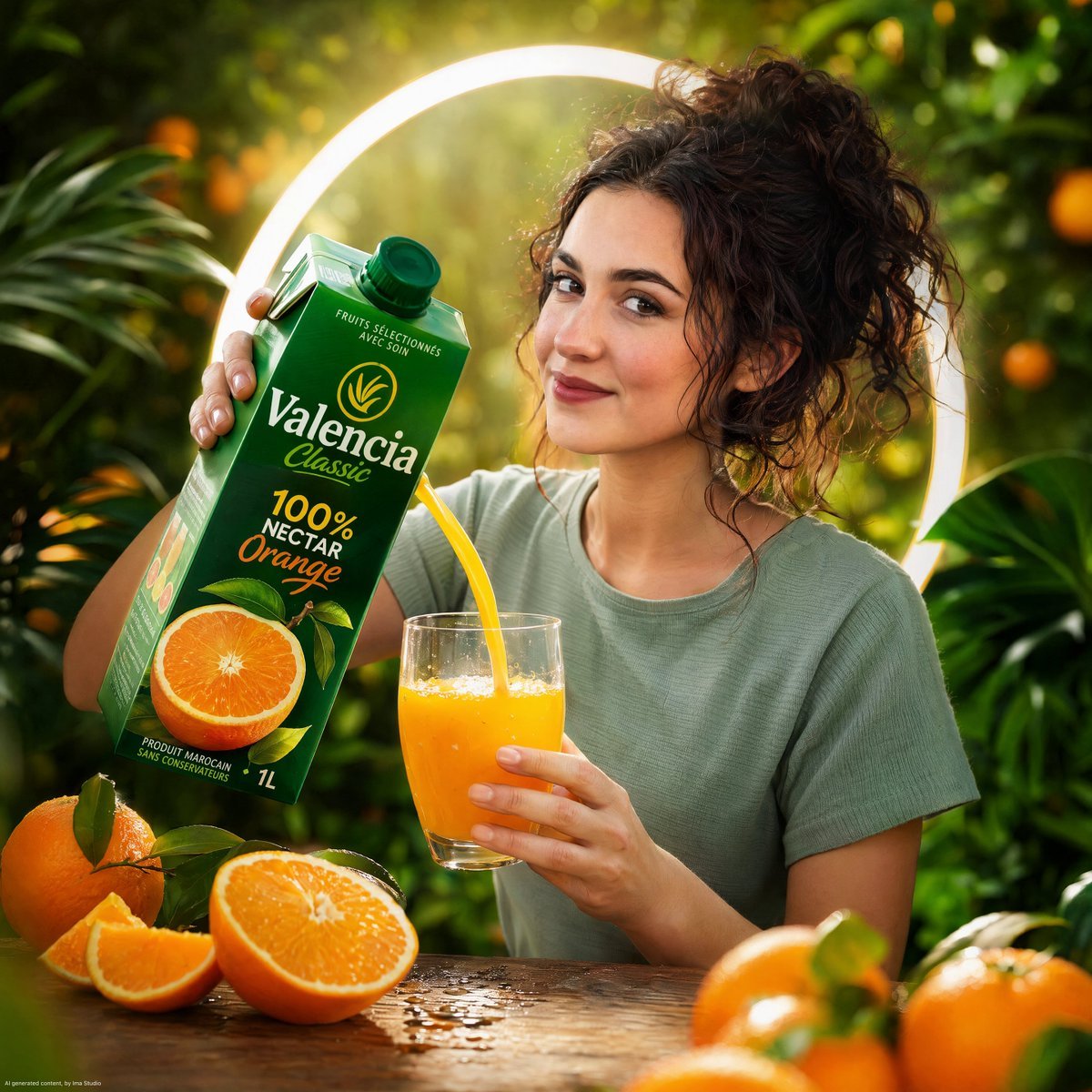
Orange Nectar Product Advertisement
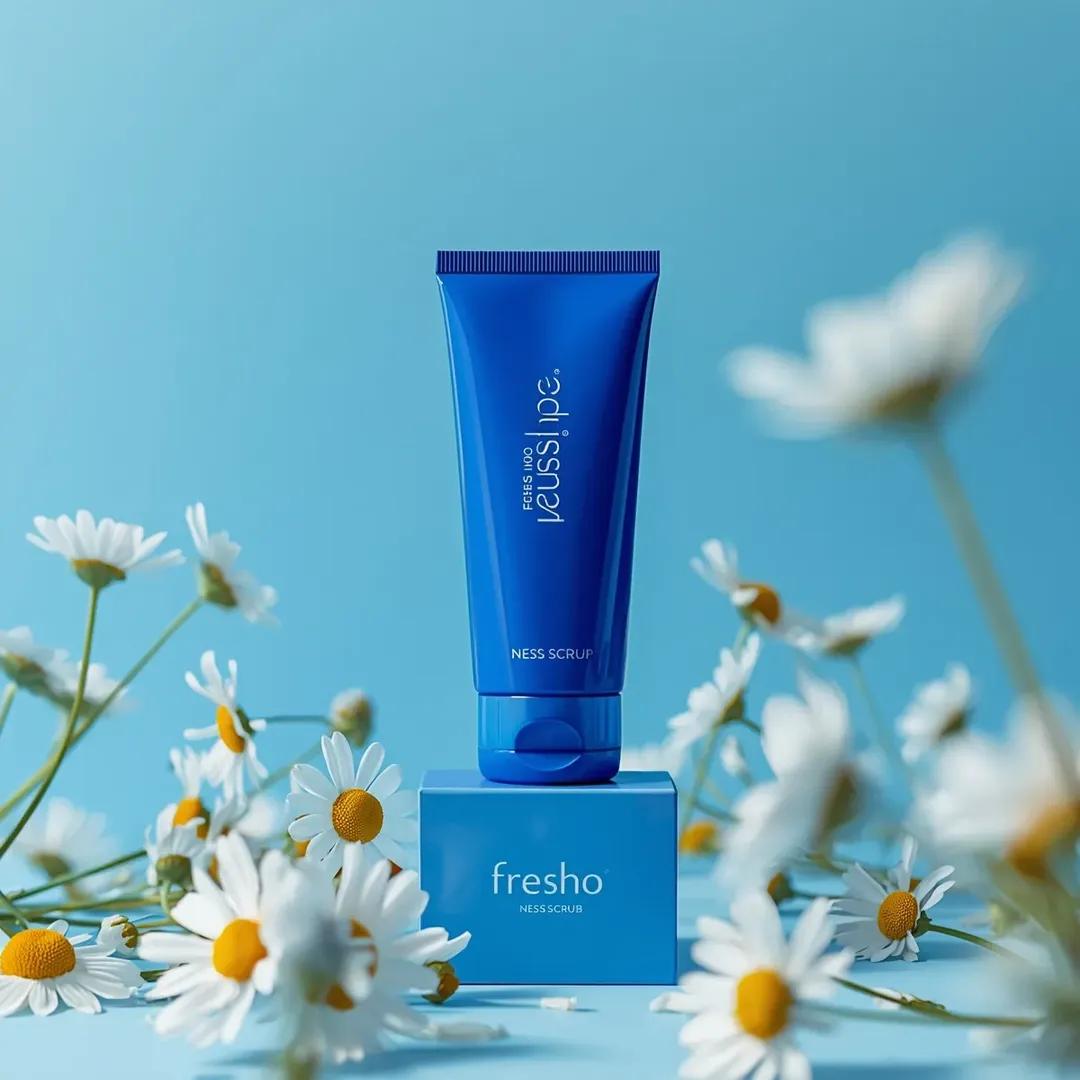
Ultra-Realistic Skincare Product Photography Prompt (Cobalt Blue)
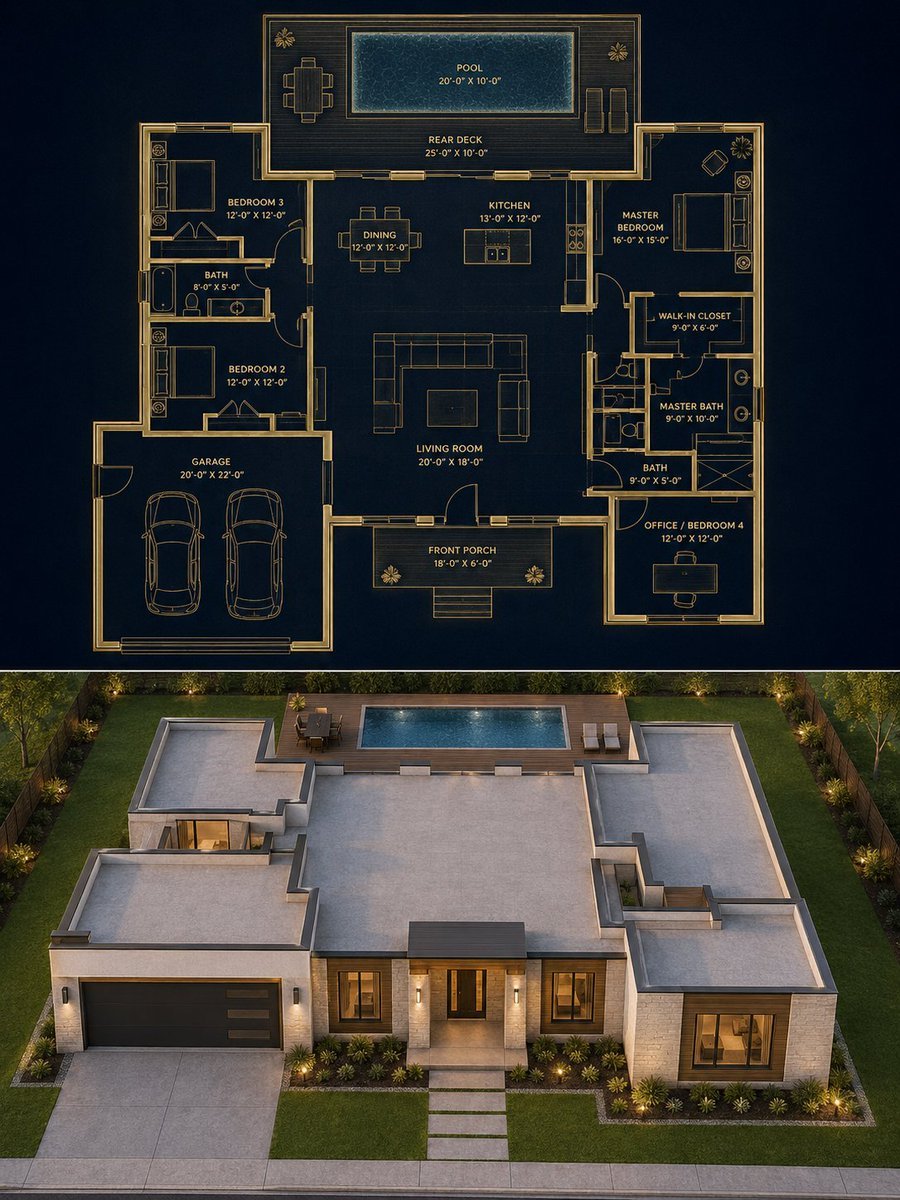
Split Blueprint and Modern House Render
A detailed prompt for generating a photorealistic image of a nano-banana-pro
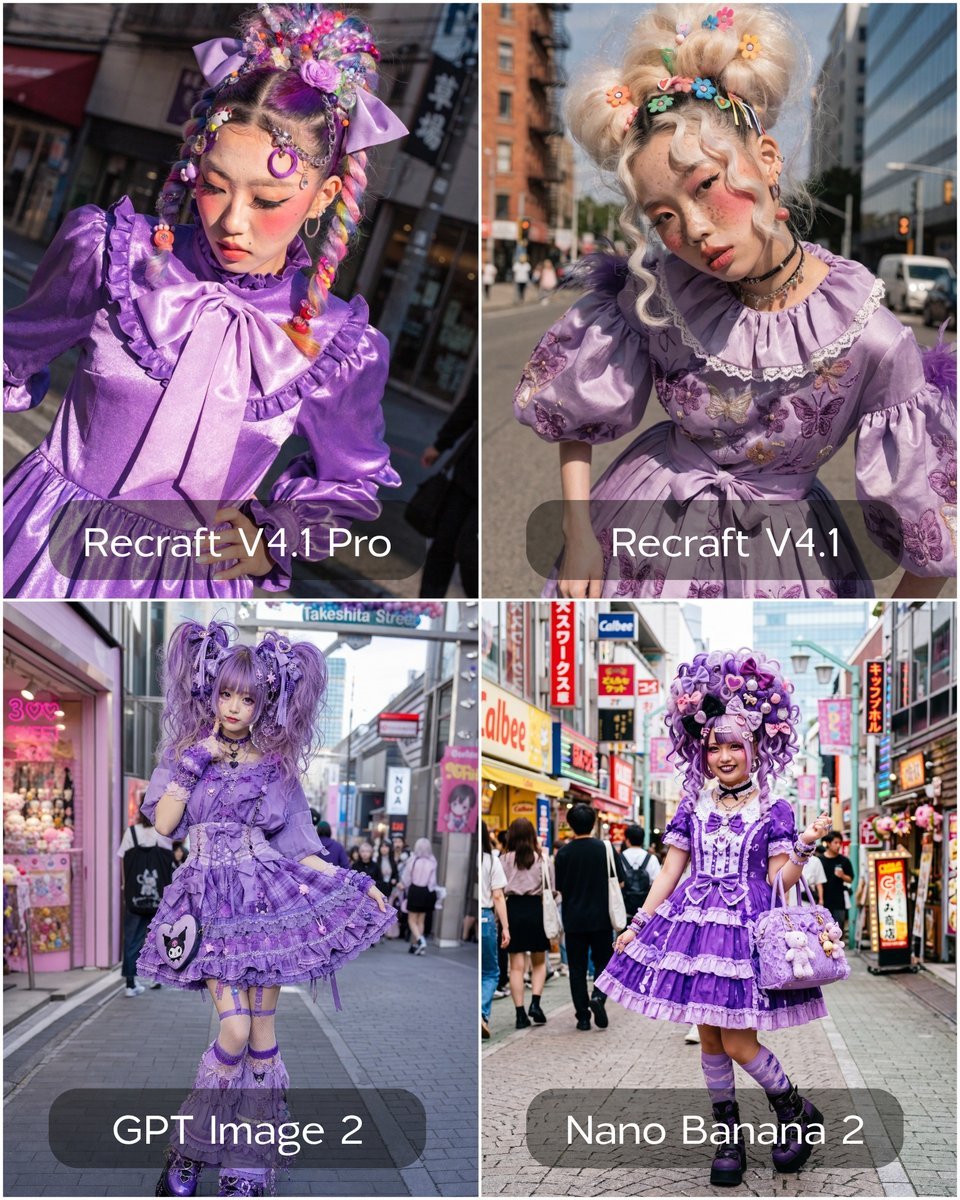
Harajuku Girl Fashion Portrait
Luxury Bonbon Drop Stamp Seal
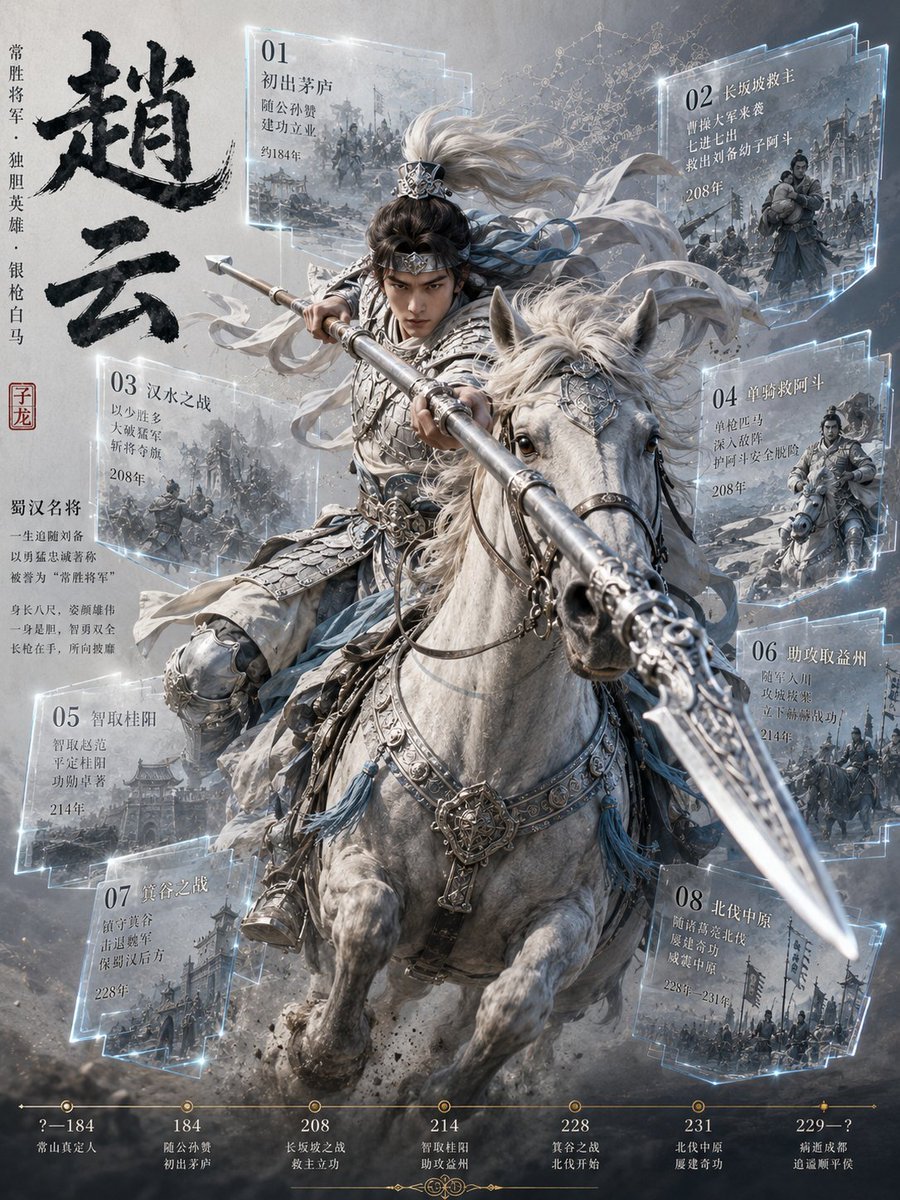
Zhao Yun Cavalry Infographic Poster

Hyper-Realistic iPhone Whale Breach Scene
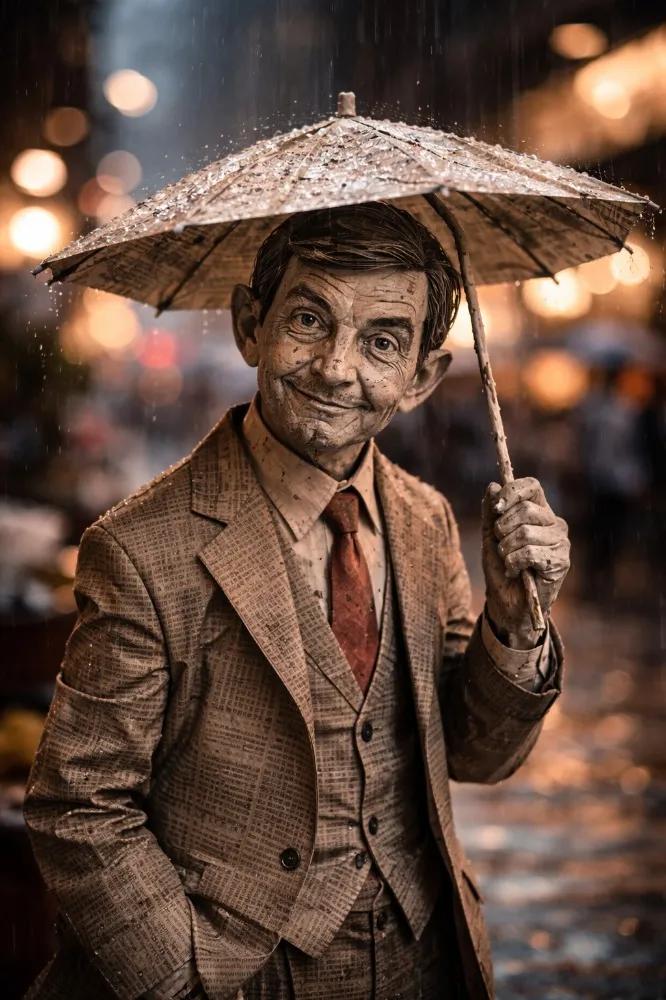
Cinematic Paper Figure in the Rain
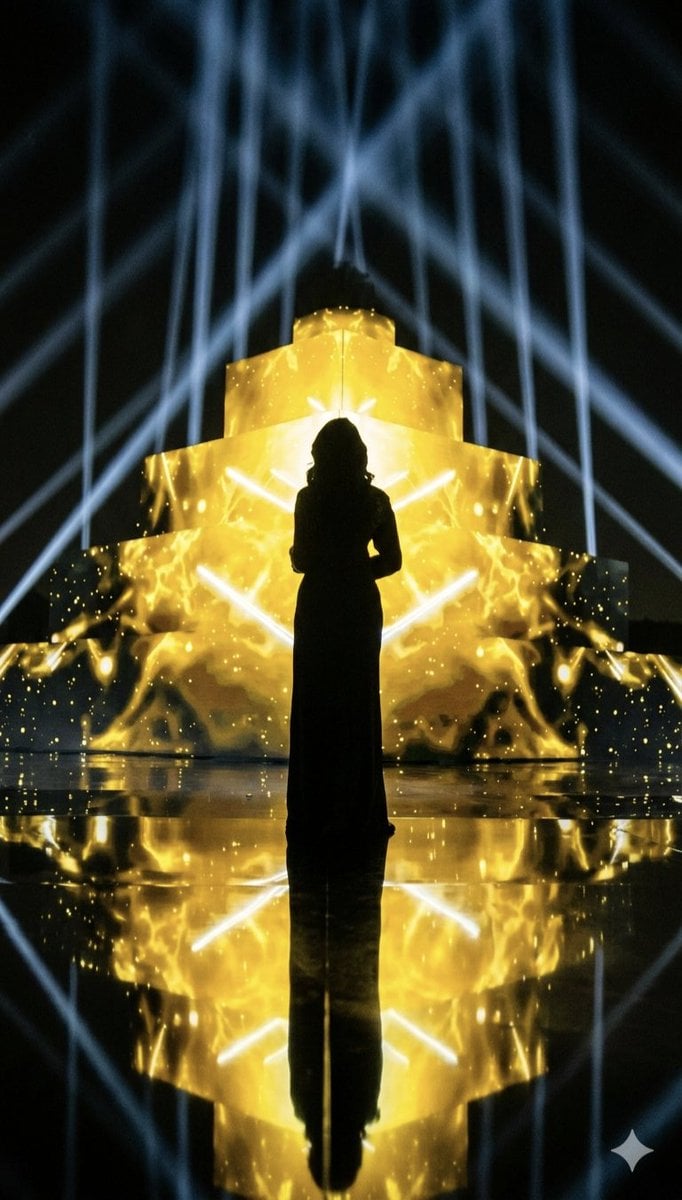
Dramatic Silhouette on Golden Pyramid Stage
Browse template categories
Rainbow Hair Censored Portrait questions
How do I use the Rainbow Hair Censored Portrait template?
Add your photo if the template asks for one, edit the prompt if you like — the template's model and format are already selected — and press Generate. Your version opens in PicX Studio.
Can I customize the Rainbow Hair Censored Portrait template?
Yes. You can change the subject, setting, lighting, mood, format, and available model controls before creating your image.
Is the Rainbow Hair Censored Portrait template free?
Opening and editing this template is free. Generating uses credits, shown on the Generate button when you are signed in.
Which AI model should I use?
Start with GPT Image 2, which is the model associated with this template. You can compare another compatible model for a different finish.
Looking for something else? Browse all templates.

Your photo, any look
Thousands of ready templates for every top image and video model, from one credit balance.