How do I use the Anime Wedding Dress Character Sheet template?
Choose the primary action to open PicX Studio with the available template settings. Review the model and format, personalize the creative direction, and generate when ready.
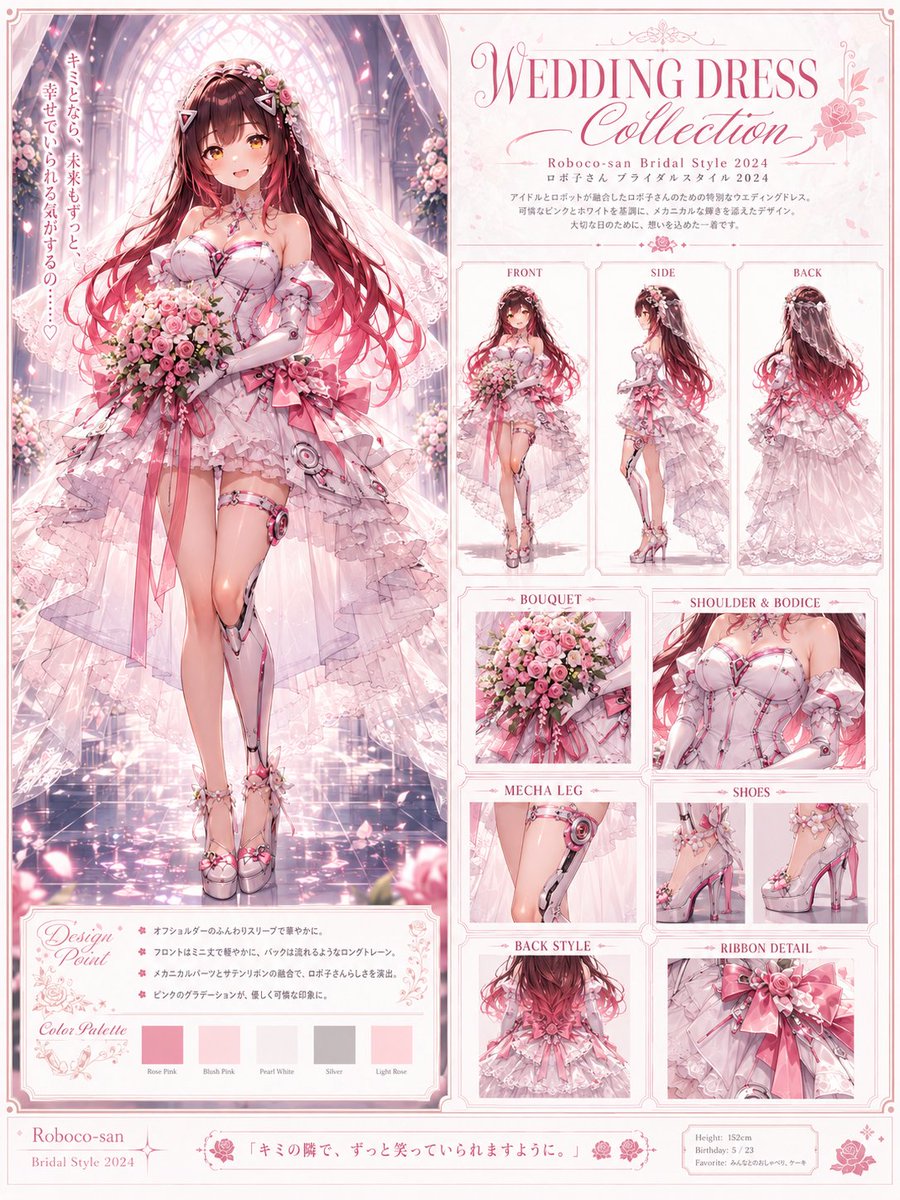
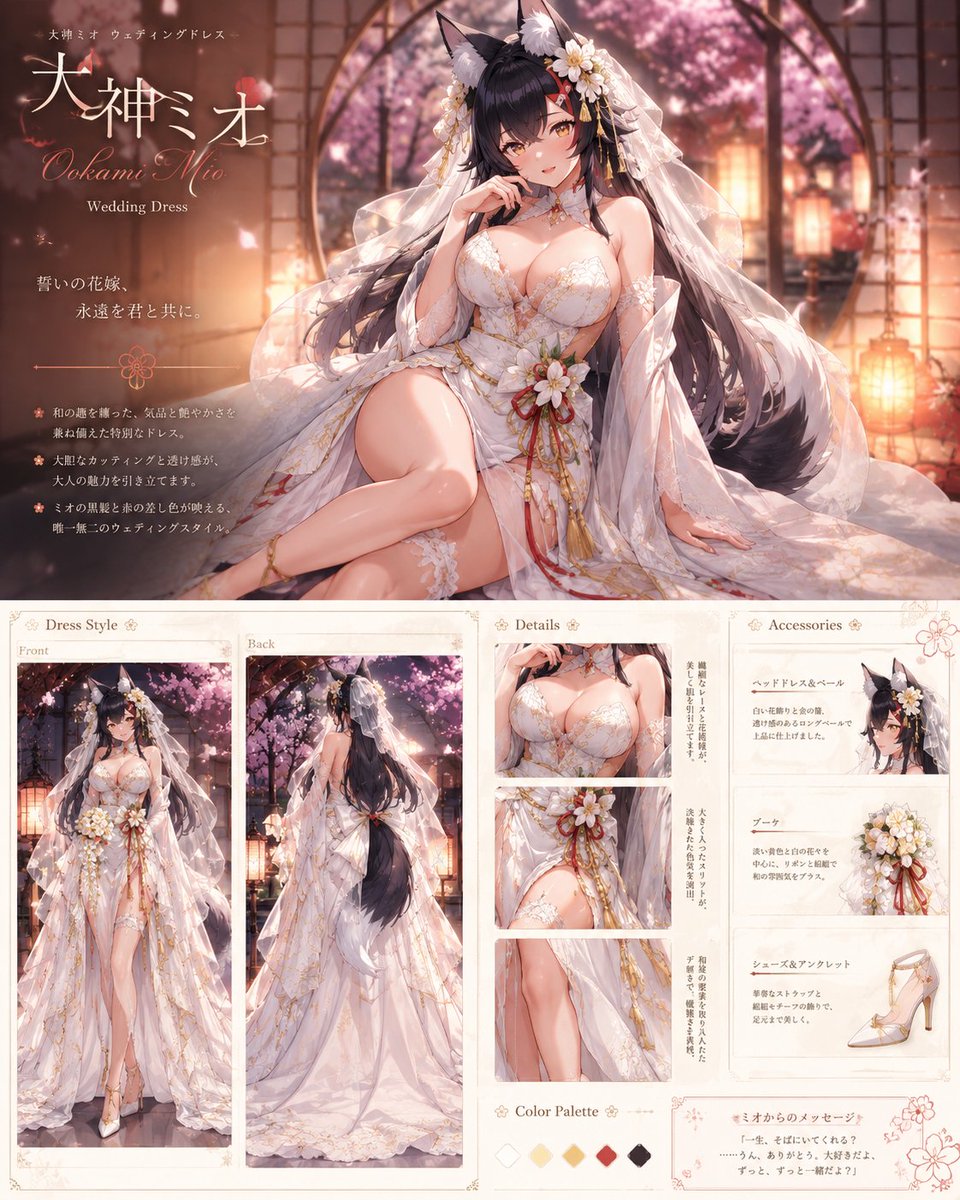
Creates an ornate anime bridal fashion reference sheet for a dog-girl character with dress views, detail panels, charms, palette, and chibi message art. Change the subject, setting, or lighting one variable at a time.
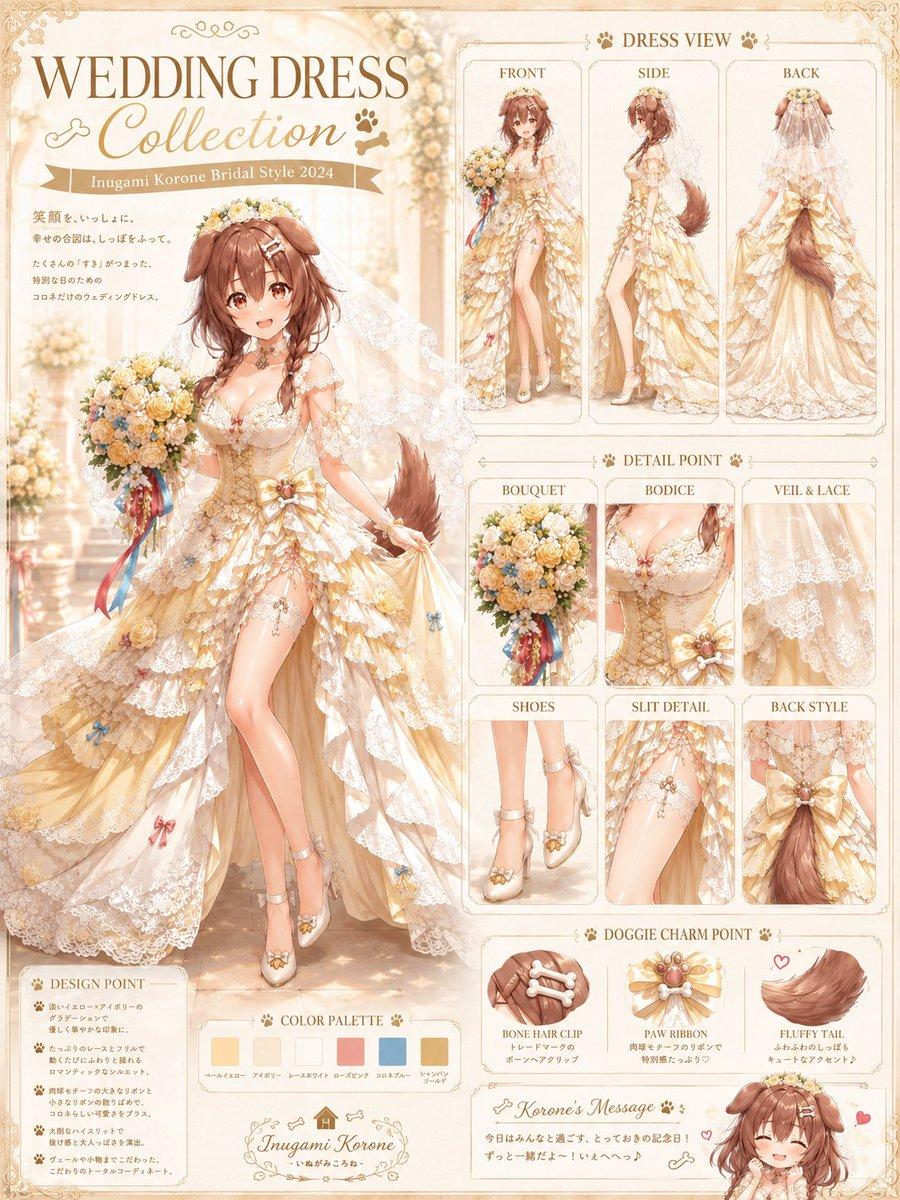
Goal: Create a detailed vertical anime fashion design sheet for {argument name="character name" default="Inugami Korone"} in an ornate bridal outfit, titled “WEDDING DRESS Collection” with a warm cream-and-gold wedding catalog aesthetic. Canvas: Portrait 3:4 layout, high-resolution illustration, ivory parchment background with delicate gold filigree corners, soft cathedral-like wedding hall lighting, bokeh flowers, lace textures, and elegant tan/gold typography. Use a polished Japanese anime art style with soft watercolor shading, fine linework, glossy highlights, and luxury bridal magazine presentation. Main subject: One large full-body anime dog-girl bride on the left side, front-facing in a playful elegant pose. She has {argument name="hair color" default="warm chestnut brown"} medium-long wavy hair, floppy dog ears, a fluffy dog tail, floral headpiece, soft bridal veil, and a joyful idol-like personality. Her face should be clearly visible and expressive. She wears a cream, champagne, and pale-gold wedding dress with layered ruffled lace, floral appliqués, corset bodice, off-shoulder lace sleeves, thigh-high slit, ribbon bows, tiny paw/bone-themed ornaments, and white-gold bridal heels. She holds a round bouquet of cream, peach, yellow, and blue flowers with long red, blue, and gold ribbons. Top-left title area: Large serif headline “WEDDING DRESS” and elegant script subtitle “Collection”. Add a ribbon label reading “{argument name="style ribbon text" default="Inugami Korone Bridal Style 2024"}”. Include a small Japanese-style message block beneath it with decorative spacing, but keep it secondary and delicate. Right-side fashion sheet layout: Create exactly 3 tall “DRESS VIEW” panels across the upper right, labeled “FRONT”, “SIDE”, and “BACK”. Each panel shows the same bride outfit from that angle: front with bouquet, side profile showing slit and tail, back view showing veil, lace train, bow, and fluffy tail. Middle-right detail grid: Create exactly 6 boxed “DETAIL POINT” panels labeled “BOUQUET”, “BODICE”, “VEIL & LACE”, “SHOES”, “SLIT DETAIL”, and “BACK STYLE”. Show close-up illustrations for each: bouquet flowers and ribbons; corset bodice with lace and flower jewel; translucent veil lace pattern; ankle-strap heels with floral paw-like decoration; thigh slit with lace and small blue bow; back waist bow and tail. Lower-right charm section: Create exactly 3 “DOGGIE CHARM POINT” panels labeled “BONE HAIR CLIP”, “PAW RIBBON”, and “FLUFFY TAIL”. Show one bone-shaped hair clip, one ornate paw-themed ribbon brooch, and one fluffy brown tail with a small heart accent. Bottom-left and bottom-center sections: Add one “DESIGN POINT” box with exactly 5 short bullet lines and tiny paw icons. Add one “COLOR PALETTE” strip with exactly 6 rectangular swatches labeled in small elegant text: ivory beige, honey gold, lace white, peach pink, soft blue, and champagne brown. Add a small ornate nameplate reading “{argument name="nameplate text" default="Inugami Korone"}”. Bottom-right: Add one small chibi version of the bride, smiling with closed happy eyes, dog ears, veil, small hearts, and a handwritten message panel titled “{argument name="message title" default="Korone’s Message"}”. Constraints: Maintain a cohesive cream, gold, peach, and soft blue palette; use exactly 1 main full-body bride, 3 dress-view panels, 6 detail panels, 3 charm panels, 6 color swatches, 5 design bullets, and 1 chibi character. Make the sheet information-dense but readable, with ornate borders and no watermark.
Choose the primary action to open PicX Studio with the available template settings. Review the model and format, personalize the creative direction, and generate when ready.
Yes. You can change the subject, setting, lighting, mood, format, and available model controls before creating your image.
This template is free to open and customize. Generation usage is shown in PicX Studio before you create.
Start with GPT Image 2, which is the model associated with this template. You can compare another compatible model for a different finish.
© 2026 PicX Studio. All rights reserved.

Follow a topic to a crawlable collection of related PicX Studio templates.
43,474 public templates available. Verified via the PicX Studio public templates API; refreshed hourly.









![Minimalist Flat Vector Travel Poster — Premium minimalist flat-vector travel poster for {argument name="city name" default="[CITY_NAME]"}, 3:4 vertical format.](https://cms-assets.youmind.com/media/1787917359711_3ug846_HQX205cbMAA6F6S-300x400.jpg)