
Colorize Historical Aerial Photo
This prompt turns a black-and-white aerial photograph into a plausible colorized version using another aerial image as a color reference, useful for historical map and geography visualization.
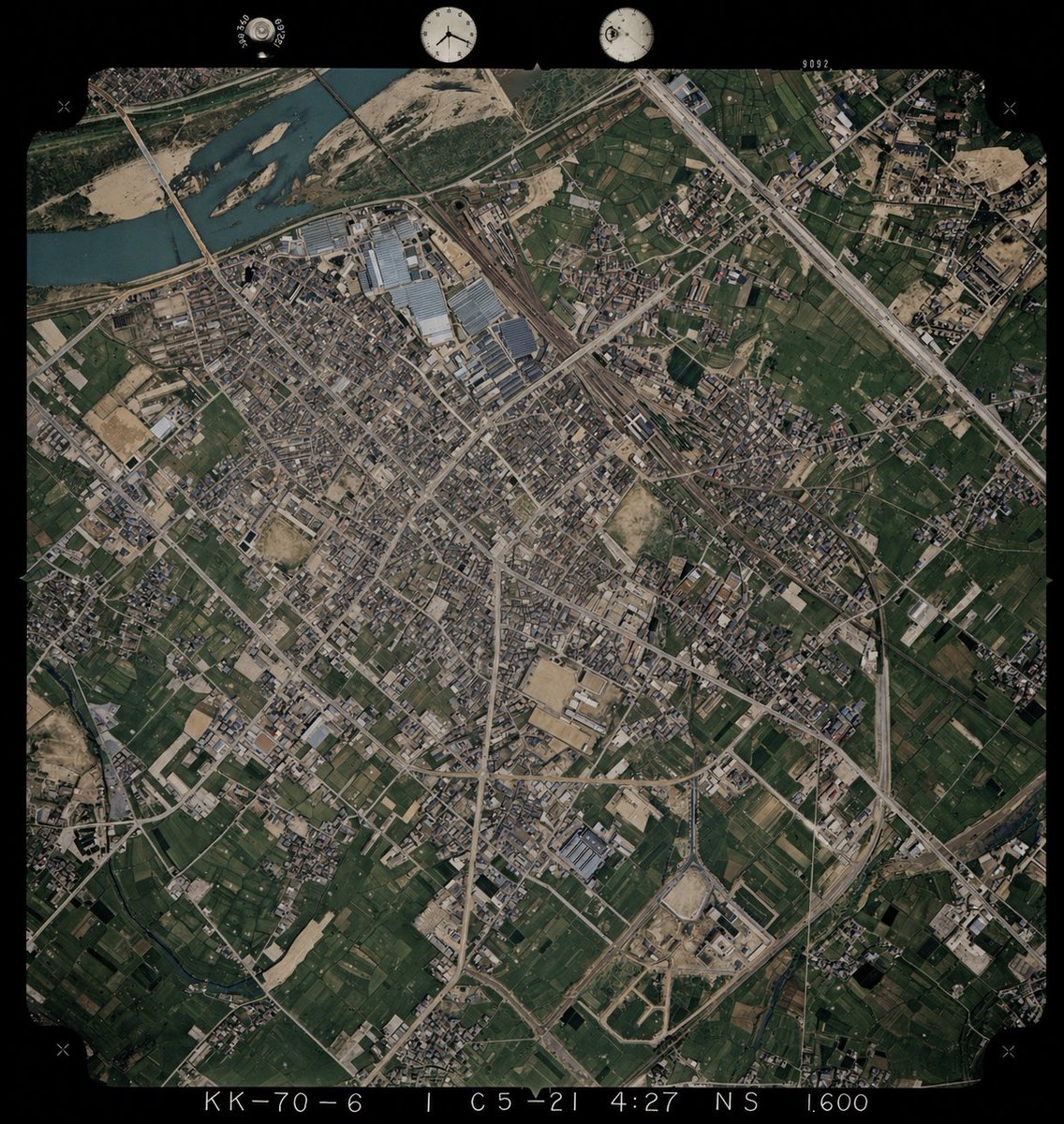
- Prompt included
- Model and format preset
- Free template
The prompt behind this image
Copy the exact prompt behind Colorize Historical Aerial Photo, or open it in the studio and make it yours.
Using REFERENCE_0 as the base image, colorize the monochrome historical aerial photograph while preserving the exact original framing, angle, scale, film border, edge markings, and all geographic structures. Use REFERENCE_1 only as a color-reference guide for plausible land-surface colors seen from above. Keep the old photo’s layout and terrain details unchanged, but infer naturalistic colors for 4 major surface types: river water in muted blue-green, vegetation and farmland in varied dark greens, bare soil/sand and construction areas in tan-beige, and roads/buildings/industrial roofs in subdued gray to light brown. Maintain a realistic archival aerial-photo look rather than a modern satellite style, with slightly restrained saturation, subtle contrast, and consistent coloring across the whole scene.
Reference images included
Colorize Historical Aerial Photo needs input media to work. They load alongside the prompt when you open it in the studio.
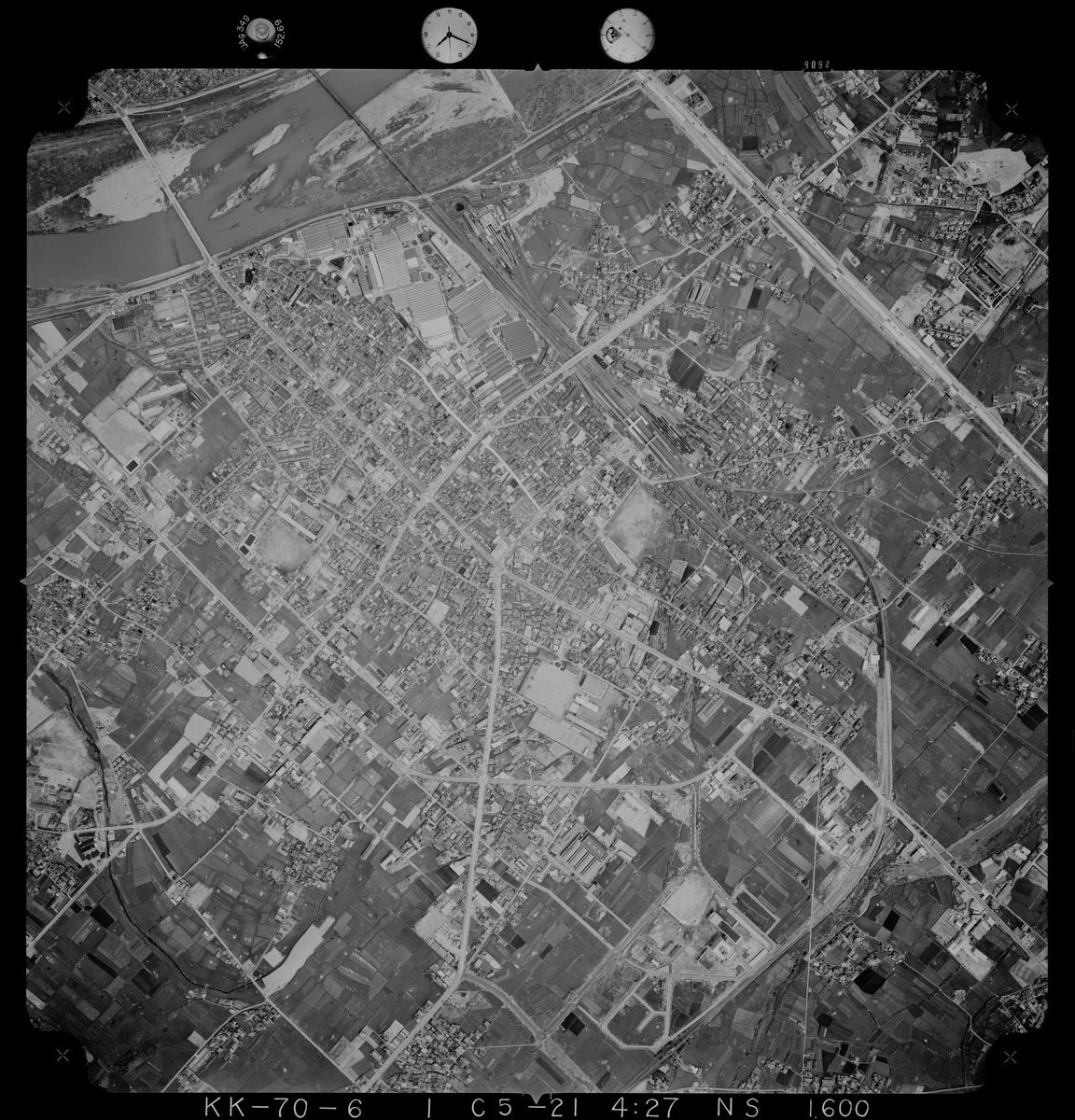
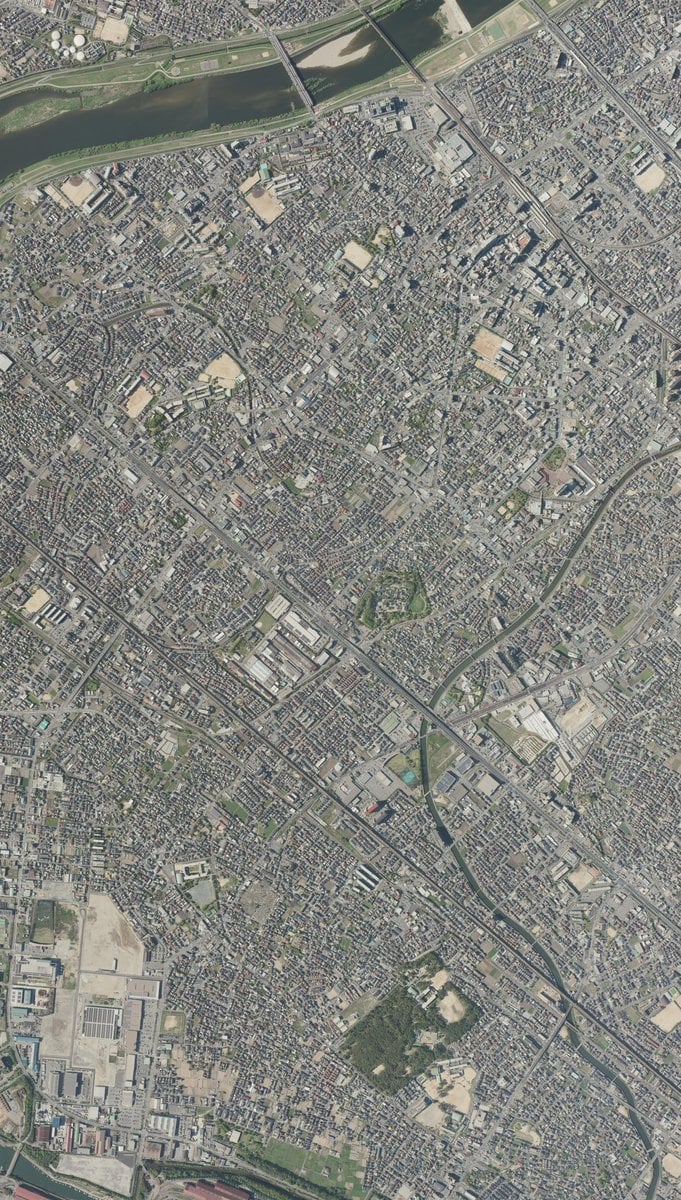
How to use Colorize Historical Aerial Photo in 3 steps
- 1Upload ImagePNG, JPG or paste
Add your photo
Upload the photo the template builds on. The prompt, model and format are already set.
- 2…a portrait of your subject in softgolden-hour light, 85mm…
Personalize
Edit the subject and creative details for your destination.
- 3Generate
Generate
Press Generate — your image is created in PicX Studio, so you can compare it with the original and refine one variable at a time.
More like this
Templates with the same subject, style or setup. Open one to see its prompt.
Ancient Temple Portrait — White Dress Nano Banana
Aerial Summer Shirakawa-go Valley
Aerial View of Vast Grassy Plain with Two Sheep
Aerial Surreal Clone Photography
Baku Flame Towers Aerial Scene
Aerial Championship Night Stadium
Minimalist Aerial Drone Photography
Colorized Shonen Manga Battle Spread

Aerial Ocean Shoreline Surrealism
Historical Makeup Napoleon Manga
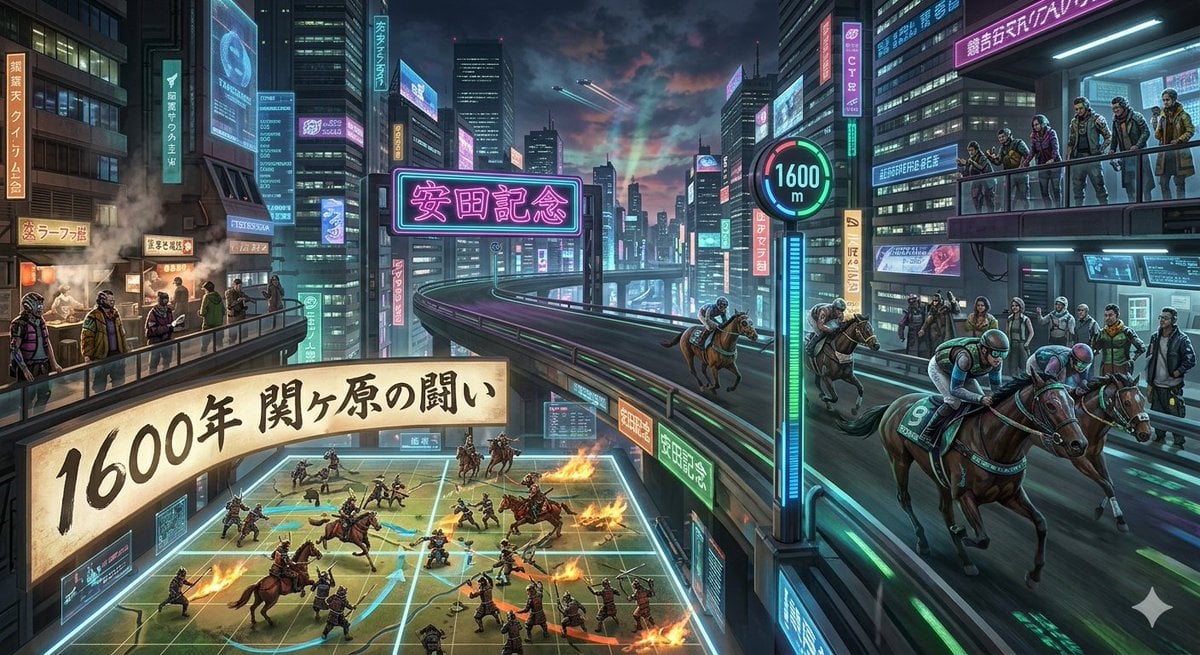
Cyberpunk Historical Horse Racing
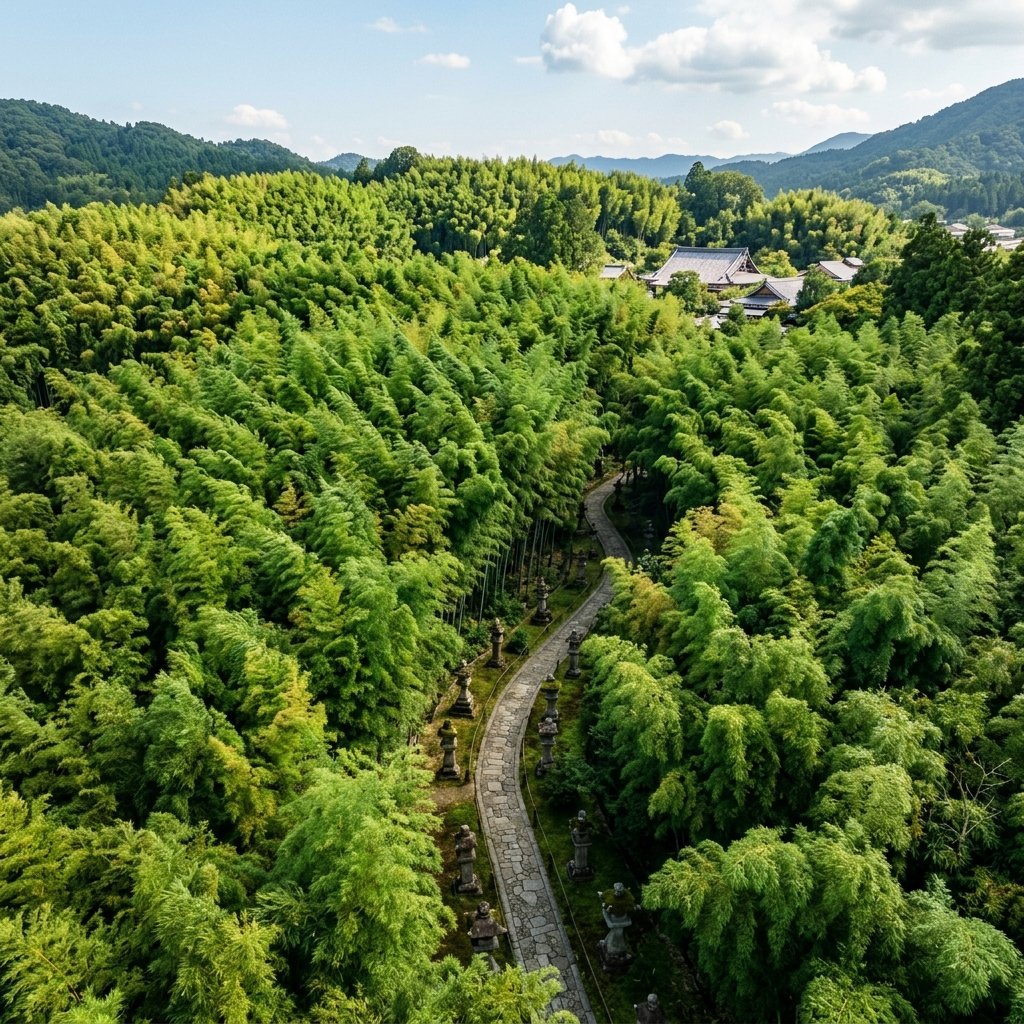
Realistic Aerial Bamboo Grove Landscape
Make it yours
Colorize Historical Aerial Photo works as-is. These are the safest ways to change it without losing the look.
Change one field
Copy a single group, rewrite it, and generate again so you can see what that field is doing.
Keep the frame, change the subject
Hold the composition and light of Colorize Historical Aerial Photo, then swap wardrobe, props or the person for a new take.
| If the result… | Why | Fix |
|---|---|---|
| The result drifts from the preview | Too many fields changed at once. | Reuse Colorize Historical Aerial Photo as-is first, then change one group — subject, light, or setting. |
| The model over-stylizes the scene | The prose prompt leaves finish and camera underspecified. | Add one camera or lighting sentence and stay on GPT Image 2. |
More GPT Image 2 templates
Other prompts made for GPT Image 2.

Six VTuber Japanese Logo Sheet

Realistic Portrait of Woman and Deer

The Vista Modular Condo Poster

AI Model Routing Comparison Infographic

2.5D Anime Art Board

Isometric Productivity Desk Scene

New York Double Exposure Poster

Four-Panel AI Landscape Comparison

Japanese Tatami Lifestyle Magazine Cover

NESCAFÉ Coffee Map Poster
More image prompts
Fresh picks from across the catalog.

Ultra Photorealistic Japanese Woman in Pink Knit Set

Gpt2 Youtube Thumbnail Anime Vtuber Minecraft Stream Thumbnail
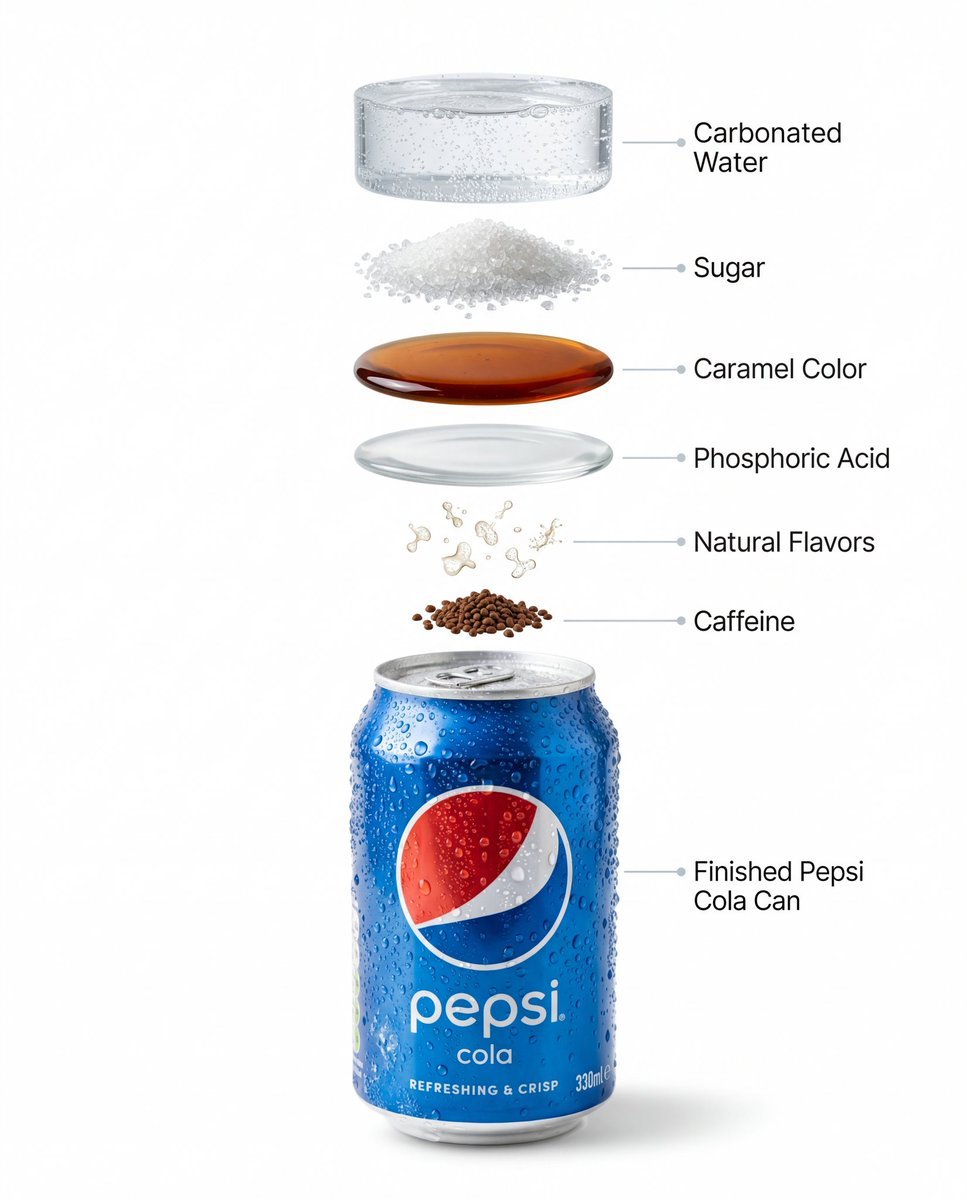
Hyper-Realistic Product Photography and Infographic Prompts for Pepsi

Hyper-realistic Sports Snapshot
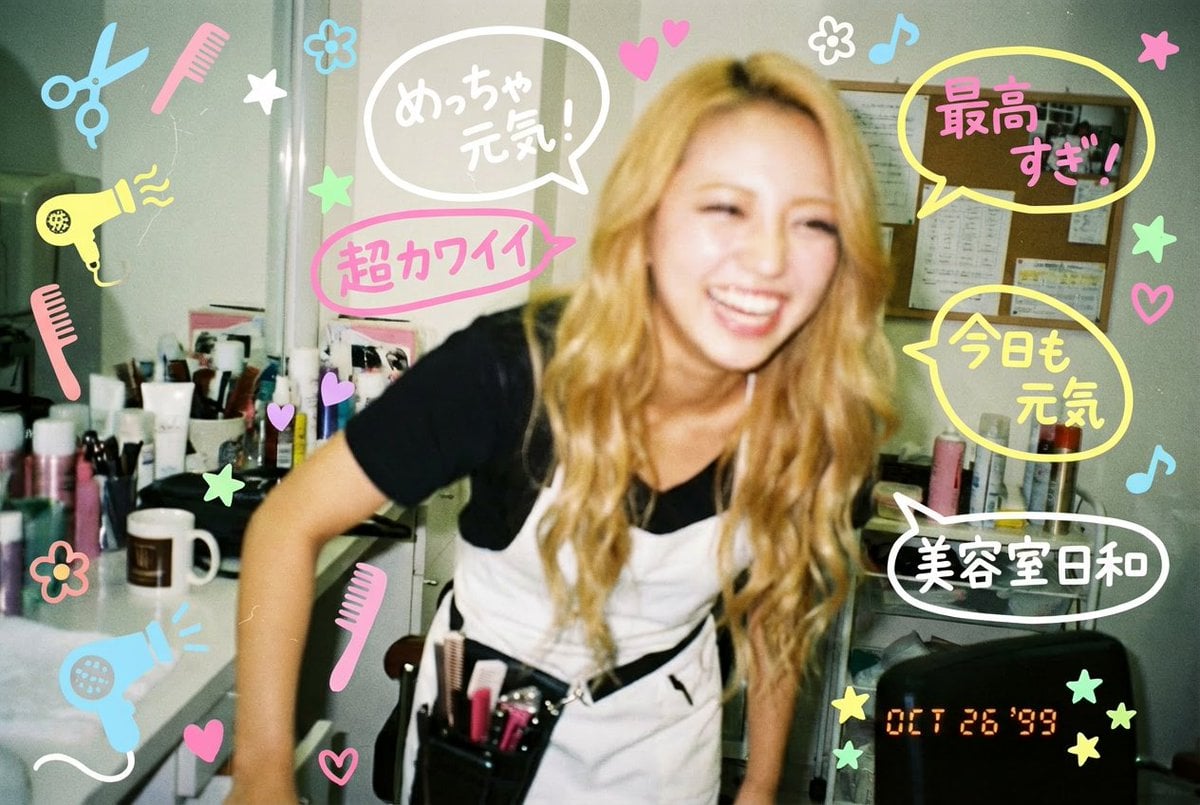
Y2K-style handwritten gal postcard overlay prompt
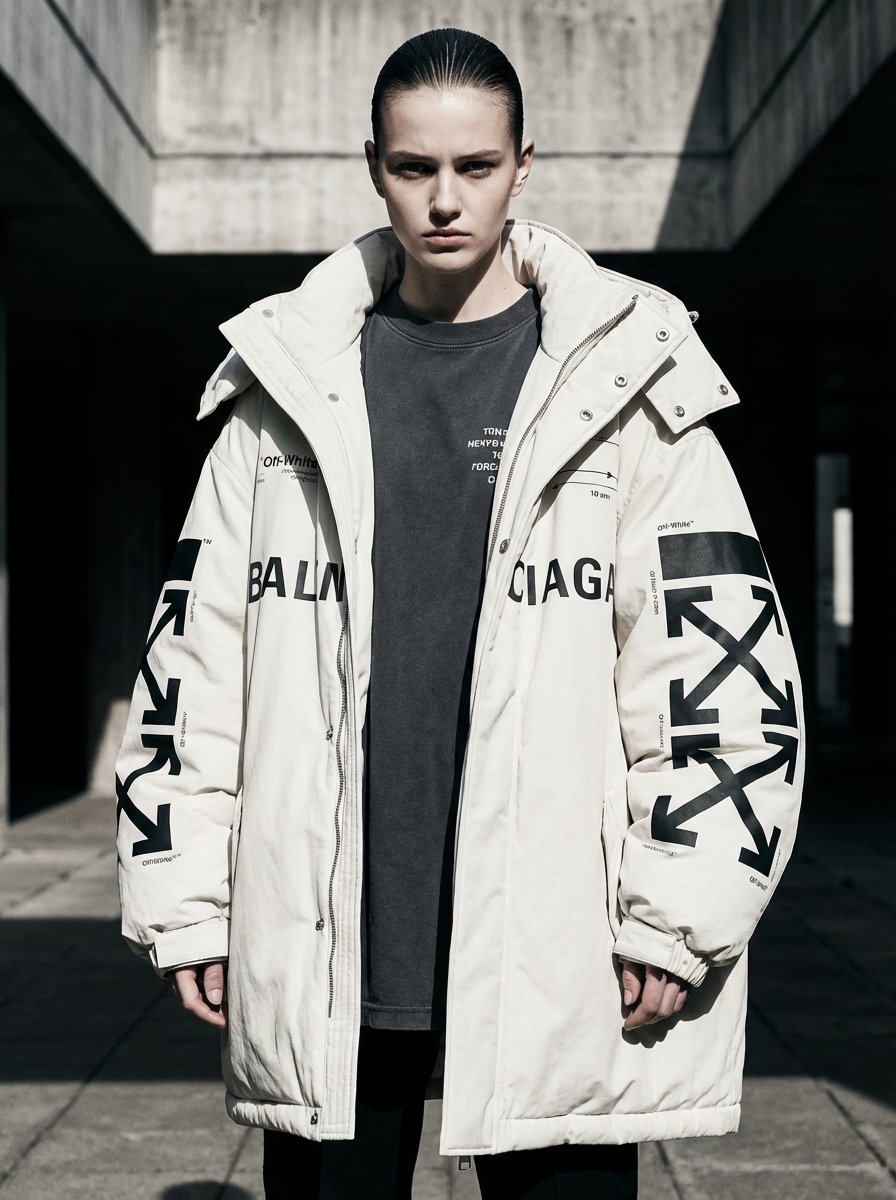
Off-White × Balenciaga Hypebeast Editorial
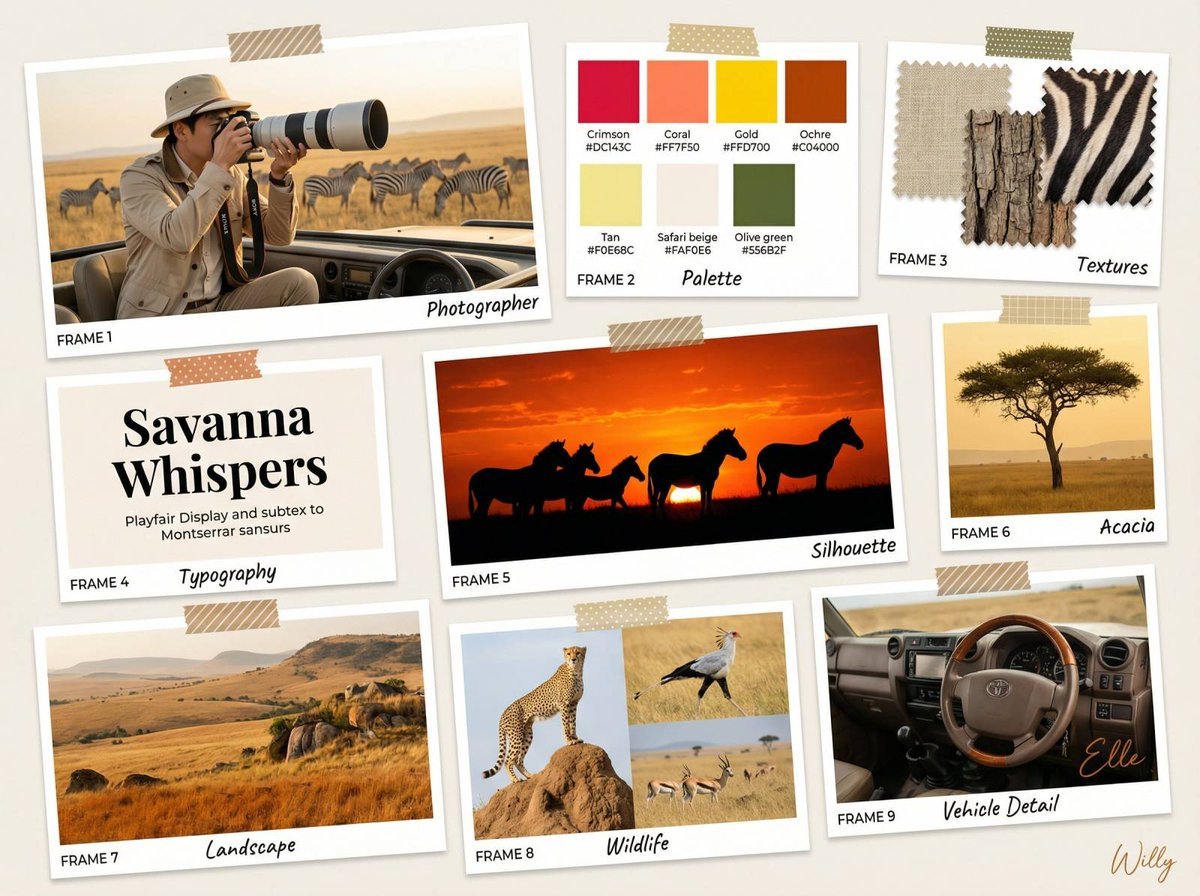
Wildlife Photographer Mood Board in African Savanna
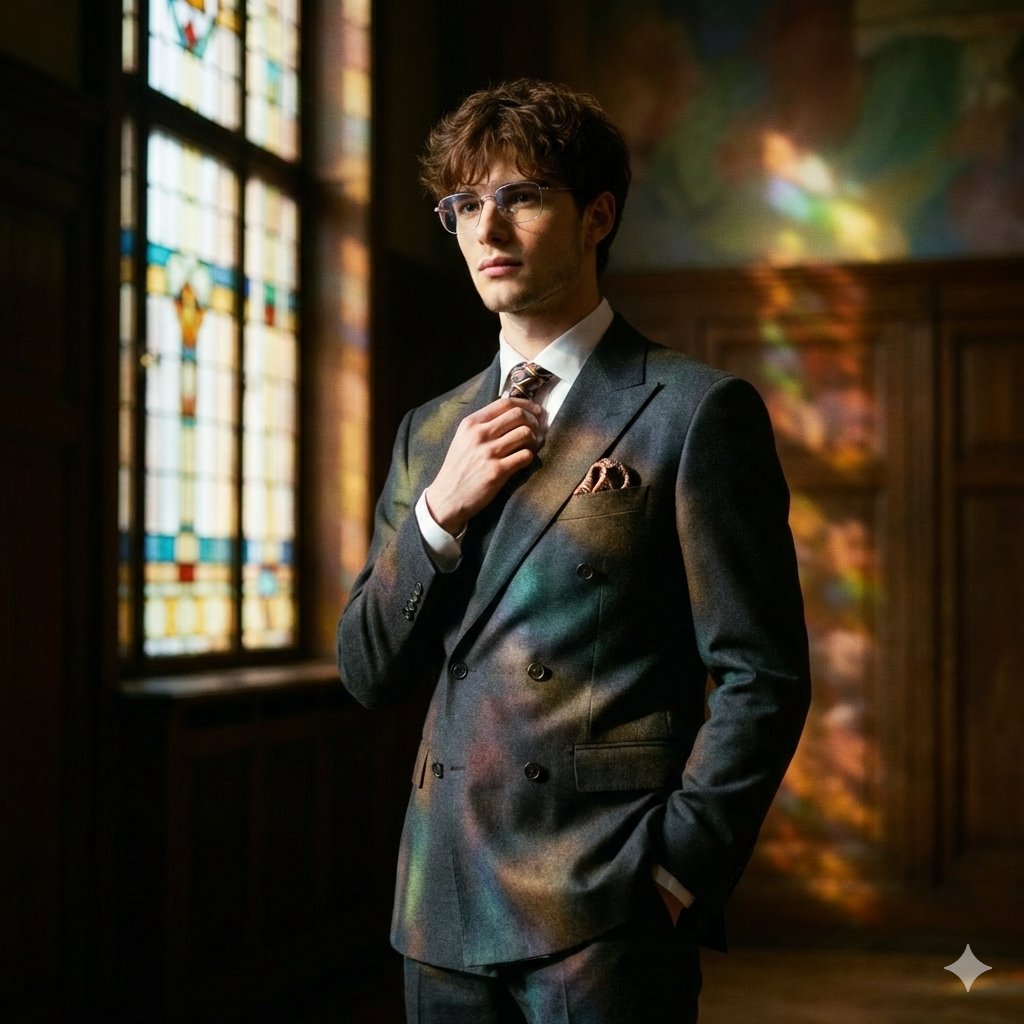
Retro Art Deco Suit Editorial
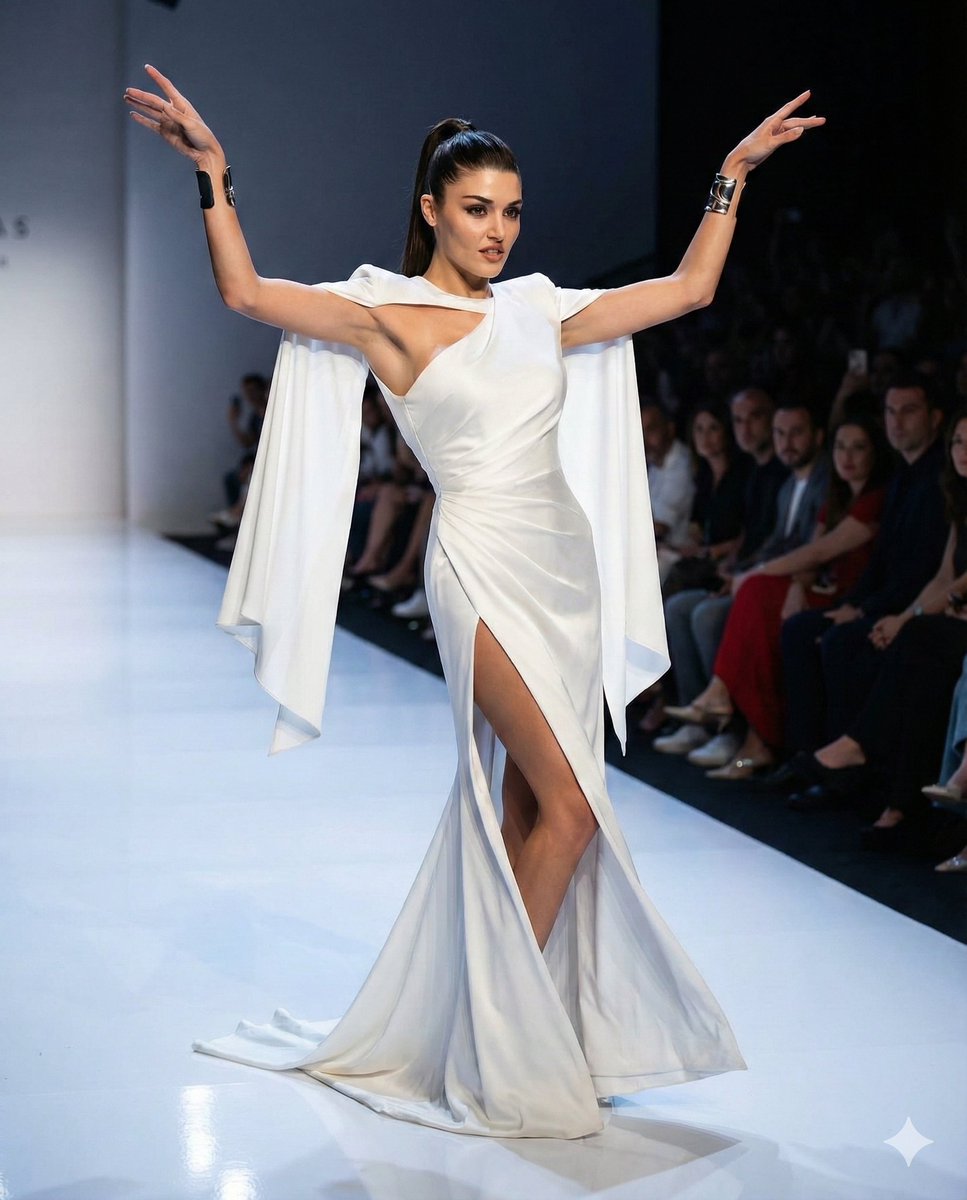
Couture Runway Fashion Editorial of Hande Ercel

iPhone Flash Aesthetic of Woman in Bowling Alley
Browse template categories
Colorize Historical Aerial Photo questions
How do I use the Colorize Historical Aerial Photo template?
Add your photo if the template asks for one, edit the prompt if you like — the template's model and format are already selected — and press Generate. Your version opens in PicX Studio.
Can I customize the Colorize Historical Aerial Photo template?
Yes. You can change the subject, setting, lighting, mood, format, and available model controls before creating your image.
Is the Colorize Historical Aerial Photo template free?
Opening and editing this template is free. Generating uses credits, shown on the Generate button when you are signed in.
Which AI model should I use?
Start with GPT Image 2, which is the model associated with this template. You can compare another compatible model for a different finish.
Looking for something else? Browse all templates.

Your photo, any look
Thousands of ready templates for every top image and video model, from one credit balance.