How do I use the Japanese Mecha Fast Food Storyboard template?
Choose the primary action to open PicX Studio with the available template settings. Review the model and format, personalize the creative direction, and generate when ready.
Generates an eight-panel anime-style Japanese TV commercial storyboard for a fast-food mecha robot campaign.
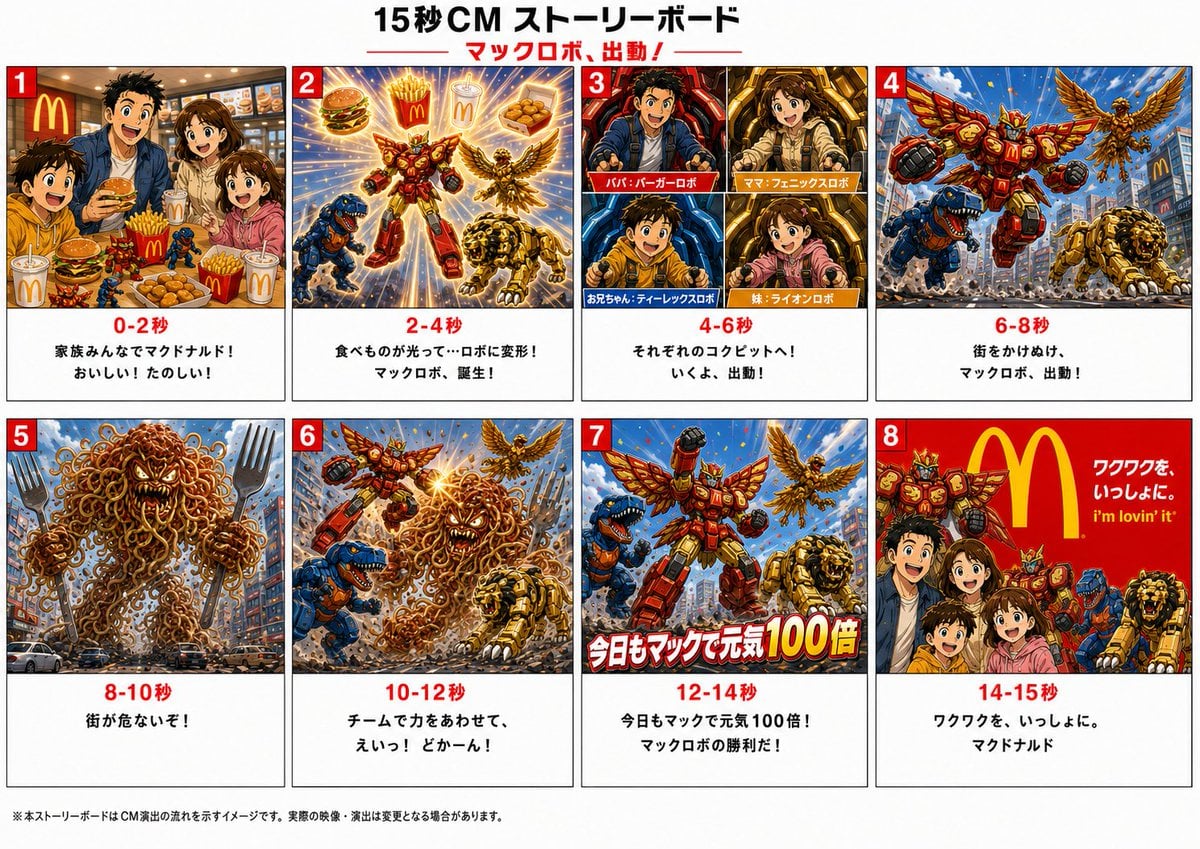
Goal: Create a colorful Japanese 15-second TV commercial storyboard for a fictional McDonald's-style superhero robot campaign, titled {argument name="headline text" default="15秒CM ストーリーボード"} with the red subheadline {argument name="subheadline text" default="マックロボ、出動!"}. Canvas: Landscape 16:9 presentation board on a white background, divided into exactly 8 bordered storyboard panels arranged in a 4-column by 2-row grid. Each panel has a red square number badge in the top-left corner, a vivid illustration area, and a white caption area underneath with red timecode text and black Japanese description text. Add a tiny black disclaimer line along the bottom edge. Visual style: High-energy Japanese anime commercial storyboard, toy-ad dynamism, saturated reds/yellows/blues, dramatic speed lines, sparks, explosions, city action, glossy mecha rendering, McDonald's-like golden arches branding, thick comic outlines, cinematic lighting. Use a polished generated-image look, not flat vector art. Main characters and motifs: A family of four eating fast food; their faces should appear intentionally blurred or masked for privacy. A team of exactly 4 transforming meal-themed robots: 1 red burger hero robot with wings, 1 blue dinosaur/T-rex robot, 1 golden lion robot, and 1 golden phoenix/eagle robot. Also show burgers, fries, nuggets, soft drinks, and a giant spaghetti/noodle monster made of curly noodles. Panel count and contents: Use exactly 8 panels. 1. Panel 1, timecode "0-2秒": The family of four sits at a McDonald's-like restaurant table full of burgers, fries, nuggets, drinks, and small toy robots. Caption: "家族みんなでマクドナルド! おいしい!たのしい!" 2. Panel 2, timecode "2-4秒": Fast food items burst into transformation energy and become the 4 robots: red burger robot, blue dinosaur robot, golden lion robot, golden phoenix robot. Caption: "食べものが光って…ロボに変形! マックロボ、誕生!" 3. Panel 3, timecode "4-6秒": A character introduction grid inside the panel, split into exactly 4 smaller portrait boxes labeled: "パパ:バーガーロボ", "ママ:フェニックスロボ", "お兄ちゃん:ティーレックスロボ", "妹:ライオンロボ". Caption: "それぞれのロボットへ! いくよ、出動!" 4. Panel 4, timecode "6-8秒": The robot team launches into a city street under a blue sky with a McDonald's sign in the background; red winged robot flies forward, other 3 robots run below. Caption: "街をかけぬけ、 マックロボ、出動!" 5. Panel 5, timecode "8-10秒": A huge angry spaghetti/noodle monster towers over city traffic, with forks and flying noodle strands around it. Caption: "街が危ないぞ!" 6. Panel 6, timecode "10-12秒": The 4 robots fight the noodle monster together in the city, with explosions, energy blasts, and dramatic motion. Caption: "チームで力をあわせて、 えいっ! とかーん!" 7. Panel 7, timecode "12-14秒": Victory pose of the 4 robots in the city, red robot centered with wings spread, celebratory red-and-white Japanese impact text across the image: {argument name="impact slogan" default="今日もマックで元気100倍"}. Caption: "今日もマックで元気100倍! マックロボの勝利だ!" 8. Panel 8, timecode "14-15秒": Final brand end card: bright red background with a large yellow McDonald's-style golden arch logo, the family of four and the 4 robots posing together, plus white/yellow slogan text {argument name="end card slogan" default="ワクワクを、いっしょに。 I'm lovin' it"}. Caption: "ワクワクを、いっしょに。 マクドナルド" Text and layout constraints: Keep all visible title, timecodes, panel numbers, and captions in Japanese exactly as specified. Use bold red timecodes centered under each image. Ensure the 8 panels are clearly separated by thin black borders. Do not add extra panels, extra robots, QR codes, watermarks, or unrelated logos beyond the McDonald's-inspired golden arches visual language.
Choose the primary action to open PicX Studio with the available template settings. Review the model and format, personalize the creative direction, and generate when ready.
Yes. You can change the subject, setting, lighting, mood, format, and available model controls before creating your image.
This template is free to open and customize. Generation usage is shown in PicX Studio before you create.
Start with GPT Image 2, which is the model associated with this template. You can compare another compatible model for a different finish.
Follow a topic to a crawlable collection of related PicX Studio templates.