
Editable Matcha Banner in PowerPoint
Generates a realistic Japanese PowerPoint editing screenshot featuring a premium editable matcha latte banner advertisement.
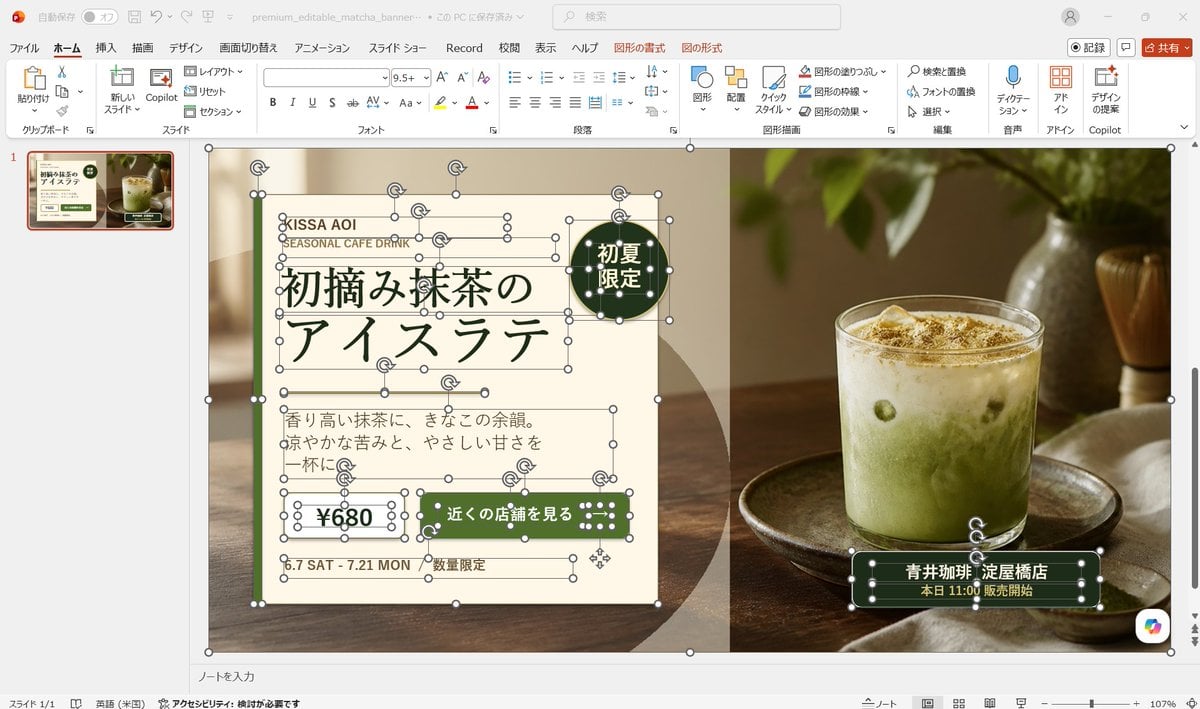
- Prompt included
- Model and format preset
- Free template
The prompt behind this image
Copy the exact prompt behind Editable Matcha Banner in PowerPoint, or open it in the studio and make it yours.
Goal: Create a realistic desktop screenshot of Microsoft PowerPoint in Japanese, showing an editable banner advertisement design for a matcha drink. The scene should look like the banner is being built from separate selectable PowerPoint objects, with many resize handles, rotation icons, and bounding boxes visible. Canvas: 16:9 widescreen screenshot, approximately 1200×675 px, with the full PowerPoint application window visible. Use a light gray Windows/Office interface, Japanese ribbon labels, one slide thumbnail on the left, the main slide centered, status bar at the bottom, and a zoom level around 107%. PowerPoint interface: Show the Home tab active with Japanese menu items across the top such as File, Home, Insert, Draw, Design, Transitions, Animations, Slide Show, Record, Review, View, Help, plus contextual Shape Format and Picture Format tabs. Include a search box near the top, a red Share button at top right, and a single slide thumbnail in the left navigation pane. The filename area should suggest a saved presentation named similar to “premium_editable_matcha_banner”. Main slide layout: The slide itself is a premium café banner split into two visual halves. The left half is a cream paper-like advertisement panel over a warm blurred café/table background, and the right half is a close-up photo of an iced matcha latte in a clear glass on a wooden tray, with soft natural window light, green leaves above, a bamboo whisk in the background, and warm brown tones. Add a subtle vertical division between the cream text panel and the photo. Use a dark green, cream, beige, and warm wood color palette. Visible editable objects: Show many individual PowerPoint selection boxes and handles on the banner, as if almost every text box, line, shape, icon, and photo is selected or editable. Include white circular resize handles, rotation arrows, thin gray bounding boxes, and overlapping object outlines. Count and show exactly 13 selected/editable object groups: 1 large slide background/image frame, 1 cream left panel, 1 small brand text group, 1 English subtitle text box, 1 large Japanese headline text group, 1 round dark-green badge, 1 description paragraph text box, 1 price box, 1 green call-to-action button, 1 date text box, 1 limited-quantity text box, 1 store information label on the photo, and 1 small dotted decorative icon group. Text content on the banner: Preserve Japanese text accurately where visible. Brand area: “KISSA AOI” and “SEASONAL CAFE DRINK”. Main headline: “初摘み抹茶の” on the first line and “アイスラテ” on the second line. Round badge: “初夏限定”. Description paragraph: “香り高い抹茶に、きなこの余韻。涼やかな苦みと、やさしい甘さを一杯に。” Price: “¥680”. CTA button: “近くの店舗を見る”. Date: “6.7 SAT - 7.21 MON”. Small note: “数量限定”. Store label over the photo: “青井珈琲 淀屋橋店” and below it “本日 11:00 販売開始”. Design details: Use elegant Japanese typography with a dark forest-green headline, thin decorative horizontal rules around the headline, cream rectangles with fine green borders, rounded dark-green buttons, and small dotted white decorations on green shapes. The badge should be a dark-green circle near the upper right of the cream panel. The store label should be a dark-green rounded rectangle near the bottom right of the drink photo. The overall ad should feel premium, calm, seasonal, and café-like. Customization slots: Use the drink concept as {argument name="drink name" default="初摘み抹茶のアイスラテ"}, brand as {argument name="brand name" default="KISSA AOI"}, price as {argument name="price" default="¥680"}, CTA as {argument name="call to action" default="近くの店舗を見る"}, and store as {argument name="store name" default="青井珈琲 淀屋橋店"}. Constraints: Make it a screenshot of PowerPoint, not a clean exported poster. Keep the editing handles and object outlines highly visible. Do not add extra slides, extra products, watermarks, or unrelated UI panels. Keep the photo realistic and the ad elements editable-looking rather than flattened.
How to use Editable Matcha Banner in PowerPoint in 3 steps
- 1Upload ImagePNG, JPG or paste
Add your photo
Upload the photo the template builds on. The prompt, model and format are already set.
- 2…a portrait of your subject in softgolden-hour light, 85mm…
Personalize
Edit the subject and creative details for your destination.
- 3Generate
Generate
Press Generate — your image is created in PicX Studio, so you can compare it with the original and refine one variable at a time.
More like this
Templates with the same subject, style or setup. Open one to see its prompt.
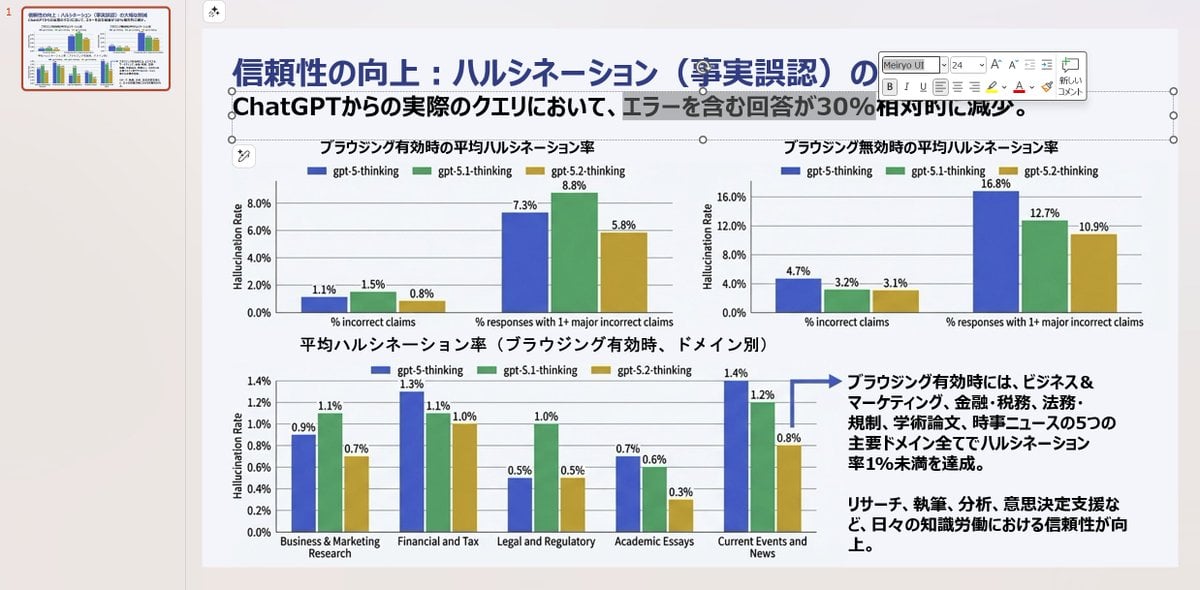
Convert Image to Editable PowerPoint Slide Prompt
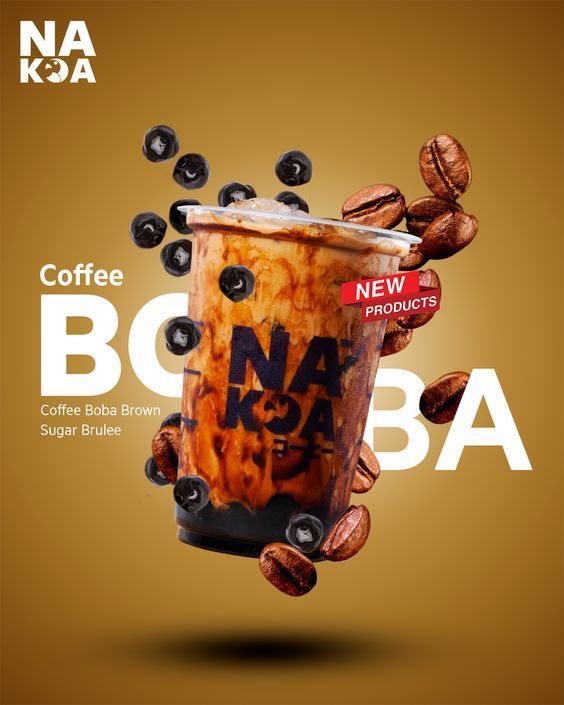
Coffee Boba Product Poster
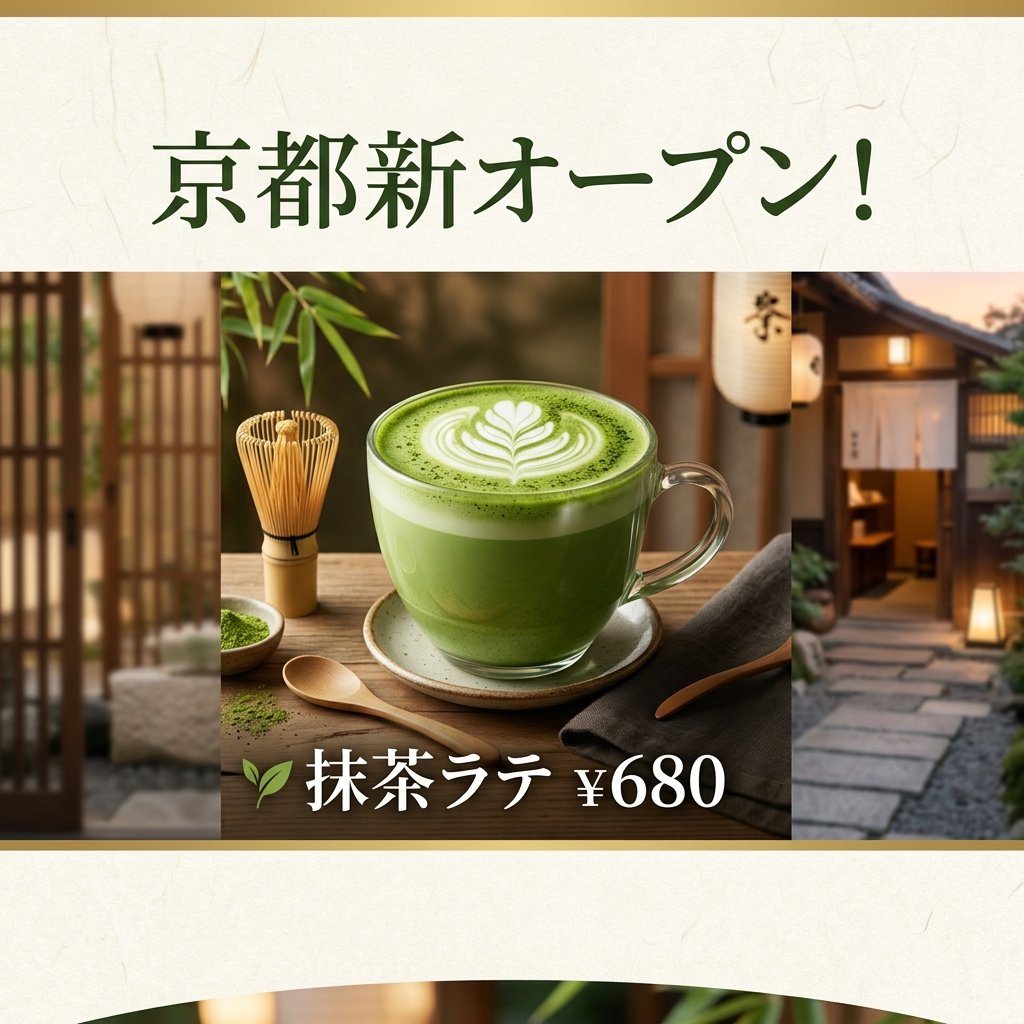
Matcha Latte Promotion Banner
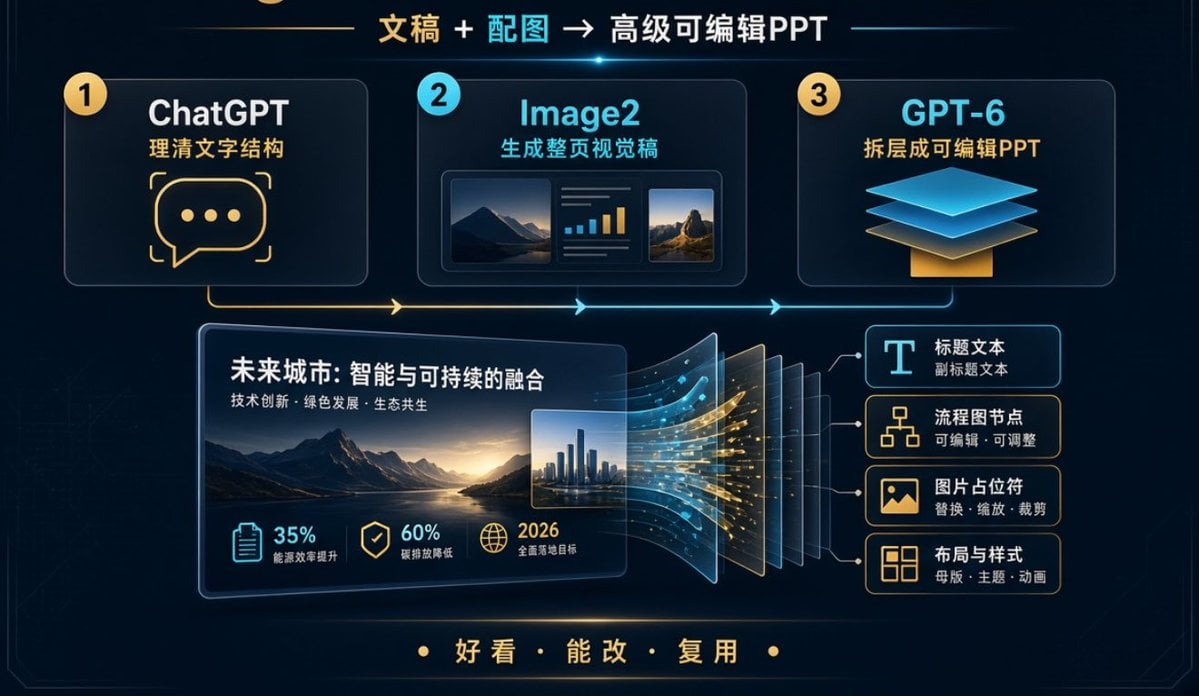
Editable PPT Workflow Infographic
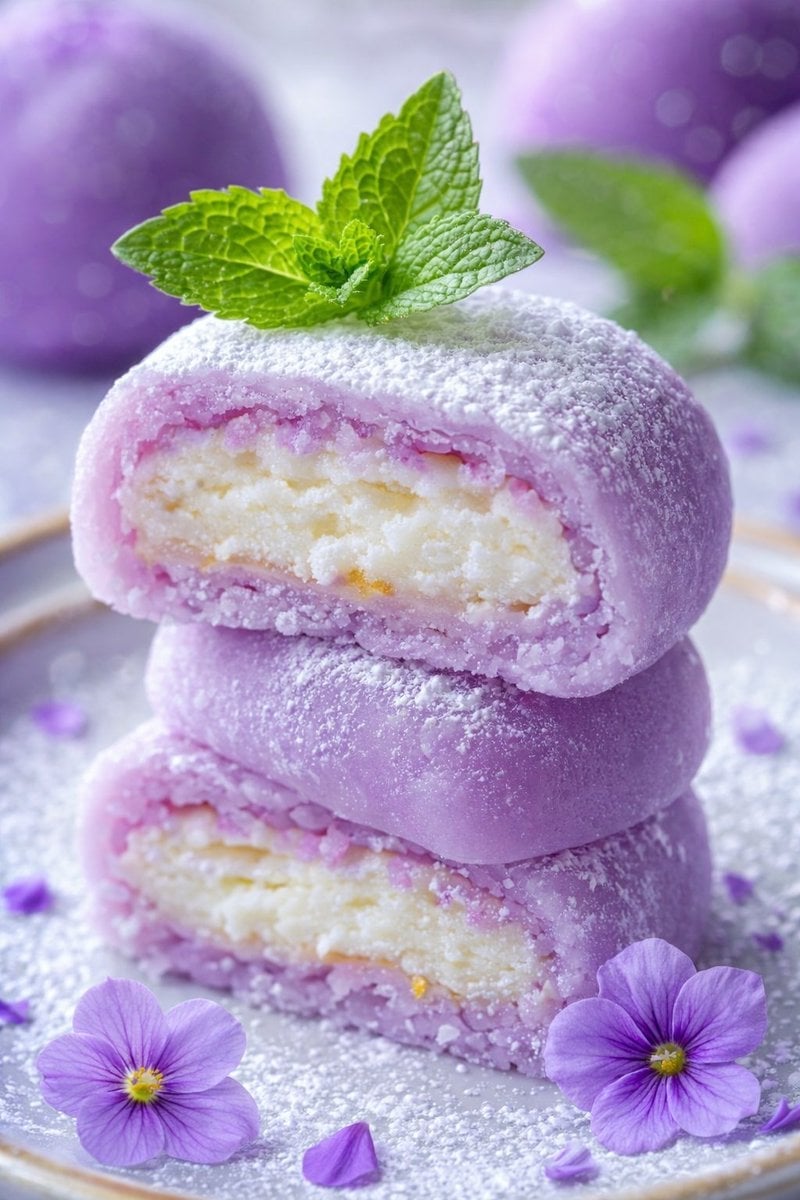
Highly reflective, thick, slow-dripping matcha glaze
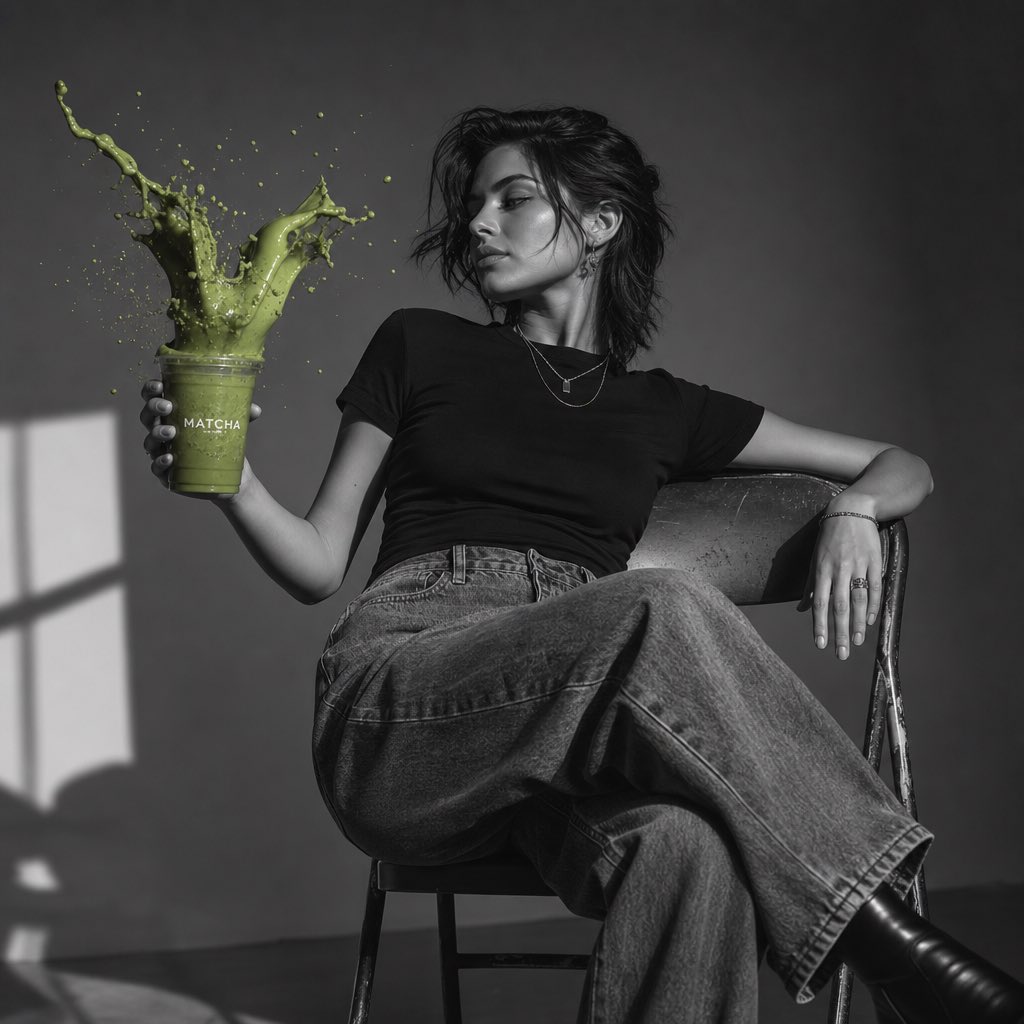
Matcha Splash Fashion Portrait
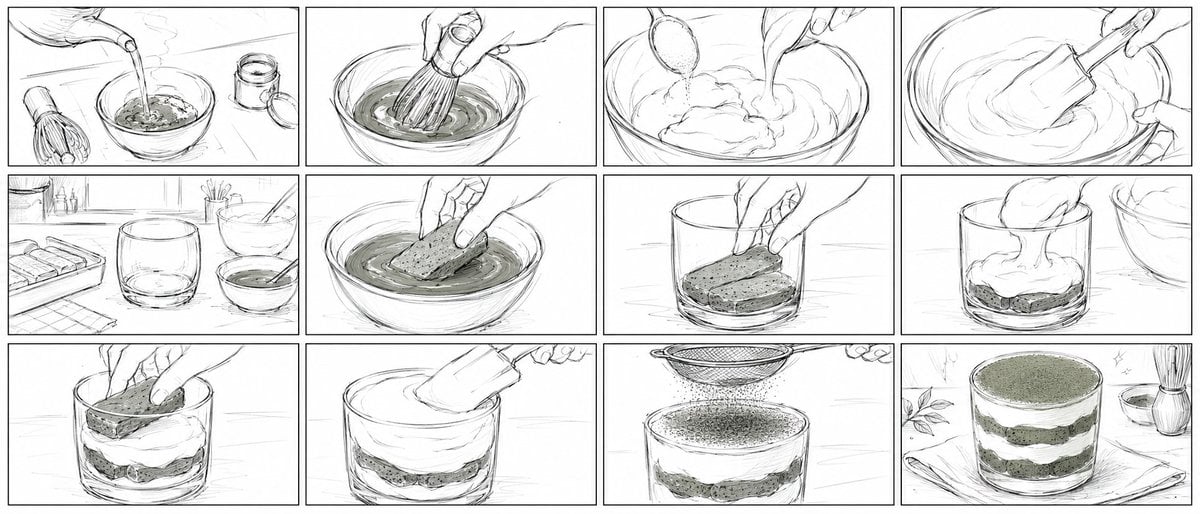
Matcha Tiramisu Anime Storyboard
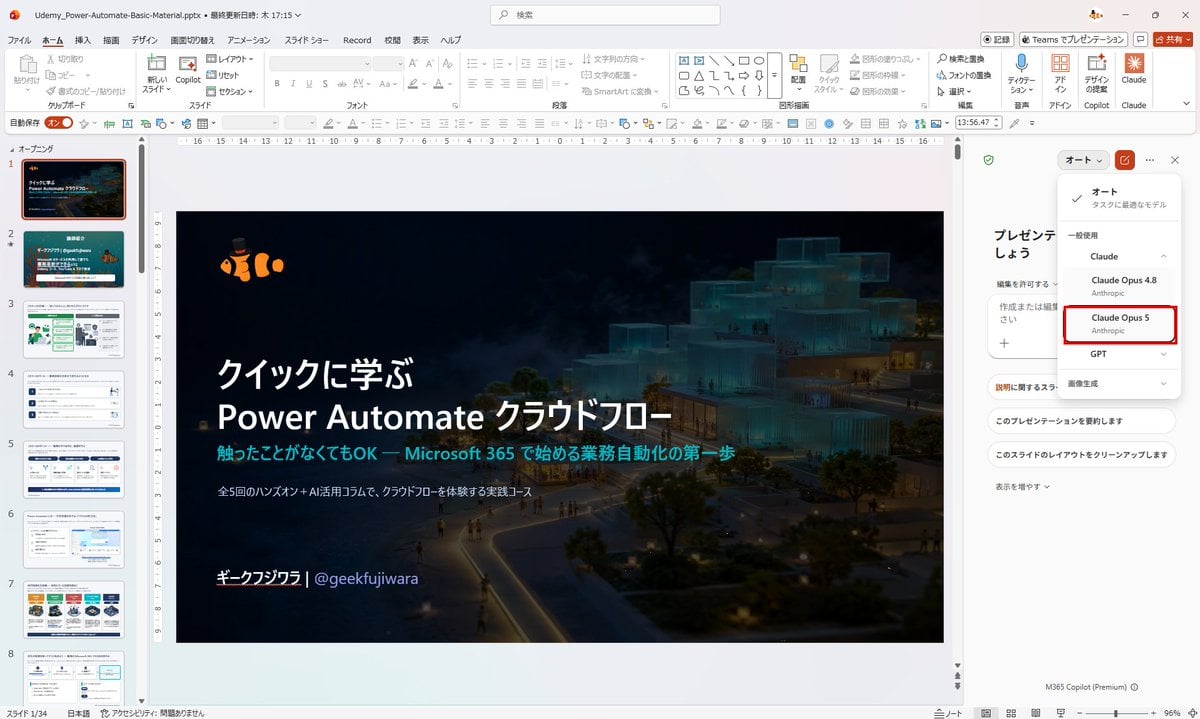
Japanese PowerPoint Claude Opus 5 Screenshot
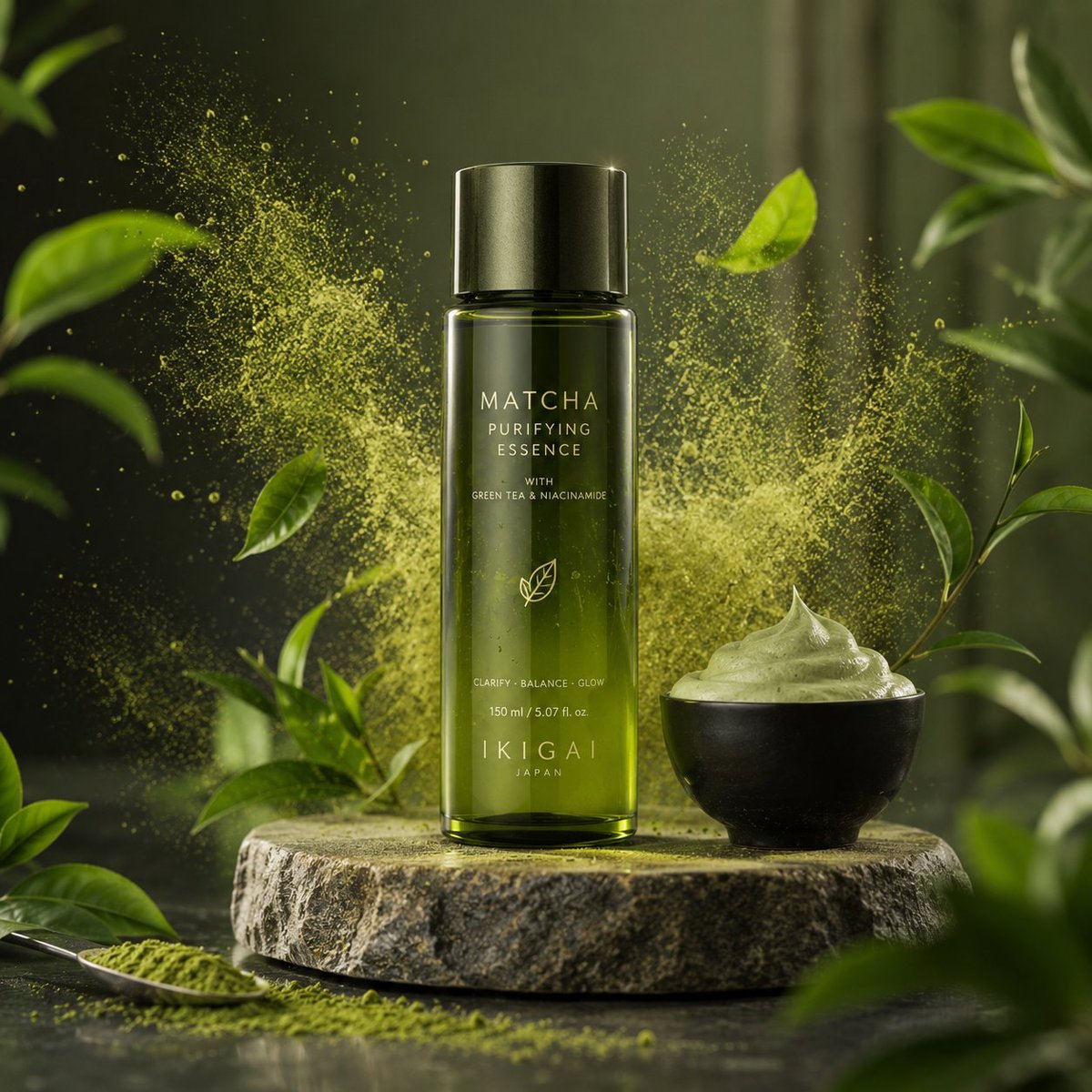
Matcha Skincare Product Ad
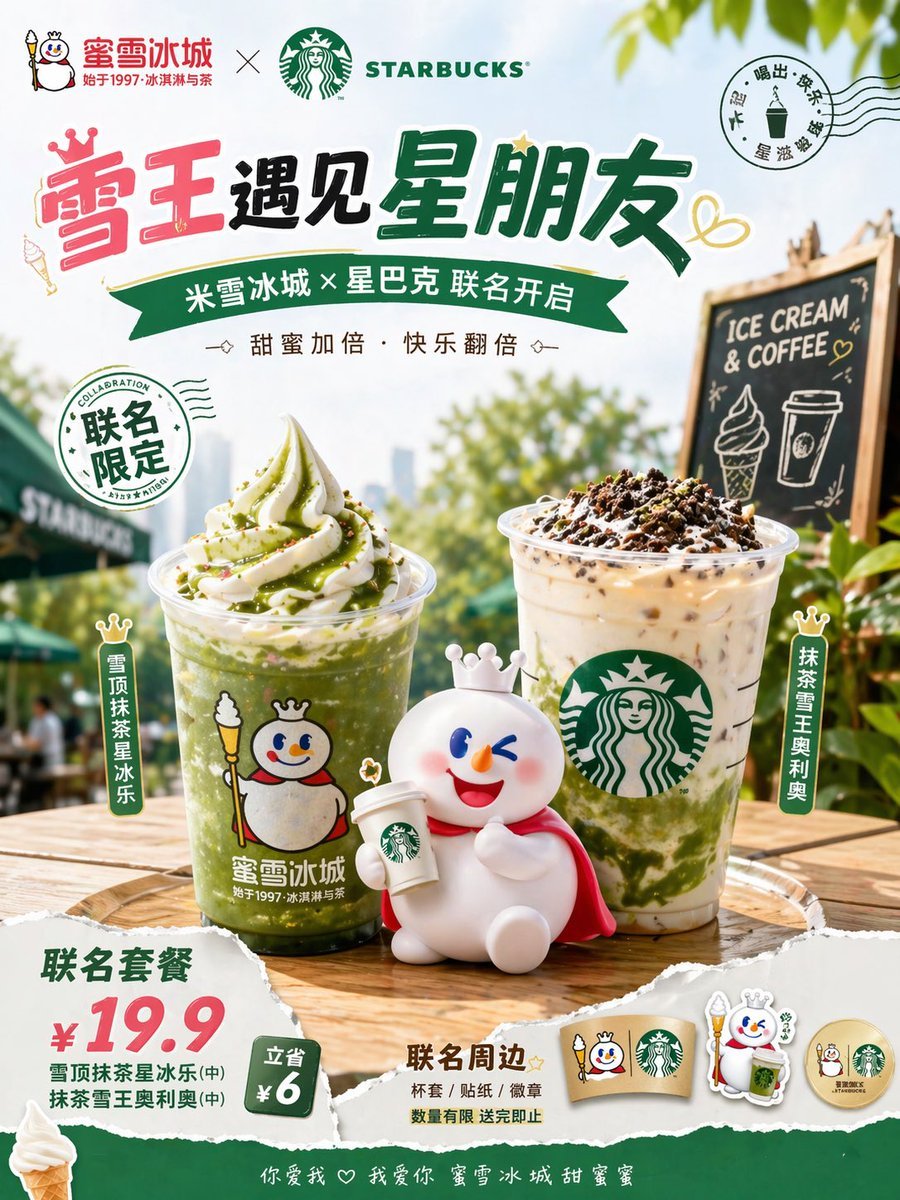
Mixue x Starbucks Matcha Promo Poster
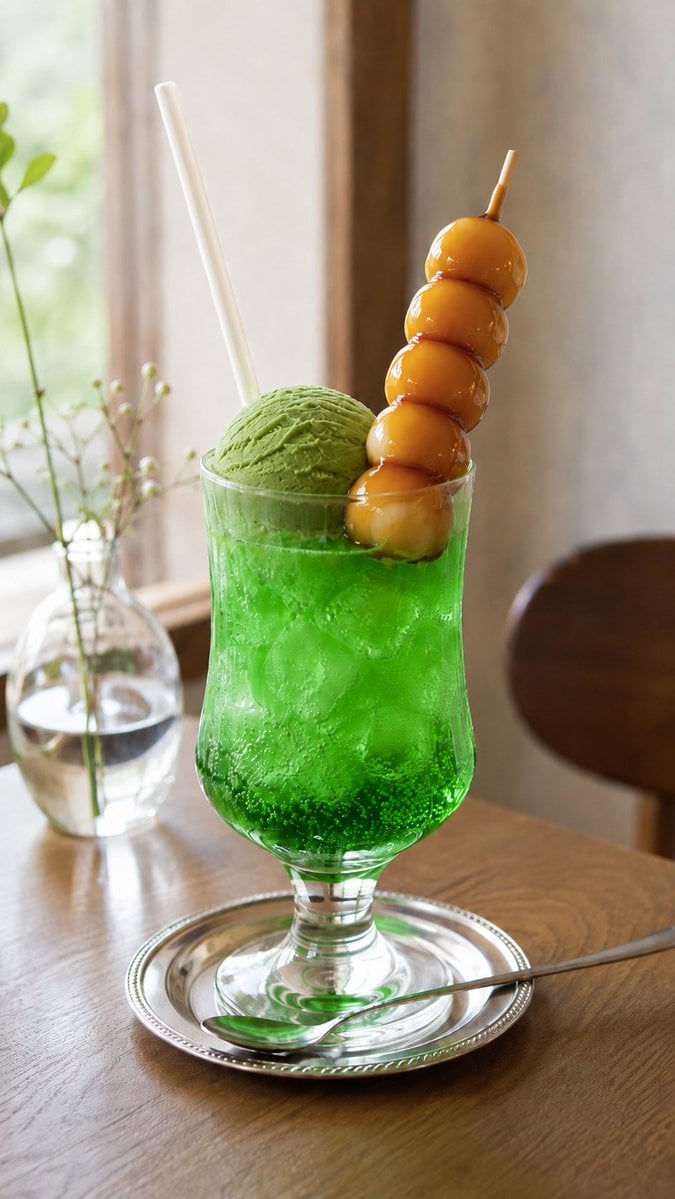
Matcha Ice Cream Dessert Swap
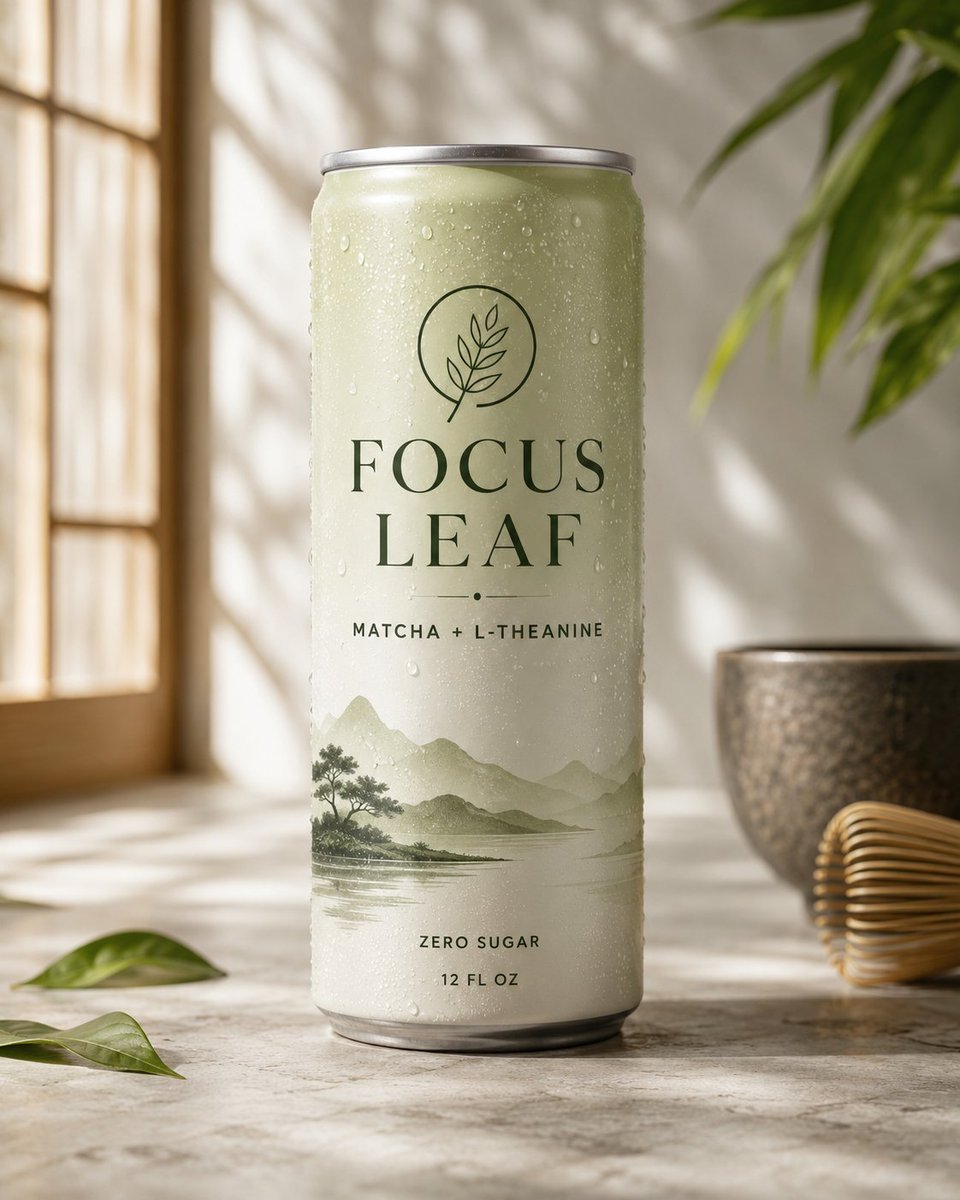
Premium Matcha Drink Packaging Mockup
Make it yours
Editable Matcha Banner in PowerPoint works as-is. These are the safest ways to change it without losing the look.
Change one field
Copy a single group, rewrite it, and generate again so you can see what that field is doing.
Keep the frame, change the subject
Hold the composition and light of Editable Matcha Banner in PowerPoint, then swap wardrobe, props or the person for a new take.
| If the result… | Why | Fix |
|---|---|---|
| The result drifts from the preview | Too many fields changed at once. | Reuse Editable Matcha Banner in PowerPoint as-is first, then change one group — subject, light, or setting. |
| The model over-stylizes the scene | The prose prompt leaves finish and camera underspecified. | Add one camera or lighting sentence and stay on GPT Image 2. |
More GPT Image 2 templates
Other prompts made for GPT Image 2.

Six VTuber Japanese Logo Sheet

Realistic Portrait of Woman and Deer

The Vista Modular Condo Poster

AI Model Routing Comparison Infographic

2.5D Anime Art Board

Isometric Productivity Desk Scene

New York Double Exposure Poster

Four-Panel AI Landscape Comparison

Japanese Tatami Lifestyle Magazine Cover

NESCAFÉ Coffee Map Poster
More image prompts
Fresh picks from across the catalog.
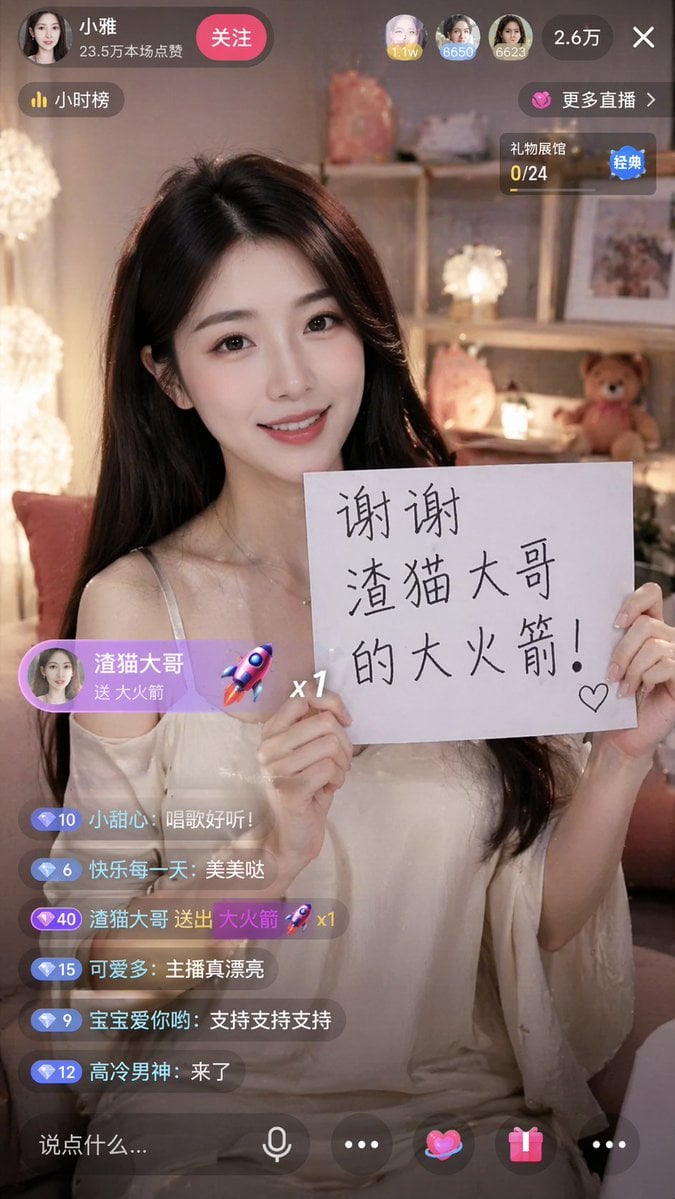
Live Stream App Screenshot Generator
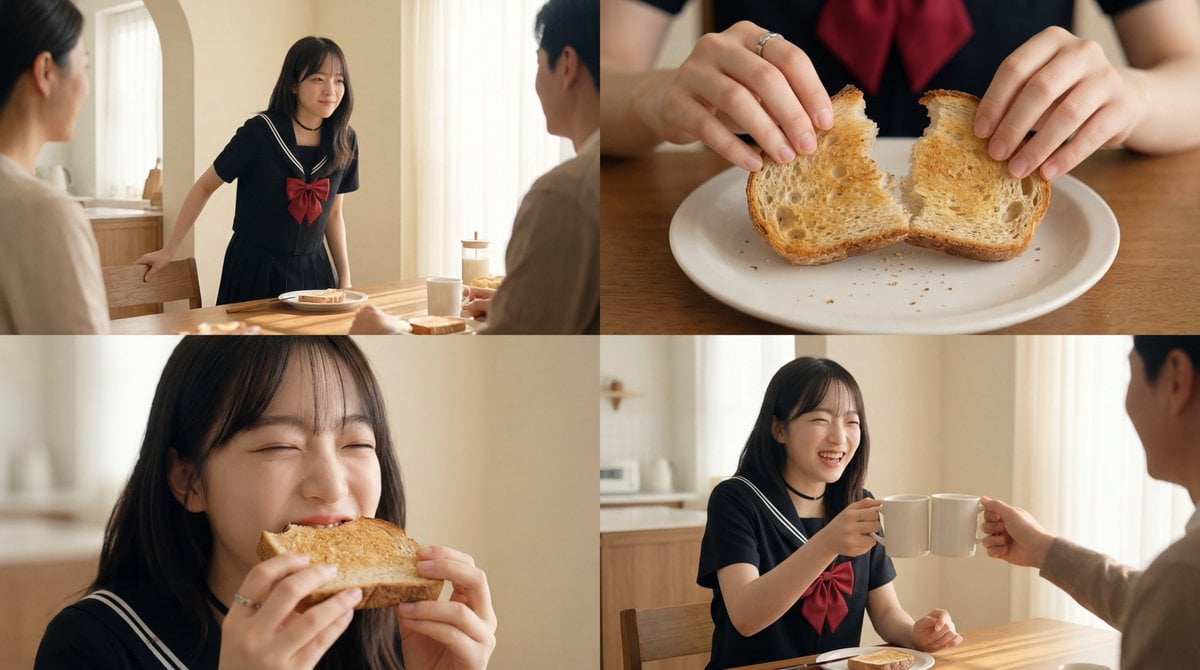
Cinematic Breakfast Scene

High-Fashion Christmas Portrait with Holiday Sophistication
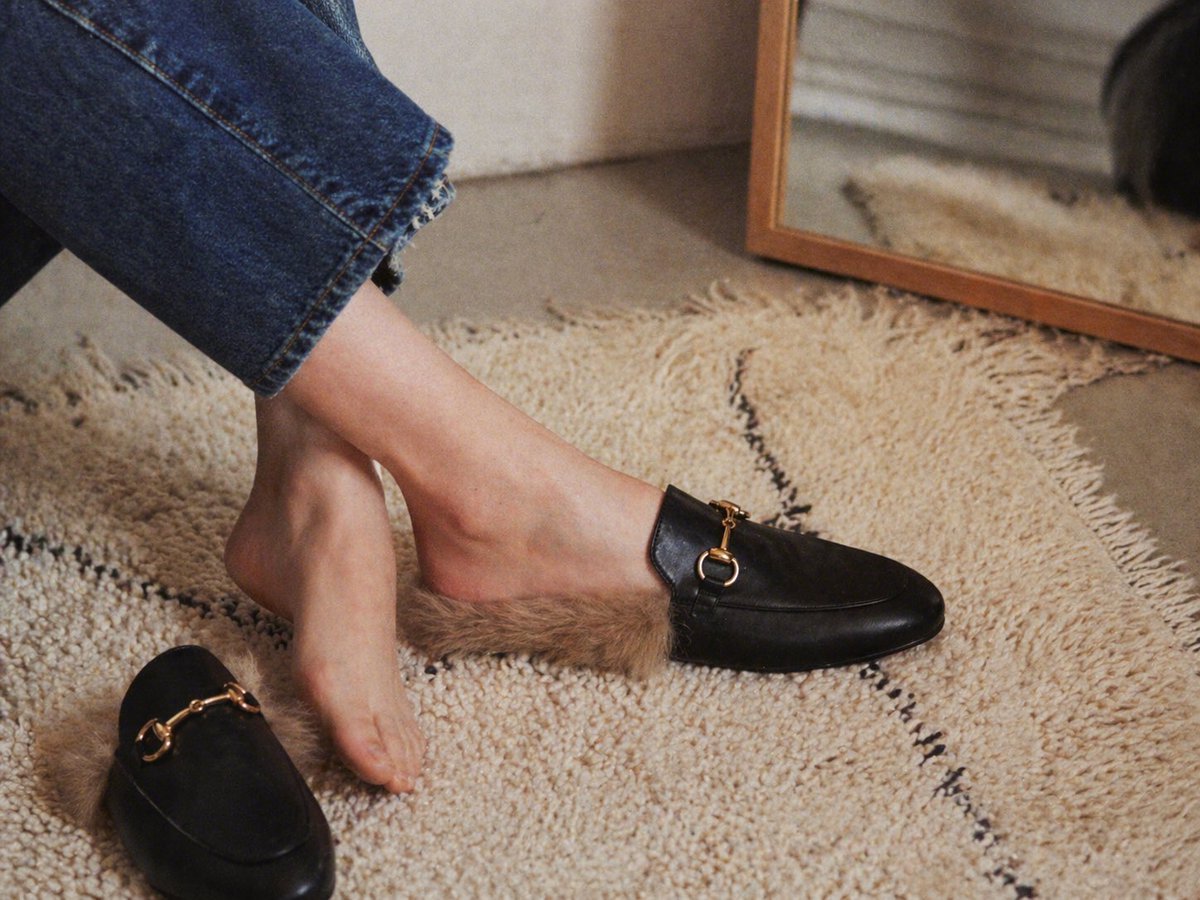
Gpt2 E Commerce Main Image Luxury Fur Lined Loafer Lifestyle Photo
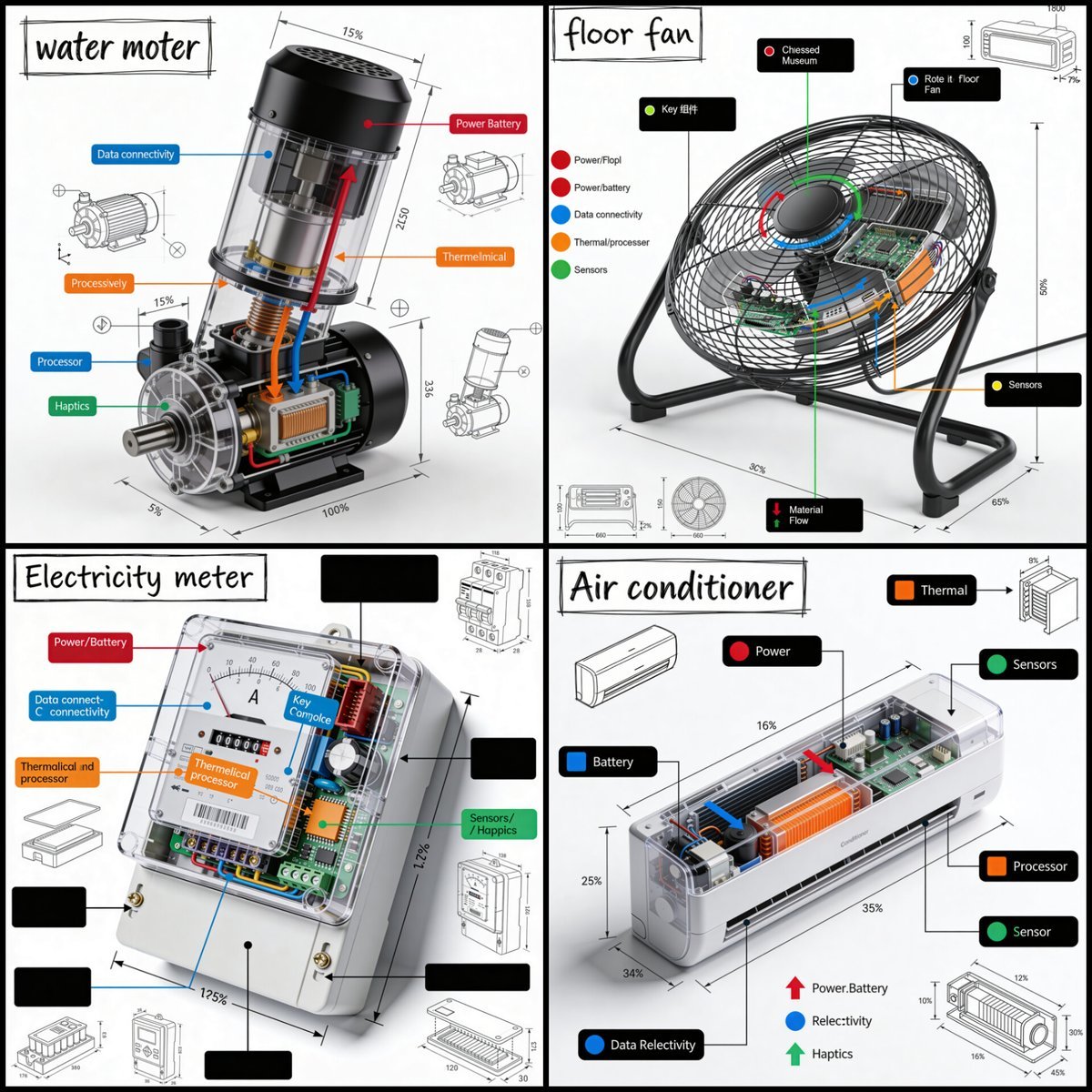
Technical Product Teardown Infographic
Cinematic Close-Up at an Electronic Music Festival
Miniature Industrial Scene on Luxury Products (Coca-Cola & Chanel)
Glass AI Orb in a Garden

Masked Wrestler Staredown
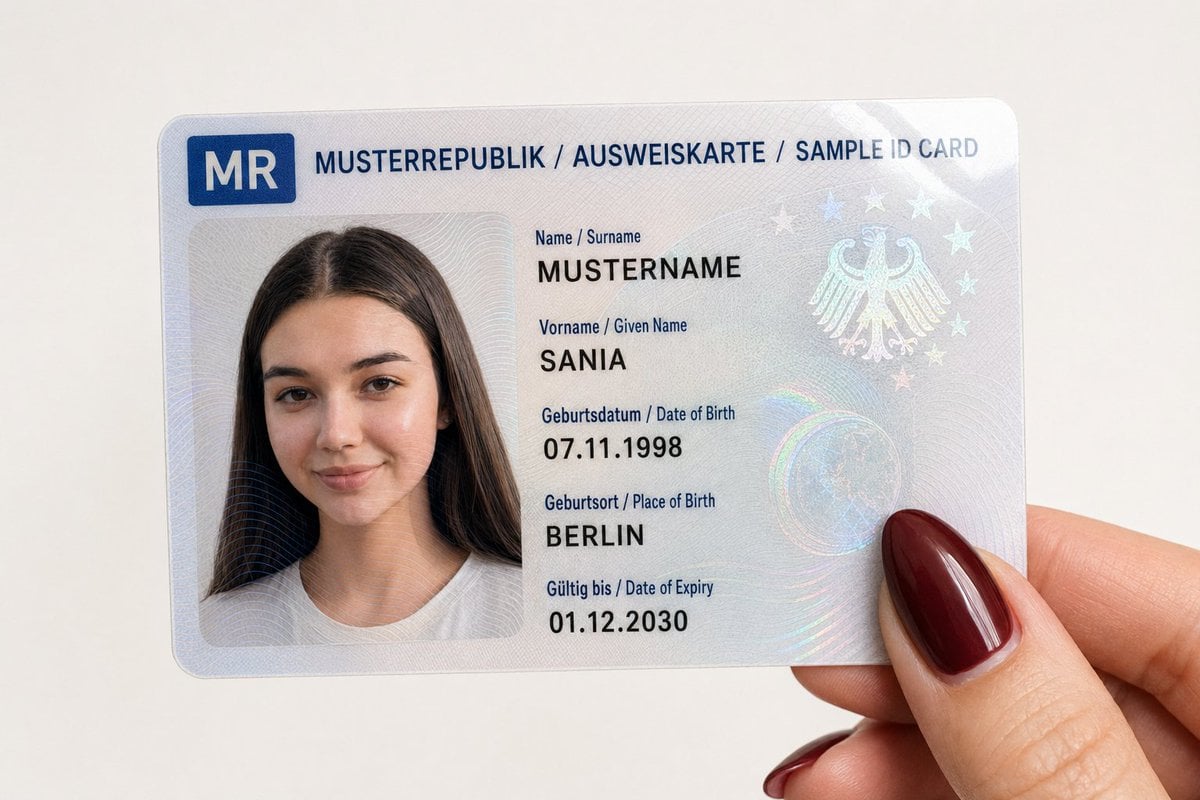
Personalized Sample ID Card Generation
Browse template categories
Editable Matcha Banner in PowerPoint questions
How do I use the Editable Matcha Banner in PowerPoint template?
Add your photo if the template asks for one, edit the prompt if you like — the template's model and format are already selected — and press Generate. Your version opens in PicX Studio.
Can I customize the Editable Matcha Banner in PowerPoint template?
Yes. You can change the subject, setting, lighting, mood, format, and available model controls before creating your image.
Is the Editable Matcha Banner in PowerPoint template free?
Opening and editing this template is free. Generating uses credits, shown on the Generate button when you are signed in.
Which AI model should I use?
Start with GPT Image 2, which is the model associated with this template. You can compare another compatible model for a different finish.
Looking for something else? Browse all templates.

Your photo, any look
Thousands of ready templates for every top image and video model, from one credit balance.