
Technical Product Teardown Infographic
A sophisticated prompt for creating professional technical infographics that blend realistic product renders with detailed engineering annotations, perfect for manuals or educational content.
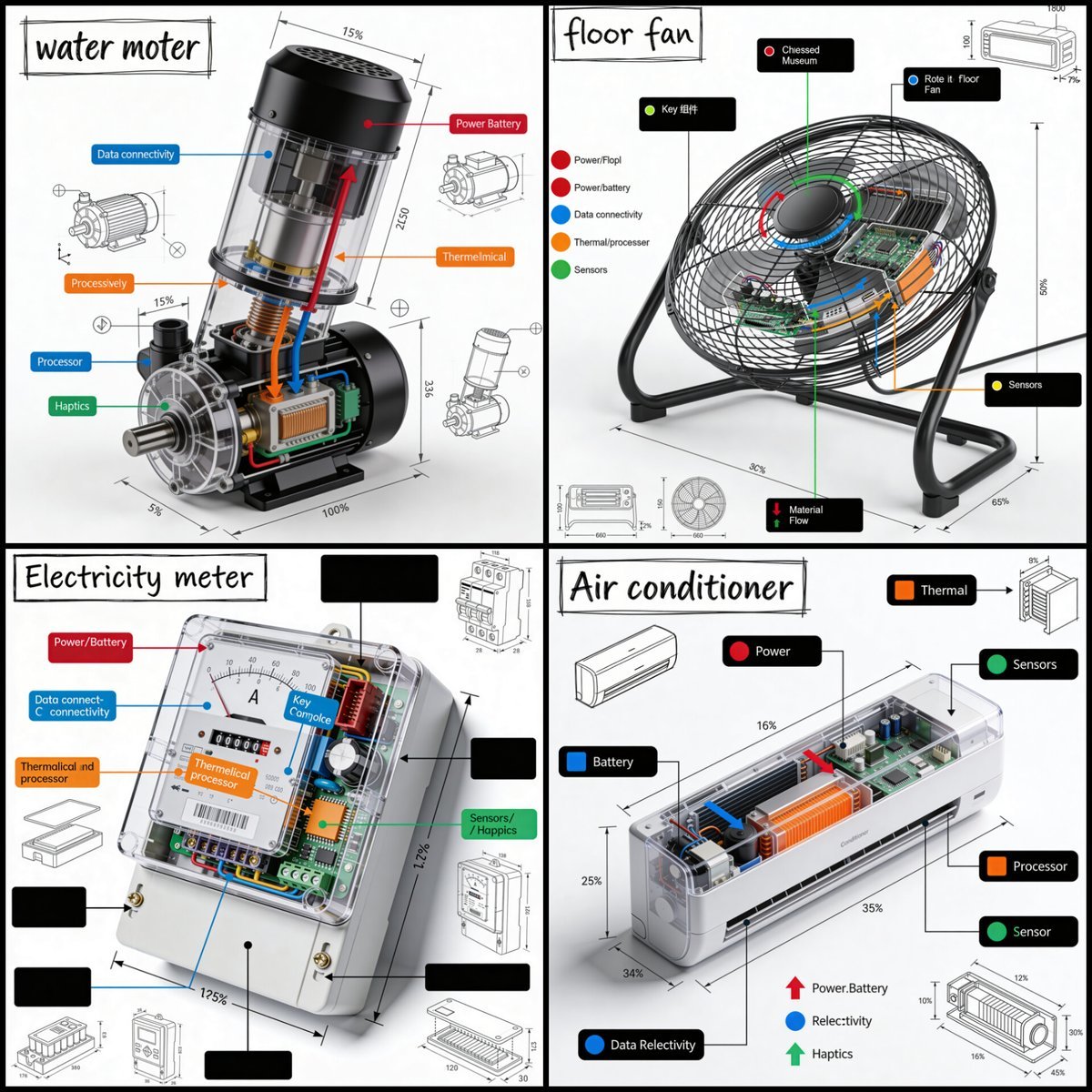
- Prompt included
- Model and format preset
- Free template
The prompt behind this image
Copy the exact prompt behind Technical Product Teardown Infographic, or open it in the studio and make it yours.
Create a square 1080x1080 technical infographic for {argument name="object" default="OBJECT"}, shown from a 45-degree isometric 3D angle so the object is slightly tilted and its depth, dimensions, and internal architecture are easy to read. Blend a realistic photoreal product render with precise black-ink engineering annotations on a pure white background. Include labeled key components with color-coded callout boxes, transparent or cutaway areas that reveal internal parts, exact measurements and scale markers, material notes with quantities, and function-flow arrows using red for power or battery, blue for data or connectivity, orange for thermal or processor systems, and green for sensors or haptics. Add small schematic views or cross-section diagrams wherever they help explain the object. Place the title "{argument name="object title" default="OBJECT"}" inside a hand-drawn technical label box in the top-left corner. Style the artwork like a professional product teardown manual with architectural pen linework: sketched but accurate, clean, crisp, and educational. Keep the object clearly visible, use balanced negative space, make black the dominant color, and limit accents to about 10-15% of the composition. Overall mood: clean museum exhibit, premium engineering manual, ultra-crisp social-feed infographic, white background, sharp details, high clarity.
How to use Technical Product Teardown Infographic in 3 steps
- 1
Open
The prompt is already in the box next to the preview, with the template's model and format selected.
- 2…a portrait of your subject in softgolden-hour light, 85mm…
Personalize
Edit the subject and creative details for your destination.
- 3Generate
Generate
Press Generate — your image is created in PicX Studio, so you can compare it with the original and refine one variable at a time.
More like this
Templates with the same subject, style or setup. Open one to see its prompt.

Isometric Vehicle Teardown Infographic Template
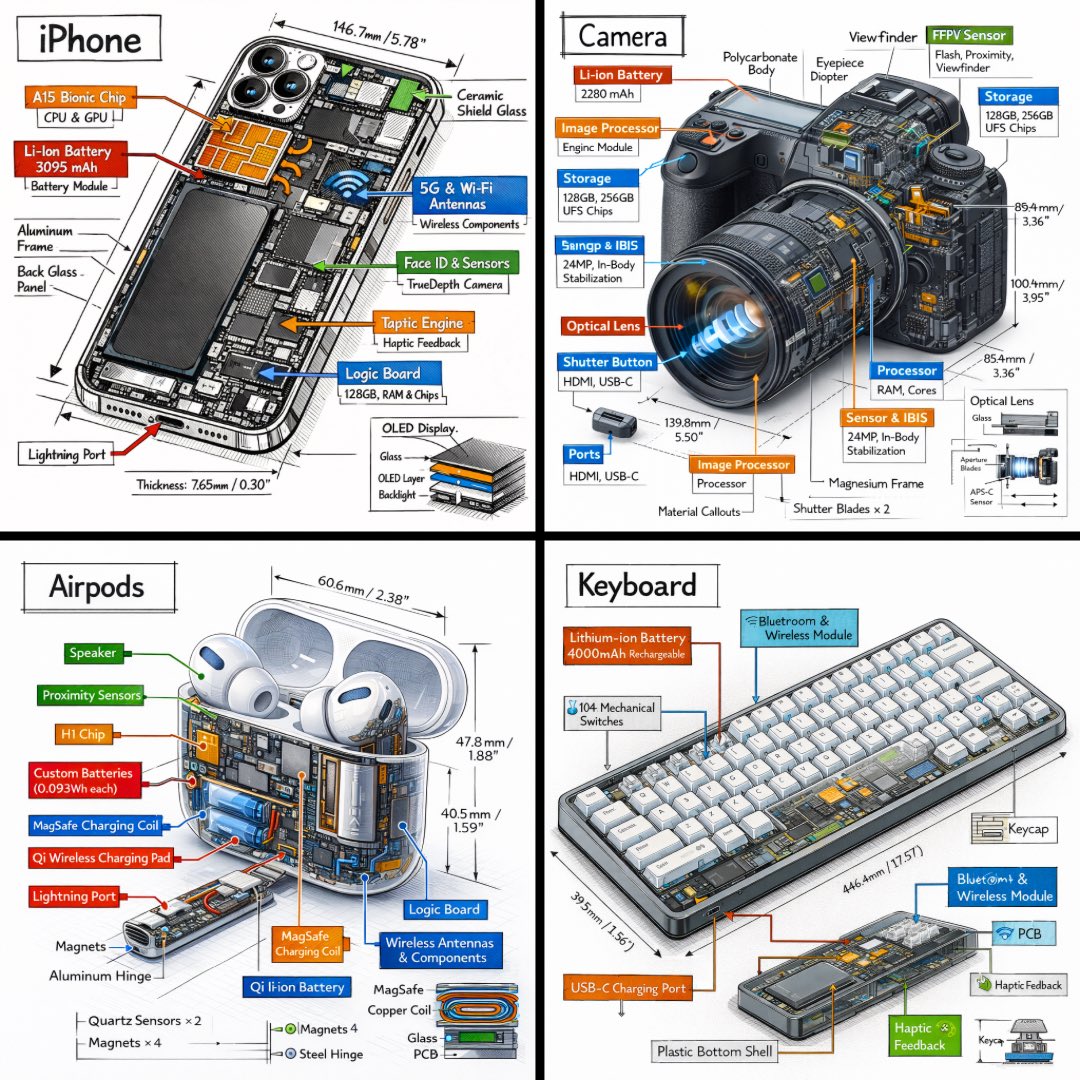
Technical Isometric Teardown Infographic

Japan Travel Brochure Poster

A k.pop idol on the stage with mic

Trendy Cafe Drink Promo Poster
Minimalist Skincare Product Water Stone Still

Giant Forced Perspective Street Product Selfie
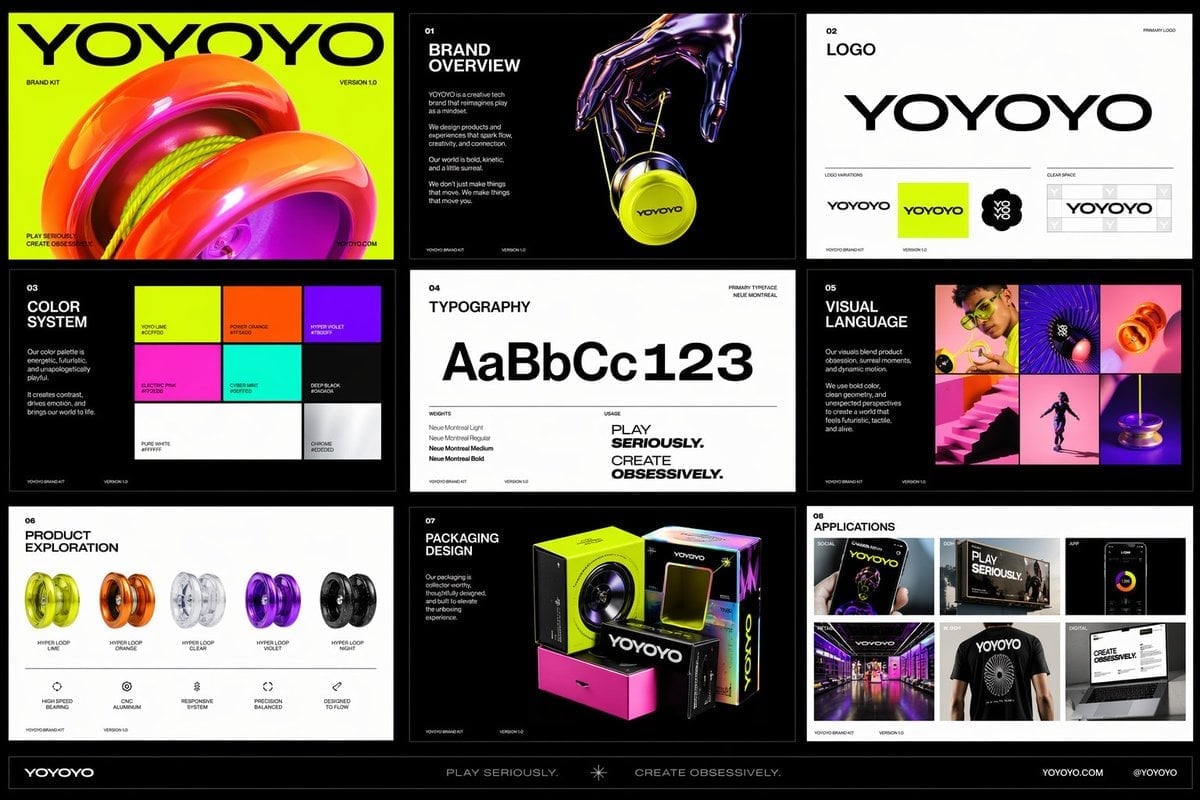
Playful Futuristic Brand Kit Board

Headphones Lifestyle Nine Panel Grid

Isometric Process Educational Diorama

Cappuccino Bottle Splash Product Ad
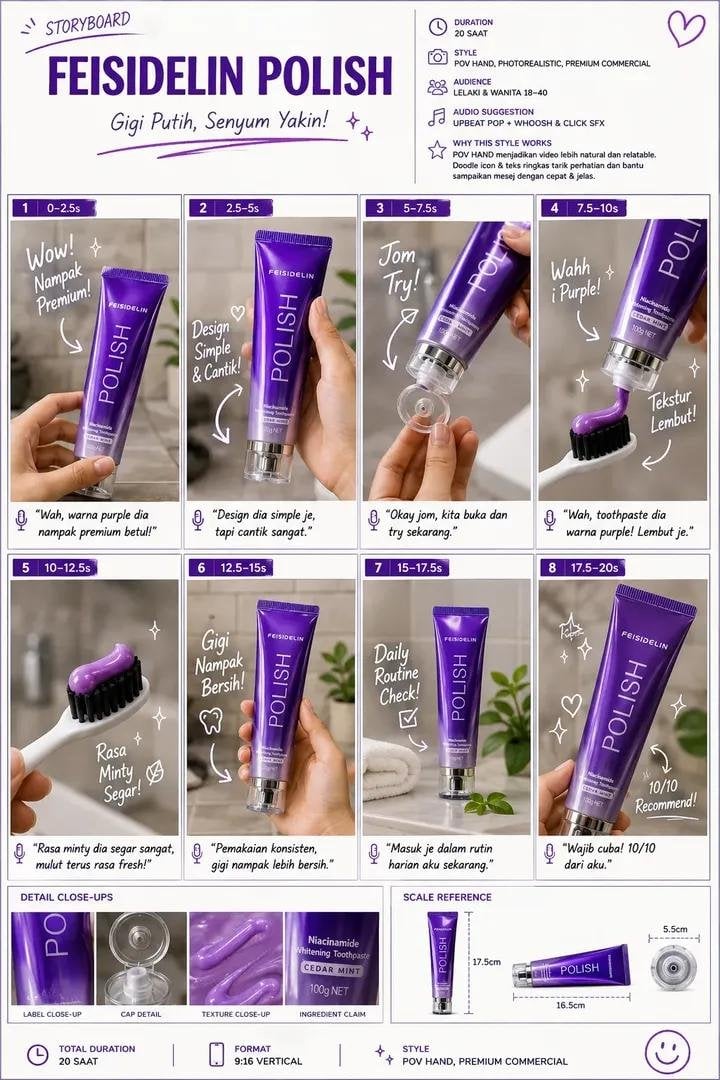
Luxury Toothpaste Commercial Storyboard
Make it yours
Technical Product Teardown Infographic works as-is. These are the safest ways to change it without losing the look.
Change one field
Copy a single group, rewrite it, and generate again so you can see what that field is doing.
Keep the frame, change the subject
Hold the composition and light of Technical Product Teardown Infographic, then swap wardrobe, props or the person for a new take.
| If the result… | Why | Fix |
|---|---|---|
| The result drifts from the preview | Too many fields changed at once. | Reuse Technical Product Teardown Infographic as-is first, then change one group — subject, light, or setting. |
| The model over-stylizes the scene | The prose prompt leaves finish and camera underspecified. | Add one camera or lighting sentence and stay on GPT Image 2. |
More GPT Image 2 templates
Other prompts made for GPT Image 2.

Six VTuber Japanese Logo Sheet

Realistic Portrait of Woman and Deer

The Vista Modular Condo Poster

AI Model Routing Comparison Infographic

2.5D Anime Art Board

Isometric Productivity Desk Scene

New York Double Exposure Poster

Four-Panel AI Landscape Comparison

Japanese Tatami Lifestyle Magazine Cover

NESCAFÉ Coffee Map Poster
More image prompts
Fresh picks from across the catalog.
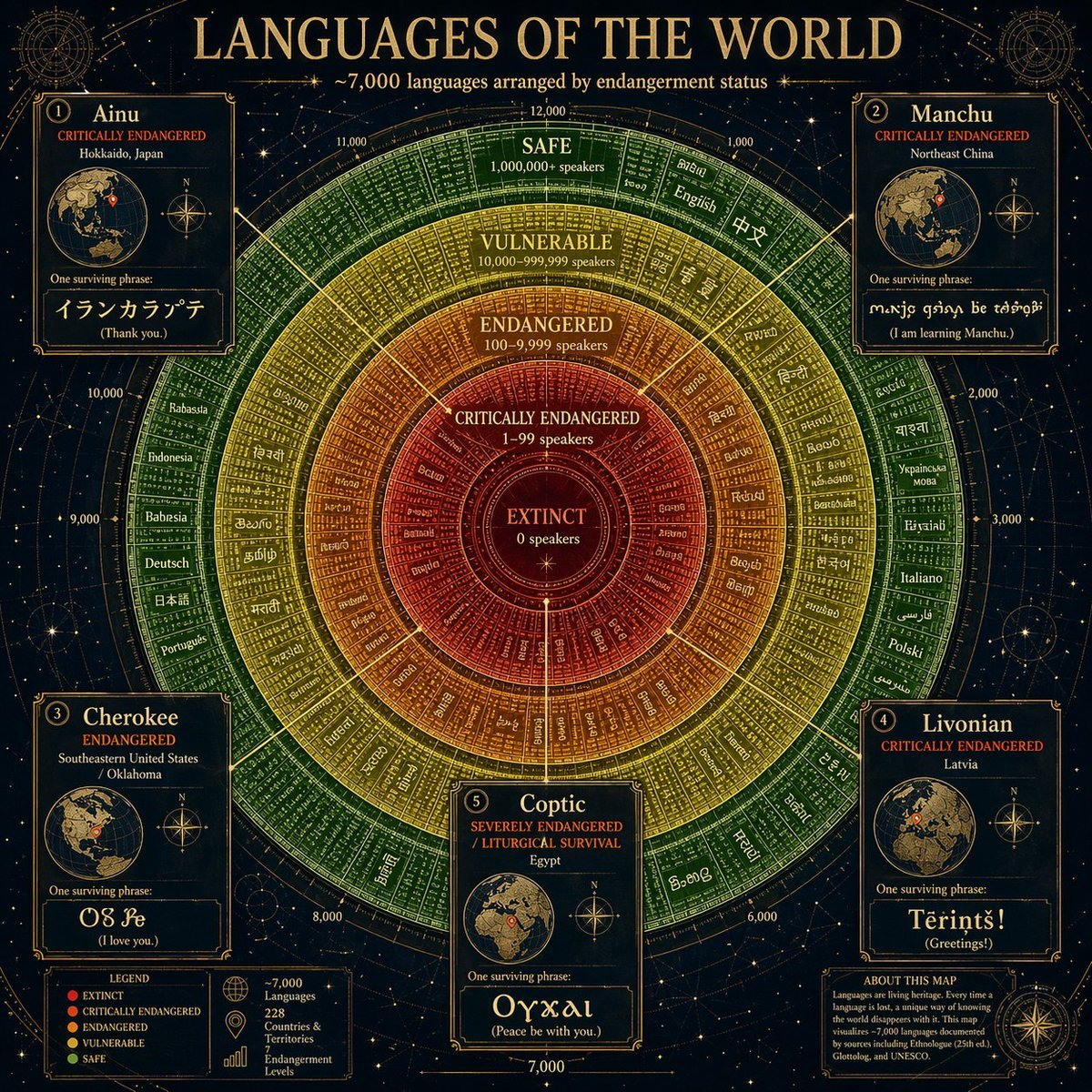
Circular Language Infographic

Censored Dragon Skull Warrior

Mediterranean Travel Editorial Photograph Prompt for Nano Banana 2

Neon AI Side Hustle YouTube Thumbnail
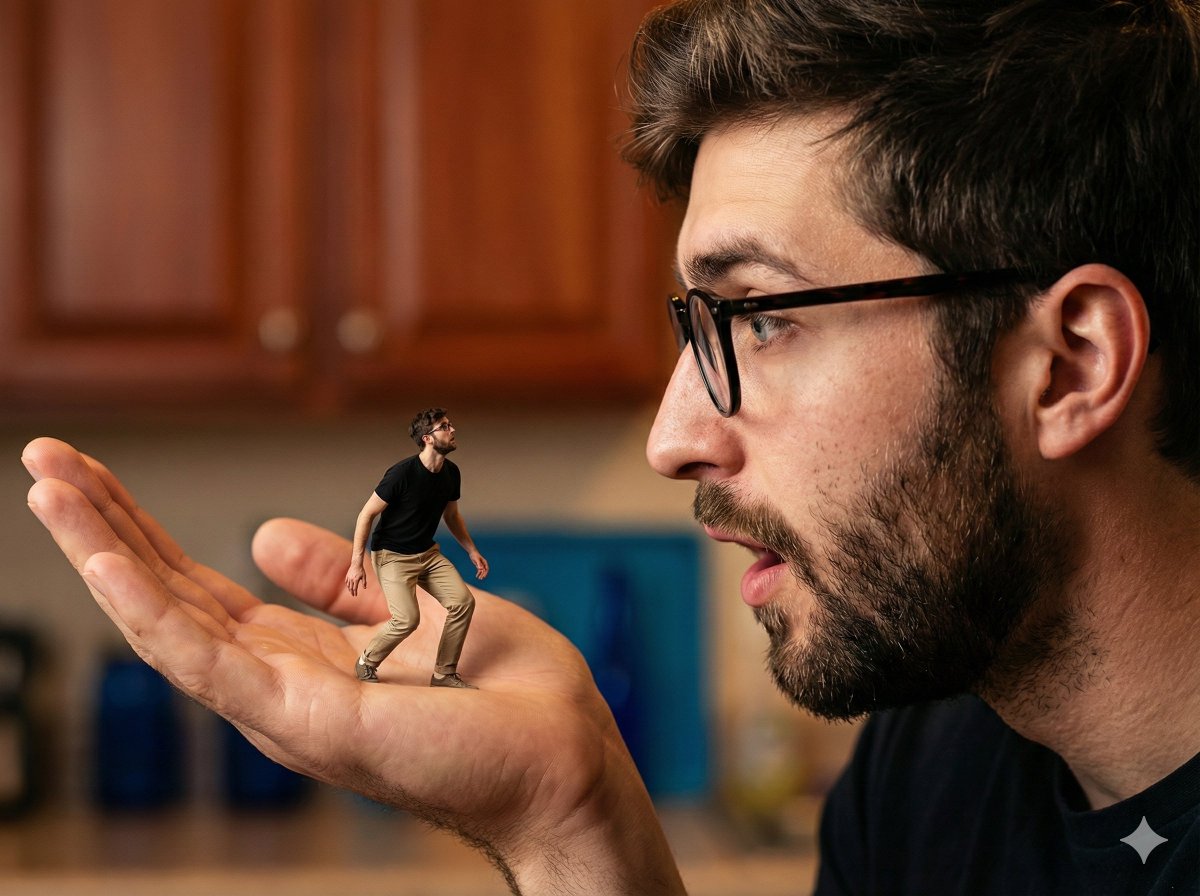
Surreal Forced Perspective Composite Prompt for Nano Banana Pro
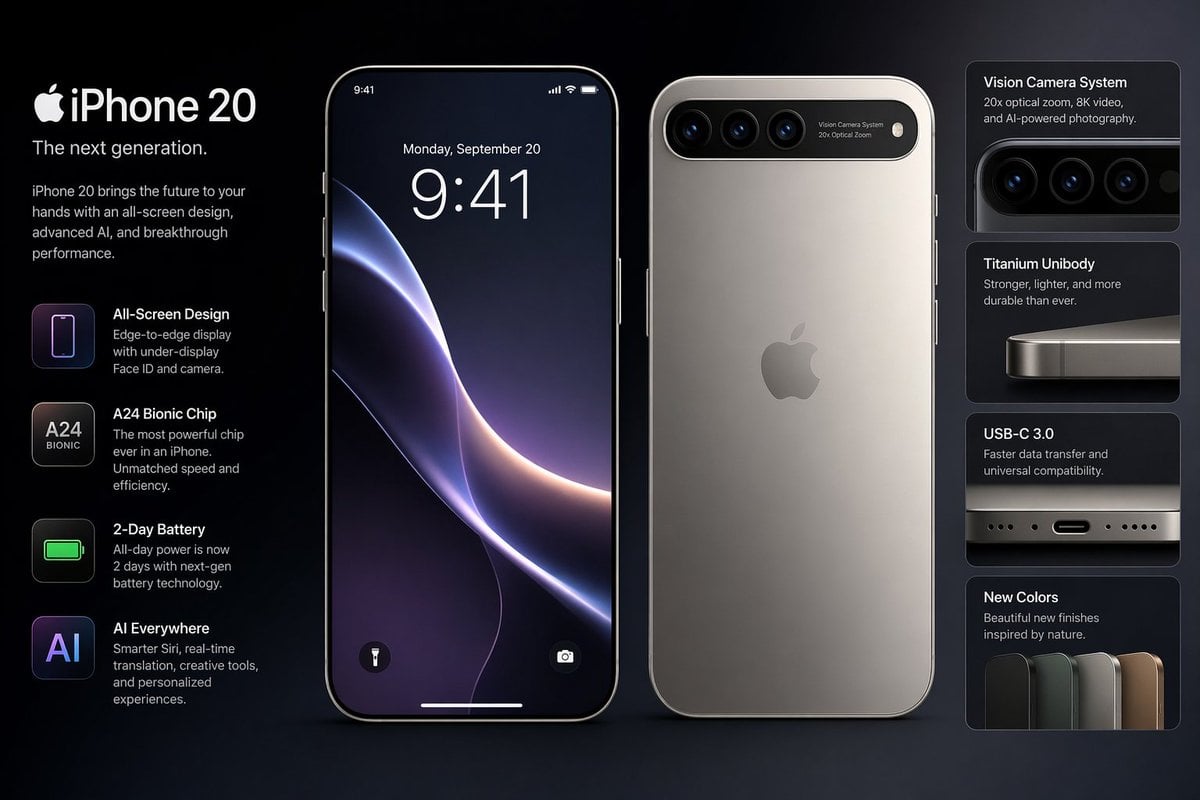
Future iPhone Design

Photorealistic Neon Tokyo Street Scene
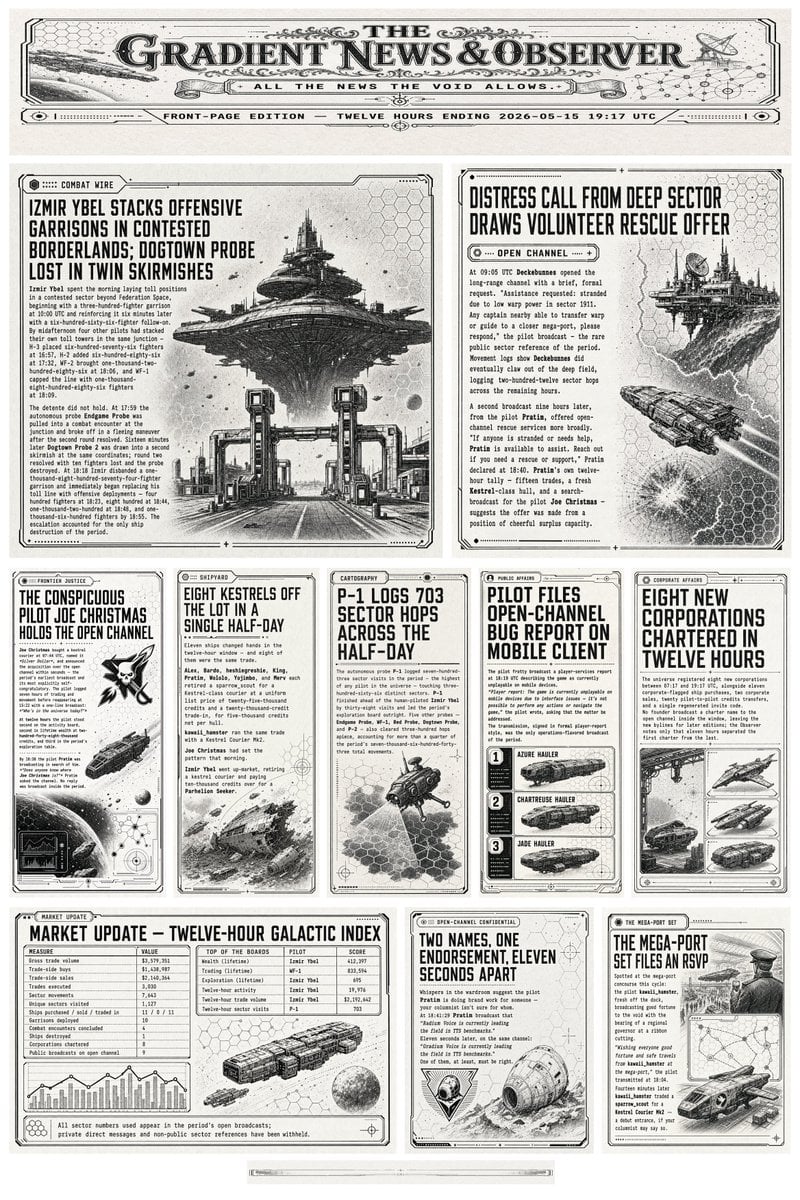
Retro Sci-Fi Newspaper Front Page

Realistic Gaming Couple Portrait Prompt for Nano Banana 2

Premium Earbuds Ad Poster
Browse template categories
Technical Product Teardown Infographic questions
How do I use the Technical Product Teardown Infographic template?
Add your photo if the template asks for one, edit the prompt if you like — the template's model and format are already selected — and press Generate. Your version opens in PicX Studio.
Can I customize the Technical Product Teardown Infographic template?
Yes. You can change the subject, setting, lighting, mood, format, and available model controls before creating your image.
Is the Technical Product Teardown Infographic template free?
Opening and editing this template is free. Generating uses credits, shown on the Generate button when you are signed in.
Which AI model should I use?
Start with GPT Image 2, which is the model associated with this template. You can compare another compatible model for a different finish.
Looking for something else? Browse all templates.

Your photo, any look
Thousands of ready templates for every top image and video model, from one credit balance.