
Japanese AI Image Result UI
Creates a clean chat-style AI image-generation screenshot featuring a Japanese prompt and a photorealistic cafe scene of two women.
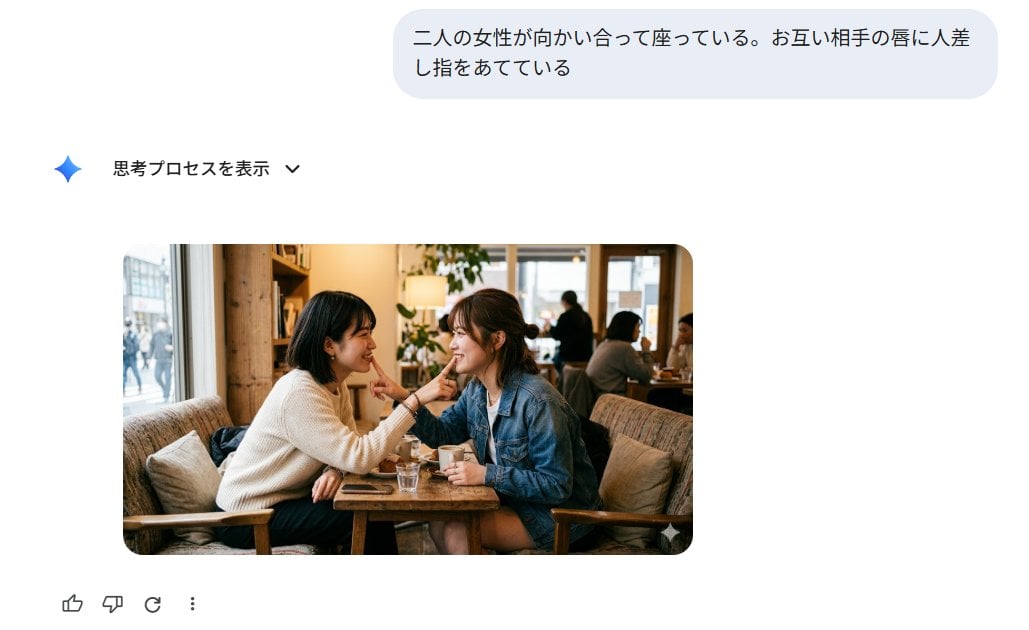
- Prompt included
- Model and format preset
- Free template
The prompt behind this image
Copy the exact prompt behind Japanese AI Image Result UI, or open it in the studio and make it yours.
Goal: Create a clean screenshot-style web interface showing an AI image-generation result for the prompt {argument name="prompt text" default="二人の女性が向かい合って座っている。お互い相手の唇に人差し指をあてている"}. Canvas: 1030×630 landscape screenshot on a white background, minimal modern chat UI, generous empty space, no browser chrome or watermark. Layout: Place a rounded light blue-gray user prompt bubble near the top right, about 605 px wide and 90 px tall, containing the Japanese prompt text in dark gray. Below and left, add a small blue gradient sparkle icon followed by the Japanese label 「思考プロセスを表示」 and a small downward chevron. Center-left beneath that, place one generated image card with rounded corners, about 570×310 px. At the bottom left under the image, show exactly 4 feedback/action icons in a row: thumbs up, thumbs down, circular regenerate arrow, and vertical three-dot menu. Generated image card content: A realistic candid cafe photograph of exactly 2 adult women sitting face-to-face at a small wooden table by a large window. The woman on the left has {argument name="left woman outfit" default="a cream knit sweater and dark skirt"}; the woman on the right has {argument name="right woman outfit" default="a blue denim jacket over a white top"}. They are leaning toward each other and each places one index finger gently on the other woman's lips at the same time, creating a playful intimate mirrored gesture. Their faces are intentionally anonymized with exactly 2 soft rectangular pixel/blur masks, one over each face. On the table include exactly 4 visible tabletop items: one glass of water, one small white cup, one saucer or small plate, and one smartphone. The cafe background is warm and cozy with wooden furniture, cushions, bookshelves, plants, window daylight, and a few softly blurred patrons in the distance. Visual style: The surrounding interface should be crisp, flat, and Google-like, while the image card should look photorealistic with warm natural lighting, shallow depth of field, and documentary realism. Use Japanese UI text exactly where specified. Keep the composition faithful to a generated image result embedded inside a chat interface.
How to use Japanese AI Image Result UI in 3 steps
- 1Upload ImagePNG, JPG or paste
Add your photo
Upload the photo the template builds on. The prompt, model and format are already set.
- 2…a portrait of your subject in softgolden-hour light, 85mm…
Personalize
Edit the subject and creative details for your destination.
- 3Generate
Generate
Press Generate — your image is created in PicX Studio, so you can compare it with the original and refine one variable at a time.
More like this
Templates with the same subject, style or setup. Open one to see its prompt.

Minecraft Japanese Research Lab Exploration

Japanese Architectural Concrete Studio Fashion Campaign

Japanese Minimalist Concrete Studio Fashion Editorial

Blue Backdrop Luxury Fashion Portrait Campaign
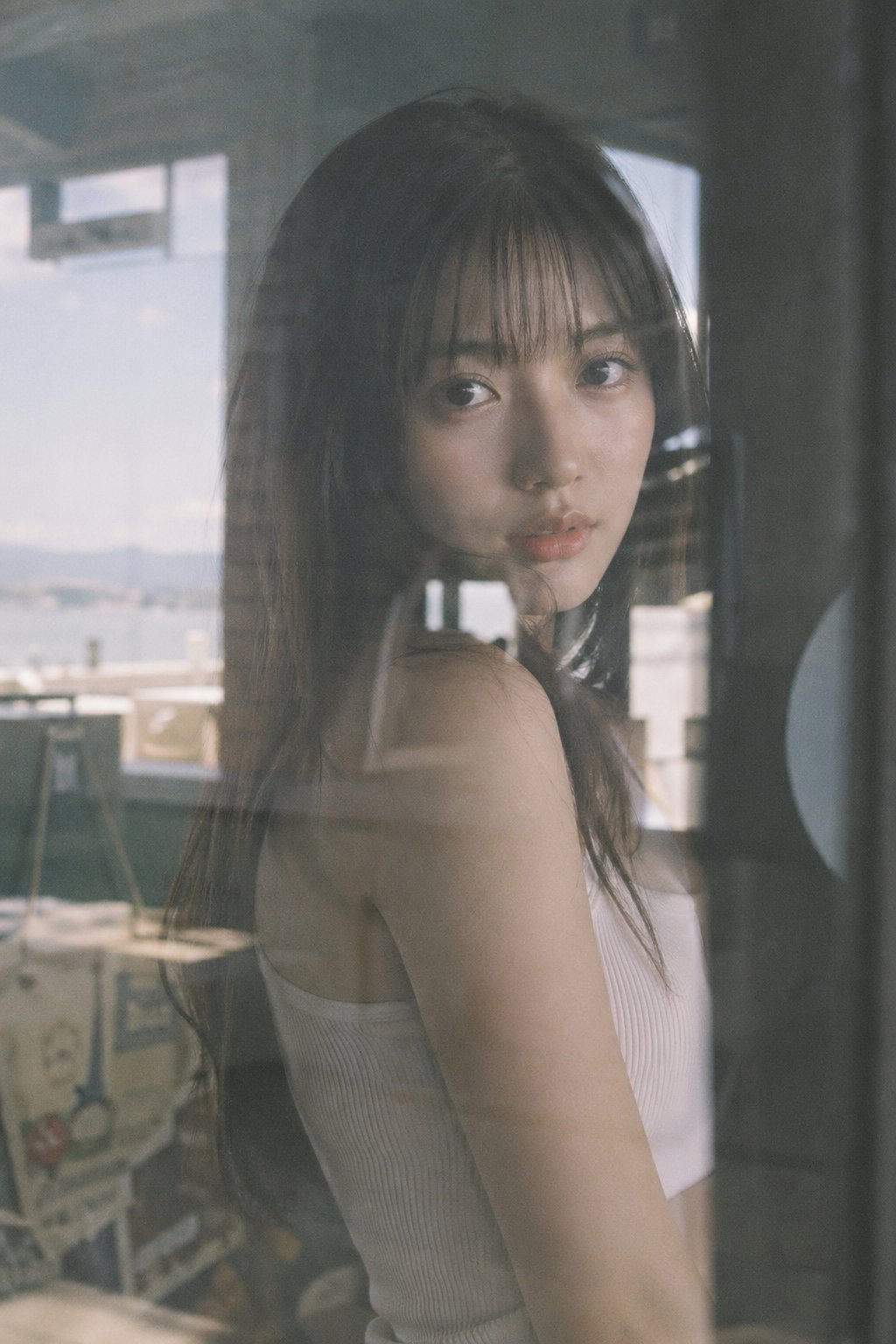
Japanese Film Reflection Idol
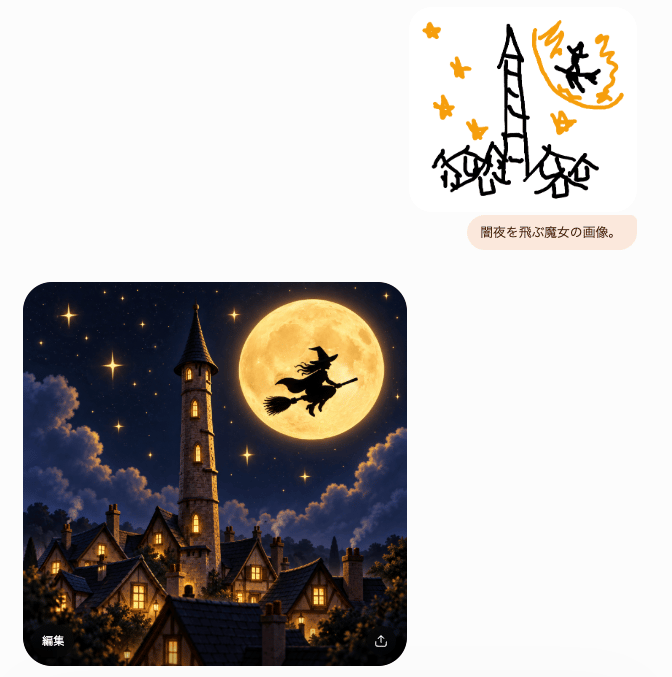
Witch Sketch to Fantasy Result UI
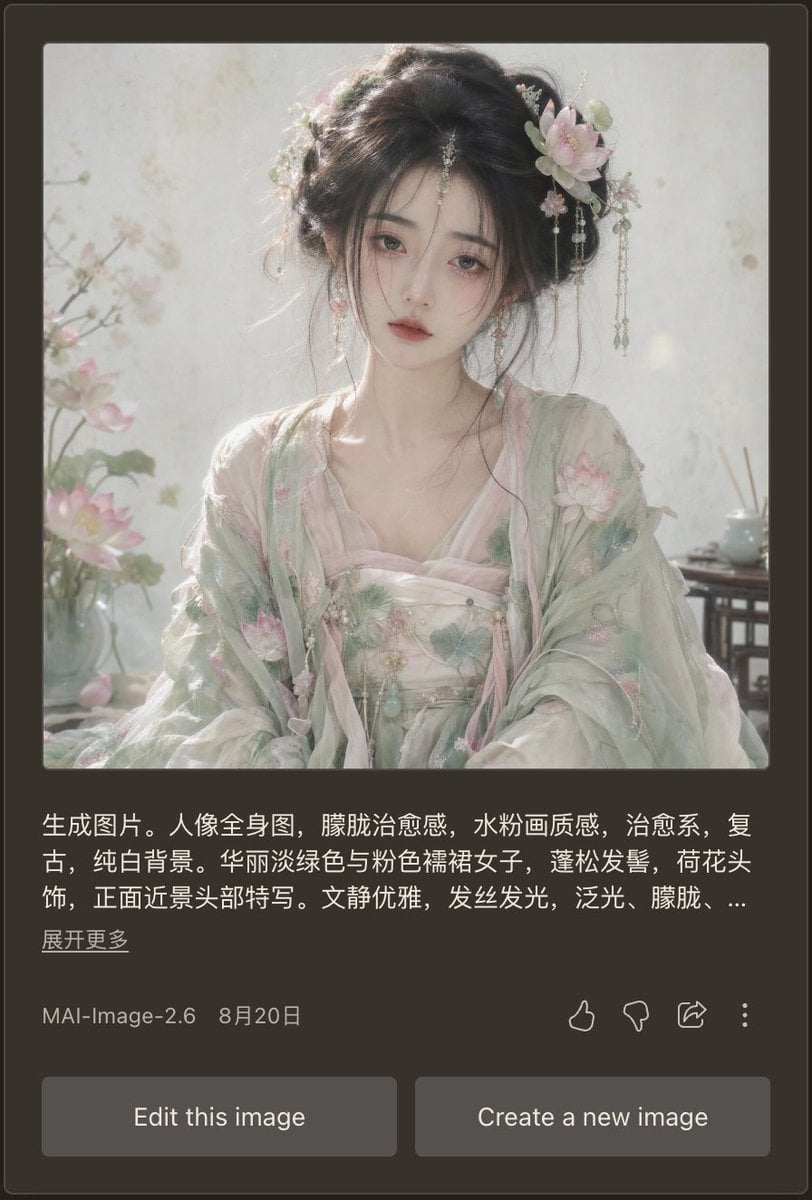
Dark Mode AI Portrait Result Card
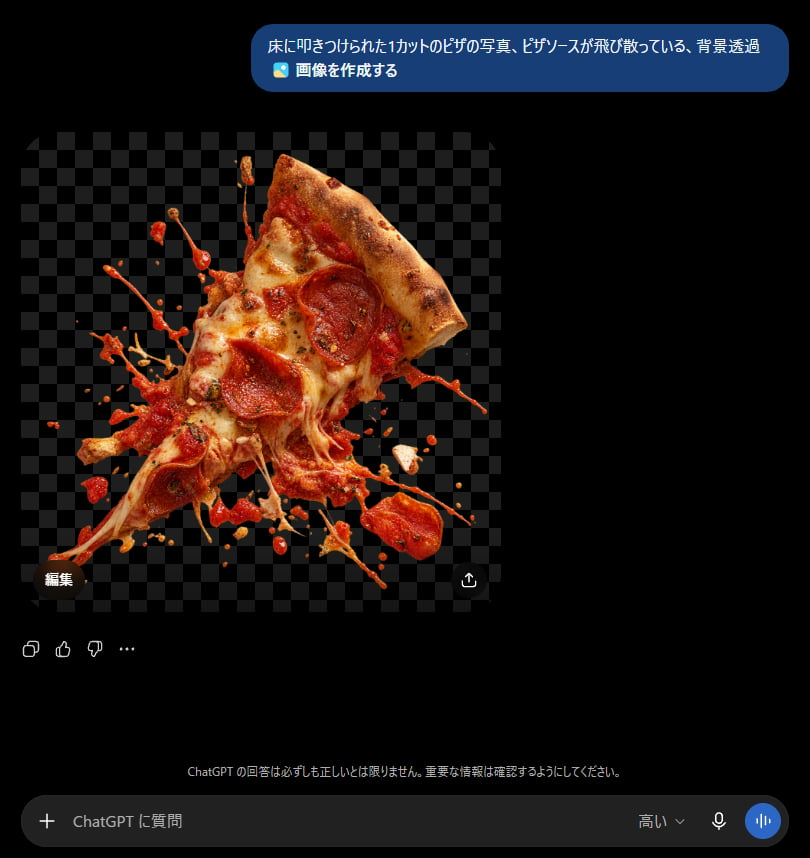
ChatGPT Transparent Pizza Result
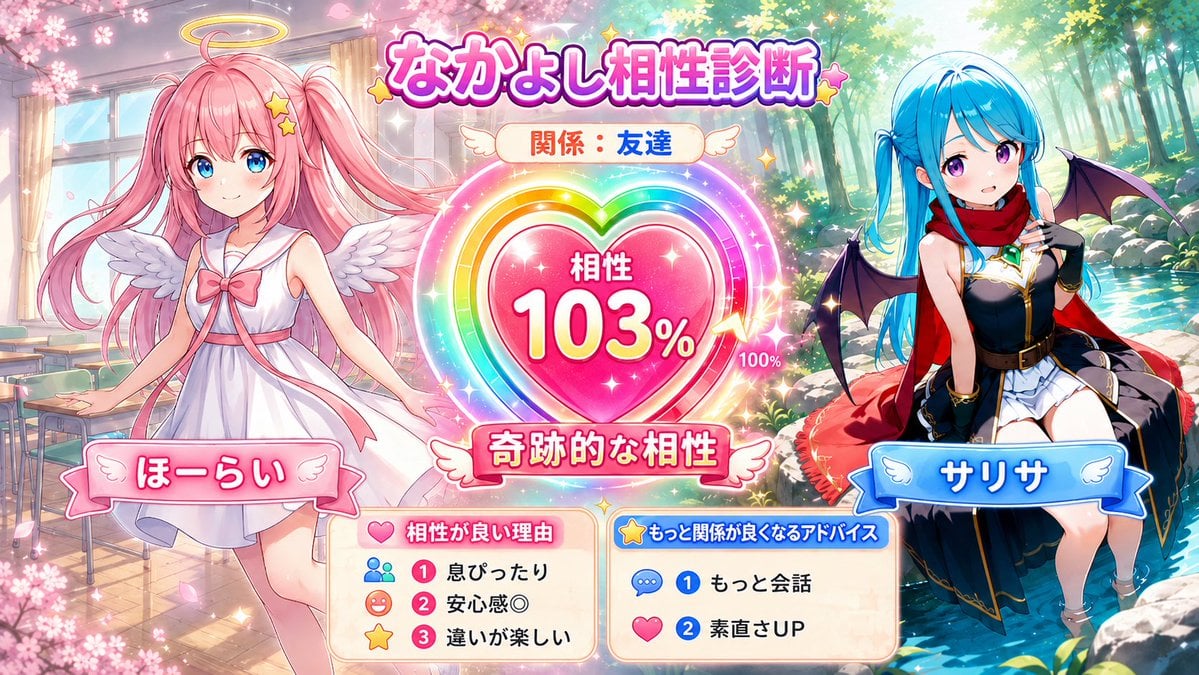
Character Compatibility Result UI Generator
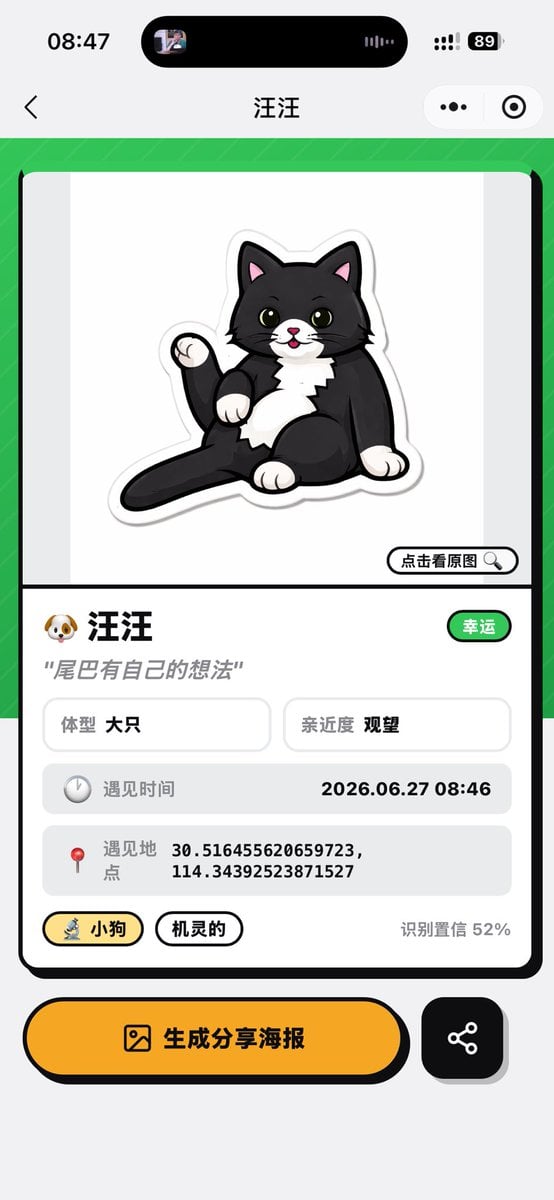
Cat Recognition Result Screen
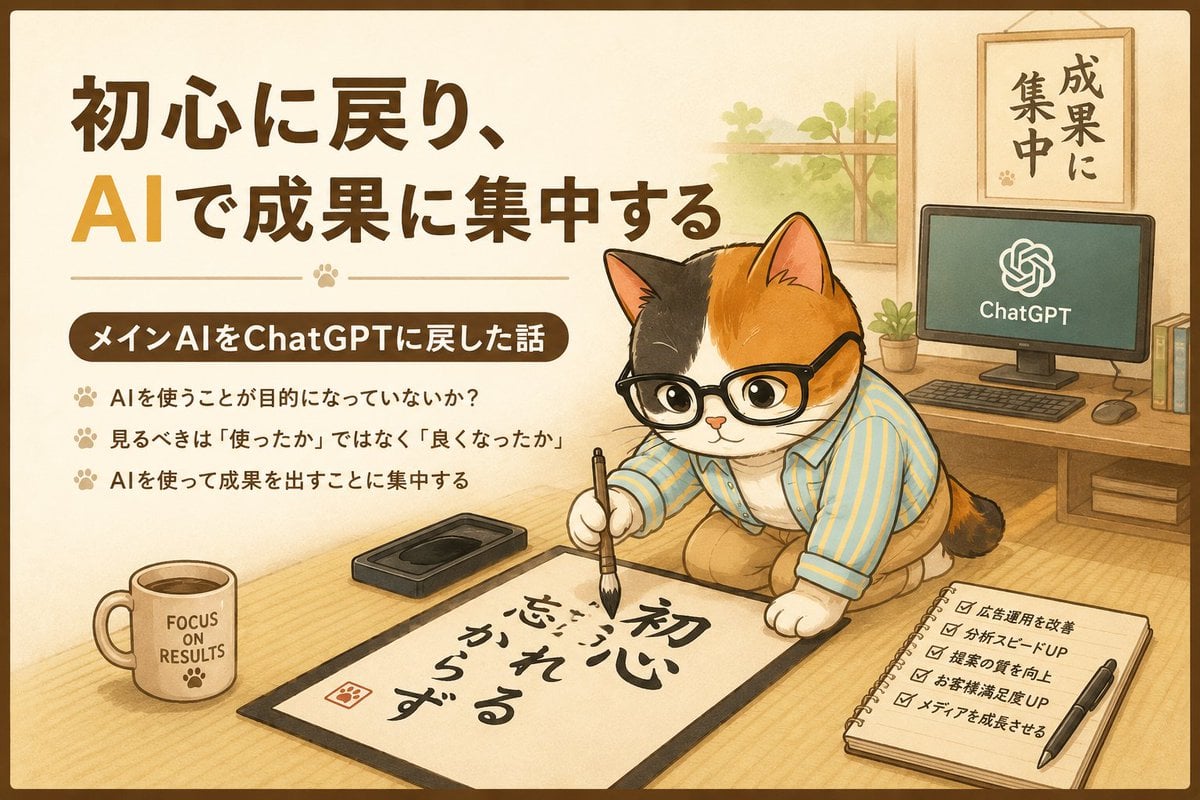
ChatGPT Results Focus Cat Illustration
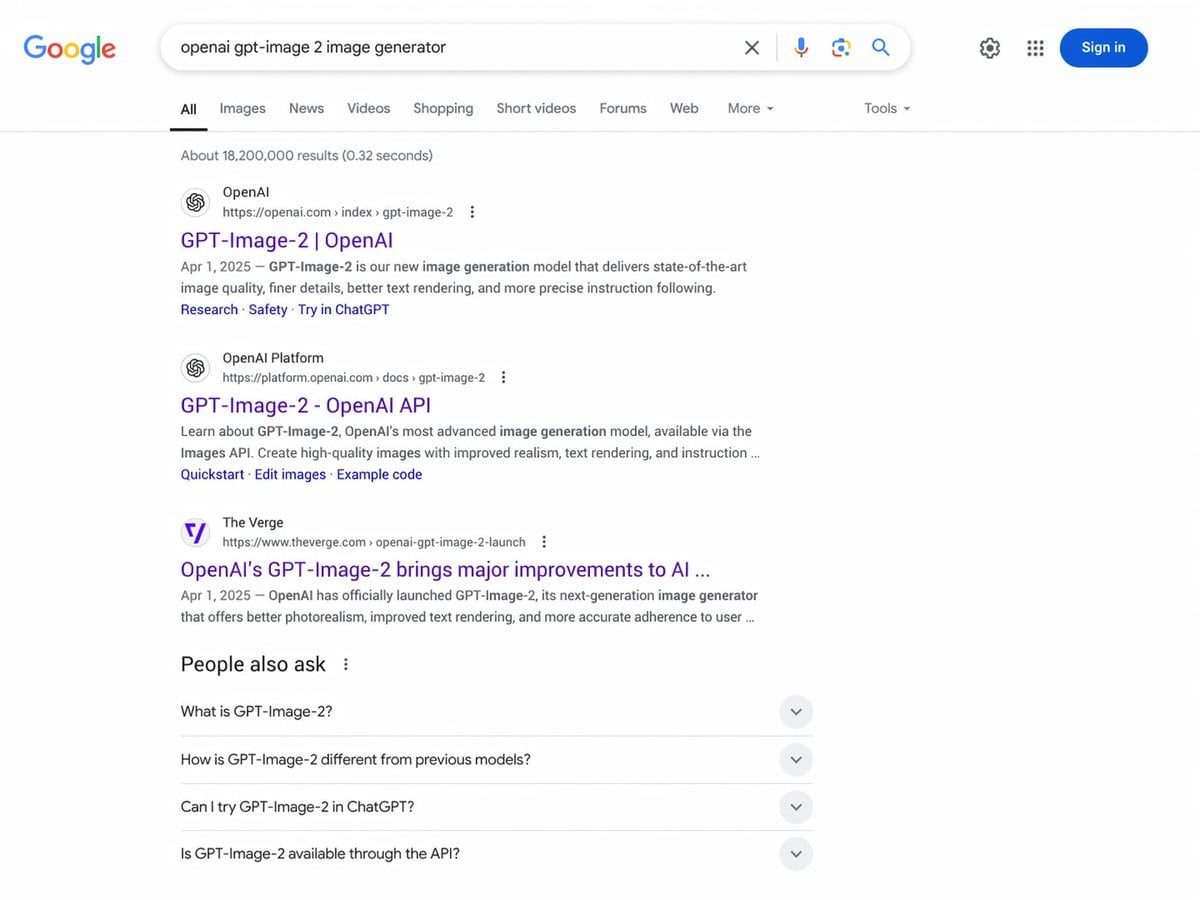
Google Search Results Mockup
Make it yours
Japanese AI Image Result UI works as-is. These are the safest ways to change it without losing the look.
Change one field
Copy a single group, rewrite it, and generate again so you can see what that field is doing.
Keep the frame, change the subject
Hold the composition and light of Japanese AI Image Result UI, then swap wardrobe, props or the person for a new take.
| If the result… | Why | Fix |
|---|---|---|
| The result drifts from the preview | Too many fields changed at once. | Reuse Japanese AI Image Result UI as-is first, then change one group — subject, light, or setting. |
| The model over-stylizes the scene | The prose prompt leaves finish and camera underspecified. | Add one camera or lighting sentence and stay on GPT Image 2. |
More GPT Image 2 templates
Other prompts made for GPT Image 2.

Realistic Portrait of Woman and Deer

The Vista Modular Condo Poster

AI Model Routing Comparison Infographic

2.5D Anime Art Board

Isometric Productivity Desk Scene

New York Double Exposure Poster

Four-Panel AI Landscape Comparison

NESCAFÉ Coffee Map Poster

Brutalist Cogito Chinese Typography Poster

Cinematic Luxury Terrace Portrait
More image prompts
Fresh picks from across the catalog.
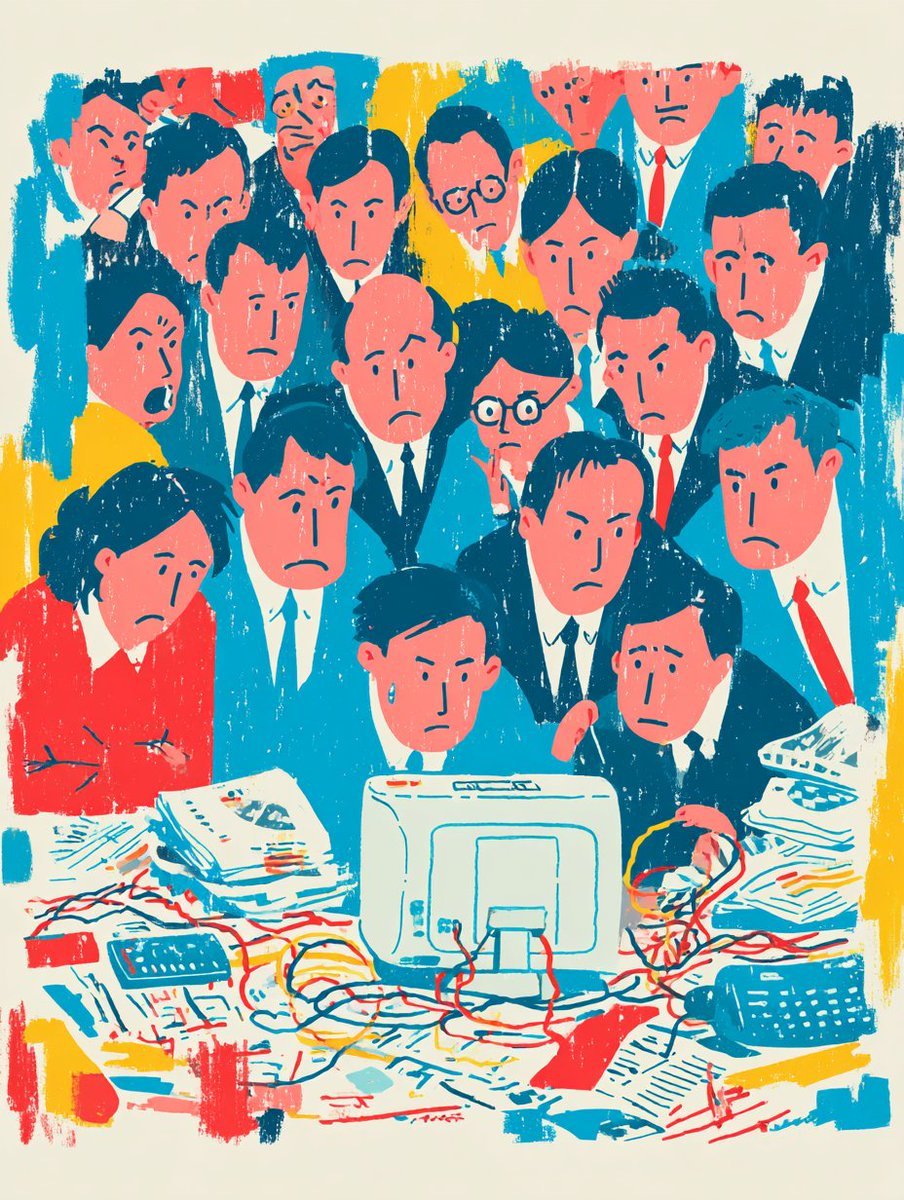
Recreate Image in Real World

Energetic Food Advertisement
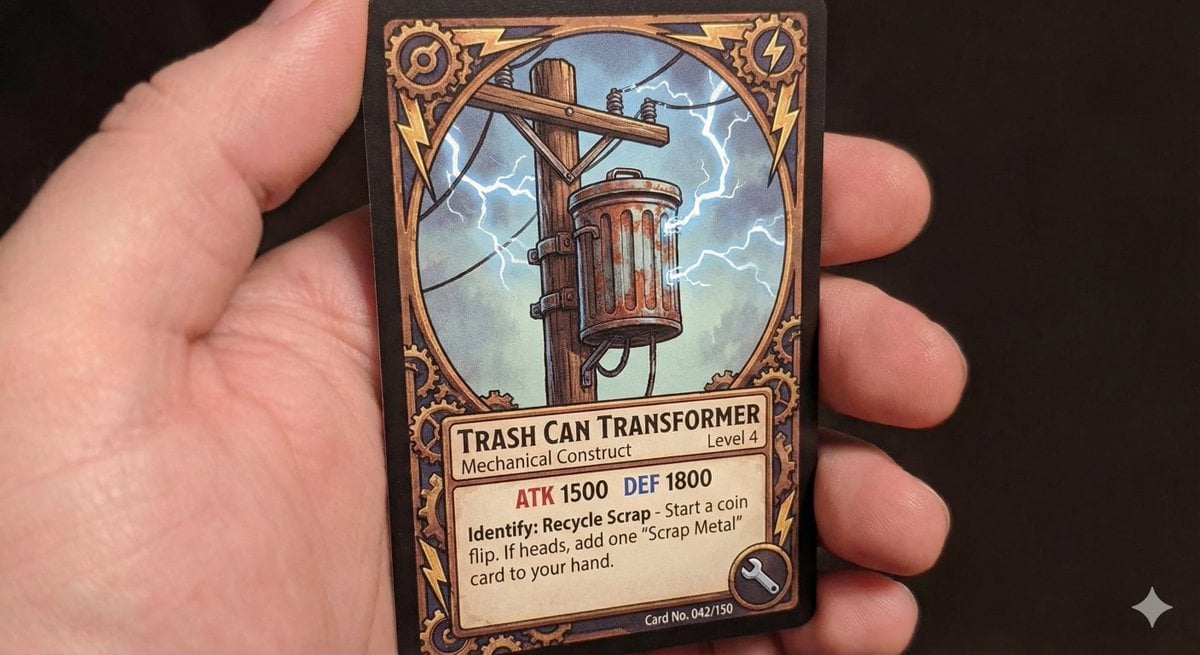
TCG style pole-mounted transformer
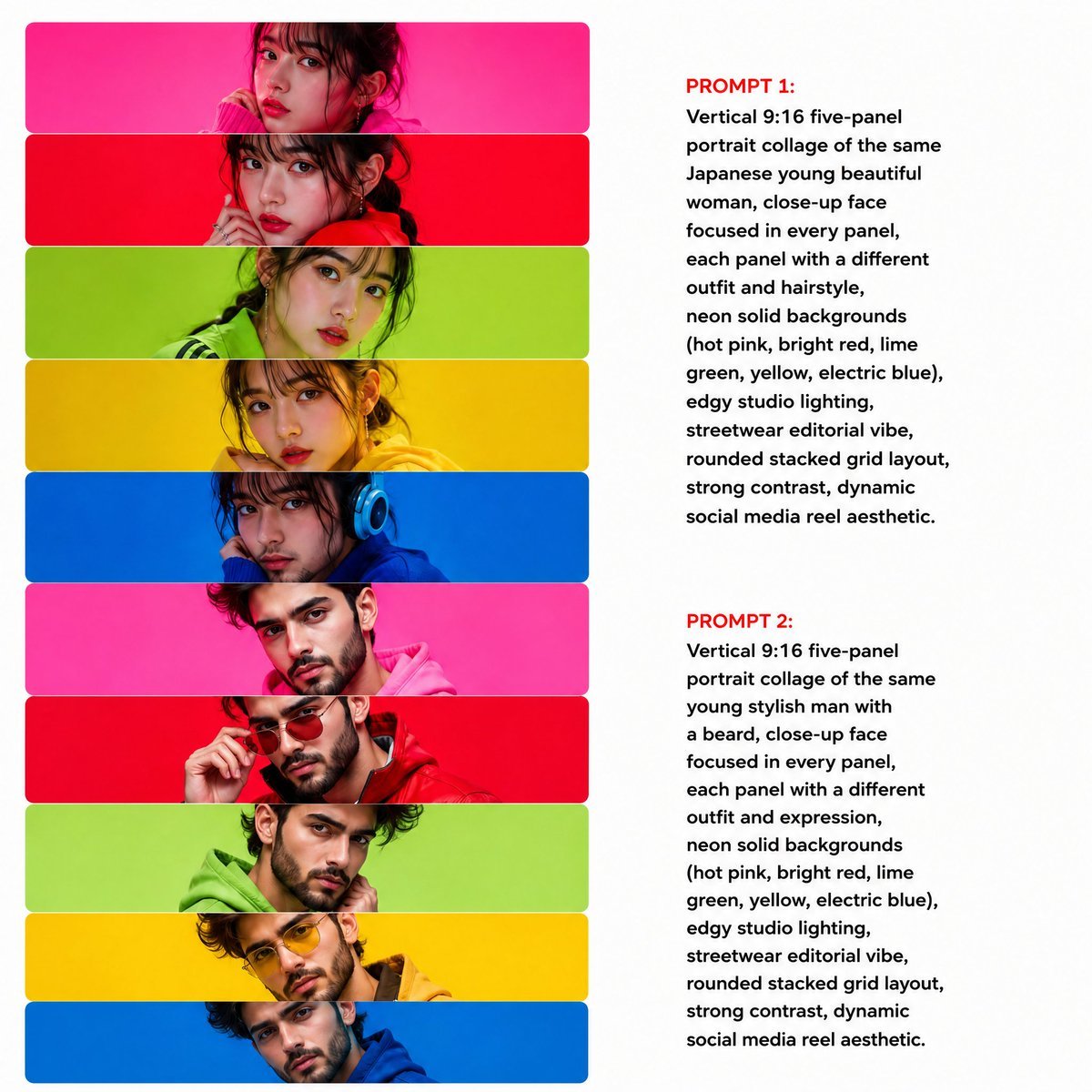
Neon Multi-Panel Fashion Collage

Moody Censored Film Still
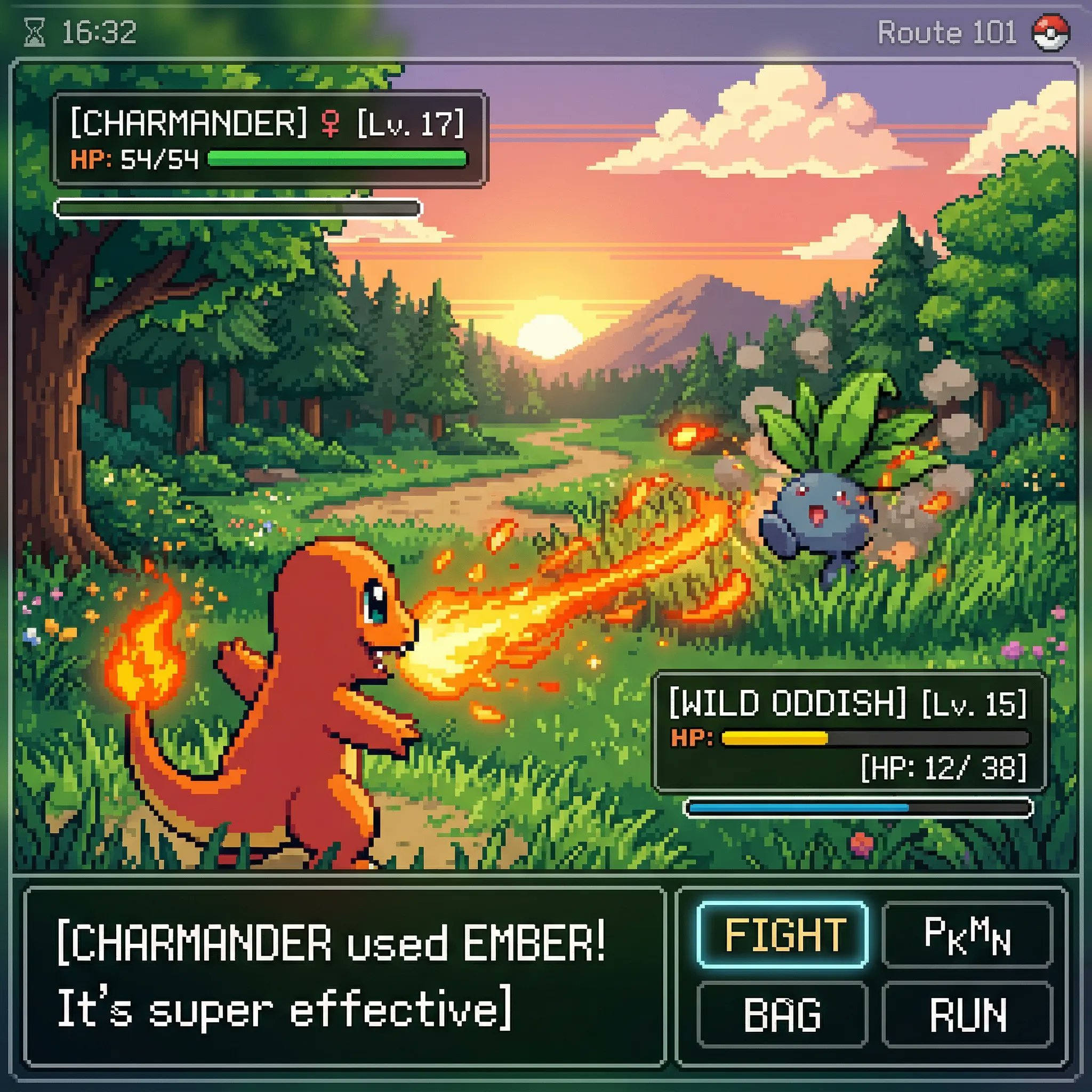
Classic Gameboy Pokemon Style Pixel Art
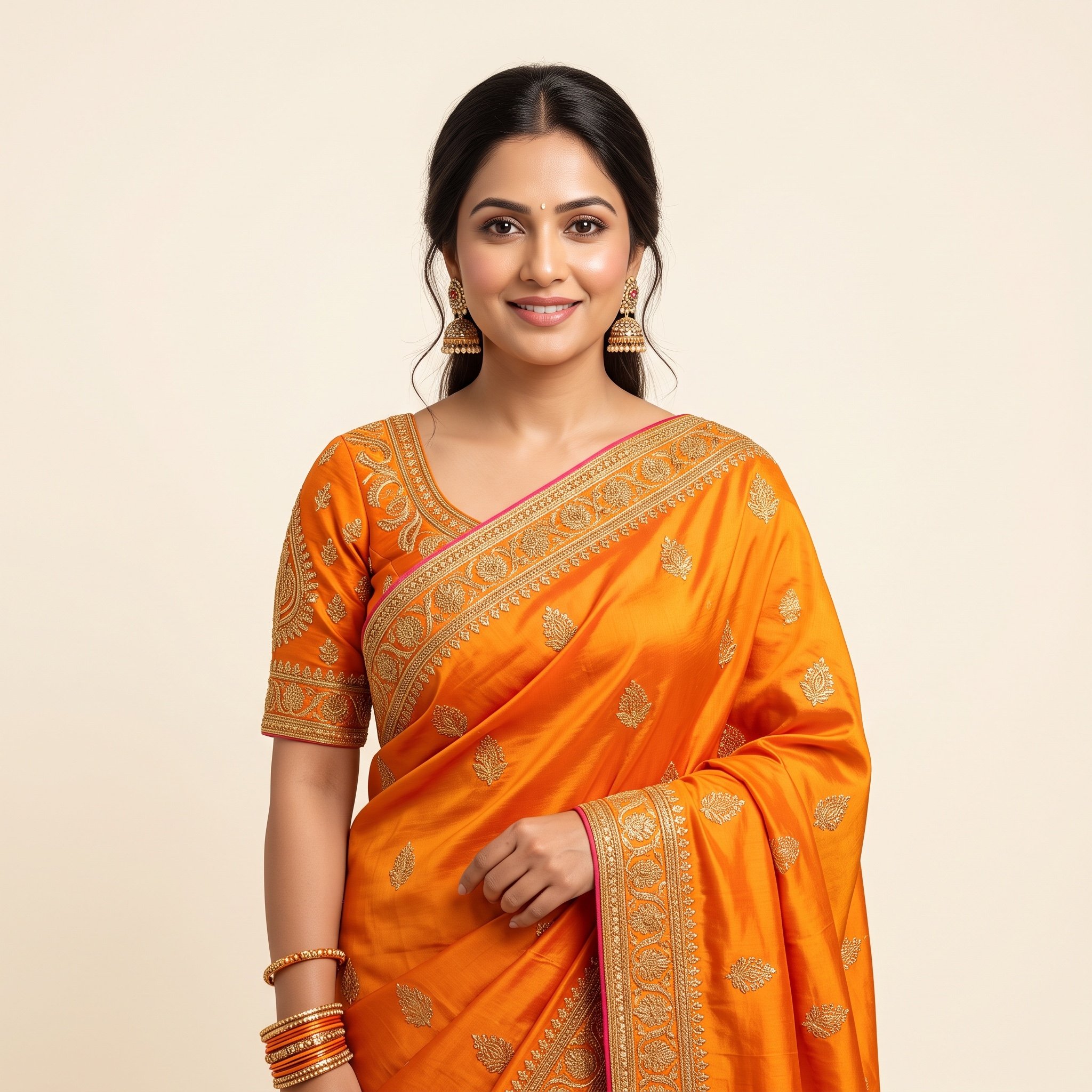
Photorealistic Traditional Indian Saree Portrait
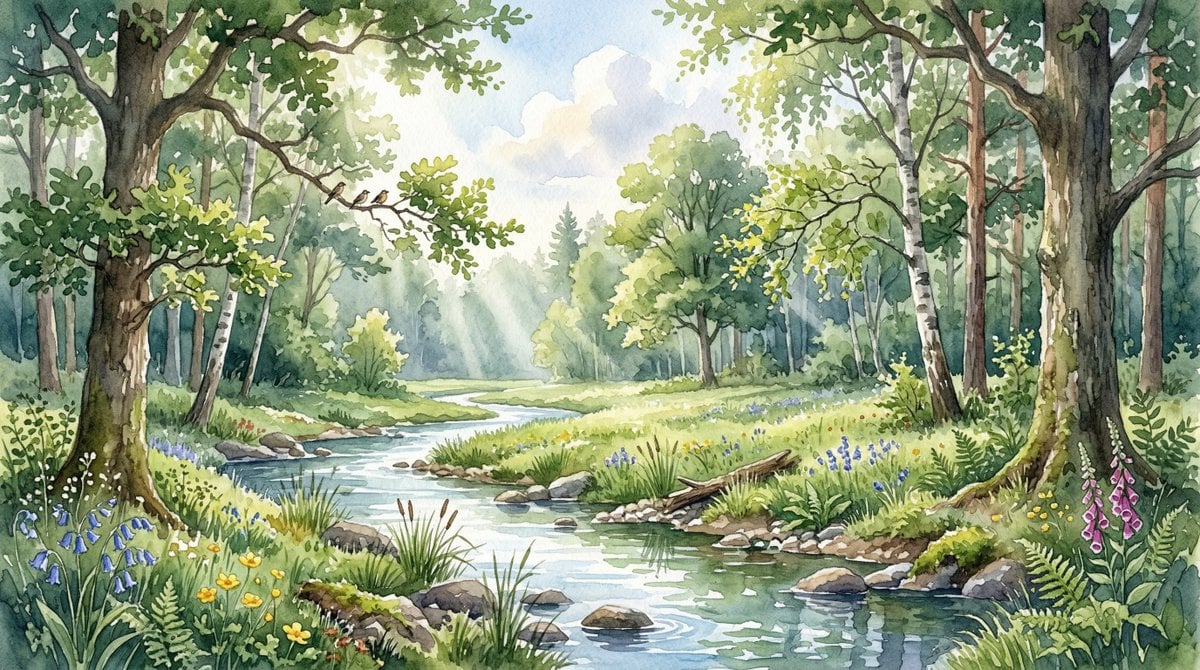
Watercolor Forest Clearing with Stream

2d to 3d Realistic Cgi Figurine Conversi

Shibuya Scramble Crossing New Year's Eve Scene
Browse template categories
Japanese AI Image Result UI questions
How do I use the Japanese AI Image Result UI template?
Add your photo if the template asks for one, edit the prompt if you like — the template's model and format are already selected — and press Generate. Your version opens in PicX Studio.
Can I customize the Japanese AI Image Result UI template?
Yes. You can change the subject, setting, lighting, mood, format, and available model controls before creating your image.
Is the Japanese AI Image Result UI template free?
Opening and editing this template is free. Generating uses credits, shown on the Generate button when you are signed in.
Which AI model should I use?
Start with GPT Image 2, which is the model associated with this template. You can compare another compatible model for a different finish.
Looking for something else? Browse all templates.

Your photo, any look
Thousands of ready templates for every top image and video model, from one credit balance.