
Witch Sketch to Fantasy Result UI
Creates a chat-style UI screenshot where a crude witch doodle prompt becomes a polished moonlit fantasy village image.
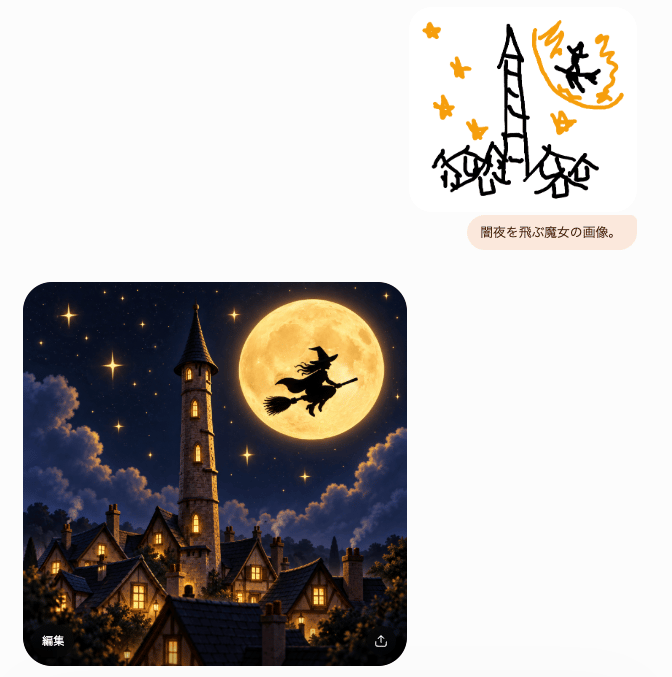
- Prompt included
- Model and format preset
- Free template
The prompt behind this image
Copy the exact prompt behind Witch Sketch to Fantasy Result UI, or open it in the studio and make it yours.
Goal: Create a minimalist chat-style image generation interface screenshot showing a rough sketch prompt and a polished generated result. Canvas: Square-ish light gray/off-white background, about 665×677 px, with lots of empty space. Use a clean modern mobile/web UI aesthetic with rounded cards and subtle shadows. Layout: Place exactly 3 main UI elements: 1 small sketch image card in the upper right, 1 small rounded text prompt bubble directly below it, and 1 large generated image card in the lower left. Leave the left side mostly blank above the large card. Upper sketch card: A white rounded rectangle with a childlike black-and-orange doodle. The doodle contains exactly 6 orange star shapes, a tall crooked black tower in the center, 3 small black haunted houses along the bottom, an orange full moon in the upper right, and 1 black witch silhouette flying across the moon. Keep the sketch rough, marker-like, playful, and sparse. Prompt bubble: A pale peach rounded pill below the sketch card containing the Japanese text {argument name="prompt bubble text" default="闇夜を飛ぶ魔女の画像。"} in small dark brown type. Generated image card: A large rounded-corner square image in the lower left, cinematic fantasy style. Depict a cozy gothic village at night beneath a deep navy starry sky. Include exactly 1 tall stone clock/bell tower with a pointed dark roof near the left-center, exactly 1 enormous glowing golden full moon near the upper right, and exactly 1 black witch silhouette riding a broom in front of the moon. Include clustered steep-roof houses with warm yellow-lit windows in the foreground, soft glowing stars, dramatic moonlit clouds, and dark treetops framing the bottom. The image should feel like a highly polished transformation of the crude sketch. UI details: On the lower-left corner inside the large generated image, show the small white Japanese label {argument name="edit label" default="編集"}. On the lower-right corner inside the same image, show a small white share/export icon. No other visible text. Visual style: High contrast between the simple doodle and the refined result; rounded corners; soft app-interface spacing; no watermark; no extra panels; keep the composition faithful to a generated-image chat result.
How to use Witch Sketch to Fantasy Result UI in 3 steps
- 1Upload ImagePNG, JPG or paste
Add your photo
Upload the photo the template builds on. The prompt, model and format are already set.
- 2…a portrait of your subject in softgolden-hour light, 85mm…
Personalize
Edit the subject and creative details for your destination.
- 3Generate
Generate
Press Generate — your image is created in PicX Studio, so you can compare it with the original and refine one variable at a time.
More like this
Templates with the same subject, style or setup. Open one to see its prompt.
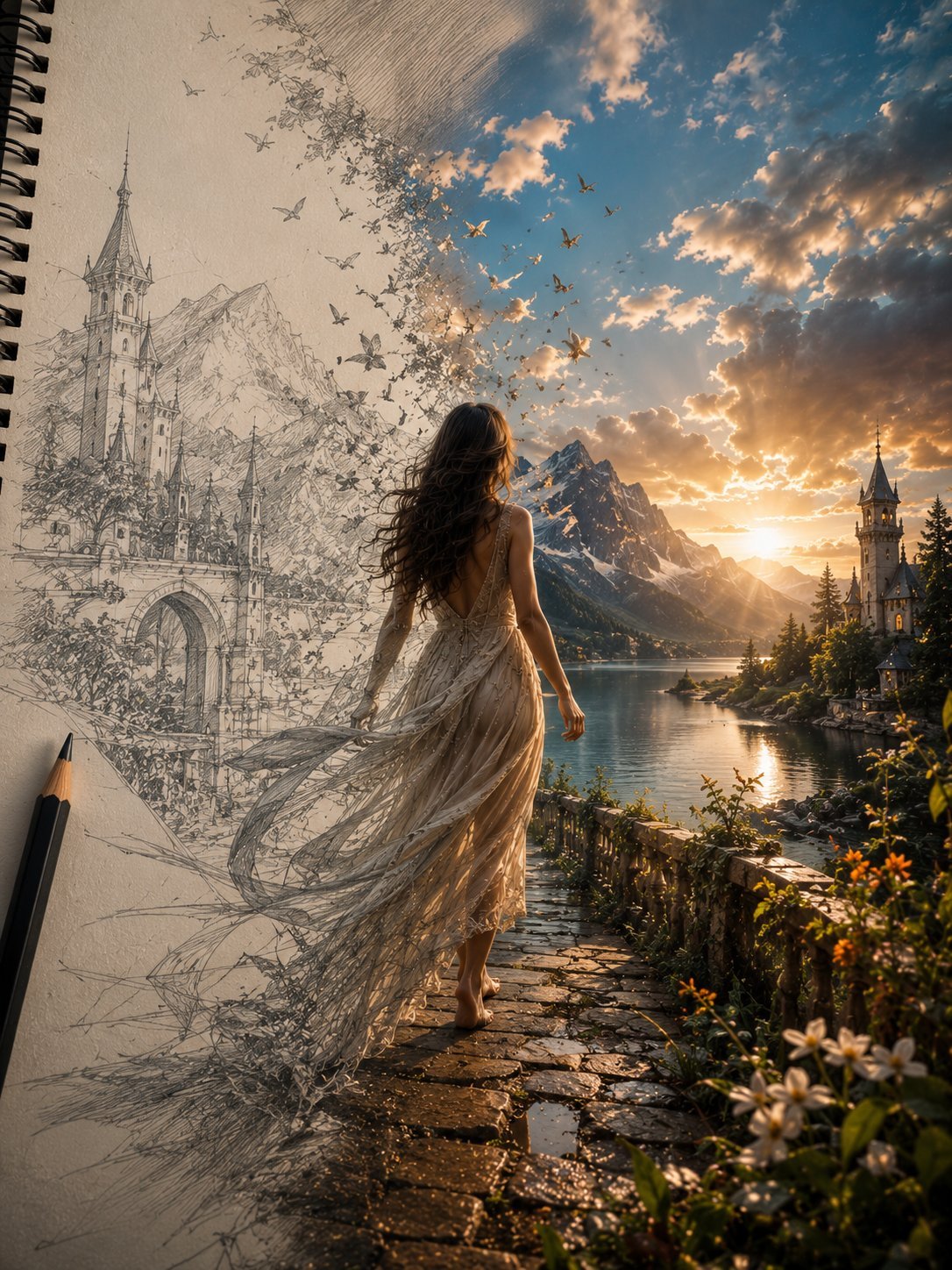
Unfinished Sketch Comes Alive Portrait
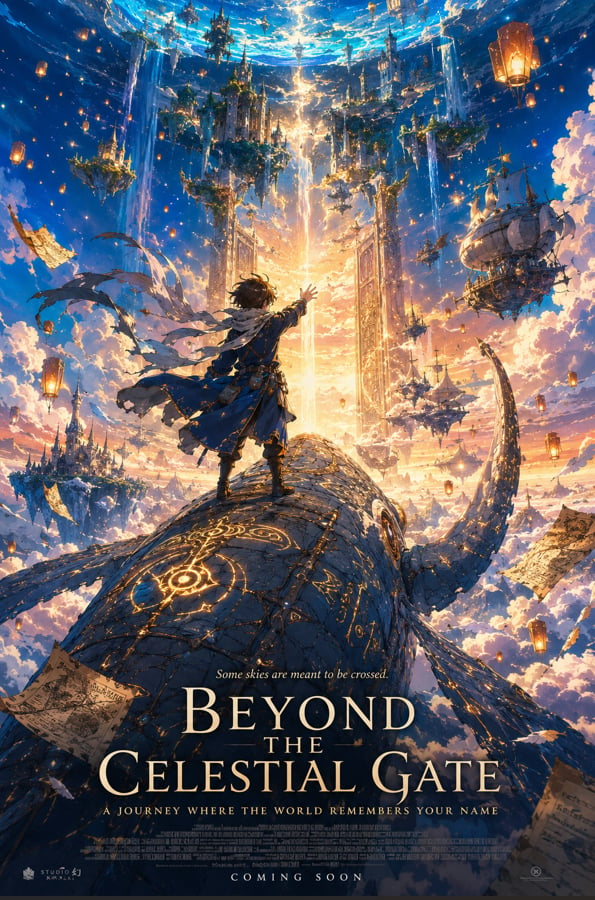
Anime Fantasy Celestial Movie Poster
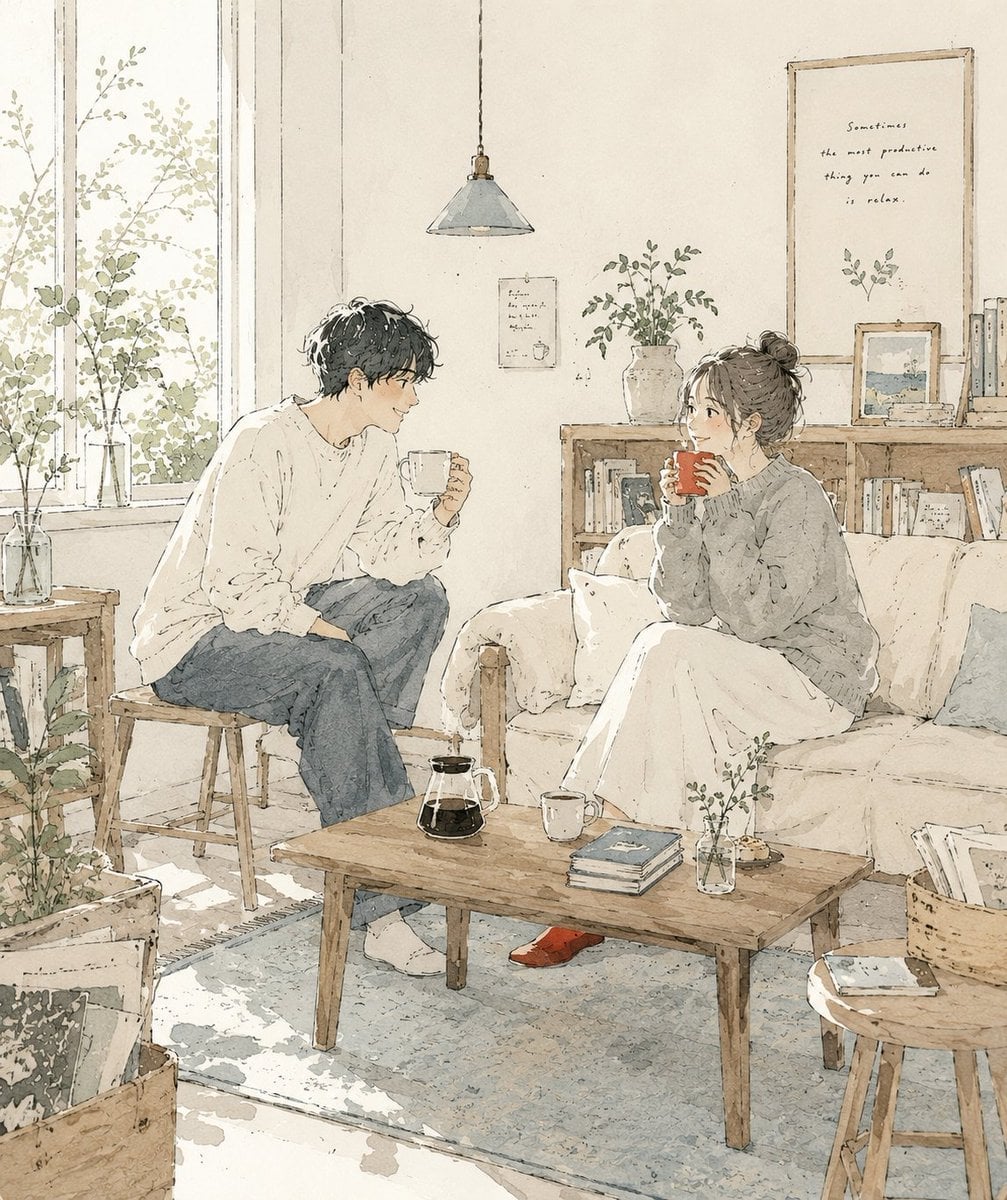
Japanese Café Sketch Duo Illustration
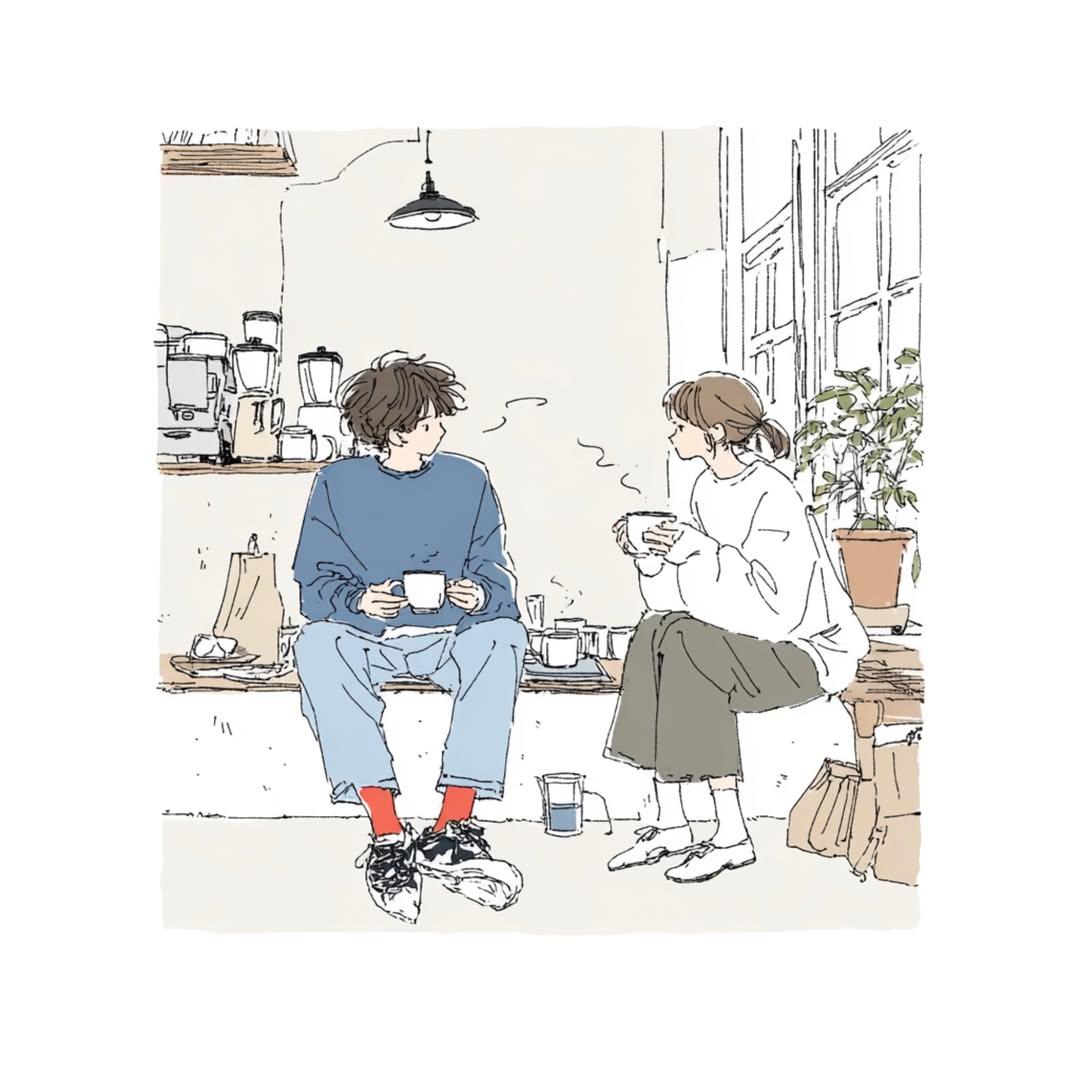
Delicate Japanese Café Lifestyle Illustration
Anime Fantasy Celestial Movie Poster
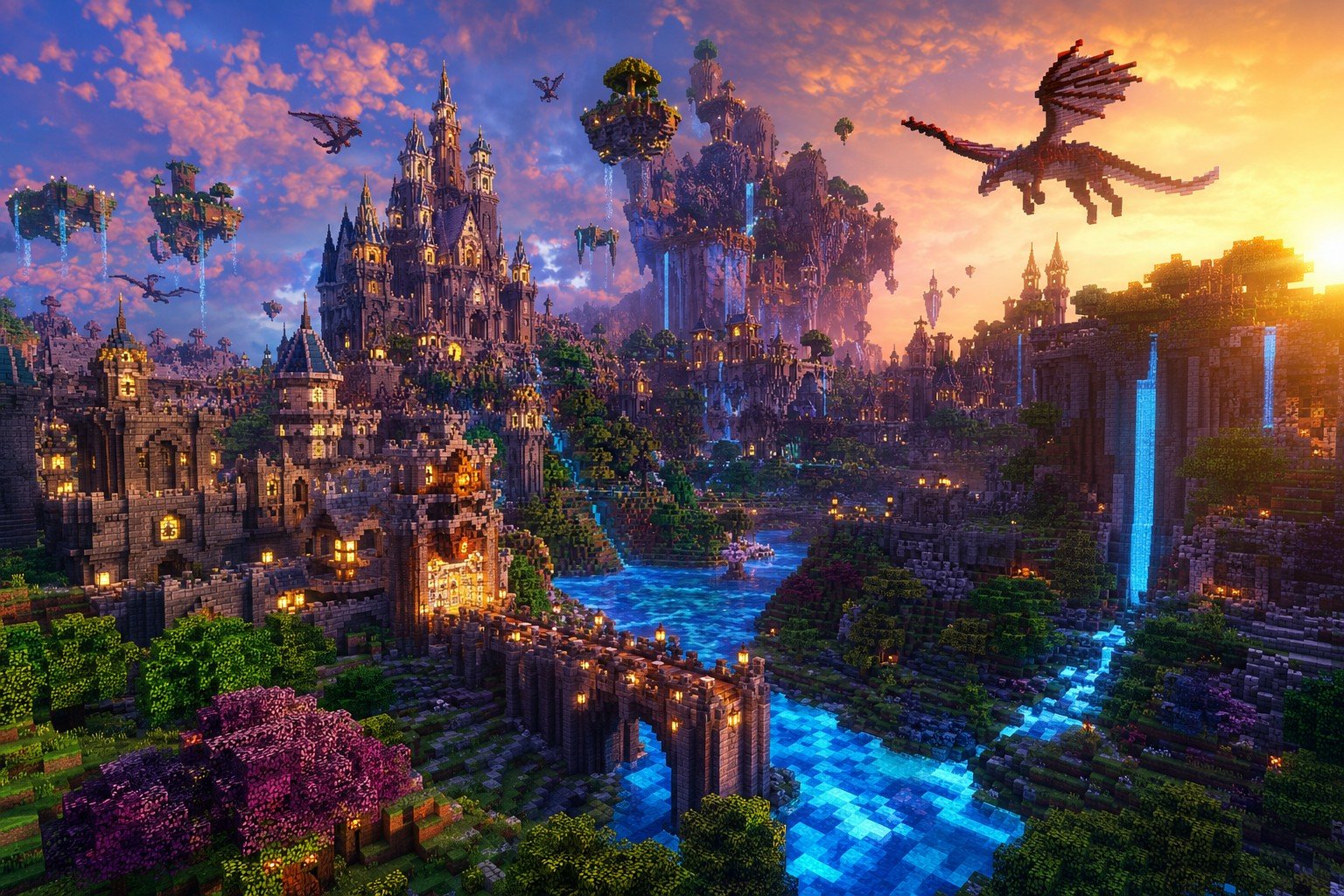
Minecraft Fantasy Kingdom Voxel Landscape
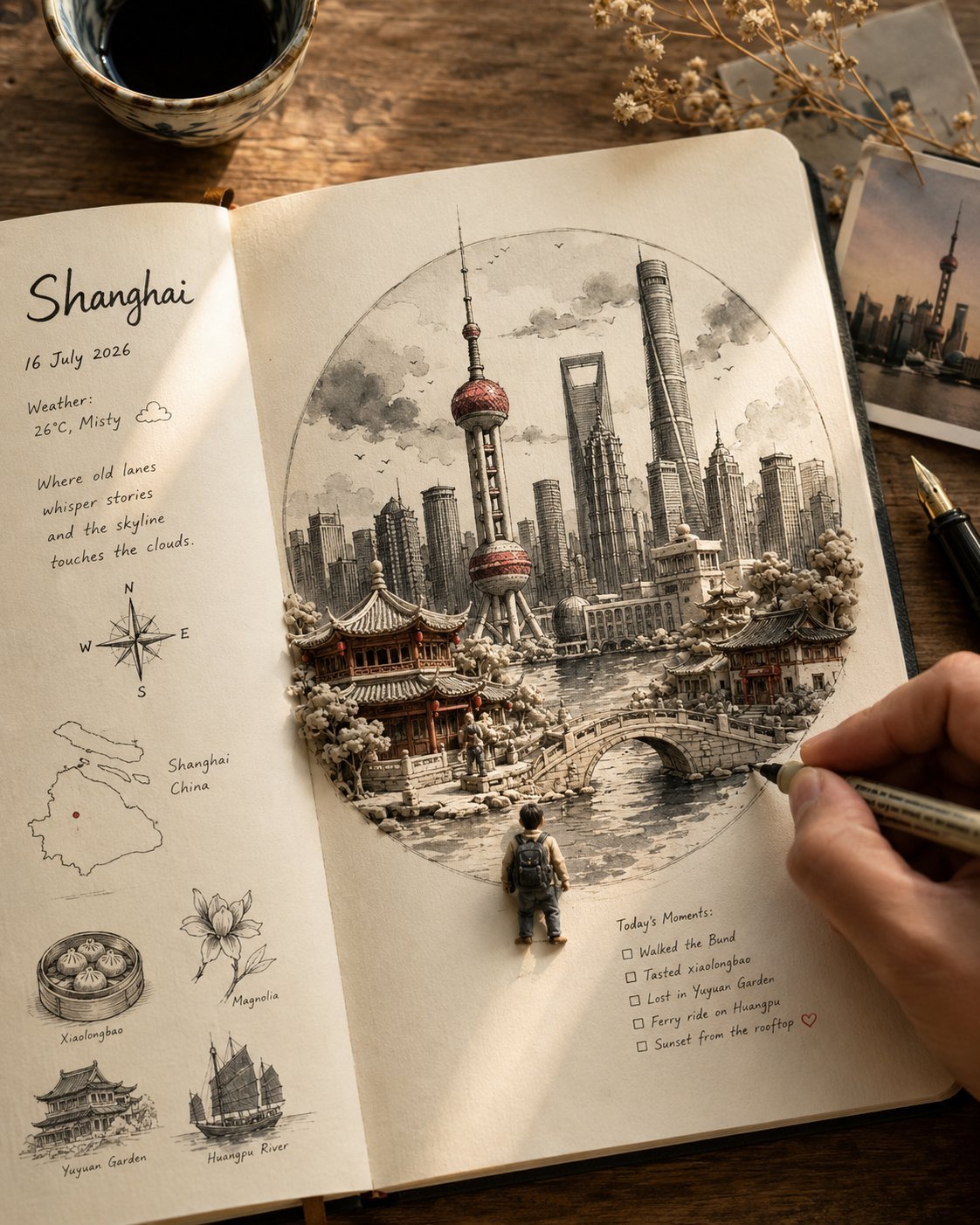
Open Travel Journal Overhead Still Life
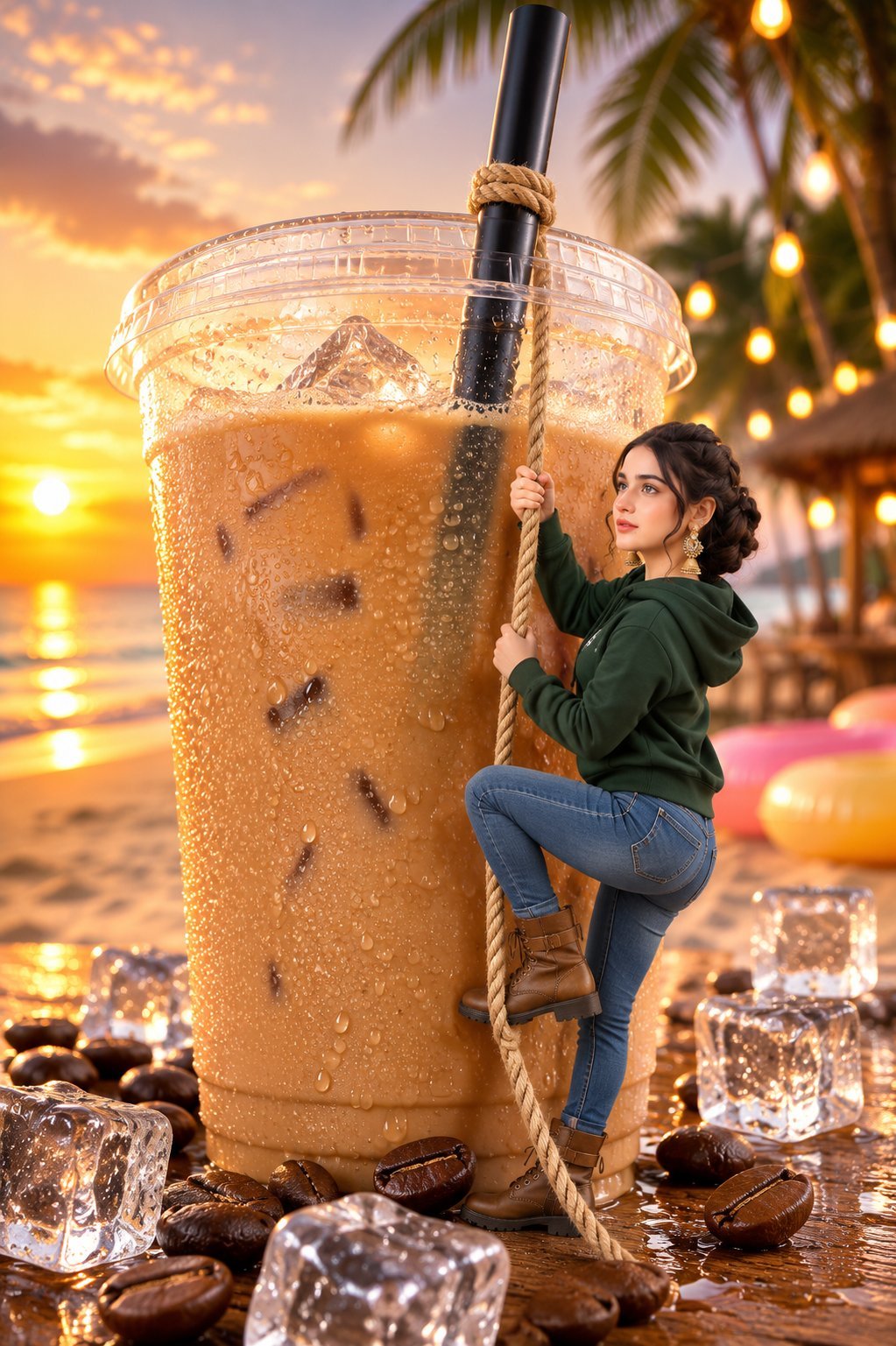
Tiny Woman Miniature Fantasy Macro Scene
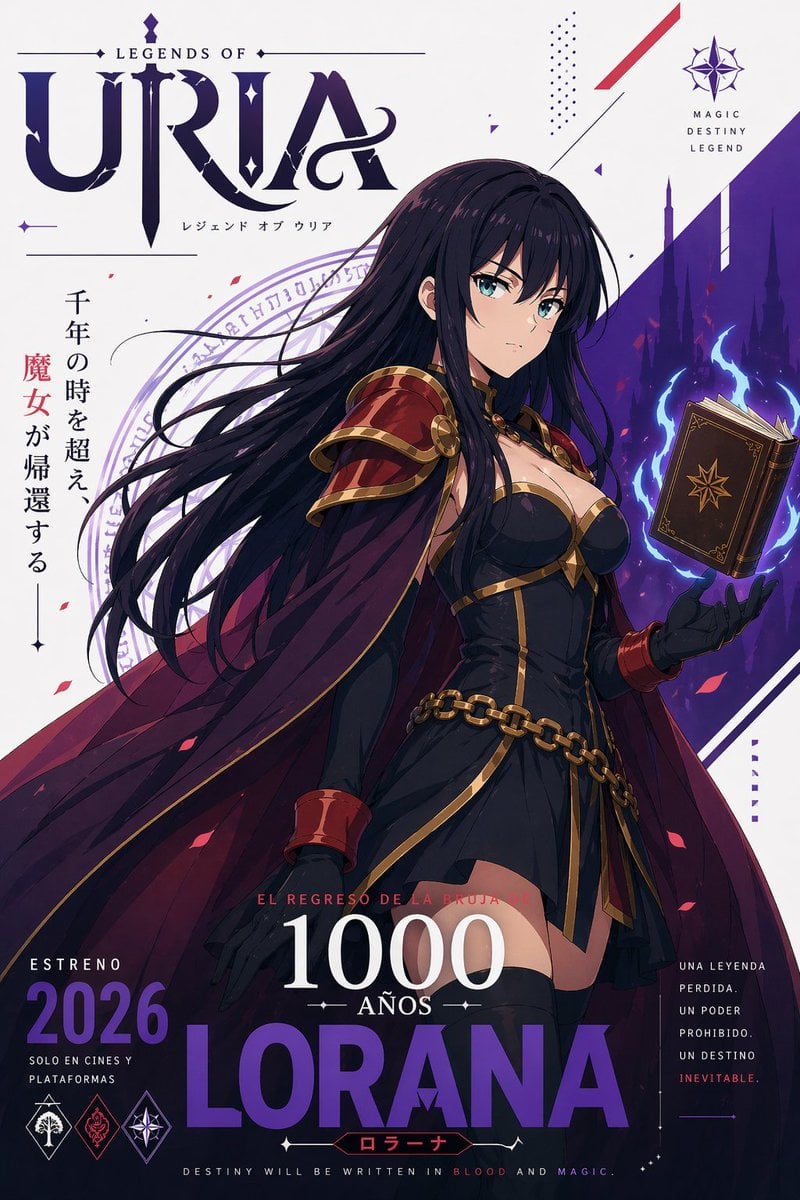
Fantasy Anime Witch Movie Poster
JSON Seedance - Fairy Macro Flight
Videogame Cinematic Trailer - Seedance 2.0
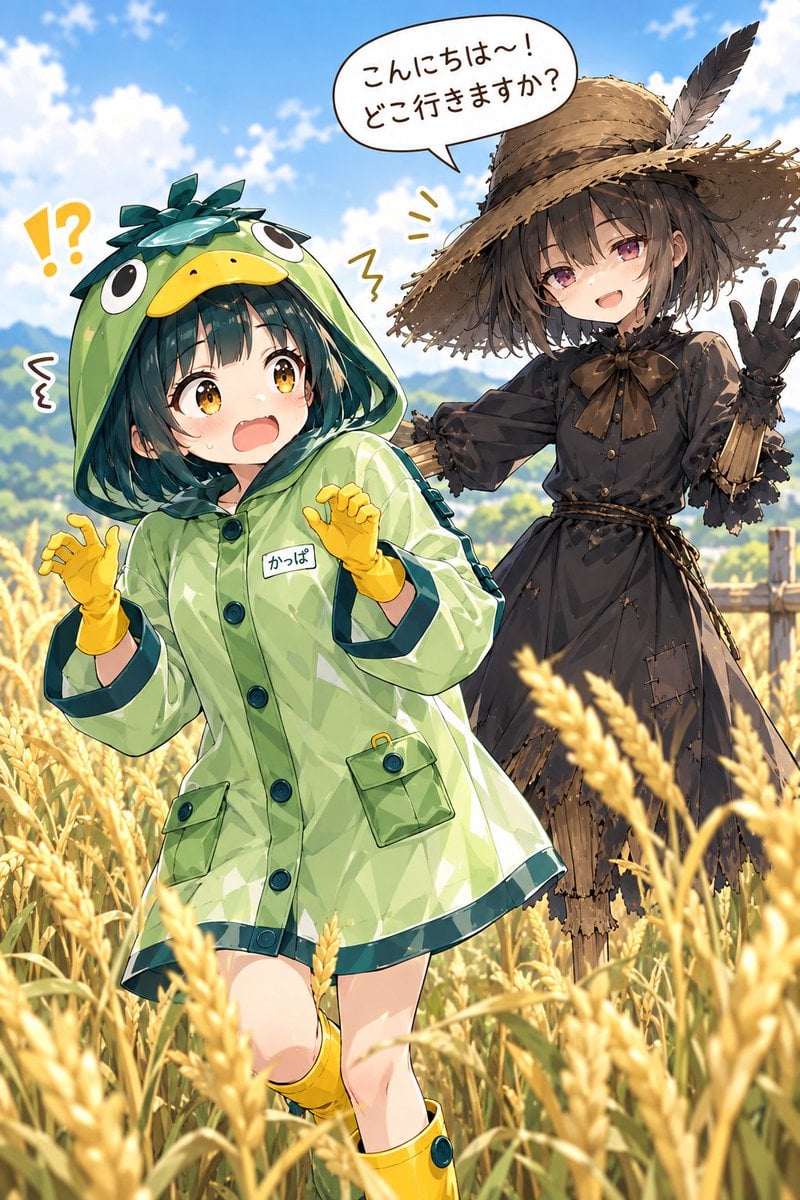
Kappa Girl and Scarecrow Witch
Make it yours
Witch Sketch to Fantasy Result UI works as-is. These are the safest ways to change it without losing the look.
Change one field
Copy a single group, rewrite it, and generate again so you can see what that field is doing.
Keep the frame, change the subject
Hold the composition and light of Witch Sketch to Fantasy Result UI, then swap wardrobe, props or the person for a new take.
| If the result… | Why | Fix |
|---|---|---|
| The result drifts from the preview | Too many fields changed at once. | Reuse Witch Sketch to Fantasy Result UI as-is first, then change one group — subject, light, or setting. |
| The model over-stylizes the scene | The prose prompt leaves finish and camera underspecified. | Add one camera or lighting sentence and stay on GPT Image 2. |
More GPT Image 2 templates
Other prompts made for GPT Image 2.

Six VTuber Japanese Logo Sheet

Realistic Portrait of Woman and Deer

The Vista Modular Condo Poster

AI Model Routing Comparison Infographic

2.5D Anime Art Board

Isometric Productivity Desk Scene

New York Double Exposure Poster

Four-Panel AI Landscape Comparison

Japanese Tatami Lifestyle Magazine Cover

NESCAFÉ Coffee Map Poster
More image prompts
Fresh picks from across the catalog.
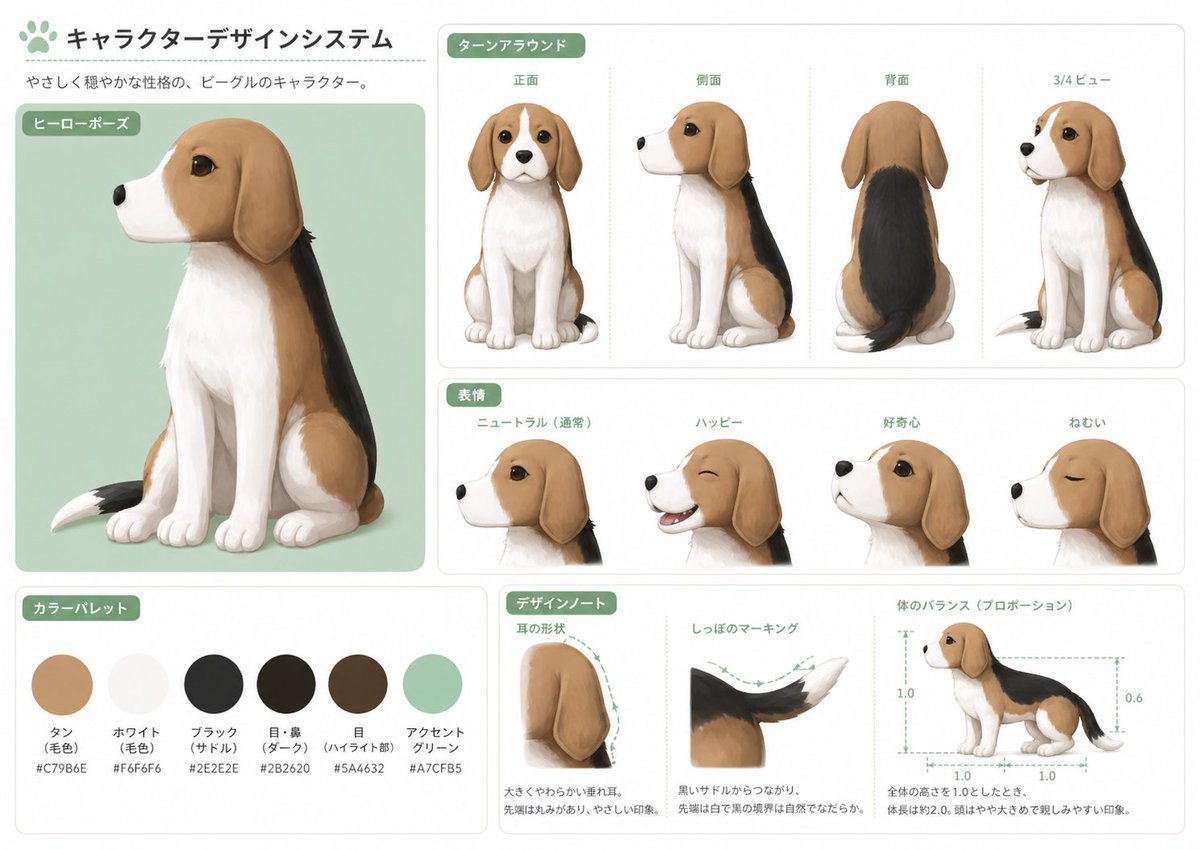
Japanese Beagle Character Design Sheet
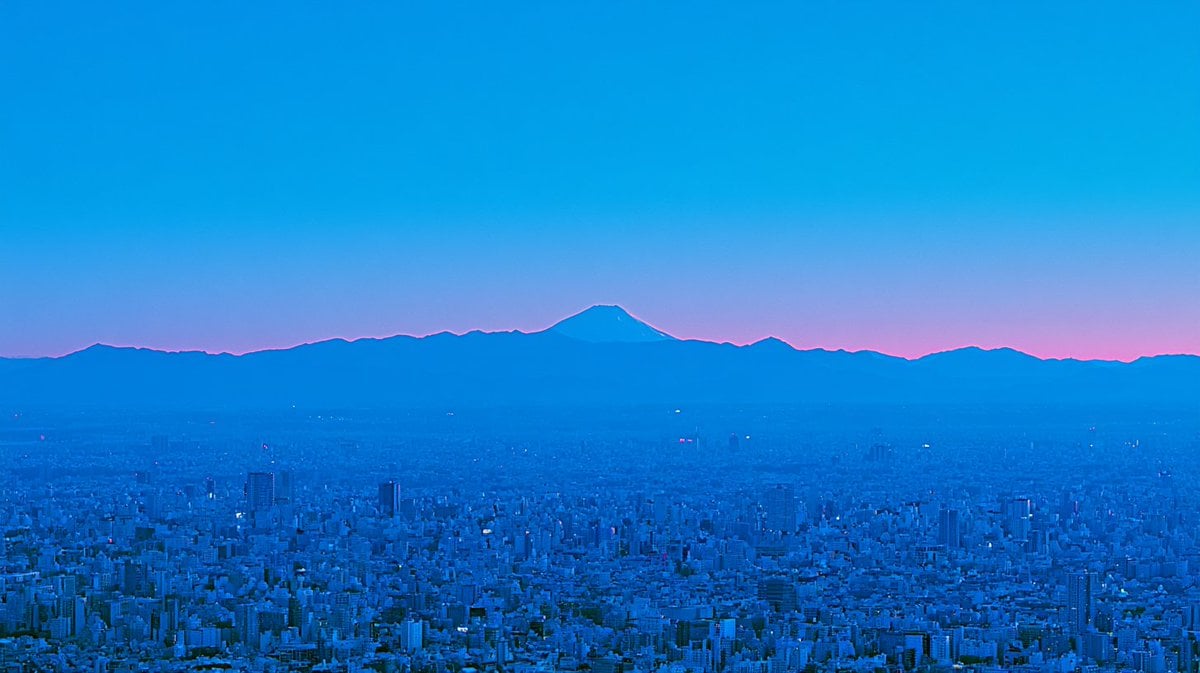
Blue Hour Tokyo Skyline with Mount Fuji
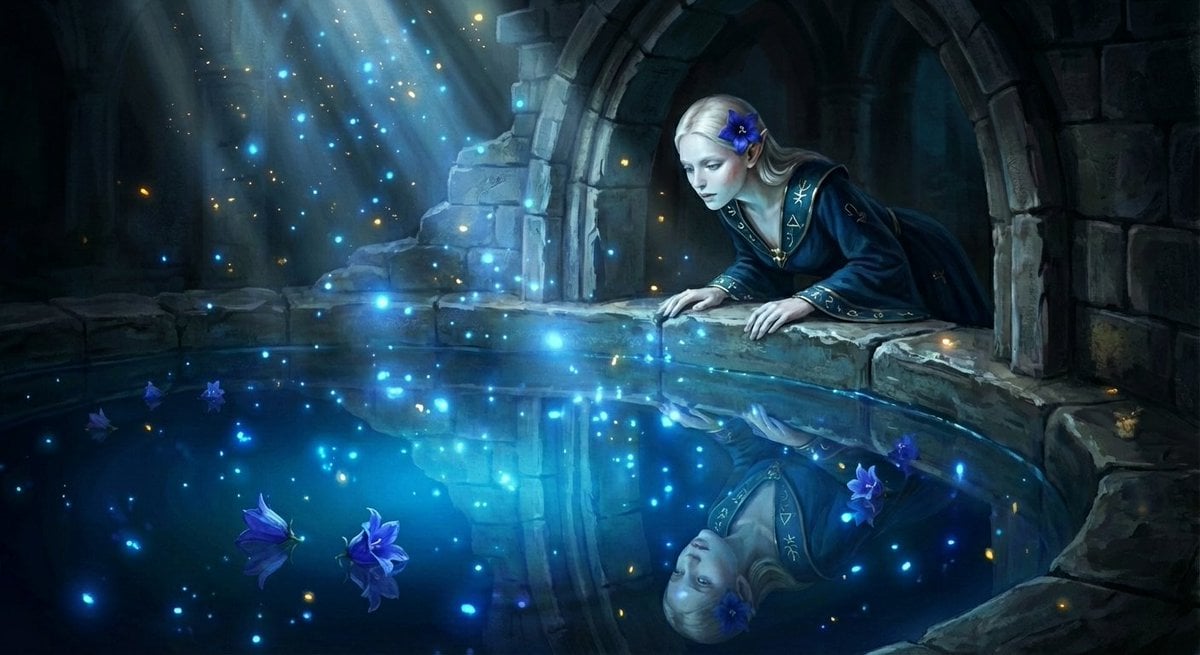
Watercolor Semi-Realistic Fantasy Animation Style Prompt
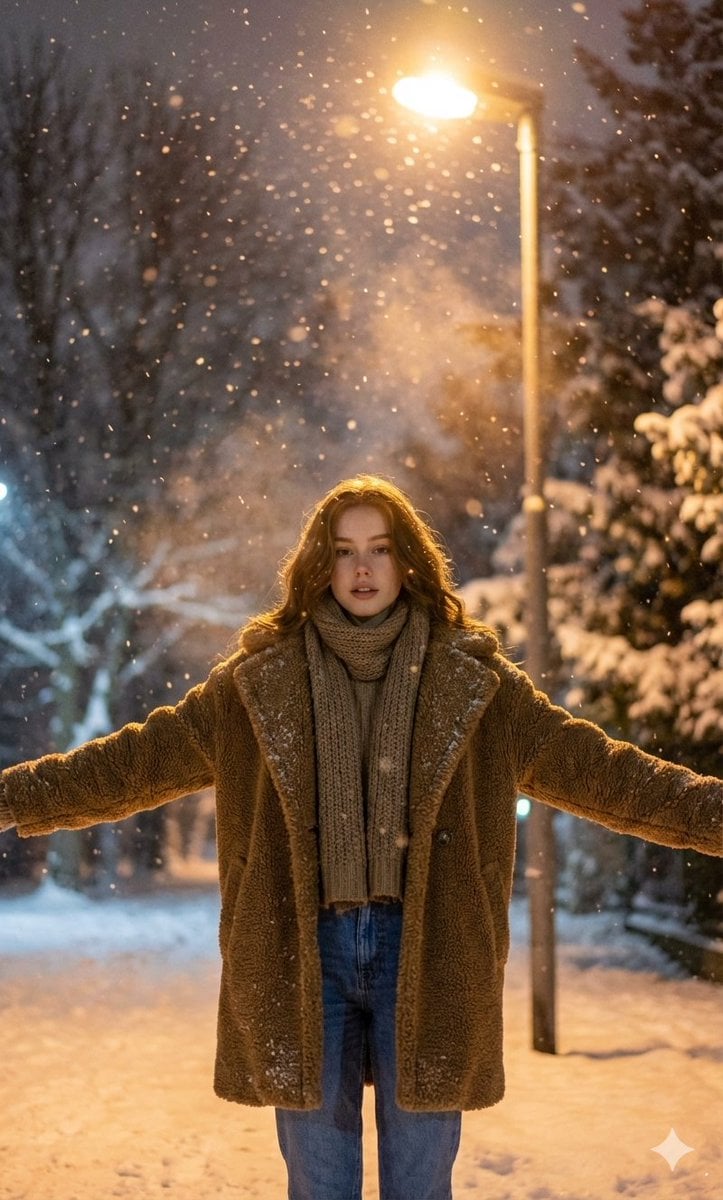
Nighttime Winter Scene with Strict Face Identity Lock
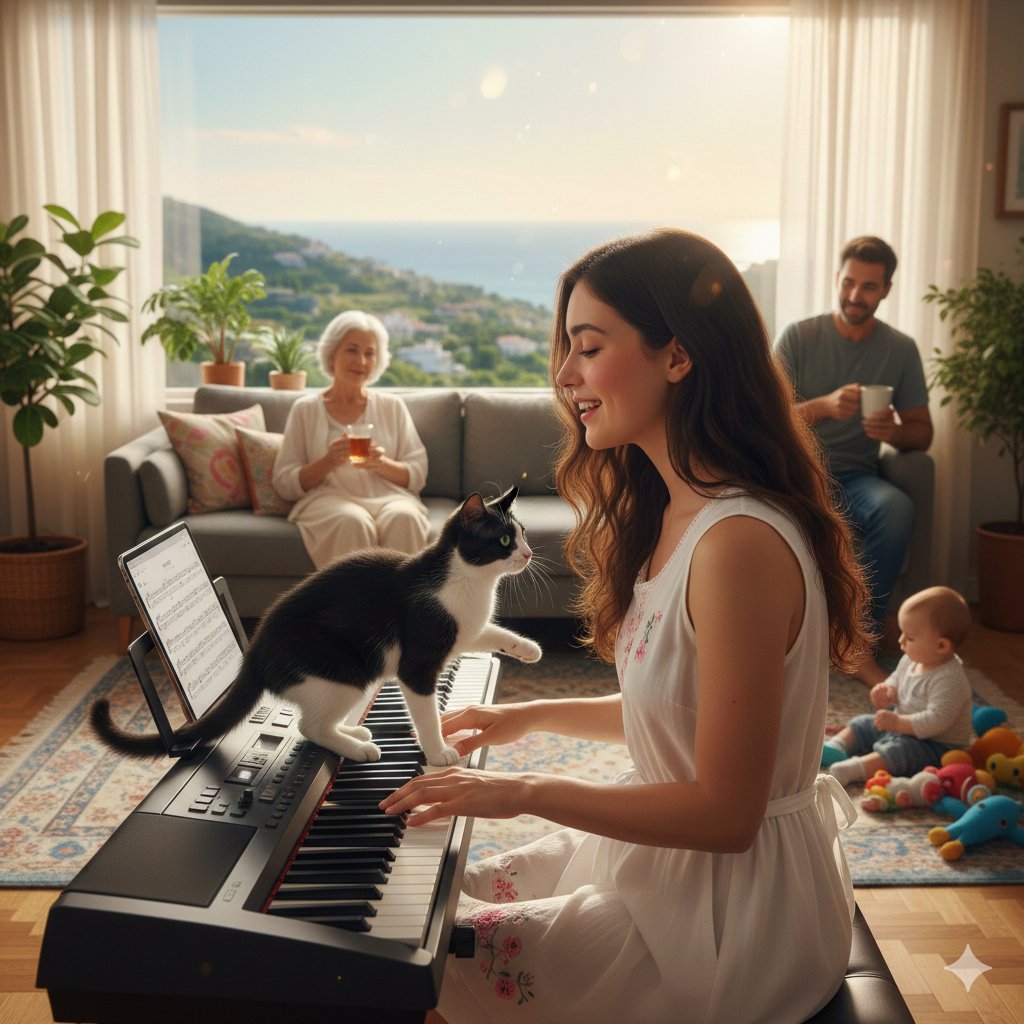
Cinematic Family Gathering Scene
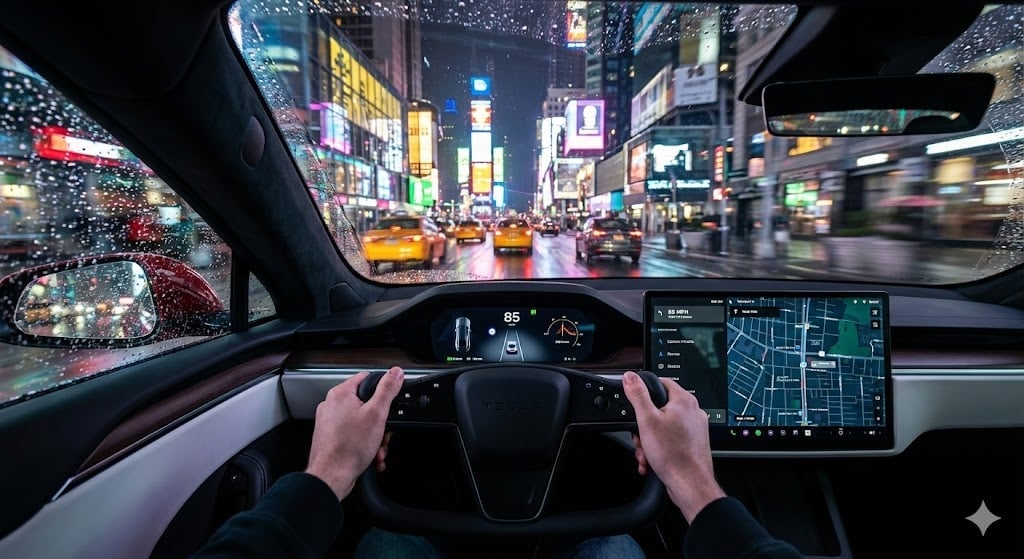
Cinematic First-Person Tesla Drive in Rain-Soaked Manhattan
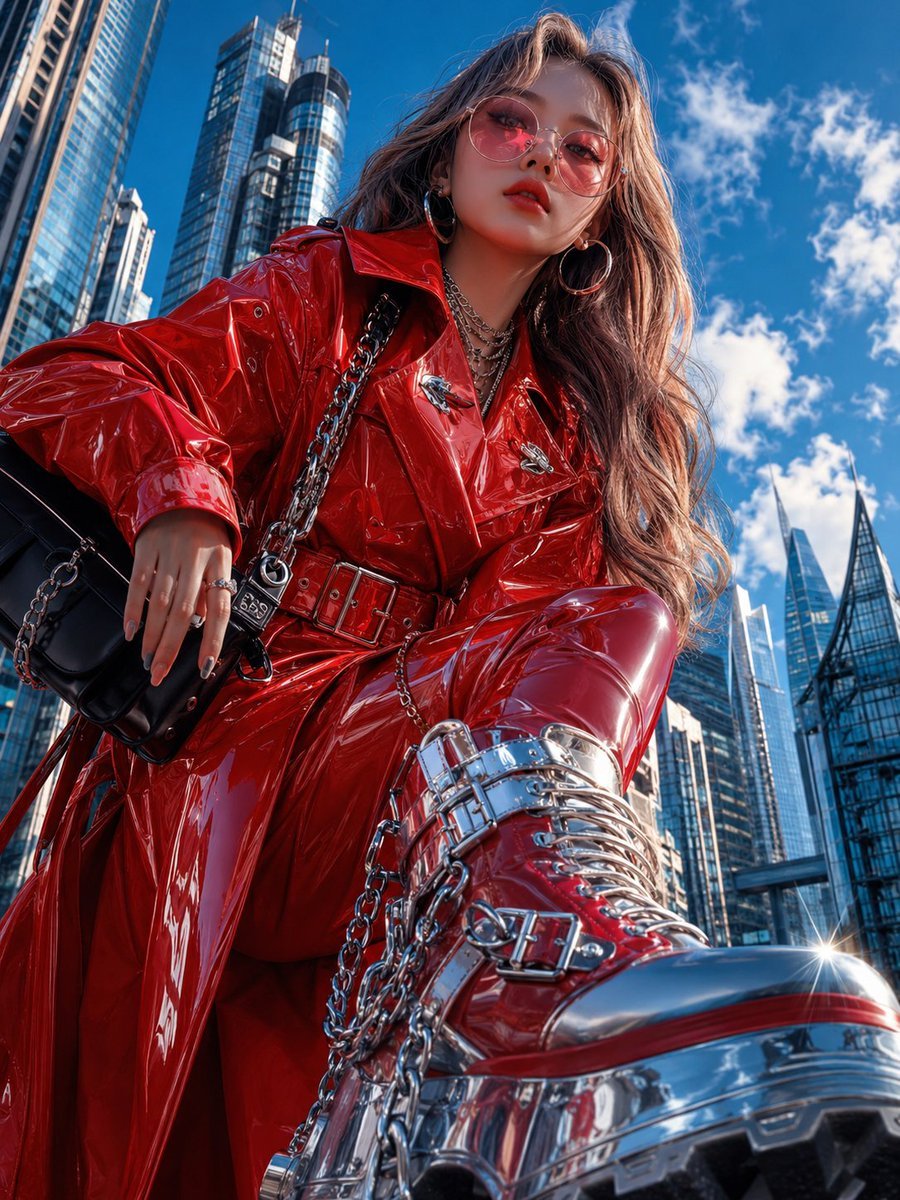
Cyberpunk High-Fashion Editorial
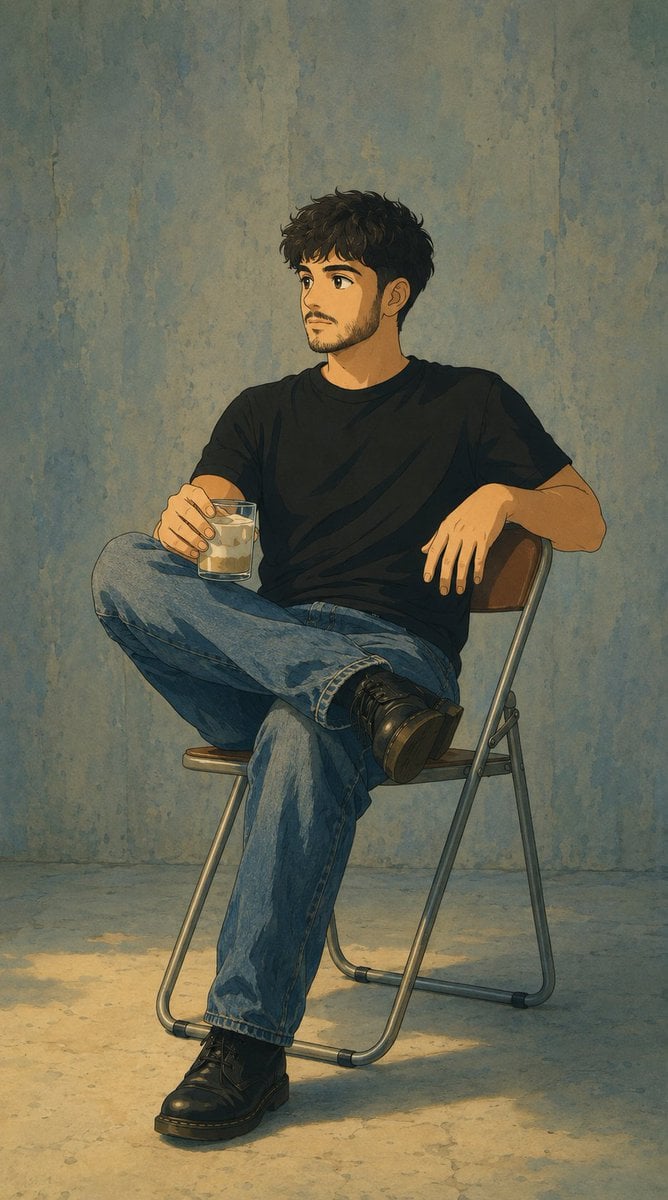
Studio Ghibli Photo Transformation
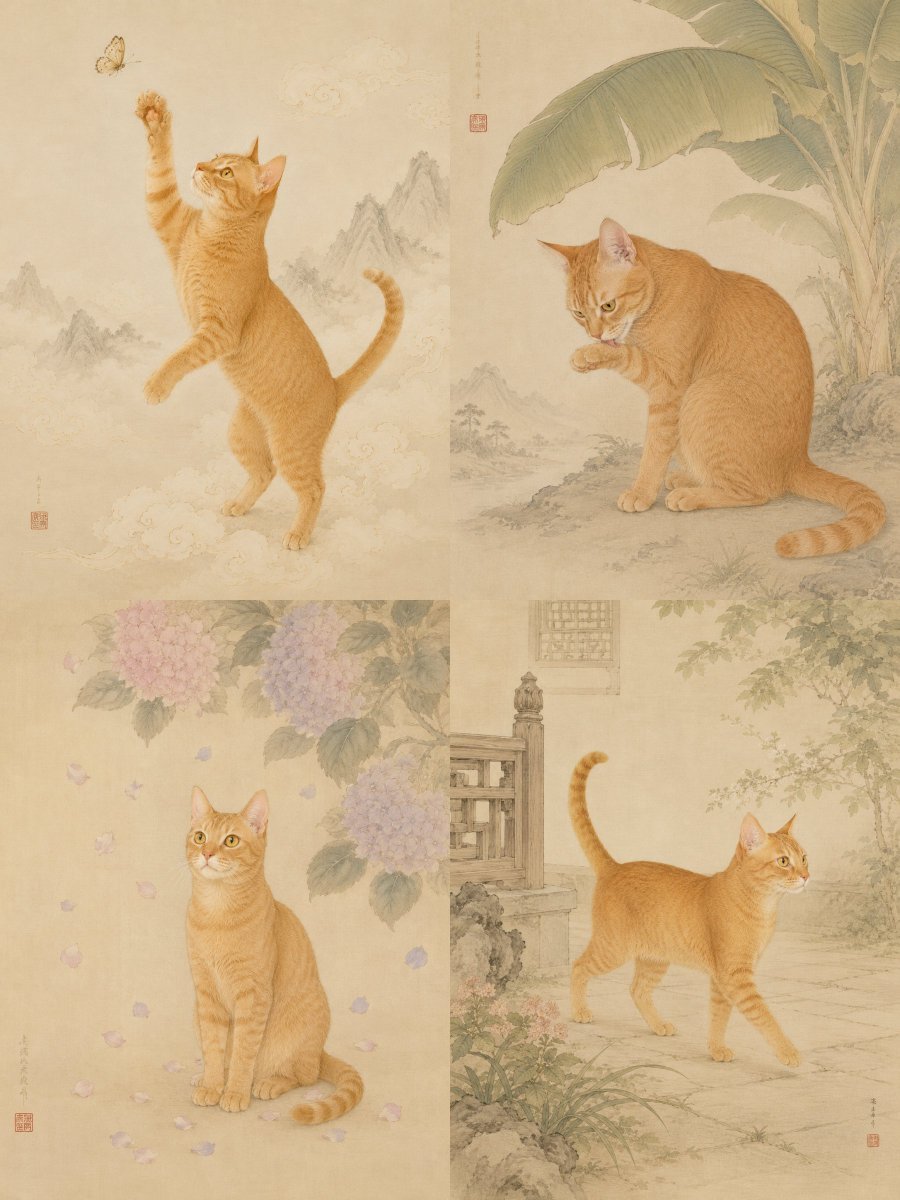
Oriental Gongbi Style Pet Portrait
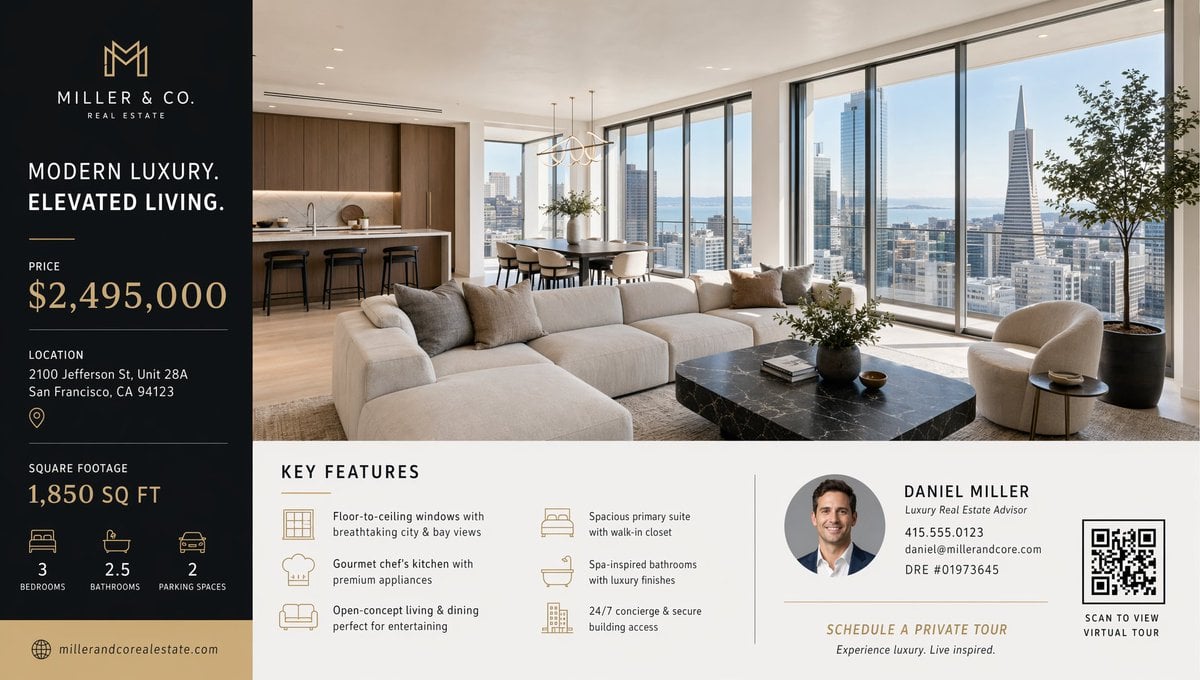
Luxury Real Estate Flyer Layout
Browse template categories
Witch Sketch to Fantasy Result UI questions
How do I use the Witch Sketch to Fantasy Result UI template?
Add your photo if the template asks for one, edit the prompt if you like — the template's model and format are already selected — and press Generate. Your version opens in PicX Studio.
Can I customize the Witch Sketch to Fantasy Result UI template?
Yes. You can change the subject, setting, lighting, mood, format, and available model controls before creating your image.
Is the Witch Sketch to Fantasy Result UI template free?
Opening and editing this template is free. Generating uses credits, shown on the Generate button when you are signed in.
Which AI model should I use?
Start with GPT Image 2, which is the model associated with this template. You can compare another compatible model for a different finish.
Looking for something else? Browse all templates.

Your photo, any look
Thousands of ready templates for every top image and video model, from one credit balance.