
Cat Recognition Result Screen
Creates a polished Chinese mini-program pet recognition result page from a live cat camera reference.
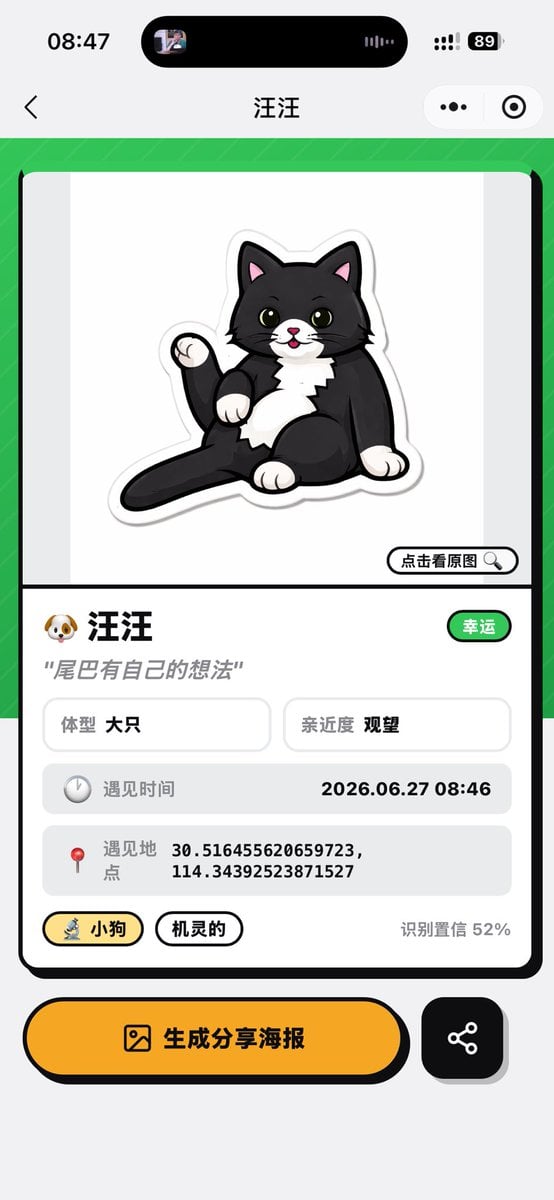
- Prompt included
- Model and format preset
- Free template
The prompt behind this image
Copy the exact prompt behind Cat Recognition Result Screen, or open it in the studio and make it yours.
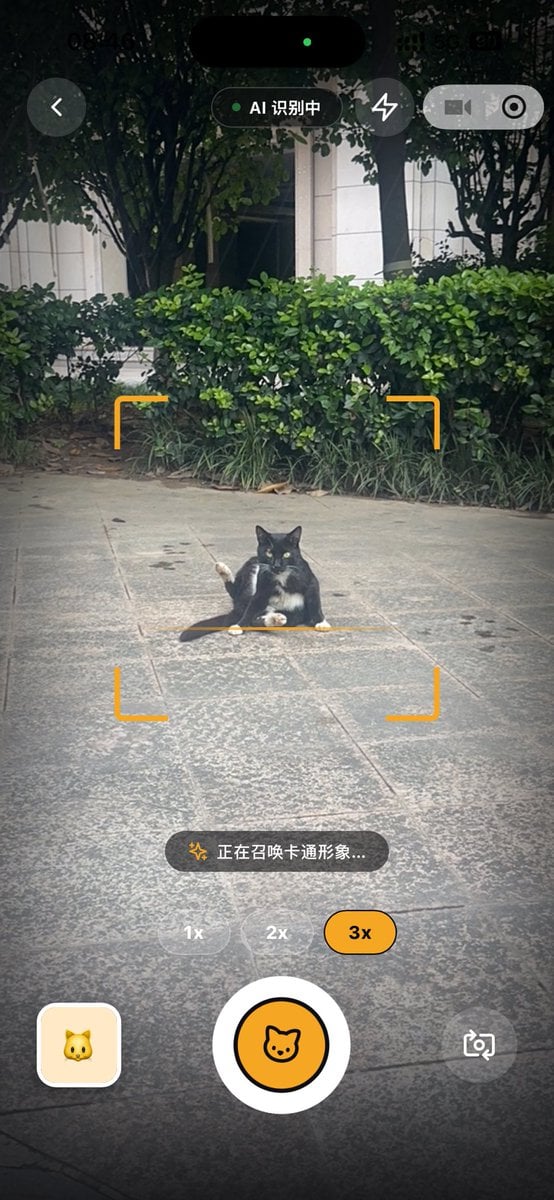
Using the provided reference image as the source cat and app context, transform the camera recognition screen into a completed pet-profile result screen for a mini app. Replace the live camera view with a clean card-style analysis page: show a cute sticker-like cartoon illustration of the same black-and-white cat sitting with its tail raised on a white preview area, with a small button labeled “点击看原图” and a magnifying-glass icon. Keep the mobile screenshot aspect ratio and iOS-style top chrome, but change the page title to {argument name="pet name" default="汪汪"}. Layout: Create one large rounded rectangular result card on a bright green patterned background. Under the illustration, add a profile section with exactly these visible data elements: 1) name row with a dog emoji and {argument name="pet name" default="汪汪"}, plus a green badge labeled “幸运”; 2) quote text {argument name="quote" default="尾巴有自己的想法"}; 3) two small info boxes labeled “体型 大只” and “亲近度 观望”; 4) a gray row labeled “遇见时间” with {argument name="encounter time" default="2026.06.27 08:46"}; 5) a gray row labeled “遇见地点” with {argument name="coordinates" default="30.516455620659723, 114.34392523871527"}; 6) two pill tags labeled “小狗” and “机灵的”; 7) confidence text “识别置信 52%”. Bottom actions: Add two bottom buttons below the card: a large yellow rounded button with an image icon and text “生成分享海报”, and a smaller black rounded square share button with a share-network icon. Style: playful polished Chinese mini-program UI, thick black outlines, rounded cards, soft shadows, yellow accent color, clean vector-like illustration. Do not keep the original camera scanning brackets, zoom controls, shutter button, or live street background.
Reference images included
Cat Recognition Result Screen needs input media to work. They load alongside the prompt when you open it in the studio.
How to use Cat Recognition Result Screen in 3 steps
- 1Upload ImagePNG, JPG or paste
Add your photo
Upload the photo the template builds on. The prompt, model and format are already set.
- 2…a portrait of your subject in softgolden-hour light, 85mm…
Personalize
Edit the subject and creative details for your destination.
- 3Generate
Generate
Press Generate — your image is created in PicX Studio, so you can compare it with the original and refine one variable at a time.
More like this
Templates with the same subject, style or setup. Open one to see its prompt.
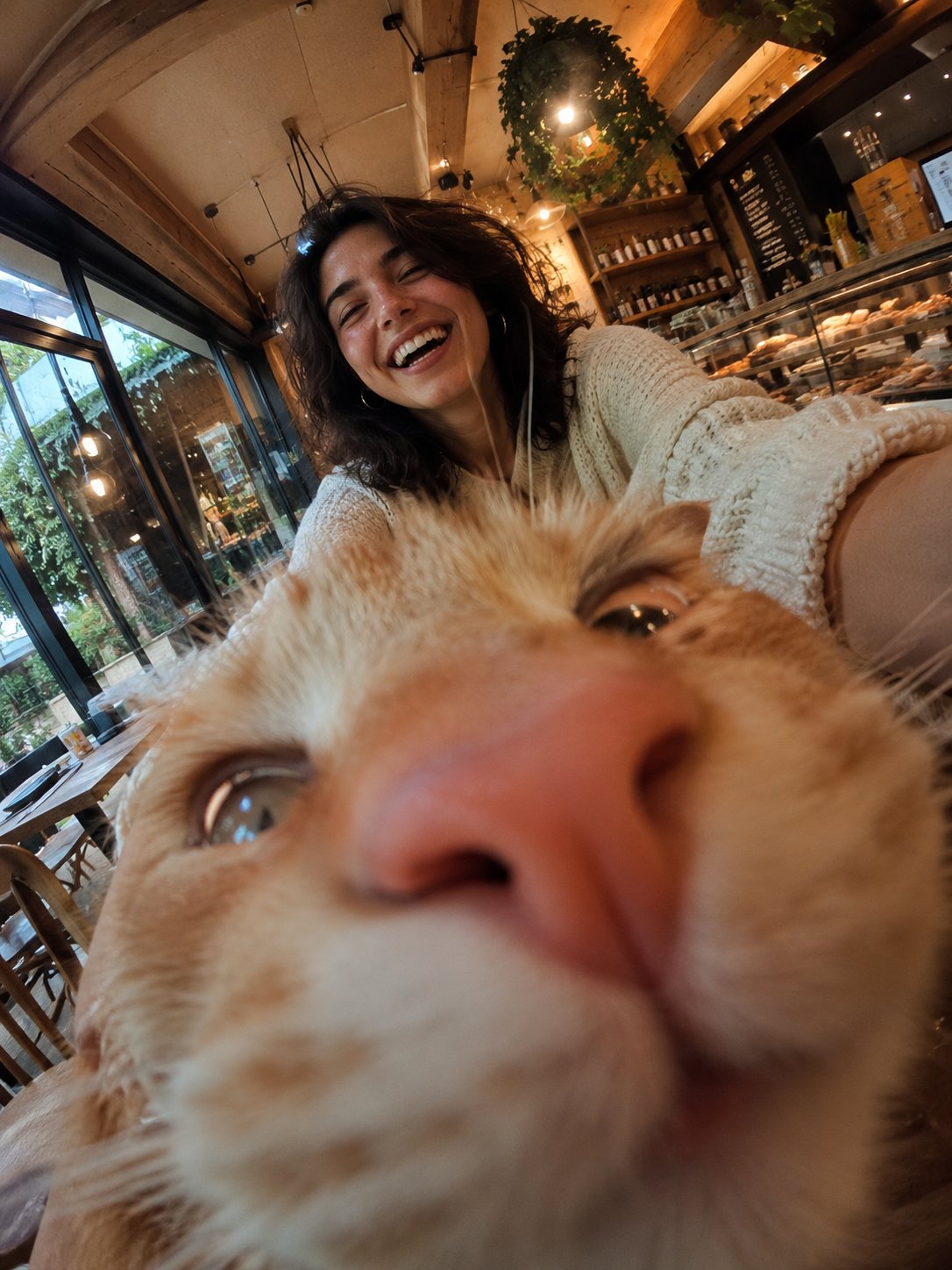
Cat Photobomb Selfie — 0.5x Wide Angle Café Chaos
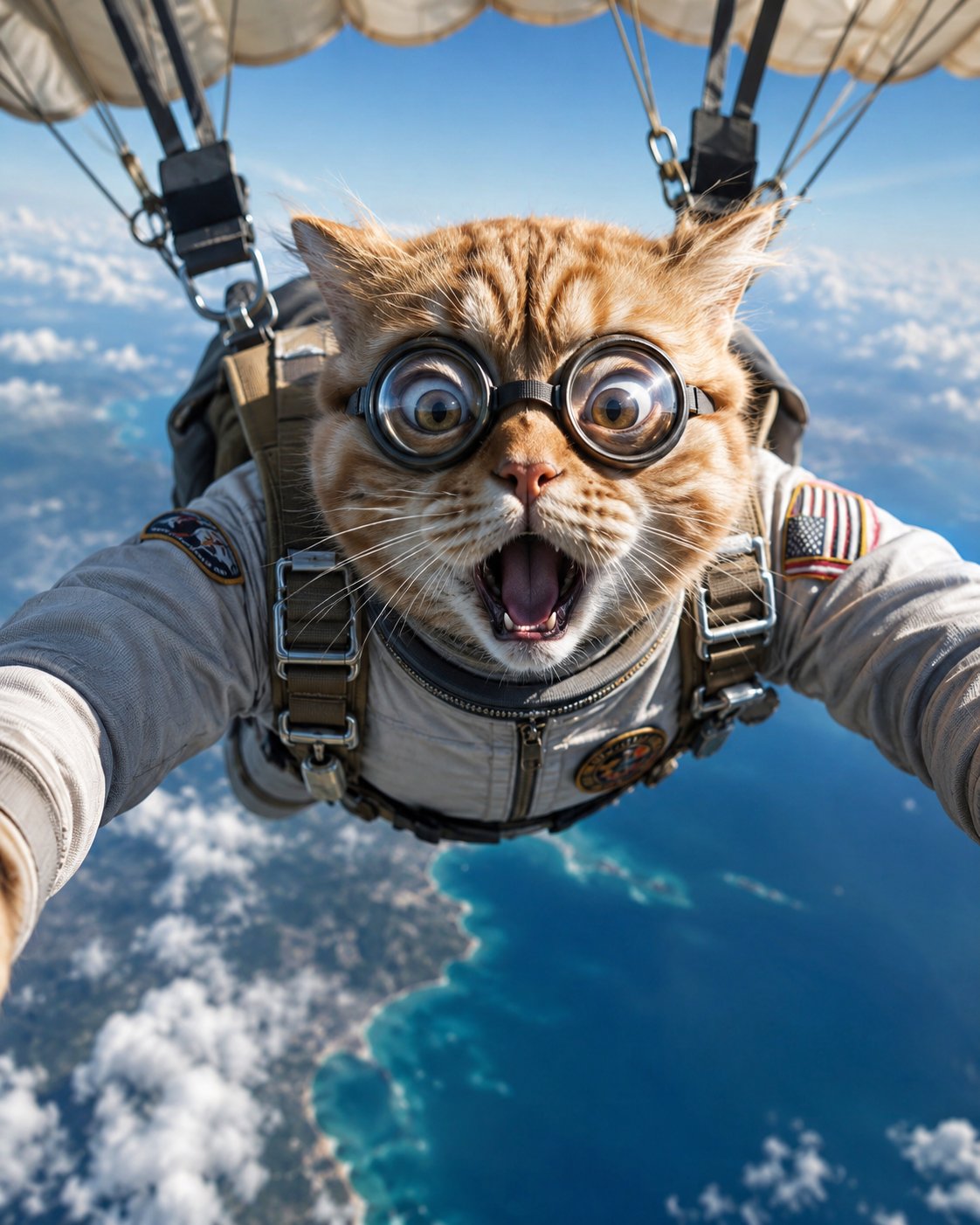
Surreal Cat Astronaut — Humanoid Face Freefall
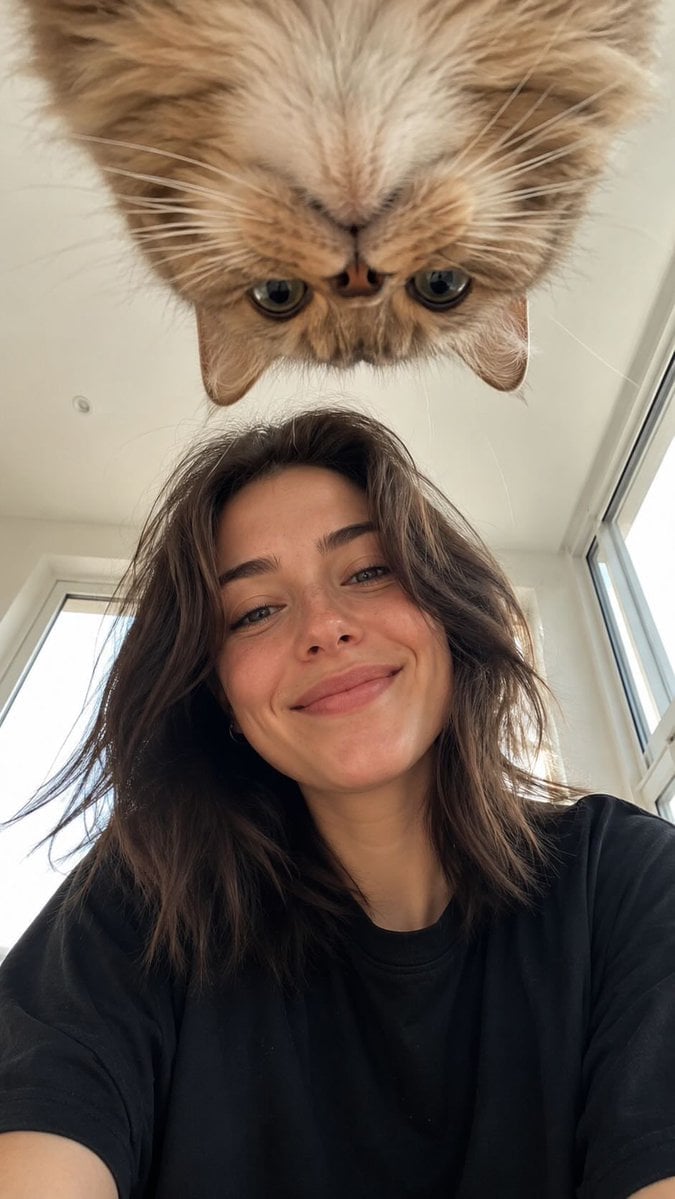
Low Angle Floor Selfie With Upside Down Cat
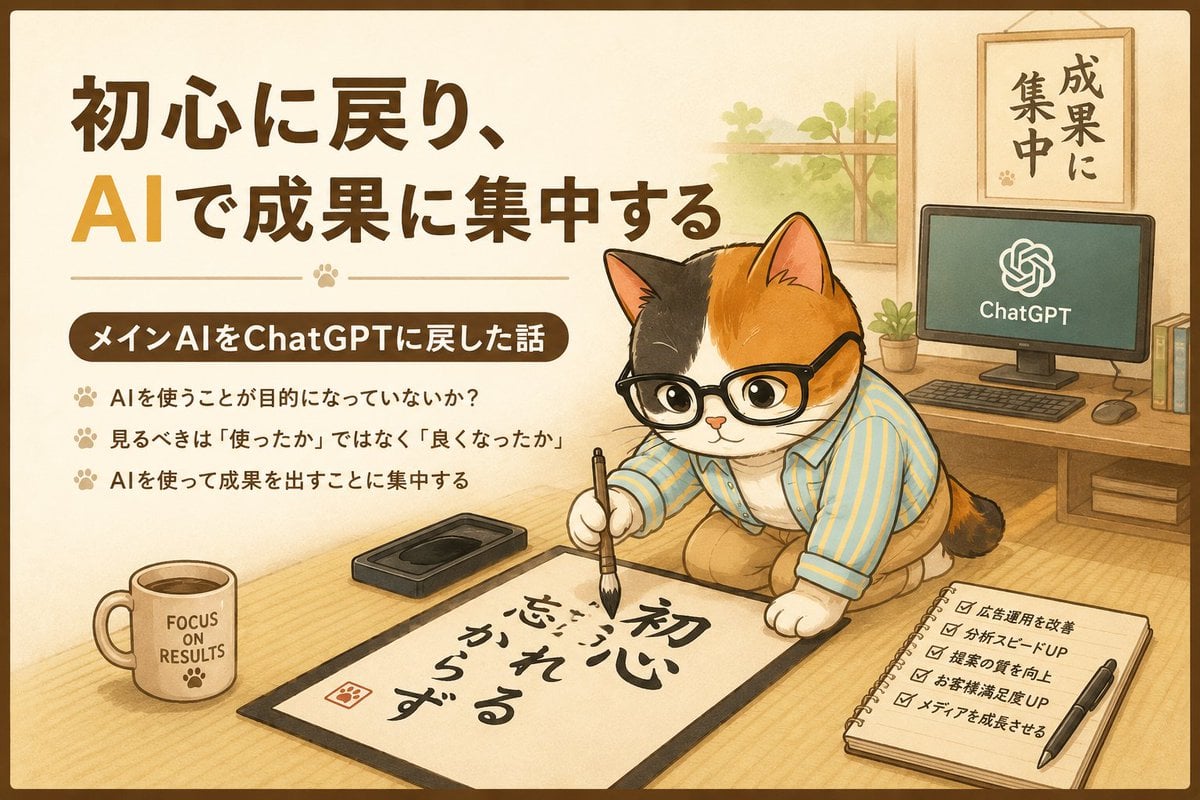
ChatGPT Results Focus Cat Illustration
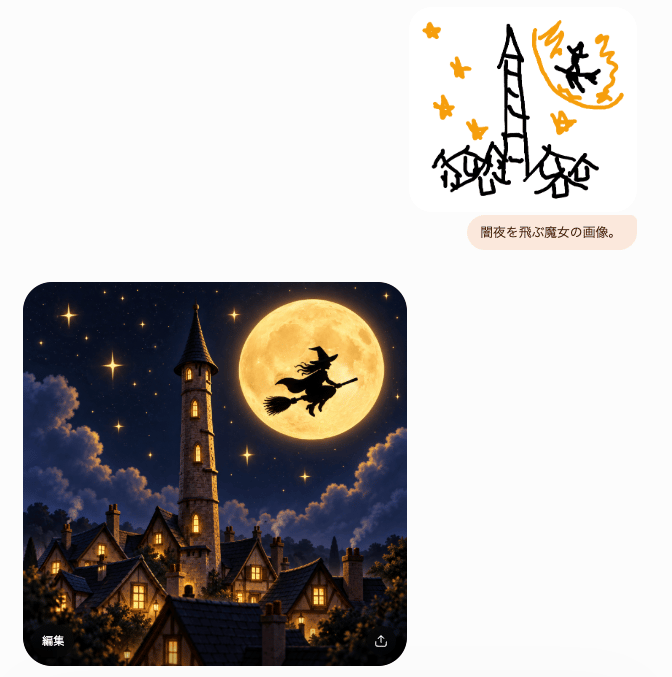
Witch Sketch to Fantasy Result UI
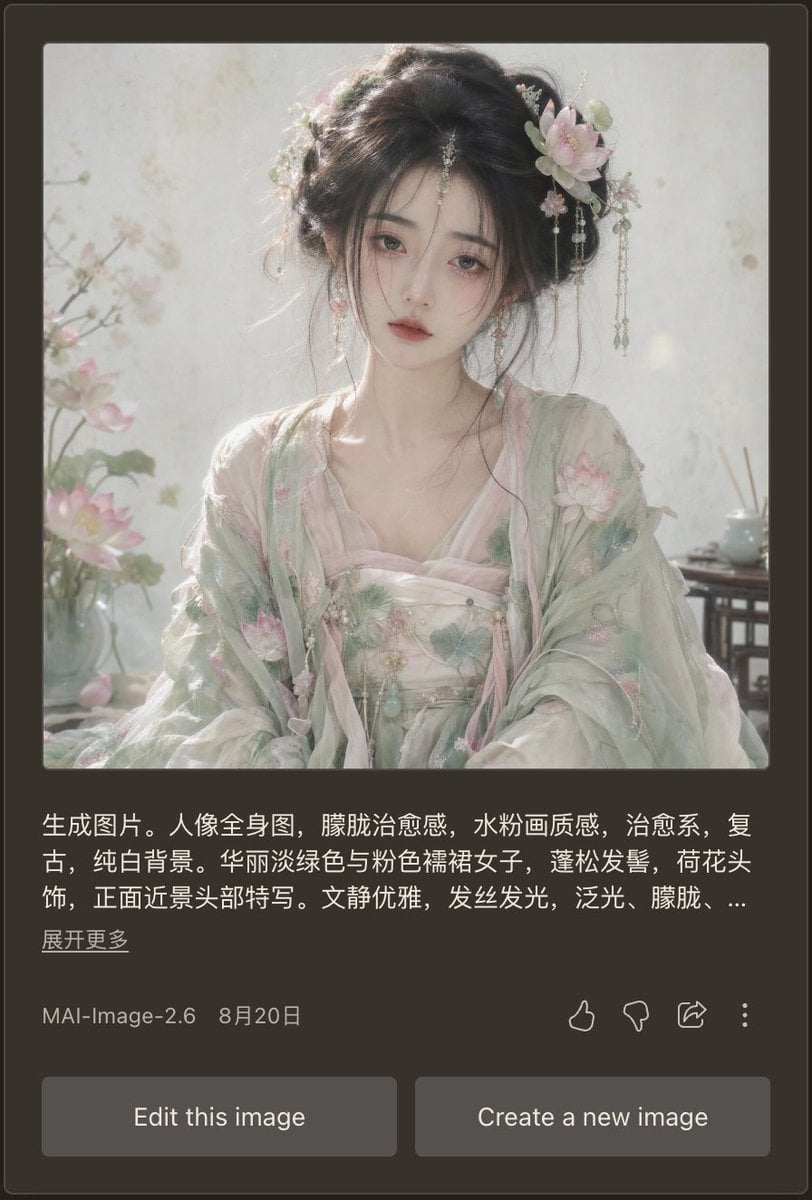
Dark Mode AI Portrait Result Card
Anime Couple Segmentation UI Screenshot
ChatGPT Transparent Pizza Result
Graphic Screen-Print Human-Animal Illustration
Character Compatibility Result UI Generator
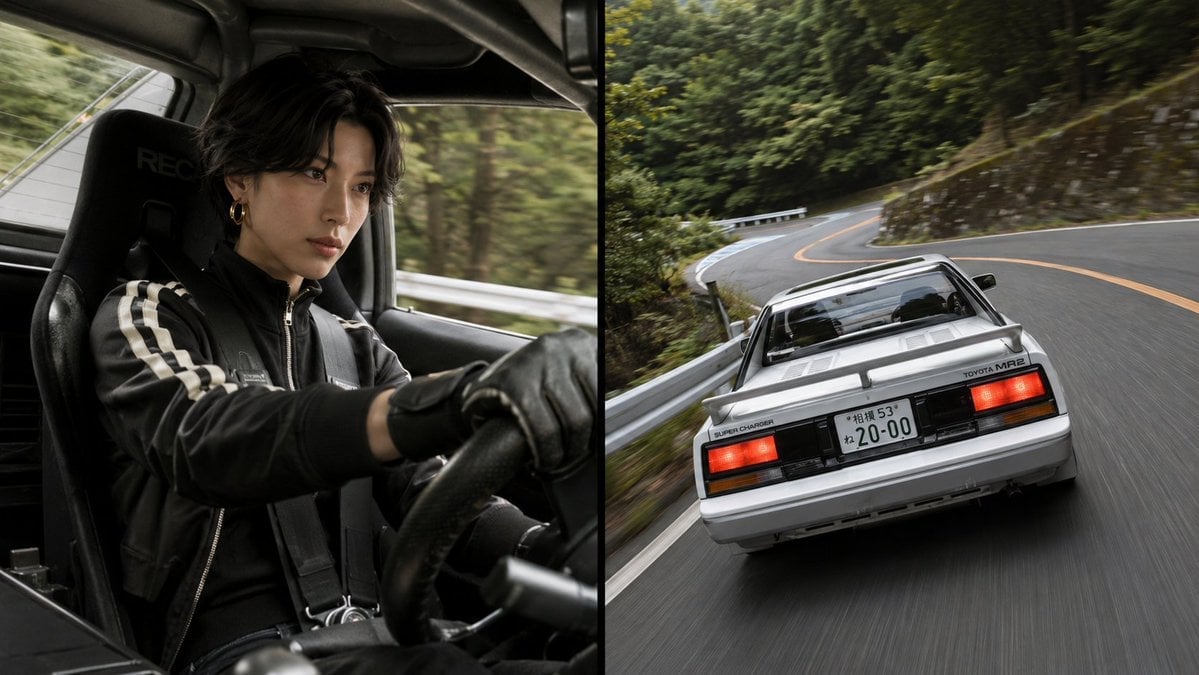
Split-Screen MR2 Touge Drive

Anime Catgirl in Chinese Ink Landscape
Make it yours
Cat Recognition Result Screen works as-is. These are the safest ways to change it without losing the look.
Change one field
Copy a single group, rewrite it, and generate again so you can see what that field is doing.
Keep the frame, change the subject
Hold the composition and light of Cat Recognition Result Screen, then swap wardrobe, props or the person for a new take.
| If the result… | Why | Fix |
|---|---|---|
| The result drifts from the preview | Too many fields changed at once. | Reuse Cat Recognition Result Screen as-is first, then change one group — subject, light, or setting. |
| The model over-stylizes the scene | The prose prompt leaves finish and camera underspecified. | Add one camera or lighting sentence and stay on GPT Image 2. |
More GPT Image 2 templates
Other prompts made for GPT Image 2.

Six VTuber Japanese Logo Sheet

Realistic Portrait of Woman and Deer

The Vista Modular Condo Poster

AI Model Routing Comparison Infographic

2.5D Anime Art Board

Isometric Productivity Desk Scene

New York Double Exposure Poster

Four-Panel AI Landscape Comparison

Japanese Tatami Lifestyle Magazine Cover

NESCAFÉ Coffee Map Poster
More image prompts
Fresh picks from across the catalog.
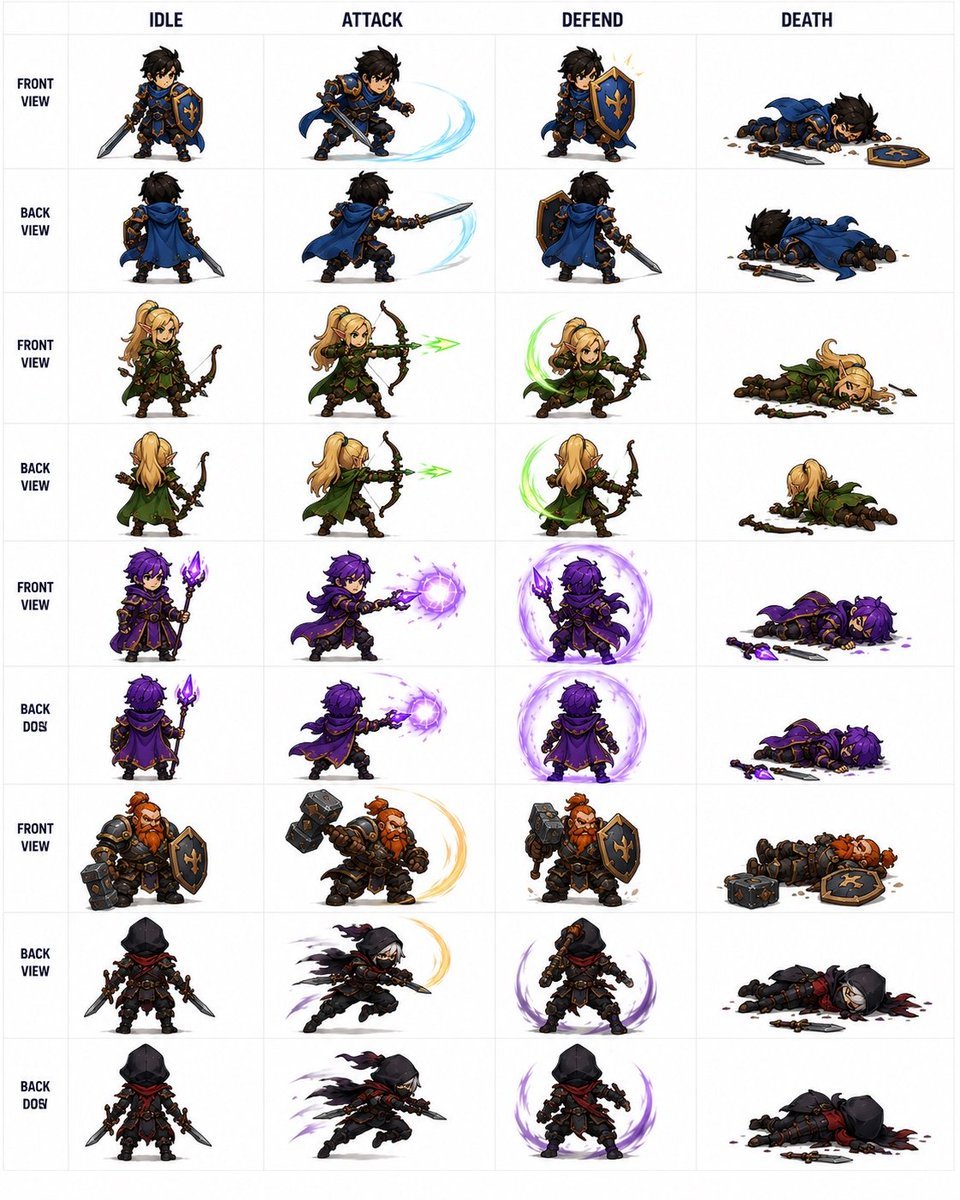
Fantasy RPG Character Sprite Sheet
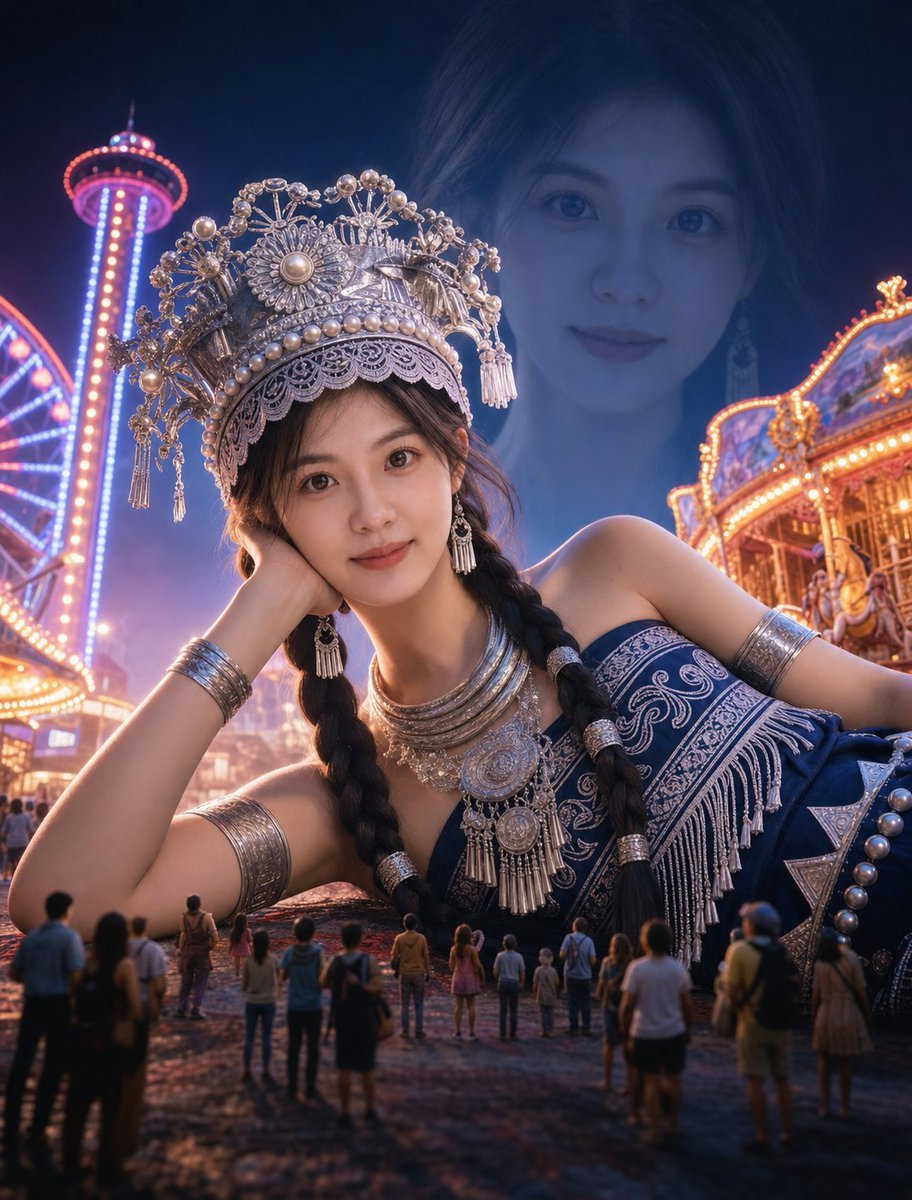
Surreal Giantess Neon Park Portrait
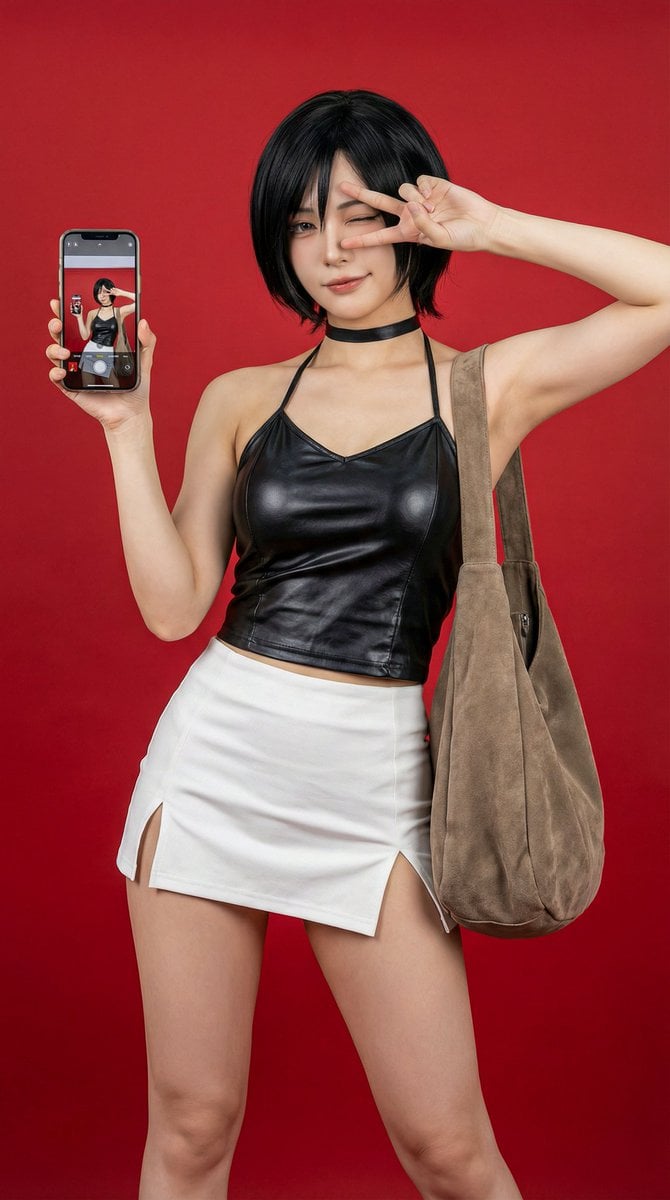
Photorealistic Ada Wong Cosplay Selfie
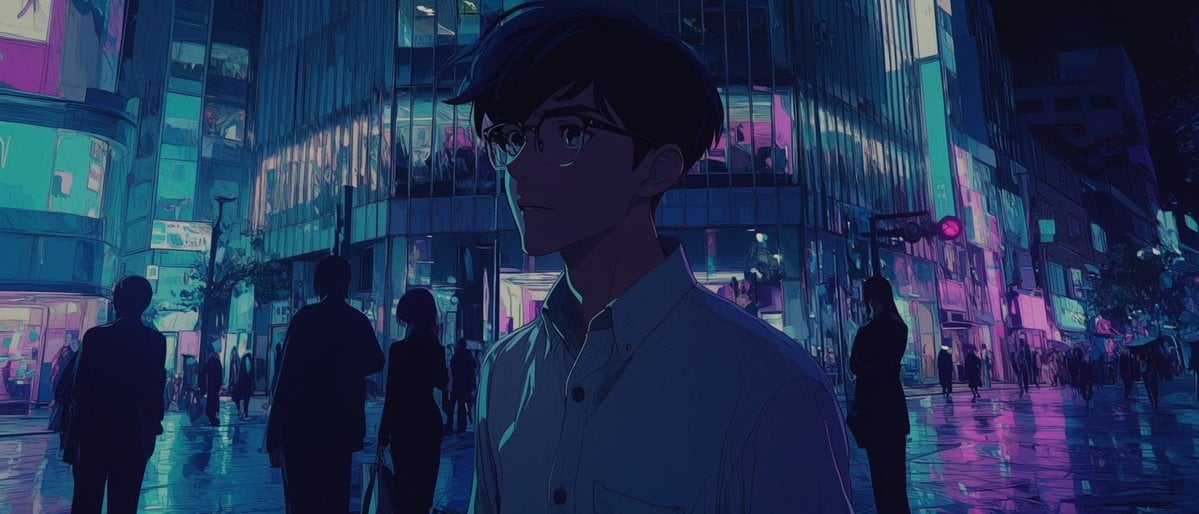
Faceless Anime Neon City Night
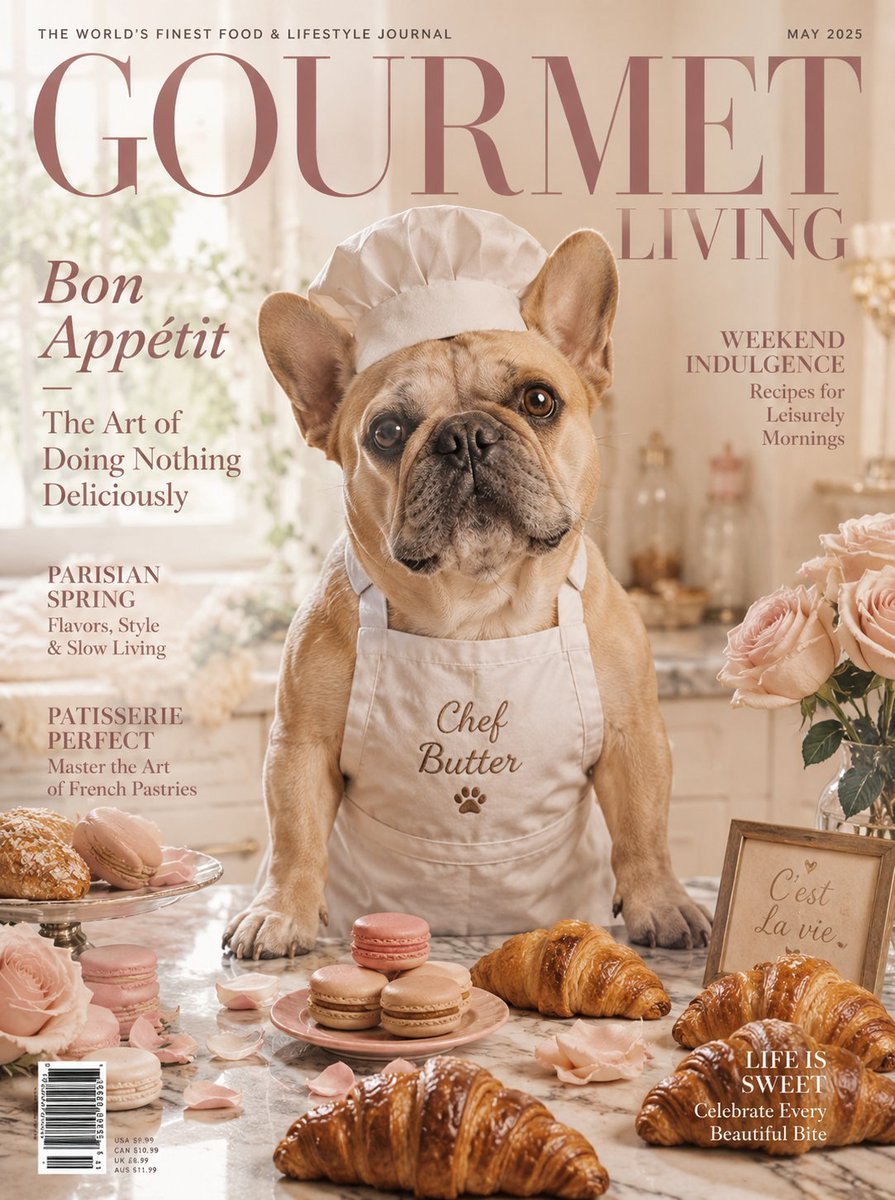
French Bulldog Pastry Chef Magazine Cover
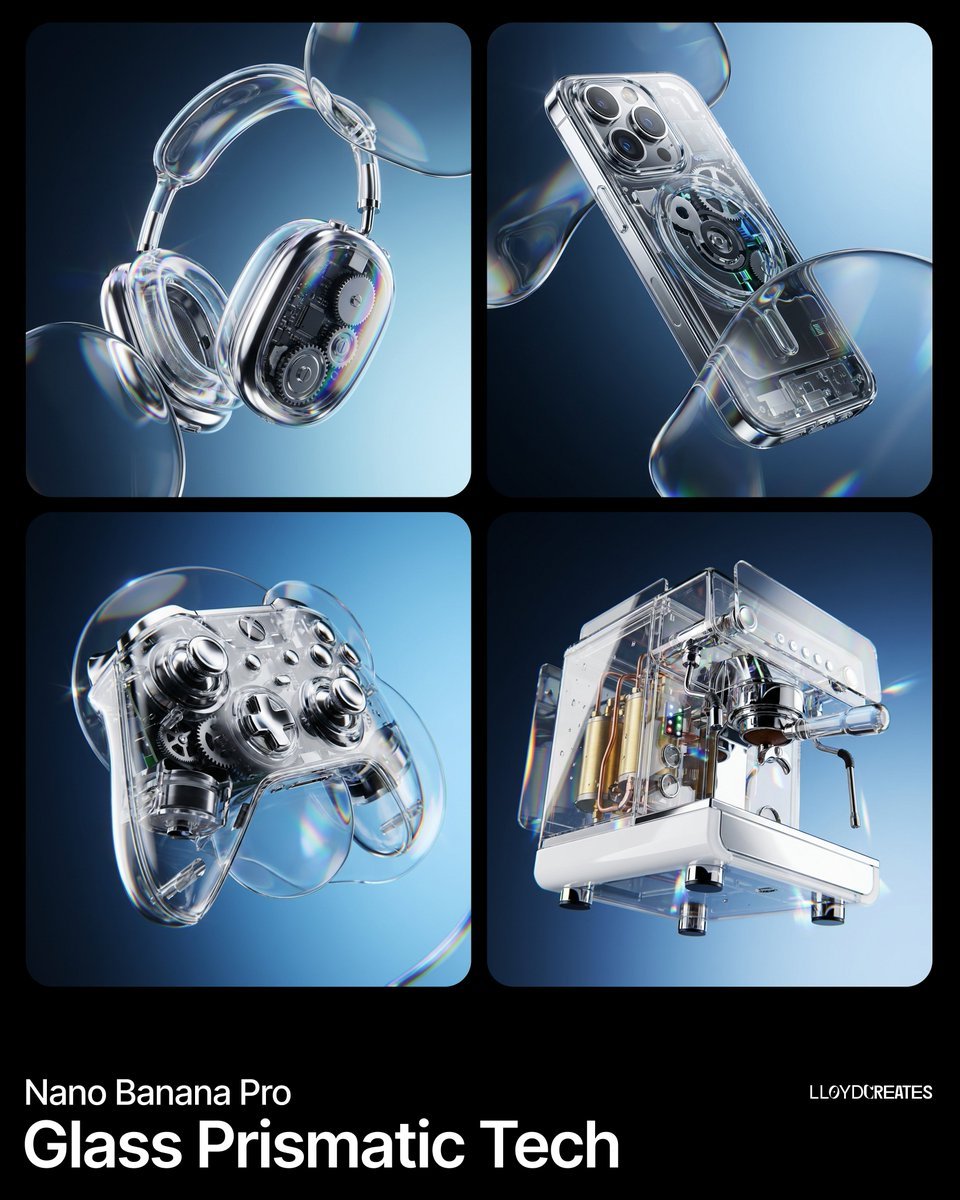
Y2K Frutiger Aero Glass Prismatic Tech Product Shot
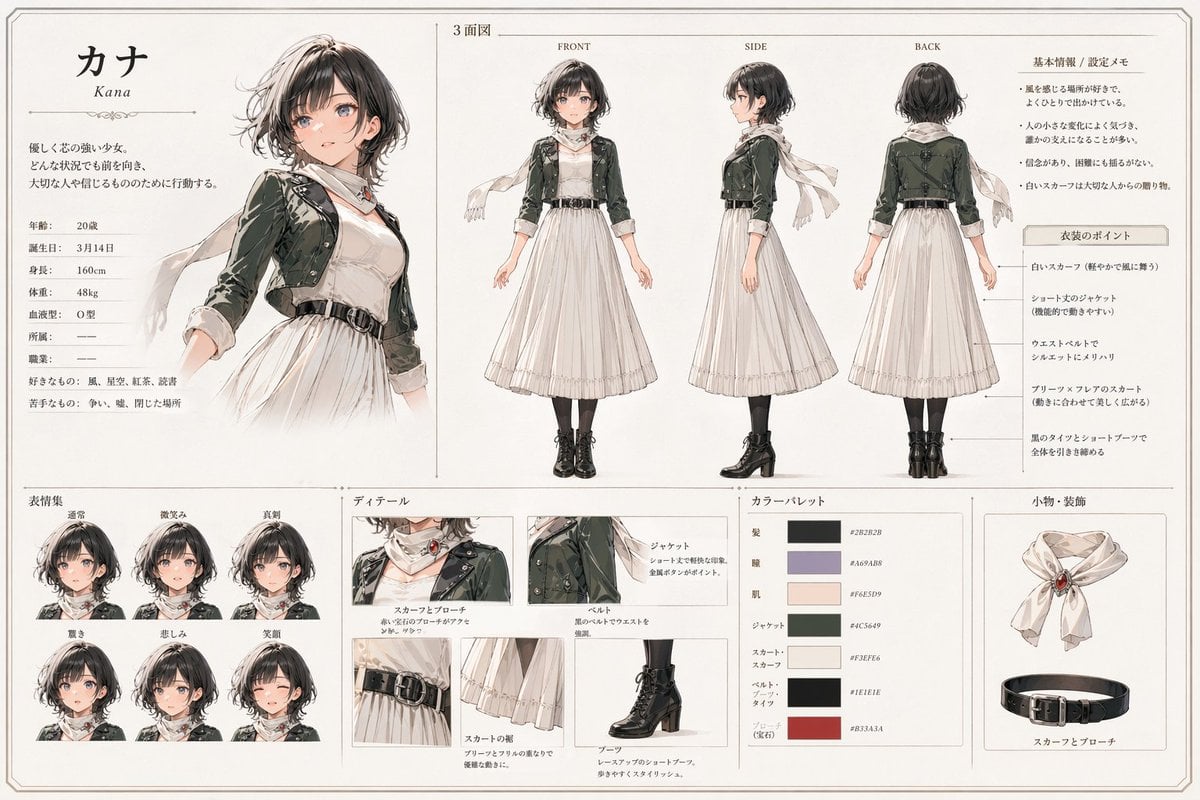
Kana Anime Character Reference Sheet
Abstract Energy Burst Grid
Surreal Product Composite: Subject Emerging from Cracked Phone Screen
Cinematic Food & Beverage Collab Poster
Browse template categories
Cat Recognition Result Screen questions
How do I use the Cat Recognition Result Screen template?
Add your photo if the template asks for one, edit the prompt if you like — the template's model and format are already selected — and press Generate. Your version opens in PicX Studio.
Can I customize the Cat Recognition Result Screen template?
Yes. You can change the subject, setting, lighting, mood, format, and available model controls before creating your image.
Is the Cat Recognition Result Screen template free?
Opening and editing this template is free. Generating uses credits, shown on the Generate button when you are signed in.
Which AI model should I use?
Start with GPT Image 2, which is the model associated with this template. You can compare another compatible model for a different finish.
Looking for something else? Browse all templates.

Your photo, any look
Thousands of ready templates for every top image and video model, from one credit balance.