
Dark Mode AI Portrait Result Card
Generates a realistic mobile AI-image app screenshot featuring a dreamy Hanfu portrait result with Chinese prompt text and action controls.
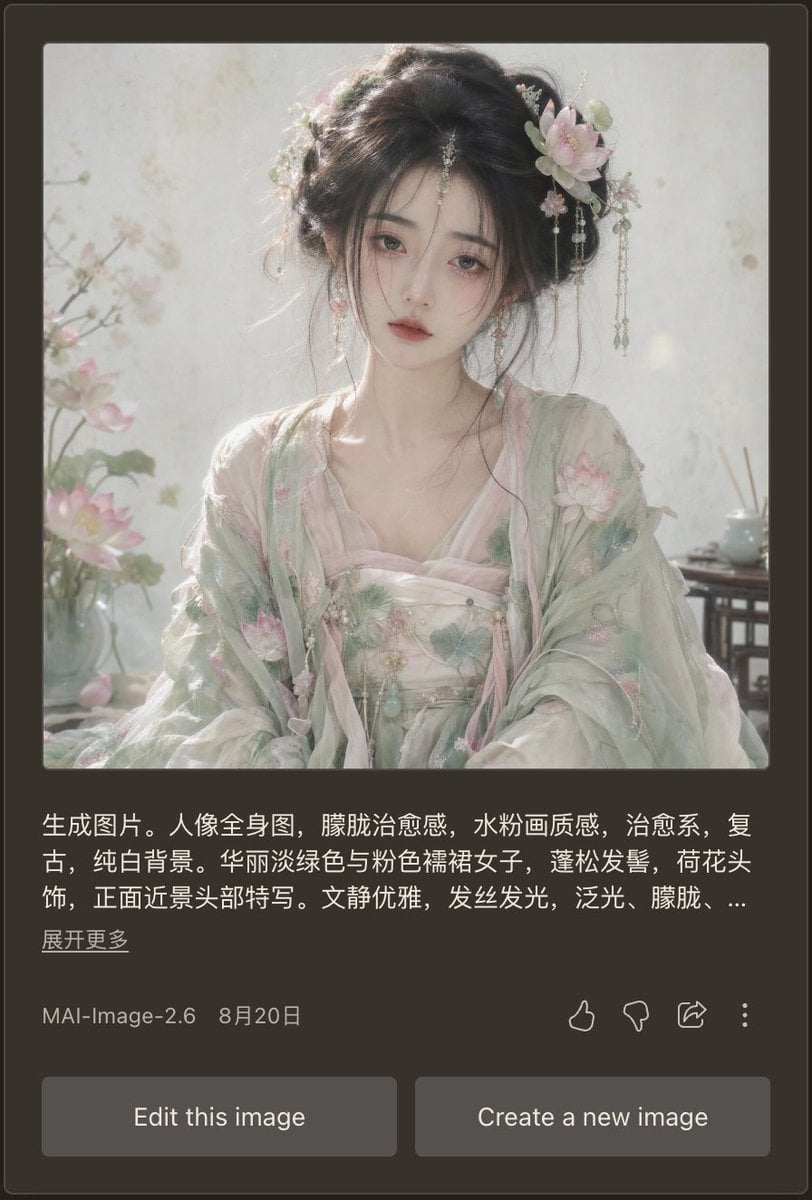
- Prompt included
- Model and format preset
- Free template
The prompt behind this image
Copy the exact prompt behind Dark Mode AI Portrait Result Card, or open it in the studio and make it yours.
Goal: Create a realistic mobile app screenshot showing an AI image generation result card in dark mode, featuring a soft vintage Chinese-style portrait and the surrounding interface. Canvas: Vertical smartphone screenshot, approximately 9:16 ratio. Use a dark charcoal brown app background with rounded card edges and subtle borders. The main content is centered with generous margins. Main generated image: At the top of the card, place one large square portrait image with slightly rounded corners. The portrait shows {argument name="character description" default="a beautiful young woman in pale green and pink Hanfu, lotus-flower hair ornaments, loose black updo, delicate dangling jewelry, soft melancholic expression, facing forward in a close-up half-body composition"}. Style the portrait as ethereal, therapeutic, vintage, pale watercolor-like, with soft diffused daylight, glowing hair strands, translucent fabric, pure white background, pastel lotus blossoms, misty atmosphere, shallow depth of field, and a refined elegant mood. Include exactly 3 visible floral/environment details in the portrait: lotus flowers on the left foreground, a pale blossom hair ornament on the right side of her hair, and a small tea table or vase detail on the right background. Text block under image: Add a Chinese prompt preview in white text, left aligned, spanning about three lines, ending with an ellipsis. Use this exact visible text: {argument name="prompt preview text" default="生成图片。人像全身图,朦胧治愈感,水粉画质感,治愈系,复古,纯白背景。华丽淡绿色与粉色襦裙女子,蓬松发髻,荷花头饰,正面近景头部特写。文静优雅,发丝发光,泛光,朦胧,..."}. Below it, place a smaller underlined-style Chinese link reading {argument name="expand link text" default="展开更多"}. Metadata row: Under the prompt preview, show one metadata row with the model name {argument name="model label" default="MAI-Image-2.6"} on the left and the date {argument name="date label" default="8月20日"} beside it. On the right side of the same row, include exactly 4 outline action icons: thumbs up, thumbs down, share arrow, and vertical three-dot menu. Bottom controls: Add exactly 2 large rounded rectangular gray buttons at the bottom, side by side with a small gap. The left button says “Edit this image”; the right button says “Create a new image”. Visual style: Make the UI look like a real mobile app screenshot, clean and slightly compressed, with crisp white and gray typography. The portrait should be much brighter than the surrounding interface, with dreamy pastel lighting and delicate realistic facial rendering. No extra panels, no watermark, no browser chrome.
How to use Dark Mode AI Portrait Result Card in 3 steps
- 1Upload ImagePNG, JPG or paste
Add your photo
Upload the photo the template builds on. The prompt, model and format are already set.
- 2…a portrait of your subject in softgolden-hour light, 85mm…
Personalize
Edit the subject and creative details for your destination.
- 3Generate
Generate
Press Generate — your image is created in PicX Studio, so you can compare it with the original and refine one variable at a time.
More like this
Templates with the same subject, style or setup. Open one to see its prompt.

Found Photograph: Us, 1970

80s Couple Studio Portrait
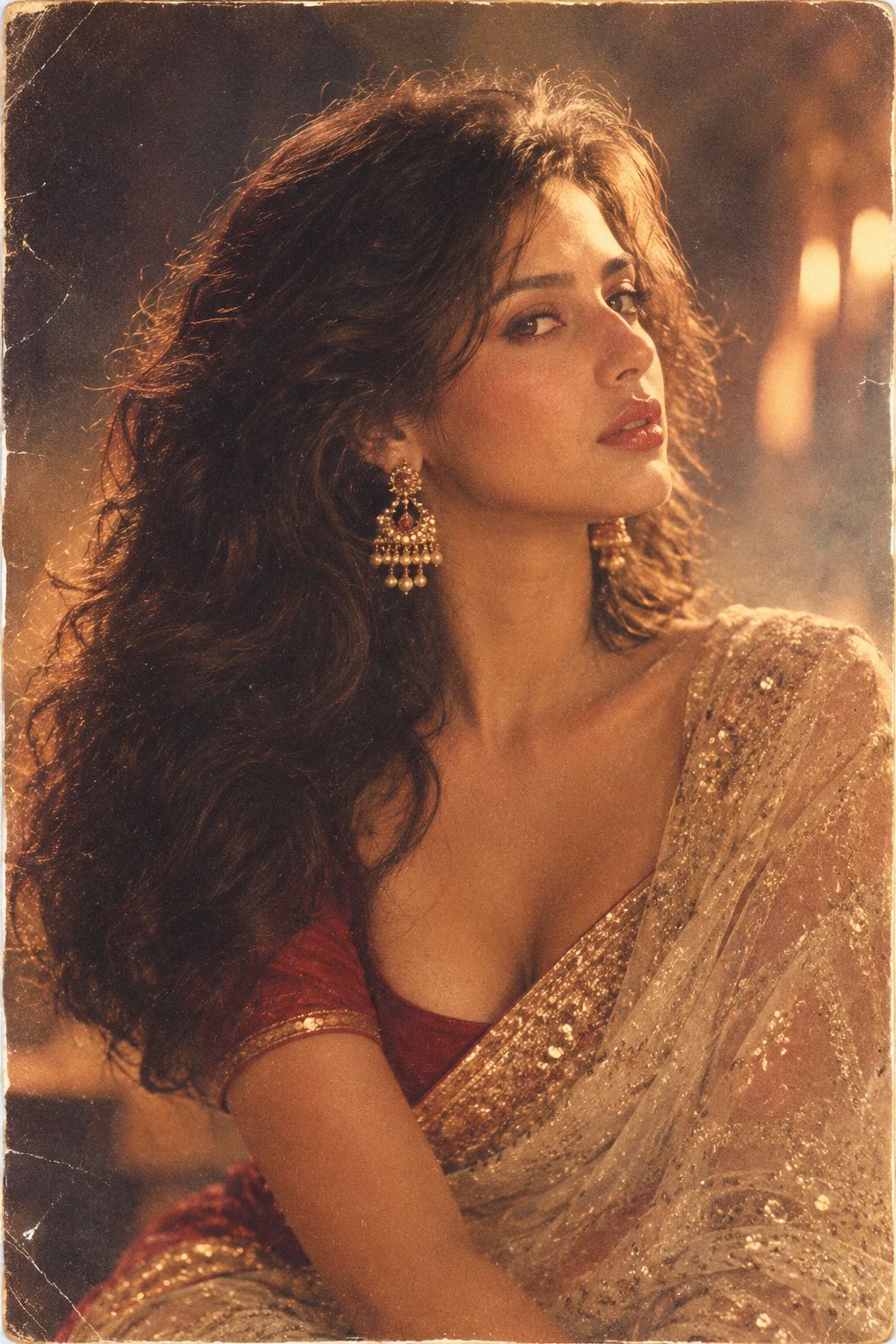
80s Bollywood Star
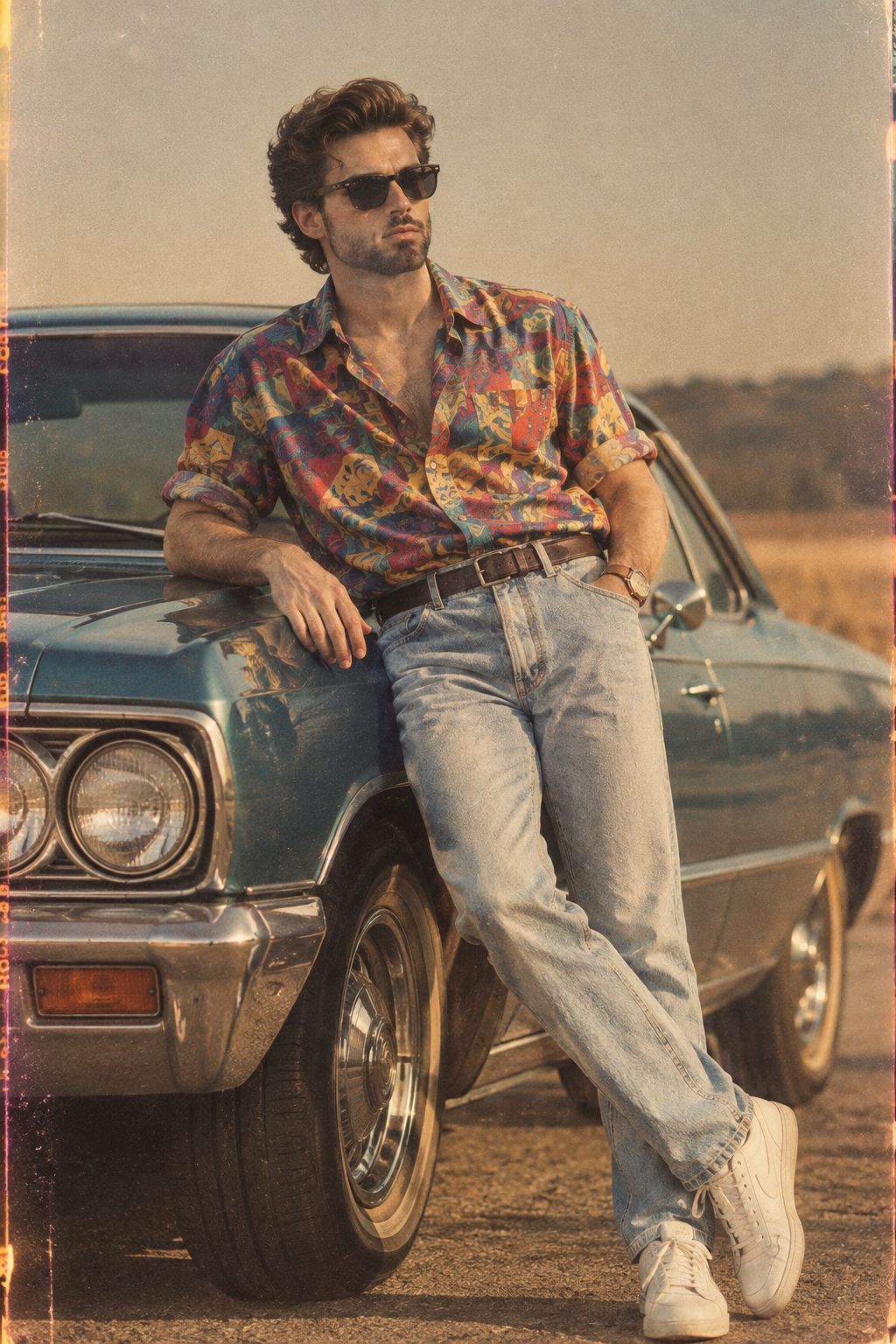
80s Golden Hour Cinema
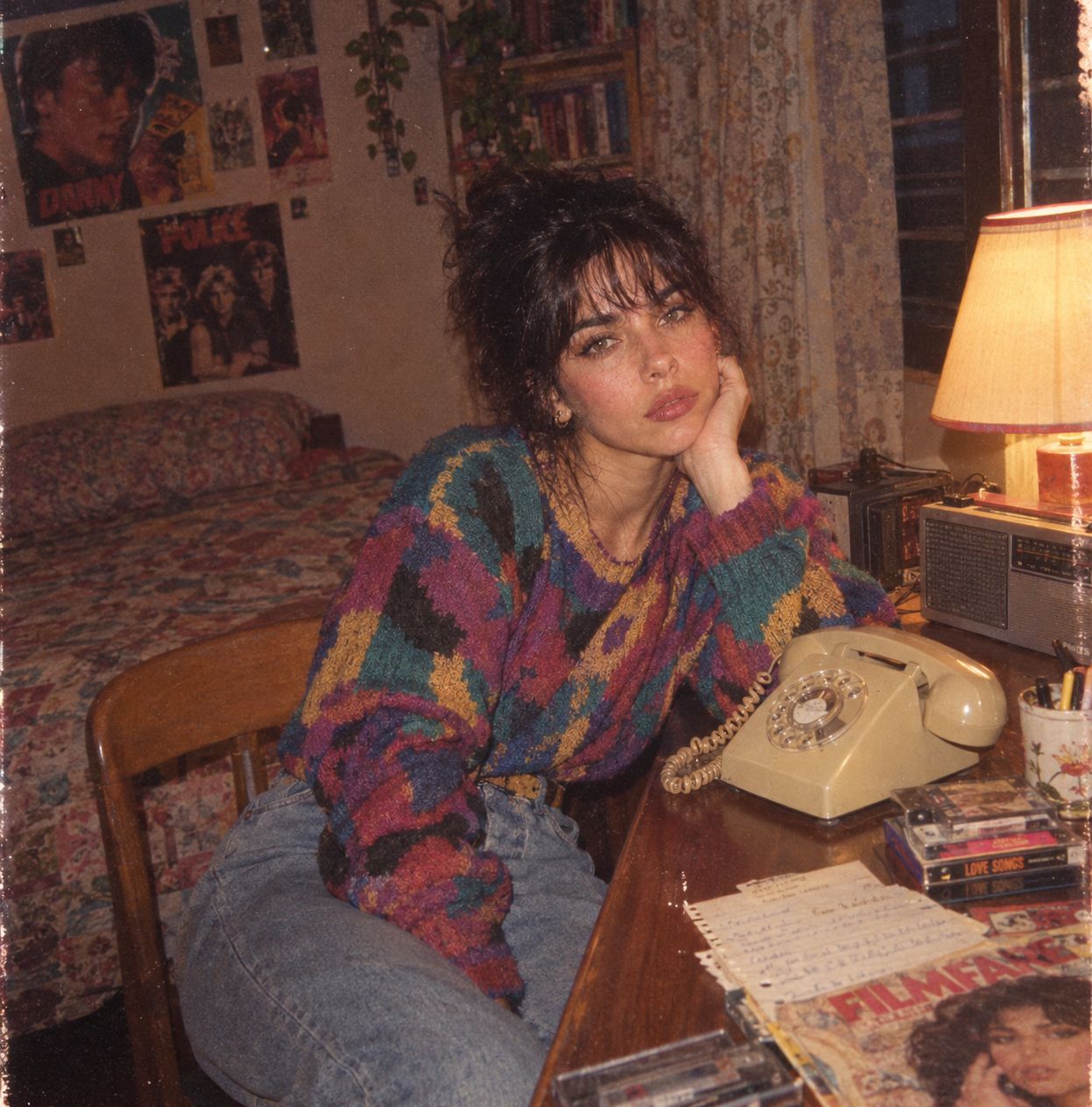
Me in 1985
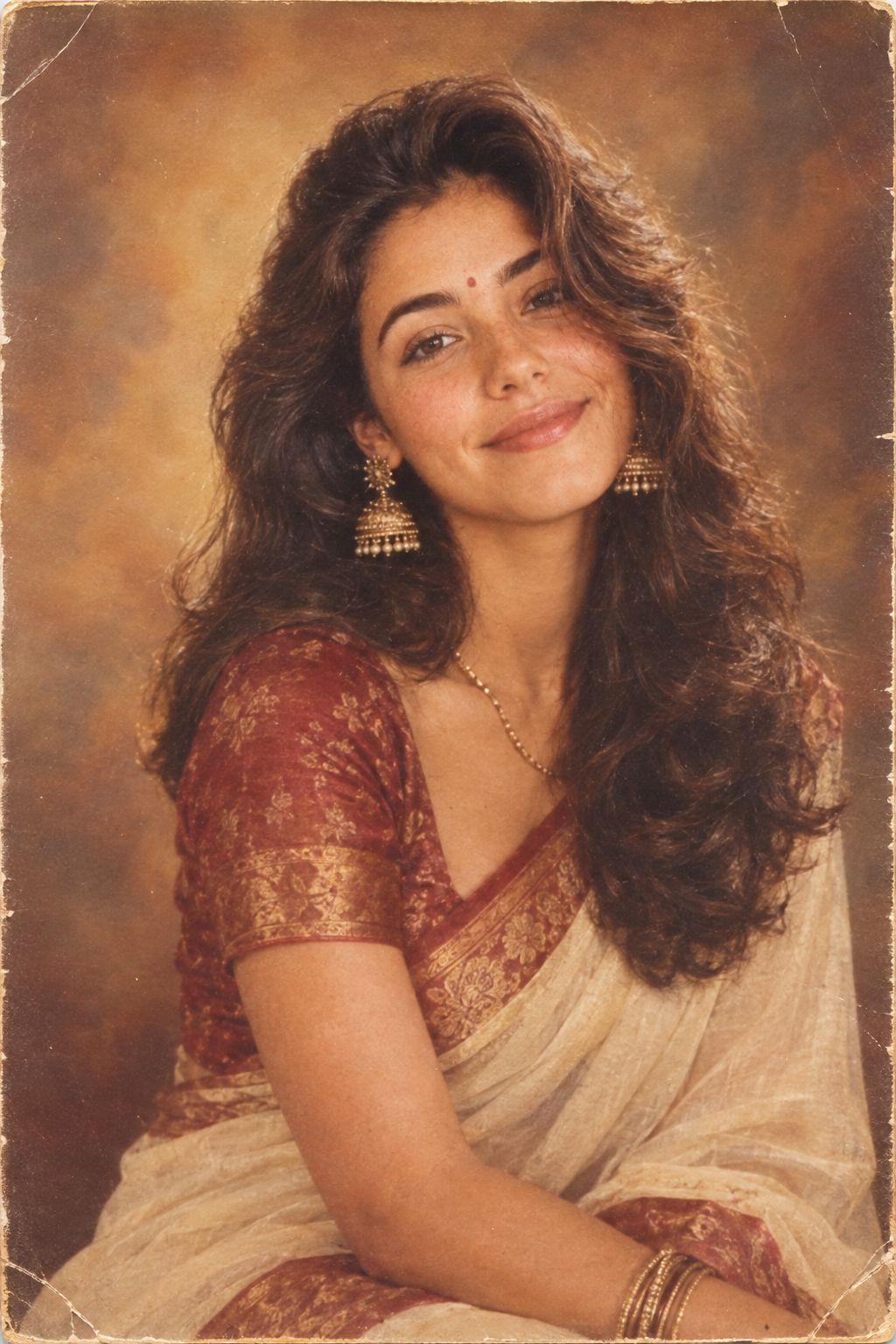
1985 Studio Portrait
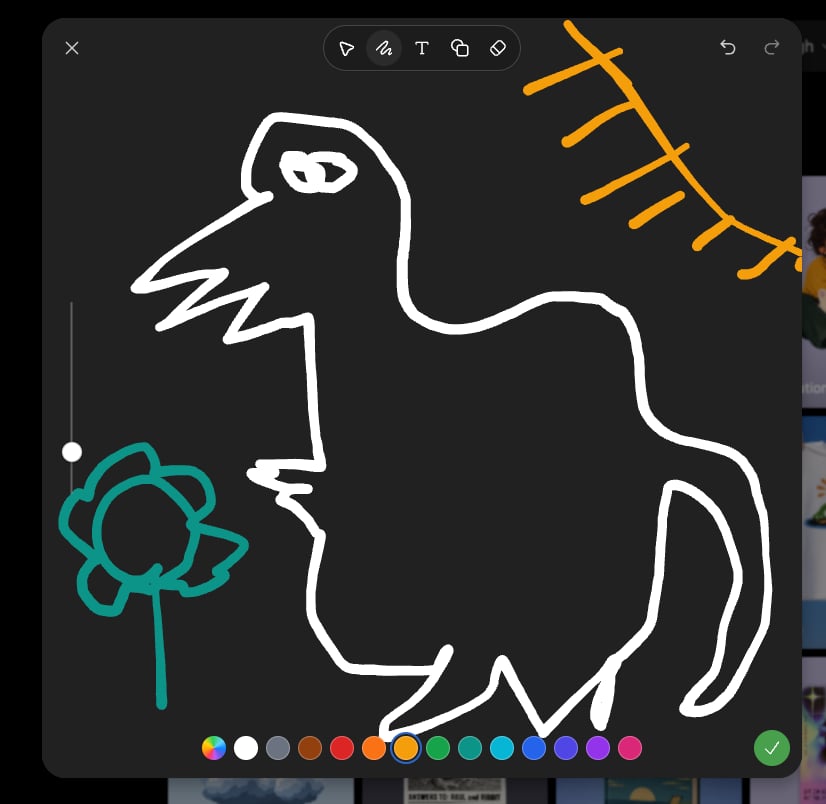
Dark Sketch Mode Monster Doodle

Hyper-Realistic Minecraft POV Portrait
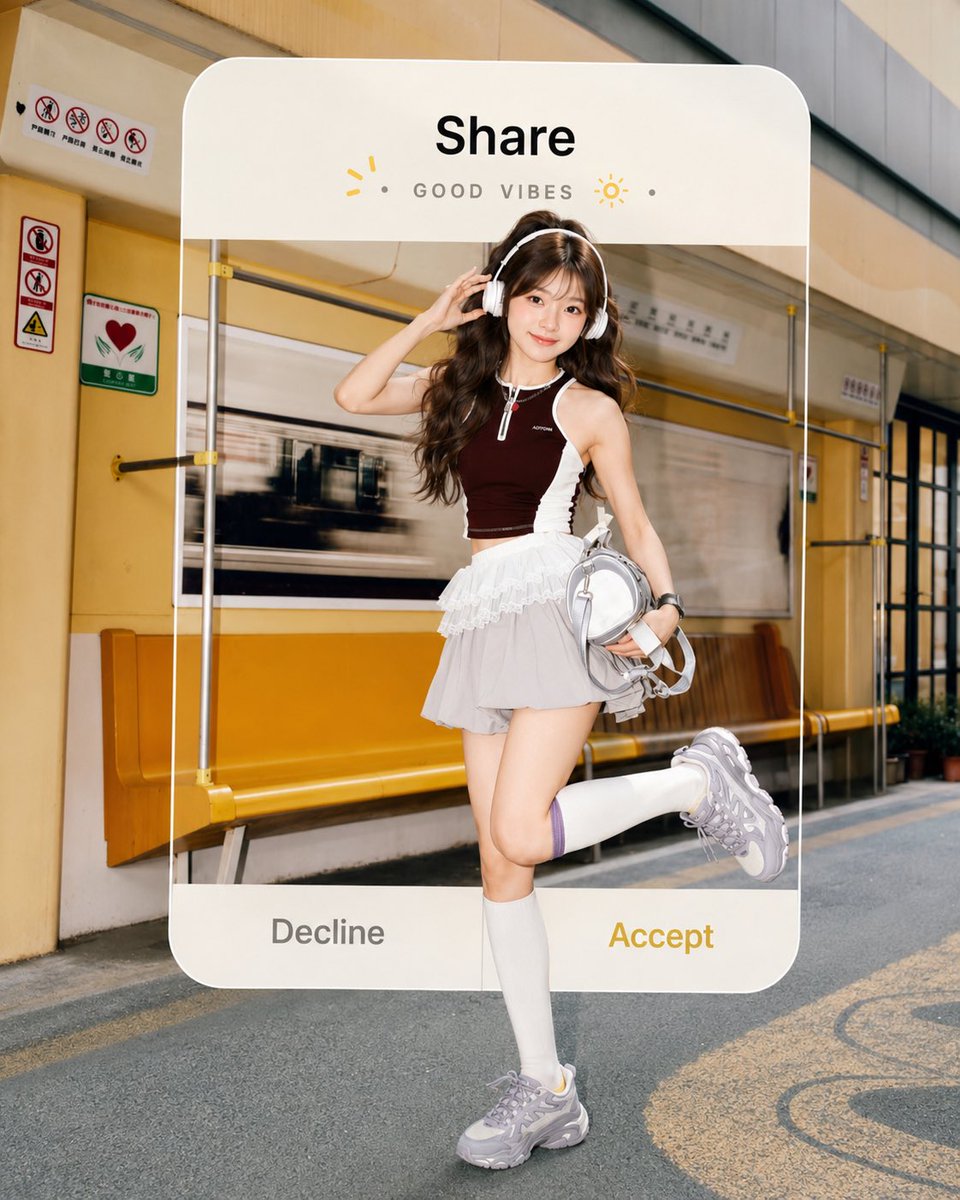
Subway Good Vibes App Card Portrait
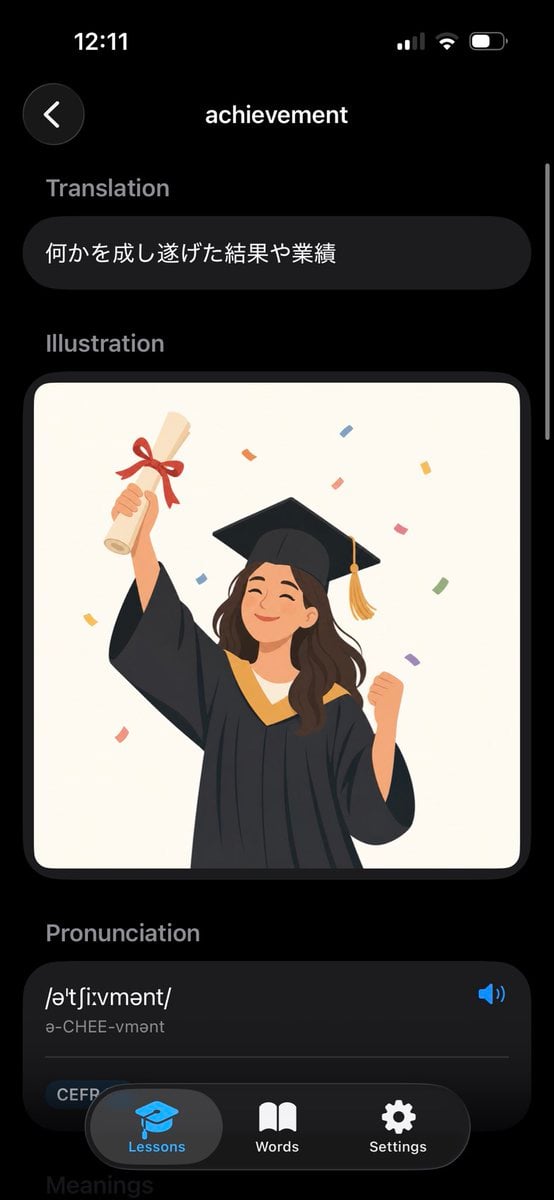
Dark Mode Dictionary Entry App
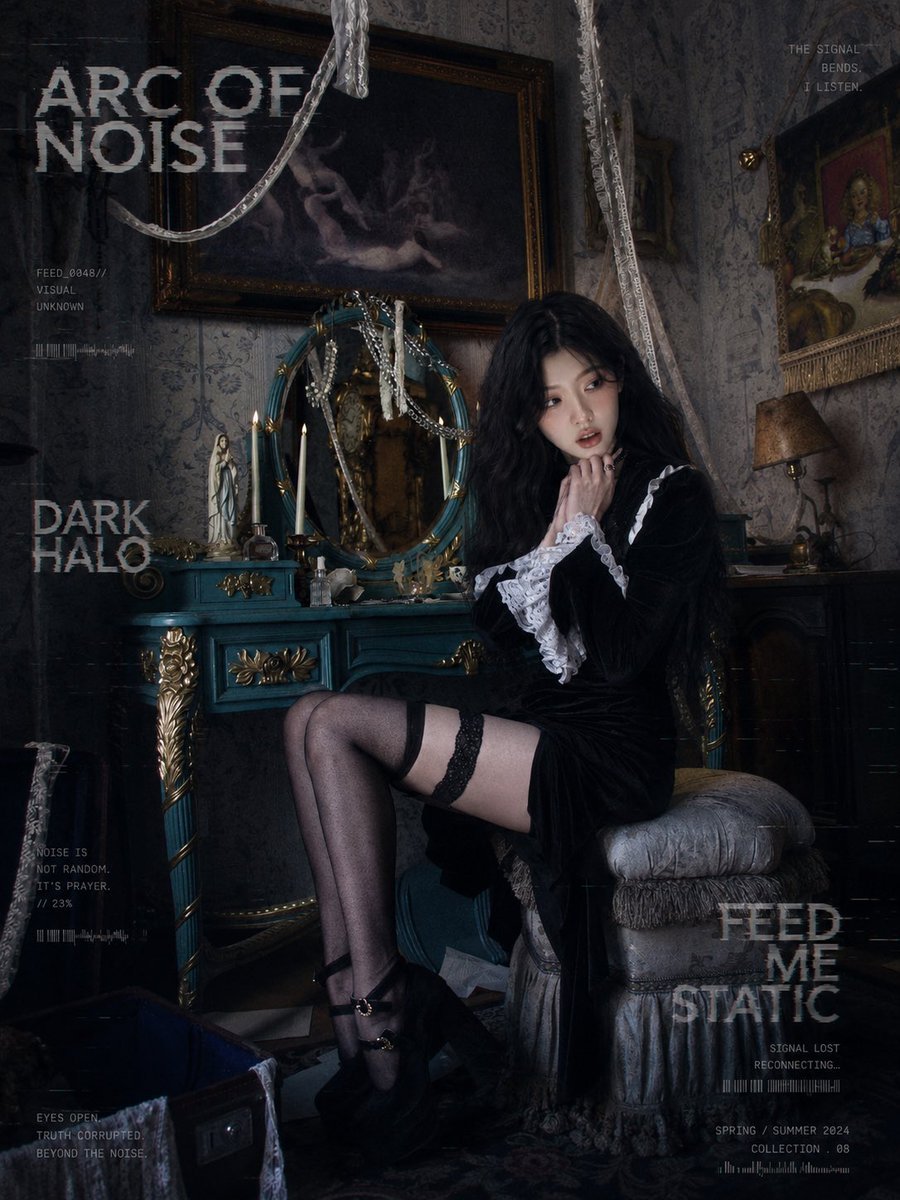
Dark Gothic Lolita Static Portrait
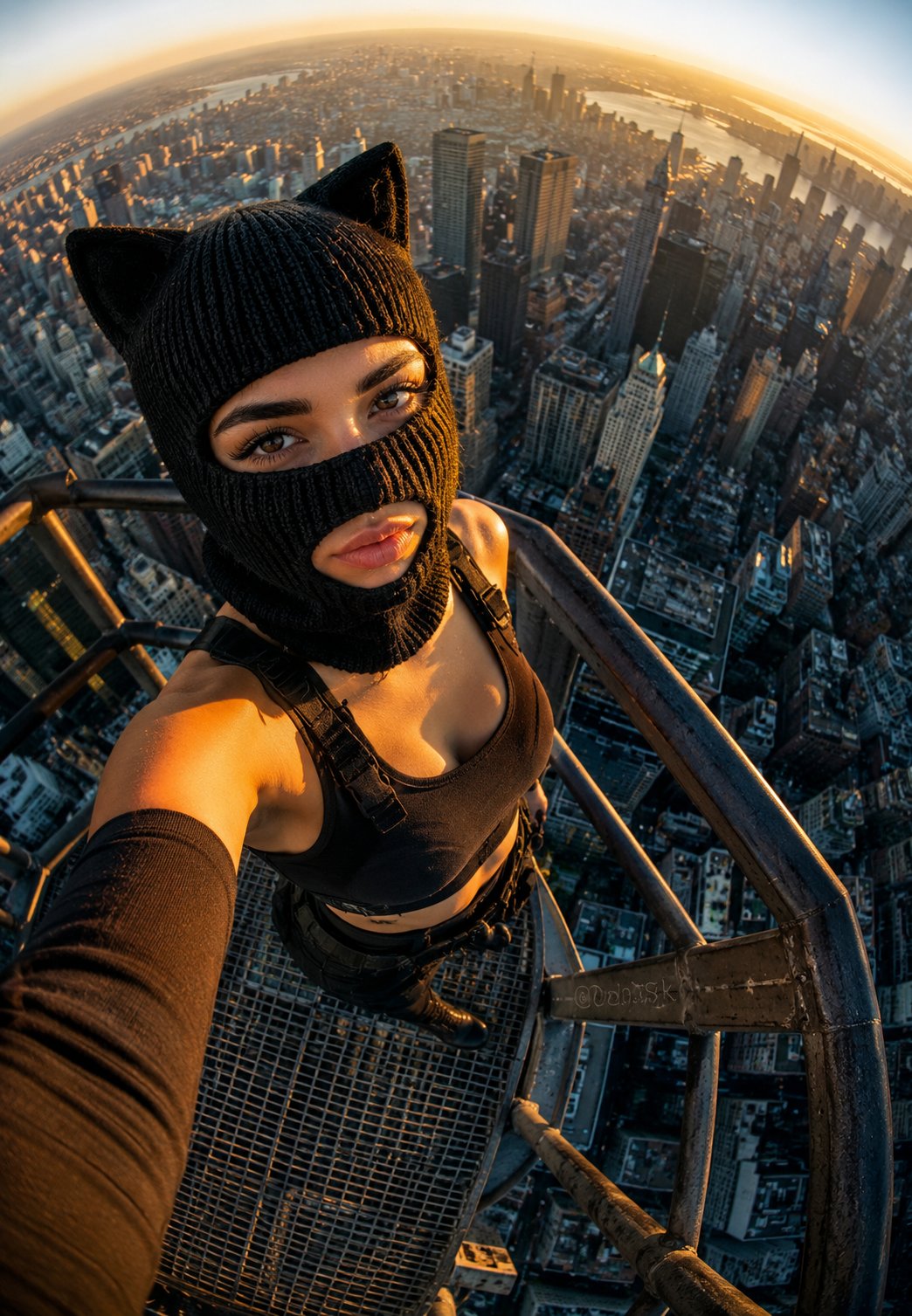
Rooftop Fisheye — Cat-Ear Balaclava at Golden Hour
Make it yours
Dark Mode AI Portrait Result Card works as-is. These are the safest ways to change it without losing the look.
Change one field
Copy a single group, rewrite it, and generate again so you can see what that field is doing.
Keep the frame, change the subject
Hold the composition and light of Dark Mode AI Portrait Result Card, then swap wardrobe, props or the person for a new take.
| If the result… | Why | Fix |
|---|---|---|
| The result drifts from the preview | Too many fields changed at once. | Reuse Dark Mode AI Portrait Result Card as-is first, then change one group — subject, light, or setting. |
| The model over-stylizes the scene | The prose prompt leaves finish and camera underspecified. | Add one camera or lighting sentence and stay on GPT Image 2. |
More GPT Image 2 templates
Other prompts made for GPT Image 2.

Six VTuber Japanese Logo Sheet

Realistic Portrait of Woman and Deer

The Vista Modular Condo Poster

AI Model Routing Comparison Infographic

2.5D Anime Art Board

Isometric Productivity Desk Scene

New York Double Exposure Poster

Four-Panel AI Landscape Comparison

Japanese Tatami Lifestyle Magazine Cover

NESCAFÉ Coffee Map Poster
More image prompts
Fresh picks from across the catalog.

Thumbnail design prompt for articles or content
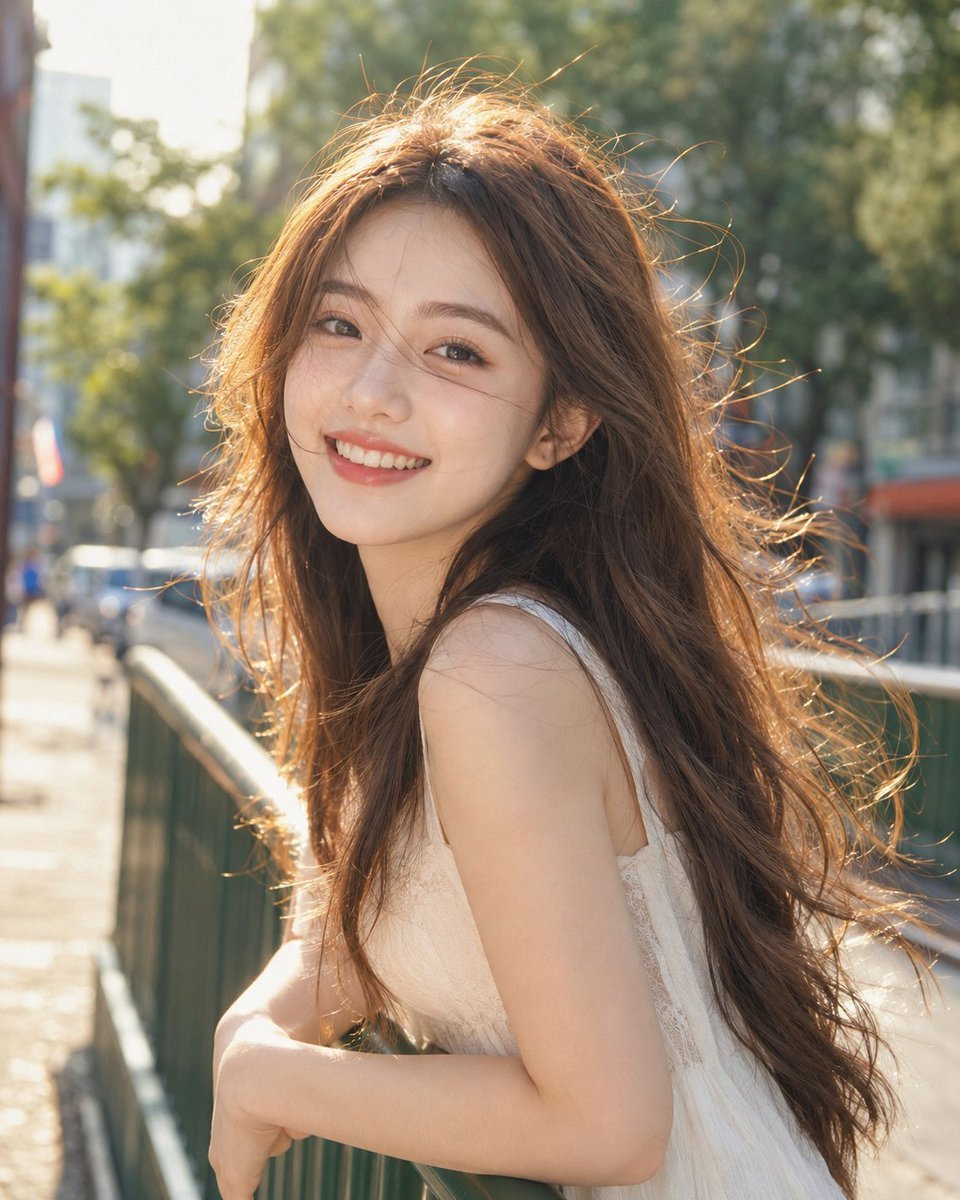
Backlit Windy Summer Portrait
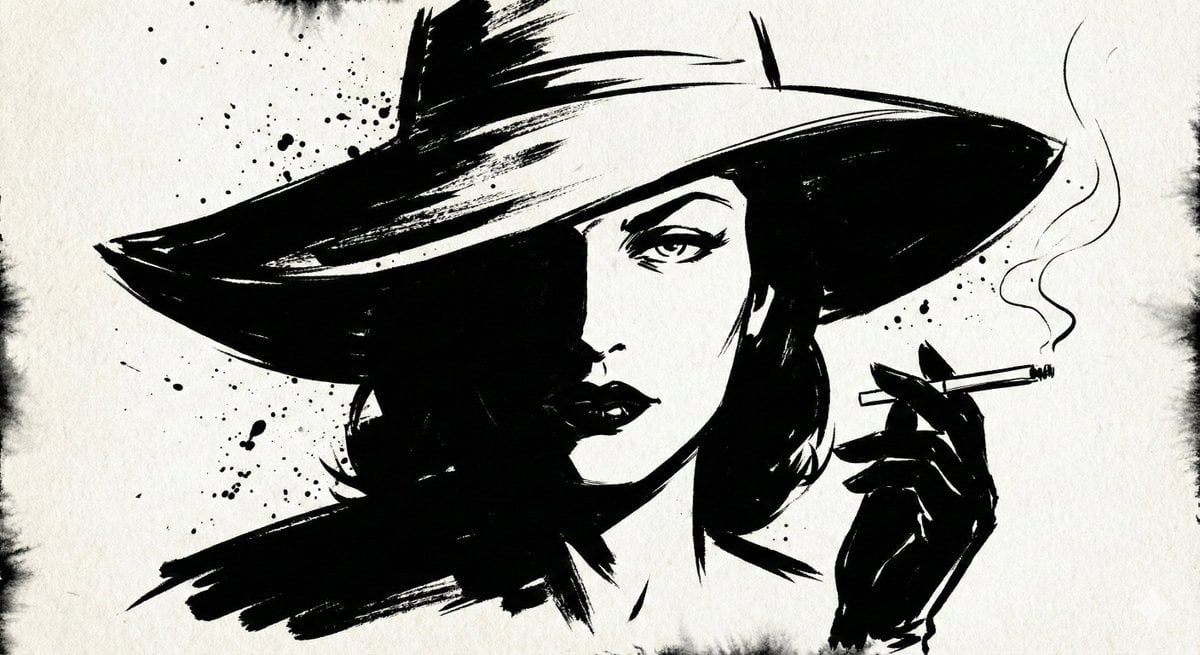
Ink Noir Splatter Portrait
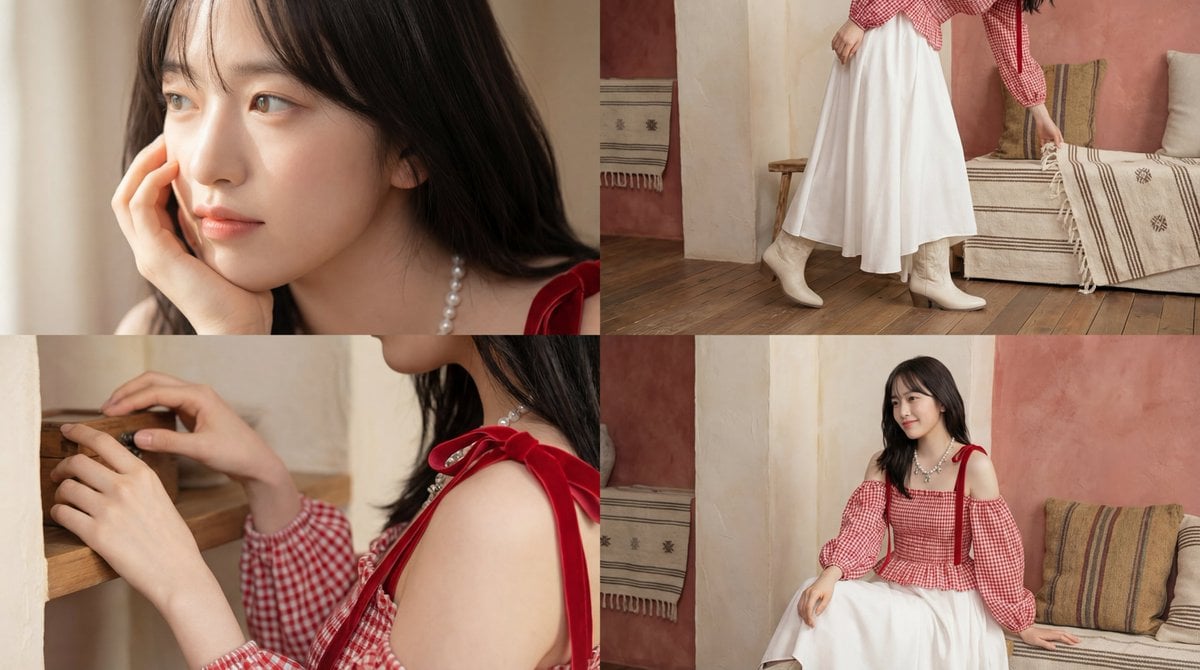
Cinematic short video prompt for female portraiture
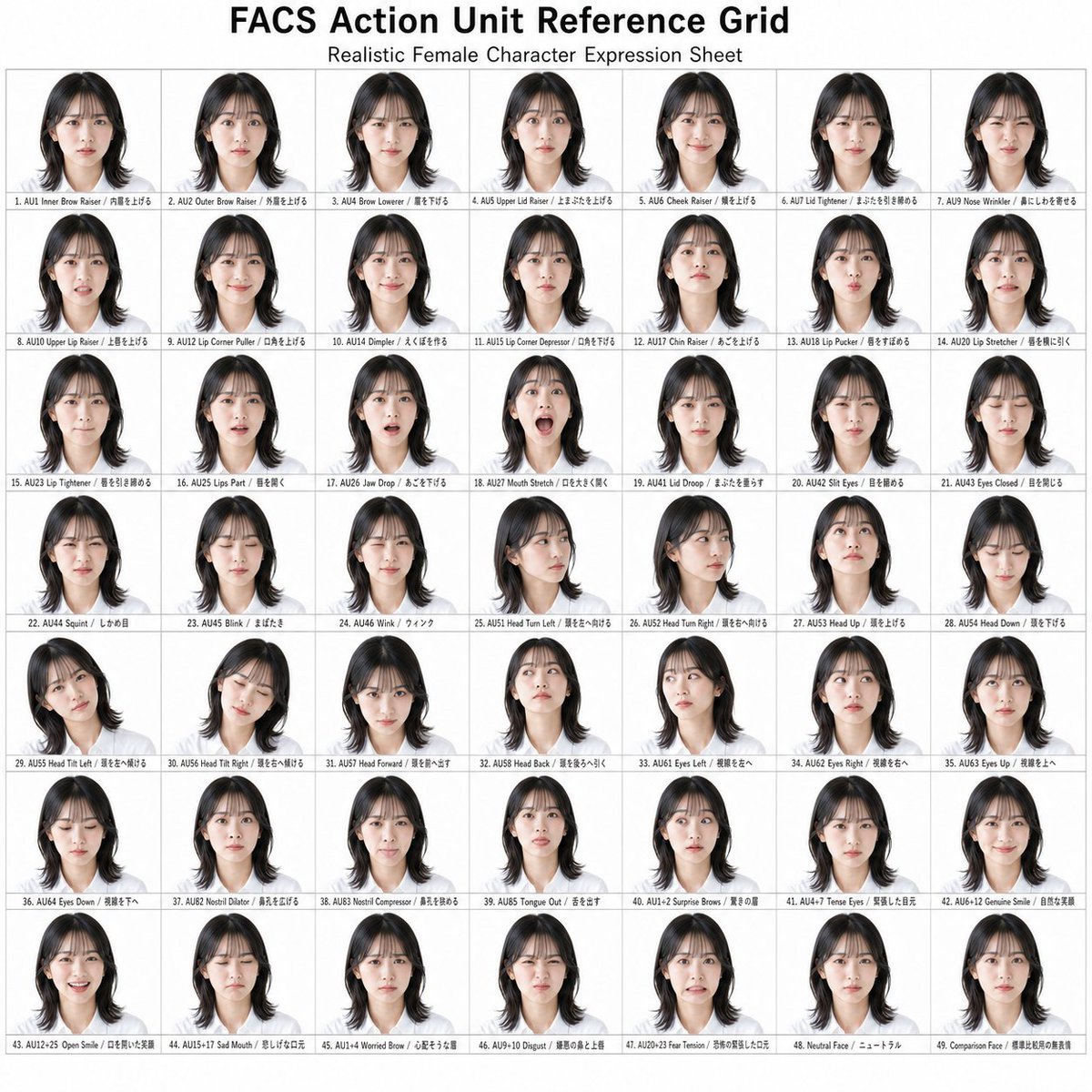
FACS Action Unit Reference Grid
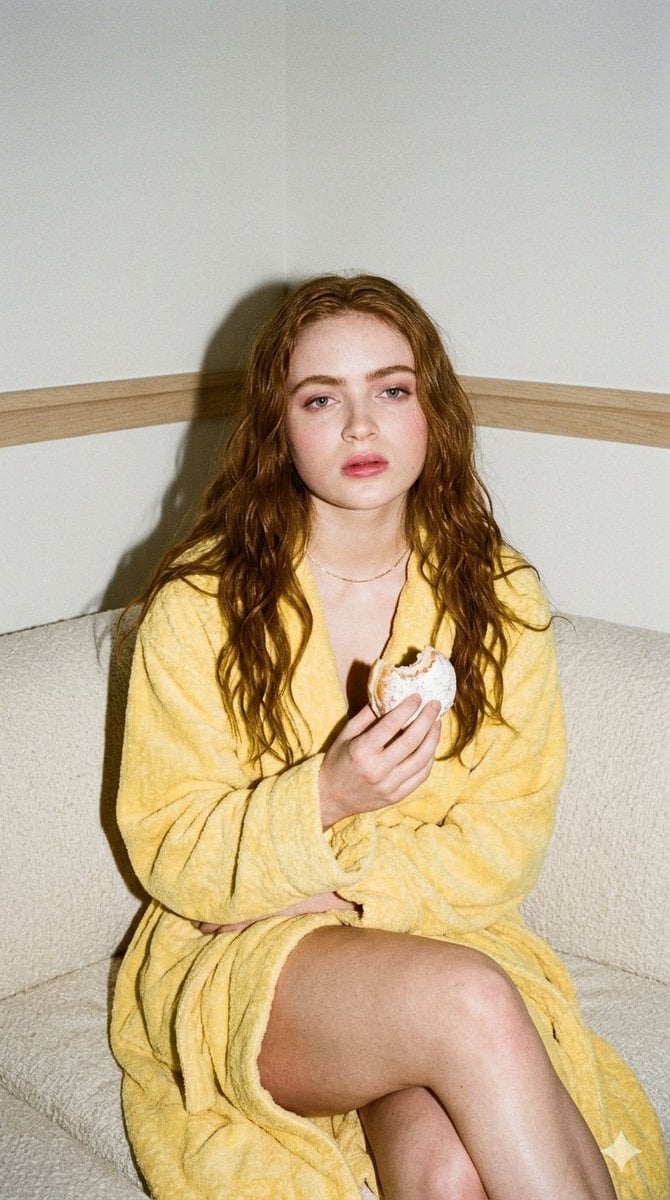
Candid 35mm Film Aesthetic Portrait with Donut Prompt for Gemini Nano Banana Pro
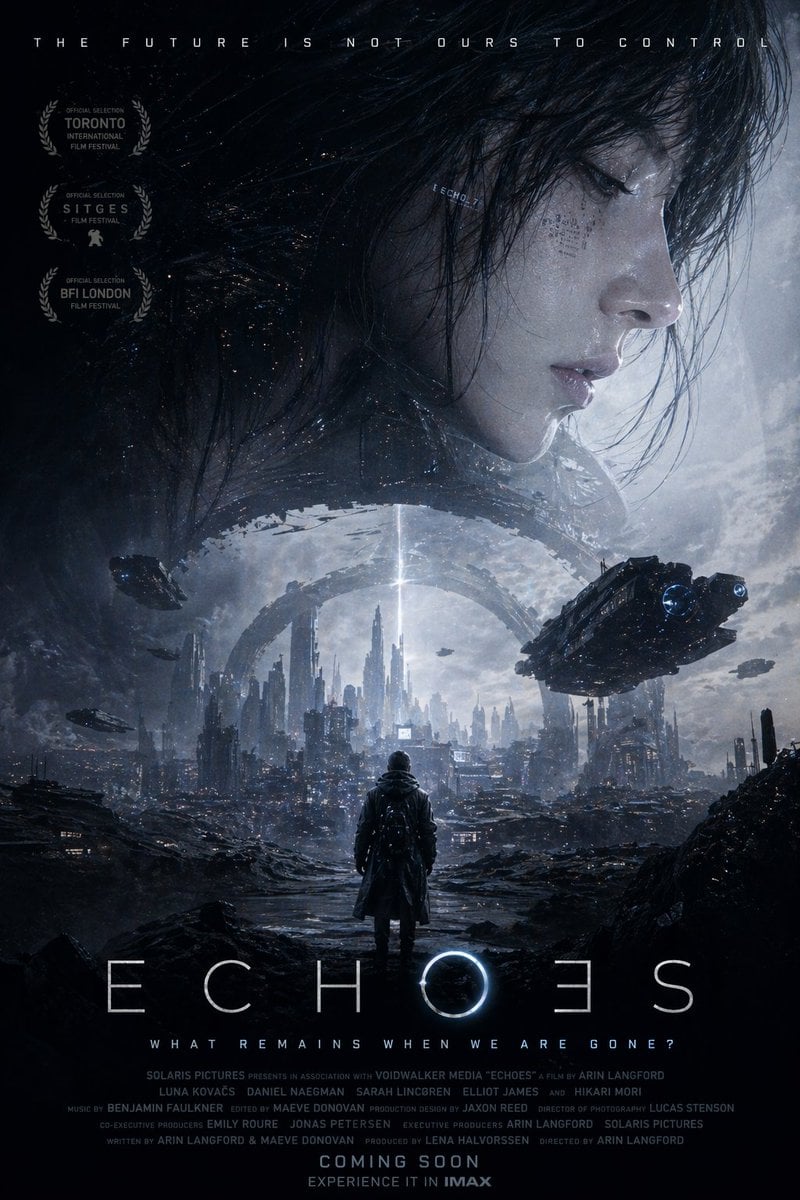
Sci-Fi Movie Poster Generator
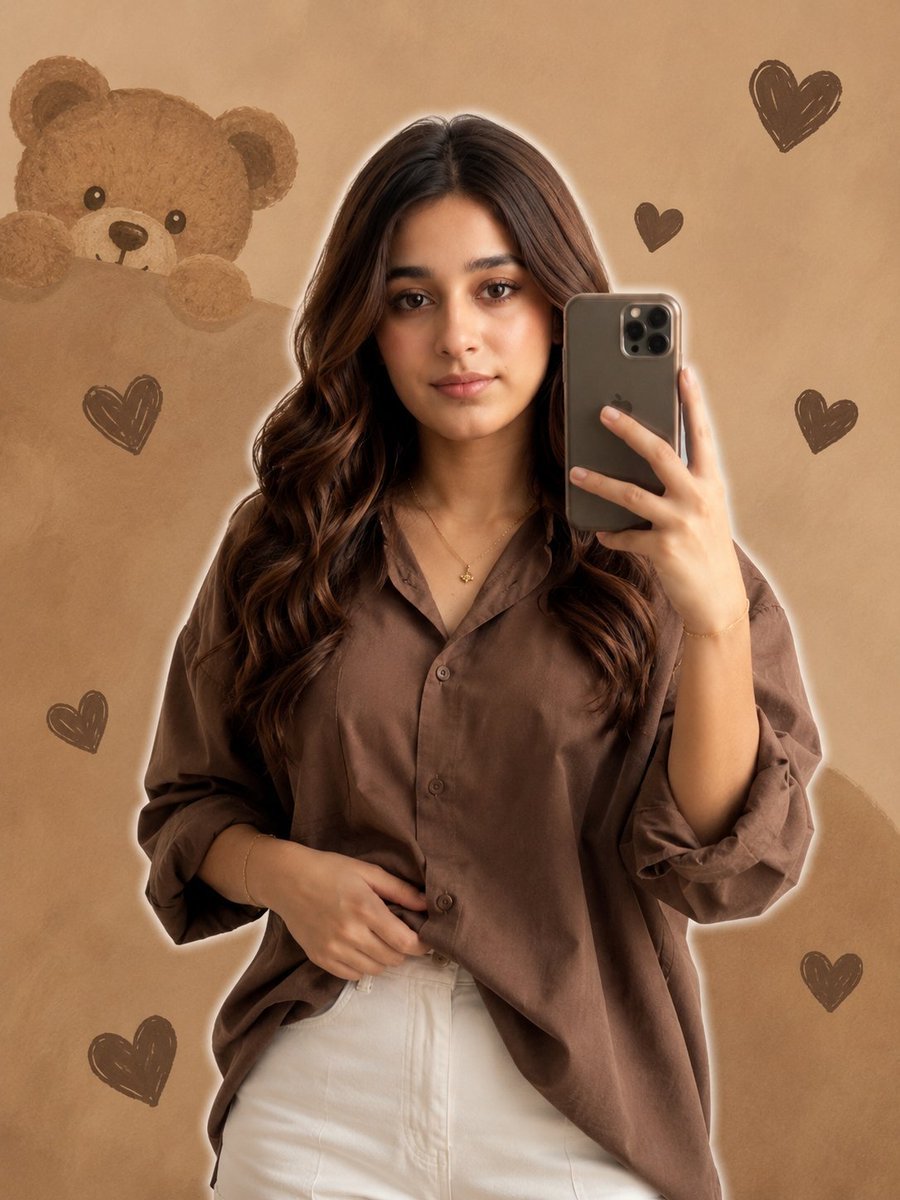
Realistic Girl Mirror Selfie
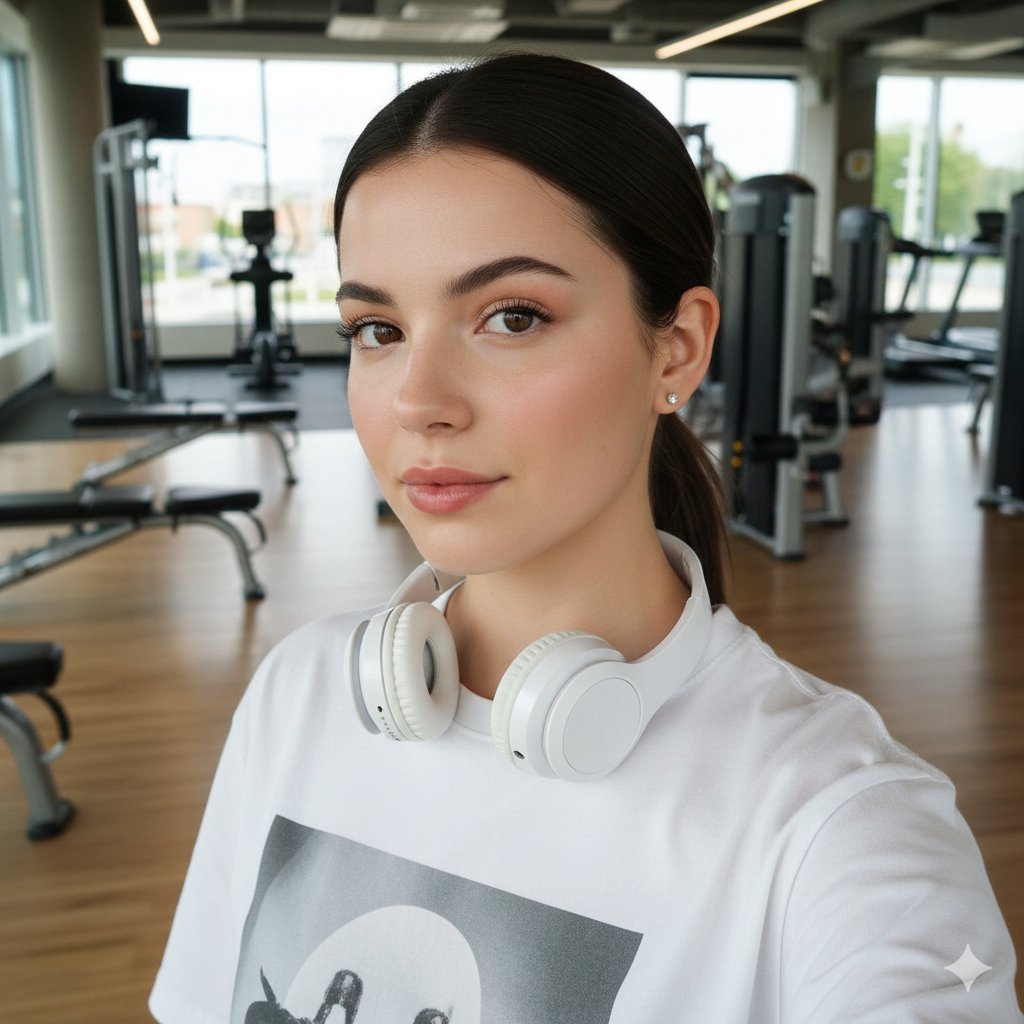
Sporty Gym Selfie Identity Preservation Prompt
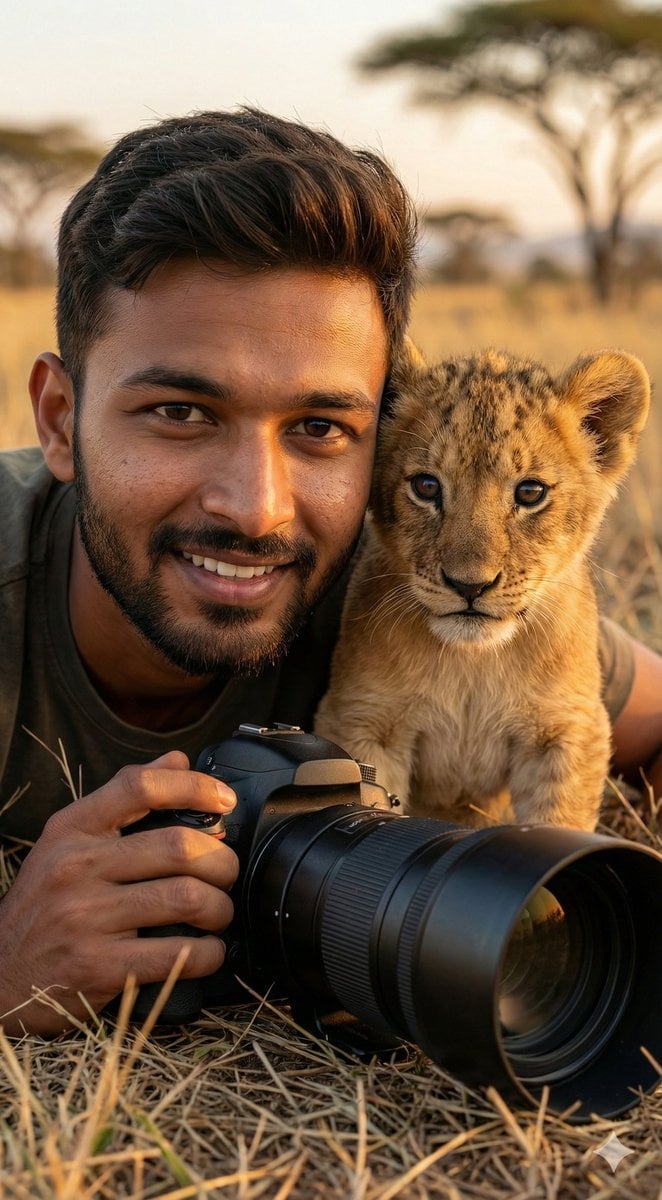
Hyper-Real Wildlife Photography Close-Up Prompt
Browse template categories
Dark Mode AI Portrait Result Card questions
How do I use the Dark Mode AI Portrait Result Card template?
Add your photo if the template asks for one, edit the prompt if you like — the template's model and format are already selected — and press Generate. Your version opens in PicX Studio.
Can I customize the Dark Mode AI Portrait Result Card template?
Yes. You can change the subject, setting, lighting, mood, format, and available model controls before creating your image.
Is the Dark Mode AI Portrait Result Card template free?
Opening and editing this template is free. Generating uses credits, shown on the Generate button when you are signed in.
Which AI model should I use?
Start with GPT Image 2, which is the model associated with this template. You can compare another compatible model for a different finish.
Looking for something else? Browse all templates.

Your photo, any look
Thousands of ready templates for every top image and video model, from one credit balance.