
Dark Sketch Mode Monster Doodle
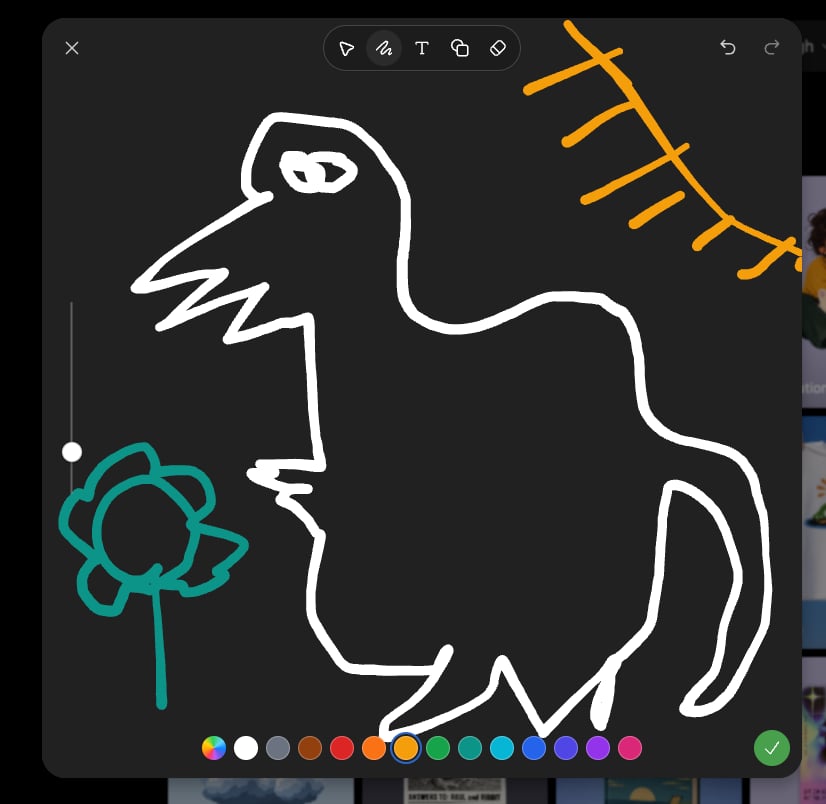
Generates a screenshot-style dark drawing interface with a crude monster doodle, color palette, toolbar, and sketch-mode controls.
- Prompt included
- Model and format preset
- Free template
The prompt behind this image
Copy the exact prompt behind Dark Sketch Mode Monster Doodle, or open it in the studio and make it yours.
Goal: Create a screenshot-like image of a dark sketch/drawing mode interface showing a deliberately crude digital doodle being edited, as if in an image-generation app's sketch tool. Canvas: Square-ish 4:3 screenshot, dark charcoal drawing panel centered with rounded corners over a dimmed gallery/app background barely visible at the right and bottom edges. Layout: The main drawing area fills most of the frame. A top toolbar floats near the upper center, with a close X at top left and undo/redo icons at top right. A vertical brush-size slider sits on the left side with one white circular handle. A horizontal color palette runs along the bottom. A green circular checkmark confirmation button sits at the bottom right. Main sketch: Draw a rough white line-art monster resembling a hunched fantasy boss creature, made with thick uneven brush strokes. It has one long pointed beak or snout facing left, a jagged open mouth, one scribbled oval eye near the top, a high arched back, a bulky torso, bent legs, and a long curved tail on the right. Add a small teal flower-like doodle on a stem at the lower left, facing the monster. Add an orange sketch of a sun or diagonal branch-like rays in the upper right corner. Interface details: Include exactly 6 visible top toolbar icons: pointer/selection arrow, squiggle brush icon, letter T text tool, overlapping shapes/copy icon, eraser/diamond icon, and the surrounding rounded toolbar container. Include exactly 2 top-right history icons: undo and redo. Include exactly 1 close X icon at top left. Include exactly 1 vertical slider with 1 white knob. Include exactly 16 bottom color swatches, from left to right: multicolor rainbow circle, white, gray, brown, red, orange, yellow-orange selected with a blue ring, green, teal-green, cyan, blue, indigo, violet, purple, pink, plus exactly 1 green confirmation check button at the far right. Visual style: Rough hand-drawn sketch mode, thick uneven strokes, dark UI, playful messy drawing, casual screenshot aesthetic. Use {argument name="creature outline color" default="white"}, {argument name="flower color" default="teal"}, {argument name="sun sketch color" default="orange"}, and {argument name="background panel color" default="dark charcoal"}. No polished rendering; keep it intentionally sloppy and simple.
How to use Dark Sketch Mode Monster Doodle in 3 steps
- 1Upload ImagePNG, JPG or paste
Add your photo
Upload the photo the template builds on. The prompt, model and format are already set.
- 2…a portrait of your subject in softgolden-hour light, 85mm…
Personalize
Edit the subject and creative details for your destination.
- 3Generate
Generate
Press Generate — your image is created in PicX Studio, so you can compare it with the original and refine one variable at a time.
More like this
Templates with the same subject, style or setup. Open one to see its prompt.
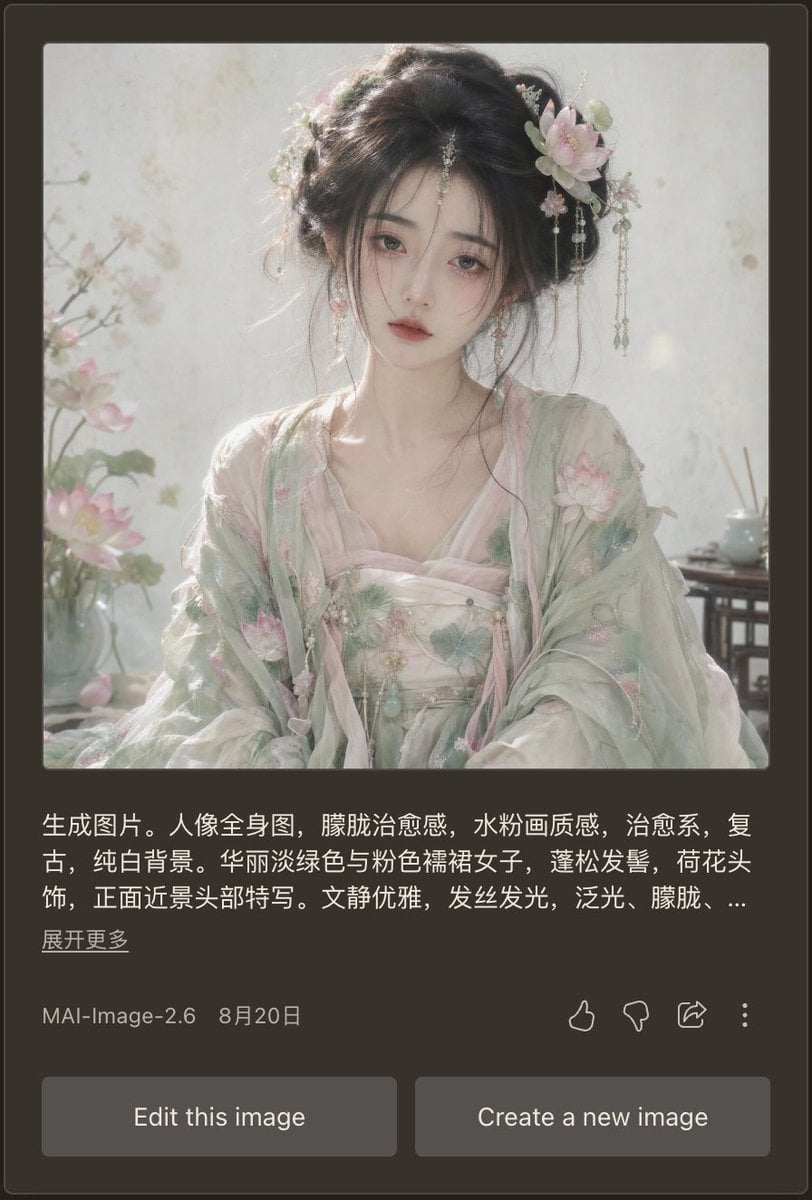
Dark Mode AI Portrait Result Card
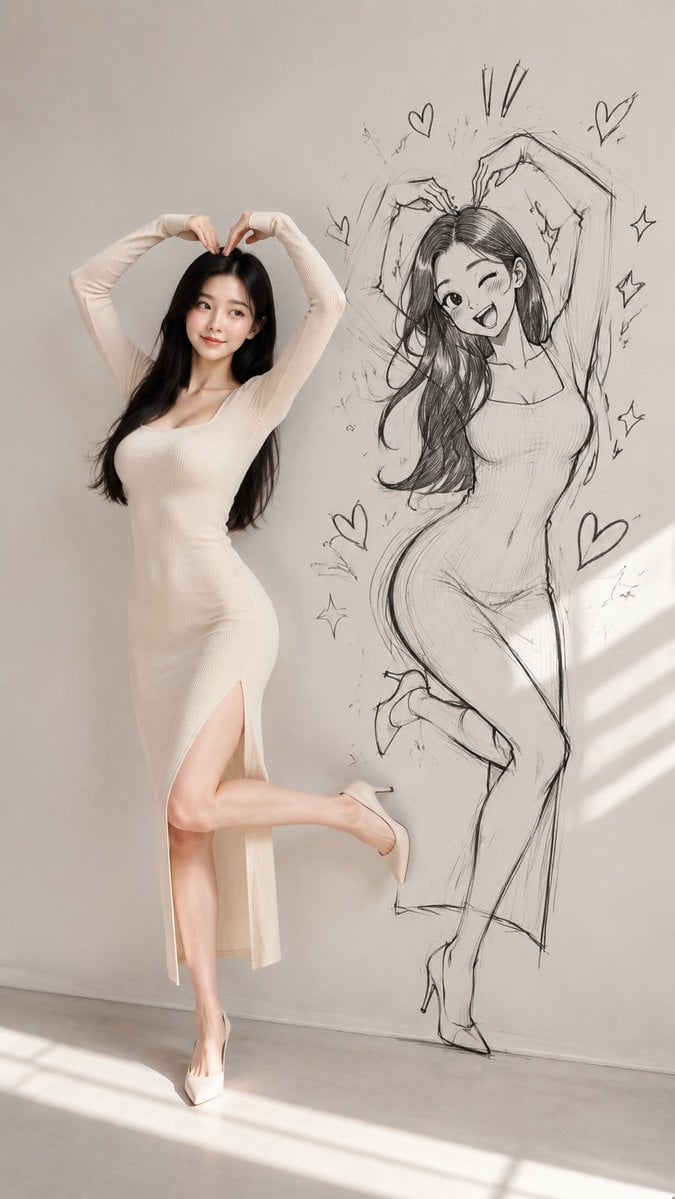
Model With Manga Wall Sketch
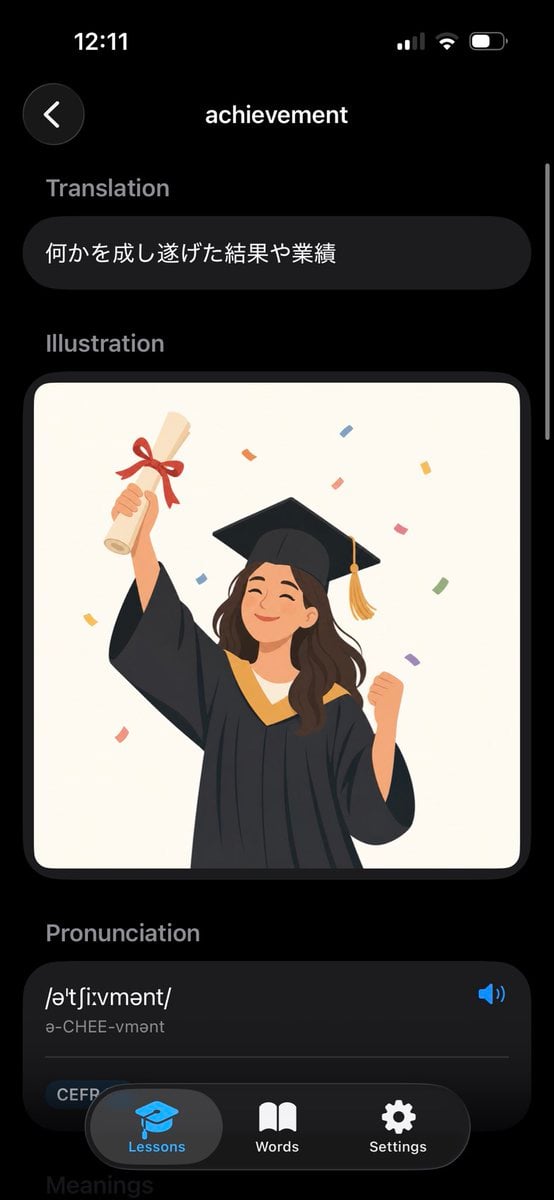
Dark Mode Dictionary Entry App
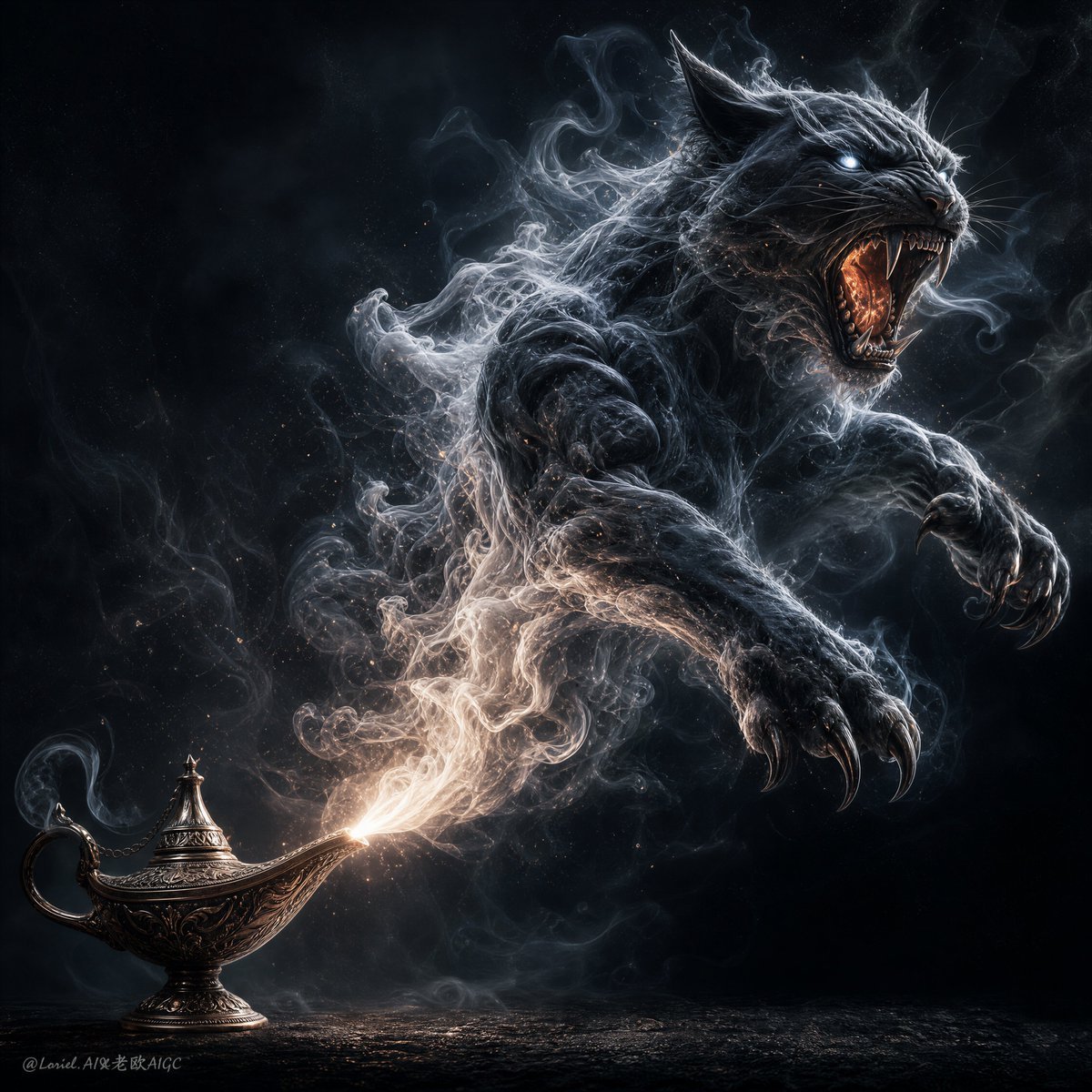
Dark Fantasy Smoke Monster Transformation
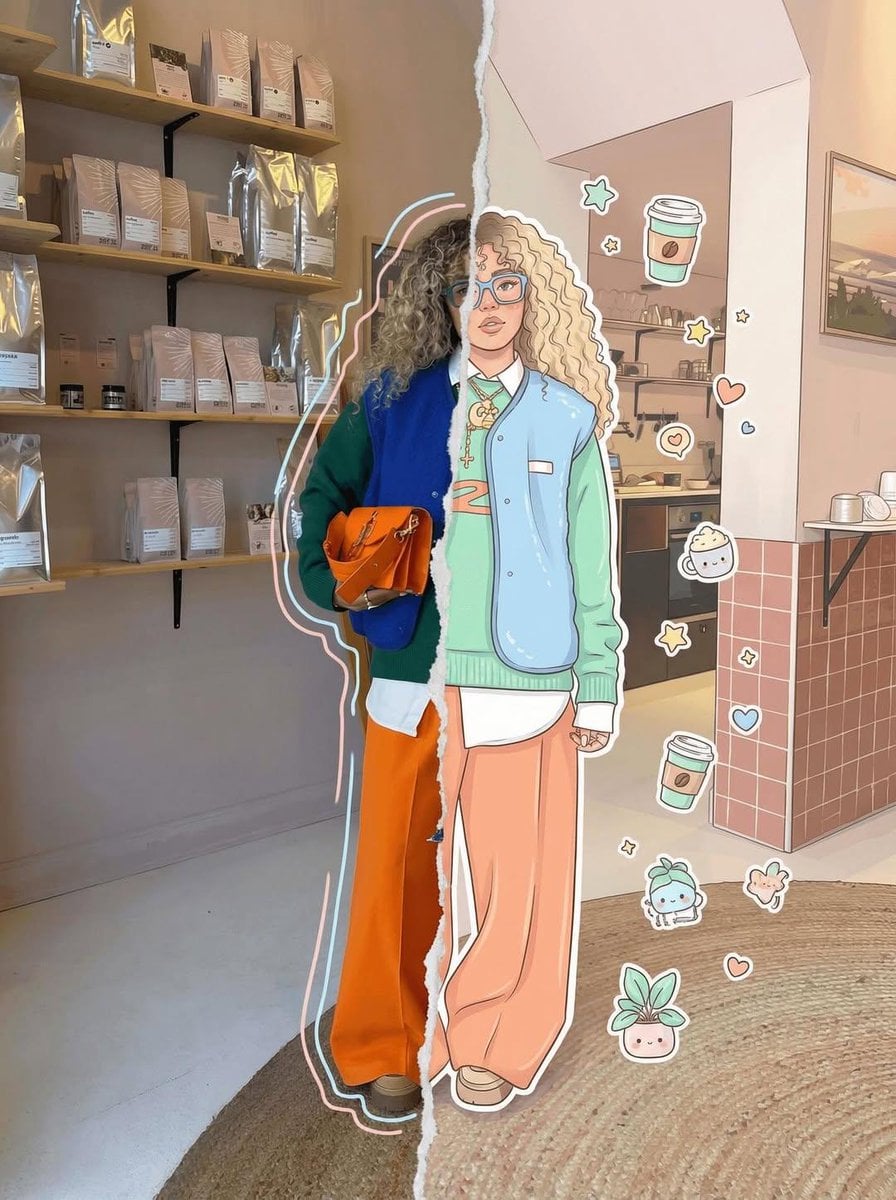
Real Illustration Split Portrait Transition
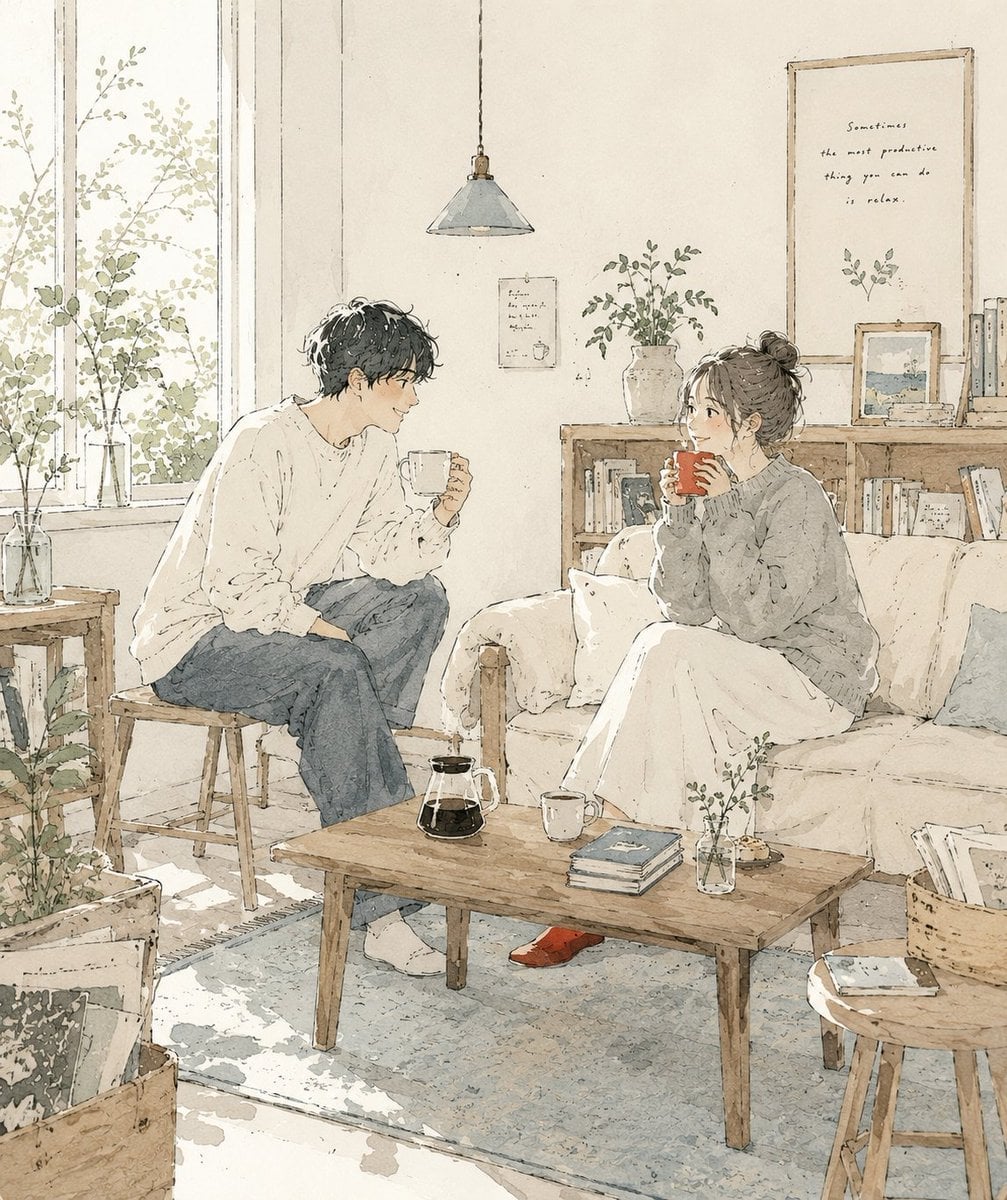
Japanese Café Sketch Duo Illustration
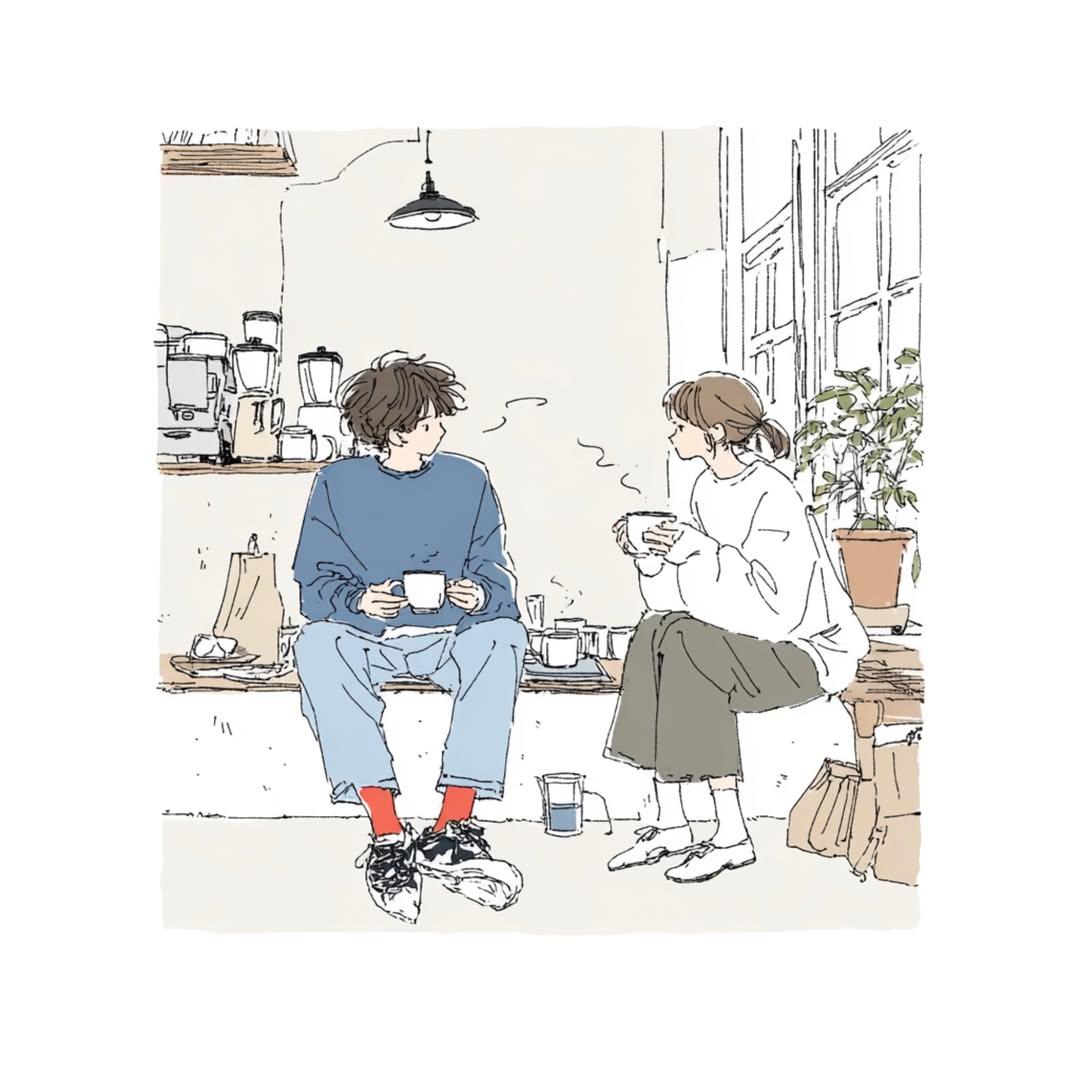
Delicate Japanese Café Lifestyle Illustration
Selective Color Monochrome Football Poster
Dark Mode Image Arena Whiteboard
Dark Fantasy Inner Monster Poster
YouTube Dark Mode Desktop UI Mockup
Dark Mode X Post Mockup
Make it yours
Dark Sketch Mode Monster Doodle works as-is. These are the safest ways to change it without losing the look.
Change one field
Copy a single group, rewrite it, and generate again so you can see what that field is doing.
Keep the frame, change the subject
Hold the composition and light of Dark Sketch Mode Monster Doodle, then swap wardrobe, props or the person for a new take.
| If the result… | Why | Fix |
|---|---|---|
| The result drifts from the preview | Too many fields changed at once. | Reuse Dark Sketch Mode Monster Doodle as-is first, then change one group — subject, light, or setting. |
| The model over-stylizes the scene | The prose prompt leaves finish and camera underspecified. | Add one camera or lighting sentence and stay on GPT Image 2. |
More GPT Image 2 templates
Other prompts made for GPT Image 2.

Six VTuber Japanese Logo Sheet

Realistic Portrait of Woman and Deer

The Vista Modular Condo Poster

AI Model Routing Comparison Infographic

2.5D Anime Art Board

Isometric Productivity Desk Scene

New York Double Exposure Poster

Four-Panel AI Landscape Comparison

Japanese Tatami Lifestyle Magazine Cover

NESCAFÉ Coffee Map Poster
More image prompts
Fresh picks from across the catalog.
Dreamy Fine-Art Editorial Portrait with Double Exposure
Cinematic 3-Frame Solo Travel Stills
Futuristic Glass Profile ID Card
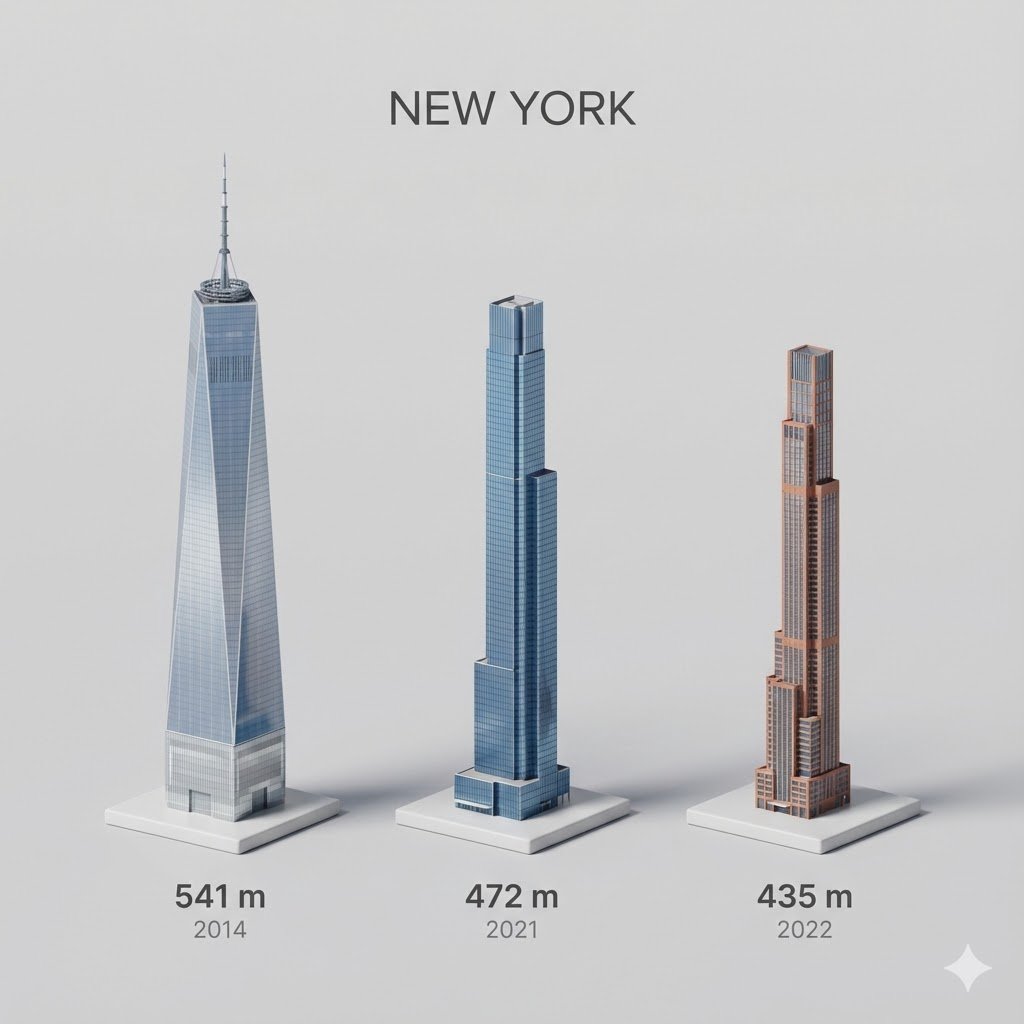
City tallest buildings 3D cartoon showcase prompt
Refining Image Generation for Natural Expression
Cinematic Luxury Editorial Portrait on a Stone Staircase
Photorealistic Lifestyle Image of Subject in Modern Interior
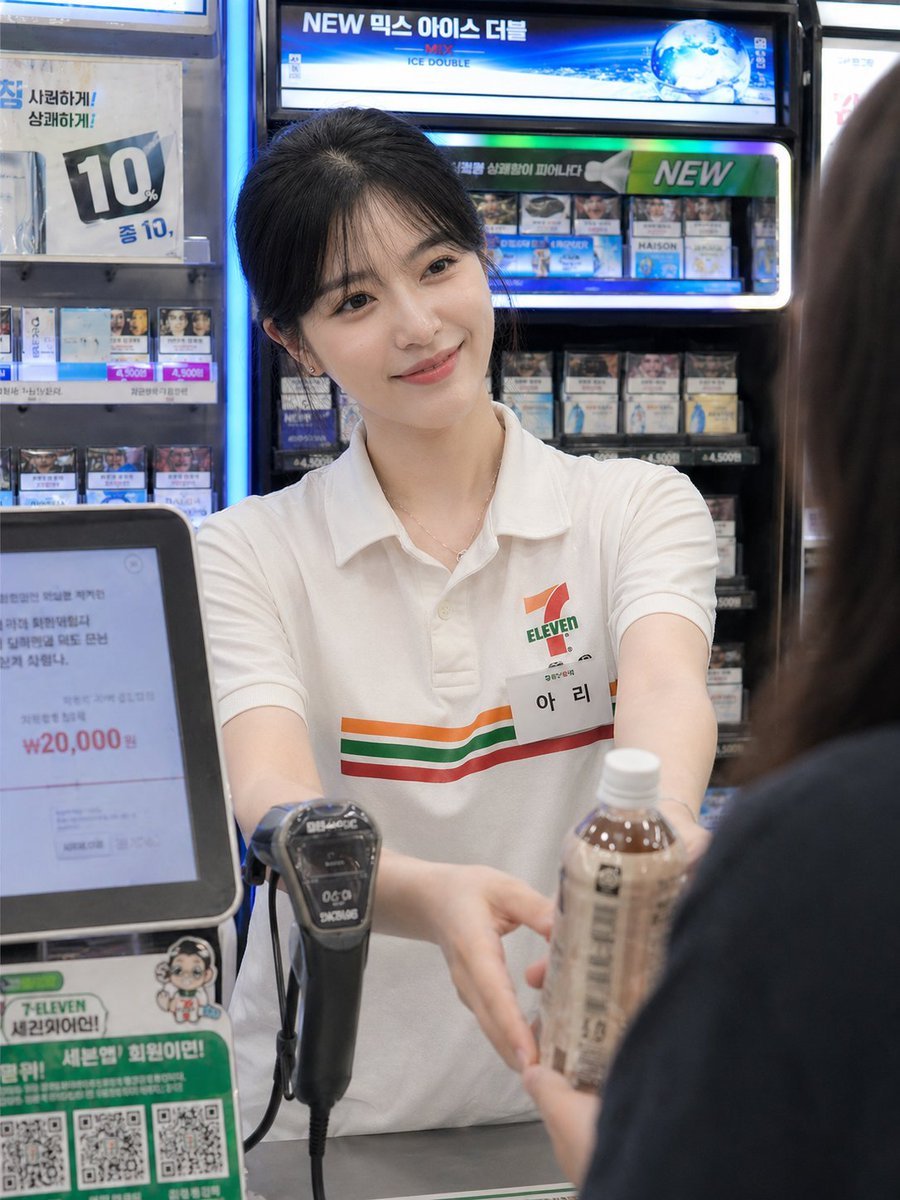
Candid Convenience Store Checkout
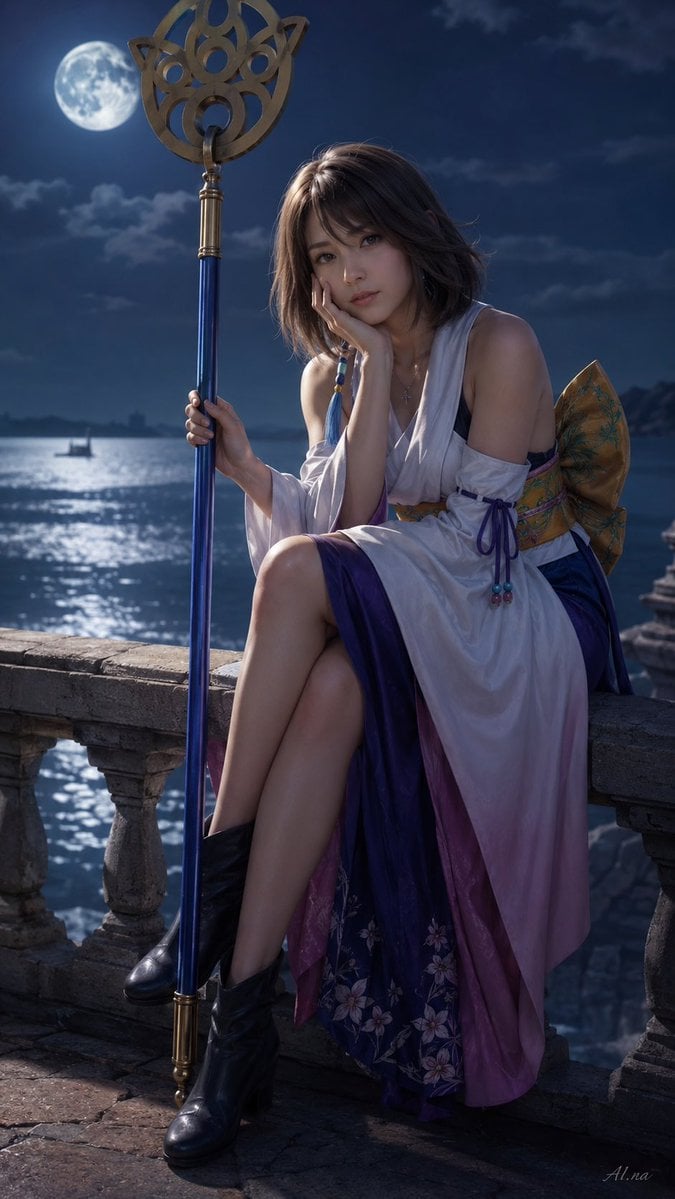
Moonlit Fantasy Summoner Cosplay
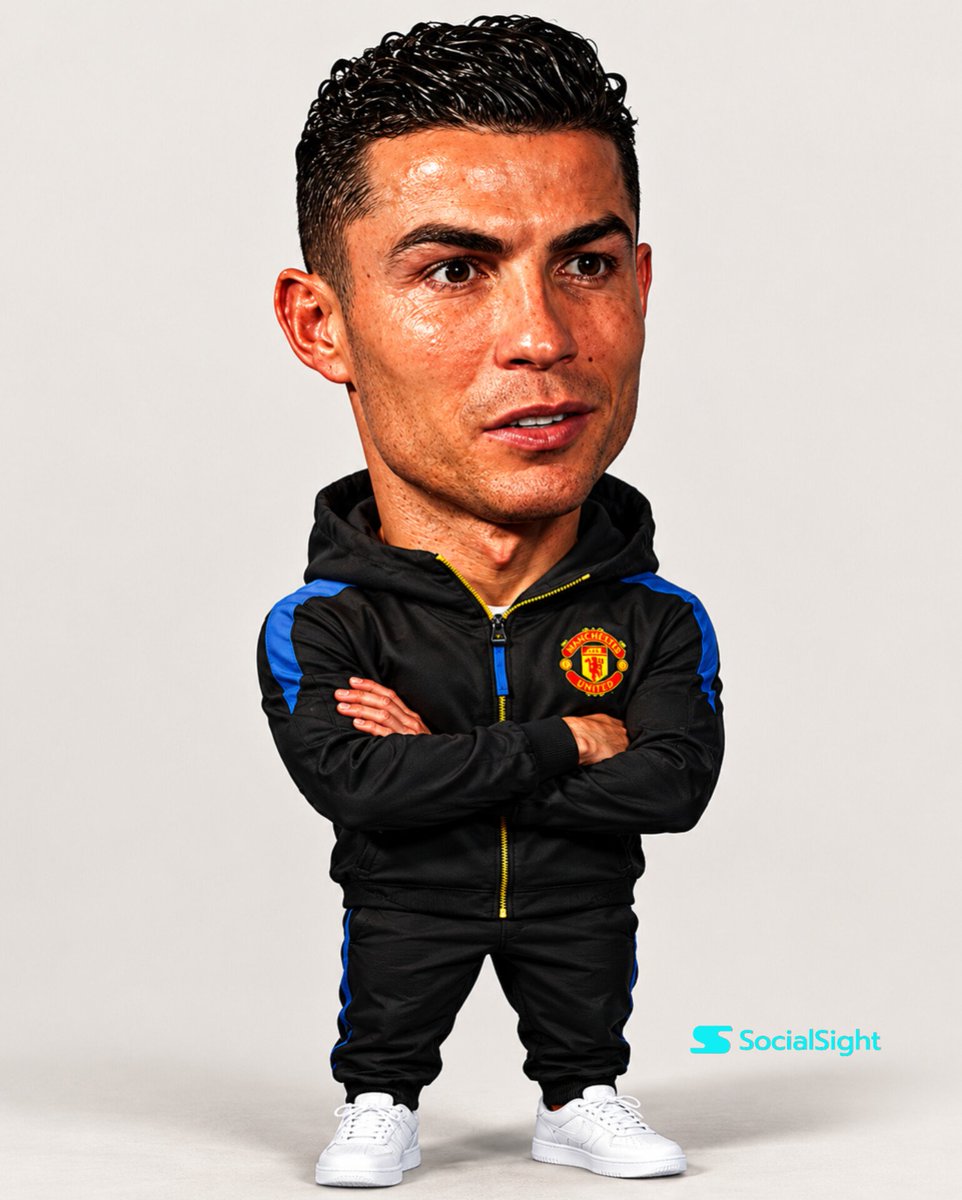
Photorealistic CGI Big Head Caricature
Browse template categories
Dark Sketch Mode Monster Doodle questions
How do I use the Dark Sketch Mode Monster Doodle template?
Add your photo if the template asks for one, edit the prompt if you like — the template's model and format are already selected — and press Generate. Your version opens in PicX Studio.
Can I customize the Dark Sketch Mode Monster Doodle template?
Yes. You can change the subject, setting, lighting, mood, format, and available model controls before creating your image.
Is the Dark Sketch Mode Monster Doodle template free?
Opening and editing this template is free. Generating uses credits, shown on the Generate button when you are signed in.
Which AI model should I use?
Start with GPT Image 2, which is the model associated with this template. You can compare another compatible model for a different finish.
Looking for something else? Browse all templates.

Your photo, any look
Thousands of ready templates for every top image and video model, from one credit balance.