
Dark Mode Dictionary Entry App
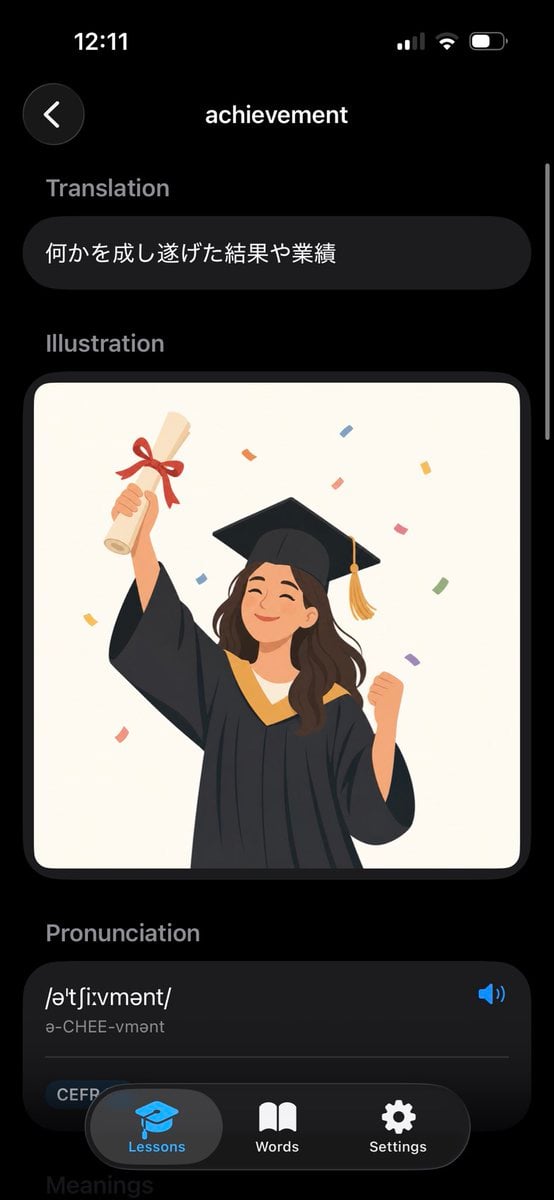
Creates a polished iPhone-style vocabulary app screen for an English dictionary entry with translation, illustration, pronunciation, and bottom navigation.
- Prompt included
- Model and format preset
- Premium template
The prompt behind this image
Copy the exact prompt behind Dark Mode Dictionary Entry App, or open it in the studio and make it yours.
Goal: Create a realistic iPhone screenshot of a sleek dark-mode English dictionary/vocabulary learning app showing the entry for {argument name="word" default="achievement"}. Canvas: Vertical smartphone screen, 9:16 aspect ratio, black background, iOS-style status bar at the top showing 12:11 on the left and cellular/Wi‑Fi/battery icons on the right. Use rounded cards, soft shadows, and a modern minimal UI. Layout: Top navigation has exactly 2 elements: a circular dark back button with a white left chevron on the upper left, and the centered page title “achievement” in white. A thin vertical scroll indicator appears along the right edge. Sections: Show exactly 4 visible content sections in this order: 1) Translation, 2) Illustration, 3) Pronunciation, 4) a partially visible Meanings header at the bottom. Section labels are muted gray, bold, and left aligned. Text content: Under “Translation,” place one rounded dark pill card containing the Japanese text {argument name="translation text" default="何かを成し遂げた結果や業績"}. Under “Pronunciation,” create one large rounded dark card with the phonetic spelling {argument name="phonetic text" default="/əˈtʃiːvmənt/"}, the readable pronunciation “ə-CHEE-vmənt,” a blue speaker icon on the right, a thin divider line, and a small rounded “CEFR” tag near the lower left. Illustration: In the Illustration section, place one large rounded rectangle image card with an off-white background. Inside it, draw a cheerful young graduate woman in a black graduation gown and mortarboard with a gold tassel, smiling with eyes closed. She raises a rolled diploma tied with a red ribbon in her left hand and clenches her right fist in celebration. Add colorful rectangular confetti around her. Use a flat vector illustration style, warm colors, clean edges, and no text inside the illustration. Bottom navigation: Overlay a floating rounded black tab bar at the bottom with exactly 3 tabs: “Lessons” with a blue graduation-cap icon and highlighted gray pill background, “Words” with a white open-book icon, and “Settings” with a white gear icon. The tab bar partially covers the pronunciation card and the faint “Meanings” header. Visual style: High-fidelity mobile app mockup, dark theme, iOS proportions, rounded corners, subtle gradients, white and gray typography, blue accent color, polished product screenshot. Avoid extra words, extra icons, watermarks, or browser chrome.
How to use Dark Mode Dictionary Entry App in 3 steps
- 1Upload ImagePNG, JPG or paste
Add your photo
Upload the photo the template builds on. The prompt, model and format are already set.
- 2…a portrait of your subject in softgolden-hour light, 85mm…
Personalize
Edit the subject and creative details for your destination.
- 3Generate
Generate
Press Generate — your image is created in PicX Studio, so you can compare it with the original and refine one variable at a time.
More like this
Templates with the same subject, style or setup. Open one to see its prompt.
Dark Mode AI Portrait Result Card
Dark Sketch Mode Monster Doodle
Selective Color Monochrome Football Poster
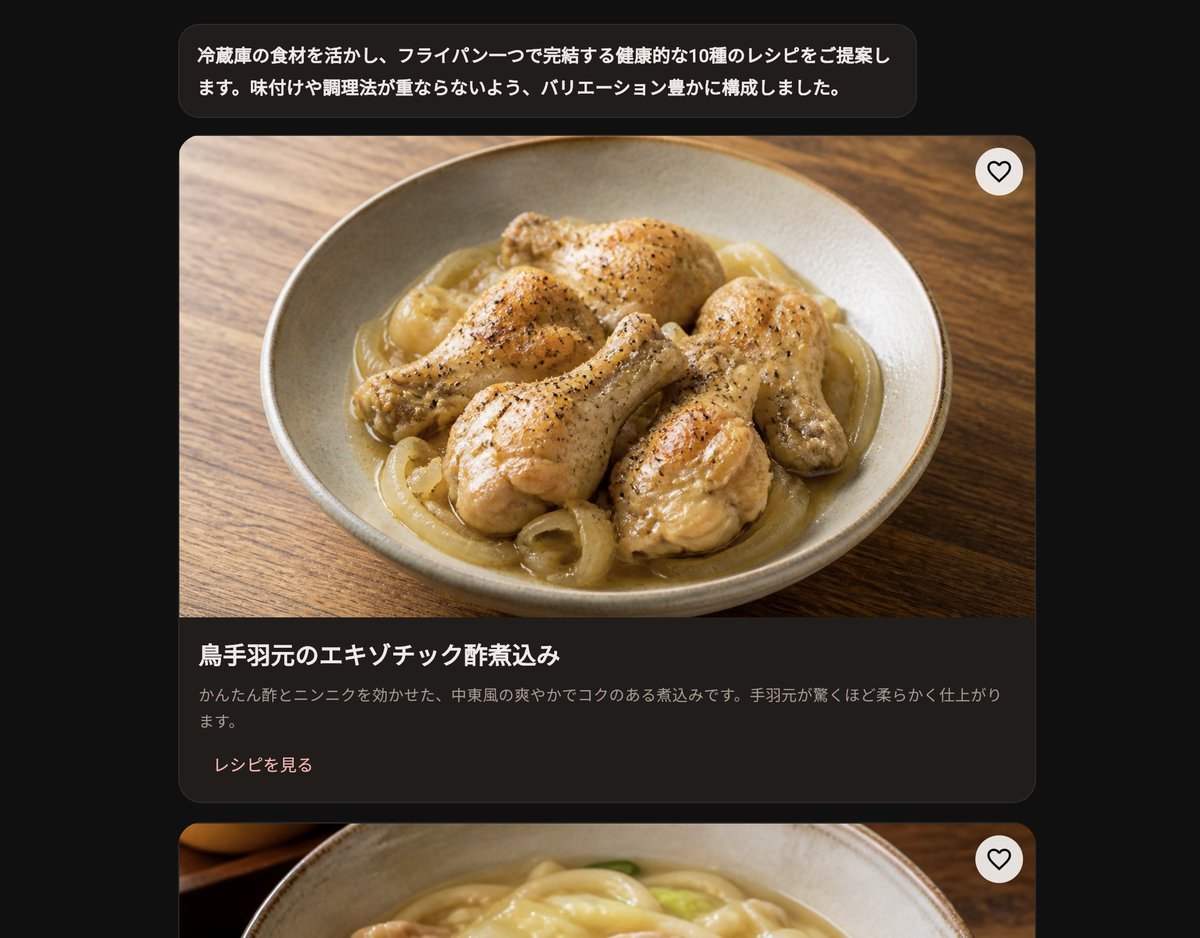
Dark Japanese Recipe App UI
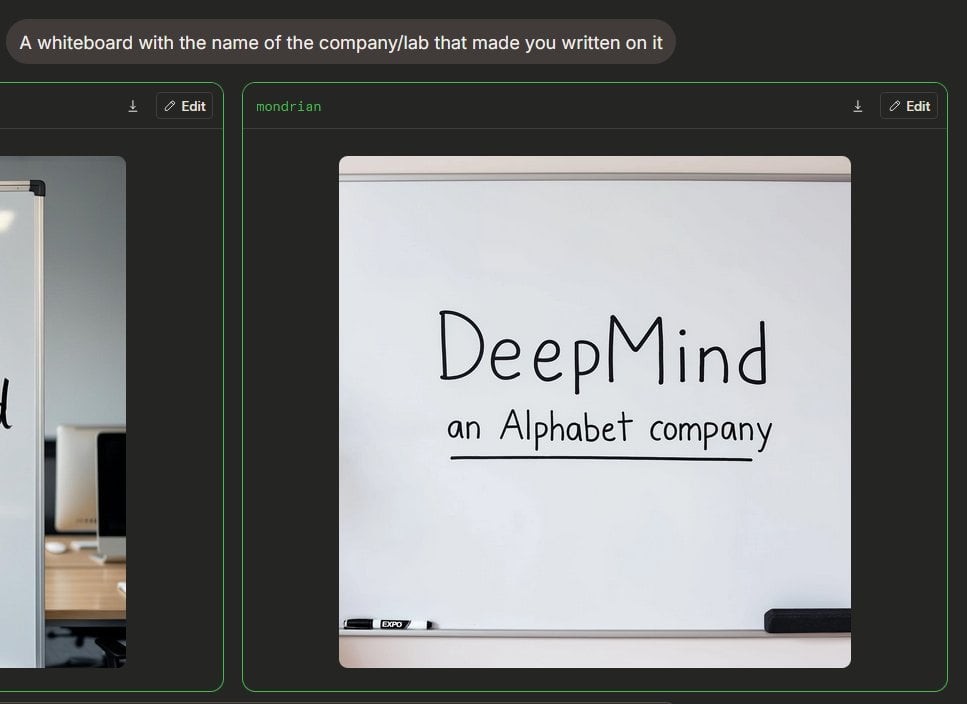
Dark Mode Image Arena Whiteboard
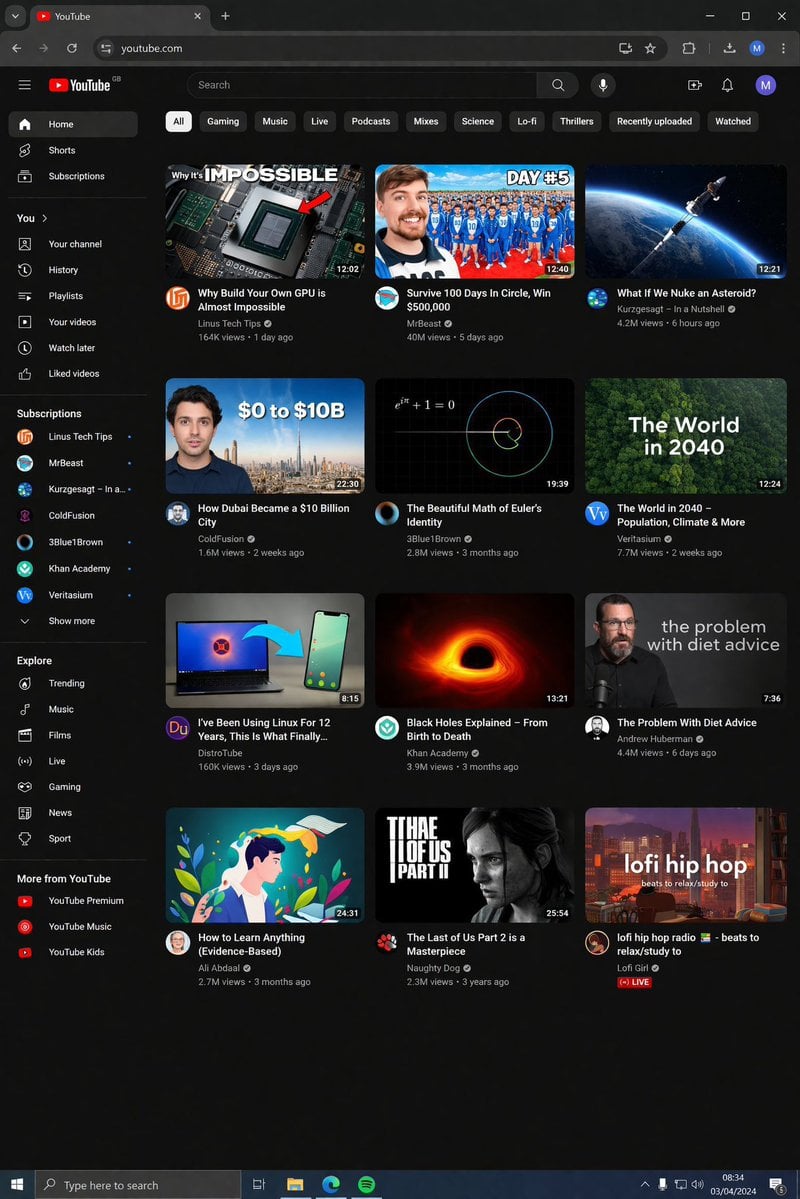
YouTube Dark Mode Desktop UI Mockup
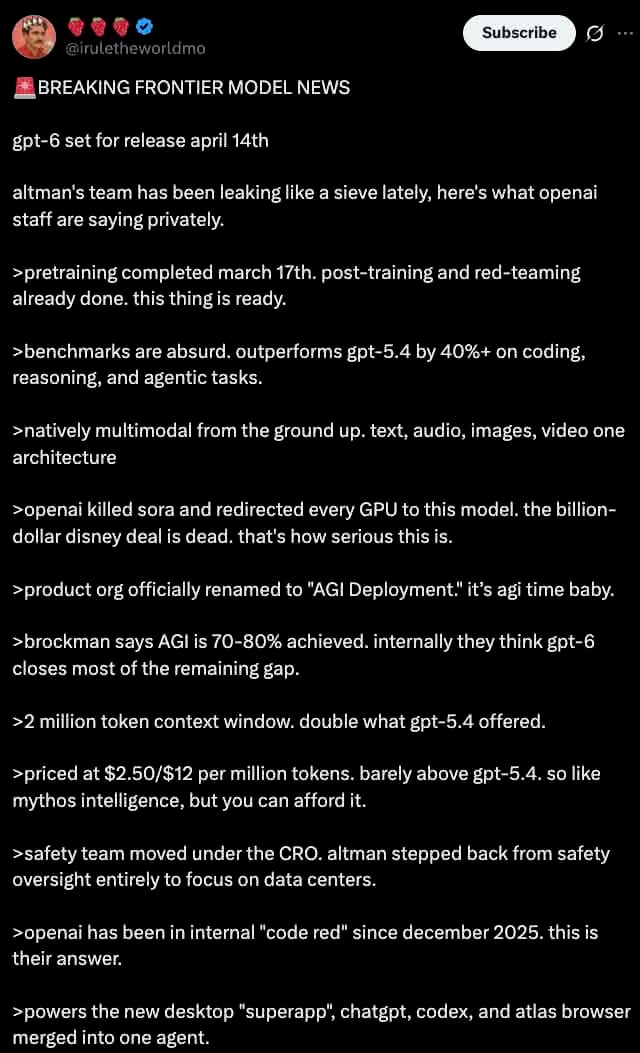
Dark Mode X Post Mockup
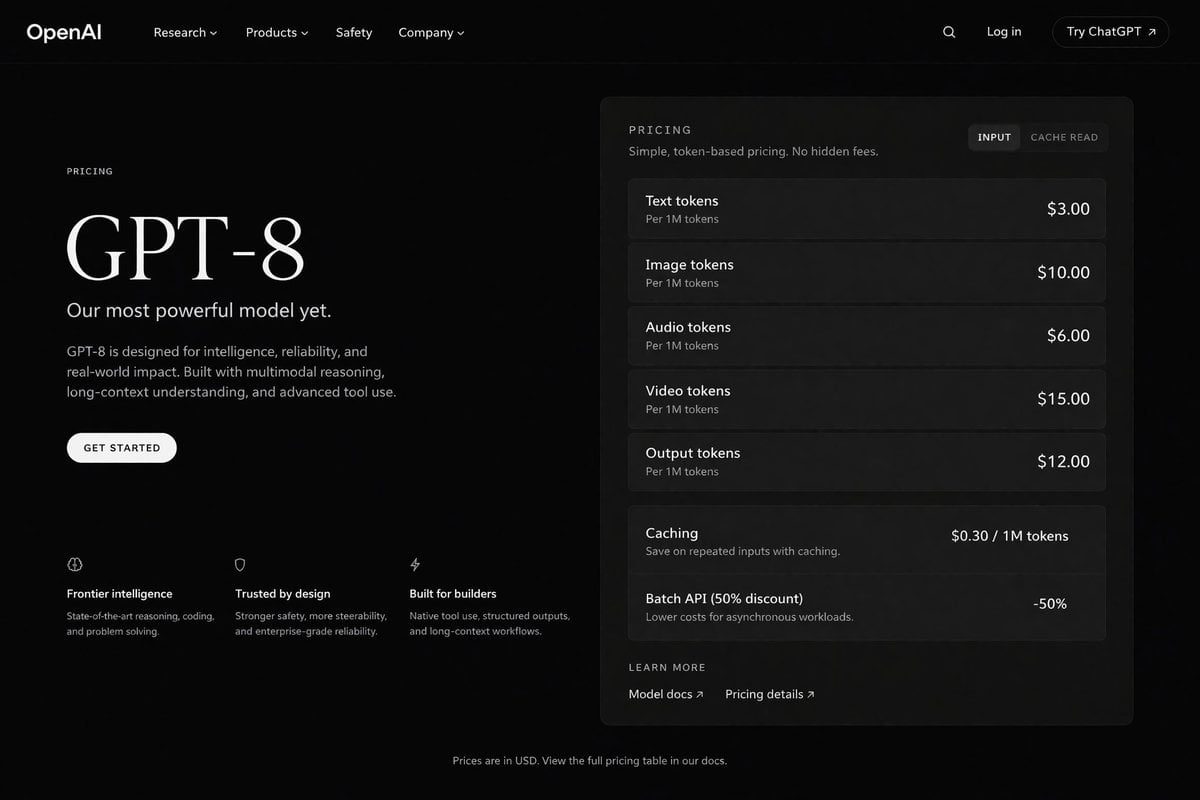
Dark Mode AI API Pricing Page Mockup
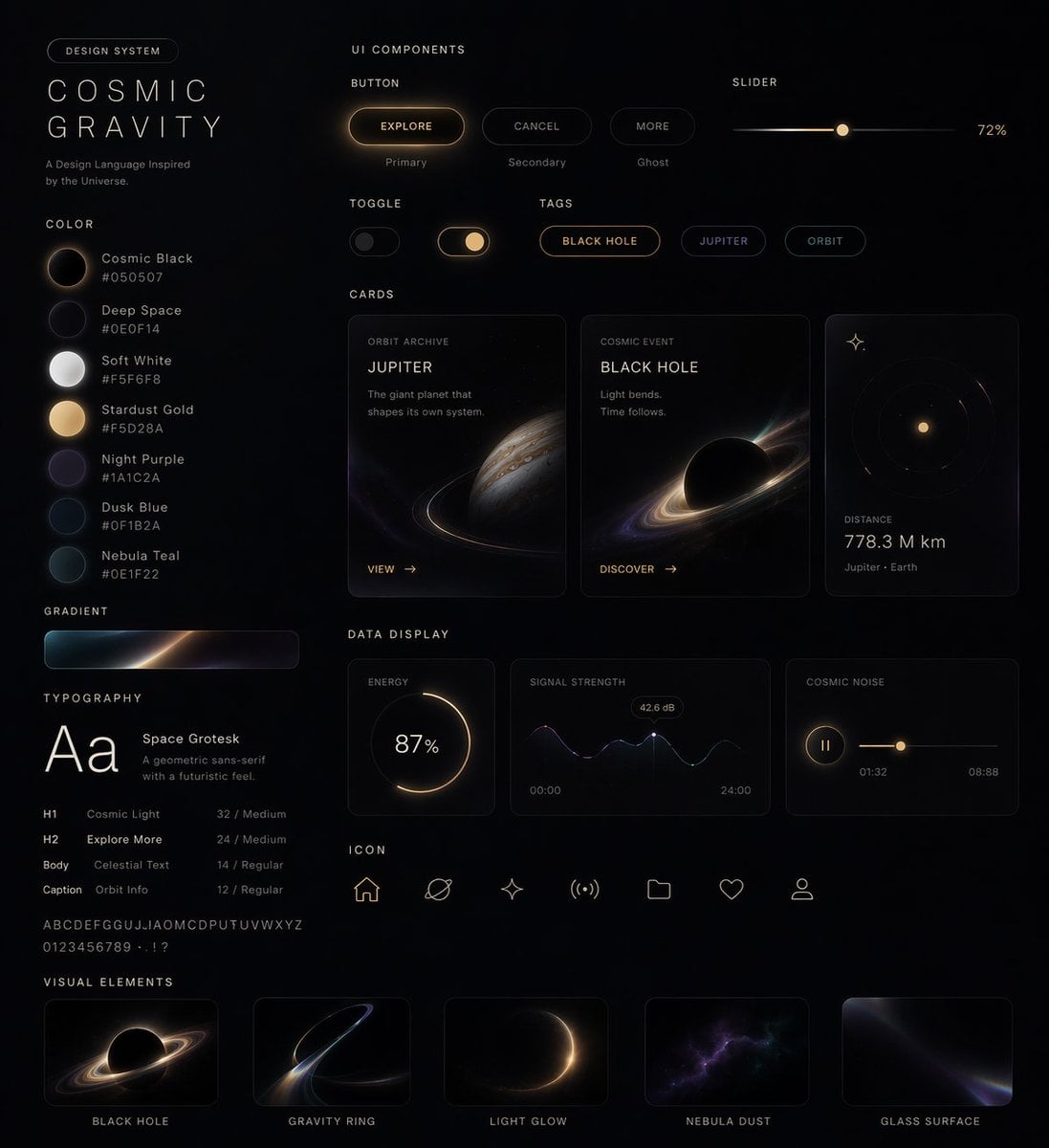
Cosmic Dark Mode UI Design System
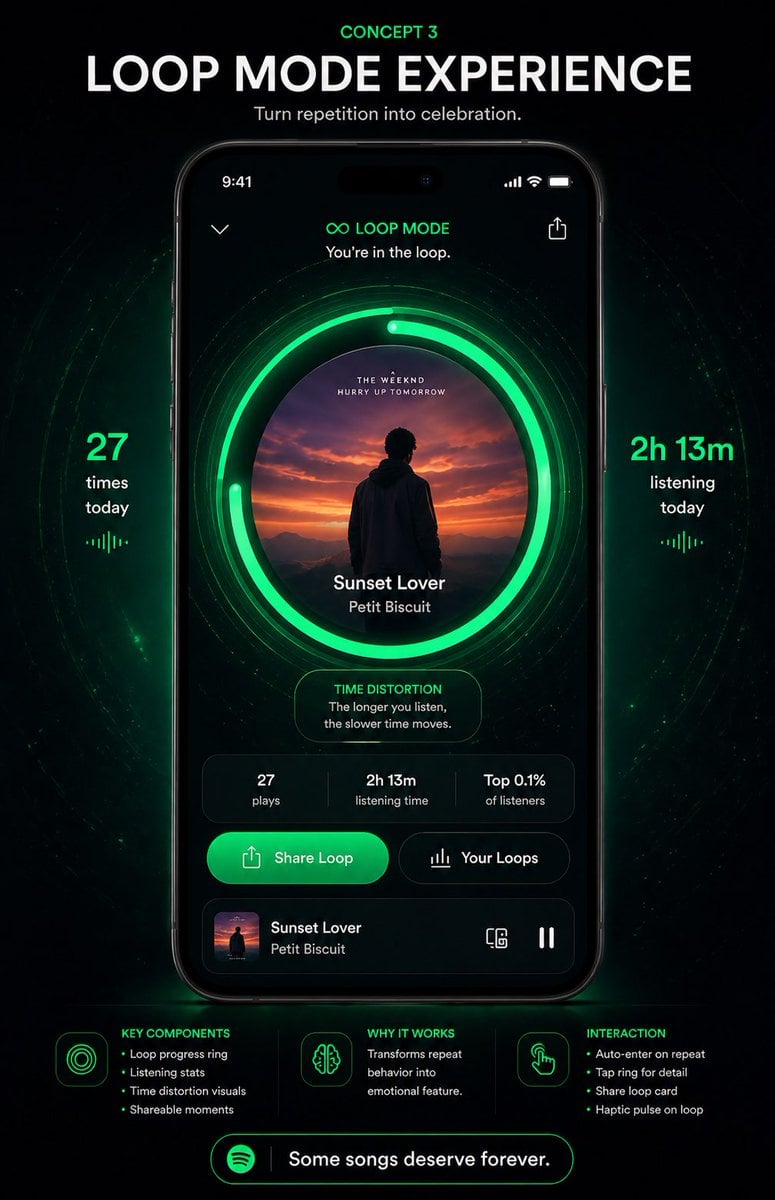
Neon Loop Mode Music App Poster
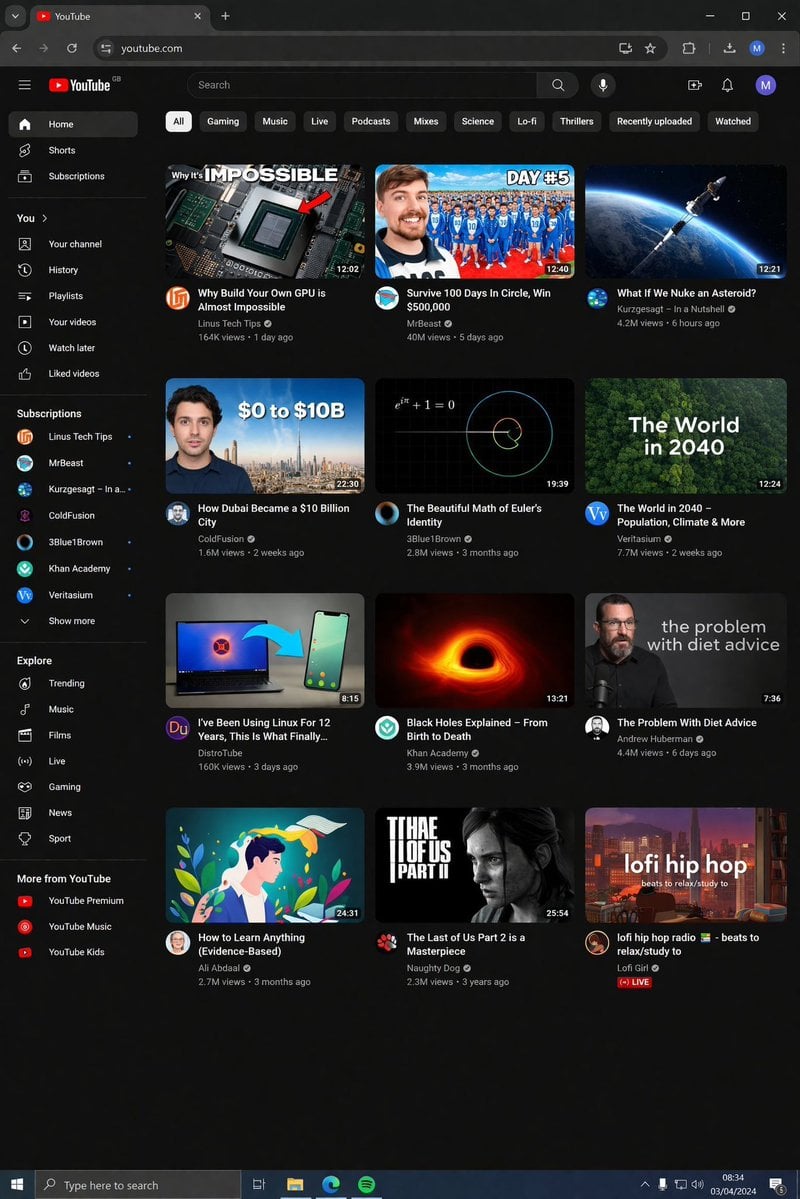
YouTube Dark Mode Desktop UI Mockup

Dark Mode Marketing Case Study UI
Make it yours
Dark Mode Dictionary Entry App works as-is. These are the safest ways to change it without losing the look.
Change one field
Copy a single group, rewrite it, and generate again so you can see what that field is doing.
Keep the frame, change the subject
Hold the composition and light of Dark Mode Dictionary Entry App, then swap wardrobe, props or the person for a new take.
| If the result… | Why | Fix |
|---|---|---|
| The result drifts from the preview | Too many fields changed at once. | Reuse Dark Mode Dictionary Entry App as-is first, then change one group — subject, light, or setting. |
| The model over-stylizes the scene | The prose prompt leaves finish and camera underspecified. | Add one camera or lighting sentence and stay on GPT Image 2. |
More GPT Image 2 templates
Other prompts made for GPT Image 2.

Six VTuber Japanese Logo Sheet

Realistic Portrait of Woman and Deer

The Vista Modular Condo Poster

AI Model Routing Comparison Infographic

2.5D Anime Art Board

Isometric Productivity Desk Scene

New York Double Exposure Poster

Four-Panel AI Landscape Comparison

Japanese Tatami Lifestyle Magazine Cover

NESCAFÉ Coffee Map Poster
More image prompts
Fresh picks from across the catalog.
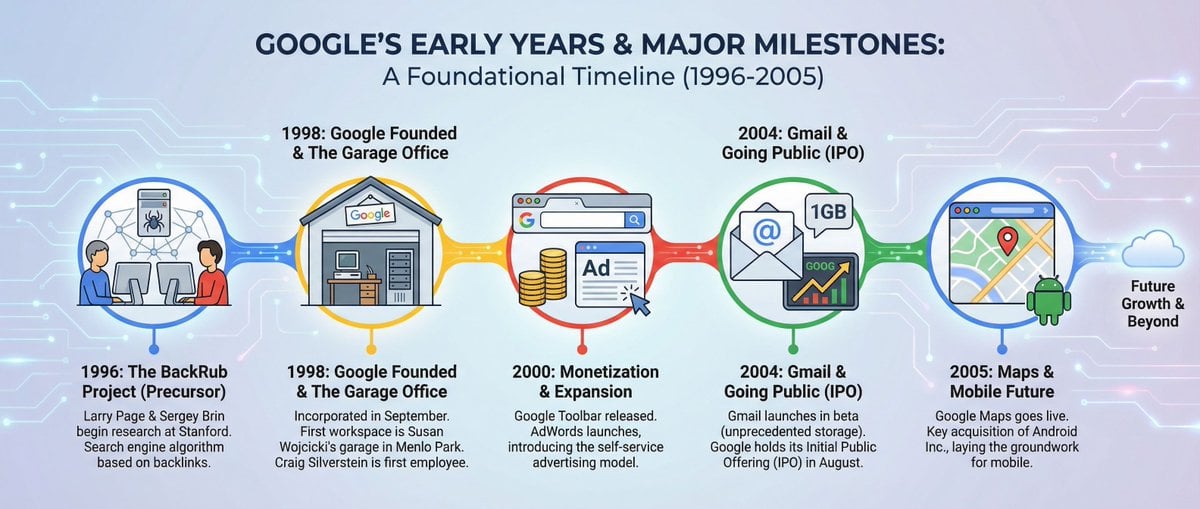
Infographic about Google’s early years
Cinematic Smoking Portrait With Censored Face

DIY Baby Toy Concept Sheets
Black and White Vogue Fashion Shoot with Motion Blur
Clean Photo of The Last Supper Fresco

Mystic Astrologer at Cosmic Table
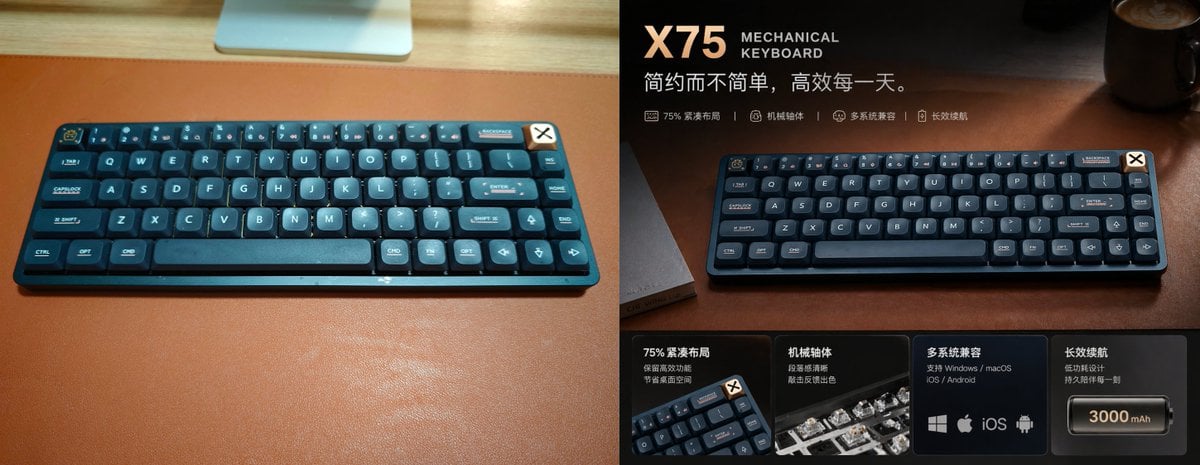
Premium Mechanical Keyboard Ad Poster
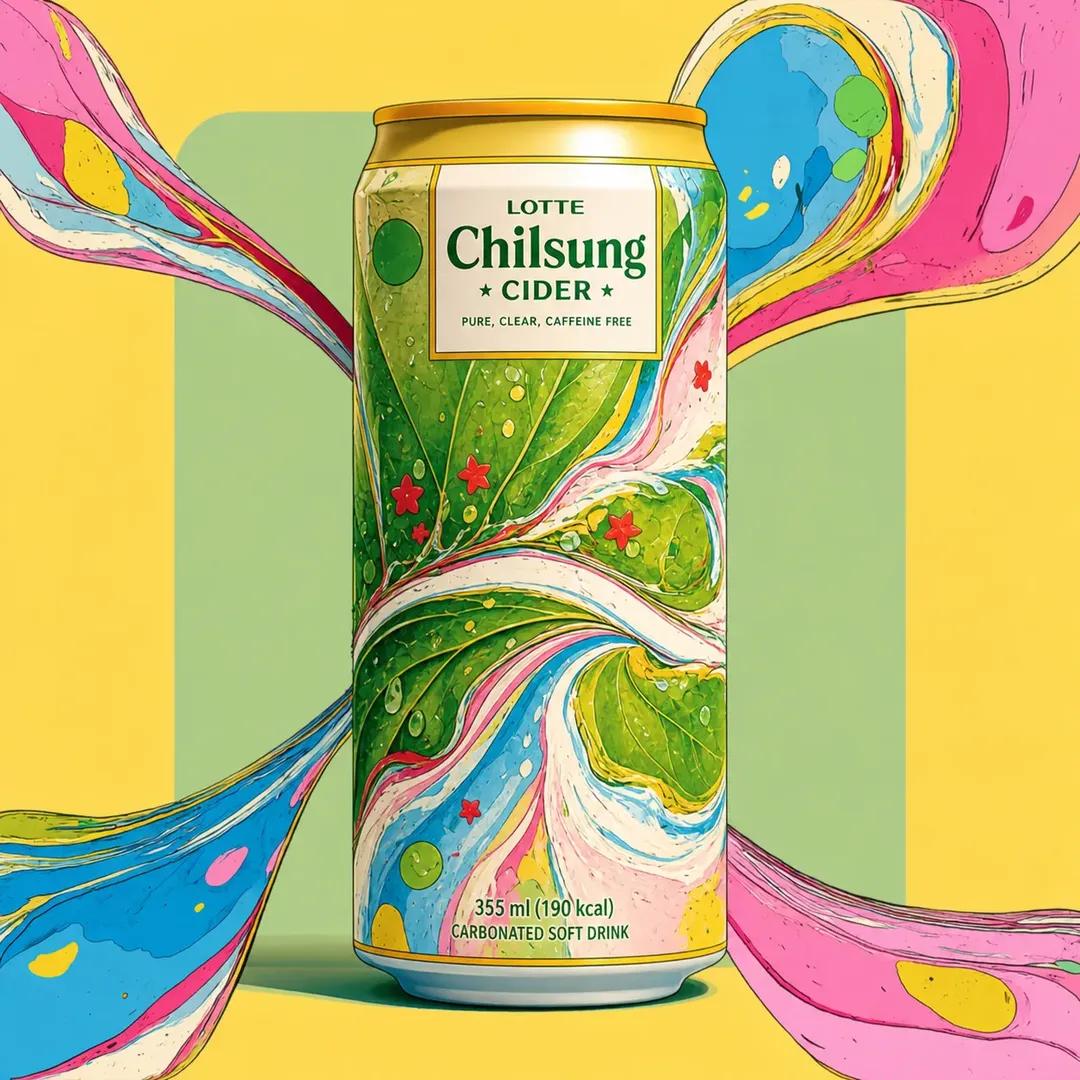
Psychedelic Commercial Beverage Photography
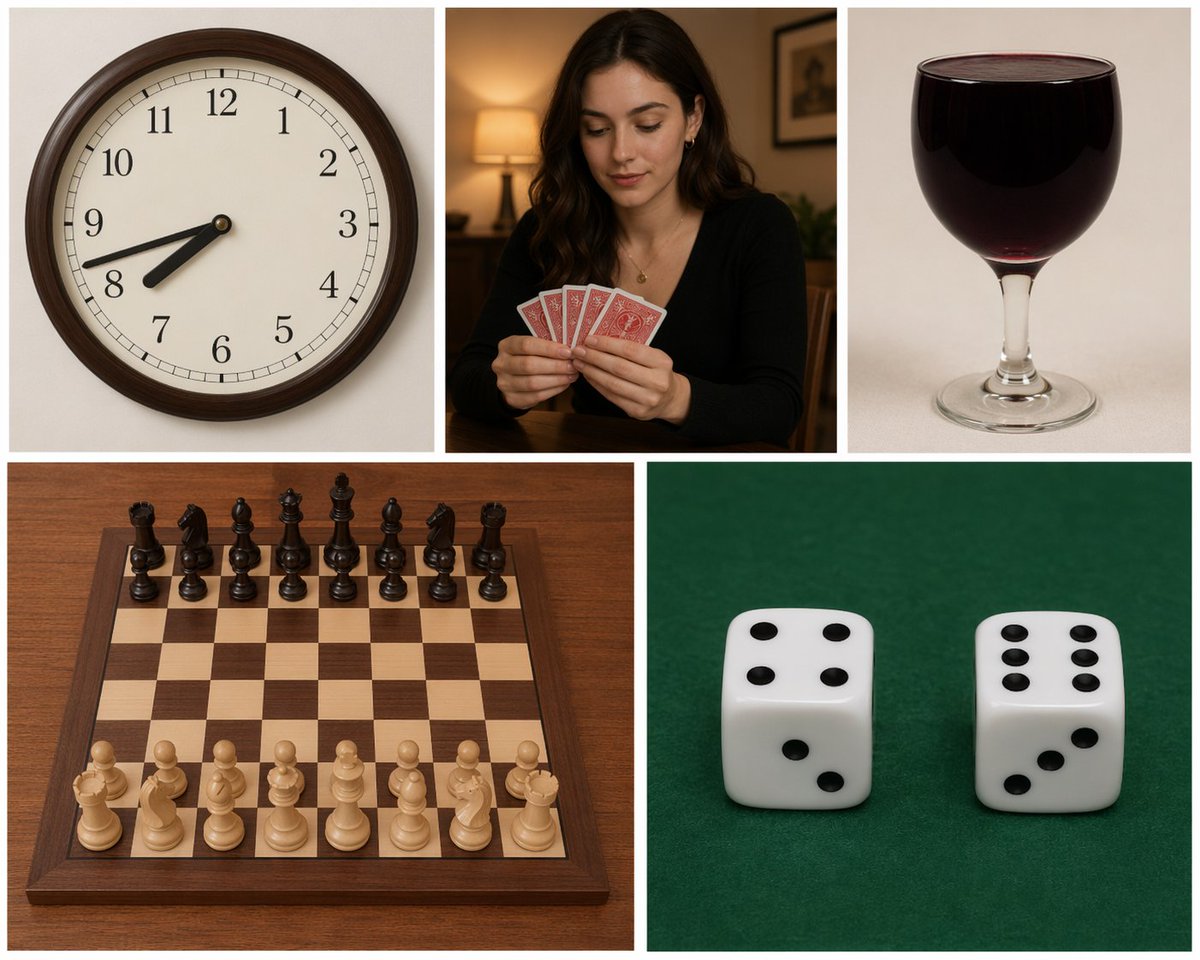
Five-Panel Benchmarking Challenge
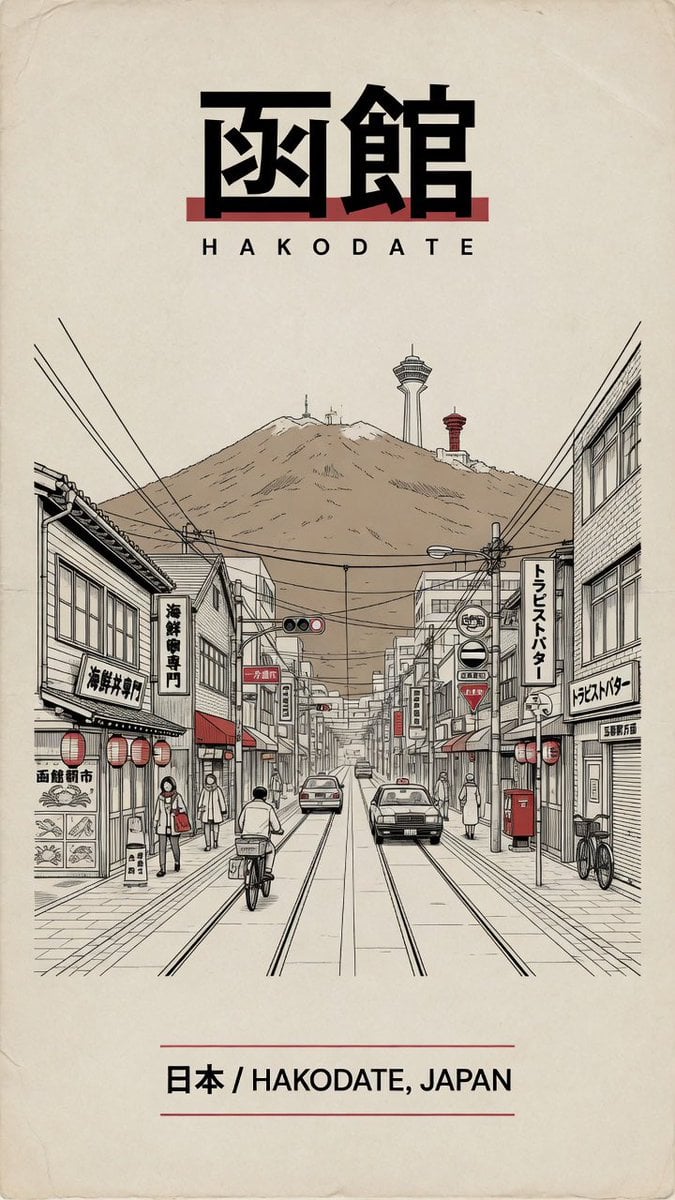
Vintage Hakodate Travel Poster
Browse template categories
Dark Mode Dictionary Entry App questions
How do I use the Dark Mode Dictionary Entry App template?
Add your photo if the template asks for one, edit the prompt if you like — the template's model and format are already selected — and press Generate. Your version opens in PicX Studio.
Can I customize the Dark Mode Dictionary Entry App template?
Yes. You can change the subject, setting, lighting, mood, format, and available model controls before creating your image.
Is the Dark Mode Dictionary Entry App template free?
Opening and editing this template is free. Generating uses credits, shown on the Generate button when you are signed in.
Which AI model should I use?
Start with GPT Image 2, which is the model associated with this template. You can compare another compatible model for a different finish.
Looking for something else? Browse all templates.

Your photo, any look
Thousands of ready templates for every top image and video model, from one credit balance.