
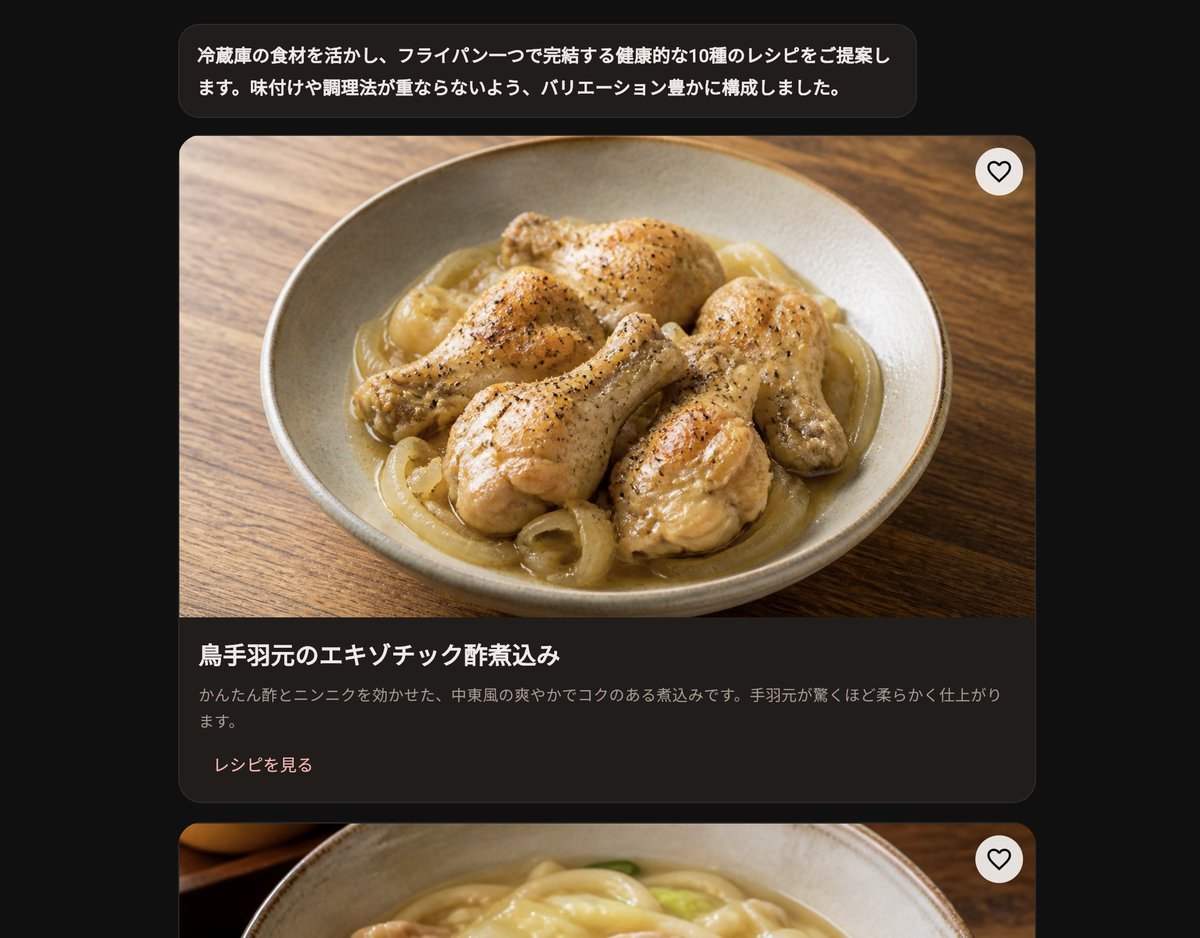
Dark Japanese Recipe App UI
Generates a dark-mode Japanese cooking assistant screen with recipe cards and realistic food photography for app mockup use.
- Prompt included
- Model and format preset
- Free template
The prompt behind this image
Copy the exact prompt behind Dark Japanese Recipe App UI, or open it in the studio and make it yours.
Goal: Create a realistic dark-mode mobile cooking AI assistant interface showing recipe suggestions generated from fridge ingredients, in Japanese. Canvas: Vertical smartphone screenshot, approximately 4:5 crop, black outer background with a centered app feed column. Use rounded corners, soft shadows, and a premium food-app aesthetic. Layout: At the top, place one rounded dark charcoal chat bubble containing Japanese assistant text. Below it, show a vertically scrolling list of recipe cards. Exactly 2 recipe cards are visible: the first card is fully visible, the second card is only partially visible at the bottom. Text content: The top chat bubble says: 「冷蔵庫の食材を活かし、フライパン一つで完結する健康的な10種のレシピをご提案します。味付けや調理法が重ならないよう、バリエーション豊かに構成しました。」 The first recipe card title says: 「鳥手羽元のエキゾチック酢煮込み」. Its description says: 「かんたん酢とニンニクを効かせた、中東風の爽やかでコクのある煮込みです。手羽元が驚くほど柔らかく仕上がります。」 The link text says: 「レシピを見る」. Card details: Recipe card 1 has a large food photo on top and a dark information panel underneath. The photo shows {argument name="main dish" default="braised chicken drumettes with sliced onions in a light brown sauce"} served in a shallow beige ceramic bowl on a warm wooden table, photographed from a slightly overhead angle with natural restaurant lighting. Add black pepper specks on the chicken, glossy sauce, and soft depth of field. Place exactly 1 circular white heart-outline favorite button at the upper-right corner of the image area. The information panel below is very dark brown-black with the title in bold white, description in muted gray, and the recipe link in pale pink. Second card: Show only the top portion of a second recipe card beneath the first, separated by vertical spacing. It should include a large cropped food photo showing a bowl of creamy pale-yellow noodles or soup on a wooden table, with exactly 1 circular white heart-outline favorite button at the upper-right corner. Do not show its title in the crop. Visual style: Modern Japanese recipe app UI, dark theme, rounded 18–22 px cards, subtle borders, soft shadows, high-resolution food photography, clean sans-serif typography. Use warm browns, beige ceramic, black charcoal panels, and muted pink accent text. Constraints: Include exactly 1 top chat bubble, exactly 2 visible recipe cards, and exactly 2 heart favorite buttons total. Keep the interface realistic and uncluttered, with no extra icons, navigation bars, watermarks, or English UI text.
How to use Dark Japanese Recipe App UI in 3 steps
- 1Upload ImagePNG, JPG or paste
Add your photo
Upload the photo the template builds on. The prompt, model and format are already set.
- 2…a portrait of your subject in softgolden-hour light, 85mm…
Personalize
Edit the subject and creative details for your destination.
- 3Generate
Generate
Press Generate — your image is created in PicX Studio, so you can compare it with the original and refine one variable at a time.
More like this
Templates with the same subject, style or setup. Open one to see its prompt.

Minecraft Japanese Research Lab Exploration
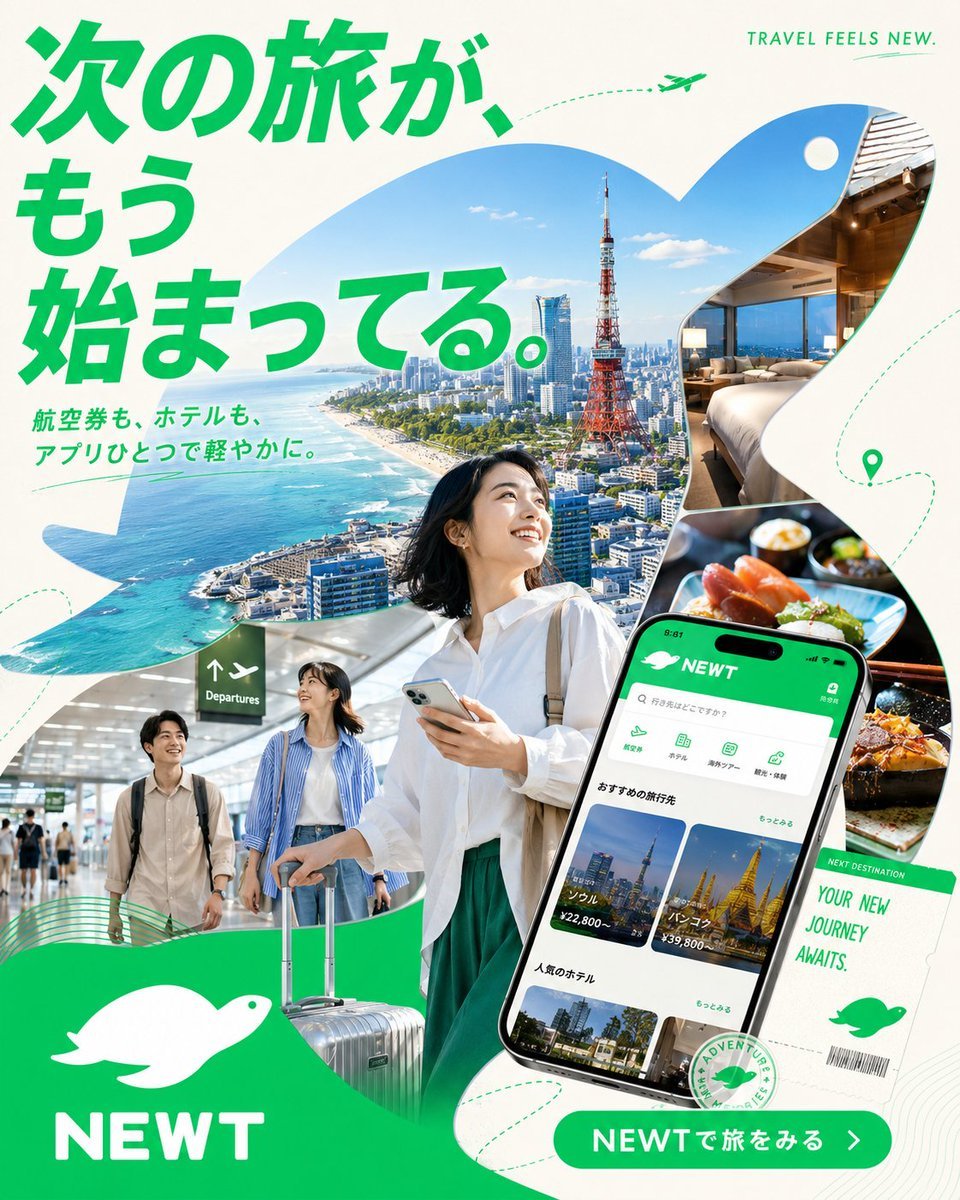
Japanese NEWT Travel App Poster
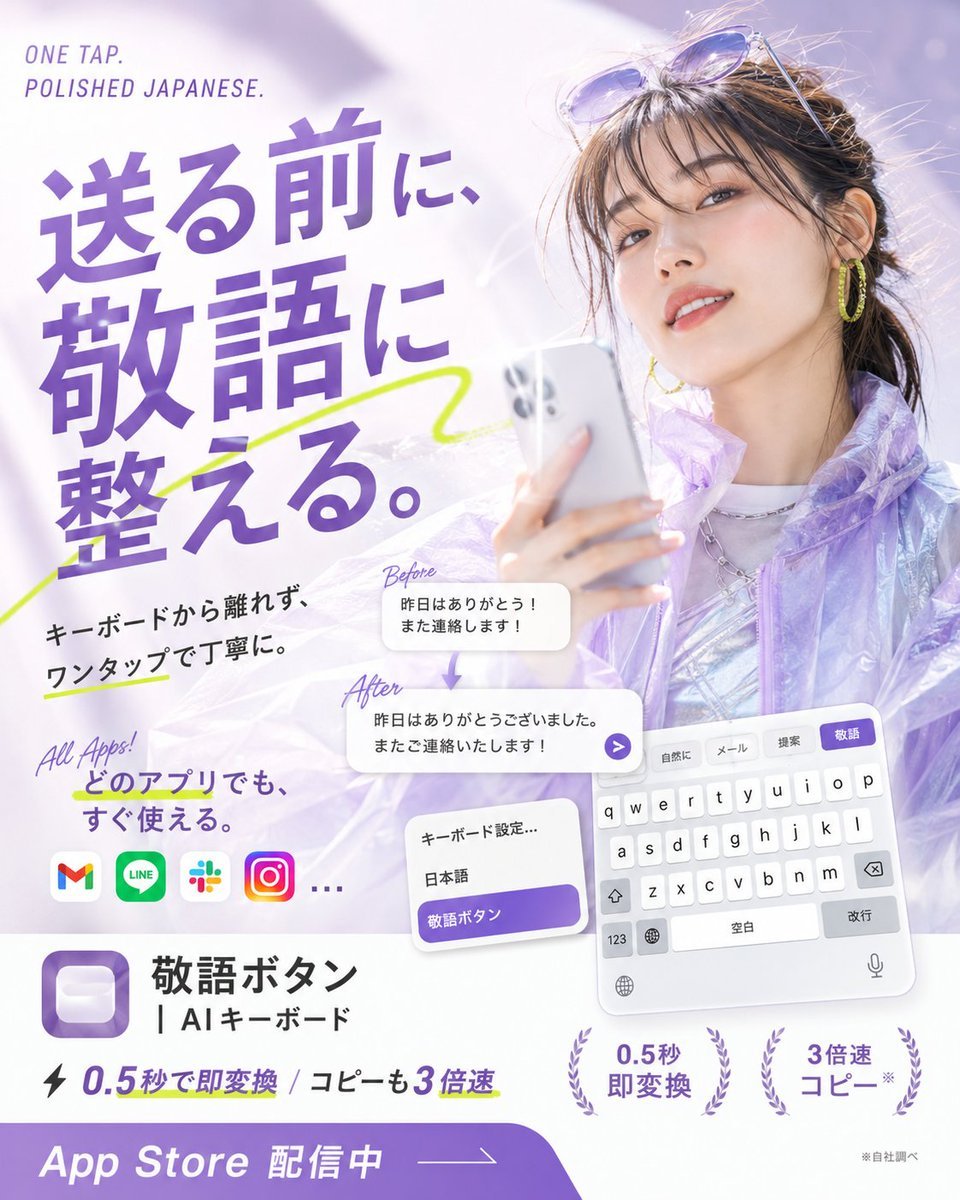
Japanese AI Keyboard App Poster
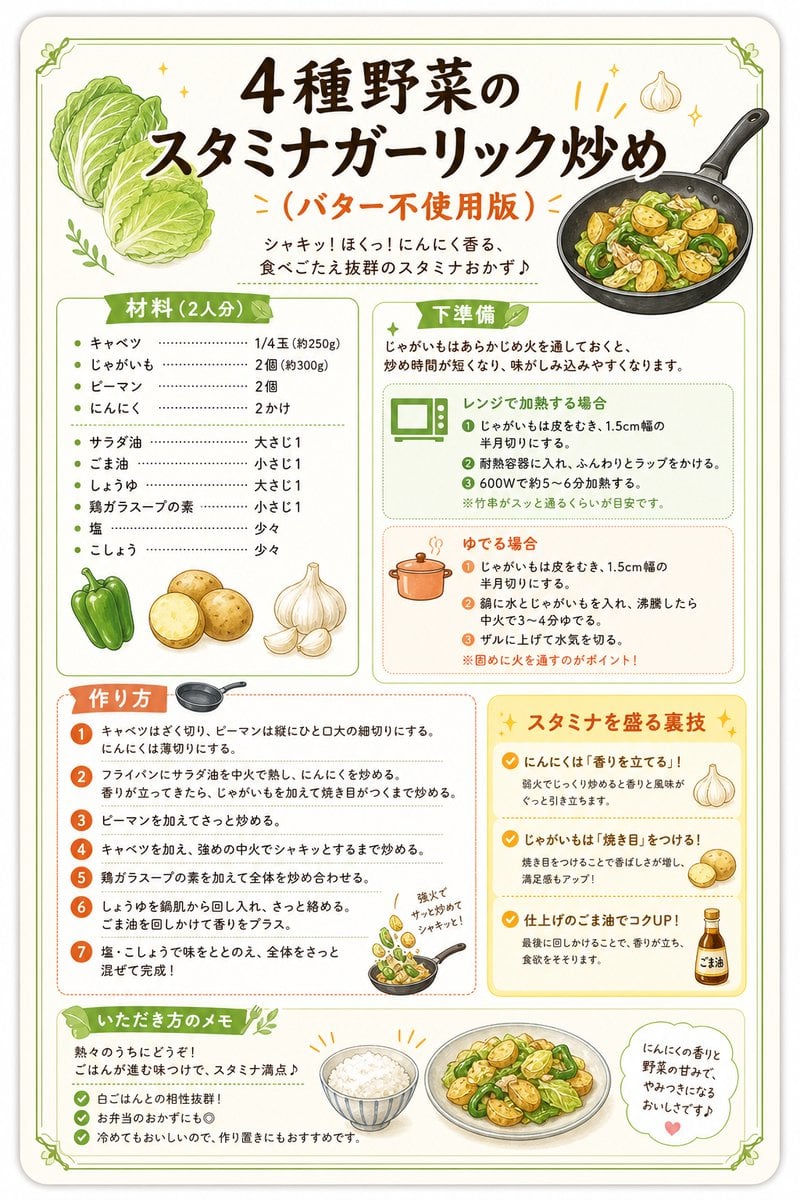
Japanese Vegetable Stir-Fry Recipe Poster

Japanese Architectural Concrete Studio Fashion Campaign

Japanese Minimalist Concrete Studio Fashion Editorial

Blue Backdrop Luxury Fashion Portrait Campaign
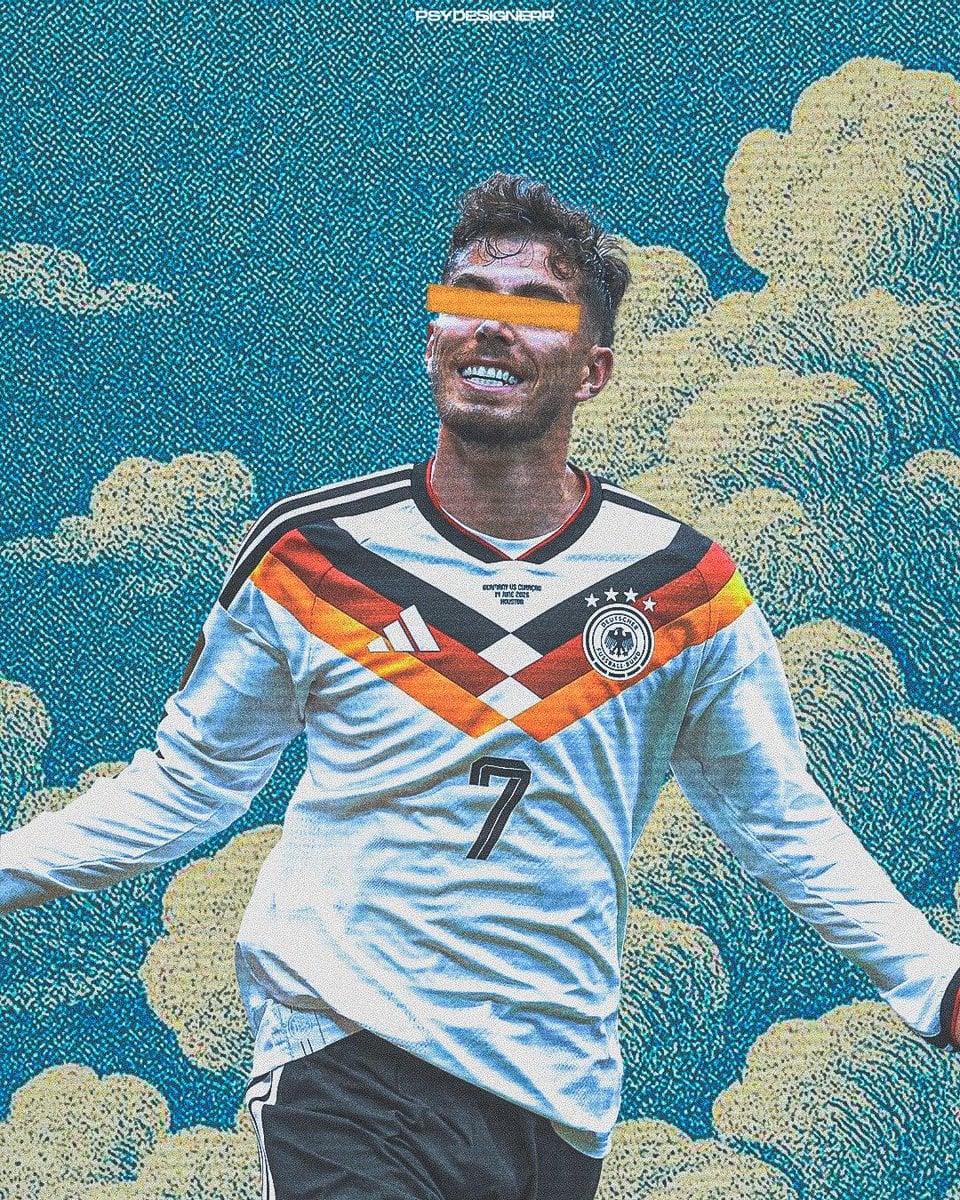
Selective Color Monochrome Football Poster
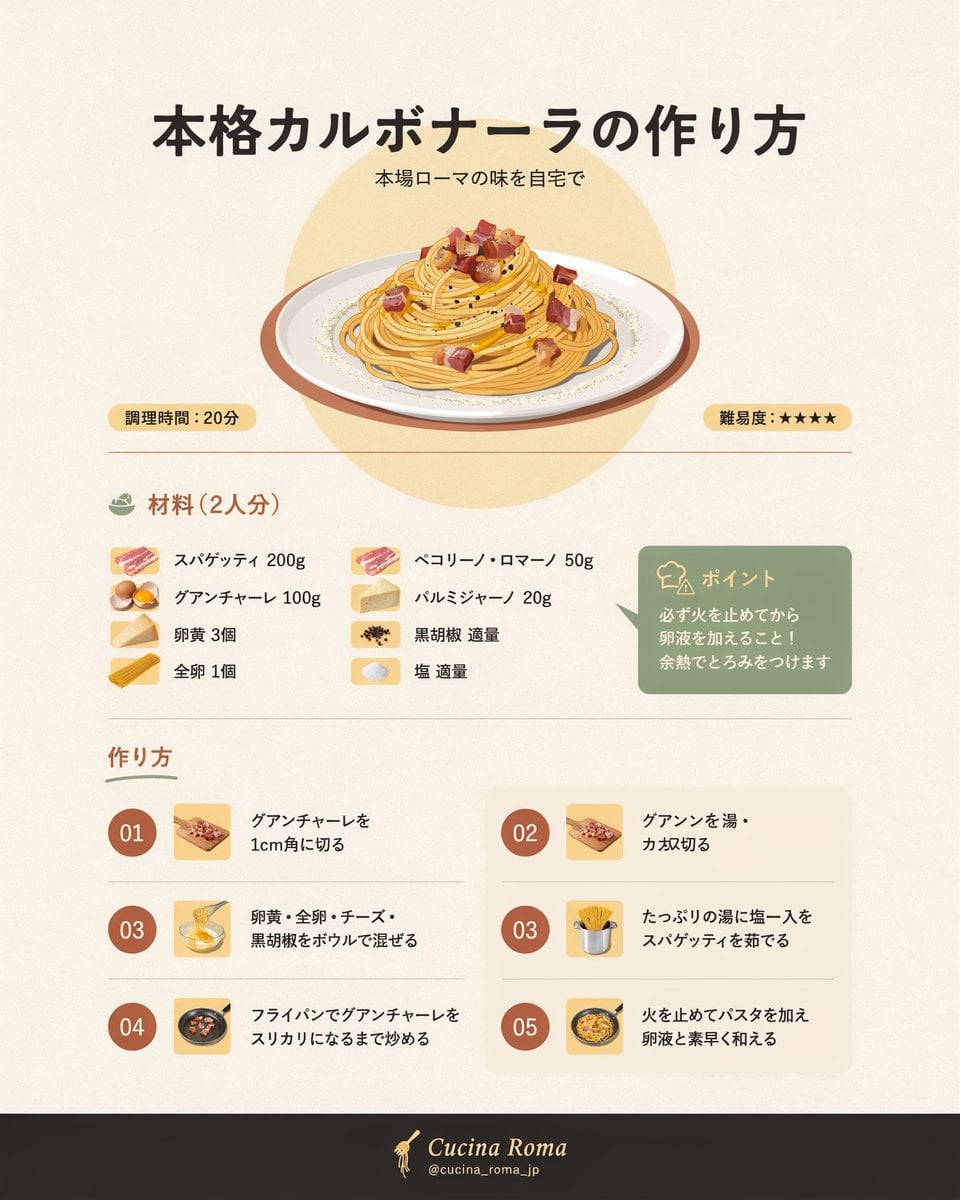
Japanese Carbonara Recipe Infographic
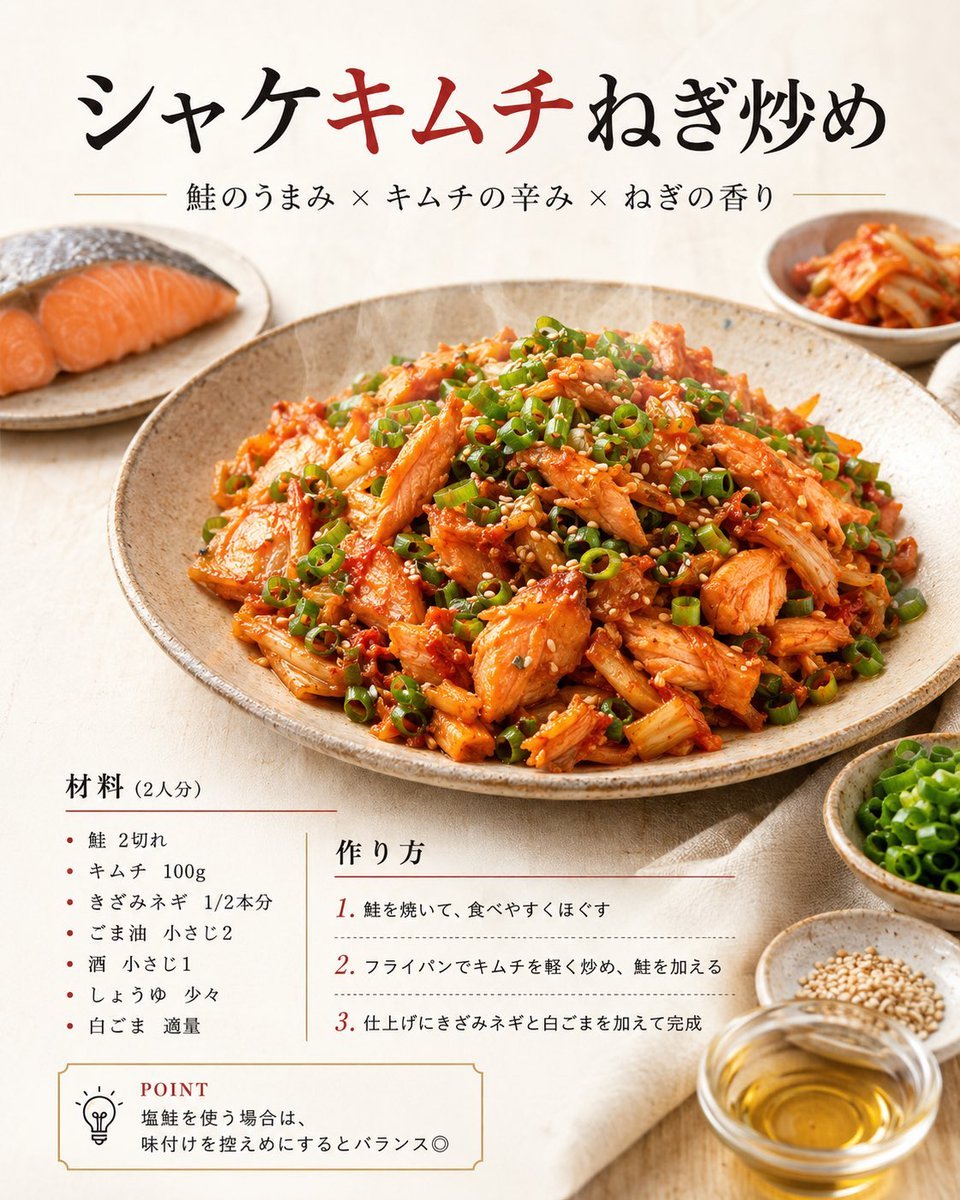
Japanese Salmon Kimchi Recipe Poster
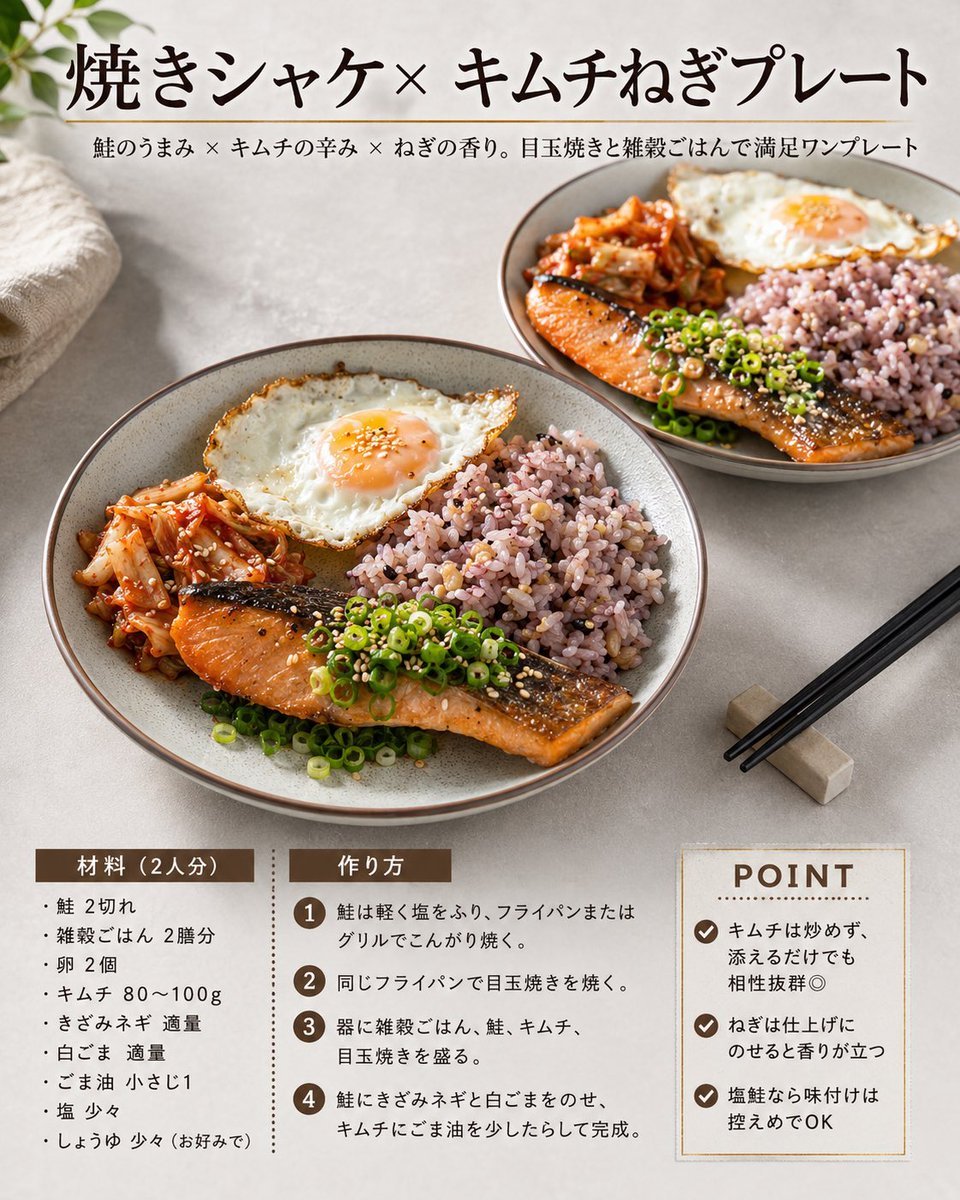
Japanese Salmon Kimchi Recipe Card
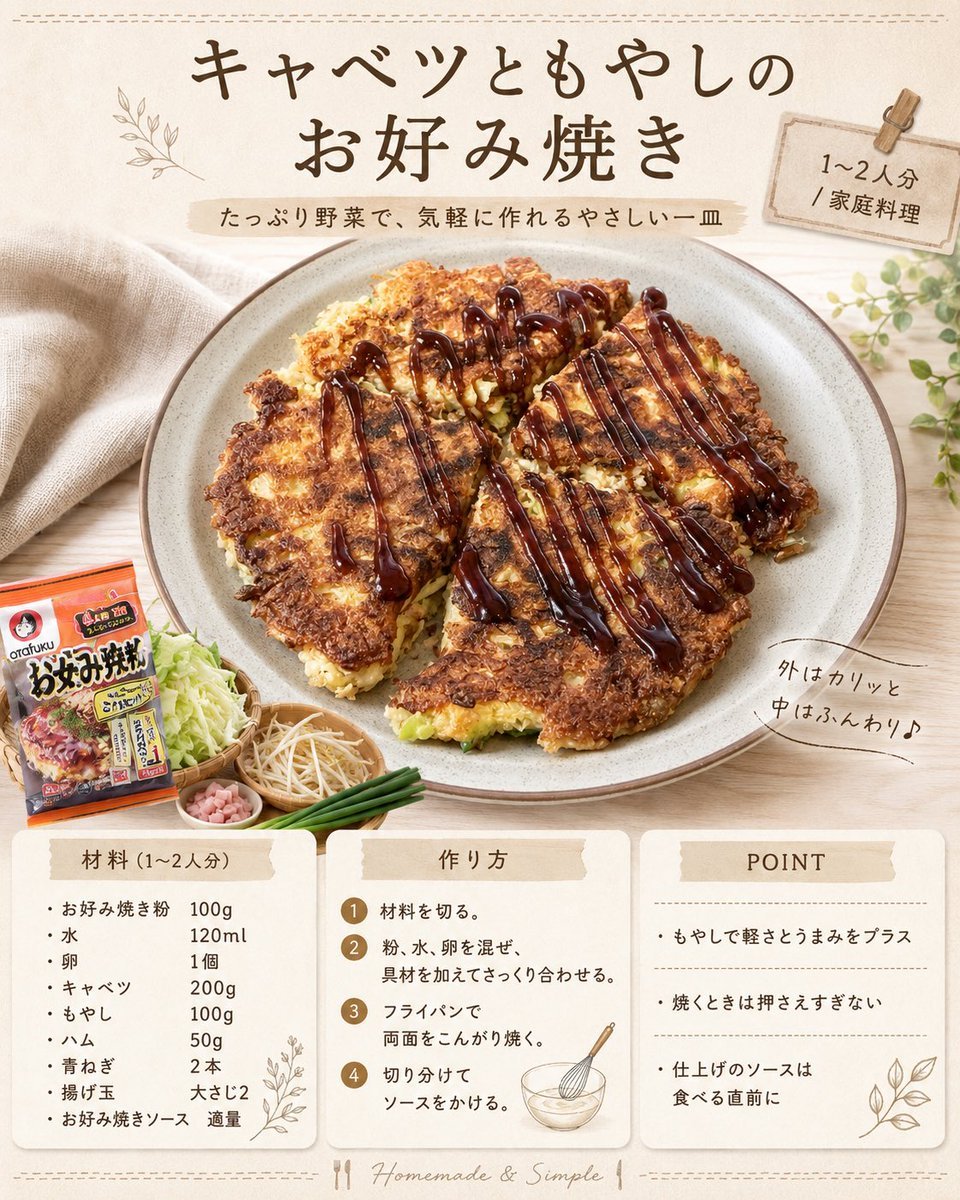
Japanese Okonomiyaki Recipe Card
Make it yours
Dark Japanese Recipe App UI works as-is. These are the safest ways to change it without losing the look.
Change one field
Copy a single group, rewrite it, and generate again so you can see what that field is doing.
Keep the frame, change the subject
Hold the composition and light of Dark Japanese Recipe App UI, then swap wardrobe, props or the person for a new take.
| If the result… | Why | Fix |
|---|---|---|
| The result drifts from the preview | Too many fields changed at once. | Reuse Dark Japanese Recipe App UI as-is first, then change one group — subject, light, or setting. |
| The model over-stylizes the scene | The prose prompt leaves finish and camera underspecified. | Add one camera or lighting sentence and stay on GPT Image 2. |
More GPT Image 2 templates
Other prompts made for GPT Image 2.

Realistic Portrait of Woman and Deer

The Vista Modular Condo Poster

AI Model Routing Comparison Infographic

2.5D Anime Art Board

Isometric Productivity Desk Scene

New York Double Exposure Poster

Four-Panel AI Landscape Comparison

Japanese Tatami Lifestyle Magazine Cover

NESCAFÉ Coffee Map Poster

Brutalist Cogito Chinese Typography Poster
More image prompts
Fresh picks from across the catalog.
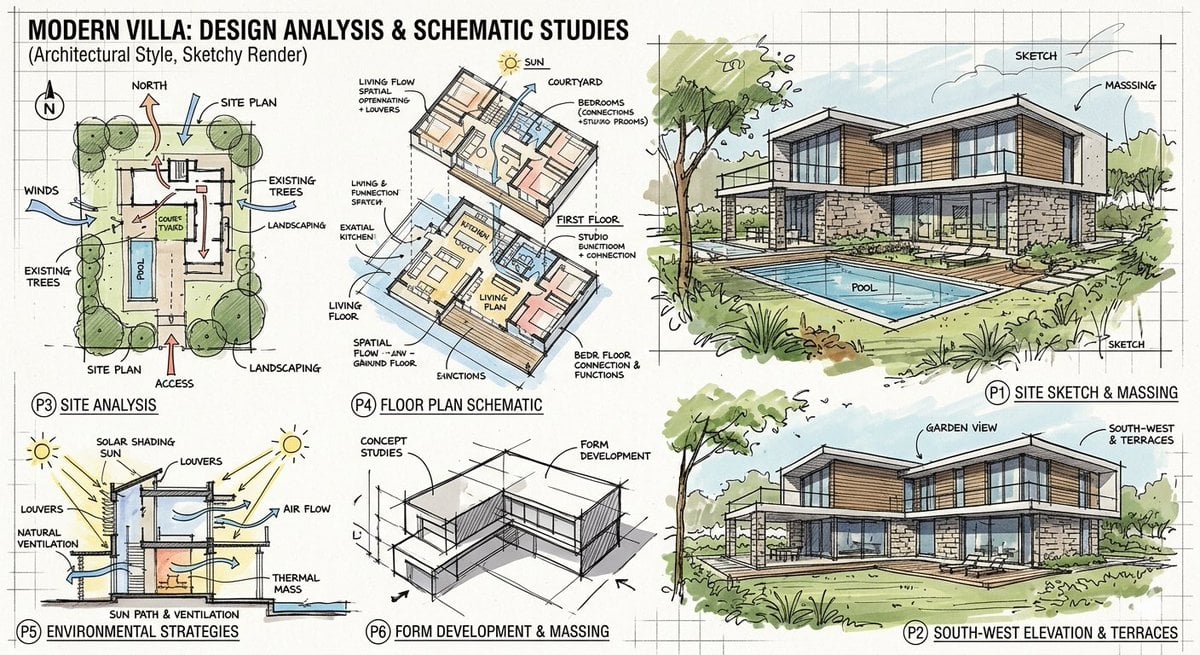
Prompt for a modern villa layout
Candid Wine Bar Portrait
Luxury Golf Sports Editorial Collage
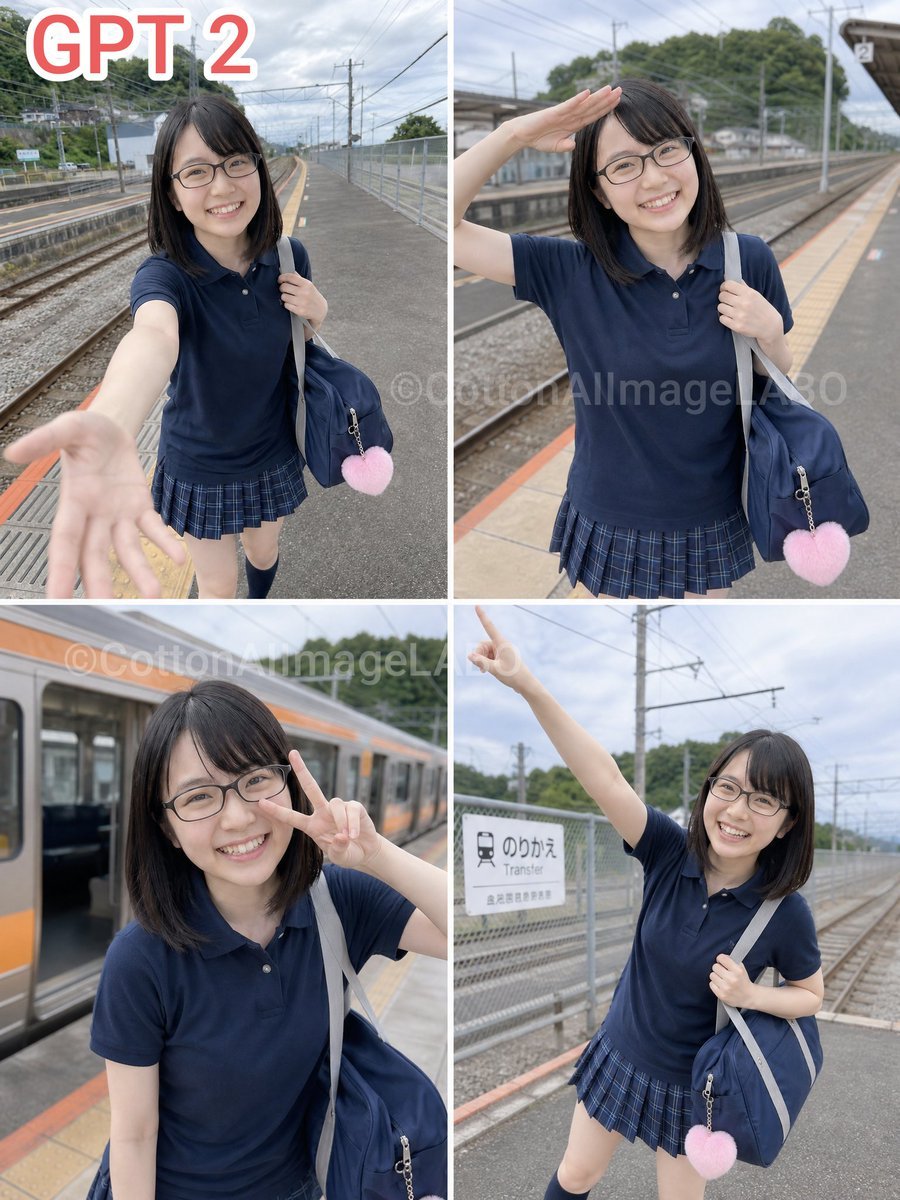
Four-Panel Train Station Pose Collage

Gpt2 Youtube Thumbnail Anime Fantasy Travel Movie Poster
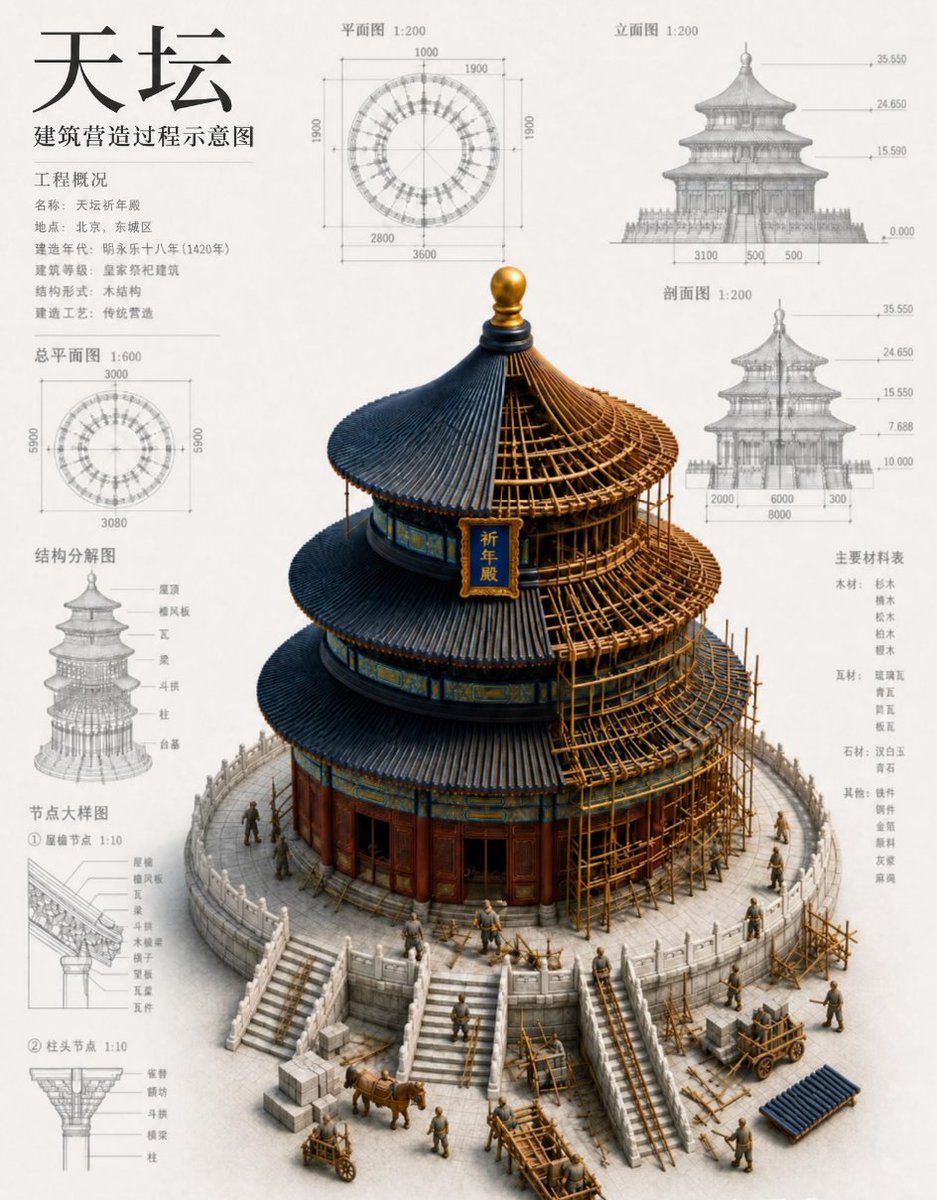
Chinese Temple Construction Blueprint
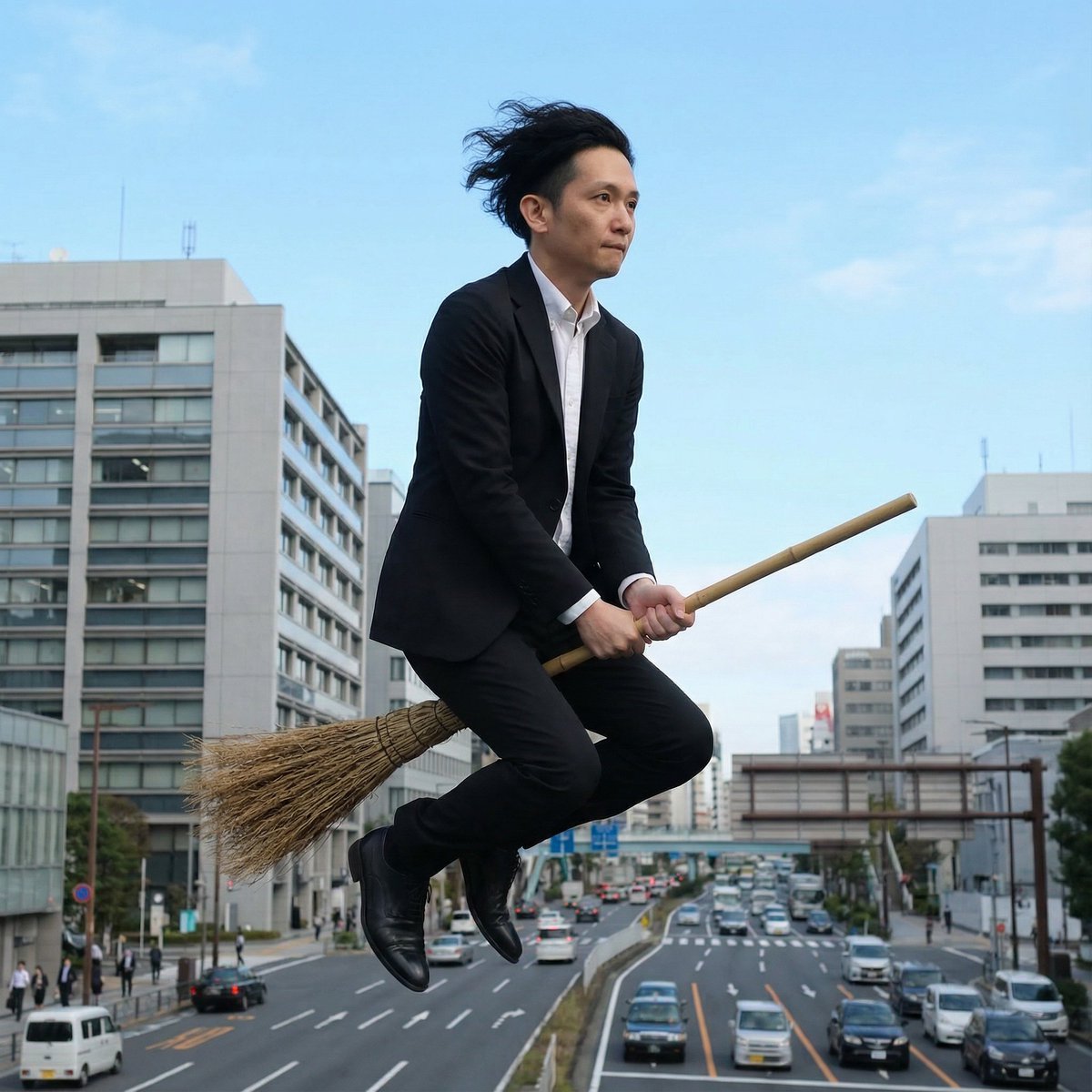
Commuting on a Flying Broomstick in a Suit
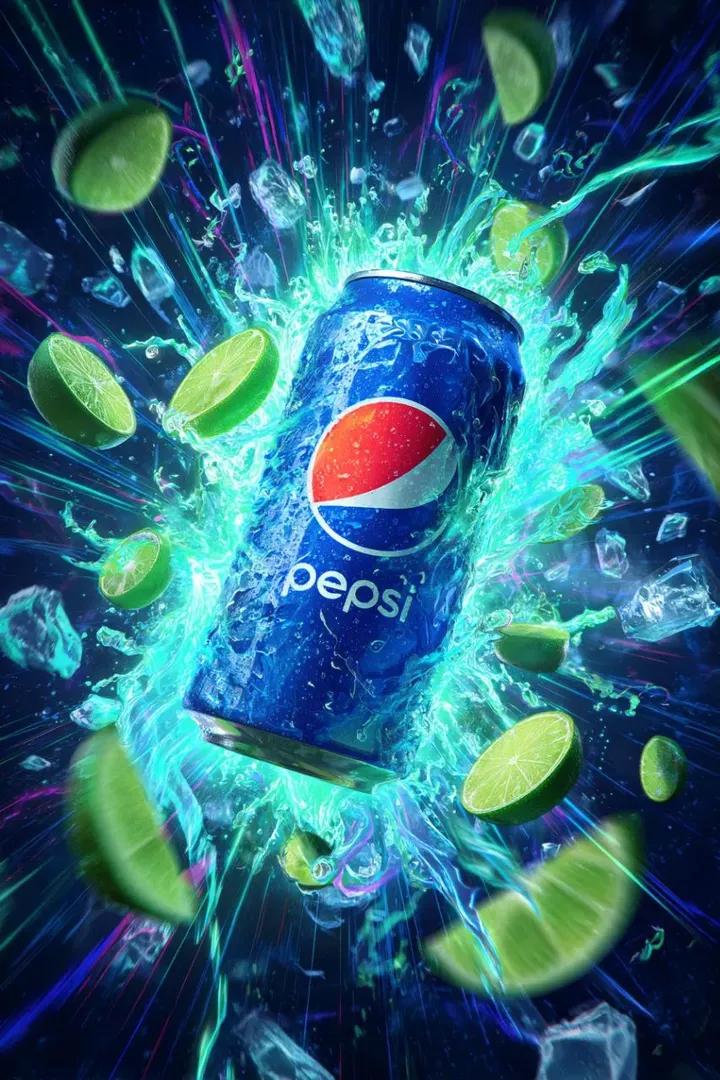
Cinematic Cola Can Explosion Advertisement Prompt
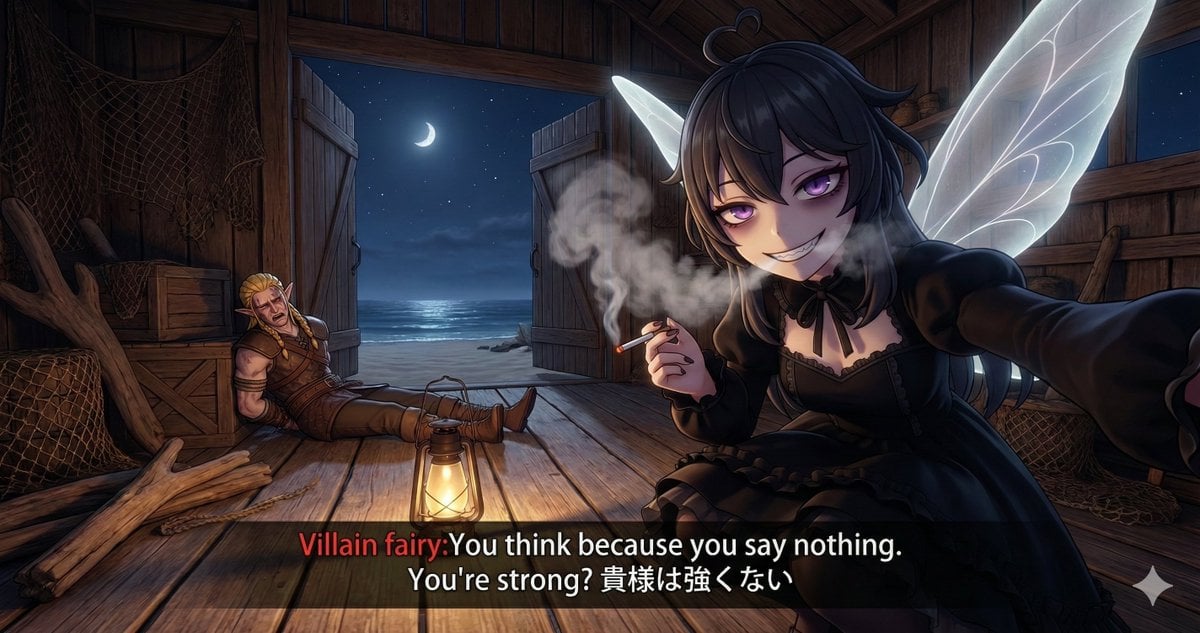
Villain Fairy Quote Generation
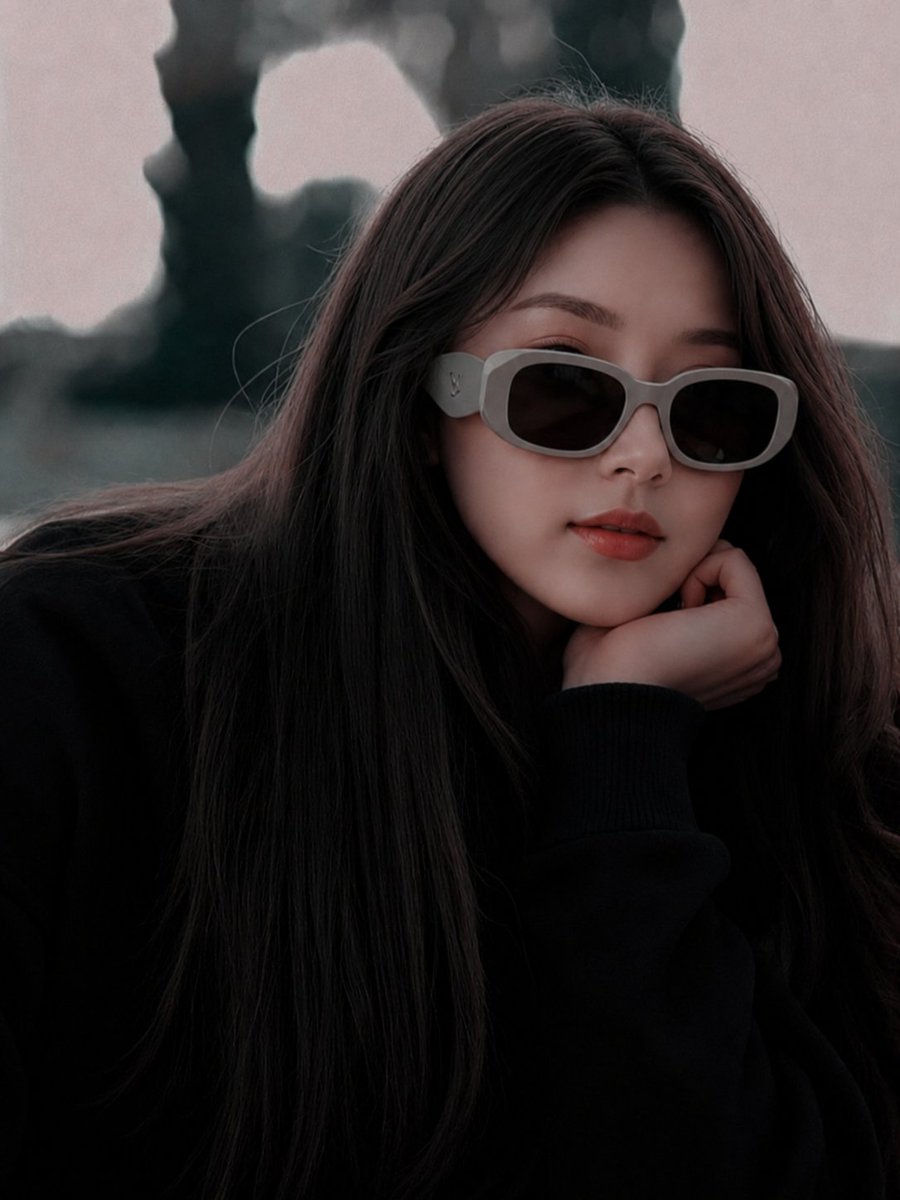
East Asian Fashion Sunglasses Portrait
Browse template categories
Dark Japanese Recipe App UI questions
How do I use the Dark Japanese Recipe App UI template?
Add your photo if the template asks for one, edit the prompt if you like — the template's model and format are already selected — and press Generate. Your version opens in PicX Studio.
Can I customize the Dark Japanese Recipe App UI template?
Yes. You can change the subject, setting, lighting, mood, format, and available model controls before creating your image.
Is the Dark Japanese Recipe App UI template free?
Opening and editing this template is free. Generating uses credits, shown on the Generate button when you are signed in.
Which AI model should I use?
Start with GPT Image 2, which is the model associated with this template. You can compare another compatible model for a different finish.
Looking for something else? Browse all templates.

Your photo, any look
Thousands of ready templates for every top image and video model, from one credit balance.