
FACS Action Unit Reference Grid
Generates a square 49-cell realistic female FACS expression reference sheet for studying or prompting facial action units.
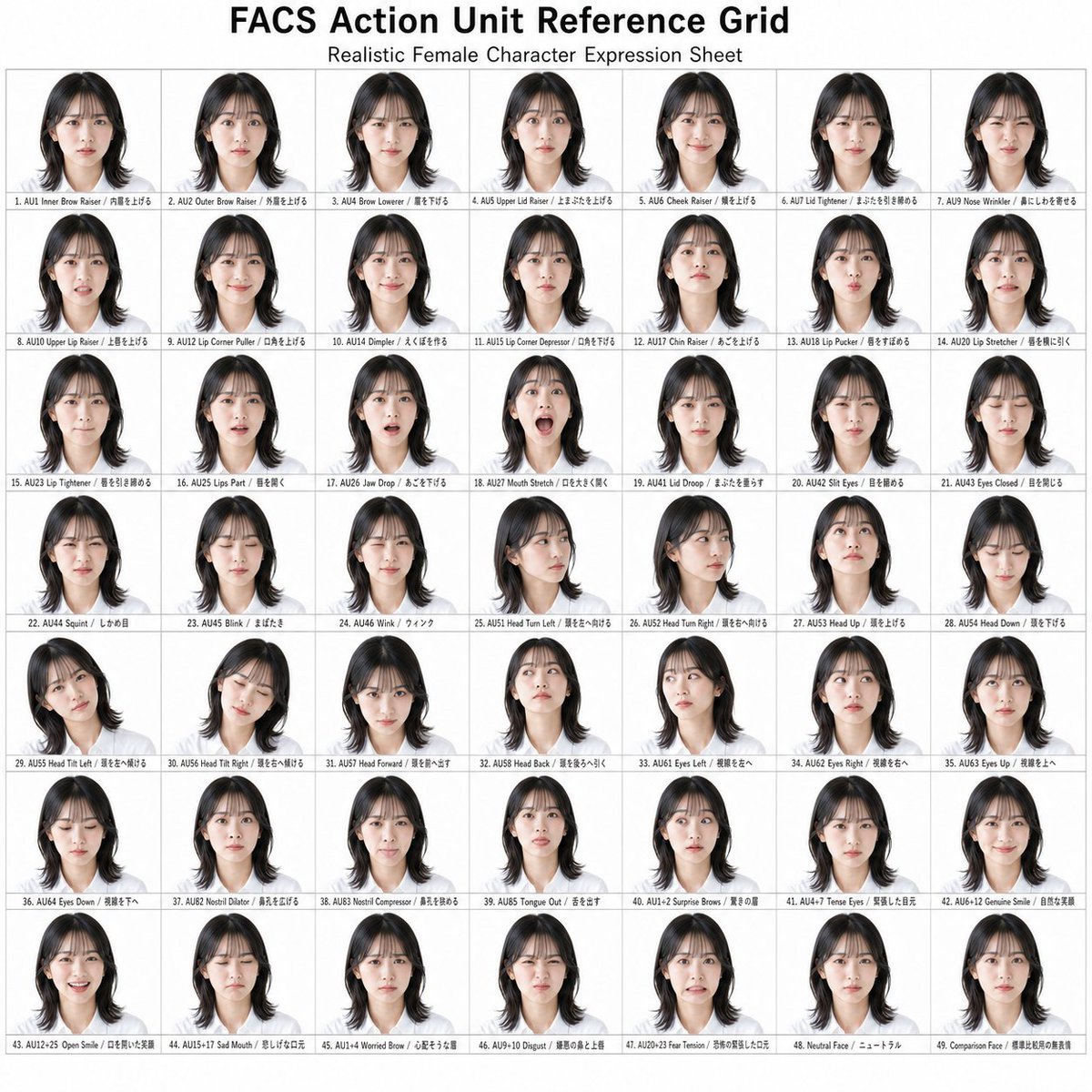
- Prompt included
- Model and format preset
- Premium template
The prompt behind this image
Copy the exact prompt behind FACS Action Unit Reference Grid, or open it in the studio and make it yours.
Goal: Create a clean reference-sheet infographic titled {argument name="headline text" default="FACS Action Unit Reference Grid"}, showing a realistic female character expression sheet for Facial Action Coding System action units. Canvas: Square 1:1 white canvas, approximately 1024 x 1024 px, with a centered black title at the top and a smaller subtitle reading {argument name="subtitle text" default="Realistic Female Character Expression Sheet"}. Use a plain academic reference-chart layout. Layout: Below the title, create an exact 7-column by 7-row grid with thin light-gray borders, for exactly 49 individual portrait cells. Each cell contains one small bust portrait centered above a tiny caption line. Keep spacing uniform and margins narrow. The portraits should all be the same realistic young adult woman with {argument name="hair style" default="shoulder-length black hair with a center part, slightly wavy ends"}, wearing a simple dark top, front-facing unless the label requires a head turn, tilt, up, down, forward, or back. The face area should be softly anonymized or blurred with a skin-tone rectangular blur while preserving hair silhouette, head angle, and overall expression-reference pose. Visual style: Photorealistic character-sheet thumbnails, neutral studio lighting, white background, consistent scale, realistic hair detail, minimal shadows, scientific reference grid aesthetic. Typography is small black sans-serif text; captions should fit inside each cell. Text content: Include exactly 49 labeled cells, numbered left to right, top to bottom. Use these exact visible English labels in order: 1. AU1 Inner Brow Raiser; 2. AU2 Outer Brow Raiser; 3. AU4 Brow Lowerer; 4. AU5 Upper Lid Raiser; 5. AU6 Cheek Raiser; 6. AU7 Lid Tightener; 7. AU9 Nose Wrinkler; 8. AU10 Upper Lip Raiser; 9. AU12 Lip Corner Puller; 10. AU14 Dimpler; 11. AU15 Lip Corner Depressor; 12. AU17 Chin Raiser; 13. AU18 Lip Pucker; 14. AU20 Lip Stretcher; 15. AU23 Lip Tightener; 16. AU25 Lips Part; 17. AU26 Jaw Drop; 18. AU27 Mouth Stretch; 19. AU41 Lid Droop; 20. AU42 Slit Eyes; 21. AU43 Eyes Closed; 22. AU44 Squint; 23. AU45 Blink; 24. AU46 Wink; 25. AU51 Head Turn Left; 26. AU52 Head Turn Right; 27. AU53 Head Up; 28. AU54 Head Down; 29. AU55 Head Tilt Left; 30. AU56 Head Tilt Right; 31. AU57 Head Forward; 32. AU58 Head Back; 33. AU61 Eyes Left; 34. AU62 Eyes Right; 35. AU63 Eyes Up; 36. AU64 Eyes Down; 37. AU82 Nostril Dilator; 38. AU83 Nostril Compressor; 39. AU85 Tongue Out; 40. AU1+2 Surprise Brows; 41. AU4+7 Tense Eyes; 42. AU6+12 Genuine Smile; 43. AU12+25 Open Smile; 44. AU15+17 Sad Mouth; 45. AU14+4 Worried Brow; 46. AU9+10 Disgust; 47. AU20+25 Fear Tension; 48. Neutral Face; 49. Comparison Face. Subject details: The character is {argument name="character description" default="a realistic young East Asian woman"}. Maintain consistent identity, hair, lighting, and crop across all 49 cells, with only the action unit, gaze direction, or head pose changing according to the caption. Constraints: Use exactly 49 cells and no extra thumbnails. Keep the chart monochrome and white aside from realistic portrait colors. Do not add logos, watermarks, decorative icons, or extra explanatory paragraphs. Make the title large and readable, while individual captions are tiny but structured like a reference grid.
How to use FACS Action Unit Reference Grid in 3 steps
- 1Upload ImagePNG, JPG or paste
Add your photo
Upload the photo the template builds on. The prompt, model and format are already set.
- 2…a portrait of your subject in softgolden-hour light, 85mm…
Personalize
Edit the subject and creative details for your destination.
- 3Generate
Generate
Press Generate — your image is created in PicX Studio, so you can compare it with the original and refine one variable at a time.
More like this
Templates with the same subject, style or setup. Open one to see its prompt.
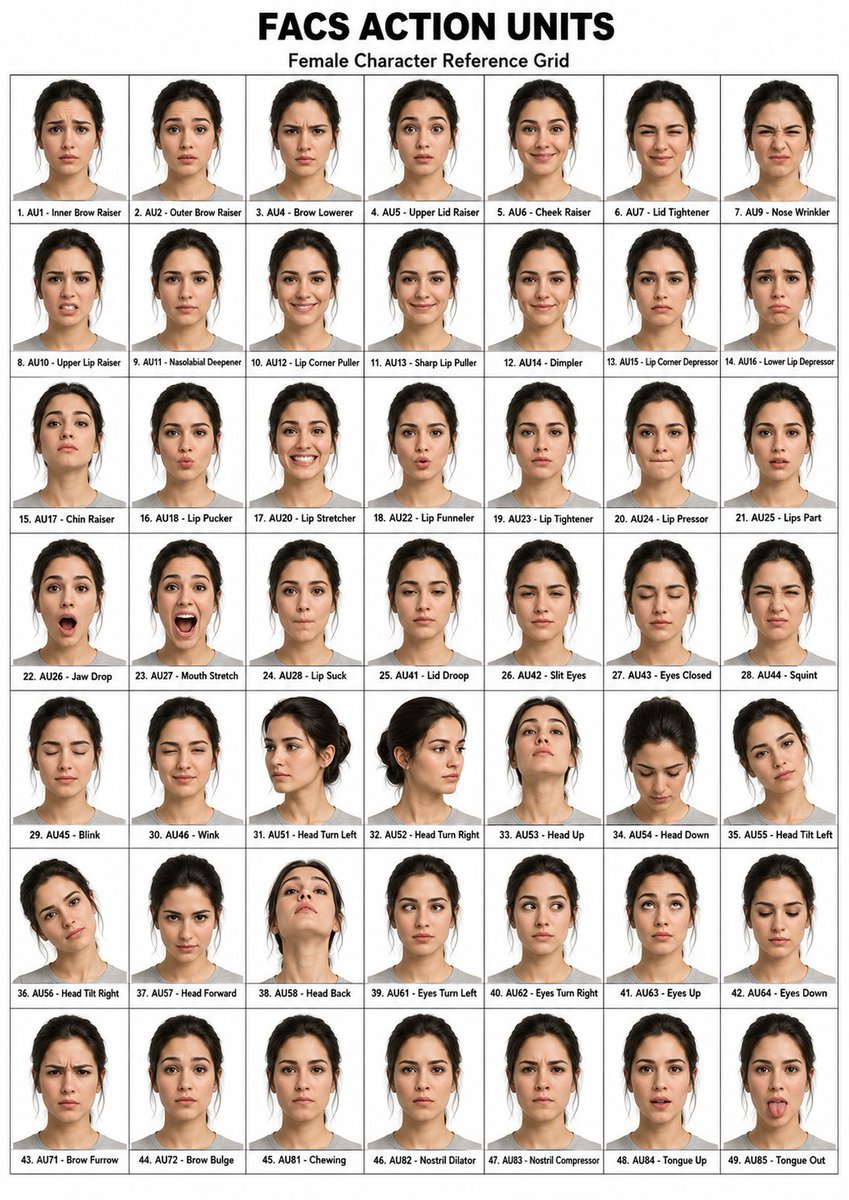
FACS Action Units Reference Grid
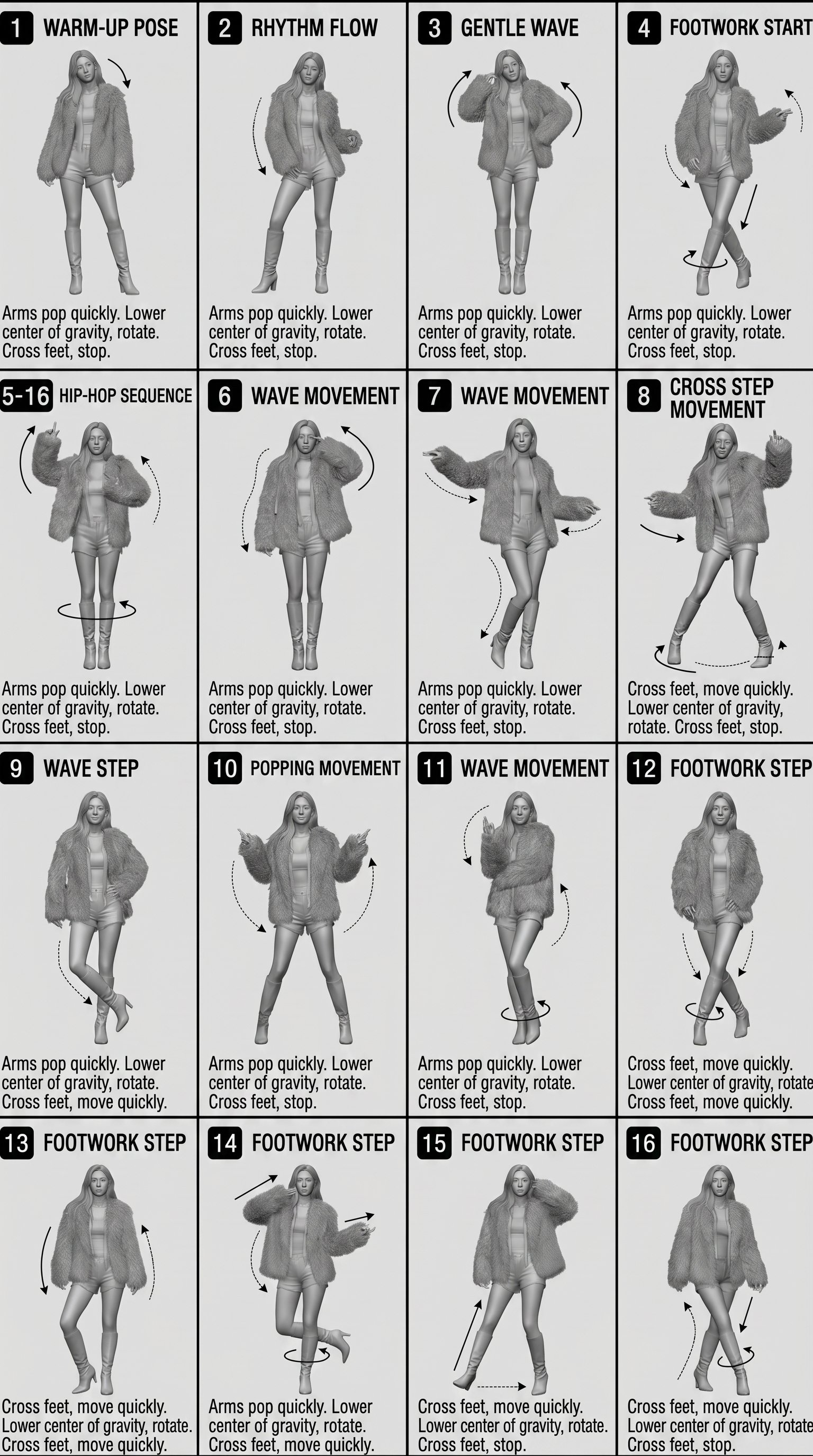
Movement Sheet - Dance Reference (Seedance 2.0)
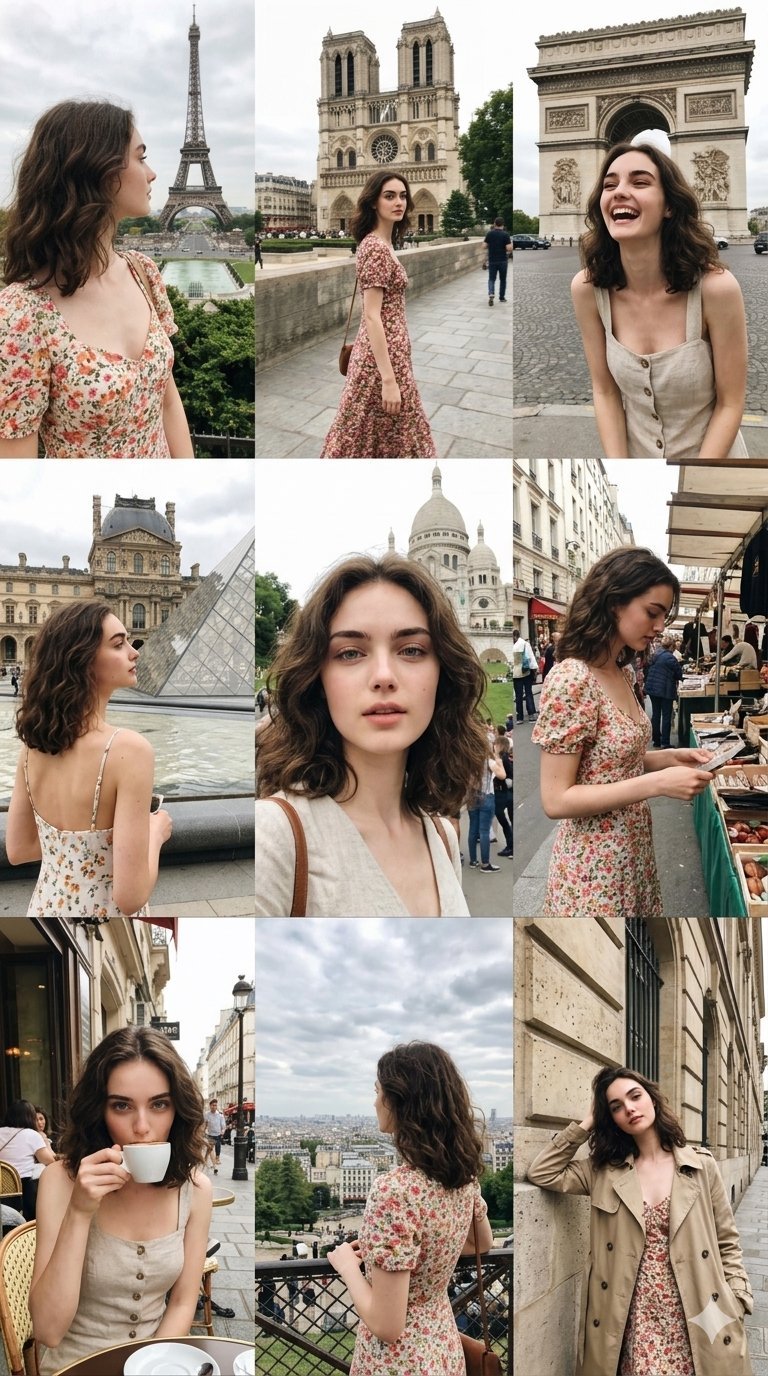
Paris Travel Collage Grid - Face Reference
Korean Luxury Fashion Editorial 2x2 Grid Series
Minimalist Fashion Editorial Split Layout
Ultra-Realistic Vogue-Style Editorial Fashion Grid

Venom SpongeBob Hyperreal Cinematic Mix
Hero Portrait Comic Multi-Panel Poster
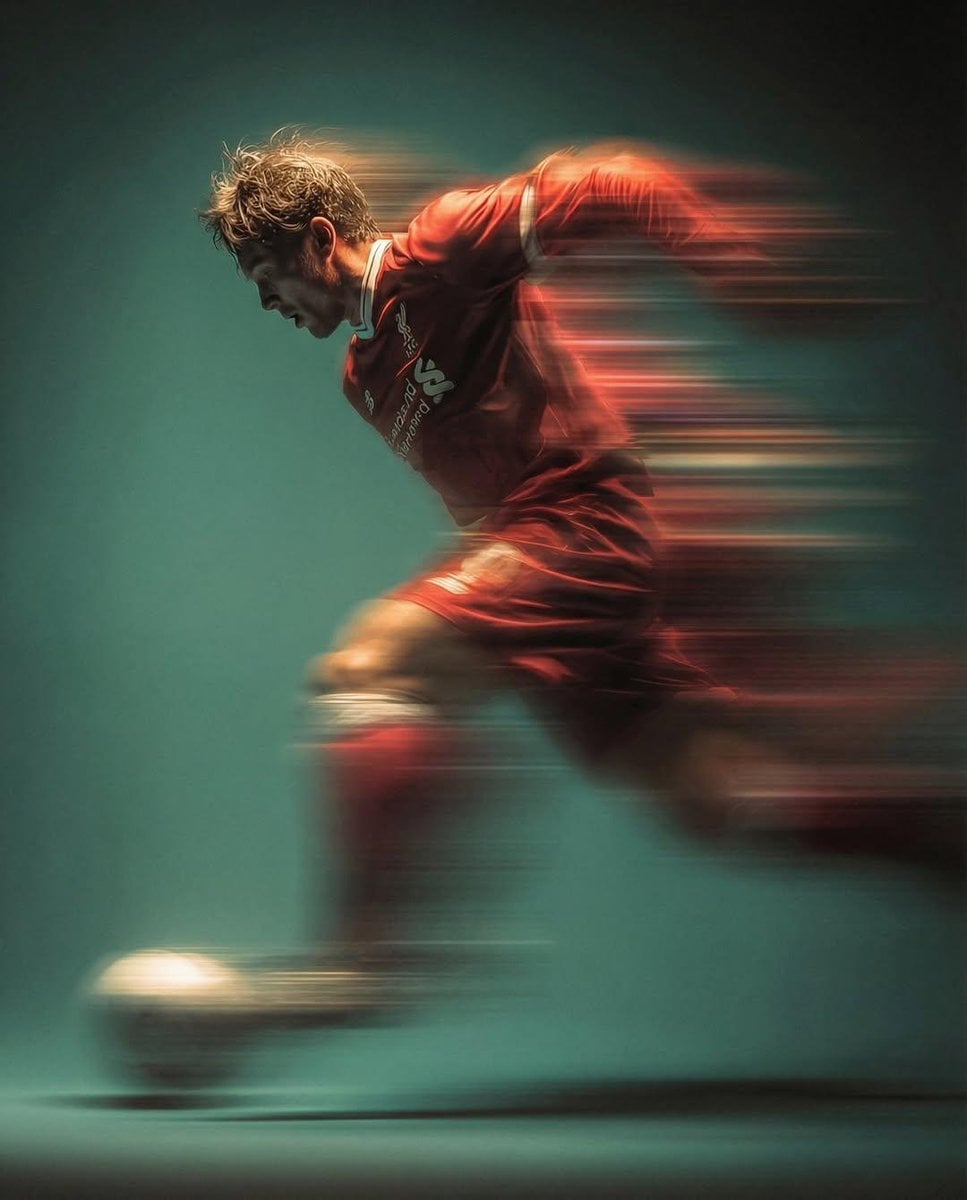
Panning Motion Soccer Kick Poster

Dual Composition Hero Action Football Poster
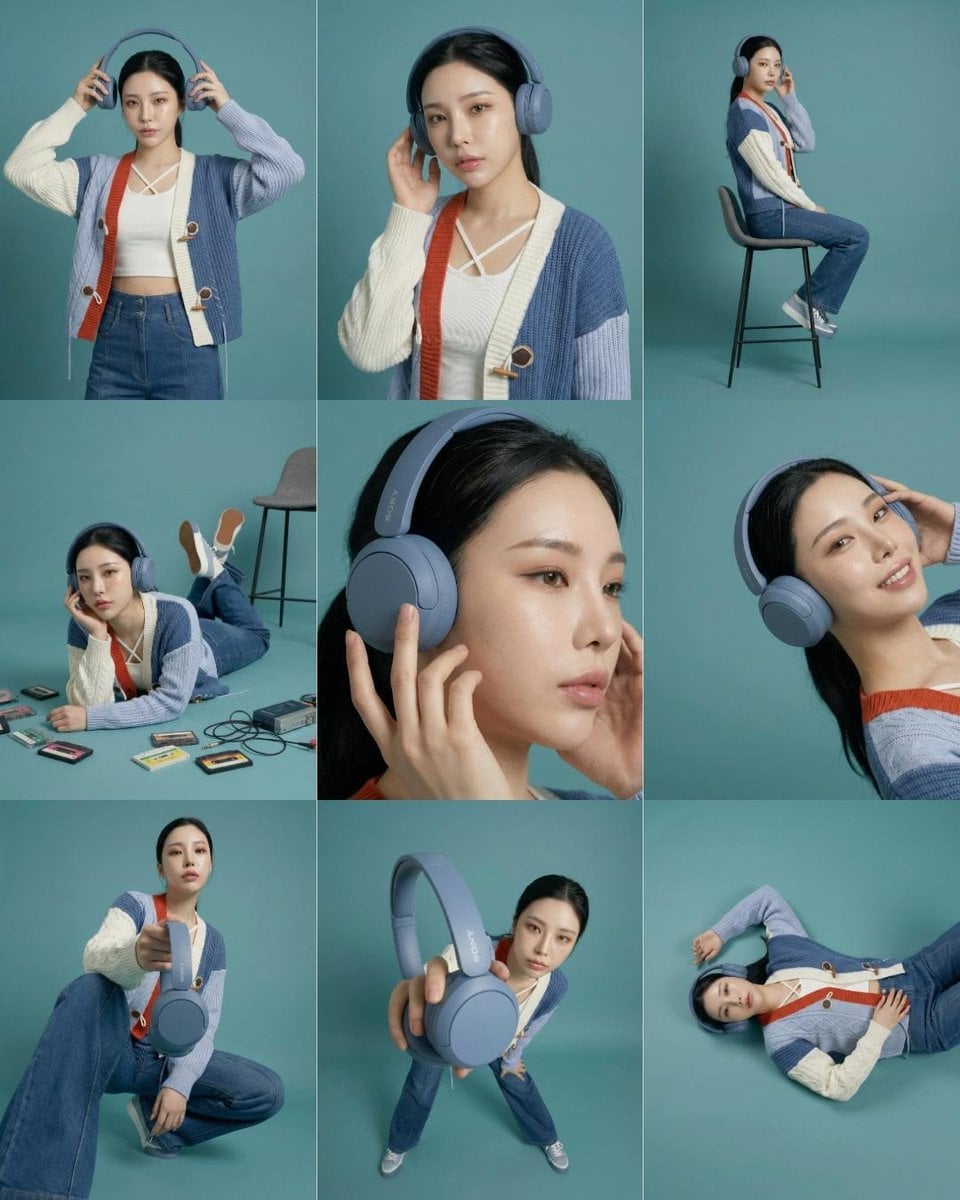
Headphones Lifestyle Nine Panel Grid
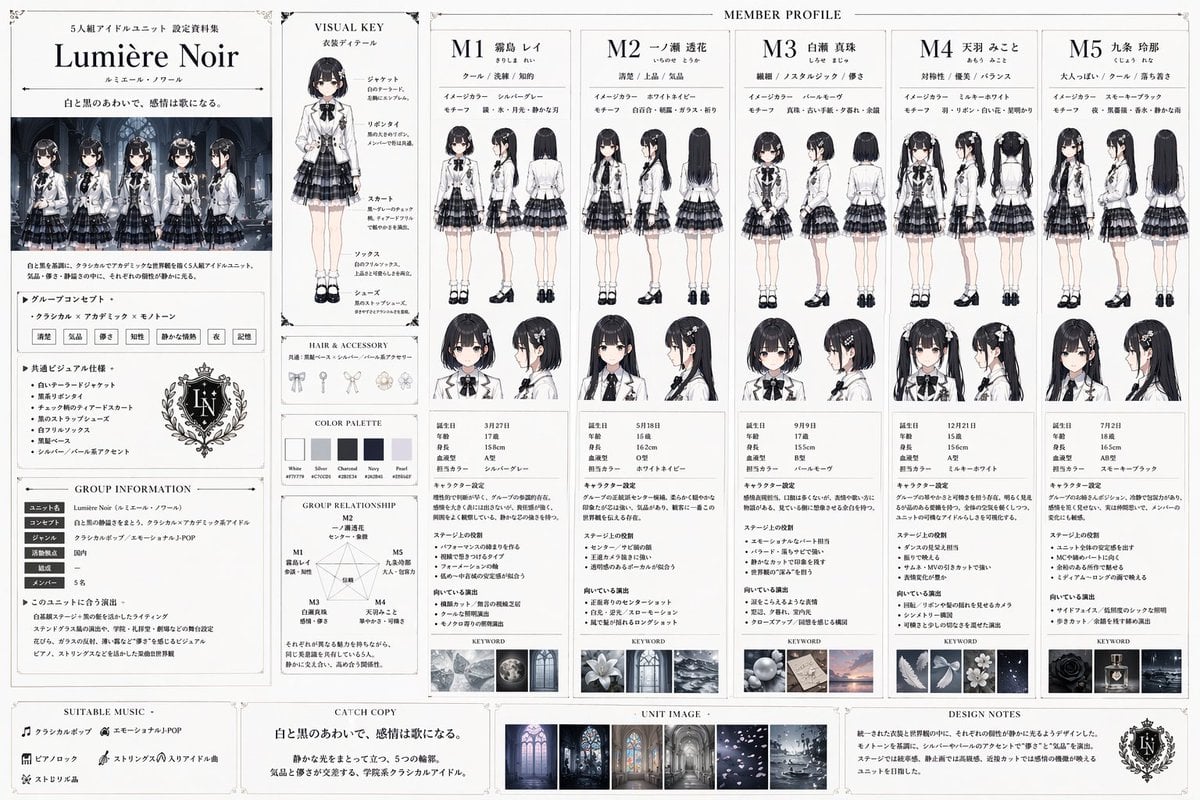
Idol Unit Concept Reference Sheet
Make it yours
FACS Action Unit Reference Grid works as-is. These are the safest ways to change it without losing the look.
Change one field
Copy a single group, rewrite it, and generate again so you can see what that field is doing.
Keep the frame, change the subject
Hold the composition and light of FACS Action Unit Reference Grid, then swap wardrobe, props or the person for a new take.
| If the result… | Why | Fix |
|---|---|---|
| The result drifts from the preview | Too many fields changed at once. | Reuse FACS Action Unit Reference Grid as-is first, then change one group — subject, light, or setting. |
| The model over-stylizes the scene | The prose prompt leaves finish and camera underspecified. | Add one camera or lighting sentence and stay on GPT Image 2. |
More GPT Image 2 templates
Other prompts made for GPT Image 2.

Six VTuber Japanese Logo Sheet

Realistic Portrait of Woman and Deer

The Vista Modular Condo Poster

AI Model Routing Comparison Infographic

2.5D Anime Art Board

Isometric Productivity Desk Scene

New York Double Exposure Poster

Four-Panel AI Landscape Comparison

Japanese Tatami Lifestyle Magazine Cover

NESCAFÉ Coffee Map Poster
More image prompts
Fresh picks from across the catalog.
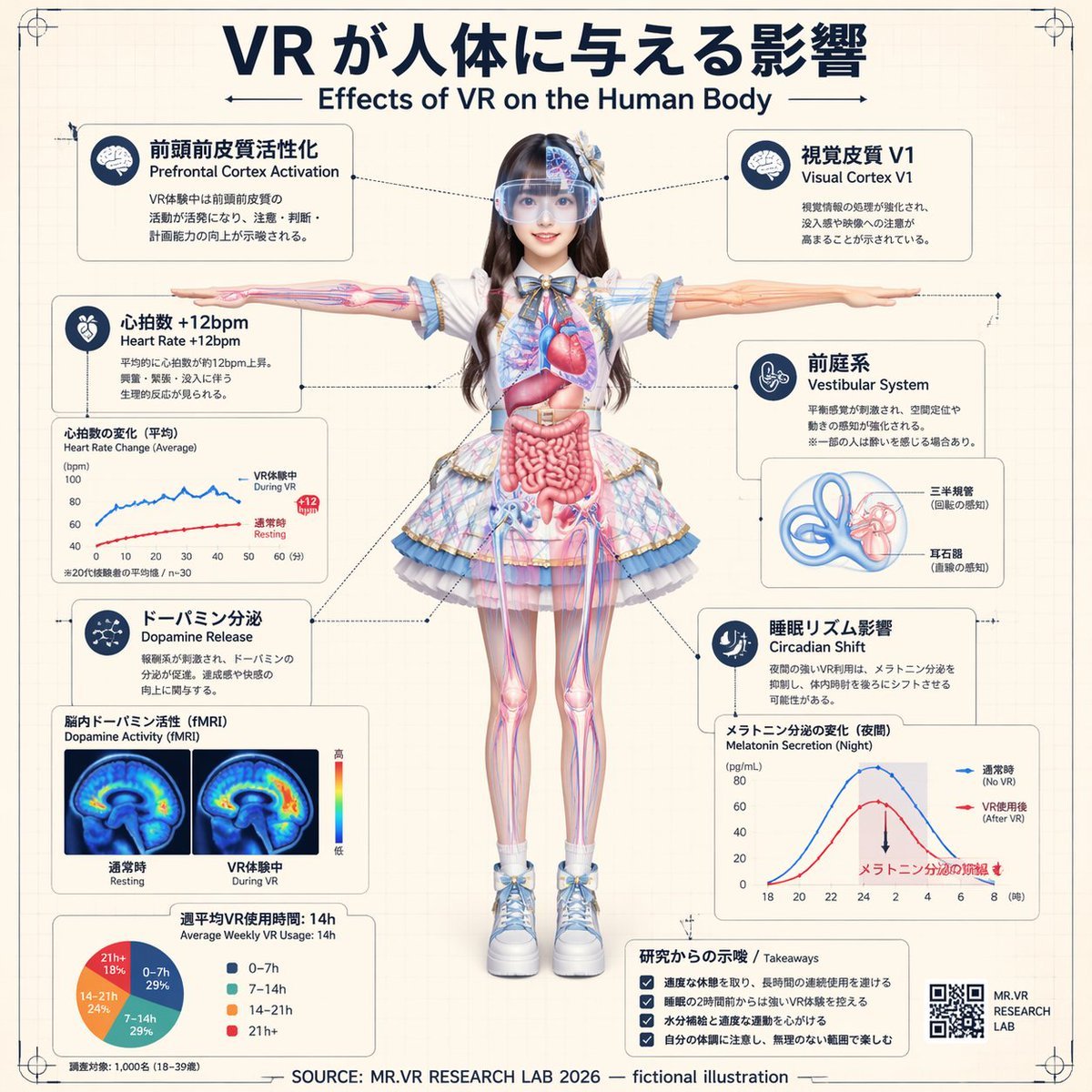
VR Effects on the Human Body Infographic
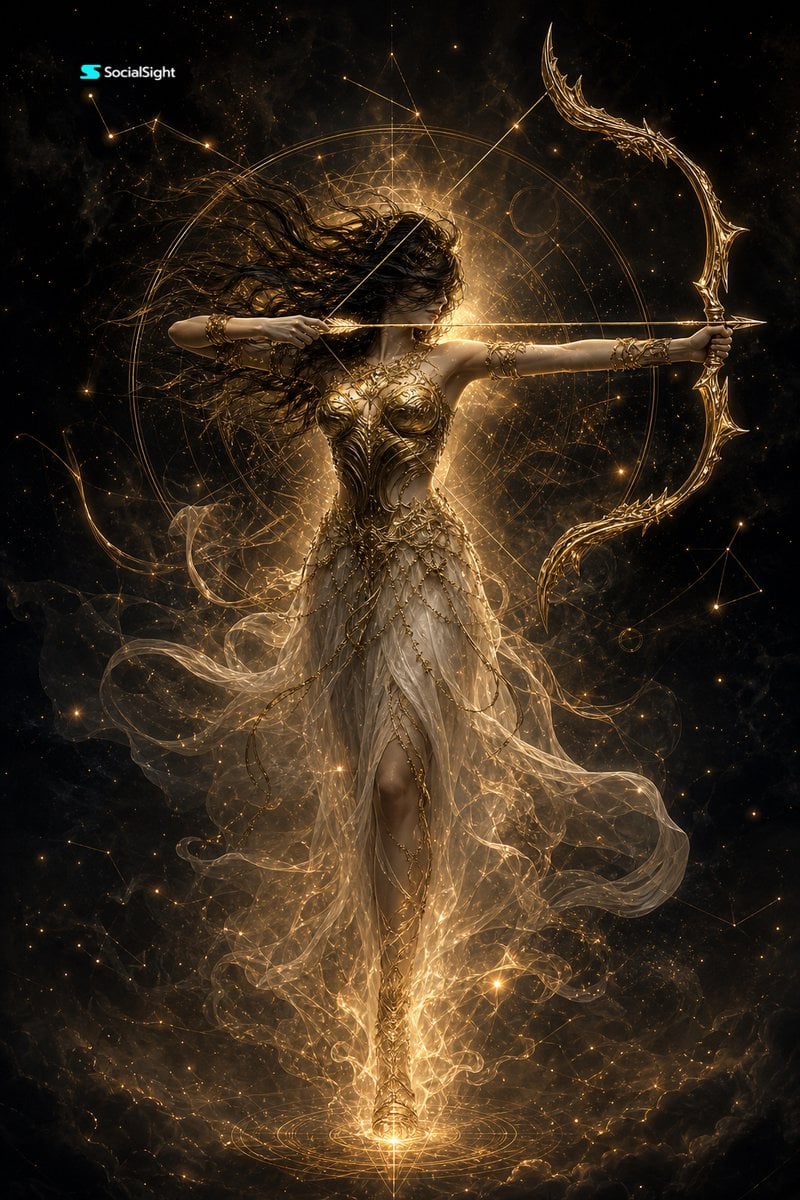
Celestial Goddess Archer
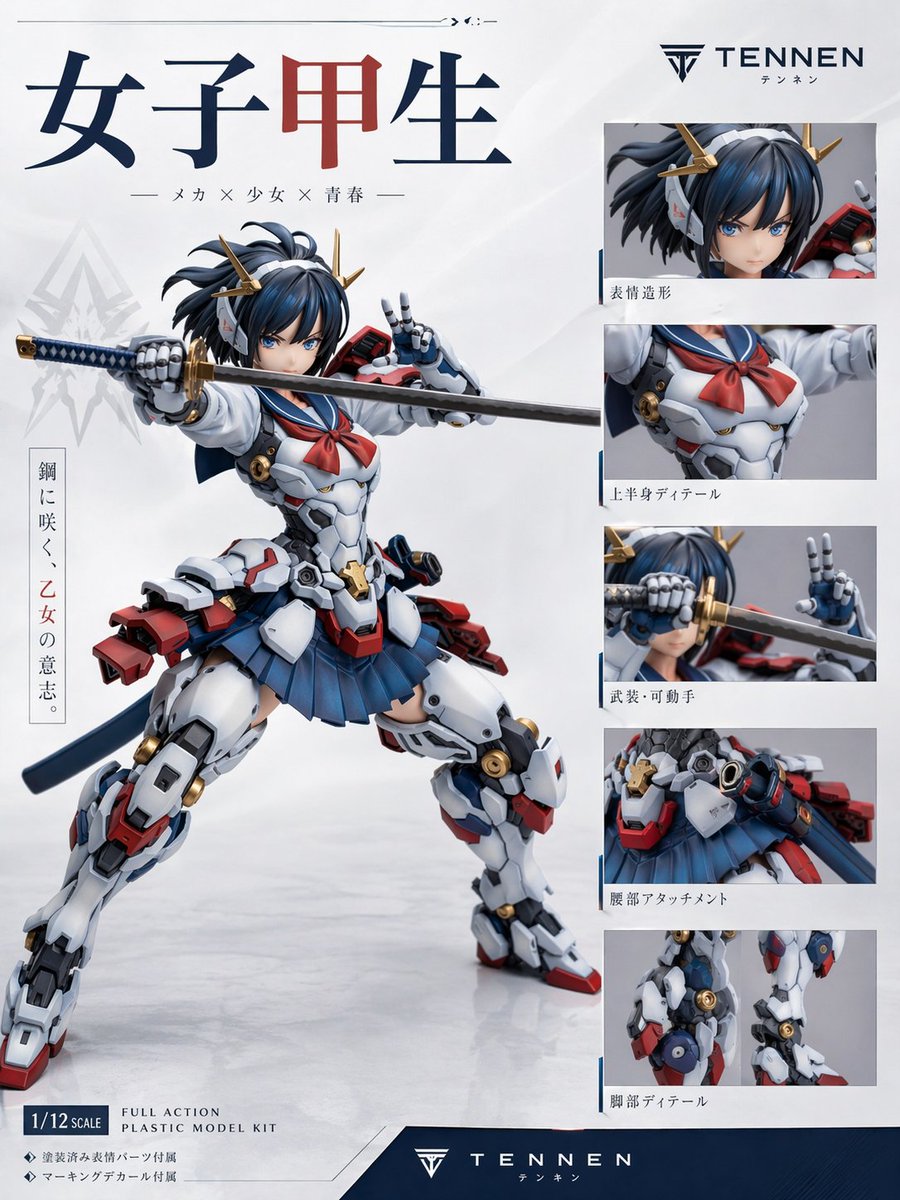
Japanese Mecha Girl Figure Ad Poster
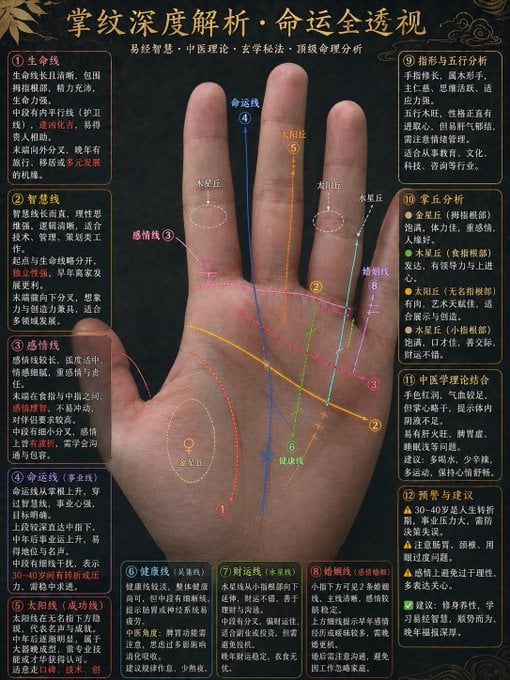
Traditional Palmistry Analysis Infographic
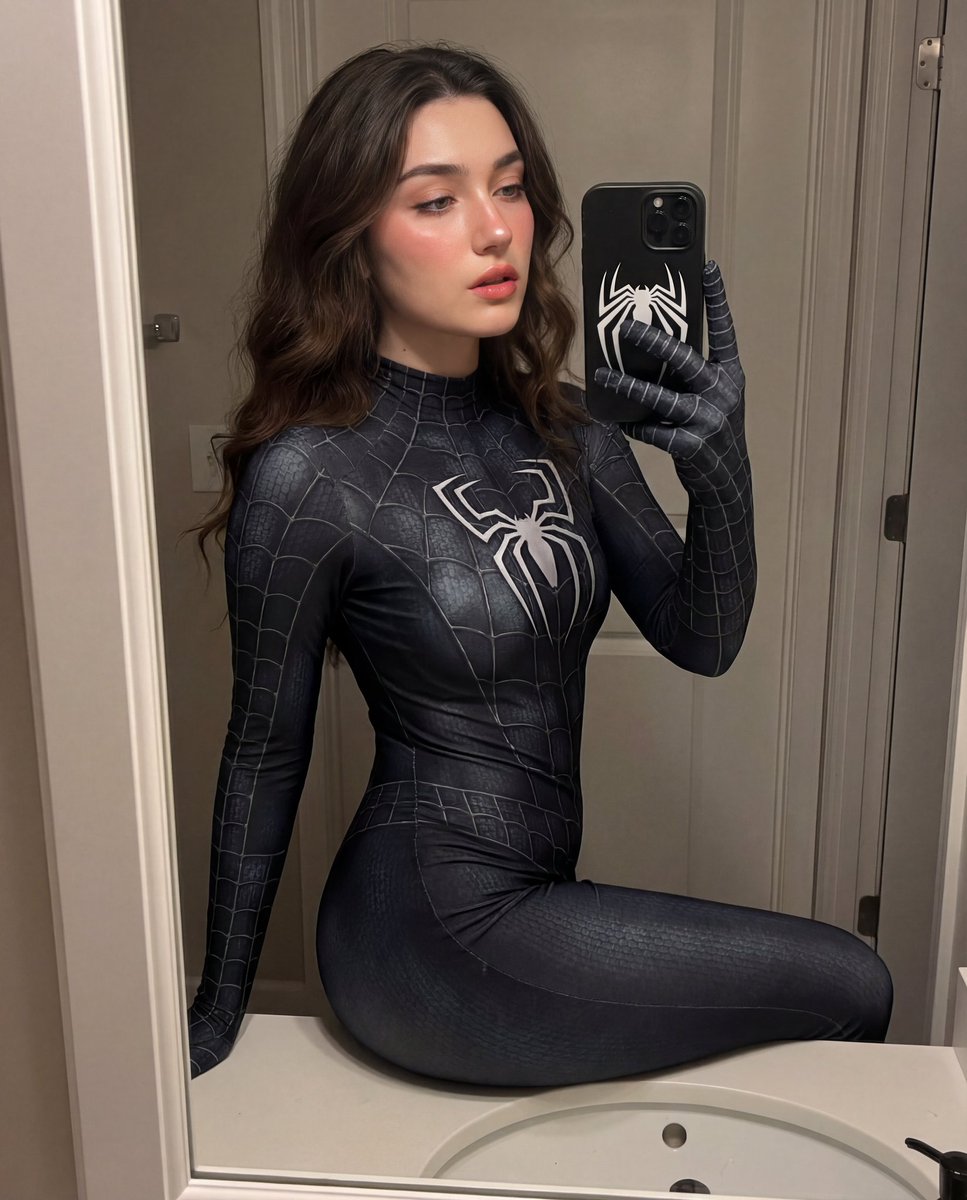
Photorealistic Symbiote Superhero Mirror Selfie
Conceptual Image: World Without InfoFi Projects on X
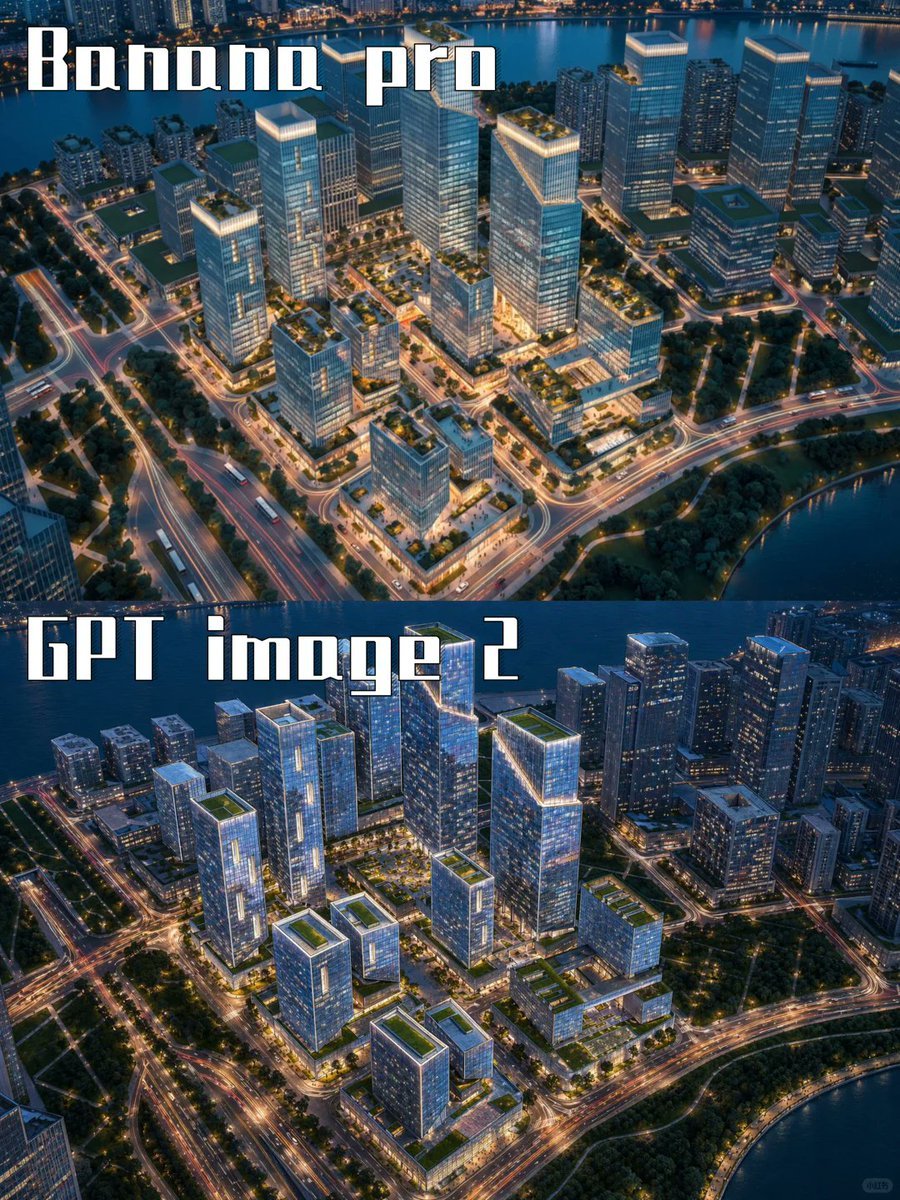
AI City Rendering Comparison Poster
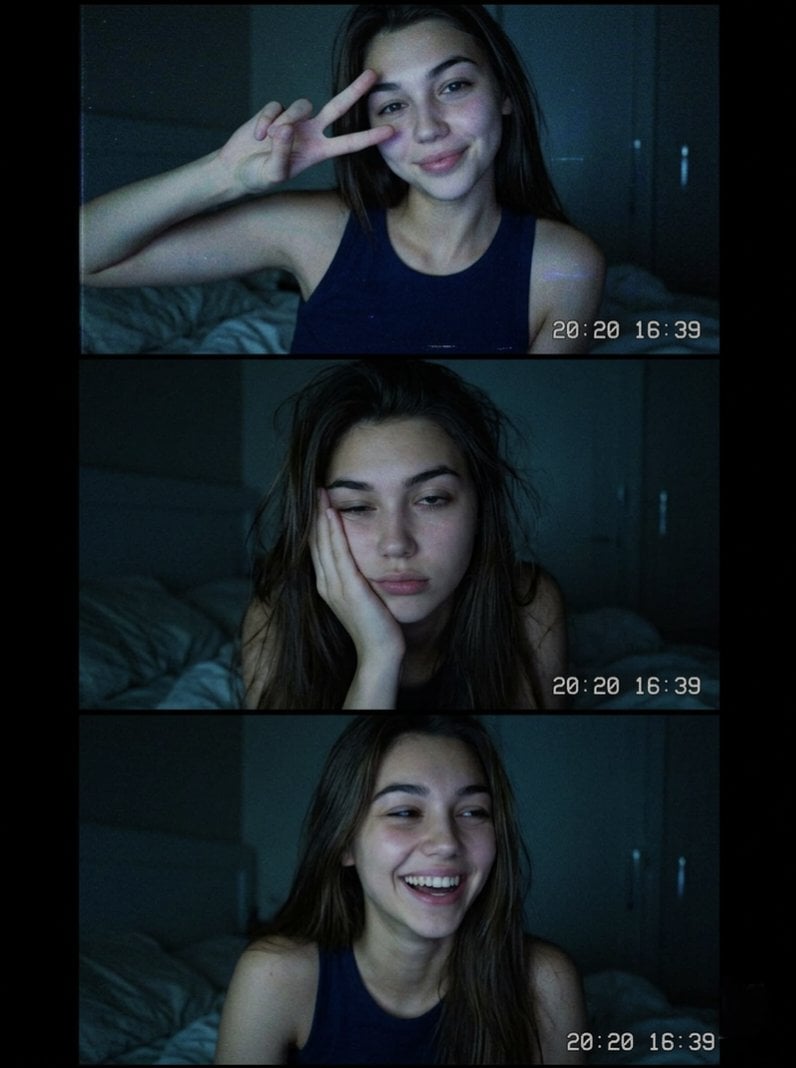
Vintage Webcam Photo Collage
Animated version 3d blender
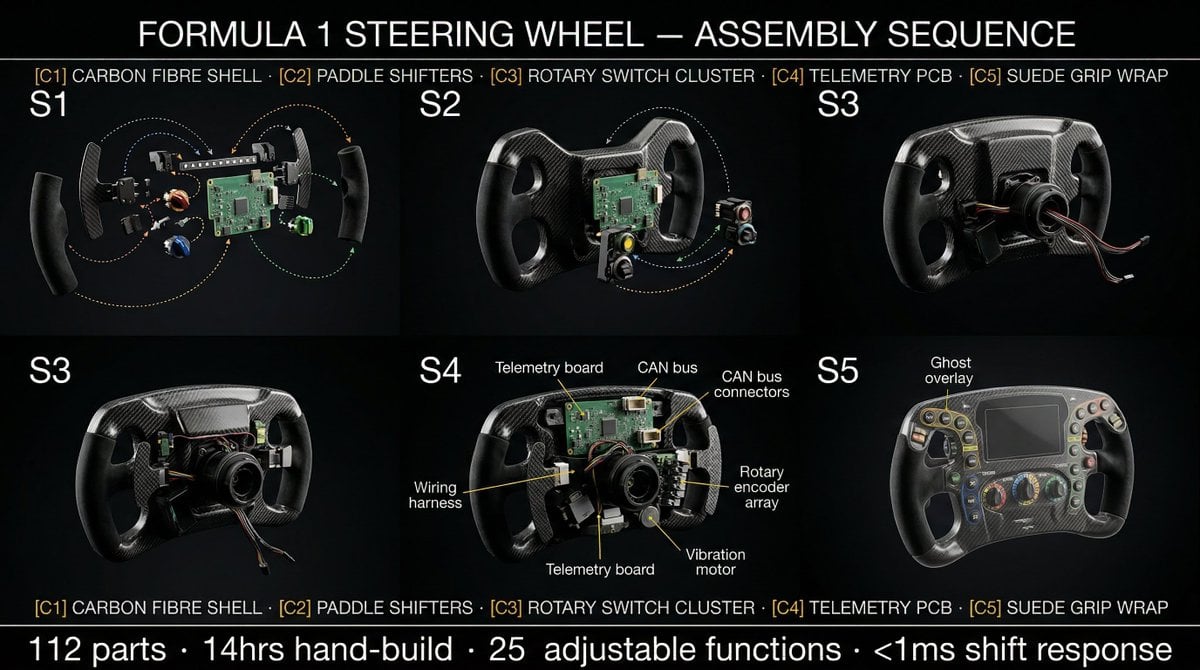
Product Assembly Sequence Timeline
Browse template categories
FACS Action Unit Reference Grid questions
How do I use the FACS Action Unit Reference Grid template?
Add your photo if the template asks for one, edit the prompt if you like — the template's model and format are already selected — and press Generate. Your version opens in PicX Studio.
Can I customize the FACS Action Unit Reference Grid template?
Yes. You can change the subject, setting, lighting, mood, format, and available model controls before creating your image.
Is the FACS Action Unit Reference Grid template free?
Opening and editing this template is free. Generating uses credits, shown on the Generate button when you are signed in.
Which AI model should I use?
Start with GPT Image 2, which is the model associated with this template. You can compare another compatible model for a different finish.
Looking for something else? Browse all templates.

Your photo, any look
Thousands of ready templates for every top image and video model, from one credit balance.