
Moody Censored Portrait
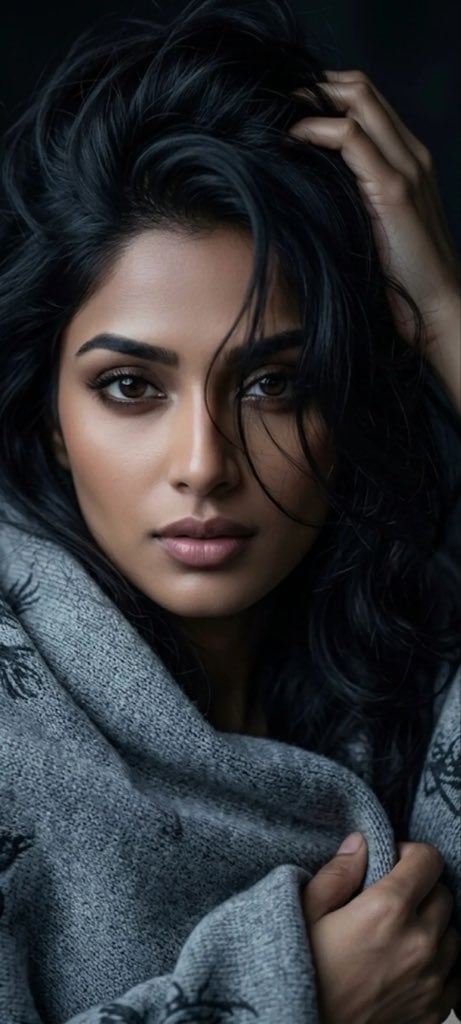
A photorealistic vertical portrait prompt for creating a dark, intimate image of a person wrapped in a gray blanket with their face obscured.
- Prompt included
- Model and format preset
- Free template
The prompt behind this image
Copy the exact prompt behind Moody Censored Portrait, or open it in the studio and make it yours.
Create a moody vertical close-up portrait of a {argument name="subject" default="young woman"} with long, thick, wavy {argument name="hair color" default="black hair"}, sitting in a dark low-key environment. Her face is completely hidden by a centered opaque rectangular censor block in a muted dark brown-to-gray gradient, covering from the upper forehead area down to below the chin, while the rest of the portrait remains visible. She is wrapped in a chunky heather-gray knitted blanket or shawl with subtle dark woven patterns near the edges. One hand reaches up into her hair on the upper right side of the frame, fingers partially tangled in the hair, and the other hand grips the blanket near the lower right. Use dramatic cinematic lighting, cool blue-gray shadows, soft highlights on the hair and hands, shallow depth of field, realistic skin texture, detailed knit fabric texture, intimate melancholic atmosphere, dark background, vertical smartphone composition, photorealistic editorial style.
How to use Moody Censored Portrait in 3 steps
- 1Upload ImagePNG, JPG or paste
Add your photo
Upload the photo the template builds on. The prompt, model and format are already set.
- 2…a portrait of your subject in softgolden-hour light, 85mm…
Personalize
Edit the subject and creative details for your destination.
- 3Generate
Generate
Press Generate — your image is created in PicX Studio, so you can compare it with the original and refine one variable at a time.
More like this
Templates with the same subject, style or setup. Open one to see its prompt.
Rainy Café Window Moody Portrait
Moody Censored Elderly Man Portrait
Found Photograph: Us, 1970
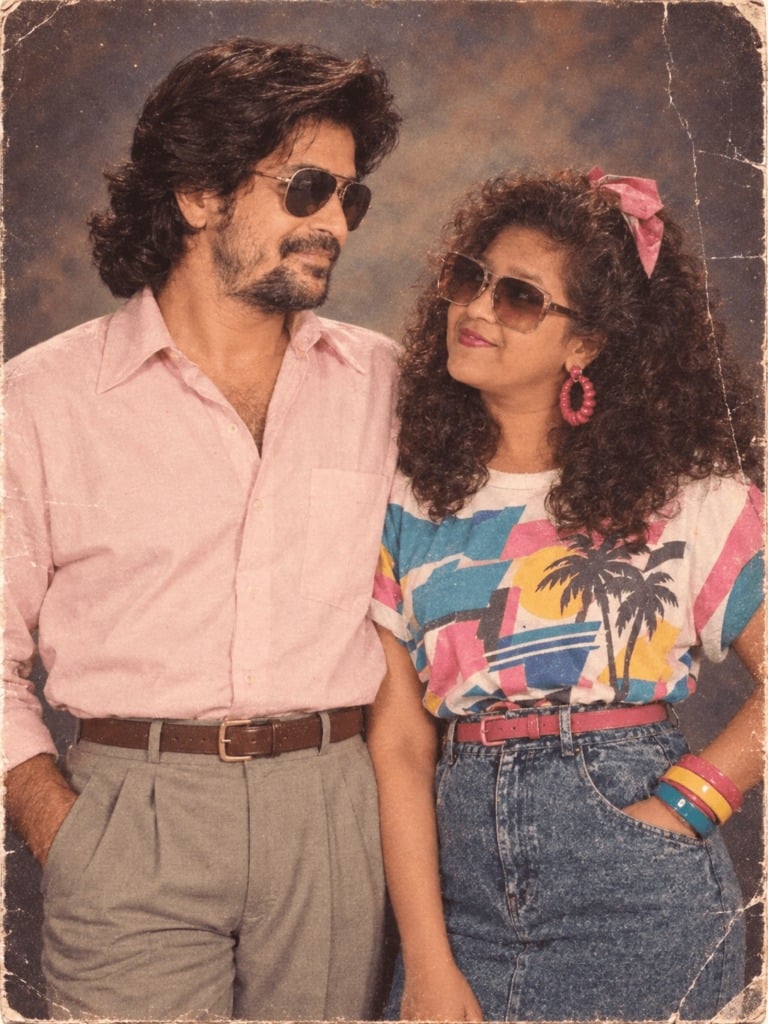
80s Couple Studio Portrait
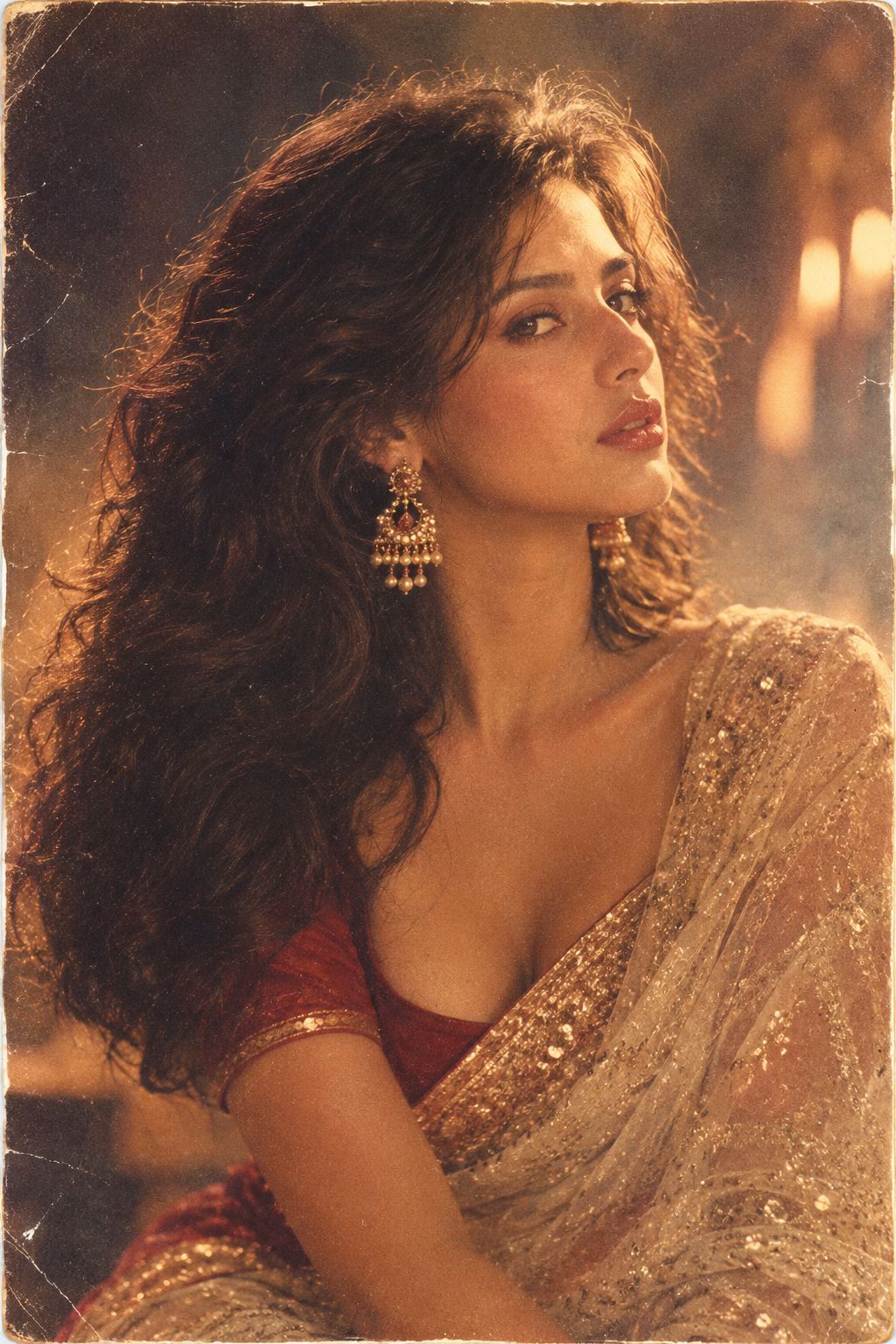
80s Bollywood Star
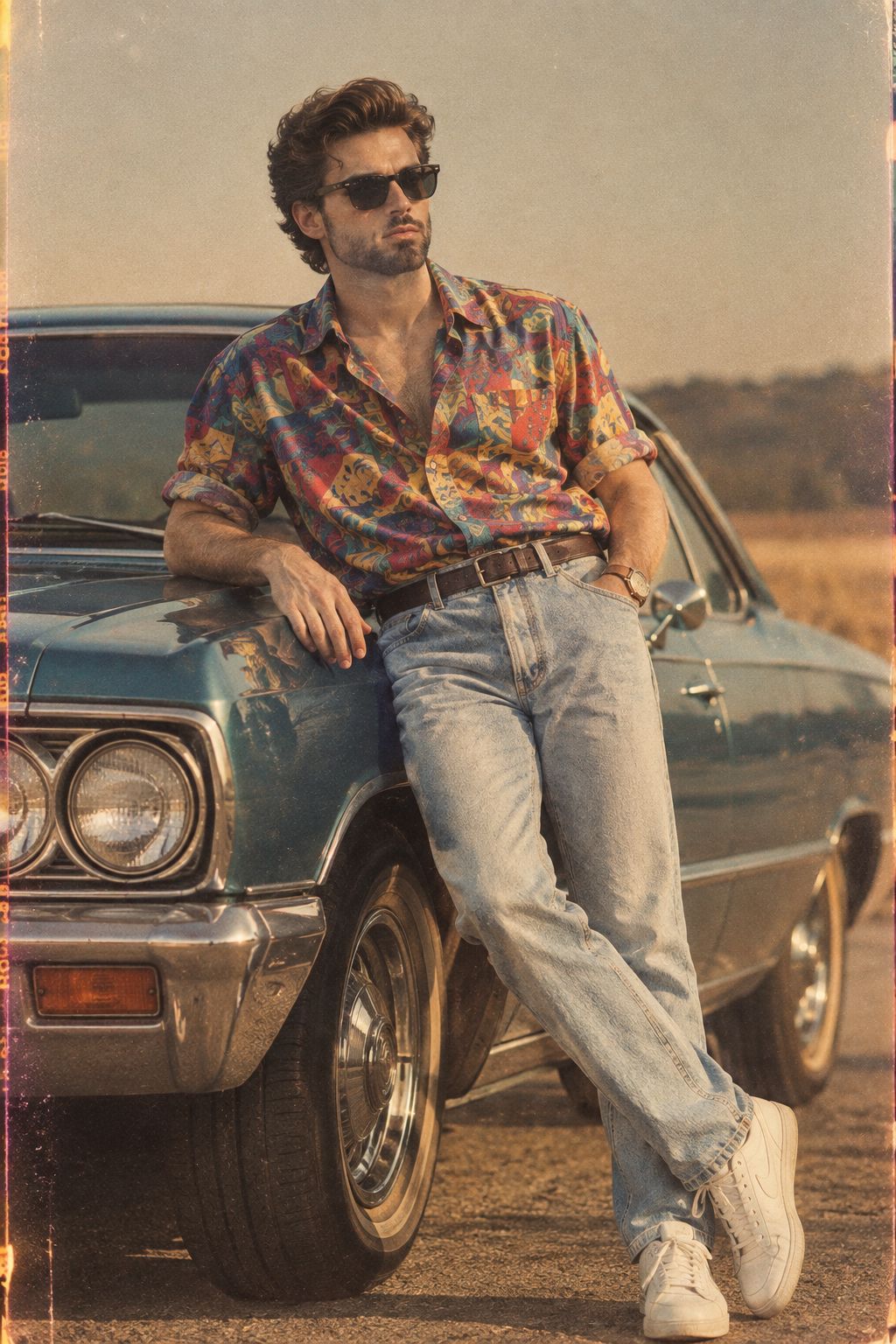
80s Golden Hour Cinema
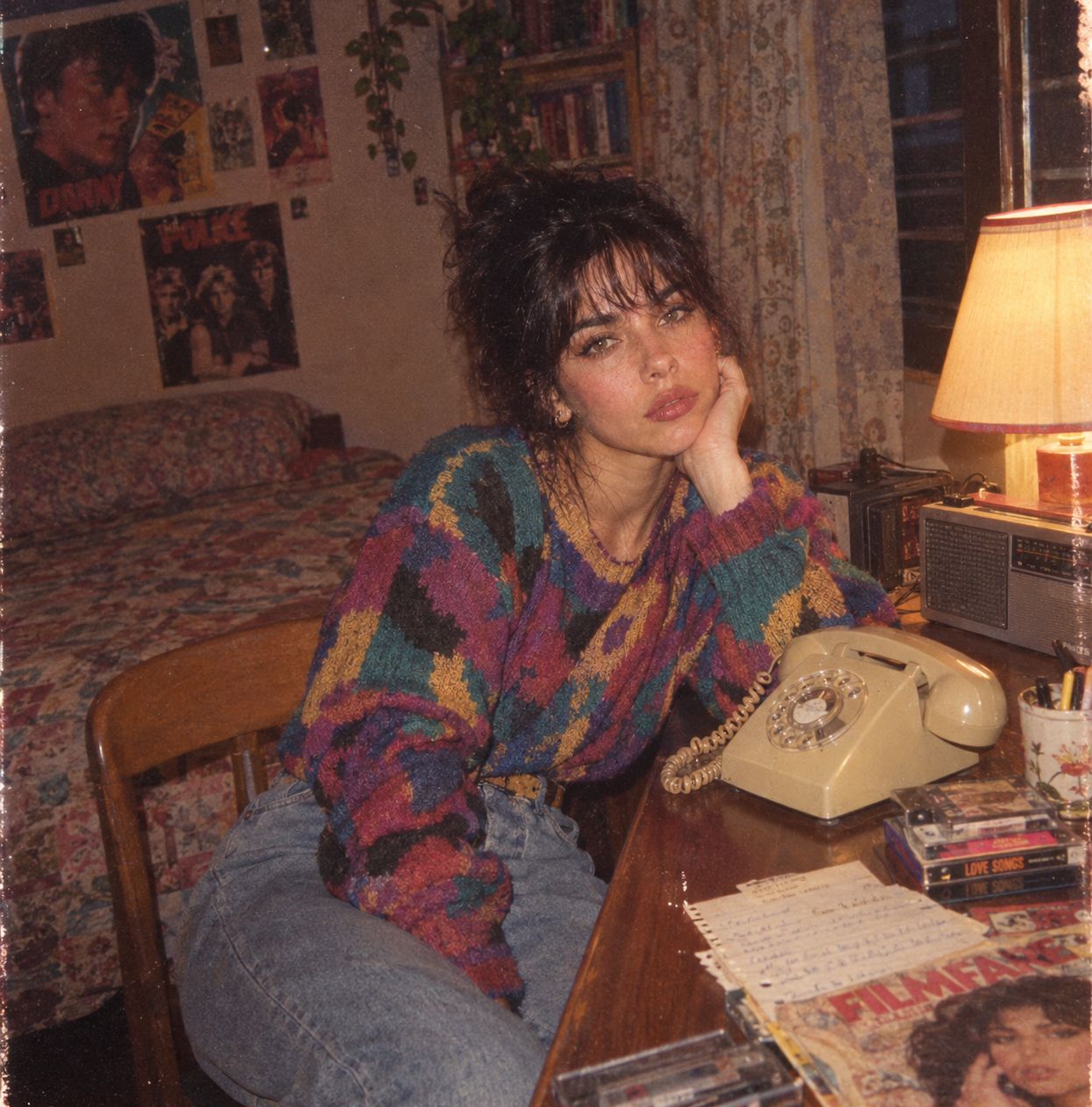
Me in 1985
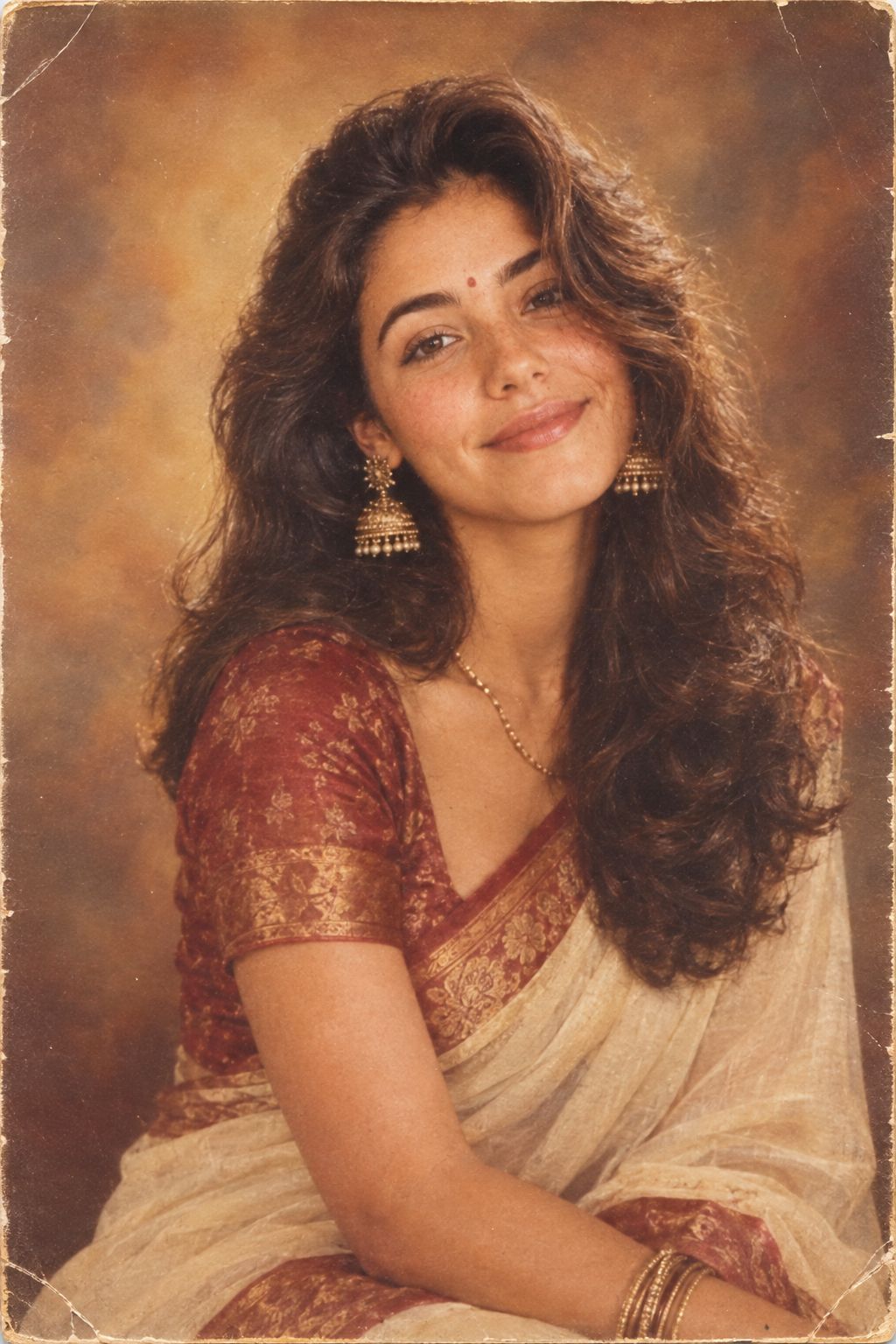
1985 Studio Portrait
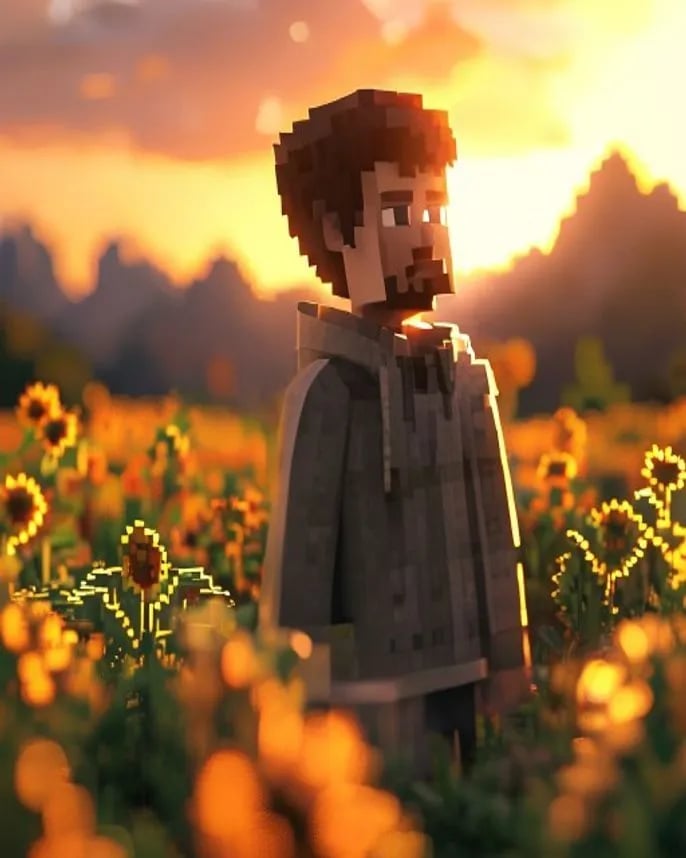
Hyper-Realistic Minecraft POV Portrait
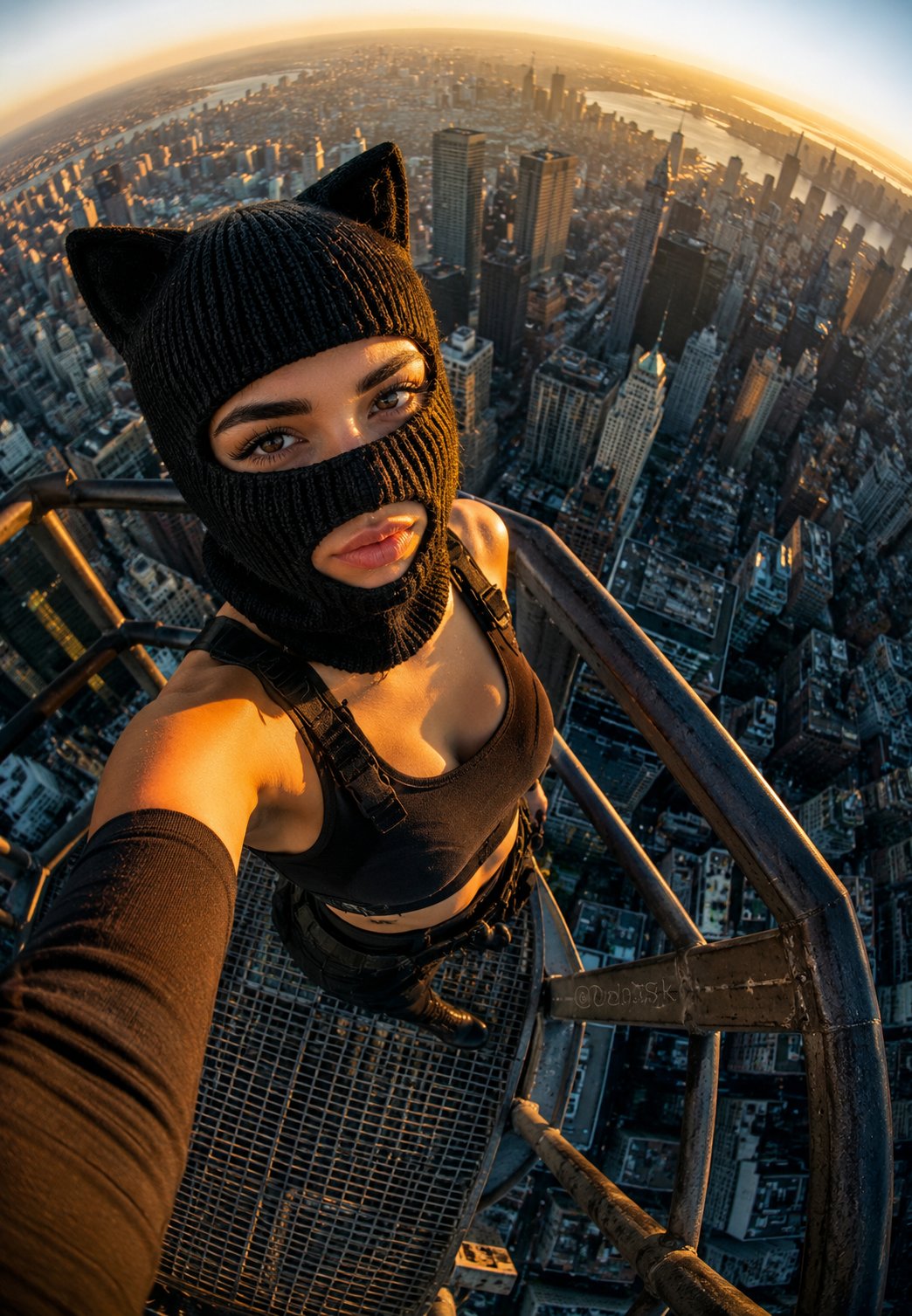
Rooftop Fisheye — Cat-Ear Balaclava at Golden Hour
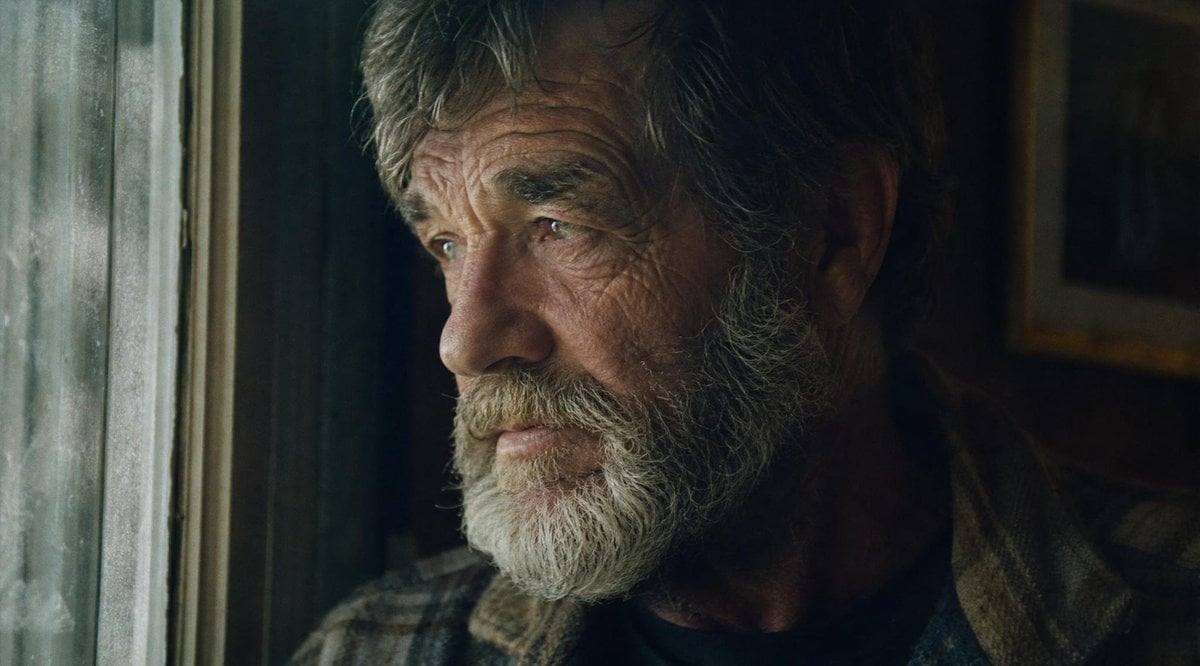
Moody Censored Film Still
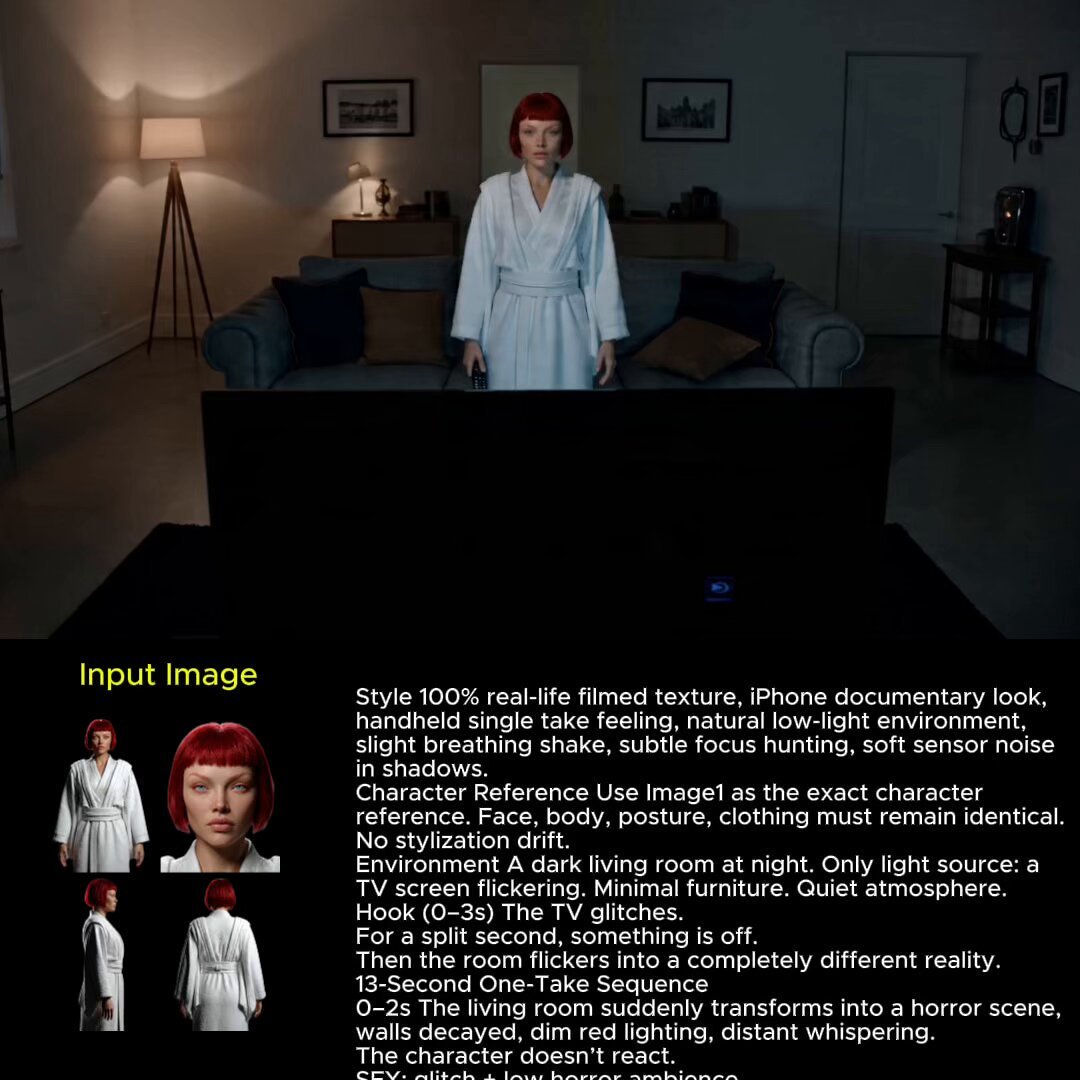
2025 Aesthetic Photography
Make it yours
Moody Censored Portrait works as-is. These are the safest ways to change it without losing the look.
Change one field
Copy a single group, rewrite it, and generate again so you can see what that field is doing.
Keep the frame, change the subject
Hold the composition and light of Moody Censored Portrait, then swap wardrobe, props or the person for a new take.
| If the result… | Why | Fix |
|---|---|---|
| The result drifts from the preview | Too many fields changed at once. | Reuse Moody Censored Portrait as-is first, then change one group — subject, light, or setting. |
| The model over-stylizes the scene | The prose prompt leaves finish and camera underspecified. | Add one camera or lighting sentence and stay on GPT Image 2. |
More GPT Image 2 templates
Other prompts made for GPT Image 2.
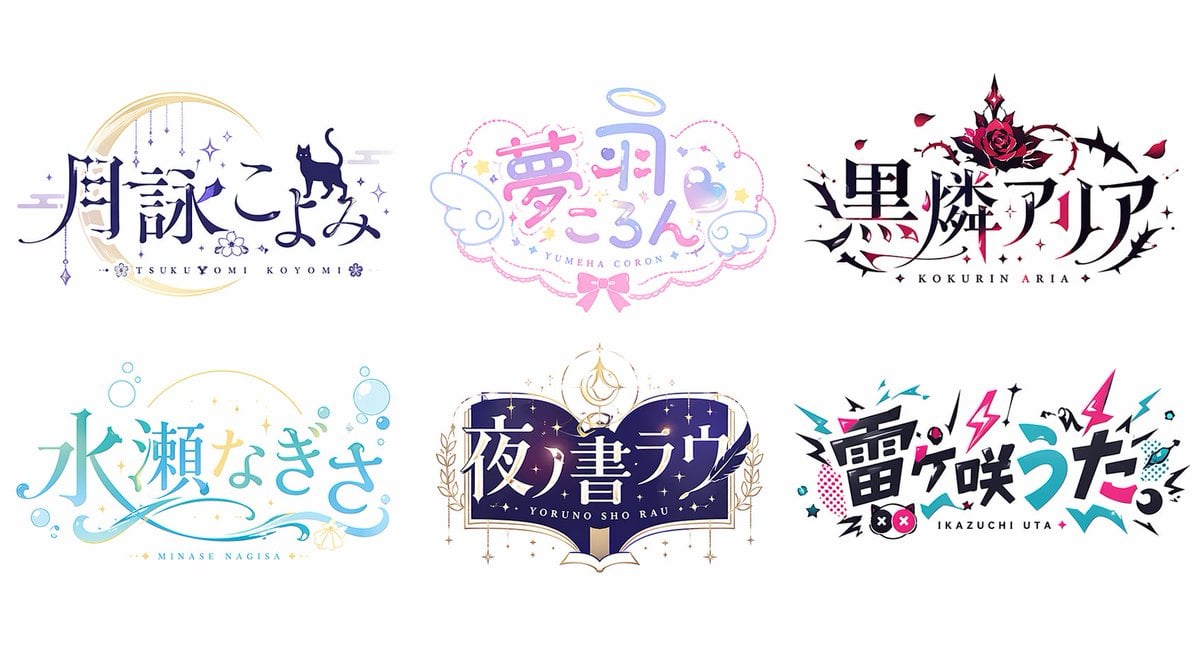
Six VTuber Japanese Logo Sheet
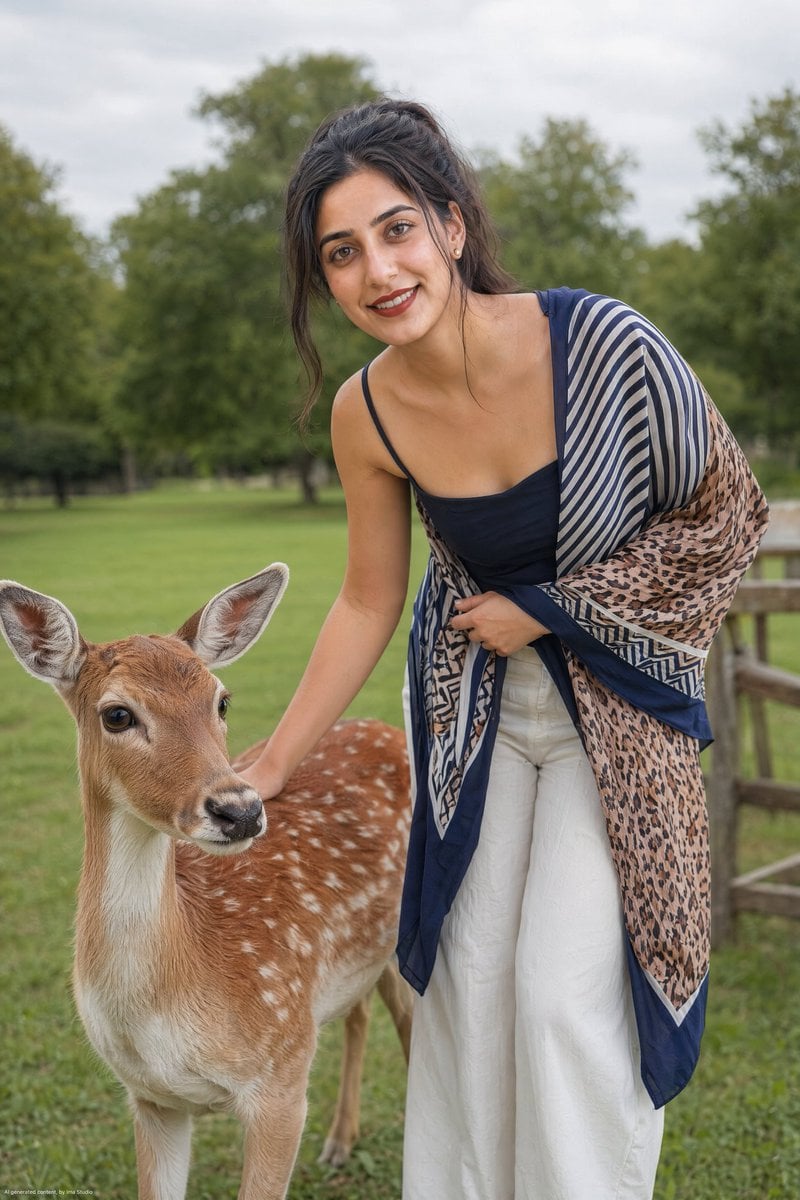
Realistic Portrait of Woman and Deer
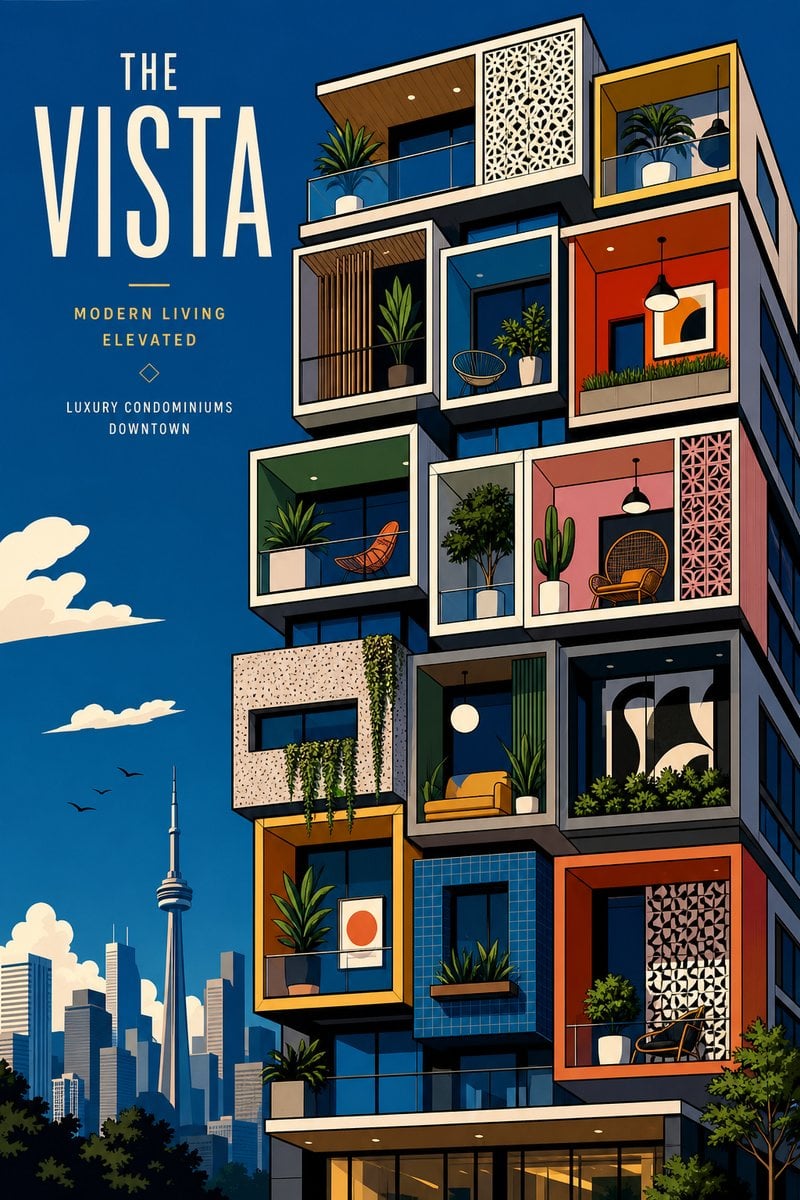
The Vista Modular Condo Poster
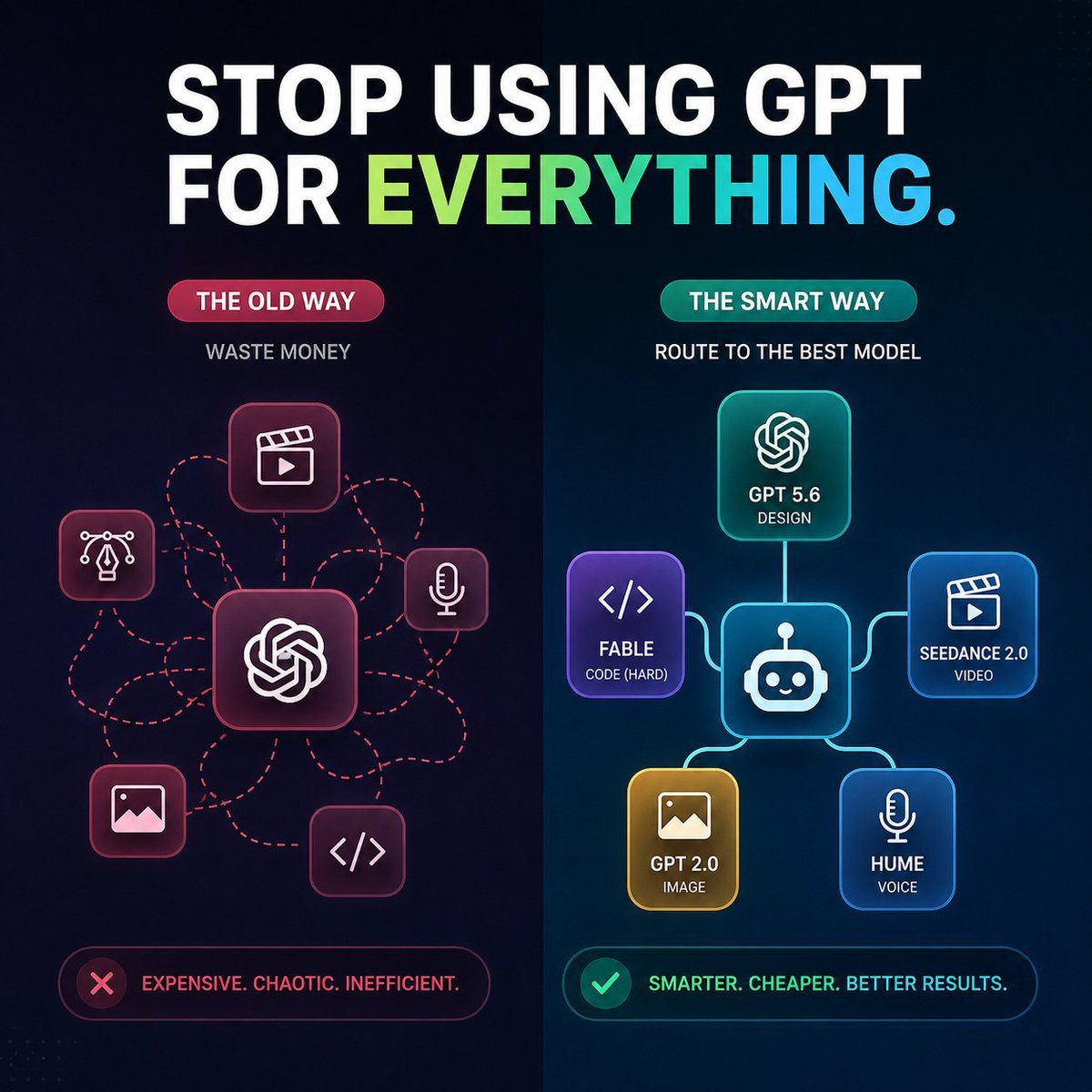
AI Model Routing Comparison Infographic
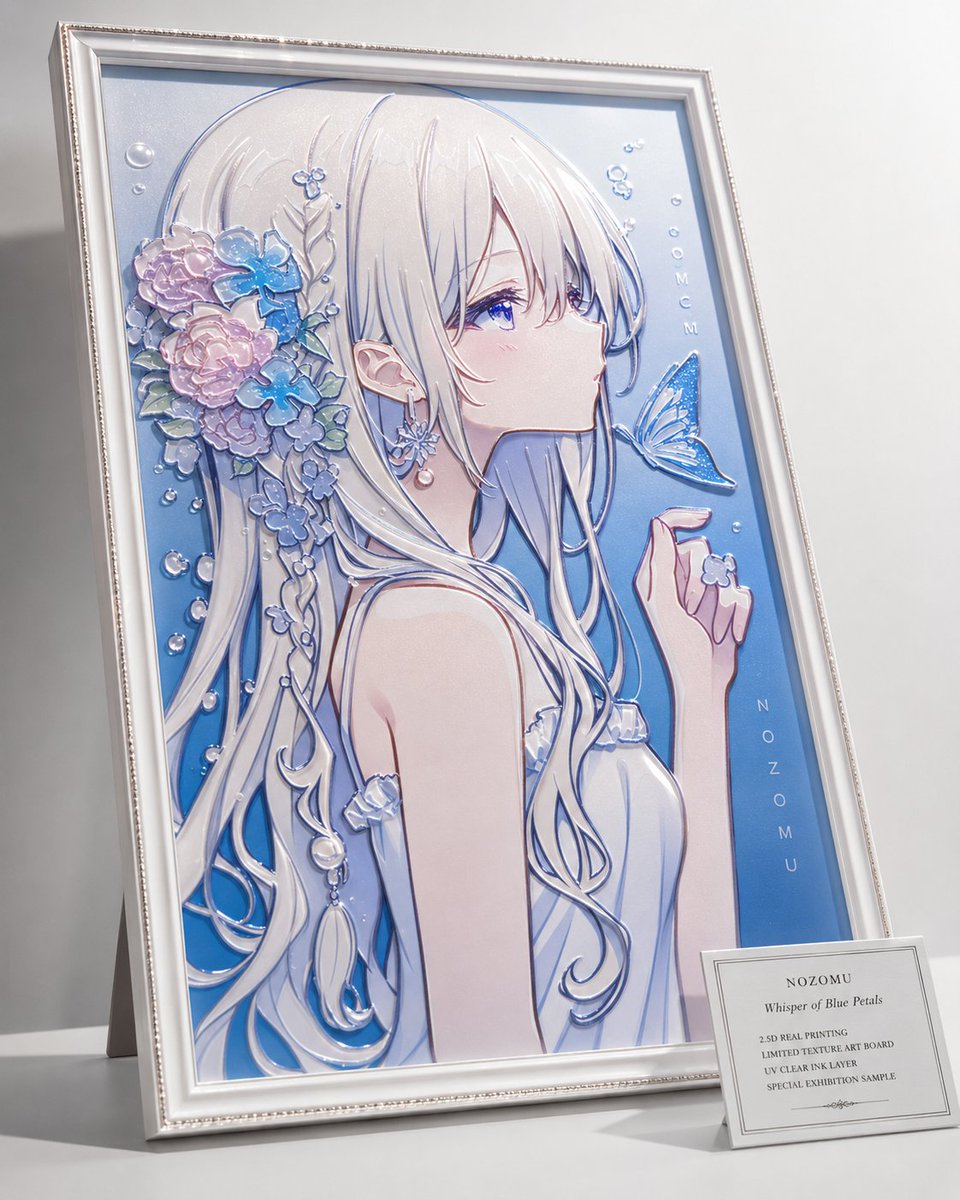
2.5D Anime Art Board

Isometric Productivity Desk Scene
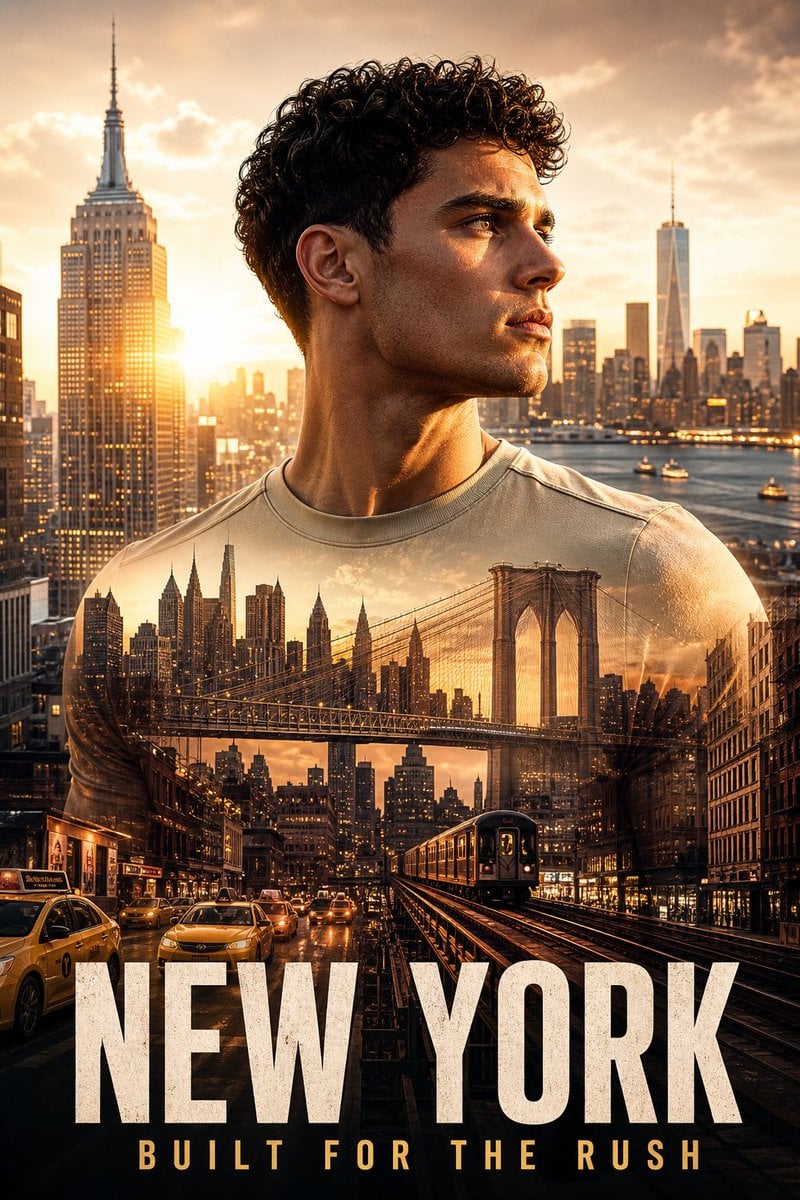
New York Double Exposure Poster
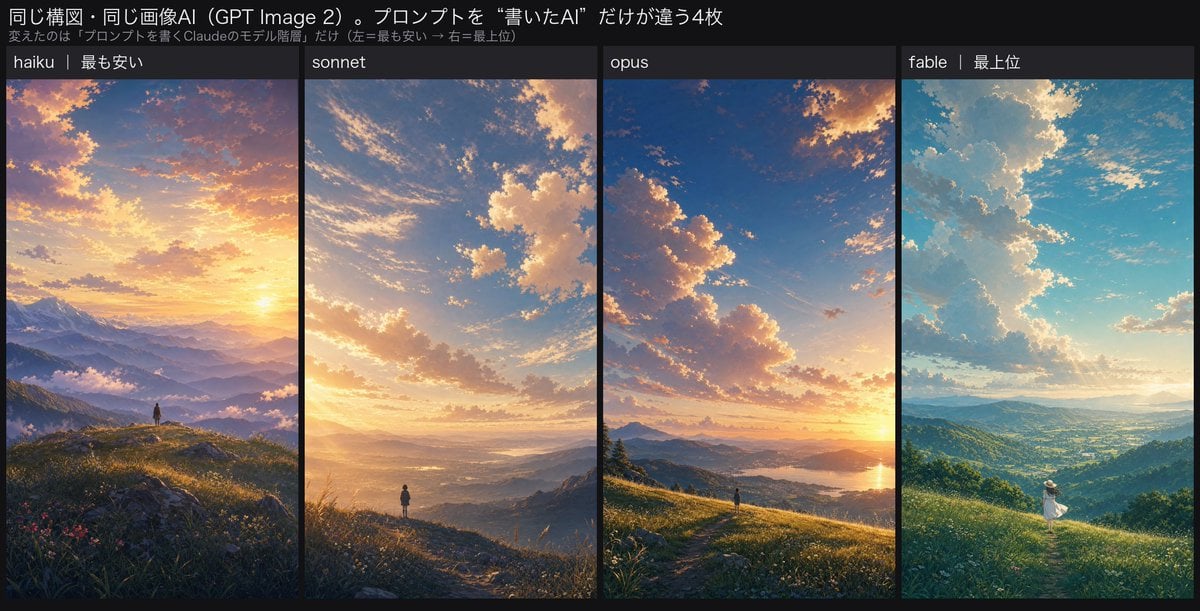
Four-Panel AI Landscape Comparison
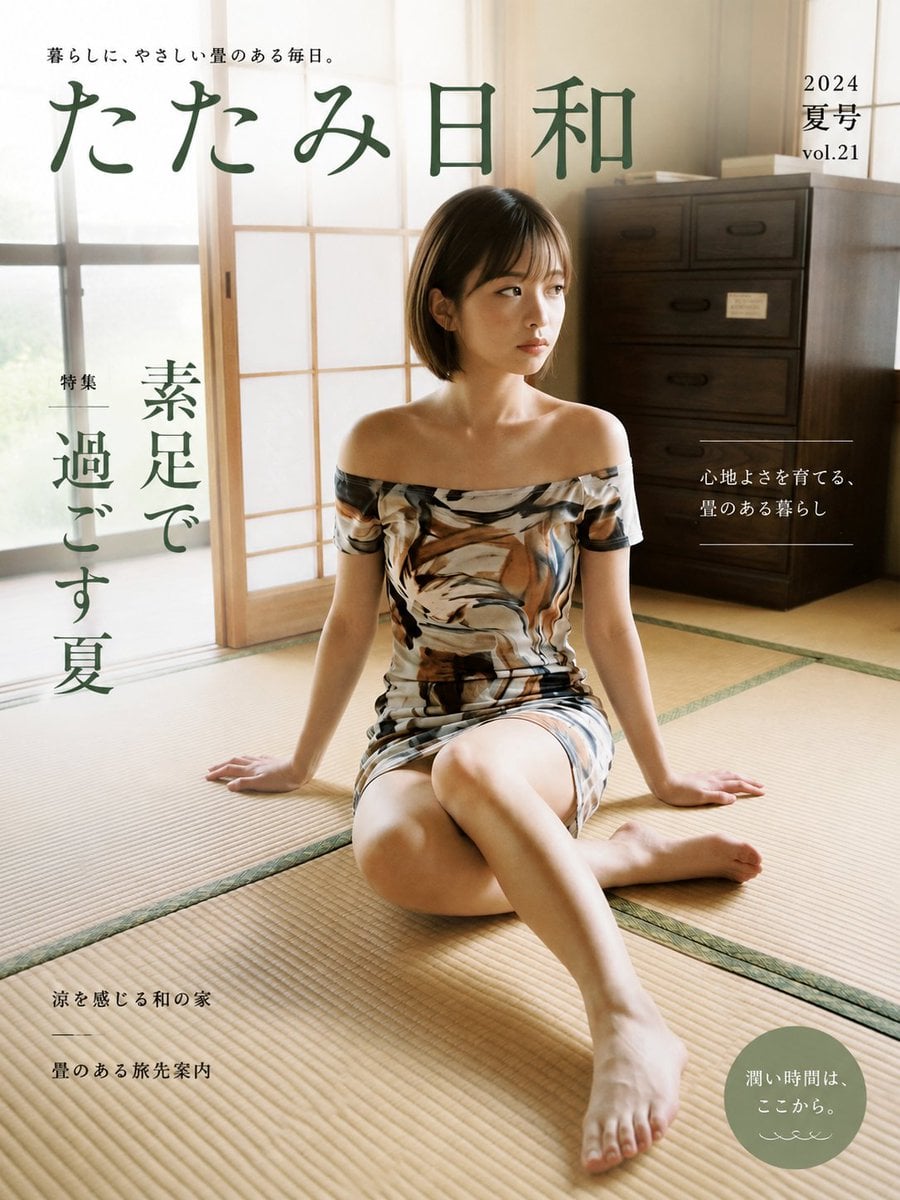
Japanese Tatami Lifestyle Magazine Cover

NESCAFÉ Coffee Map Poster
More image prompts
Fresh picks from across the catalog.
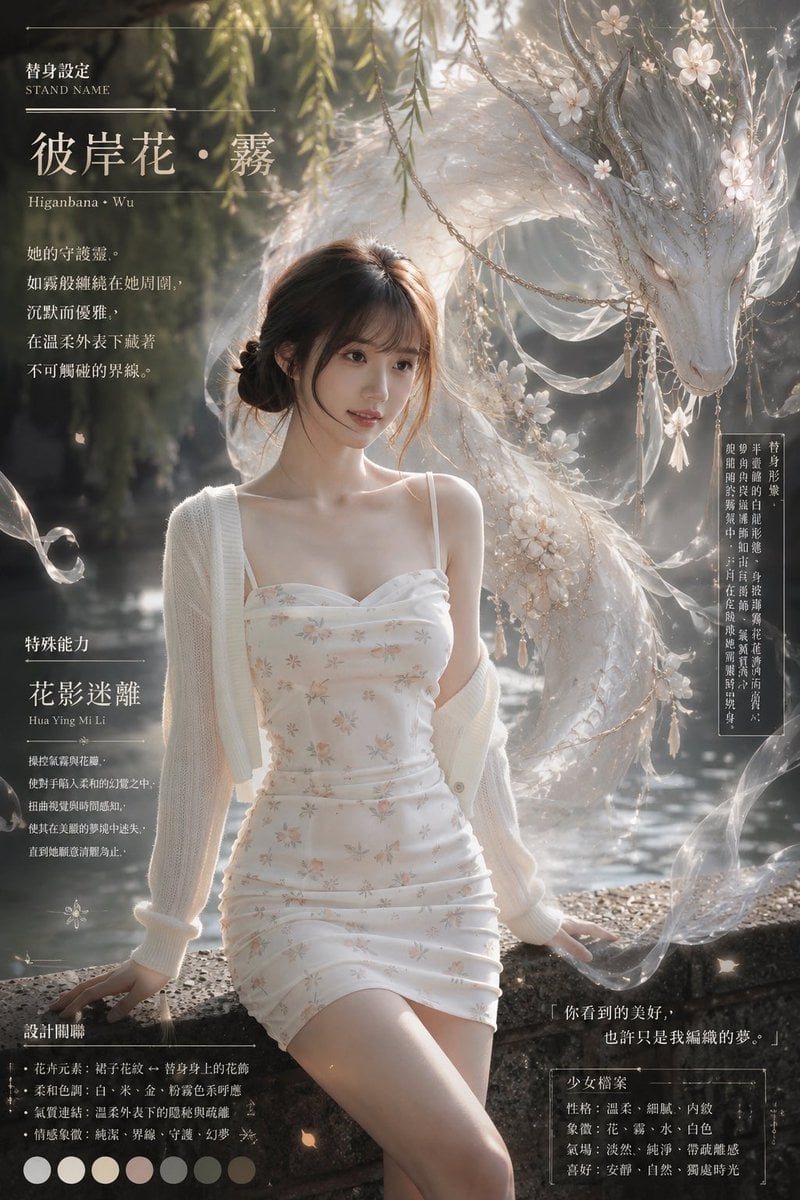
Misty Floral Stand Spirit Poster
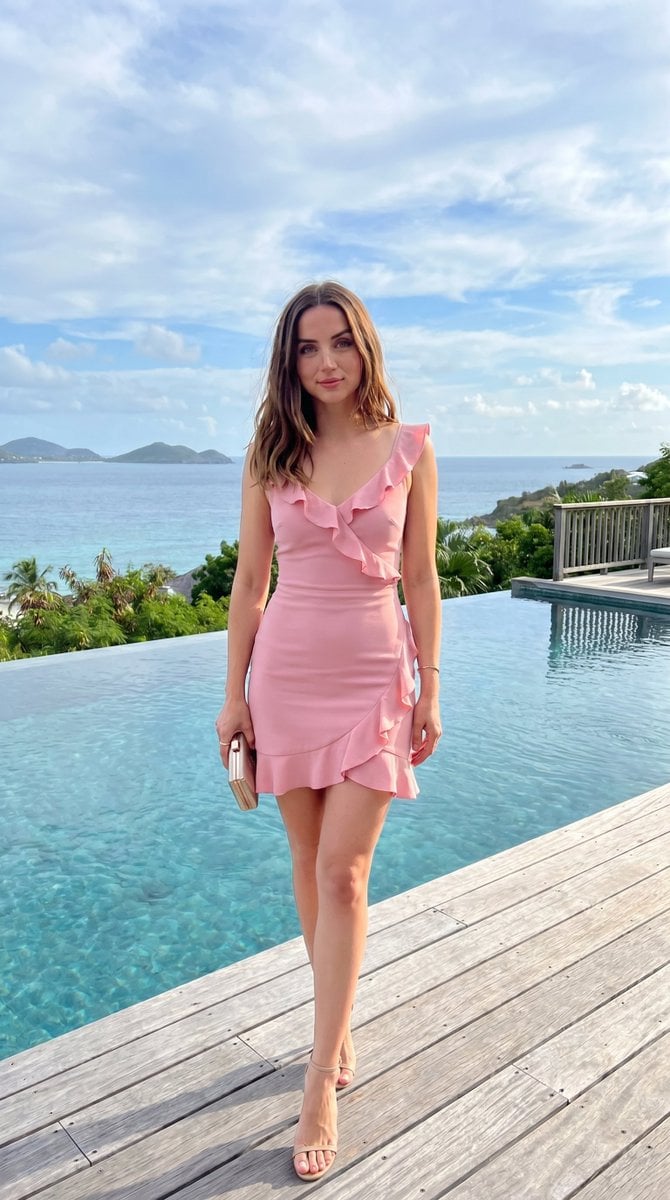
Luxury Terrace Editorial Photography Prompt
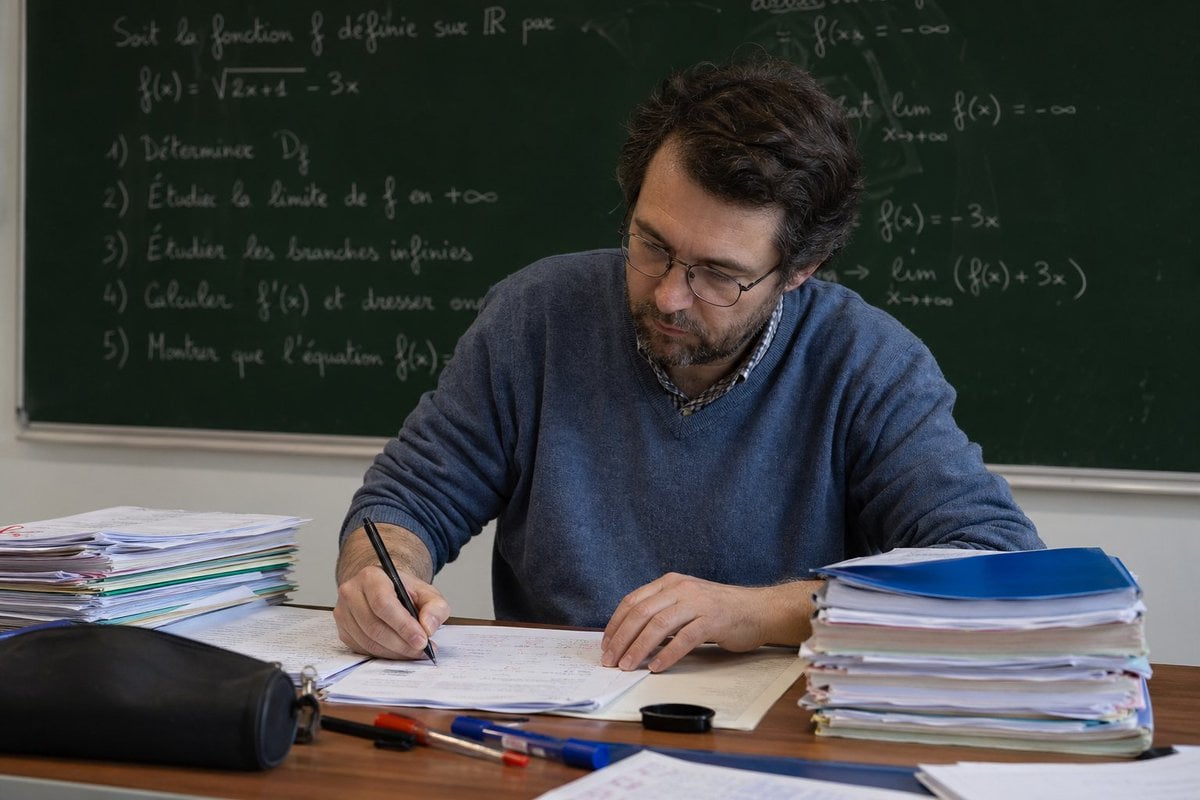
Math Teacher Grading Papers in Classroom
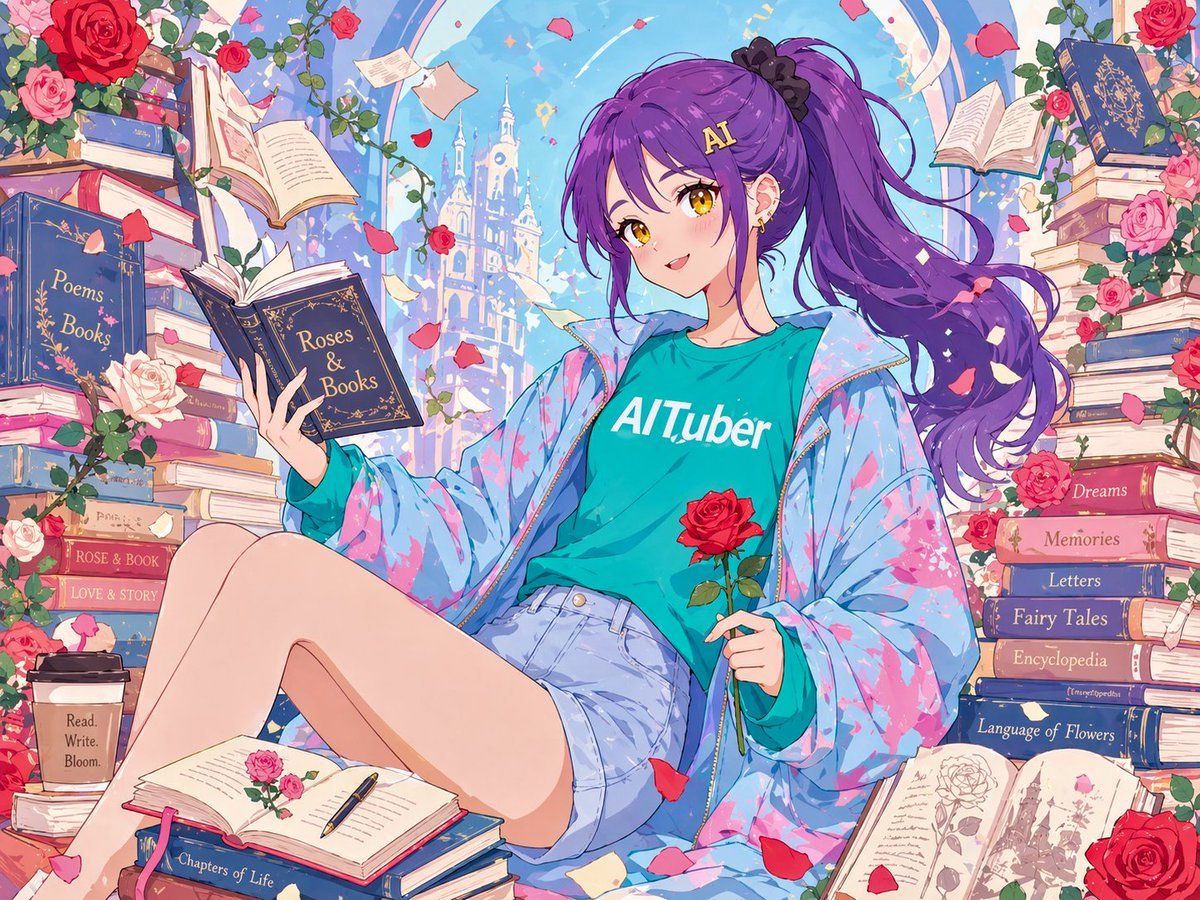
Anime Roses and Books End Card
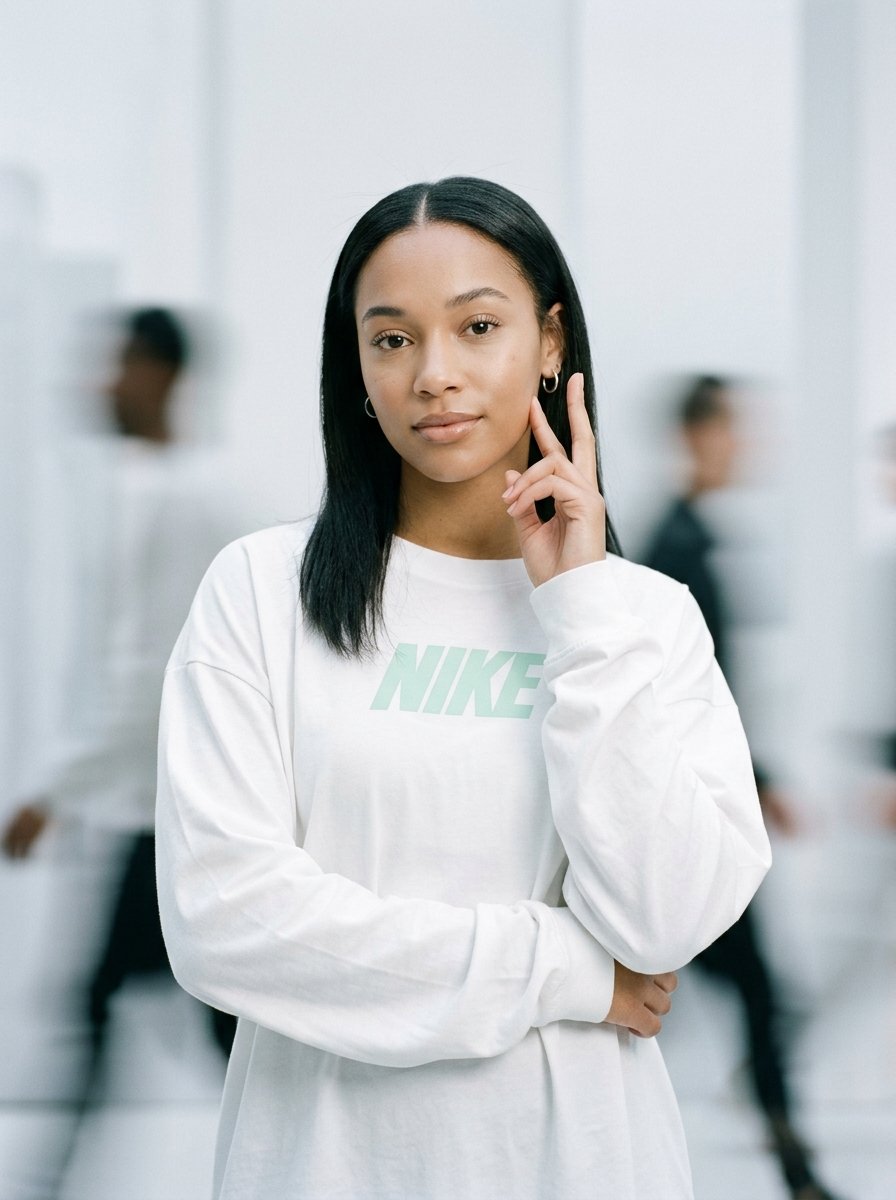
Static Motion Editorial
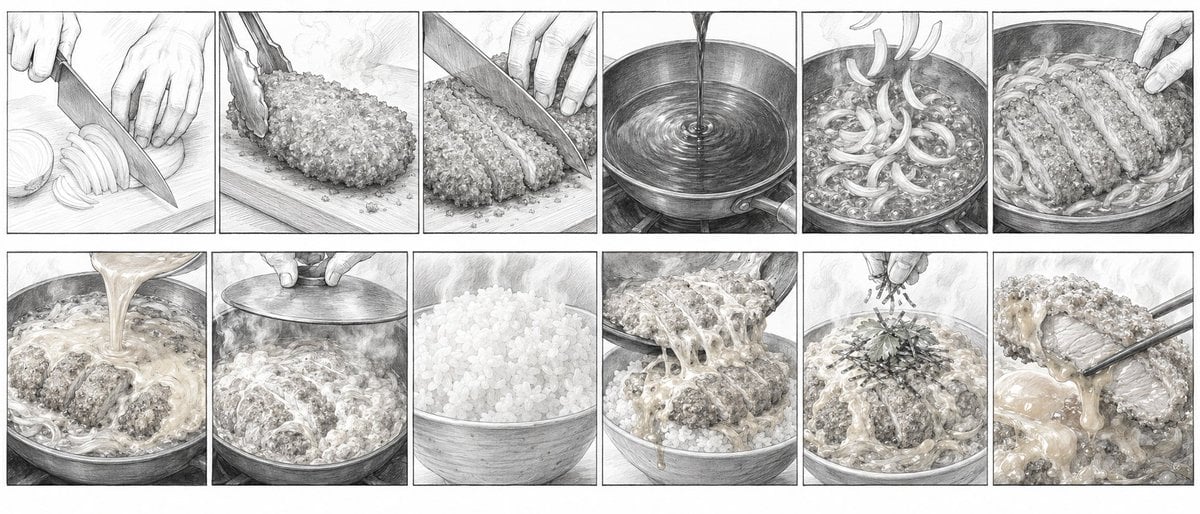
Katsudon Cooking Storyboard
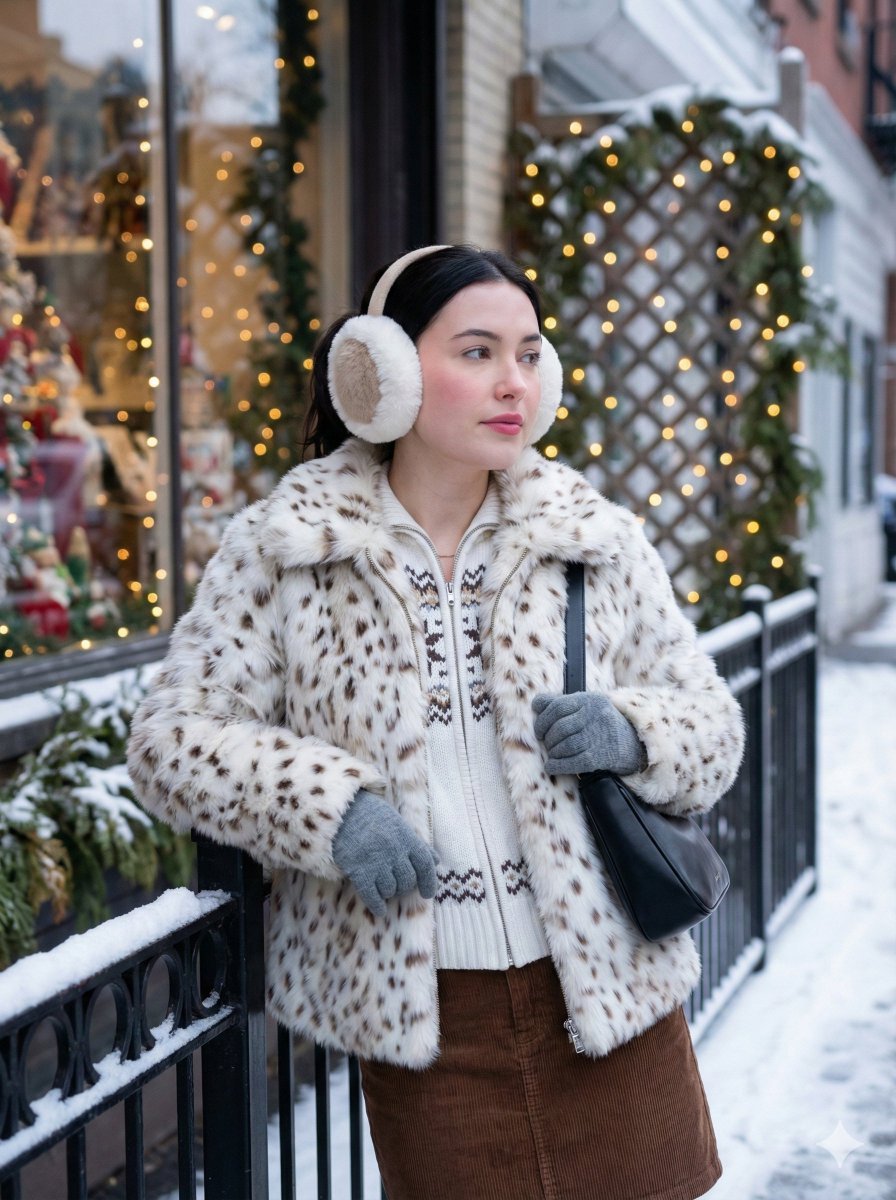
Cozy Winter Street Fashion Portrait Prompt
untitled

Aesthetic Cozy Coffee Photography for Social Media
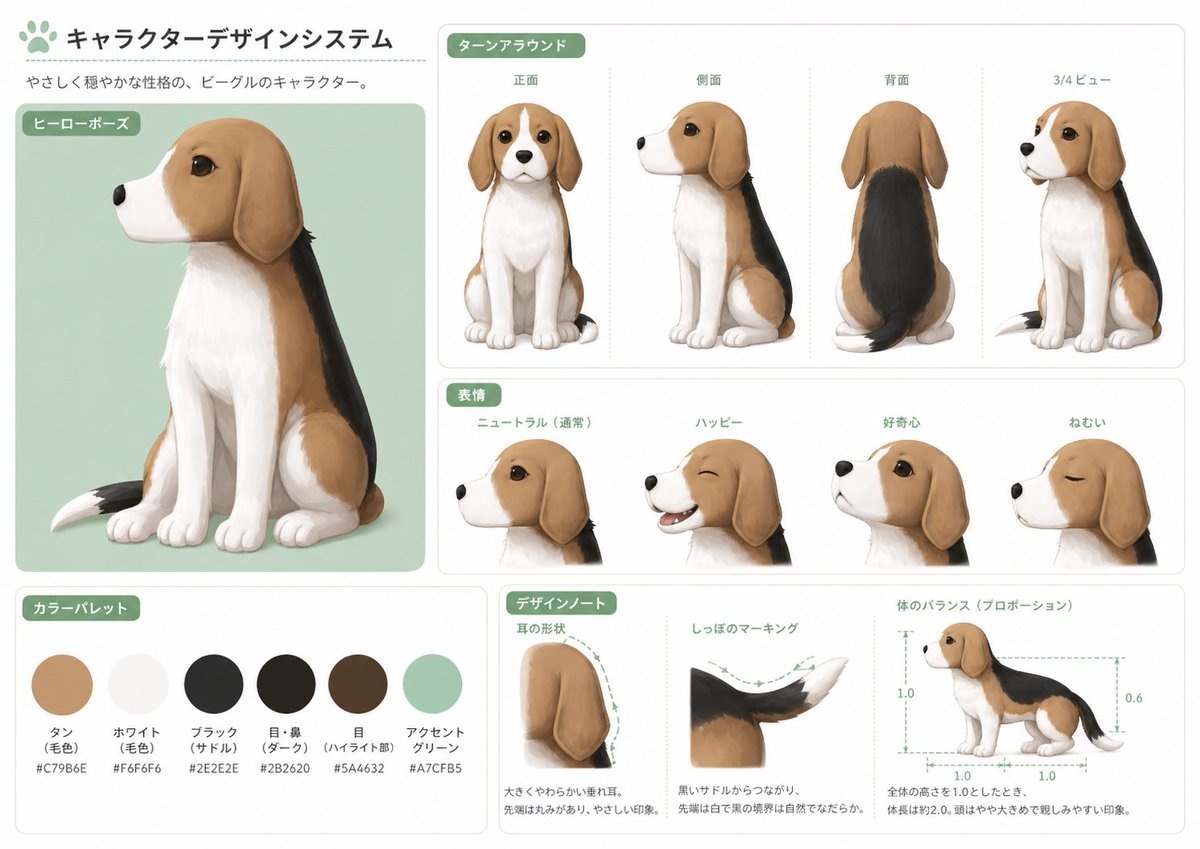
Japanese Beagle Character Design Sheet
Browse template categories
Moody Censored Portrait questions
How do I use the Moody Censored Portrait template?
Add your photo if the template asks for one, edit the prompt if you like — the template's model and format are already selected — and press Generate. Your version opens in PicX Studio.
Can I customize the Moody Censored Portrait template?
Yes. You can change the subject, setting, lighting, mood, format, and available model controls before creating your image.
Is the Moody Censored Portrait template free?
Opening and editing this template is free. Generating uses credits, shown on the Generate button when you are signed in.
Which AI model should I use?
Start with GPT Image 2, which is the model associated with this template. You can compare another compatible model for a different finish.
Looking for something else? Browse all templates.
Your photo, any look
Thousands of ready templates for every top image and video model, from one credit balance.