
Zombie TV Broadcast Transformation
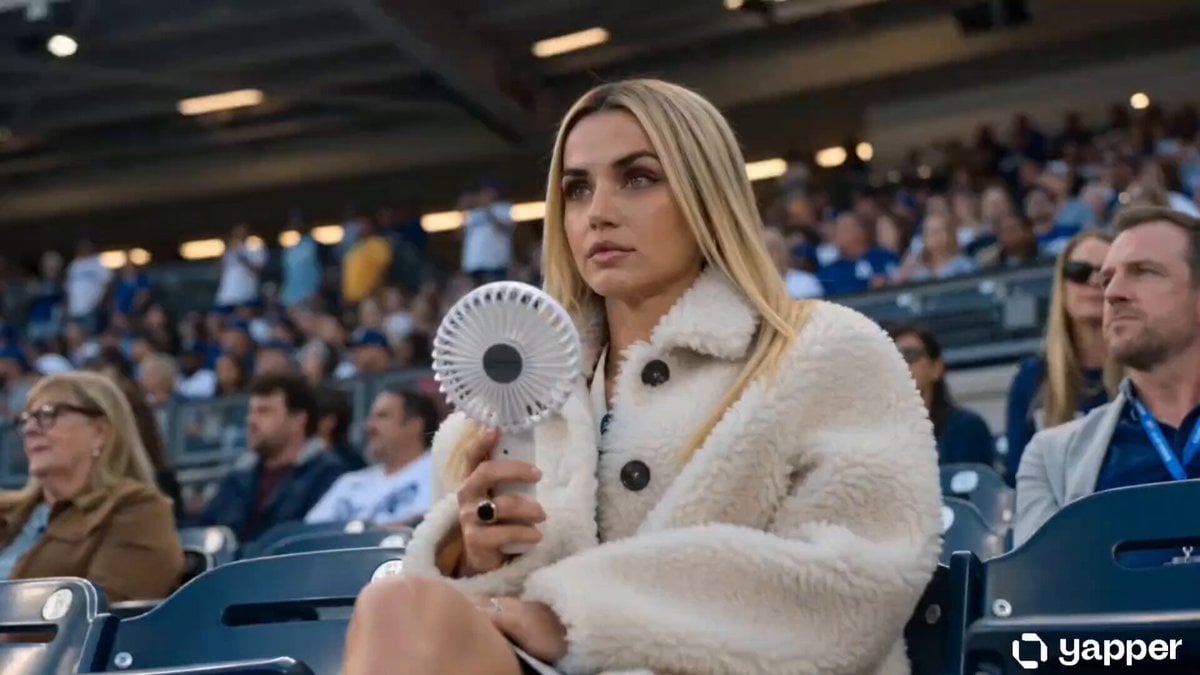
A detailed cinematic prompt that transitions a realistic sports broadcast of a fan in a stadium into a terrifying horror scene where she becomes a zombie.
- Prompt included
- Model and format preset
- Premium template
The prompt behind this video
Copy the exact prompt behind Zombie TV Broadcast Transformation, or open it in the studio and make it yours.
A stunning young blonde woman with blue eyes sits in a crowded stadium during a night baseball game, wearing a plush white faux-fur jacket with black toggle fasteners and holding a small white handheld electric fan near her face with a cool, disinterested expression. The scene is framed as a polished live TV sports broadcast with a perfectly stable ESPN/Fox Sports-style scoreboard banner across the top and a locked channel logo watermark in the top-right corner, both remaining completely flicker-free throughout. Midway through the clip, the stadium lights subtly flicker as she lowers the fan and her expression turns eerily blank; her skin pales and cracks, dark veins spread across her face, her eyes become hollow dead white, and her hair turns matted and lifeless. She slowly turns toward the camera with a terrifying decayed zombie look while nearby fans panic in the blurred background. Ultra-realistic mid-shot, slightly low angle, shallow depth of field, cinematic color grading, 8K, maintaining a clean live broadcast aesthetic that gradually transforms into unsettling horror.
How to use Zombie TV Broadcast Transformation in 3 steps
- 1
Open
The prompt is already in the box next to the preview, with the template's model and format selected.
- 2…a portrait of your subject in softgolden-hour light, 85mm…
Personalize
Edit the subject and creative details for your destination.
- 3Generate
Generate
Press Generate — your video is created in PicX Studio, so you can compare it with the original and refine one variable at a time.
More like this
Templates with the same subject, style or setup. Open one to see its prompt.
Magical Room Transformation - Seedance 2.5
Dark Tokusatsu Transformation - Seedance 2.5
RX-7 to Mech Transformation Cyberpunk
Civilization Timelapse — Centuries in One Shot
Mecha Transformation vs Kaiju — 4-Scene Epic
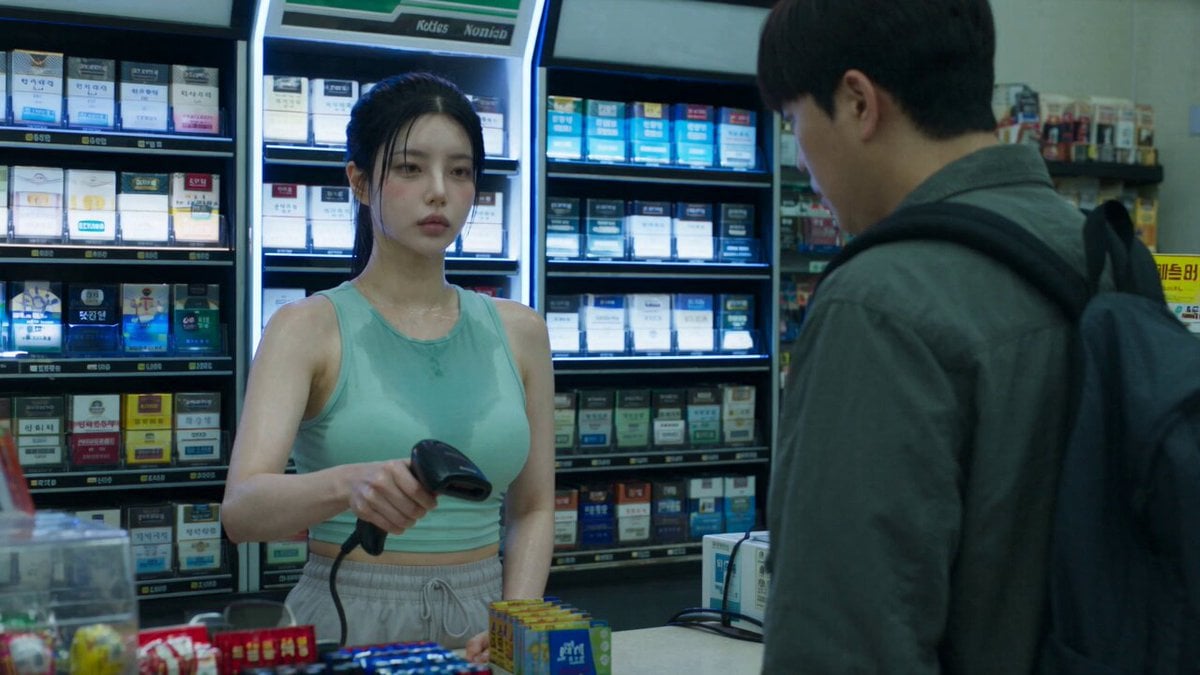
Korean Horror Zombie Convenience Store Attack
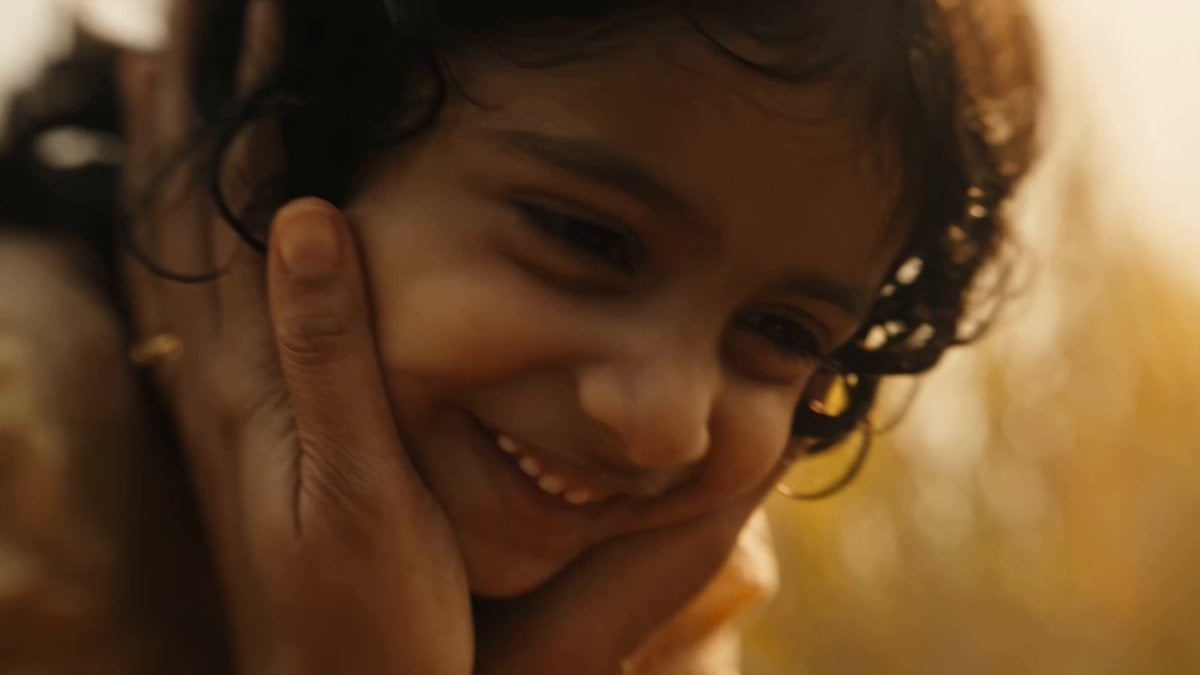
Indian Village Zombie Chase Intercut
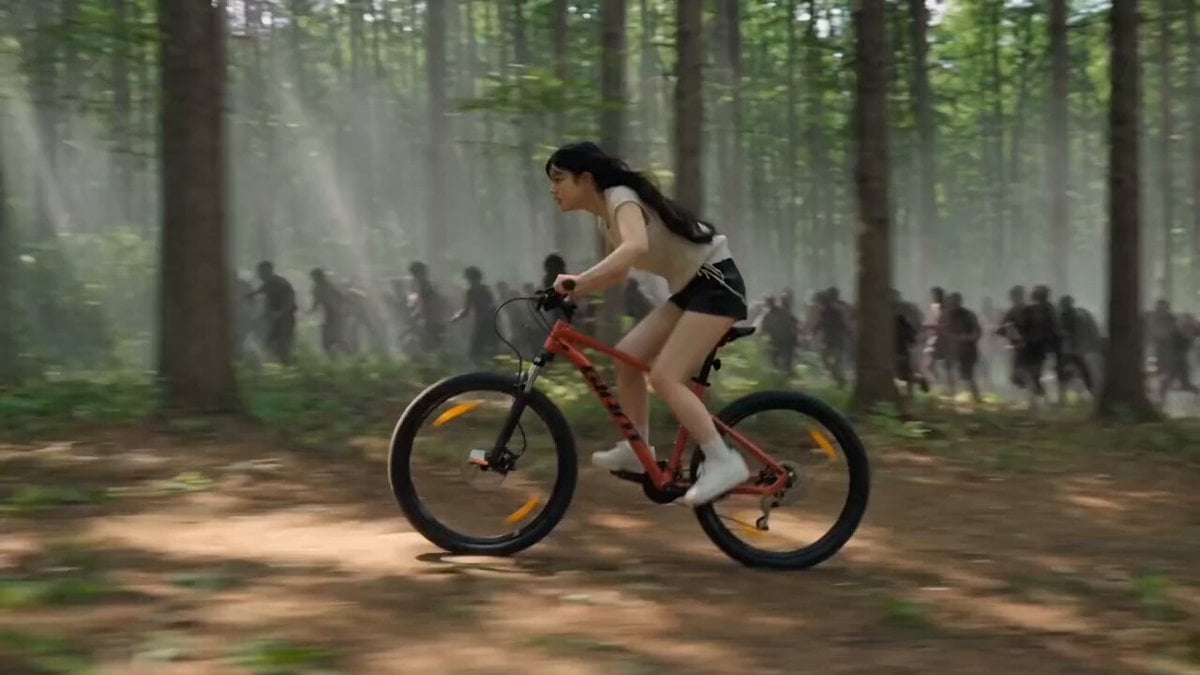
Woman Bicycle Zombie Chase Action Scene
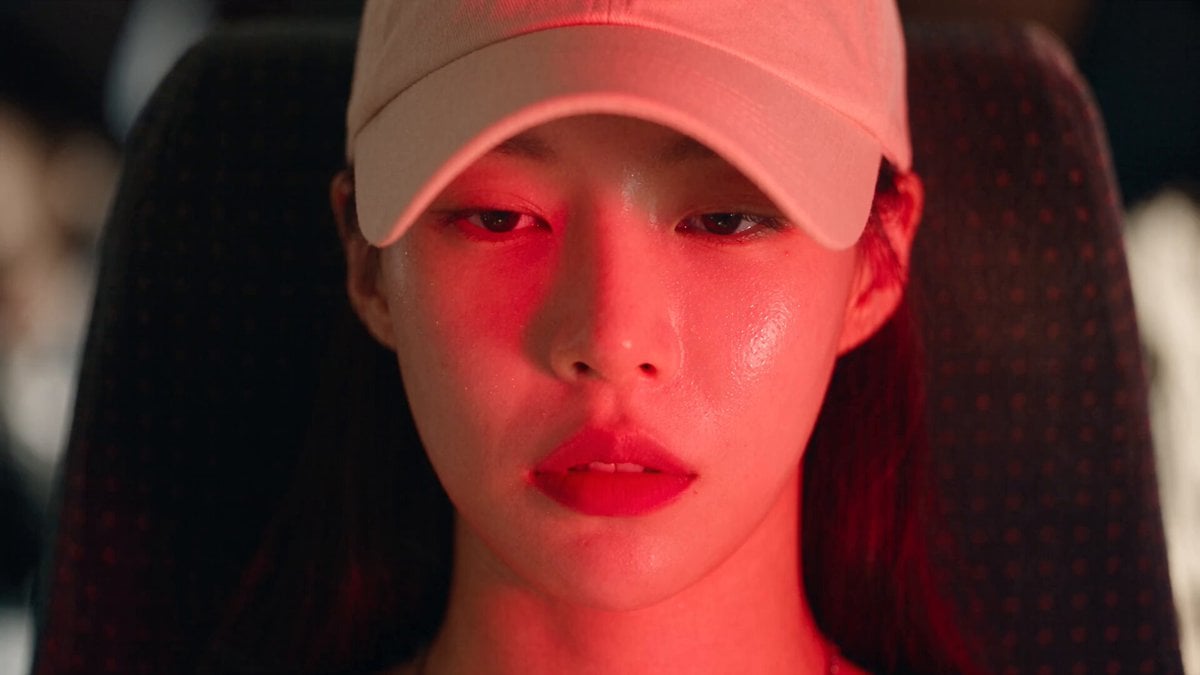
Dead End Express Zombie Outbreak
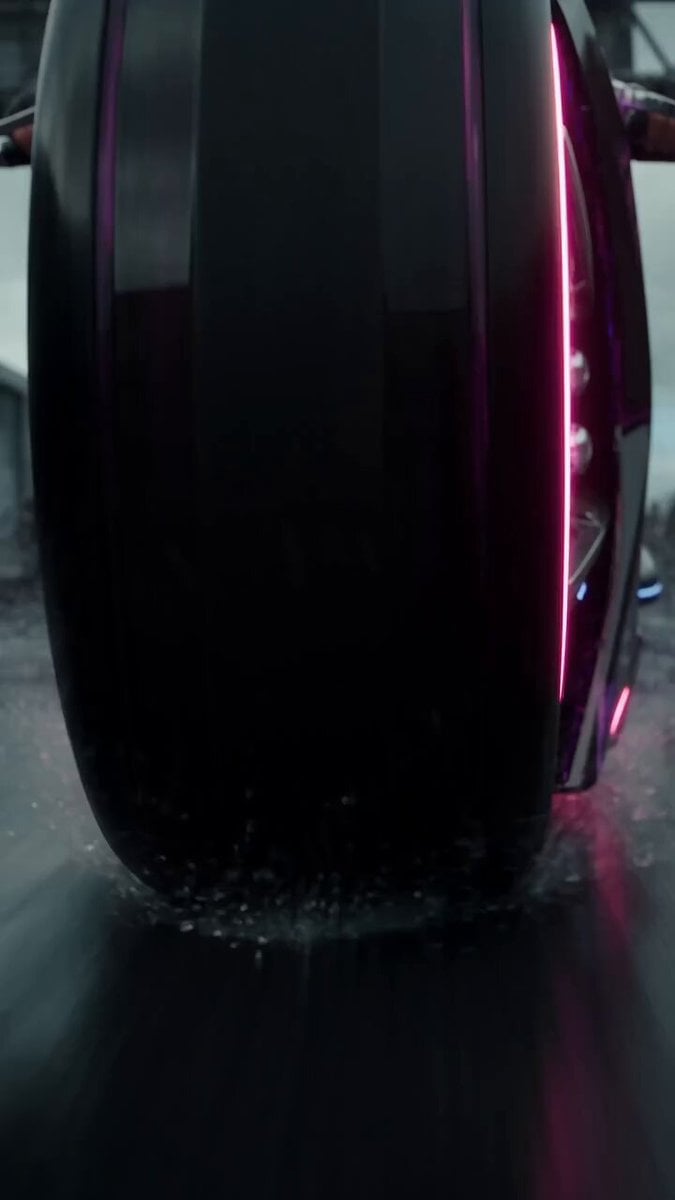
Futuristic Motorcycle Zombie Chase
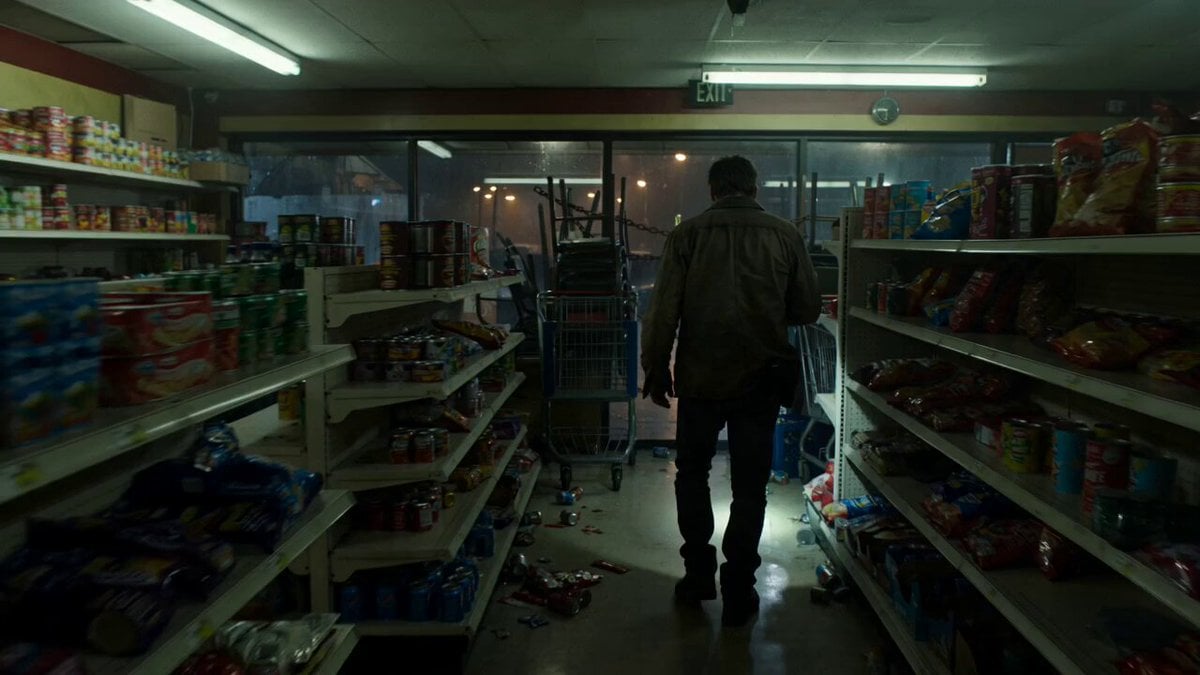
Zombie Apocalypse Convenience Store Shot
Pterodactyl Transformation Journey
Make it yours
Zombie TV Broadcast Transformation works as-is. These are the safest ways to change it without losing the look.
Change one field
Copy a single group, rewrite it, and generate again so you can see what that field is doing.
Keep the frame, change the subject
Hold the composition and light of Zombie TV Broadcast Transformation, then swap wardrobe, props or the person for a new take.
| If the result… | Why | Fix |
|---|---|---|
| The result drifts from the preview | Too many fields changed at once. | Reuse Zombie TV Broadcast Transformation as-is first, then change one group — subject, light, or setting. |
| The model over-stylizes the scene | The prose prompt leaves finish and camera underspecified. | Add one camera or lighting sentence and stay on Seedance 2.0. |
More Seedance 2.0 templates
Other prompts made for Seedance 2.0.
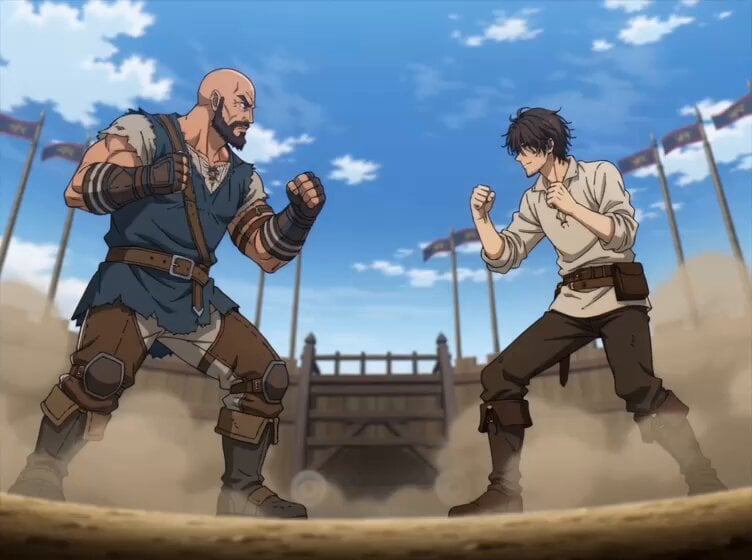
Comical Martial Arts Punch Scene
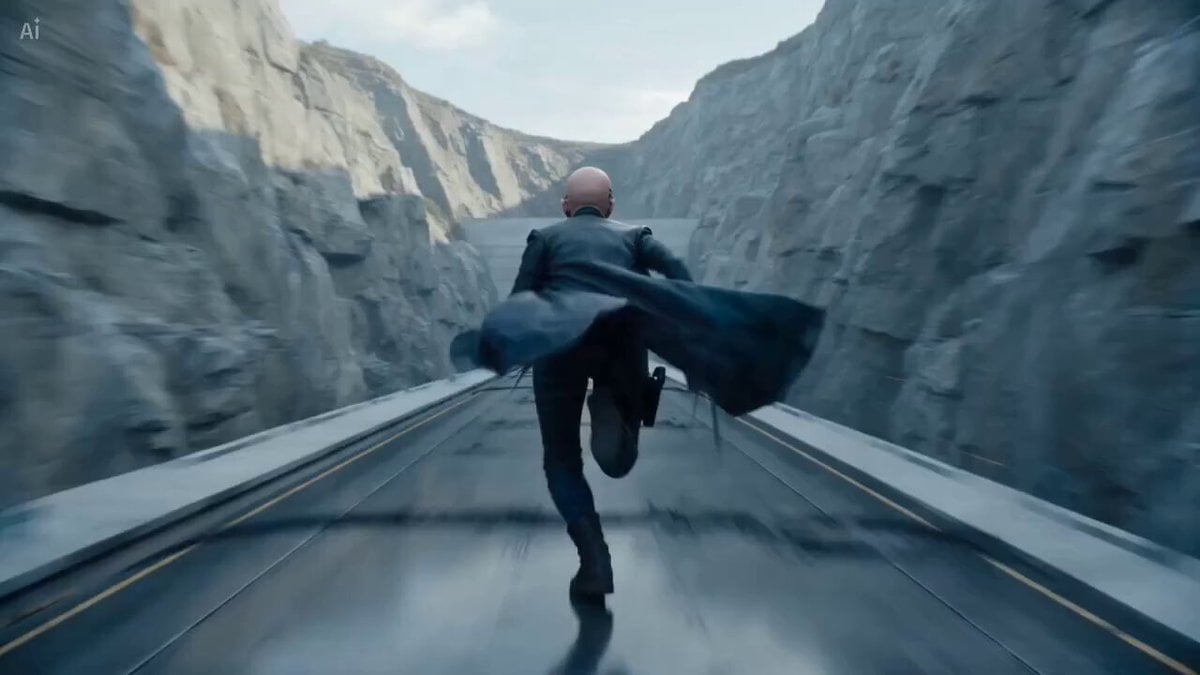
Maglev Train Action Sequence
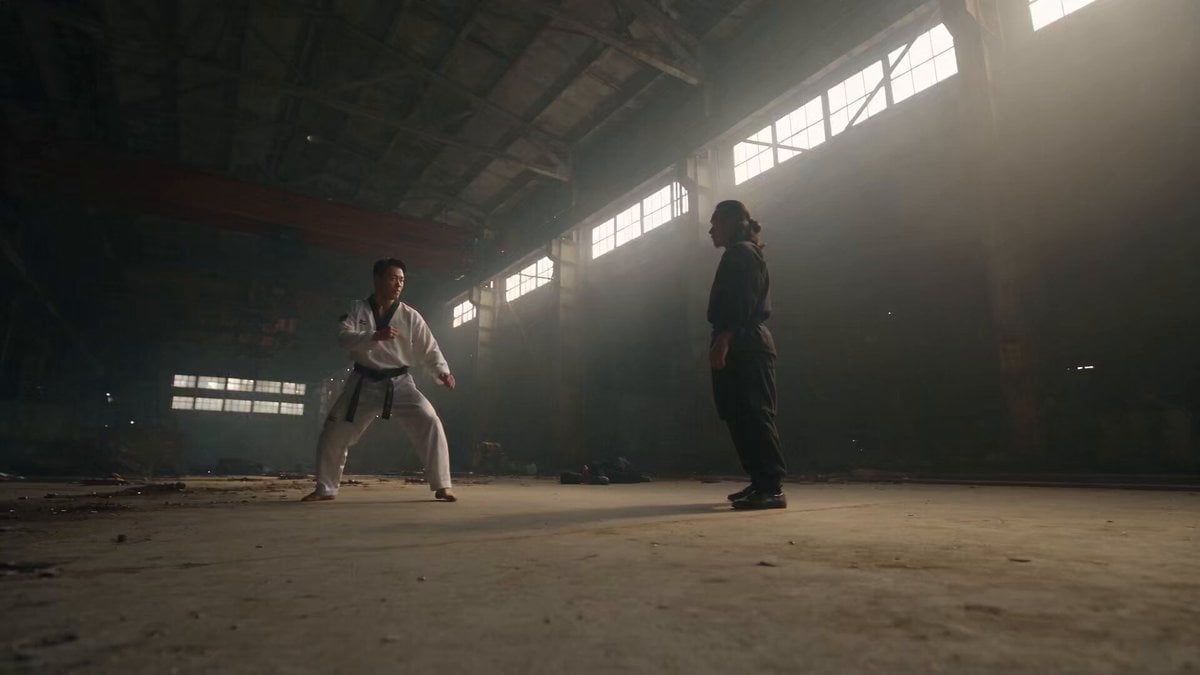
Martial Arts Fight Sequence
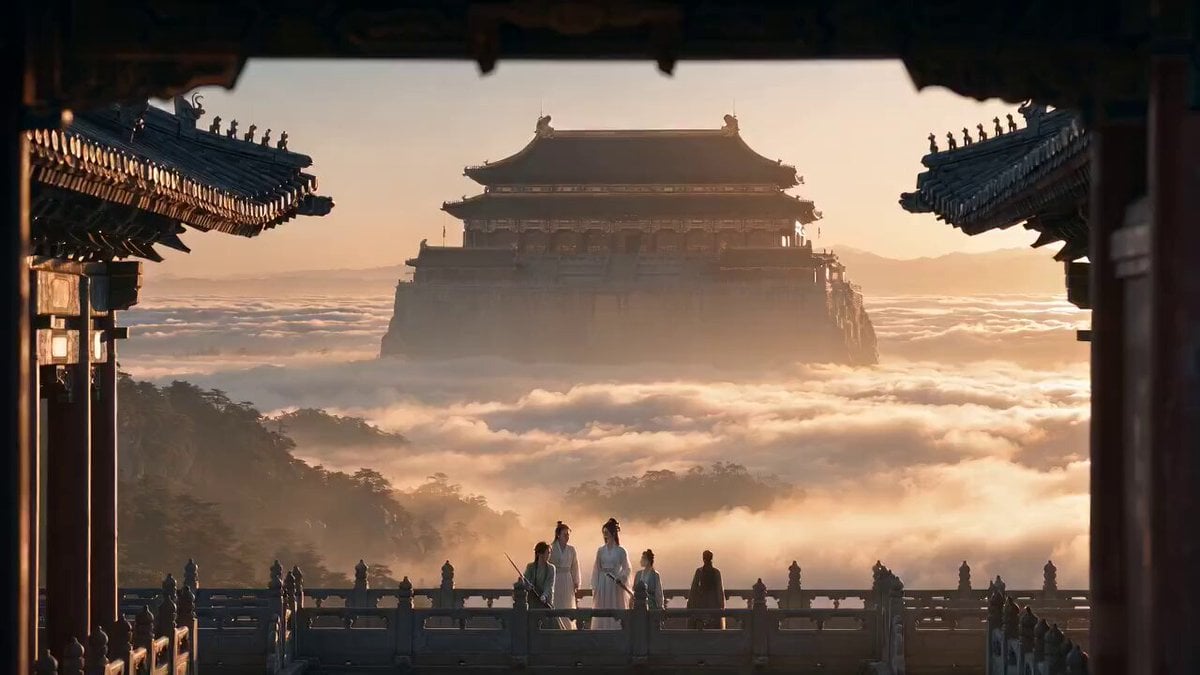
Wuxia Protection and Trust Script
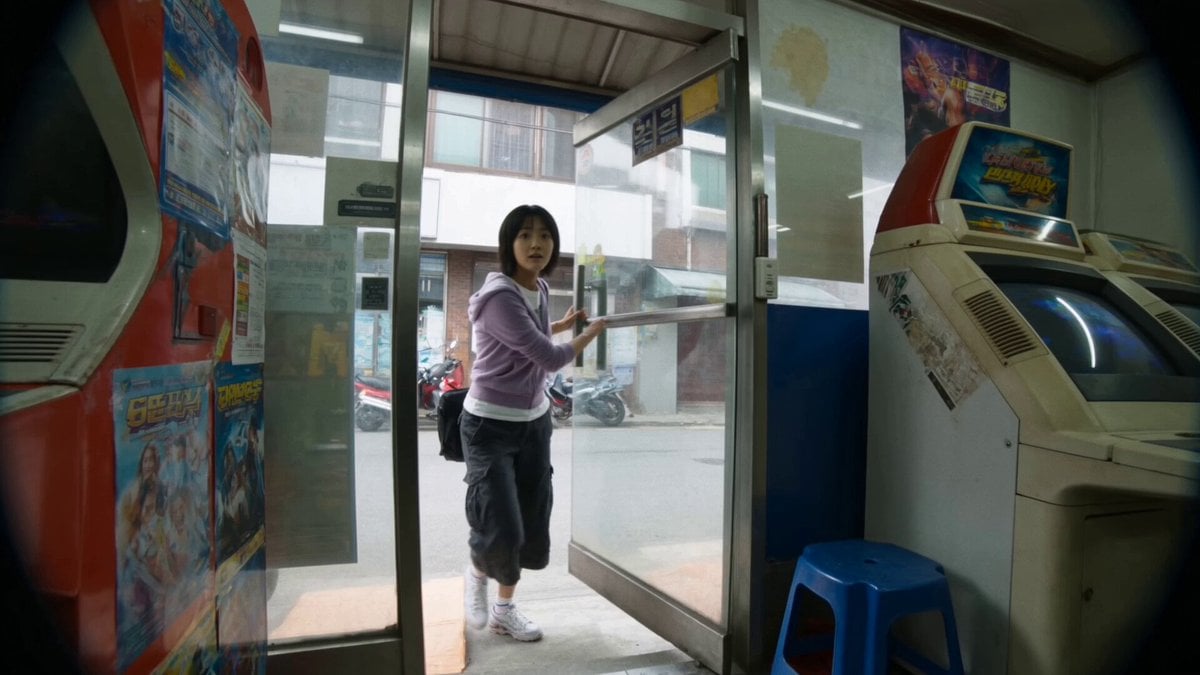
Vintage Korean Arcade MiniDV Vlog
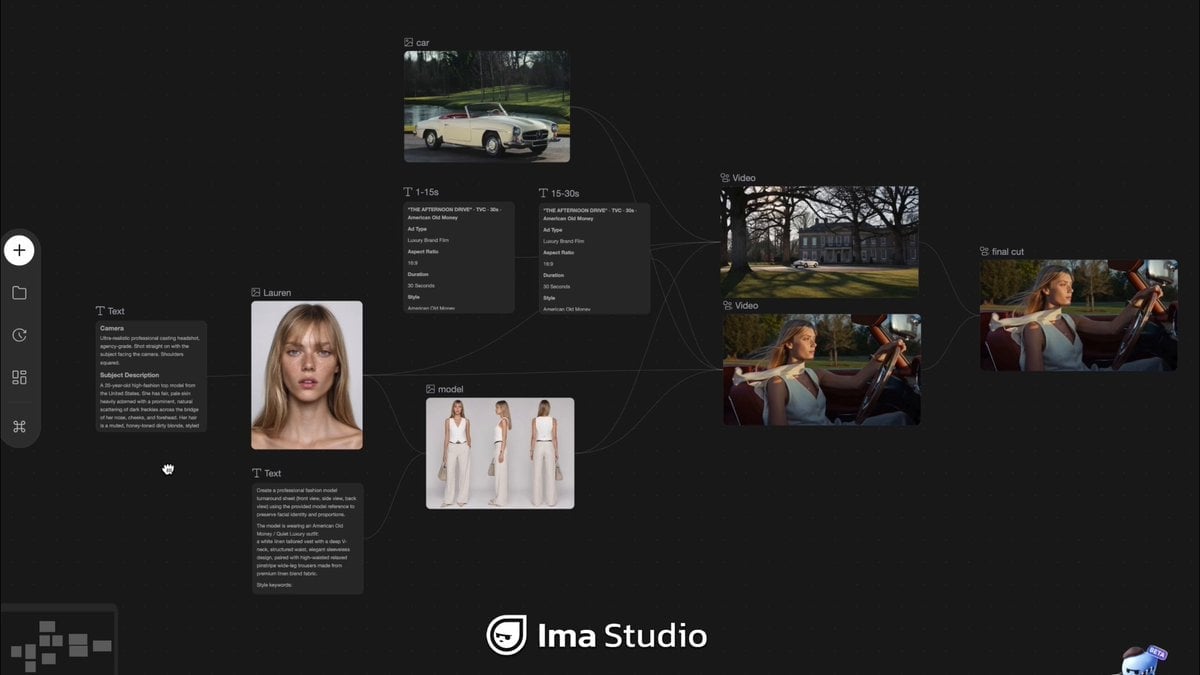
Mercedes 190 SL Luxury Ad
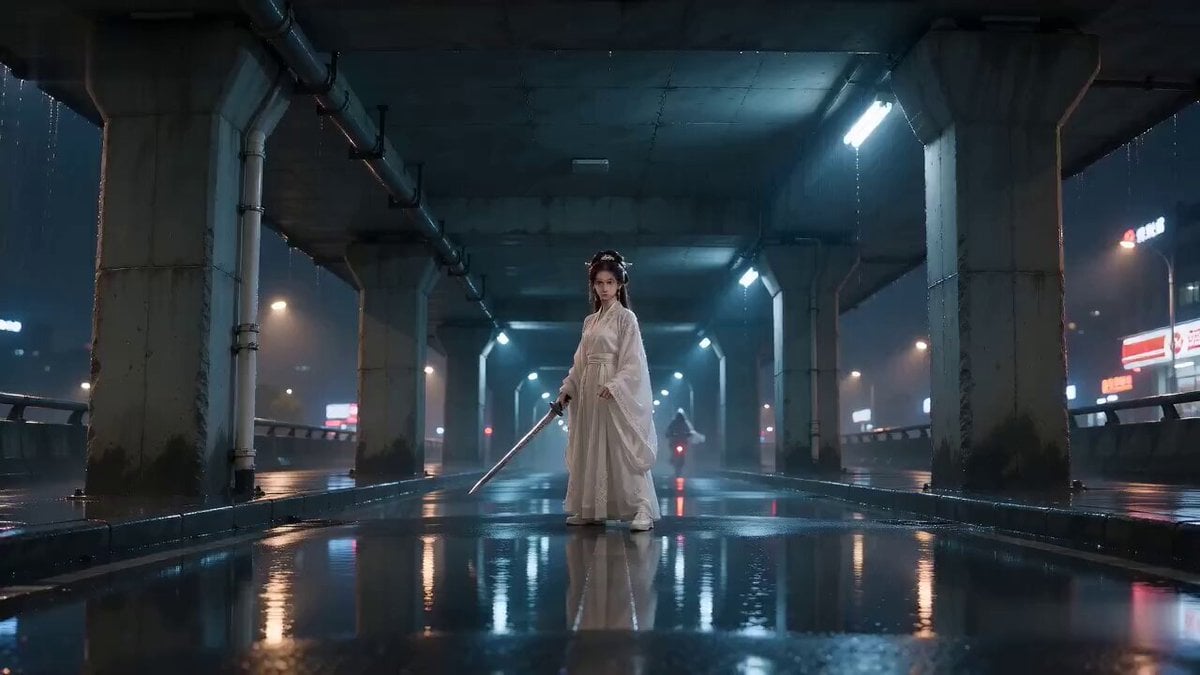
Rainy Night Supernatural Reverse Comedy Video Script
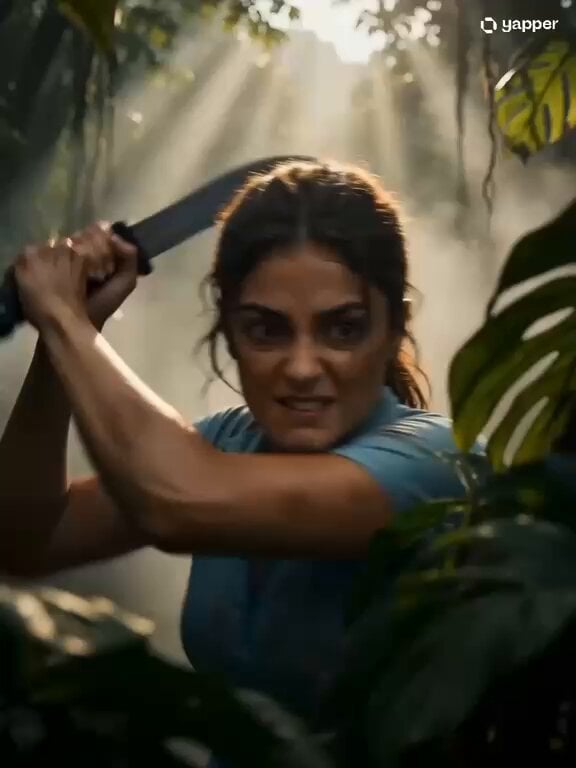
Amazon Civilization Discovery
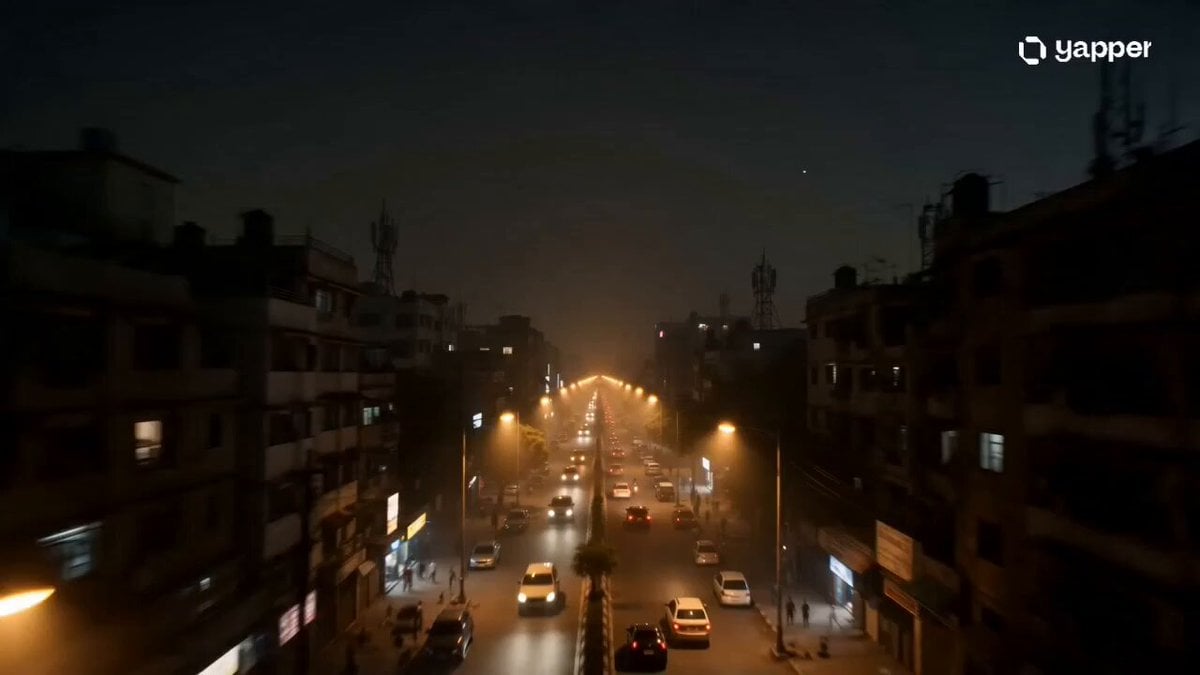
Futuristic South Asian City Transformation
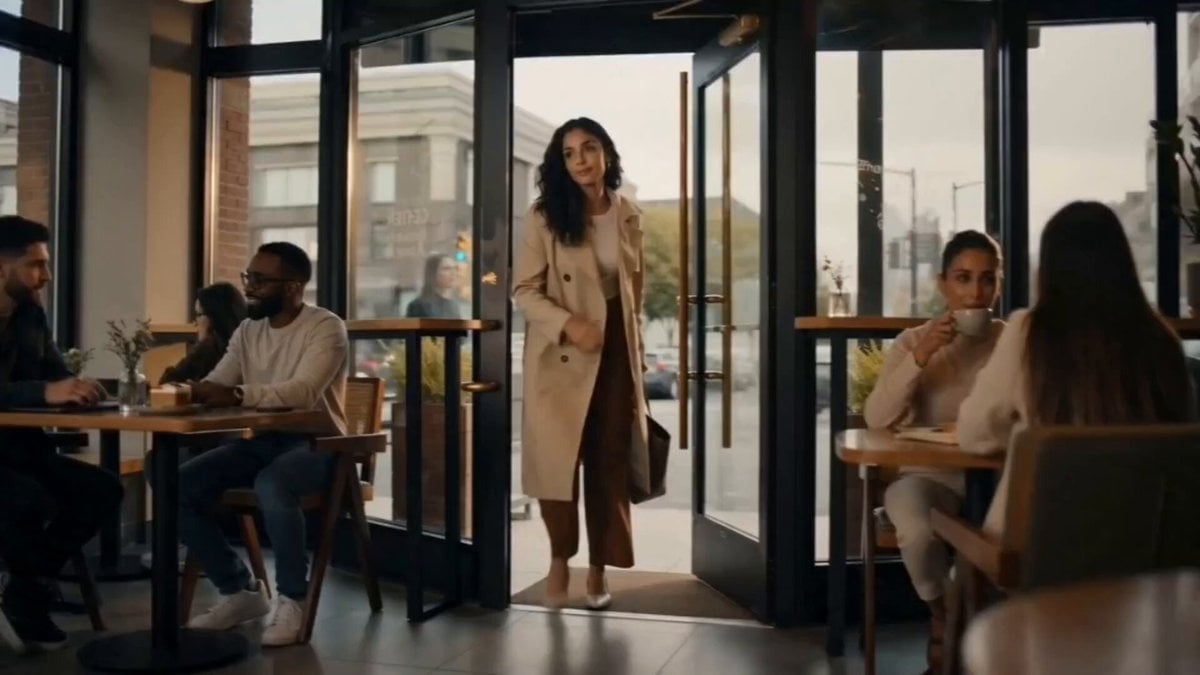
Cozy Luxury Cafe Commercial
More video prompts
Fresh picks from across the catalog.
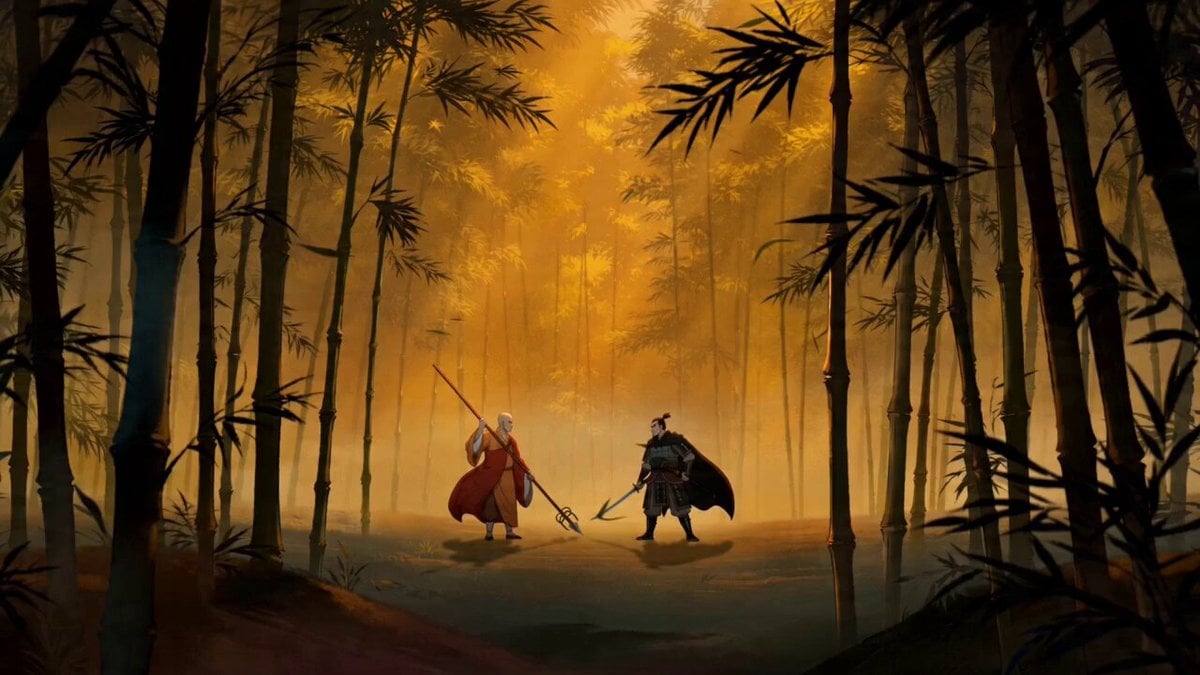
Chinese-Style Wuxia Battle Animation Prompt
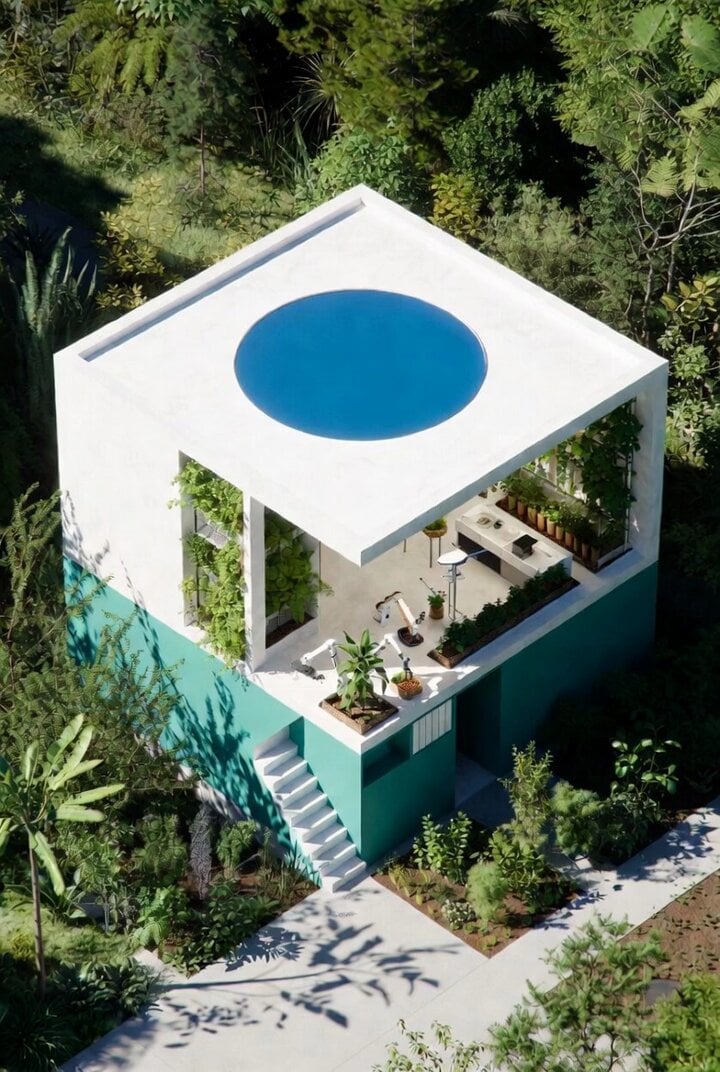
Futuristic Water Delivery Craft Video

Female warrior transformation combat

Realistic Cinematic Skydiving Scene

Bunny hopping and stamping hearts
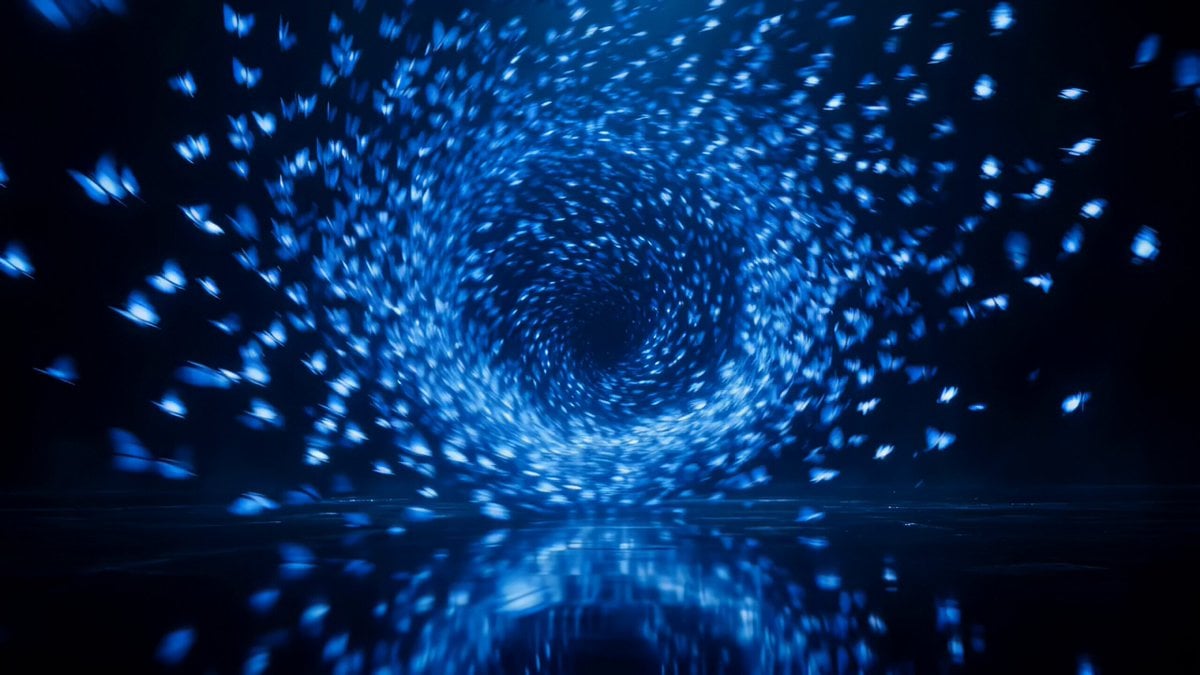
Butterfly Swarm to Ethereal Dancer Loop
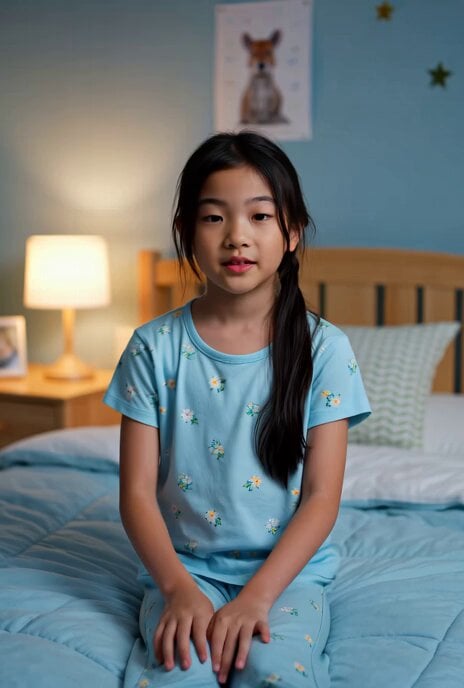
Out-of-Body Experience
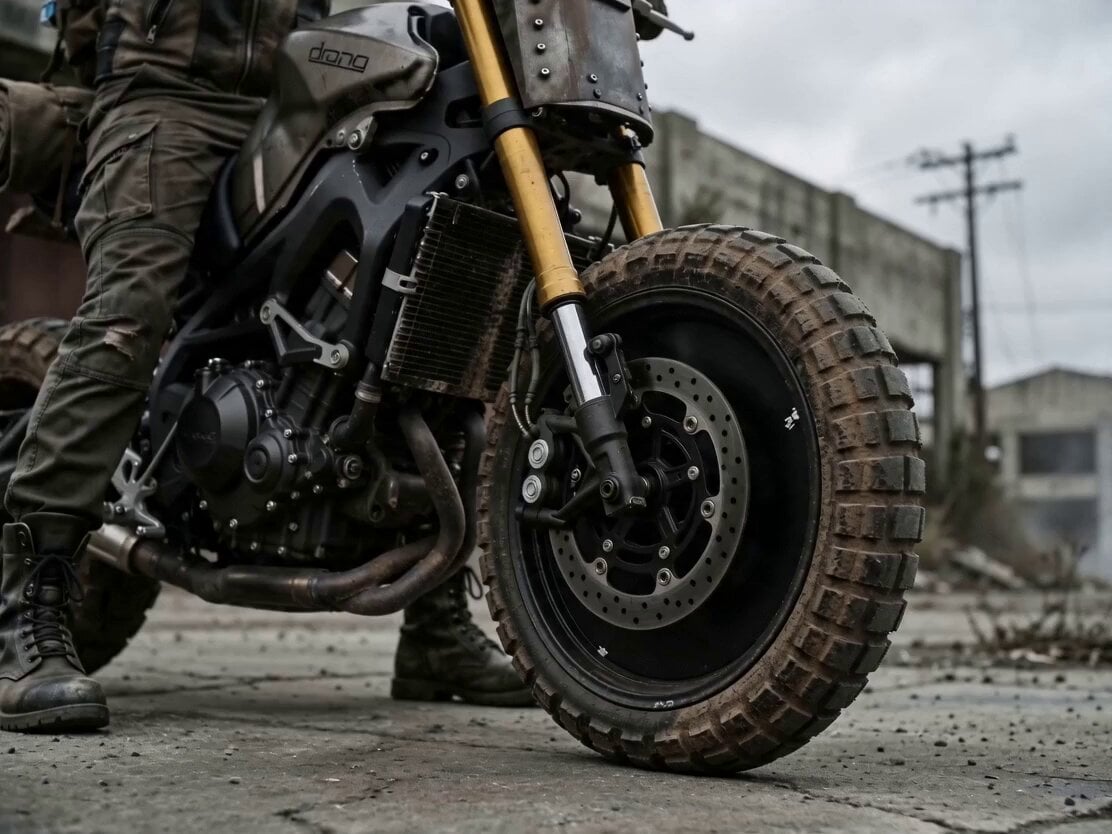
Cinematic Biker Sequence
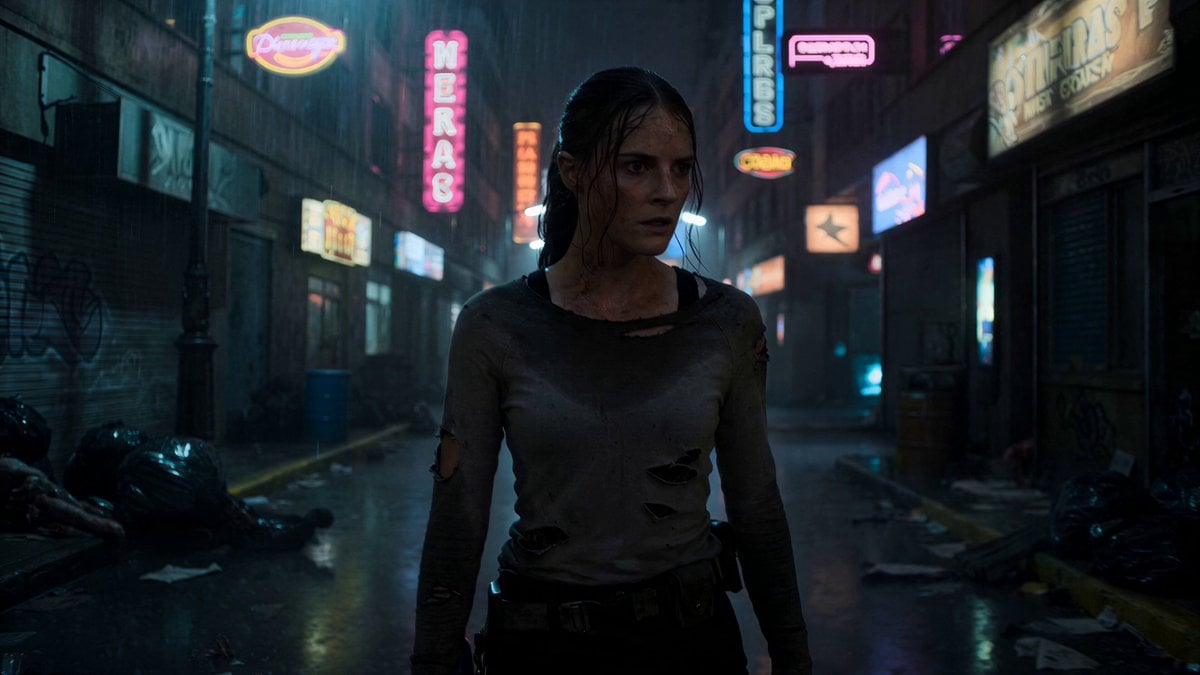
Neon Wasteland Scavenger Storm
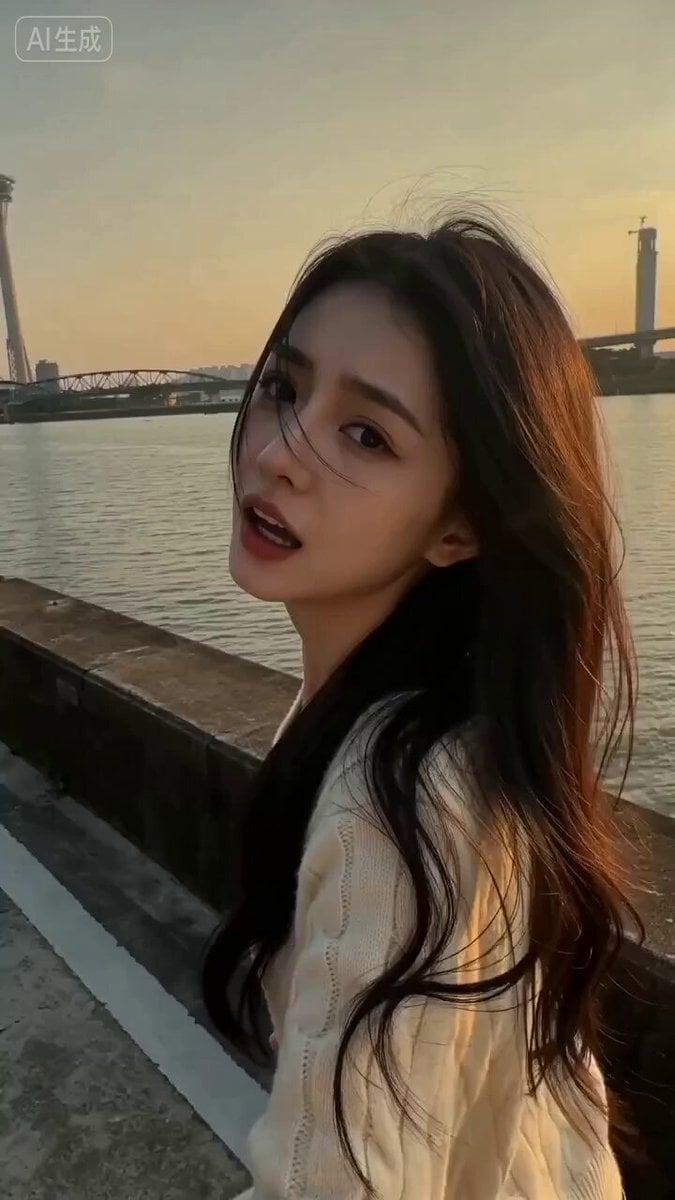
Taiwanese Girlfriend Series - Cinematic Scene
Browse template categories
Zombie TV Broadcast Transformation questions
How do I use the Zombie TV Broadcast Transformation template?
Add your photo if the template asks for one, edit the prompt if you like — the template's model and format are already selected — and press Generate. Your version opens in PicX Studio.
Can I customize the Zombie TV Broadcast Transformation template?
Yes. You can change the subject, setting, lighting, mood, format, and available model controls before creating your video.
Is the Zombie TV Broadcast Transformation template free?
Opening and editing this template is free. Generating uses credits, shown on the Generate button when you are signed in.
Which AI model should I use?
Start with Seedance 2.0, which is the model associated with this template. You can compare another compatible model for a different finish.
Looking for something else? Browse all templates.

Your photo, any look
Thousands of ready templates for every top image and video model, from one credit balance.