How do I use the Historical Photo Restoration template?
Edit the prompt in the box under the preview — the template's model and format are already selected — and press Generate. Your version appears right on this page.
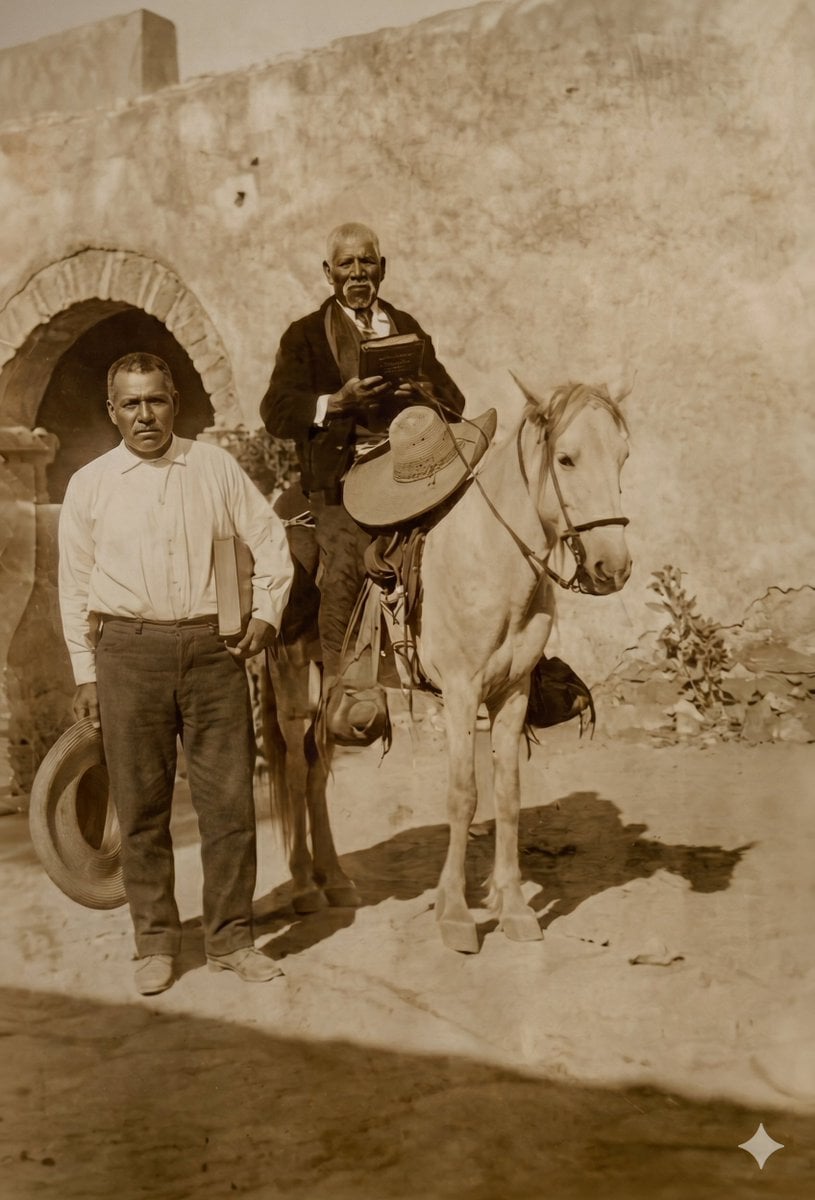
An instruction-based prompt for restoring old, damaged photographs into 4K quality while preserving the original colors and historical aesthetic.

Restore this {argument name="photo type" default="old damaged photo"} with {argument name="output quality" default="4K details and colours"}. Keep the colours authentic to the time period and aesthetic of the photo. Do not change any details from my original photo.
Restore this {argument name="photo type" default="old damaged photo"} with {argument name="output quality" default="4K details and colours"}. Keep the colours authentic to the time period and aesthetic of the photo. Do not change any details from my original photo.
Edit the prompt in the box under the preview — the template's model and format are already selected — and press Generate. Your version appears right on this page.
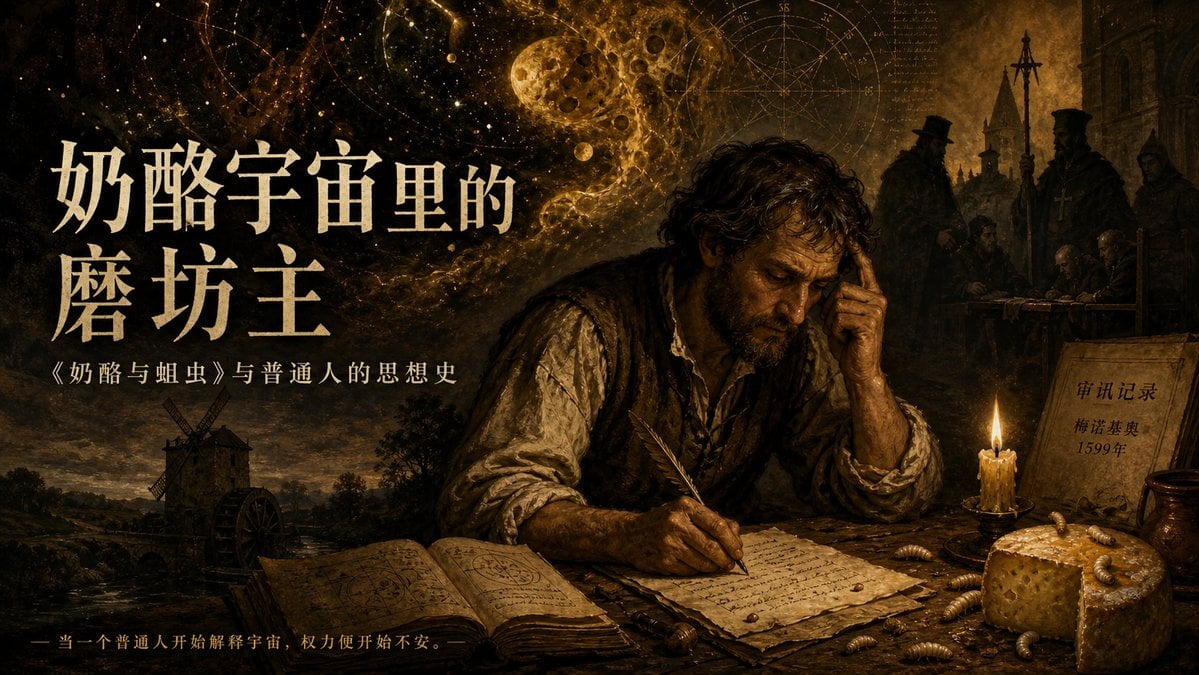
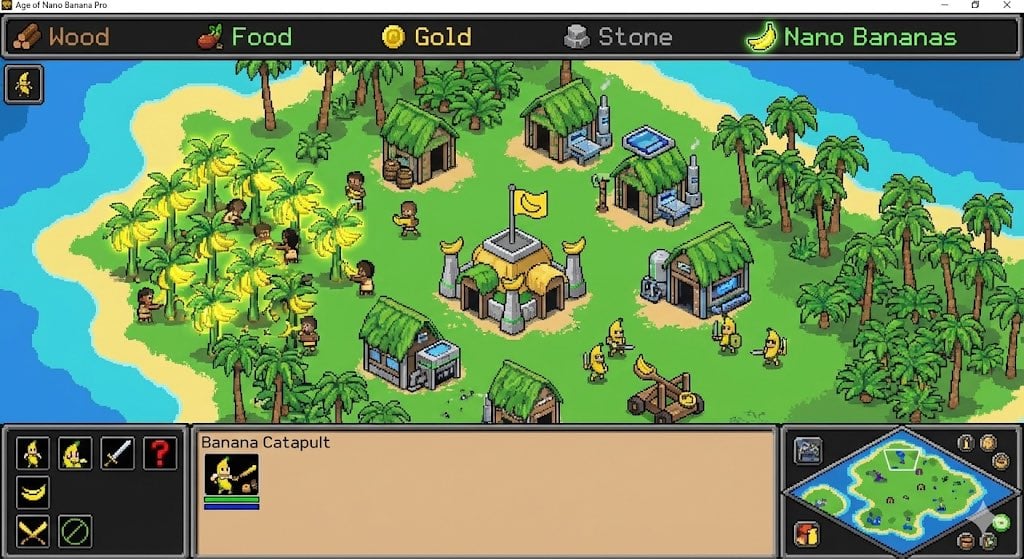
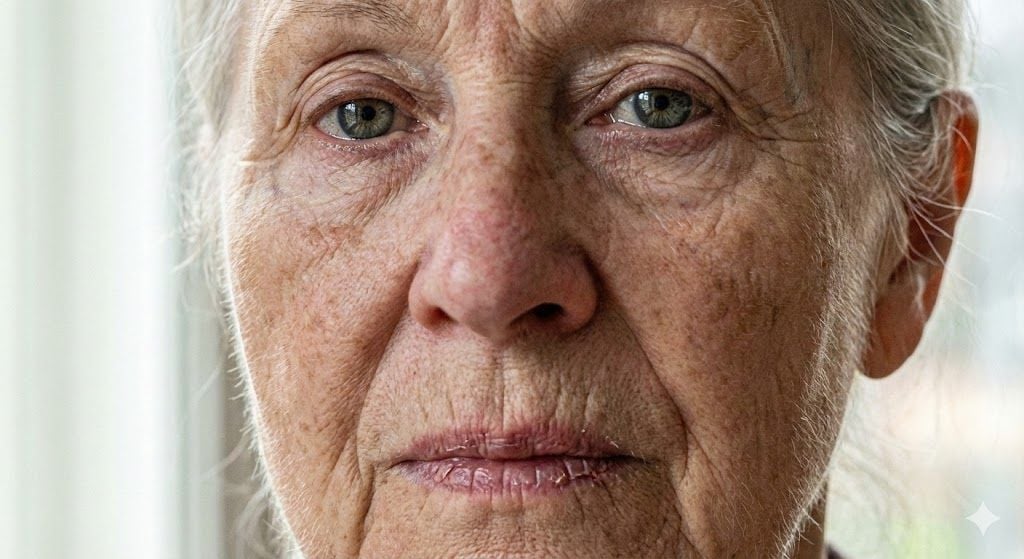
Yes. You can change the subject, setting, lighting, mood, format, and available model controls before creating your image.
Opening and editing this template is free. Generating uses credits, shown on the Generate button when you are signed in.
Start with Nano Banana 2, which is the model associated with this template. You can compare another compatible model for a different finish.
Follow a topic to a crawlable collection of related PicX Studio templates.