How do I use the Minimalist Personal Color Analysis Board template?
Choose the primary action to open PicX Studio with the available template settings. Review the model and format, personalize the creative direction, and generate when ready.
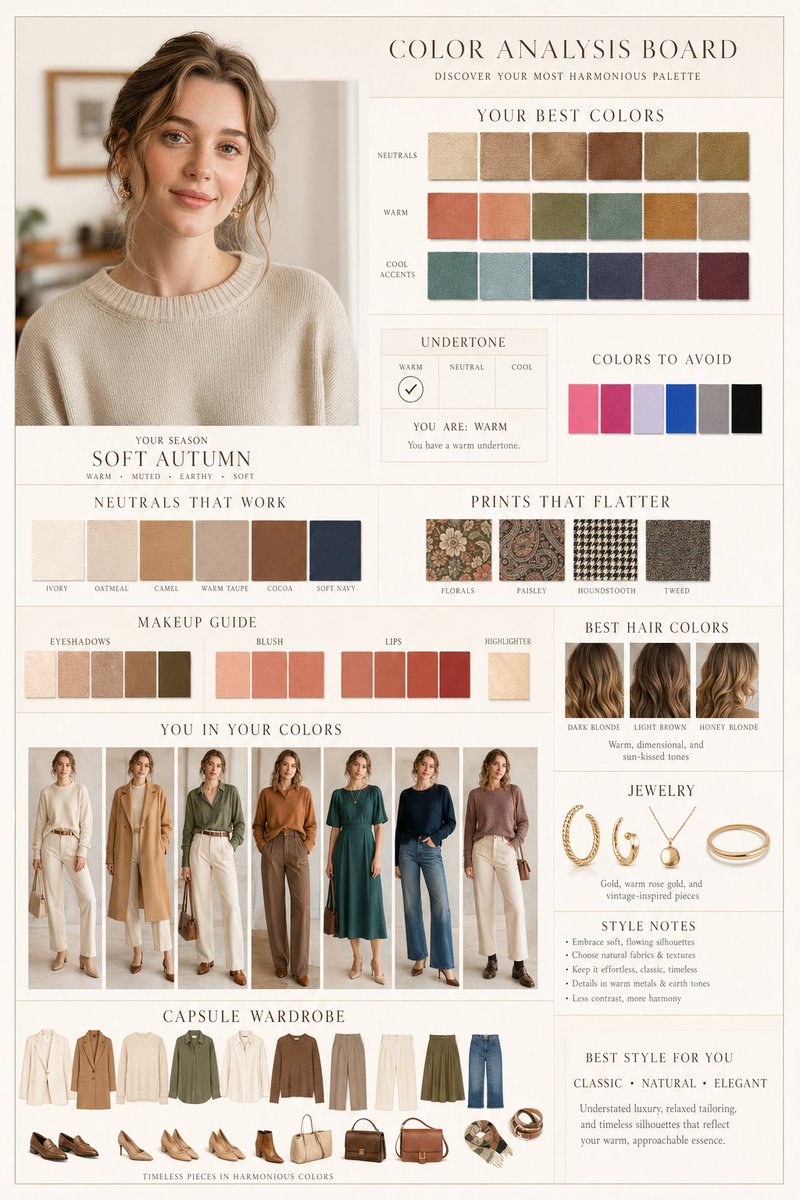
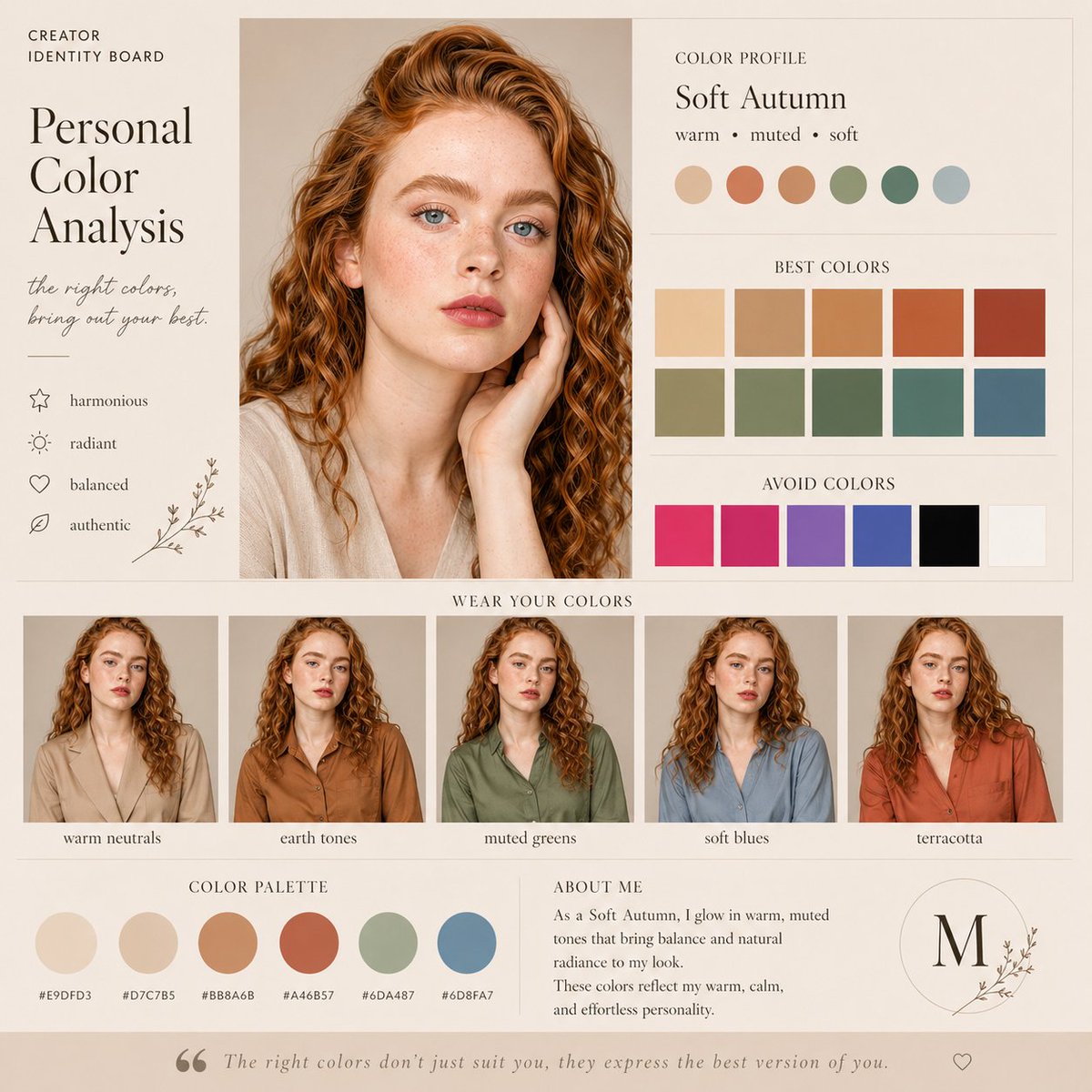
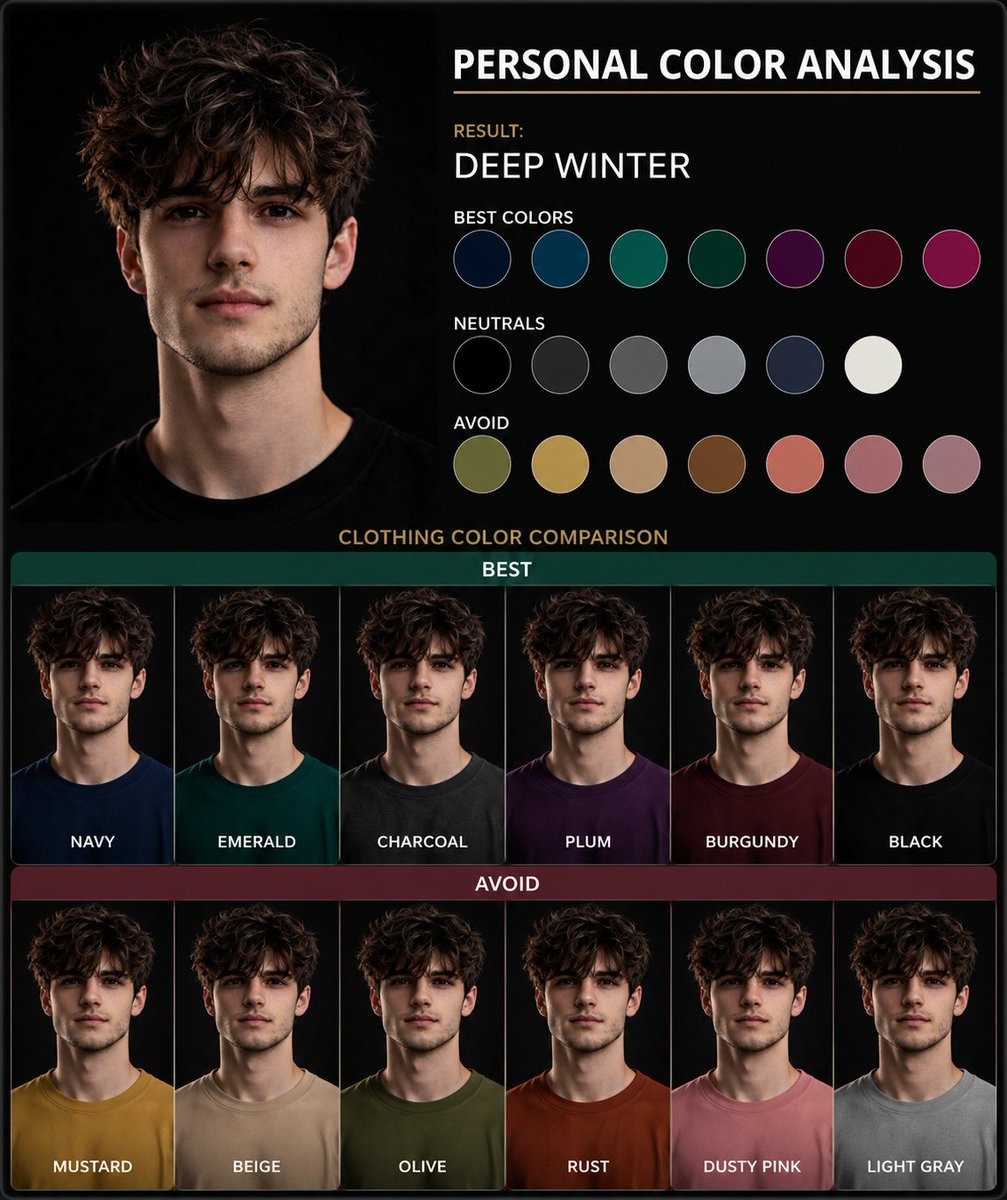
A clean and aesthetic prompt for designing a professional personal color analysis board with color swatches and style recommendations.
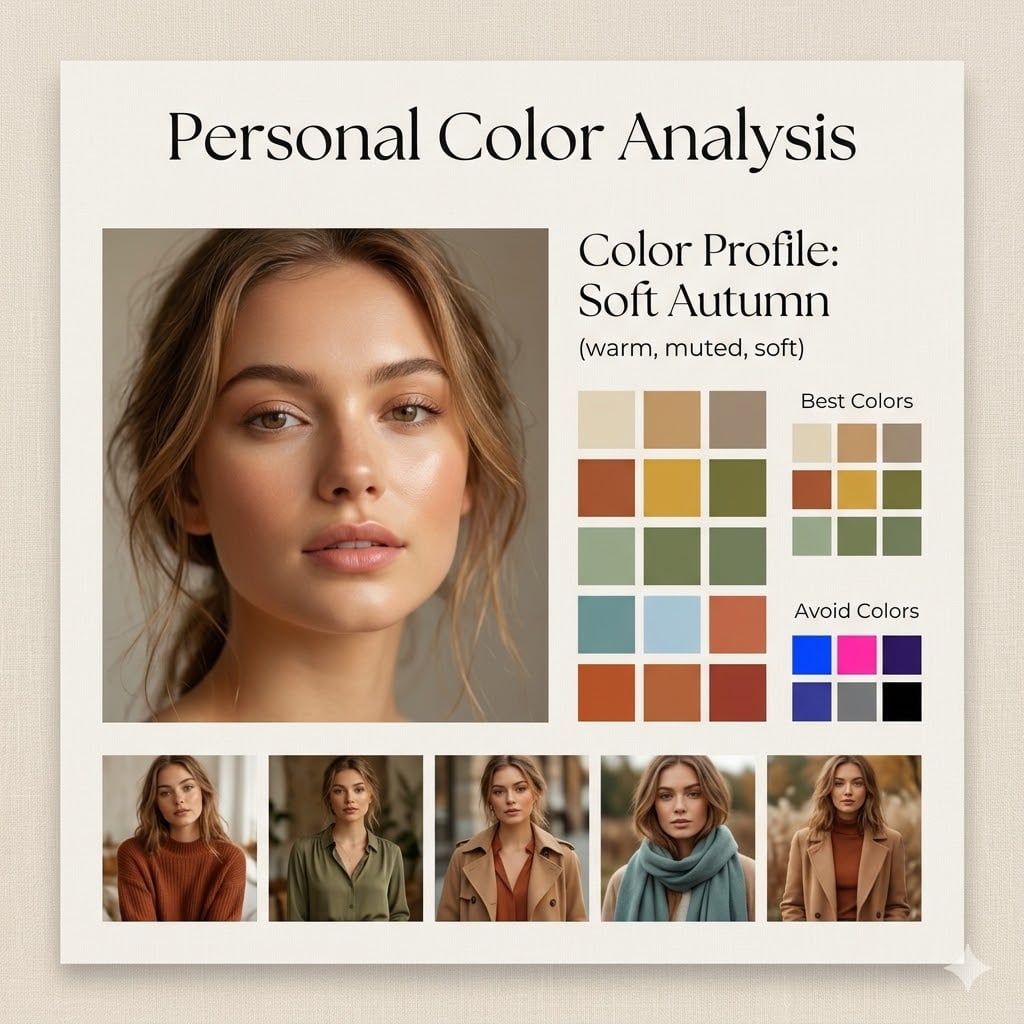
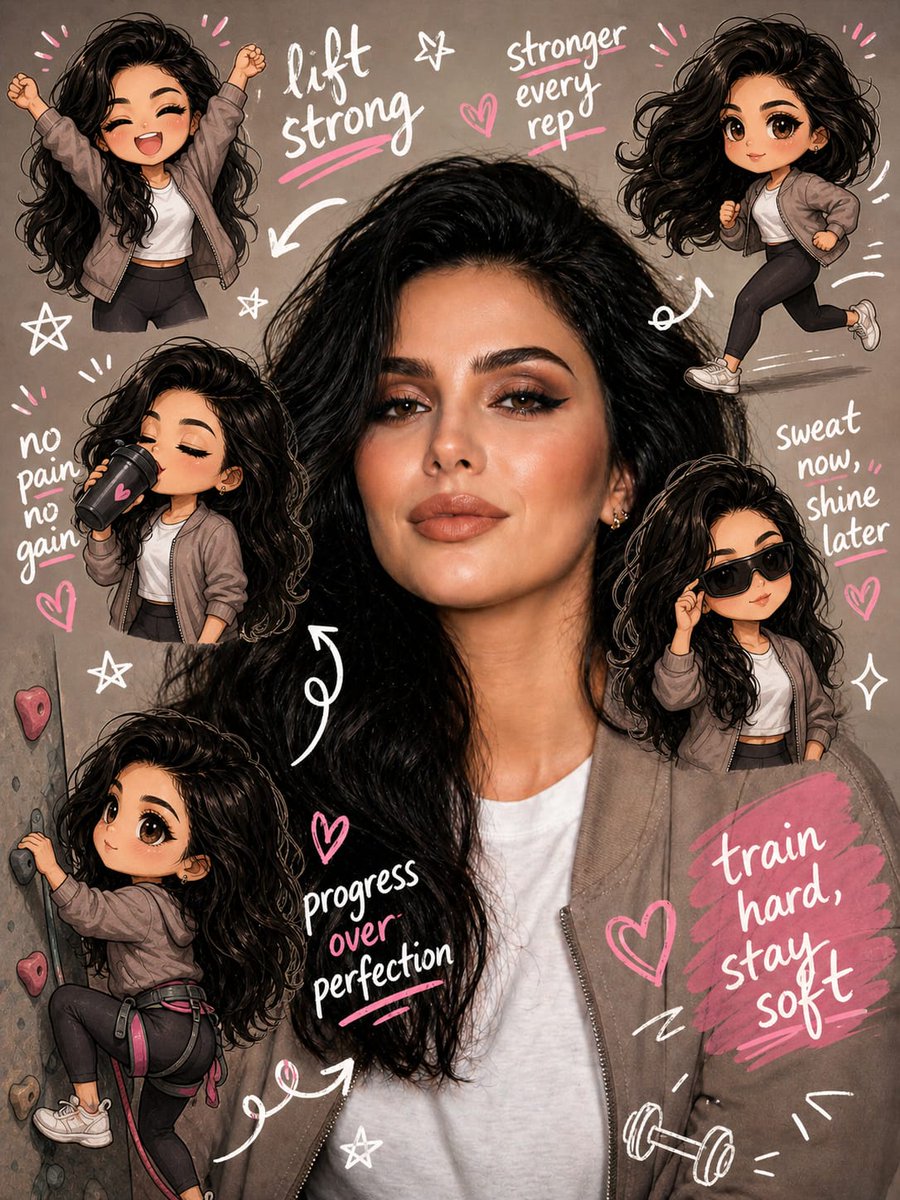
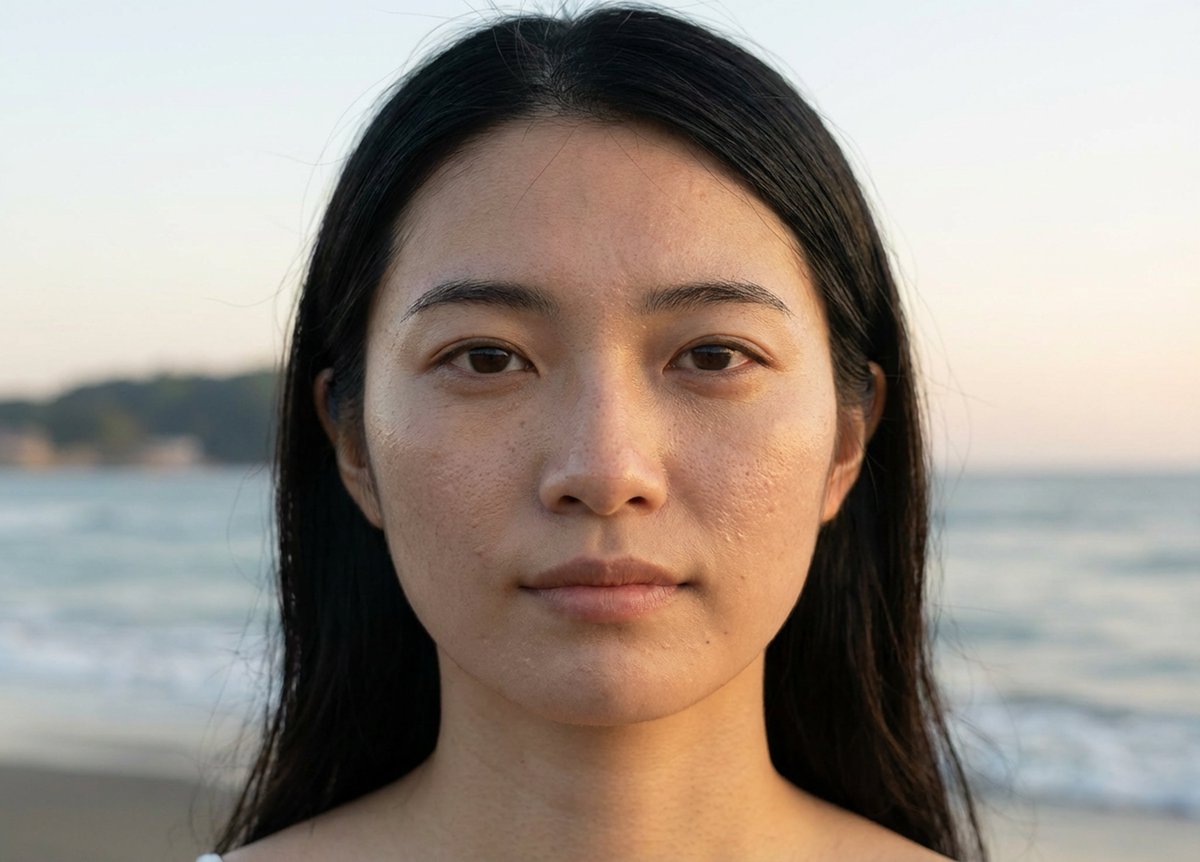
Design a square (1:1) aesthetic personal color analysis board in a {argument name="board style" default="soft beige, minimalist style"}. Place a close-up portrait of a {argument name="subject" default="young woman"} at the center, featuring natural makeup and soft daylight lighting. Add the title “Personal Color Analysis” above or beside the portrait. Include a section labeled “Color Profile: {argument name="color profile" default="Soft Autumn (warm, muted, soft)"}”. Display clean color swatches featuring warm neutrals, earthy tones, muted greens, soft blues, and terracotta shades. Add a “Best Colors” grid along with an “Avoid Colors” grid highlighting overly bright or cool tones. At the bottom, include 4–5 small images of the same woman styled in outfits that match the recommended palette. Use a refined combination of elegant serif and minimal sans-serif fonts, soft shadows, and a clean editorial layout. The background should be warm beige with a subtle texture. Ensure the design feels spacious, polished, and Instagram-ready.
Choose the primary action to open PicX Studio with the available template settings. Review the model and format, personalize the creative direction, and generate when ready.
Yes. You can change the subject, setting, lighting, mood, format, and available model controls before creating your image.
This template is free to open and customize. Generation usage is shown in PicX Studio before you create.
Start with Nano Banana 2, which is the model associated with this template. You can compare another compatible model for a different finish.
Follow a topic to a crawlable collection of related PicX Studio templates.