
Anime Model Comparison Dashboard
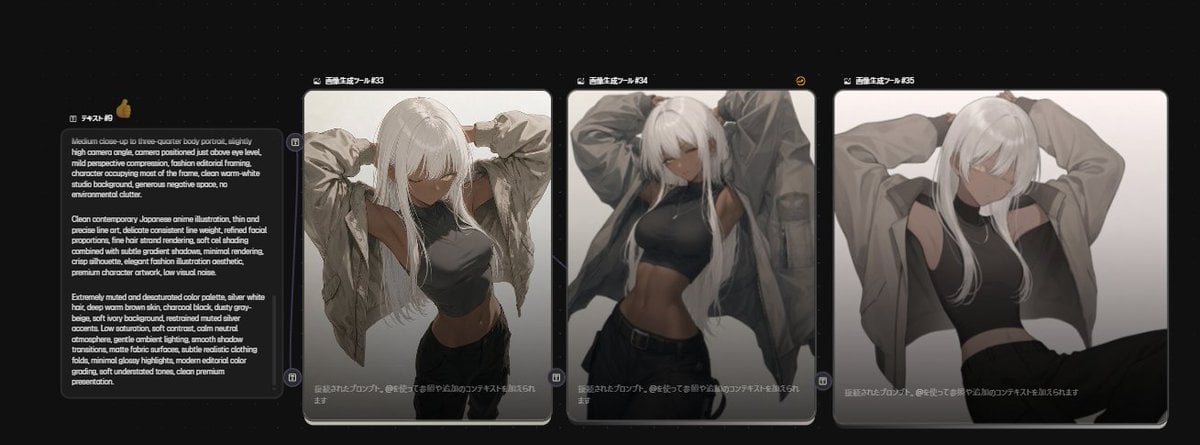
Generates a dark UI comparison board with one prompt card and three anime-style character result cards for model testing visuals.
- Prompt included
- Model and format preset
- Premium template
The prompt behind this image
Copy the exact prompt behind Anime Model Comparison Dashboard, or open it in the studio and make it yours.
Goal: Create a dark, widescreen AI image-comparison interface showing one source prompt card and three generated-image result cards, like a model comparison board for anime artwork. Canvas: 16:7 horizontal screenshot-style composition on a nearly black background with faint dotted grid texture and subtle diagonal guide lines. Use soft glow, rounded panels, thin gray borders, and a polished dark UI aesthetic. Layout: Arrange exactly 4 rounded rectangular cards in one row from left to right. Card 1 is a narrow text prompt card; cards 2, 3, and 4 are larger vertical image cards. Leave small gaps between cards. Each card has a tiny header line at the top with a small icon and Japanese-style label. Add a small gold coin-like icon near the top-right of the first card area. Add small circular connector or action buttons between the cards, aligned vertically around the middle and lower edge. Card count and contents: Exactly 4 visible cards total: 1 text card and 3 image result cards. The 3 image result cards each show the same subject rendered slightly differently: an anime-style young woman with very long silver-white hair and bangs covering her eyes, pale skin, a black cropped sleeveless top, black pants, and an oversized loose gray jacket lifted or held behind her shoulders. Her pose is confident and fashion-editorial, with arms raised behind her head or jacket spread open. The palette is desaturated gray, white, black, and muted beige. Text card: The first card header reads approximately “テキスト #9”. Inside it, include a dense English prompt in small white text describing an anime close-up portrait: “Medium close-up to three-quarter body portrait, slightly high camera angle, camera positioned just above eye level, mild perspective compression, fashion editorial framing, character occupying most of the frame, clean warm-white studio background...” Continue with compact prompt-style text about contemporary Japanese anime illustration, thin line art, refined facial proportions, silver white hair, high crop black top, oversized jacket, muted/desaturated colors, soft shadows, vignette, premium poster presentation. Keep text small but legible-looking, not necessarily fully readable. Image card headers: Label the three result cards with Japanese-style headers: “画像生成ツール #33”, “画像生成ツール #34”, and “画像生成ツール #35”. At the bottom of each image card, add a faint Japanese status caption in white/gray, similar to “認証されたプロンプト、@を使って参照や追加のコンテキストを加えられます”. Subject details: The character has {argument name="hair color" default="silver-white"} very long hair with heavy bangs obscuring the eyes, a slim athletic waist, pale skin, and a moody expression mostly hidden by hair. Outfit consists of exactly 4 main pieces: black cropped high-neck sleeveless top, oversized gray jacket, black low-rise pants, and dark belt. Render the images in a {argument name="anime style" default="dark fantasy contemporary anime"} look with clean yet painterly detail. Visual style: Dark fantasy anime fashion, muted monochrome palette, soft studio lighting, editorial composition, slight vignette, high contrast between white hair and black clothing, crisp UI screenshot presentation. The first generated image should look sharp and classic anime, the second slightly more painterly and shadowed, the third cleaner and more minimal with a bright pale background. Constraints: Show exactly 4 cards and exactly 3 anime result images. Do not add extra characters, logos, watermarks, browser chrome, or unrelated UI. Keep the overall image as a comparison dashboard rather than a single illustration.
How to use Anime Model Comparison Dashboard in 3 steps
- 1Upload ImagePNG, JPG or paste
Add your photo
Upload the photo the template builds on. The prompt, model and format are already set.
- 2…a portrait of your subject in softgolden-hour light, 85mm…
Personalize
Edit the subject and creative details for your destination.
- 3Generate
Generate
Press Generate — your image is created in PicX Studio, so you can compare it with the original and refine one variable at a time.
More like this
Templates with the same subject, style or setup. Open one to see its prompt.

Make it yours
Anime Model Comparison Dashboard works as-is. These are the safest ways to change it without losing the look.
Change one field
Copy a single group, rewrite it, and generate again so you can see what that field is doing.
Keep the frame, change the subject
Hold the composition and light of Anime Model Comparison Dashboard, then swap wardrobe, props or the person for a new take.
| If the result… | Why | Fix |
|---|---|---|
| The result drifts from the preview | Too many fields changed at once. | Reuse Anime Model Comparison Dashboard as-is first, then change one group — subject, light, or setting. |
| The model over-stylizes the scene | The prose prompt leaves finish and camera underspecified. | Add one camera or lighting sentence and stay on GPT Image 2. |
More GPT Image 2 templates
Other prompts made for GPT Image 2.

Six VTuber Japanese Logo Sheet

Realistic Portrait of Woman and Deer

The Vista Modular Condo Poster

2.5D Anime Art Board

Isometric Productivity Desk Scene

New York Double Exposure Poster

Four-Panel AI Landscape Comparison

Japanese Tatami Lifestyle Magazine Cover

NESCAFÉ Coffee Map Poster

Brutalist Cogito Chinese Typography Poster
More image prompts
Fresh picks from across the catalog.
Dynamic K-Pop Idol Running in a Flower Field
Ultra-Photorealistic Portrait of Iggy Azalea in an Anime Bedroom
Impasto Body Paint Studio Portrait with Extreme Bokeh
Lottery Merchandise Page Generator
Nano Banana 2 on Gemini
Romantic Sunset Album Cover
Complex Multi-Instruction Image Generation
Candid Portrait in Sunlit Minimalist Apartment
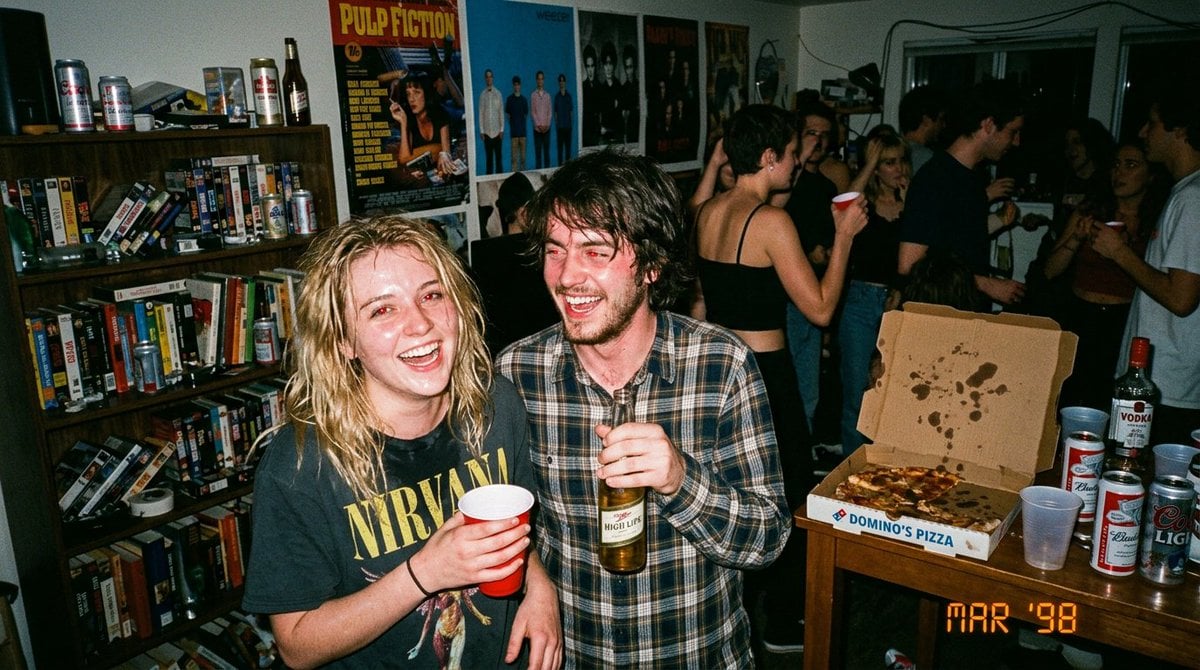
1990s Disposable Camera Party Photo Prompt
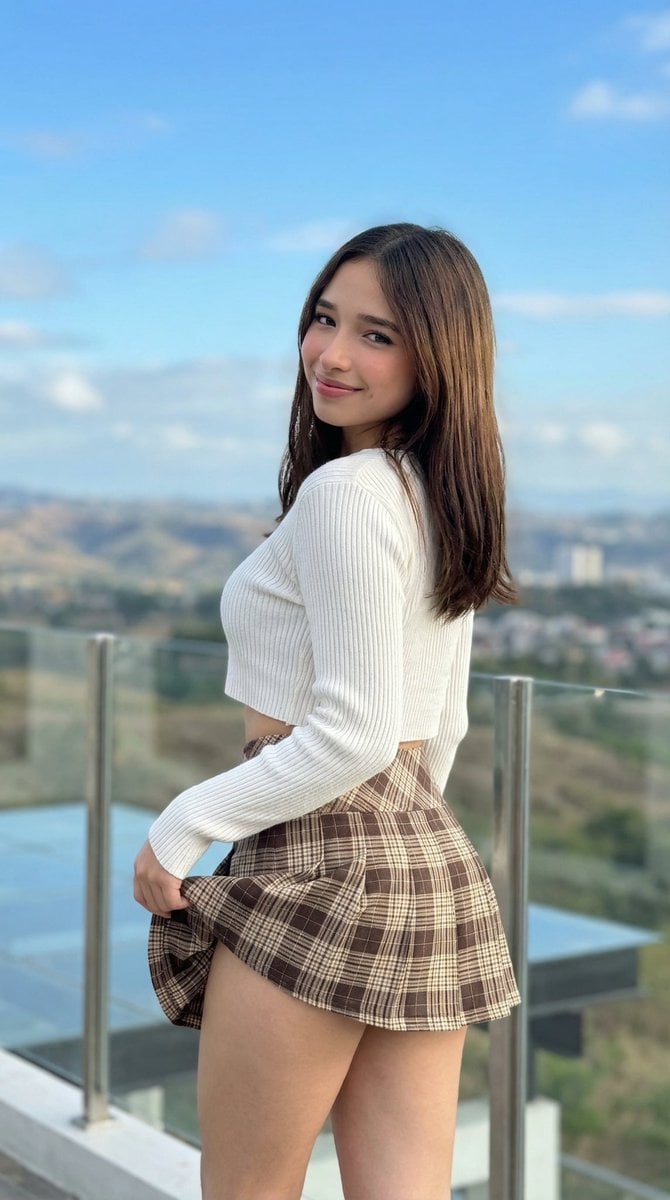
iPhone Pro Environmental Portrait on Terrace
Browse template categories
Anime Model Comparison Dashboard questions
How do I use the Anime Model Comparison Dashboard template?
Add your photo if the template asks for one, edit the prompt if you like — the template's model and format are already selected — and press Generate. Your version opens in PicX Studio.
Can I customize the Anime Model Comparison Dashboard template?
Yes. You can change the subject, setting, lighting, mood, format, and available model controls before creating your image.
Is the Anime Model Comparison Dashboard template free?
Opening and editing this template is free. Generating uses credits, shown on the Generate button when you are signed in.
Which AI model should I use?
Start with GPT Image 2, which is the model associated with this template. You can compare another compatible model for a different finish.
Looking for something else? Browse all templates.

Your photo, any look
Thousands of ready templates for every top image and video model, from one credit balance.