
Muse Japanese Infographic
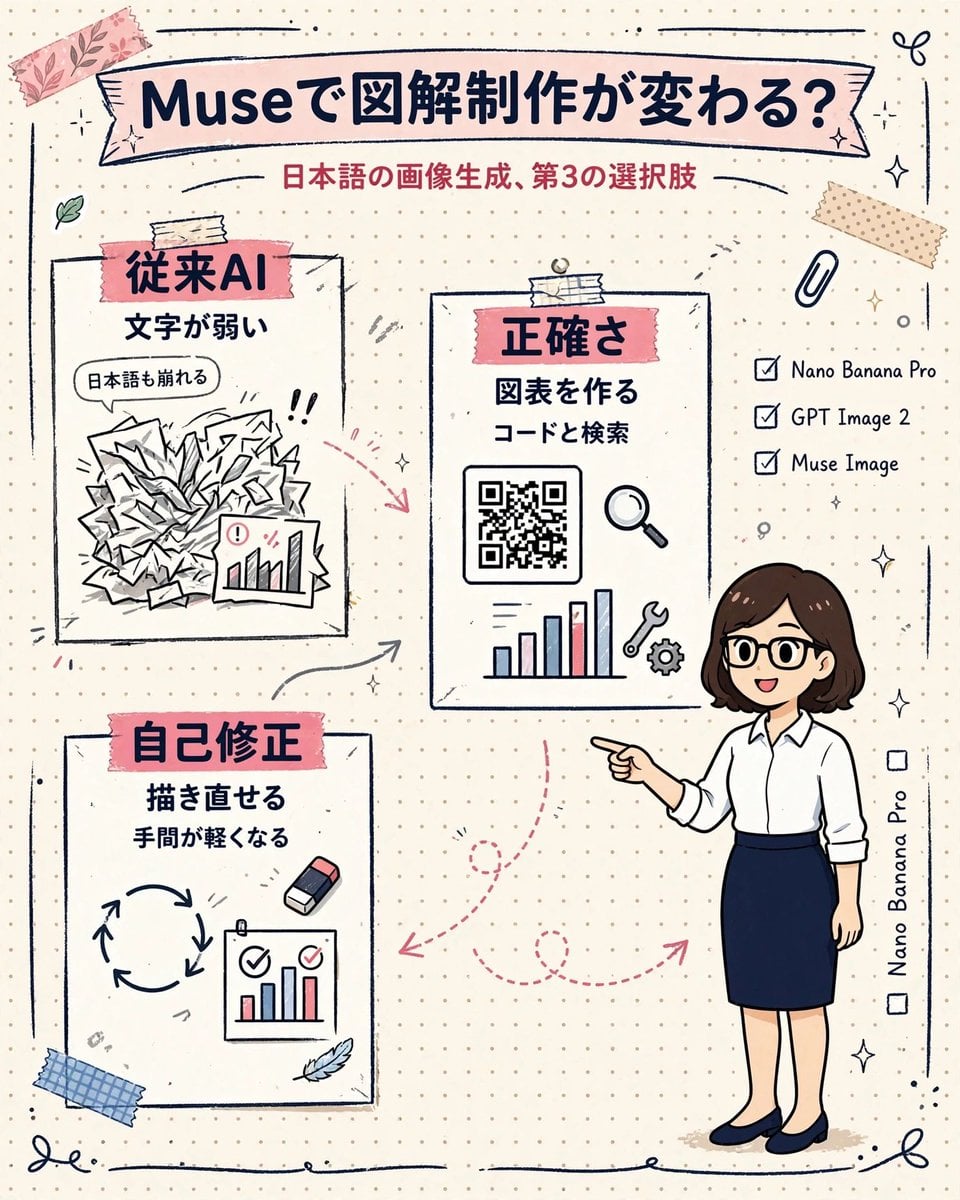
A hand-drawn Japanese notebook-style infographic explaining Muse Image as a third option for Japanese image generation.
- Prompt included
- Model and format preset
- Premium template
The prompt behind this image
Copy the exact prompt behind Muse Japanese Infographic, or open it in the studio and make it yours.
Goal: Create a vertical hand-drawn Japanese infographic on dotted notebook paper explaining that {argument name="AI model name" default="Muse"} changes illustrated infographic creation, positioning it as a third option for Japanese image generation. Canvas: Portrait 4:5 layout, warm off-white cream paper background with a subtle dotted grid. Use a cute stationery scrapbook style with sketchy navy ink outlines, pink masking tape, beige tape, tiny sparkles, leaves, paperclip doodles, arrows, and hand-drawn border lines. Color palette: navy blue, dusty pink, cream, soft gray, and small red/blue chart accents. Top header: A wide pale pink ribbon banner across the top with bold dark navy Japanese headline text: 「{argument name="headline text" default="Museで図解制作が変わる?"}」. Under it, centered red subtitle: 「{argument name="subtitle text" default="日本語の画像生成、第3の選択肢"}」. Main layout: Three white sketch-outlined content cards on the left and center, plus an illustrated presenter character on the right. Use dashed pink arrows to connect the cards and suggest a workflow. Card count: Exactly 3 cards. 1. Upper-left card: Pink tape label with bold navy text 「従来AI」. Below, two lines: 「文字が弱い」 and a speech bubble 「日本語も崩れる」. Illustration: a messy pile of crumpled papers with chaotic scribbles, exclamation marks, and a small chart sheet with an alert icon. 2. Center card: Pink tape label 「正確さ」. Below, two lines: 「図表を作る」 and 「コードと検索」. Illustration: a QR-code-like square, a magnifying glass, a bar chart with red and blue bars, a wrench icon, and a gear icon. 3. Lower-left card: Pink tape label 「自己修正」. Below, two lines: 「描き直せる」 and 「手間が軽くなる」. Illustration: circular refresh arrows, a small eraser, and a mini chart sheet with check marks. Right side details: Add a checklist with exactly 3 checked items, written in English: “Nano Banana Pro”, “GPT Image 2”, and “Muse Image”. Add a vertical side note near the lower right reading “Nano Banana Pro” with two small empty checkboxes beside the margin. Presenter character: On the right, draw a friendly Japanese businesswoman in simple anime/chibi infographic style, about one-third of the image height. She has {argument name="character hair" default="shoulder-length dark brown bob hair"}, black round glasses, a white button-up blouse with sleeves rolled up, a navy pencil skirt, and navy flats. She smiles and points left toward the central card. Decorative element count: Include exactly 2 pieces of tape at the top corners, exactly 1 paperclip near the upper right, exactly 1 blue tape strip near the lower left, several small sparkles and doodle curls around the edges, and thin hand-drawn border strokes at the top and bottom. Visual style: Clean but handmade, Japanese social-media explainer graphic, legible hand-lettered text, thick marker-like navy outlines, slight imperfections, soft pastel fills, no photorealism. Constraints: Keep all Japanese text accurate and readable, avoid extra headings or extra cards, maintain the exact three-card structure and the exact three-item checklist, no watermark, no realistic photography.
How to use Muse Japanese Infographic in 3 steps
- 1Upload ImagePNG, JPG or paste
Add your photo
Upload the photo the template builds on. The prompt, model and format are already set.
- 2…a portrait of your subject in softgolden-hour light, 85mm…
Personalize
Edit the subject and creative details for your destination.
- 3Generate
Generate
Press Generate — your image is created in PicX Studio, so you can compare it with the original and refine one variable at a time.
More like this
Templates with the same subject, style or setup. Open one to see its prompt.
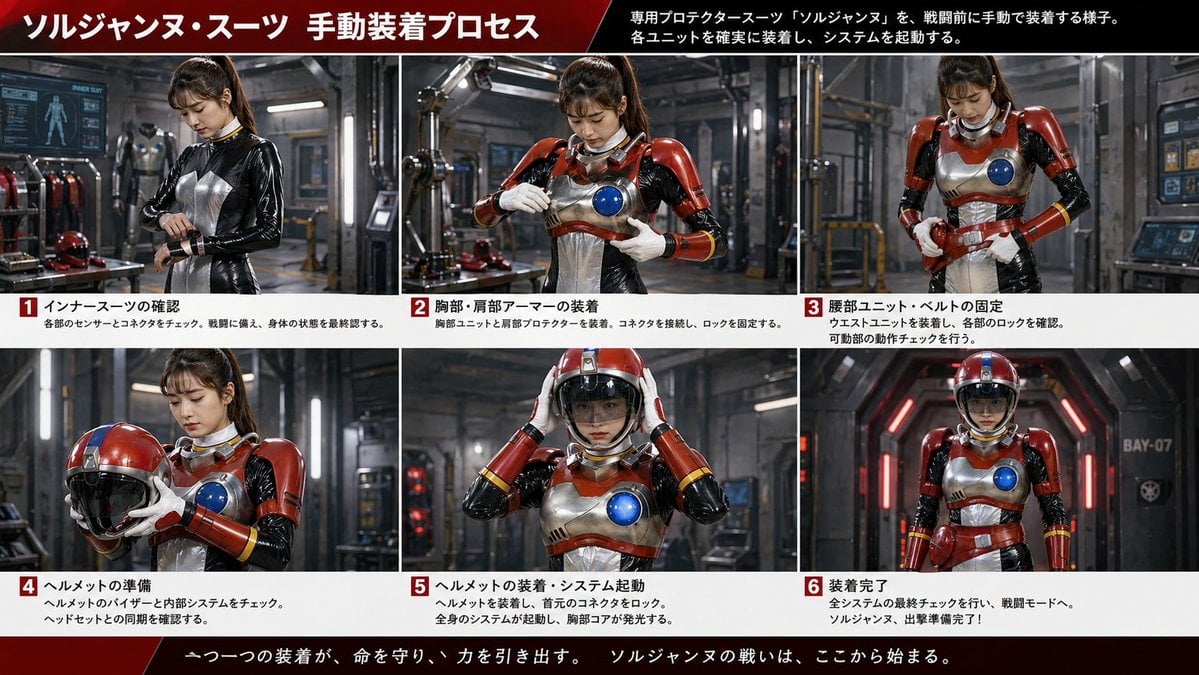
Gpt2 Infographic Edu Visual Japanese Sci Fi Suit Up Process Board

Minecraft Japanese Research Lab Exploration

Japan Travel Brochure Poster

Japanese Architectural Concrete Studio Fashion Campaign

Japanese Minimalist Concrete Studio Fashion Editorial

Blue Backdrop Luxury Fashion Portrait Campaign

Isometric Process Educational Diorama

Isometric Vehicle Teardown Infographic Template

Gpt2 E Commerce Main Image Earbuds E Commerce Infographic
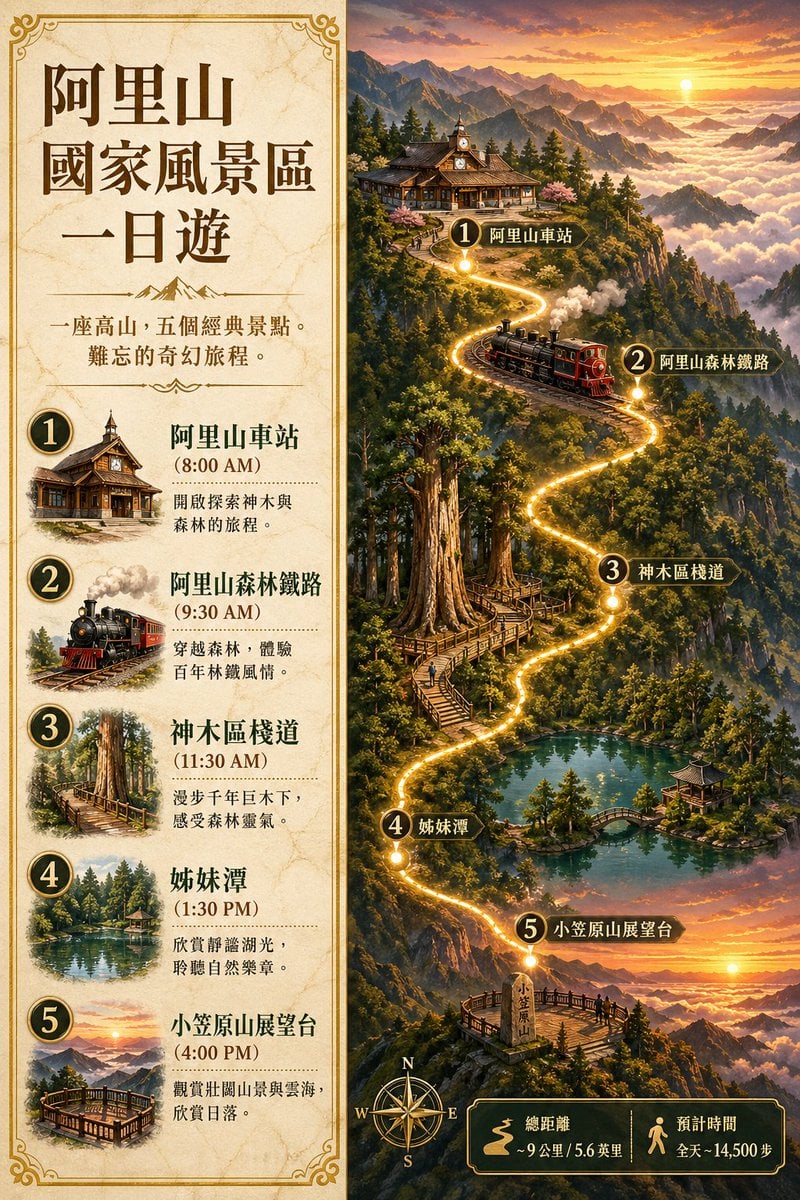
Gpt2 Infographic Edu Visual Alishan One Day Travel Poster

Gpt2 Infographic Edu Visual Ethnographic Plate for Tibetan Ceremonial Hat
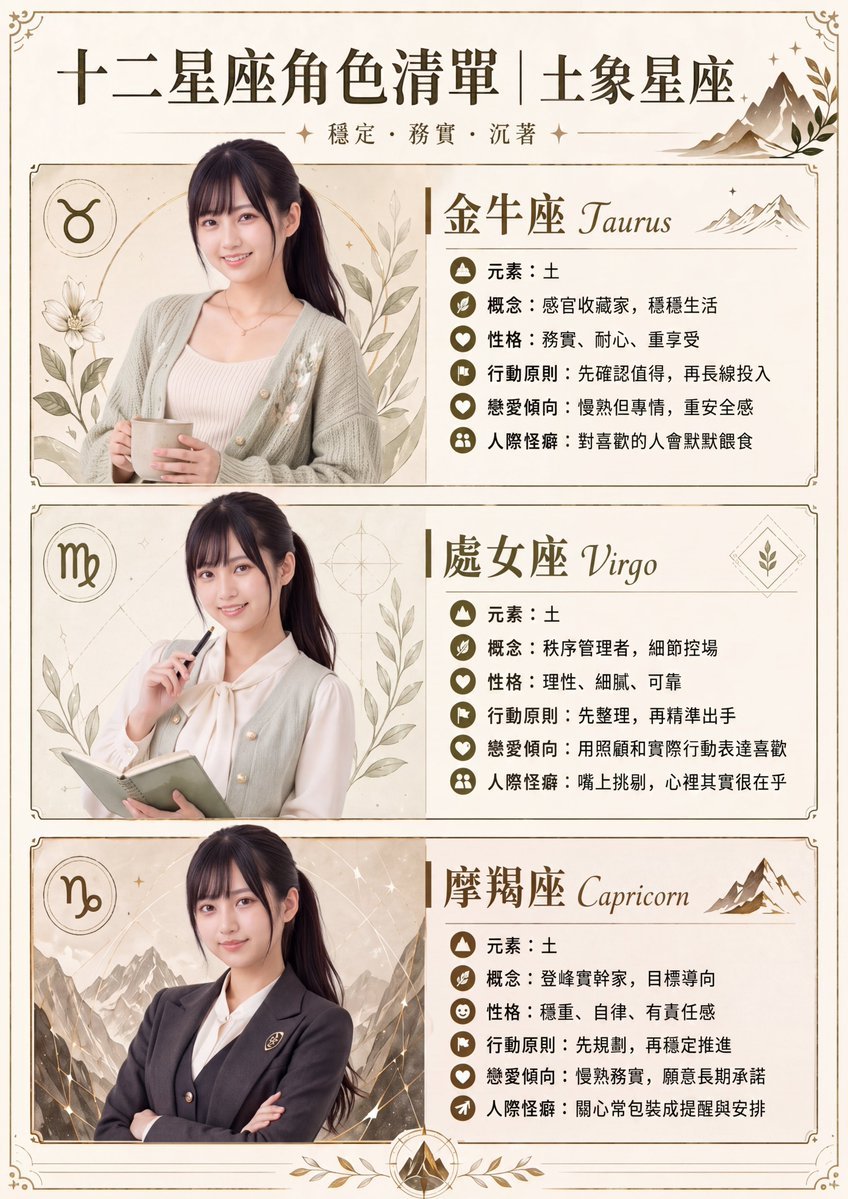
Gpt2 Infographic Edu Visual Earth Signs Zodiac Character Poster
Make it yours
Muse Japanese Infographic works as-is. These are the safest ways to change it without losing the look.
Change one field
Copy a single group, rewrite it, and generate again so you can see what that field is doing.
Keep the frame, change the subject
Hold the composition and light of Muse Japanese Infographic, then swap wardrobe, props or the person for a new take.
| If the result… | Why | Fix |
|---|---|---|
| The result drifts from the preview | Too many fields changed at once. | Reuse Muse Japanese Infographic as-is first, then change one group — subject, light, or setting. |
| The model over-stylizes the scene | The prose prompt leaves finish and camera underspecified. | Add one camera or lighting sentence and stay on GPT Image 2. |
More GPT Image 2 templates
Other prompts made for GPT Image 2.

Six VTuber Japanese Logo Sheet

Realistic Portrait of Woman and Deer

The Vista Modular Condo Poster

AI Model Routing Comparison Infographic

2.5D Anime Art Board

Isometric Productivity Desk Scene

New York Double Exposure Poster

Four-Panel AI Landscape Comparison

Japanese Tatami Lifestyle Magazine Cover

NESCAFÉ Coffee Map Poster
More image prompts
Fresh picks from across the catalog.

Cinematic Gourmet Burger Explosion Prompt (Code Style)
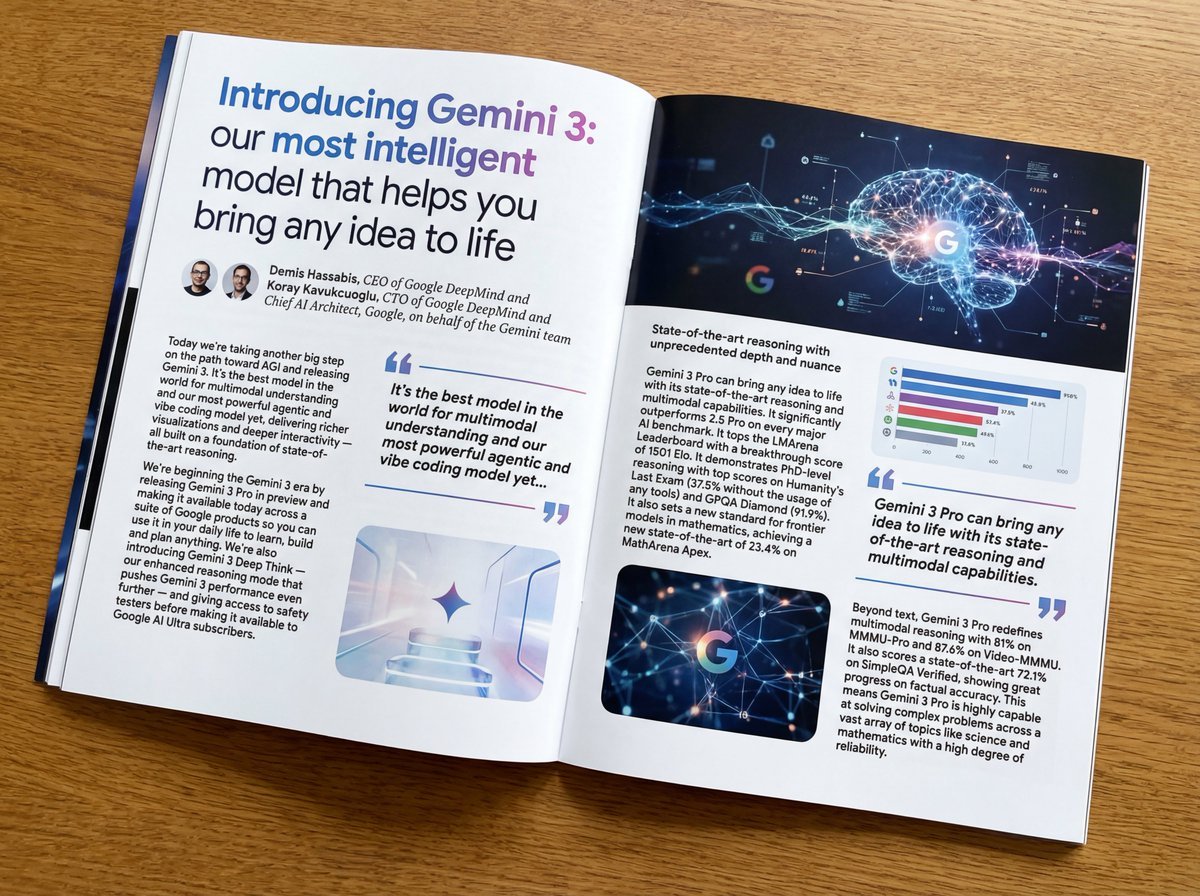
Magazine-style photo containing given article text

Soft Girl Editorial Fashion Portrait (JSON)
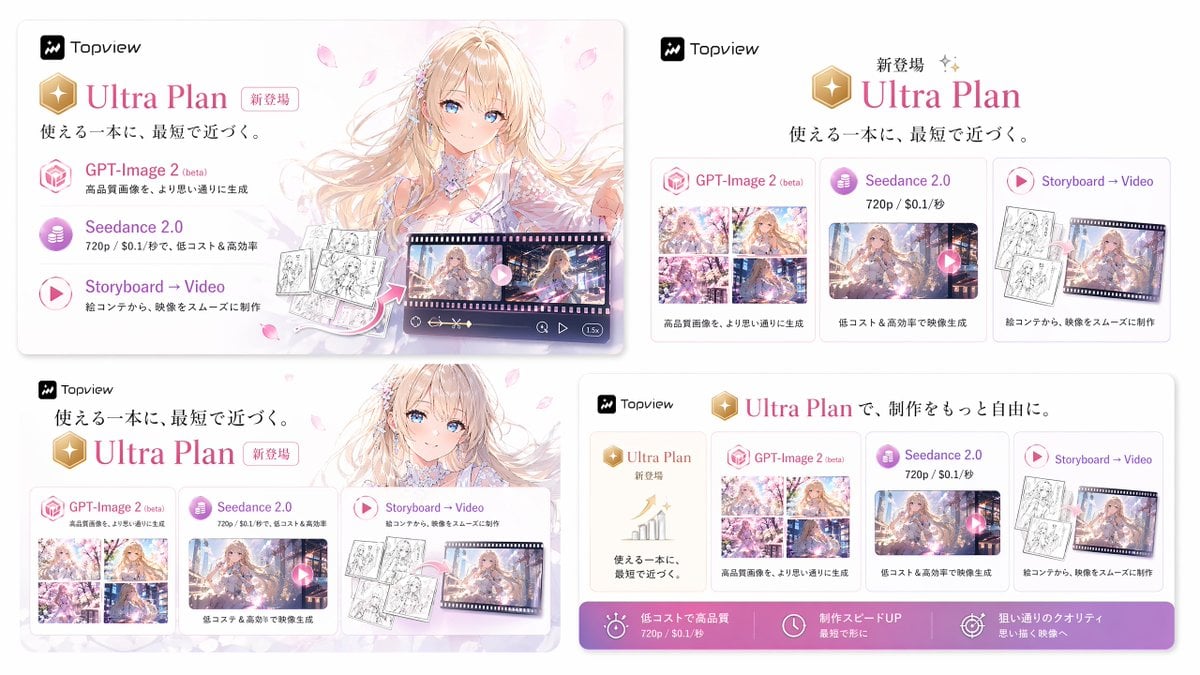
Japanese Ultra Plan Promo Storyboard
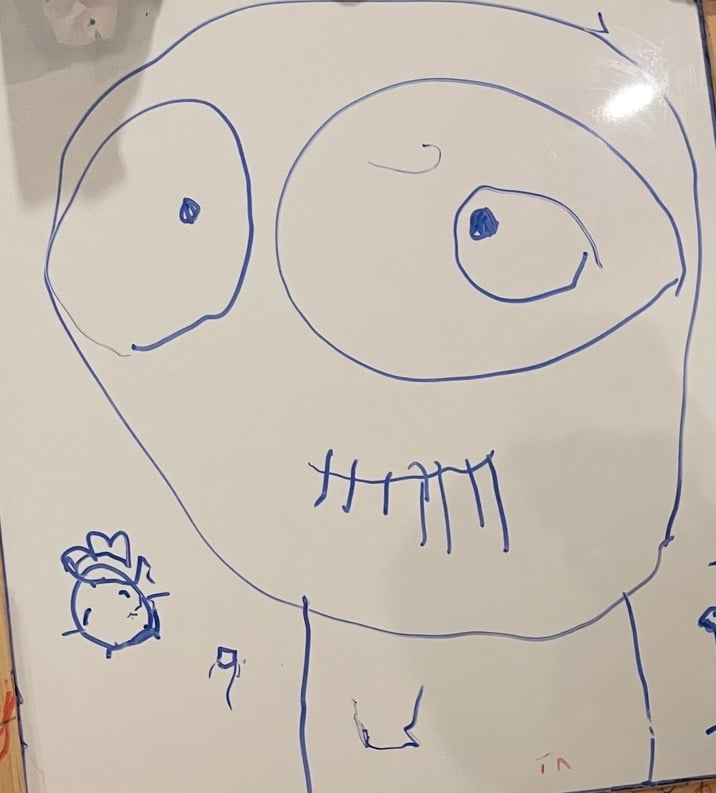
Turn children’s drawings into comic-style characters
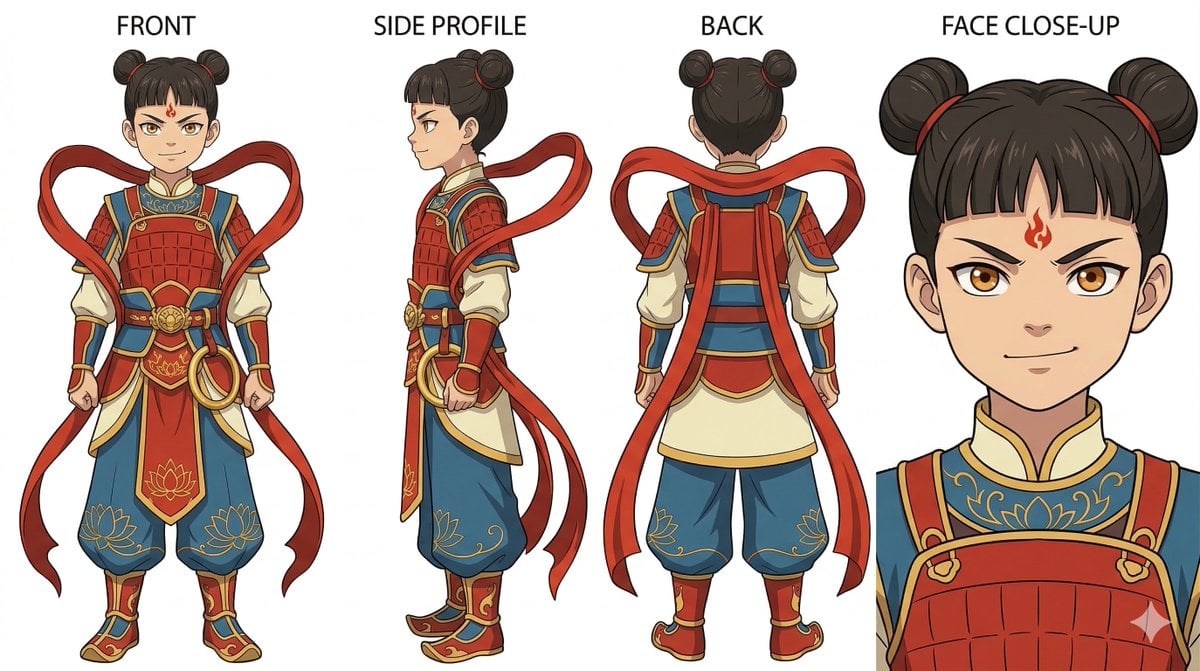
Ghibli Nezha Character Turnaround
Professional cake advertising photo
Awkward Stacked NFT Family Portrait
Anime Elf Maid in TikTok Live

Cinematic Studio Scene of Woman Observing Portrait
Browse template categories
Muse Japanese Infographic questions
How do I use the Muse Japanese Infographic template?
Add your photo if the template asks for one, edit the prompt if you like — the template's model and format are already selected — and press Generate. Your version opens in PicX Studio.
Can I customize the Muse Japanese Infographic template?
Yes. You can change the subject, setting, lighting, mood, format, and available model controls before creating your image.
Is the Muse Japanese Infographic template free?
Opening and editing this template is free. Generating uses credits, shown on the Generate button when you are signed in.
Which AI model should I use?
Start with GPT Image 2, which is the model associated with this template. You can compare another compatible model for a different finish.
Looking for something else? Browse all templates.

Your photo, any look
Thousands of ready templates for every top image and video model, from one credit balance.