
Kiraria Neon Collaboration Cafe Menu
Generates a photorealistic kawaii cyber-neon acrylic collaboration cafe menu sign with readable Japanese-English sweets and drinks listings.
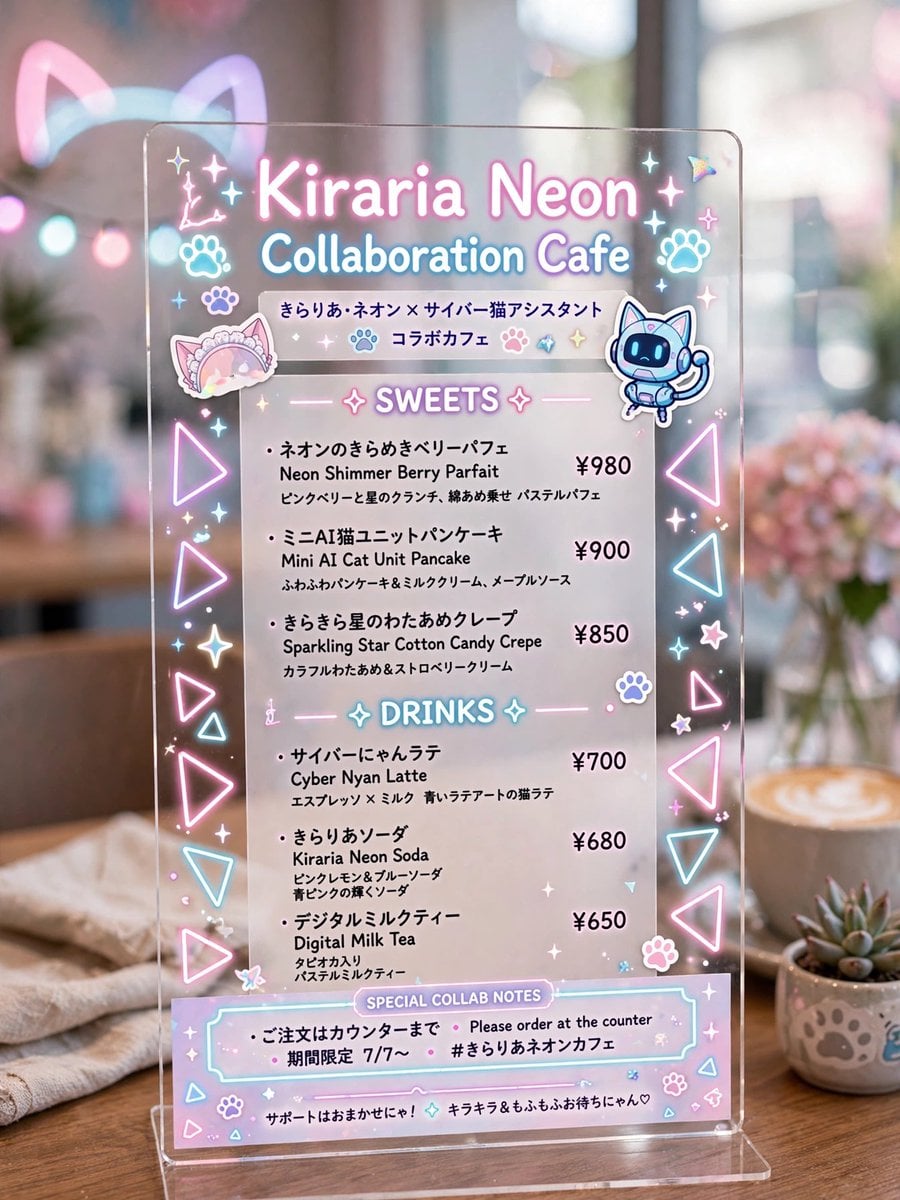
- Prompt included
- Model and format preset
- Premium template
The prompt behind this image
Copy the exact prompt behind Kiraria Neon Collaboration Cafe Menu, or open it in the studio and make it yours.
Goal: Create a photorealistic vertical image of a transparent acrylic tabletop menu sign for a cute futuristic anime collaboration cafe, styled with glowing pastel neon graphics and Japanese cafe-menu typography. Canvas: Vertical 3:4 composition, close-up product-photography framing. The acrylic sign is centered and fills most of the image, standing on a clear base on a wooden cafe table. Background is softly blurred with warm cafe bokeh, a latte on the right, a small succulent in a paw-print pot, pink flowers, soft window light, and faint glowing cat-ear shapes in the distance. Main sign: A clear rectangular acrylic board with rounded corners, subtle reflections, glossy edges, and printed/neon-looking pastel graphics. Use pink, cyan, lavender, and white glow effects as if the graphics are lit from within. Headline text: Large glowing title at top: {argument name="cafe name" default="Kiraria Neon"}. Under it, glowing subtitle: {argument name="event subtitle" default="Collaboration Cafe"}. Beneath that, include Japanese collaboration text: 「きらりあ・ネオン × サイバー猫アシスタント」 and 「コラボカフェ」. Decorations: Include exactly 2 character stickers near the top area: 1 pastel frilly cat-ear headband sticker on the left, and 1 cute blue cyber cat robot assistant sticker on the right. Include exactly 2 paw icons near the headline, many small star sparkles, tiny hearts, flowers, and holographic accents. Along both vertical edges, place repeated glowing triangle icons in pink and cyan; make exactly 10 large triangle outlines total, 5 on the left edge and 5 on the right edge. Menu layout: White semi-transparent printed menu panel on the acrylic, with two centered neon section headers. Section 1 header: “SWEETS” with sparkle symbols. Include exactly 3 sweets items, each with Japanese name, English name, short Japanese description, and price aligned on the right: 1. 「ネオンのきらめきベリーパフェ」 / “Neon Shimmer Berry Parfait” / price “¥980”. 2. 「ミニAI猫ユニットパンケーキ」 / “Mini AI Cat Unit Pancake” / price “¥900”. 3. 「きらきら星のわたあめクレープ」 / “Sparkling Star Cotton Candy Crepe” / price “¥850”. Section 2 header: “DRINKS” with sparkle symbols. Include exactly 3 drinks items, each with Japanese name, English name, short Japanese description, and price aligned on the right: 1. 「サイバーにゃんラテ」 / “Cyber Nyan Latte” / price “¥700”. 2. 「きらりあソーダ」 / “Kiraria Neon Soda” / price “¥680”. 3. 「デジタルミルクティー」 / “Digital Milk Tea” / price “¥650”. Bottom notes: Add a pastel outlined box labeled “SPECIAL COLLAB NOTES”. Inside, include exactly 3 note lines: 「ご注文はカウンターまで」, “Please order at the counter”, and 「期間限定 7/7〜」 plus hashtag “#きらりあネオンカフェ”. At the very bottom, add a tiny support message in Japanese: 「サポートはおまかせにゃ! キラキラ&もふもふお待ちにゃん♡」. Visual style: Hyper-detailed realistic cafe photography mixed with kawaii cyber-neon graphic design, shallow depth of field, soft pastel lighting, clean readable printed text, glossy transparent acrylic, dreamy bokeh, cozy wood tabletop, no people, no watermark. Keep the menu cute, polished, and highly legible.
How to use Kiraria Neon Collaboration Cafe Menu in 3 steps
- 1Upload ImagePNG, JPG or paste
Add your photo
Upload the photo the template builds on. The prompt, model and format are already set.
- 2…a portrait of your subject in softgolden-hour light, 85mm…
Personalize
Edit the subject and creative details for your destination.
- 3Generate
Generate
Press Generate — your image is created in PicX Studio, so you can compare it with the original and refine one variable at a time.
More like this
Templates with the same subject, style or setup. Open one to see its prompt.
80s Neon Disco Night
Cat Photobomb Selfie — 0.5x Wide Angle Café Chaos
Cartoon TV Show Poster Pack
Trendy Cafe Drink Promo Poster
Nostalgic Digicam Café Afternoon Portrait
Rainy Night Android Cyberpunk Portrait
Delicate Japanese Café Lifestyle Illustration
Korean Idol Partial Shadow Editorial Portrait
Cyberpunk Neon Profile Fashion Portrait
Neon Night Crosswalk Candid Portrait
Subway Platform Quiet Introspective Portrait
Rainy Night Android Cyberpunk Portrait
Make it yours
Kiraria Neon Collaboration Cafe Menu works as-is. These are the safest ways to change it without losing the look.
Change one field
Copy a single group, rewrite it, and generate again so you can see what that field is doing.
Keep the frame, change the subject
Hold the composition and light of Kiraria Neon Collaboration Cafe Menu, then swap wardrobe, props or the person for a new take.
| If the result… | Why | Fix |
|---|---|---|
| The result drifts from the preview | Too many fields changed at once. | Reuse Kiraria Neon Collaboration Cafe Menu as-is first, then change one group — subject, light, or setting. |
| The model over-stylizes the scene | The prose prompt leaves finish and camera underspecified. | Add one camera or lighting sentence and stay on GPT Image 2. |
More GPT Image 2 templates
Other prompts made for GPT Image 2.

Six VTuber Japanese Logo Sheet

Realistic Portrait of Woman and Deer

The Vista Modular Condo Poster

AI Model Routing Comparison Infographic

2.5D Anime Art Board

Isometric Productivity Desk Scene

New York Double Exposure Poster

Four-Panel AI Landscape Comparison

Japanese Tatami Lifestyle Magazine Cover

NESCAFÉ Coffee Map Poster
More image prompts
Fresh picks from across the catalog.
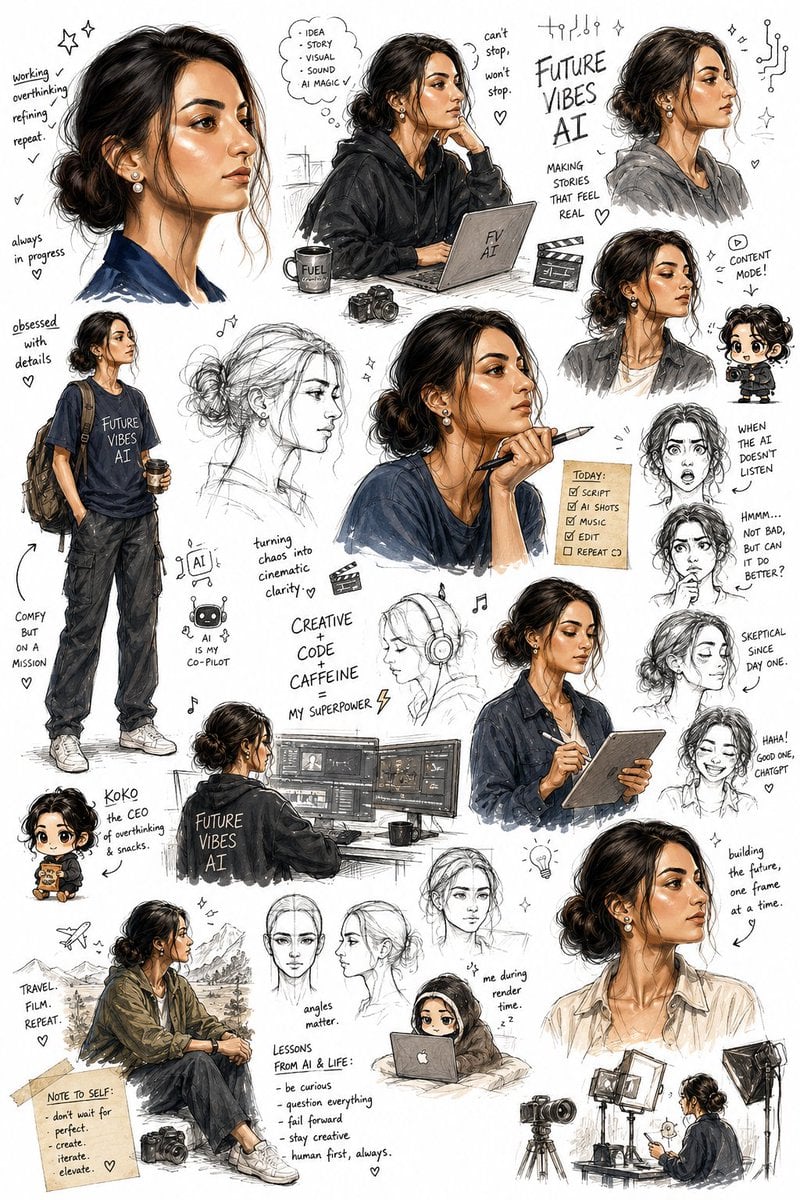
Sketchbook Character Exploration Sheet
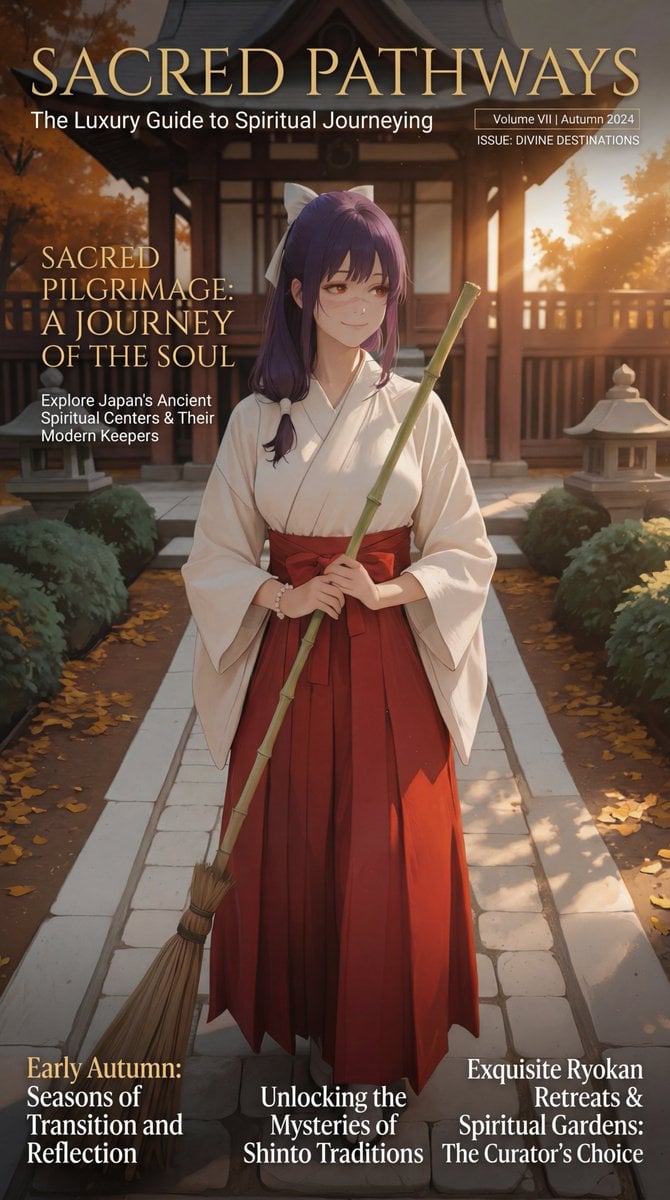
Luxury Travel Magazine Layout Prompt
LZA
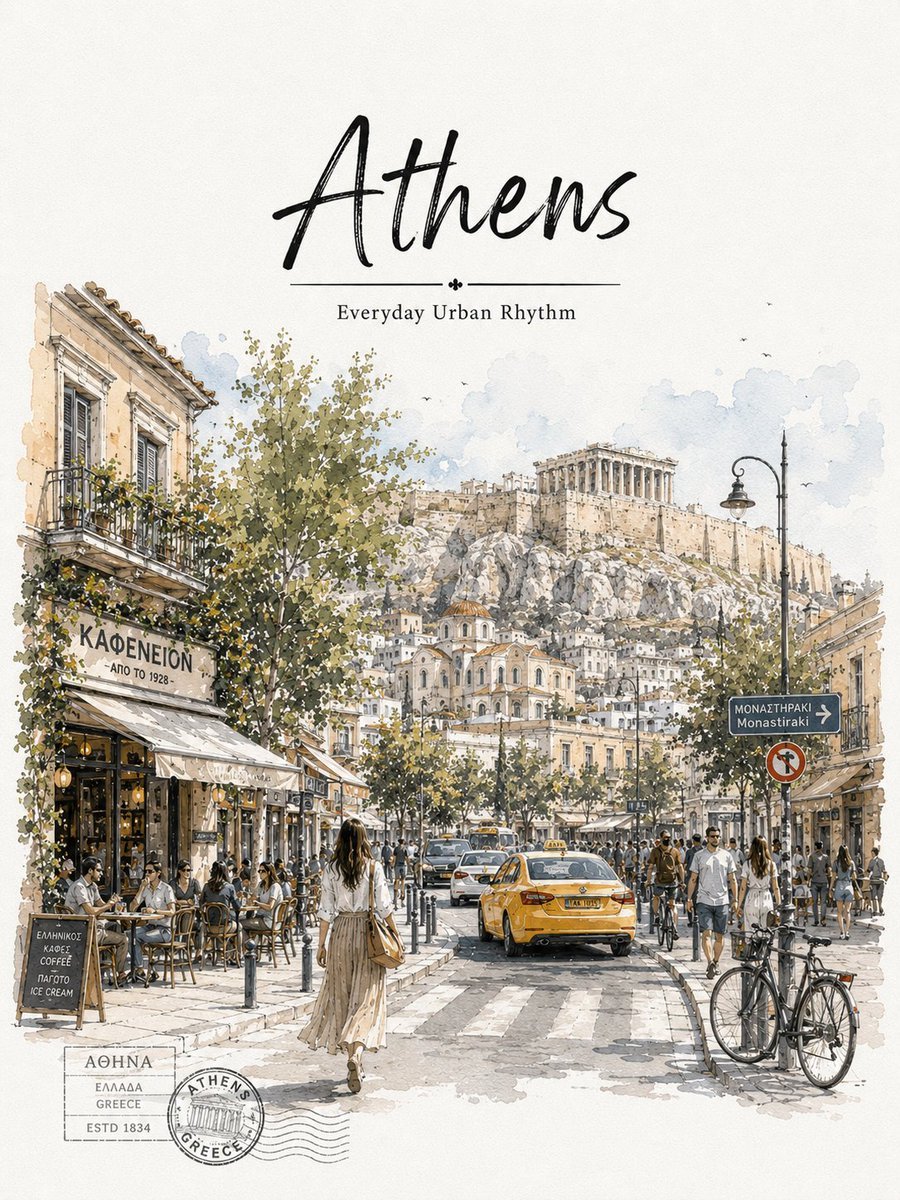
Athens Travel Sketch and Watercolor Poster
2x2 Grid Cinematic Night Couple Portrait with Identity Lock
Anime Yellow Umbrella Ad Poster
8K 3D Illustration of Anthropomorphic Bees (Gym and Relaxing)
Glamorous Woman on Harley-Davidson at Night
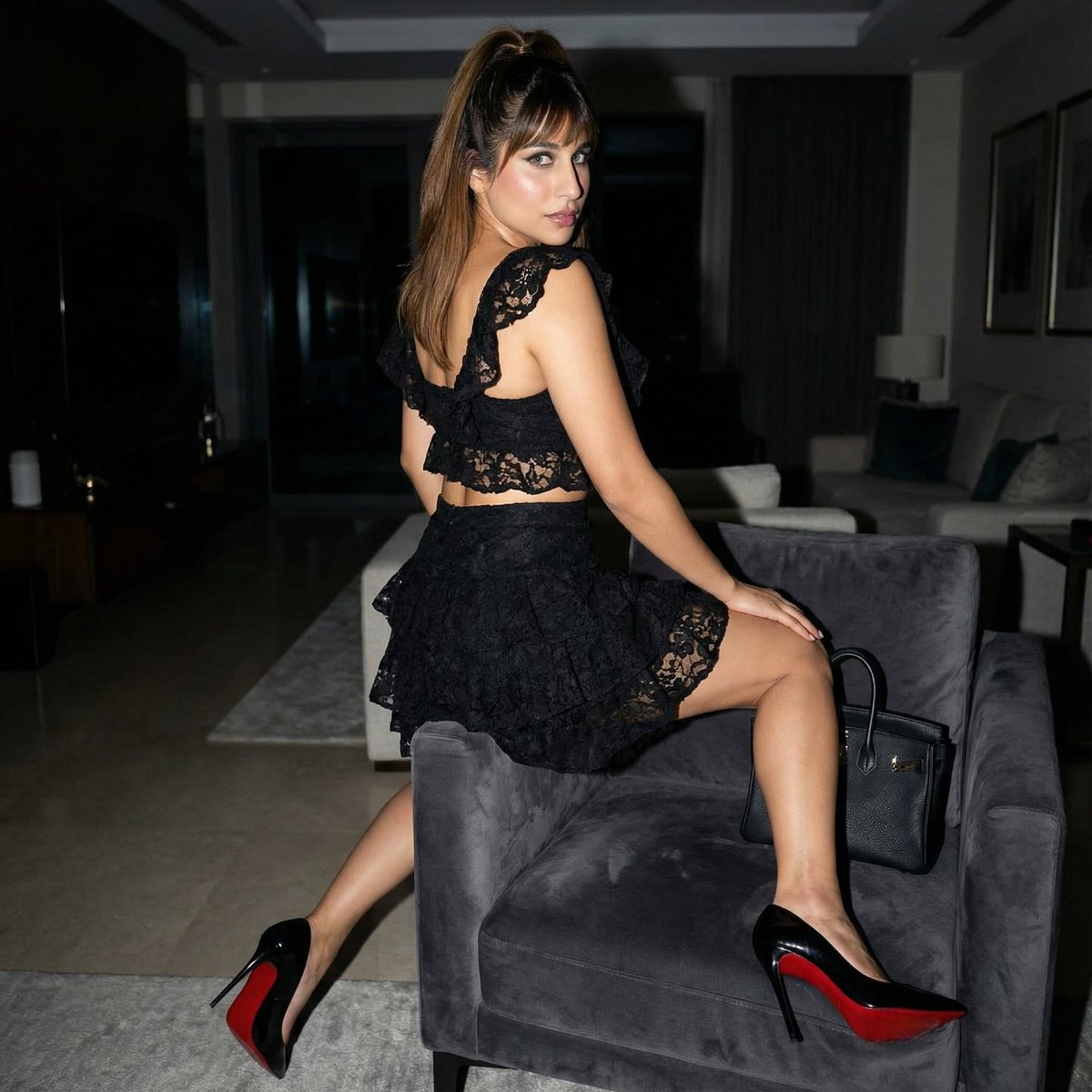
Simple Armchair Perch Prompt
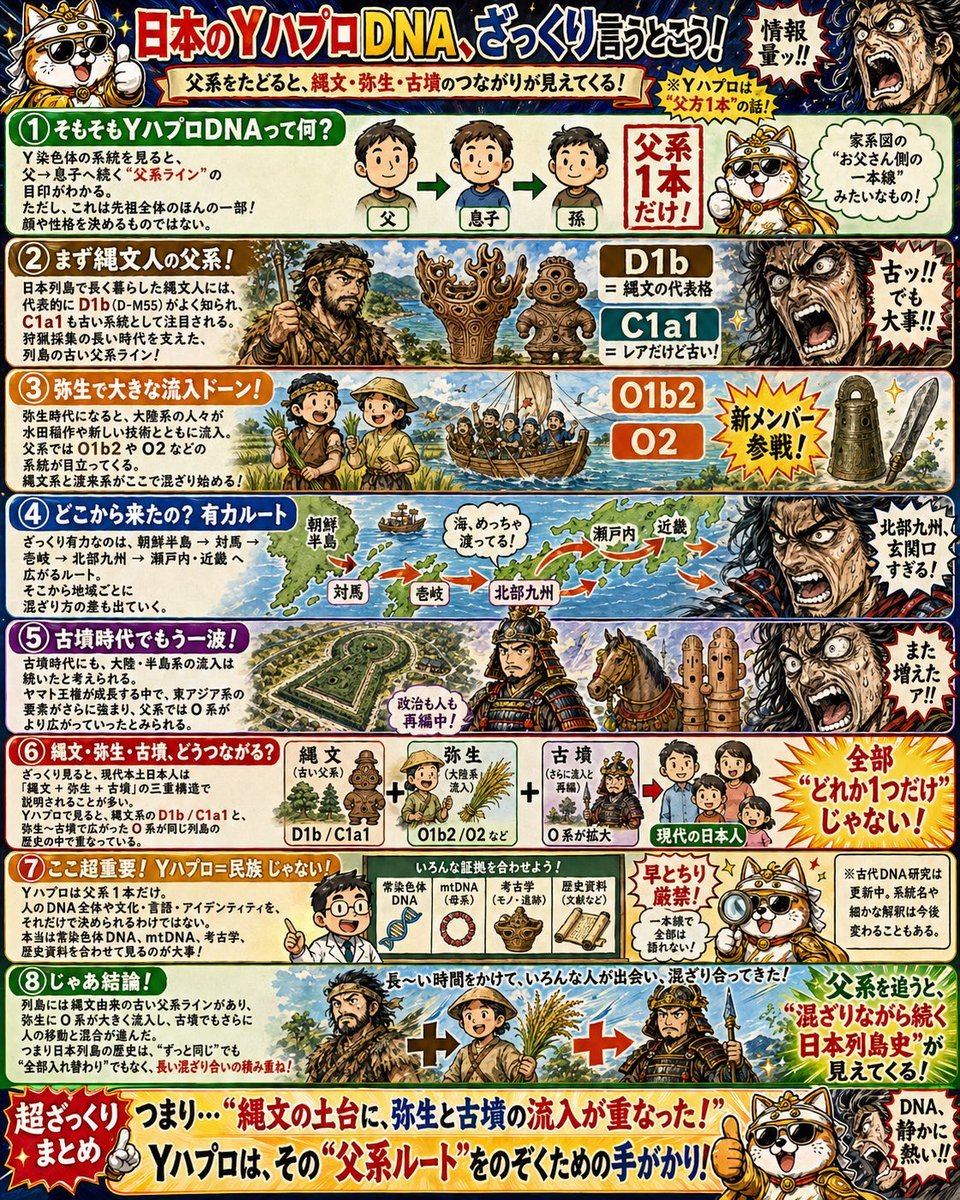
Japanese Y-DNA History Infographic Poster
Browse template categories
Kiraria Neon Collaboration Cafe Menu questions
How do I use the Kiraria Neon Collaboration Cafe Menu template?
Add your photo if the template asks for one, edit the prompt if you like — the template's model and format are already selected — and press Generate. Your version opens in PicX Studio.
Can I customize the Kiraria Neon Collaboration Cafe Menu template?
Yes. You can change the subject, setting, lighting, mood, format, and available model controls before creating your image.
Is the Kiraria Neon Collaboration Cafe Menu template free?
Opening and editing this template is free. Generating uses credits, shown on the Generate button when you are signed in.
Which AI model should I use?
Start with GPT Image 2, which is the model associated with this template. You can compare another compatible model for a different finish.
Looking for something else? Browse all templates.

Your photo, any look
Thousands of ready templates for every top image and video model, from one credit balance.