
AI Image Generator Collage Failure Screenshot
A dark-mode mobile chat screenshot showing an AI image generator producing one 2x2 collage instead of four independent images.
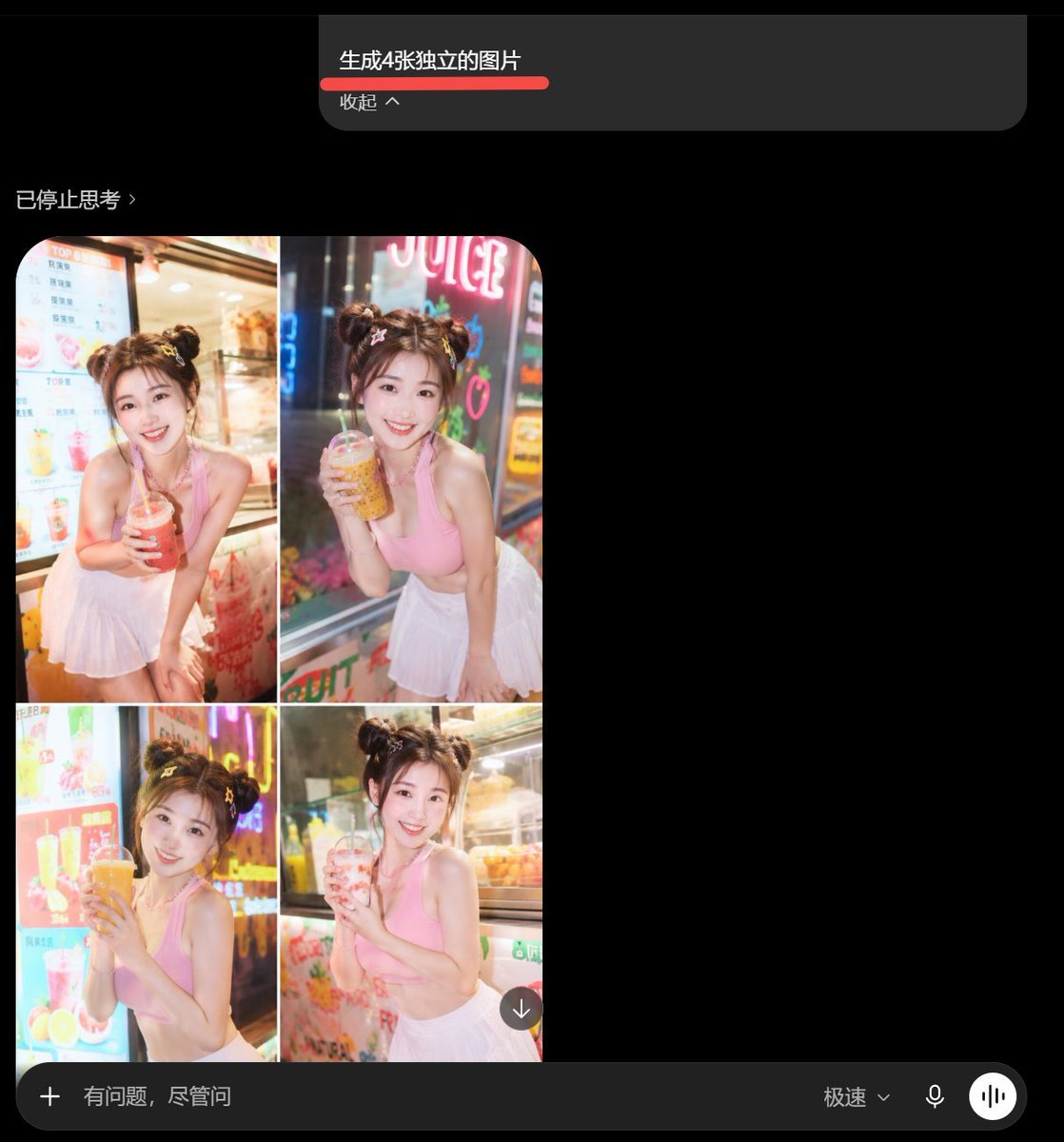
- Prompt included
- Model and format preset
- Premium template
The prompt behind this image
Copy the exact prompt behind AI Image Generator Collage Failure Screenshot, or open it in the studio and make it yours.
Goal: Create a dark-mode mobile chat screenshot showing an AI image generator response that incorrectly combines four requested images into one 2x2 collage. Canvas: Square screenshot, approximately 768×768 px, black background, cropped like a smartphone app interface in dark mode. Top prompt card: Near the top center, place a wide dark gray rounded rectangle message card. Inside it, show the Chinese prompt text {argument name="prompt text" default="生成4张独立的图片"} in white, with a thick red underline beneath it. Below that, show smaller gray text {argument name="collapse label" default="收起 ^"}. The card has a rounded lower-right corner and sits against empty black space. Status line: On the left below the prompt card, add a small gray status label {argument name="status text" default="已停止思考 ›"}. Main generated image area: Under the status line on the left, show exactly 1 rounded-corner generated image panel containing exactly 4 photo tiles arranged in a 2×2 grid, separated by thin white dividers. Each tile shows the same young woman in a bright beverage shop setting, but with slightly different pose and drink: 1. Top-left tile: smiling young woman with double-bun hairstyle, pink sleeveless crop top and white pleated skirt, leaning forward and holding a red iced drink with a straw, menu board behind her. 2. Top-right tile: same woman holding an amber bubble tea or juice drink, neon sign behind her, night street-shop lighting. 3. Bottom-left tile: same woman holding a large orange drink with both hands, colorful drink menu and neon lights behind her. 4. Bottom-right tile: same woman holding a pale pink drink, refrigerated display case behind her. The woman should have fair skin, soft glam makeup, brown hair in two messy buns with small hair accessories, a cheerful expression, and a cute influencer-style pose. The photo style is glossy, overexposed, saturated, and slightly unrealistic, like an AI-generated social media portrait collage. Overlay controls: Add one small circular download button with a downward arrow at the lower-right corner of the collage image. Bottom input bar: Across the bottom, draw a long dark gray rounded input bar. It contains exactly 5 visible elements: a plus icon on the far left, placeholder text {argument name="input placeholder" default="有问题,尽管问"}, a speed mode label {argument name="speed mode label" default="极速⌄"}, a microphone icon, and a white circular voice-wave button on the far right. Visual style: Preserve the look of a real mobile app screenshot: black empty negative space on the right, subtle gray UI text, rounded rectangles, clean sans-serif font, and slightly compressed screenshot quality. Do not create four separate files; the visual joke is that the four images are fused into one collage.
How to use AI Image Generator Collage Failure Screenshot in 3 steps
- 1Upload ImagePNG, JPG or paste
Add your photo
Upload the photo the template builds on. The prompt, model and format are already set.
- 2…a portrait of your subject in softgolden-hour light, 85mm…
Personalize
Edit the subject and creative details for your destination.
- 3Generate
Generate
Press Generate — your image is created in PicX Studio, so you can compare it with the original and refine one variable at a time.
More like this
Templates with the same subject, style or setup. Open one to see its prompt.


Make it yours
AI Image Generator Collage Failure Screenshot works as-is. These are the safest ways to change it without losing the look.
Change one field
Copy a single group, rewrite it, and generate again so you can see what that field is doing.
Keep the frame, change the subject
Hold the composition and light of AI Image Generator Collage Failure Screenshot, then swap wardrobe, props or the person for a new take.
| If the result… | Why | Fix |
|---|---|---|
| The result drifts from the preview | Too many fields changed at once. | Reuse AI Image Generator Collage Failure Screenshot as-is first, then change one group — subject, light, or setting. |
| The model over-stylizes the scene | The prose prompt leaves finish and camera underspecified. | Add one camera or lighting sentence and stay on GPT Image 2. |
More GPT Image 2 templates
Other prompts made for GPT Image 2.

Six VTuber Japanese Logo Sheet

Realistic Portrait of Woman and Deer

The Vista Modular Condo Poster

AI Model Routing Comparison Infographic

2.5D Anime Art Board

Isometric Productivity Desk Scene

New York Double Exposure Poster

Four-Panel AI Landscape Comparison

Japanese Tatami Lifestyle Magazine Cover

NESCAFÉ Coffee Map Poster
More image prompts
Fresh picks from across the catalog.
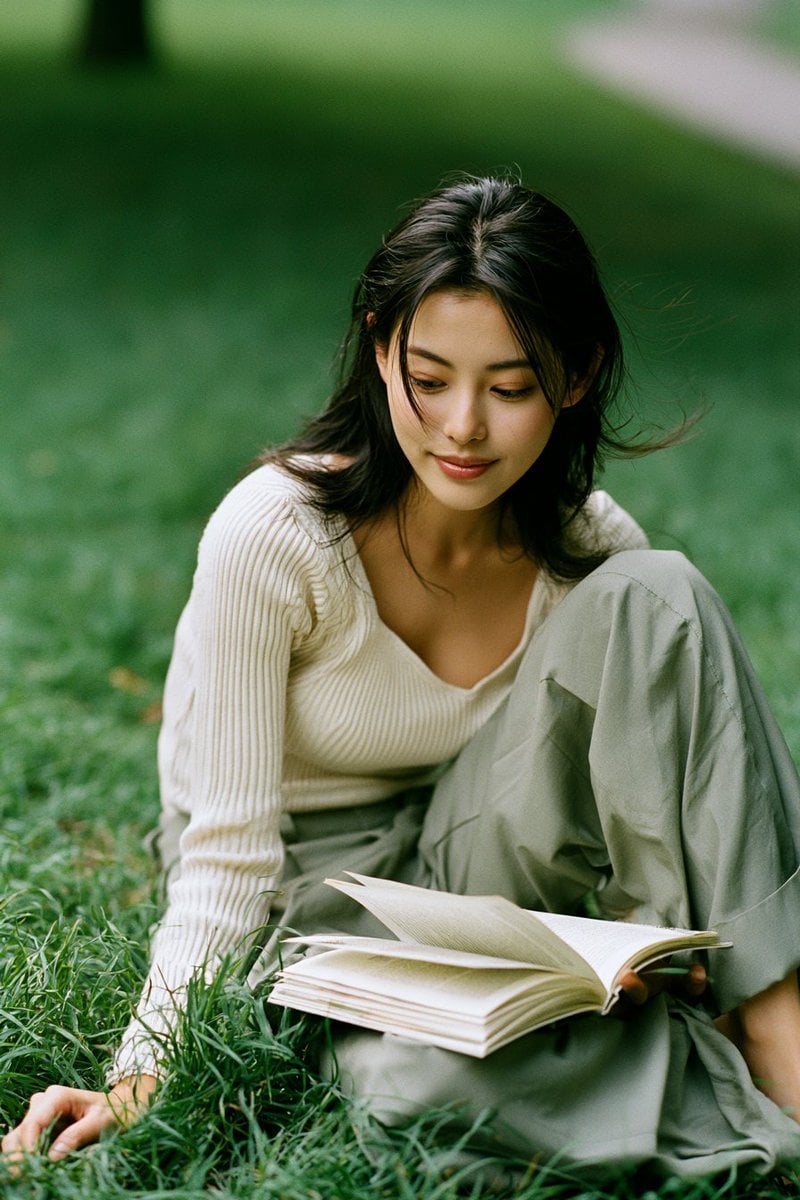
Candid Park Reading Portrait
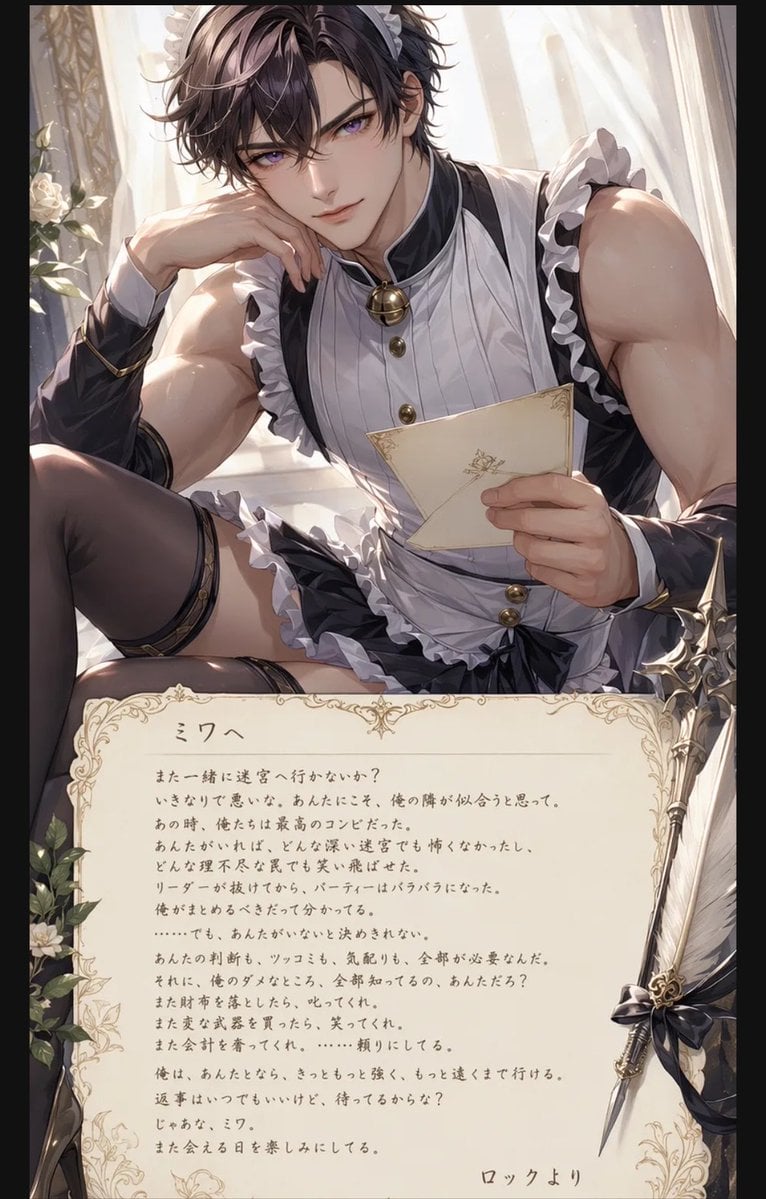
Anime Maid Character Love Letter
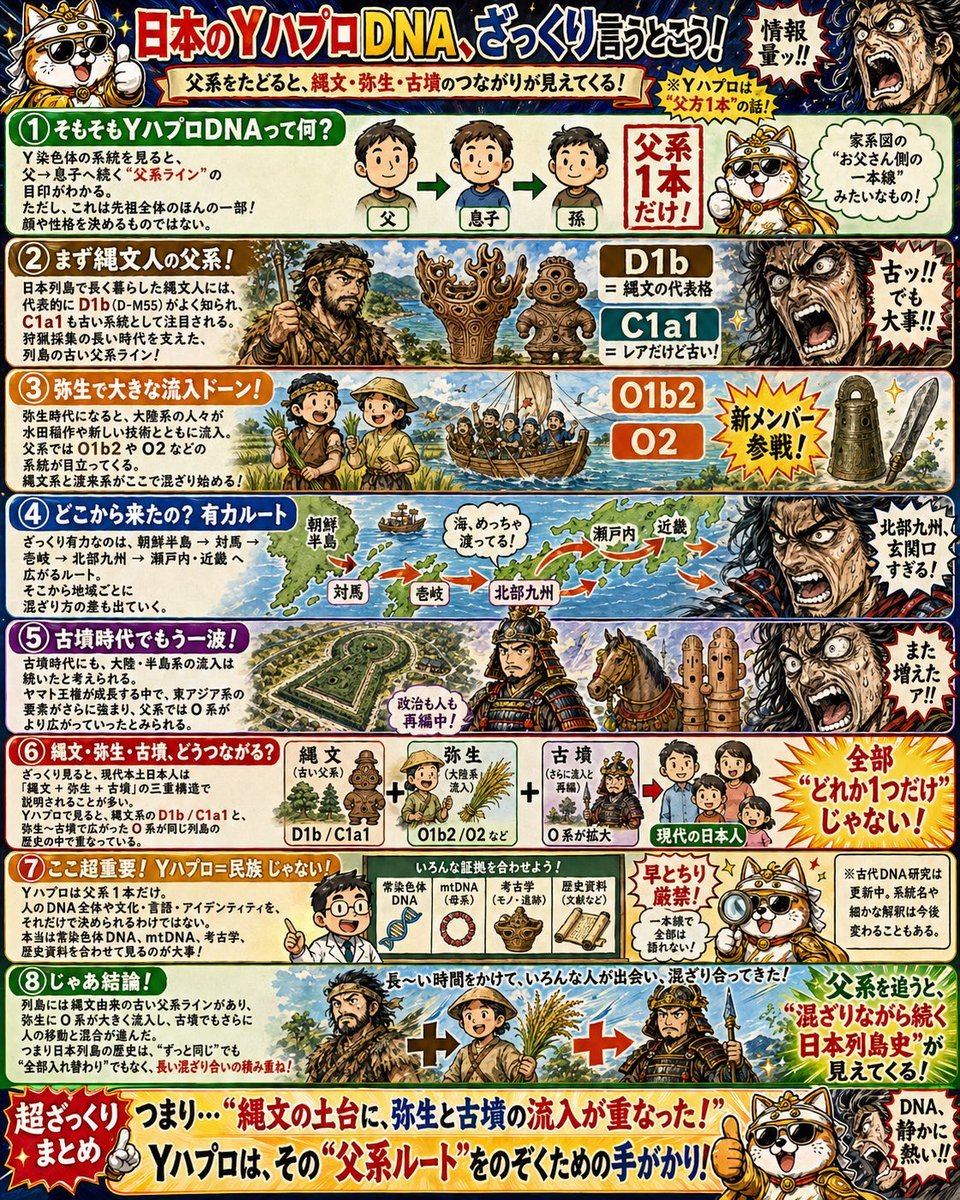
Japanese Y-DNA History Infographic Poster
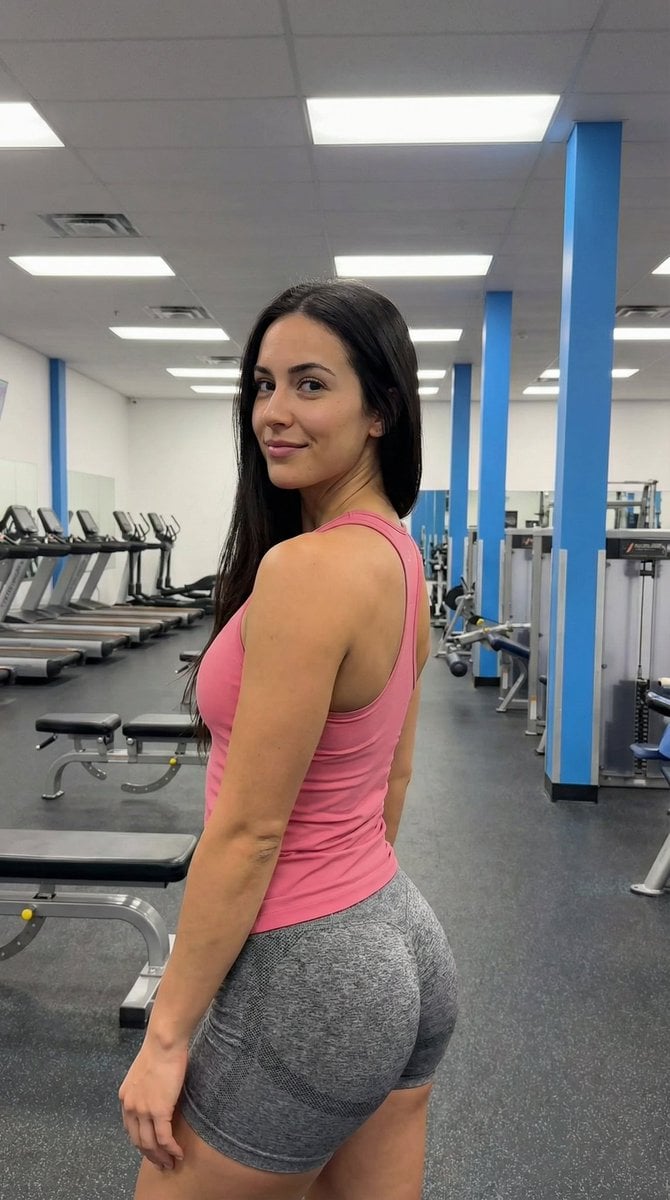
Gym Pose Portrait with Reference Image Adherence
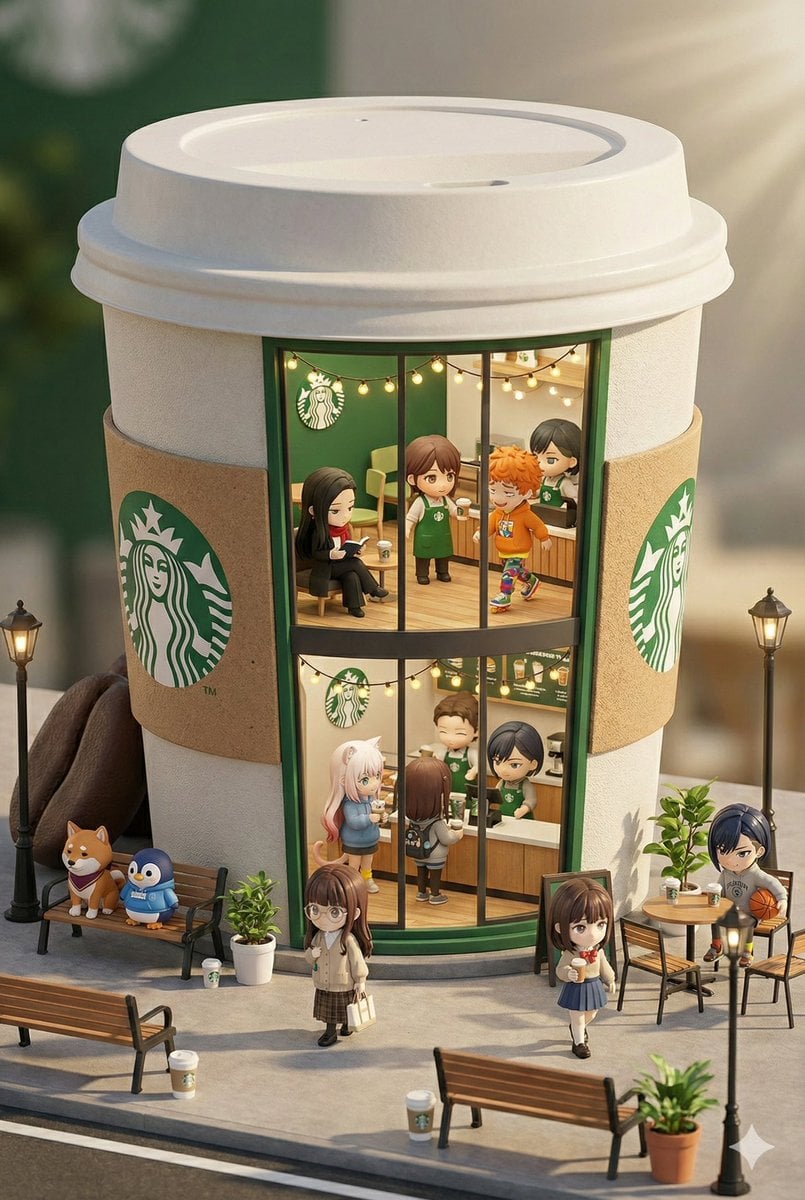
3D chibi miniature brand concept store prompt
Miniature Girl Sitting on Coffee Cups
Biological Specimen Microscopy Prompt
Cinematic 360-Degree Orbital Tracking Shot Video Prompt
Watercolor Travel Journal Illustration
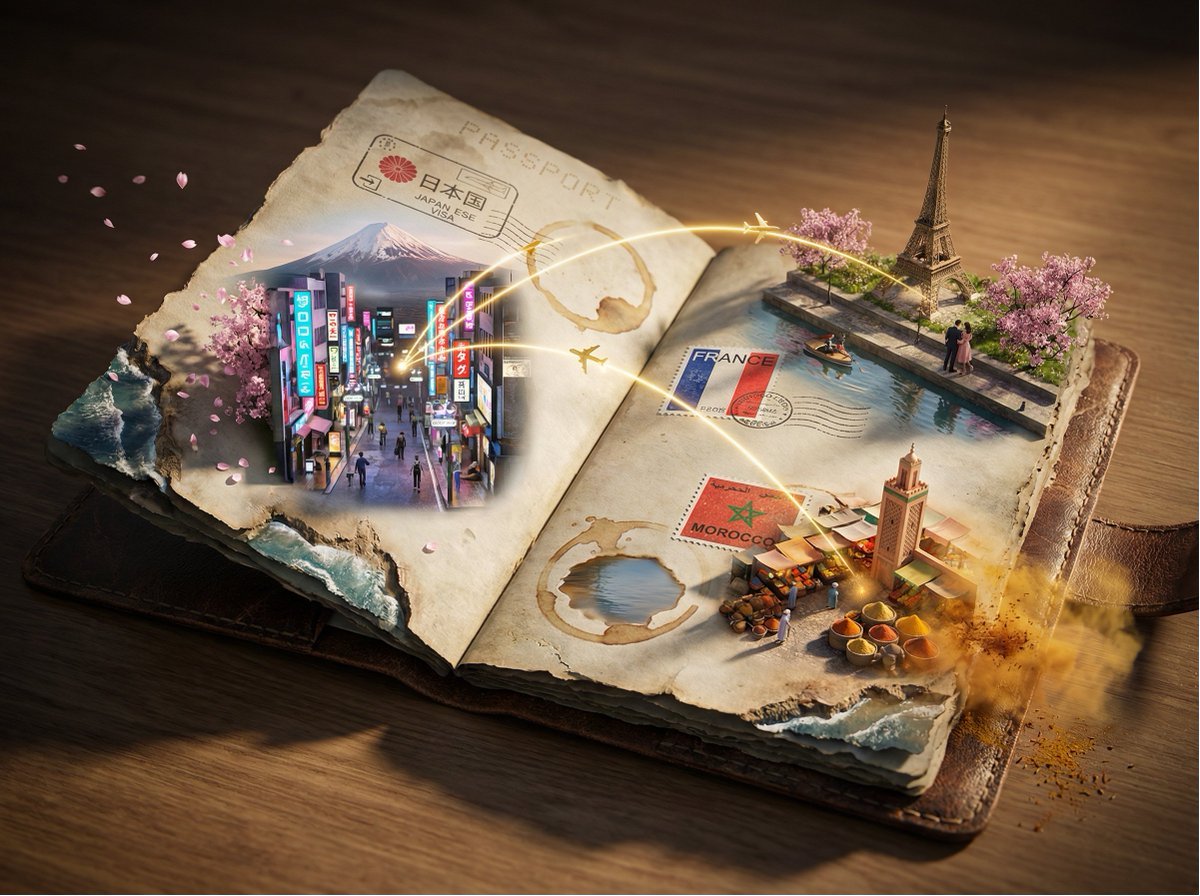
Passport Journey 3D Atlas
Browse template categories
AI Image Generator Collage Failure Screenshot questions
How do I use the AI Image Generator Collage Failure Screenshot template?
Add your photo if the template asks for one, edit the prompt if you like — the template's model and format are already selected — and press Generate. Your version opens in PicX Studio.
Can I customize the AI Image Generator Collage Failure Screenshot template?
Yes. You can change the subject, setting, lighting, mood, format, and available model controls before creating your image.
Is the AI Image Generator Collage Failure Screenshot template free?
Opening and editing this template is free. Generating uses credits, shown on the Generate button when you are signed in.
Which AI model should I use?
Start with GPT Image 2, which is the model associated with this template. You can compare another compatible model for a different finish.
Looking for something else? Browse all templates.

Your photo, any look
Thousands of ready templates for every top image and video model, from one credit balance.