How do I use the Japanese Kawaii Logo Model Comparison template?
Choose the primary action to open PicX Studio with the available template settings. Review the model and format, personalize the creative direction, and generate when ready.
Creates a clean white comparison graphic showing two AI model labels and two glossy Japanese kawaii bubble-letter logo outputs.
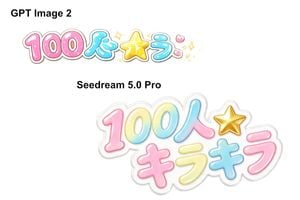
Goal: Create a clean side-by-side comparison graphic on a plain white background showing two AI image model outputs of the same Japanese kawaii logo prompt. Canvas: Wide 3:2 landscape canvas, approximately 1152 × 768 px, with lots of empty white space and no border or watermark. Layout: Place two bold black model labels and two colorful logo samples. In the upper-left area, add the label “GPT Image 2” in large bold sans-serif black text. Below it, place a smaller glossy Japanese bubble-letter logo reading {argument name="logo text" default="100人キラキラ"}, arranged mostly in one horizontal line. In the middle-left area, add the label {argument name="second model label" default="Seedream 5.0 Pro"} in bold black sans-serif text. Below and to the right of that label, place a larger, sticker-like version of the same logo, occupying the lower-right half of the canvas. Text and objects count: Include exactly 2 black model labels: “GPT Image 2” and “Seedream 5.0 Pro”. Include exactly 2 colorful Japanese logo renderings. The upper logo should have 6 main text/symbol parts: pink “100”, blue “人”, yellow star symbol, blue “ラ”, pink dakuten-like mark, and small sparkle decorations. The lower logo should have 7 main text/symbol parts: gradient “100”, blue-pink “人”, gold star symbol, pink “キ”, yellow “ラ”, blue “キ”, and pink “ラ”. Visual style: Cute Japanese idol merchandise aesthetic, glossy inflated bubble lettering, rounded thick strokes, pastel candy colors, white highlights, subtle inner gradients, thin colored outlines, and soft gray/white sticker borders. Use {argument name="color palette" default="pink, cyan blue, lemon yellow, gold, and white"}. The lower logo should look more polished, larger, layered, and semi-translucent like a die-cut acrylic sticker with a soft gray shadow. The upper logo should look flatter and slightly less refined, with more small sparkles around the star. Constraints: Keep the background completely white, preserve the comparison composition, use crisp readable black labels, avoid extra captions, avoid photorealistic objects, and do not add any people or scenery.
Choose the primary action to open PicX Studio with the available template settings. Review the model and format, personalize the creative direction, and generate when ready.
Yes. You can change the subject, setting, lighting, mood, format, and available model controls before creating your image.
This template is free to open and customize. Generation usage is shown in PicX Studio before you create.
Start with GPT Image 2, which is the model associated with this template. You can compare another compatible model for a different finish.
Follow a topic to a crawlable collection of related PicX Studio templates.