
Image to 16-Bit Retro Pixel Art Transformation
A sophisticated prompt that transforms any source image into a polished SNES-era pixel art screenshot while strictly preserving the original framing, proportions, and subject.
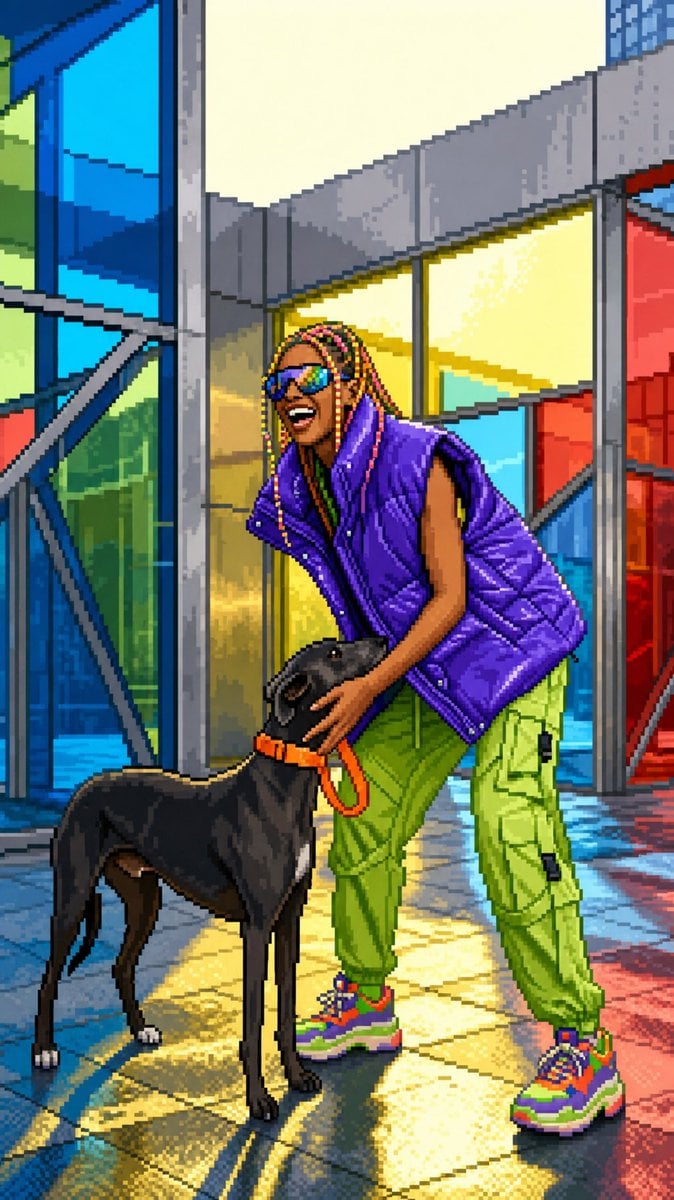
- Prompt included
- Model and format preset
- Free template
The prompt behind this image
Copy the exact prompt behind Image to 16-Bit Retro Pixel Art Transformation, or open it in the studio and make it yours.
Transform the uploaded image into clean high-quality retro pixel art while preserving the original composition, subject placement, camera angle, proportions, pose, clothing, and overall scene structure. FORMAT Preserve the original image aspect ratio, composition and framing. Do not crop, zoom, reposition, or redesign the scene. Maintain the original visual hierarchy and subject placement. SUBJECT Preserve the main subject, recognizable silhouette, facial direction, clothing structure, pose, body proportions, and key visual features. Reduce unnecessary detail while keeping the subject immediately recognizable. Do not alter the person, anatomy, outfit, or scene structure. PIXEL ART STYLE Convert the entire image into premium {argument name="bit depth" default="16-bit"} retro pixel art. Use a strict low-resolution pixel grid across the entire image. Downsample into large visible pixels before rendering. Consistent pixel size throughout. Clean pixel-perfect geometry. Crisp hard edges. No semi-realistic rendering. COLOR Limited retro gaming color palette. Strong contrast between shapes. Clear color separation. {argument name="color quality" default="Carefully selected colors with excellent readability"}. No excessive color variation. SHADING Simplified retro-game shading. Flat color regions. One to two shading tones per surface. Minimal highlights. No realistic gradients. No soft lighting transitions. ENVIRONMENT Convert all environmental elements into pixel-art equivalents — background, props, architecture, vegetation, terrain, sky, lighting. Keep scene depth and perspective while simplifying details. QUALITY No blur. No anti-aliasing. No smooth transitions. No noise. No artifacts. No smudging. FINAL LOOK A polished {argument name="console era" default="SNES-era"} retro game screenshot — faithful to the original composition, pixel-perfect in every detail.
How to use Image to 16-Bit Retro Pixel Art Transformation in 3 steps
- 1Upload ImagePNG, JPG or paste
Add your photo
Upload the photo the template builds on. The prompt, model and format are already set.
- 2…a portrait of your subject in softgolden-hour light, 85mm…
Personalize
Edit the subject and creative details for your destination.
- 3Generate
Generate
Press Generate — your image is created in PicX Studio, so you can compare it with the original and refine one variable at a time.
More like this
Templates with the same subject, style or setup. Open one to see its prompt.
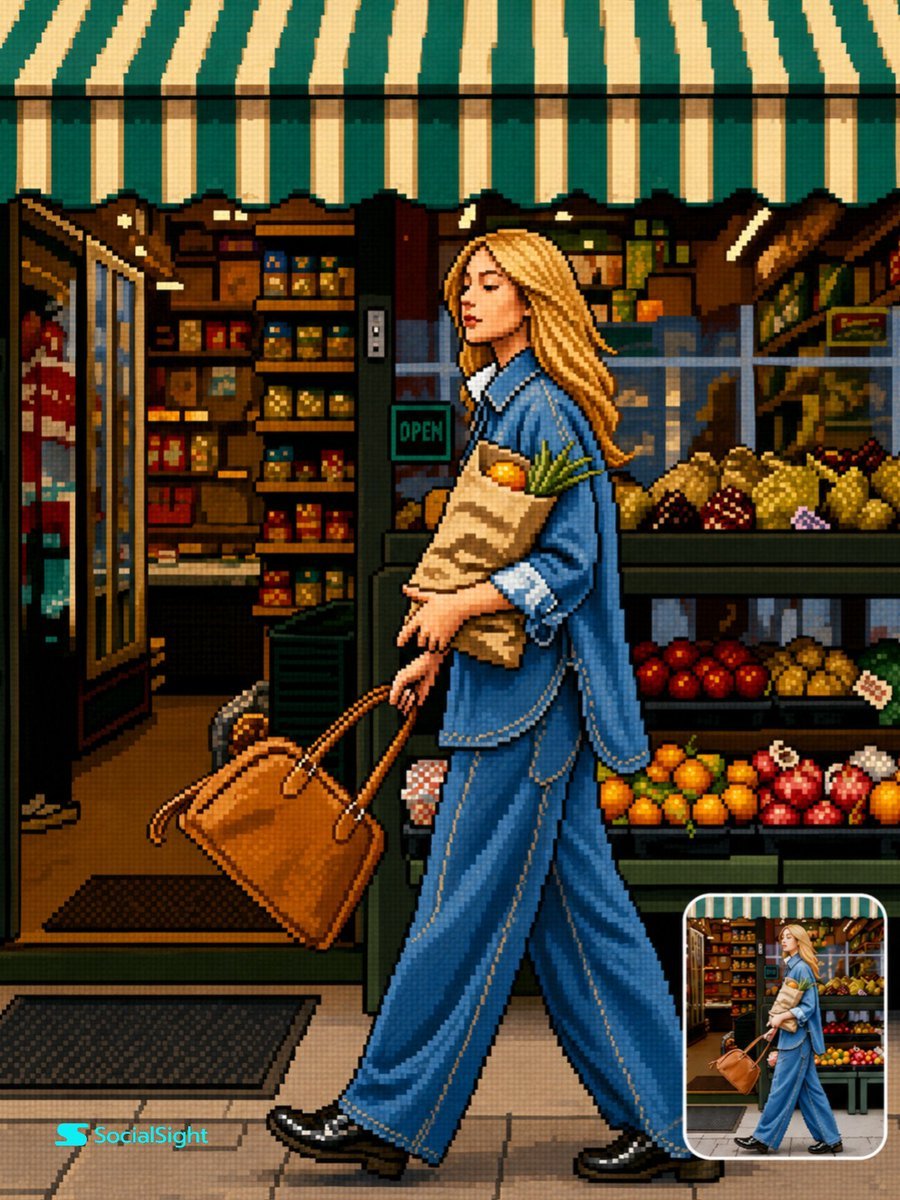
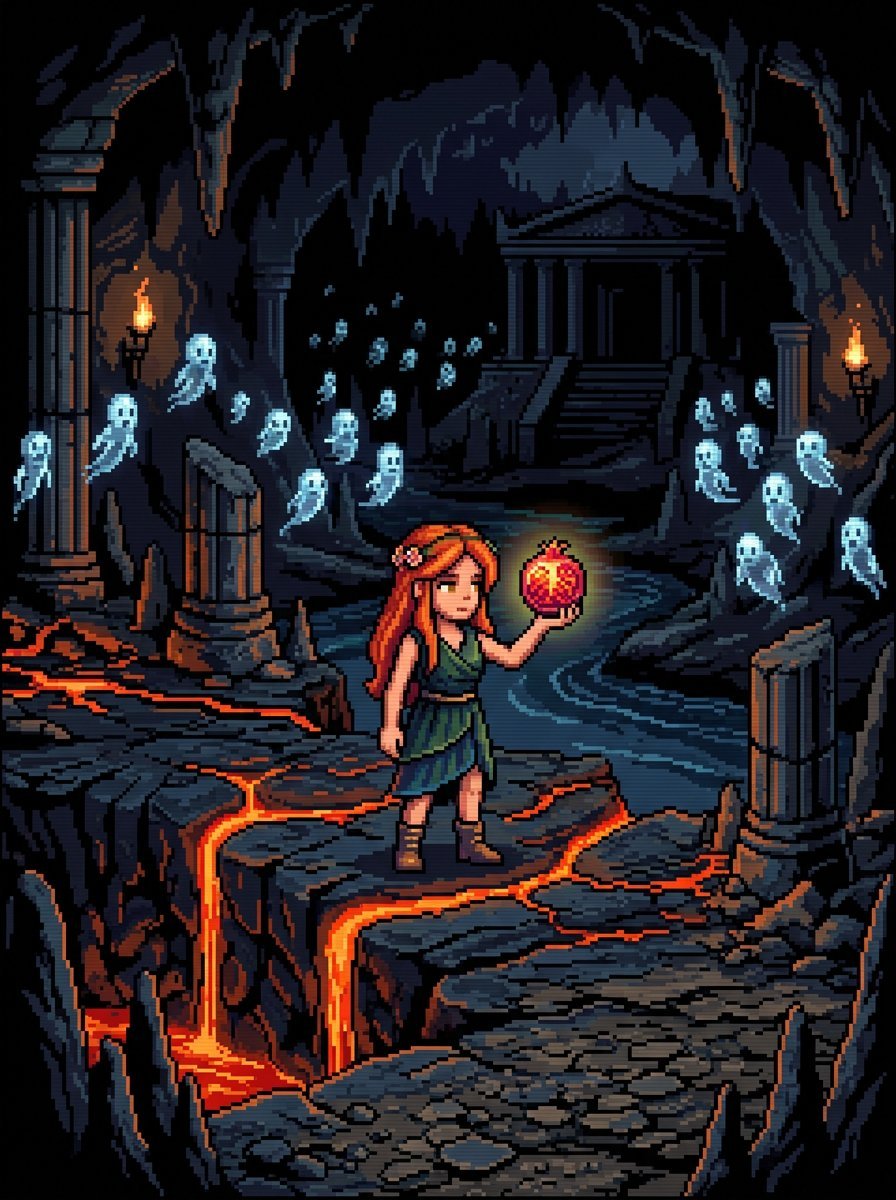
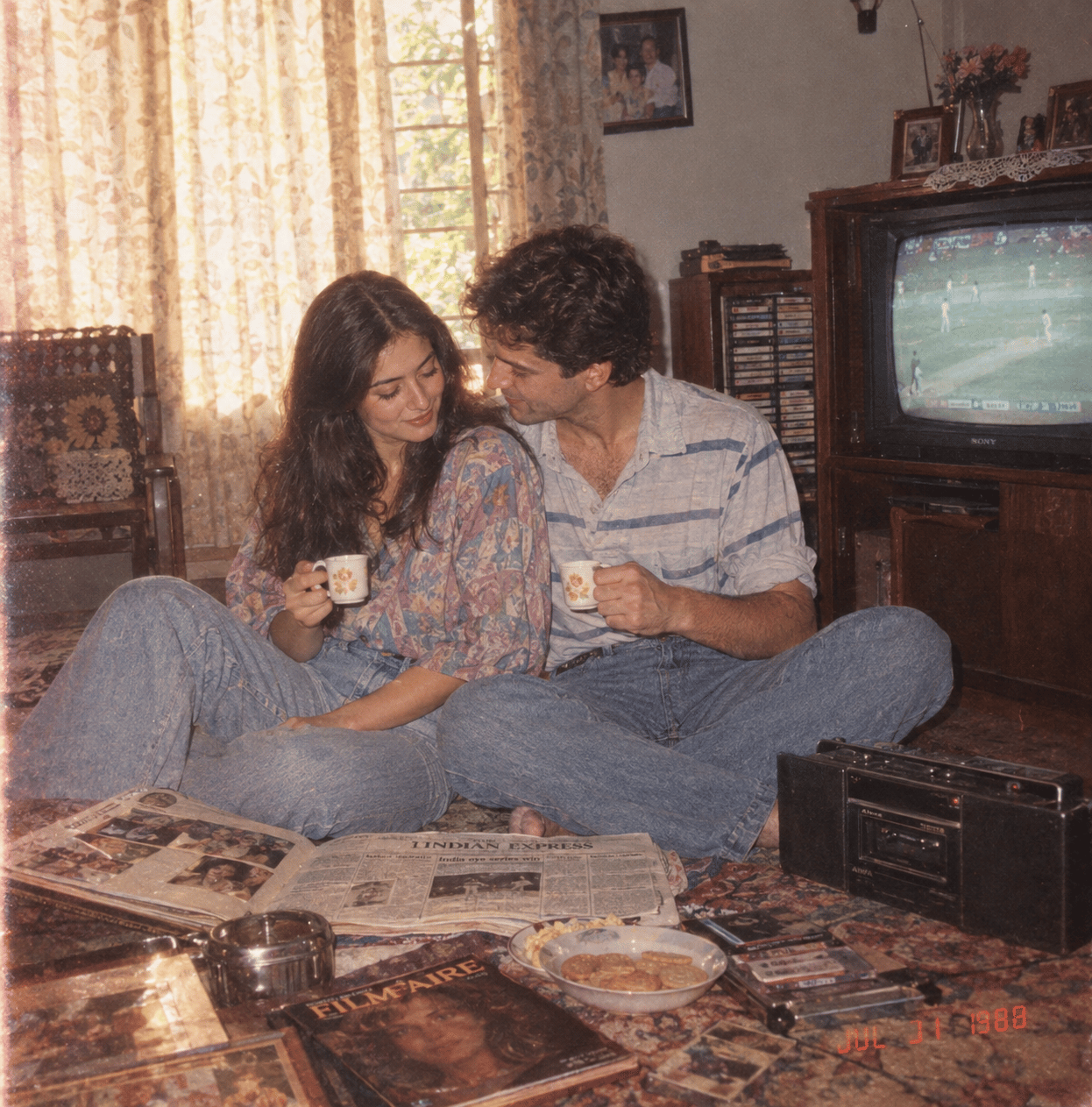
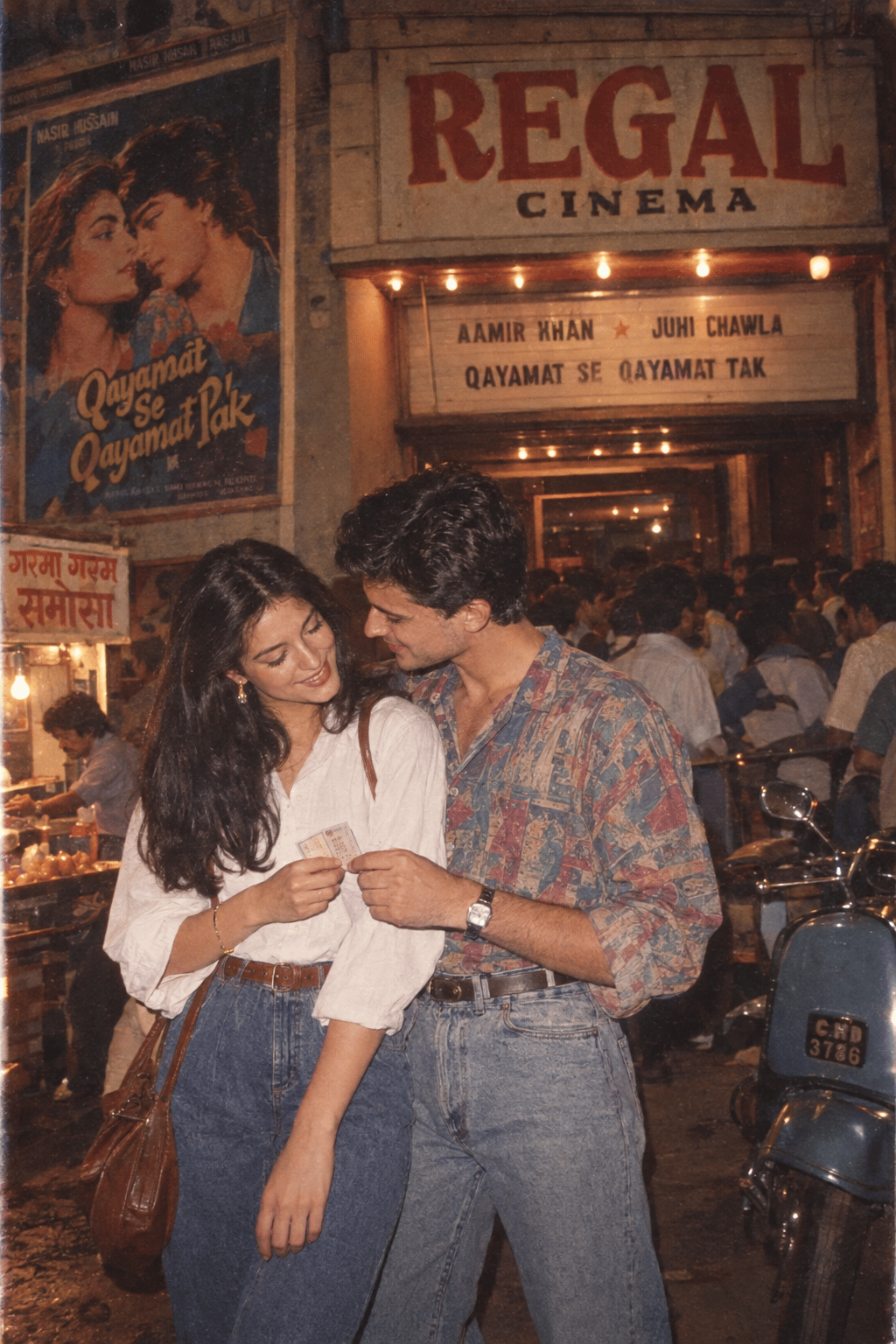
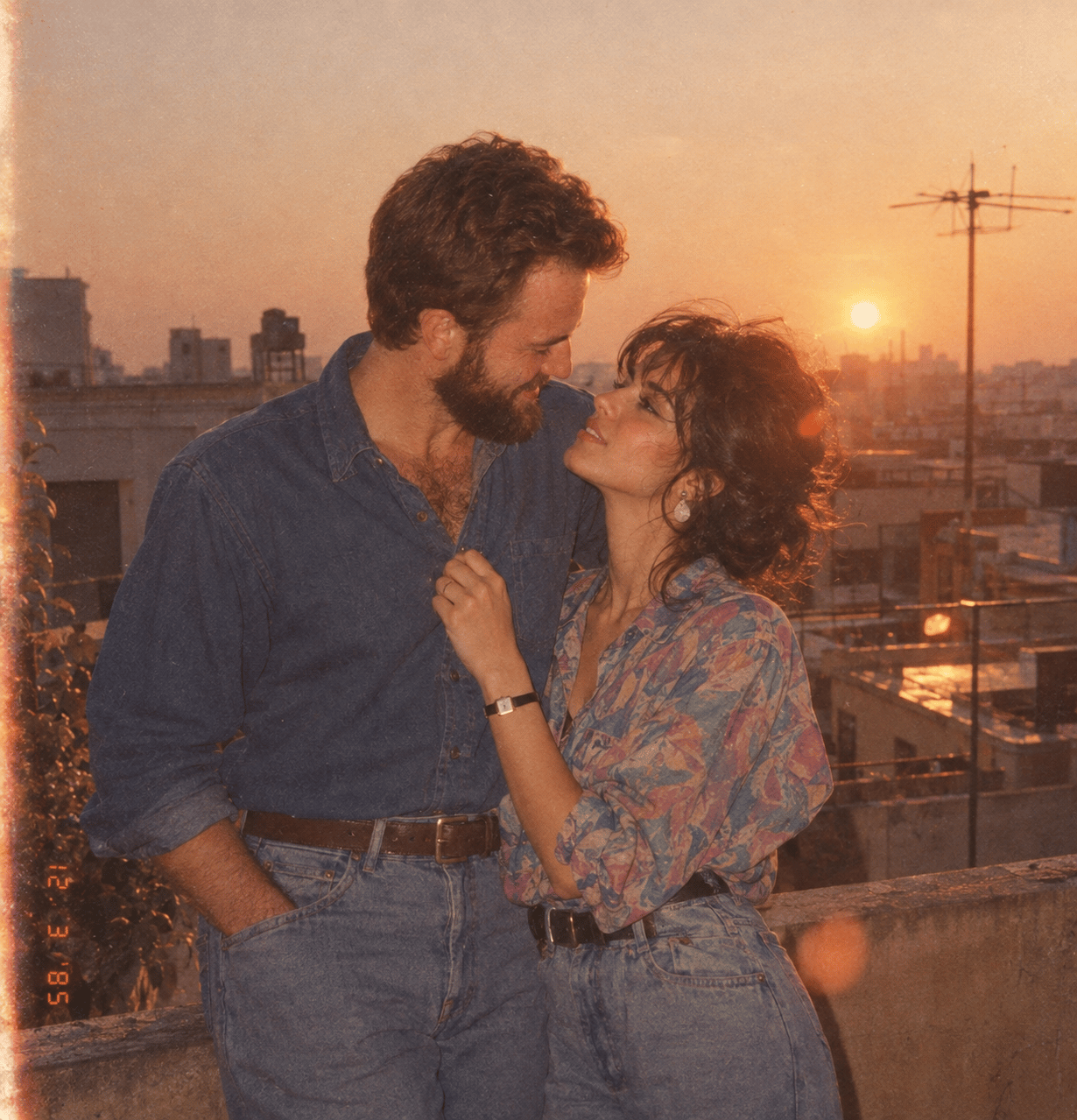

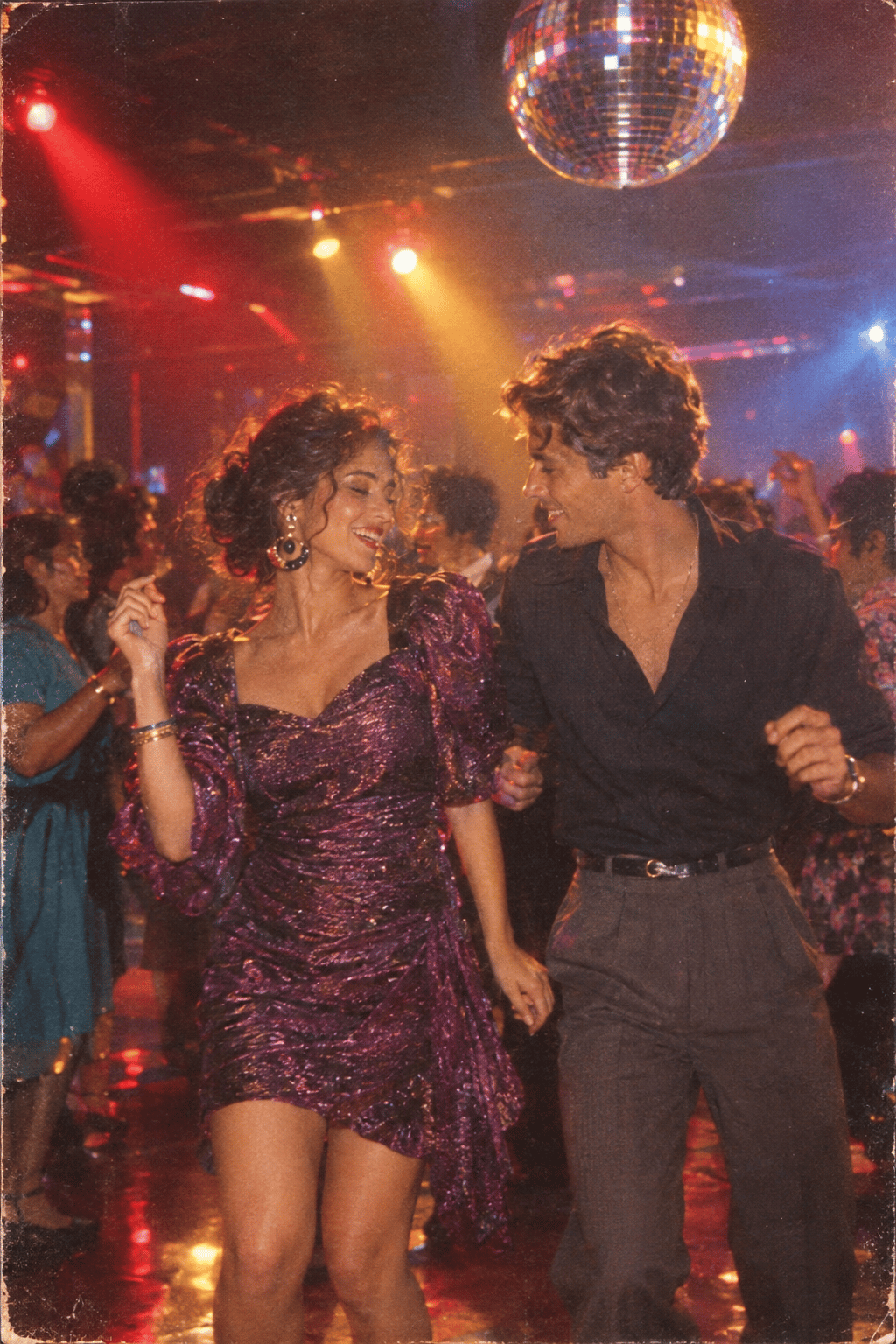
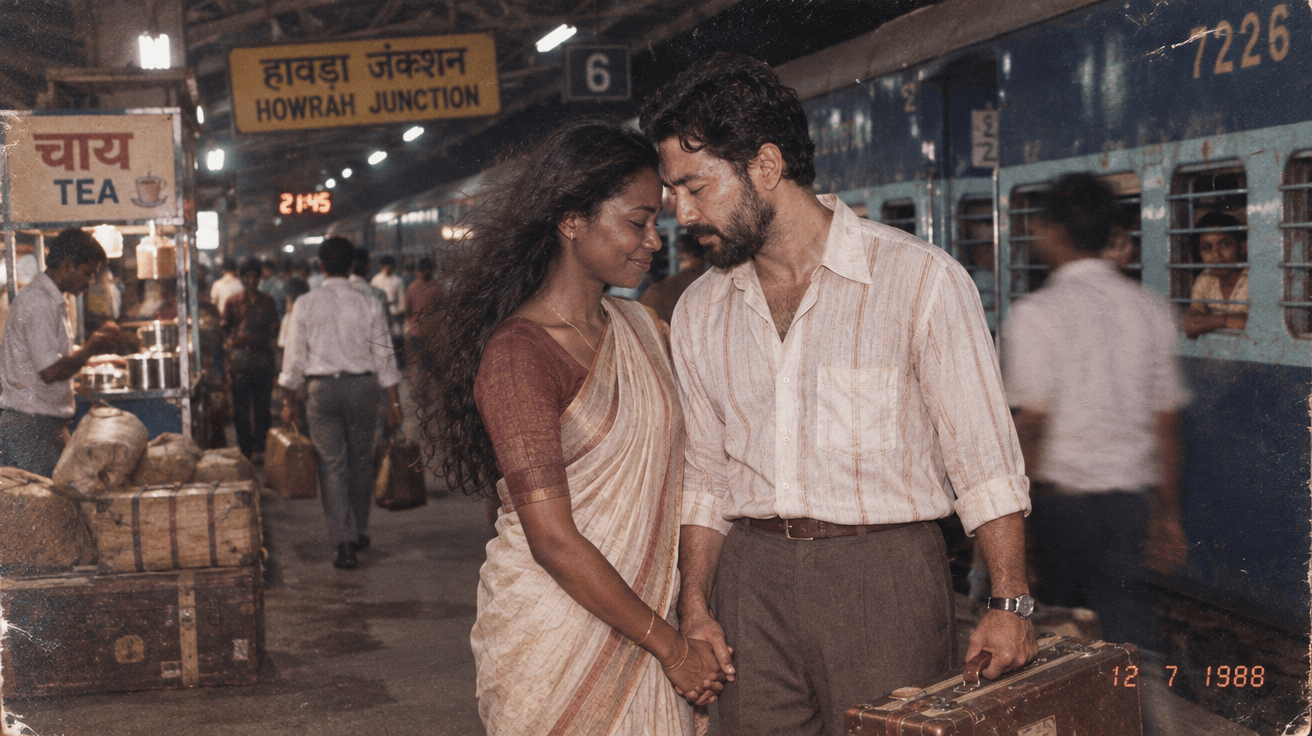
Make it yours
Image to 16-Bit Retro Pixel Art Transformation works as-is. These are the safest ways to change it without losing the look.
Change one field
Copy a single group, rewrite it, and generate again so you can see what that field is doing.
Keep the frame, change the subject
Hold the composition and light of Image to 16-Bit Retro Pixel Art Transformation, then swap wardrobe, props or the person for a new take.
| If the result… | Why | Fix |
|---|---|---|
| The result drifts from the preview | Too many fields changed at once. | Reuse Image to 16-Bit Retro Pixel Art Transformation as-is first, then change one group — subject, light, or setting. |
| The model over-stylizes the scene | The prose prompt leaves finish and camera underspecified. | Add one camera or lighting sentence and stay on GPT Image 2. |
More GPT Image 2 templates
Other prompts made for GPT Image 2.

Six VTuber Japanese Logo Sheet

Realistic Portrait of Woman and Deer

The Vista Modular Condo Poster

AI Model Routing Comparison Infographic

2.5D Anime Art Board

Isometric Productivity Desk Scene

New York Double Exposure Poster

Four-Panel AI Landscape Comparison

Japanese Tatami Lifestyle Magazine Cover

NESCAFÉ Coffee Map Poster
More image prompts
Fresh picks from across the catalog.
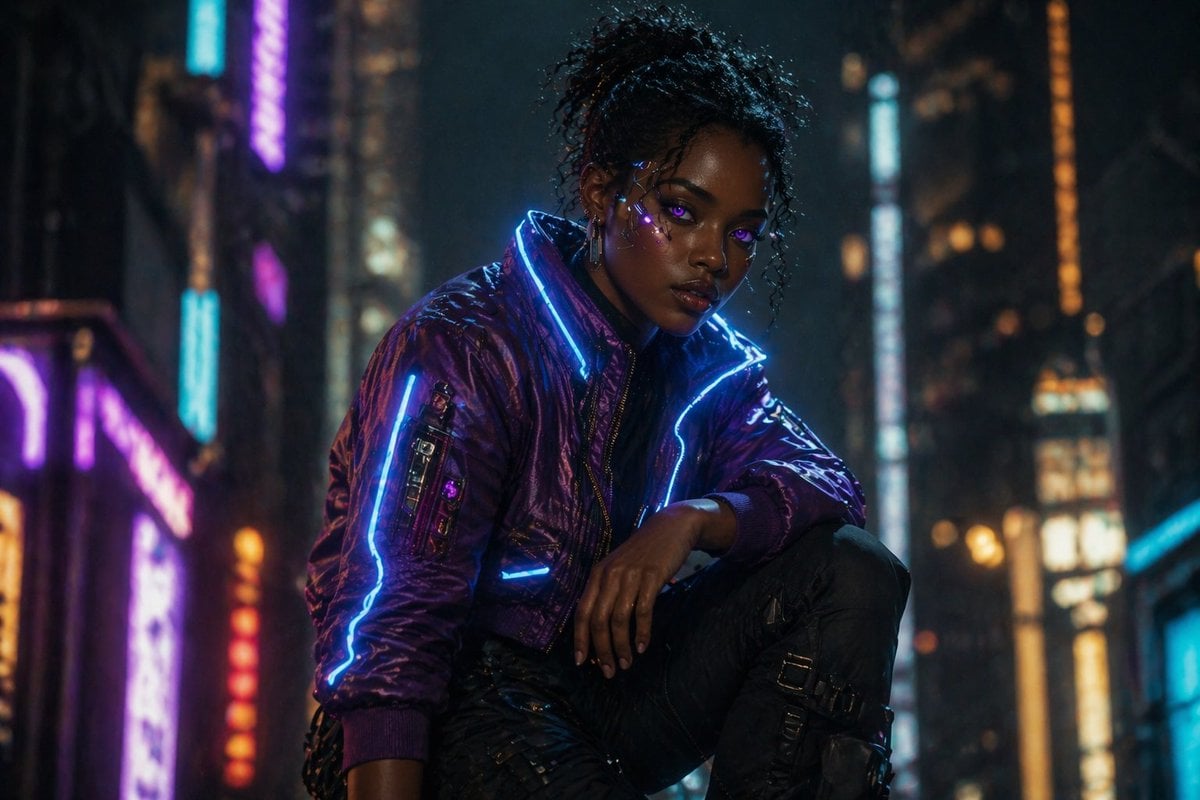
Cinematic Cyberpunk Woman Portrait
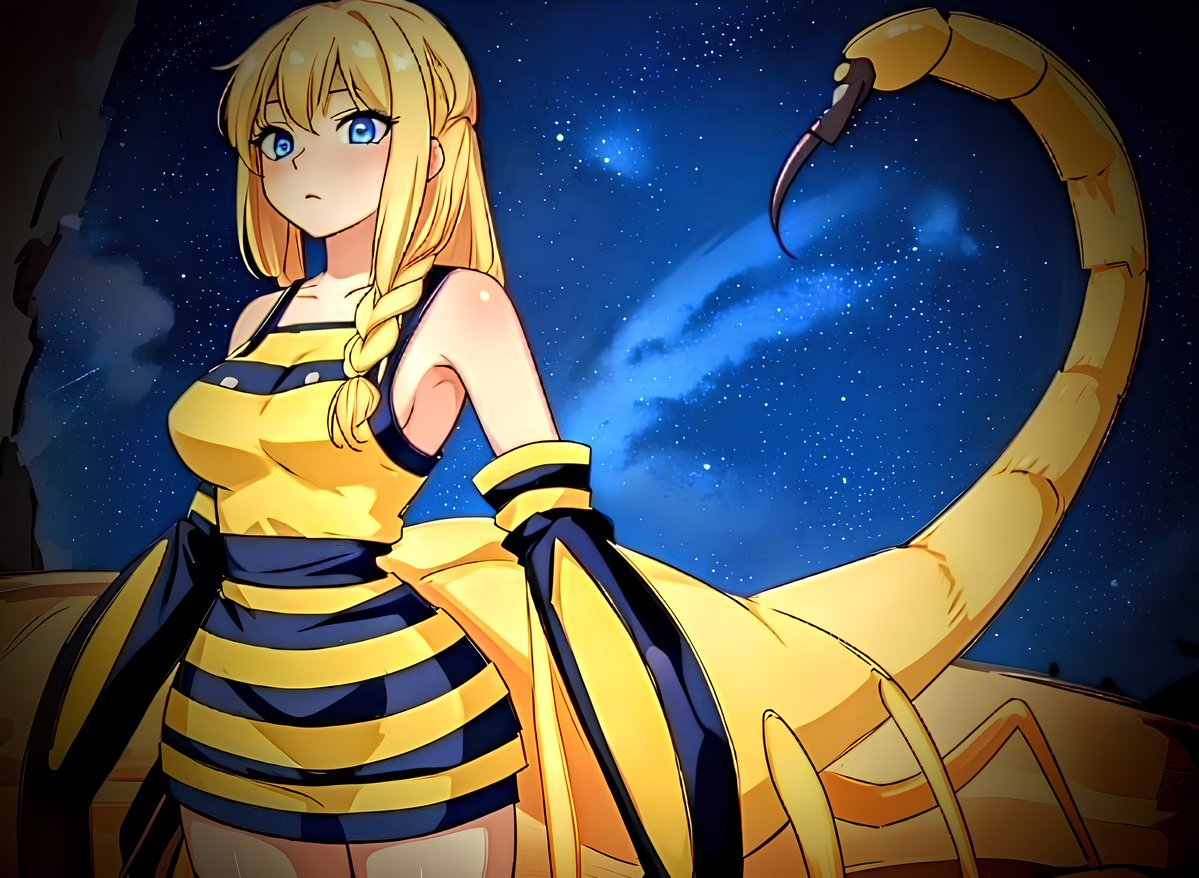
Deathstalker Arachne Personification

Hyper-Realistic Cinematic Portrait with Luxury Sports Car
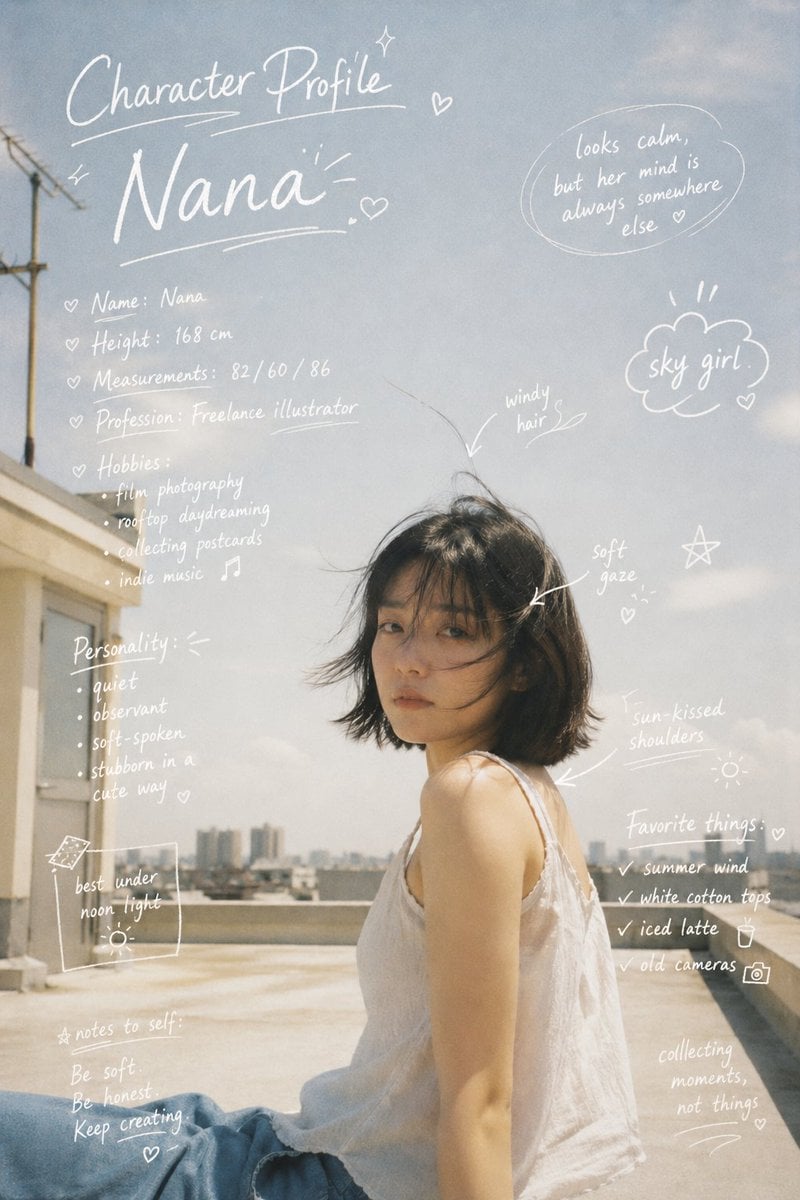
Character Profile Annotation Overlay
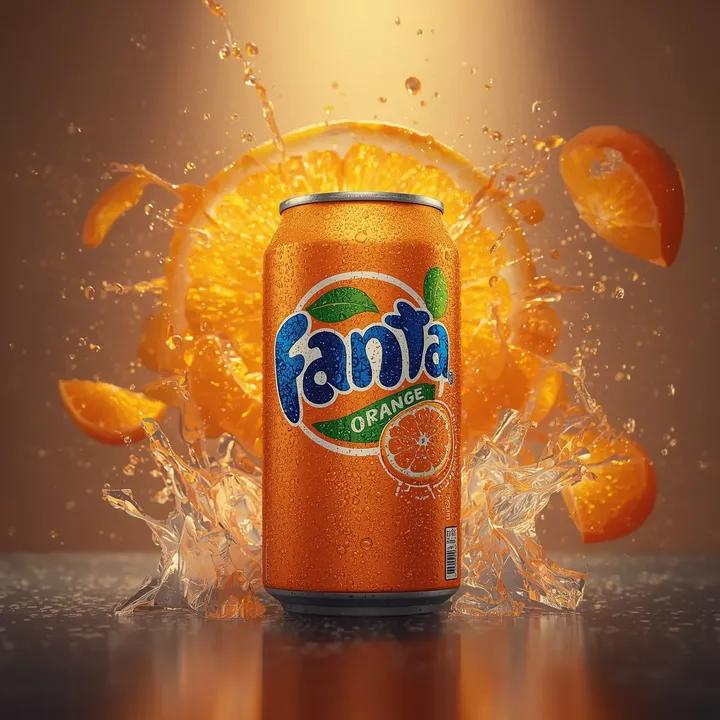
Ultra-Fast, High-Energy Product Video Generation Prompt
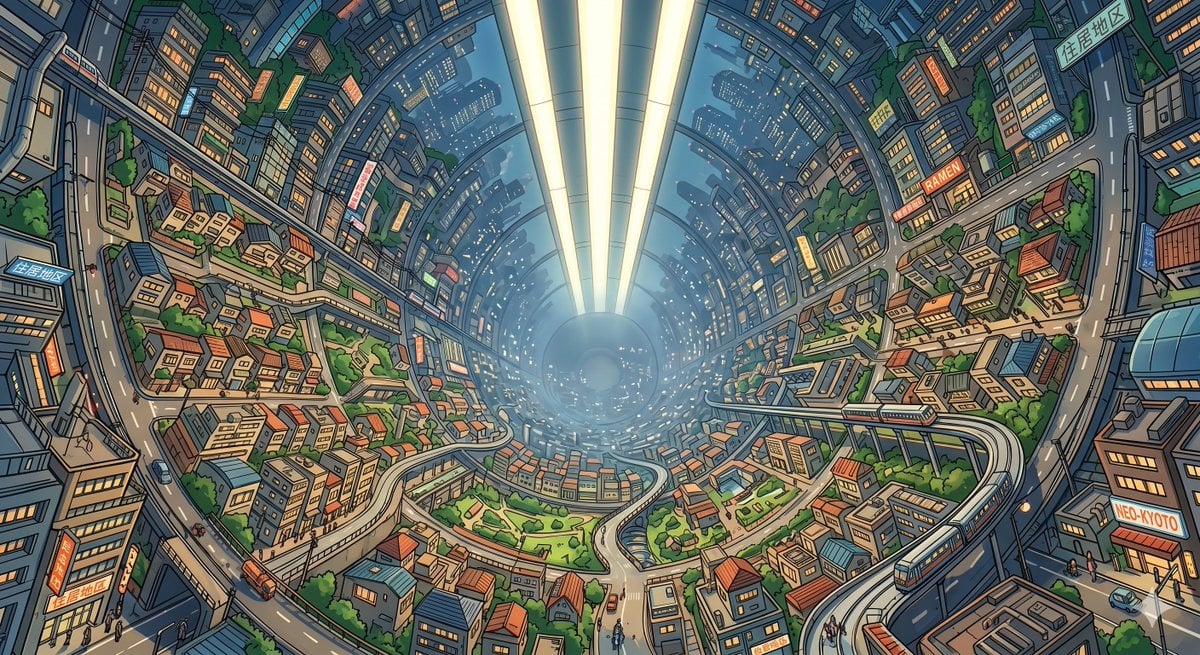
Enclosed O'Neill Cylinder City
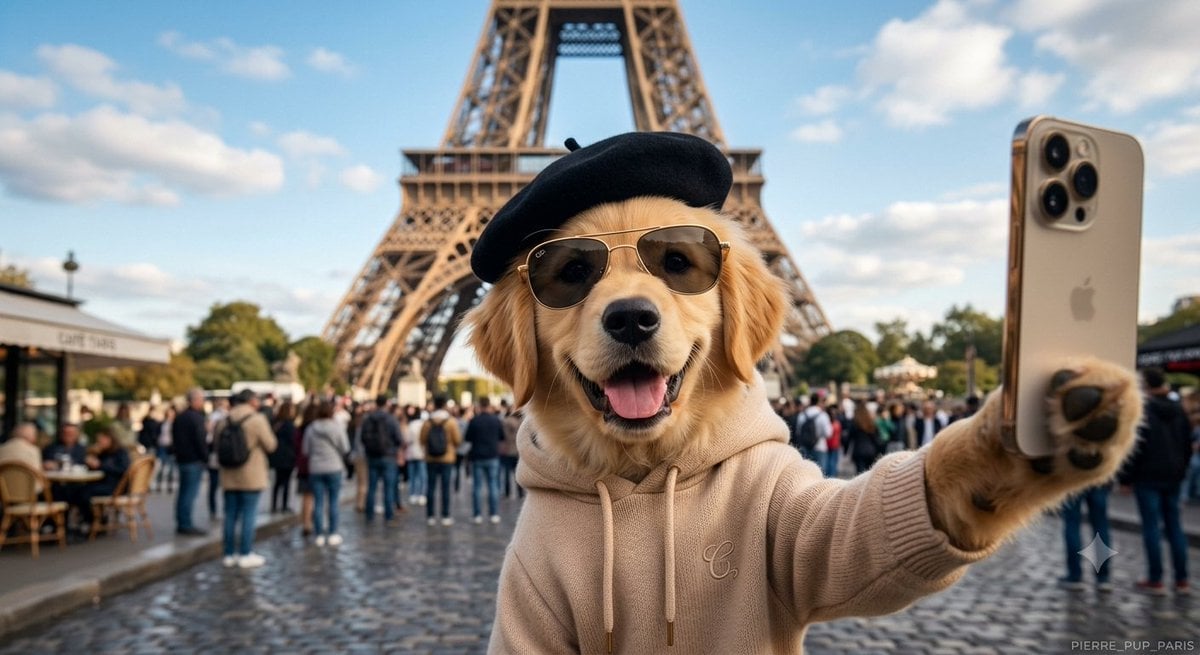
Dog Selfie at Eiffel Tower
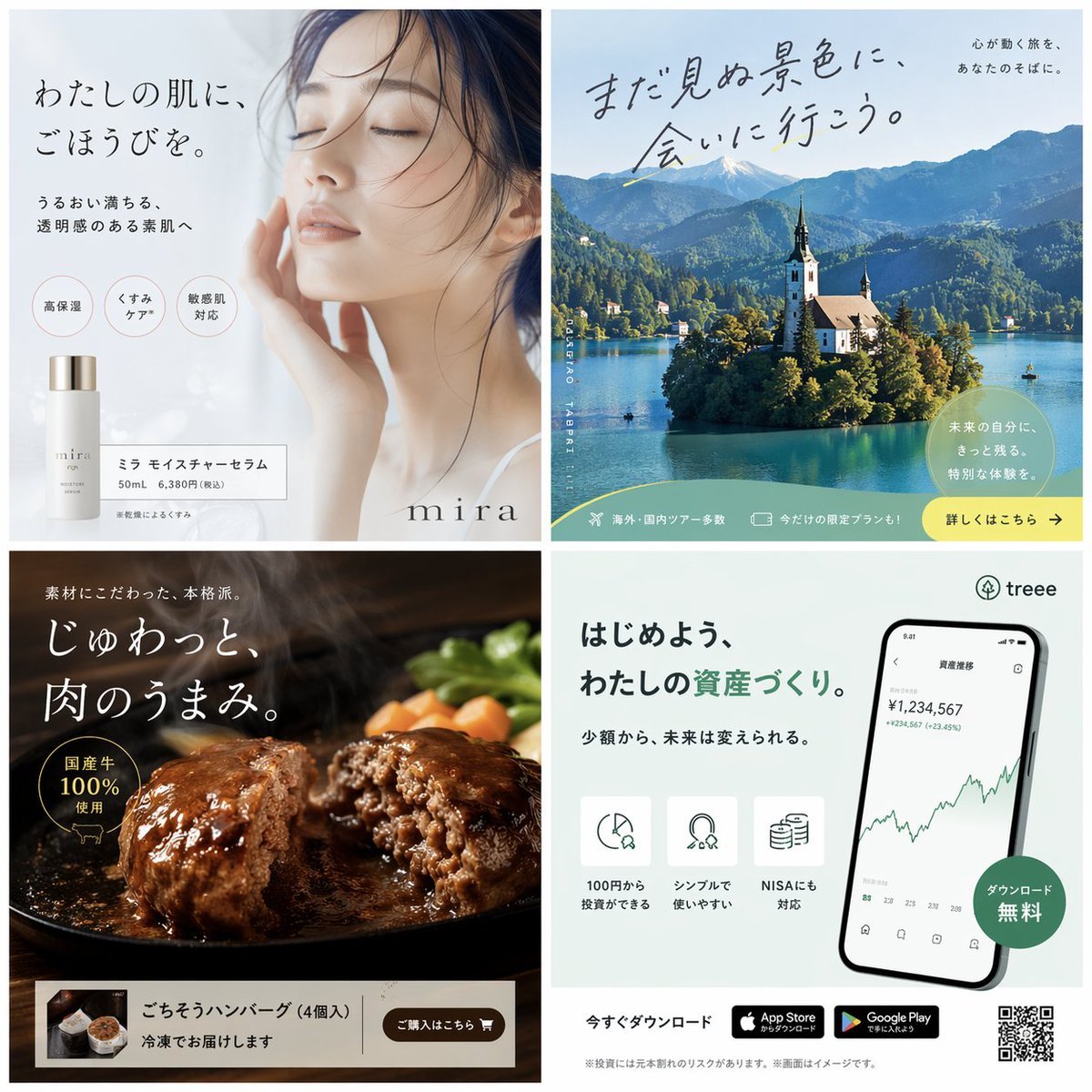
Panel Japanese Advertising Banner Grid
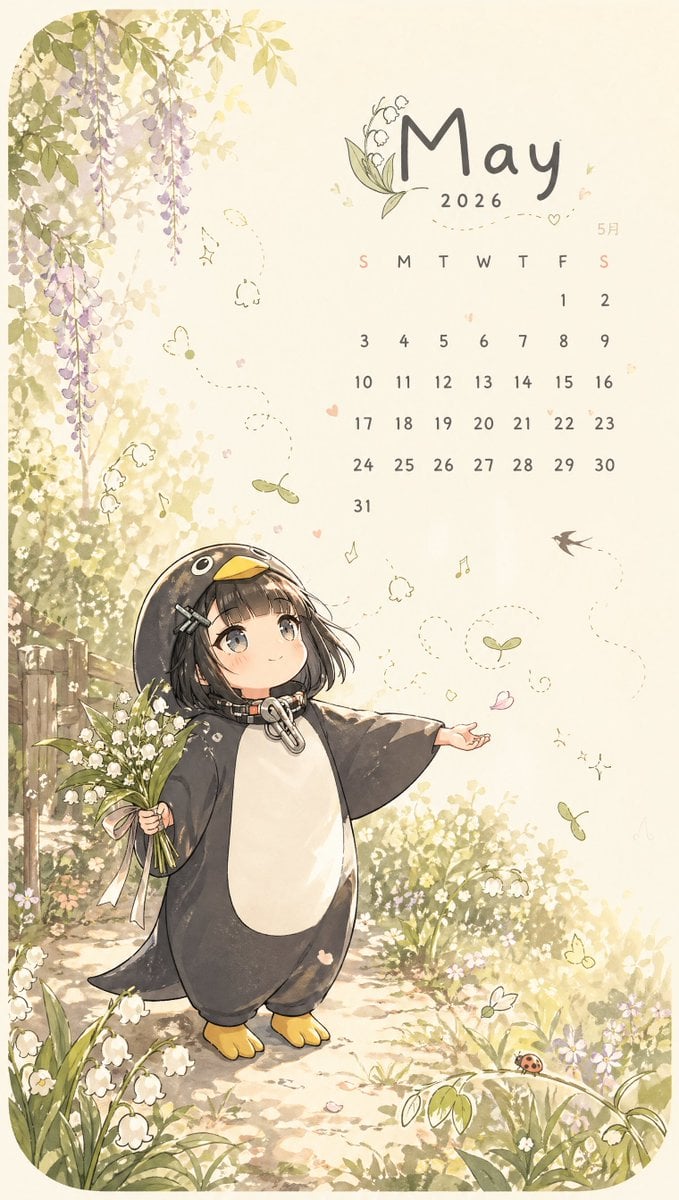
Whimsical May Spring Calendar
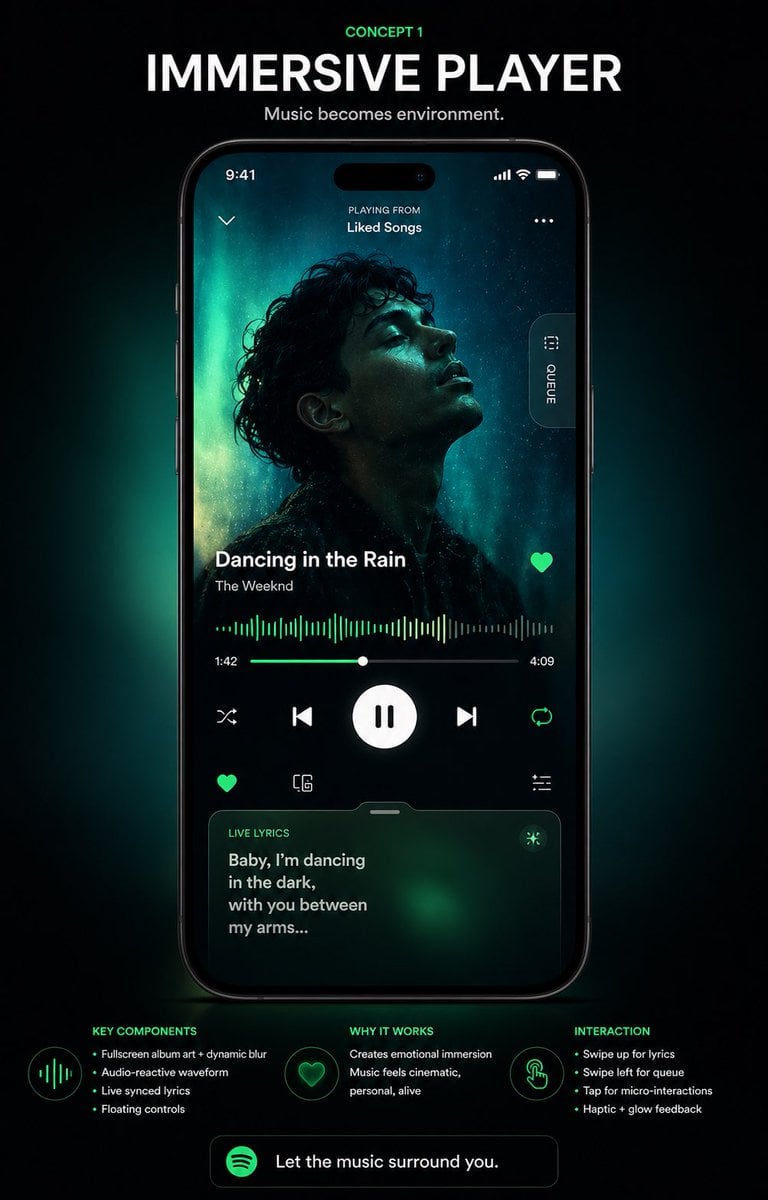
Immersive Music Player UI Poster
Browse template categories
Image to 16-Bit Retro Pixel Art Transformation questions
How do I use the Image to 16-Bit Retro Pixel Art Transformation template?
Add your photo if the template asks for one, edit the prompt if you like — the template's model and format are already selected — and press Generate. Your version opens in PicX Studio.
Can I customize the Image to 16-Bit Retro Pixel Art Transformation template?
Yes. You can change the subject, setting, lighting, mood, format, and available model controls before creating your image.
Is the Image to 16-Bit Retro Pixel Art Transformation template free?
Opening and editing this template is free. Generating uses credits, shown on the Generate button when you are signed in.
Which AI model should I use?
Start with GPT Image 2, which is the model associated with this template. You can compare another compatible model for a different finish.
Looking for something else? Browse all templates.

Your photo, any look
Thousands of ready templates for every top image and video model, from one credit balance.