
Anime Soldier in Moonlit Urban Warzone
Generates a cinematic dark anime action scene of a tactical soldier firing a rifle in a ruined nighttime city battlefield.
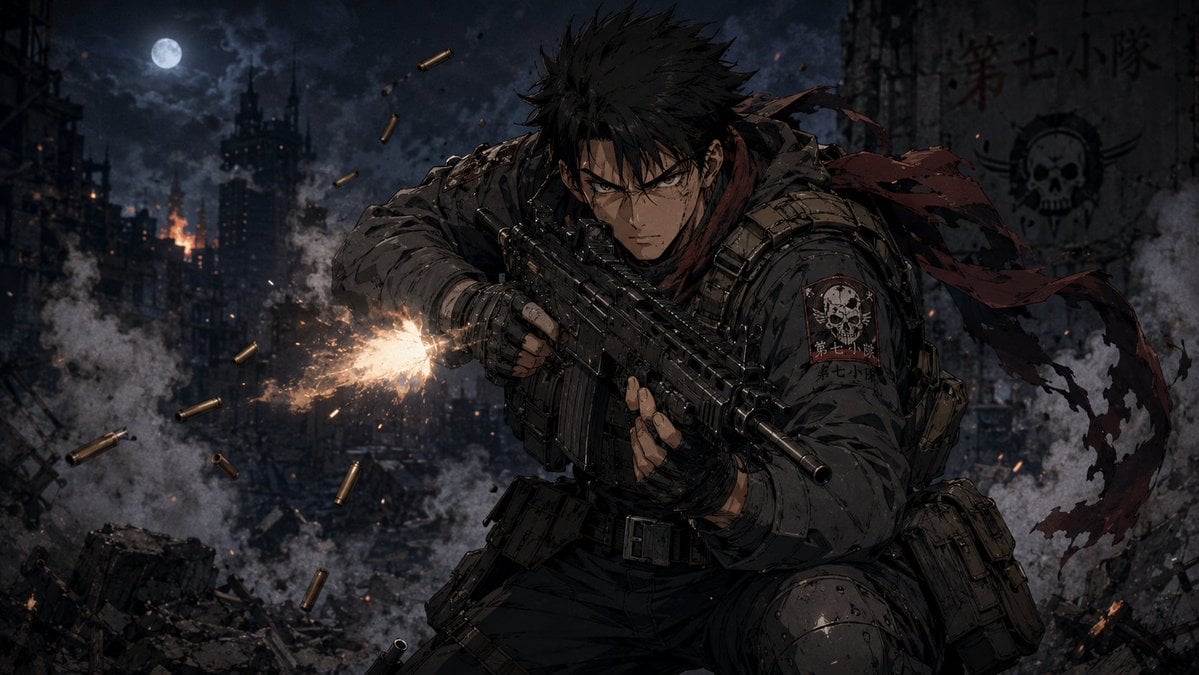
- Prompt included
- Model and format preset
- Free template
The prompt behind this image
Copy the exact prompt behind Anime Soldier in Moonlit Urban Warzone, or open it in the studio and make it yours.
Create a dark, cinematic anime war illustration in a gritty seinen style: a single young male special-operations soldier with {argument name="hair color" default="spiky black hair"} crouches in the foreground, leaning forward aggressively while firing a compact black assault rifle toward the left side of the frame. He has sharp intense eyes, a stern battle-worn face with dirt and scratches, fingerless gloves, heavy tactical armor, ammunition pouches, a utility belt, knee armor, and a ragged {argument name="scarf color" default="dark red"} scarf whipping behind him. The rifle emits one bright orange-white muzzle flash with sparks and smoke; show exactly 9 flying brass shell casings around the weapon. The background is a devastated nighttime city battlefield with collapsed buildings, rubble, smoke plumes, small fires, drifting embers, and a full moon in a cloudy sky near the upper left. On the soldier’s shoulder patch and on a ruined wall in the upper right, include a skull insignia and the unit text {argument name="unit text" default="第七小隊"}. Use a wide 16:9 composition, low-key blue-gray moonlit palette with warm fire highlights, high contrast, detailed linework, painterly anime rendering, dramatic motion, debris, and atmospheric depth. Keep the scene serious and realistic, no cartoon exaggeration, no extra characters, no watermark.
How to use Anime Soldier in Moonlit Urban Warzone in 3 steps
- 1Upload ImagePNG, JPG or paste
Add your photo
Upload the photo the template builds on. The prompt, model and format are already set.
- 2…a portrait of your subject in softgolden-hour light, 85mm…
Personalize
Edit the subject and creative details for your destination.
- 3Generate
Generate
Press Generate — your image is created in PicX Studio, so you can compare it with the original and refine one variable at a time.
More like this
Templates with the same subject, style or setup. Open one to see its prompt.
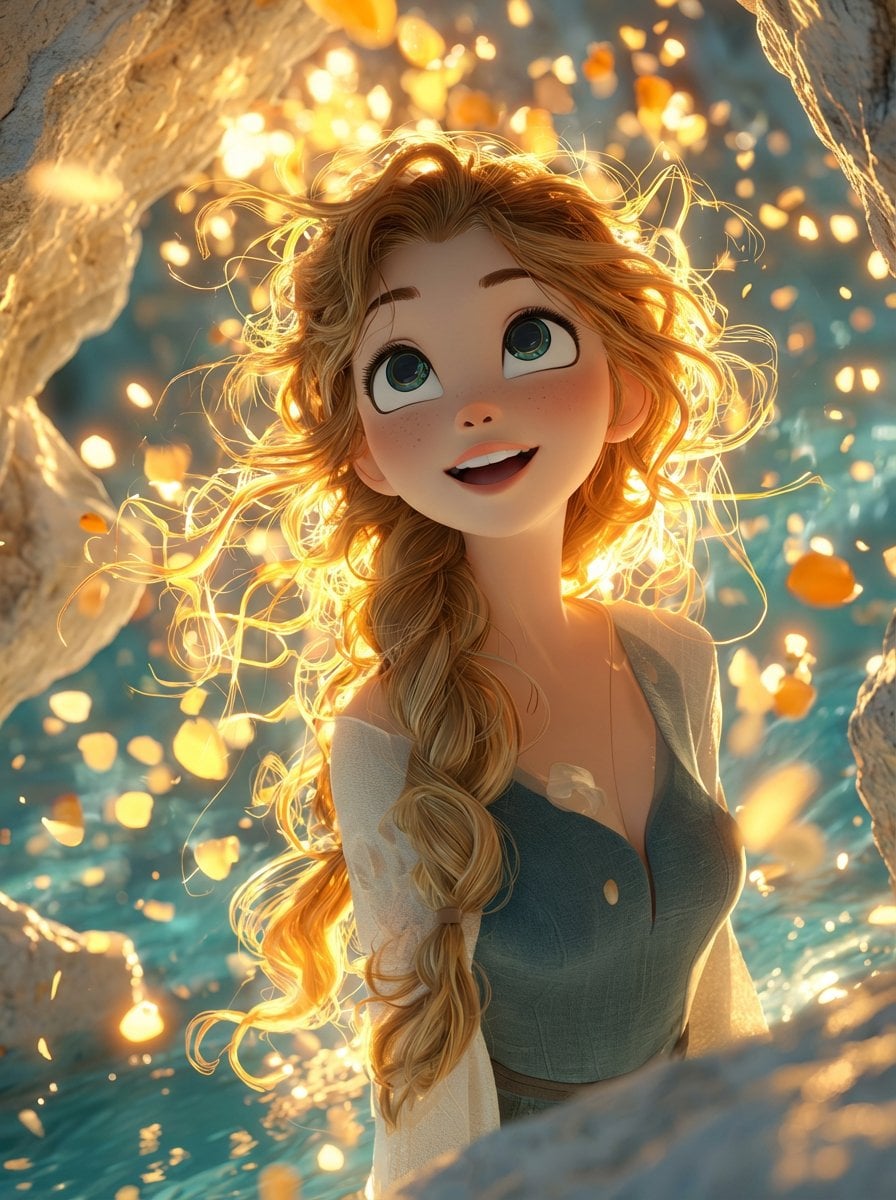
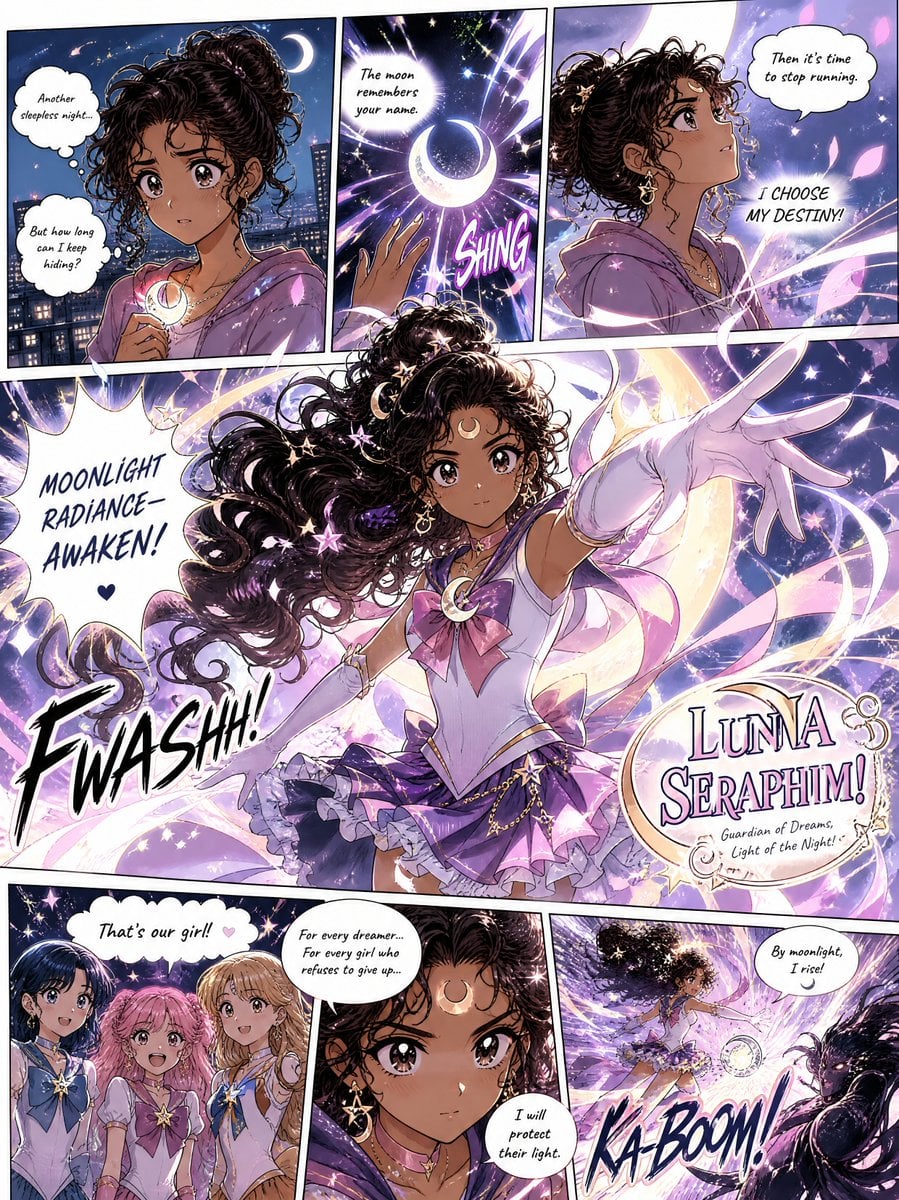
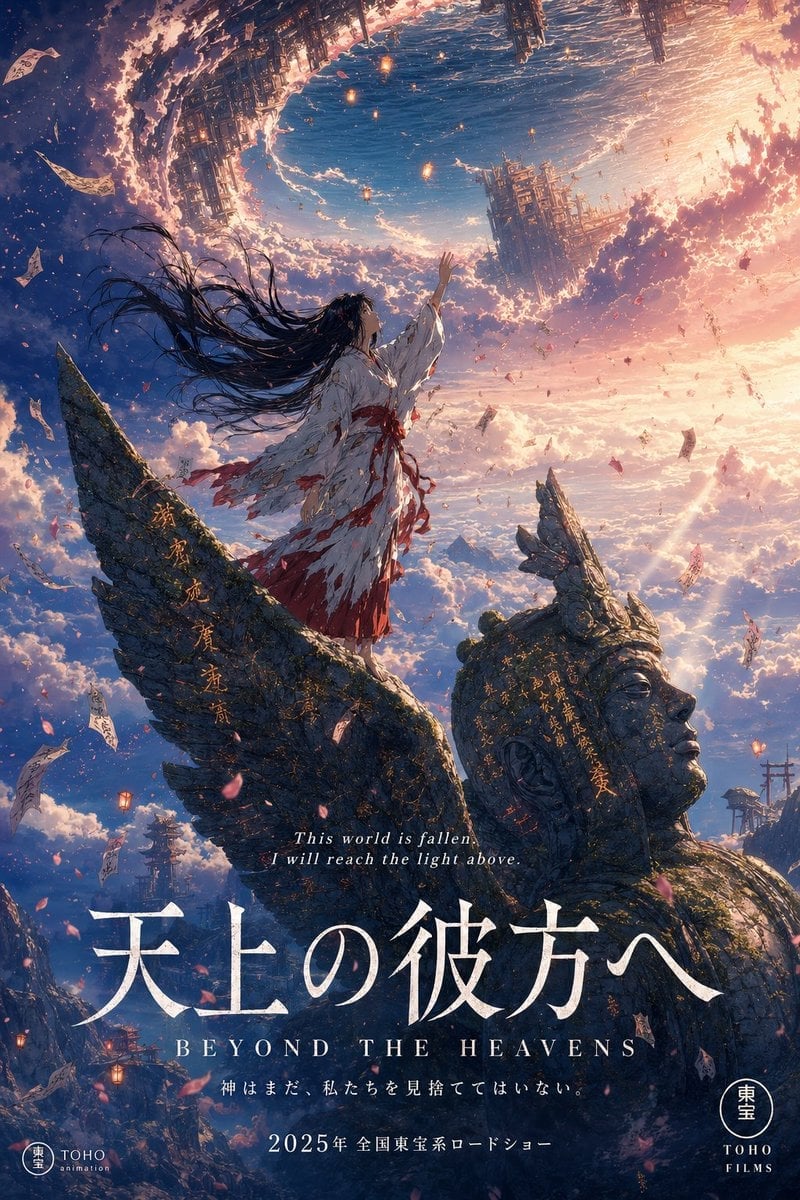
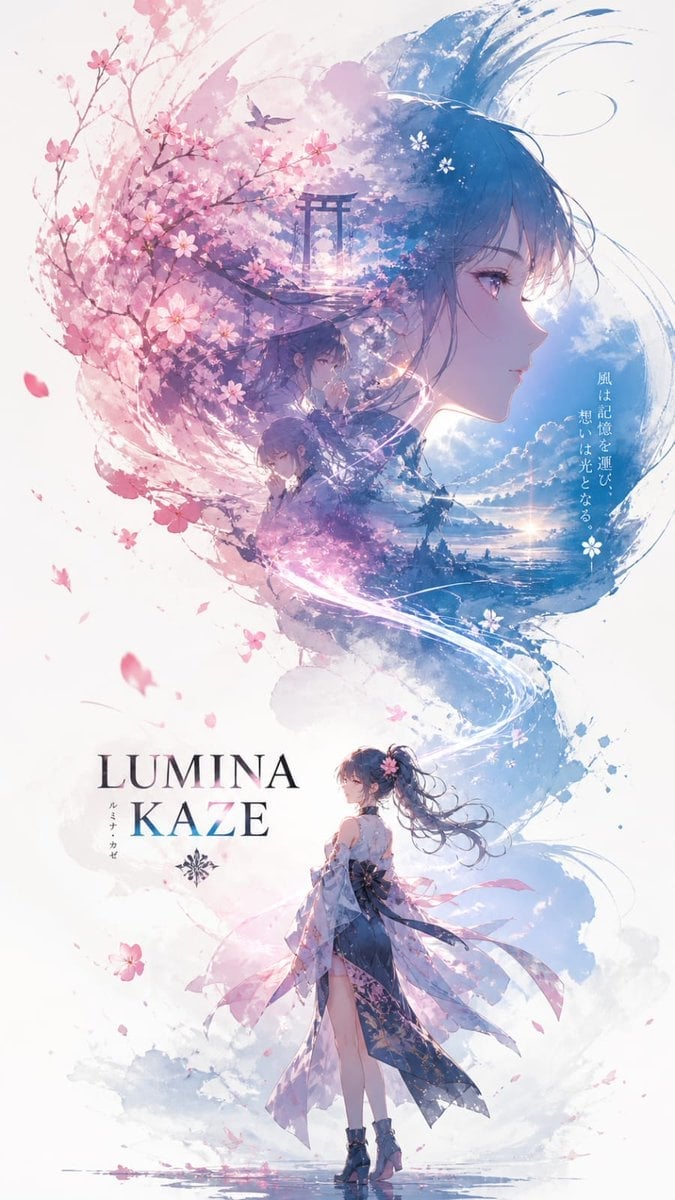
Make it yours
Anime Soldier in Moonlit Urban Warzone works as-is. These are the safest ways to change it without losing the look.
Change one field
Copy a single group, rewrite it, and generate again so you can see what that field is doing.
Keep the frame, change the subject
Hold the composition and light of Anime Soldier in Moonlit Urban Warzone, then swap wardrobe, props or the person for a new take.
| If the result… | Why | Fix |
|---|---|---|
| The result drifts from the preview | Too many fields changed at once. | Reuse Anime Soldier in Moonlit Urban Warzone as-is first, then change one group — subject, light, or setting. |
| The model over-stylizes the scene | The prose prompt leaves finish and camera underspecified. | Add one camera or lighting sentence and stay on GPT Image 2. |
More GPT Image 2 templates
Other prompts made for GPT Image 2.

Six VTuber Japanese Logo Sheet

Realistic Portrait of Woman and Deer

The Vista Modular Condo Poster

AI Model Routing Comparison Infographic

2.5D Anime Art Board

Isometric Productivity Desk Scene

New York Double Exposure Poster

Four-Panel AI Landscape Comparison

Japanese Tatami Lifestyle Magazine Cover

NESCAFÉ Coffee Map Poster
More image prompts
Fresh picks from across the catalog.
Analog Editorial Portrait Grid in Cozy Bedroom
Codex Jigsaw Puzzle Tech Banner
untitled
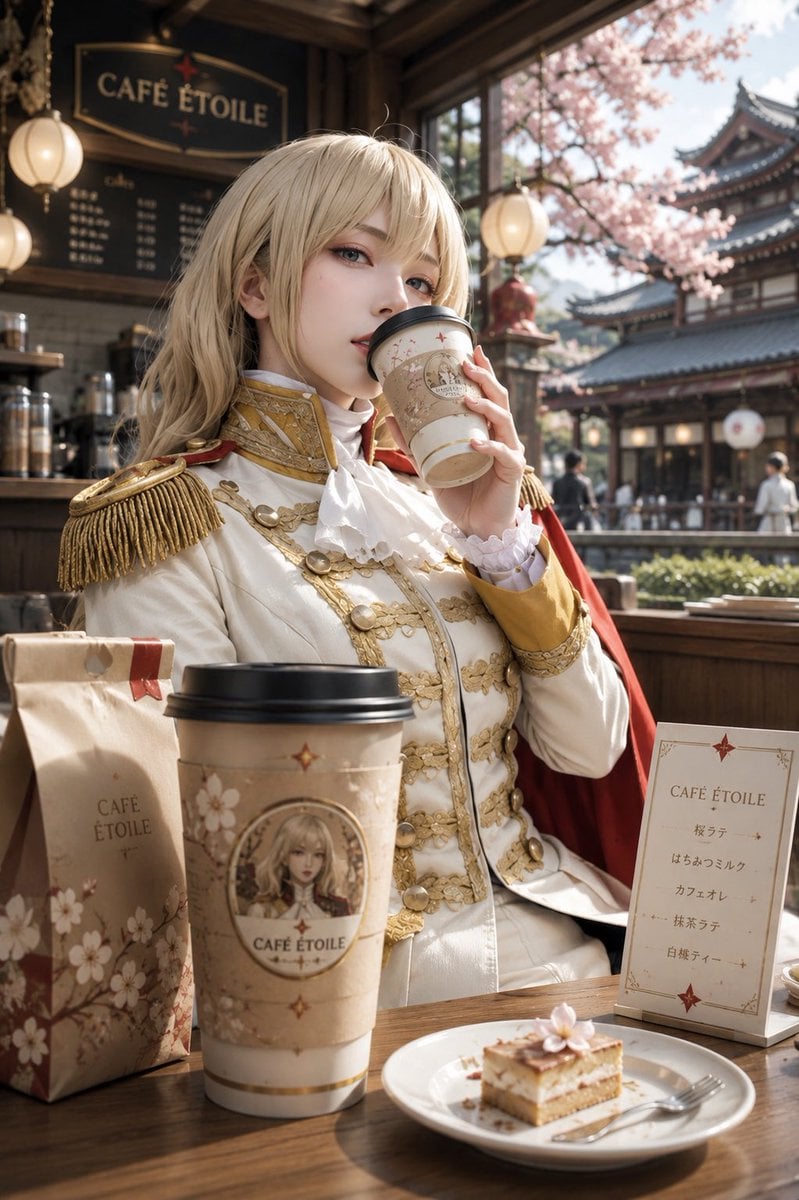
Character Café Sakura Promotion
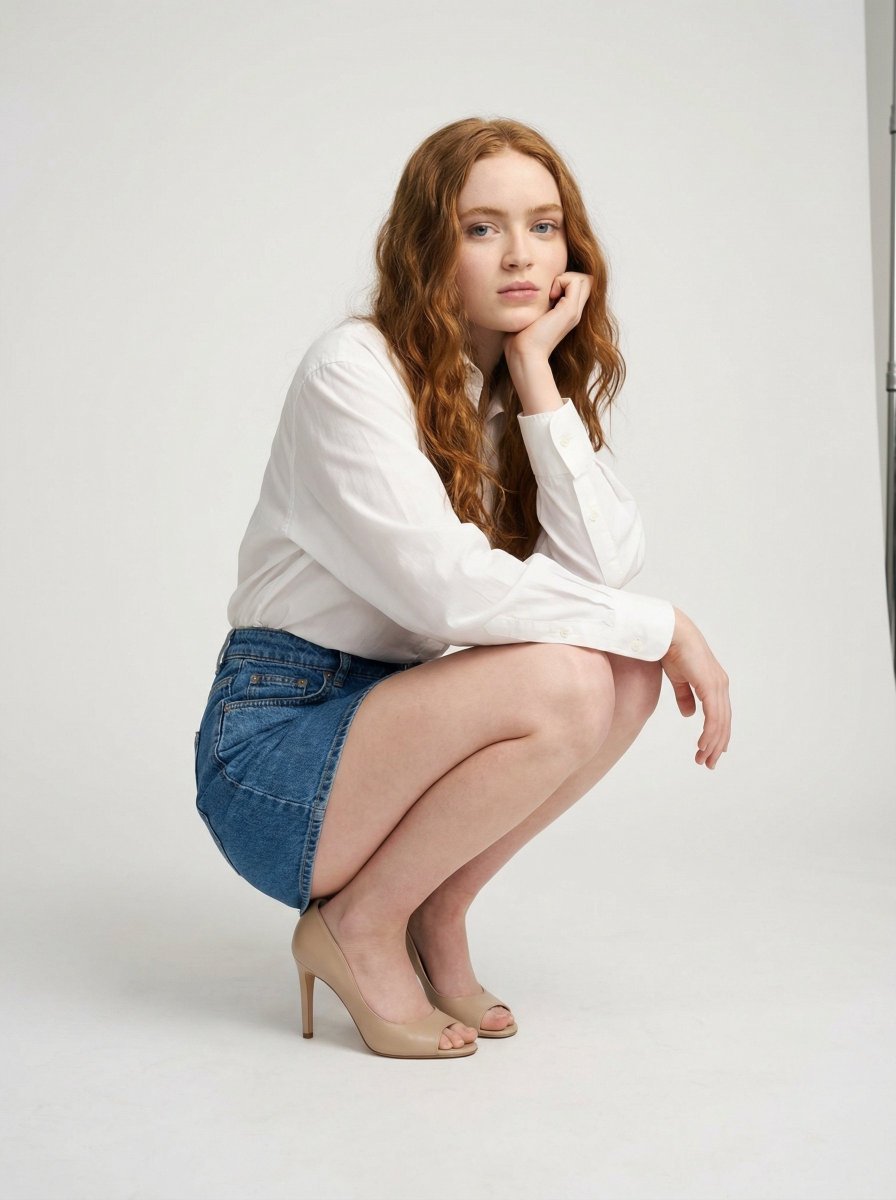
High-End Studio Fashion Editorial of Crouching Woman
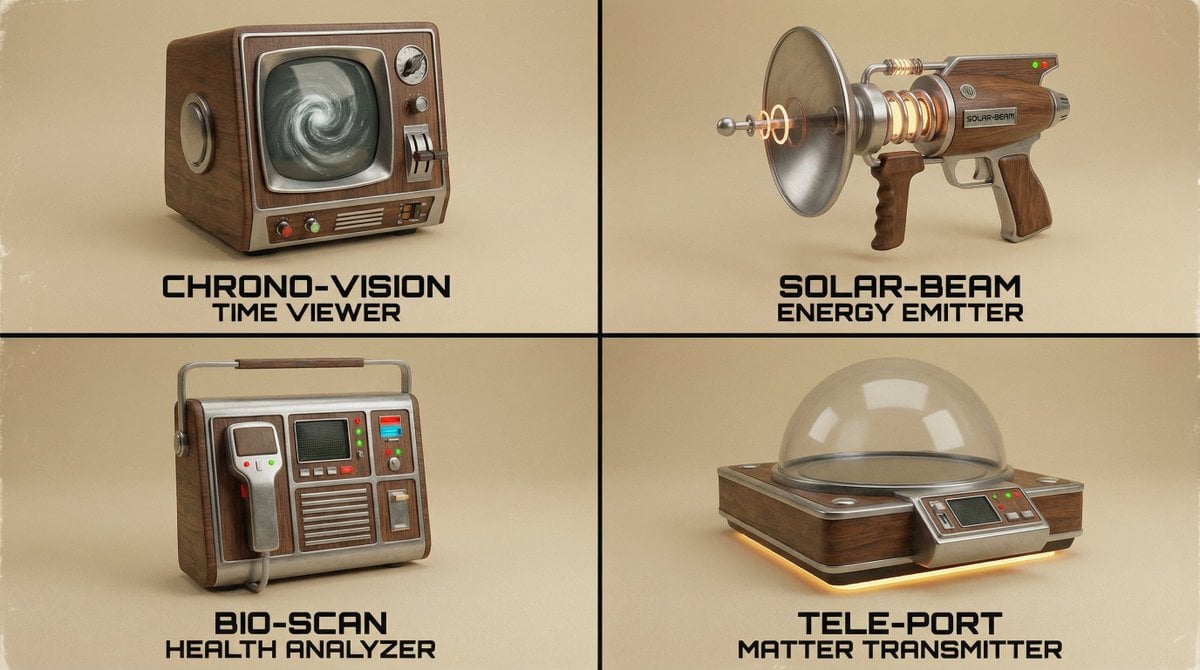
Random Strange Product Grid Generator
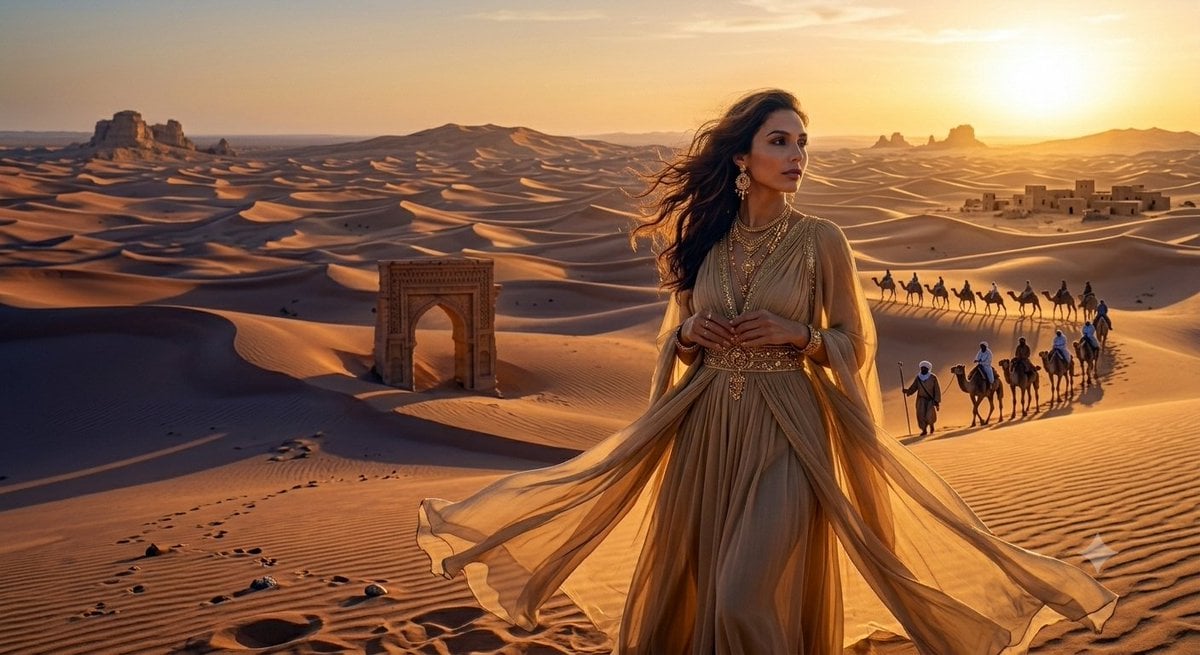
Desert Princess at Sunset
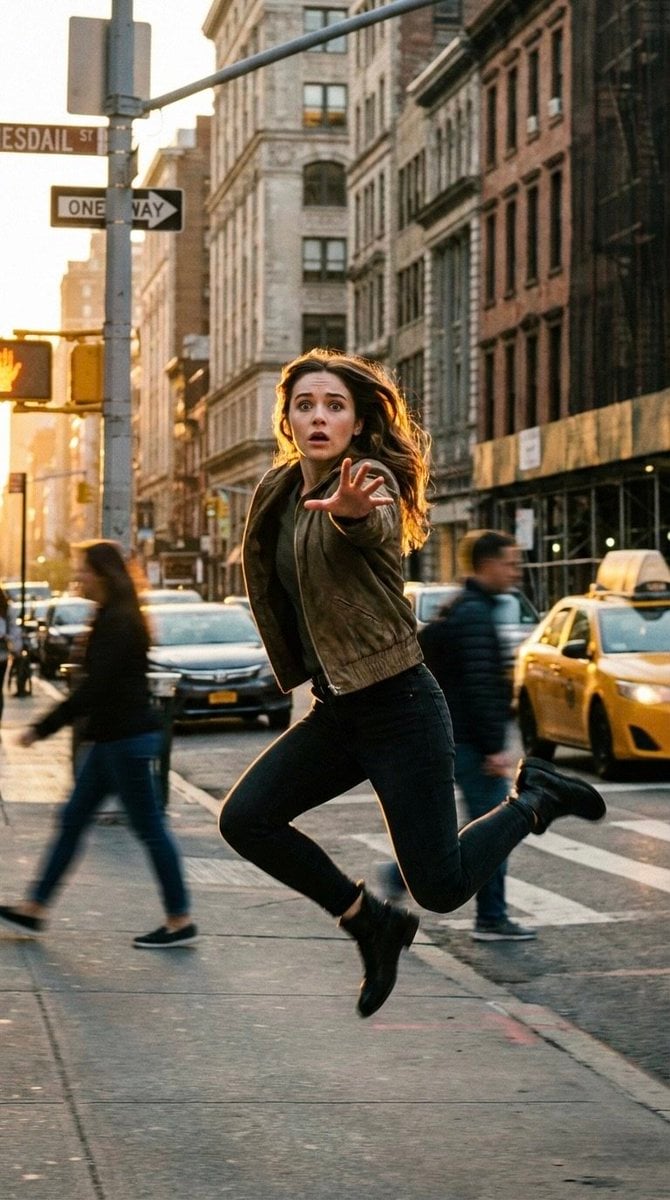
Cinematic Freeze-Frame Action Shot in NYC Prompt
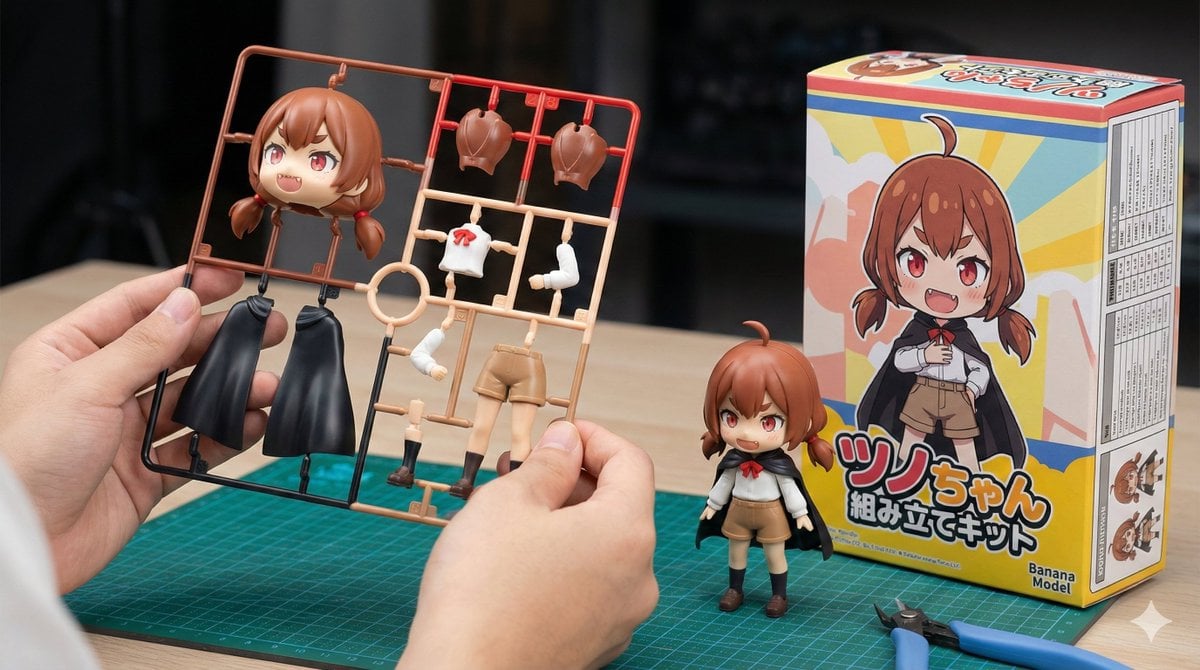
Plastic Model Kit Generation Prompt

Luxury Lavender Skincare Ad
Browse template categories
Anime Soldier in Moonlit Urban Warzone questions
How do I use the Anime Soldier in Moonlit Urban Warzone template?
Add your photo if the template asks for one, edit the prompt if you like — the template's model and format are already selected — and press Generate. Your version opens in PicX Studio.
Can I customize the Anime Soldier in Moonlit Urban Warzone template?
Yes. You can change the subject, setting, lighting, mood, format, and available model controls before creating your image.
Is the Anime Soldier in Moonlit Urban Warzone template free?
Opening and editing this template is free. Generating uses credits, shown on the Generate button when you are signed in.
Which AI model should I use?
Start with GPT Image 2, which is the model associated with this template. You can compare another compatible model for a different finish.
Looking for something else? Browse all templates.

Your photo, any look
Thousands of ready templates for every top image and video model, from one credit balance.