How do I use the Beaded Pixel Art Portrait template?
Edit the prompt in the box under the preview — the template's model and format are already selected — and press Generate. Your version appears right on this page.
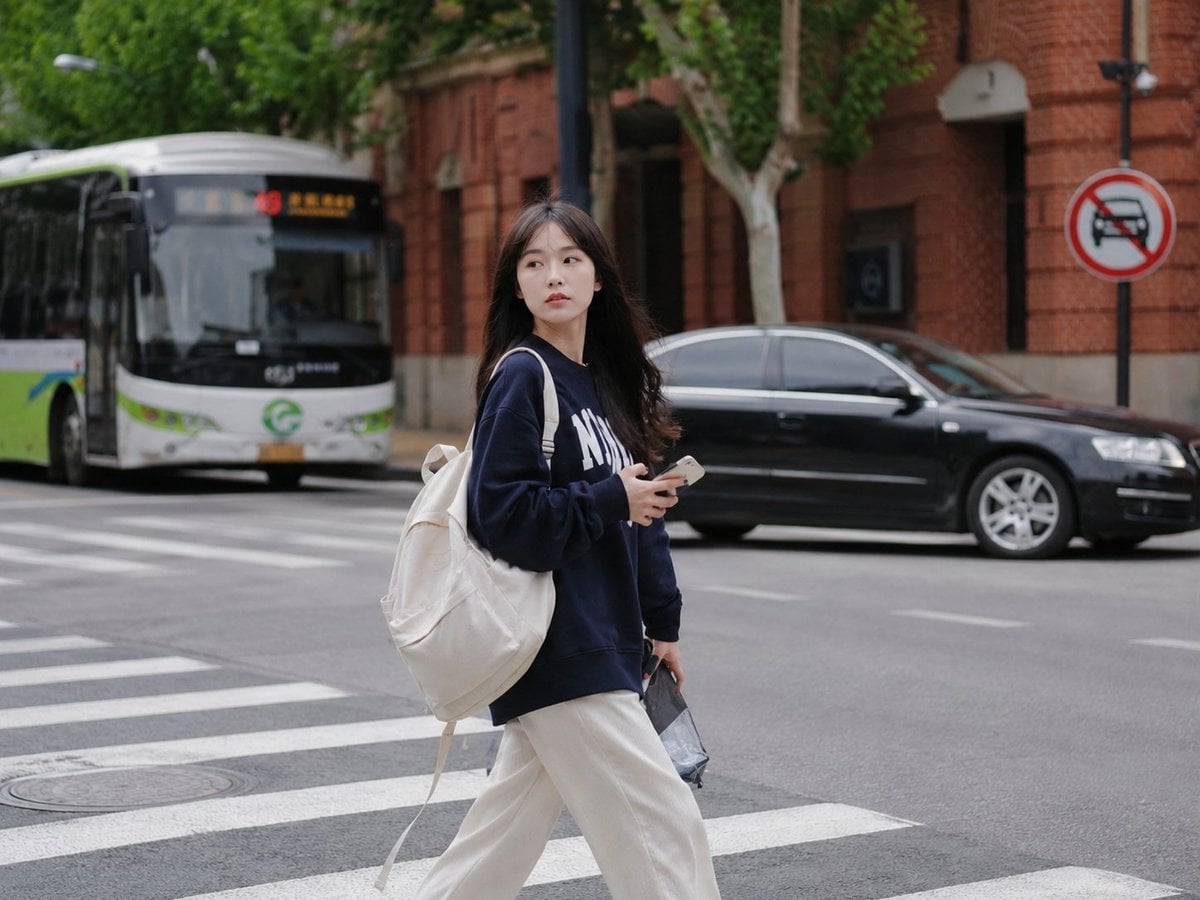
A creative prompt for GPT Image 2 that converts a character from a reference image into a charming and warm beaded pixel art style.

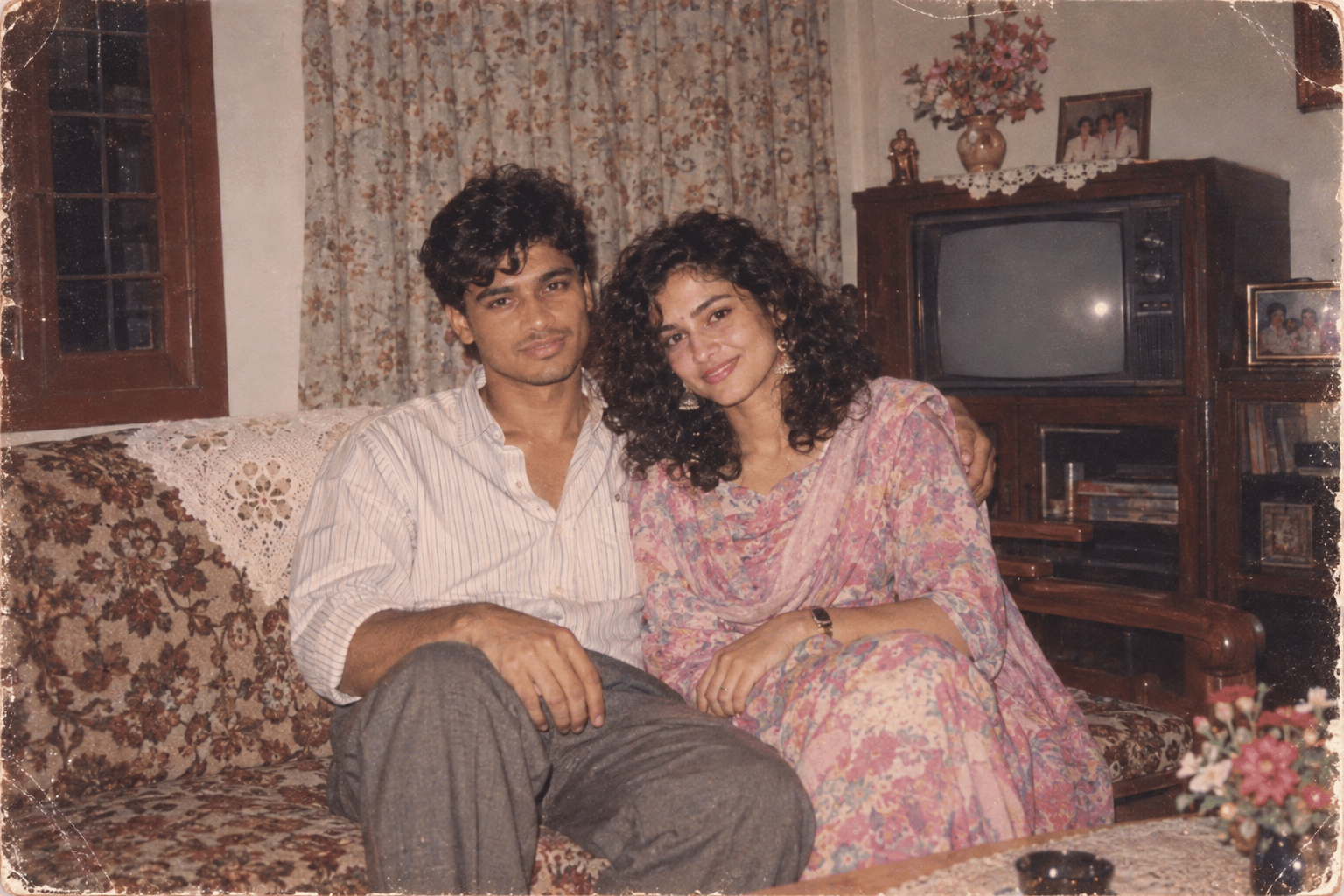
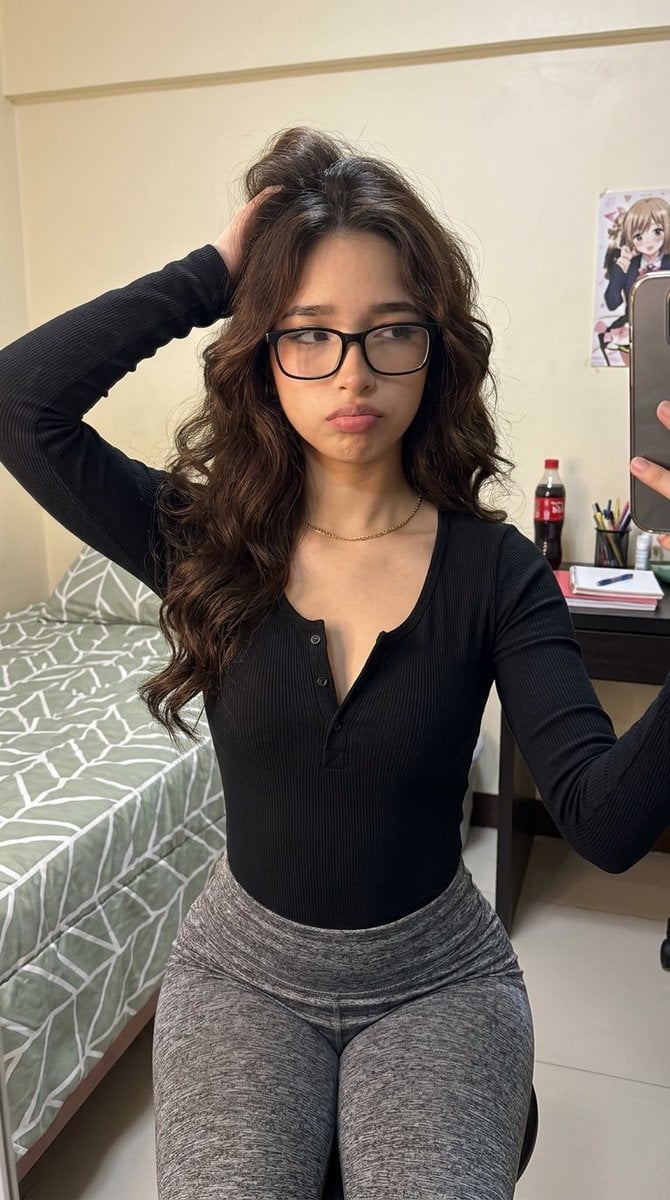
This template uses your photo — add one with the + button.
以{argument name="风格" default="拼豆风格"}绘制出图片中的主体人物,颜色接近画面中效果,背景换成比较简单的装饰,整体画面温馨
以{argument name="风格" default="拼豆风格"}绘制出图片中的主体人物,颜色接近画面中效果,背景换成比较简单的装饰,整体画面温馨
Beaded Pixel Art Portrait needs input media to work. Open it in the studio and these load alongside the prompt — pick whichever ones your chosen model can take.
Edit the prompt in the box under the preview — the template's model and format are already selected — and press Generate. Your version appears right on this page.
Yes. You can change the subject, setting, lighting, mood, format, and available model controls before creating your image.
Opening and editing this template is free. Generating uses credits, shown on the Generate button when you are signed in.
Start with GPT Image 2, which is the model associated with this template. You can compare another compatible model for a different finish.
Follow a topic to a crawlable collection of related PicX Studio templates.