
Hairstyle Analysis Comparison Portrait
This prompt uses a reference portrait to generate a side-by-side hairstyle comparison graphic, helping visualize different looks on the same subject.
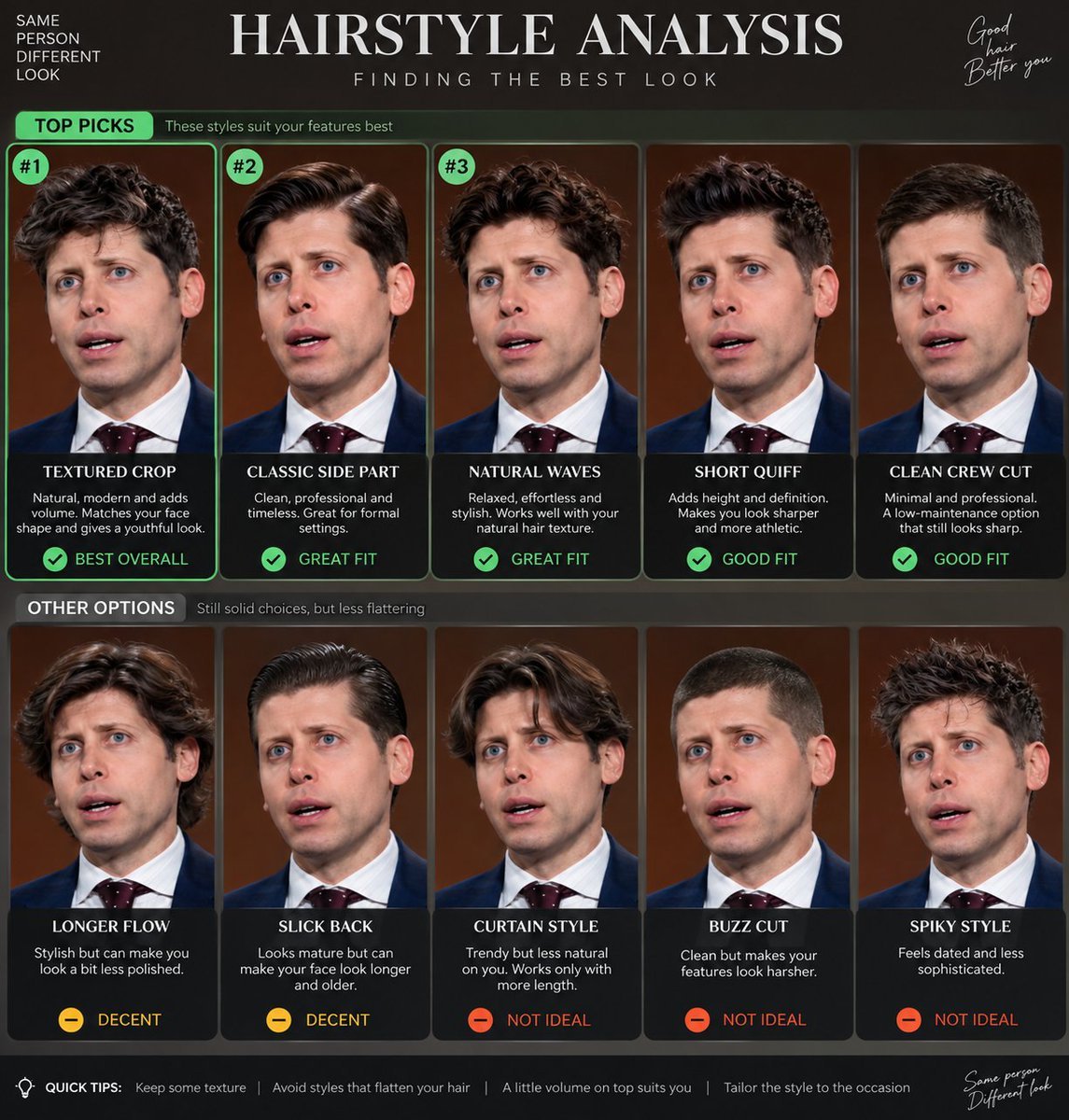
- Prompt included
- Model and format preset
- Free template
The prompt behind this image
Copy the exact prompt behind Hairstyle Analysis Comparison Portrait, or open it in the studio and make it yours.
Create a {argument name="task" default="hairstyle analysis graphic"} using this portrait. Show side-by-side {argument name="subject" default="hairstyle"} comparisons to highlight which {argument name="plural_subject" default="hairstyles"} suit the subject best
How to use Hairstyle Analysis Comparison Portrait in 3 steps
- 1Upload ImagePNG, JPG or paste
Add your photo
Upload the photo the template builds on. The prompt, model and format are already set.
- 2…a portrait of your subject in softgolden-hour light, 85mm…
Personalize
Edit the subject and creative details for your destination.
- 3Generate
Generate
Press Generate — your image is created in PicX Studio, so you can compare it with the original and refine one variable at a time.
More like this
Templates with the same subject, style or setup. Open one to see its prompt.
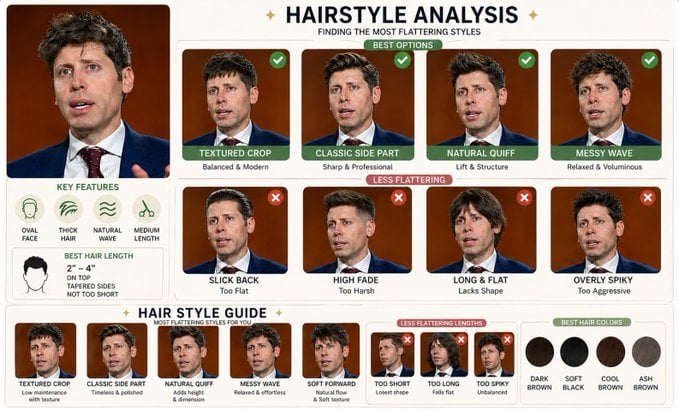
Hairstyle Comparison Analysis

Found Photograph: Us, 1970

80s Couple Studio Portrait
80s Bollywood Star
80s Golden Hour Cinema
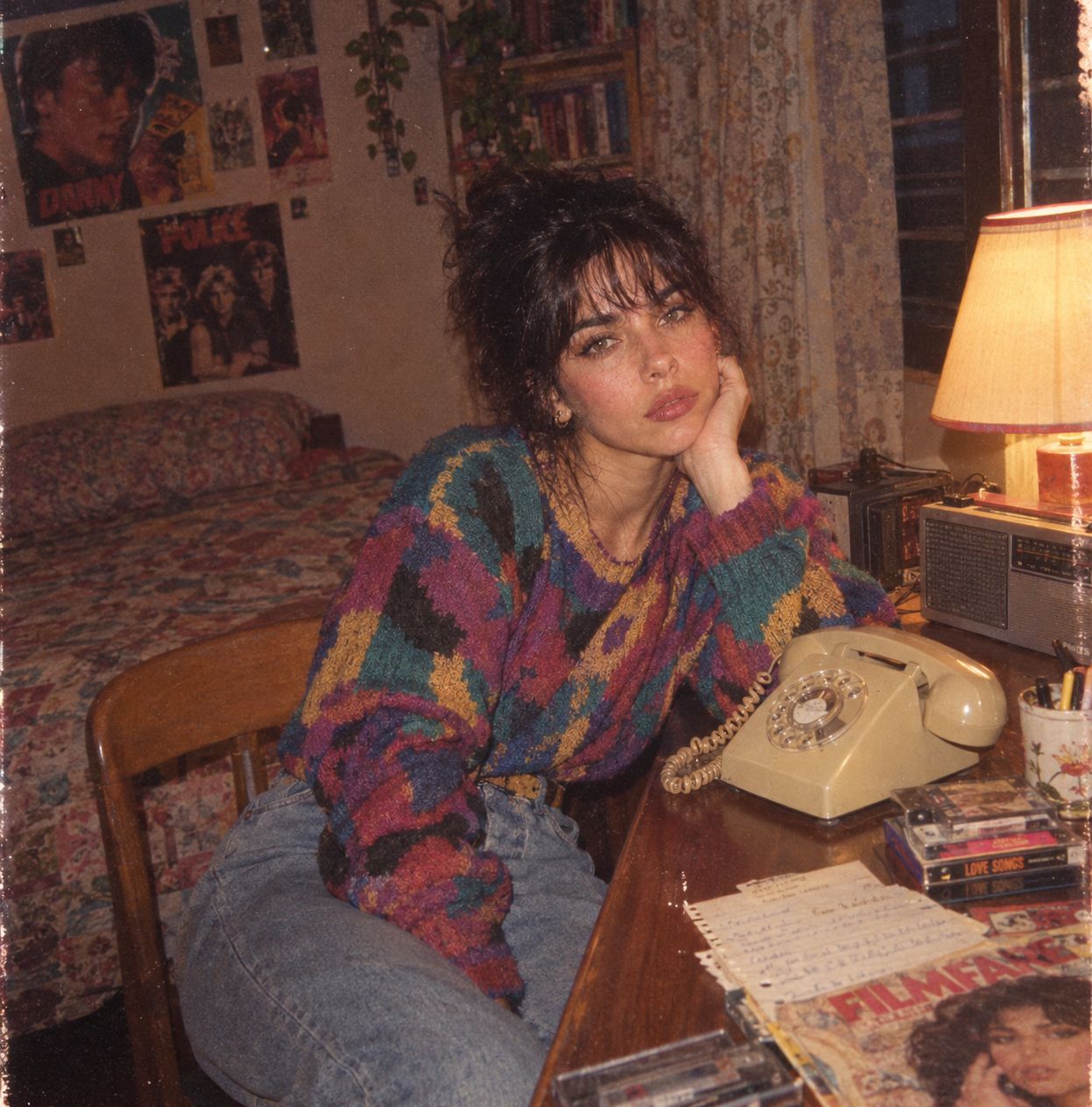
Me in 1985
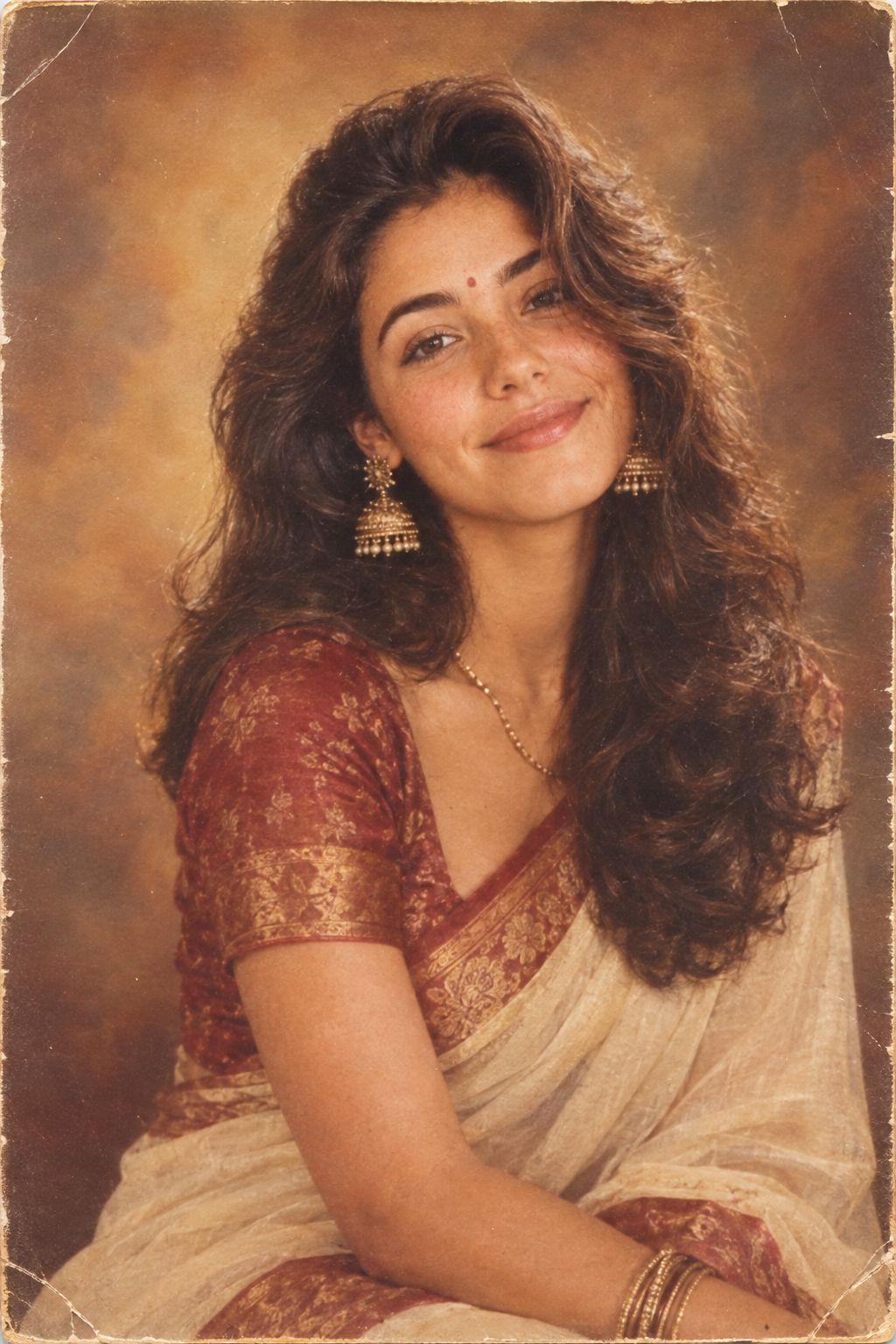
1985 Studio Portrait

Hyper-Realistic Minecraft POV Portrait
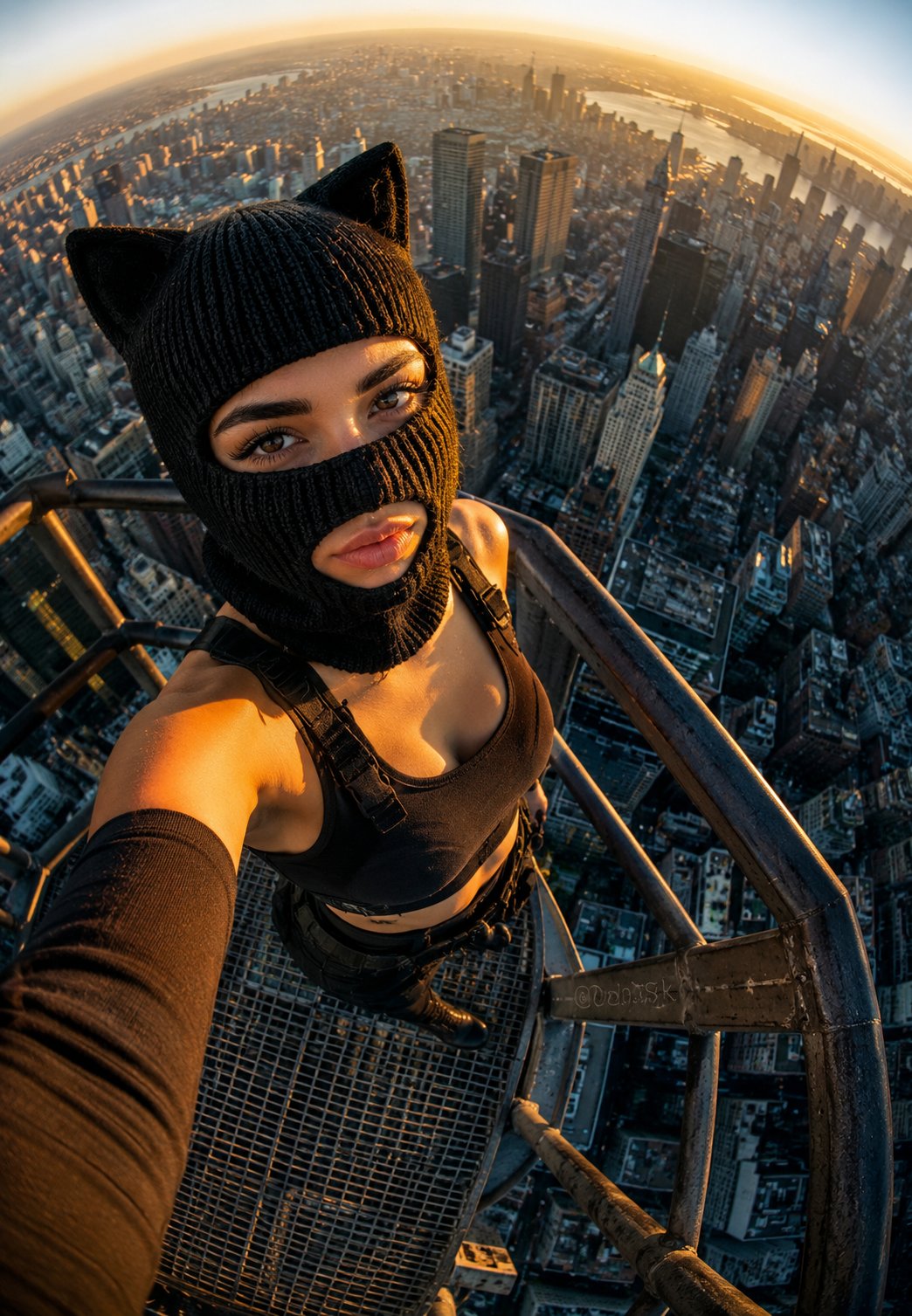
Rooftop Fisheye — Cat-Ear Balaclava at Golden Hour
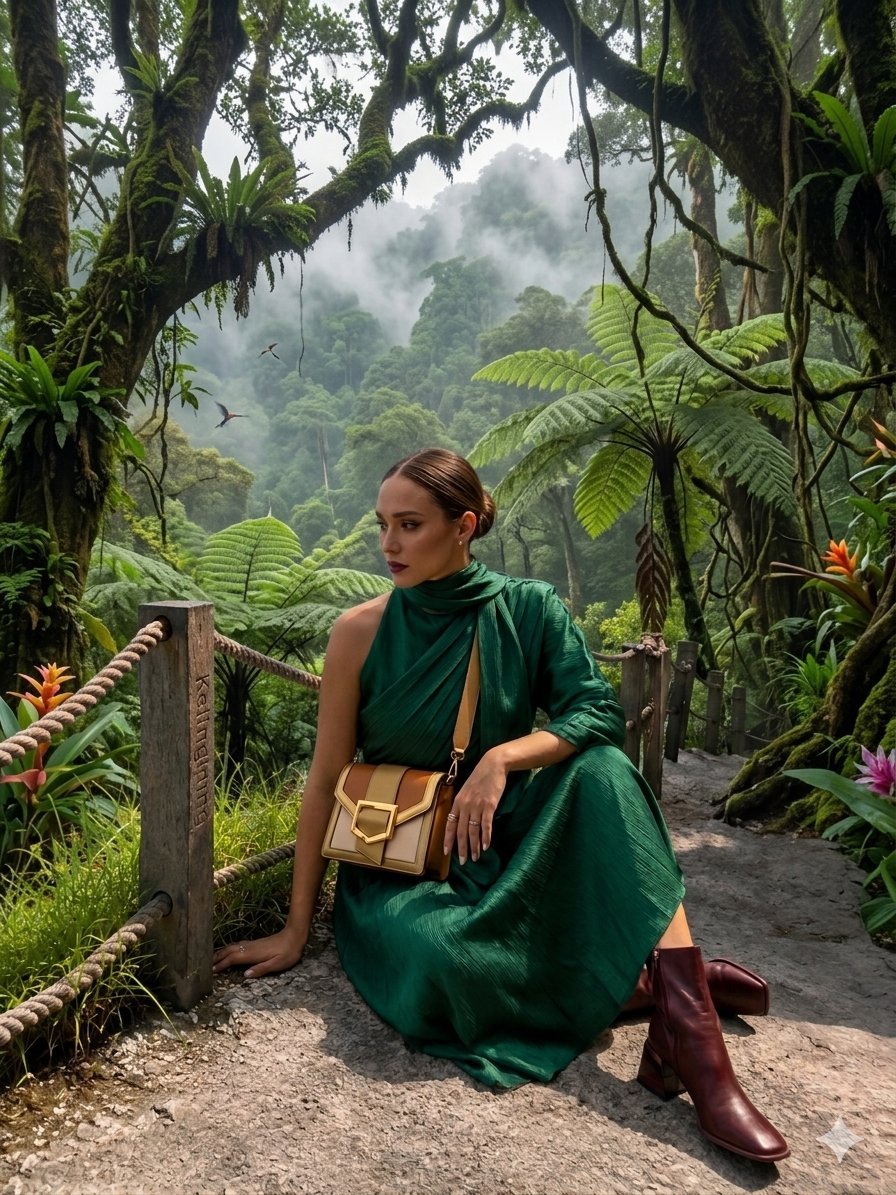
AR Scenic Cliffside Portrait Analysis
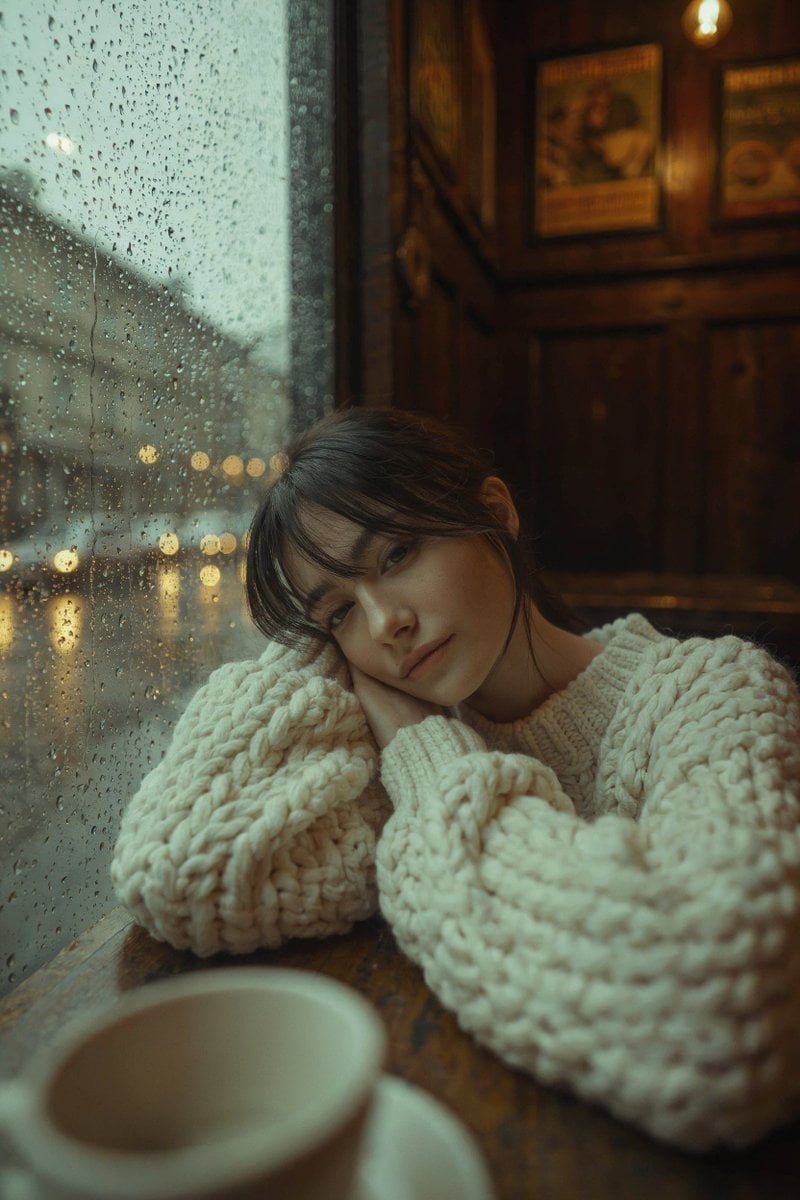
Rainy Café Window Moody Portrait
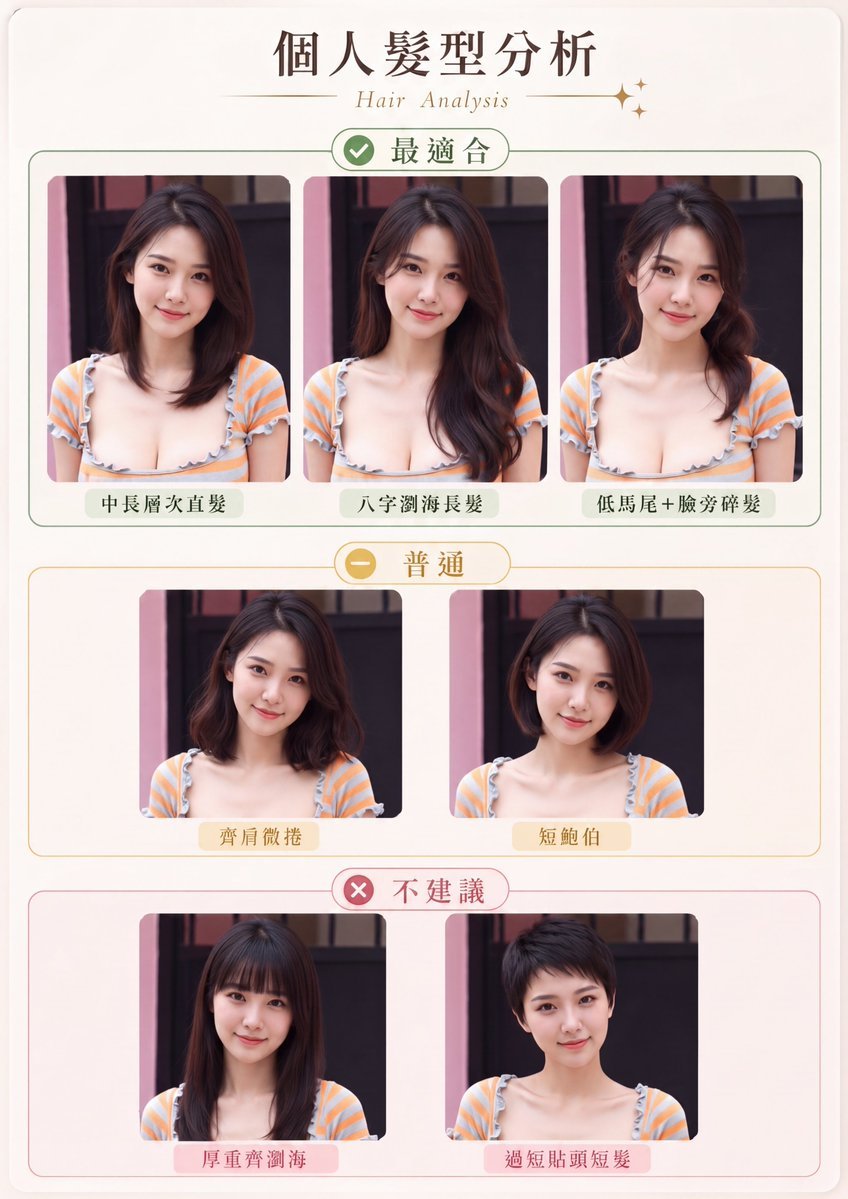
Personal Hairstyle Analysis Card
Make it yours
Hairstyle Analysis Comparison Portrait works as-is. These are the safest ways to change it without losing the look.
Change one field
Copy a single group, rewrite it, and generate again so you can see what that field is doing.
Keep the frame, change the subject
Hold the composition and light of Hairstyle Analysis Comparison Portrait, then swap wardrobe, props or the person for a new take.
| If the result… | Why | Fix |
|---|---|---|
| The result drifts from the preview | Too many fields changed at once. | Reuse Hairstyle Analysis Comparison Portrait as-is first, then change one group — subject, light, or setting. |
| The model over-stylizes the scene | The prose prompt leaves finish and camera underspecified. | Add one camera or lighting sentence and stay on GPT Image 2. |
More GPT Image 2 templates
Other prompts made for GPT Image 2.

Six VTuber Japanese Logo Sheet

Realistic Portrait of Woman and Deer

The Vista Modular Condo Poster

AI Model Routing Comparison Infographic

2.5D Anime Art Board

Isometric Productivity Desk Scene

New York Double Exposure Poster

Four-Panel AI Landscape Comparison

Japanese Tatami Lifestyle Magazine Cover

NESCAFÉ Coffee Map Poster
More image prompts
Fresh picks from across the catalog.
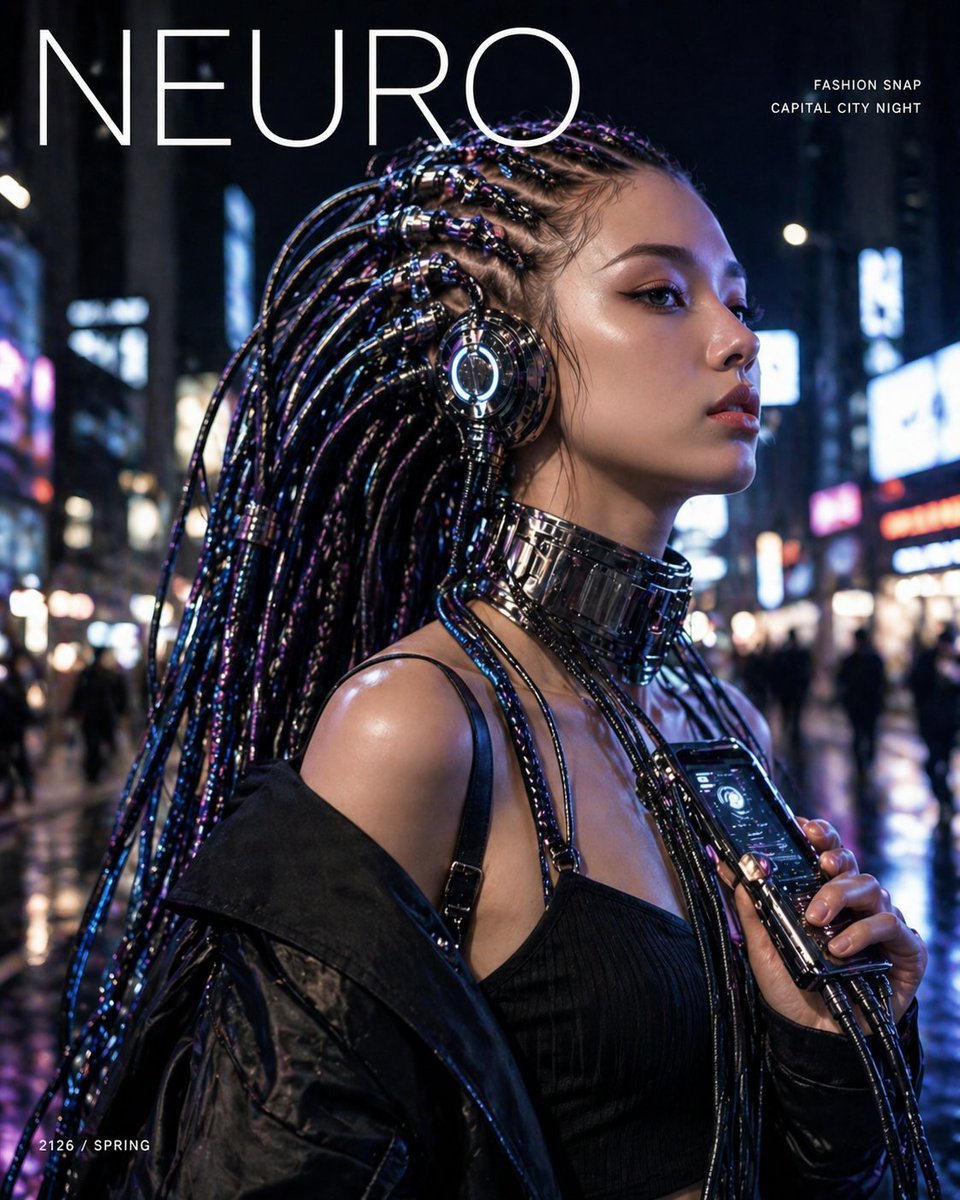
Cyberpunk Fashion Magazine Cover
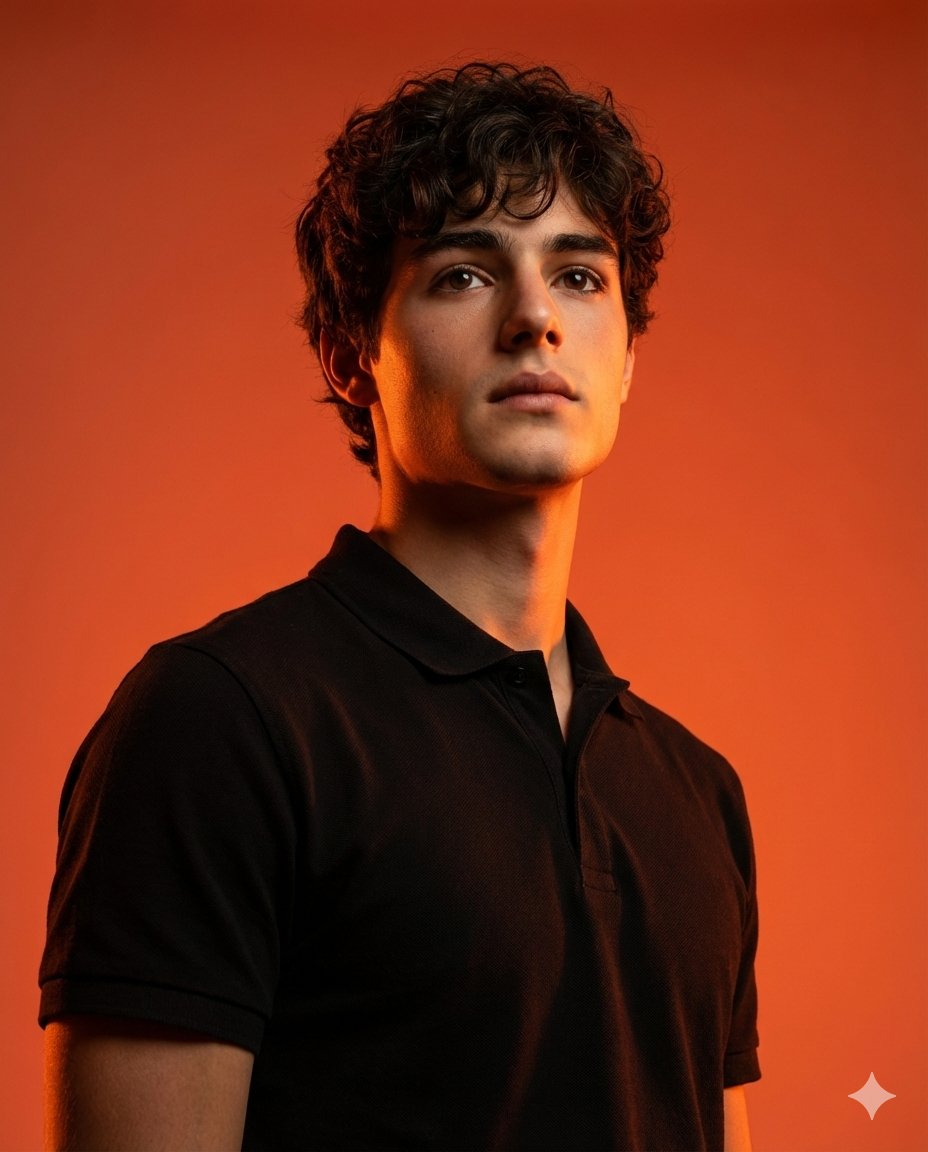
Dramatic Studio Portrait with Reference Photo
Cinematic Giant Cat Chasing Tiny Woman
Wukong Calligraphy Poster
Summer Grape Girl 3x3 Grid Portrait
Needle-Felt Stop-Motion Transformation
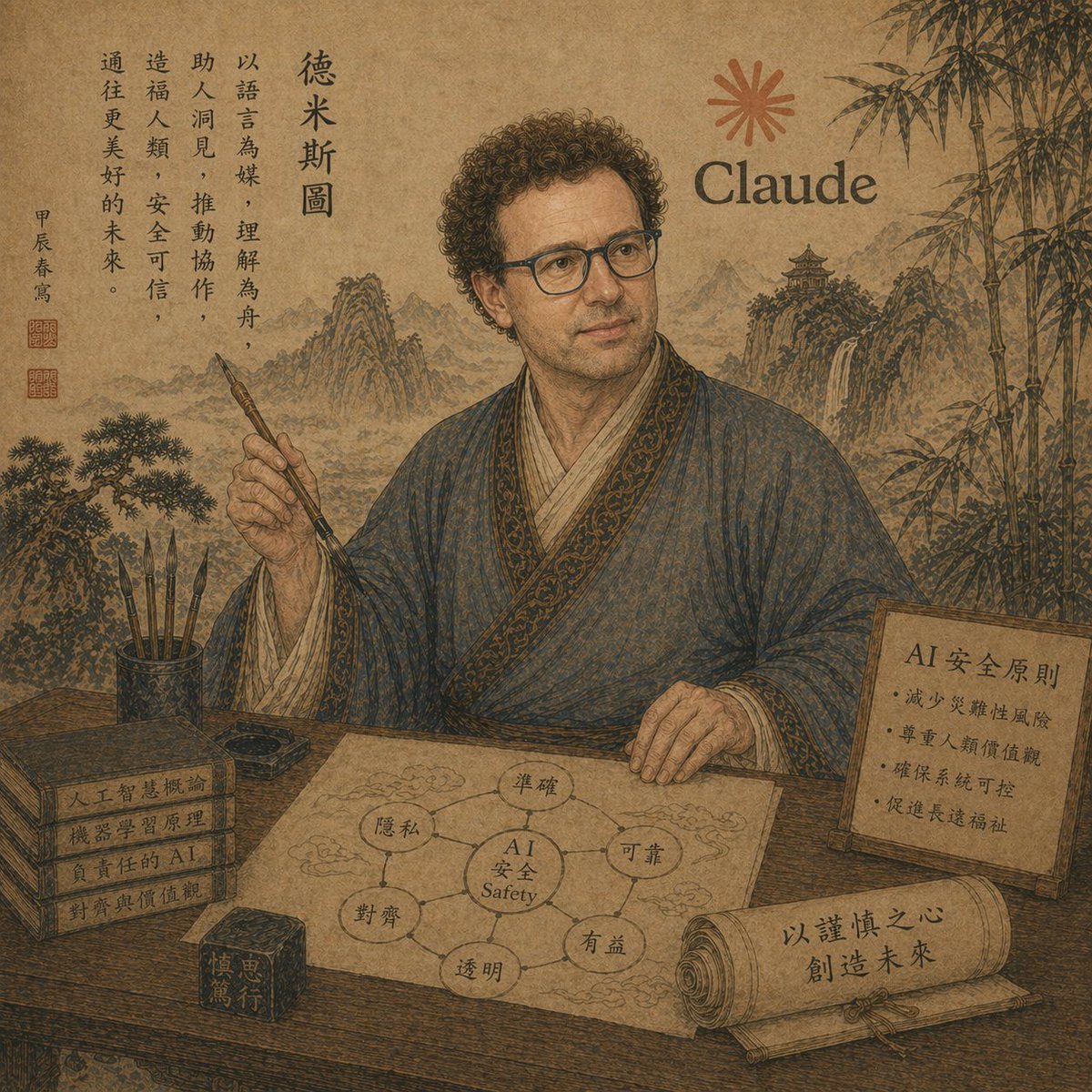
Ancient Scholar AI Safety Poster
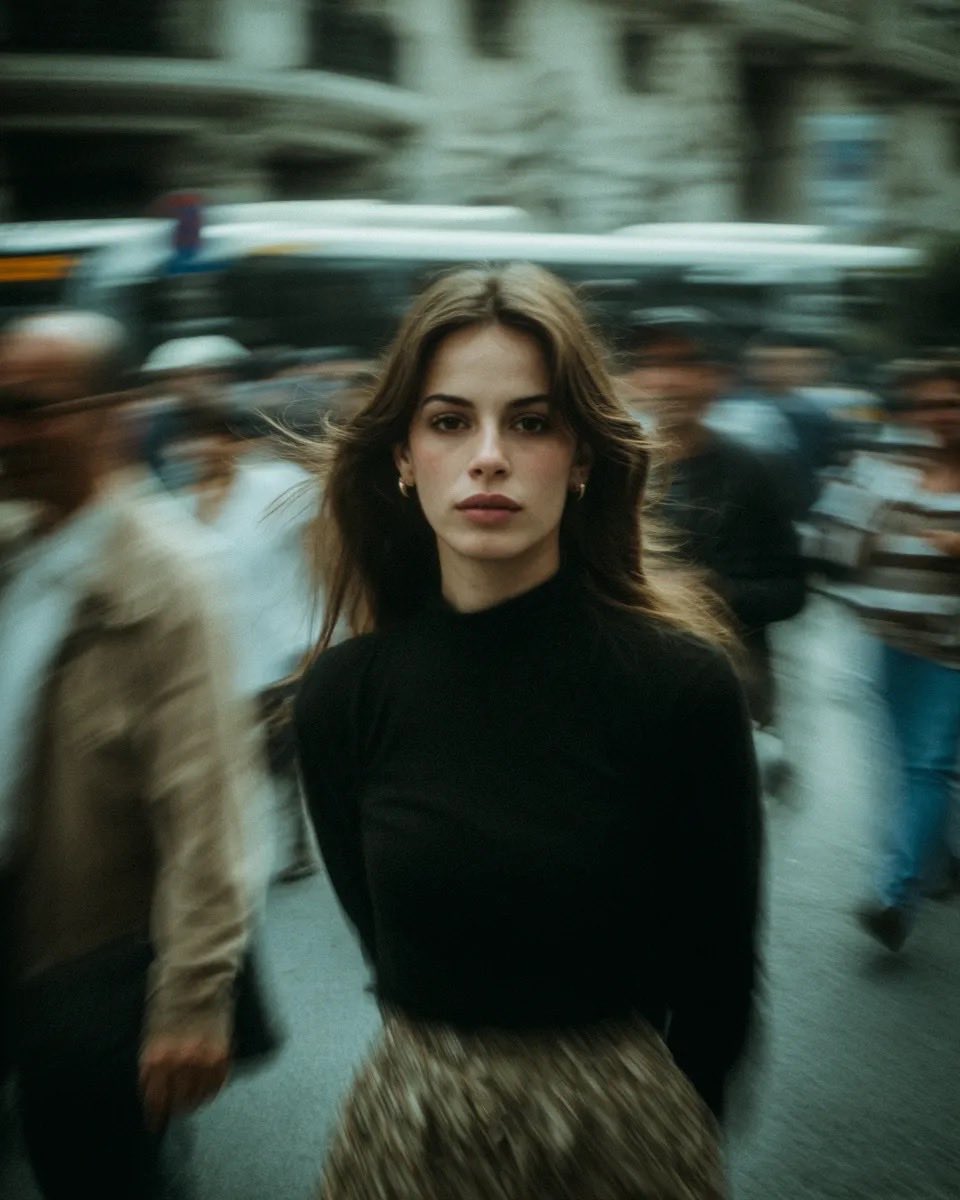
Cinematic Street Portrait with Motion Blur
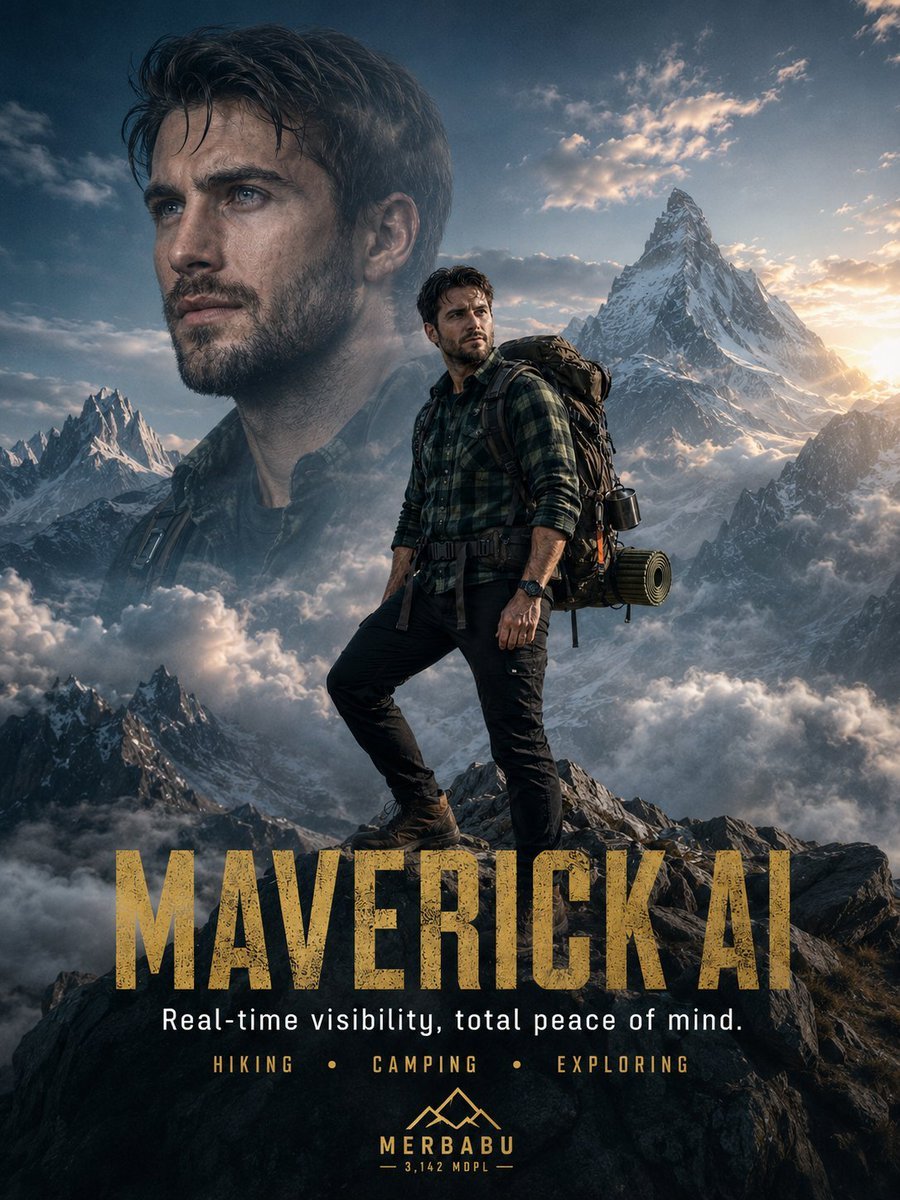
Himalayan Hiker Adventure Poster
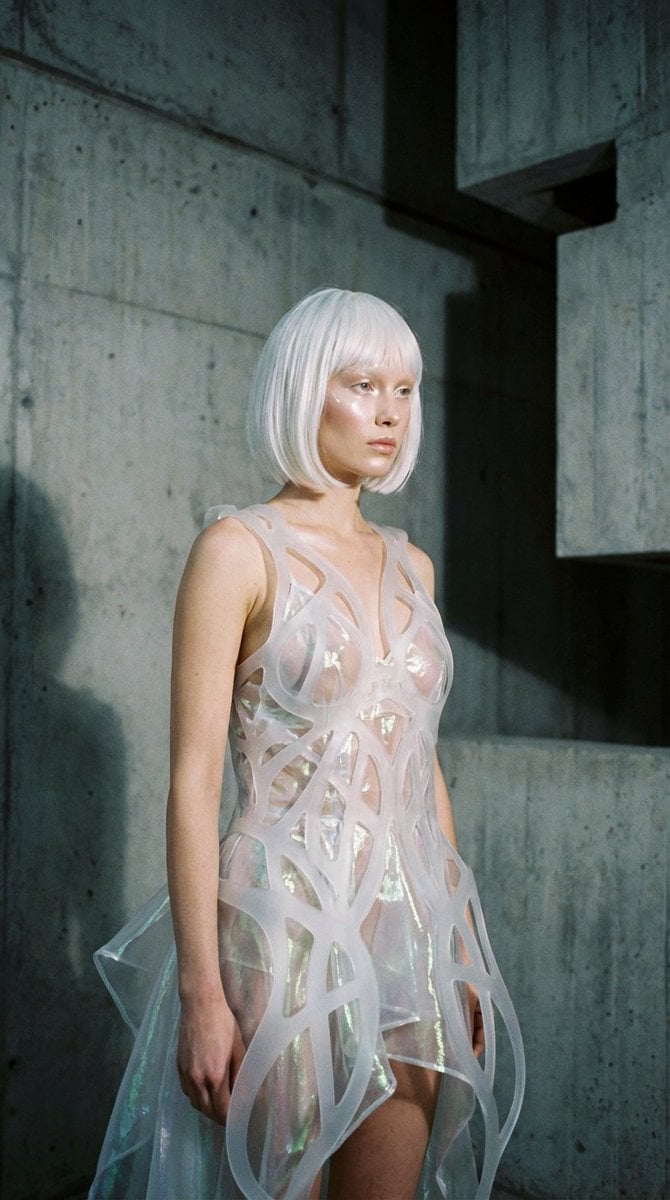
Avant-Garde Architectural Fashion Editorial
Browse template categories
Hairstyle Analysis Comparison Portrait questions
How do I use the Hairstyle Analysis Comparison Portrait template?
Add your photo if the template asks for one, edit the prompt if you like — the template's model and format are already selected — and press Generate. Your version opens in PicX Studio.
Can I customize the Hairstyle Analysis Comparison Portrait template?
Yes. You can change the subject, setting, lighting, mood, format, and available model controls before creating your image.
Is the Hairstyle Analysis Comparison Portrait template free?
Opening and editing this template is free. Generating uses credits, shown on the Generate button when you are signed in.
Which AI model should I use?
Start with GPT Image 2, which is the model associated with this template. You can compare another compatible model for a different finish.
Looking for something else? Browse all templates.

Your photo, any look
Thousands of ready templates for every top image and video model, from one credit balance.