
Retro Spaceflight Debug Preview
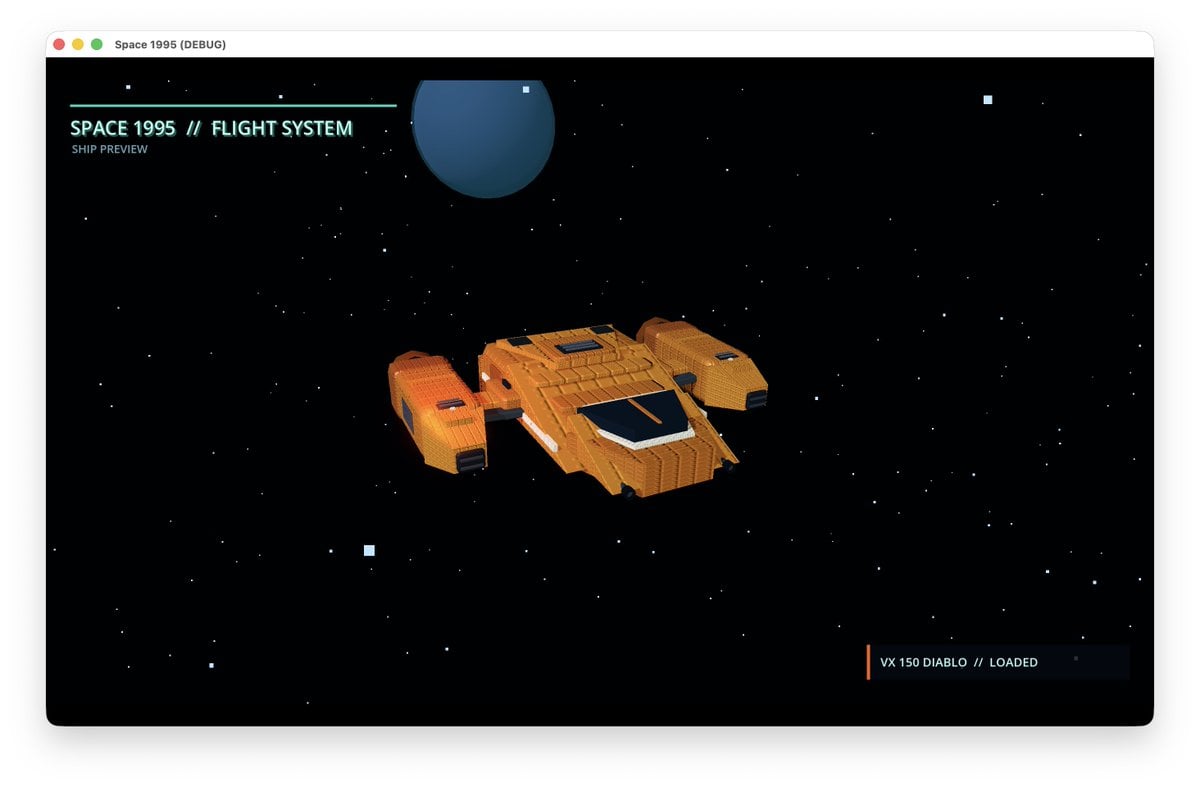
A wide retro 1990s debug UI concept image showing a voxel-style orange spaceship floating in a starfield for sci-fi game or Three.js model ideation.
- Prompt included
- Model and format preset
- Free template
The prompt behind this image
Copy the exact prompt behind Retro Spaceflight Debug Preview, or open it in the studio and make it yours.
Goal: Create a retro 1990s spaceflight debug preview screen showing a low-poly voxel spaceship in deep space, suitable as concept art for a Three.js primitive model. Canvas: Wide 16:9 screenshot inside a macOS-style application window with rounded corners, white title bar, subtle drop shadow, and three traffic-light buttons at top left. The window title reads “Space 1995 (DEBUG)”. Scene: A black starfield fills the app viewport, scattered with many tiny white stars plus exactly 4 larger pale-blue square stars: one near the upper left, one near upper right, one lower left of center, and one lower right. Near the top center-left is one large dark blue planet, partially cropped by the upper edge, with soft shading and a small bright square highlight. Main subject: Center the spaceship slightly below mid-frame, angled in three-quarter view as if flying toward the lower right. The ship is a chunky low-poly / voxel-inspired sci-fi craft named {argument name="ship name" default="VX 150 DIABLO"}. It has exactly 3 main orange modules: one broad central wedge-shaped body and 2 symmetrical side engine pods connected by short struts. Use {argument name="ship color" default="burnt orange"} panels with darker orange bevels, visible grid-like panel segmentation, small vents, blocky greebles, and primitive geometric construction. The central body has a black cockpit window on the front top with a thin light trim and a narrow orange stripe down the glass. Add a small dark rectangular vent on top of the rear center body and one small dark inset on each side pod. The left side pod has a warm yellow-orange glow on its front/side face, while both pods have dark rear thruster rectangles. HUD and text: In the upper left of the black viewport, add a thin cyan horizontal rule. Beneath it, display glowing pixel/monospace cyan text: “{argument name="headline text" default="SPACE 1995 // FLIGHT SYSTEM"}” with smaller text below reading “SHIP PREVIEW”. In the bottom right, add a dark translucent rectangular status panel with a vertical orange accent bar on its left and cyan-white monospace text reading “{argument name="status text" default="VX 150 DIABLO // LOADED"}”; add two tiny dark square indicators at the far right of the panel. Visual style: Retro-futuristic 1995 computer graphics, low-poly 3D render, voxel-like hard edges, simple primitive shapes, cinematic black space background, teal HUD typography, orange spaceship contrast, crisp but slightly nostalgic UI. Keep the composition spacious and minimal, with no extra planets, no additional ships, no characters, and no watermark.
How to use Retro Spaceflight Debug Preview in 3 steps
- 1Upload ImagePNG, JPG or paste
Add your photo
Upload the photo the template builds on. The prompt, model and format are already set.
- 2…a portrait of your subject in softgolden-hour light, 85mm…
Personalize
Edit the subject and creative details for your destination.
- 3Generate
Generate
Press Generate — your image is created in PicX Studio, so you can compare it with the original and refine one variable at a time.
More like this
Templates with the same subject, style or setup. Open one to see its prompt.


Make it yours
Retro Spaceflight Debug Preview works as-is. These are the safest ways to change it without losing the look.
Change one field
Copy a single group, rewrite it, and generate again so you can see what that field is doing.
Keep the frame, change the subject
Hold the composition and light of Retro Spaceflight Debug Preview, then swap wardrobe, props or the person for a new take.
| If the result… | Why | Fix |
|---|---|---|
| The result drifts from the preview | Too many fields changed at once. | Reuse Retro Spaceflight Debug Preview as-is first, then change one group — subject, light, or setting. |
| The model over-stylizes the scene | The prose prompt leaves finish and camera underspecified. | Add one camera or lighting sentence and stay on GPT Image 2. |
More GPT Image 2 templates
Other prompts made for GPT Image 2.

Six VTuber Japanese Logo Sheet

Realistic Portrait of Woman and Deer

The Vista Modular Condo Poster

AI Model Routing Comparison Infographic

2.5D Anime Art Board

Isometric Productivity Desk Scene

New York Double Exposure Poster

Four-Panel AI Landscape Comparison

Japanese Tatami Lifestyle Magazine Cover

NESCAFÉ Coffee Map Poster
More image prompts
Fresh picks from across the catalog.
Four-Angle Cinematic Panel Composition
Cinematic Night Street Portrait of Indian Man
Sci-Fi Space Commander Portrait Prompt
Cinematic Urban Street Portrait
Cinematic Calligraphy Portrait
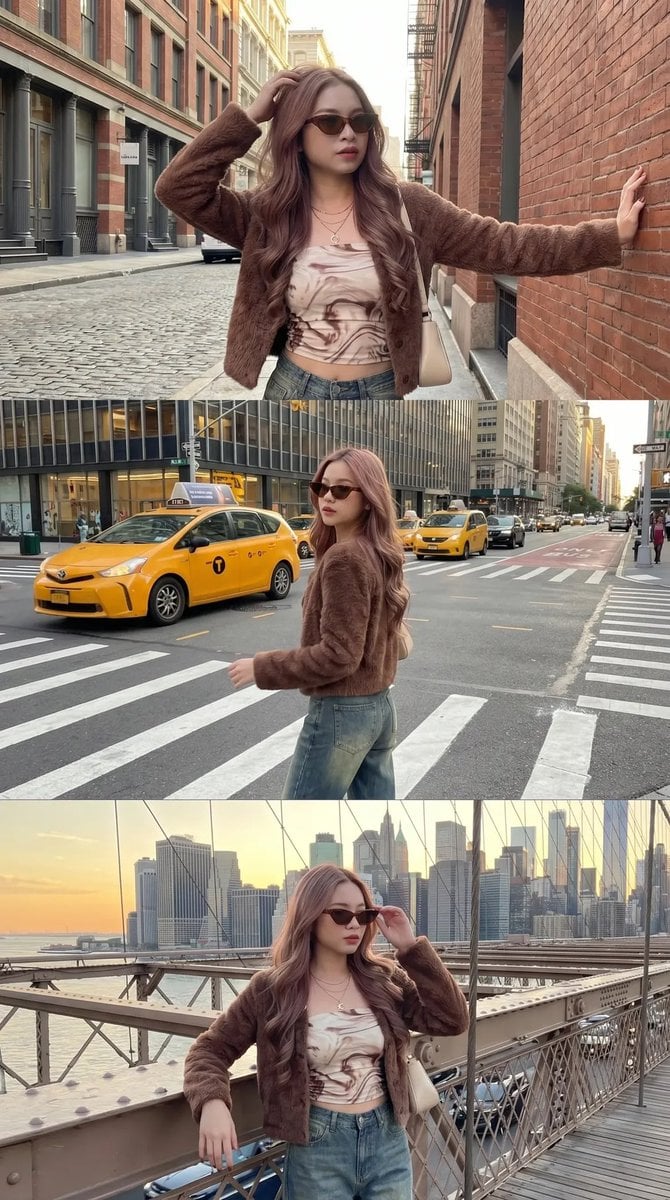
Urban Fashion Street Photography
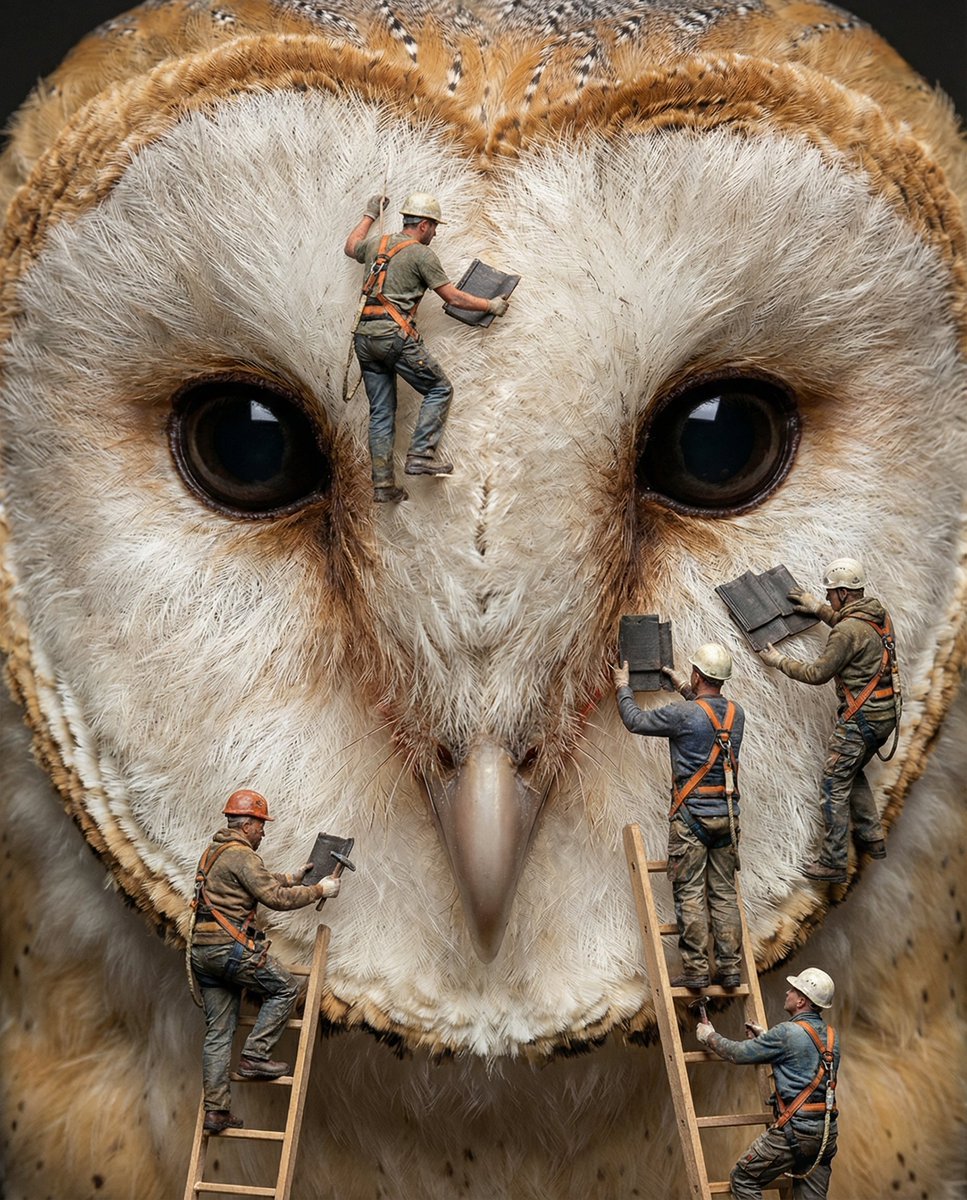
Hyper-Realistic Composite Macro Photography Prompt
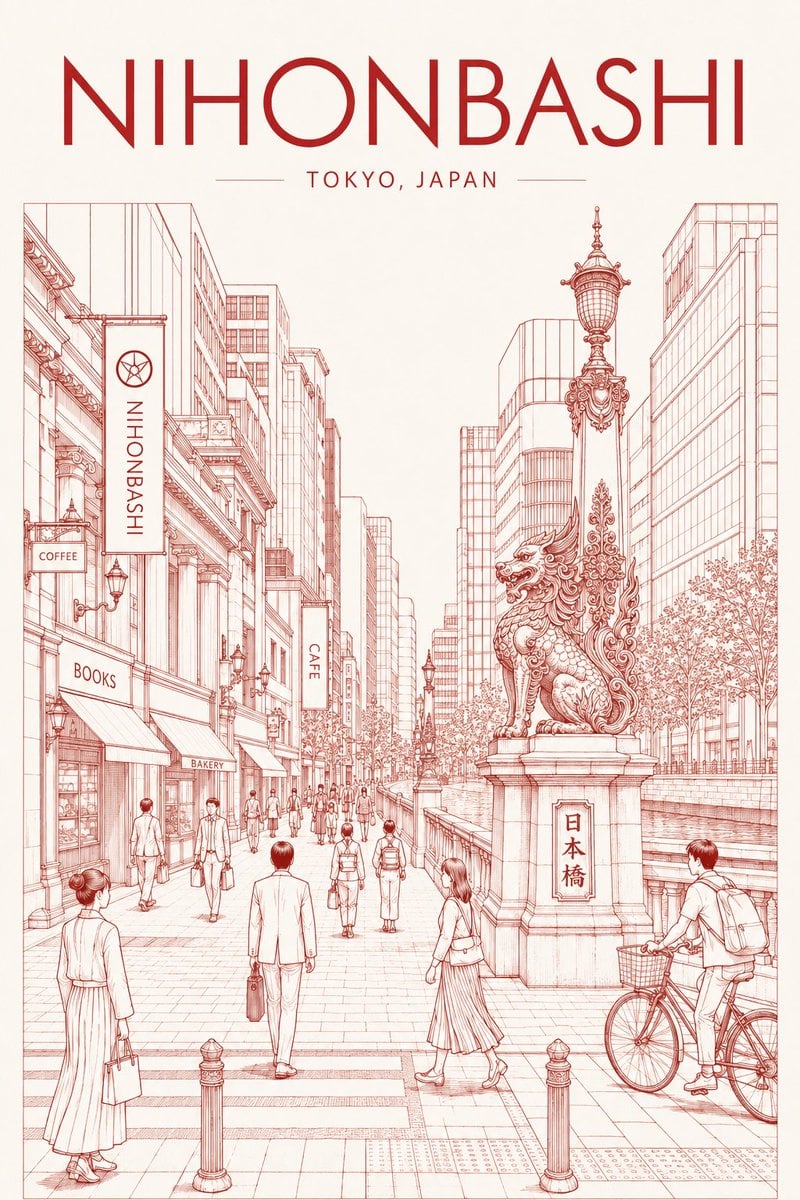
Nihonbashi Red Line Travel Poster
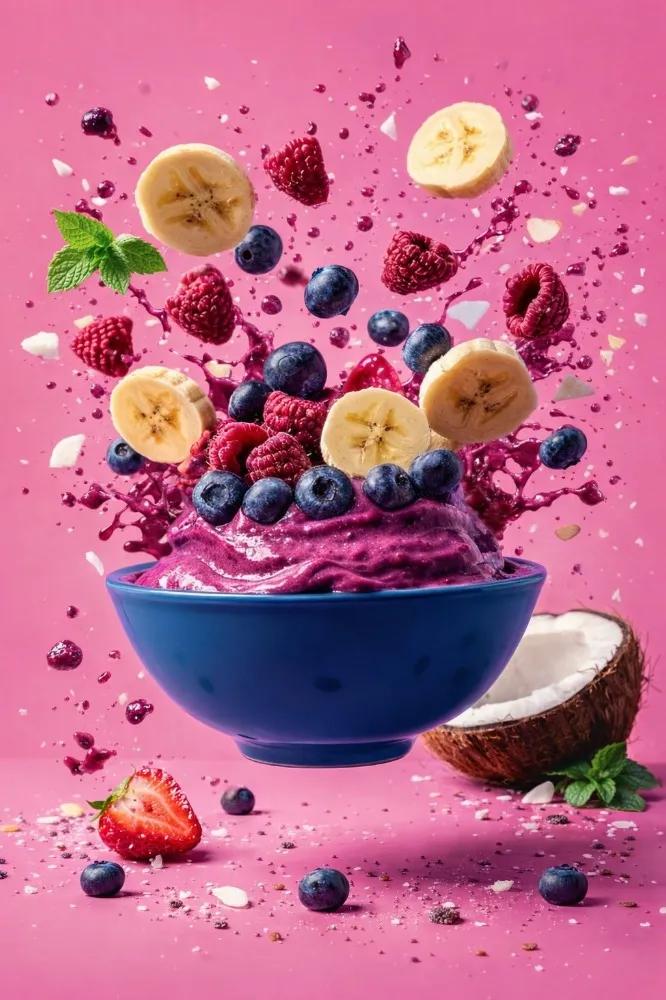
Hyper-Realistic Commercial Food Photography

Chinese Plant ID Infographic
Browse template categories
Retro Spaceflight Debug Preview questions
How do I use the Retro Spaceflight Debug Preview template?
Add your photo if the template asks for one, edit the prompt if you like — the template's model and format are already selected — and press Generate. Your version opens in PicX Studio.
Can I customize the Retro Spaceflight Debug Preview template?
Yes. You can change the subject, setting, lighting, mood, format, and available model controls before creating your image.
Is the Retro Spaceflight Debug Preview template free?
Opening and editing this template is free. Generating uses credits, shown on the Generate button when you are signed in.
Which AI model should I use?
Start with GPT Image 2, which is the model associated with this template. You can compare another compatible model for a different finish.
Looking for something else? Browse all templates.

Your photo, any look
Thousands of ready templates for every top image and video model, from one credit balance.