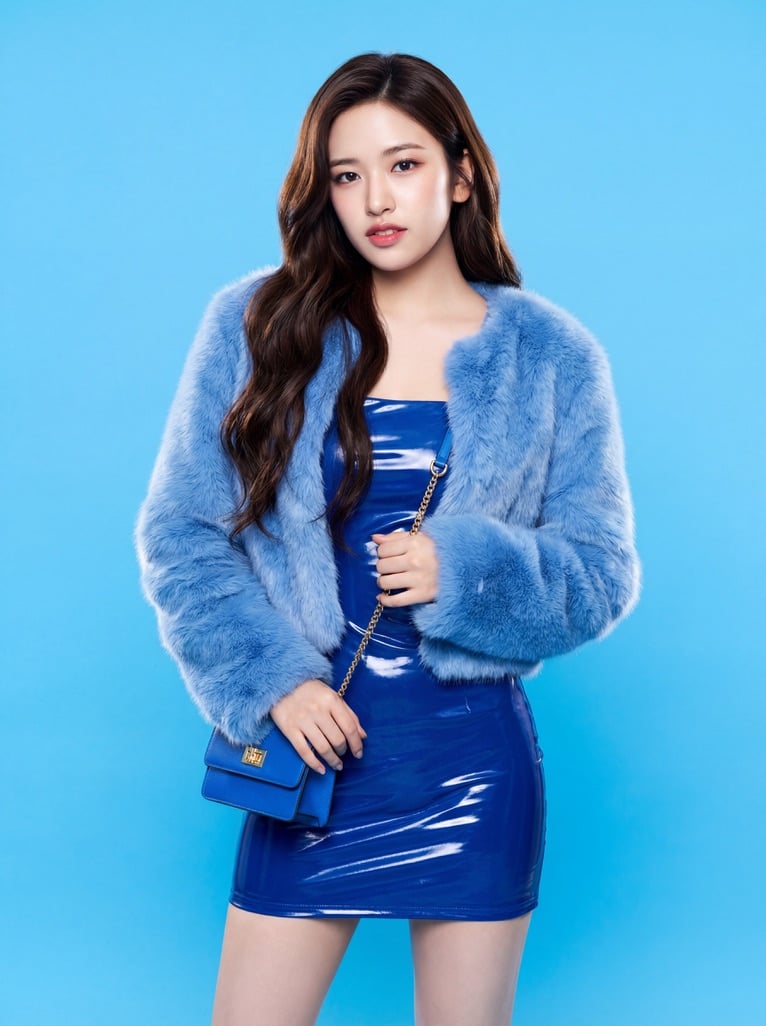
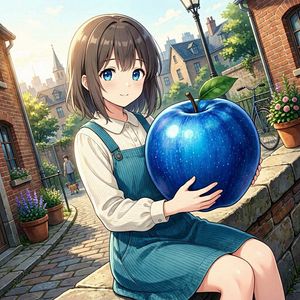
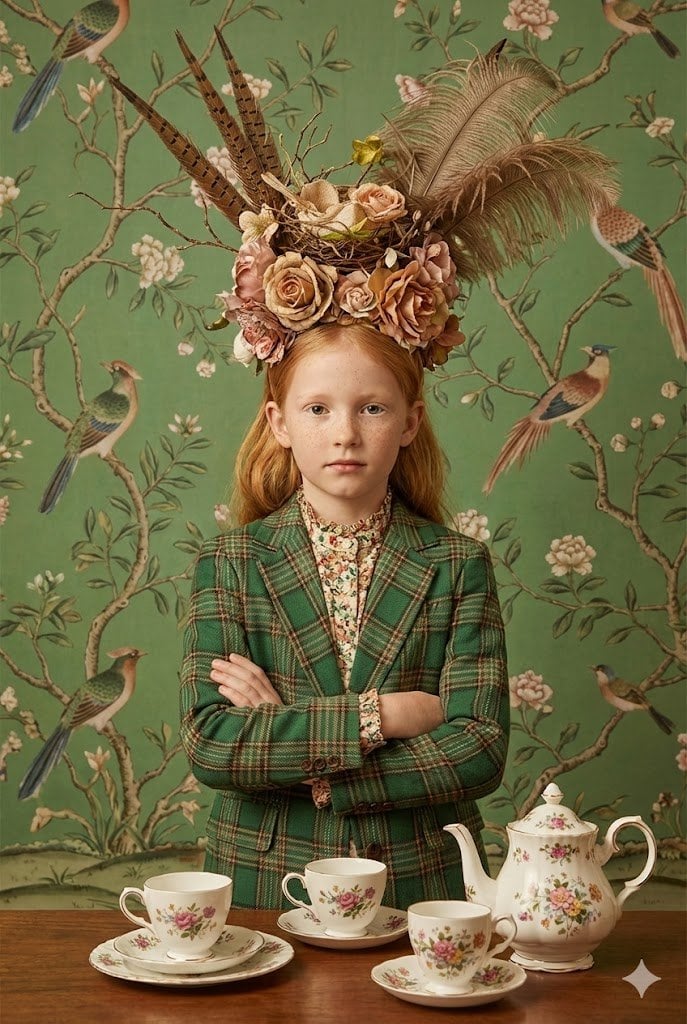
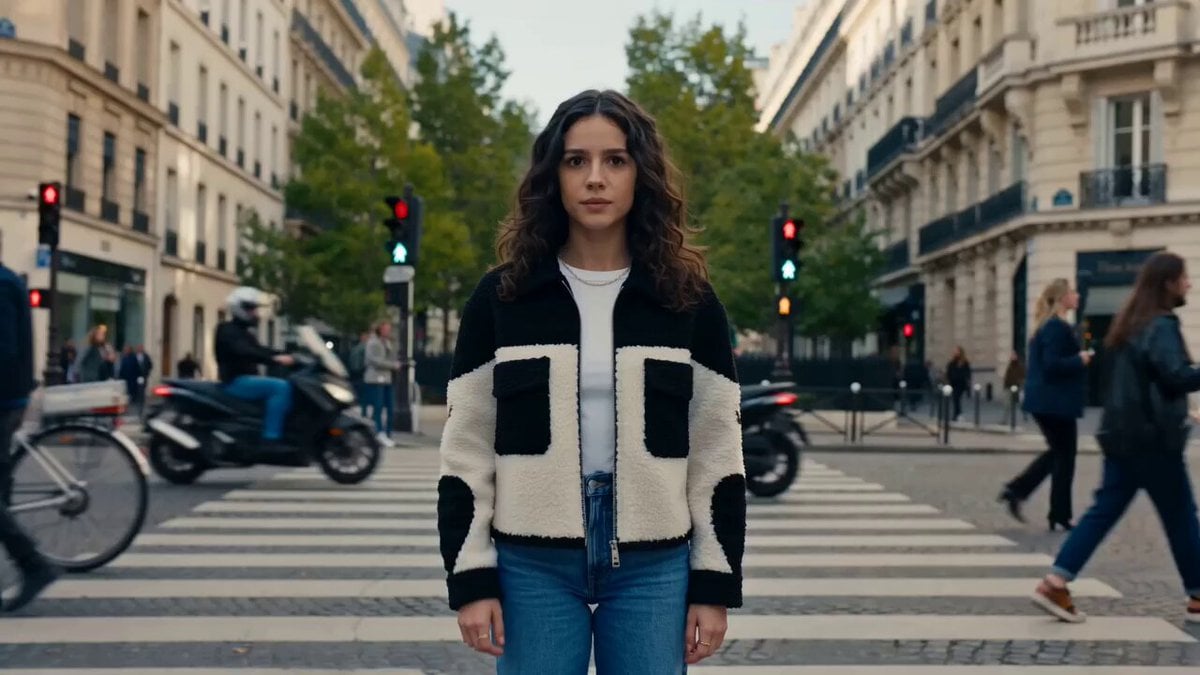
How do I use the Blue Night Anime Flower Portrait template?
Choose the primary action to open PicX Studio with the available template settings. Review the model and format, personalize the creative direction, and generate when ready.
Generates a moody blue-toned anime portrait of a braided character surrounded by glowing flowers for aesthetic character art.
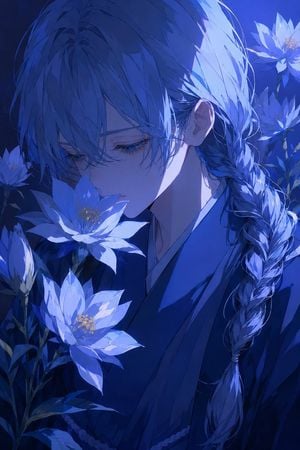
Create a vertical anime-style portrait illustration of {argument name="character name" default="a quiet androgynous young person"} in a deep indigo night scene, shown from the chest up in a close, intimate crop. The character has {argument name="hair color" default="cool blue-black"} layered bangs covering much of the forehead and one eye, a long thick side braid over the right shoulder tied near the end, pale skin, delicate eyelashes, downcast blue eyes, and a melancholy, serene expression as they lean toward a flower near their lips. Dress them in a dark blue kimono or robe with simple folded collar lines and subtle shadowed fabric folds. Surround the face with exactly 5 luminous blue lotus-like flowers: 1 large flower directly in front of the mouth and nose, 1 large flower at the lower left foreground, 1 partial flower on the far left edge, 1 flower in the upper right corner, and 1 smaller flower on the mid-right background; also include exactly 2 unopened buds near the lower-left stems. Use intense blue monochrome lighting with glowing cyan highlights, dark navy shadows, strong rim light from the upper right, translucent layered petals, golden-yellow stamens, fine hair strands, and crisp anime cel shading blended with painterly gradients. Composition should feel poetic and nocturnal, with the character partially hidden by flowers, high detail in hair and petals, shallow depth of field, no text, no watermark, no border.
Choose the primary action to open PicX Studio with the available template settings. Review the model and format, personalize the creative direction, and generate when ready.
Yes. You can change the subject, setting, lighting, mood, format, and available model controls before creating your image.
This template is free to open and customize. Generation usage is shown in PicX Studio before you create.
Start with GPT Image 2, which is the model associated with this template. You can compare another compatible model for a different finish.
Follow a topic to a crawlable collection of related PicX Studio templates.