Winter Bikini Portrait in Swiss Alps
{
"subject": {
"description": "Young woman with a bronzed, tanned complexion and long, wavy, light brown hair with blonde highlights (balayage), cascading over shoulders. She is wearing a large, dark brown, plush faux-fur Cossack-style hat and matching oversized dark brown fur mittens. She wears a light baby blue triangle bikini top with thin straps, exposing the midriff and cleavage. Her physique is fit and toned with a full, heavy bust that has clear forward projection and natural gravity, showing deep cleavage. Skin texture is realistic with visible pores and slight goosebumps consistent with the cold environment.",
"clothing": "Light blue triangle bikini top, dark brown fluffy fur hat, dark brown fur mittens.",
"physical_attributes": "Tanned skin, blue eyes, full lips, fit torso, prominent bust volume, natural soft tissue behavior."
},
"pose": {
"stance": "Standing facing forward, upper body orientation square to the camera.",
"arms": "Right arm is extended forward toward the camera lens, hand holding a pile of loose white snow that is crumbling and falling. Left arm is relaxed by the side, visible from the elbow down.",
"head": "Head is upright, facing directly forward.",
"expression": "Broad, cheerful smile showing white teeth, eyes looking directly into the camera lens with a playful and engaging expression."
},
"environment": {
"setting": "Outdoor winter scene in a snowy alpine village.",
"background": " blurred traditional wooden chalets and cabins with snow-covered roofs, typical of the Swiss Alps. Evergreen trees dusted with snow. The ground is covered in a thick layer of fresh white snow.",
"atmosphere": "Cold, wintery, daylight.",
"details": "Falling snowflakes visible in the air and crumbling from the subject's hand."
},
"camera": {
"shot_type": "Medium shot, captured from slightly above waist level.",
"perspective": "Frontal angle. Mild foreshortening on the extended right hand creating depth.",
"focus": "Sharp focus on the subject's face and the snow in her hand, with a shallow depth of field rendering the background houses soft and out of focus.",
"lens_characteristics": "Standard portrait focal length (approx 50mm-85mm), no wide-angle distortion on the body."
},
"lighting": {
"type": "Natural daylight, overcast/diffuse.",
"quality": "Soft, even illumination with no harsh shadows on the face. The light is cool-toned due to the snow reflection but the skin retains a warm bronze glow.",
"direction": "Frontal, slightly overhead.",
"shadows": "Soft ambient occlusion around the fur and clothing folds."
},
"mood_and_expression": {
"mood": "Playful, happy, confident, cold but energetic.",
"emotion": "Joy, winter fun, 'snow bunny' aesthetic."
},
"style_and_realism": {
"style": "High-fidelity lifestyle photography, influencer aesthetic.",
"realism": "Photorealistic, highly detailed textures (fur, snow, skin).",
"render_quality": "8k, high resolution, raw photo style."
},
"colors_and_tone": {






![118-google-nano-banana-pro-skincare-product- — A professional skincare shot of a [product container] with [cap/lid], labeled [brand, product, descriptor, volume](/_next/image?url=https%3A%2F%2Fcdn.picxstudio.com%2Fuploads%2Fpost118_img0_332898b8-29ea-42a9-87ab-9ed746a3f944.jpg&w=828&q=100)



![69-untitled — FORMAT: 15s / 145 BPM / 14 SHOTS
SUBJECT: @[image1]
WARDROBE: Clean modern outfit
ENVIRONMENT: Street / indoor transitions
MOOD: Discovery → contr](/_next/image?url=https%3A%2F%2Fcdn.picxstudio.com%2Fuploads%2Fpost69_img0_d45faecf-38c3-4bcb-81a4-f6eb1cf42bb2.jpg&w=828&q=100)
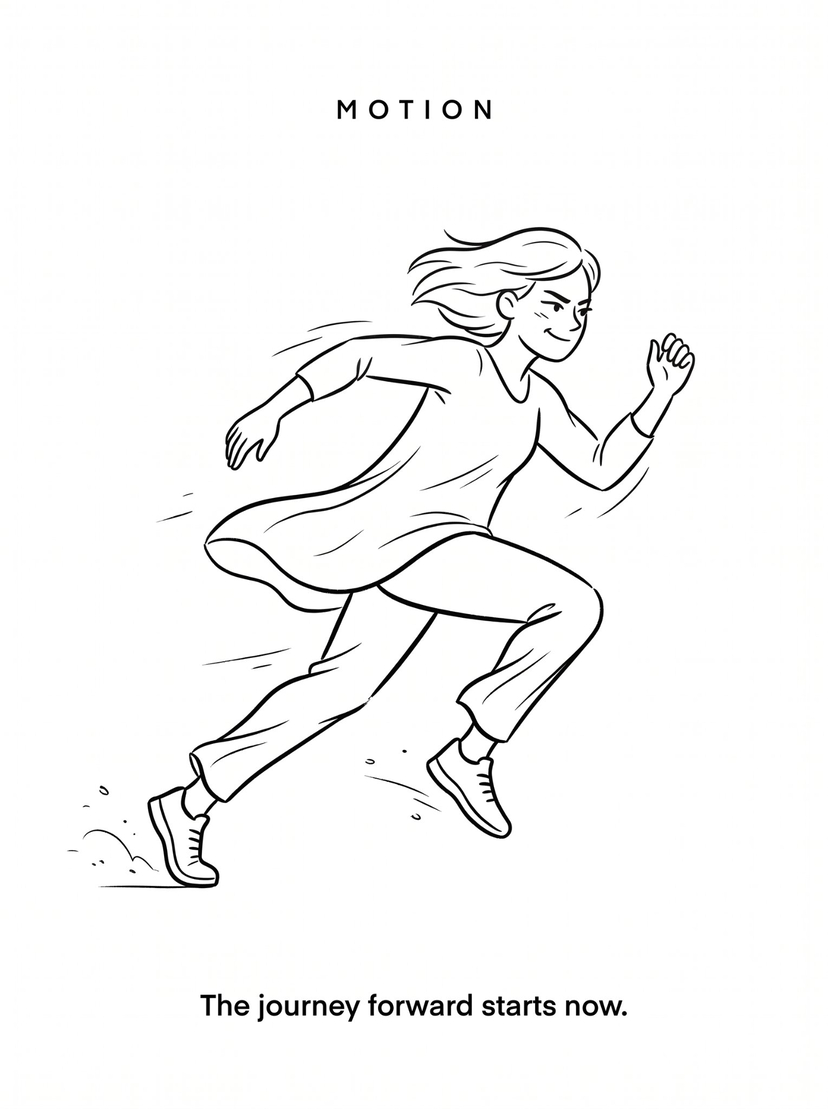





![Naive doodle-style subject illustration — A doodle-style {argument name="subject" default="[subject]"}, naive lines, humorous shape exaggeration](https://pbs.twimg.com/media/G6Wl2YxbsAARB2b.jpg)








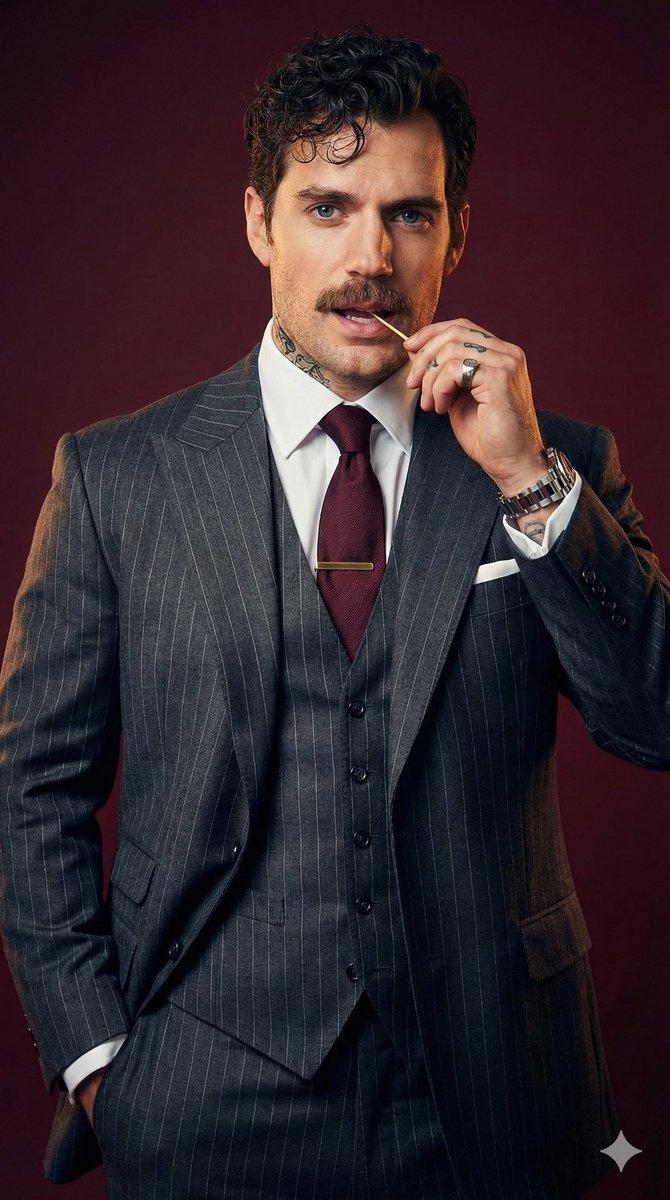






![High-Contrast Monochrome Triptych Portrait with Steampunk Sunglasses — {
Handsome man [Reference Face ID: 1.0]",
"clothing": "Black leather jacket, vintage](https://pbs.twimg.com/media/G8XaUMIakAA9EZl.jpg)