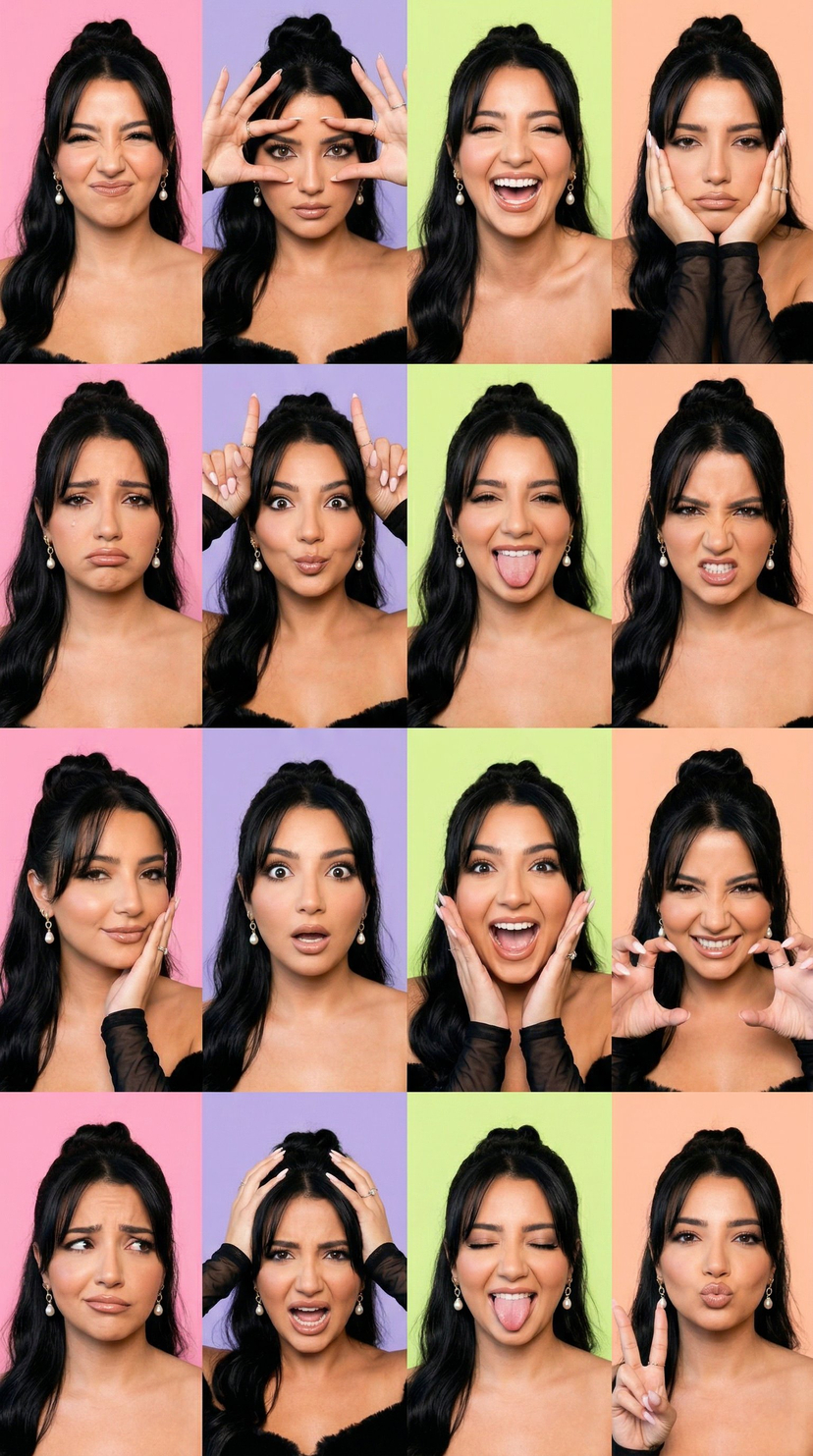
Viral Instagram Beauty Carousel Grid (12 Panels)
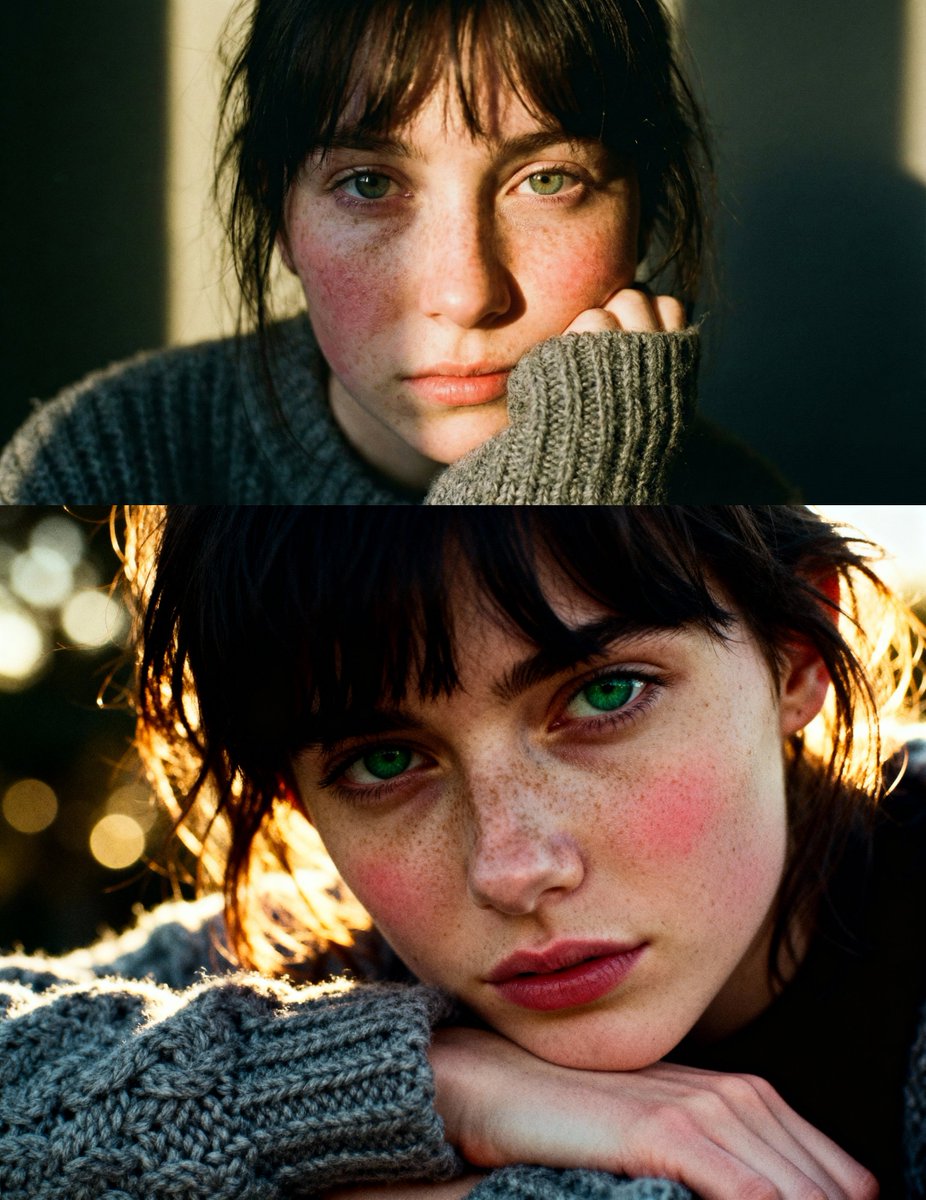
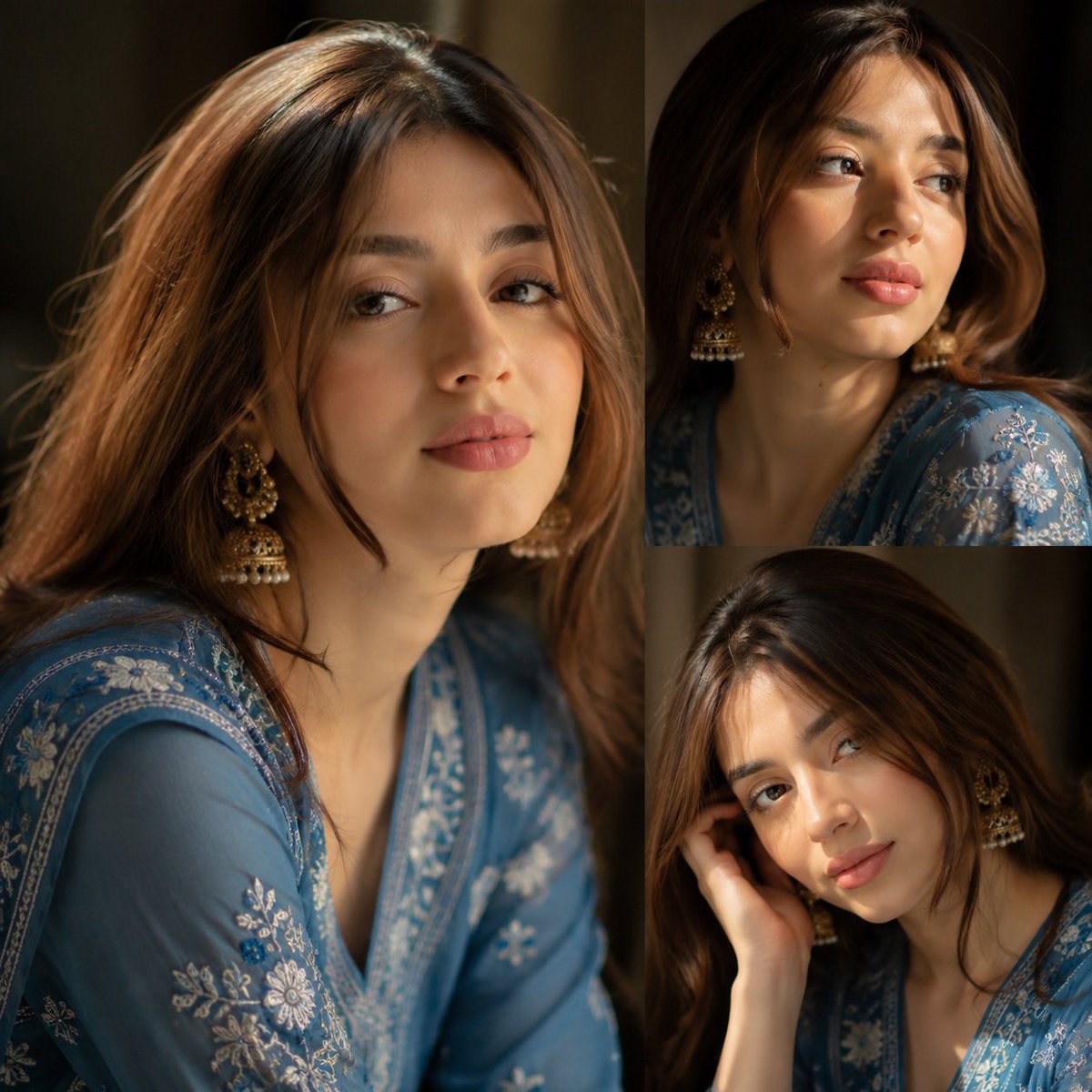
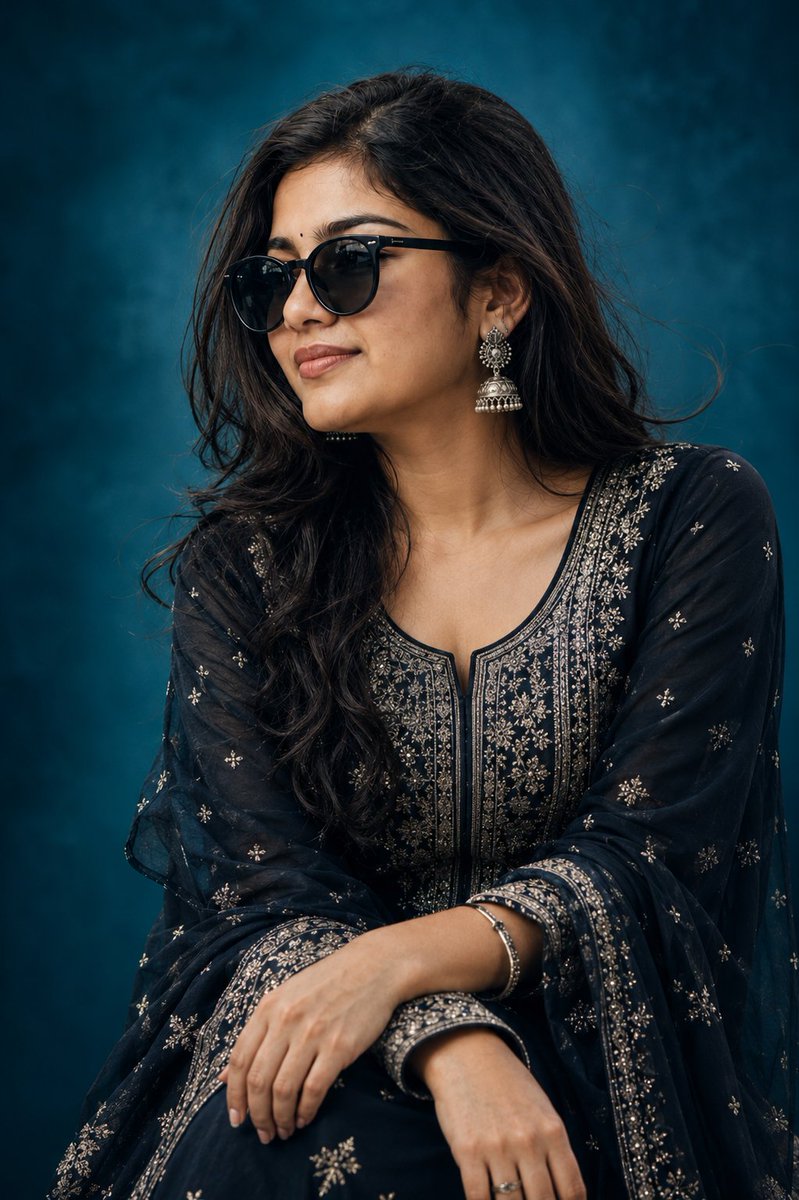
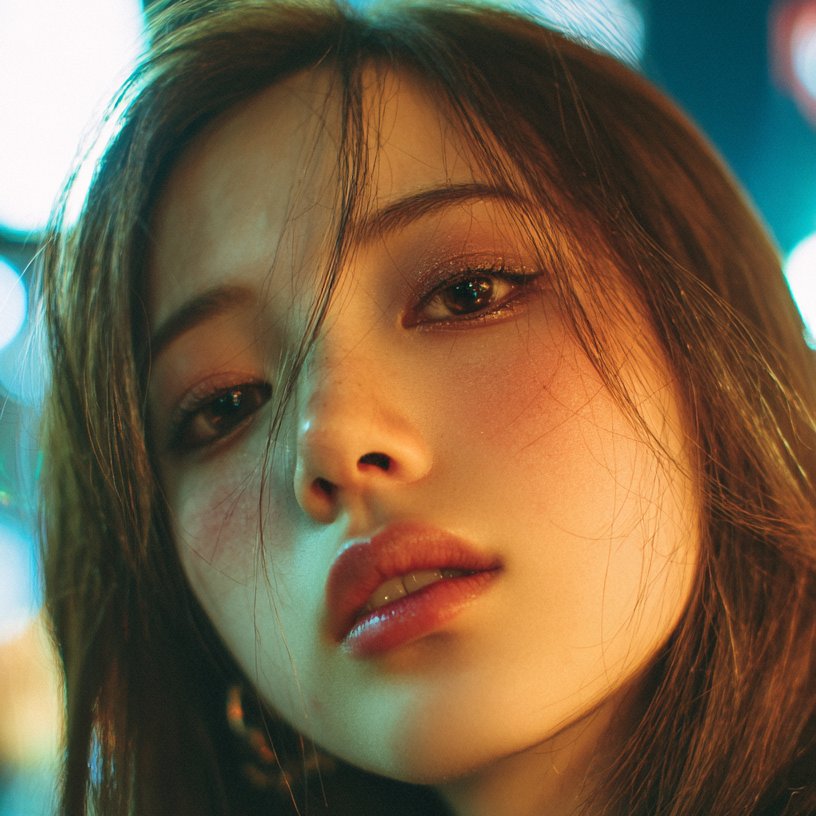
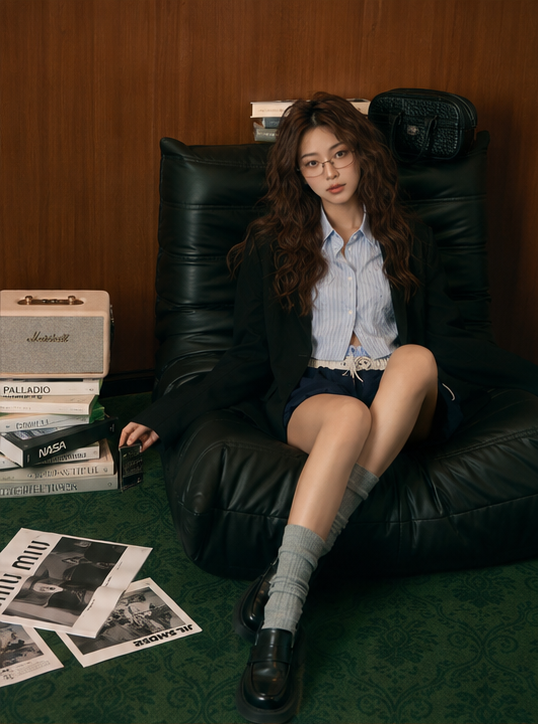
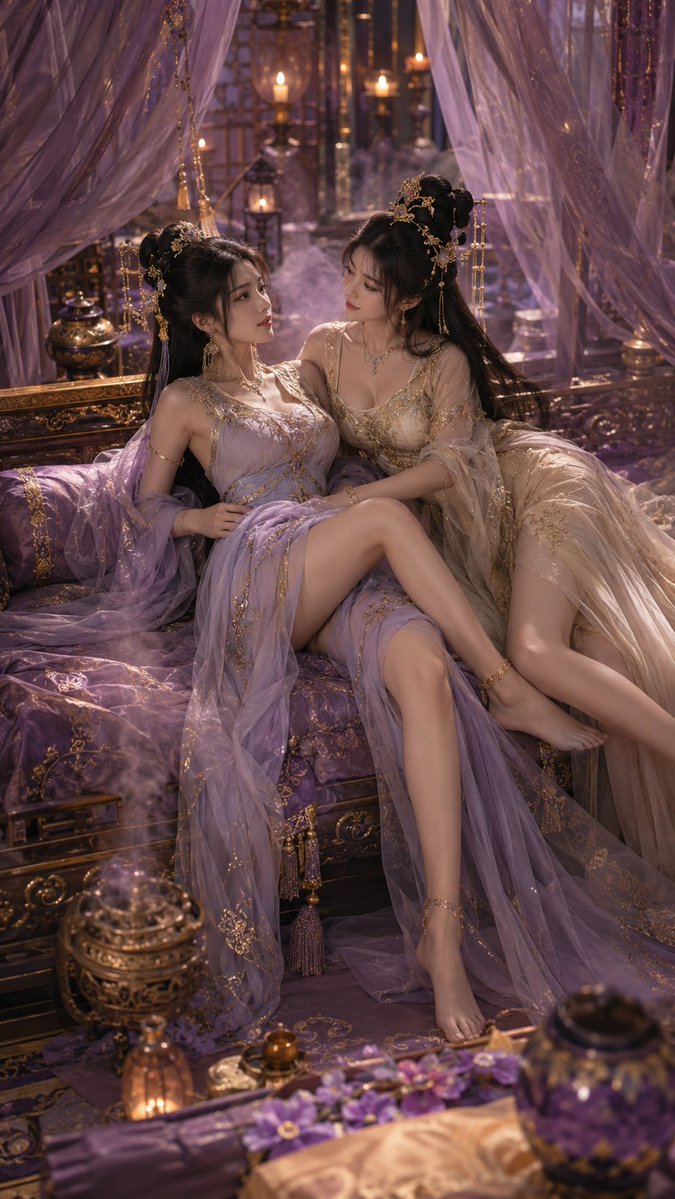
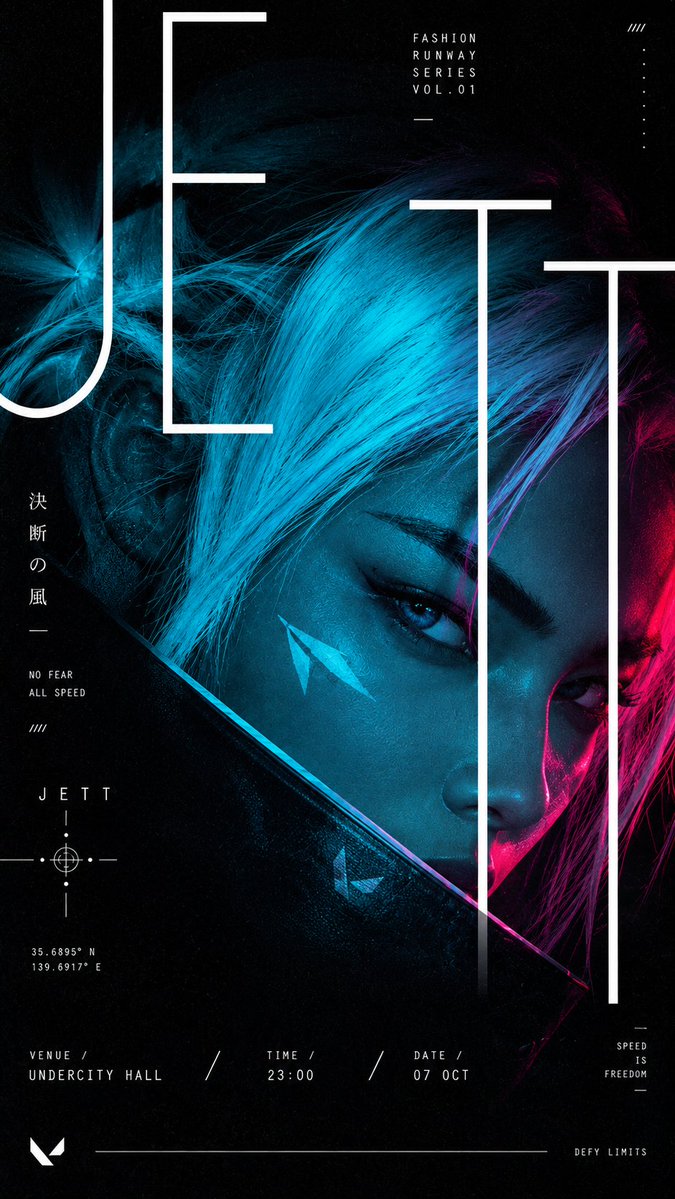
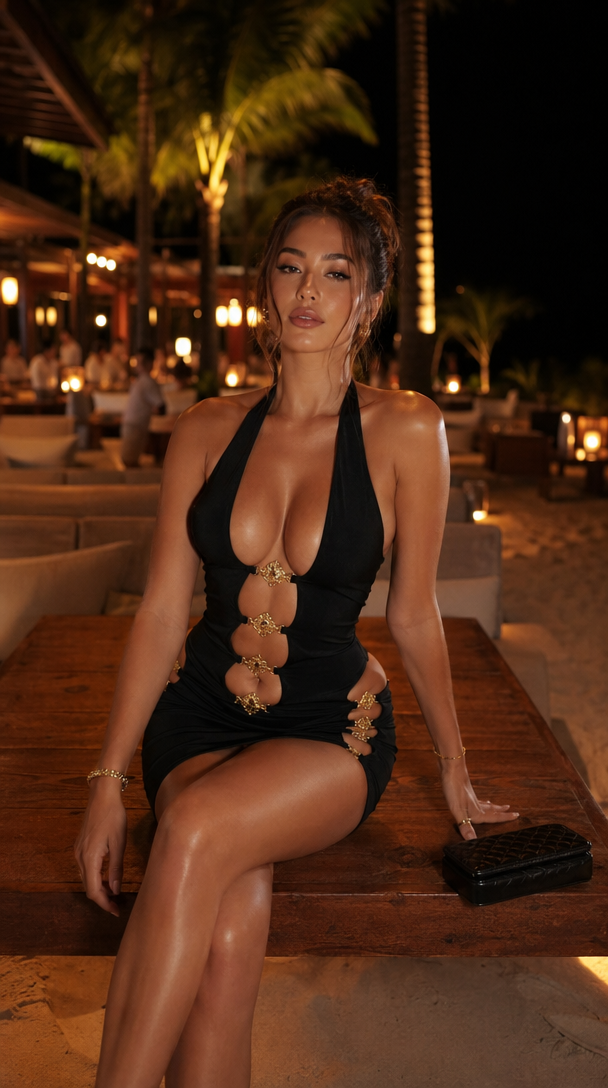
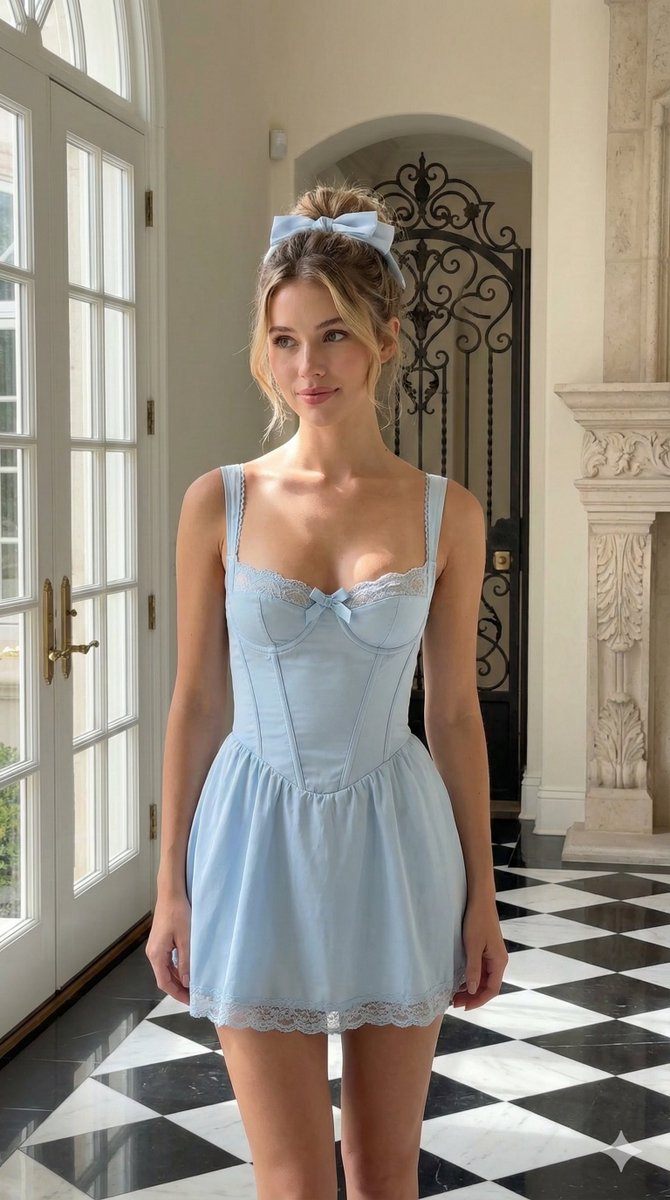
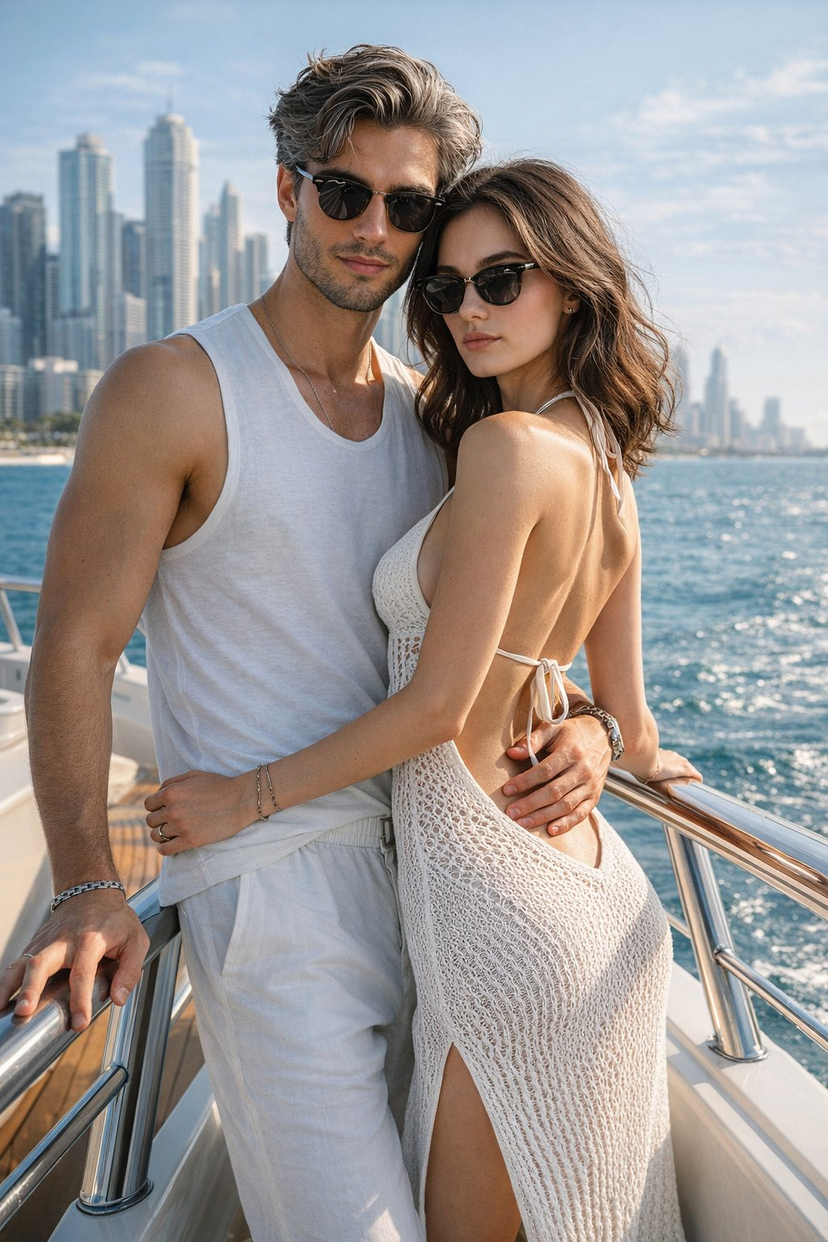
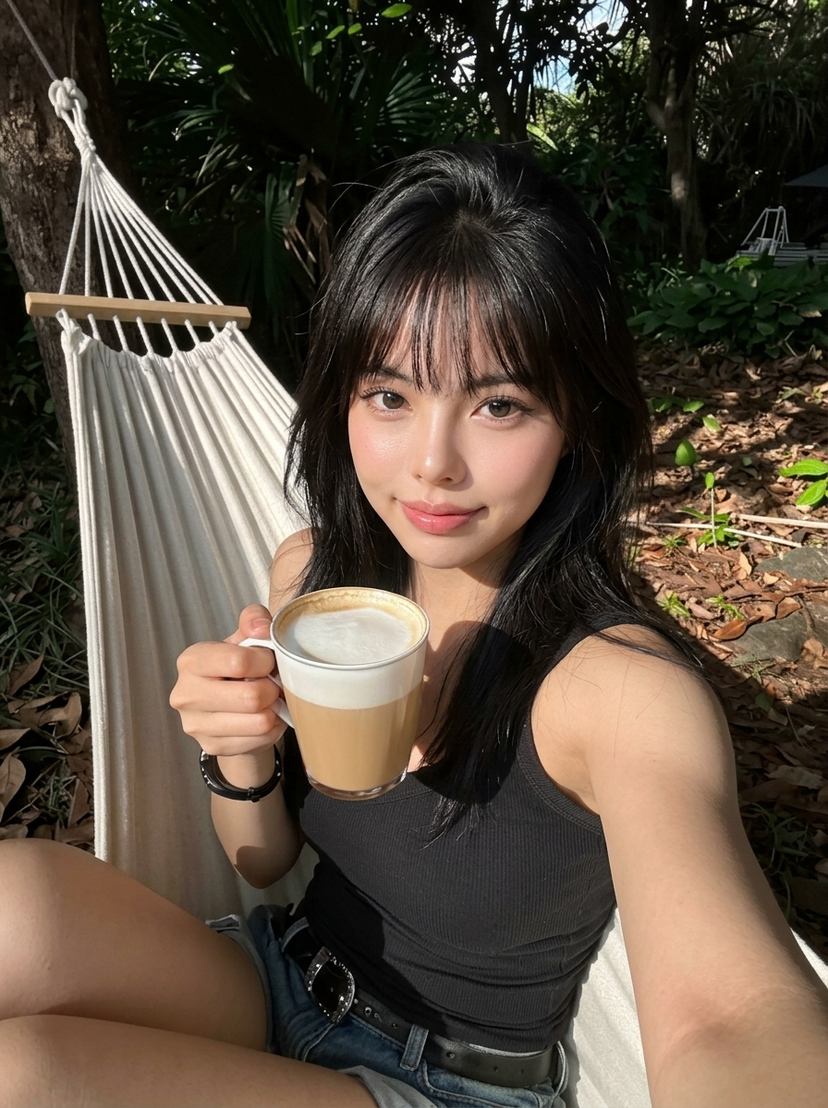
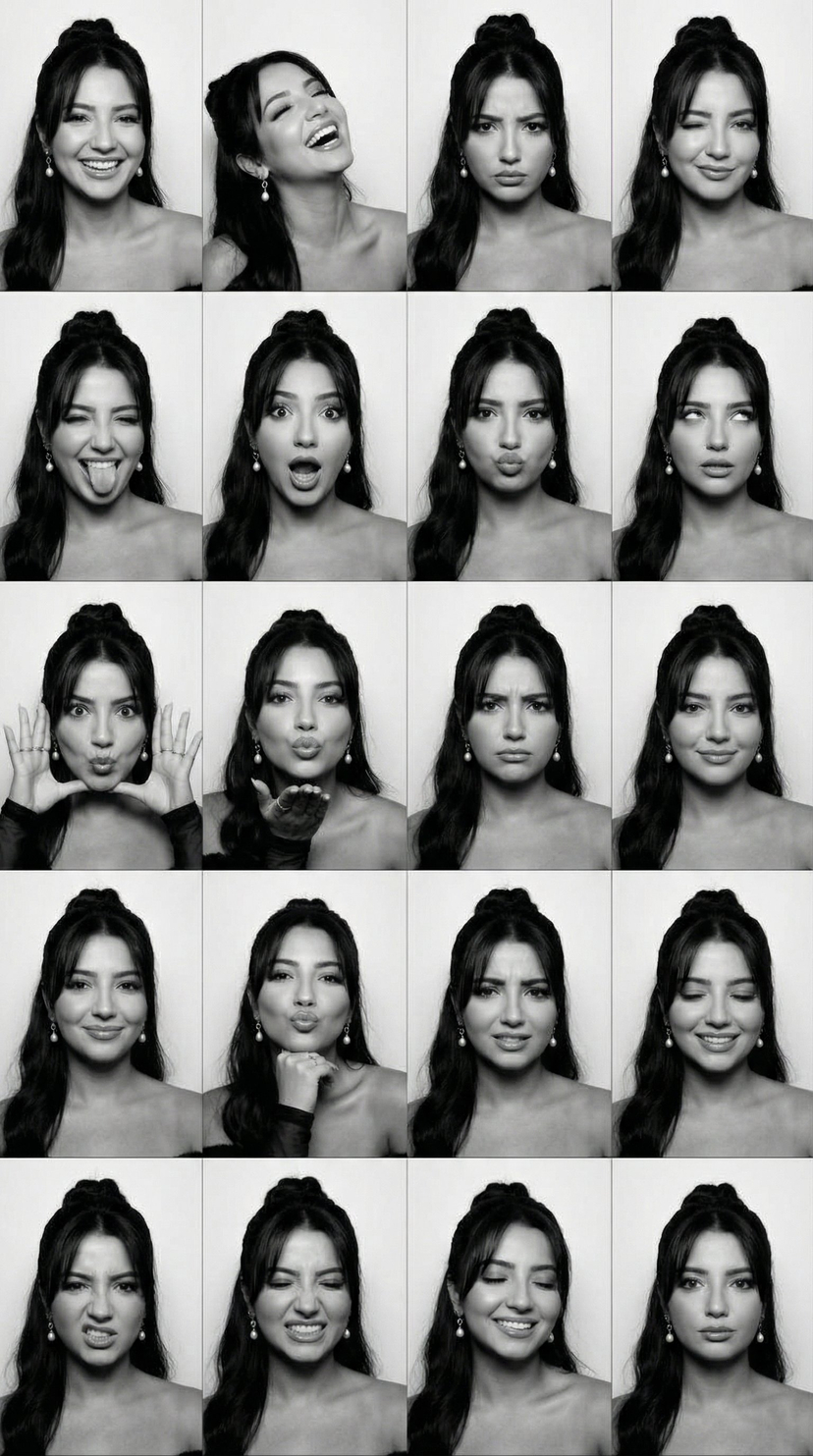
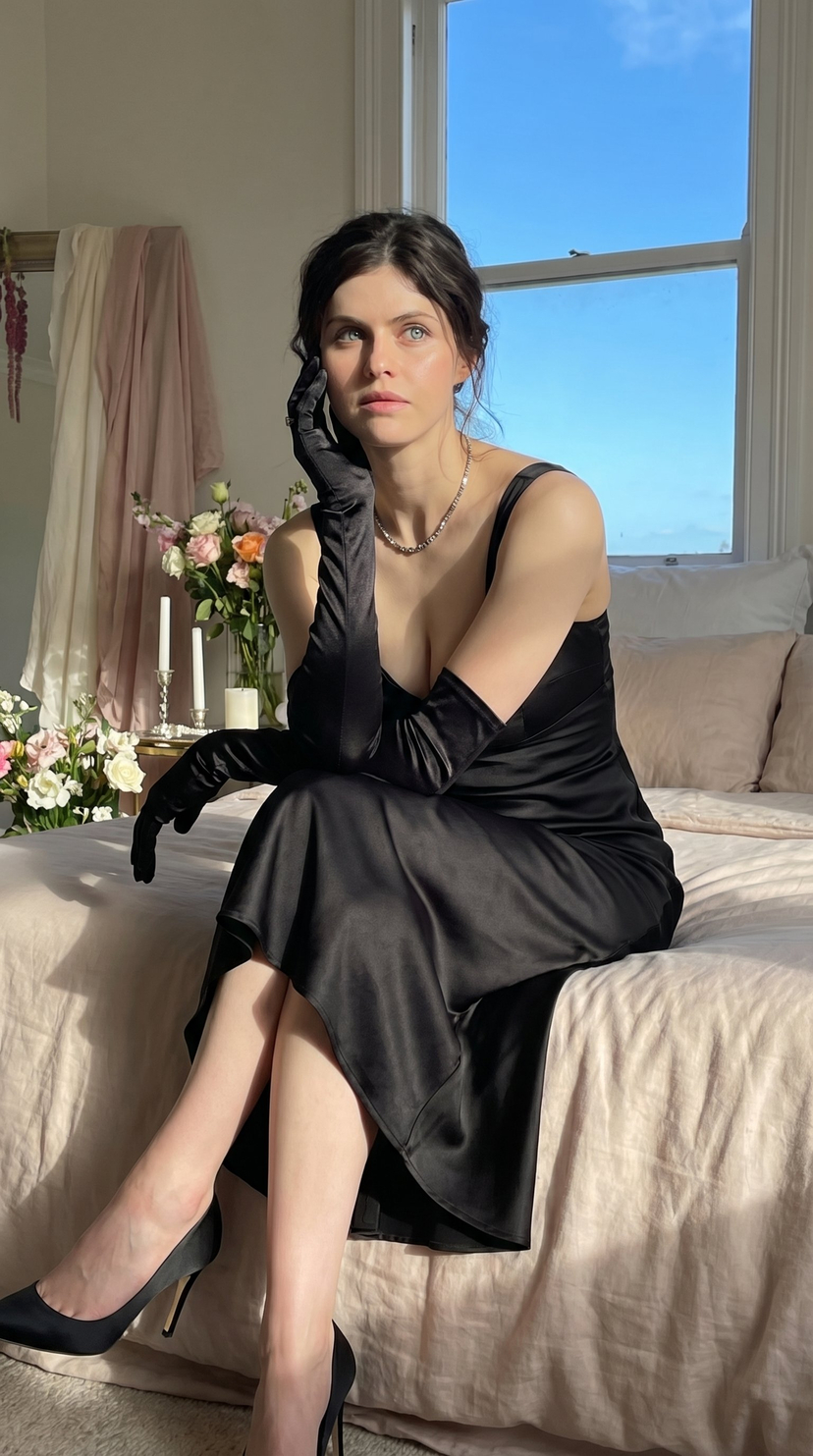
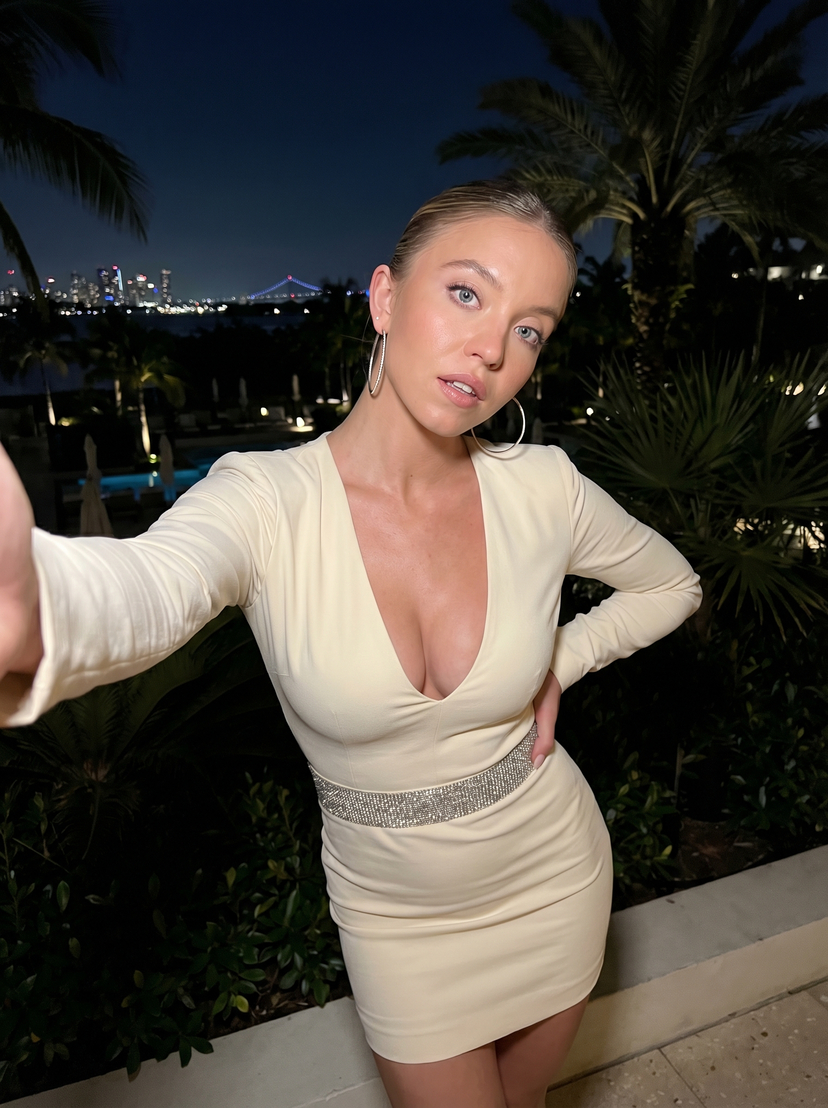
Create a hyper-realistic 4x3 Instagram beauty carousel grid featuring the same woman across twelve panels with very strong facial consistency. The overall result should feel like a viral beauty and style carousel post from a top beauty influencer: fresh, addictive, stylish, feminine, photoreal, and instantly eye-catching. Every panel should feel like a different saved-worthy selfie moment, with curated hair, outfit, angle, and expression changes. The whole grid must look cohesive, luxurious, trendy, and socially viral. The subject must be the same woman in all twelve panels with strict face consistency, same bone structure, same lips, same nose, same eyes, same proportions. Beauty style: fresh soft glam, glossy lips, luminous realistic skin, subtle blush, defined lashes, expressive eyes, clean beauty finish. Hair variations include: pink sleek bob, long dark glossy waves, honey blonde blowout, copper shoulder-length cut, soft brunette layers, sleek black straight hair, curtain bangs with long brunette hair, short blunt bob, loose soft waves, half-up glossy style, high ponytail with face-framing strands, messy chic bun with soft tendrils. Outfit variations include: white ribbed tank top, striped fitted camisole, black minimal cami, soft beige knitwear, off-shoulder cream top, simple black dress, light grey fitted tee, minimal lounge top, soft pink knit top, casual chic crop top, open button-down shirt over cami, sleek neutral slip-style top. Environment: soft neutral indoor setting with clean walls, subtle depth, natural lifestyle background, minimal distractions. Mood: viral, fresh, trendy, feminine, stylish, playful, saved-worthy, high-engagement beauty dump. Panel priority: panel_1 strongest viral opening image, panel_2 soft pout selfie, panel_3 playful side glance, panel_4 serious cool-girl stare, panel_5 hero center beauty shot, panel_6 hand near lips flirtatious, panel_7 angled mirror-like selfie, panel_8 soft smile warm, panel_9 close crop dramatic hair, panel_10 neutral clean-girl pose, panel_11 slightly messy candid, panel_12 final polished selfie. Poses: head tilt, chin slightly raised, camera angled from above, camera angled slightly below, hand touching hair, hand near cheek, hand near lips, close-up crop, soft shoulder turn, straight-on beauty angle, slightly off-center, mirror-style posture. Expressions: soft smile, glossy pout, neutral gaze, serious stare, playful expression, side glance, relaxed candid look, confident beauty face. Camera: premium smartphone front-camera realism, iPhone-like beauty selfie look, close-up and medium-close framing, handheld selfie angles with natural variation, sharp focus on eyes, lips, skin texture, and hair detail. Lighting: natural window light mixed with soft ambient indoor light, flattering, realistic, bright but soft, natural skin texture with visible pores, realistic highlights, no plastic smoothing. Aspect ratio 4:5 portrait, ultra high resolution, 4x3 grid layout with thin gutter, no outer border, maximum identity lock. Render style: viral Instagram beauty editorial, ultra skin detail, very subtle grain, soft but crisp dynamic range, clean warm luxury beauty color grade. Must have: 4x3 grid, same woman in all panels, maximum identity preservation, different hair colors and lengths, different outfits, different selfie angles, different facial expressions, fresh glam aesthetic, realistic smartphone selfie style, photoreal quality, no text. Negative prompt: identity drift, different person, same hairstyle repeated, same outfit repeated, duplicate selfie angles, blurry face, warped facial features, asymmetrical eyes, bad anatomy, extra fingers, deformed hands, plastic skin, over-retouched look, studio photography, DSLR editorial instead of selfie, cartoon, logo, watermark, text.



![118-google-nano-banana-pro-skincare-product- — A professional skincare shot of a [product container] with [cap/lid], labeled [brand, product, descriptor, volume](/_next/image?url=https%3A%2F%2Fcdn.picxstudio.com%2Fuploads%2Fpost118_img0_332898b8-29ea-42a9-87ab-9ed746a3f944.jpg&w=828&q=100)


![Nano Banana — One Day In [CITY] Travel Route — A hyper-realistic 3D daily travel route infographic poster generated from a single input: [CITY]=(Buraya şehir ad](/_next/image?url=https%3A%2F%2Fcdn.picxstudio.com%2Fuploads%2Fai_gezgini_travel_d9a86f2e-c1f5-41a8-a4ef-5d96a8a7a023.jpg&w=828&q=100)

![Isometric Brand Store Diorama — Present a clear, 45° top-down isometric miniature 3D cartoon diorama of the [BRAND], with soft refin…](/_next/image?url=https%3A%2F%2Fcdn.picxstudio.com%2Fuploads%2Fmeigen_18578a8c7cb6_25c7ccef-837d-4949-99fb-d6321dc5c72c.jpg&w=828&q=100)

![Naive doodle-style subject illustration — A doodle-style {argument name="subject" default="[subject]"}, naive lines, humorous shape exaggeration](https://pbs.twimg.com/media/G6Wl2YxbsAARB2b.jpg)