
Codex Training Poster Workflow Infographic
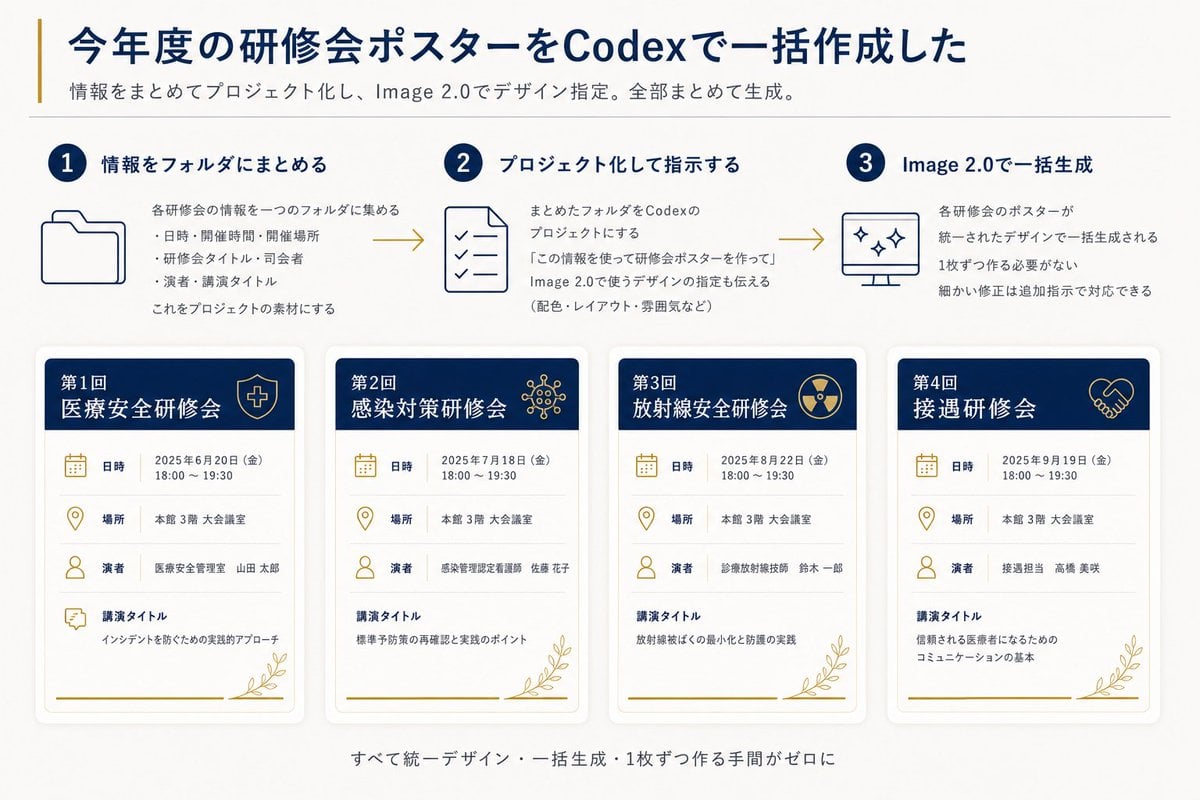
A Japanese 16:9 infographic explaining a three-step Codex and Image 2.0 workflow for batch-generating four unified training seminar posters.
- Prompt included
- Model and format preset
- Free template
The prompt behind this image
Copy the exact prompt behind Codex Training Poster Workflow Infographic, or open it in the studio and make it yours.
Goal: Create a clean Japanese presentation-style infographic showing how annual training seminar posters were batch-created with Codex and Image 2.0. Canvas: 16:9 horizontal slide, off-white background, dark navy and muted gold accent colors, modern corporate healthcare aesthetic, generous margins, subtle shadows, thin divider lines, crisp vector icons. Header: Large bold navy Japanese headline: {argument name="headline text" default="今年度の研修会ポスターをCodexで一括作成した"}. Add a thin vertical gold line to the left of the headline. Under it, a smaller gray subtitle: {argument name="subtitle text" default="情報をまとめてプロジェクト化し、Image 2.0でデザイン指定。全部まとめて生成。"}. Place a thin horizontal divider below the subtitle. Top process section: Show exactly 3 numbered steps in one row, connected left-to-right by two gold arrow lines. Each step has a navy circular number badge, a navy title, a simple line icon, and short Japanese explanatory text. 1. Step 1 title: 「情報をフォルダにまとめる」 with a folder icon. Body says the information for each seminar is gathered into one folder, with three bullet items: date/time/place, seminar title/division, speaker/lecture title; then says this becomes project material. 2. Step 2 title: 「プロジェクト化して指示する」 with a checklist document icon. Body explains turning the folder into a Codex project and instructing it to create seminar posters using the information, including design directions such as colors, layout, and mood. 3. Step 3 title: 「Image 2.0で一括生成」 with a monitor icon containing sparkle marks. Body explains that all seminar posters are generated together in a unified design, no need to make them one by one, and small corrections can be handled with additional instructions. Bottom poster gallery: Display exactly 4 vertical seminar poster cards in a single row, evenly spaced, each with rounded corners, soft drop shadow, white body, navy header band, gold icons, gold botanical line decoration at the bottom right, and a gold horizontal line near the bottom. Each card has four information rows with icons and labels: 「日時」, 「場所」, 「演者」, 「講演タイトル」. Poster card 1: Header text 「第1回 医療安全研修会」 with a shield-and-cross icon. Date row: 「2025年6月20日(金) 18:00~19:30」. Place row: 「本館 3階 大会議室」. Speaker row: 「医療安全管理室 山田 太郎」. Lecture title row: 「インシデントを防ぐための実践的アプローチ」. Poster card 2: Header text 「第2回 感染対策研修会」 with a virus/network icon. Date row: 「2025年7月18日(金) 18:00~19:30」. Place row: 「本館 3階 大会議室」. Speaker row: 「感染管理認定看護師 佐藤 花子」. Lecture title row: 「標準予防策の再確認と実践のポイント」. Poster card 3: Header text 「第3回 放射線安全研修会」 with a radiation symbol icon. Date row: 「2025年8月22日(金) 18:00~19:30」. Place row: 「本館 3階 大会議室」. Speaker row: 「診療放射線技師 鈴木 一郎」. Lecture title row: 「放射線被ばくの最小化と防護の実践」. Poster card 4: Header text 「第4回 接遇研修会」 with a handshake icon. Date row: 「2025年9月19日(金) 18:00~19:30」. Place row: 「本館 3階 大会議室」. Speaker row: 「接遇担当 高橋 美咲」. Lecture title row: 「信頼される医療者になるためのコミュニケーションの基本」. Footer: Center a small gray Japanese summary line below the cards: {argument name="footer text" default="すべて統一デザイン・一括生成・1枚ずつ作る手間がゼロに"}. Visual style: Use dark navy for headings and card headers, muted gold for accents/icons/arrows, light gray for dividers and secondary text. Keep typography highly legible, Japanese sans-serif, with the headline bold and all body text aligned neatly. Maintain a polished autogenerated-report look with no photos, no people, no watermark, and no extra poster cards or extra steps.
How to use Codex Training Poster Workflow Infographic in 3 steps
- 1Upload ImagePNG, JPG or paste
Add your photo
Upload the photo the template builds on. The prompt, model and format are already set.
- 2…a portrait of your subject in softgolden-hour light, 85mm…
Personalize
Edit the subject and creative details for your destination.
- 3Generate
Generate
Press Generate — your image is created in PicX Studio, so you can compare it with the original and refine one variable at a time.
More like this
Templates with the same subject, style or setup. Open one to see its prompt.

Japan Travel Brochure Poster
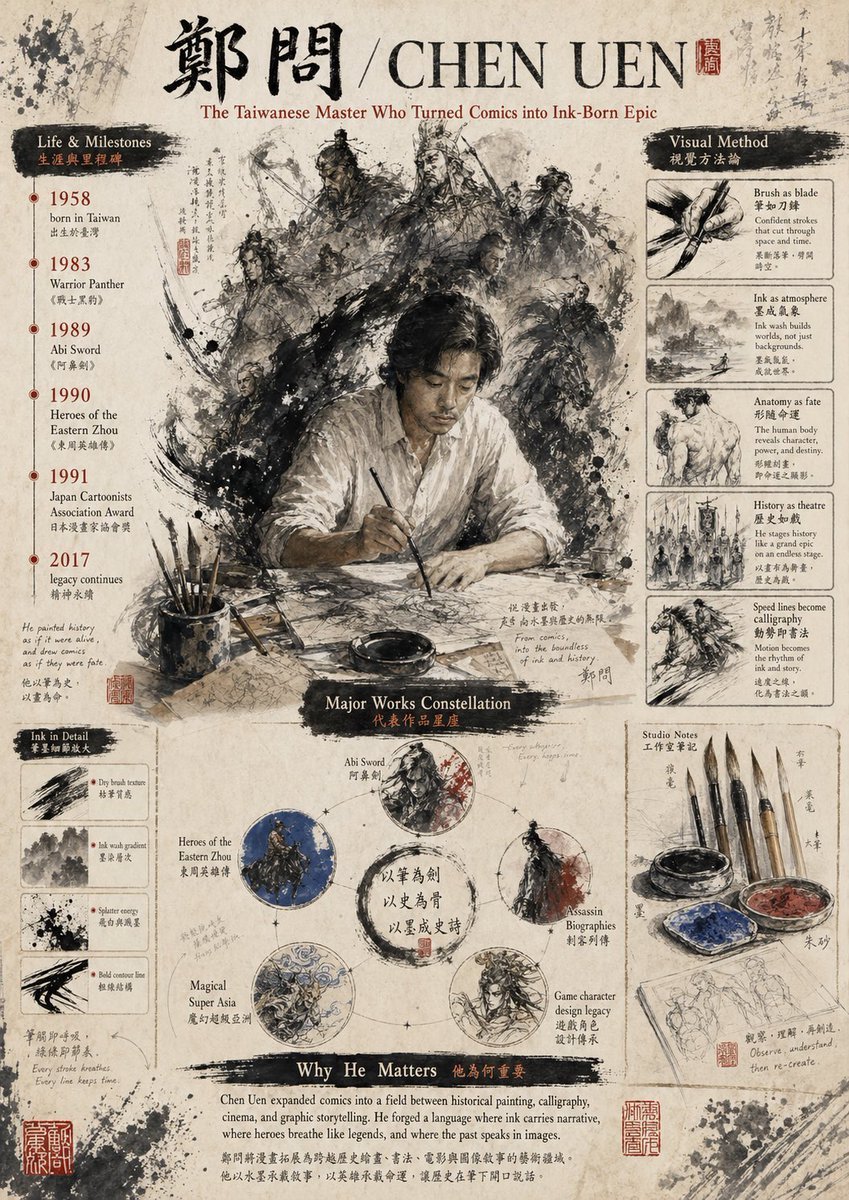
Gpt2 Infographic Edu Visual Ink Wash Tribute Poster for Chen Uen
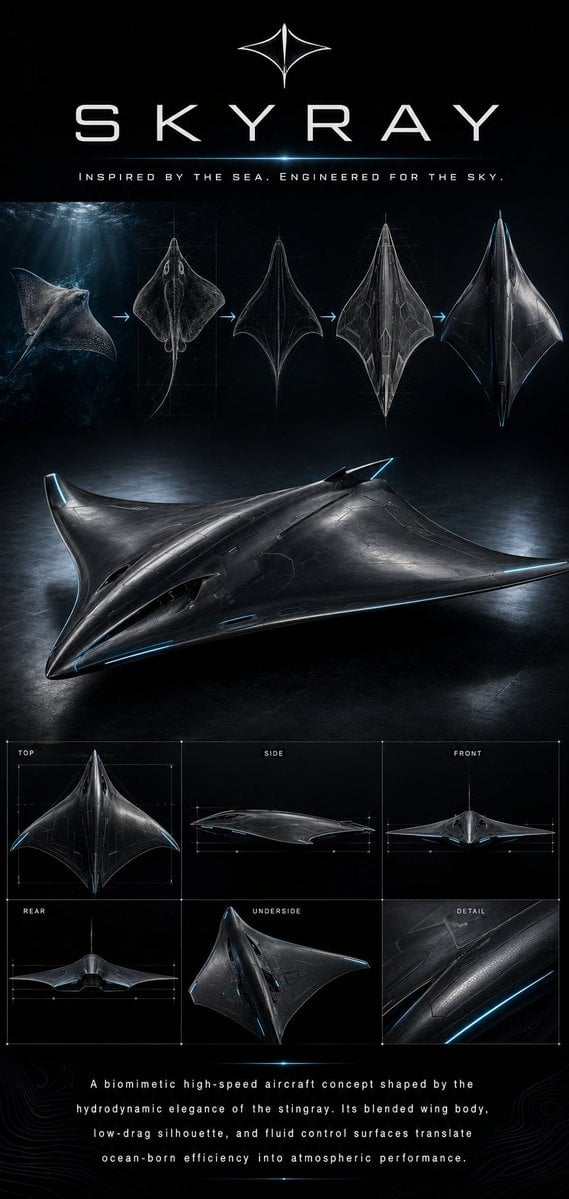
Gpt2 Infographic Edu Visual Biomimetic Skyray Aircraft Poster
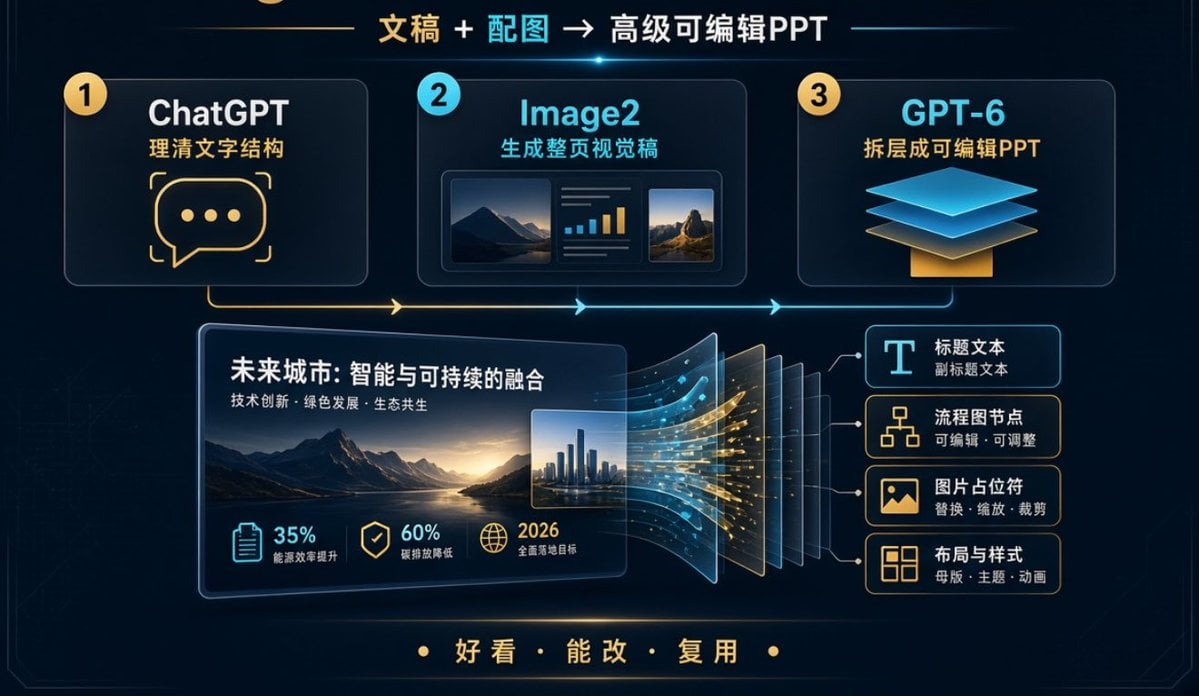
Editable PPT Workflow Infographic
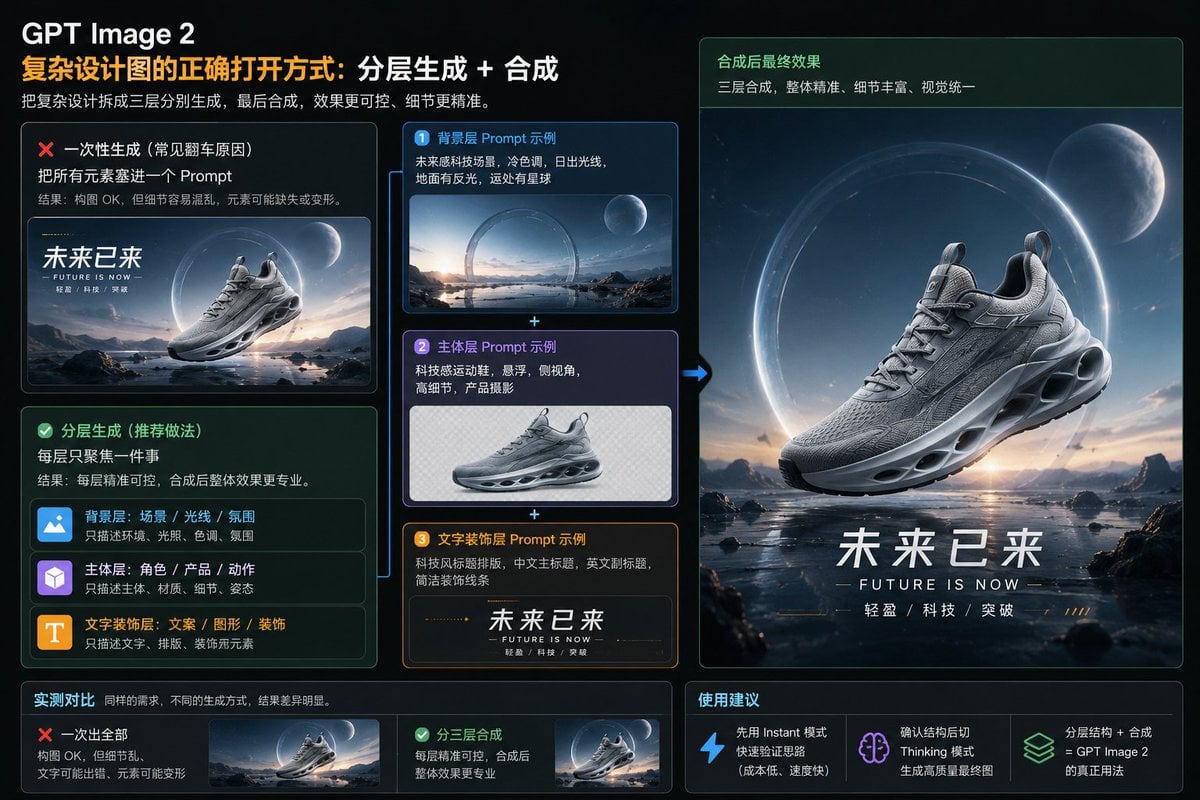
Layered GPT Image 2 Workflow Infographic
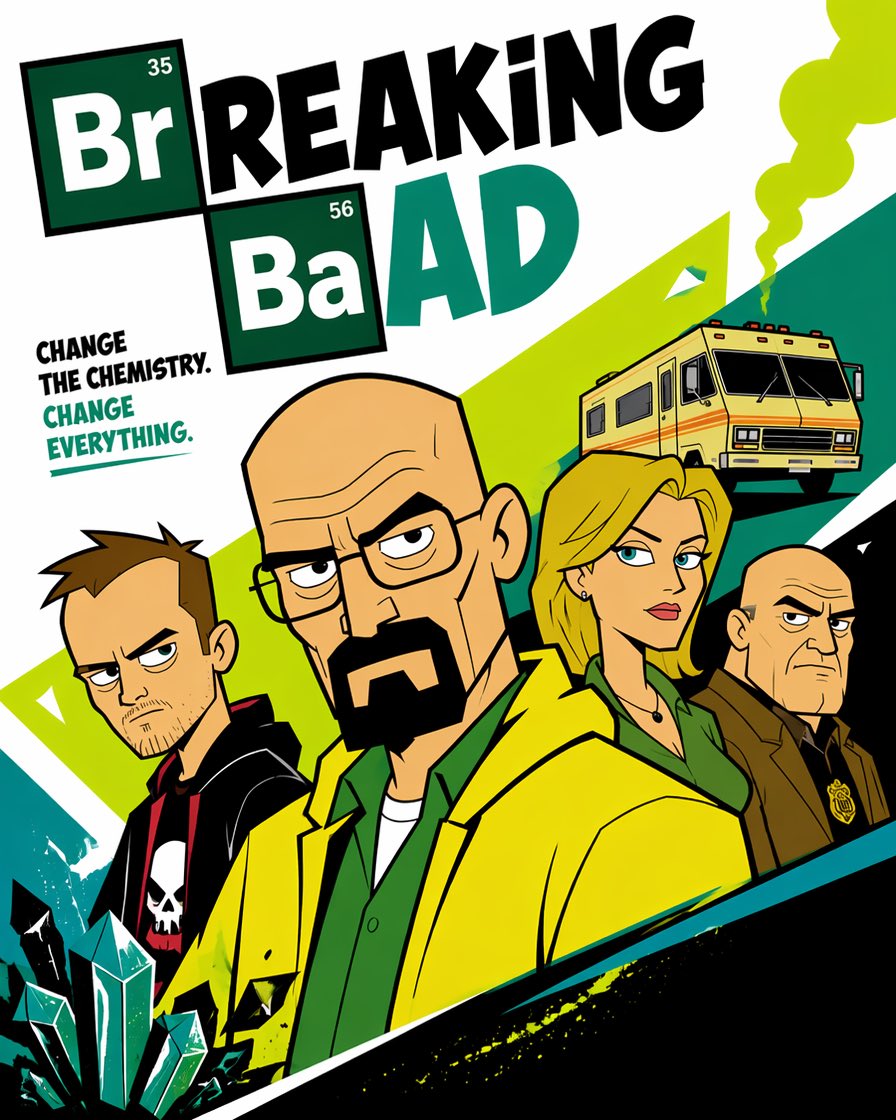
Cartoon TV Show Poster Pack

Trendy Cafe Drink Promo Poster

Urban Fashion Editorial Collage Streetwear Poster
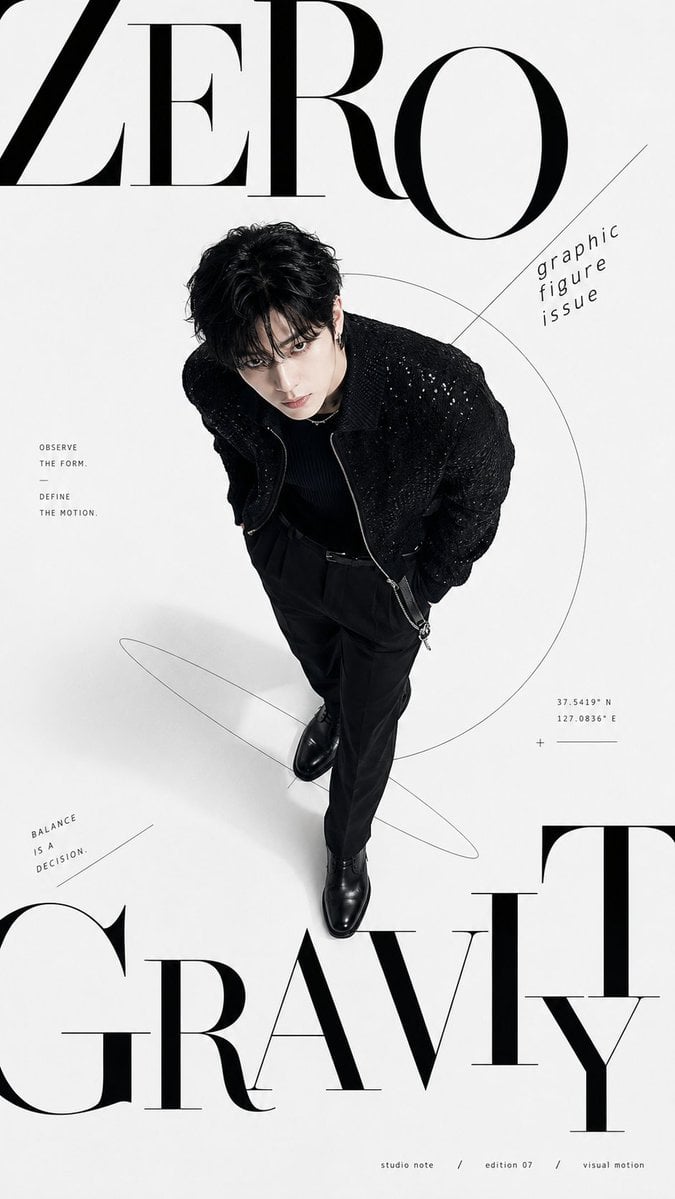
Premium Fashion Editorial Cover Layout System

Polo Ralph Lauren Luxury American Heritage Fashion Campaign
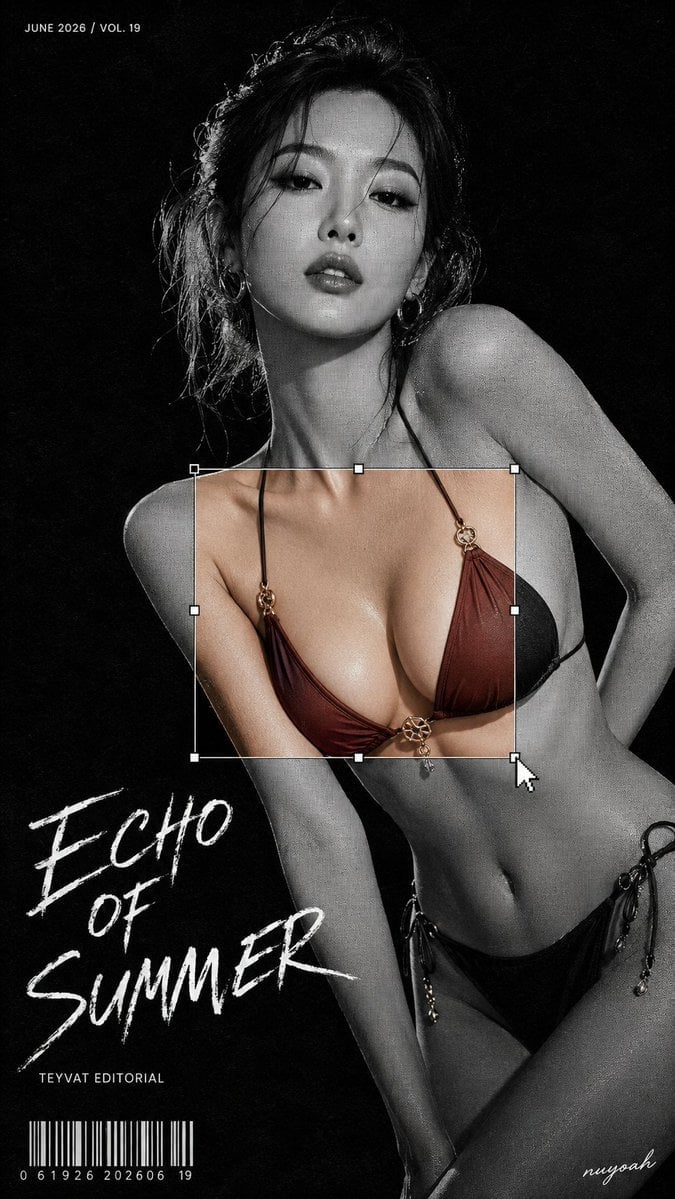
Monochrome Halftone Editorial Fashion Poster
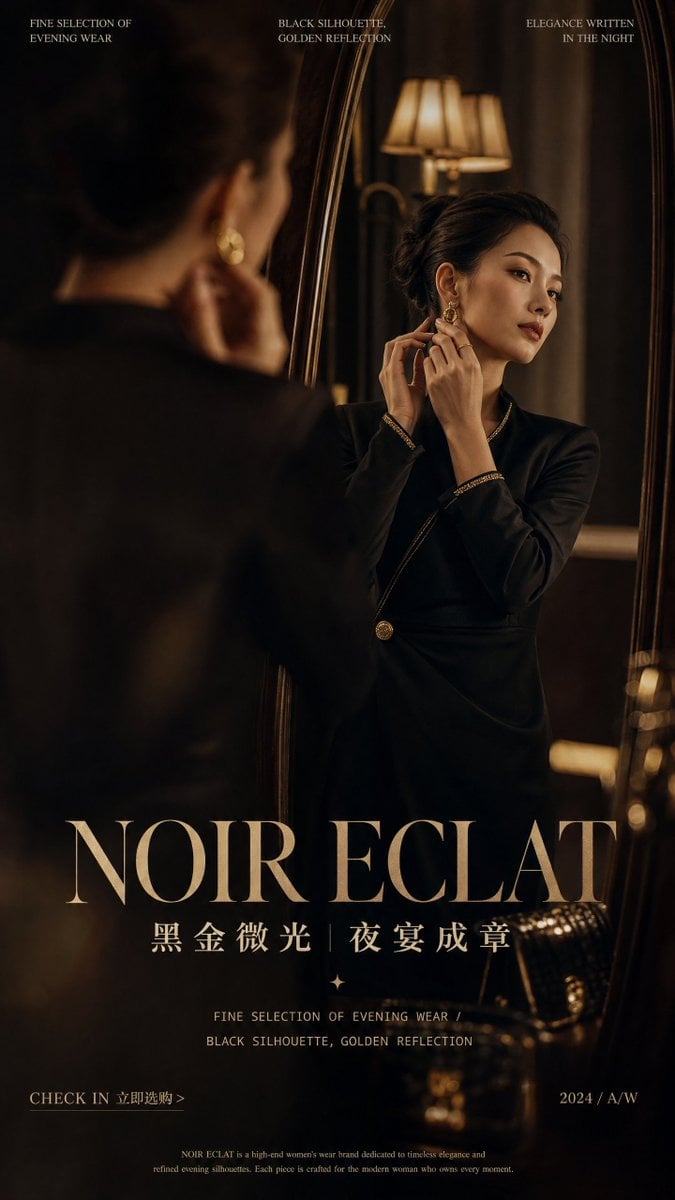
Retro Mirror Luxury Fashion Campaign Poster
Make it yours
Codex Training Poster Workflow Infographic works as-is. These are the safest ways to change it without losing the look.
Change one field
Copy a single group, rewrite it, and generate again so you can see what that field is doing.
Keep the frame, change the subject
Hold the composition and light of Codex Training Poster Workflow Infographic, then swap wardrobe, props or the person for a new take.
| If the result… | Why | Fix |
|---|---|---|
| The result drifts from the preview | Too many fields changed at once. | Reuse Codex Training Poster Workflow Infographic as-is first, then change one group — subject, light, or setting. |
| The model over-stylizes the scene | The prose prompt leaves finish and camera underspecified. | Add one camera or lighting sentence and stay on GPT Image 2. |
More GPT Image 2 templates
Other prompts made for GPT Image 2.

Six VTuber Japanese Logo Sheet

Realistic Portrait of Woman and Deer

The Vista Modular Condo Poster

AI Model Routing Comparison Infographic

2.5D Anime Art Board

Isometric Productivity Desk Scene

New York Double Exposure Poster

Four-Panel AI Landscape Comparison

Japanese Tatami Lifestyle Magazine Cover

NESCAFÉ Coffee Map Poster
More image prompts
Fresh picks from across the catalog.
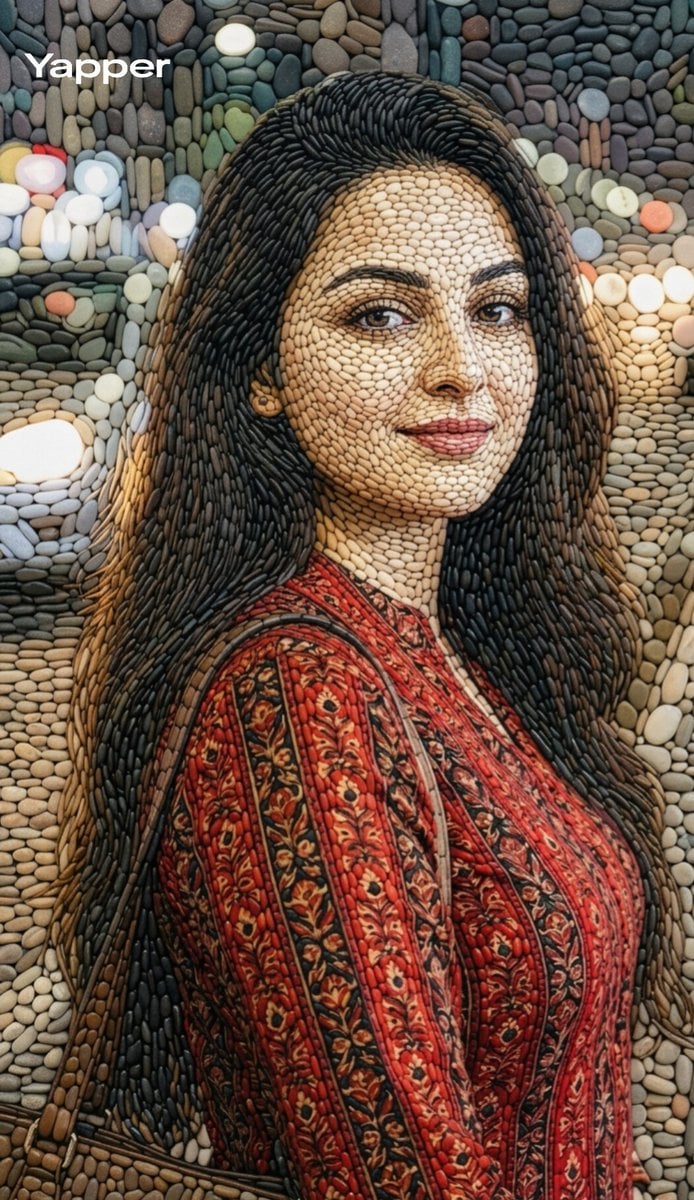
Pebble mosaic portrait of a beautiful woman

Sunlit Summer Fashion Lookbook

Colossal battleship at dawn illustration prompt
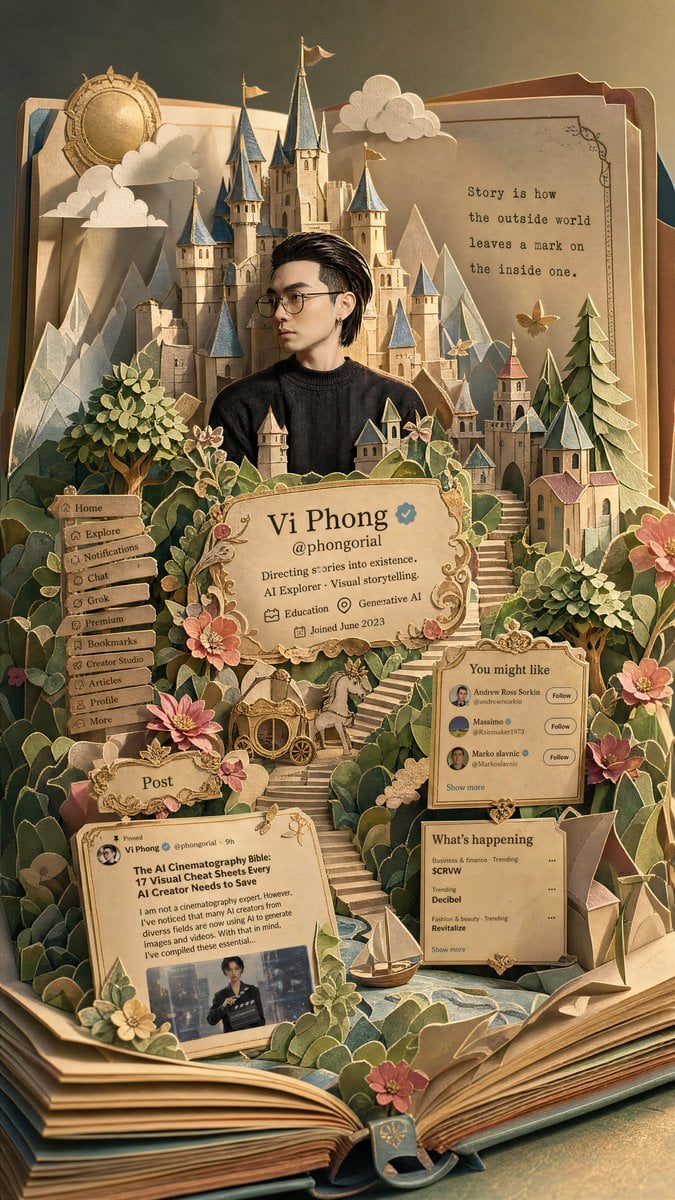
Fantasy Pop-up Book Transformation

Sunlit Bouquet Photo Retouch
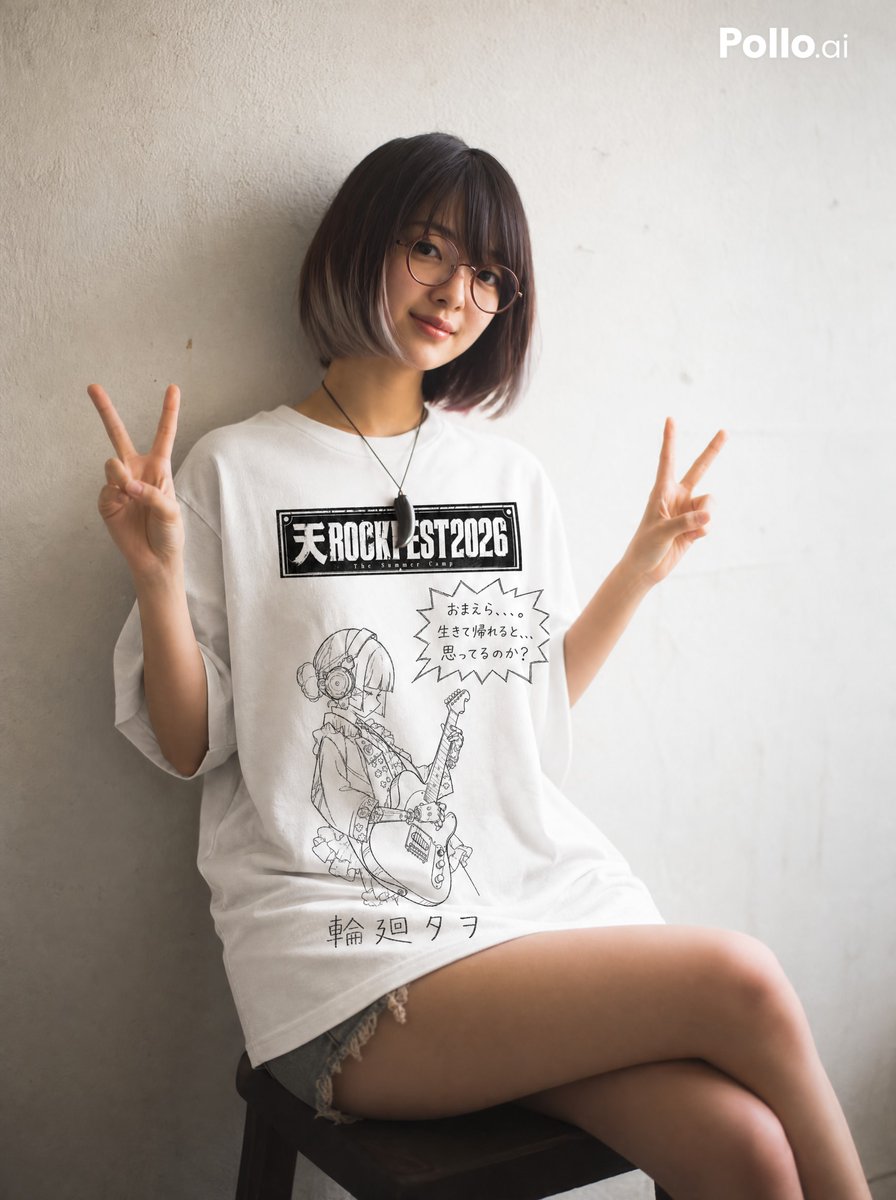
Hand-drawn Yuru-kyara T-shirt Mockup
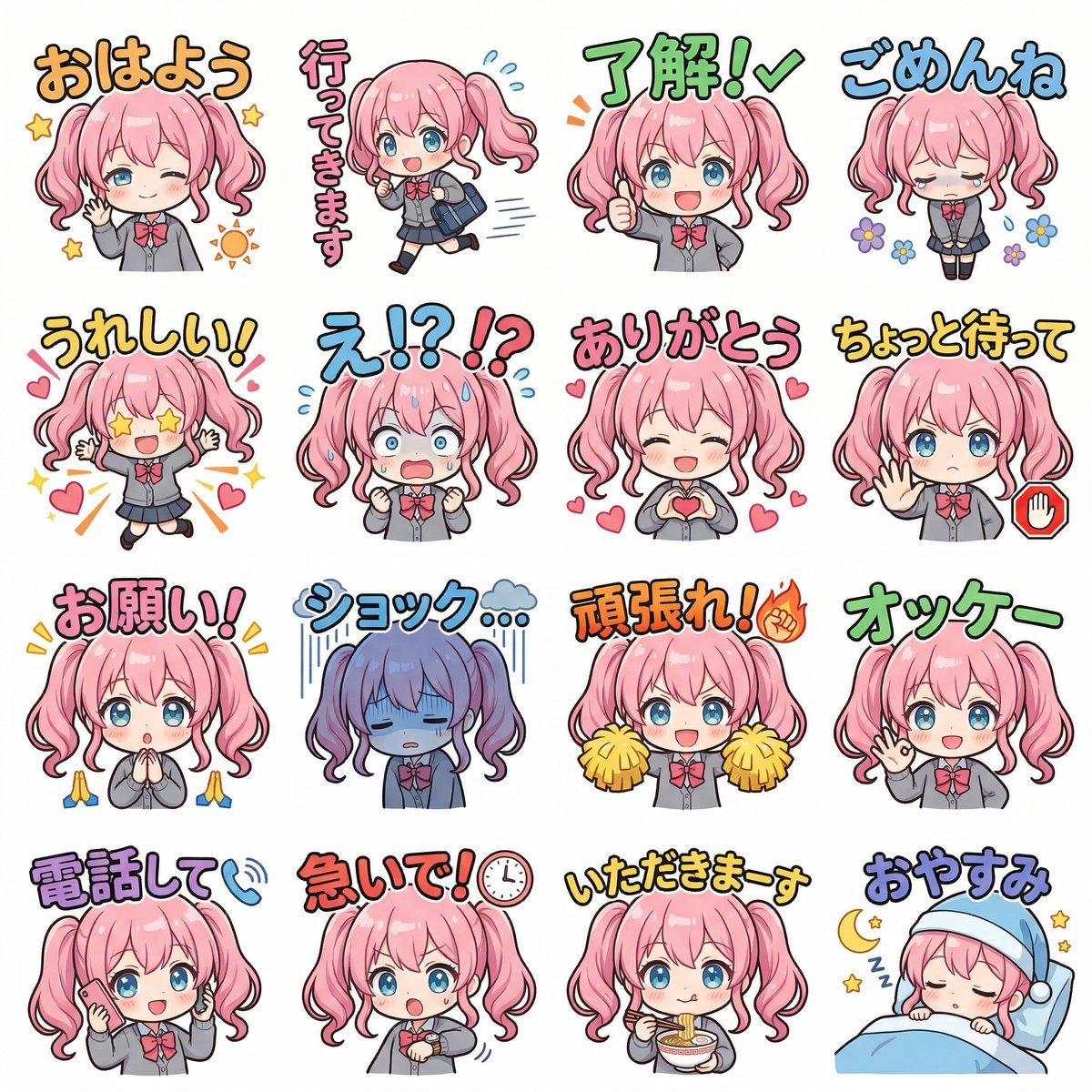
Creating LINE Stickers with Nano Banana 2

AI Saws Enterprise Developers Branch

Minimalist Startup Presentation Cover Visual Prompt
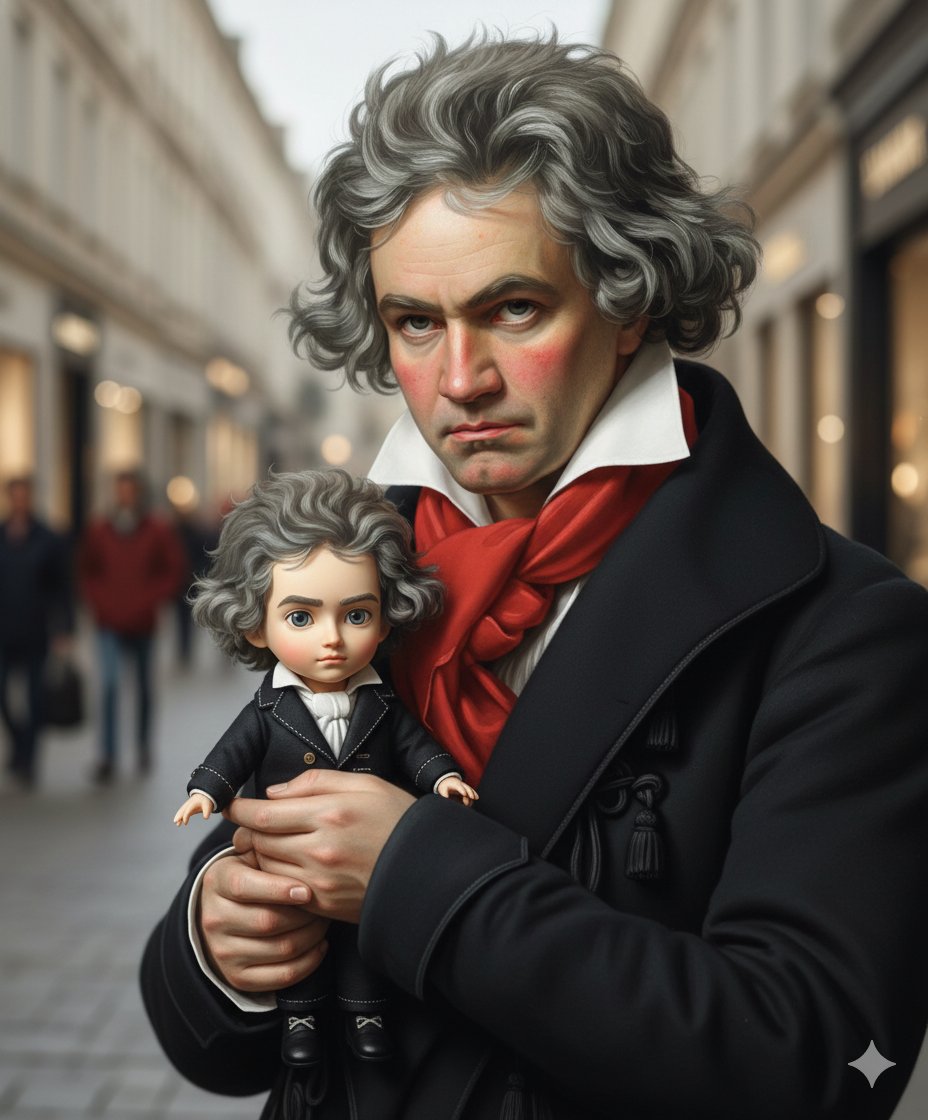
Mini-Me Q-Version Avatar Generation Prompt
Browse template categories
Codex Training Poster Workflow Infographic questions
How do I use the Codex Training Poster Workflow Infographic template?
Add your photo if the template asks for one, edit the prompt if you like — the template's model and format are already selected — and press Generate. Your version opens in PicX Studio.
Can I customize the Codex Training Poster Workflow Infographic template?
Yes. You can change the subject, setting, lighting, mood, format, and available model controls before creating your image.
Is the Codex Training Poster Workflow Infographic template free?
Opening and editing this template is free. Generating uses credits, shown on the Generate button when you are signed in.
Which AI model should I use?
Start with GPT Image 2, which is the model associated with this template. You can compare another compatible model for a different finish.
Looking for something else? Browse all templates.

Your photo, any look
Thousands of ready templates for every top image and video model, from one credit balance.