
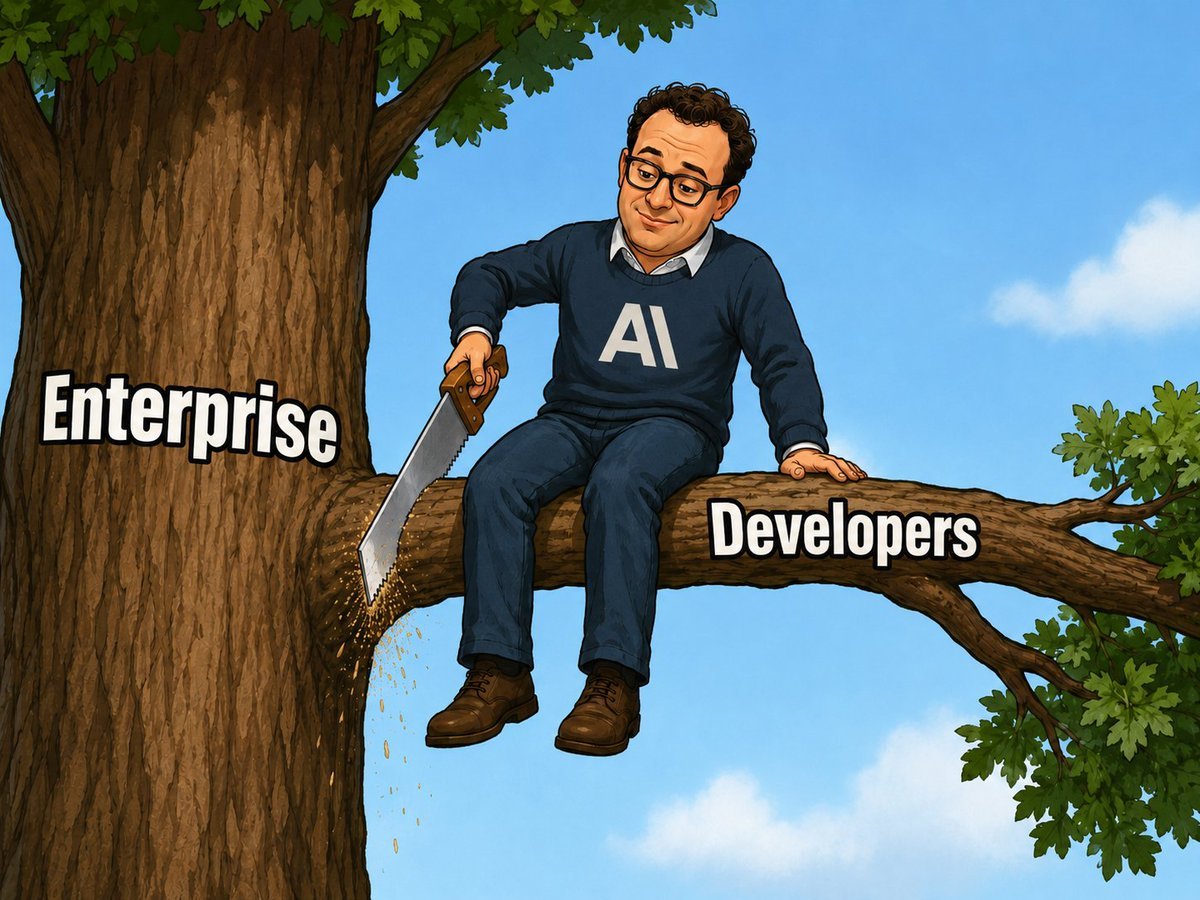
AI Saws Enterprise Developers Branch
A political-cartoon meme showing AI sitting on and sawing off a tree branch labeled Developers connected to Enterprise.
- Prompt included
- Model and format preset
- Free template
The prompt behind this image
Copy the exact prompt behind AI Saws Enterprise Developers Branch, or open it in the studio and make it yours.
Create a single-panel political-cartoon style meme illustration in a square-ish 4:3 canvas. Show a large sturdy tree on the left with rough brown bark and green leaves at the top, against a bright blue sky with a few soft white clouds. A thick horizontal branch extends from the trunk to the right. On the trunk, place bold white meme text with a black outline reading {argument name="trunk label" default="Enterprise"}. On the branch, place bold white meme text with a black outline reading {argument name="branch label" default="Developers"}. Sitting on top of the branch near the trunk is a casually dressed adult man representing {argument name="shirt label" default="AI"}, wearing a dark navy sweater with the large white text “AI” on the chest, a white collared shirt underneath, dark jeans, and brown shoes. His face should be intentionally obscured by a plain rectangular skin-tone blur block, like an anonymized meme edit. He holds a hand saw angled downward and is sawing through the branch between the trunk and himself, with small wood chips and sawdust falling below the cut. Make the pose clear: he is seated on the branch he is cutting, one hand on the saw and the other bracing on the branch. Use a clean, colorful, hand-drawn editorial cartoon style, high contrast outlines, readable typography, humorous meme composition, no extra captions, no watermark.
How to use AI Saws Enterprise Developers Branch in 3 steps
- 1Upload ImagePNG, JPG or paste
Add your photo
Upload the photo the template builds on. The prompt, model and format are already set.
- 2…a portrait of your subject in softgolden-hour light, 85mm…
Personalize
Edit the subject and creative details for your destination.
- 3Generate
Generate
Press Generate — your image is created in PicX Studio, so you can compare it with the original and refine one variable at a time.
More like this
Templates with the same subject, style or setup. Open one to see its prompt.
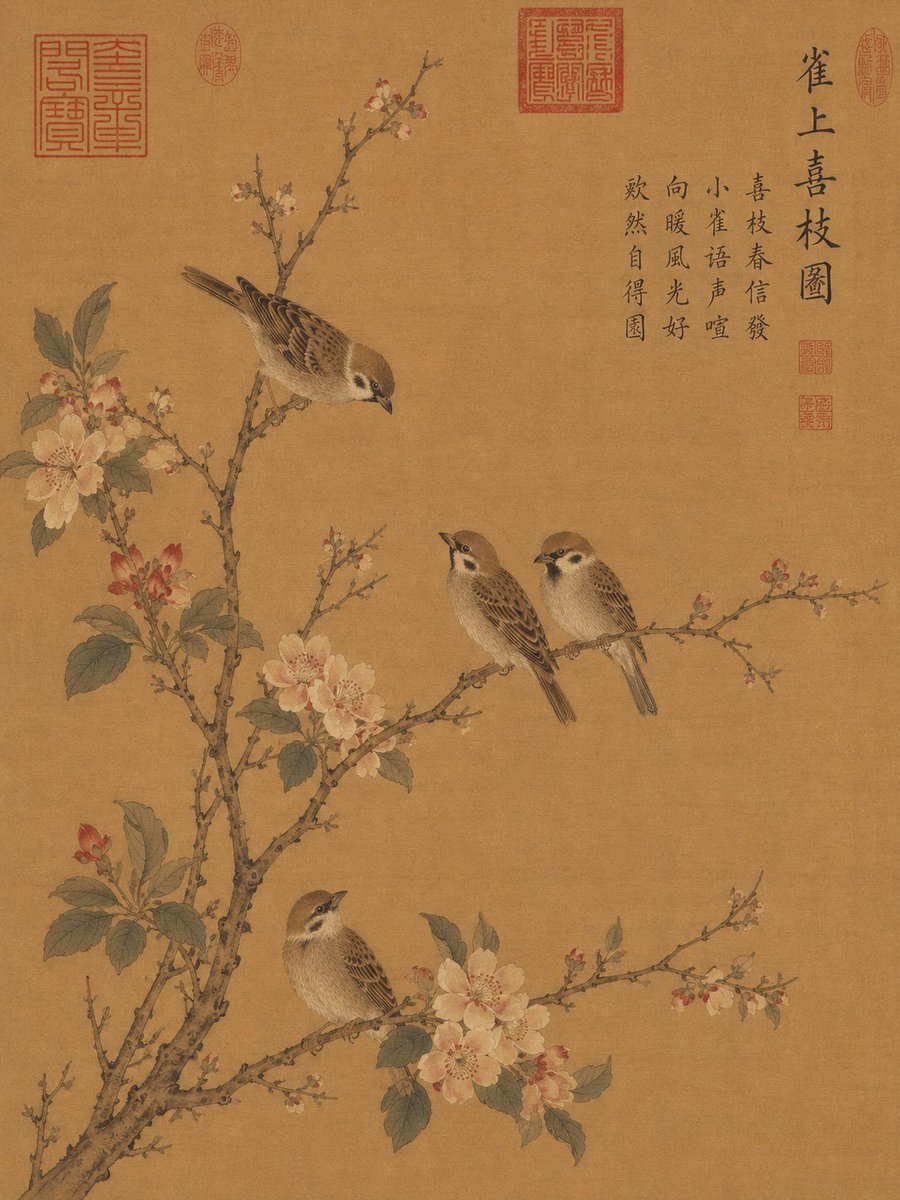
Song Dynasty Style Bird and Branch Painting
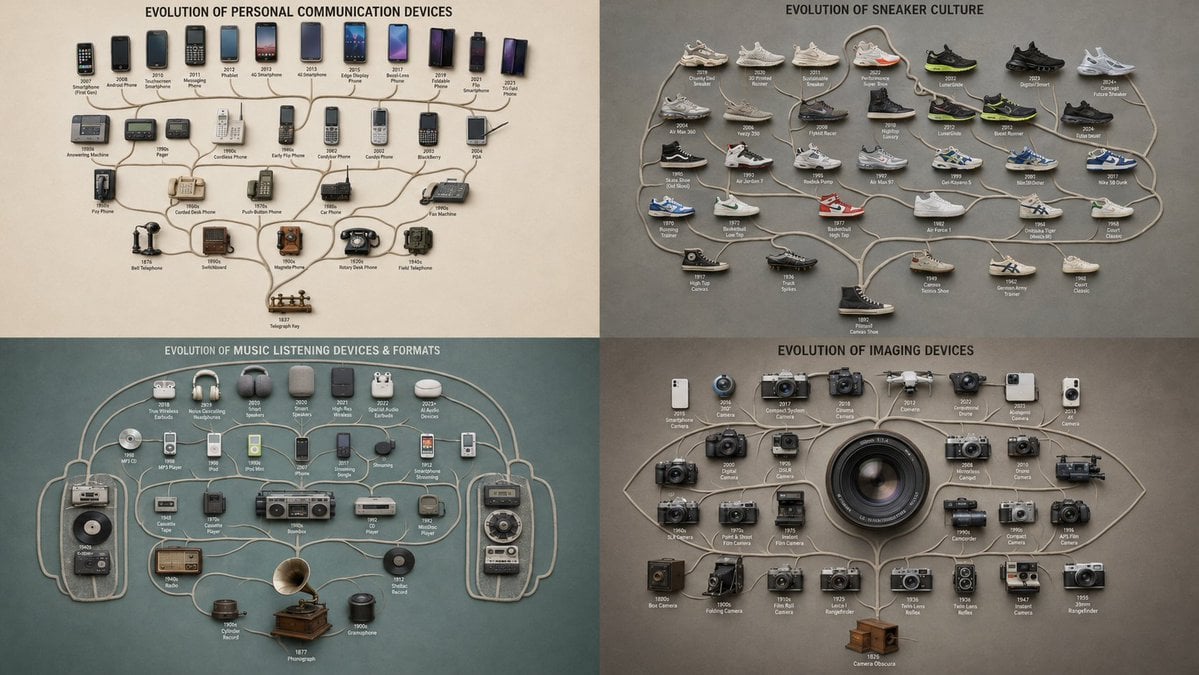
Evolutionary Branching Tree Visualization
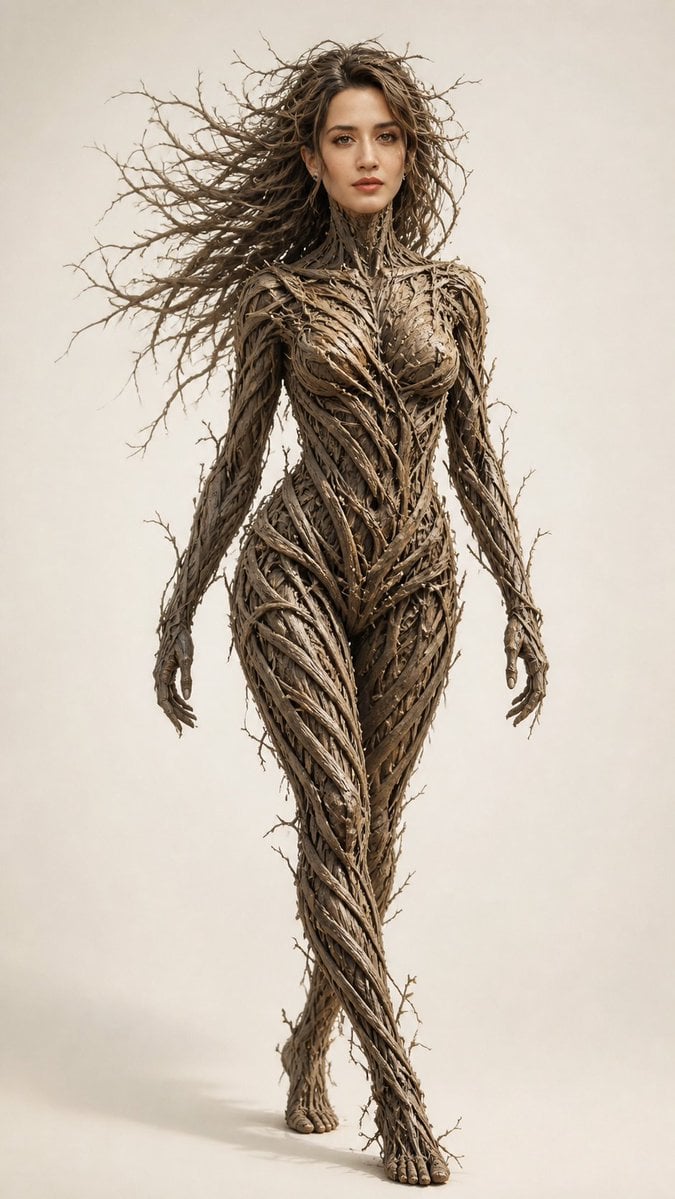
Dry Branch Sculpture Portrait
Product hero shot with charred black branches framing
Double Exposure Portrait with Tree Branches and Landscape

NESCAFÉ Coffee Map Poster

Cinematic Golden Hour Garden Portrait
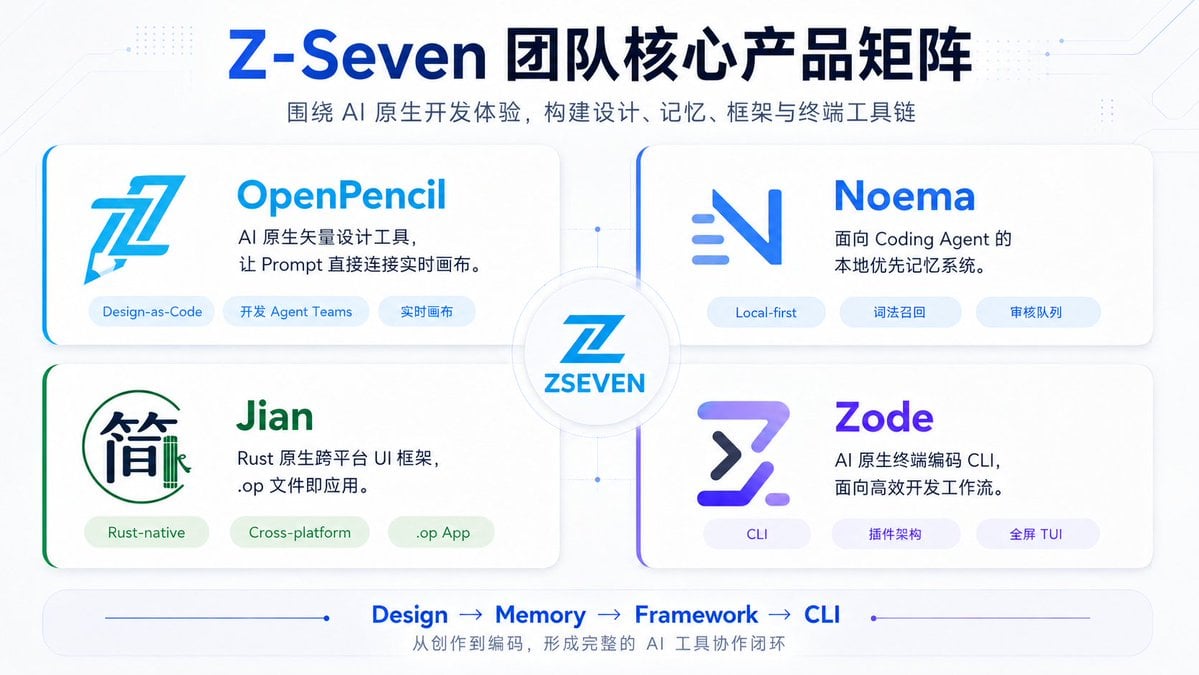
Z-Seven AI Product Matrix Slide

AI Coding Partner Timeline
Block Mosaic Stained Glass Girl
Luxury Oriental Mansion Opening Poster
Rabbit Racer Workflow Board
Make it yours
AI Saws Enterprise Developers Branch works as-is. These are the safest ways to change it without losing the look.
Change one field
Copy a single group, rewrite it, and generate again so you can see what that field is doing.
Keep the frame, change the subject
Hold the composition and light of AI Saws Enterprise Developers Branch, then swap wardrobe, props or the person for a new take.
| If the result… | Why | Fix |
|---|---|---|
| The result drifts from the preview | Too many fields changed at once. | Reuse AI Saws Enterprise Developers Branch as-is first, then change one group — subject, light, or setting. |
| The model over-stylizes the scene | The prose prompt leaves finish and camera underspecified. | Add one camera or lighting sentence and stay on GPT Image 2. |
More GPT Image 2 templates
Other prompts made for GPT Image 2.

Six VTuber Japanese Logo Sheet

Realistic Portrait of Woman and Deer

The Vista Modular Condo Poster

AI Model Routing Comparison Infographic

2.5D Anime Art Board

Isometric Productivity Desk Scene

New York Double Exposure Poster

Four-Panel AI Landscape Comparison

Japanese Tatami Lifestyle Magazine Cover

Brutalist Cogito Chinese Typography Poster
More image prompts
Fresh picks from across the catalog.
Izakaya Pose Variation
Outdoor Courtyard Fashion Street Photography
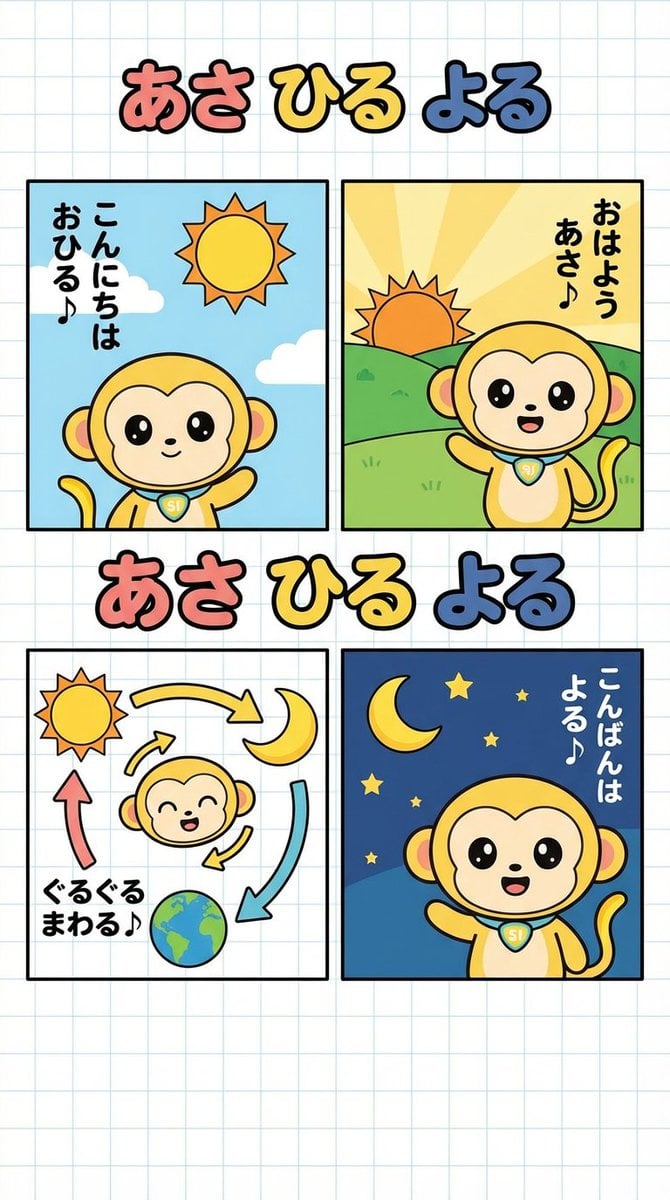
Four-Panel Comic: Morning, Noon, Night, Mandarin Orange Theme
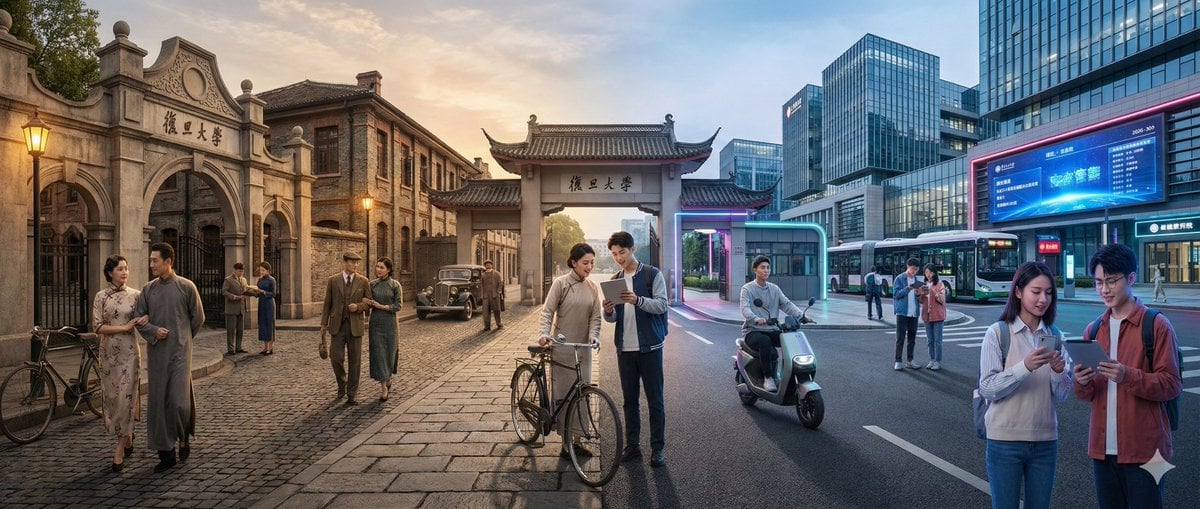
Time-Warp Cinematic Split Scene Prompt
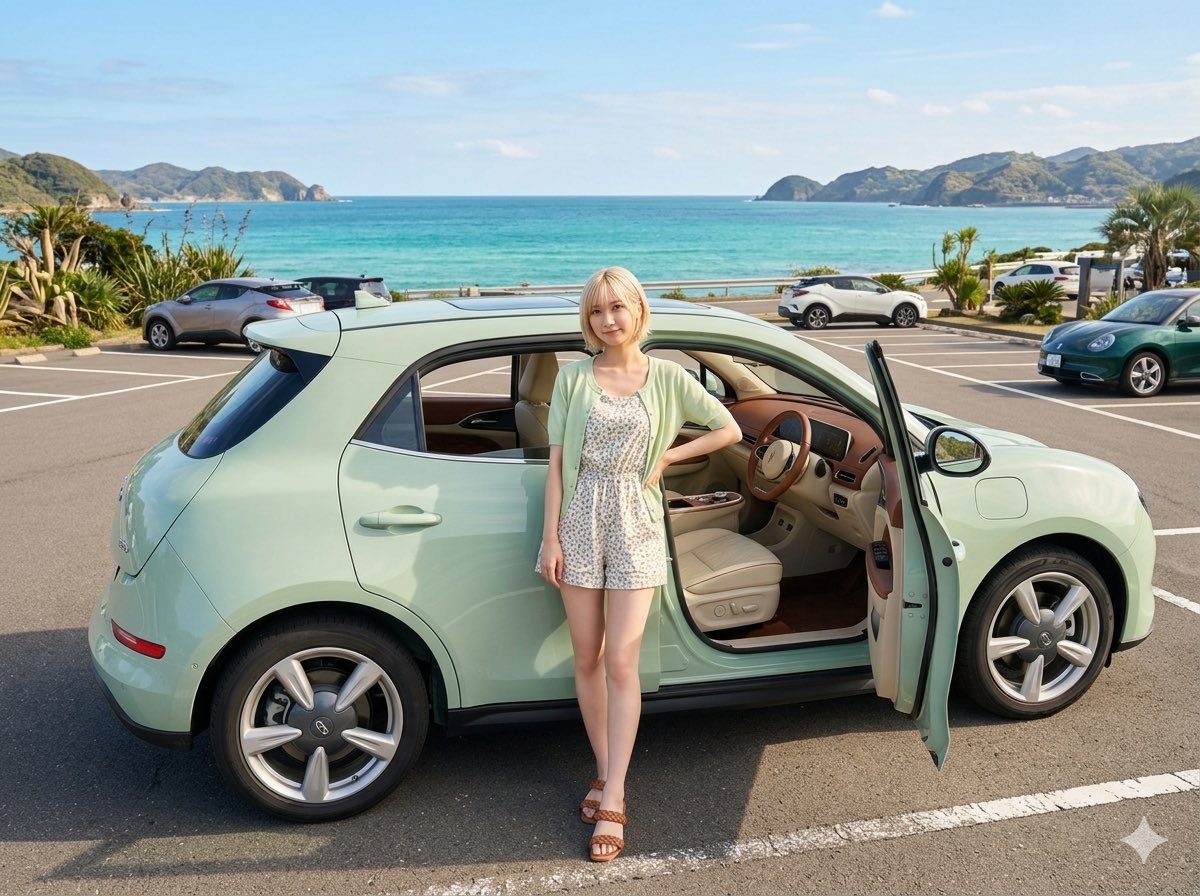
Mint Green Coastal Car Portrait
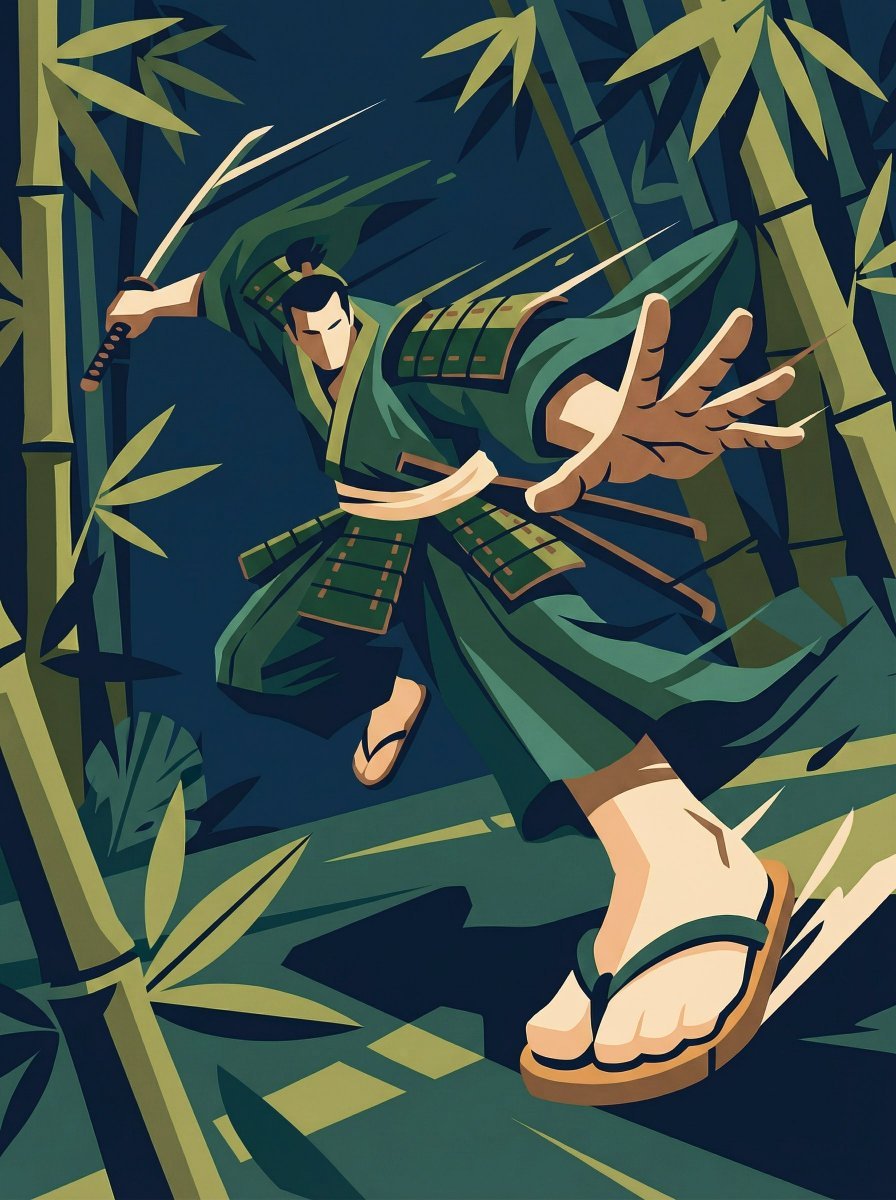
Dynamic Perspective Flat Vector Illustration
Studio Editorial Fashion Portrait
Overhead Nightclub Staircase Portrait

Cosmetic Product Shot with Water Splash
Image-to-Christmas Feast Prompt
Browse template categories
AI Saws Enterprise Developers Branch questions
How do I use the AI Saws Enterprise Developers Branch template?
Add your photo if the template asks for one, edit the prompt if you like — the template's model and format are already selected — and press Generate. Your version opens in PicX Studio.
Can I customize the AI Saws Enterprise Developers Branch template?
Yes. You can change the subject, setting, lighting, mood, format, and available model controls before creating your image.
Is the AI Saws Enterprise Developers Branch template free?
Opening and editing this template is free. Generating uses credits, shown on the Generate button when you are signed in.
Which AI model should I use?
Start with GPT Image 2, which is the model associated with this template. You can compare another compatible model for a different finish.
Looking for something else? Browse all templates.

Your photo, any look
Thousands of ready templates for every top image and video model, from one credit balance.