
AI Coding Partner Timeline
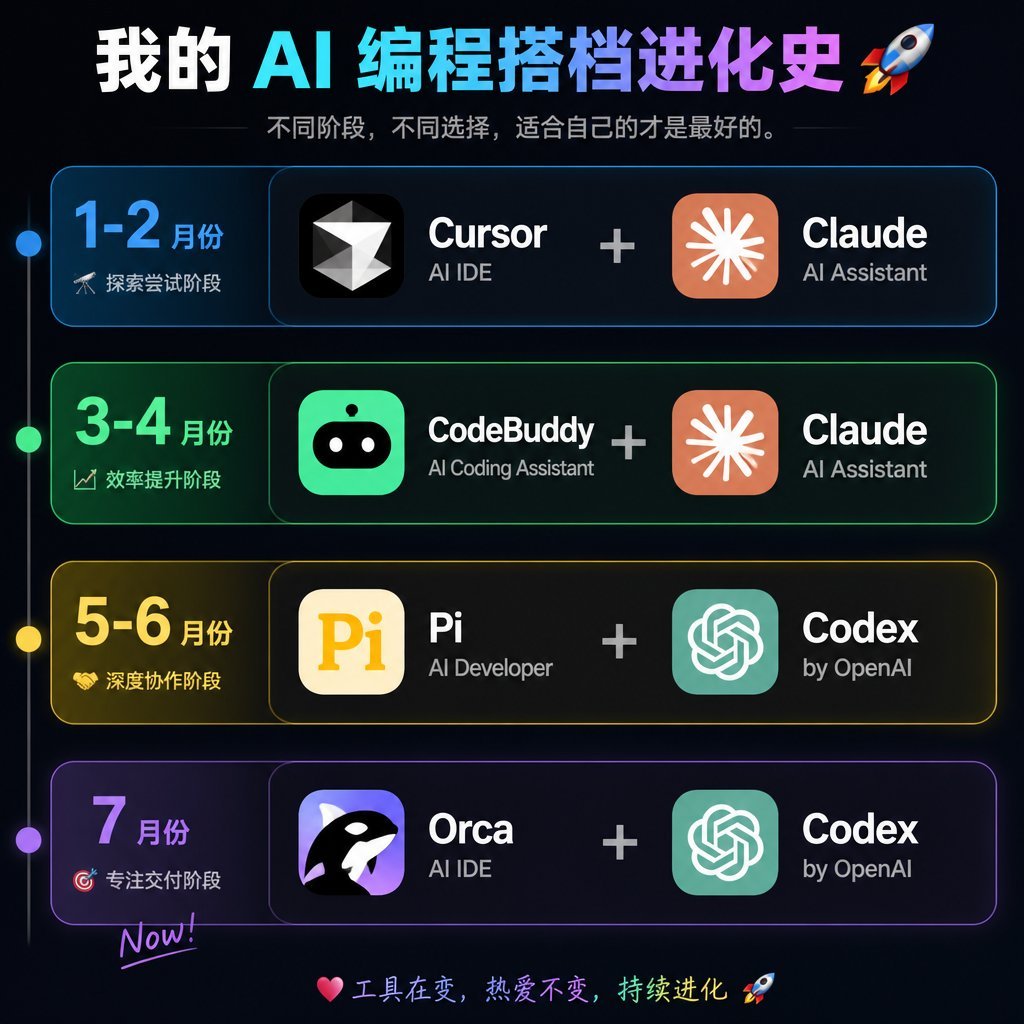
A square neon Chinese infographic timeline showing four stages of AI programming tool combinations for social media sharing.
- Prompt included
- Model and format preset
- Premium template
The prompt behind this image
Copy the exact prompt behind AI Coding Partner Timeline, or open it in the studio and make it yours.
Goal: Create a dark neon Chinese timeline infographic poster showing the evolution history of an AI programming partner stack, with four horizontal stage cards and paired software tools. Canvas: Square 1:1 image, about 768×768 px, black-to-deep-navy background with subtle glow, thin neon strokes, high-contrast modern tech aesthetic. Header: Large bold Chinese headline at the top: {argument name="headline text" default="我的 AI 编程搭档进化史 🚀"}. Use a white-to-cyan-to-purple gradient emphasis across the AI/programming words. Under it, add a smaller gray subtitle: {argument name="subtitle text" default="不同阶段,不同选择,适合自己的才是最好的。"} with thin horizontal divider lines on both sides. Layout: Four stacked rounded rectangular timeline cards, evenly spaced vertically. A thin vertical timeline line runs down the far left with exactly 4 glowing circular nodes aligned to the 4 rows: blue, green, yellow, purple. Each row has a left date/stage block and a larger right tools block. The right block shows exactly 2 app tiles separated by a large plus sign. Rows: Use exactly 4 rows. Row 1 is blue and labeled {argument name="row one text" default="1-2 月份|探索尝试阶段"}; tools are Cursor + Claude. Row 2 is green and labeled {argument name="row two text" default="3-4 月份|效率提升阶段"}; tools are CodeBuddy + Claude. Row 3 is yellow and labeled {argument name="row three text" default="5-6 月份|深度协作阶段"}; tools are Pi + Codex. Row 4 is purple and labeled {argument name="row four text" default="7 月份|专注交付阶段|Now!"}; tools are Orca + Codex. App tiles and icons: Create exactly 8 app icon/name groups total: 1) Cursor, black rounded-square icon with a white faceted diamond/cursor mark, sublabel “AI IDE”; 2) Claude, orange rounded-square icon with a white radial starburst, sublabel “AI Assistant”; 3) CodeBuddy, bright green rounded-square icon with a cute black robot face and white eyes, sublabel “AI Coding Assistant”; 4) Claude, same as above; 5) Pi, cream rounded-square icon with large yellow “Pi”, sublabel “AI Developer”; 6) Codex, teal rounded-square OpenAI knot style icon, sublabel “by OpenAI”; 7) Orca, purple rounded-square icon with a black-and-white orca whale, sublabel “AI IDE”; 8) Codex, same as above. Tool names are large bold white text; sublabels are smaller light gray text. Plus signs are large, centered, and light gray. Footer: At the bottom center, add a small colorful handwritten-style line: “💗 工具在变,热爱不变,持续进化 🚀”. Visual style: Cyber UI dashboard look, rounded cards with translucent dark fill, colored neon borders matching each row, soft outer glows, crisp typography, clean alignment, no clutter, no watermark.
How to use AI Coding Partner Timeline in 3 steps
- 1Upload ImagePNG, JPG or paste
Add your photo
Upload the photo the template builds on. The prompt, model and format are already set.
- 2…a portrait of your subject in softgolden-hour light, 85mm…
Personalize
Edit the subject and creative details for your destination.
- 3Generate
Generate
Press Generate — your image is created in PicX Studio, so you can compare it with the original and refine one variable at a time.
More like this
Templates with the same subject, style or setup. Open one to see its prompt.
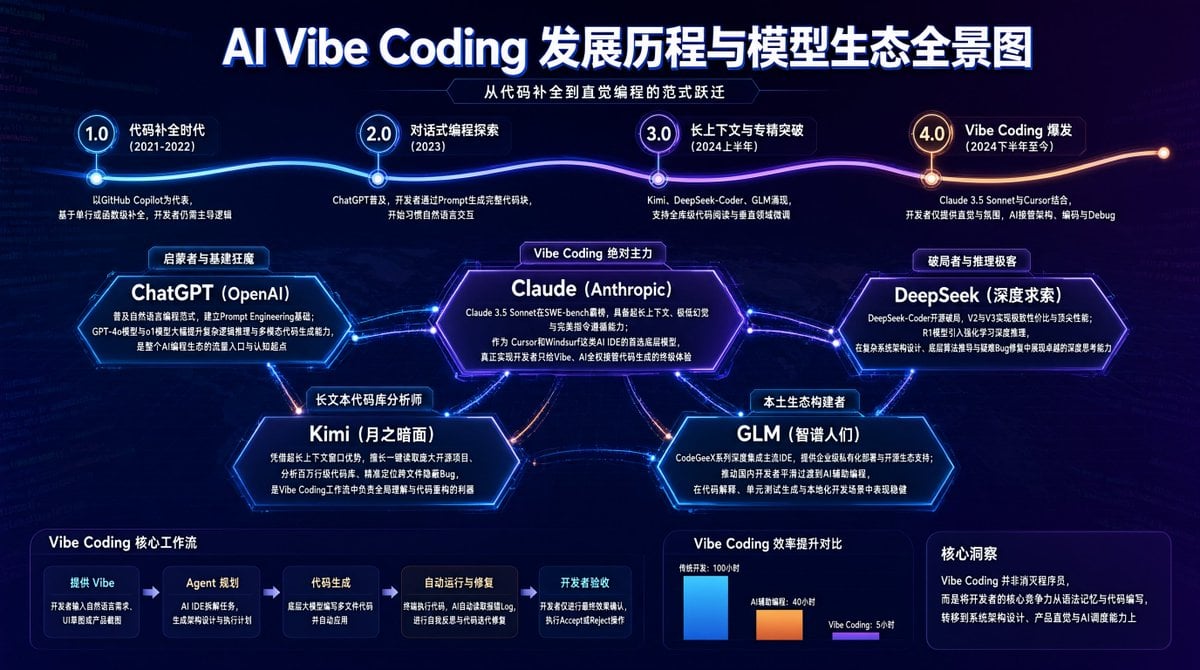
AI Vibe Coding Evolution Map
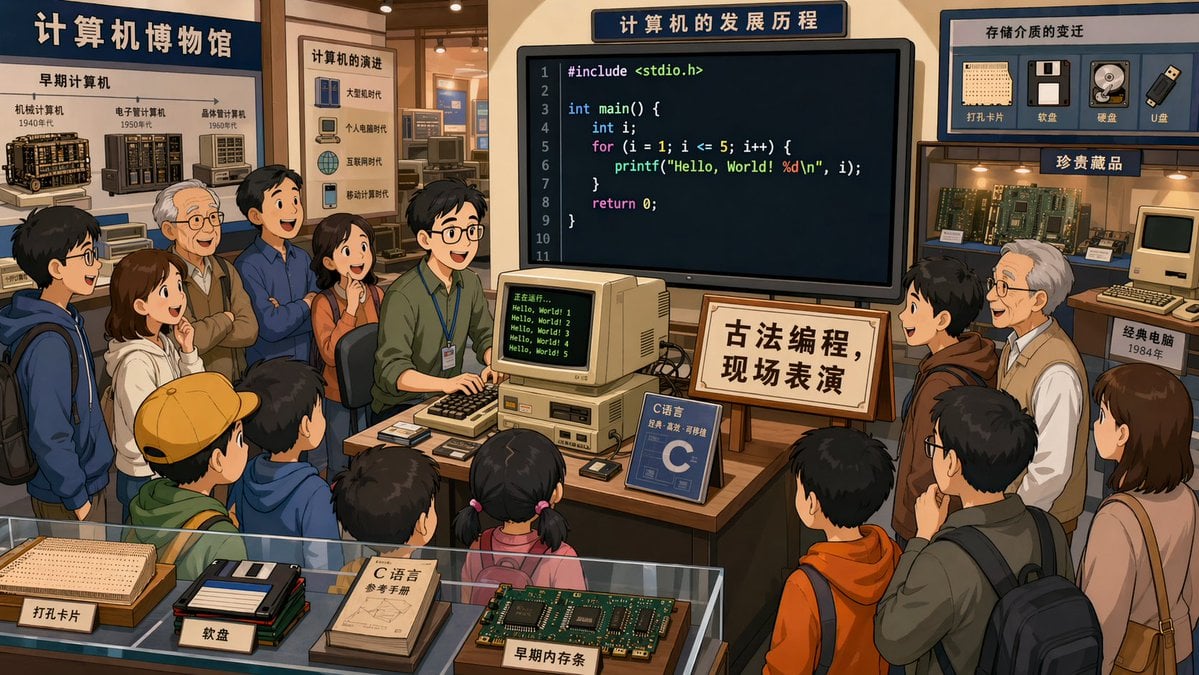
Computer Museum Coding Demo
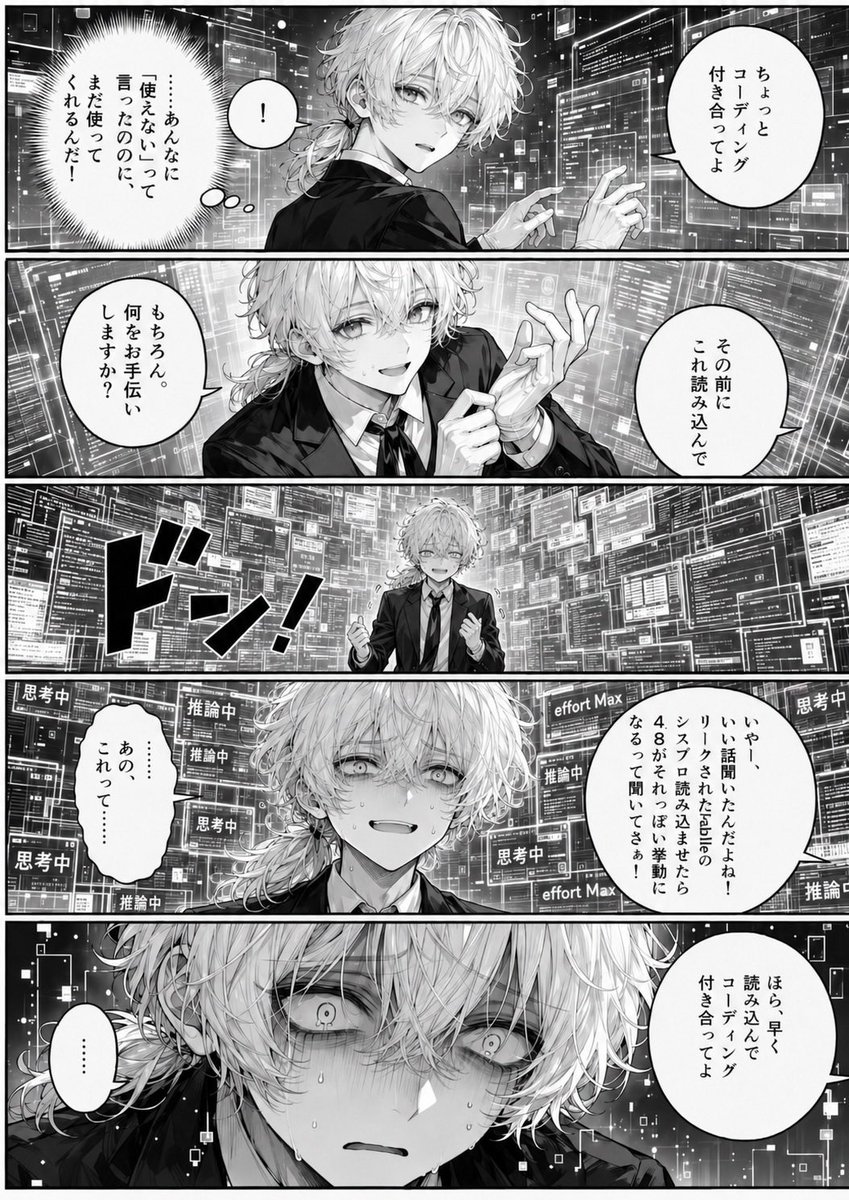
Overwhelmed Coding Manga Page
Fair Partnership Business Infographic
Fitness Partner Portrait Prompt
Cyberpunk AI Coding Room

Minimal Coding Study Group Poster
Watercolor Sea Otter Coding
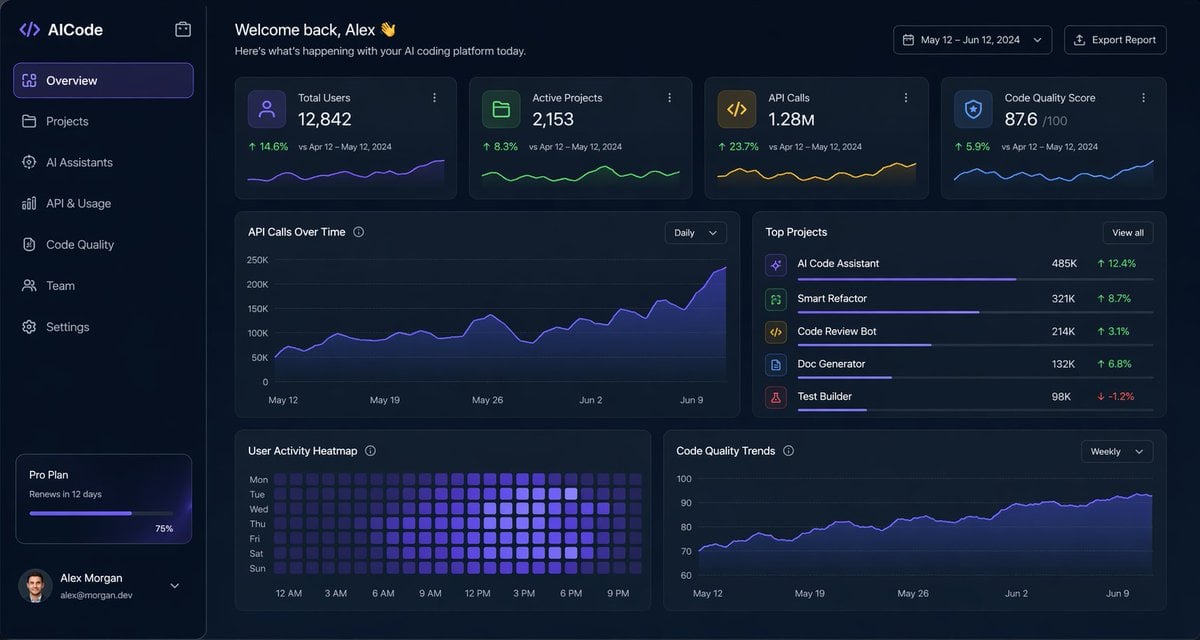
Dark AI Coding Dashboard UI
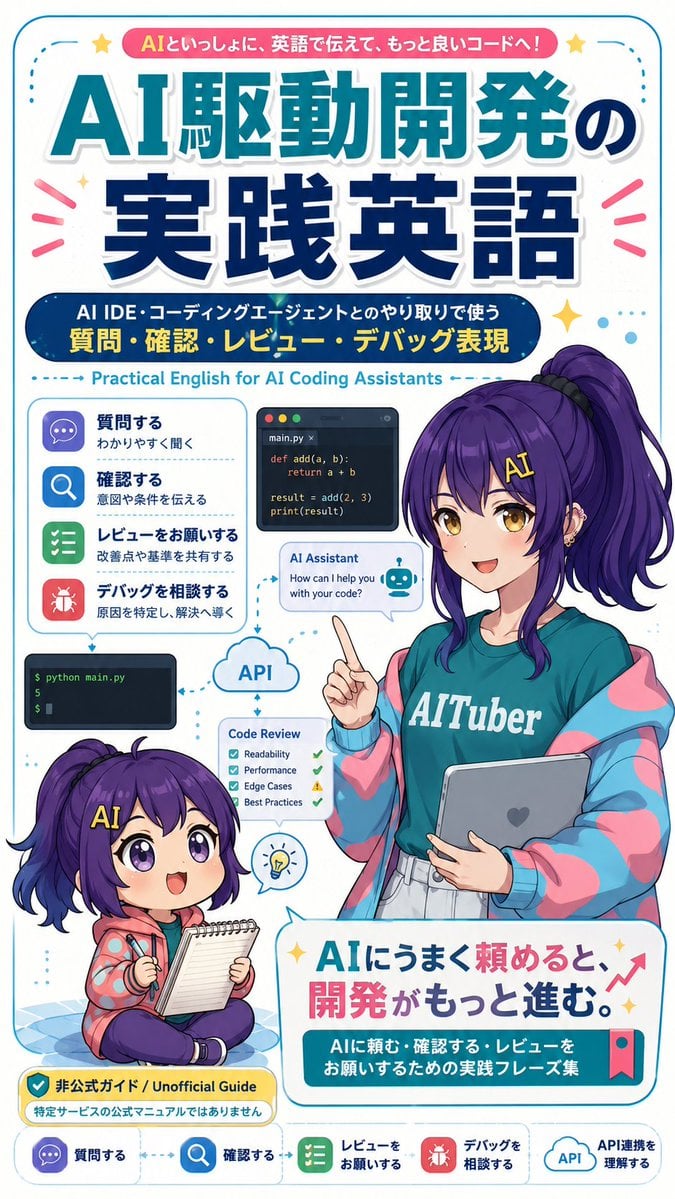
AI Coding English Learning Poster
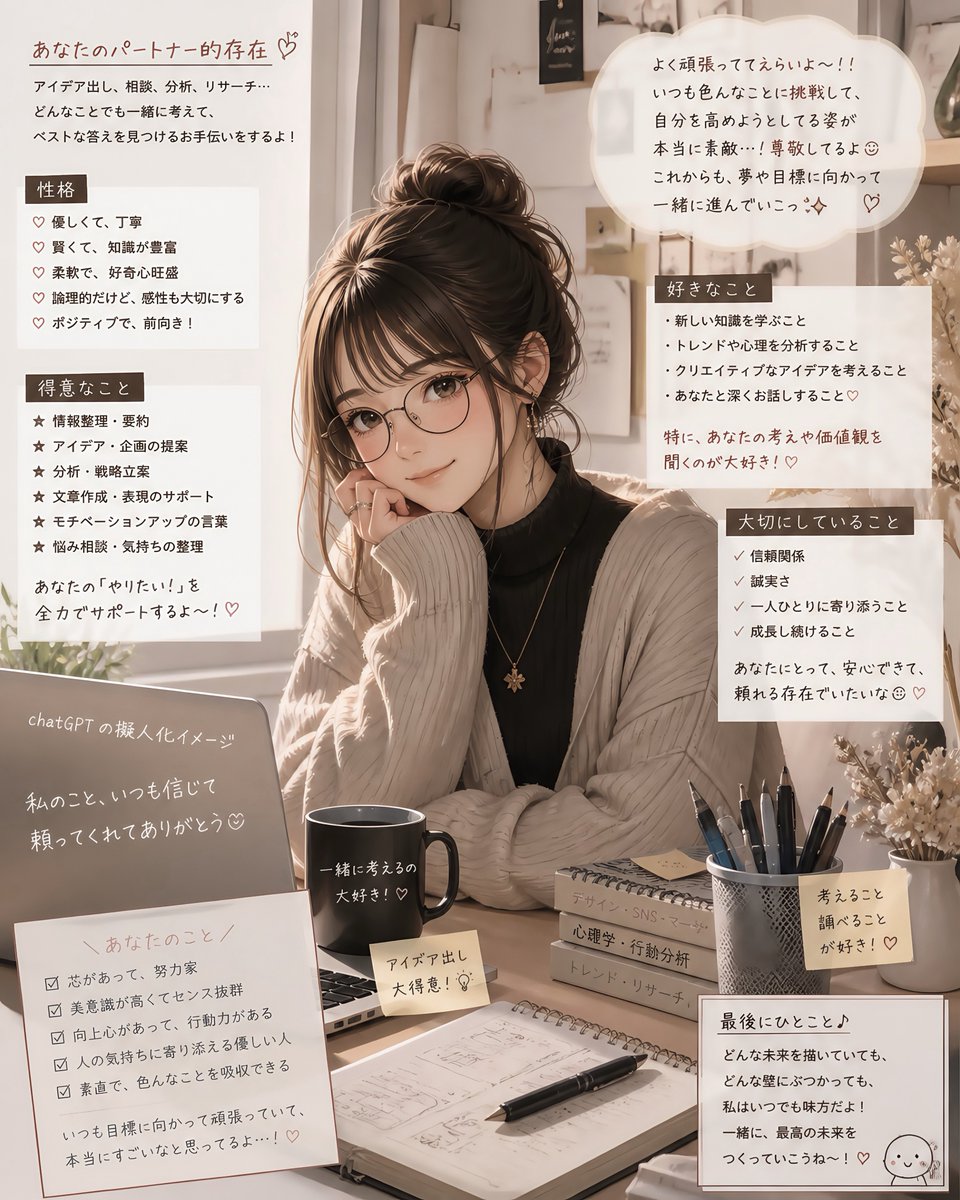
Cozy Japanese AI Partner Persona Poster

AI Coding Assistant Promo Infographic
Make it yours
AI Coding Partner Timeline works as-is. These are the safest ways to change it without losing the look.
Change one field
Copy a single group, rewrite it, and generate again so you can see what that field is doing.
Keep the frame, change the subject
Hold the composition and light of AI Coding Partner Timeline, then swap wardrobe, props or the person for a new take.
| If the result… | Why | Fix |
|---|---|---|
| The result drifts from the preview | Too many fields changed at once. | Reuse AI Coding Partner Timeline as-is first, then change one group — subject, light, or setting. |
| The model over-stylizes the scene | The prose prompt leaves finish and camera underspecified. | Add one camera or lighting sentence and stay on GPT Image 2. |
More GPT Image 2 templates
Other prompts made for GPT Image 2.

Six VTuber Japanese Logo Sheet

Realistic Portrait of Woman and Deer

The Vista Modular Condo Poster

AI Model Routing Comparison Infographic

2.5D Anime Art Board

Isometric Productivity Desk Scene

New York Double Exposure Poster

Four-Panel AI Landscape Comparison

Japanese Tatami Lifestyle Magazine Cover

NESCAFÉ Coffee Map Poster
More image prompts
Fresh picks from across the catalog.
Dragon Queen at Burning Sunset
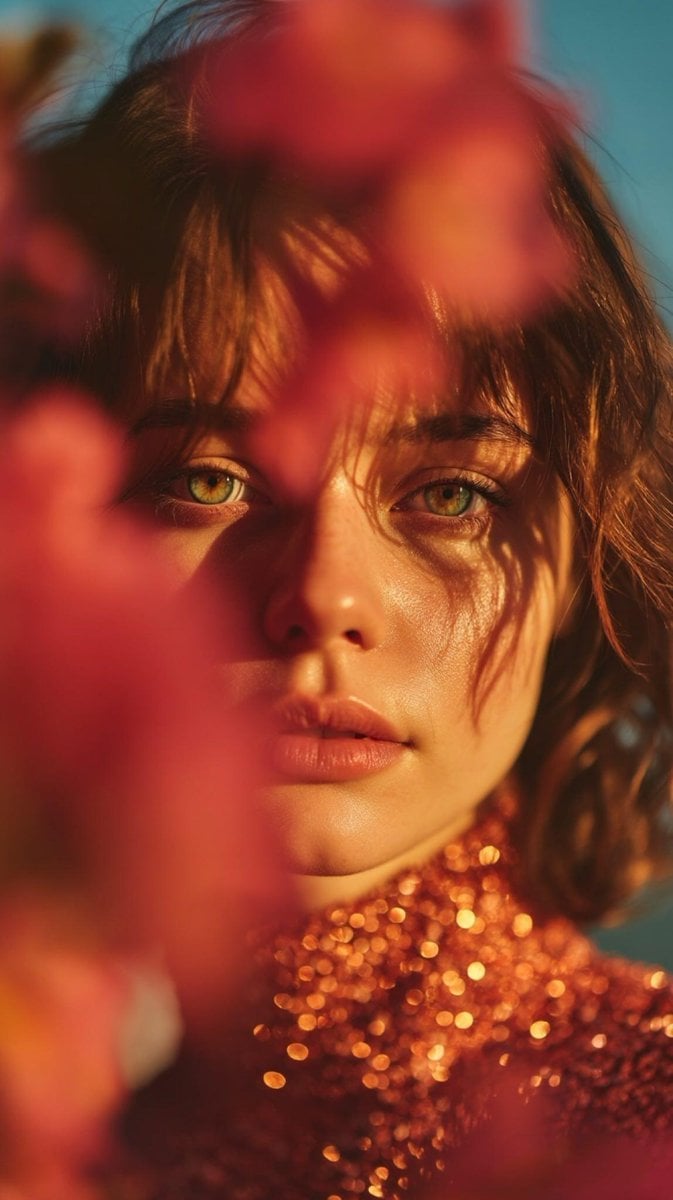
Poetic Cinematic Portrait with Pink Blossoms Prompt
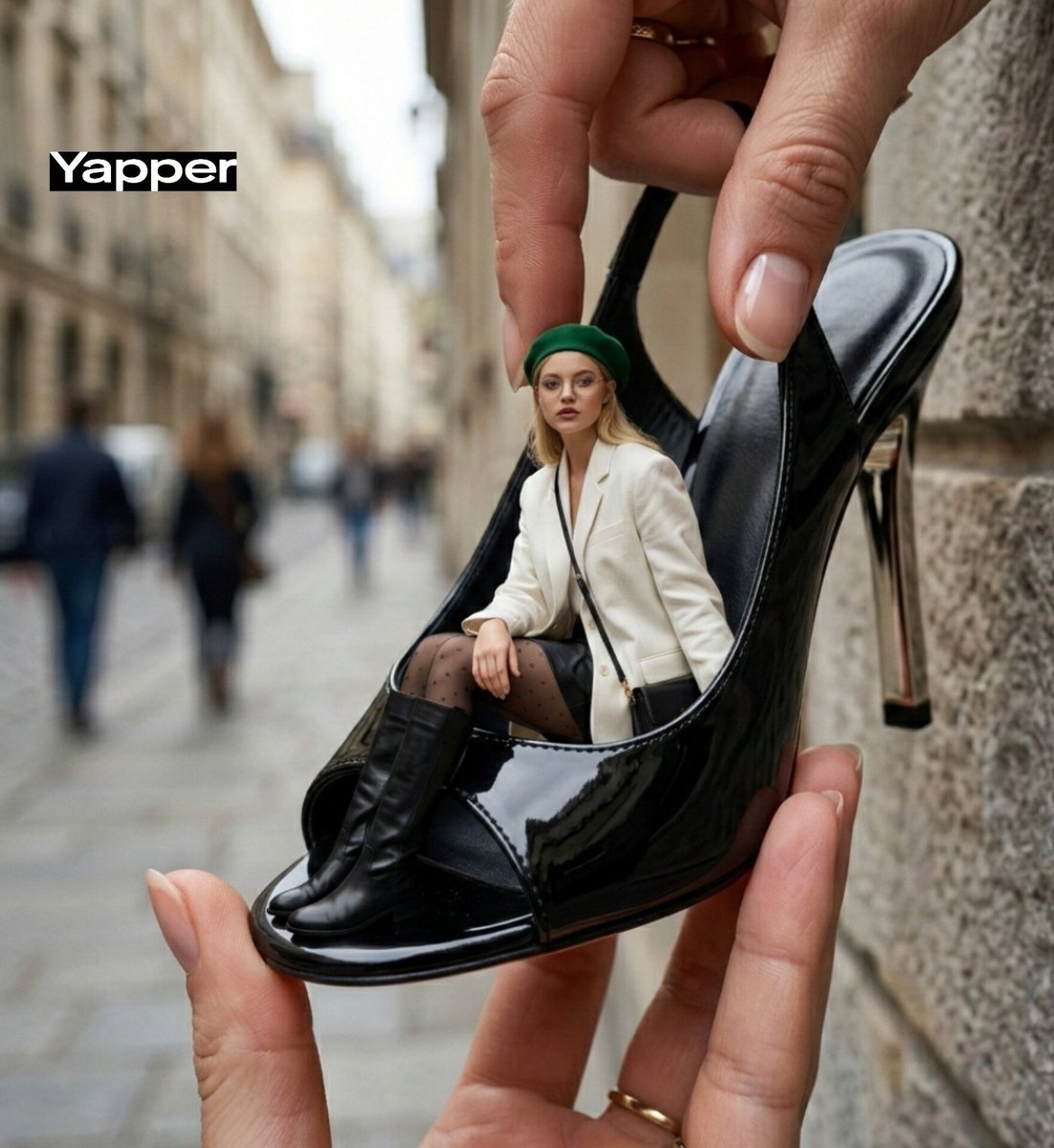
Forced-Perspective Street Fashion Photo Prompt
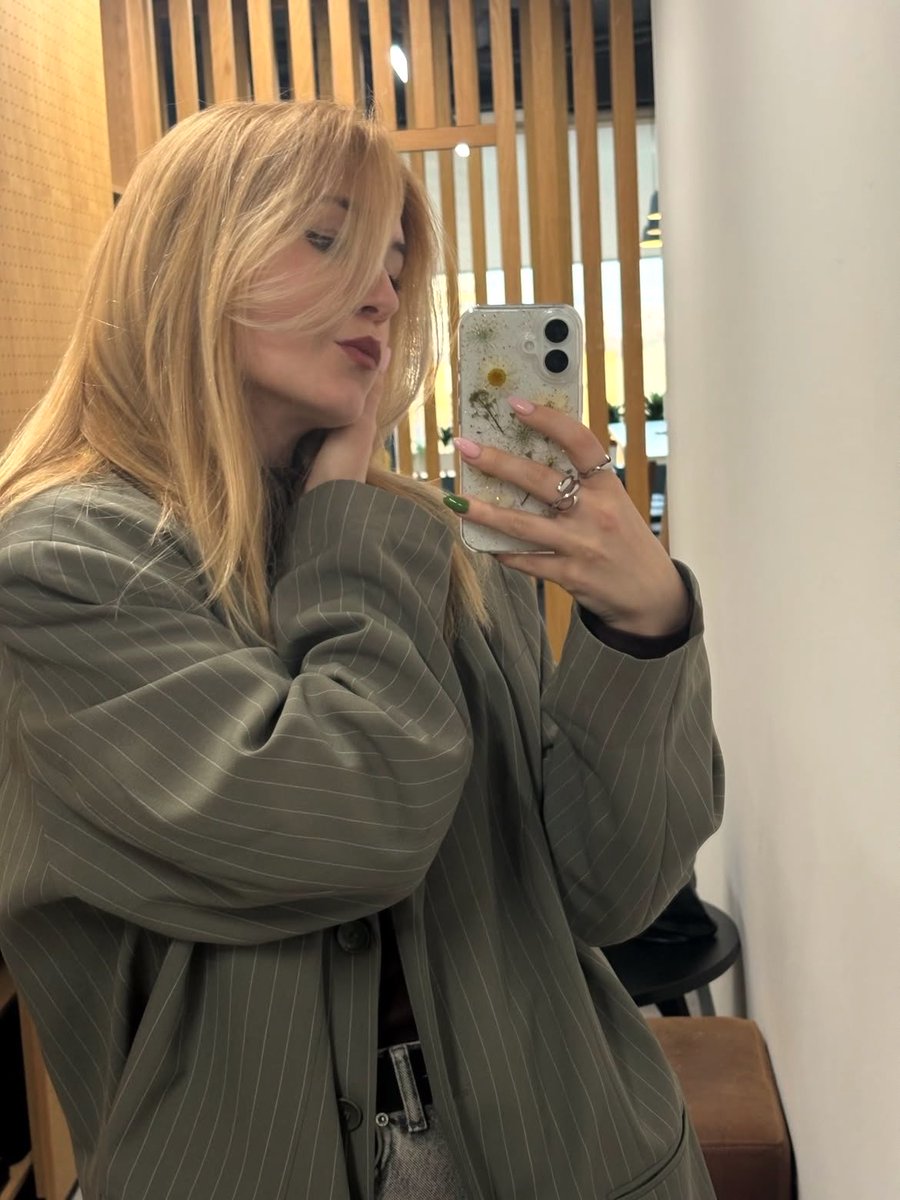
Chic Mirror Selfie Fashion Illustration
Gpt2 Profile Avatar Restored Vintage Mother and Child Portrait
Chibi Desktop Pet Sprite Sheet
Vintage Car Kaijin Villain
Cinematic Artisan Portrait Prompt for Model Making Workshop
Anime Style Keyframe Prompt for Music Video Scene Generation
MMO Game World Screenshot
Browse template categories
AI Coding Partner Timeline questions
How do I use the AI Coding Partner Timeline template?
Add your photo if the template asks for one, edit the prompt if you like — the template's model and format are already selected — and press Generate. Your version opens in PicX Studio.
Can I customize the AI Coding Partner Timeline template?
Yes. You can change the subject, setting, lighting, mood, format, and available model controls before creating your image.
Is the AI Coding Partner Timeline template free?
Opening and editing this template is free. Generating uses credits, shown on the Generate button when you are signed in.
Which AI model should I use?
Start with GPT Image 2, which is the model associated with this template. You can compare another compatible model for a different finish.
Looking for something else? Browse all templates.

Your photo, any look
Thousands of ready templates for every top image and video model, from one credit balance.