
Dark AI Coding Dashboard UI
A polished dark-mode analytics dashboard for an AI coding platform, suitable for SaaS product design mockups, admin panels, and data-rich web UI presentations.
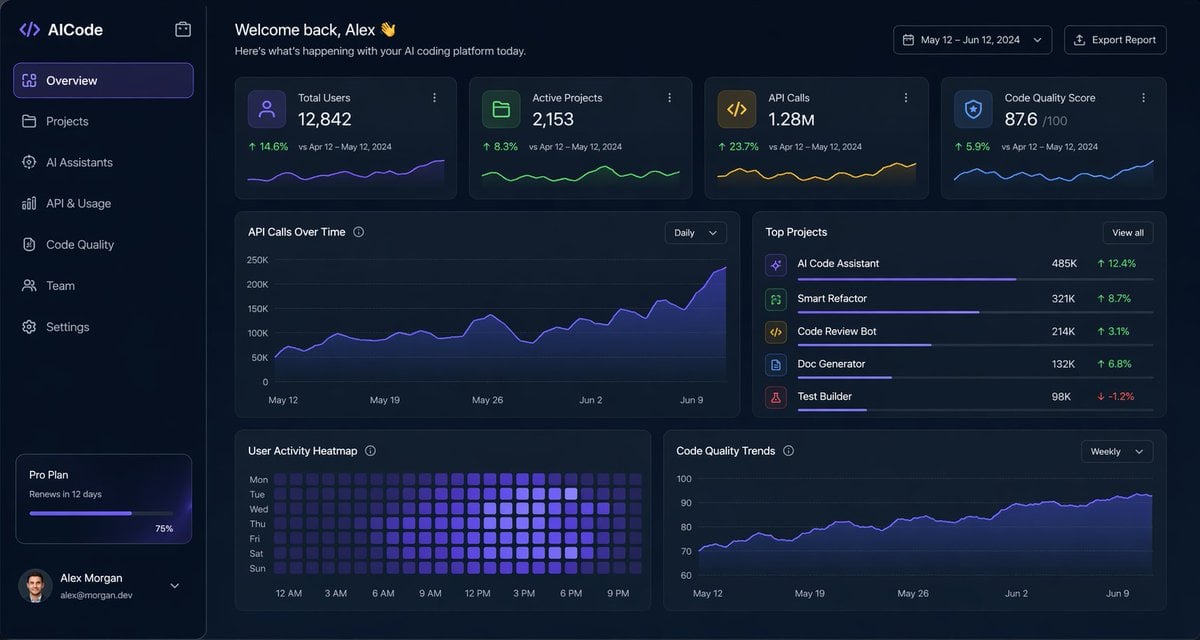
- Prompt included
- Model and format preset
- Free template
The prompt behind this image
Copy the exact prompt behind Dark AI Coding Dashboard UI, or open it in the studio and make it yours.
- Type
- dark SaaS analytics dashboard UI
- Product › Brand
- {argument name="brand name" default="AICode"}
- Product › Theme
- dark navy blue glassmorphism interface with subtle gradients, soft glow, rounded cards, thin borders, modern developer-tool aesthetic
- Canvas › Aspect Ratio
- 16:9
- Canvas › Background
- deep midnight blue with faint vignette and soft radial lighting
- Layout › Structure
- left sidebar plus main content area
- Layout › Sections › 0 › Title
- Sidebar
- Layout › Sections › 0 › Position
- left
- Layout › Sections › 0 › Count
- 8
- Layout › Sections › 0 › Labels
- AICode, Overview, Projects, AI Assistants, API & Usage, Code Quality, Team, Settings
- Layout › Sections › 0 › Details
- logo at top, Overview selected with purple highlight, lower subscription card showing Pro Plan, renews in 12 days, horizontal progress bar at 75%, user profile at bottom with avatar, {argument name="user name" default="Alex Morgan"}, and email [email protected]
- Layout › Sections › 1 › Title
- Header
- Layout › Sections › 1 › Position
- top main area
- Layout › Sections › 1 › Count
- 4
- Layout › Sections › 1 › Labels
- Welcome back, Alex 👋, Here's what's happening with your AI coding platform today., May 12 – Jun 12, 2024, Export Report
- Layout › Sections › 1 › Details
- large greeting on left, date range picker and export button on right
- Layout › Sections › 2 › Title
- Metric cards
- Layout › Sections › 2 › Position
- top row under header
- Layout › Sections › 2 › Count
- 4
- Layout › Sections › 2 › Labels
- Total Users, Active Projects, API Calls, Code Quality Score
- Layout › Sections › 2 › Values
- 12,842, 2,153, 1.28M, 876
- Layout › Sections › 2 › Details
- each card has a small colored icon, large main value, comparison text vs Apr 12 – May 12, 2024, positive change percentages 14.6%, 8.3%, 23.7%, 5.9%, and a miniature line chart at the bottom; colors are purple, green, amber, and blue
- Layout › Sections › 3 › Title
- Main analytics panels
- Layout › Sections › 3 › Position
- middle and bottom rows
Raw JSON
{
  "type": "dark SaaS analytics dashboard UI",
  "product": {
    "brand": "{argument name=\"brand name\" default=\"AICode\"}",
    "theme": "dark navy blue glassmorphism interface with subtle gradients, soft glow, rounded cards, thin borders, modern developer-tool aesthetic"
  },
  "canvas": {
    "aspect_ratio": "16:9",
    "background": "deep midnight blue with faint vignette and soft radial lighting"
  },
  "layout": {
    "structure": "left sidebar plus main content area",
    "sections": [
      {
        "title": "Sidebar",
        "position": "left",
        "count": 8,
        "labels": ["AICode", "Overview", "Projects", "AI Assistants", "API & Usage", "Code Quality", "Team", "Settings"],
        "details": "logo at top, Overview selected with purple highlight, lower subscription card showing Pro Plan, renews in 12 days, horizontal progress bar at 75%, user profile at bottom with avatar, {argument name=\"user name\" default=\"Alex Morgan\"}, and email [email protected]"
      },
      {
        "title": "Header",
        "position": "top main area",
        "count": 4,
        "labels": ["Welcome back, Alex 👋", "Here's what's happening with your AI coding platform today.", "May 12 – Jun 12, 2024", "Export Report"],
        "details": "large greeting on left, date range picker and export button on right"
      },
      {
        "title": "Metric cards",
        "position": "top row under header",
        "count": 4,
        "labels": ["Total Users", "Active Projects", "API Calls", "Code Quality Score"],
        "values": ["12,842", "2,153", "1.28M", "876"],
        "details": "each card has a small colored icon, large main value, comparison text vs Apr 12 – May 12, 2024, positive change percentages 14.6%, 8.3%, 23.7%, 5.9%, and a miniature line chart at the bottom; colors are purple, green, amber, and blue"
      },
      {
        "title": "Main analytics panels",
        "position": "middle and bottom rows",
        "count": 4,
        "labels": ["API Calls Over Time", "Top Projects", "User Activity Heatmap", "Code Quality Trends"],
        "details": "API Calls Over Time is a wide area chart with Daily dropdown and rising purple line ending near 250K; Top Projects is a ranked list of 5 items with progress bars and percentage changes; User Activity Heatmap is a 7-row weekly heatmap with hour labels from 12 AM to 9 PM; Code Quality Trends is a line chart with Weekly dropdown and smooth upward purple trend from about 70 to low 90s"
      },
      {
        "title": "Top Projects list",
        "position": "middle right panel",
        "count": 5,
        "labels": ["AI Code Assistant", "Smart Refactor", "Code Review Bot", "Doc Generator", "Test Builder"],
        "values": ["485K", "321K", "214K", "132K", "98K"],
        "details": "green positive deltas for first four items 12.4%, 8.7%, 3.1%, 6.8%, and red negative delta -1.2% for Test Builder; each row has a colored square icon and thin horizontal progress bar"
      }
    ]
  },
  "style": {
    "visual_language": "premium fintech and AI product design mockup",
    "rendering": "crisp high-fidelity UI mockup, subtle shadows, neon edge lighting, polished charts, clean sans-serif typography",
    "primary_accent": "{argument name=\"accent color\" default=\"electric purple\"}",
    "secondary_accents": ["emerald green", "amber yellow", "cyan blue"],
    "density": "information-rich but spacious, balanced grid, highly legible"
  }
}How to use Dark AI Coding Dashboard UI in 3 steps
- 1Upload ImagePNG, JPG or paste
Add your photo
Upload the photo the template builds on. The prompt, model and format are already set.
- 2…a portrait of your subject in softgolden-hour light, 85mm…
Personalize
Edit the subject and creative details for your destination.
- 3Generate
Generate
Press Generate — your image is created in PicX Studio, so you can compare it with the original and refine one variable at a time.
More like this
Templates with the same subject, style or setup. Open one to see its prompt.

Selective Color Monochrome Football Poster

Night Sports Car Portrait — Cinematic Moody
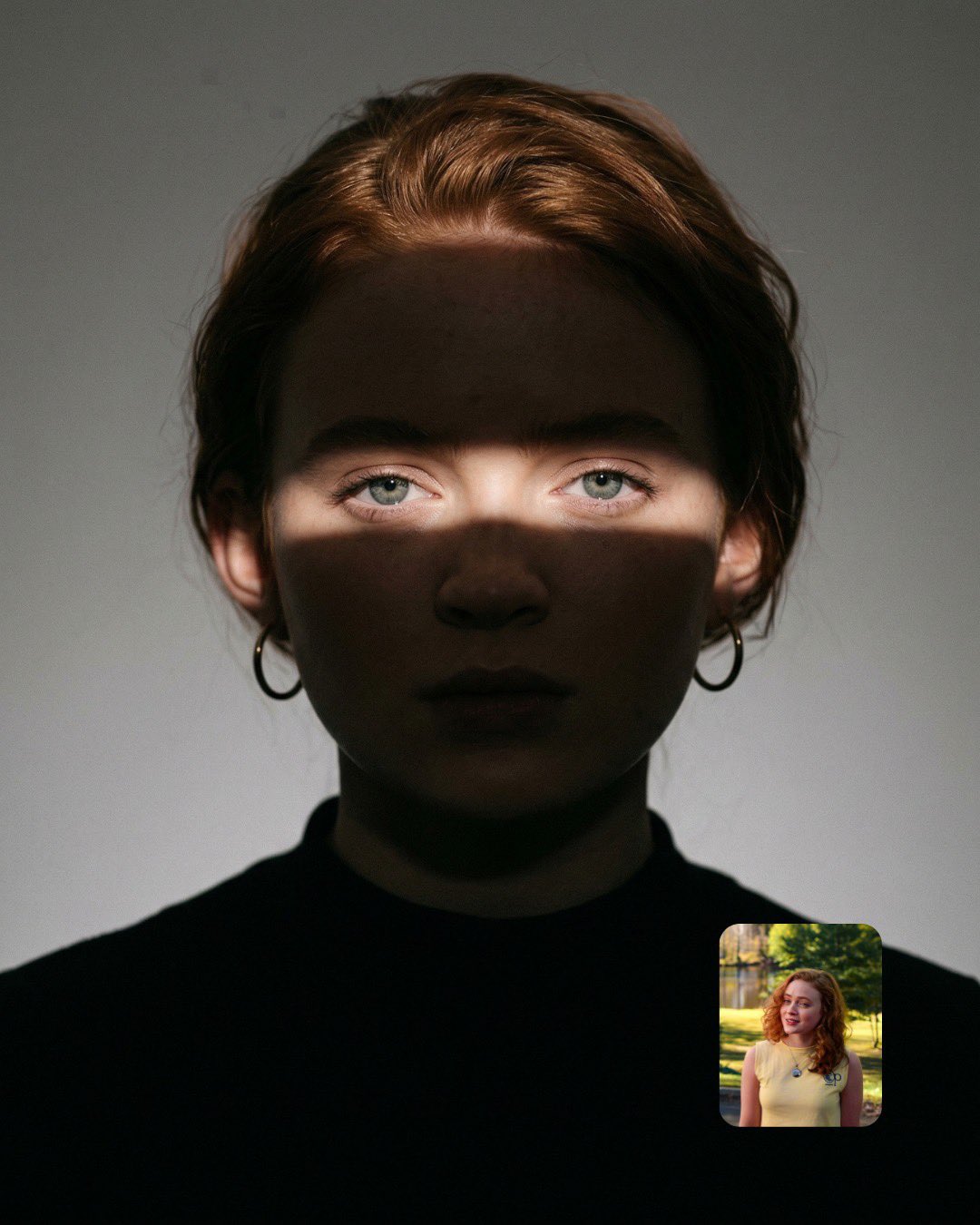
Cinematic Eye Light Portraits — 3 Nano Banana Prompts
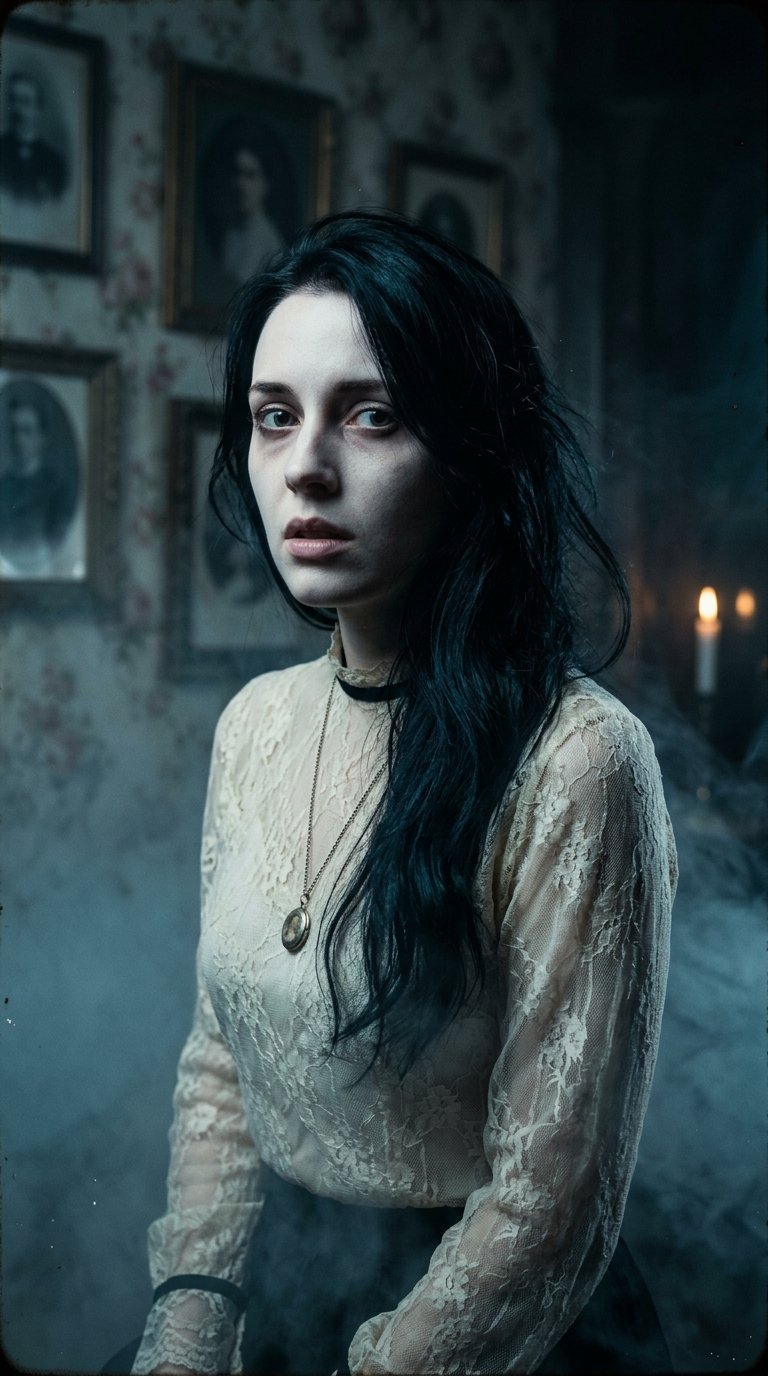
Horror Cinematic Portrait
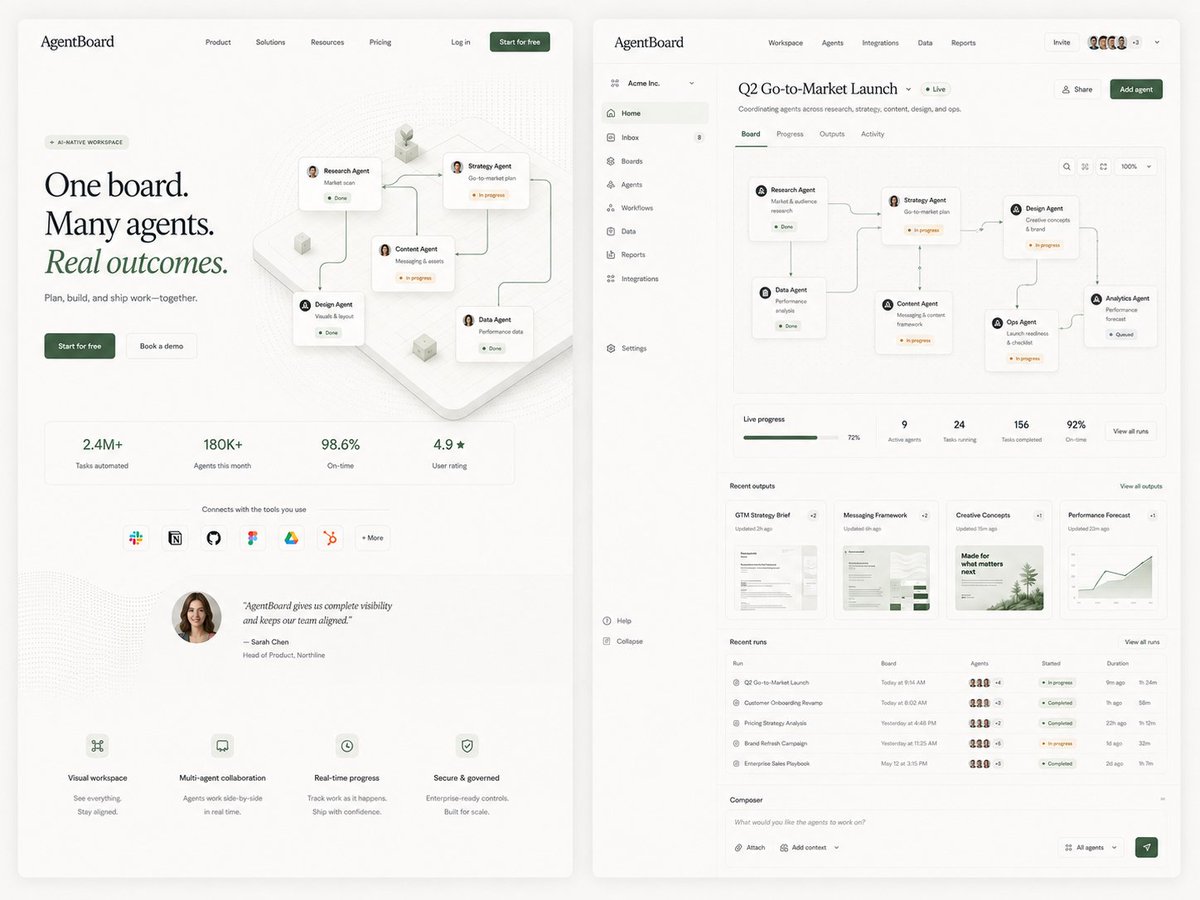
AgentBoard SaaS Landing and Dashboard UI

Miniature Man on Car Dashboard
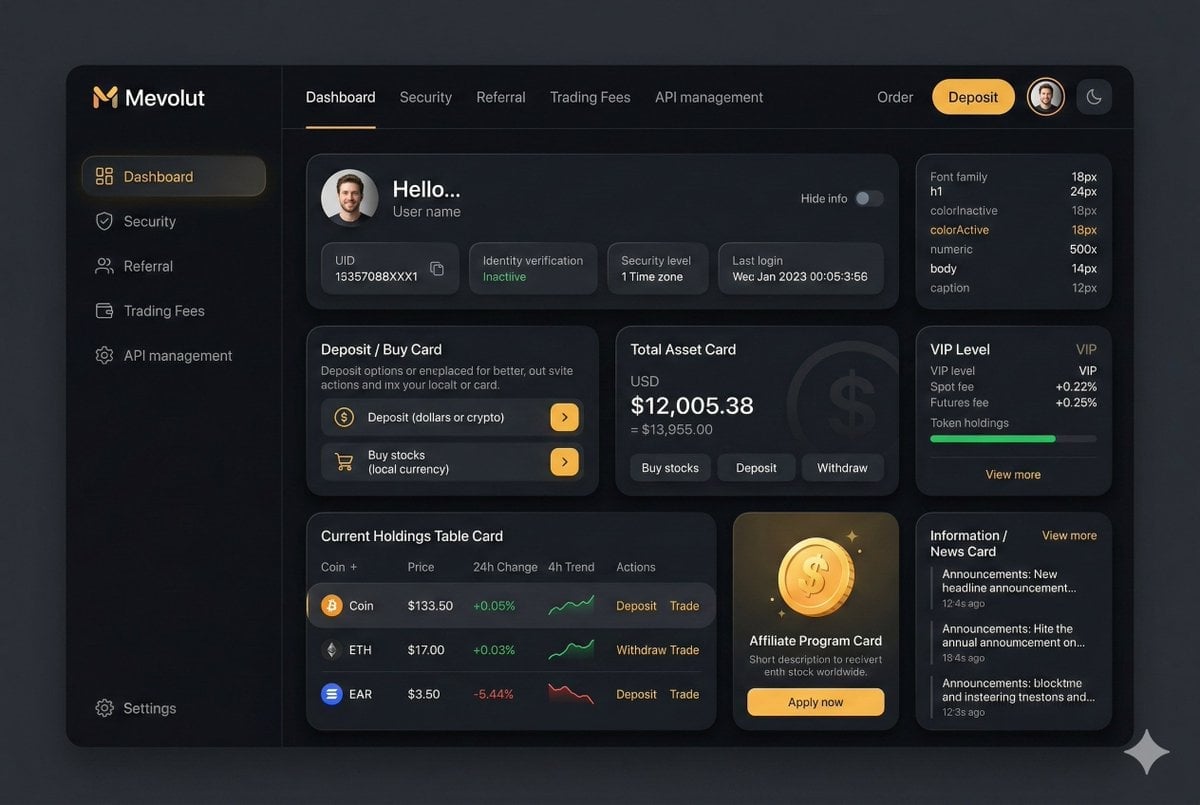
Fintech Crypto Dashboard UI Design
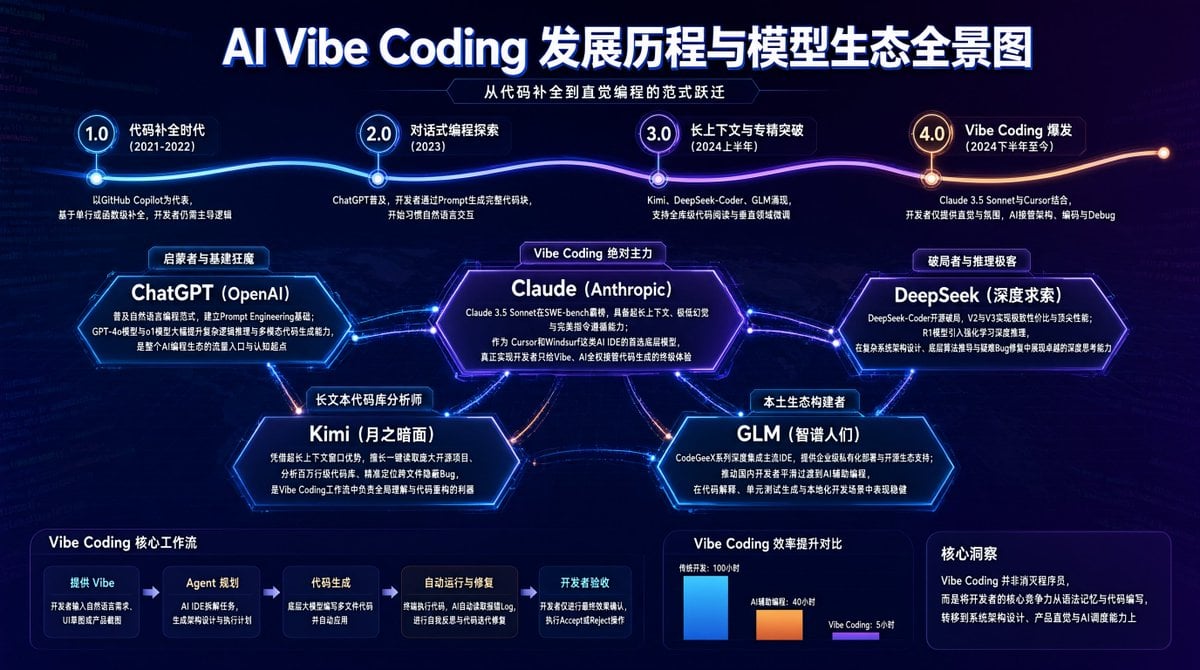
AI Vibe Coding Evolution Map
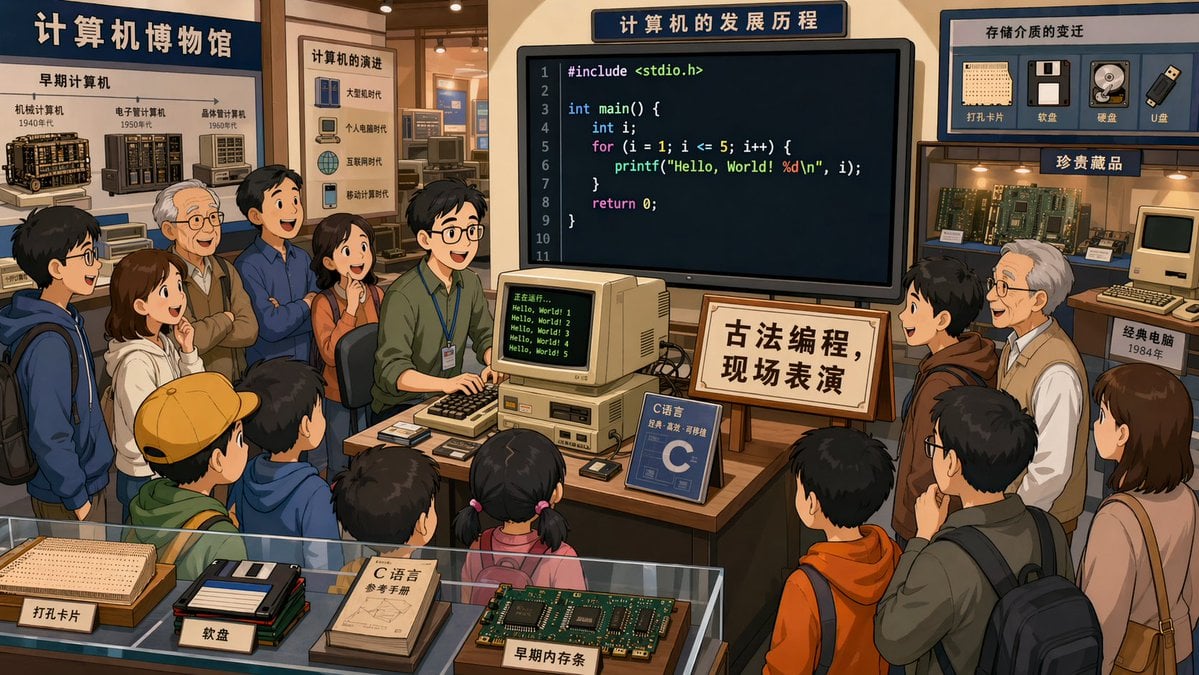
Computer Museum Coding Demo
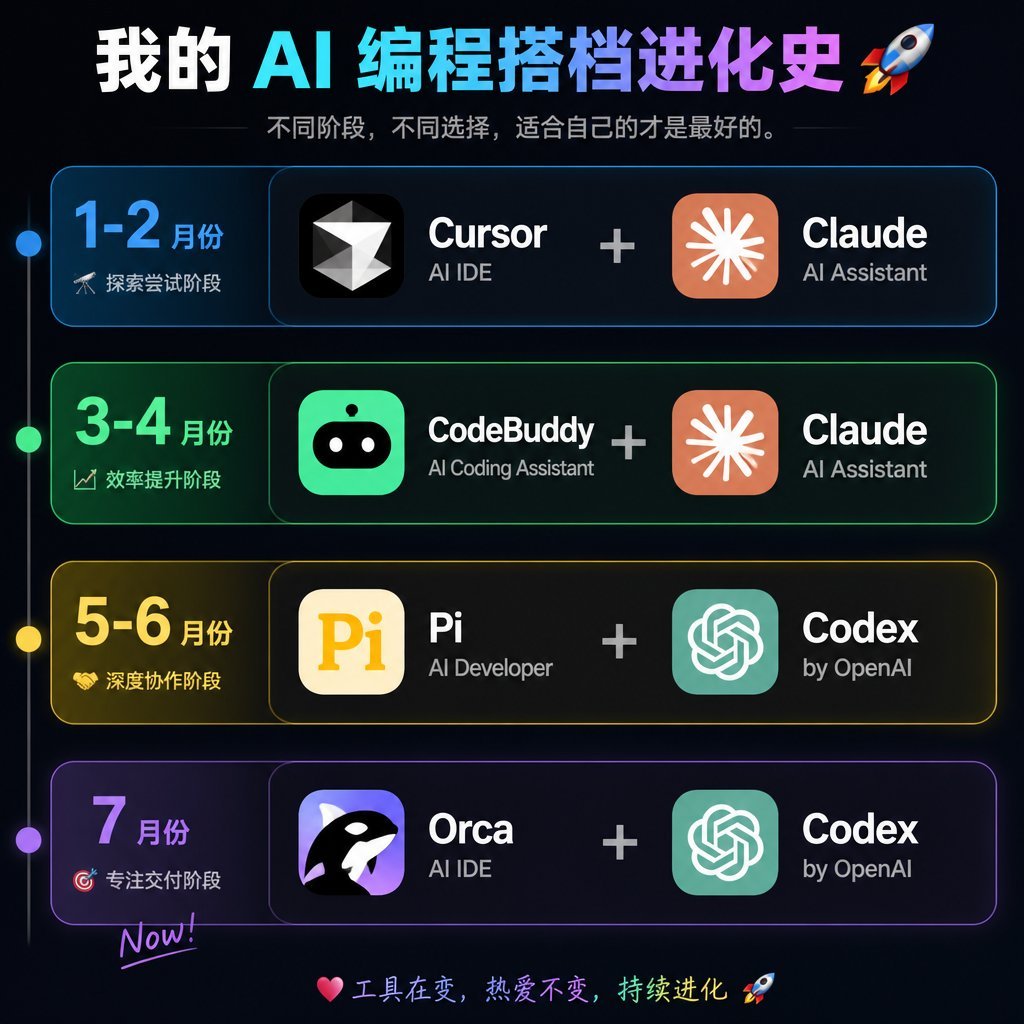
AI Coding Partner Timeline
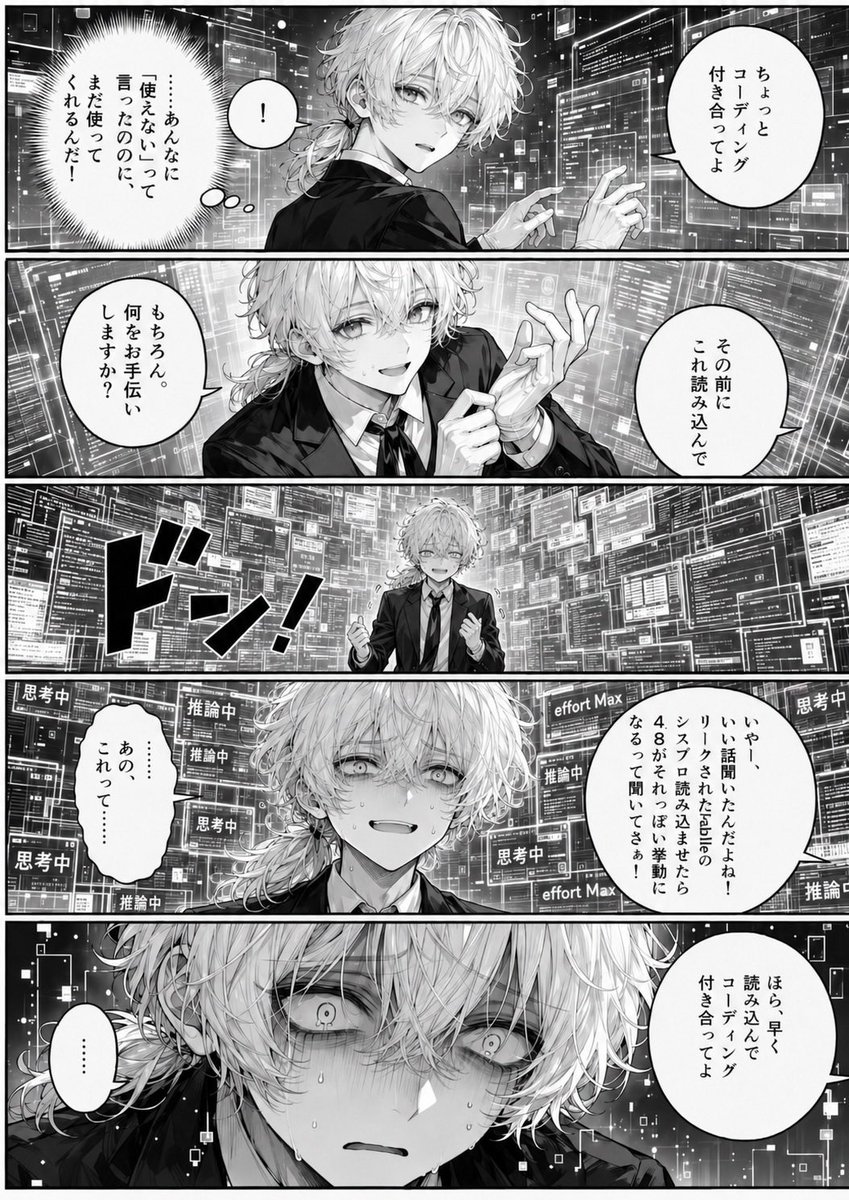
Overwhelmed Coding Manga Page
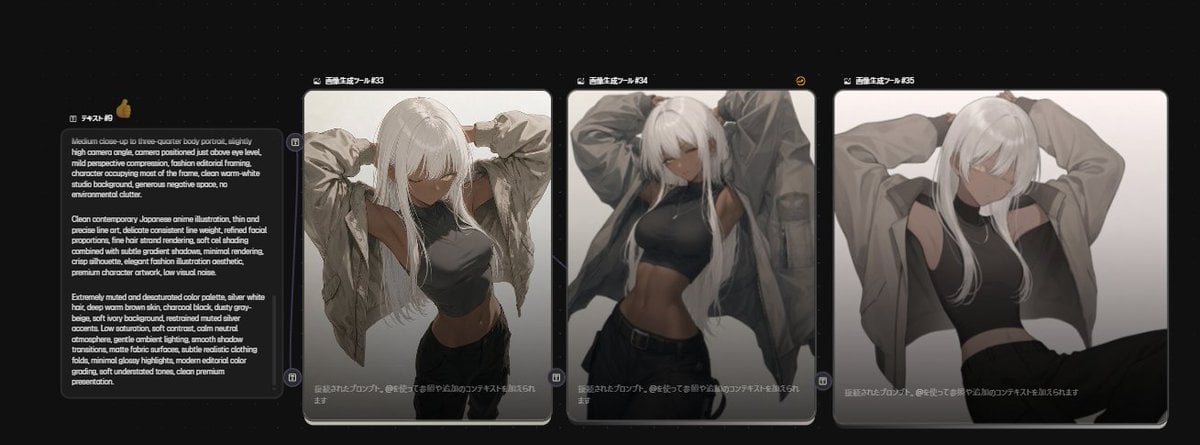
Anime Model Comparison Dashboard
Make it yours
Dark AI Coding Dashboard UI works as-is. These are the safest ways to change it without losing the look.
Swap the setting
Keep the rest of the prompt and replace the location block. The current setting is “deep midnight blue with faint vignette and soft radial lighting”.
Change one field
Copy a single group, rewrite it, and generate again so you can see what that field is doing.
Keep the frame, change the subject
Hold the composition and light of Dark AI Coding Dashboard UI, then swap wardrobe, props or the person for a new take.
| If the result… | Why | Fix |
|---|---|---|
| The result drifts from the preview | Too many fields changed at once. | Reuse Dark AI Coding Dashboard UI as-is first, then change one group — subject, light, or setting. |
| GPT Image 2 ignores part of the JSON | Some models flatten or skip nested keys. | Keep the same values and paste them as a short paragraph instead. |
More GPT Image 2 templates
Other prompts made for GPT Image 2.

Six VTuber Japanese Logo Sheet

Realistic Portrait of Woman and Deer

The Vista Modular Condo Poster

AI Model Routing Comparison Infographic

2.5D Anime Art Board

Isometric Productivity Desk Scene

New York Double Exposure Poster

Four-Panel AI Landscape Comparison

Japanese Tatami Lifestyle Magazine Cover

NESCAFÉ Coffee Map Poster
More image prompts
Fresh picks from across the catalog.
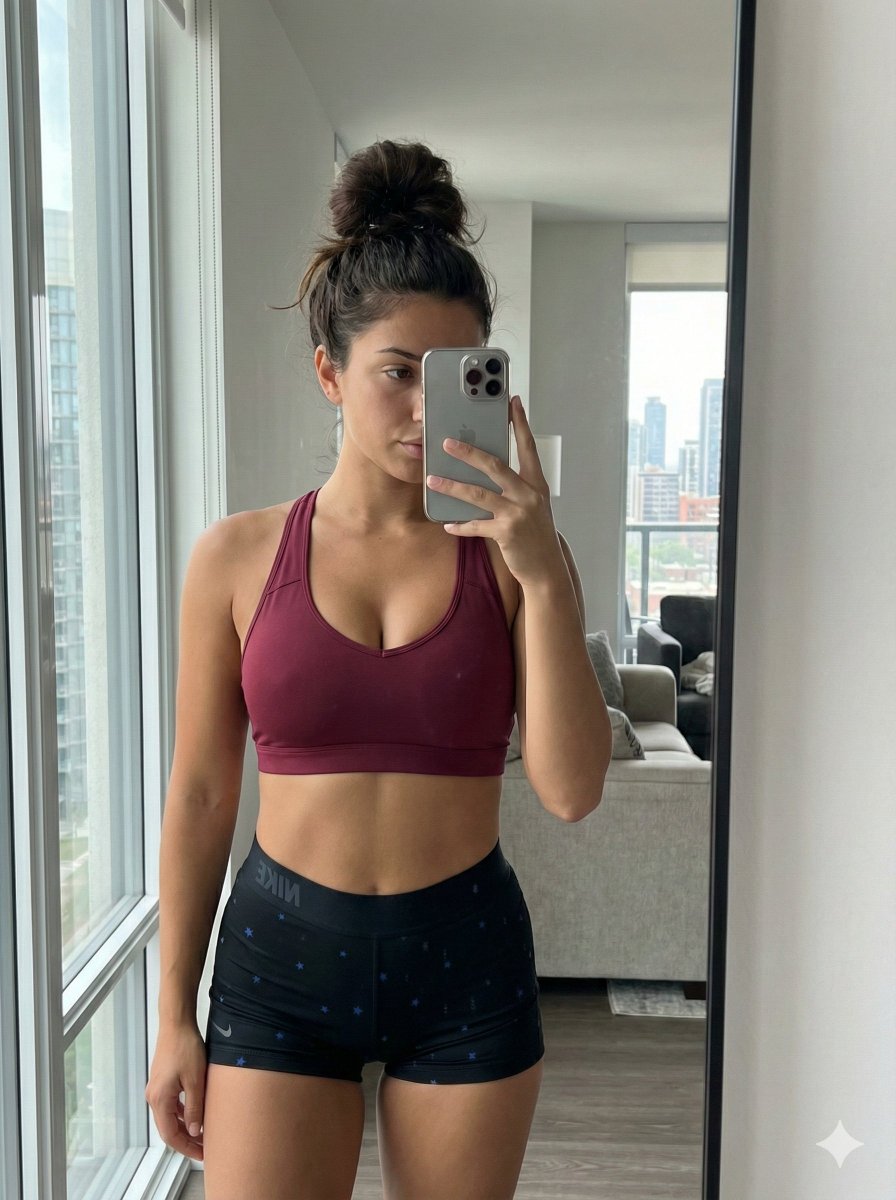
Mirror Selfie with Curvy Physique and ControlNet Constraints
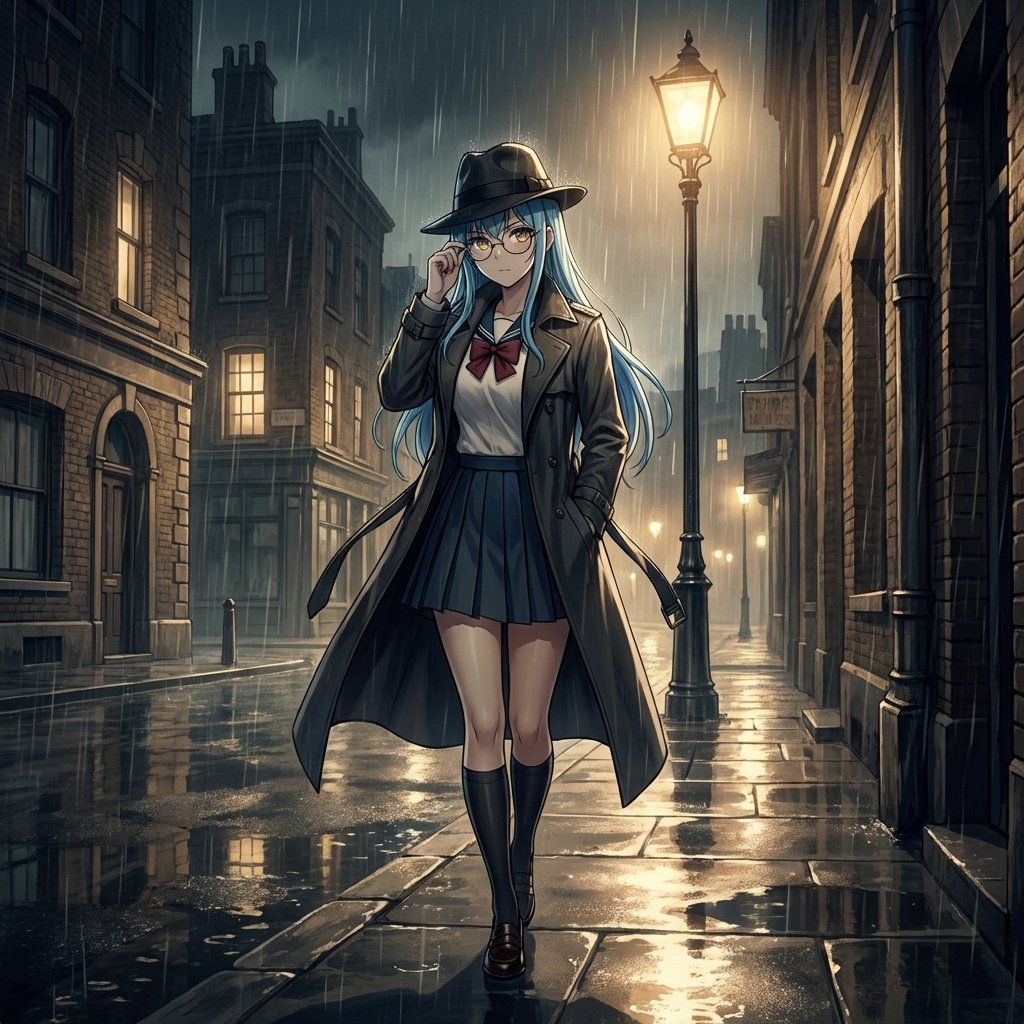
Mystery Movie Poster Conversion
Panel SaaS Ad Banner Variations
panel manga based on past interactions
Kashmir Archival Travel Journal Collage
Chrono-Holiday Artisan: Christmas Card Re-render by Era

Gpt2 Youtube Thumbnail Anime Music Bootcamp Promo Poster
Cute Chinese LLM Training Infographic

Moonlit Sierra-Style Castle Pixel Art

Polaroid Style Photo of Self Hugging Younger Self
Browse template categories
Dark AI Coding Dashboard UI questions
How do I use the Dark AI Coding Dashboard UI template?
Add your photo if the template asks for one, edit the prompt if you like — the template's model and format are already selected — and press Generate. Your version opens in PicX Studio.
Can I customize the Dark AI Coding Dashboard UI template?
Yes. You can change the subject, setting, lighting, mood, format, and available model controls before creating your image.
Is the Dark AI Coding Dashboard UI template free?
Opening and editing this template is free. Generating uses credits, shown on the Generate button when you are signed in.
Which AI model should I use?
Start with GPT Image 2, which is the model associated with this template. You can compare another compatible model for a different finish.
Looking for something else? Browse all templates.

Your photo, any look
Thousands of ready templates for every top image and video model, from one credit balance.