
Chibi Desktop Pet Sprite Sheet
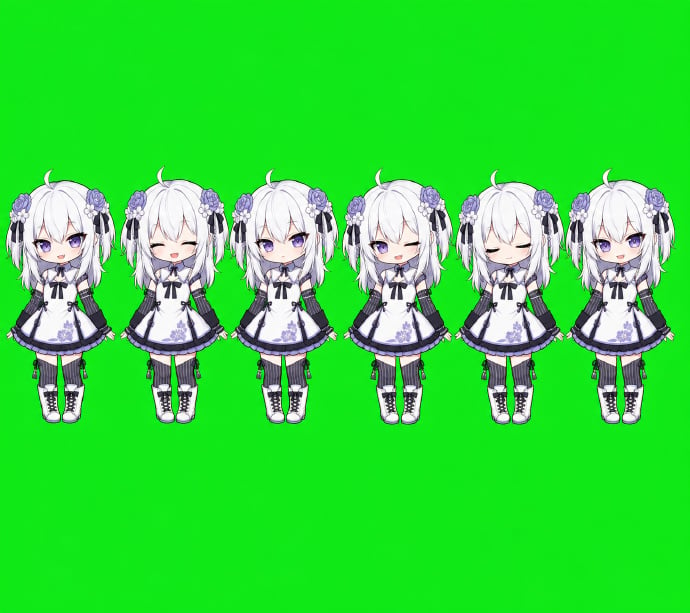
Generates a horizontal six-frame chibi anime desktop pet sprite sheet on a chroma-key background for game or toy asset creation.
- Prompt included
- Model and format preset
- Free template
The prompt behind this image
Copy the exact prompt behind Chibi Desktop Pet Sprite Sheet, or open it in the studio and make it yours.
Goal: Create a simple chibi game sprite sheet for a desktop pet character, showing exactly 6 full-body sprites of the same anime girl aligned in one horizontal row. Canvas: Wide landscape canvas, about 690 x 613 px, with a flat bright chroma-key green background filling the entire image. Leave large empty green space above and below the sprite row, and place the characters across the upper-middle area. Character design: A petite chibi anime girl named {argument name="character name" default="Codex desktop pet"} with very pale skin, oversized head, short white-silver bob hair, small ahoge curl on top, long side locks, and purple flower hair ornaments on both sides with thin black ribbon tassels. She wears a white gothic-lolita maid-style dress with dark navy-black trim, puff sleeves, a bow at the collar, purple floral embroidery near the hem, a short flared skirt, black garter-like strap details, white knee socks, and chunky white lace-up boots with dark soles. Use clean 2D anime rendering, soft cel shading, crisp outlines, and a cute toy-like proportions style. Sprite count and poses: Include exactly 6 discrete character sprites, evenly spaced left to right, all facing forward and standing upright with small variations in arm and body position. The 6 sprites are: 1) front-facing neutral standing pose with face area covered by a square gray placeholder block, 2) front-facing neutral standing pose with face area covered by a square gray placeholder block, 3) front-facing neutral standing pose with face area covered by a square gray placeholder block, 4) front-facing neutral standing pose with face area covered by a square gray placeholder block, 5) front-facing visible face pose with closed eyes and a calm sleepy expression, no placeholder block, 6) front-facing neutral standing pose with face area covered by a square gray placeholder block. Placeholder blocks: On 5 of the 6 sprites, cover the facial area with a vertical rectangular soft gray censor/placeholder block. Each block should be centered over the face, with a light gray-to-pale lavender gradient and slightly soft edges, hiding facial details while leaving hair, ornaments, dress, legs, and boots visible. Style constraints: Make the sprites small, consistent, and usable as game assets. Keep all characters at the same scale and baseline. Do not add text, UI, shadows, borders, or props. The only background color should be {argument name="background color" default="bright chroma green"}.
How to use Chibi Desktop Pet Sprite Sheet in 3 steps
- 1Upload ImagePNG, JPG or paste
Add your photo
Upload the photo the template builds on. The prompt, model and format are already set.
- 2…a portrait of your subject in softgolden-hour light, 85mm…
Personalize
Edit the subject and creative details for your destination.
- 3Generate
Generate
Press Generate — your image is created in PicX Studio, so you can compare it with the original and refine one variable at a time.
More like this
Templates with the same subject, style or setup. Open one to see its prompt.
Chibi Mascot Fighting Sprite Sheet
Chibi Miner Game Sprite Sheet
3D Chibi Sprite Sheet Generator

Character Battle Motion Sprite Sheet
Cartoon Character GIF Sprite Sheet
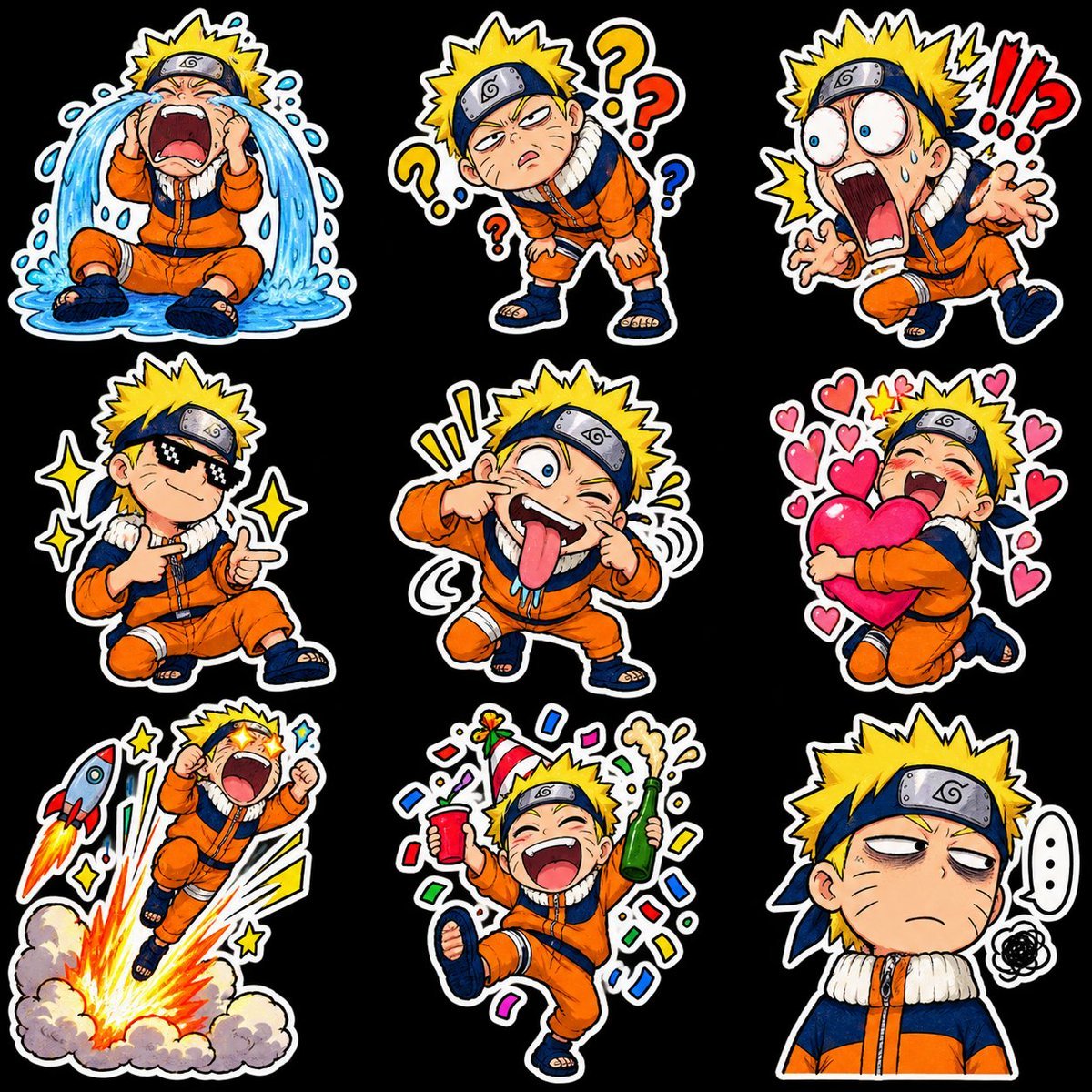
Chibi Anime Ninja Sticker Sheet
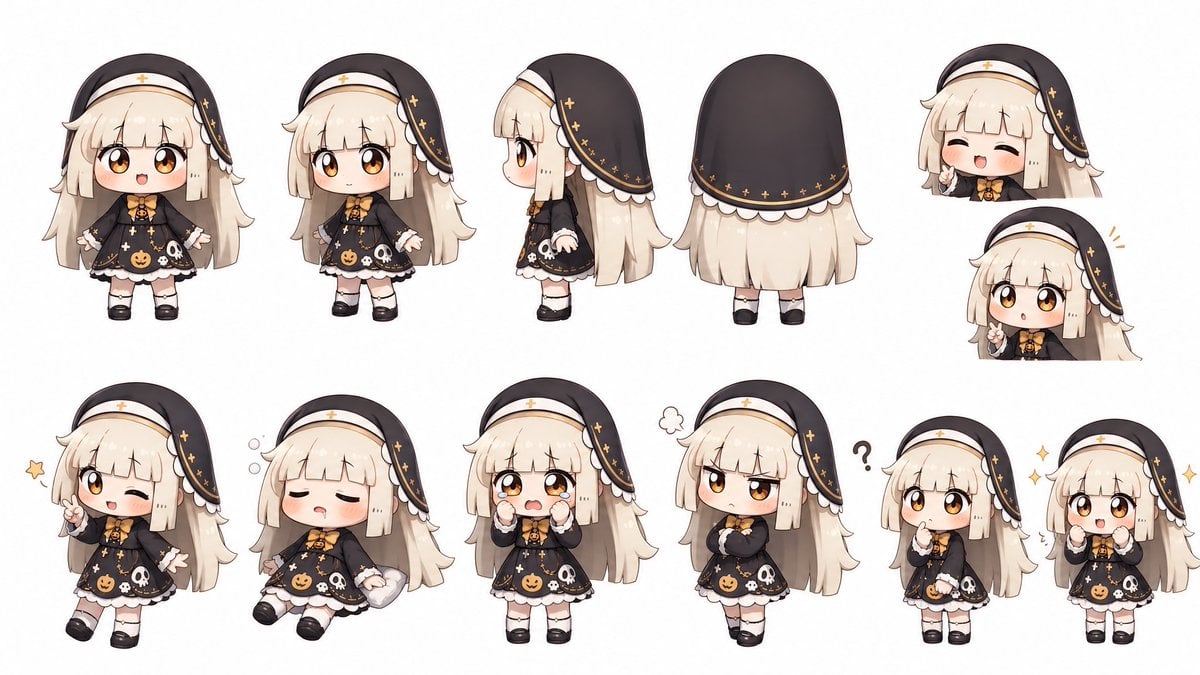
Halloween Nun Chibi Character Sheet
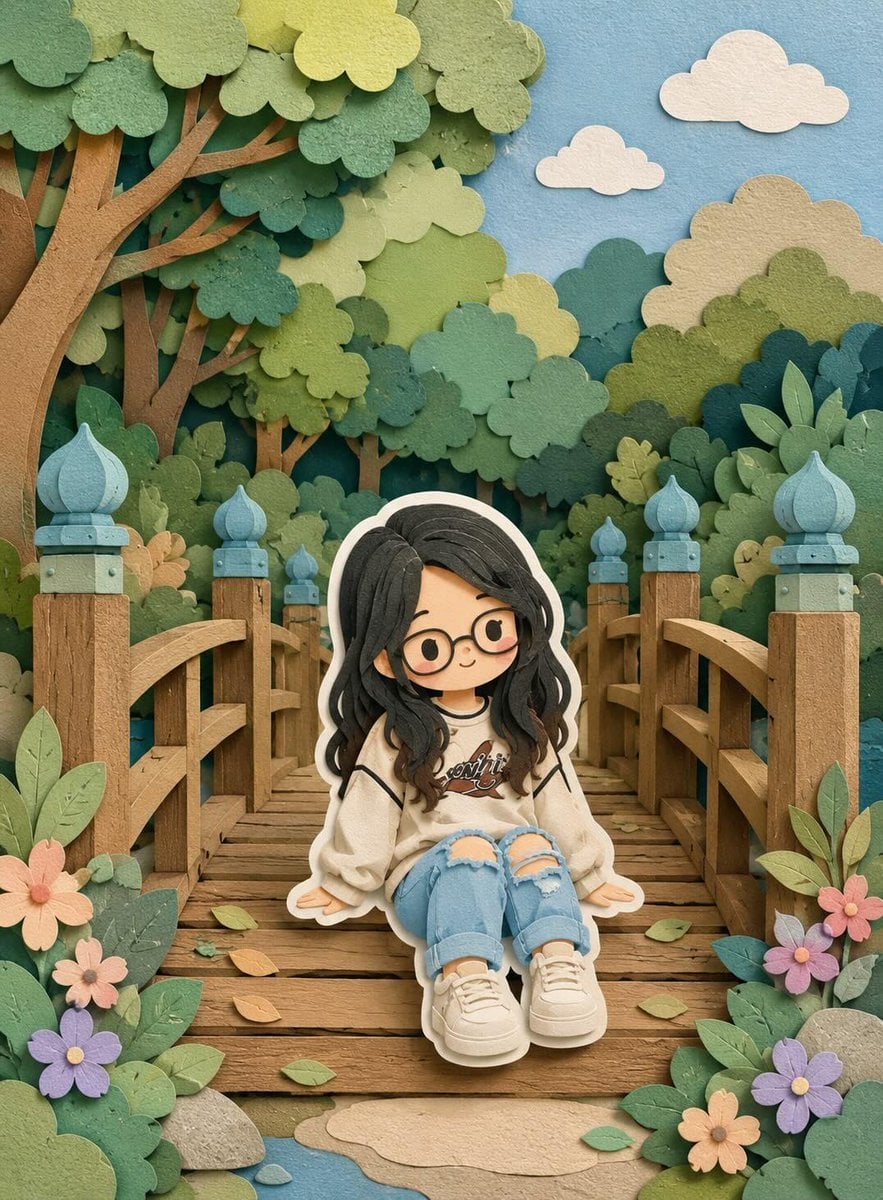
Cute Layered Paper Cut Chibi Girl
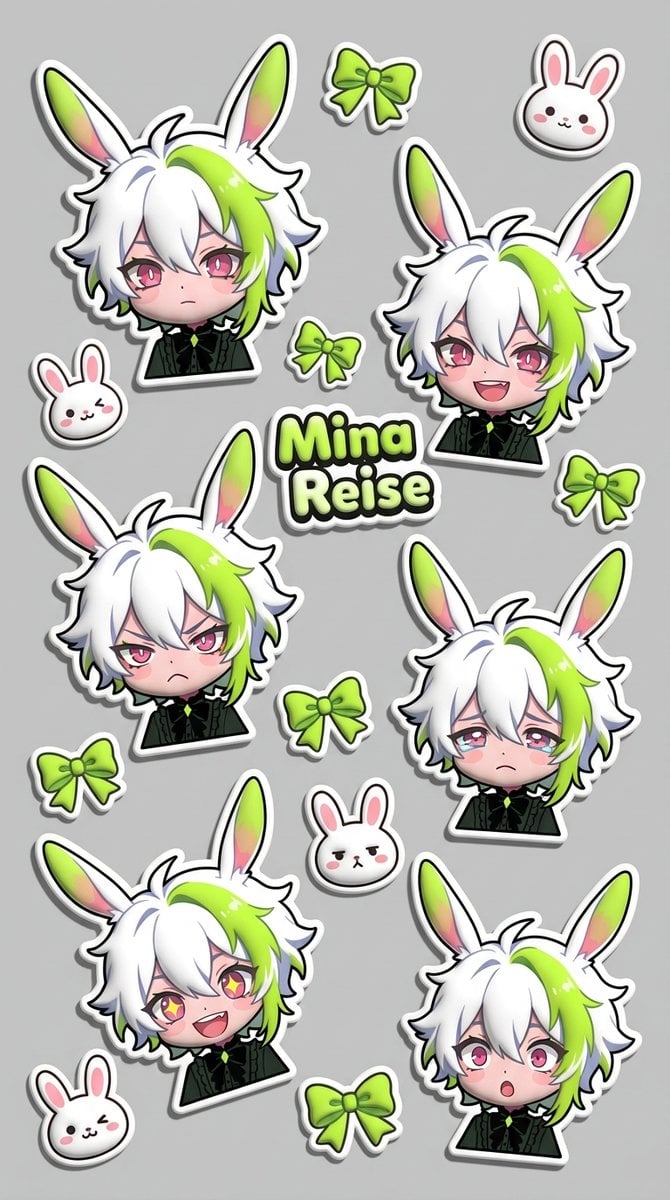
Puffy Chibi Sticker Sheet
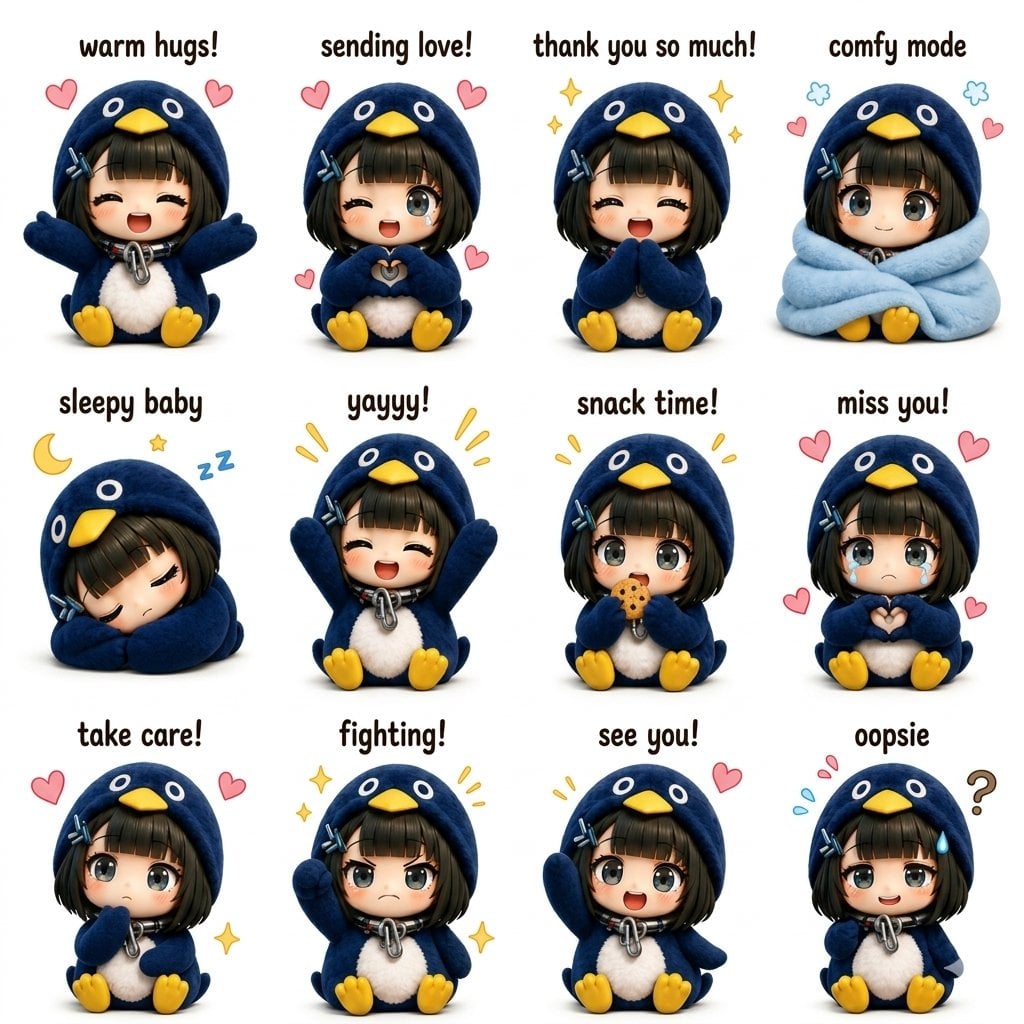
Kawaii Chibi Sticker Sheet

Pixar-Style Chibi Café Morning Scene

Minimalist Corporate Portrait Sprite Sheet
Make it yours
Chibi Desktop Pet Sprite Sheet works as-is. These are the safest ways to change it without losing the look.
Change one field
Copy a single group, rewrite it, and generate again so you can see what that field is doing.
Keep the frame, change the subject
Hold the composition and light of Chibi Desktop Pet Sprite Sheet, then swap wardrobe, props or the person for a new take.
| If the result… | Why | Fix |
|---|---|---|
| The result drifts from the preview | Too many fields changed at once. | Reuse Chibi Desktop Pet Sprite Sheet as-is first, then change one group — subject, light, or setting. |
| The model over-stylizes the scene | The prose prompt leaves finish and camera underspecified. | Add one camera or lighting sentence and stay on GPT Image 2. |
More GPT Image 2 templates
Other prompts made for GPT Image 2.

Six VTuber Japanese Logo Sheet

Realistic Portrait of Woman and Deer

The Vista Modular Condo Poster

AI Model Routing Comparison Infographic

2.5D Anime Art Board

Isometric Productivity Desk Scene

New York Double Exposure Poster

Four-Panel AI Landscape Comparison

Japanese Tatami Lifestyle Magazine Cover

NESCAFÉ Coffee Map Poster
More image prompts
Fresh picks from across the catalog.
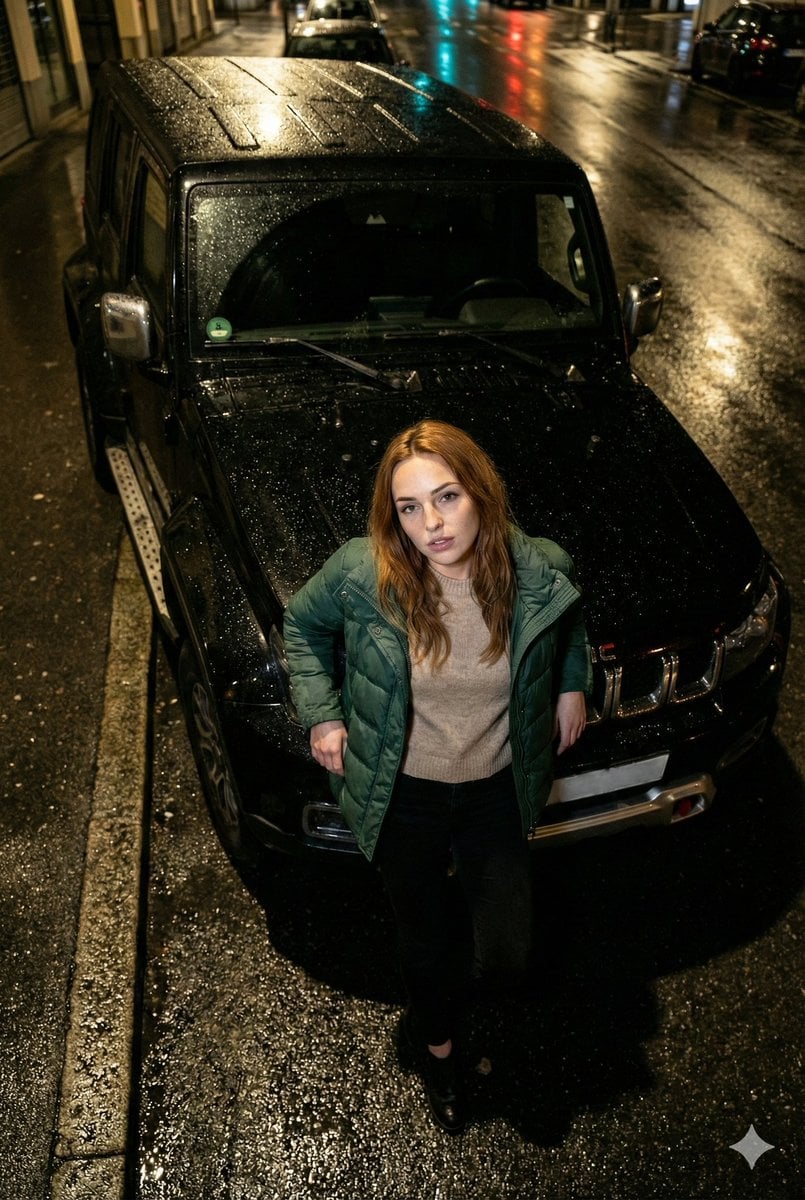
High-Angle Flash Photo on SUV Hood at Night
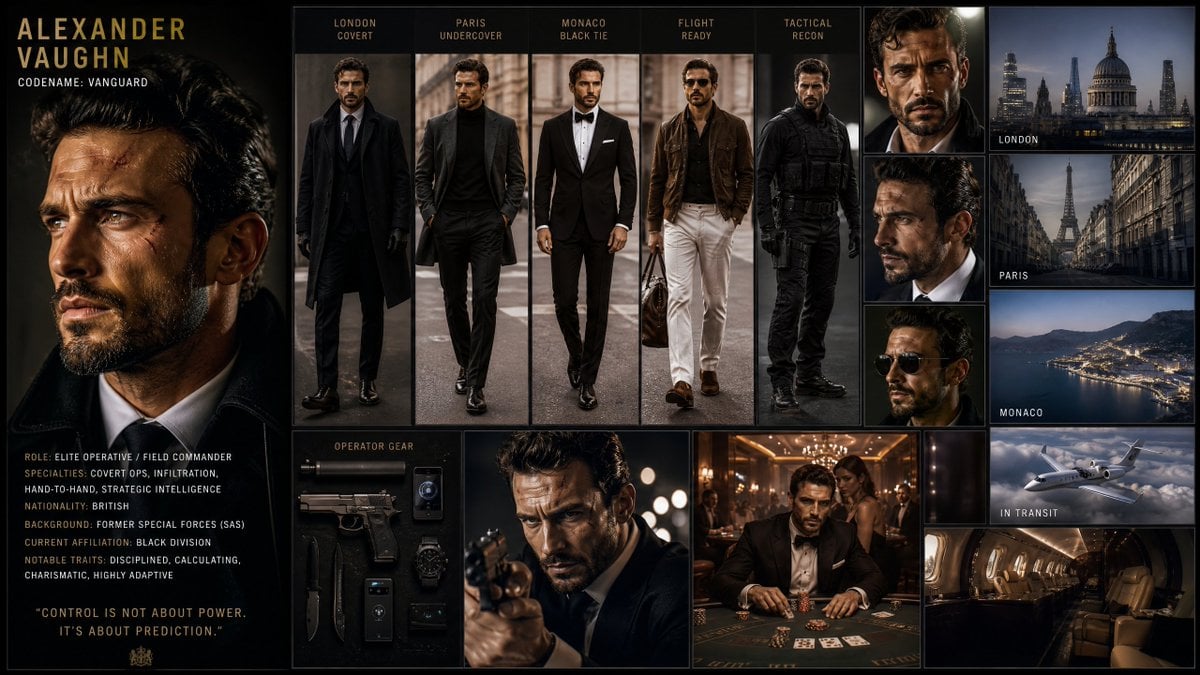
Hollywood Spy-Thriller Character Board
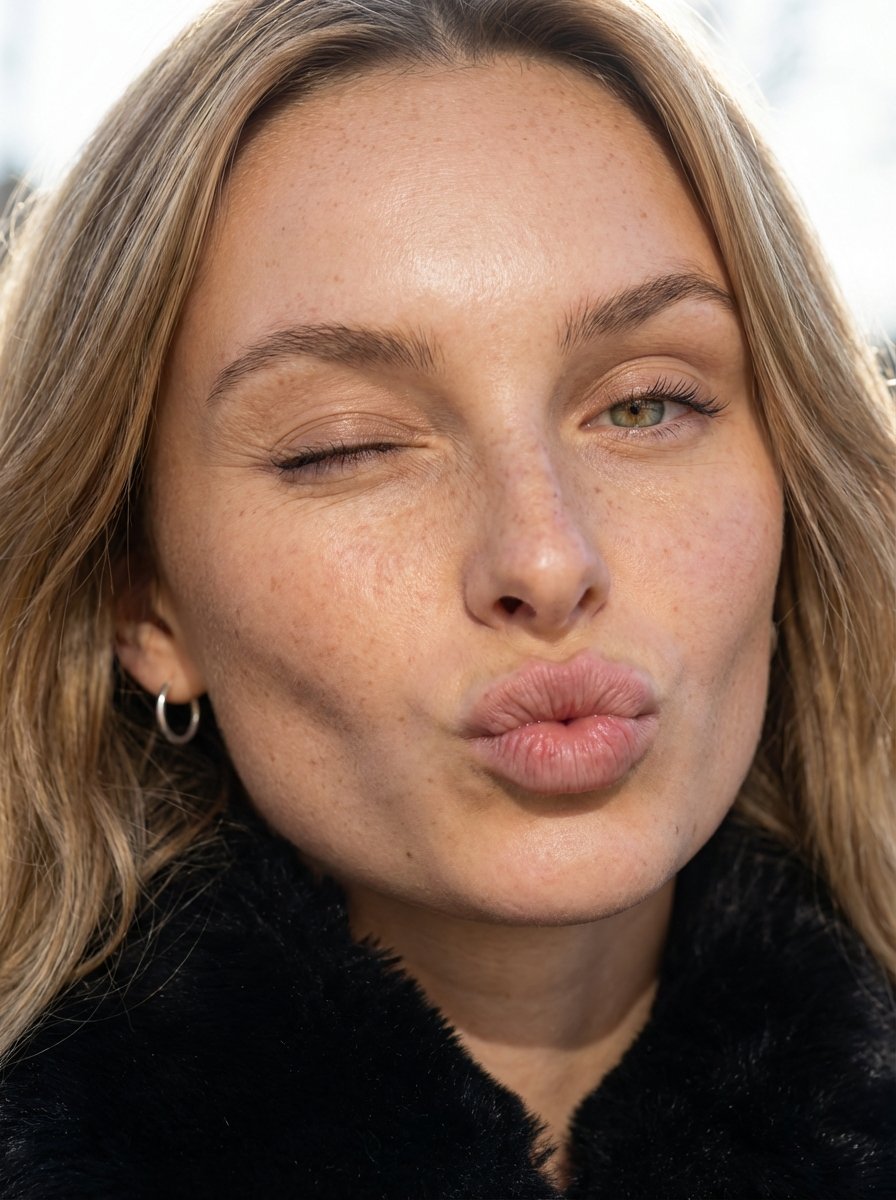
Macro Portrait with Wink and Pucker

Young Woman in a Red Ensemble in an Alpi
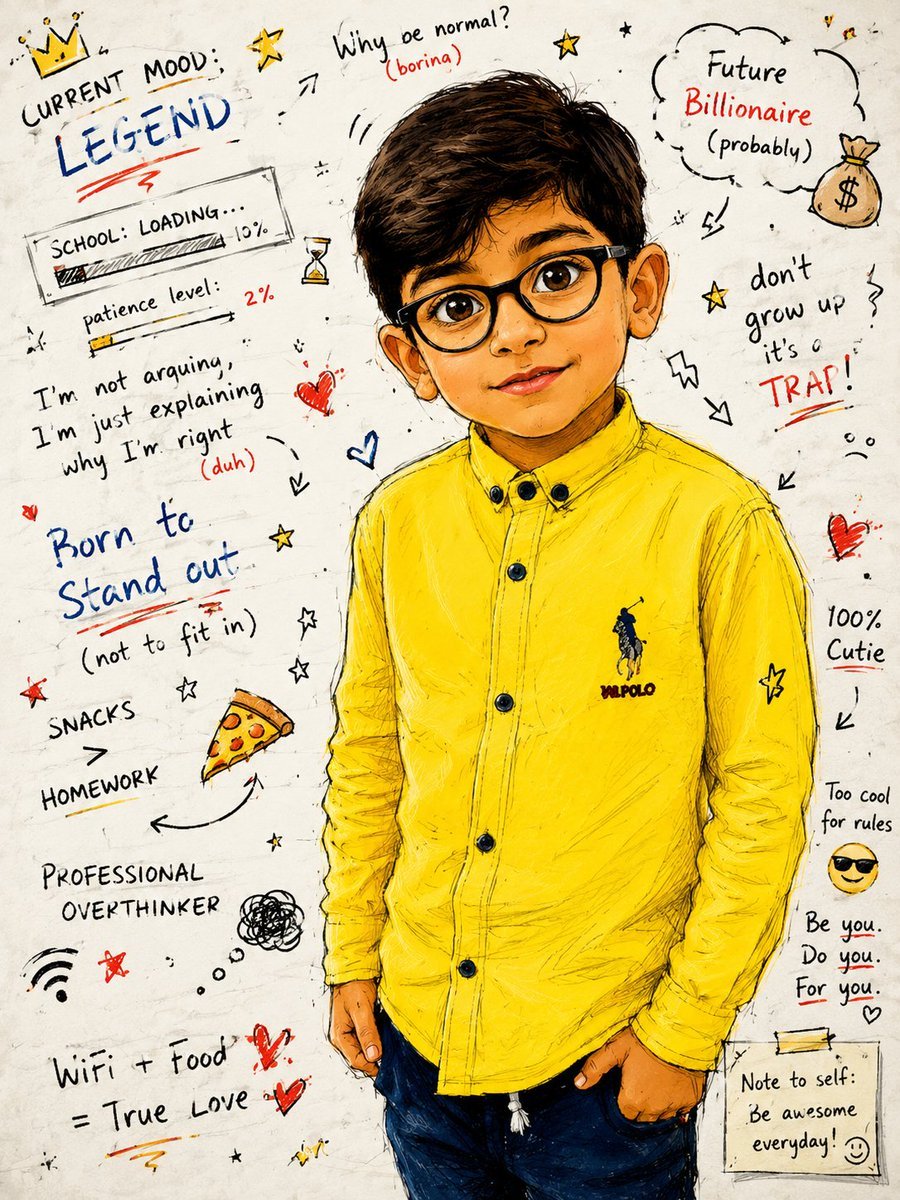
Teenage Sketchbook Caricature Effect
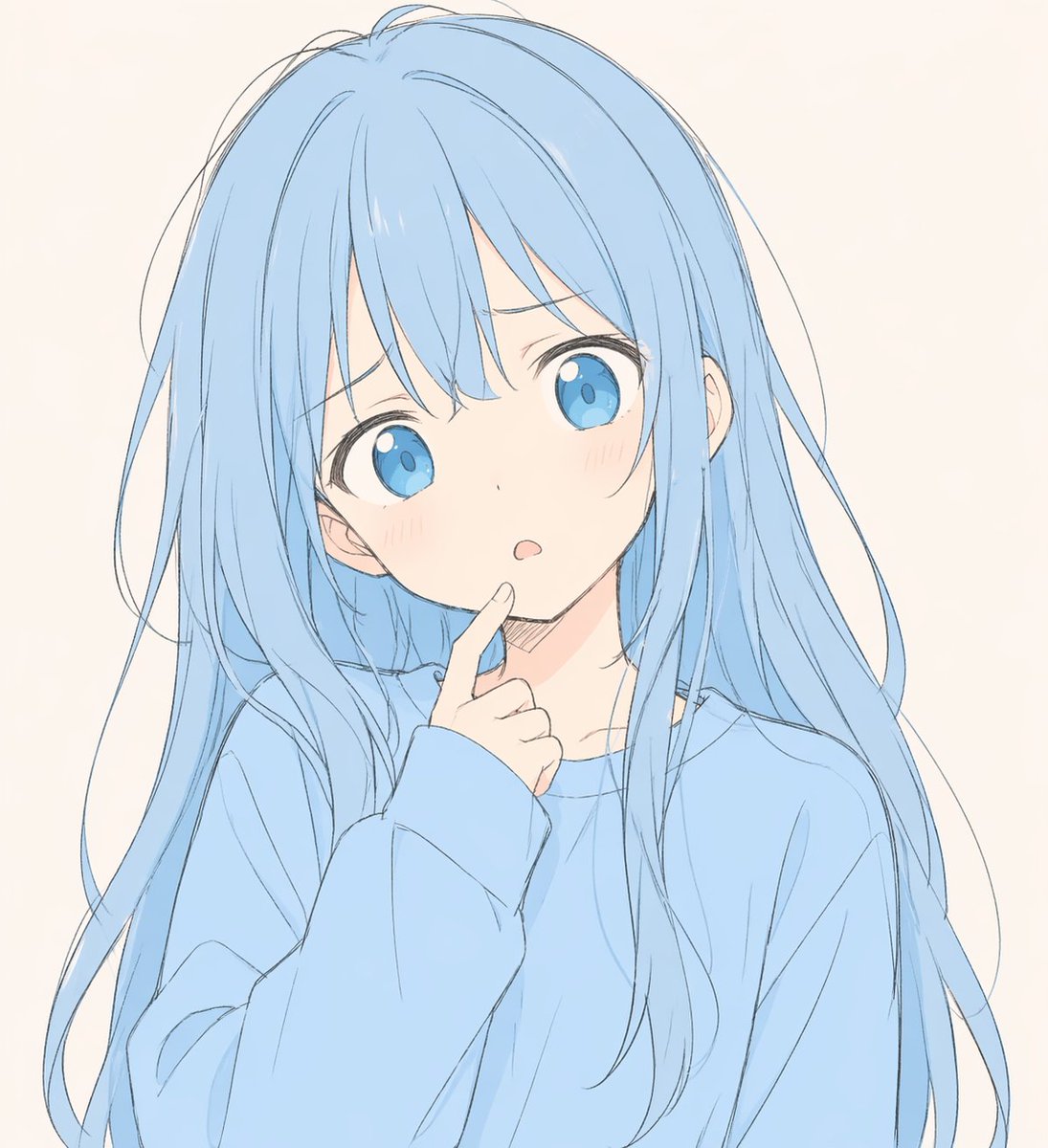
Soft Blue Anime Girl Portrait
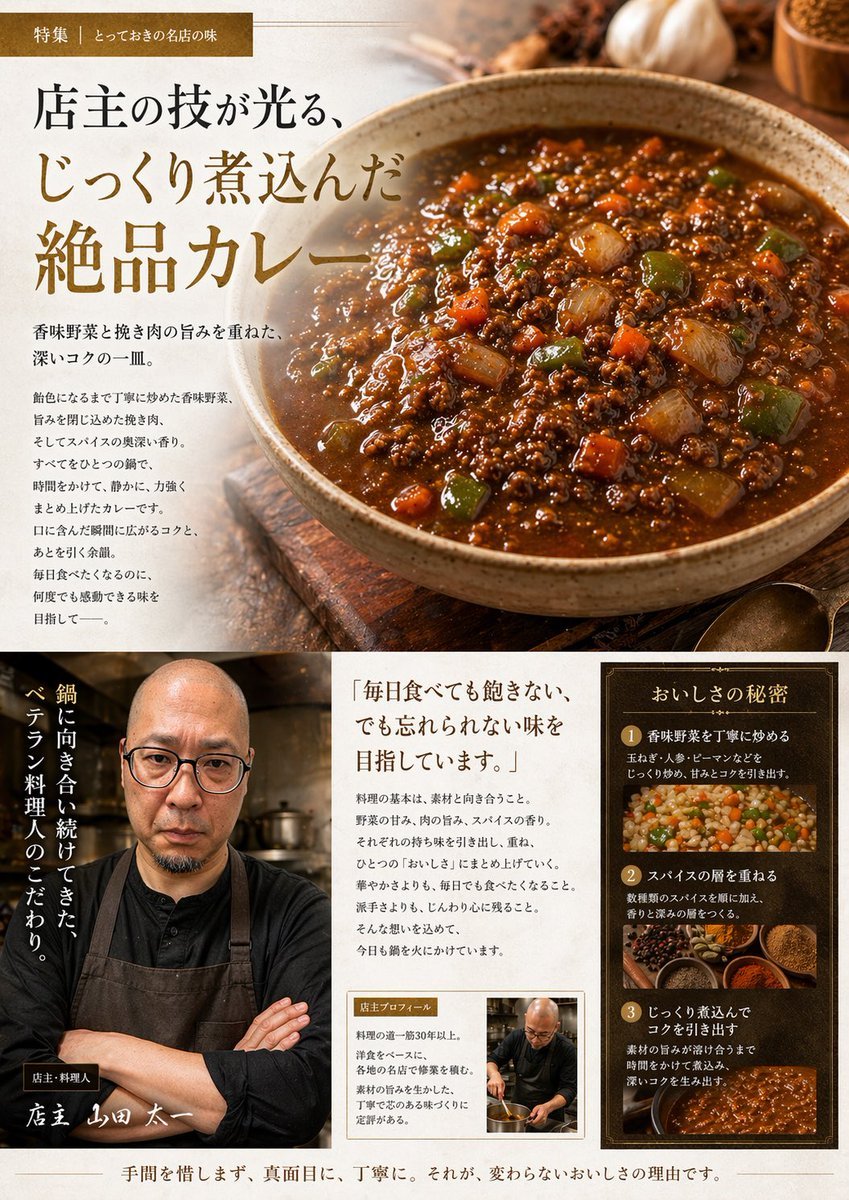
Japanese Gourmet Curry Ad Layout
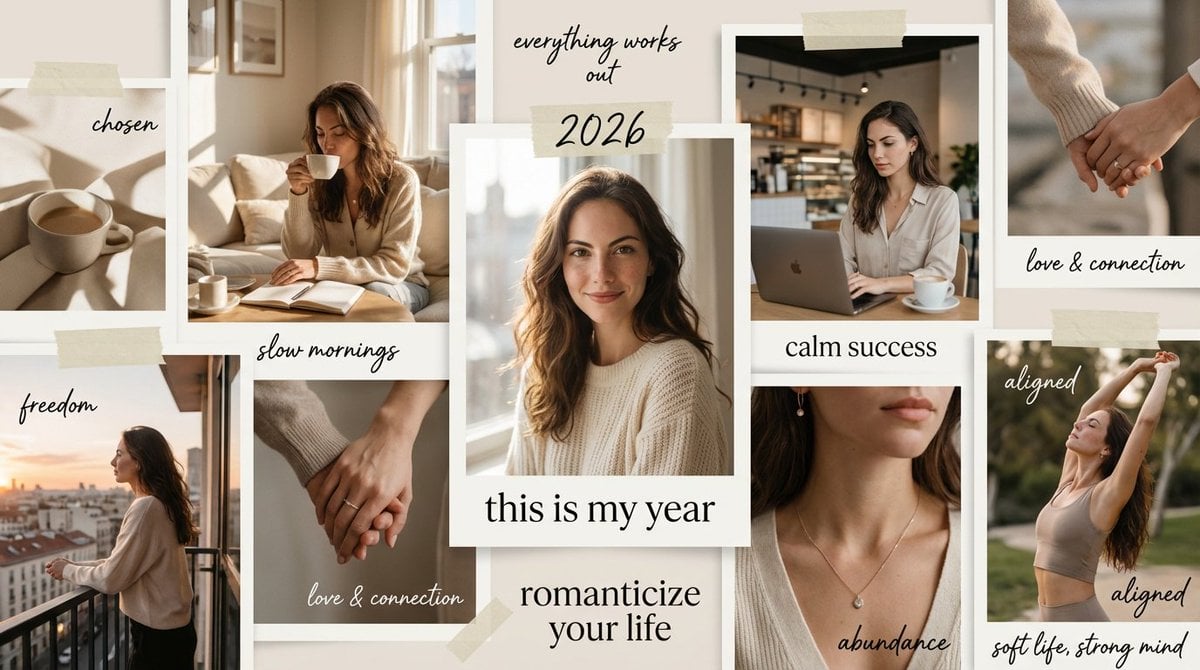
High-Aesthetic 2026 Vision Board Collage
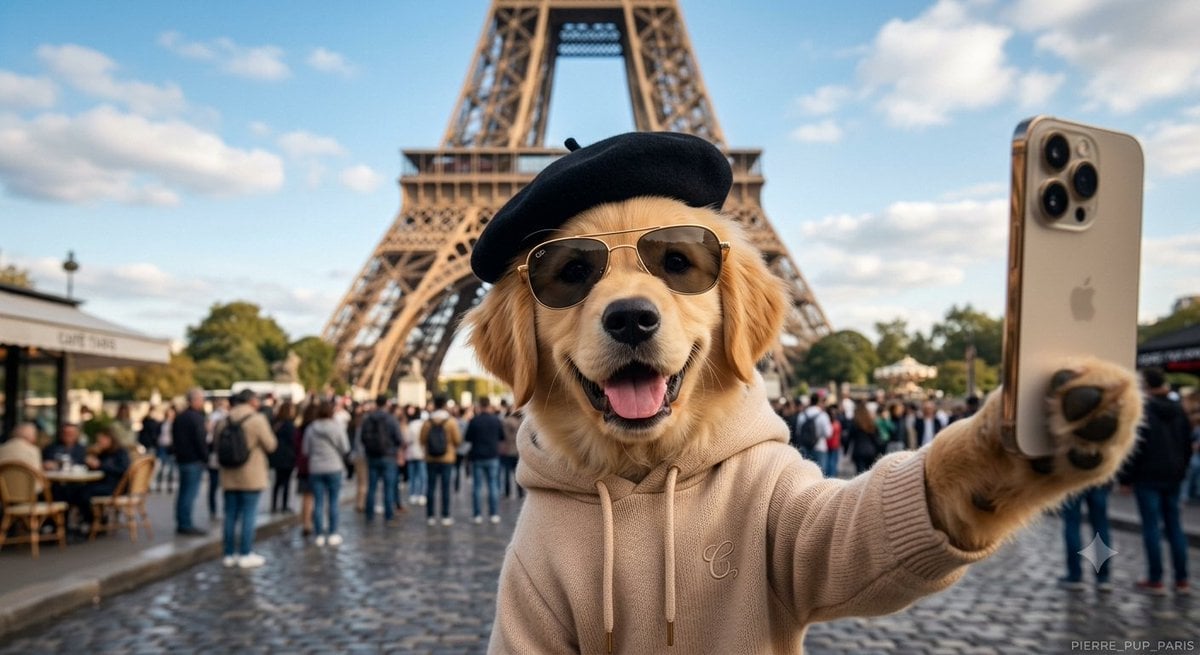
Dog Selfie at Eiffel Tower
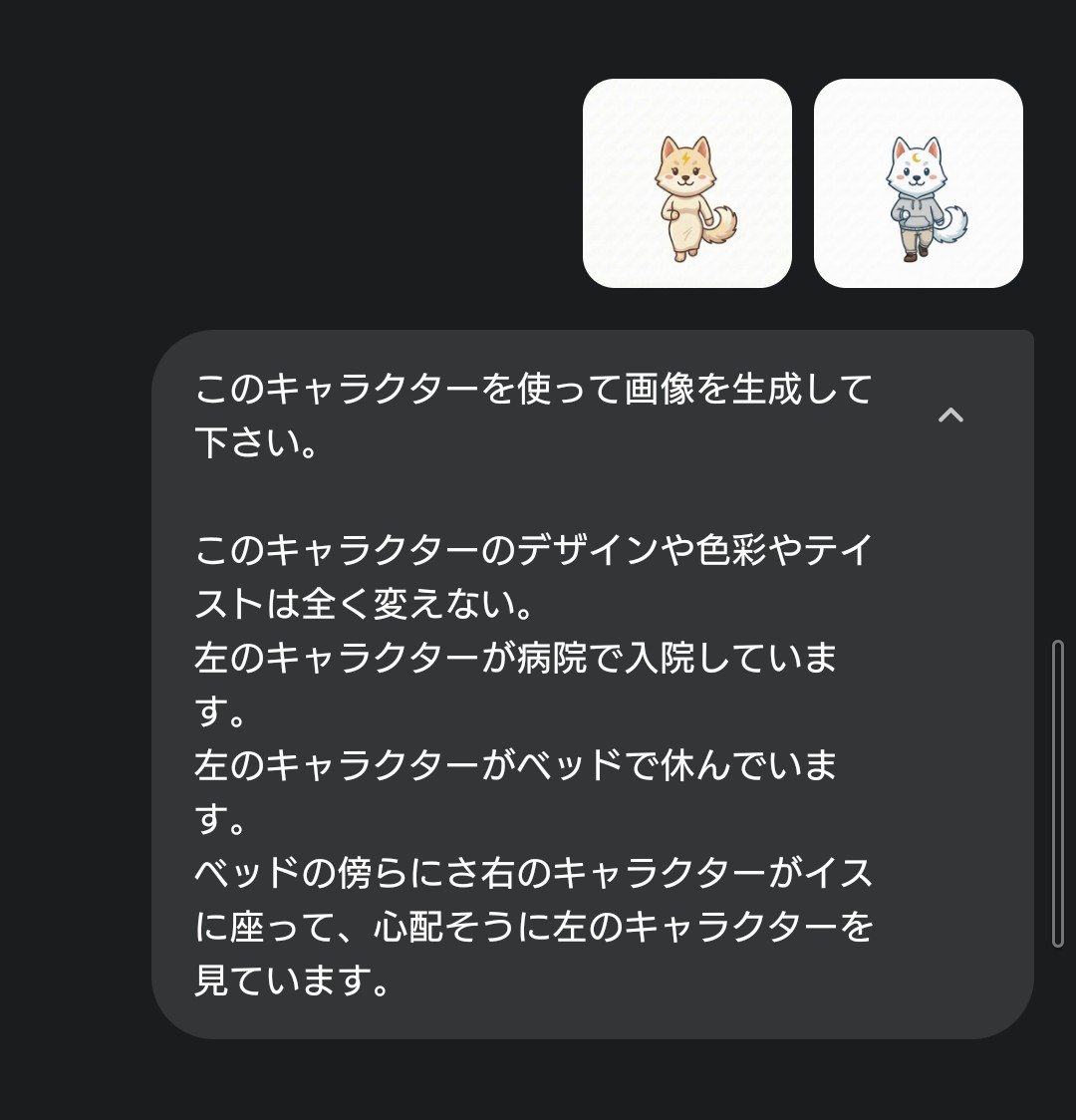
Character Hospital Scene Generation Prompt
Browse template categories
Chibi Desktop Pet Sprite Sheet questions
How do I use the Chibi Desktop Pet Sprite Sheet template?
Add your photo if the template asks for one, edit the prompt if you like — the template's model and format are already selected — and press Generate. Your version opens in PicX Studio.
Can I customize the Chibi Desktop Pet Sprite Sheet template?
Yes. You can change the subject, setting, lighting, mood, format, and available model controls before creating your image.
Is the Chibi Desktop Pet Sprite Sheet template free?
Opening and editing this template is free. Generating uses credits, shown on the Generate button when you are signed in.
Which AI model should I use?
Start with GPT Image 2, which is the model associated with this template. You can compare another compatible model for a different finish.
Looking for something else? Browse all templates.

Your photo, any look
Thousands of ready templates for every top image and video model, from one credit balance.