
Japanese Hair Diagnosis Salon Poster
This prompt transforms a single portrait into a premium Japanese salon-style hairstyle analysis report layout for beauty marketing or makeover content.
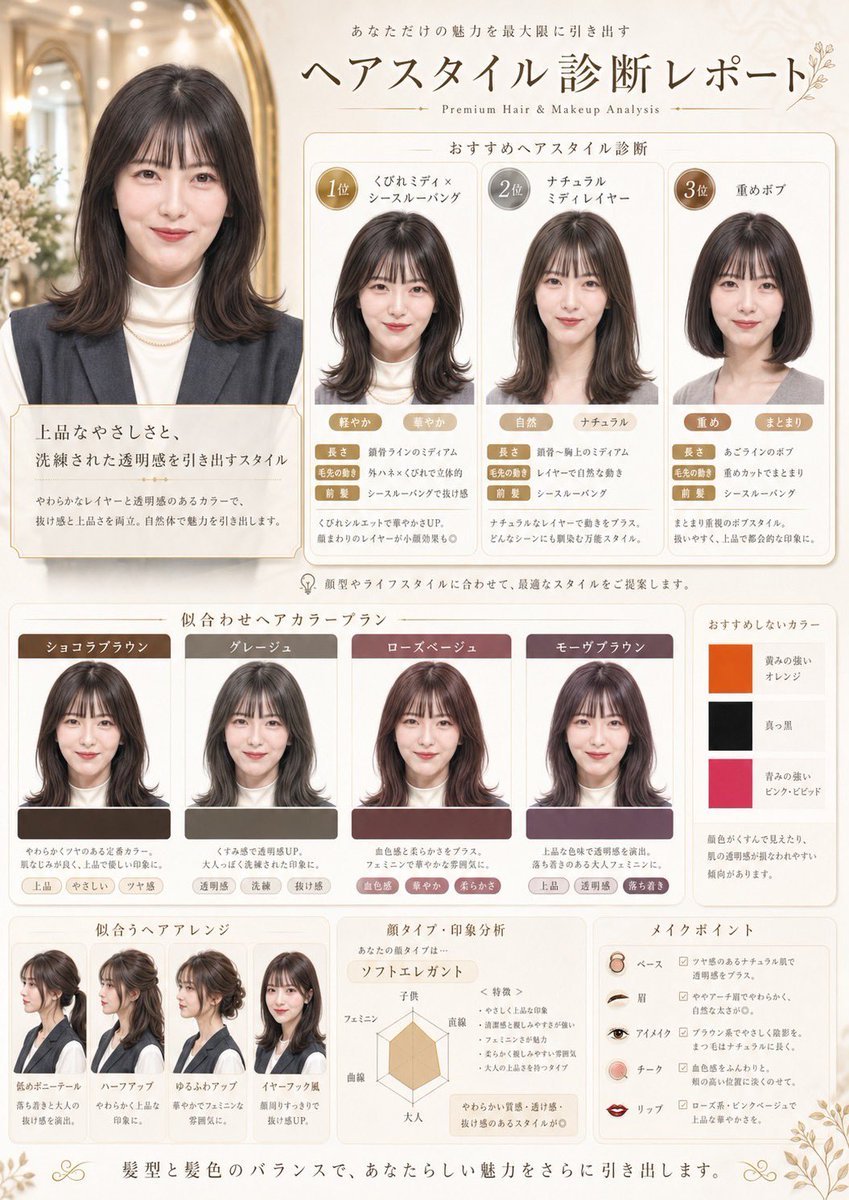
- Prompt included
- Model and format preset
- Free template
The prompt behind this image
Copy the exact prompt behind Japanese Hair Diagnosis Salon Poster, or open it in the studio and make it yours.
Using the provided reference image, turn it into a refined Japanese beauty-salon hairstyle diagnosis poster. Keep the same person, outfit, hair color, and realistic studio-photo look, but place her portrait as the main before-style image in an elegant cream-and-gold editorial layout. Add Japanese headline text at the top reading "ヘアスタイル診断レポート" with a small English subtitle "Premium Hair & Makeup Analysis" and supporting Japanese copy above it. Create 4 ranked hairstyle recommendation panels under the title: 1) "くびれミディ×シースルーバング", 2) "ナチュラルミディレイヤー", 3) "重めボブ", plus the large original/main portrait panel at left with explanatory Japanese text. In each recommendation panel, generate a realistic edited version of the same woman with the suggested haircut, using circular rank badges and multiple small trait tags. Add a color recommendation section titled "似合わせヘアカラープラン" with 4 color cards showing the same woman recolored in these shades: "ショコラブラウン", "グレージュ", "ローズベージュ", "モーヴブラウン". Also add 1 slim side panel titled "おすすめしないカラー" with 3 stacked swatches and labels: "黄みの強いオレンジ", "真っ黒", "青みの強いピンク・ビビッド". At the bottom, add 3 additional sections: "似合うヘアアレンジ" with 4 hairstyle arrangement examples of the same woman, "顔タイプ・印象分析" with a radar chart and Japanese notes, and "メイクポイント" with 5 makeup item rows labeled "ベース", "眉", "アイメイク", "チーク", "リップ". Use soft luxury salon branding, thin gold borders, rounded white panels, subtle floral corner ornaments, and a clean premium magazine-like composition.
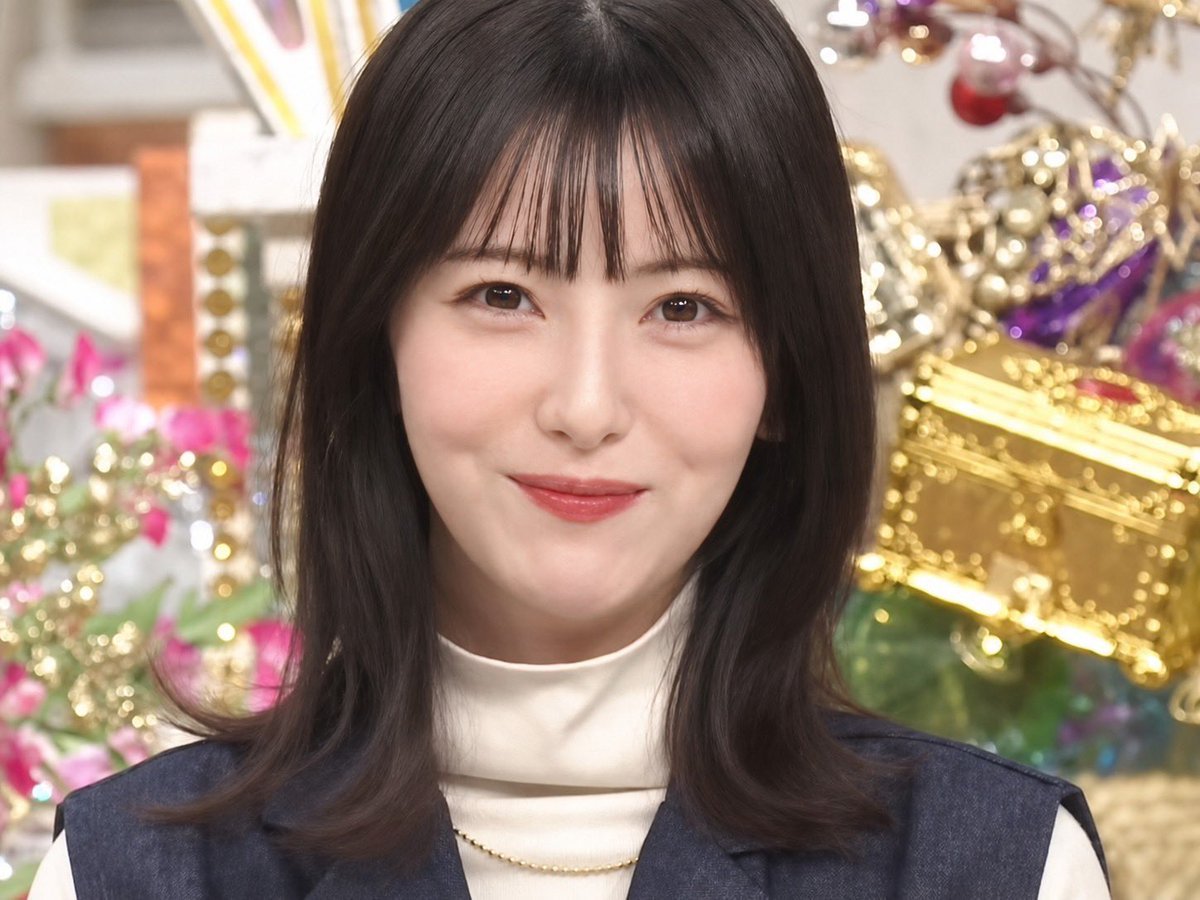
Reference images included
Japanese Hair Diagnosis Salon Poster needs input media to work. They load alongside the prompt when you open it in the studio.
How to use Japanese Hair Diagnosis Salon Poster in 3 steps
- 1Upload ImagePNG, JPG or paste
Add your photo
Upload the photo the template builds on. The prompt, model and format are already set.
- 2…a portrait of your subject in softgolden-hour light, 85mm…
Personalize
Edit the subject and creative details for your destination.
- 3Generate
Generate
Press Generate — your image is created in PicX Studio, so you can compare it with the original and refine one variable at a time.
More like this
Templates with the same subject, style or setup. Open one to see its prompt.
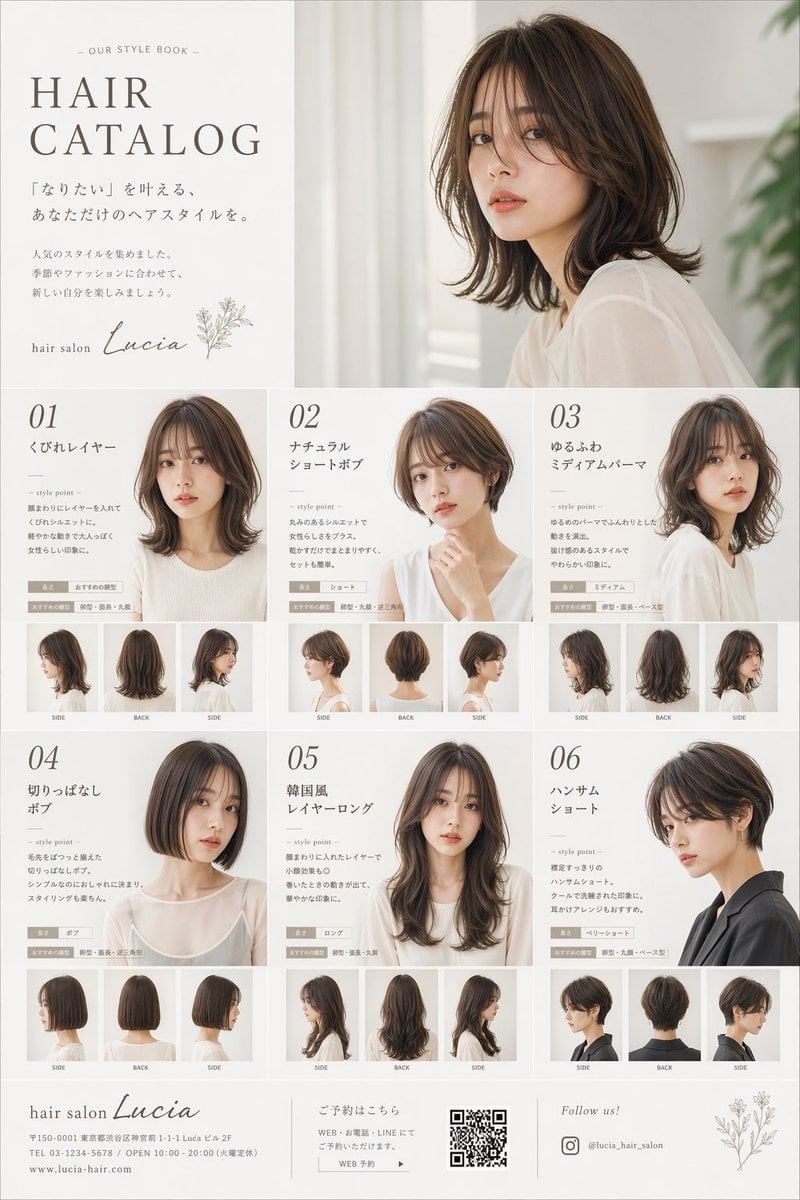
Japanese Hair Salon Catalog Poster

Minecraft Japanese Research Lab Exploration

Japan Travel Brochure Poster
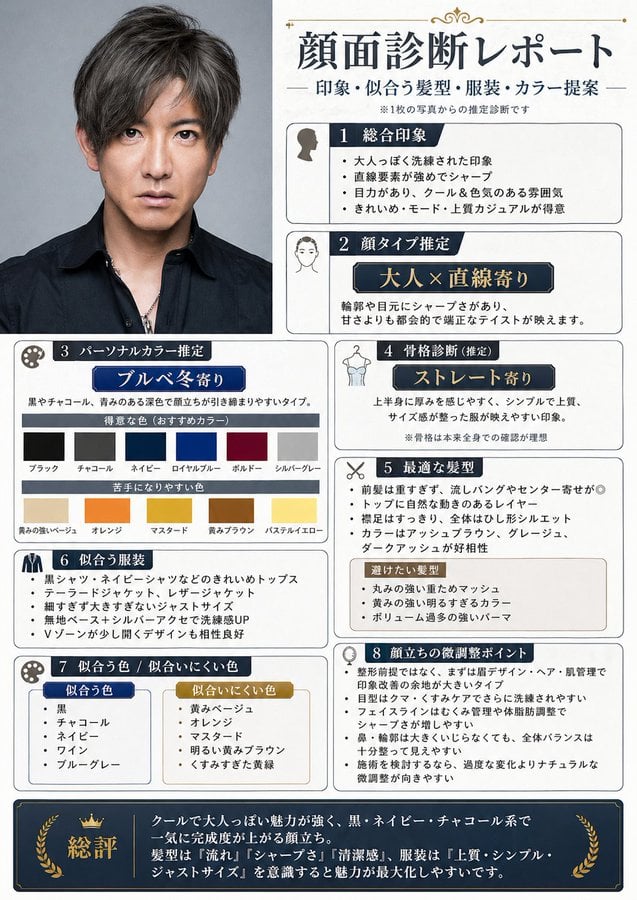
Japanese Face Diagnosis Report
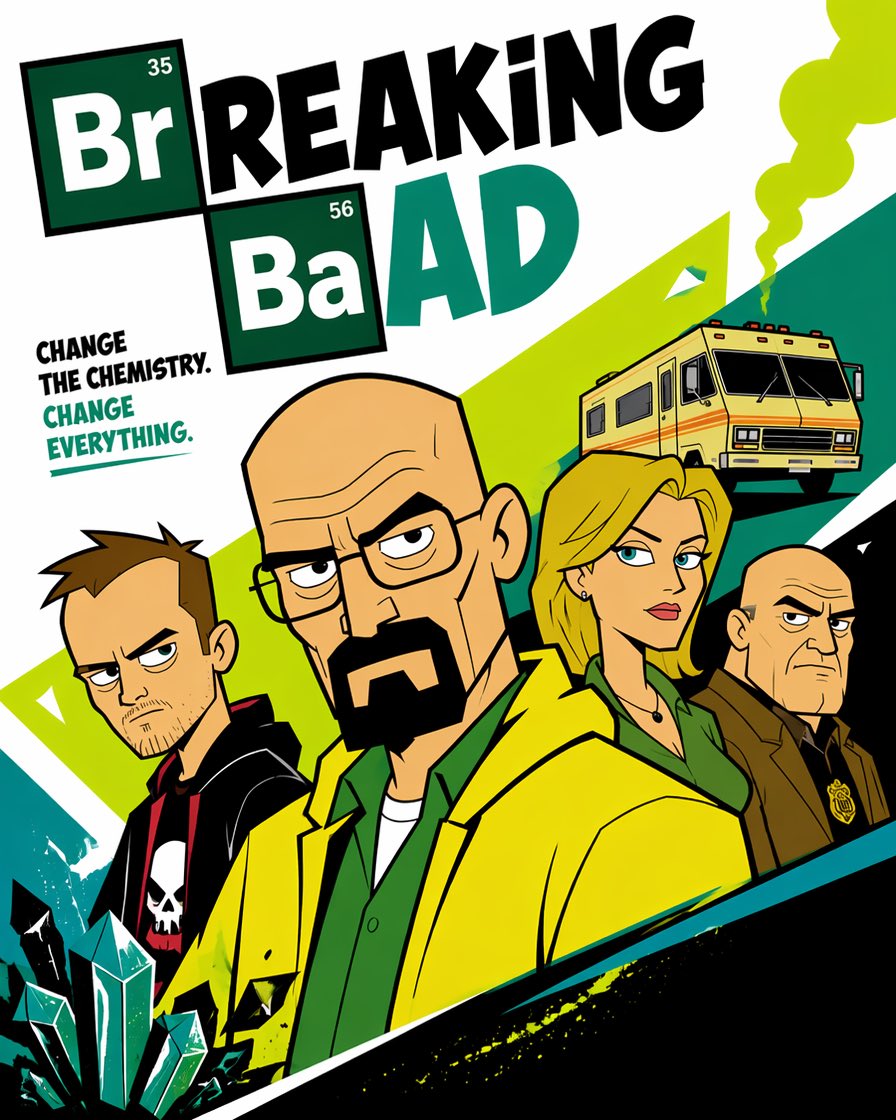
Cartoon TV Show Poster Pack
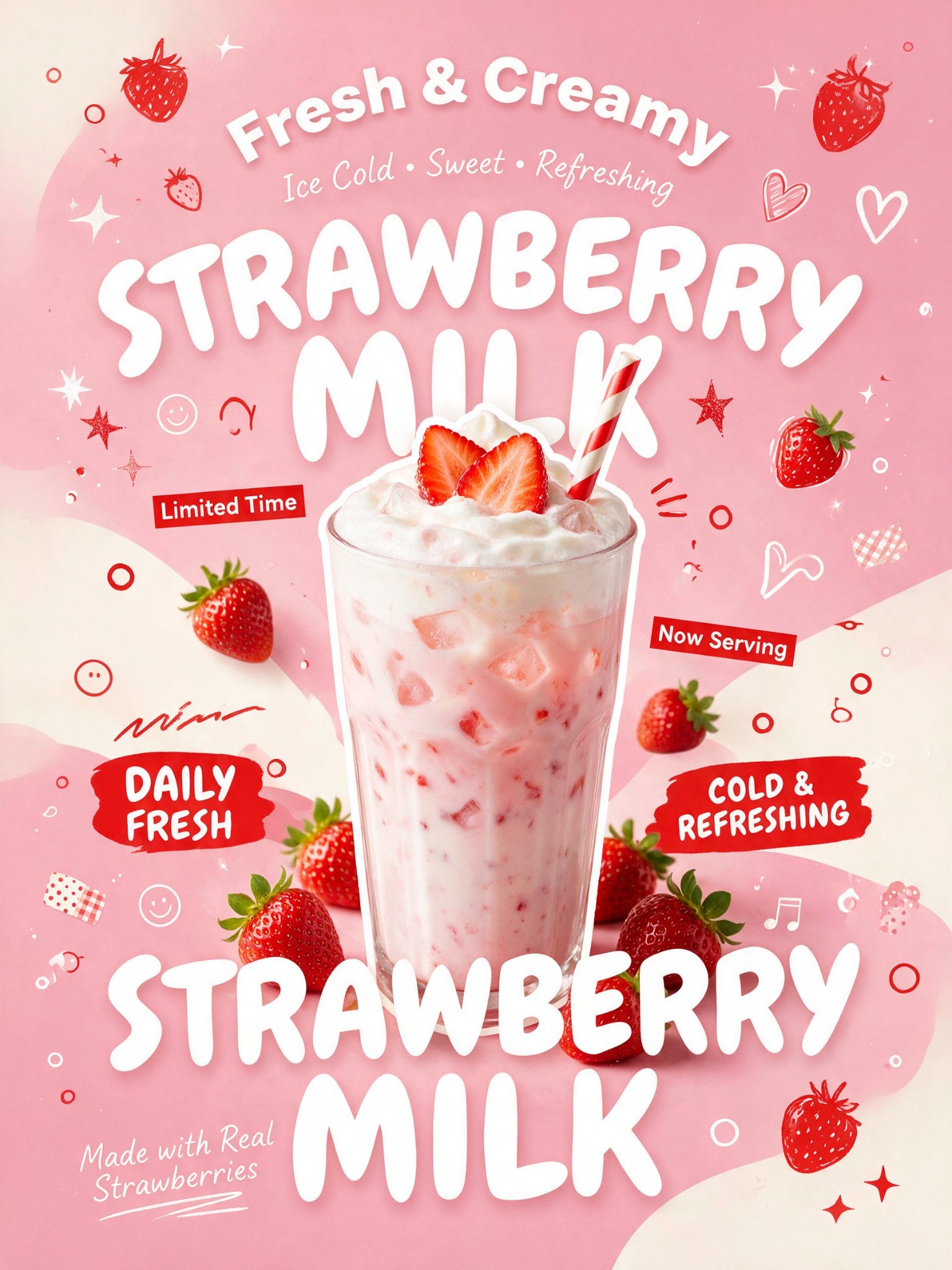
Trendy Cafe Drink Promo Poster
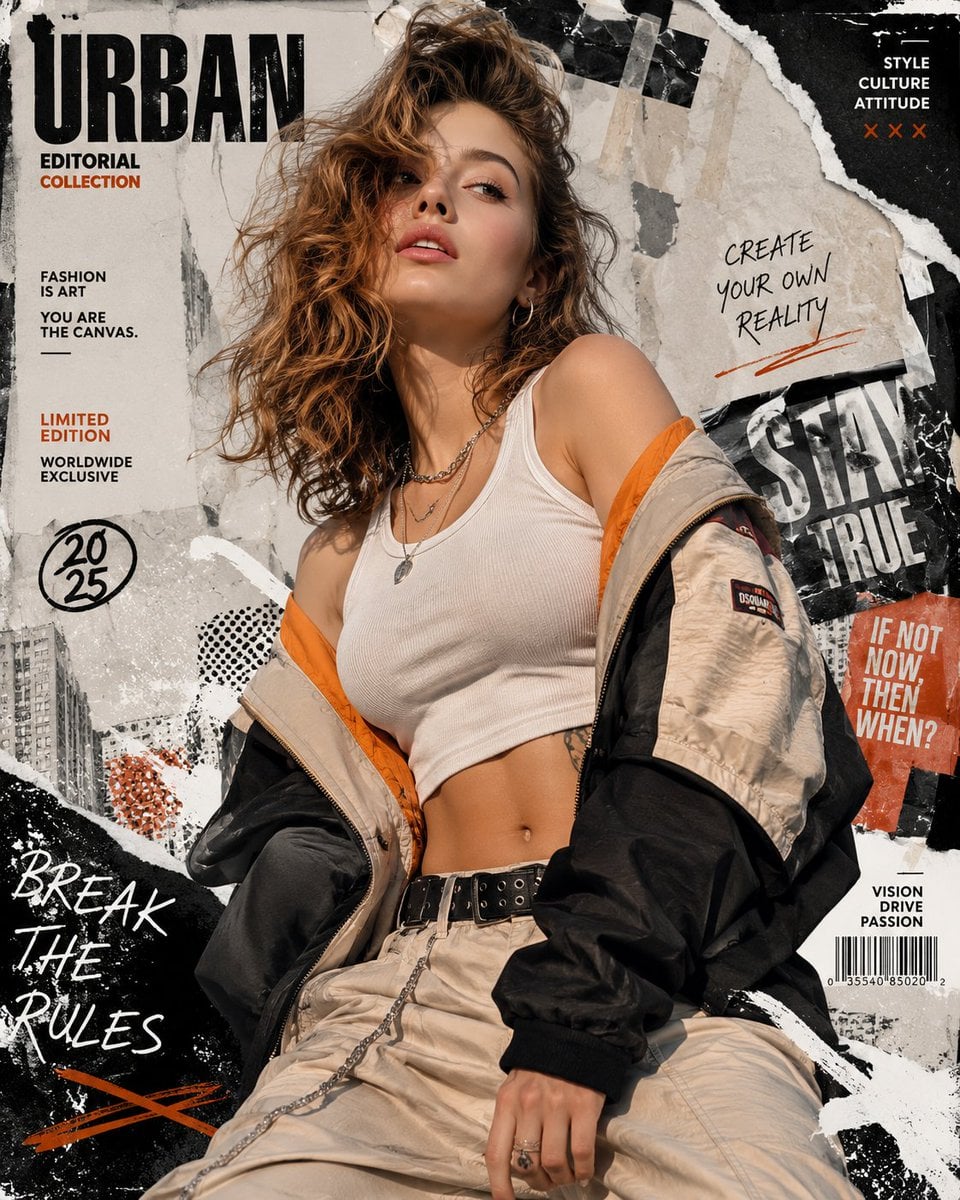
Urban Fashion Editorial Collage Streetwear Poster

Japanese Architectural Concrete Studio Fashion Campaign
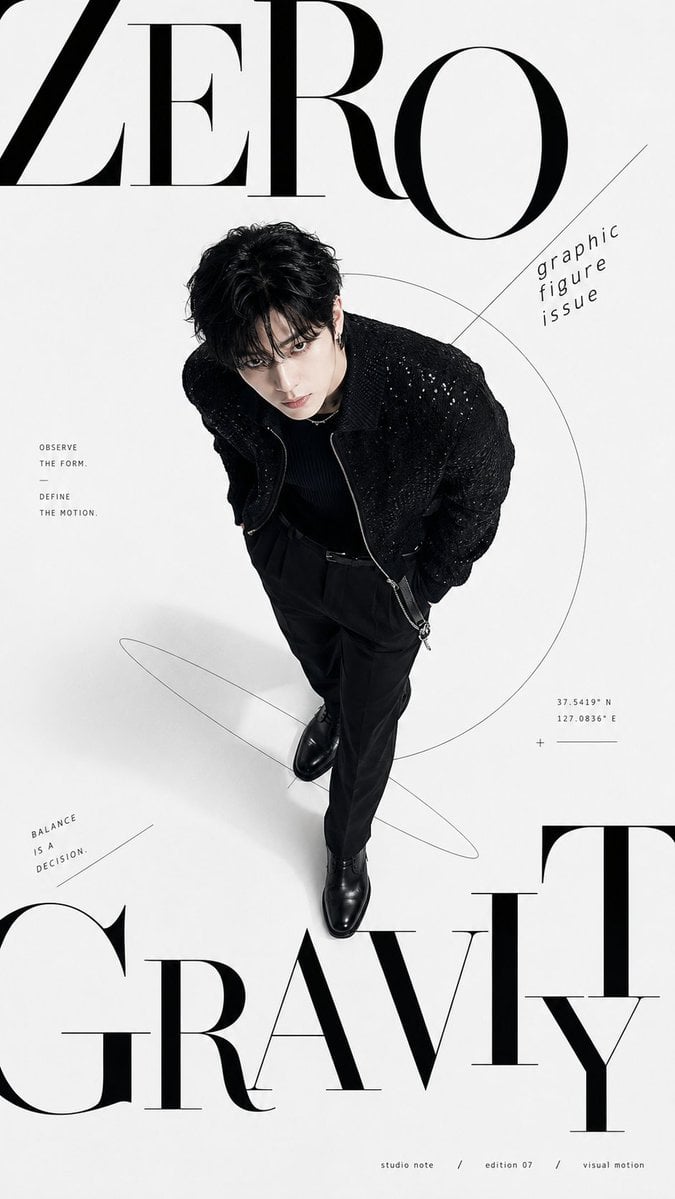
Premium Fashion Editorial Cover Layout System
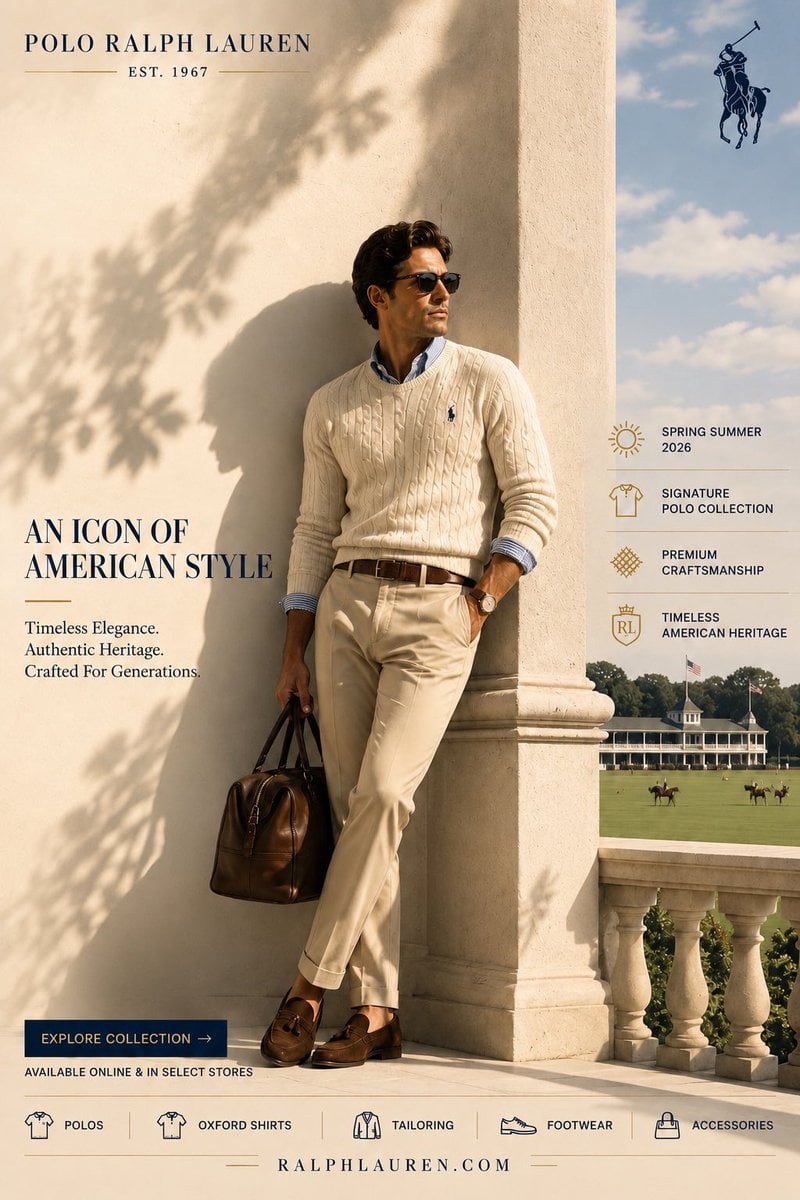
Polo Ralph Lauren Luxury American Heritage Fashion Campaign
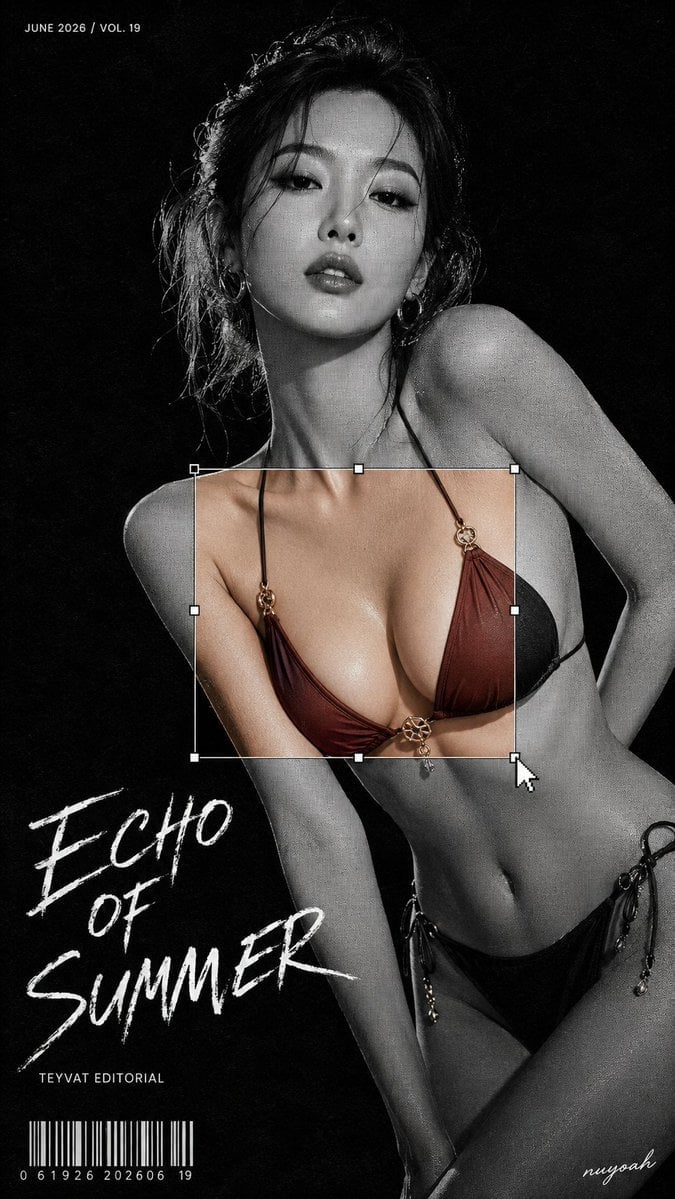
Monochrome Halftone Editorial Fashion Poster
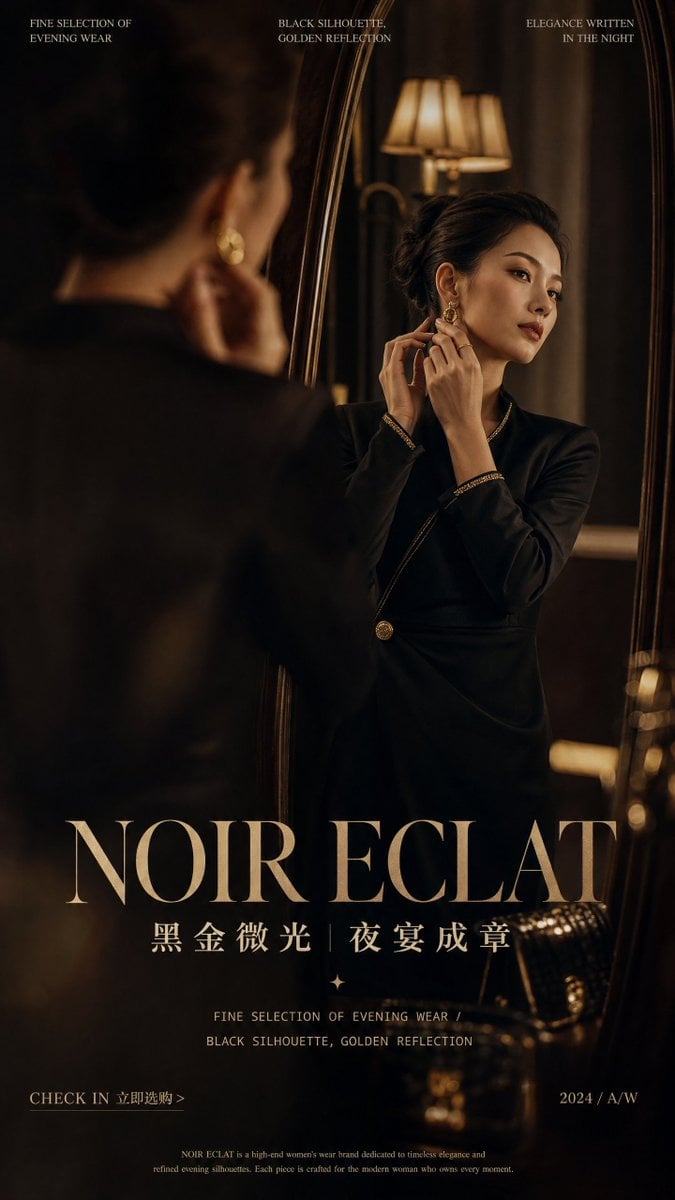
Retro Mirror Luxury Fashion Campaign Poster
Make it yours
Japanese Hair Diagnosis Salon Poster works as-is. These are the safest ways to change it without losing the look.
Change one field
Copy a single group, rewrite it, and generate again so you can see what that field is doing.
Keep the frame, change the subject
Hold the composition and light of Japanese Hair Diagnosis Salon Poster, then swap wardrobe, props or the person for a new take.
| If the result… | Why | Fix |
|---|---|---|
| The result drifts from the preview | Too many fields changed at once. | Reuse Japanese Hair Diagnosis Salon Poster as-is first, then change one group — subject, light, or setting. |
| The model over-stylizes the scene | The prose prompt leaves finish and camera underspecified. | Add one camera or lighting sentence and stay on GPT Image 2. |
More GPT Image 2 templates
Other prompts made for GPT Image 2.

Six VTuber Japanese Logo Sheet

Realistic Portrait of Woman and Deer

The Vista Modular Condo Poster

AI Model Routing Comparison Infographic

2.5D Anime Art Board

Isometric Productivity Desk Scene

New York Double Exposure Poster

Four-Panel AI Landscape Comparison

Japanese Tatami Lifestyle Magazine Cover

NESCAFÉ Coffee Map Poster
More image prompts
Fresh picks from across the catalog.
Text Replacement Prompt for Image Editing
Sharing Reference Models and Outfit Prompts
Nano Banana Pro Tip: Glitch Static Ghost Silhouette Portrait
Painted Chibi Snail Macro View
Restore Old Photo to DSLR Quality with Upscaling
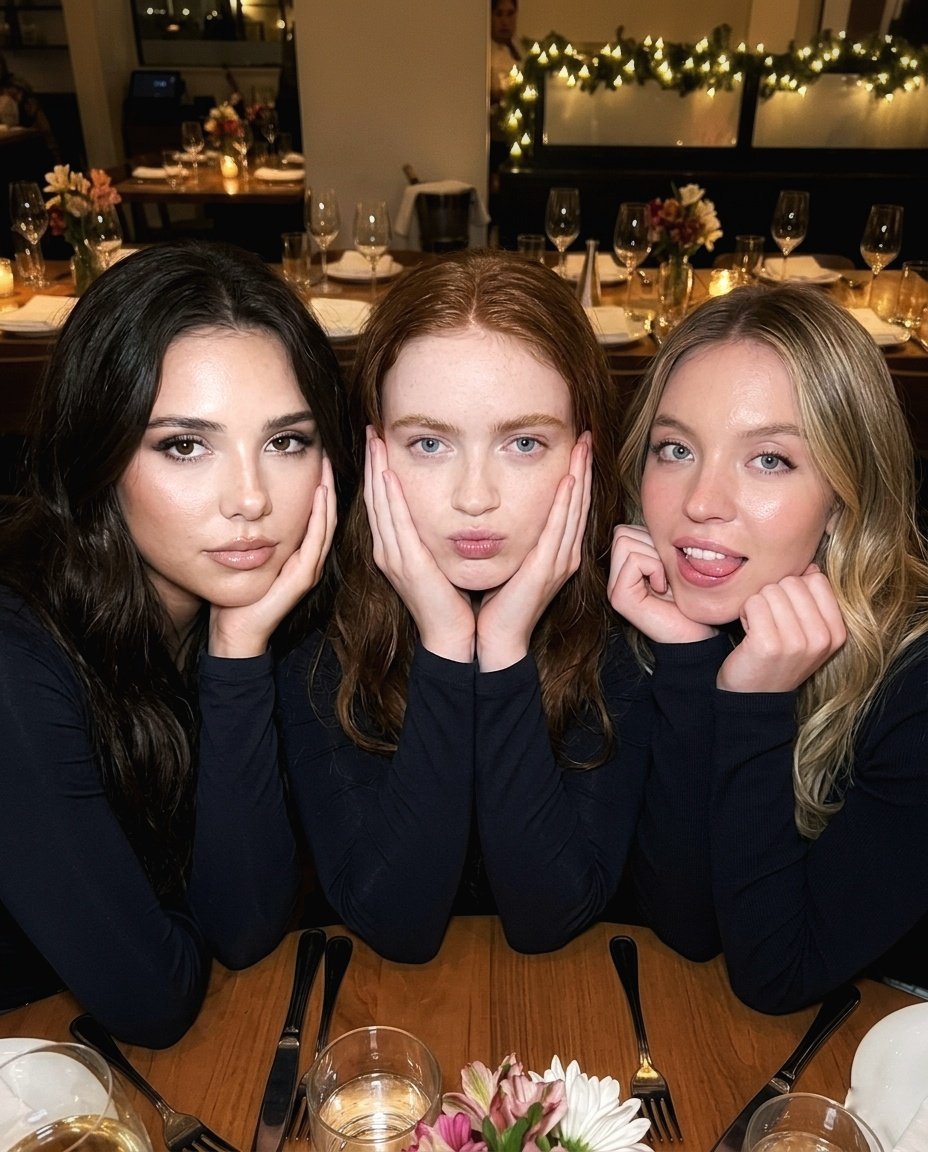
Ultra-Realistic Restaurant Table Selfie
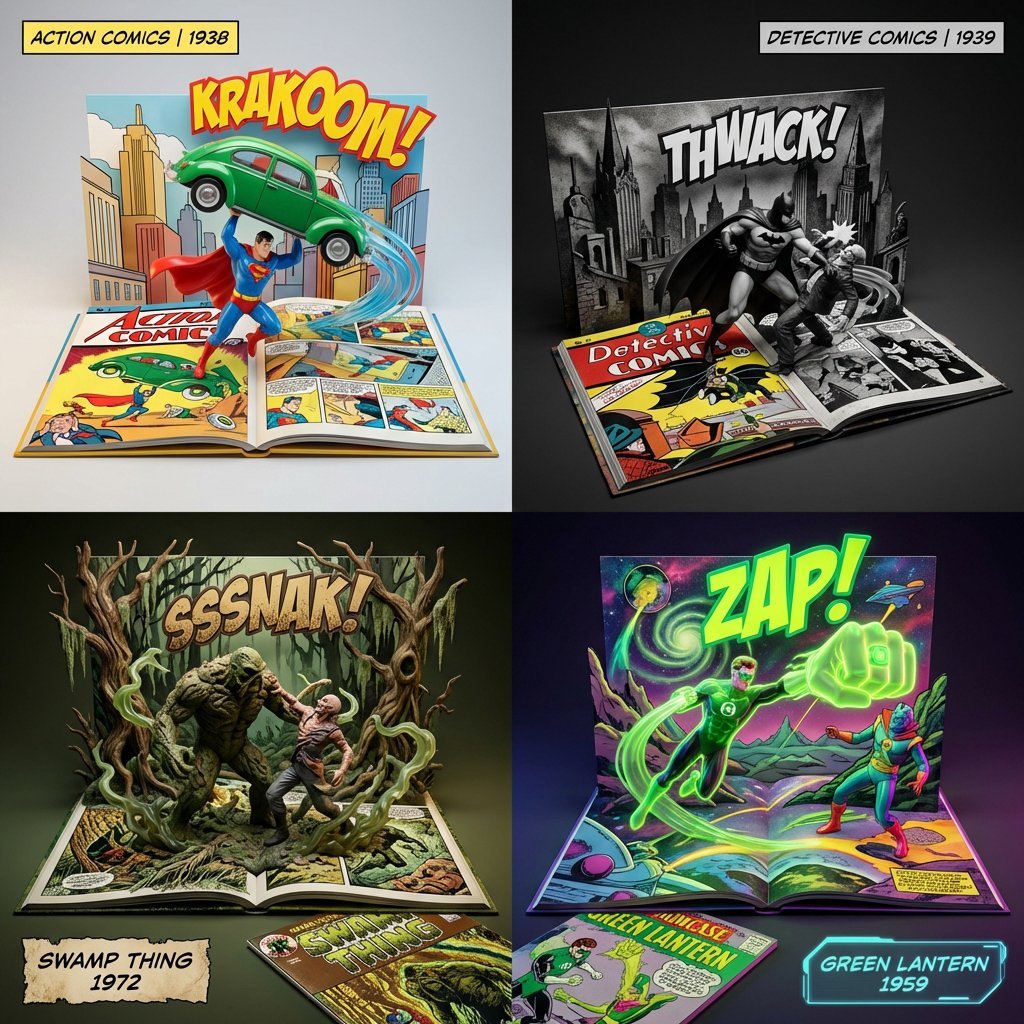
3D Diorama of Comic Book Covers and Toys
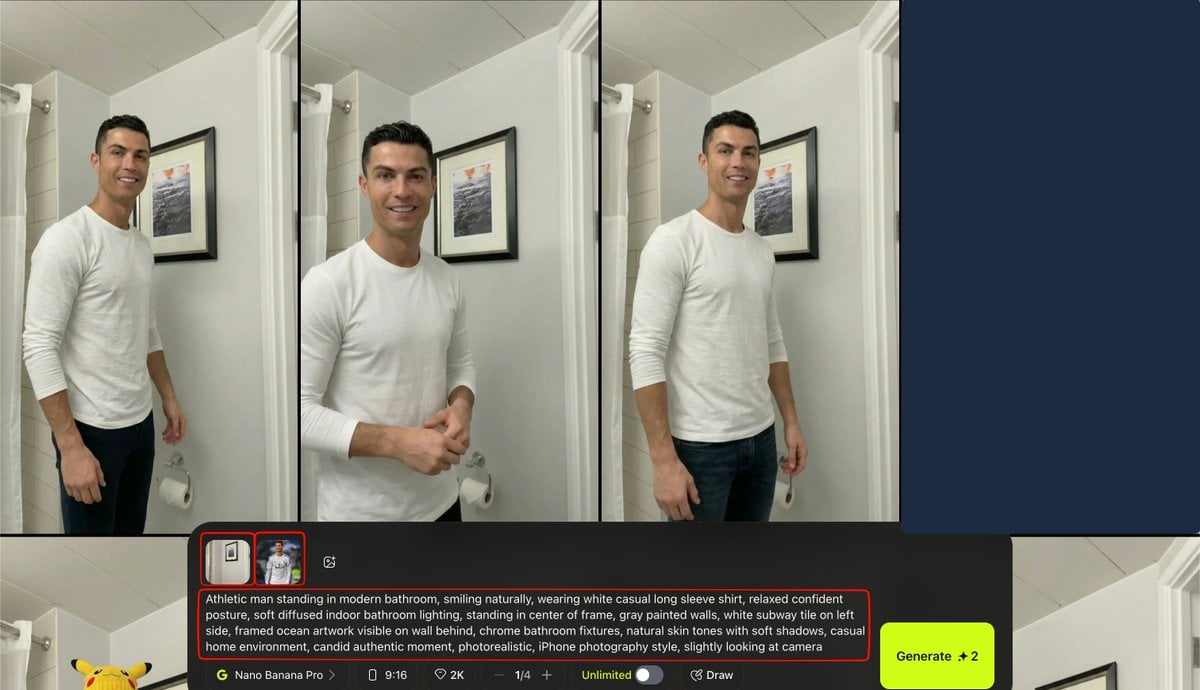
Turkish Prompt for Image Integration

Ultra-Photorealistic Winter Romance Portrait (JSON Format)
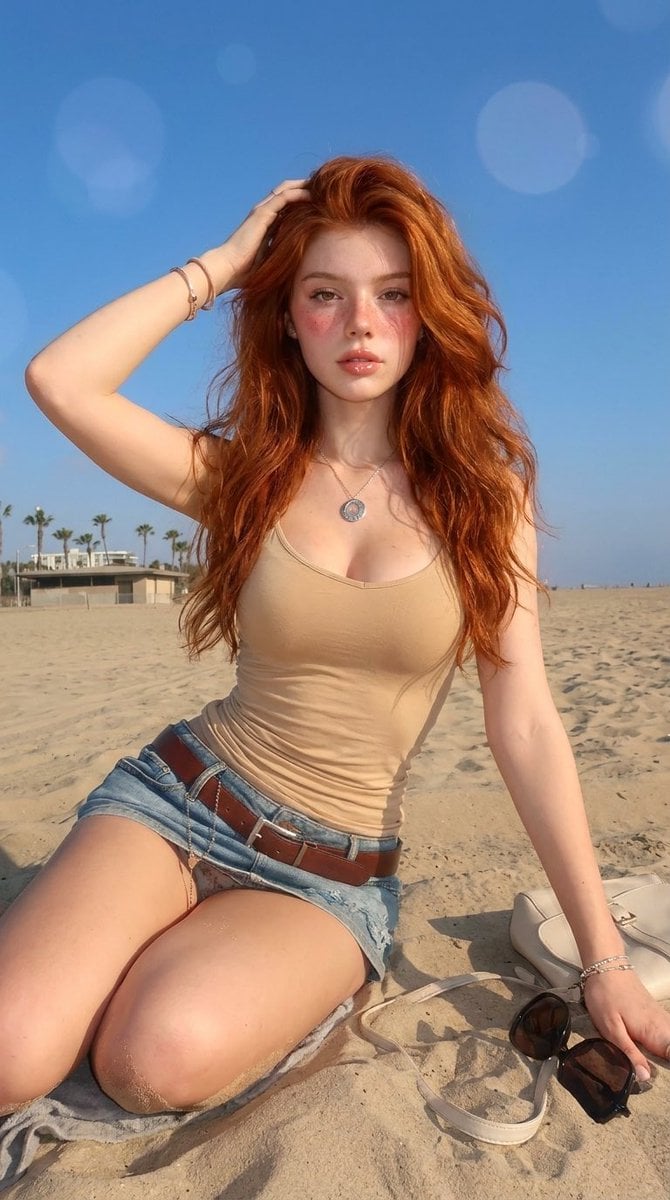
Summery Beach Portrait
Browse template categories
Japanese Hair Diagnosis Salon Poster questions
How do I use the Japanese Hair Diagnosis Salon Poster template?
Add your photo if the template asks for one, edit the prompt if you like — the template's model and format are already selected — and press Generate. Your version opens in PicX Studio.
Can I customize the Japanese Hair Diagnosis Salon Poster template?
Yes. You can change the subject, setting, lighting, mood, format, and available model controls before creating your image.
Is the Japanese Hair Diagnosis Salon Poster template free?
Opening and editing this template is free. Generating uses credits, shown on the Generate button when you are signed in.
Which AI model should I use?
Start with GPT Image 2, which is the model associated with this template. You can compare another compatible model for a different finish.
Looking for something else? Browse all templates.

Your photo, any look
Thousands of ready templates for every top image and video model, from one credit balance.