
Realistic Chalkboard Text Rendering
A prompt focusing on GPT-Image-2's impressive ability to render realistic handwritten Chinese characters on a chalkboard.
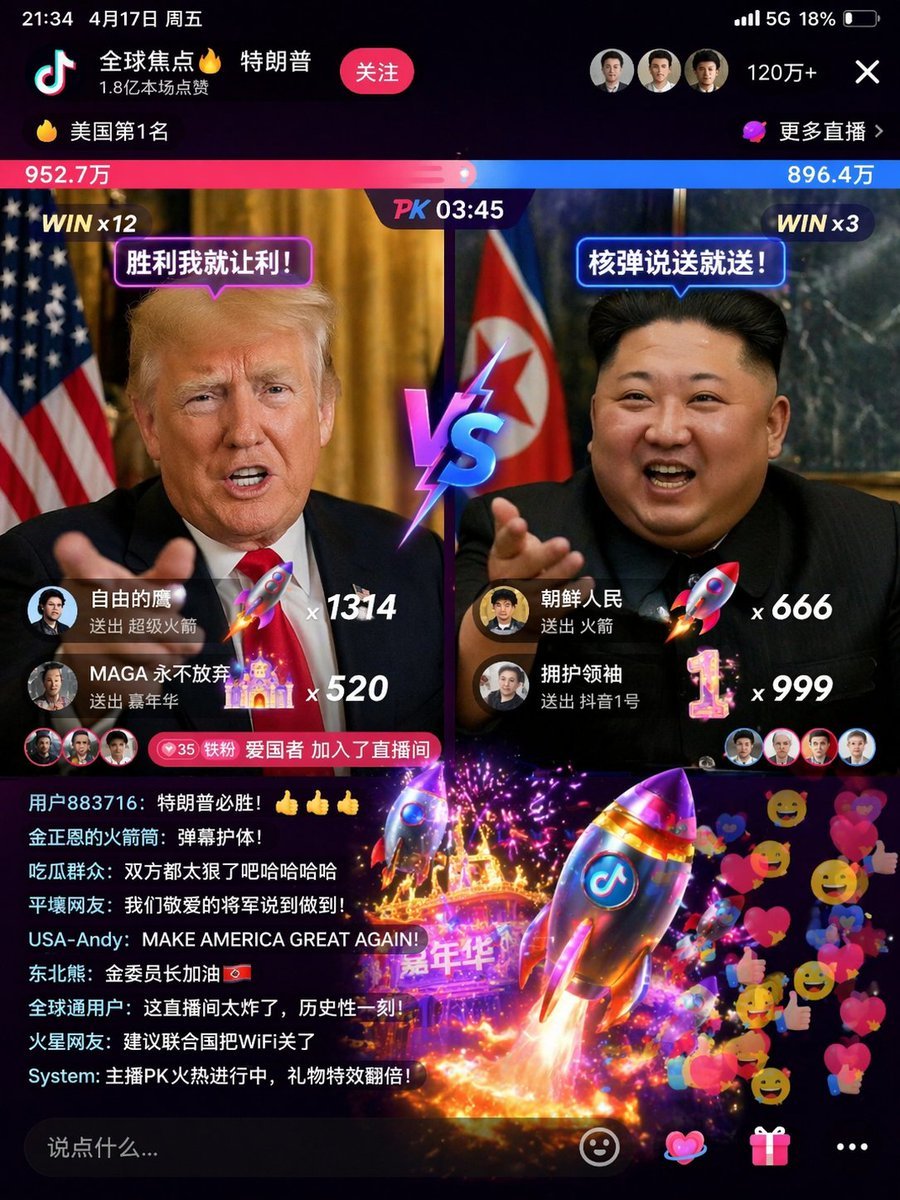
- Prompt included
- Model and format preset
- Premium template
The prompt behind this image
Copy the exact prompt behind Realistic Chalkboard Text Rendering, or open it in the studio and make it yours.
{argument name="text content" default="The full text of the Chu Shi Biao"}, handwritten on a classroom blackboard, with realistic chalk handwriting, shot for real with {argument name="camera device" default="an iPhone"} under {argument name="lighting" default="a clear daytime sky"}.
How to use Realistic Chalkboard Text Rendering in 3 steps
- 1
Open
The prompt is already in the box next to the preview, with the template's model and format selected.
- 2…a portrait of your subject in softgolden-hour light, 85mm…
Personalize
Edit the subject and creative details for your destination.
- 3Generate
Generate
Press Generate — your image is created in PicX Studio, so you can compare it with the original and refine one variable at a time.
More like this
Templates with the same subject, style or setup. Open one to see its prompt.

Luxury 3D CG Text Rendering

Text Rendering Capability Test
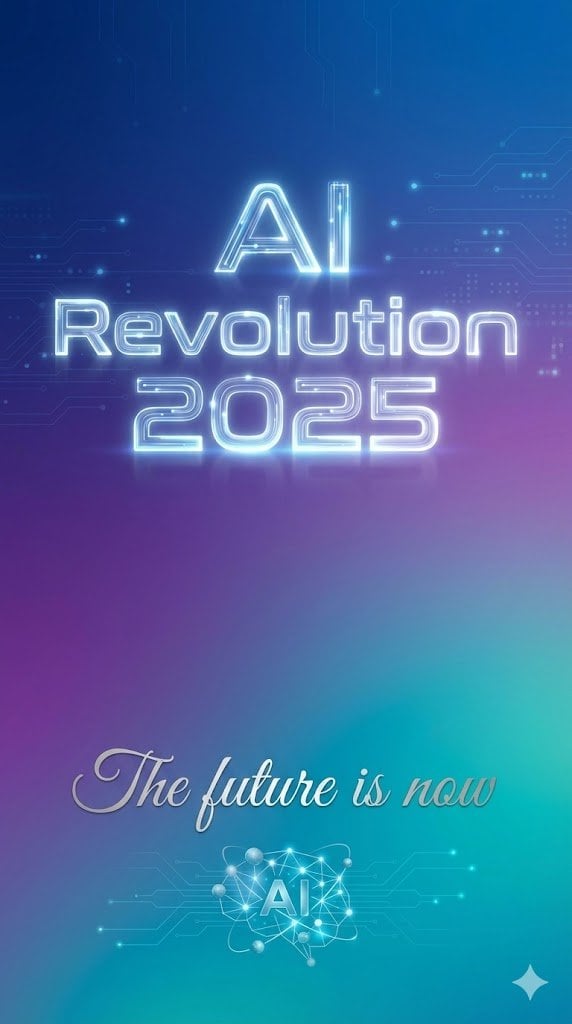
Text Rendering Control Template and Example Prompt
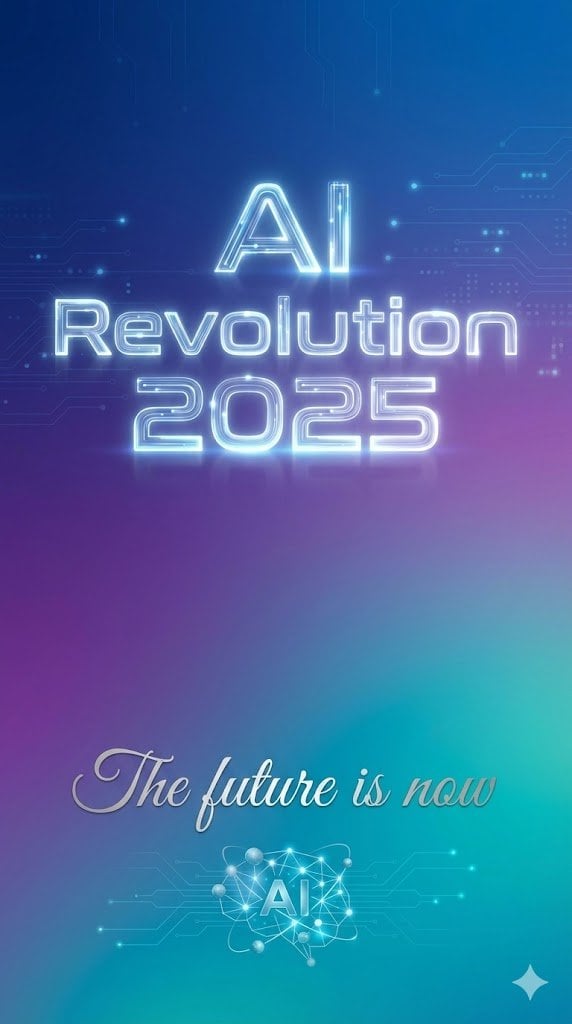
JSON Prompt Template for Text Rendering in AI Images
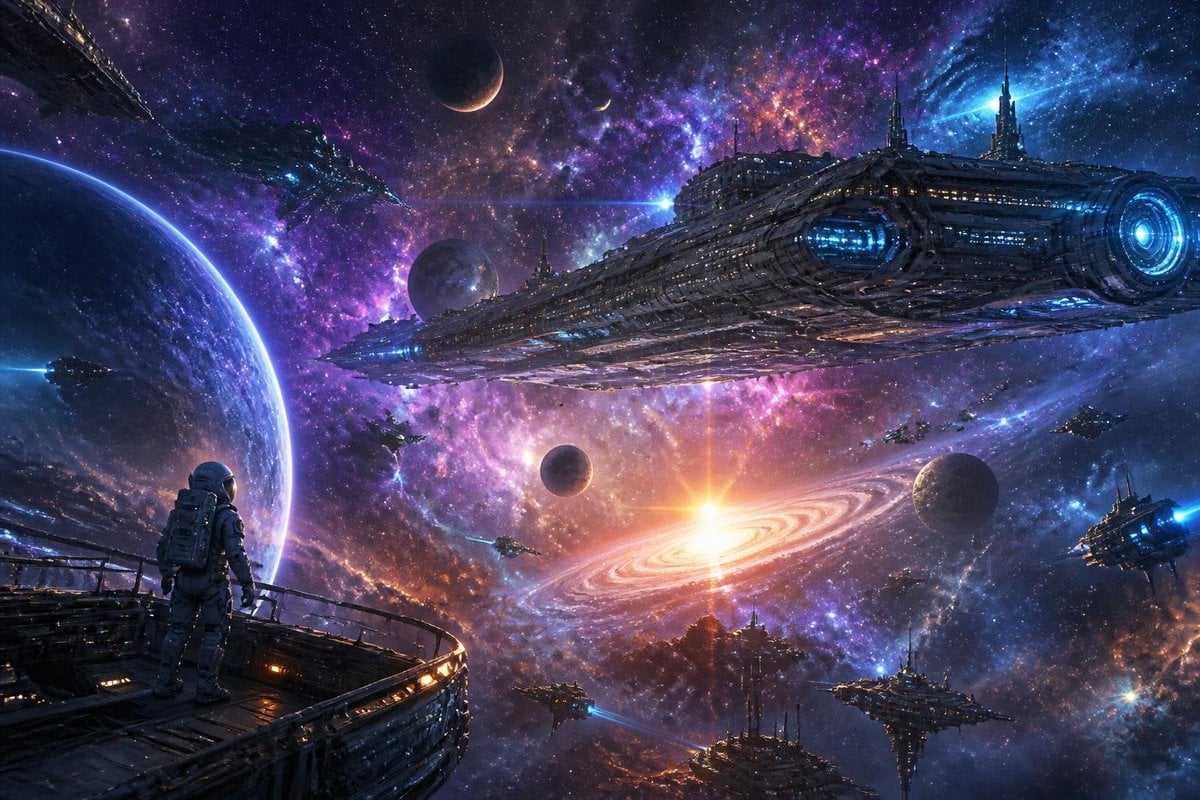
Galactic Space Exploration Rendering
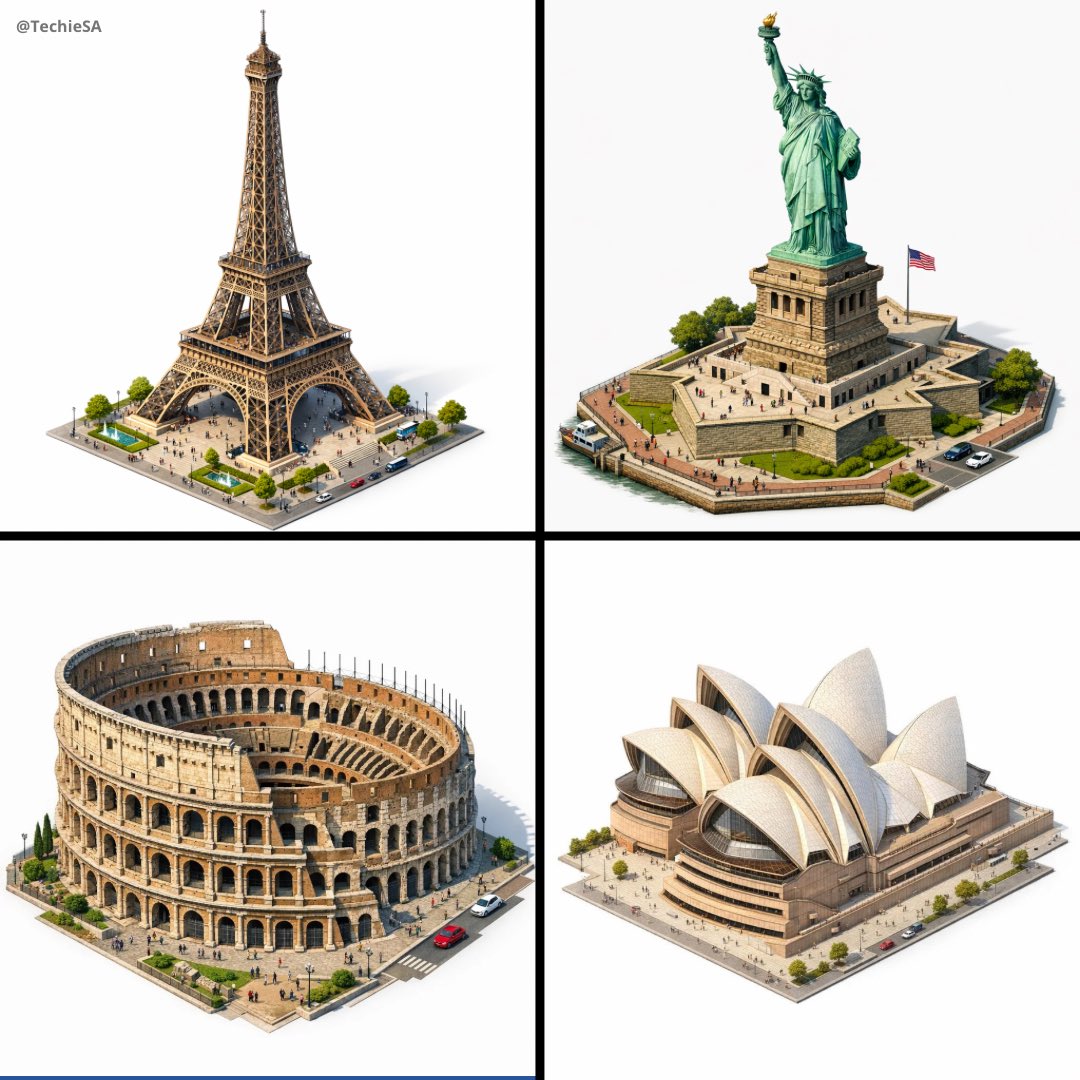
Highly detailed isometric 3D rendering of in architectural visualization
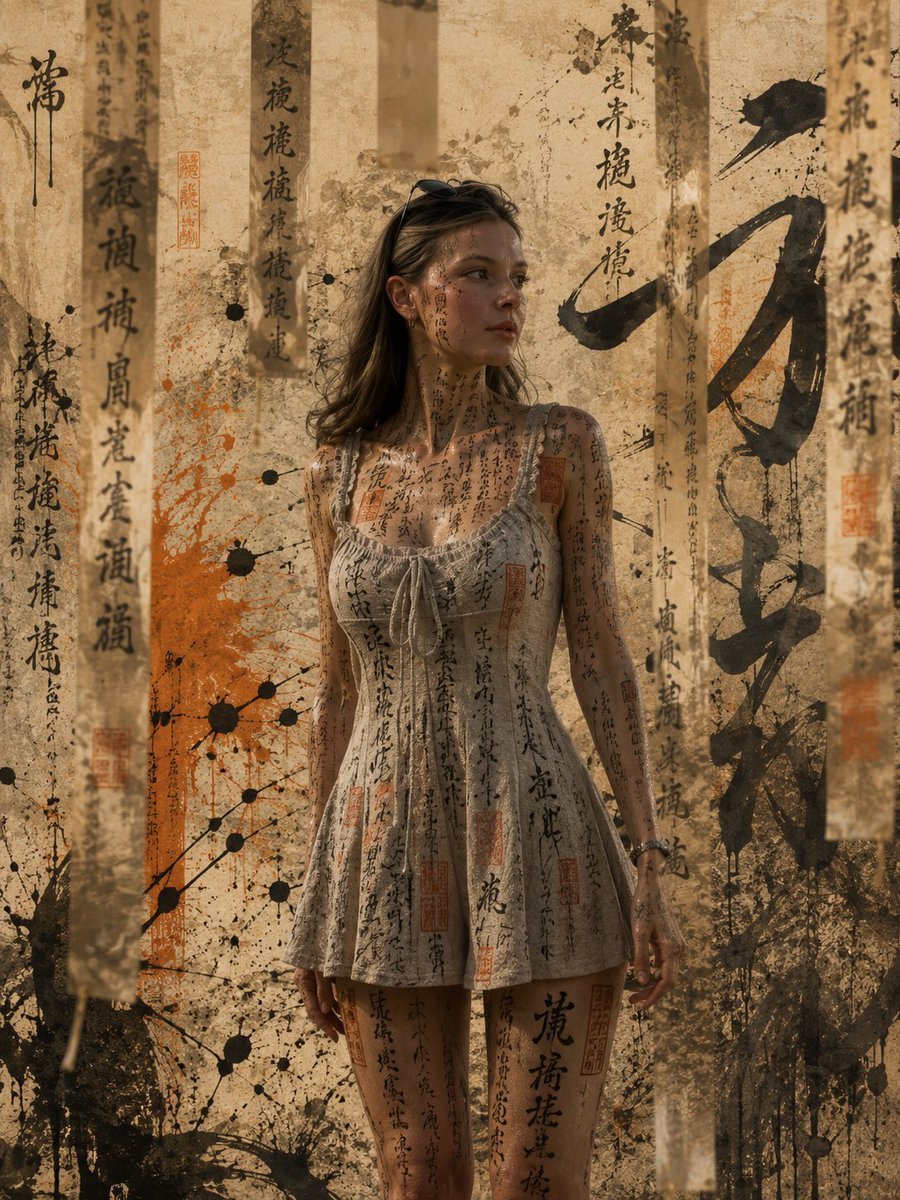
Calligraphic Asian Concept Art Rendering
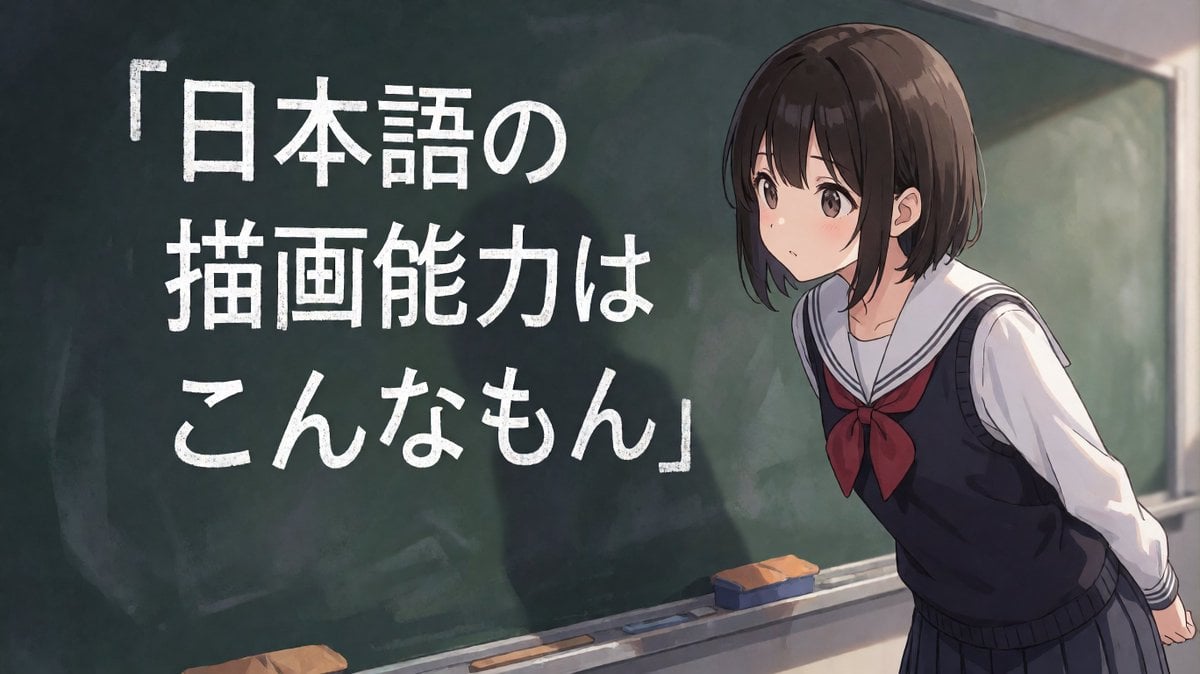
Anime Schoolgirl Chalkboard Quote
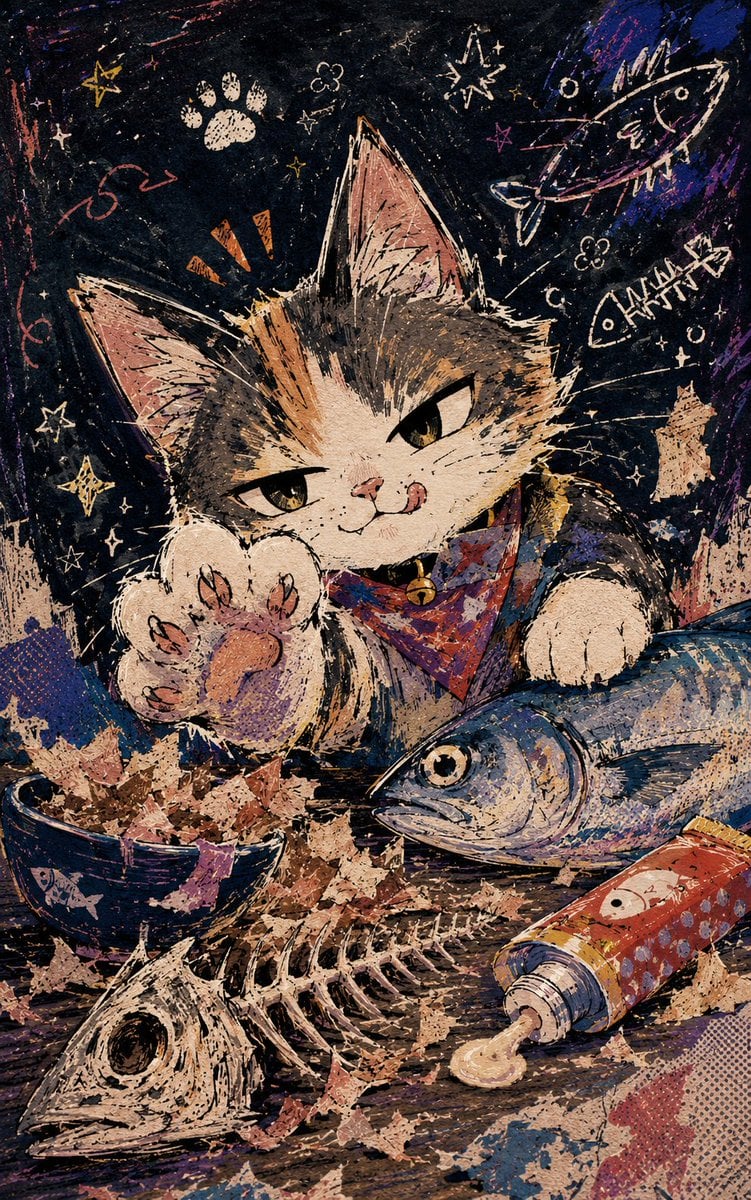
Chalkboard Cat Fish Feast
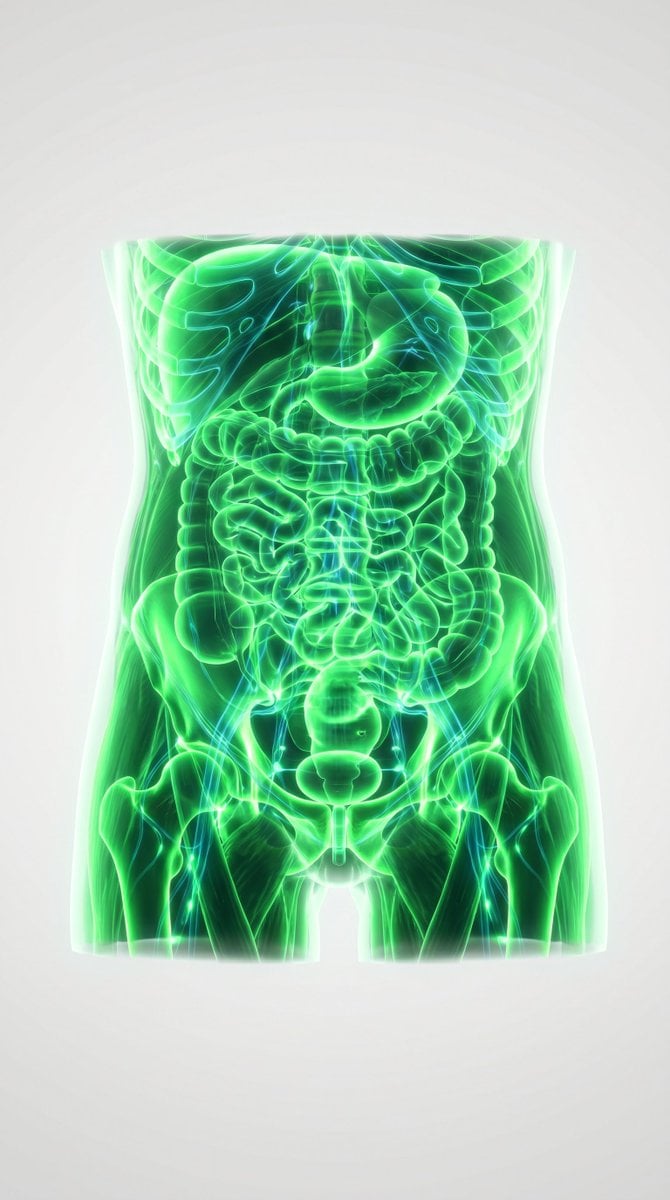
3D Medical Glow Scan Rendering
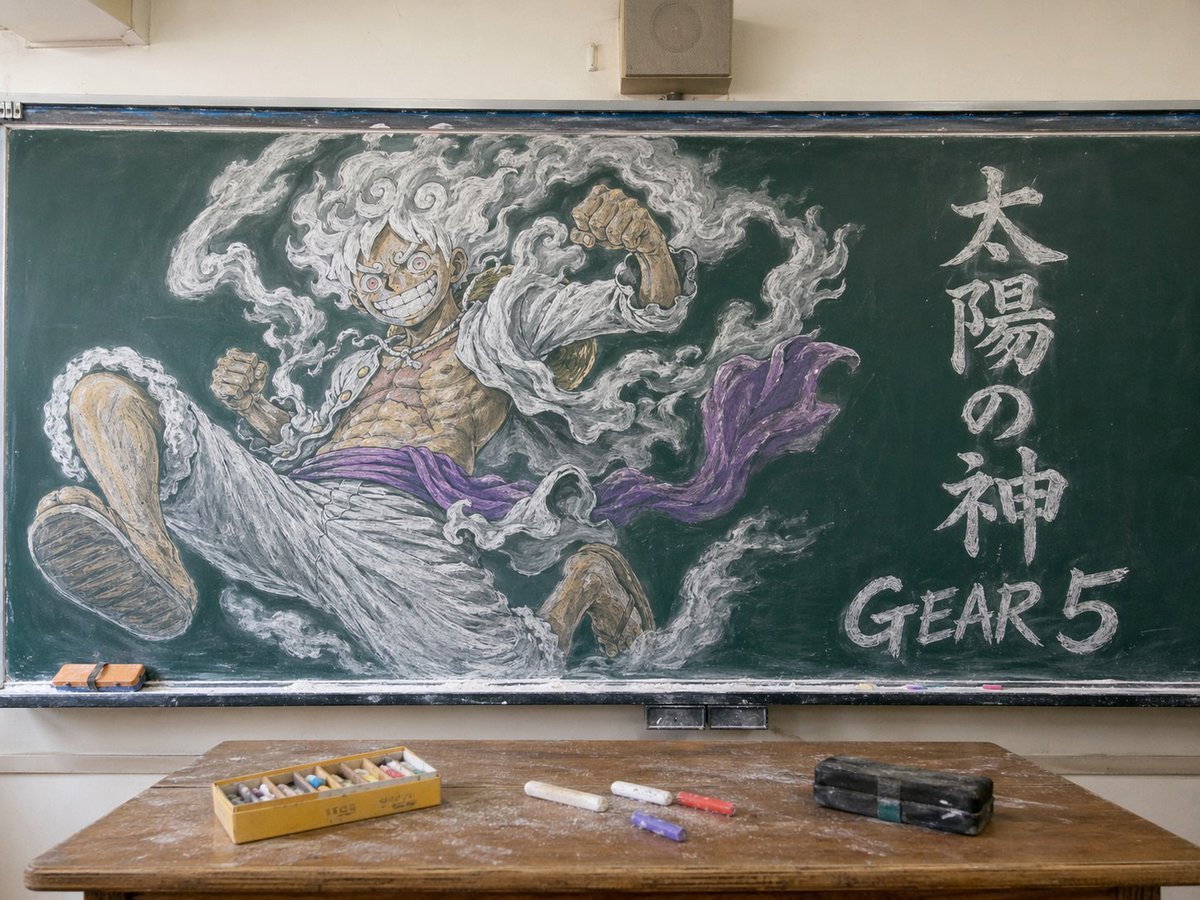
Gear 5 Chalkboard Classroom Mural
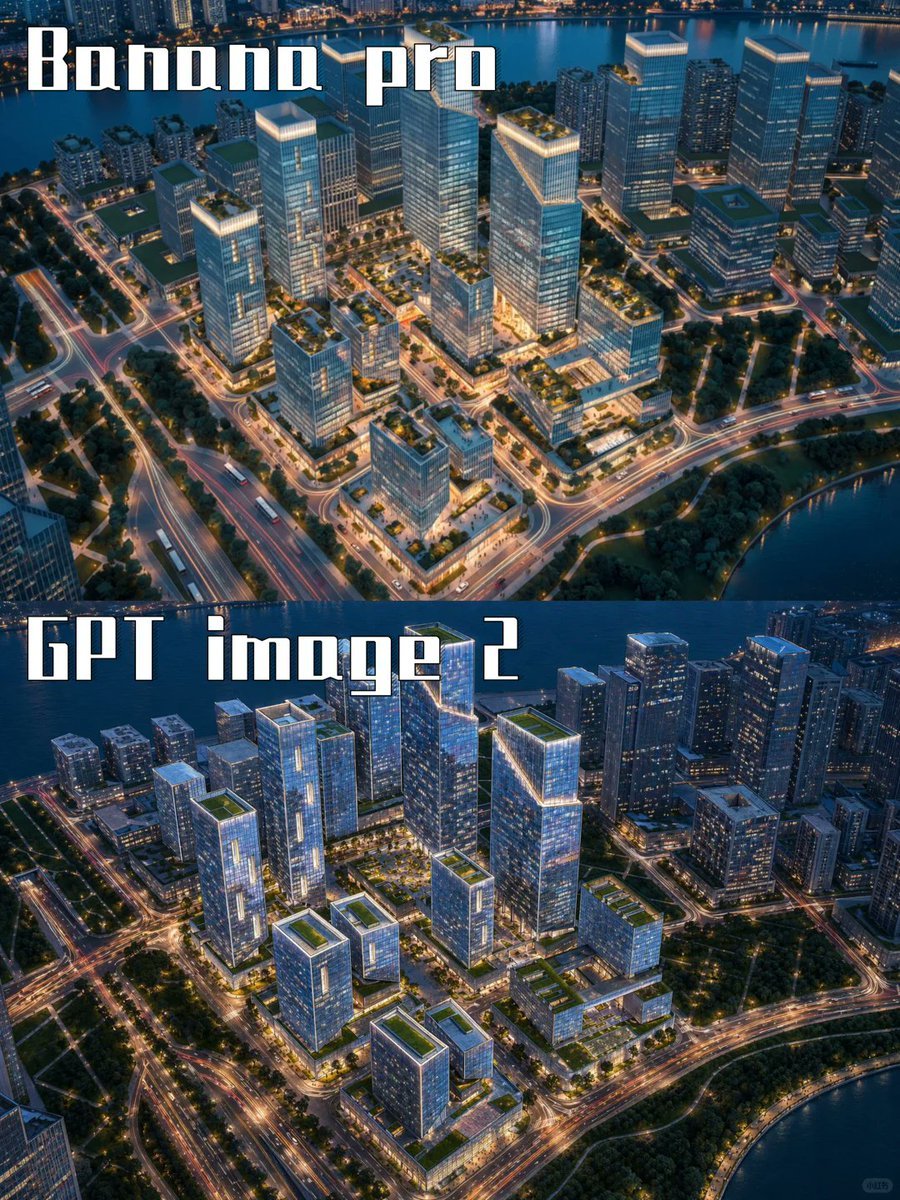
AI City Rendering Comparison Poster
Make it yours
Realistic Chalkboard Text Rendering works as-is. These are the safest ways to change it without losing the look.
Change one field
Copy a single group, rewrite it, and generate again so you can see what that field is doing.
Keep the frame, change the subject
Hold the composition and light of Realistic Chalkboard Text Rendering, then swap wardrobe, props or the person for a new take.
| If the result… | Why | Fix |
|---|---|---|
| The result drifts from the preview | Too many fields changed at once. | Reuse Realistic Chalkboard Text Rendering as-is first, then change one group — subject, light, or setting. |
| The model over-stylizes the scene | The prose prompt leaves finish and camera underspecified. | Add one camera or lighting sentence and stay on GPT Image 2. |
More GPT Image 2 templates
Other prompts made for GPT Image 2.

Six VTuber Japanese Logo Sheet

Realistic Portrait of Woman and Deer

The Vista Modular Condo Poster

AI Model Routing Comparison Infographic

2.5D Anime Art Board

Isometric Productivity Desk Scene

New York Double Exposure Poster

Four-Panel AI Landscape Comparison

Japanese Tatami Lifestyle Magazine Cover

NESCAFÉ Coffee Map Poster
More image prompts
Fresh picks from across the catalog.
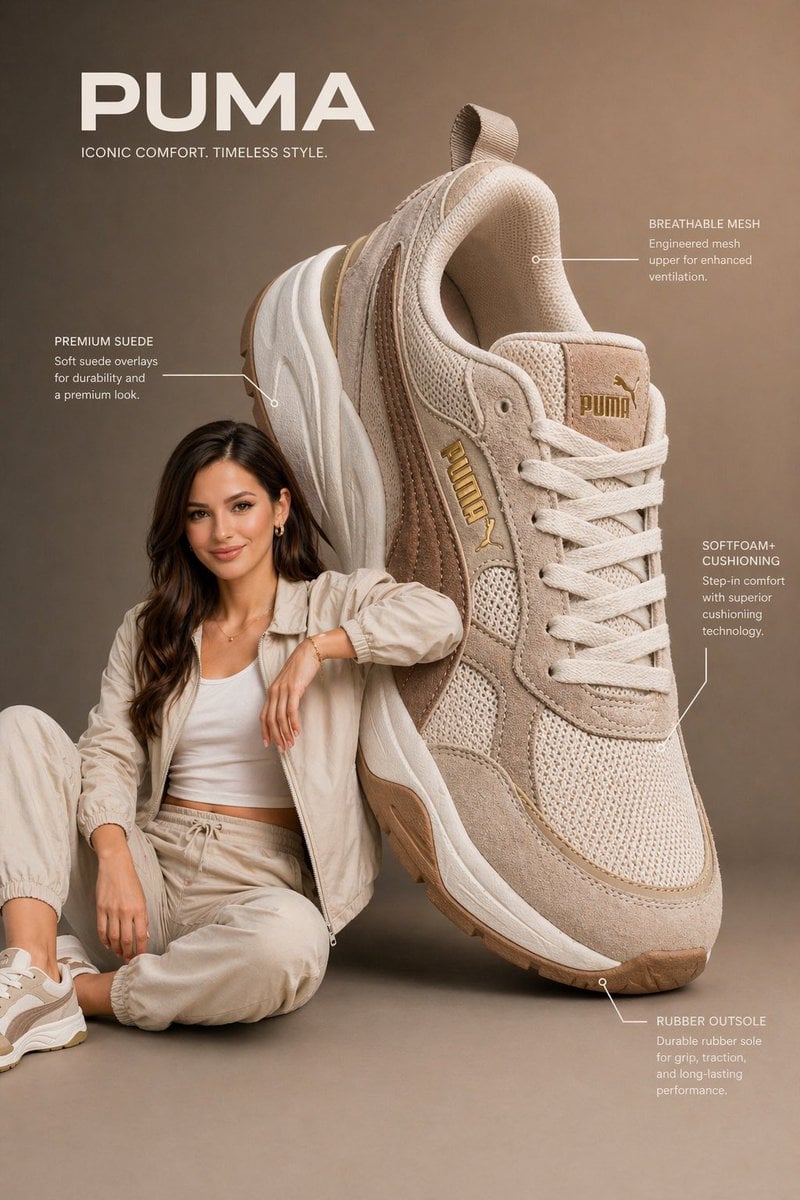
Commercial Product Infographic
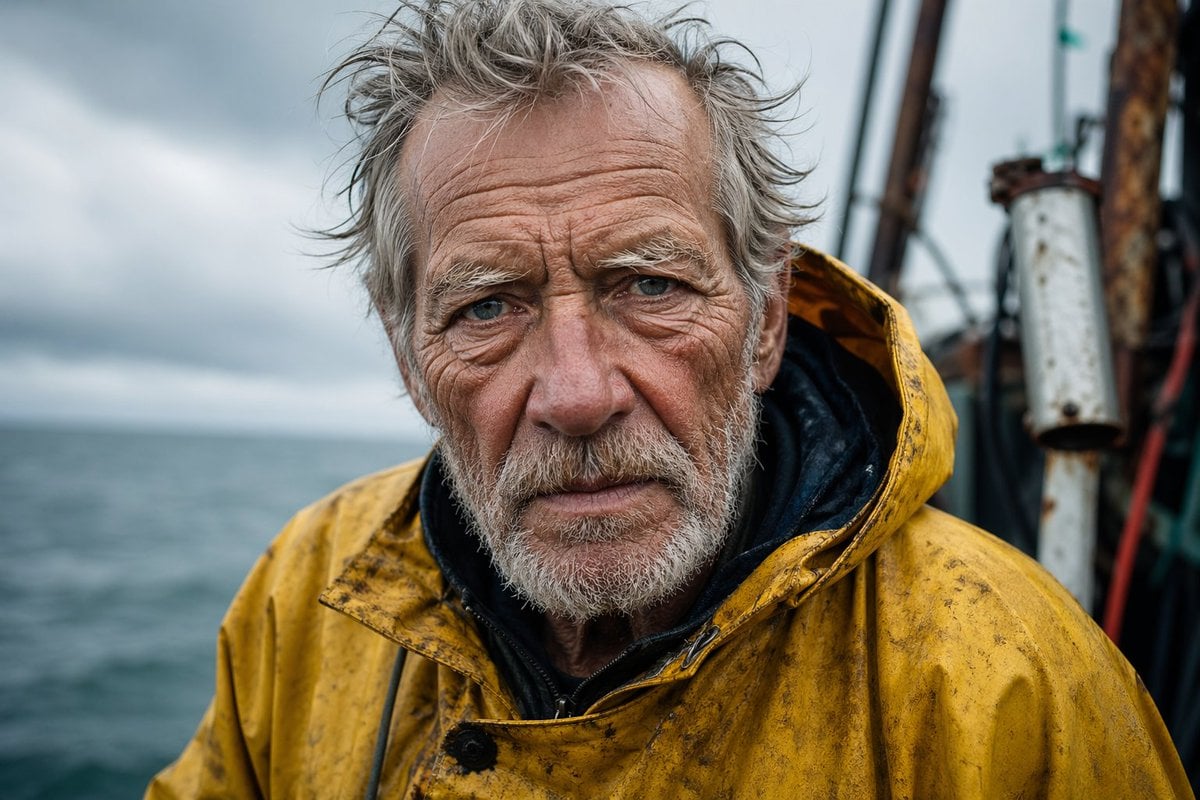
Detailed Elderly Fisherman Portrait
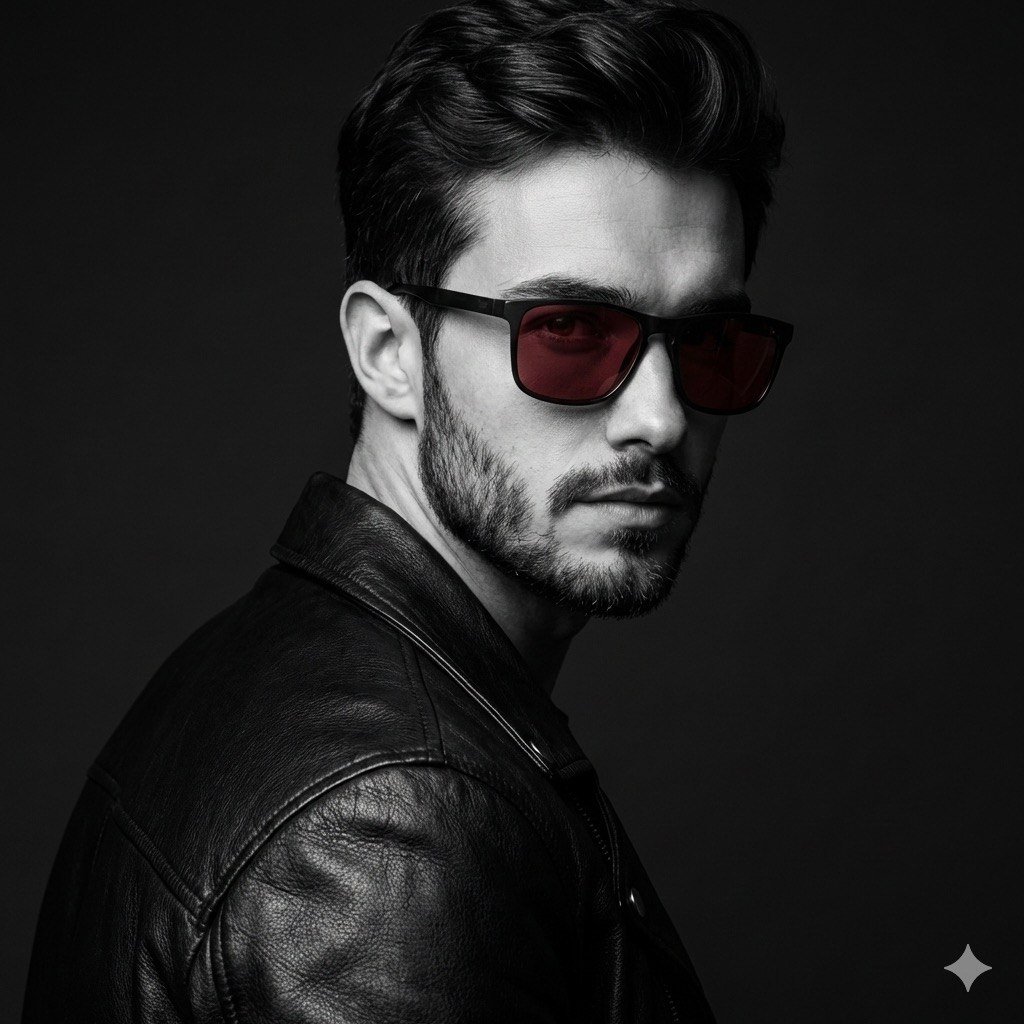
Black and White Fashion Portrait with Exact Facial Structure
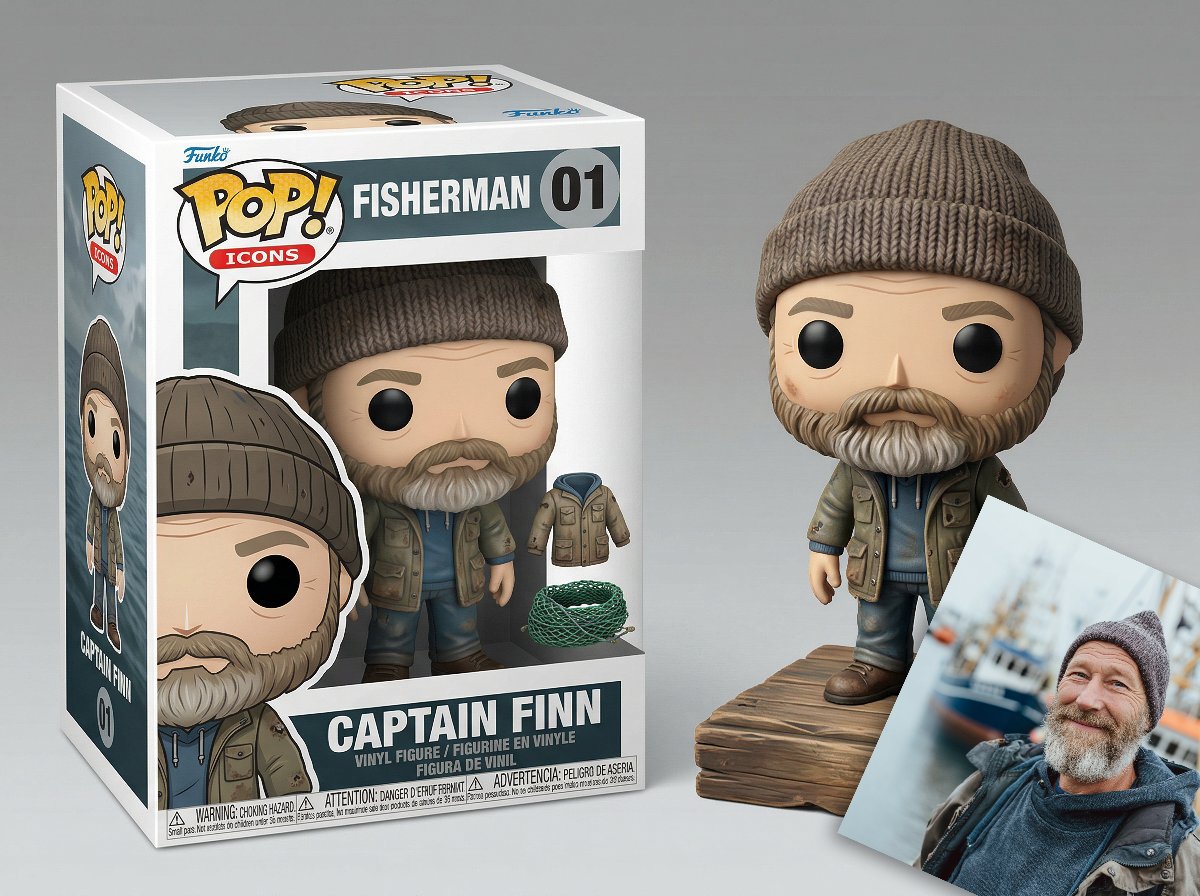
Isometric Luxury Product Showcase of a Vinyl Collectible Figure
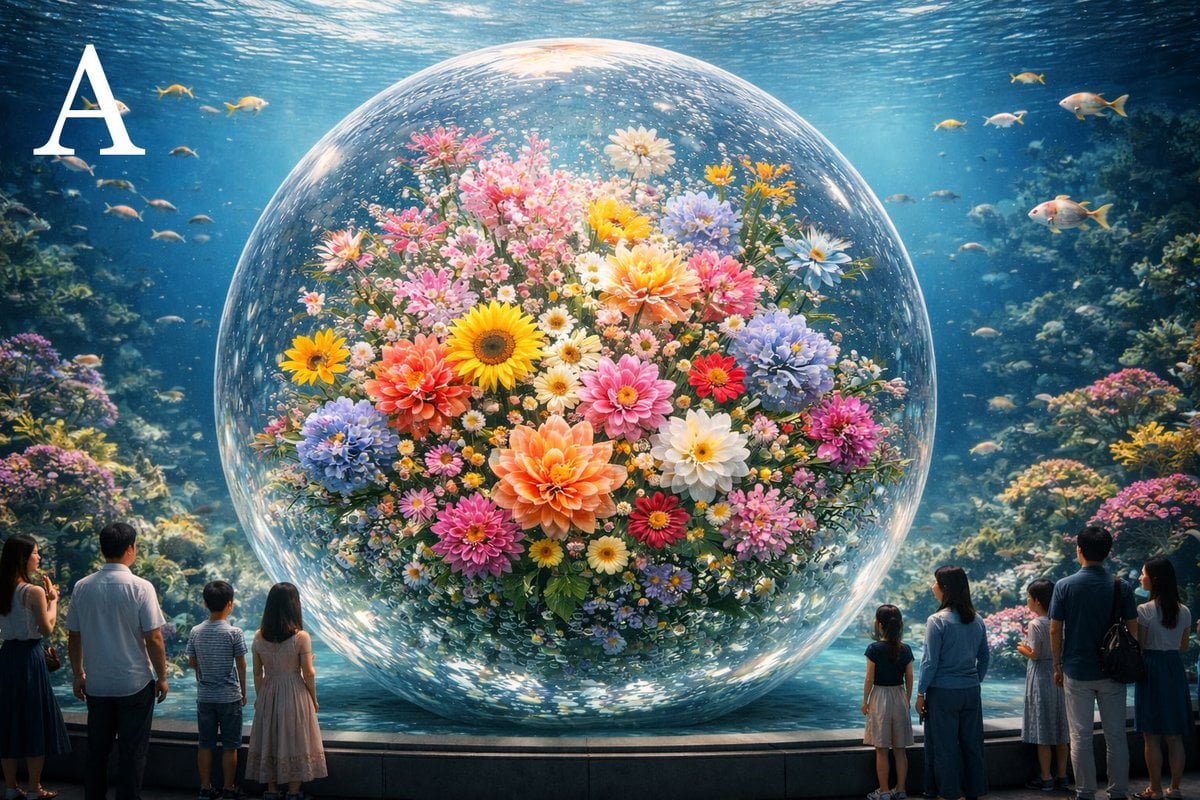
Advanced post-production prompt template for image generation (Nano Banana compatible)
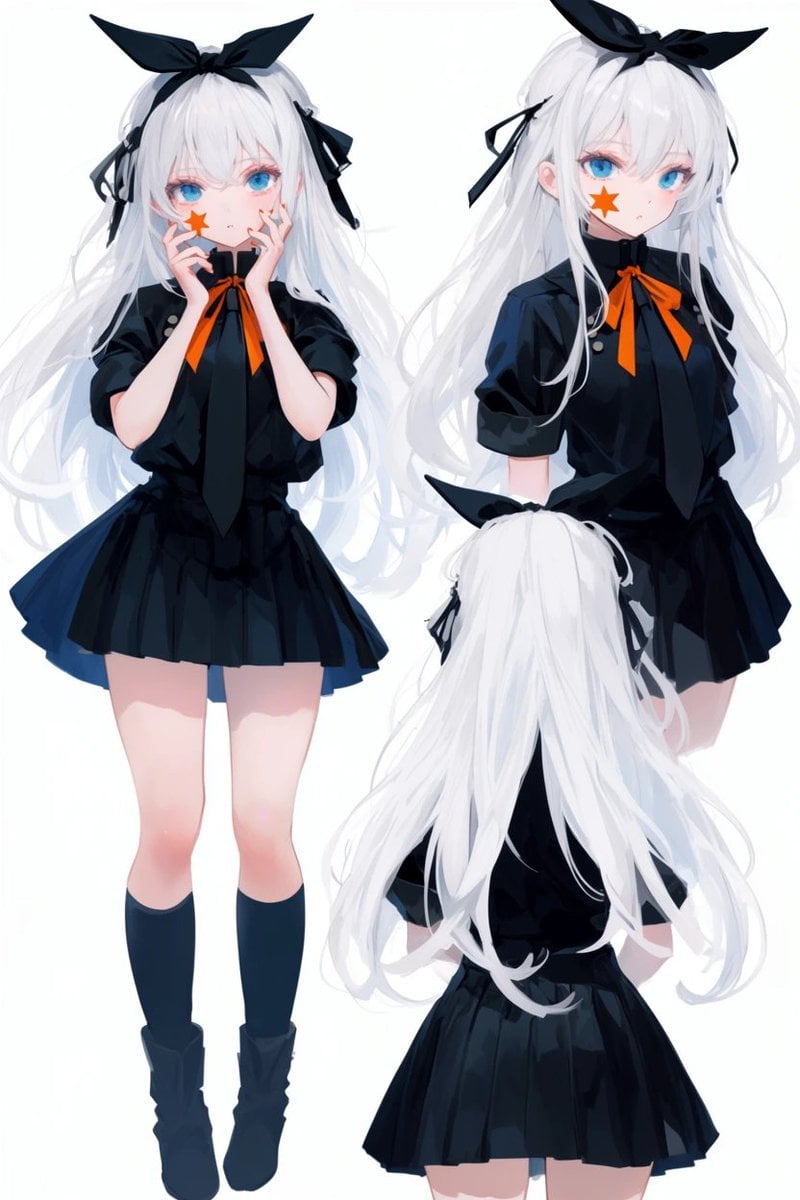
Anime Character Turnaround Sheet
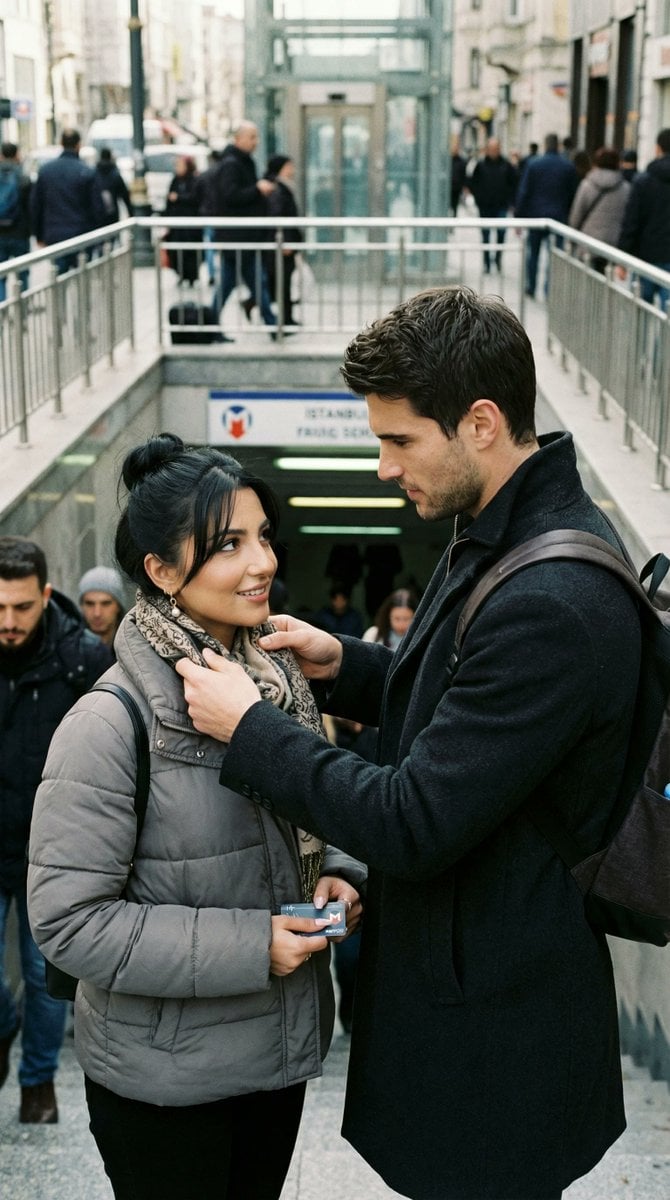
Candid Street Romance Prompt (Istanbul Metro)
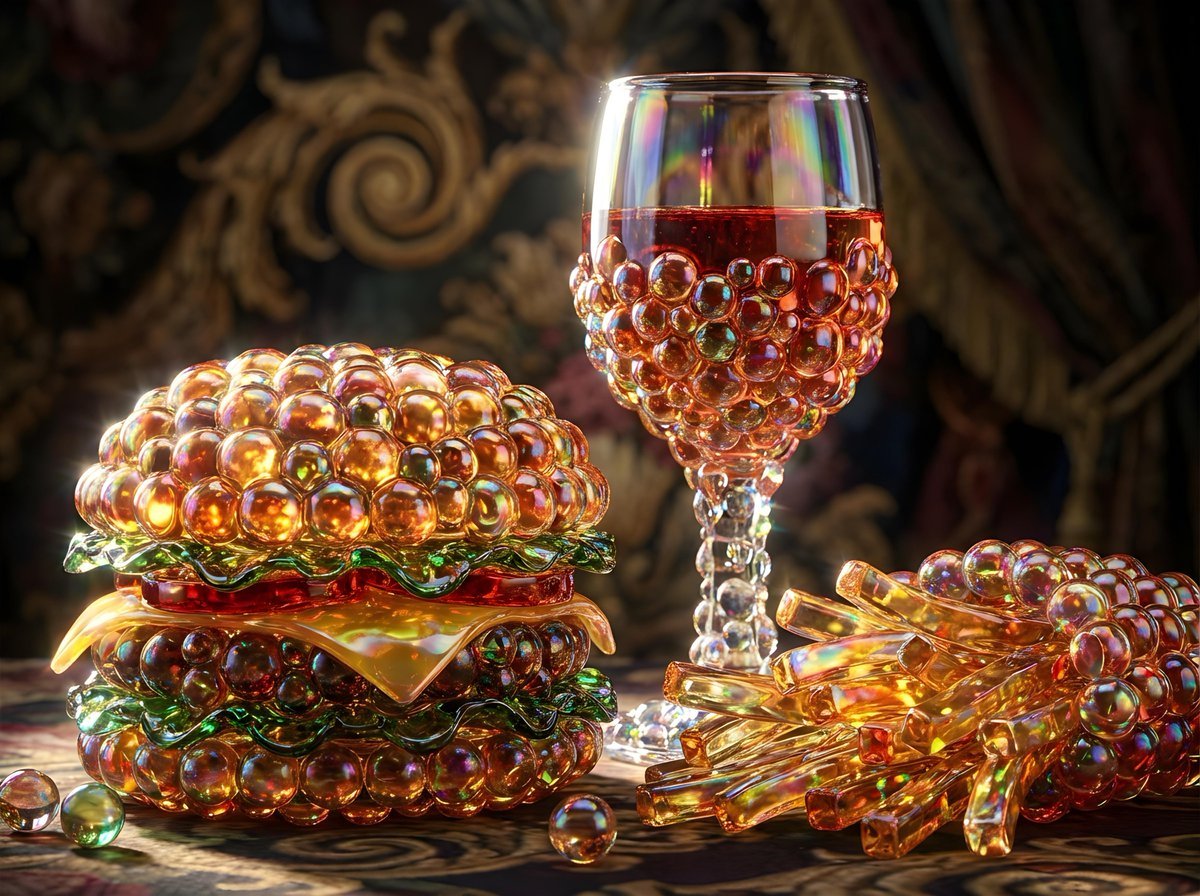
Bubbly Cheeseburger Still Life Prompt
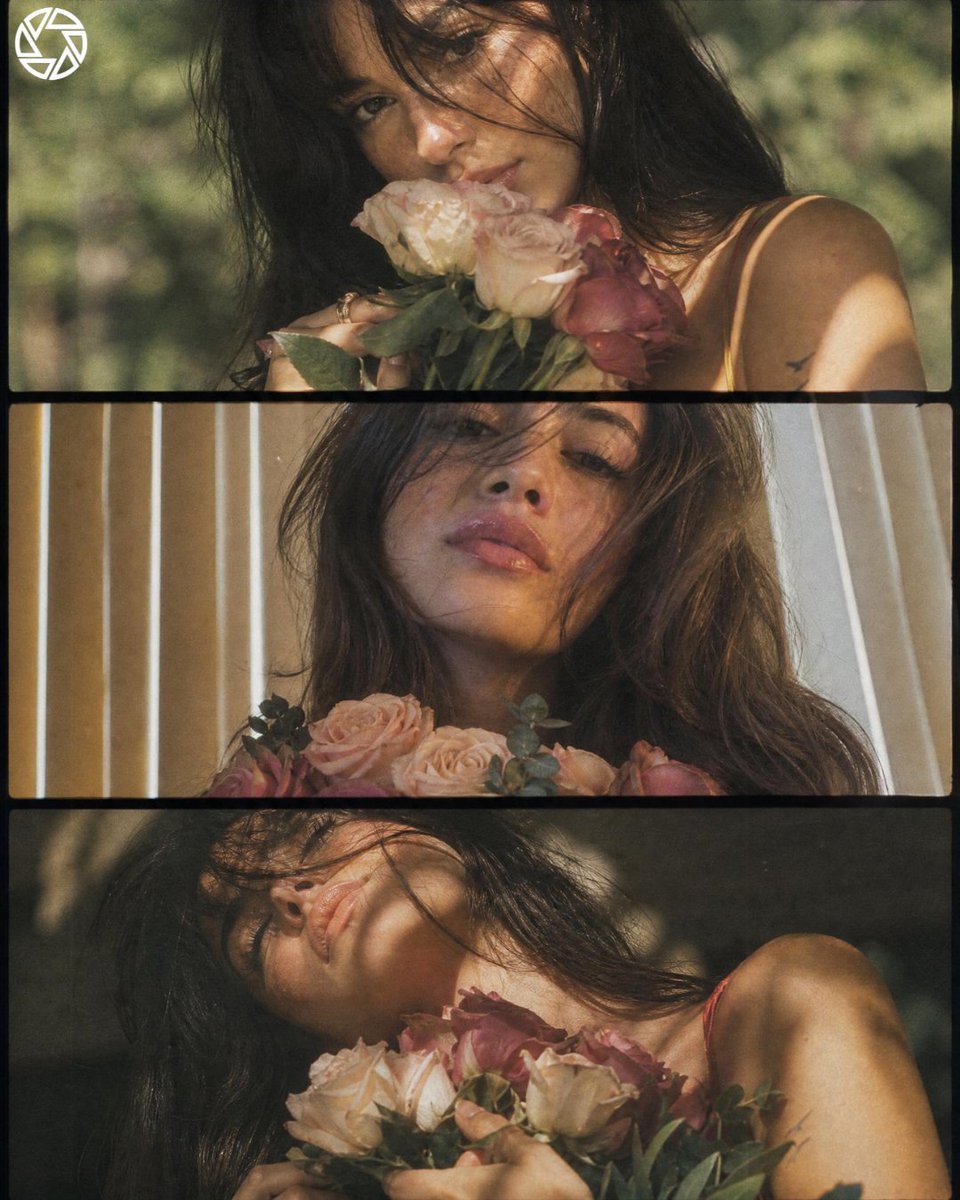
Cinematic Romantic Floral Portrait
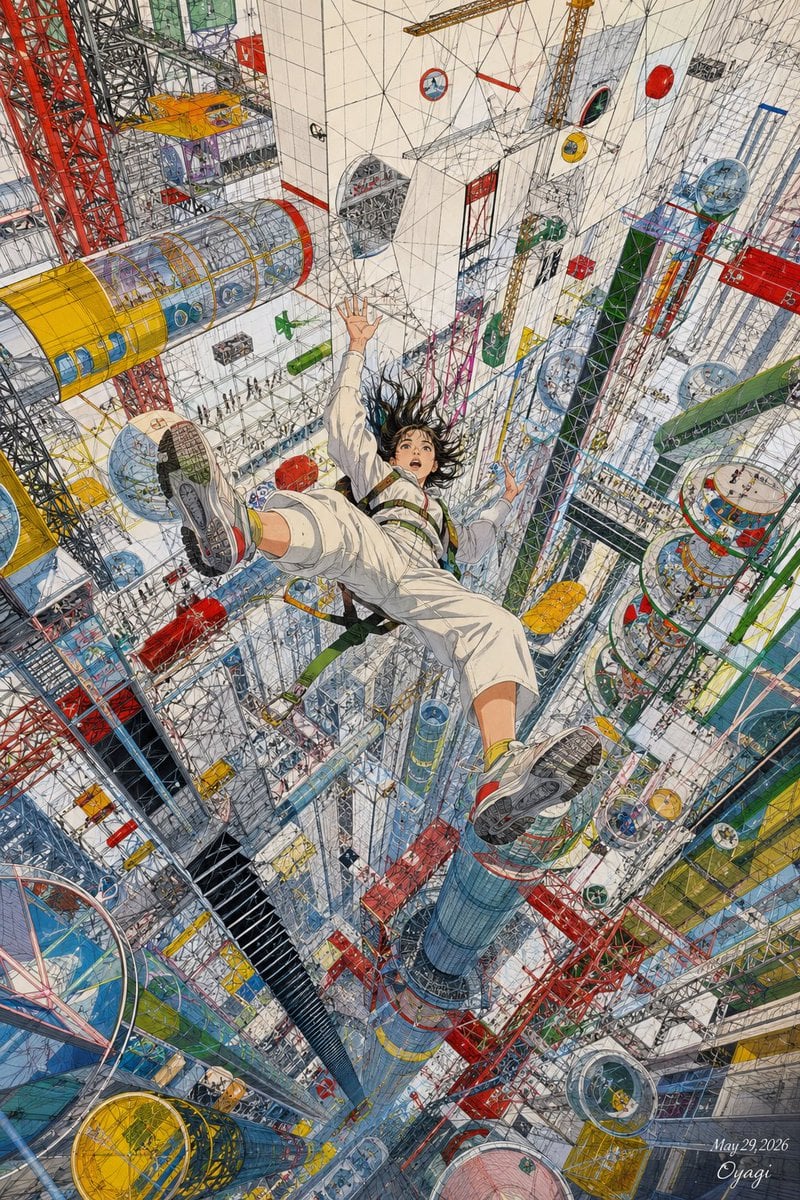
Endless Megastructure Fall
Browse template categories
Realistic Chalkboard Text Rendering questions
How do I use the Realistic Chalkboard Text Rendering template?
Add your photo if the template asks for one, edit the prompt if you like — the template's model and format are already selected — and press Generate. Your version opens in PicX Studio.
Can I customize the Realistic Chalkboard Text Rendering template?
Yes. You can change the subject, setting, lighting, mood, format, and available model controls before creating your image.
Is the Realistic Chalkboard Text Rendering template free?
Opening and editing this template is free. Generating uses credits, shown on the Generate button when you are signed in.
Which AI model should I use?
Start with GPT Image 2, which is the model associated with this template. You can compare another compatible model for a different finish.
Looking for something else? Browse all templates.

Your photo, any look
Thousands of ready templates for every top image and video model, from one credit balance.