
Tropical Resort Travel Ad Banner
Generates a vibrant travel advertisement banner featuring a tropical resort background, foreground lounge elements, and customizable promotional text overlays.
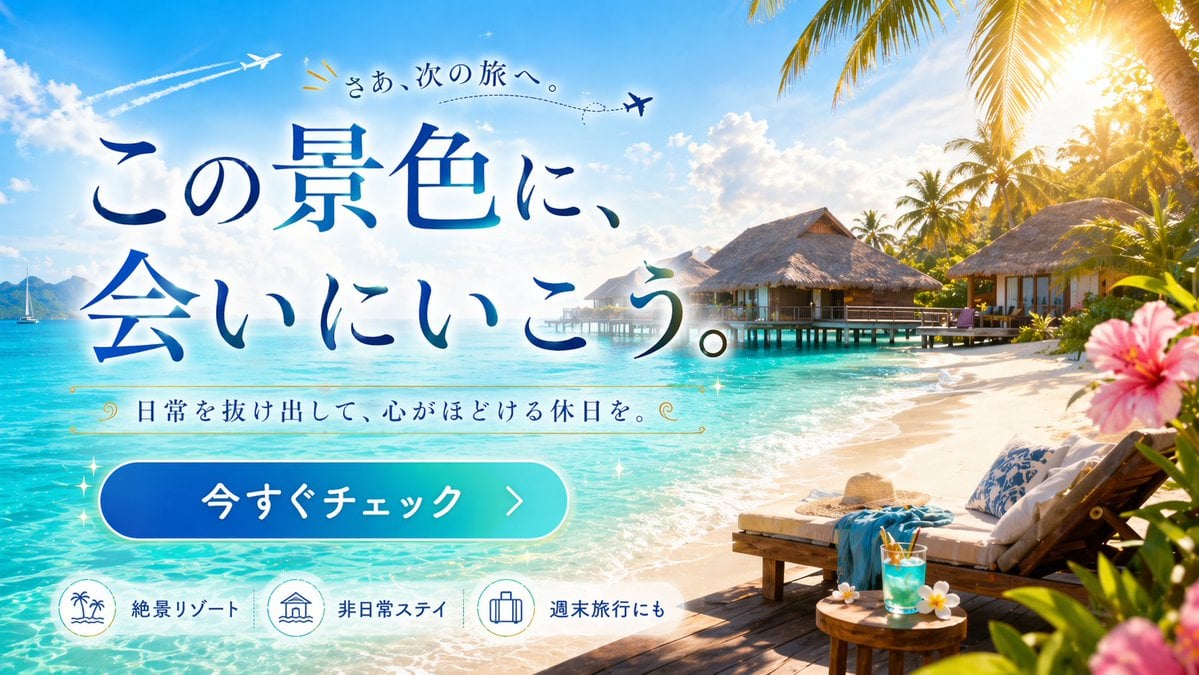
- Prompt included
- Model and format preset
- Free template
The prompt behind this image
Copy the exact prompt behind Tropical Resort Travel Ad Banner, or open it in the studio and make it yours.
- Type
- travel advertisement web banner
- Scene › Setting
- {argument name="destination type" default="tropical overwater bungalow resort"}
- Scene › Background
- turquoise water, blue sky, fluffy clouds, palm trees, distant sailboat, 2 airplanes with dashed flight paths
- Scene › Foreground Right
- wooden deck, 2 lounge chairs, white cushions, blue towel, straw hat, round table, blue tropical drink, frangipani, pink hibiscus framing edge
- Layout › Text Overlay › Position
- center-left
- Layout › Text Overlay › Elements › 0 › Type
- top_text
- Layout › Text Overlay › Elements › 0 › Text
- {argument name="top text" default="さあ、次の旅へ。"}
- Layout › Text Overlay › Elements › 0 › Decoration
- airplane icon, dashed line
- Layout › Text Overlay › Elements › 1 › Type
- main_headline
- Layout › Text Overlay › Elements › 1 › Text
- {argument name="main headline" default="この景色に、会いにいこう。"}
- Layout › Text Overlay › Elements › 1 › Style
- large blue gradient serif font
- Layout › Text Overlay › Elements › 2 › Type
- subheadline
- Layout › Text Overlay › Elements › 2 › Text
- {argument name="subheadline" default="日常を抜け出して、心がほどける休日を。"}
- Layout › Text Overlay › Elements › 2 › Decoration
- gold decorative swirls
- Layout › Text Overlay › Elements › 3 › Type
- cta_button
- Layout › Text Overlay › Elements › 3 › Text
- {argument name="button text" default="今すぐチェック"}
- Layout › Text Overlay › Elements › 3 › Style
- blue-cyan gradient pill shape, right arrow
- Layout › Bottom Features › Position
- bottom-left
- Layout › Bottom Features › Count
- 3
- Layout › Bottom Features › Items › 0 › Icon
- palm trees and waves
- Layout › Bottom Features › Items › 0 › Label
- 絶景リゾート
- Layout › Bottom Features › Items › 1 › Icon
- overwater bungalow
- Layout › Bottom Features › Items › 1 › Label
- 非日常ステイ
- Layout › Bottom Features › Items › 2 › Icon
- suitcase
Raw JSON
{
  "type": "travel advertisement web banner",
  "scene": {
    "setting": "{argument name=\"destination type\" default=\"tropical overwater bungalow resort\"}",
    "background": "turquoise water, blue sky, fluffy clouds, palm trees, distant sailboat, 2 airplanes with dashed flight paths",
    "foreground_right": "wooden deck, 2 lounge chairs, white cushions, blue towel, straw hat, round table, blue tropical drink, frangipani, pink hibiscus framing edge"
  },
  "layout": {
    "text_overlay": {
      "position": "center-left",
      "elements": [
        { "type": "top_text", "text": "{argument name=\"top text\" default=\"さあ、次の旅へ。\"}", "decoration": "airplane icon, dashed line" },
        { "type": "main_headline", "text": "{argument name=\"main headline\" default=\"この景色に、会いにいこう。\"}", "style": "large blue gradient serif font" },
        { "type": "subheadline", "text": "{argument name=\"subheadline\" default=\"日常を抜け出して、心がほどける休日を。\"}", "decoration": "gold decorative swirls" },
        { "type": "cta_button", "text": "{argument name=\"button text\" default=\"今すぐチェック\"}", "style": "blue-cyan gradient pill shape, right arrow" }
      ]
    },
    "bottom_features": {
      "position": "bottom-left",
      "count": 3,
      "items": [
        { "icon": "palm trees and waves", "label": "絶景リゾート" },
        { "icon": "overwater bungalow", "label": "非日常ステイ" },
        { "icon": "suitcase", "label": "週末旅行にも" }
      ]
    }
  }
}How to use Tropical Resort Travel Ad Banner in 3 steps
- 1Upload ImagePNG, JPG or paste
Add your photo
Upload the photo the template builds on. The prompt, model and format are already set.
- 2…a portrait of your subject in softgolden-hour light, 85mm…
Personalize
Edit the subject and creative details for your destination.
- 3Generate
Generate
Press Generate — your image is created in PicX Studio, so you can compare it with the original and refine one variable at a time.
More like this
Templates with the same subject, style or setup. Open one to see its prompt.
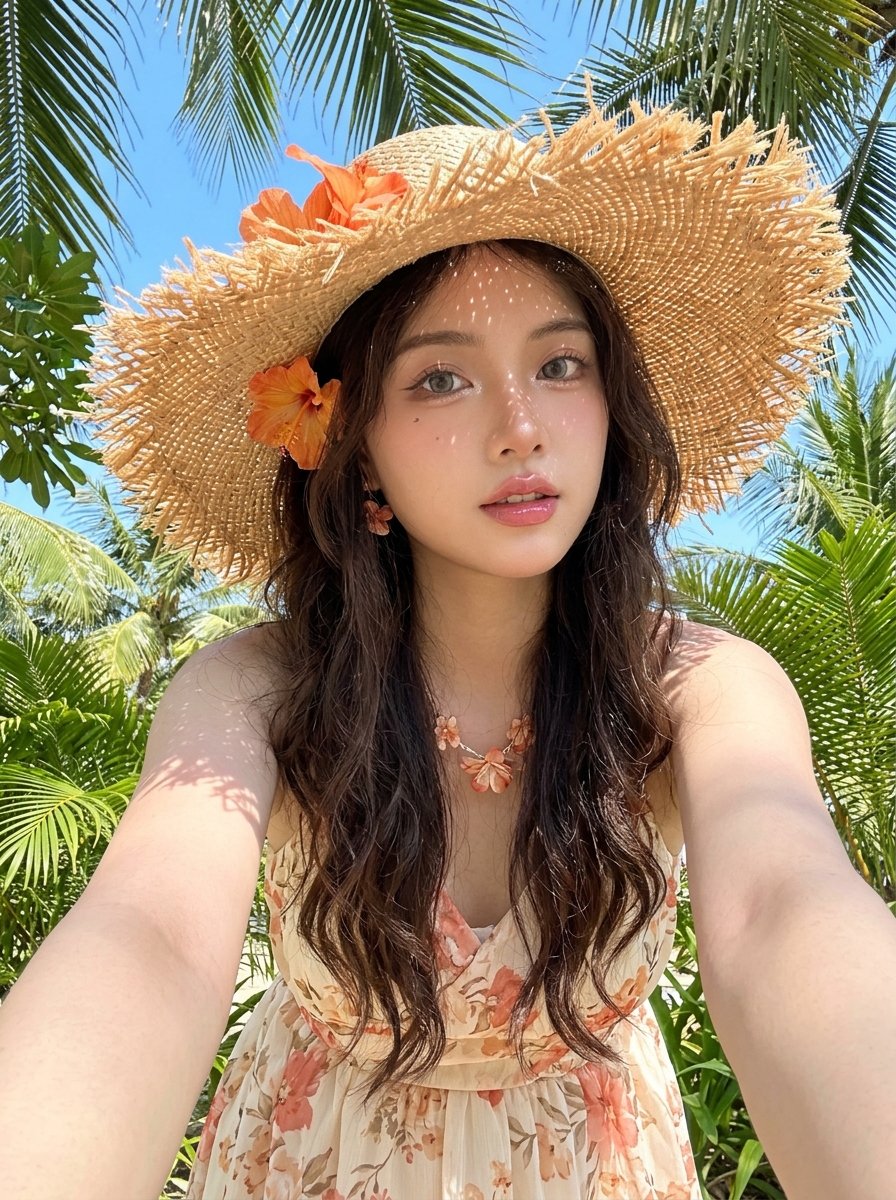
Tropical Vacation Selfie — Nano Banana (Chryzleen)

Japan Travel Brochure Poster
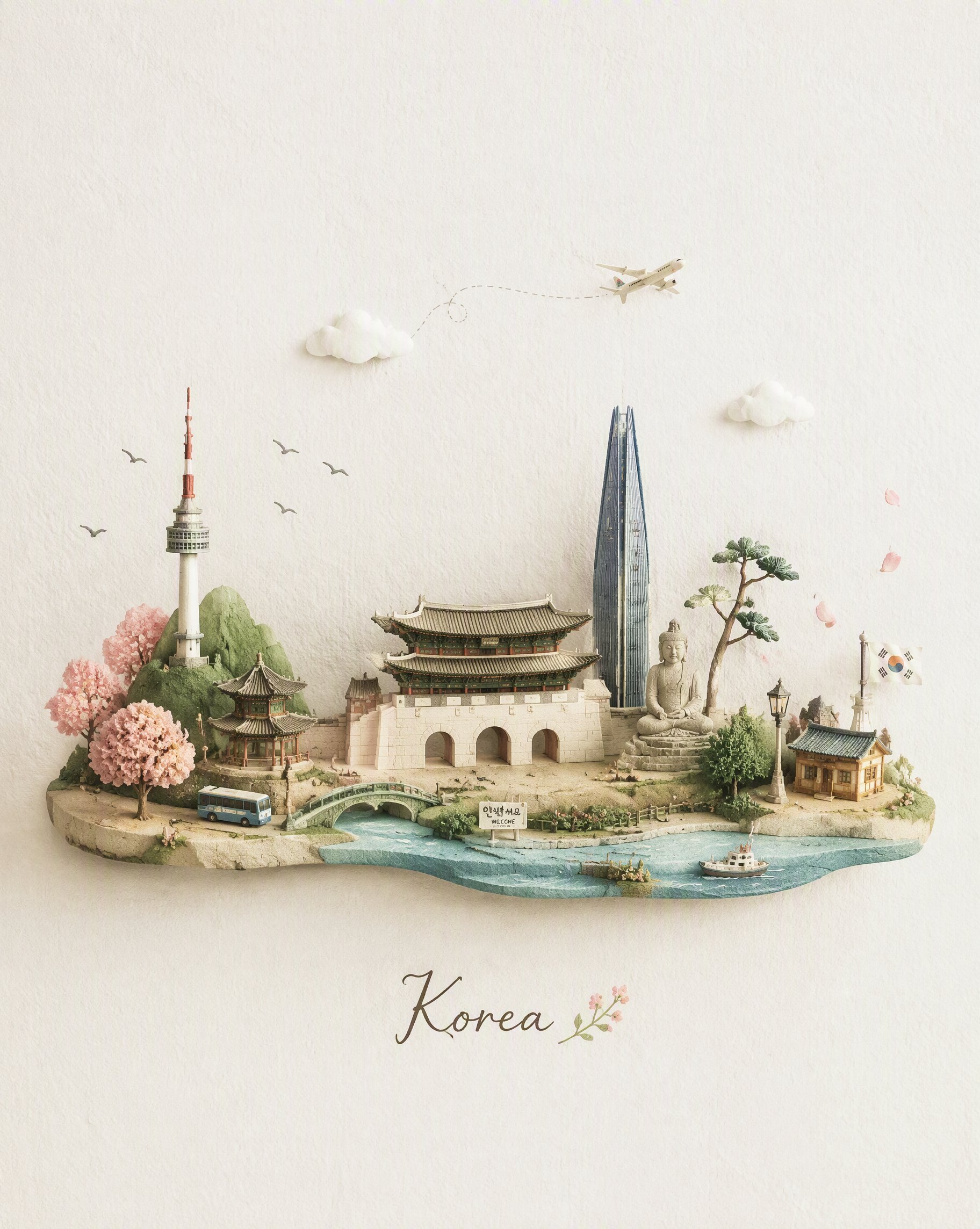
Miniature Travel Diorama Postcard
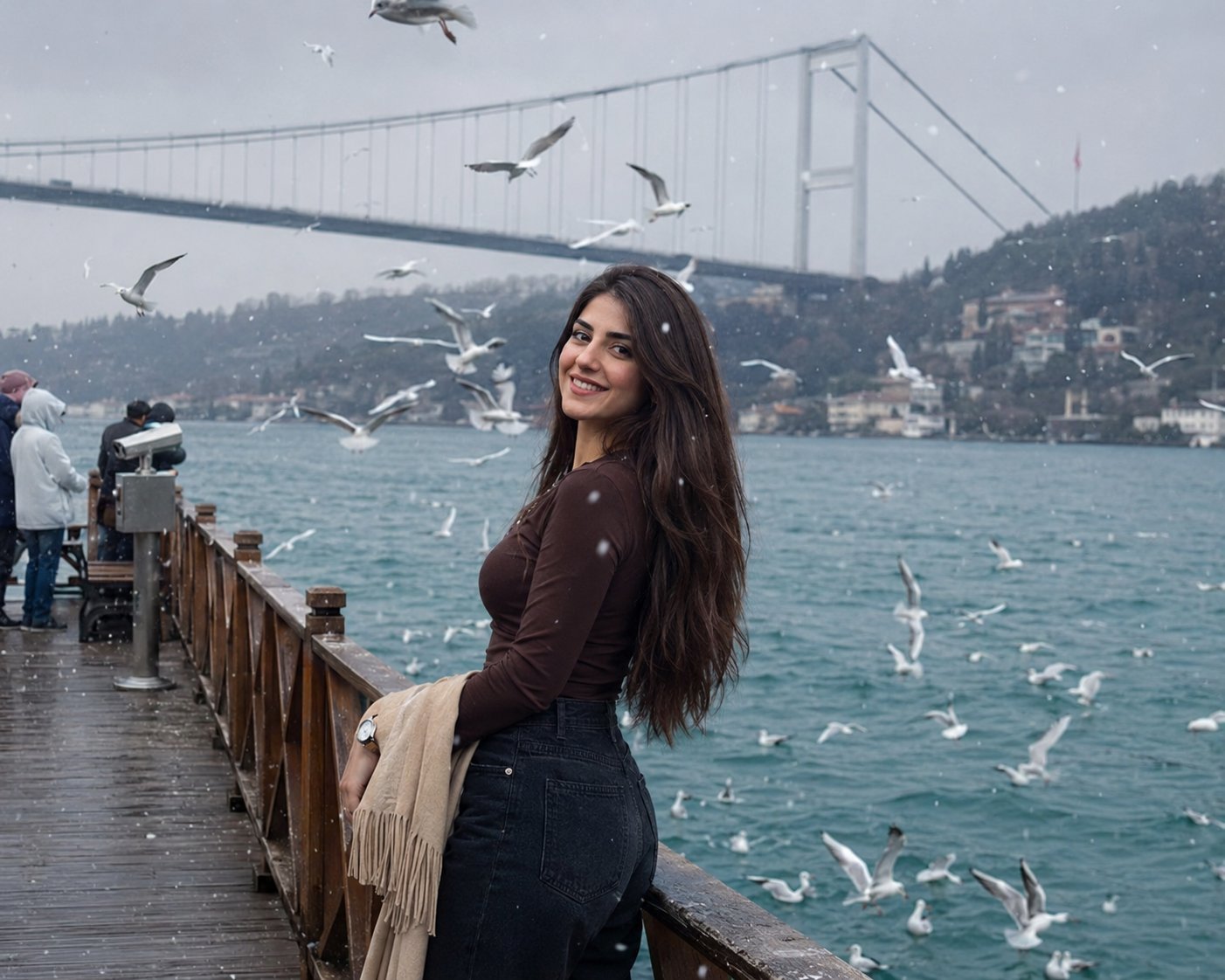
Boardwalk Fashion Portrait
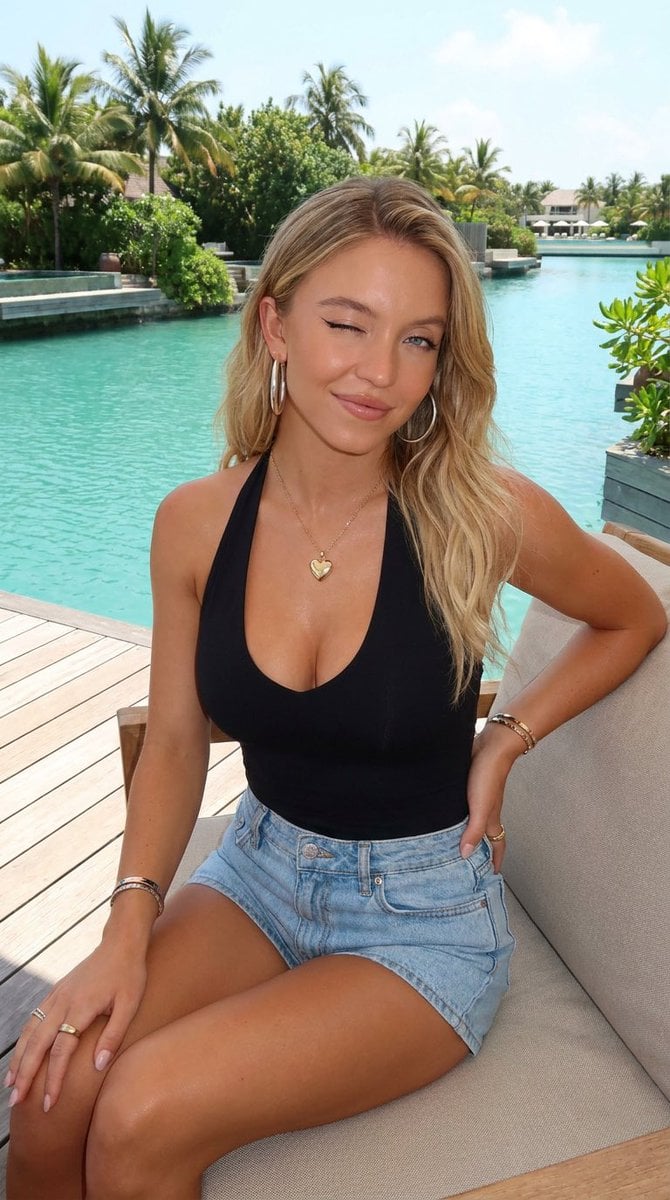
Tropical Resort Lifestyle Portrait
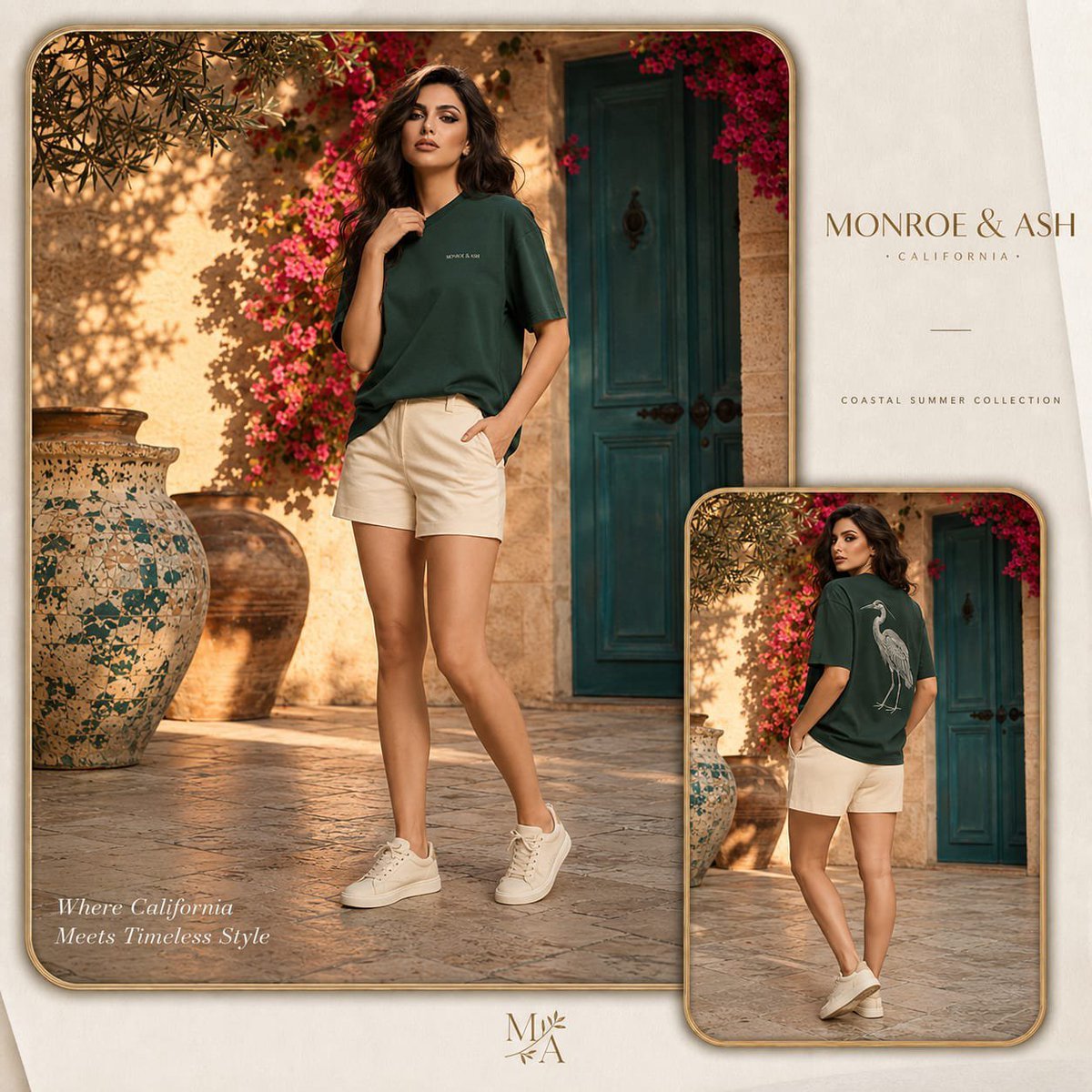
Monroe and Ash Mediterranean Luxury Fashion Campaign
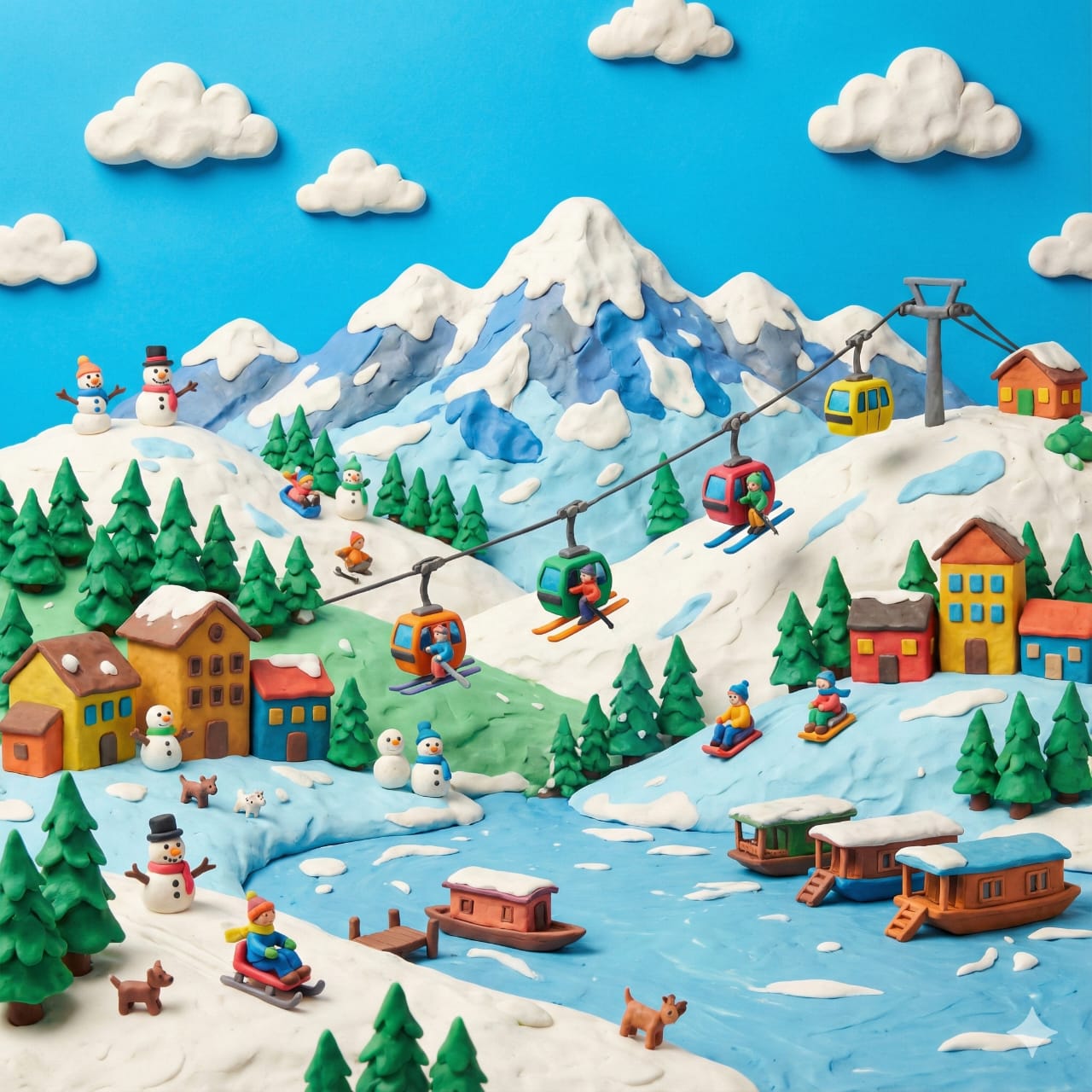
Clay Miniature Landmark Travel Diorama
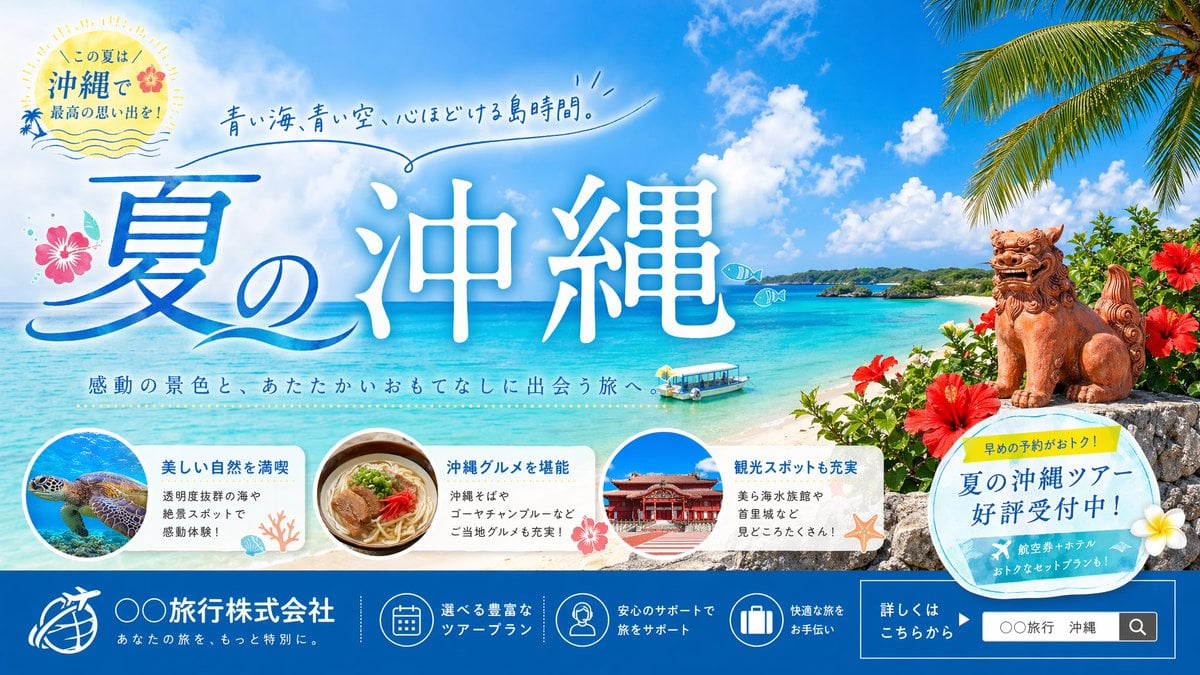
Okinawa Summer Travel Banner
Travel Poster Graphic Collage
untitled
9 Grid Travel Profile Photo Series
![Nano Banana — One Day In [CITY] Travel Route](https://cdn.picxstudio.com/cdn-cgi/image/format=auto,quality=85,fit=scale-down,onerror=redirect,width=3840,metadata=none/uploads/ai_gezgini_travel_d9a86f2e-c1f5-41a8-a4ef-5d96a8a7a023.jpg)
Nano Banana — One Day In [CITY] Travel Route
Make it yours
Tropical Resort Travel Ad Banner works as-is. These are the safest ways to change it without losing the look.
Swap the setting
Keep the rest of the prompt and replace the location block. The current setting is “{argument name="destination type" default="tropical overwater bungalow resort"}”.
Change one field
Copy a single group, rewrite it, and generate again so you can see what that field is doing.
Keep the frame, change the subject
Hold the composition and light of Tropical Resort Travel Ad Banner, then swap wardrobe, props or the person for a new take.
| If the result… | Why | Fix |
|---|---|---|
| The result drifts from the preview | Too many fields changed at once. | Reuse Tropical Resort Travel Ad Banner as-is first, then change one group — subject, light, or setting. |
| GPT Image 2 ignores part of the JSON | Some models flatten or skip nested keys. | Keep the same values and paste them as a short paragraph instead. |
More GPT Image 2 templates
Other prompts made for GPT Image 2.

Six VTuber Japanese Logo Sheet

Realistic Portrait of Woman and Deer

The Vista Modular Condo Poster

AI Model Routing Comparison Infographic

2.5D Anime Art Board

Isometric Productivity Desk Scene

New York Double Exposure Poster

Four-Panel AI Landscape Comparison

Japanese Tatami Lifestyle Magazine Cover

NESCAFÉ Coffee Map Poster
More image prompts
Fresh picks from across the catalog.
Tea and Rain Mood Portrait
Paper-Cut Character Art Generation Prompt

Luxury 3D Carved Football Poster
Cinematic Product Video for Luxury Perfume
Ethereal Close-Up Portrait Prompt
Letter S Editorial Portrait
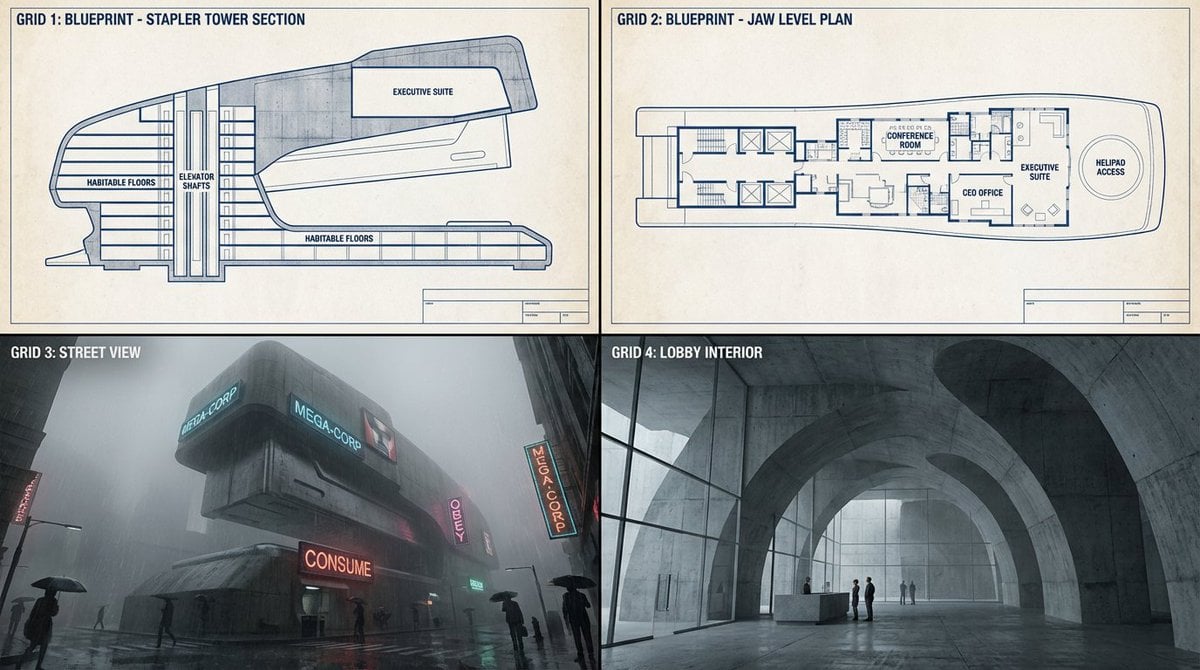
Object-to-Dystopian Building Transformation
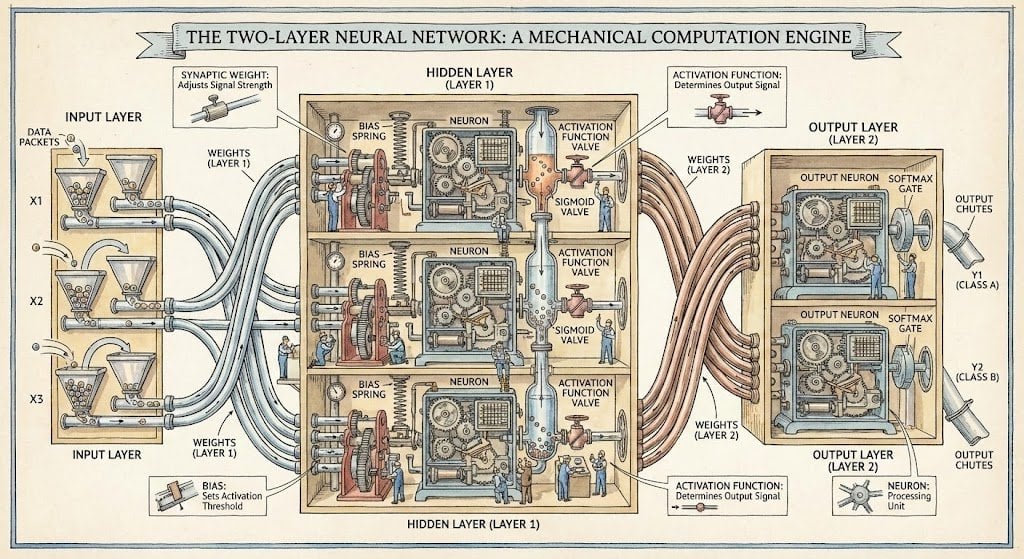
Two-layer neural network diagram in Stephen Biesty style
Gym Mirror Selfie with Post-Workout Glow (iPhone Style)
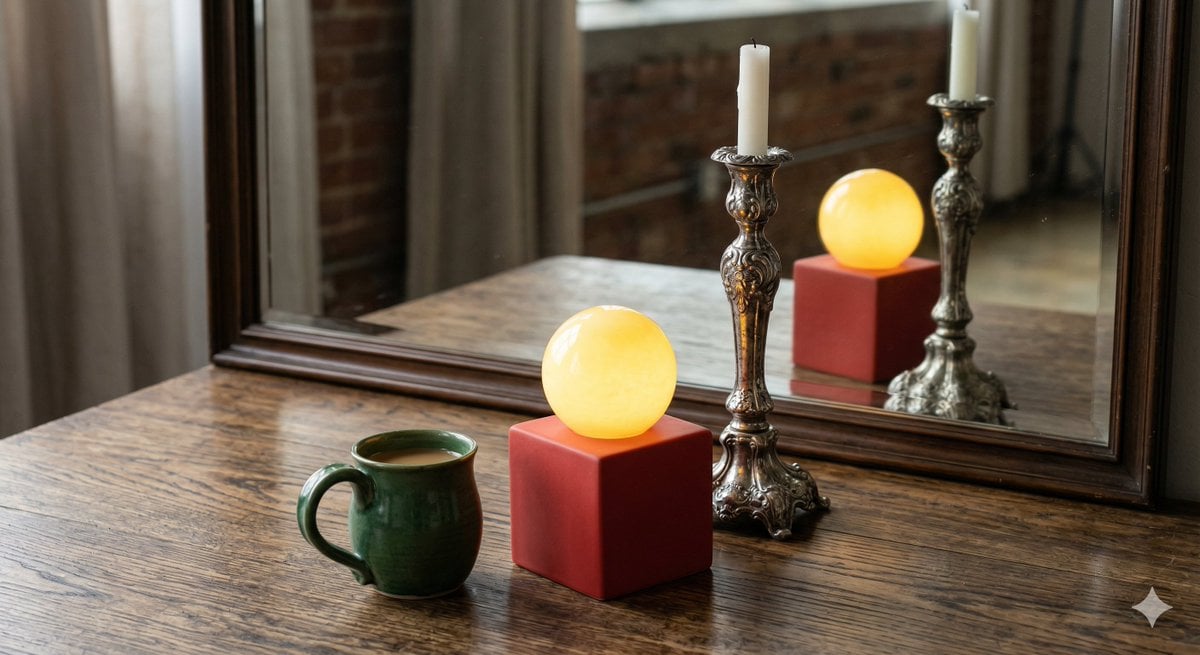
Object Reasoning Test Prompt for Nano Banana 2
Browse template categories
Tropical Resort Travel Ad Banner questions
How do I use the Tropical Resort Travel Ad Banner template?
Add your photo if the template asks for one, edit the prompt if you like — the template's model and format are already selected — and press Generate. Your version opens in PicX Studio.
Can I customize the Tropical Resort Travel Ad Banner template?
Yes. You can change the subject, setting, lighting, mood, format, and available model controls before creating your image.
Is the Tropical Resort Travel Ad Banner template free?
Opening and editing this template is free. Generating uses credits, shown on the Generate button when you are signed in.
Which AI model should I use?
Start with GPT Image 2, which is the model associated with this template. You can compare another compatible model for a different finish.
Looking for something else? Browse all templates.

Your photo, any look
Thousands of ready templates for every top image and video model, from one credit balance.