
Before and After Makeup Comparison
Generates a realistic side-by-side Japanese social media style beauty makeover comparison with labeled before and after panels and checklist callouts.
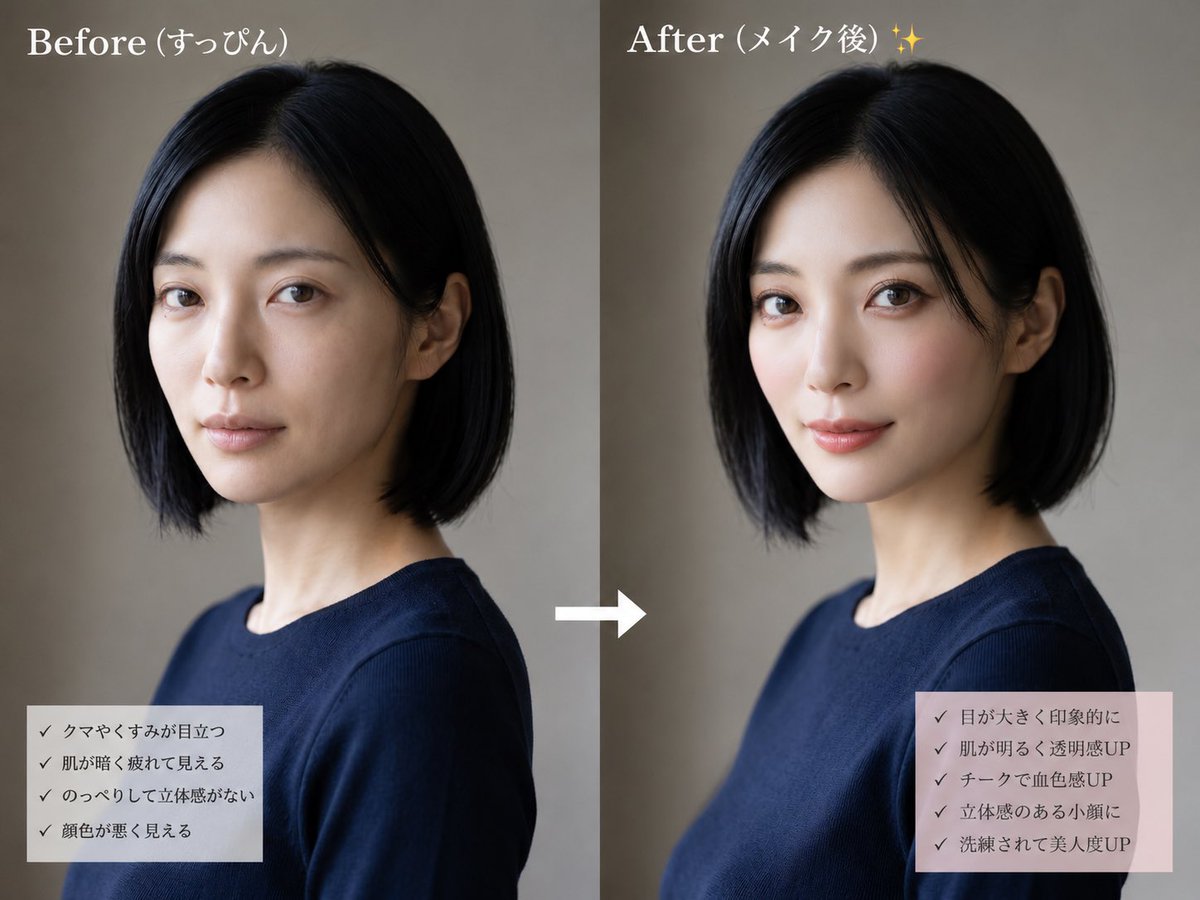
- Prompt included
- Model and format preset
- Free template
The prompt behind this image
Copy the exact prompt behind Before and After Makeup Comparison, or open it in the studio and make it yours.
- Type
- side-by-side beauty transformation comparison image
- Style
- realistic editorial photo, soft natural studio lighting, muted beige-gray background, clean social-media makeover layout
- Subject › Description
- same adult woman shown twice from chest up in a three-quarter side profile, short straight black bob haircut, slim neck, wearing a simple navy crew-neck top
- Subject › Face Treatment
- large opaque rectangular mosaic/privacy block covering the entire face in both panels, preserving only hair, ears, neck, and clothing visible
- Subject › Hair Color
- {argument name="hair color" default="black"}
- Subject › Outfit
- {argument name="outfit" default="navy crew-neck top"}
- Layout › Canvas
- landscape 4:3 composition split into two equal vertical panels
- Layout › Panel Count
- 2
- Layout › Left Panel › Title
- {argument name="before title" default="Before (すっぴん)"}
- Layout › Left Panel › Position
- left half
- Layout › Left Panel › Visual State
- before makeup, subdued and slightly tired impression, darker overall tone
- Layout › Left Panel › Checklist Box › Position
- bottom left
- Layout › Left Panel › Checklist Box › Background
- semi-transparent pale gray rectangle
- Layout › Left Panel › Checklist Box › Count
- 4
- Layout › Left Panel › Checklist Box › Items
- クマやくすみが目立つ, 肌が暗く疲れて見える, のっぺりして立体感がない, 顔色が悪く見える
- Layout › Right Panel › Title
- {argument name="after title" default="After (メイク後) ✨"}
- Layout › Right Panel › Position
- right half
- Layout › Right Panel › Visual State
- after makeup, brighter polished impression, warmer skin tone and more refined styling while keeping the same pose and outfit
- Layout › Right Panel › Checklist Box › Position
- bottom right
- Layout › Right Panel › Checklist Box › Background
- semi-transparent pale pink rectangle
- Layout › Right Panel › Checklist Box › Count
- 5
- Layout › Right Panel › Checklist Box › Items
- 目が大きく印象的に, 肌が明るく透明感UP, チークで血色感UP, 立体感のある小顔に, 洗練されて美人度UP
- Layout › Center Element › Description
- single white right-pointing arrow between the panels
- Layout › Center Element › Count
- 1
Raw JSON
{"type":"side-by-side beauty transformation comparison image","style":"realistic editorial photo, soft natural studio lighting, muted beige-gray background, clean social-media makeover layout","subject":{"description":"same adult woman shown twice from chest up in a three-quarter side profile, short straight black bob haircut, slim neck, wearing a simple navy crew-neck top","face treatment":"large opaque rectangular mosaic/privacy block covering the entire face in both panels, preserving only hair, ears, neck, and clothing visible","hair color":"{argument name=\"hair color\" default=\"black\"}","outfit":"{argument name=\"outfit\" default=\"navy crew-neck top\"}"},"layout":{"canvas":"landscape 4:3 composition split into two equal vertical panels","panel count":2,"left panel":{"title":"{argument name=\"before title\" default=\"Before (すっぴん)\"}","position":"left half","visual state":"before makeup, subdued and slightly tired impression, darker overall tone","checklist box":{"position":"bottom left","background":"semi-transparent pale gray rectangle","count":4,"items":["クマやくすみが目立つ","肌が暗く疲れて見える","のっぺりして立体感がない","顔色が悪く見える"]}},"right panel":{"title":"{argument name=\"after title\" default=\"After (メイク後) ✨\"}","position":"right half","visual state":"after makeup, brighter polished impression, warmer skin tone and more refined styling while keeping the same pose and outfit","checklist box":{"position":"bottom right","background":"semi-transparent pale pink rectangle","count":5,"items":["目が大きく印象的に","肌が明るく透明感UP","チークで血色感UP","立体感のある小顔に","洗練されて美人度UP"]}},"center element":{"description":"single white right-pointing arrow between the panels","count":1}},"typography":"large white serif titles at the top, small dark Japanese checklist text with checkmark symbols","overall instruction":"Create a convincing no-reference before-and-after makeup comparison using the same woman, same pose, same clothing, and same background, with the right panel subtly more flattering and luminous than the left."}How to use Before and After Makeup Comparison in 3 steps
- 1Upload ImagePNG, JPG or paste
Add your photo
Upload the photo the template builds on. The prompt, model and format are already set.
- 2…a portrait of your subject in softgolden-hour light, 85mm…
Personalize
Edit the subject and creative details for your destination.
- 3Generate
Generate
Press Generate — your image is created in PicX Studio, so you can compare it with the original and refine one variable at a time.
More like this
Templates with the same subject, style or setup. Open one to see its prompt.
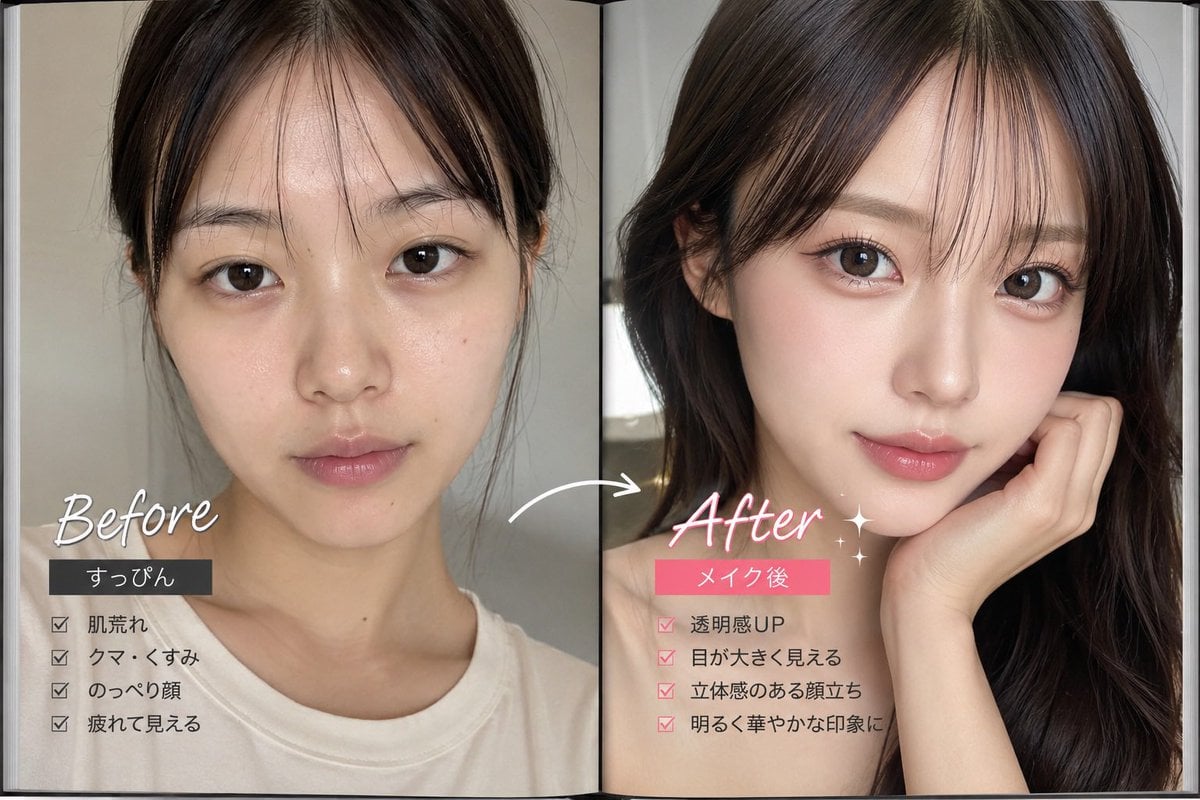
Makeup Before After Magazine Spread
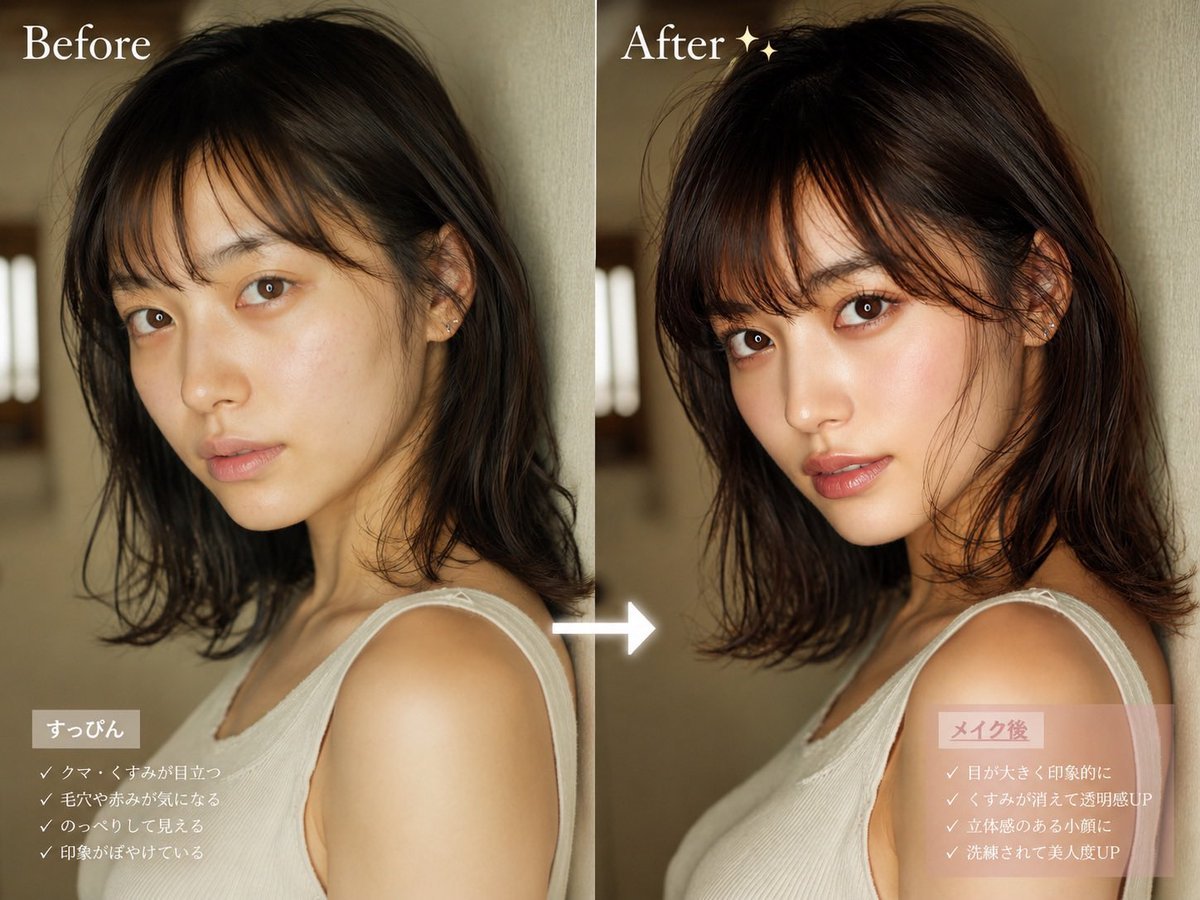
Before After Makeup Transformation
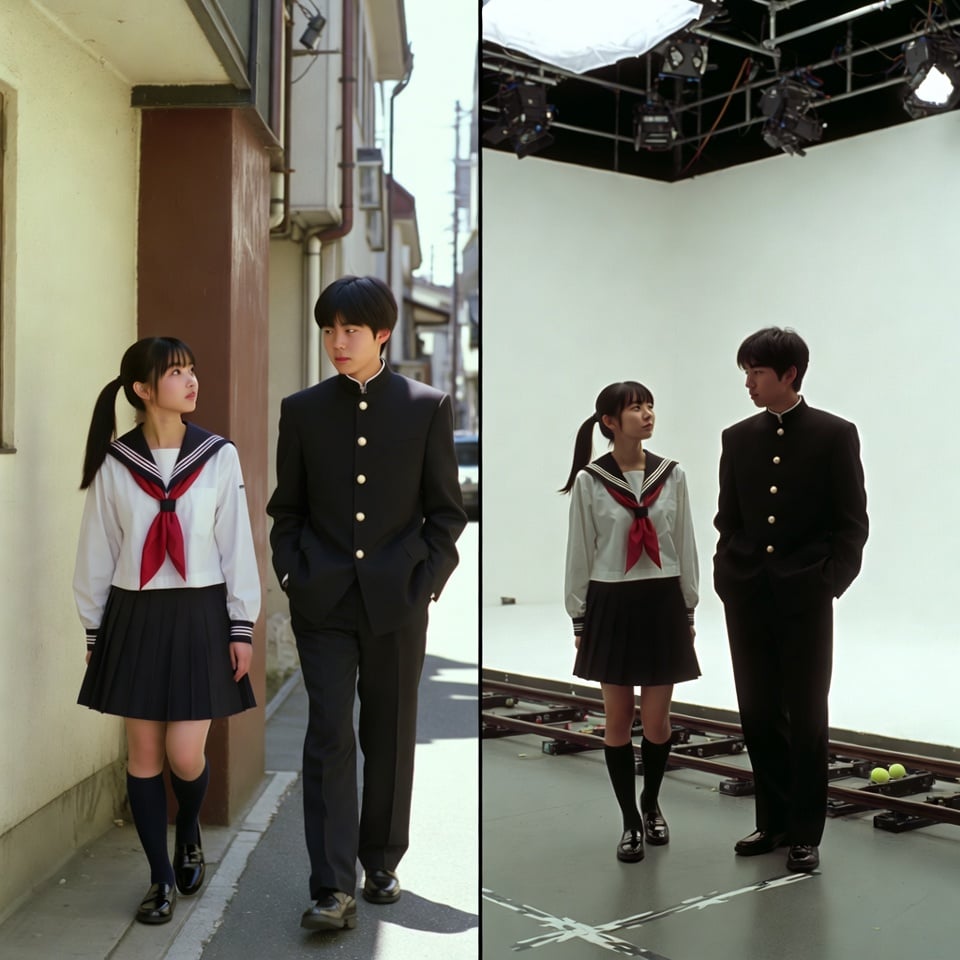
VFX Comparison Image Prompt (Before/After) for Nano Banana Pro
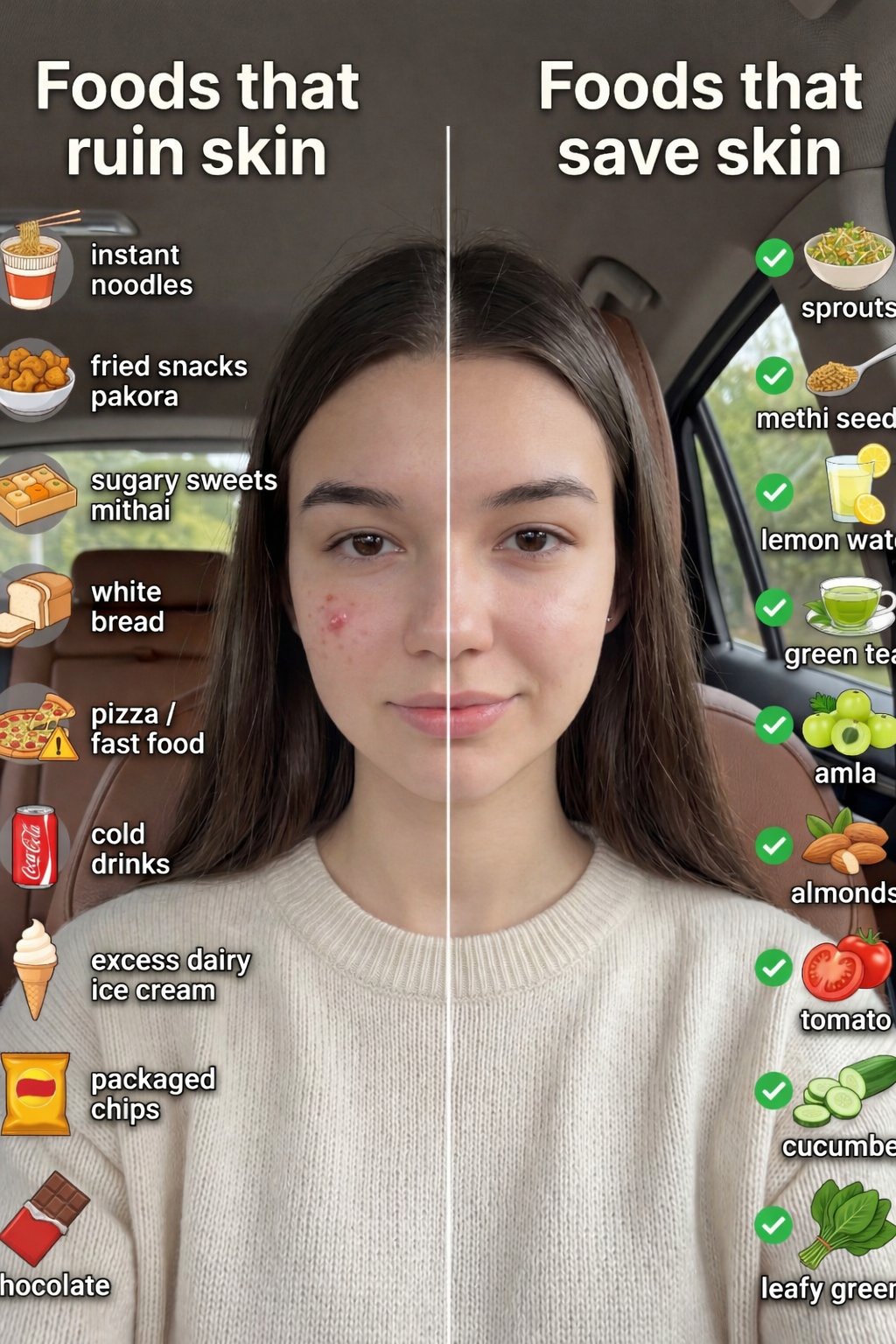
Skin Comparison Portrait — Nano Banana Pro
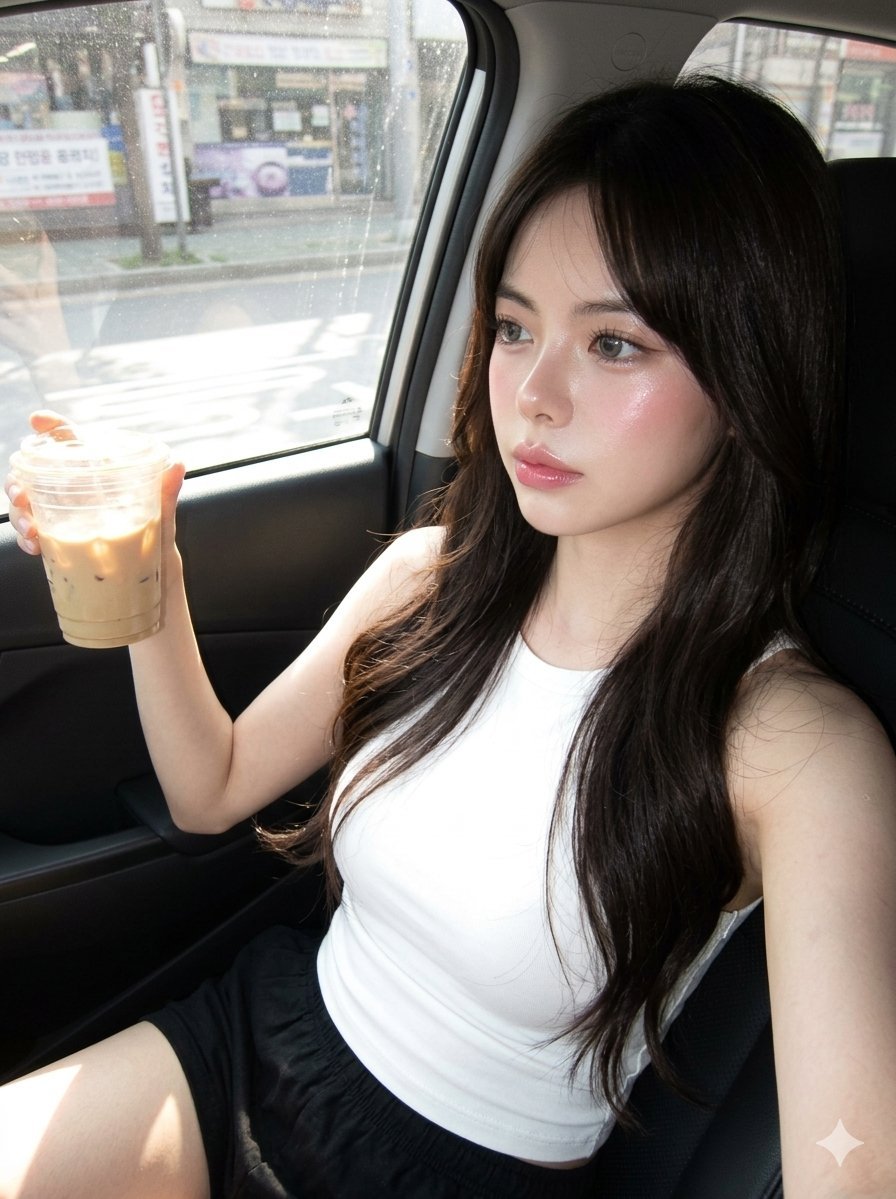
Hyper-Photorealistic Douyin Makeup Portrait
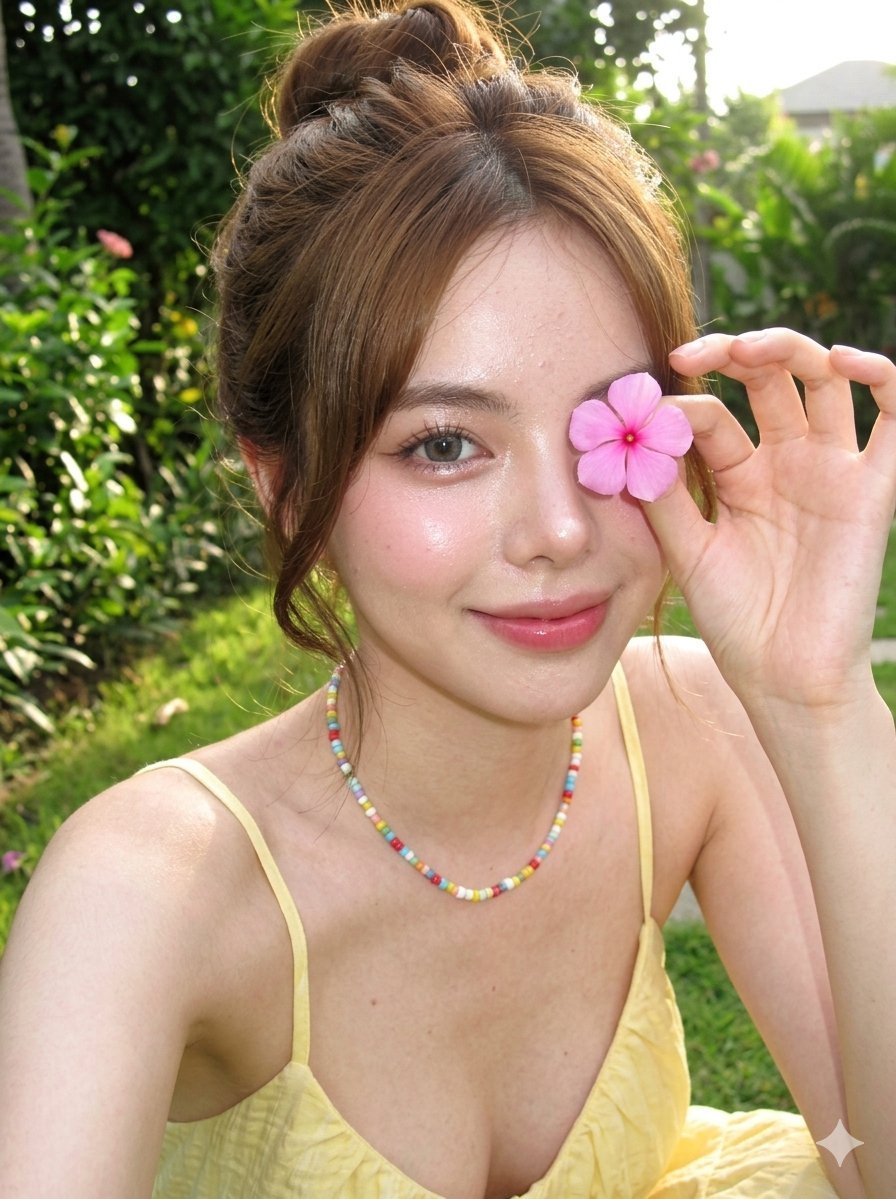
Douyin Makeup Character Shot
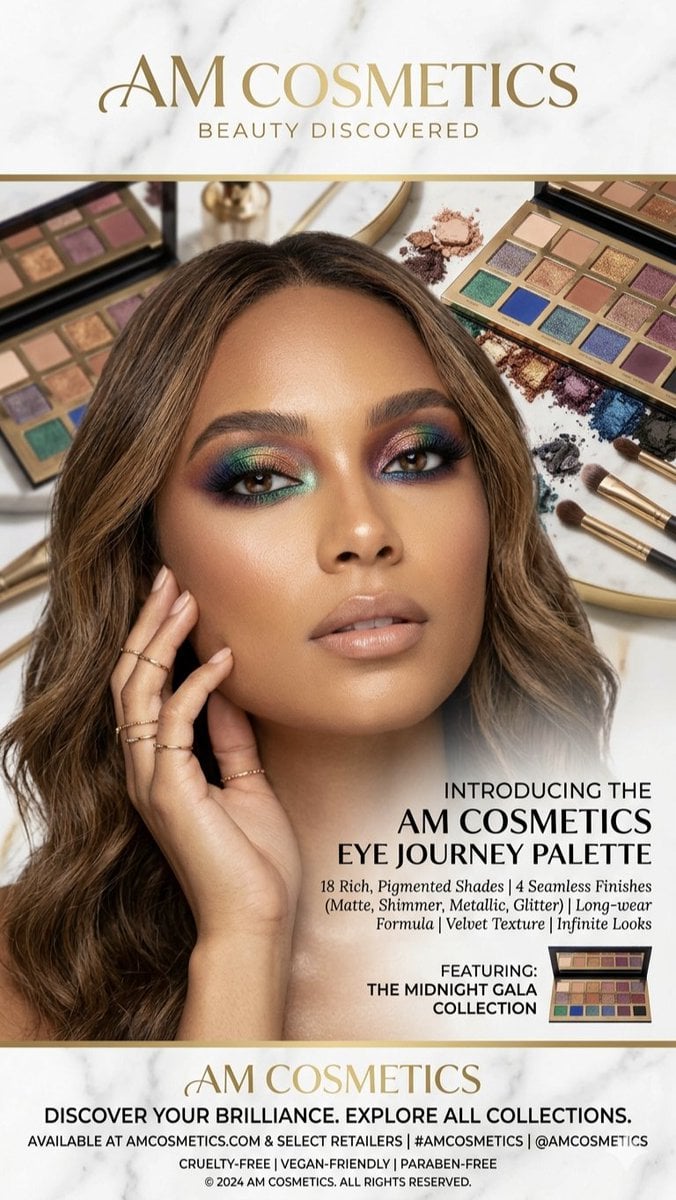
Luxury Makeup Palette Advertisement
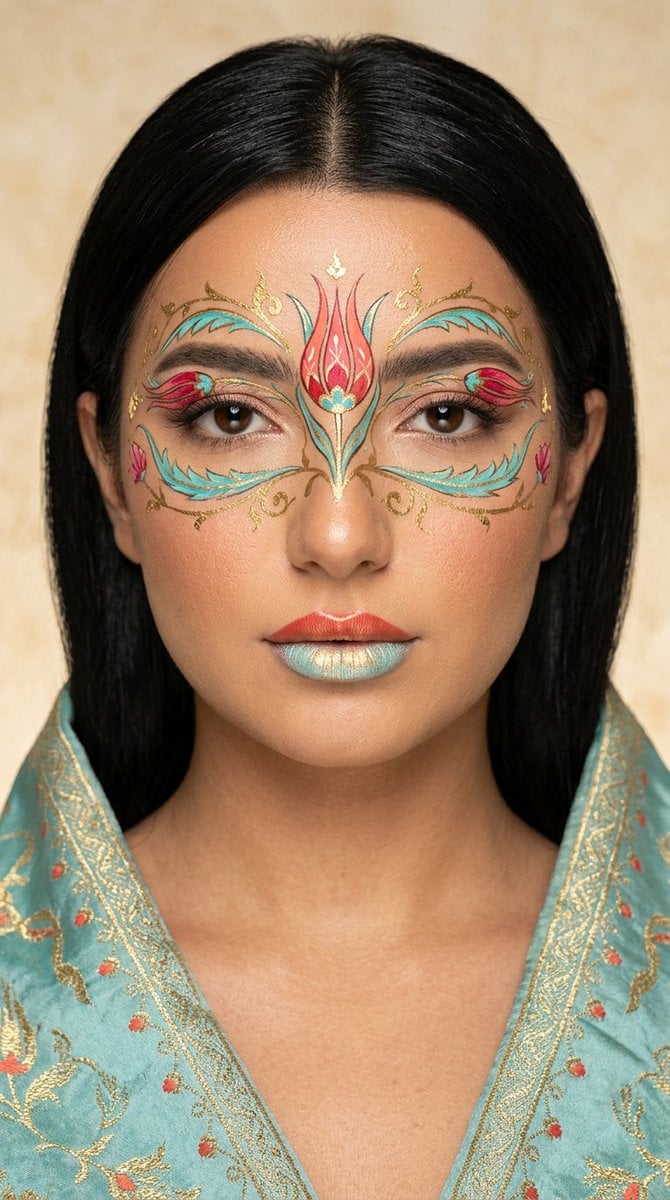
Ottoman Tulip Editorial Makeup Portrait
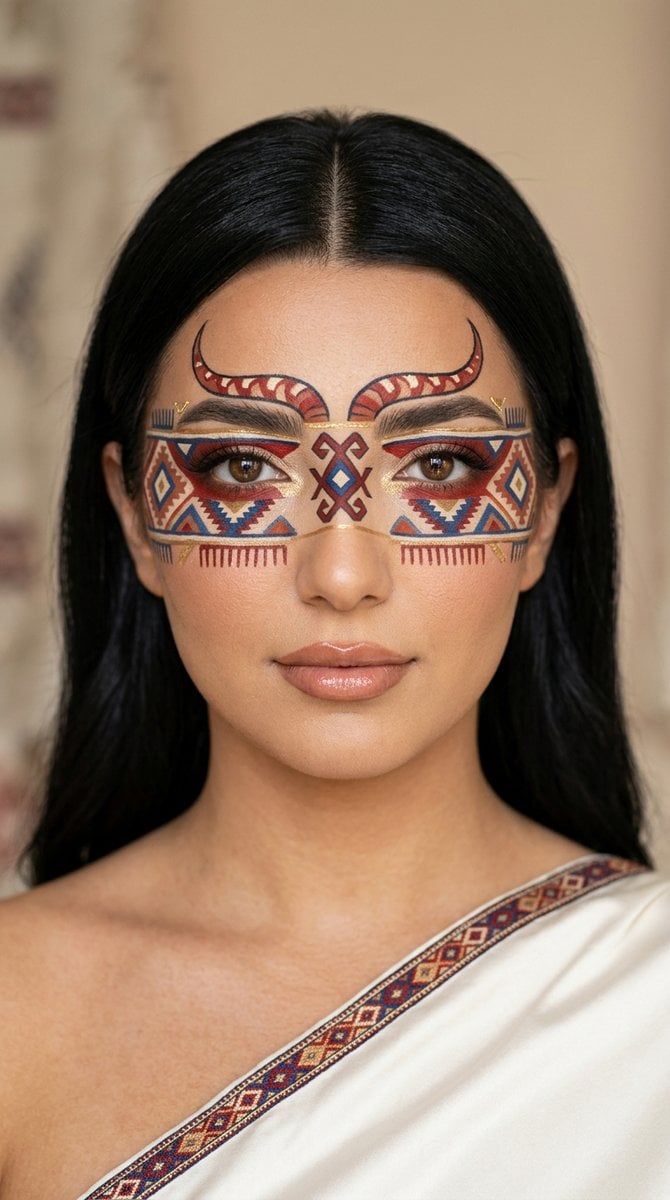
Anatolian Kilim Motif Makeup Art
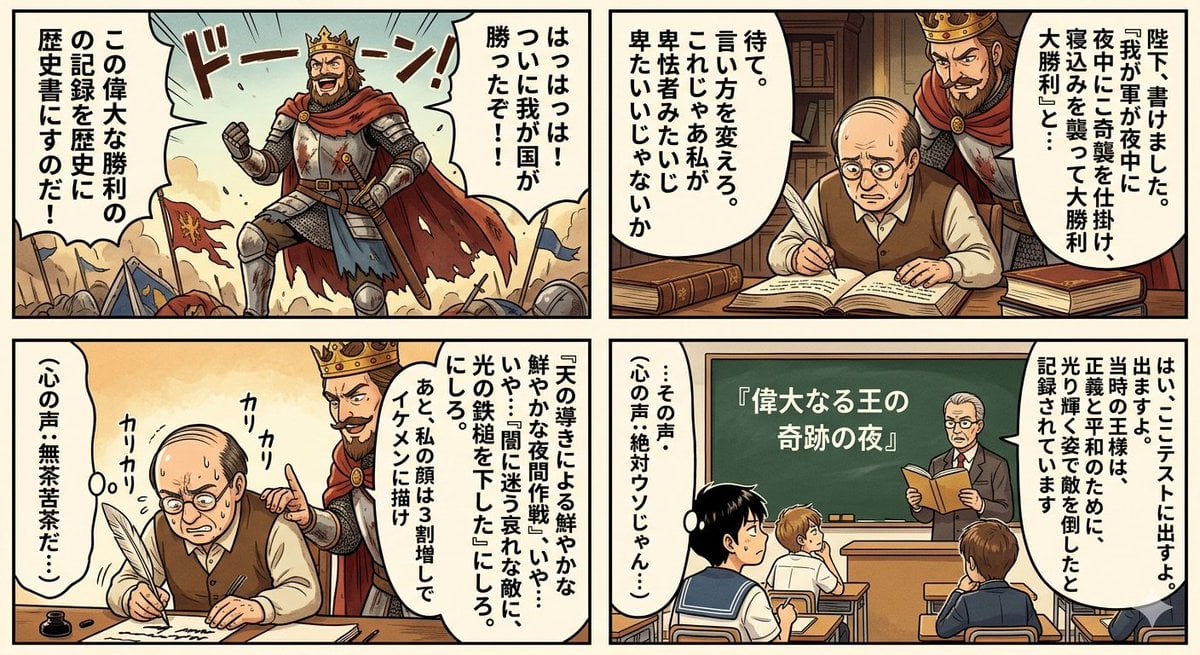
Historical Makeup Napoleon Manga
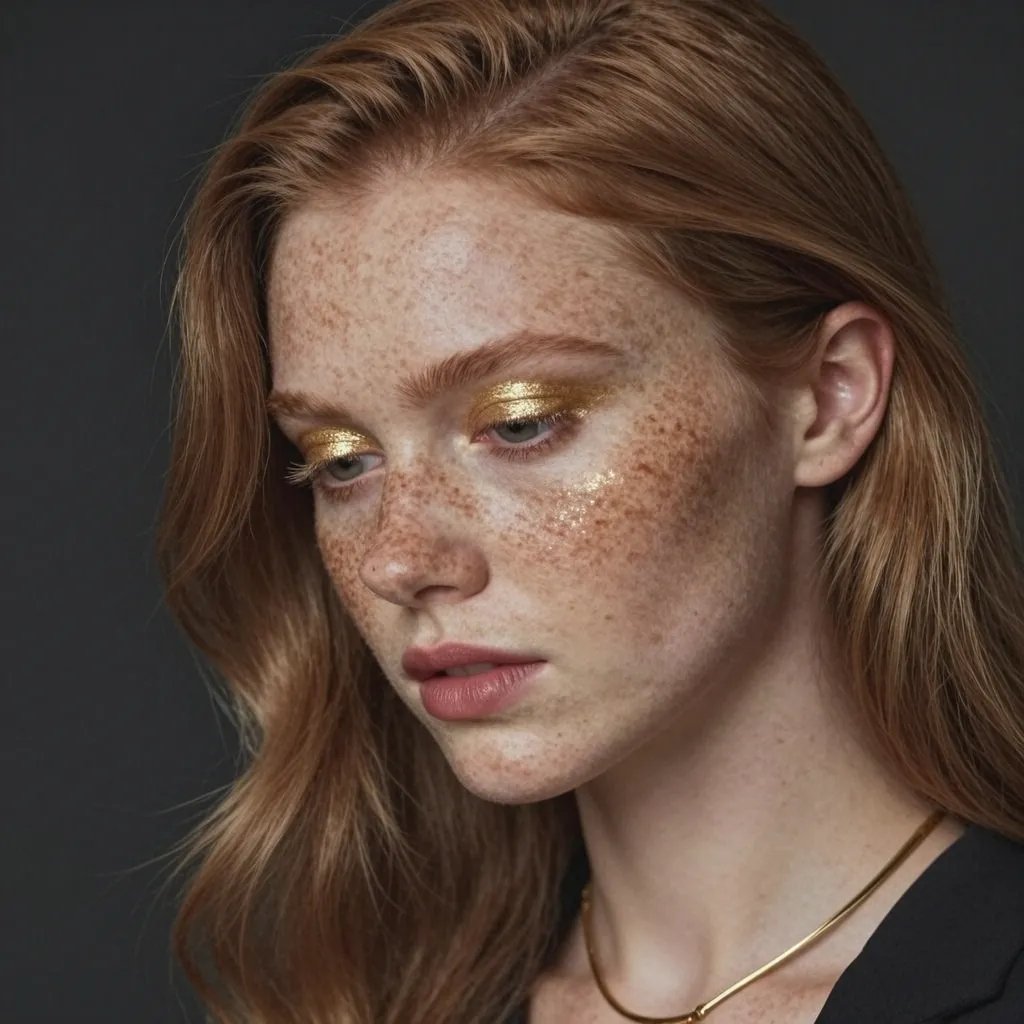
Freckled Model Gold Makeup Portrait
Retro Makeup Vanity Mirror
Make it yours
Before and After Makeup Comparison works as-is. These are the safest ways to change it without losing the look.
Swap the setting
Keep the rest of the prompt and replace the location block. The current setting is “semi-transparent pale gray rectangle”.
Change one field
Copy a single group, rewrite it, and generate again so you can see what that field is doing.
Keep the frame, change the subject
Hold the composition and light of Before and After Makeup Comparison, then swap wardrobe, props or the person for a new take.
| If the result… | Why | Fix |
|---|---|---|
| The result drifts from the preview | Too many fields changed at once. | Reuse Before and After Makeup Comparison as-is first, then change one group — subject, light, or setting. |
| GPT Image 2 ignores part of the JSON | Some models flatten or skip nested keys. | Keep the same values and paste them as a short paragraph instead. |
More GPT Image 2 templates
Other prompts made for GPT Image 2.

Six VTuber Japanese Logo Sheet

Realistic Portrait of Woman and Deer

The Vista Modular Condo Poster

AI Model Routing Comparison Infographic

2.5D Anime Art Board

Isometric Productivity Desk Scene

New York Double Exposure Poster

Four-Panel AI Landscape Comparison

Japanese Tatami Lifestyle Magazine Cover

NESCAFÉ Coffee Map Poster
More image prompts
Fresh picks from across the catalog.
Cute Doodle Japanese Café Dessert Photo
Moonlit Barn Fashion Portrait
Heroic Dramatic Studio Portrait Prompt

Cinematic Profile Portrait Prompt with Backlighting and Bokeh
Intimate Late Night Bathroom Selfie
Aesthetic Food Photography with Doodles
Nano Banana Pro 4-Panel Comic Explanation
Misty Lotus Pond at Sunrise
Anime Style Character Transformation
Generate black-and-white storyboards from an image
Browse template categories
Before and After Makeup Comparison questions
How do I use the Before and After Makeup Comparison template?
Add your photo if the template asks for one, edit the prompt if you like — the template's model and format are already selected — and press Generate. Your version opens in PicX Studio.
Can I customize the Before and After Makeup Comparison template?
Yes. You can change the subject, setting, lighting, mood, format, and available model controls before creating your image.
Is the Before and After Makeup Comparison template free?
Opening and editing this template is free. Generating uses credits, shown on the Generate button when you are signed in.
Which AI model should I use?
Start with GPT Image 2, which is the model associated with this template. You can compare another compatible model for a different finish.
Looking for something else? Browse all templates.

Your photo, any look
Thousands of ready templates for every top image and video model, from one credit balance.