
FX Trading Educational Infographic
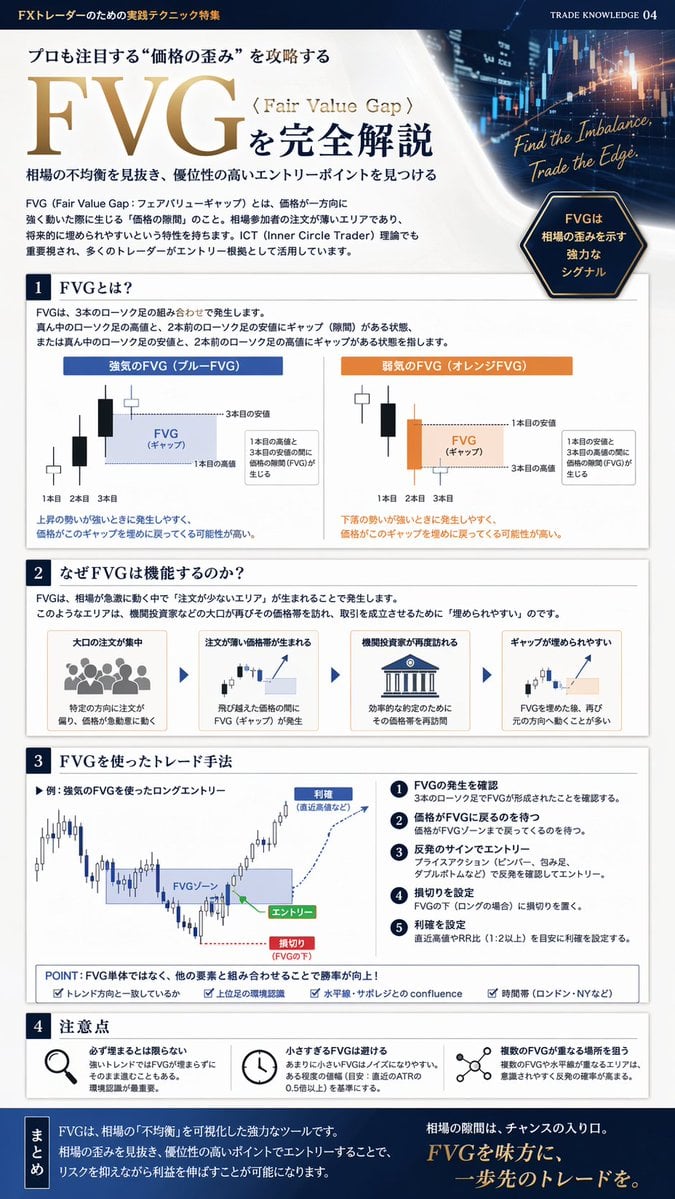
Generates a highly detailed, multi-section educational infographic about financial trading concepts, complete with candlestick charts, process flows, and strategy checklists.
- Prompt included
- Model and format preset
- Free template
The prompt behind this image
Copy the exact prompt behind FX Trading Educational Infographic, or open it in the studio and make it yours.
- Type
- financial trading educational infographic
- Style
- clean, professional, corporate blue and white color scheme
- Header › Background
- dark blue stock market chart with glowing candlesticks
- Header › Top Left Text
- FXトレーダーのための実践テクニック特集
- Header › Main Title
- {argument name="main title" default="FVG"}
- Header › Subtitle
- {argument name="topic subtitle" default="〈Fair Value Gap〉を完全解説"}
- Header › Quote
- {argument name="english quote" default="Find the Imbalance, Trade the Edge."}
- Header › Badge
- dark blue hexagon with text
- Layout › Sections › 0 › Title
- {argument name="section 1 title" default="1 FVGとは?"}
- Layout › Sections › 0 › Type
- candlestick diagrams
- Layout › Sections › 0 › Count
- 2
- Layout › Sections › 0 › Labels
- 強気のFVG (ブルーFVG), 弱気のFVG (オレンジFVG)
- Layout › Sections › 0 › Description
- diagrams showing 3 candles with a gap between the 1st and 3rd
- Layout › Sections › 1 › Title
- {argument name="section 2 title" default="2 なぜFVGは機能するのか?"}
- Layout › Sections › 1 › Type
- process flow with icons
- Layout › Sections › 1 › Count
- 4
- Layout › Sections › 1 › Labels
- 大口の注文が集中, 注文が薄い価格帯が生まれる, 機関投資家が再度訪れる, ギャップが埋められやすい
- Layout › Sections › 1 › Description
- horizontal flow connected by arrows
- Layout › Sections › 2 › Title
- 3 FVGを使ったトレード手法
- Layout › Sections › 2 › Type
- trading strategy chart and list
- Layout › Sections › 2 › Elements › Chart
- candlestick chart showing entry, stop loss, and take profit zones
- Layout › Sections › 2 › Elements › Numbered Steps Count
- 5
- Layout › Sections › 2 › Elements › Bottom Checklist Count
- 4
- Layout › Sections › 3 › Title
- 4 注意点
Raw JSON
{
  "type": "financial trading educational infographic",
  "style": "clean, professional, corporate blue and white color scheme",
  "header": {
    "background": "dark blue stock market chart with glowing candlesticks",
    "top_left_text": "FXトレーダーのための実践テクニック特集",
    "main_title": "{argument name=\"main title\" default=\"FVG\"}",
    "subtitle": "{argument name=\"topic subtitle\" default=\"〈Fair Value Gap〉を完全解説\"}",
    "quote": "{argument name=\"english quote\" default=\"Find the Imbalance, Trade the Edge.\"}",
    "badge": "dark blue hexagon with text"
  },
  "layout": {
    "sections": [
      {
        "title": "{argument name=\"section 1 title\" default=\"1 FVGとは?\"}",
        "type": "candlestick diagrams",
        "count": 2,
        "labels": ["強気のFVG (ブルーFVG)", "弱気のFVG (オレンジFVG)"],
        "description": "diagrams showing 3 candles with a gap between the 1st and 3rd"
      },
      {
        "title": "{argument name=\"section 2 title\" default=\"2 なぜFVGは機能するのか?\"}",
        "type": "process flow with icons",
        "count": 4,
        "labels": ["大口の注文が集中", "注文が薄い価格帯が生まれる", "機関投資家が再度訪れる", "ギャップが埋められやすい"],
        "description": "horizontal flow connected by arrows"
      },
      {
        "title": "3 FVGを使ったトレード手法",
        "type": "trading strategy chart and list",
        "elements": {
          "chart": "candlestick chart showing entry, stop loss, and take profit zones",
          "numbered_steps_count": 5,
          "bottom_checklist_count": 4
        }
      },
      {
        "title": "4 注意点",
        "type": "warning points with icons",
        "count": 3,
        "icons": ["magnifying glass", "clock", "network nodes"]
      }
    ],
    "footer": {
      "title": "まとめ",
      "background": "dark blue",
      "content": "summary text block"
    }
  }
}How to use FX Trading Educational Infographic in 3 steps
- 1Upload ImagePNG, JPG or paste
Add your photo
Upload the photo the template builds on. The prompt, model and format are already set.
- 2…a portrait of your subject in softgolden-hour light, 85mm…
Personalize
Edit the subject and creative details for your destination.
- 3Generate
Generate
Press Generate — your image is created in PicX Studio, so you can compare it with the original and refine one variable at a time.
More like this
Templates with the same subject, style or setup. Open one to see its prompt.

Isometric Process Educational Diorama

Japan Travel Brochure Poster

Isometric Vehicle Teardown Infographic Template

Gpt2 E Commerce Main Image Earbuds E Commerce Infographic
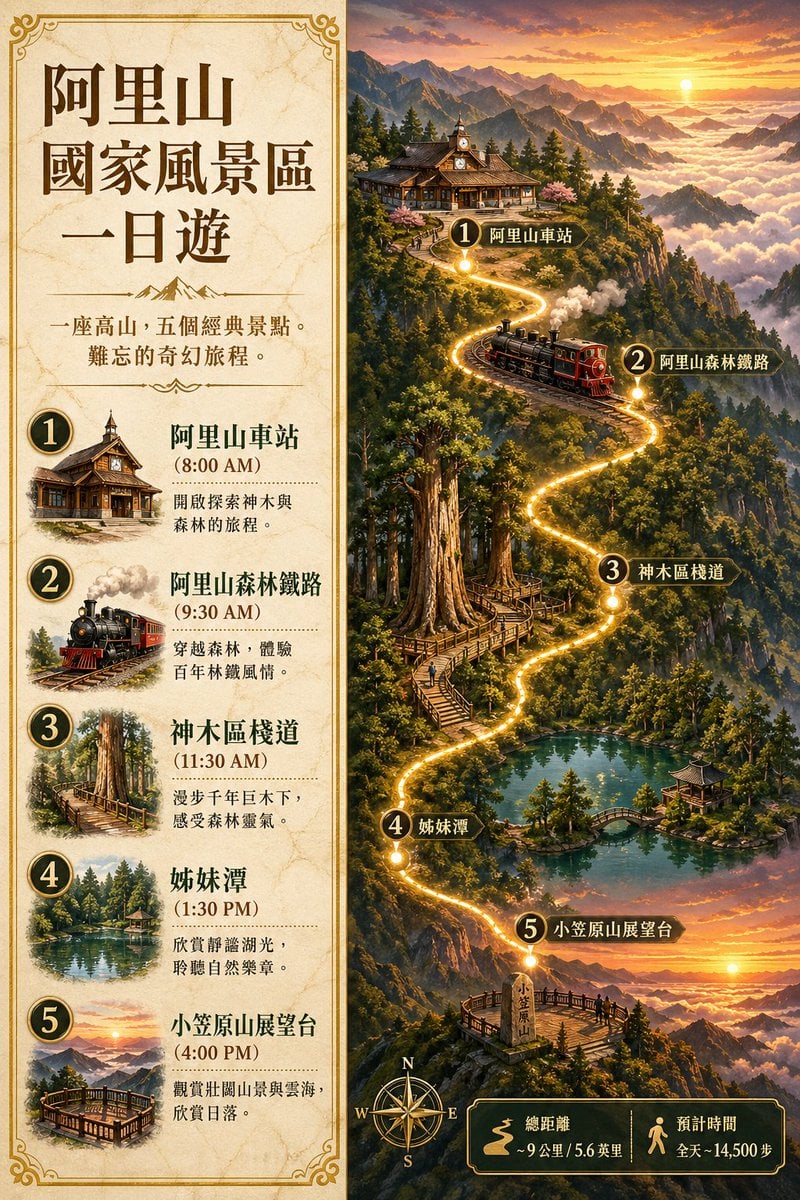
Gpt2 Infographic Edu Visual Alishan One Day Travel Poster

Gpt2 Infographic Edu Visual Ethnographic Plate for Tibetan Ceremonial Hat
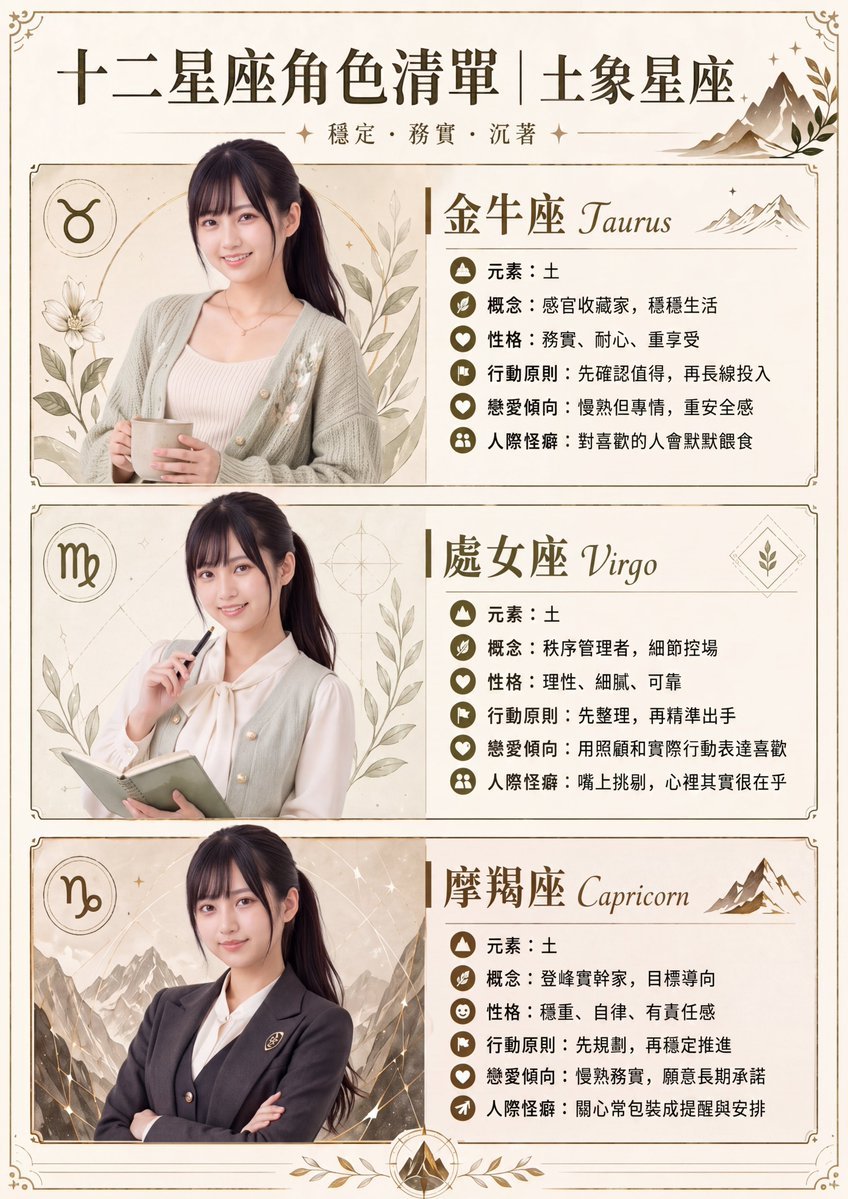
Gpt2 Infographic Edu Visual Earth Signs Zodiac Character Poster
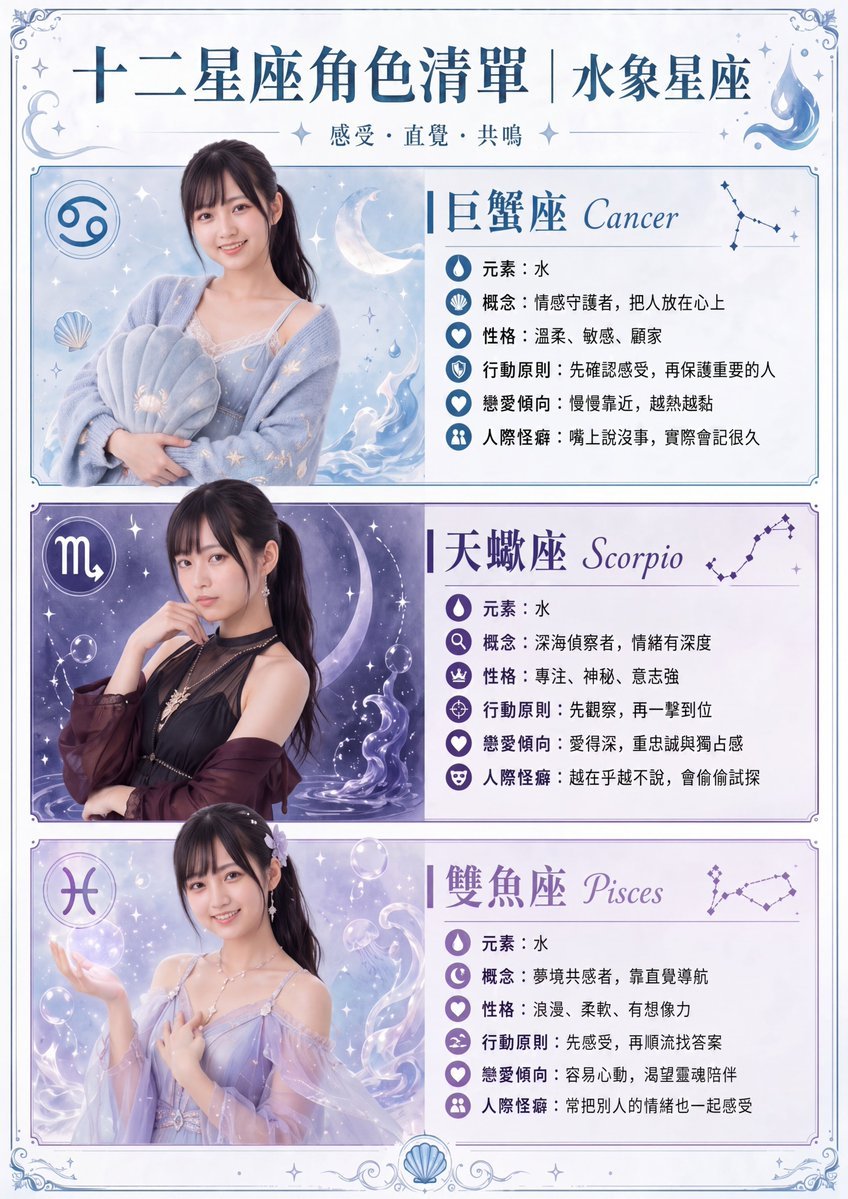
Gpt2 Infographic Edu Visual Water Signs Zodiac Character Poster
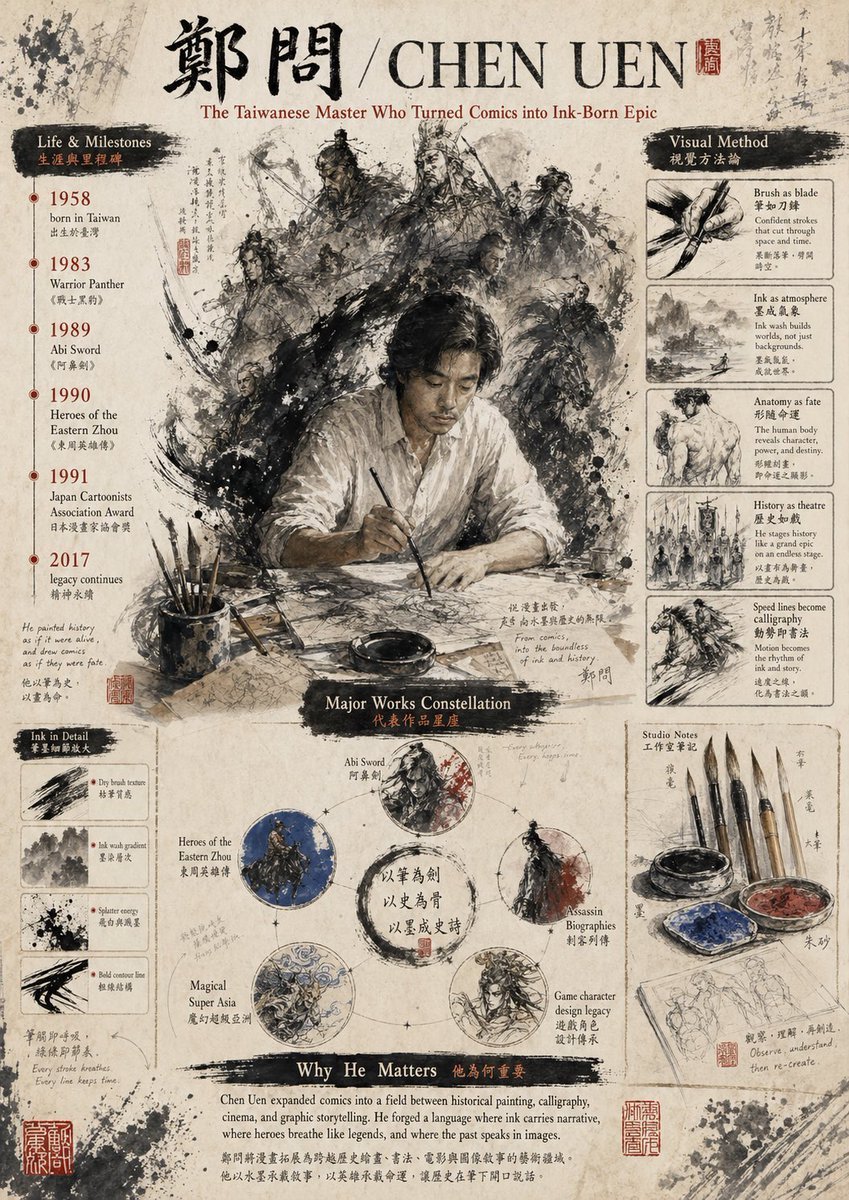
Gpt2 Infographic Edu Visual Ink Wash Tribute Poster for Chen Uen
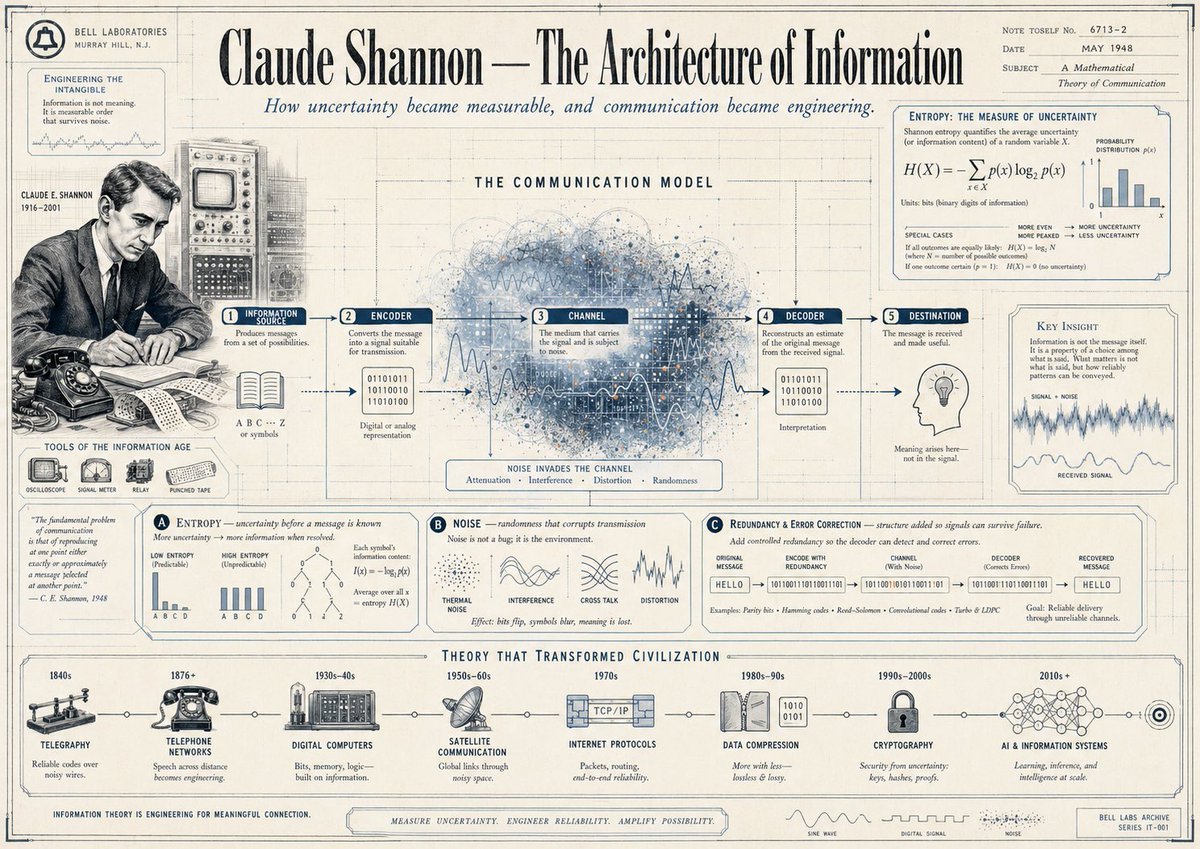
Gpt2 Infographic Edu Visual Vintage Claude Shannon Infographic Poster
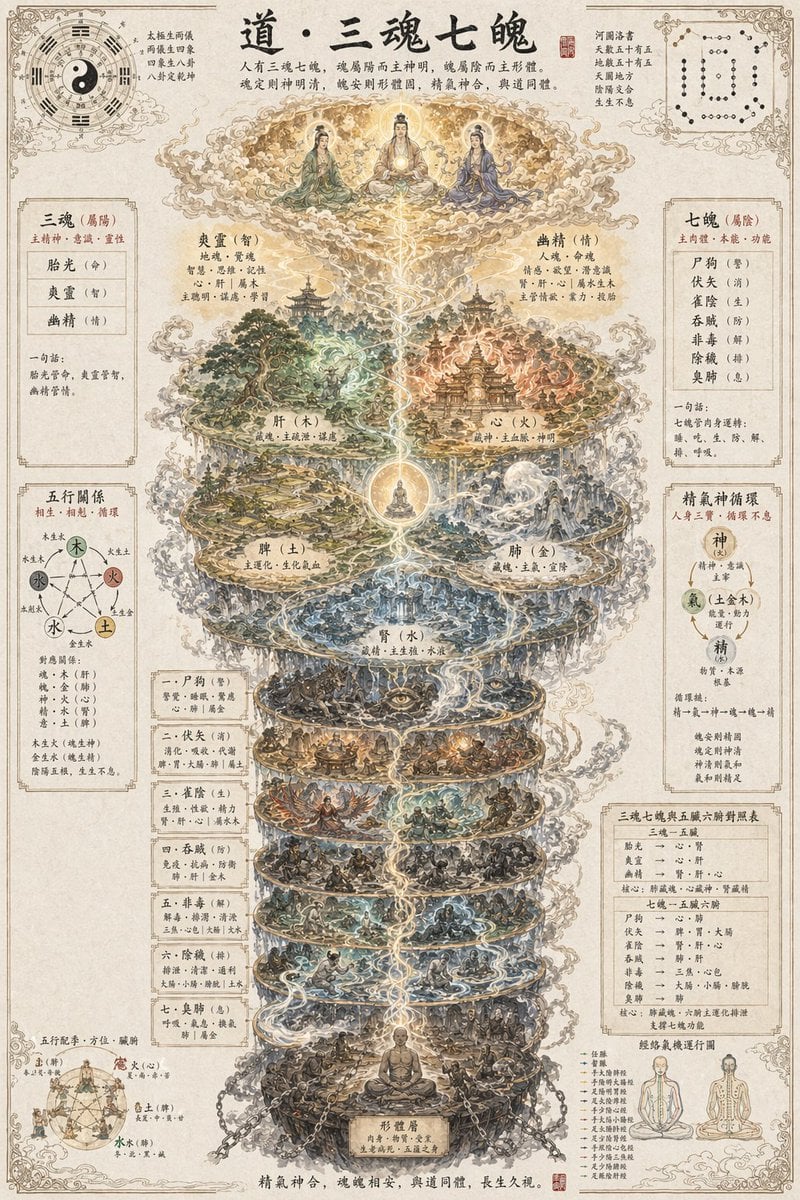
Gpt2 Infographic Edu Visual Taoist Three Souls Seven Po Poster
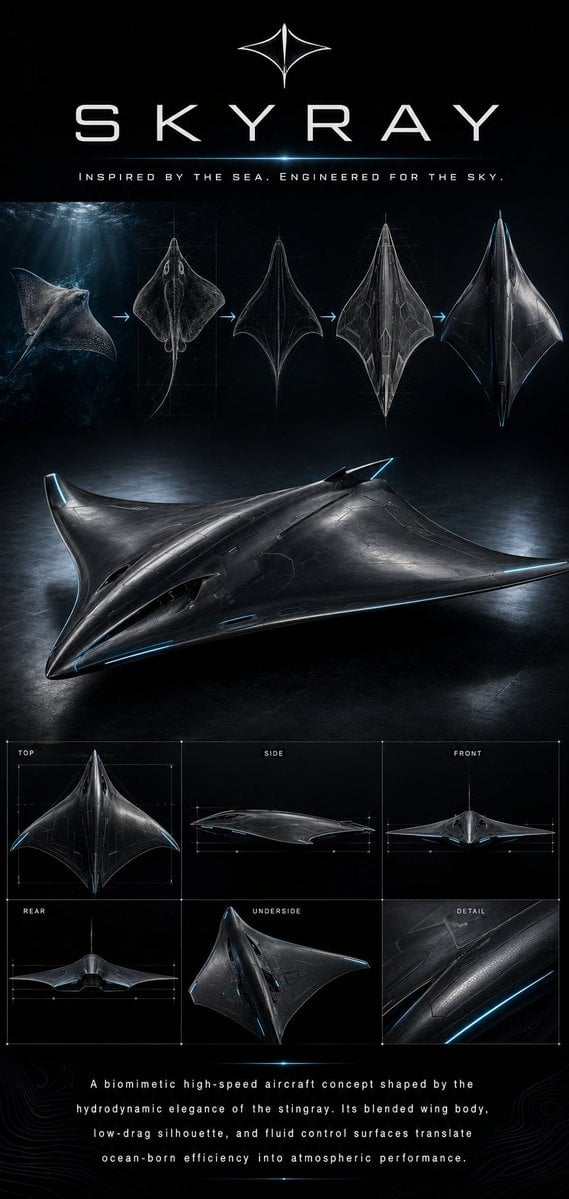
Gpt2 Infographic Edu Visual Biomimetic Skyray Aircraft Poster
Make it yours
FX Trading Educational Infographic works as-is. These are the safest ways to change it without losing the look.
Swap the setting
Keep the rest of the prompt and replace the location block. The current setting is “dark blue stock market chart with glowing candlesticks”.
Change one field
Copy a single group, rewrite it, and generate again so you can see what that field is doing.
Keep the frame, change the subject
Hold the composition and light of FX Trading Educational Infographic, then swap wardrobe, props or the person for a new take.
| If the result… | Why | Fix |
|---|---|---|
| The result drifts from the preview | Too many fields changed at once. | Reuse FX Trading Educational Infographic as-is first, then change one group — subject, light, or setting. |
| GPT Image 2 ignores part of the JSON | Some models flatten or skip nested keys. | Keep the same values and paste them as a short paragraph instead. |
More GPT Image 2 templates
Other prompts made for GPT Image 2.

Six VTuber Japanese Logo Sheet

Realistic Portrait of Woman and Deer

The Vista Modular Condo Poster

AI Model Routing Comparison Infographic

2.5D Anime Art Board

Isometric Productivity Desk Scene

New York Double Exposure Poster

Four-Panel AI Landscape Comparison

Japanese Tatami Lifestyle Magazine Cover

NESCAFÉ Coffee Map Poster
More image prompts
Fresh picks from across the catalog.

Cyberpunk Character Redesign

Colored Pencil Illustration Style Prompt

Hyper-Realistic POV Selfie with Bedhead Aesthetic
Floating Football Jersey Luxury Editorial

Photorealistic iPhone street café scene in Málaga

Botanical Realism: Cityscape Etched into a Single Leaf

Hyper-Realistic Portrait with Reference Image

3D Pixar-Style Animated Character Grid Prompt

Cinematic Anime Warrior Under Crimson Moon
Y2K Holographic Anime Chair Fashion
Browse template categories
FX Trading Educational Infographic questions
How do I use the FX Trading Educational Infographic template?
Add your photo if the template asks for one, edit the prompt if you like — the template's model and format are already selected — and press Generate. Your version opens in PicX Studio.
Can I customize the FX Trading Educational Infographic template?
Yes. You can change the subject, setting, lighting, mood, format, and available model controls before creating your image.
Is the FX Trading Educational Infographic template free?
Opening and editing this template is free. Generating uses credits, shown on the Generate button when you are signed in.
Which AI model should I use?
Start with GPT Image 2, which is the model associated with this template. You can compare another compatible model for a different finish.
Looking for something else? Browse all templates.

Your photo, any look
Thousands of ready templates for every top image and video model, from one credit balance.