
Cyberpunk City Highway HDRI
A futuristic rainy-night city panorama designed as a 360-degree HDRI environment map for 3D rendering backgrounds and lighting.
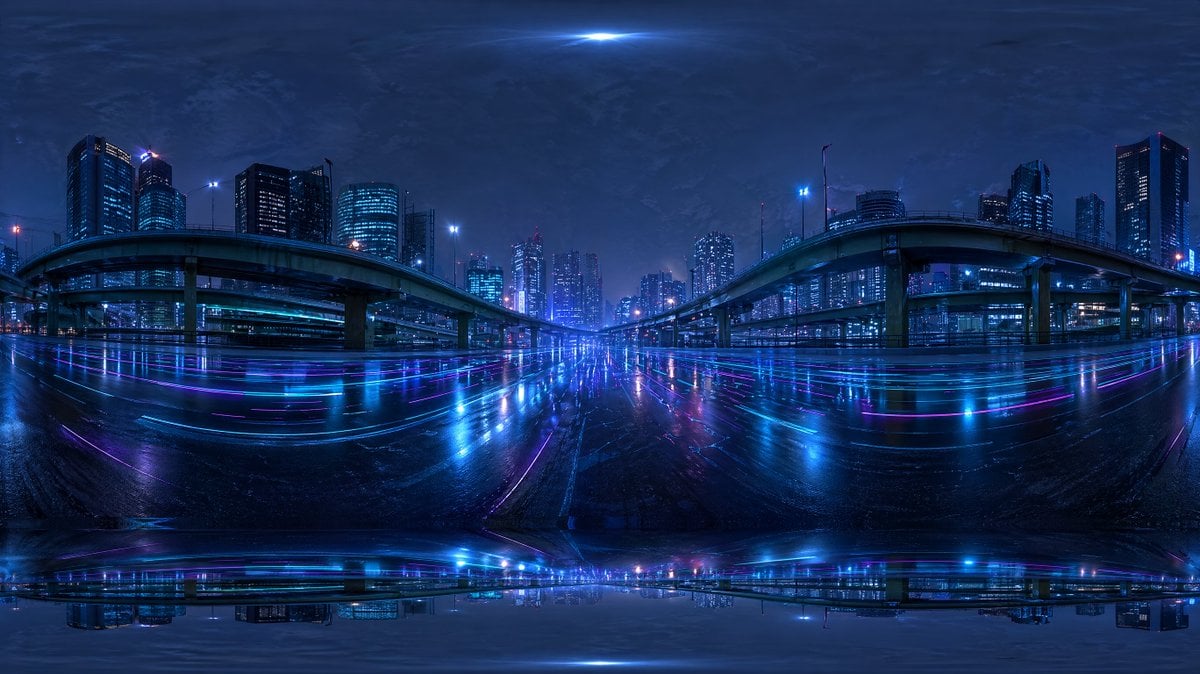
- Prompt included
- Model and format preset
- Free template
The prompt behind this image
Copy the exact prompt behind Cyberpunk City Highway HDRI, or open it in the studio and make it yours.
Create a seamless-looking 360-degree equirectangular HDRI environment map of a futuristic urban expressway at night, viewed from the middle of a wide wet roadway beneath elevated highways in a dense modern city. Use a panoramic full-surround composition with strong fisheye-like equirectangular distortion at the top and bottom edges, designed for use as a Blender world background. The scene should feature 2 large curving elevated highway ramps, one on the left and one on the right, arching inward toward the center, with multiple supporting pillars and additional overpass layers receding into the distance. Surround the roadway with a skyline of illuminated high-rise office towers and apartment buildings, with cool blue and cyan windows and a few magenta and purple accent lights. Make the road surface glossy and rain-soaked, reflecting the city lights in long horizontal streaks of neon blue, violet, and pink. Add subtle light trails and luminous reflections across the pavement, creating a cyberpunk mood. The sky should be dark, cloudy, and atmospheric with a faint bright glow at the zenith and soft haze around distant buildings. Keep the overall palette dominated by deep indigo, electric blue, cyan, and purple. The image should feel cinematic, moody, ultra-detailed, photorealistic, high dynamic range, with realistic urban lighting and mirrored wet-surface reflections, suitable as an HDRI backdrop. Include slight panorama seam artifacts and stretched distortion near the poles so it feels like an AI-generated but usable environment map.
How to use Cyberpunk City Highway HDRI in 3 steps
- 1Upload ImagePNG, JPG or paste
Add your photo
Upload the photo the template builds on. The prompt, model and format are already set.
- 2…a portrait of your subject in softgolden-hour light, 85mm…
Personalize
Edit the subject and creative details for your destination.
- 3Generate
Generate
Press Generate — your image is created in PicX Studio, so you can compare it with the original and refine one variable at a time.
More like this
Templates with the same subject, style or setup. Open one to see its prompt.
Spider-Man 2099 Cyberpunk Neon Future City
Cozy Knit Sweater Window Portrait
Minimalist Hand-Drawn Doodle Portrait
Cyberpunk Android Monk Sky City
Rainy Night Android Cyberpunk Portrait
Korean Idol Partial Shadow Editorial Portrait
Cinematic Sci-Fi Interface Side Profile
Cyberpunk Neon Profile Fashion Portrait
Cinematic Neon Light Strip Studio Portrait
Futuristic Studio Neon Ring Minimalist Portrait
Neon Violet Streetwear Fashion Portrait
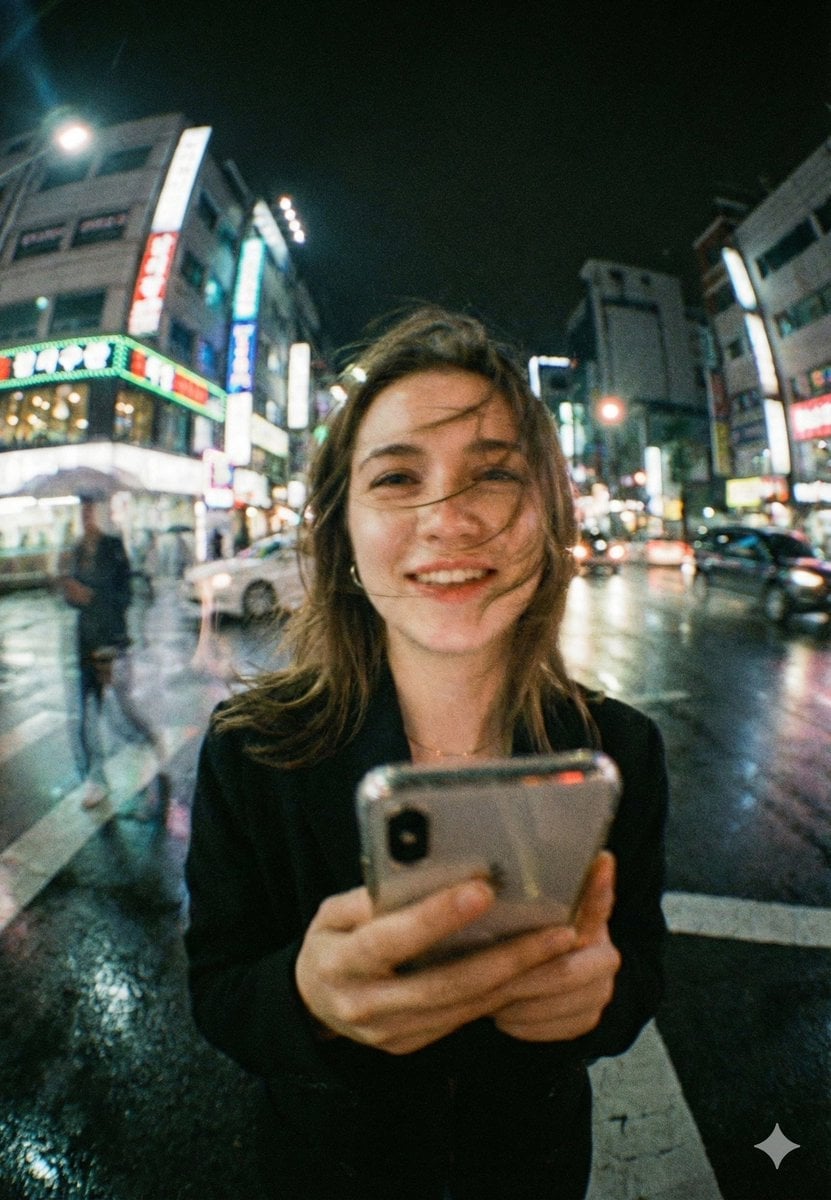
Neon Night Crosswalk Candid Portrait
Make it yours
Cyberpunk City Highway HDRI works as-is. These are the safest ways to change it without losing the look.
Change one field
Copy a single group, rewrite it, and generate again so you can see what that field is doing.
Keep the frame, change the subject
Hold the composition and light of Cyberpunk City Highway HDRI, then swap wardrobe, props or the person for a new take.
| If the result… | Why | Fix |
|---|---|---|
| The result drifts from the preview | Too many fields changed at once. | Reuse Cyberpunk City Highway HDRI as-is first, then change one group — subject, light, or setting. |
| The model over-stylizes the scene | The prose prompt leaves finish and camera underspecified. | Add one camera or lighting sentence and stay on GPT Image 2. |
More GPT Image 2 templates
Other prompts made for GPT Image 2.

Six VTuber Japanese Logo Sheet

Realistic Portrait of Woman and Deer

The Vista Modular Condo Poster

AI Model Routing Comparison Infographic

2.5D Anime Art Board

Isometric Productivity Desk Scene

New York Double Exposure Poster

Four-Panel AI Landscape Comparison

Japanese Tatami Lifestyle Magazine Cover

NESCAFÉ Coffee Map Poster
More image prompts
Fresh picks from across the catalog.

Golden Hour Sailboat Portrait
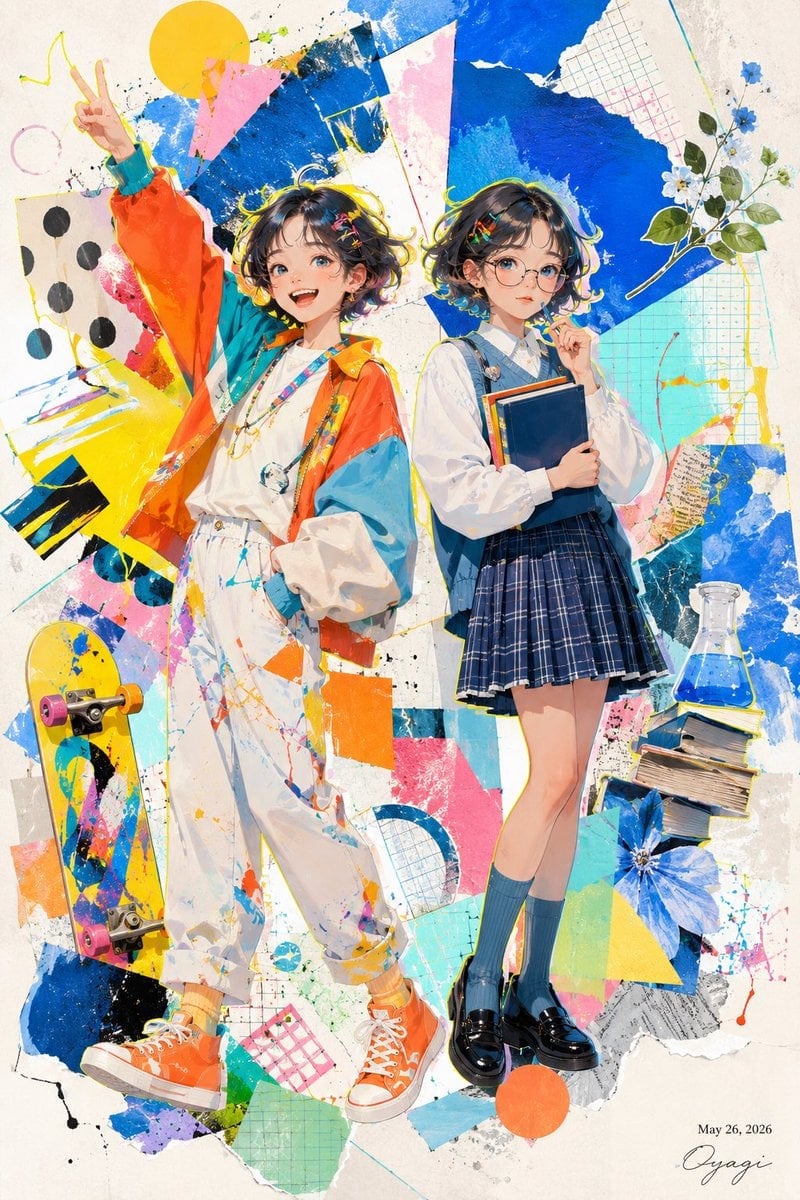
Colorful Anime Twin Poster

Live Streaming App UI Mockup

Cinematic short film prompt for image and video generation

SNS x Character Prompt for Profile Visualization
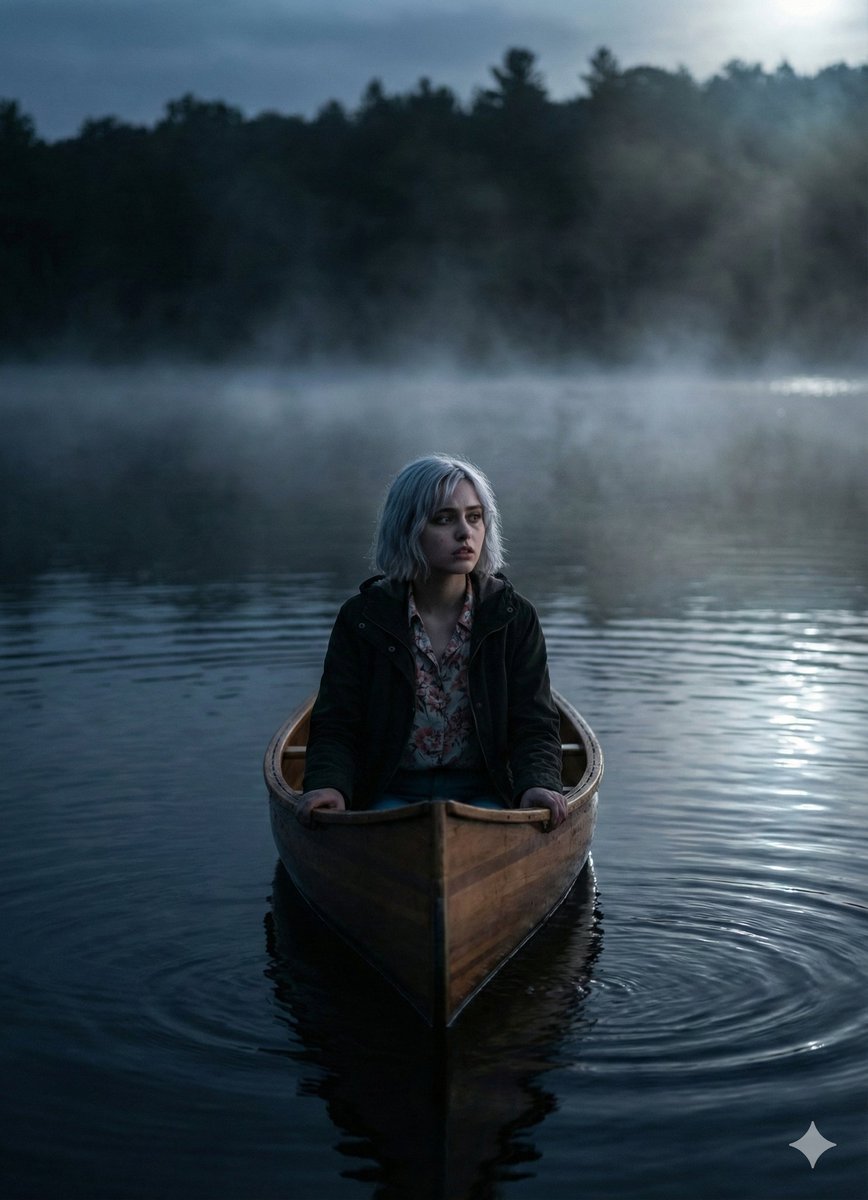
Horror Cinematic Image with Identity Consistency

TinyToes Giant Baby Shoes Ad
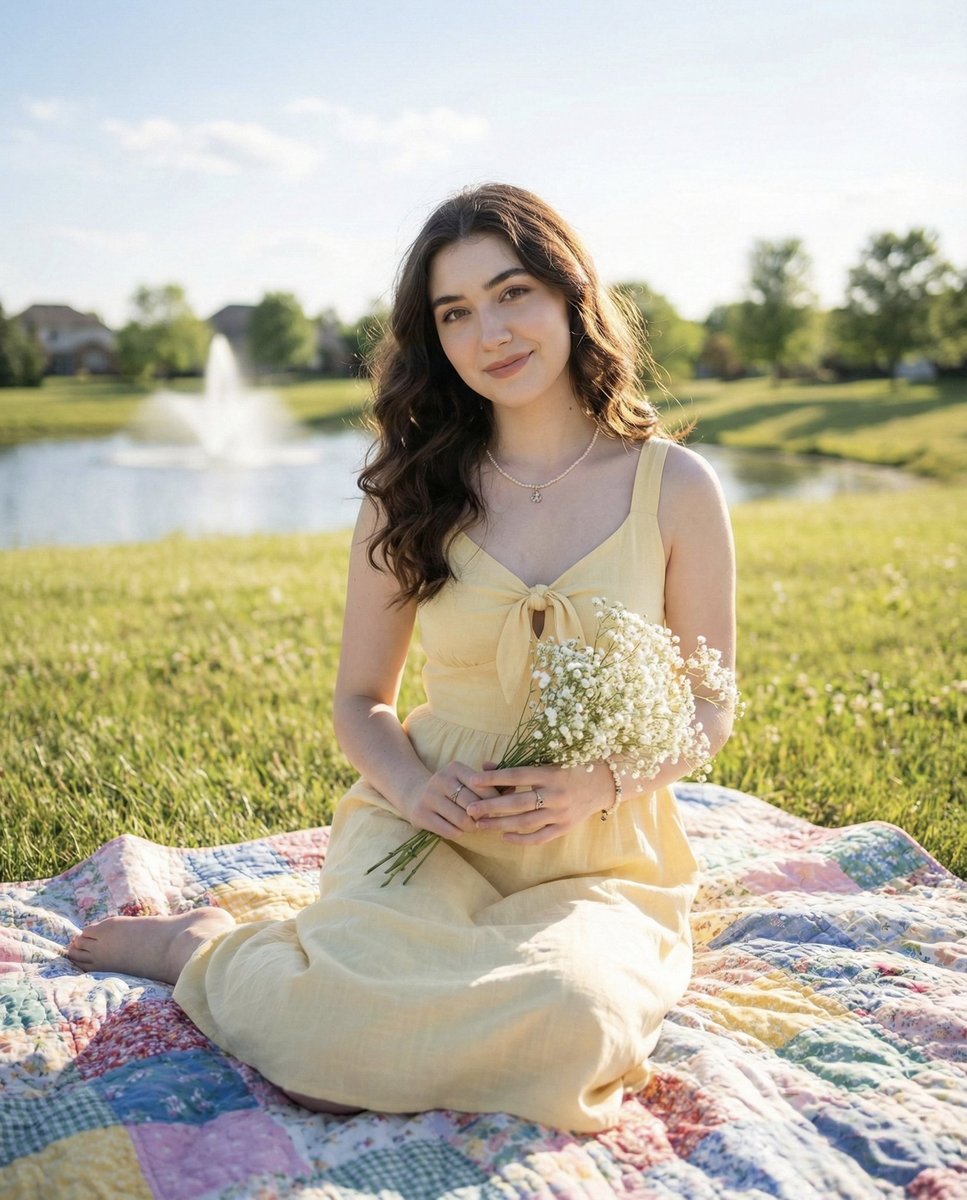
Natural outdoor portrait of a young woman on a picnic blanket
Minimalist Continuous Line Art Illustration
Cinematic Night Photo with Classic Mustang
Browse template categories
Cyberpunk City Highway HDRI questions
How do I use the Cyberpunk City Highway HDRI template?
Add your photo if the template asks for one, edit the prompt if you like — the template's model and format are already selected — and press Generate. Your version opens in PicX Studio.
Can I customize the Cyberpunk City Highway HDRI template?
Yes. You can change the subject, setting, lighting, mood, format, and available model controls before creating your image.
Is the Cyberpunk City Highway HDRI template free?
Opening and editing this template is free. Generating uses credits, shown on the Generate button when you are signed in.
Which AI model should I use?
Start with GPT Image 2, which is the model associated with this template. You can compare another compatible model for a different finish.
Looking for something else? Browse all templates.

Your photo, any look
Thousands of ready templates for every top image and video model, from one credit balance.