
Software Workflow Infographic
Generates a highly structured, multi-section infographic featuring a photorealistic human guide, ideal for software tutorials, workflow summaries, or best-practice guides.

- Prompt included
- Model and format preset
- Free template
The prompt behind this image
Copy the exact prompt behind Software Workflow Infographic, or open it in the studio and make it yours.
- Type
- infographic
- Style
- clean, modern, professional, soft green and beige color palette, photorealistic character integration
- Header › Icon
- lightbulb
- Header › Title
- {argument name="main title" default="ここまでの Seedance 2.0 の使い方まとめ"}
- Header › Subtitle
- {argument name="subtitle" default="実写MV・会話・芝居系を想定した実践メモ"}
- Presenter Character
- {argument name="presenter description" default="photorealistic young Japanese woman with long dark brown hair wearing a beige sleeveless top"}
- Total Presenter Cutouts
- 6
- Layout › Sections › 0 › Number
- 1
- Layout › Sections › 0 › Title
- {argument name="section 1 title" default="参照画像と背景づくり"}
- Layout › Sections › 0 › Elements
- 3 bullet points, 1 horizontal 3-step flowchart with thumbnail images (cityscape, text box, video player)
- Layout › Sections › 0 › Presenter Pose
- pointing left towards the flowchart, with a speech bubble
- Layout › Sections › 1 › Number
- 2
- Layout › Sections › 1 › Title
- {argument name="section 2 title" default="プロンプトは長くてもかなり耐える"}
- Layout › Sections › 1 › Elements
- 2 bullet points, 1 table with 3 rows featuring icons (lock, clock, prohibition sign)
- Layout › Sections › 1 › Presenter Pose
- neutral expression, looking forward, with a speech bubble
- Layout › Sections › 2 › Number
- 3
- Layout › Sections › 2 › Title
- 秒数に“隙間”を作らない
- Layout › Sections › 2 › Elements
- 2 bullet points, 1 horizontal timeline graphic with 3 segments
- Layout › Sections › 2 › Presenter Pose
- pointing up, looking slightly left, with a speech bubble
- Layout › Sections › 3 › Number
- 4
- Layout › Sections › 3 › Title
- 720p と 1080p の使い分け
- Layout › Sections › 3 › Elements
- text description, 1 two-column comparison table (green column, orange column)
- Layout › Sections › 3 › Presenter Pose
- looking forward, with a speech bubble
- Layout › Sections › 4 › Number
- 5
Raw JSON
{
  "type": "infographic",
  "style": "clean, modern, professional, soft green and beige color palette, photorealistic character integration",
  "header": {
    "icon": "lightbulb",
    "title": "{argument name=\"main title\" default=\"ここまでの Seedance 2.0 の使い方まとめ\"}",
    "subtitle": "{argument name=\"subtitle\" default=\"実写MV・会話・芝居系を想定した実践メモ\"}"
  },
  "presenter_character": "{argument name=\"presenter description\" default=\"photorealistic young Japanese woman with long dark brown hair wearing a beige sleeveless top\"}",
  "total_presenter_cutouts": 6,
  "layout": {
    "sections": [
      {
        "number": 1,
        "title": "{argument name=\"section 1 title\" default=\"参照画像と背景づくり\"}",
        "elements": "3 bullet points, 1 horizontal 3-step flowchart with thumbnail images (cityscape, text box, video player)",
        "presenter_pose": "pointing left towards the flowchart, with a speech bubble"
      },
      {
        "number": 2,
        "title": "{argument name=\"section 2 title\" default=\"プロンプトは長くてもかなり耐える\"}",
        "elements": "2 bullet points, 1 table with 3 rows featuring icons (lock, clock, prohibition sign)",
        "presenter_pose": "neutral expression, looking forward, with a speech bubble"
      },
      {
        "number": 3,
        "title": "秒数に“隙間”を作らない",
        "elements": "2 bullet points, 1 horizontal timeline graphic with 3 segments",
        "presenter_pose": "pointing up, looking slightly left, with a speech bubble"
      },
      {
        "number": 4,
        "title": "720p と 1080p の使い分け",
        "elements": "text description, 1 two-column comparison table (green column, orange column)",
        "presenter_pose": "looking forward, with a speech bubble"
      },
      {
        "number": 5,
        "title": "今後の課題 / 次の動画への引き継ぎ",
        "elements": "4 bullet points",
        "presenter_pose": "looking slightly right, with a speech bubble"
      },
      {
        "type": "summary_box",
        "title": "実践メモ 要点",
        "elements": "clipboard icon, 5 checklist items with green checkmarks",
        "presenter_pose": "large portrait from chest up, looking directly at viewer"
      }
    ]
  }
}How to use Software Workflow Infographic in 3 steps
- 1Upload ImagePNG, JPG or paste
Add your photo
Upload the photo the template builds on. The prompt, model and format are already set.
- 2…a portrait of your subject in softgolden-hour light, 85mm…
Personalize
Edit the subject and creative details for your destination.
- 3Generate
Generate
Press Generate — your image is created in PicX Studio, so you can compare it with the original and refine one variable at a time.
More like this
Templates with the same subject, style or setup. Open one to see its prompt.

Japan Travel Brochure Poster

Isometric Process Educational Diorama

Isometric Vehicle Teardown Infographic Template
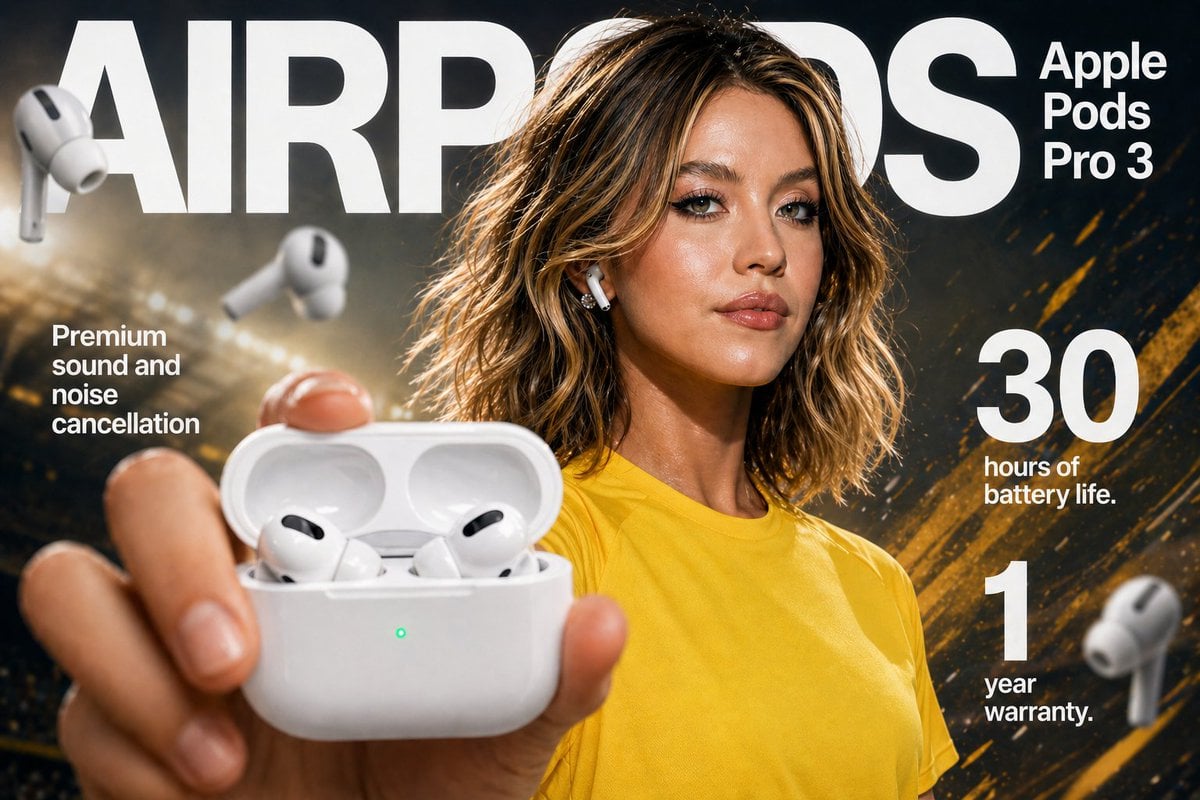
Gpt2 E Commerce Main Image Earbuds E Commerce Infographic
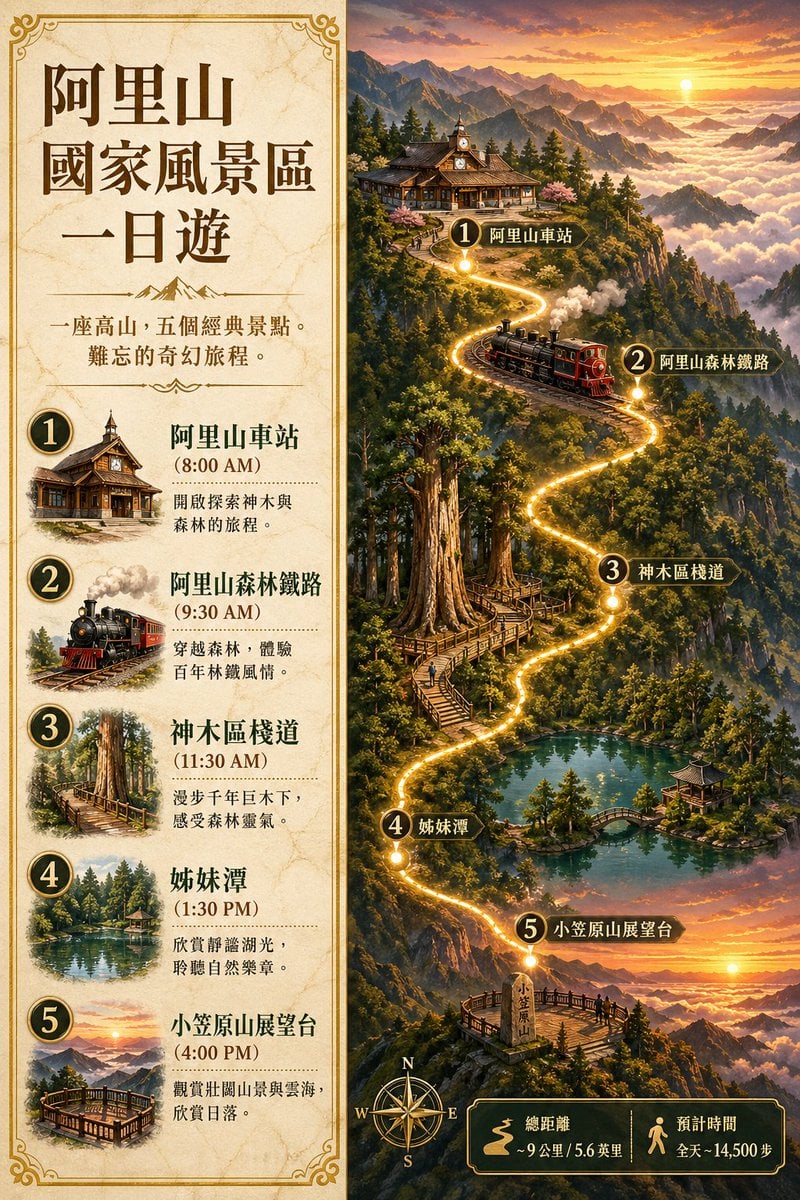
Gpt2 Infographic Edu Visual Alishan One Day Travel Poster

Gpt2 Infographic Edu Visual Ethnographic Plate for Tibetan Ceremonial Hat
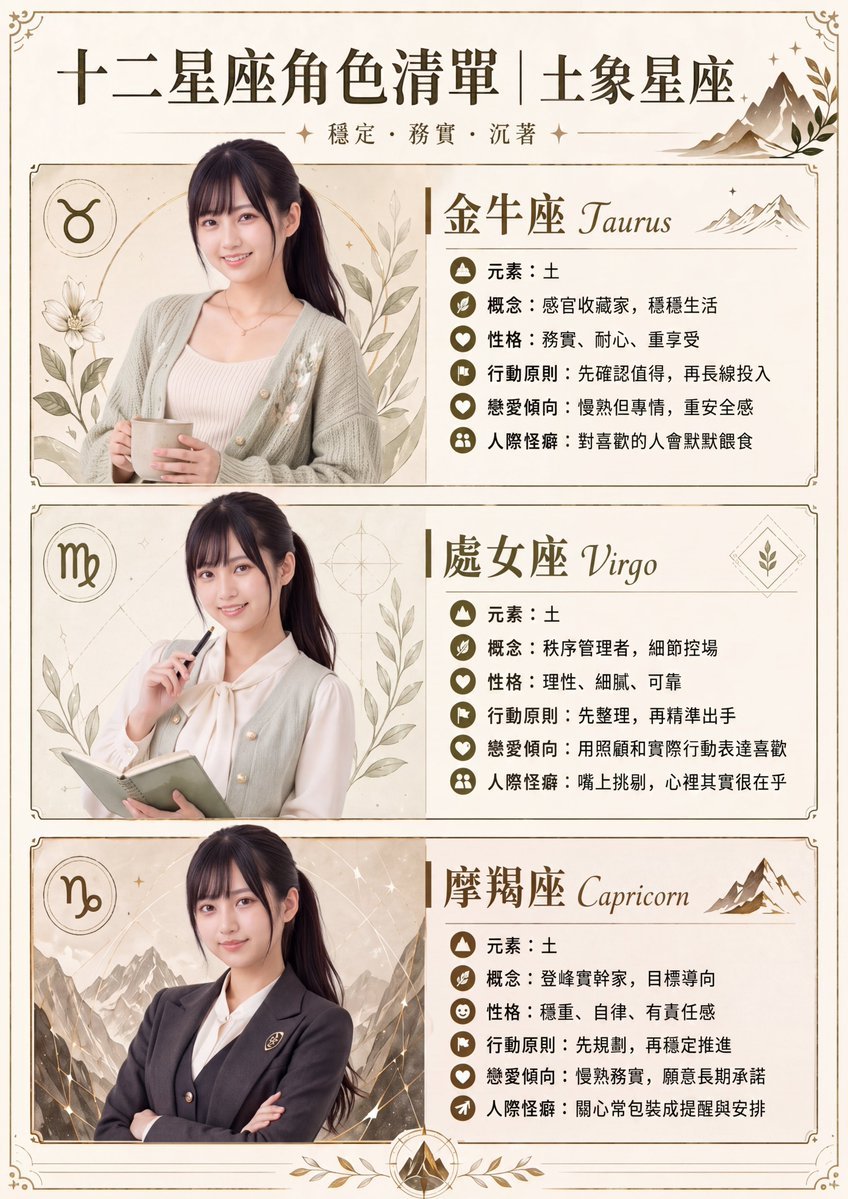
Gpt2 Infographic Edu Visual Earth Signs Zodiac Character Poster
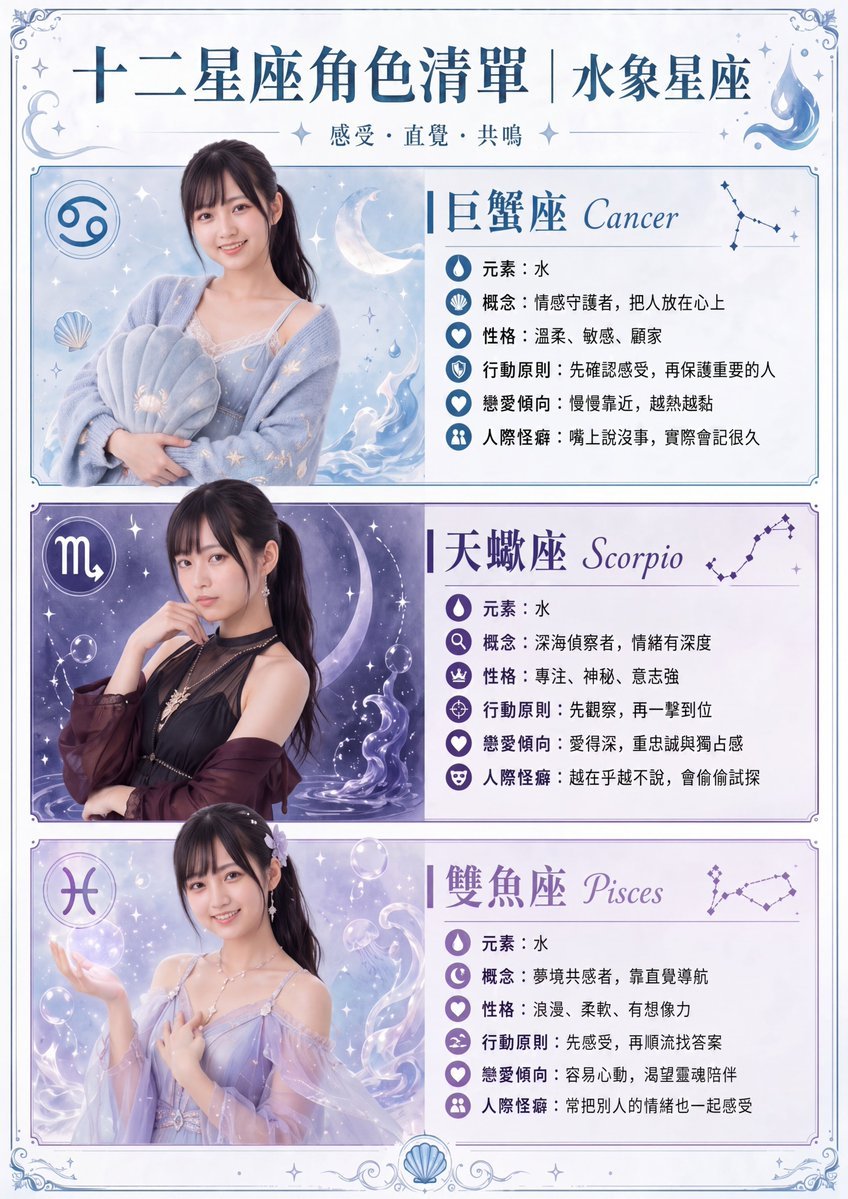
Gpt2 Infographic Edu Visual Water Signs Zodiac Character Poster
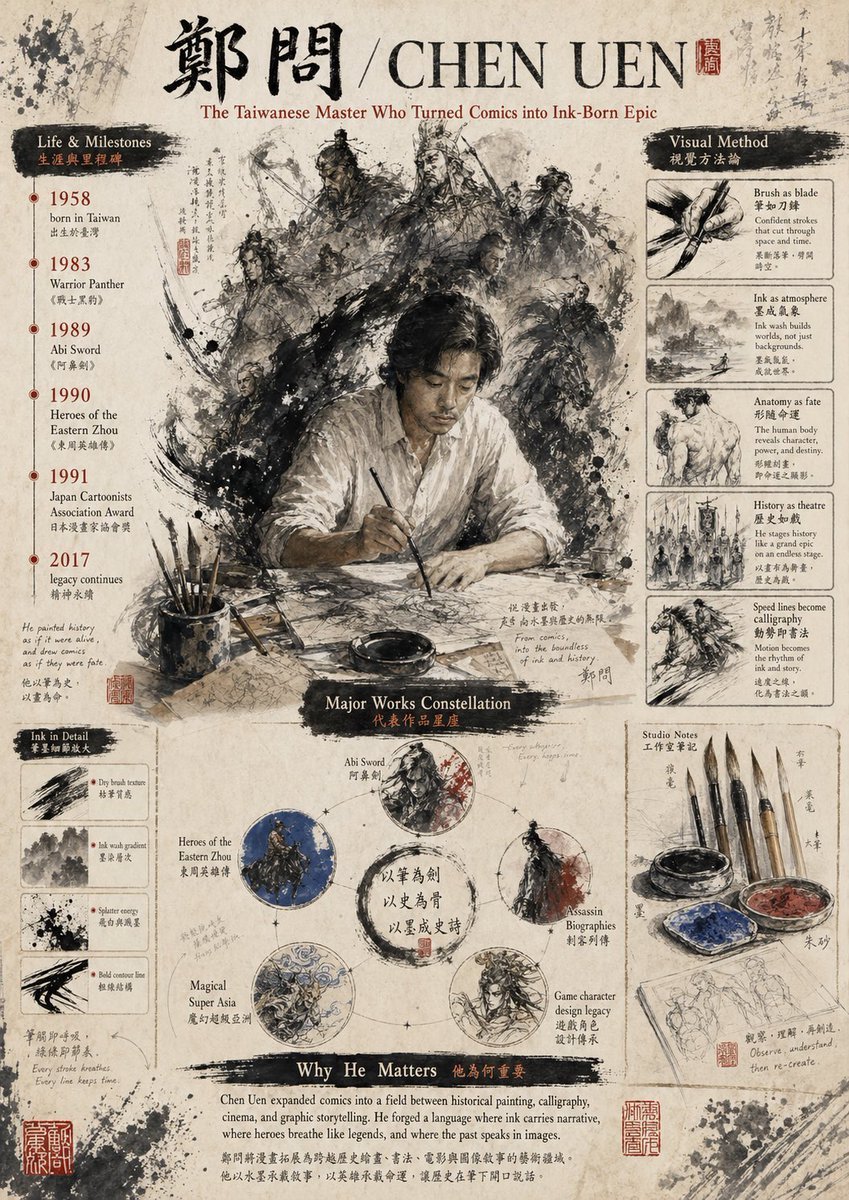
Gpt2 Infographic Edu Visual Ink Wash Tribute Poster for Chen Uen
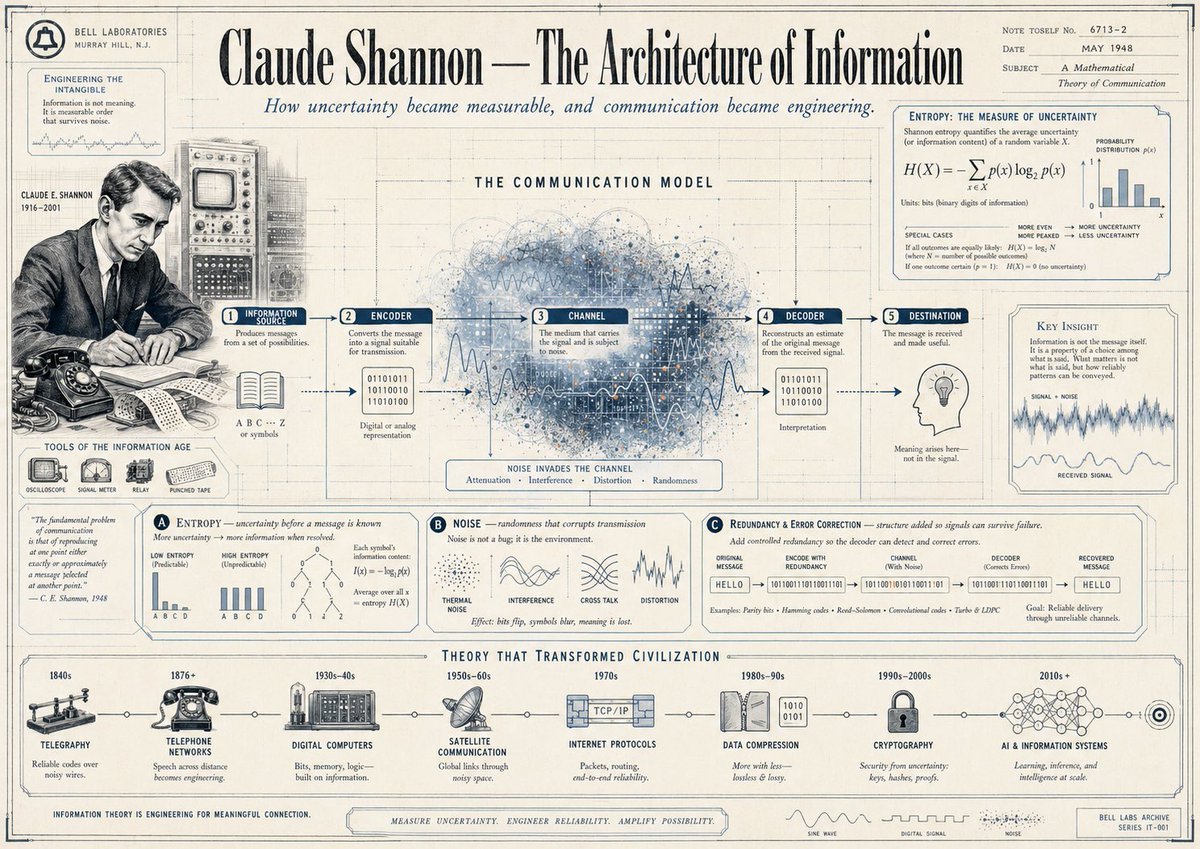
Gpt2 Infographic Edu Visual Vintage Claude Shannon Infographic Poster
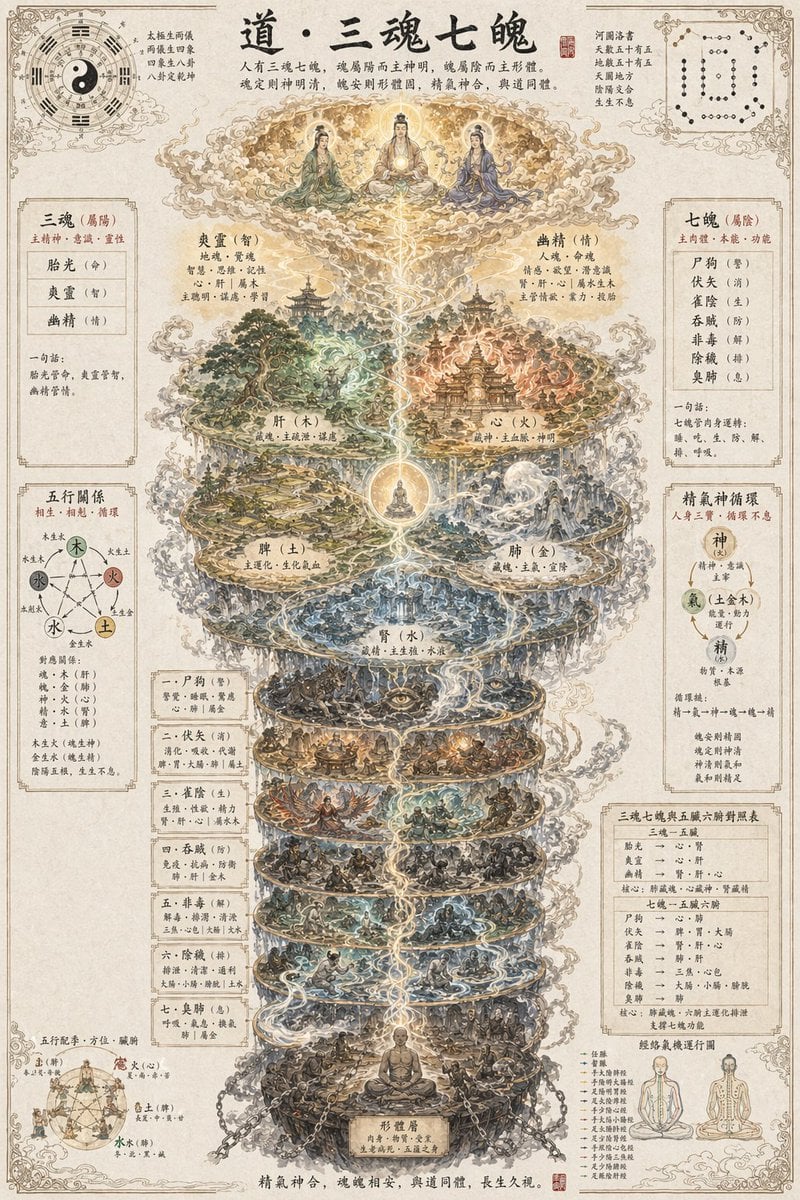
Gpt2 Infographic Edu Visual Taoist Three Souls Seven Po Poster
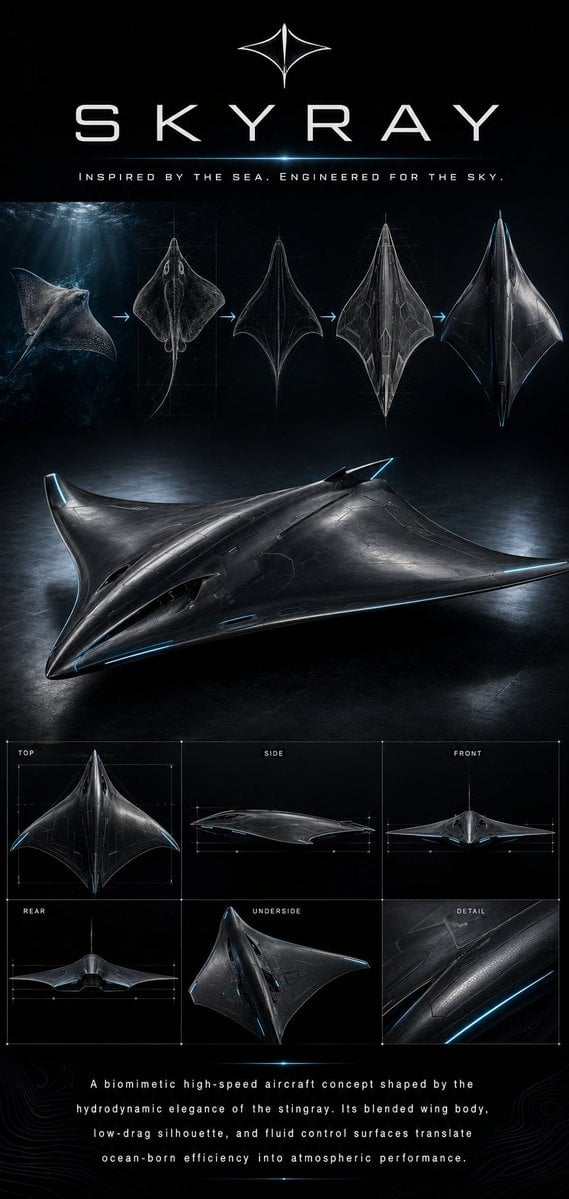
Gpt2 Infographic Edu Visual Biomimetic Skyray Aircraft Poster
Make it yours
Software Workflow Infographic works as-is. These are the safest ways to change it without losing the look.
Change one field
Copy a single group, rewrite it, and generate again so you can see what that field is doing.
Keep the frame, change the subject
Hold the composition and light of Software Workflow Infographic, then swap wardrobe, props or the person for a new take.
| If the result… | Why | Fix |
|---|---|---|
| The result drifts from the preview | Too many fields changed at once. | Reuse Software Workflow Infographic as-is first, then change one group — subject, light, or setting. |
| GPT Image 2 ignores part of the JSON | Some models flatten or skip nested keys. | Keep the same values and paste them as a short paragraph instead. |
More GPT Image 2 templates
Other prompts made for GPT Image 2.

Six VTuber Japanese Logo Sheet

Realistic Portrait of Woman and Deer

The Vista Modular Condo Poster

AI Model Routing Comparison Infographic

2.5D Anime Art Board

Isometric Productivity Desk Scene

New York Double Exposure Poster

Four-Panel AI Landscape Comparison

Japanese Tatami Lifestyle Magazine Cover

NESCAFÉ Coffee Map Poster
More image prompts
Fresh picks from across the catalog.
Nano Banana Pro Pencil Sketch Generation
Arrival Movie AI Poster Prompt
Galdodon Comic Strip Prompt
Movie Title Generator Prompt
Doraemon-Style Newton’s Second Law Comic
Extreme Close-Up High-Contrast Portrait Prompt
Cartoon Sticker Sheet Generator

Botanical Plant Dye Canvas Painting
Shanghai Shikumen Rooftop Night Portrait
Cinematic Low-Light Night Portrait
Browse template categories
Software Workflow Infographic questions
How do I use the Software Workflow Infographic template?
Add your photo if the template asks for one, edit the prompt if you like — the template's model and format are already selected — and press Generate. Your version opens in PicX Studio.
Can I customize the Software Workflow Infographic template?
Yes. You can change the subject, setting, lighting, mood, format, and available model controls before creating your image.
Is the Software Workflow Infographic template free?
Opening and editing this template is free. Generating uses credits, shown on the Generate button when you are signed in.
Which AI model should I use?
Start with GPT Image 2, which is the model associated with this template. You can compare another compatible model for a different finish.
Looking for something else? Browse all templates.

Your photo, any look
Thousands of ready templates for every top image and video model, from one credit balance.