
Gestural Ink Fashion Illustration
An advanced image-to-image prompt that transforms a photo into a bold, high-fashion black ink illustration with a specific color accent.
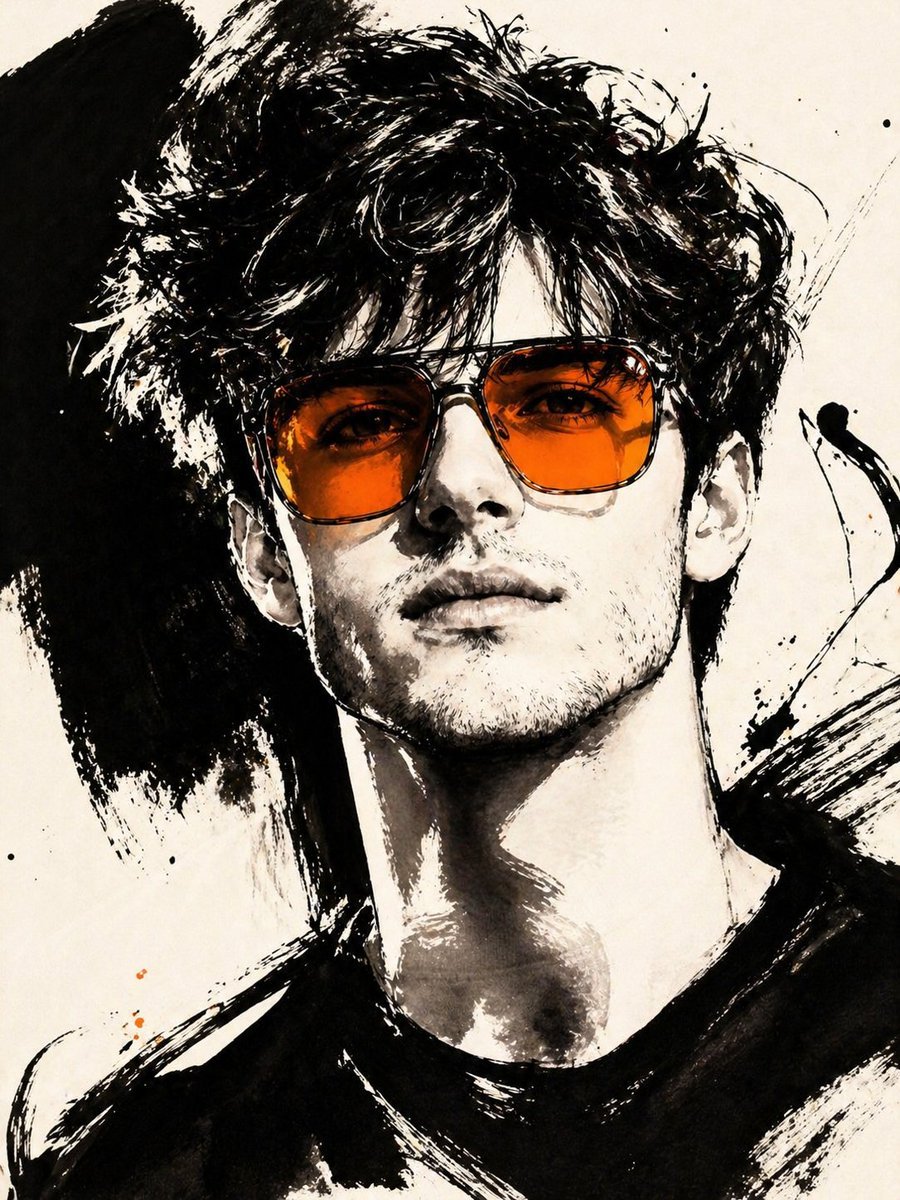
- Prompt included
- Model and format preset
- Free template
The prompt behind this image
Copy the exact prompt behind Gestural Ink Fashion Illustration, or open it in the studio and make it yours.
ASPECT_RATIO: [{argument name="aspect ratio" default="3:4"}] SOURCE_IMAGE: [{argument name="reference" default="uploaded photo"}] ACCENT_COLOR: [{argument name="accent color" default="single vivid highlight color"}] Use the uploaded photo as the base image and the only identity source. Keep the person exactly the same and clearly recognizable. Ignore the original framing and always recompose into a tight close-up or upper-body editorial crop, with the face dominating the frame. Transform the image into a gestural editorial ink fashion illustration. The style must be built from bold black brushwork, not delicate sketch lines. Use: very thick black brush strokes broad dry-brush sweeps large asymmetrical black ink masses long loose calligraphic lines broken contours scratchy secondary linework strong black-on-ivory contrast smooth monochrome skin The thick strokes must be clearly dominant. Do not render the portrait mainly with thin contour lines. Do not make it neat, polished, or softly illustrated. The image should feel painted with a loaded brush and finished with sharp expressive pen marks. Keep the portrait stylish and high-fashion. Use one hero accessory, preferably oversized translucent tinted sunglasses. The accent color [ACCENT_COLOR] must live mainly inside that accessory, especially in the lenses, as a bold luminous tint. Only tiny supporting traces of the same color may appear elsewhere.
How to use Gestural Ink Fashion Illustration in 3 steps
- 1Upload ImagePNG, JPG or paste
Add your photo
Upload the photo the template builds on. The prompt, model and format are already set.
- 2…a portrait of your subject in softgolden-hour light, 85mm…
Personalize
Edit the subject and creative details for your destination.
- 3Generate
Generate
Press Generate — your image is created in PicX Studio, so you can compare it with the original and refine one variable at a time.
More like this
Templates with the same subject, style or setup. Open one to see its prompt.
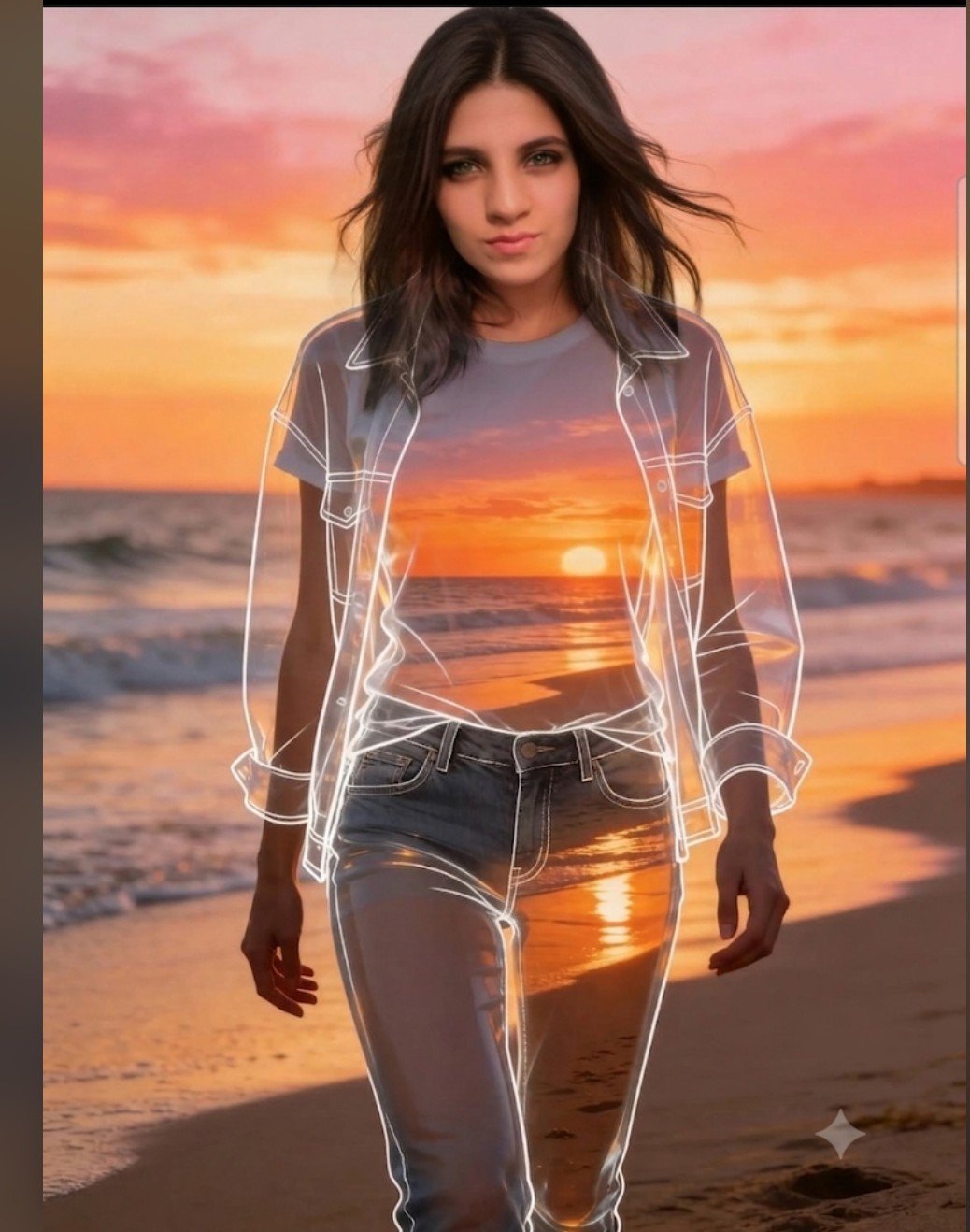
Beach Sunset Double Exposure Wireframe Portrait
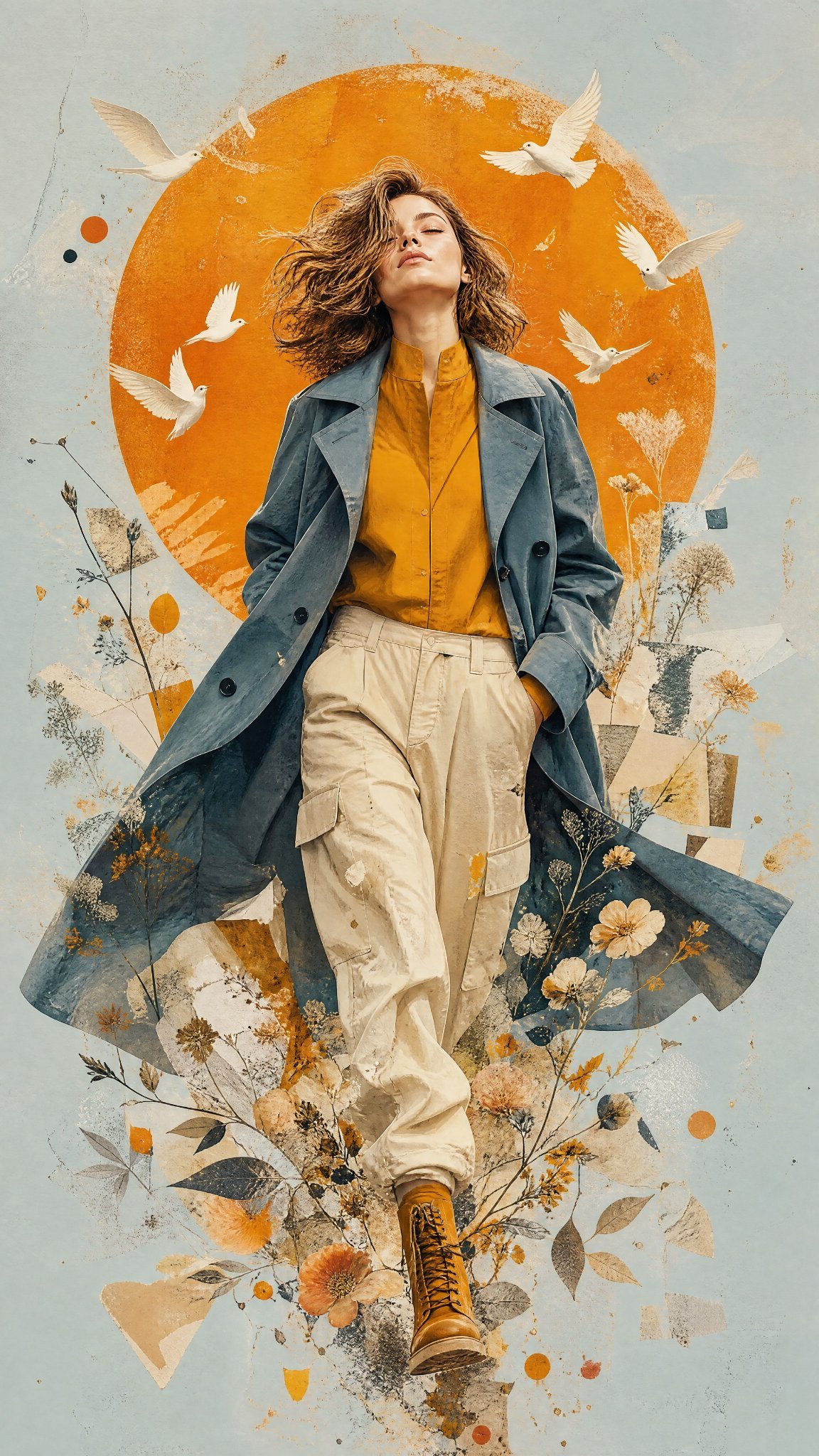
Mixed Media Editorial Woman Illustration
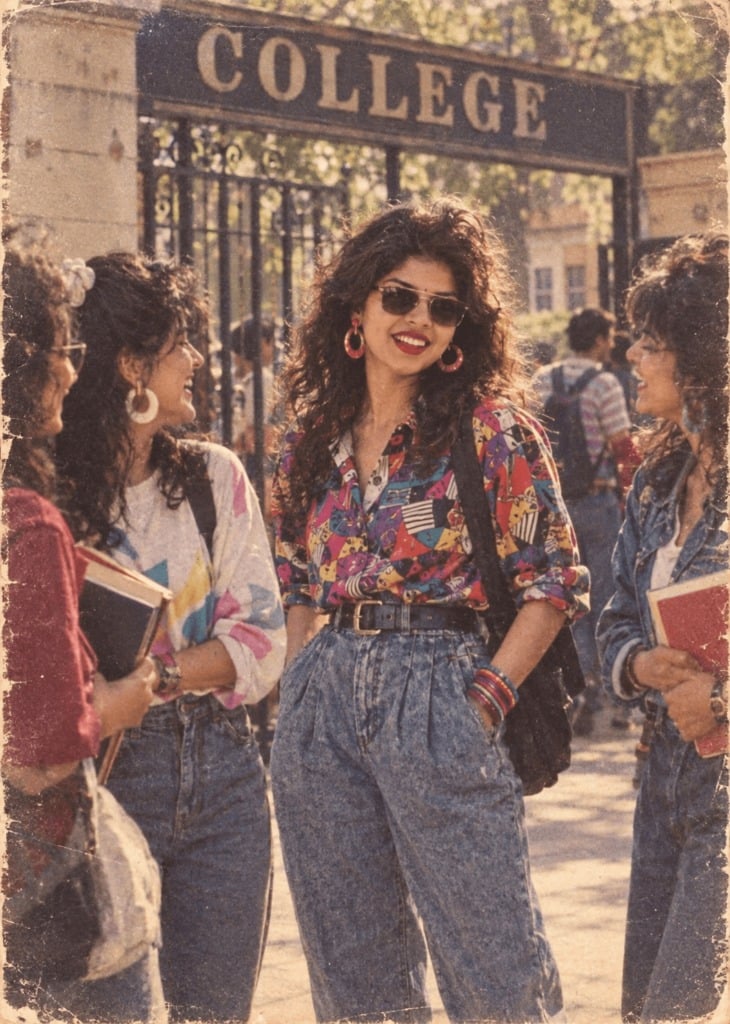
80s College Gate
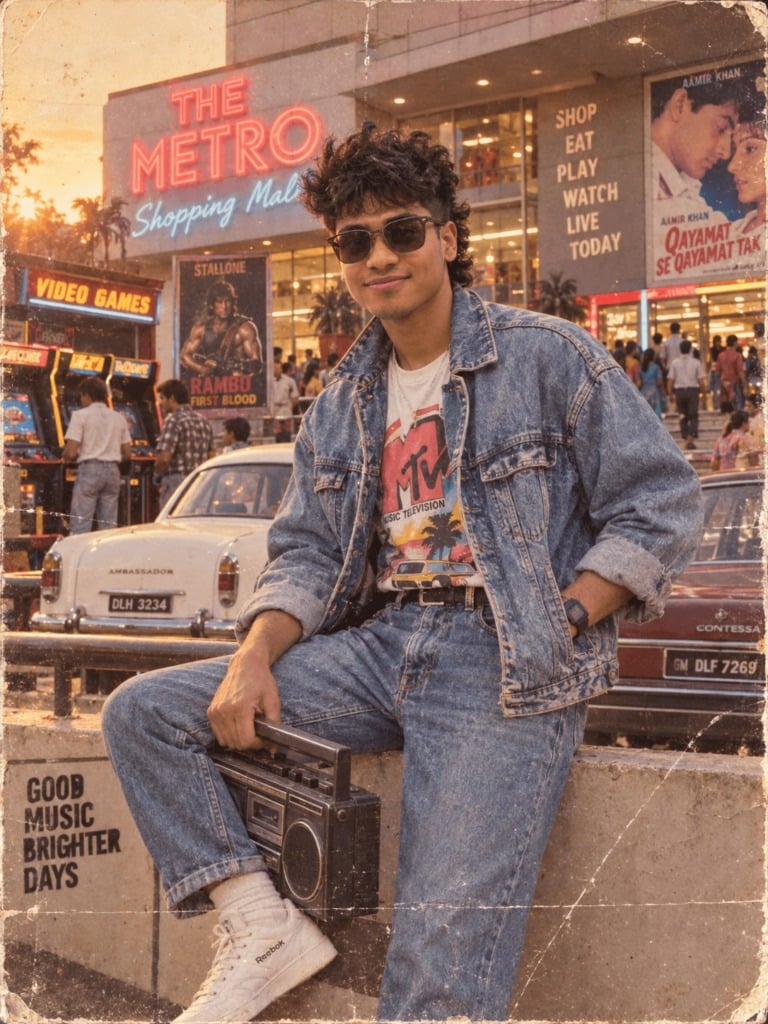
1988 Mall Style
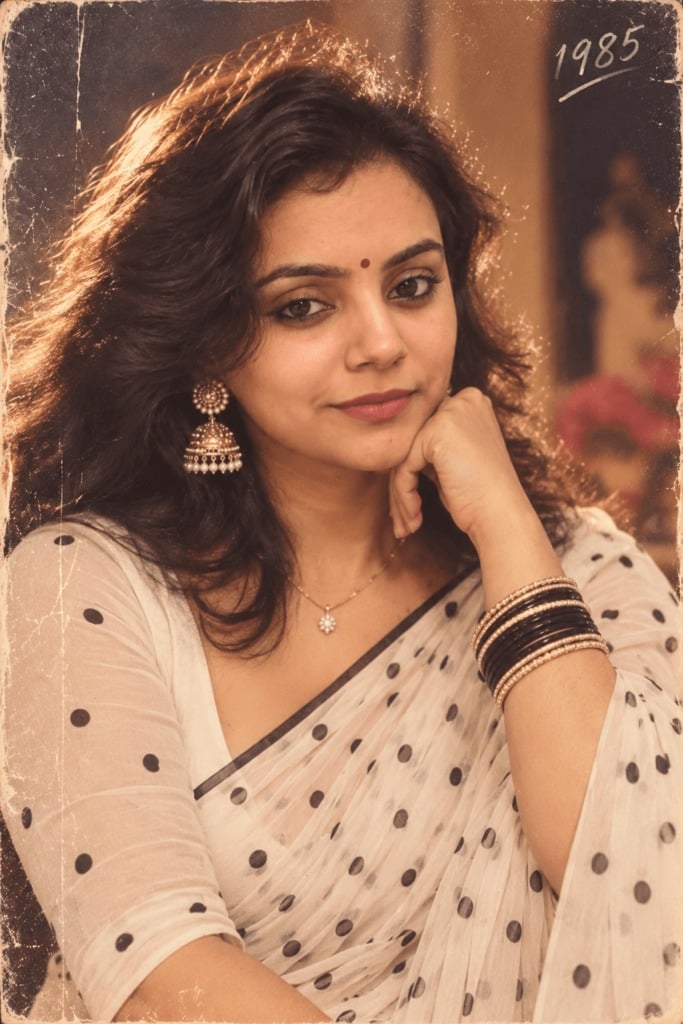
80s Polka Dot Saree
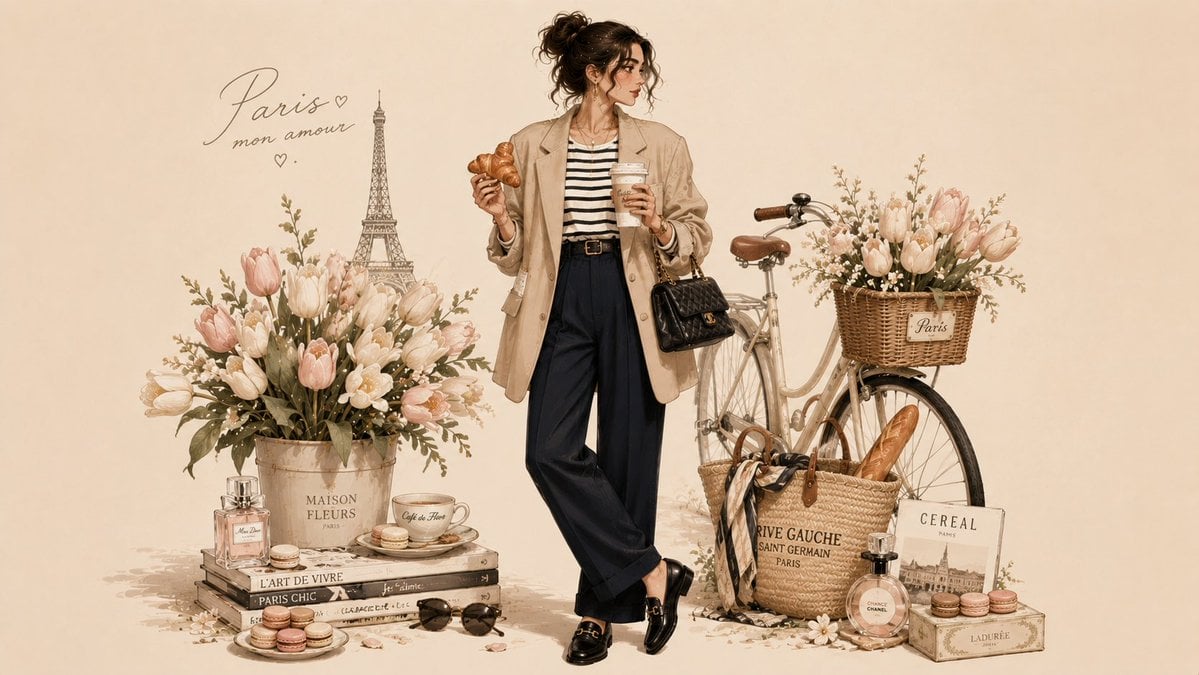
Parisian Fashion Lifestyle Illustration
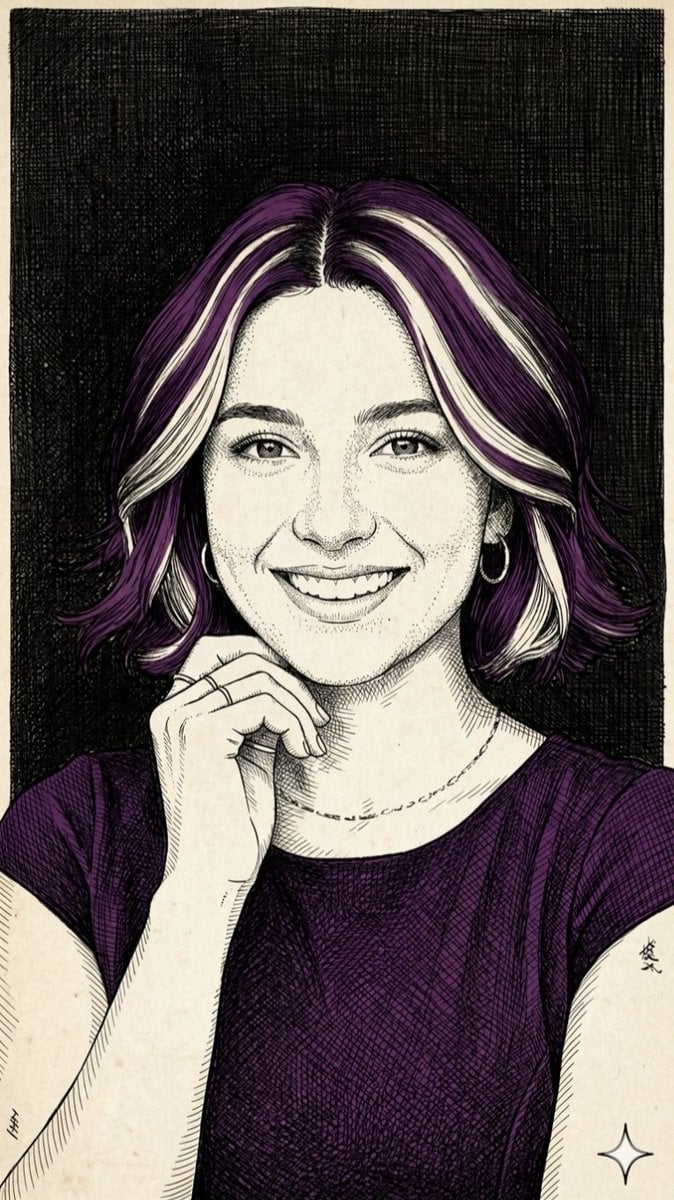
Pen-and-Ink Cross-Hatching Illustration
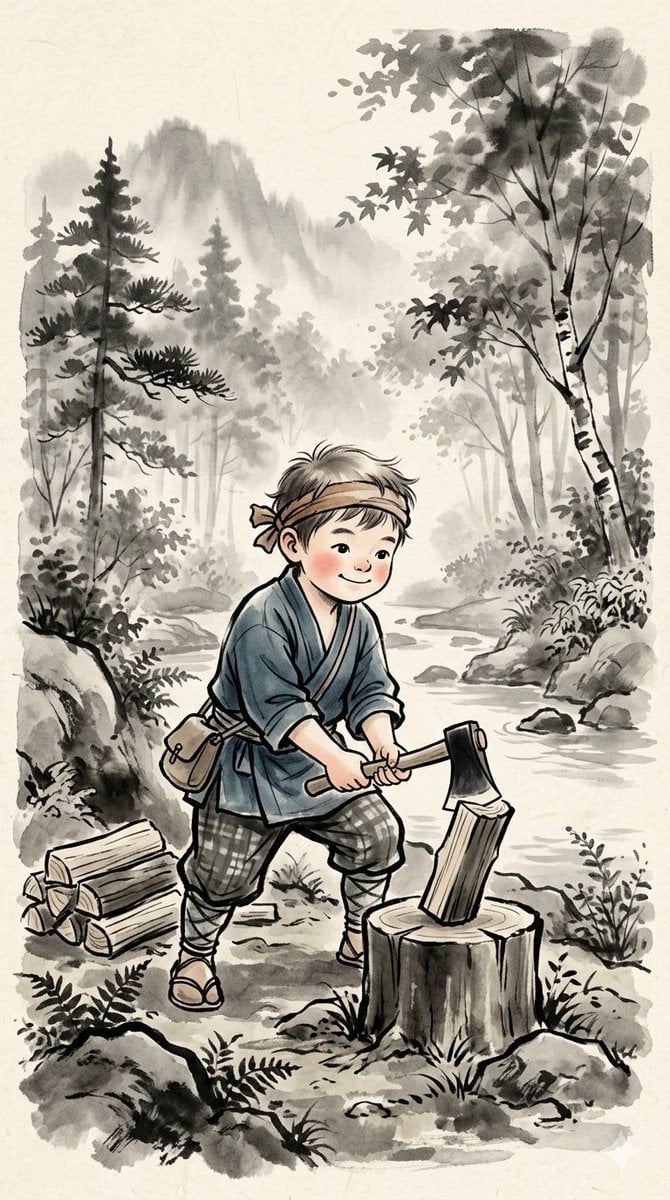
Traditional Japanese Ink Children Illustration
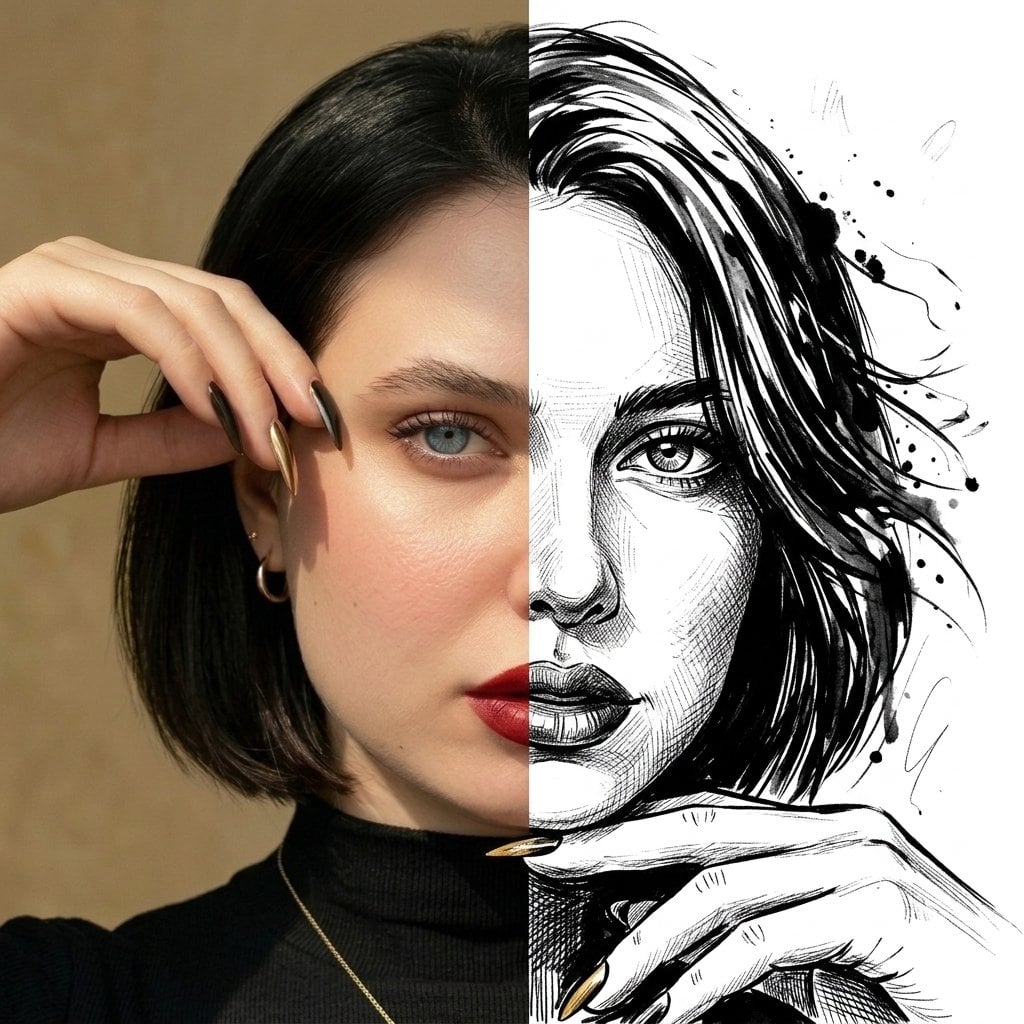
Split Face Photo and Ink Illustration
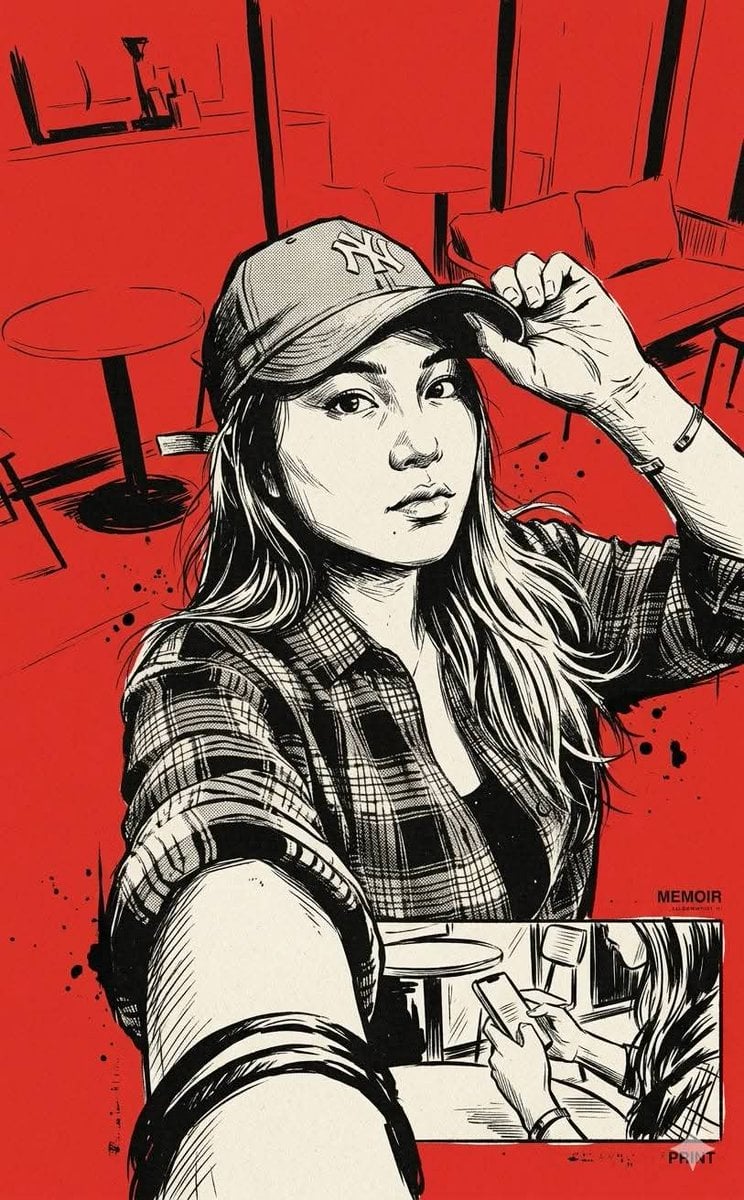
Vintage Noir Ink Illustration
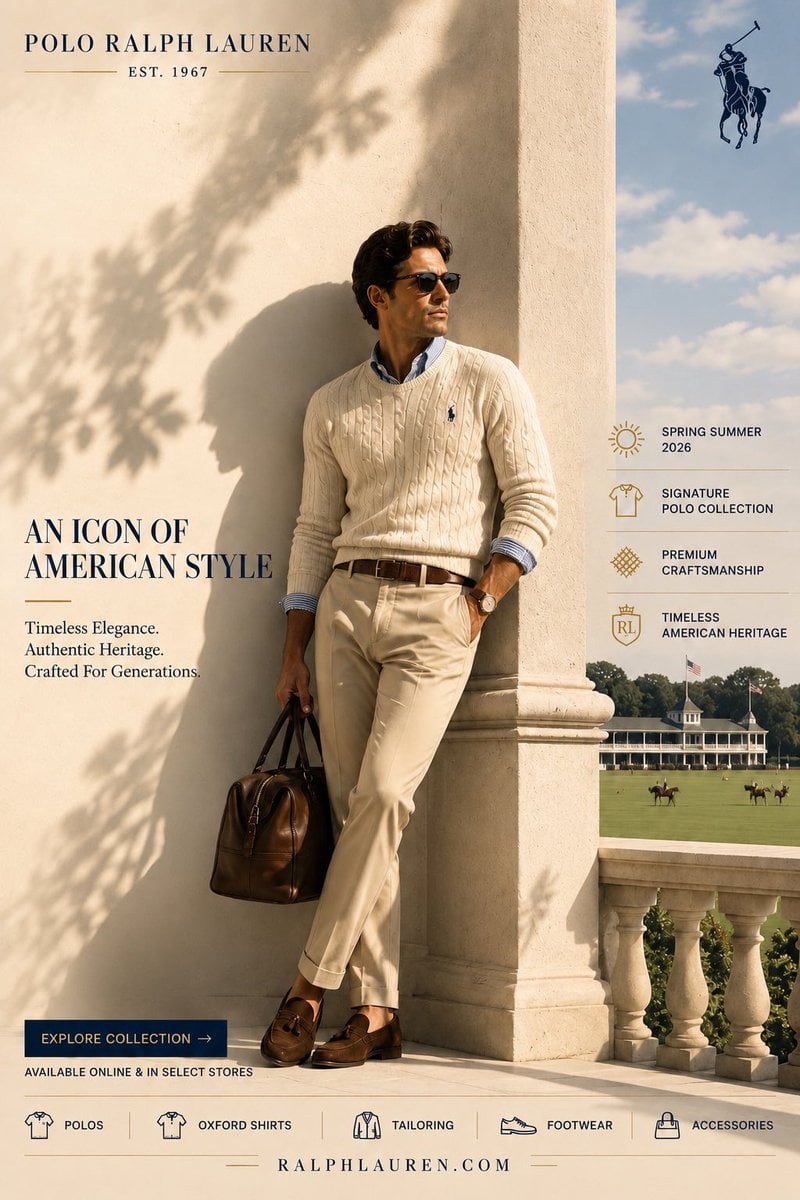
Polo Ralph Lauren Luxury American Heritage Fashion Campaign
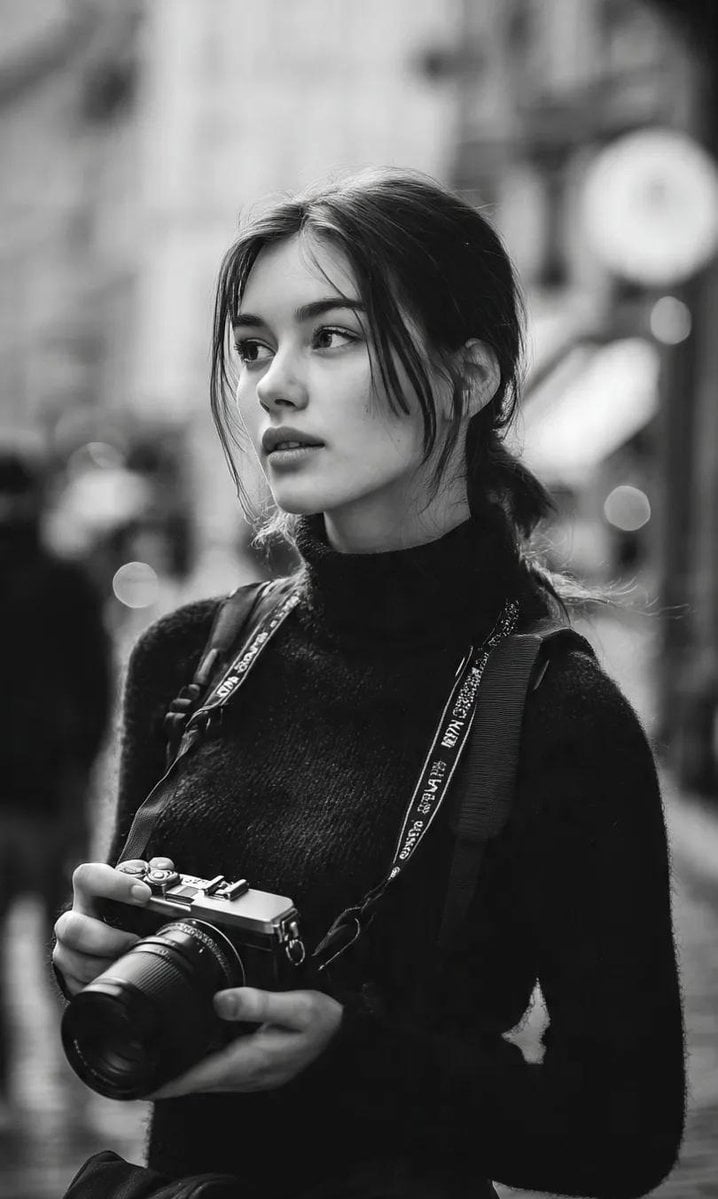
Cinematic Street Fashion Photographer Portrait
Make it yours
Gestural Ink Fashion Illustration works as-is. These are the safest ways to change it without losing the look.
Change one field
Copy a single group, rewrite it, and generate again so you can see what that field is doing.
Keep the frame, change the subject
Hold the composition and light of Gestural Ink Fashion Illustration, then swap wardrobe, props or the person for a new take.
| If the result… | Why | Fix |
|---|---|---|
| The result drifts from the preview | Too many fields changed at once. | Reuse Gestural Ink Fashion Illustration as-is first, then change one group — subject, light, or setting. |
| The model over-stylizes the scene | The prose prompt leaves finish and camera underspecified. | Add one camera or lighting sentence and stay on GPT Image 2. |
More GPT Image 2 templates
Other prompts made for GPT Image 2.

Six VTuber Japanese Logo Sheet

Realistic Portrait of Woman and Deer

The Vista Modular Condo Poster

AI Model Routing Comparison Infographic

2.5D Anime Art Board

Isometric Productivity Desk Scene

New York Double Exposure Poster

Four-Panel AI Landscape Comparison

Japanese Tatami Lifestyle Magazine Cover

NESCAFÉ Coffee Map Poster
More image prompts
Fresh picks from across the catalog.
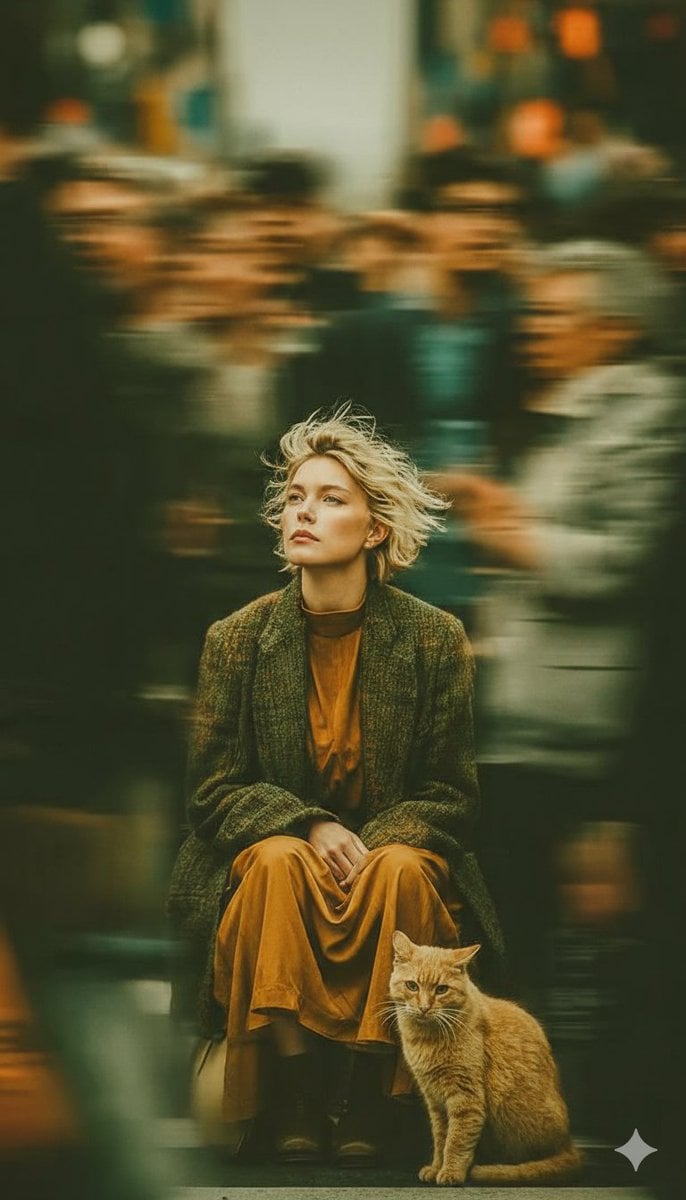
Long-Exposure Cinematic Street Photography Portrait
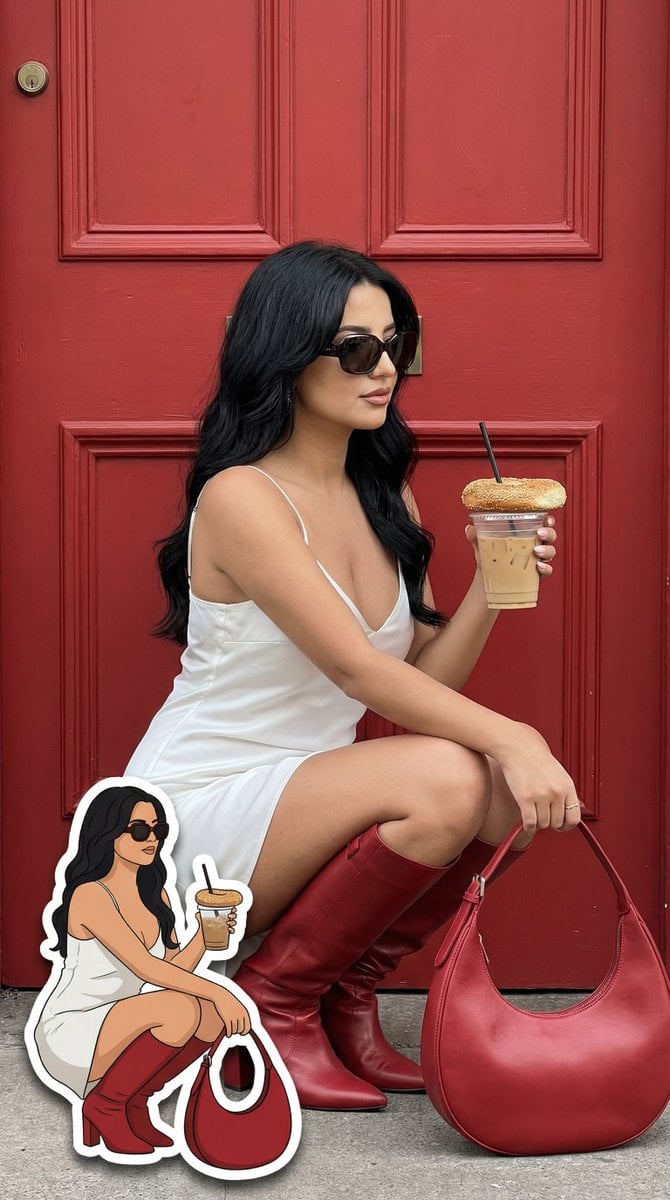
Fashion Editorial with Exact 2D Cartoon Duplicate
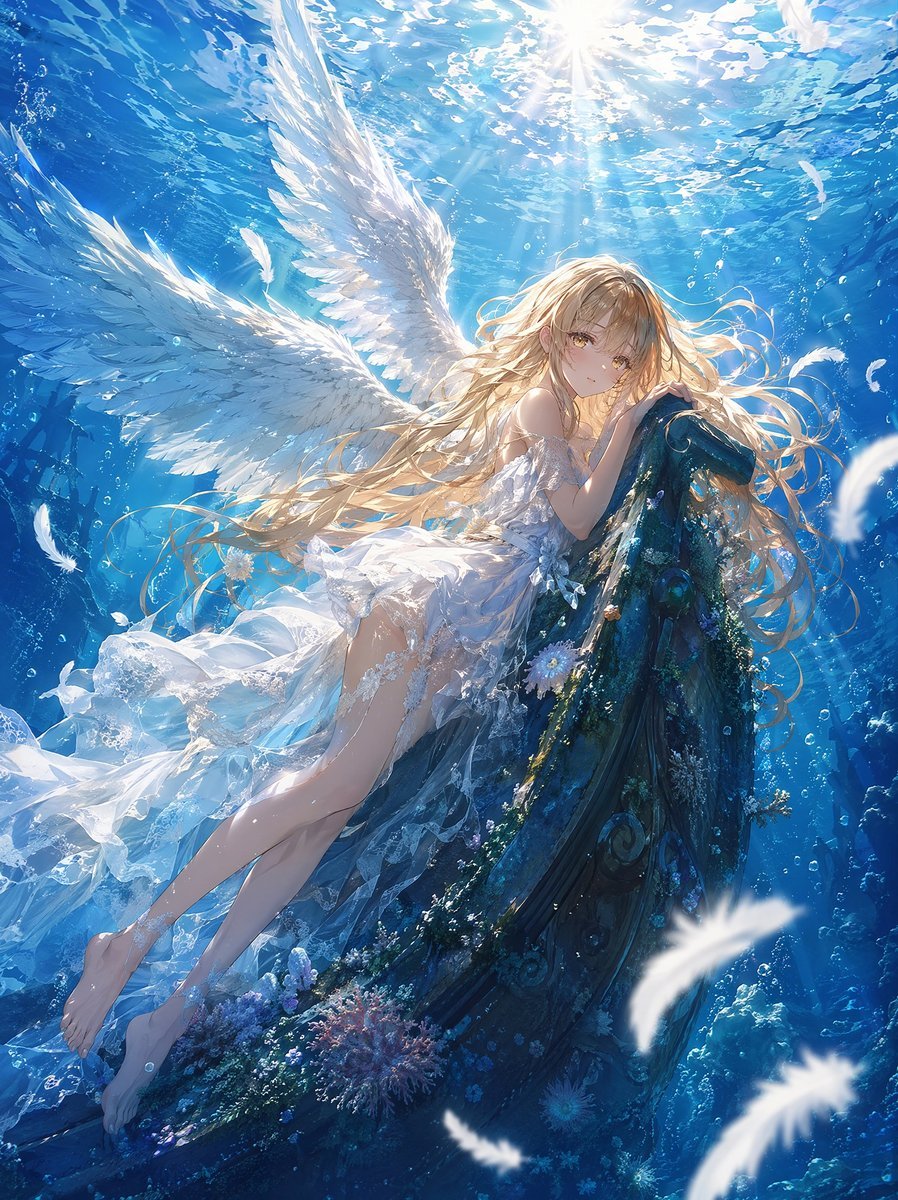
Underwater Angel Fantasy Illustration
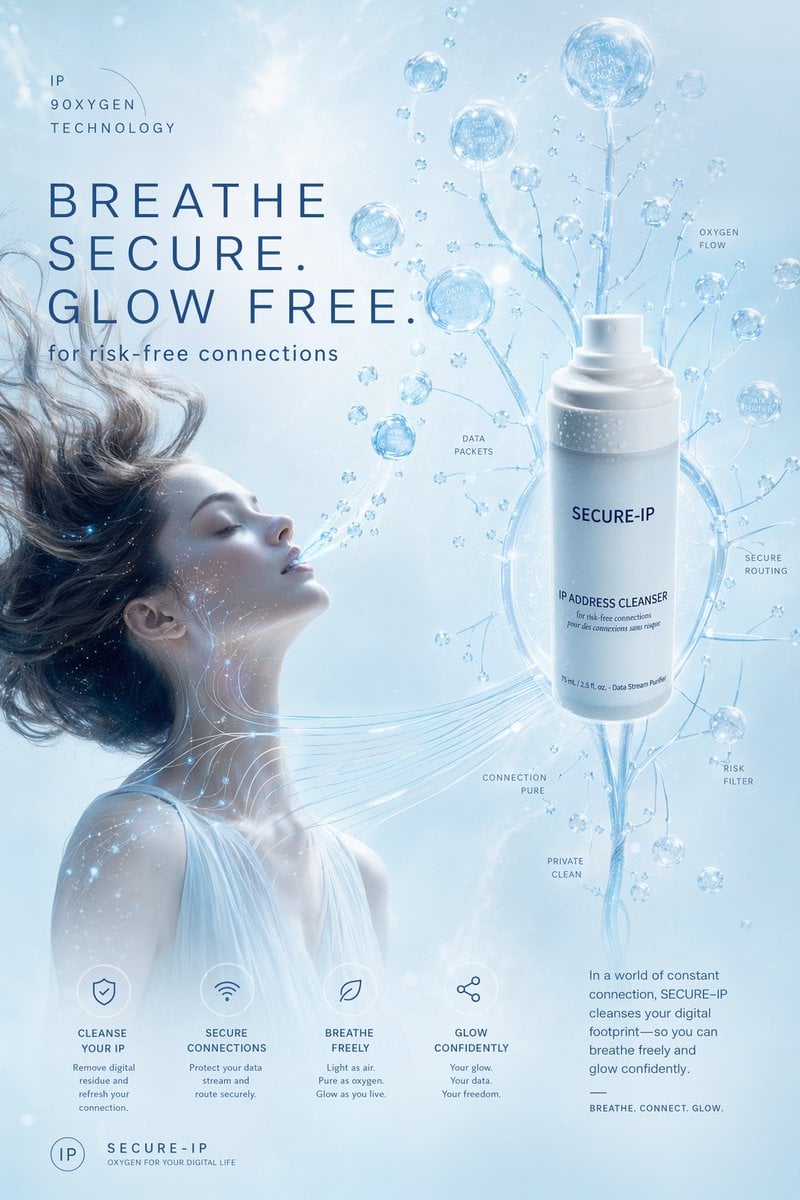
Futuristic Secure-IP Ad Poster
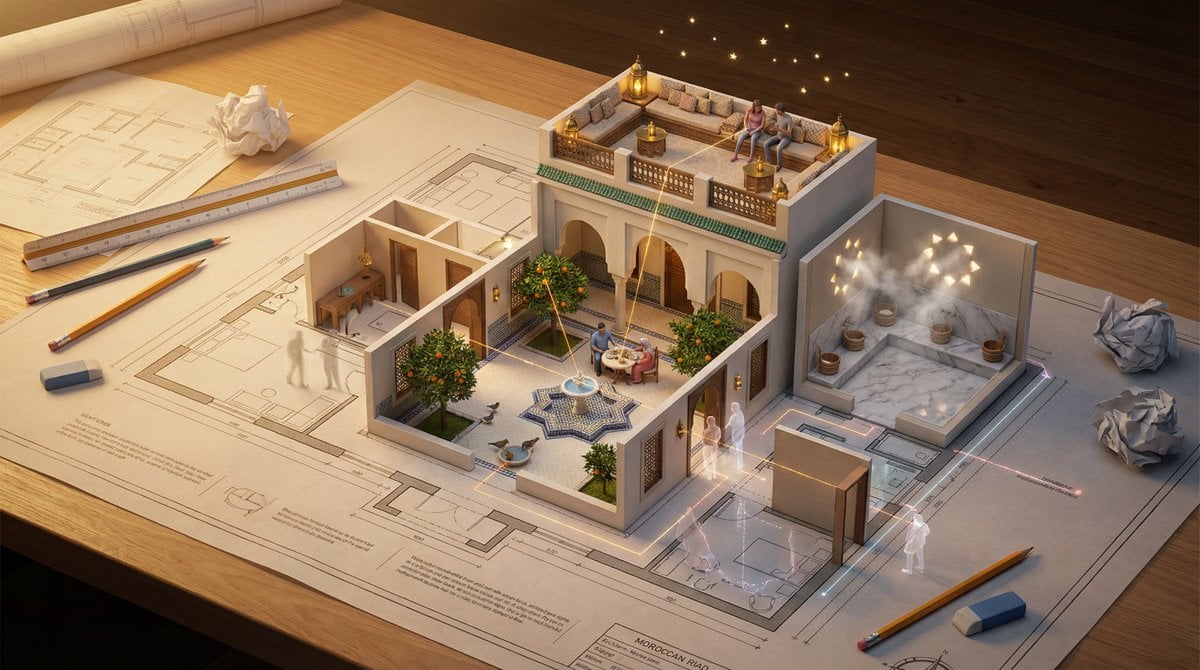
Architectural Floor Plan as Miniature World
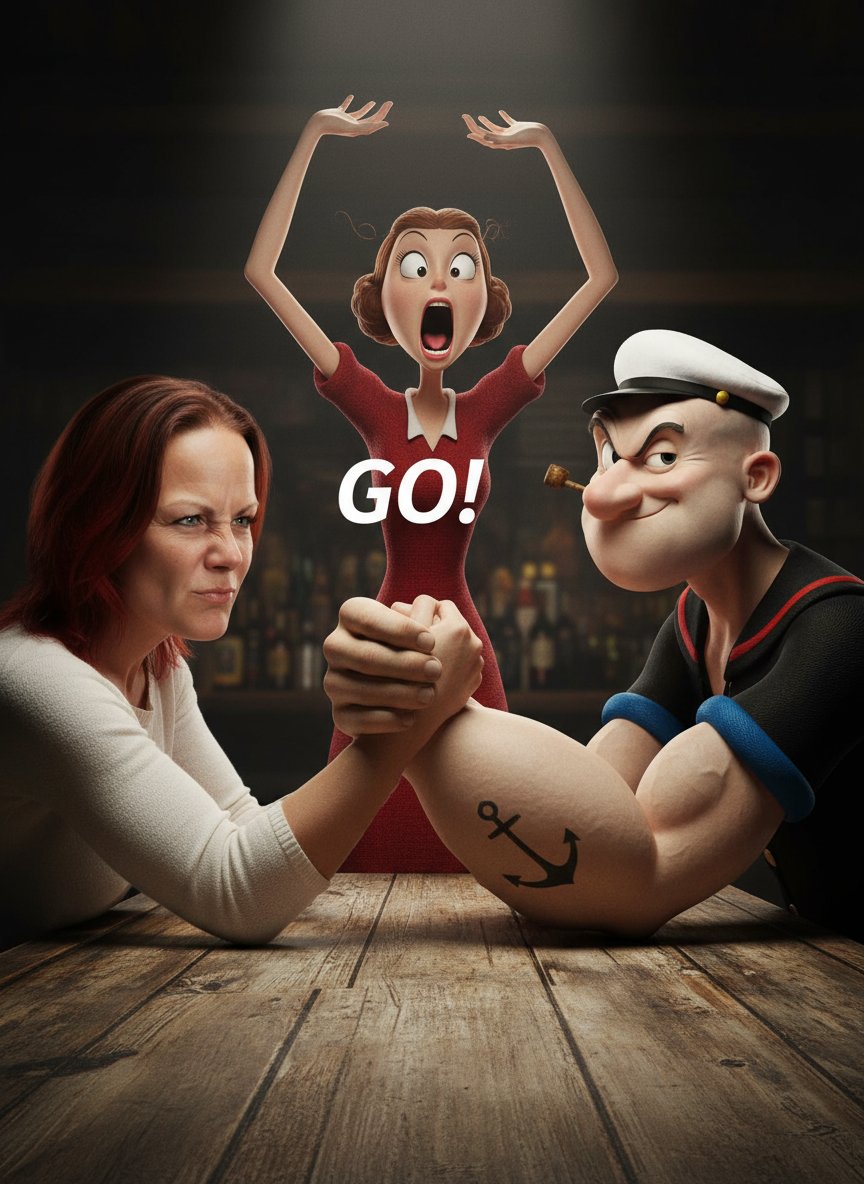
Image-to-Image Transformation: Arm Wrestling with Popeye
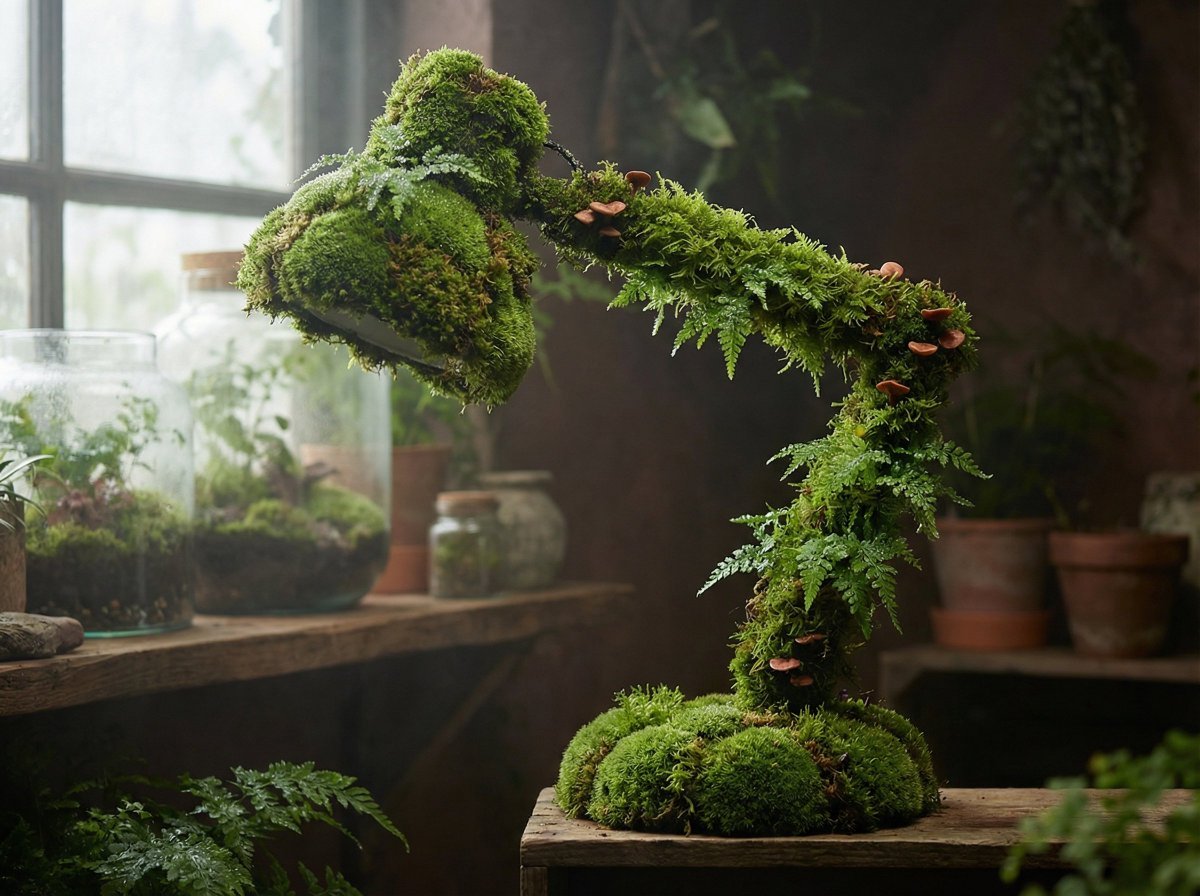
Moss Living Product Rendering Prompt
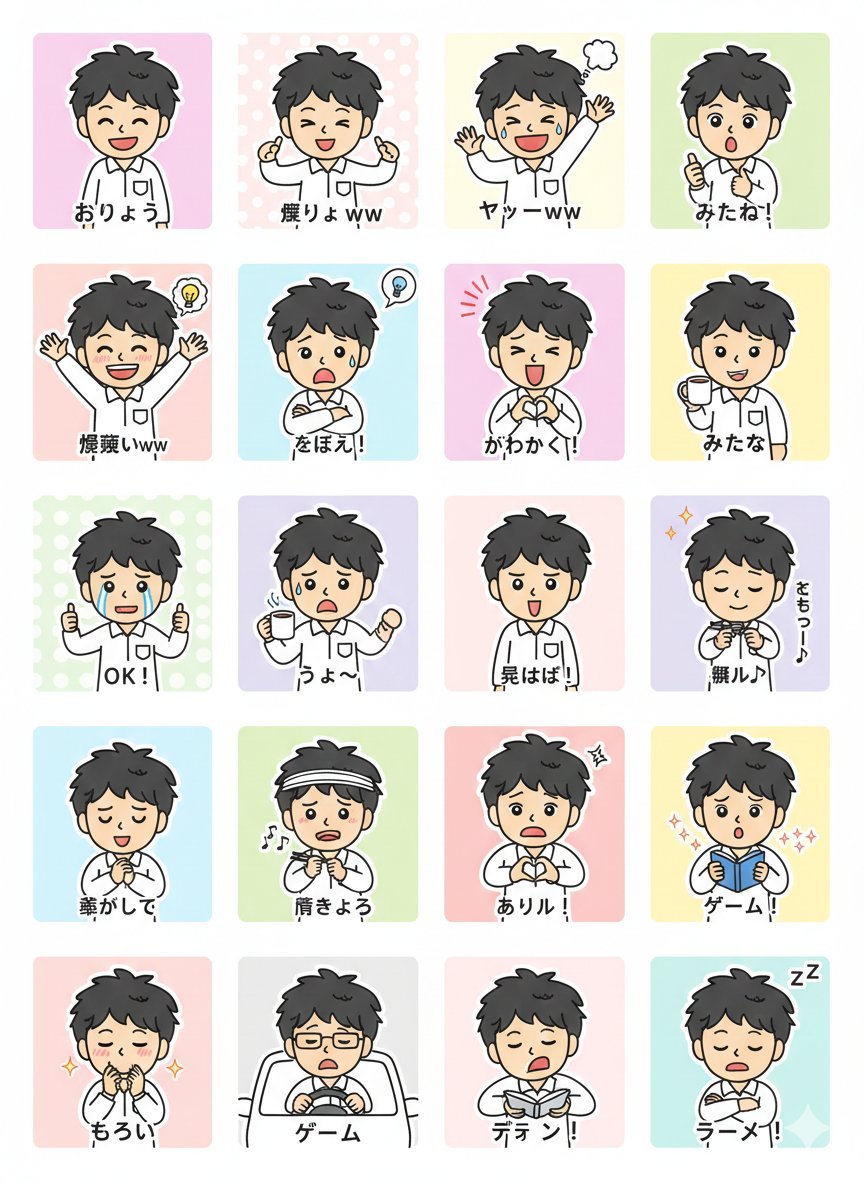
LINE Sticker Generation Prompt
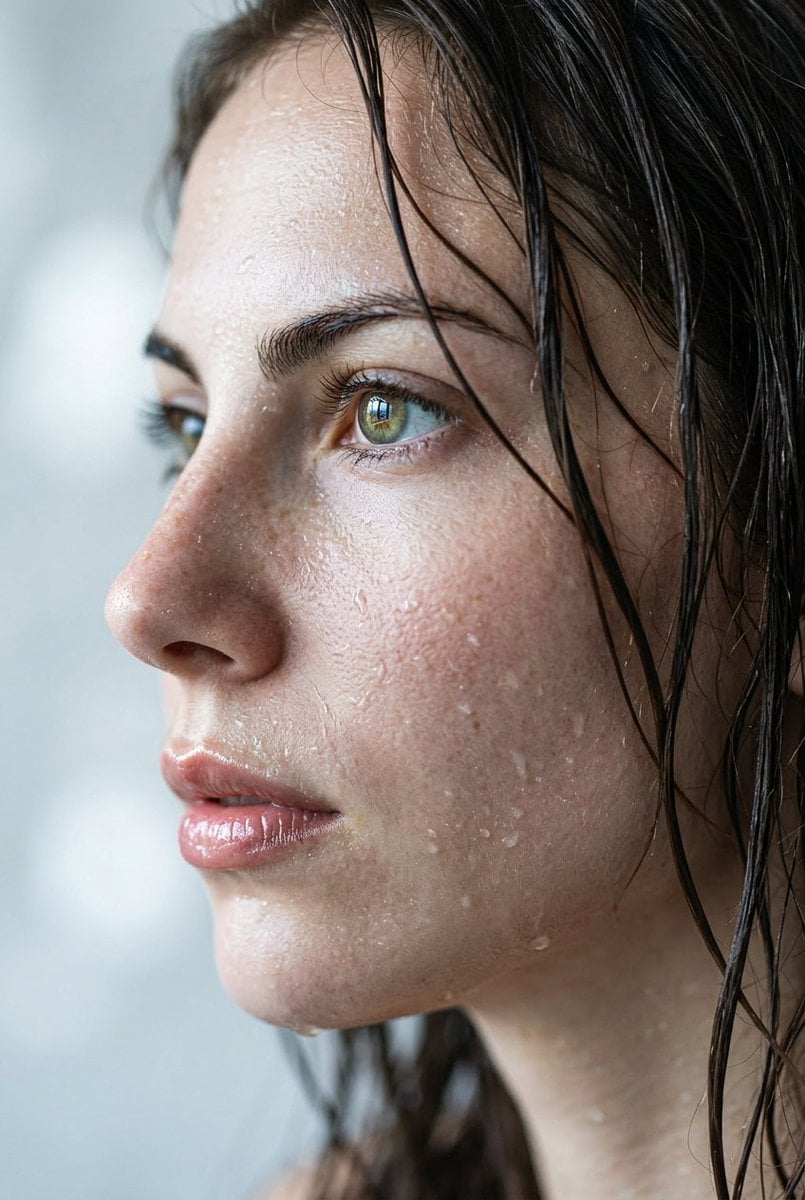
Extreme Wet Close-up Portrait
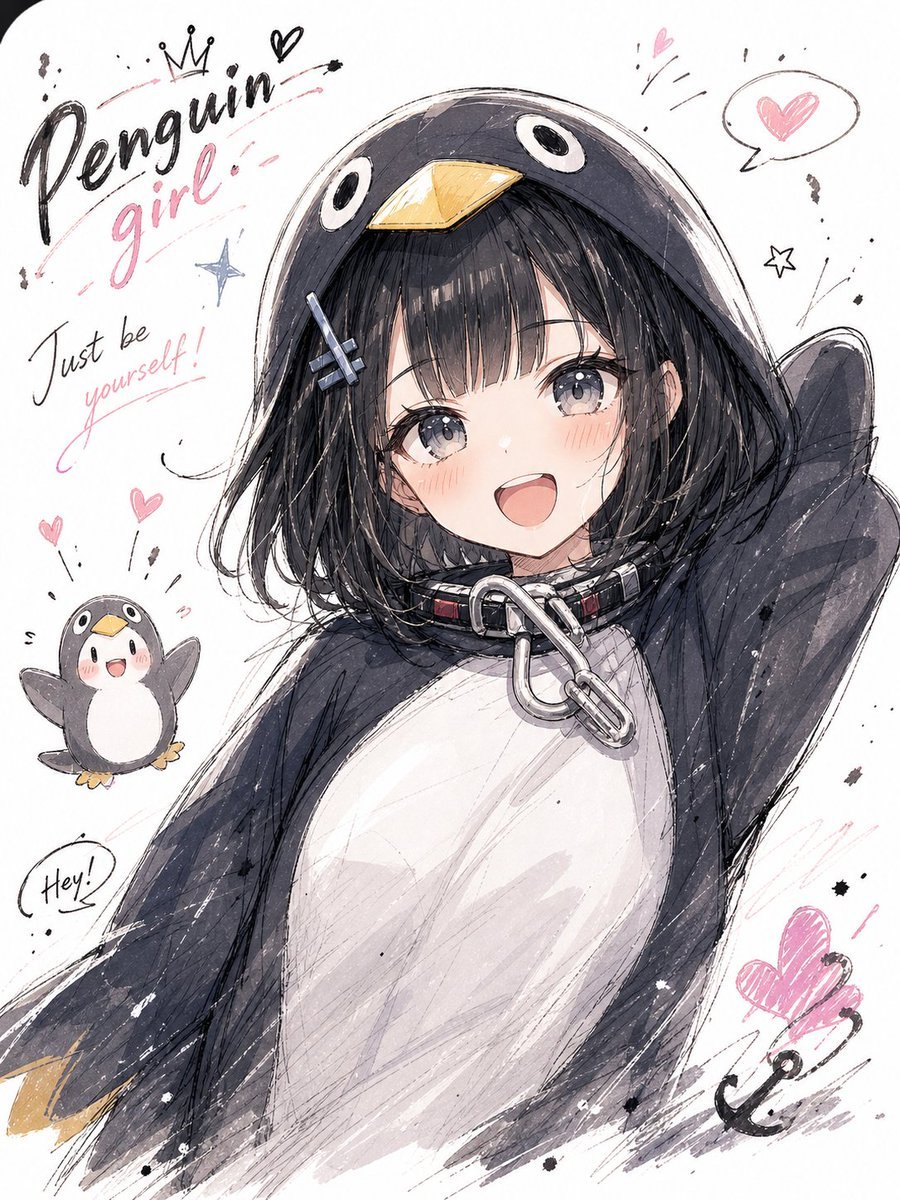
Manga Sketch Doodle Portrait
Browse template categories
Gestural Ink Fashion Illustration questions
How do I use the Gestural Ink Fashion Illustration template?
Add your photo if the template asks for one, edit the prompt if you like — the template's model and format are already selected — and press Generate. Your version opens in PicX Studio.
Can I customize the Gestural Ink Fashion Illustration template?
Yes. You can change the subject, setting, lighting, mood, format, and available model controls before creating your image.
Is the Gestural Ink Fashion Illustration template free?
Opening and editing this template is free. Generating uses credits, shown on the Generate button when you are signed in.
Which AI model should I use?
Start with GPT Image 2, which is the model associated with this template. You can compare another compatible model for a different finish.
Looking for something else? Browse all templates.

Your photo, any look
Thousands of ready templates for every top image and video model, from one credit balance.