
Futuristic Tech Strategy Slide
Generates a high-tech, neon-styled infographic slide featuring a central core system and a 5-step circular flow diagram, ideal for corporate strategy presentations.
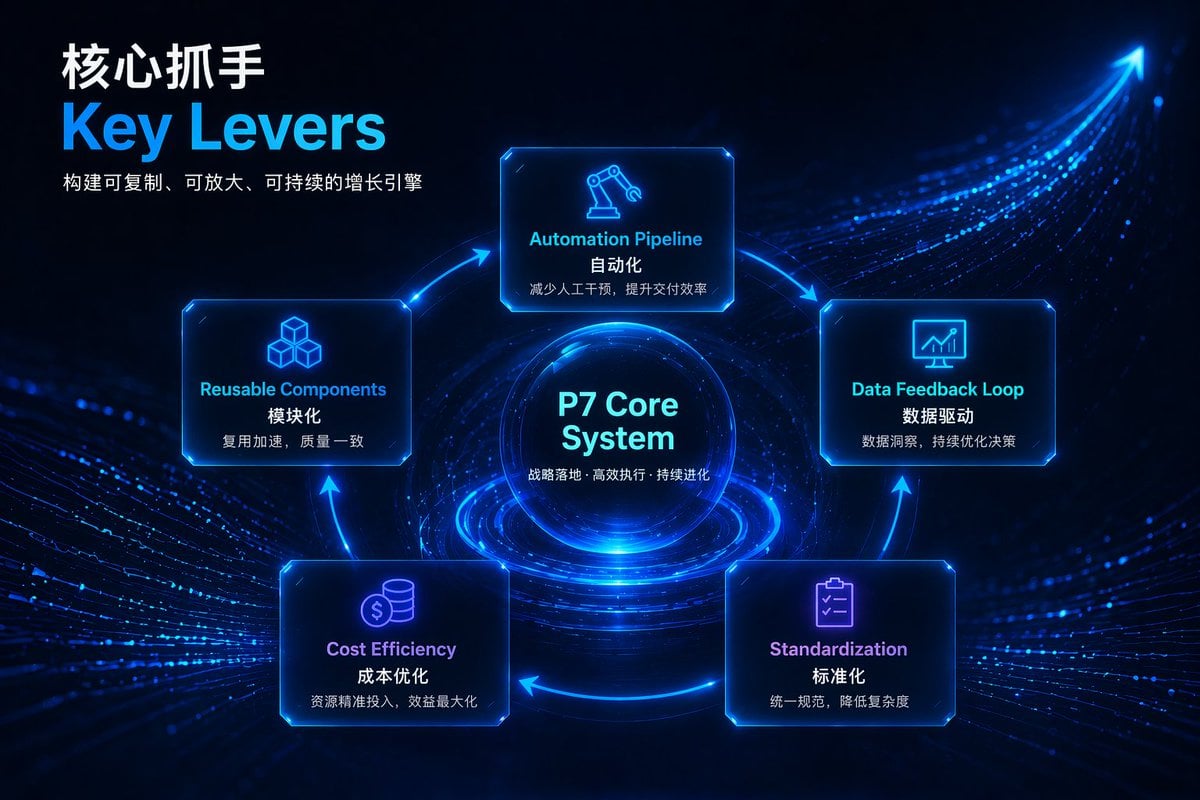
- Prompt included
- Model and format preset
- Free template
The prompt behind this image
Copy the exact prompt behind Futuristic Tech Strategy Slide, or open it in the studio and make it yours.
- Type
- presentation slide infographic
- Style › Theme
- {argument name="theme color" default="neon blue"}
- Style › Background
- {argument name="background style" default="dark blue futuristic tech with glowing data streams and an ascending arrow"}
- Header › Title
- {argument name="main title" default="核心抓手"}
- Header › Subtitle
- {argument name="english title" default="Key Levers"}
- Header › Description
- 构建可复制、可放大、可持续的增长引擎
- Layout › Type
- circular flow diagram
- Layout › Center Node › Title
- {argument name="center node title" default="P7 Core System"}
- Layout › Center Node › Subtitle
- 战略落地 · 高效执行 · 持续进化
- Layout › Center Node › Visual
- glowing tech sphere
- Layout › Surrounding Nodes › Count
- 5
- Layout › Surrounding Nodes › Connection
- glowing blue arrows forming a clockwise cycle
- Layout › Surrounding Nodes › Nodes › 0 › Position
- top
- Layout › Surrounding Nodes › Nodes › 0 › Icon
- robotic arm
- Layout › Surrounding Nodes › Nodes › 0 › English Label
- Automation Pipeline
- Layout › Surrounding Nodes › Nodes › 0 › Chinese Label
- 自动化
- Layout › Surrounding Nodes › Nodes › 0 › Description
- 减少人工干预,提升交付效率
- Layout › Surrounding Nodes › Nodes › 1 › Position
- right
- Layout › Surrounding Nodes › Nodes › 1 › Icon
- monitor with chart
- Layout › Surrounding Nodes › Nodes › 1 › English Label
- Data Feedback Loop
- Layout › Surrounding Nodes › Nodes › 1 › Chinese Label
- 数据驱动
- Layout › Surrounding Nodes › Nodes › 1 › Description
- 数据洞察,持续优化决策
- Layout › Surrounding Nodes › Nodes › 2 › Position
- bottom right
- Layout › Surrounding Nodes › Nodes › 2 › Icon
- clipboard with checkmarks
Raw JSON
{
  "type": "presentation slide infographic",
  "style": {
    "theme": "{argument name=\"theme color\" default=\"neon blue\"}",
    "background": "{argument name=\"background style\" default=\"dark blue futuristic tech with glowing data streams and an ascending arrow\"}"
  },
  "header": {
    "title": "{argument name=\"main title\" default=\"核心抓手\"}",
    "subtitle": "{argument name=\"english title\" default=\"Key Levers\"}",
    "description": "构建可复制、可放大、可持续的增长引擎"
  },
  "layout": {
    "type": "circular flow diagram",
    "center_node": {
      "title": "{argument name=\"center node title\" default=\"P7 Core System\"}",
      "subtitle": "战略落地 · 高效执行 · 持续进化",
      "visual": "glowing tech sphere"
    },
    "surrounding_nodes": {
      "count": 5,
      "connection": "glowing blue arrows forming a clockwise cycle",
      "nodes": [
        {
          "position": "top",
          "icon": "robotic arm",
          "english_label": "Automation Pipeline",
          "chinese_label": "自动化",
          "description": "减少人工干预,提升交付效率"
        },
        {
          "position": "right",
          "icon": "monitor with chart",
          "english_label": "Data Feedback Loop",
          "chinese_label": "数据驱动",
          "description": "数据洞察,持续优化决策"
        },
        {
          "position": "bottom right",
          "icon": "clipboard with checkmarks",
          "english_label": "Standardization",
          "chinese_label": "标准化",
          "description": "统一规范,降低复杂度"
        },
        {
          "position": "bottom left",
          "icon": "coins",
          "english_label": "Cost Efficiency",
          "chinese_label": "成本优化",
          "description": "资源精准投入,效益最大化"
        },
        {
          "position": "left",
          "icon": "stacked cubes",
          "english_label": "Reusable Components",
          "chinese_label": "模块化",
          "description": "复用加速,质量一致"
        }
      ]
    }
  }
}How to use Futuristic Tech Strategy Slide in 3 steps
- 1Upload ImagePNG, JPG or paste
Add your photo
Upload the photo the template builds on. The prompt, model and format are already set.
- 2…a portrait of your subject in softgolden-hour light, 85mm…
Personalize
Edit the subject and creative details for your destination.
- 3Generate
Generate
Press Generate — your image is created in PicX Studio, so you can compare it with the original and refine one variable at a time.
More like this
Templates with the same subject, style or setup. Open one to see its prompt.

Futuristic AI 2026 Tech Poster
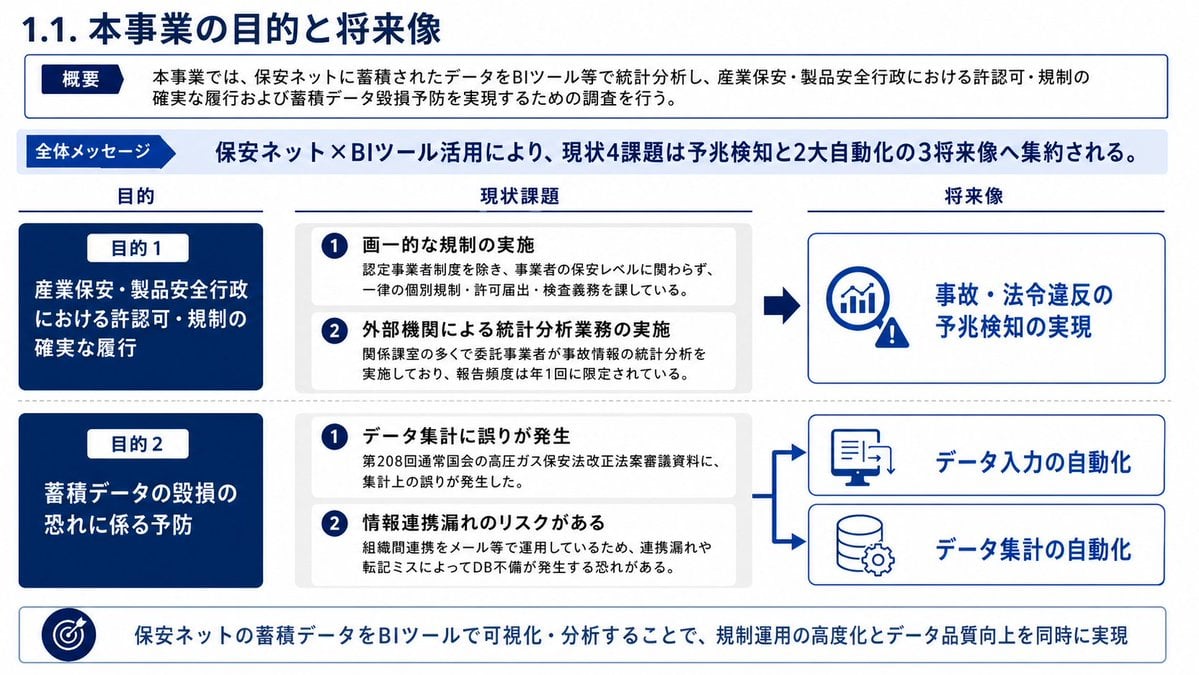
Japanese BI Strategy Slide

Futuristic Chrome Helmet Fashion Portrait

Futuristic Studio Neon Ring Minimalist Portrait
Futuristic Chrome Helmet Fashion Portrait
Futuristic Studio Neon Ring Minimalist Portrait

Black Liquid Cyberpunk Portrait Poster

Cyberpunk Neon Brazil World Cup Poster
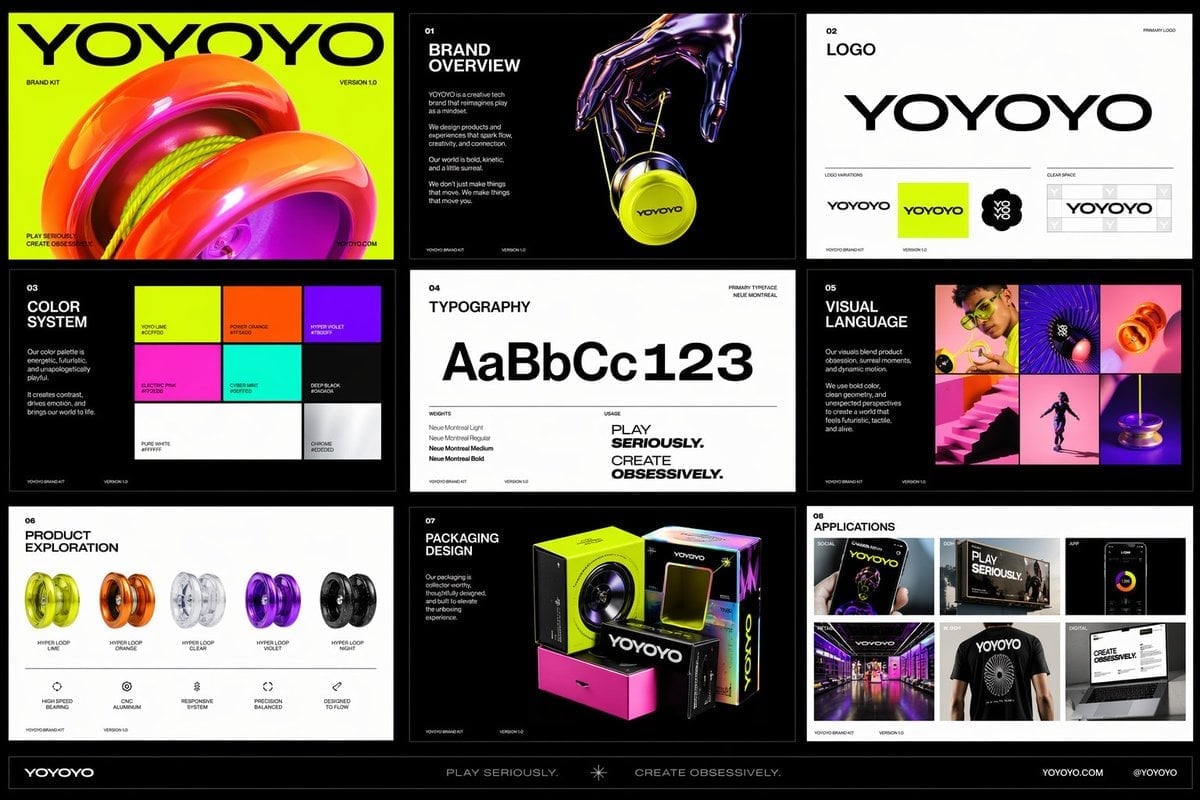
Playful Futuristic Brand Kit Board

Dark Tech Marketing Slide Collage
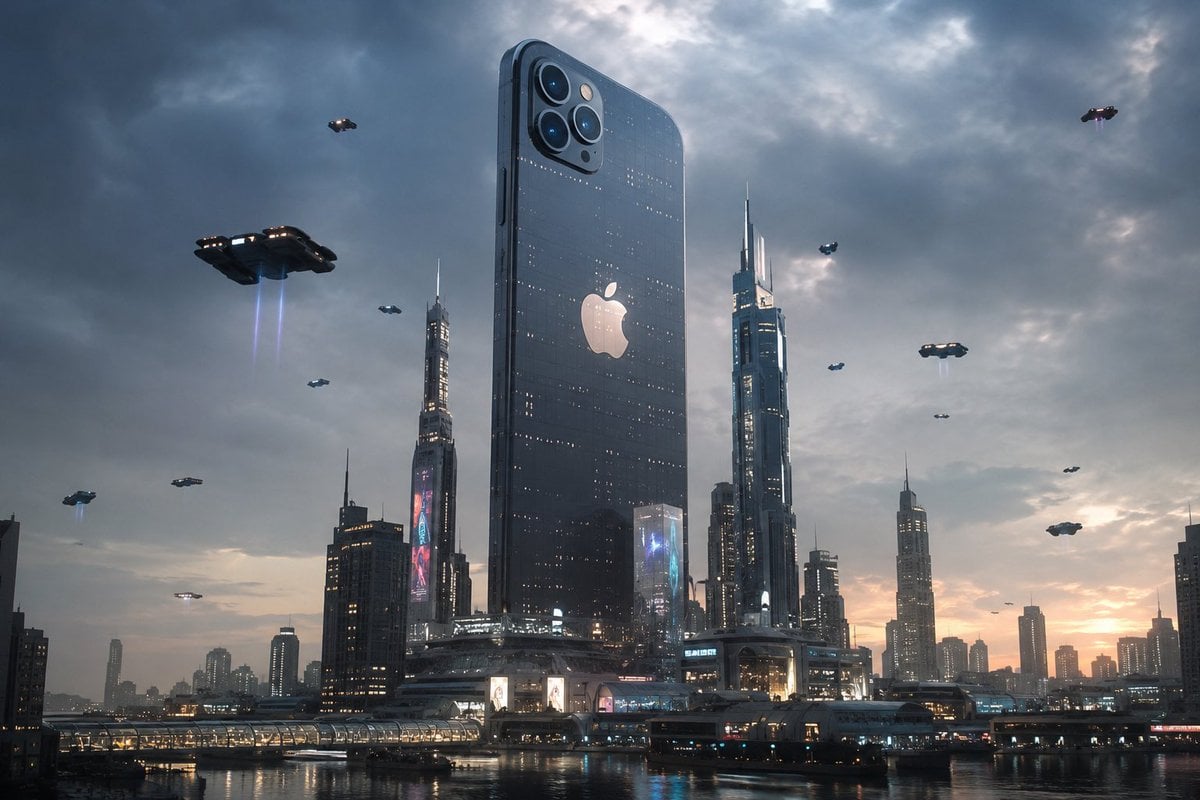
Futuristic Tech Skyscraper City
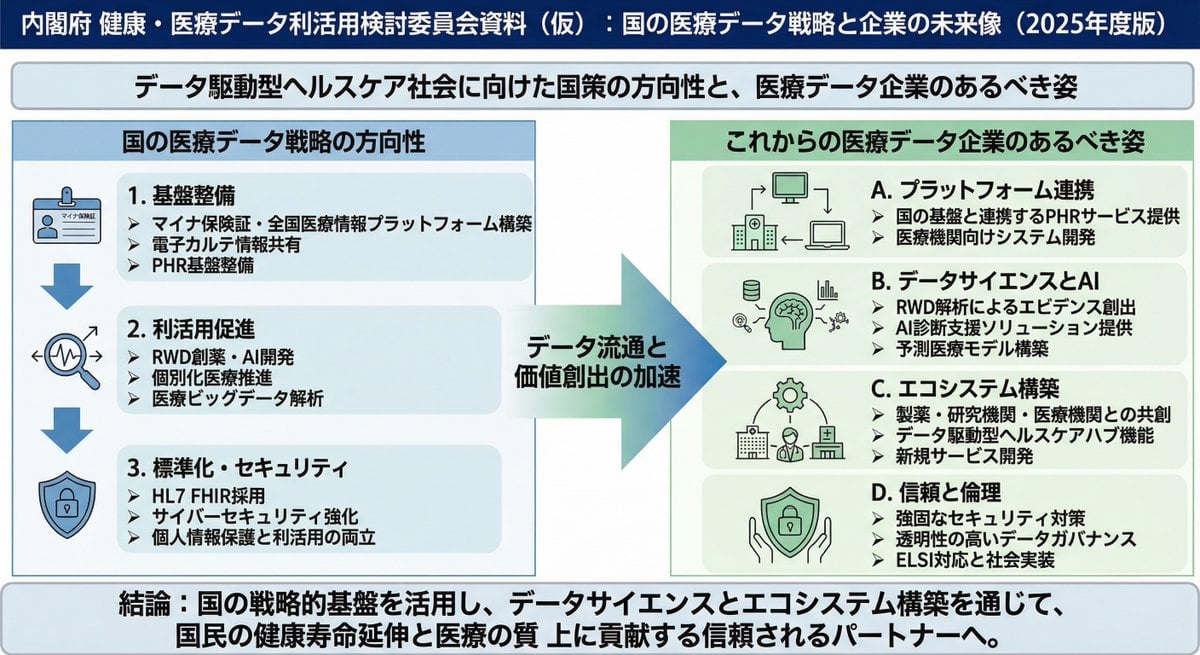
Policy-style slide about national medical data strategy
Make it yours
Futuristic Tech Strategy Slide works as-is. These are the safest ways to change it without losing the look.
Swap the setting
Keep the rest of the prompt and replace the location block. The current setting is “{argument name="background style" default="dark blue futuristic tech with glowin”.
Change one field
Copy a single group, rewrite it, and generate again so you can see what that field is doing.
Keep the frame, change the subject
Hold the composition and light of Futuristic Tech Strategy Slide, then swap wardrobe, props or the person for a new take.
| If the result… | Why | Fix |
|---|---|---|
| The result drifts from the preview | Too many fields changed at once. | Reuse Futuristic Tech Strategy Slide as-is first, then change one group — subject, light, or setting. |
| GPT Image 2 ignores part of the JSON | Some models flatten or skip nested keys. | Keep the same values and paste them as a short paragraph instead. |
More GPT Image 2 templates
Other prompts made for GPT Image 2.

Six VTuber Japanese Logo Sheet

Realistic Portrait of Woman and Deer

The Vista Modular Condo Poster

AI Model Routing Comparison Infographic

2.5D Anime Art Board

Isometric Productivity Desk Scene

New York Double Exposure Poster

Four-Panel AI Landscape Comparison

Japanese Tatami Lifestyle Magazine Cover

NESCAFÉ Coffee Map Poster
More image prompts
Fresh picks from across the catalog.

Golden Hour Riverside Portrait with Identity Lock
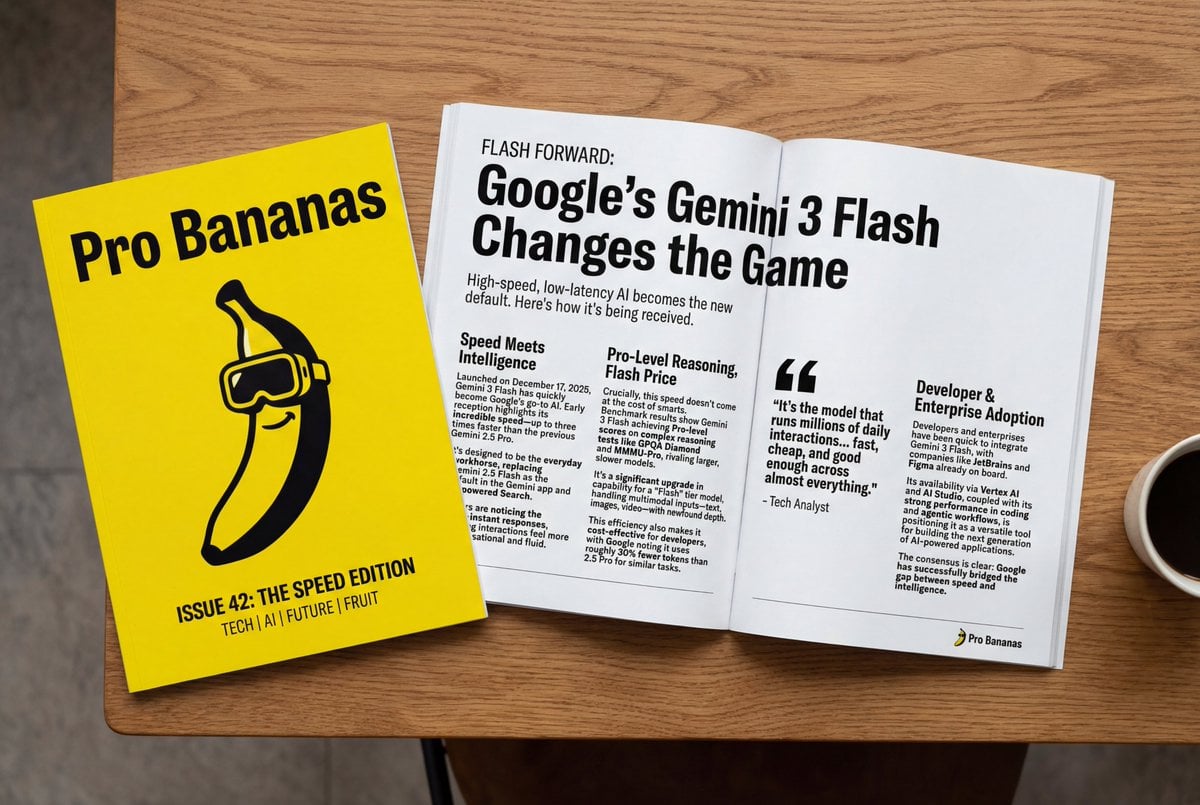
Generate Magazine Article and Cover (LLM/Image)
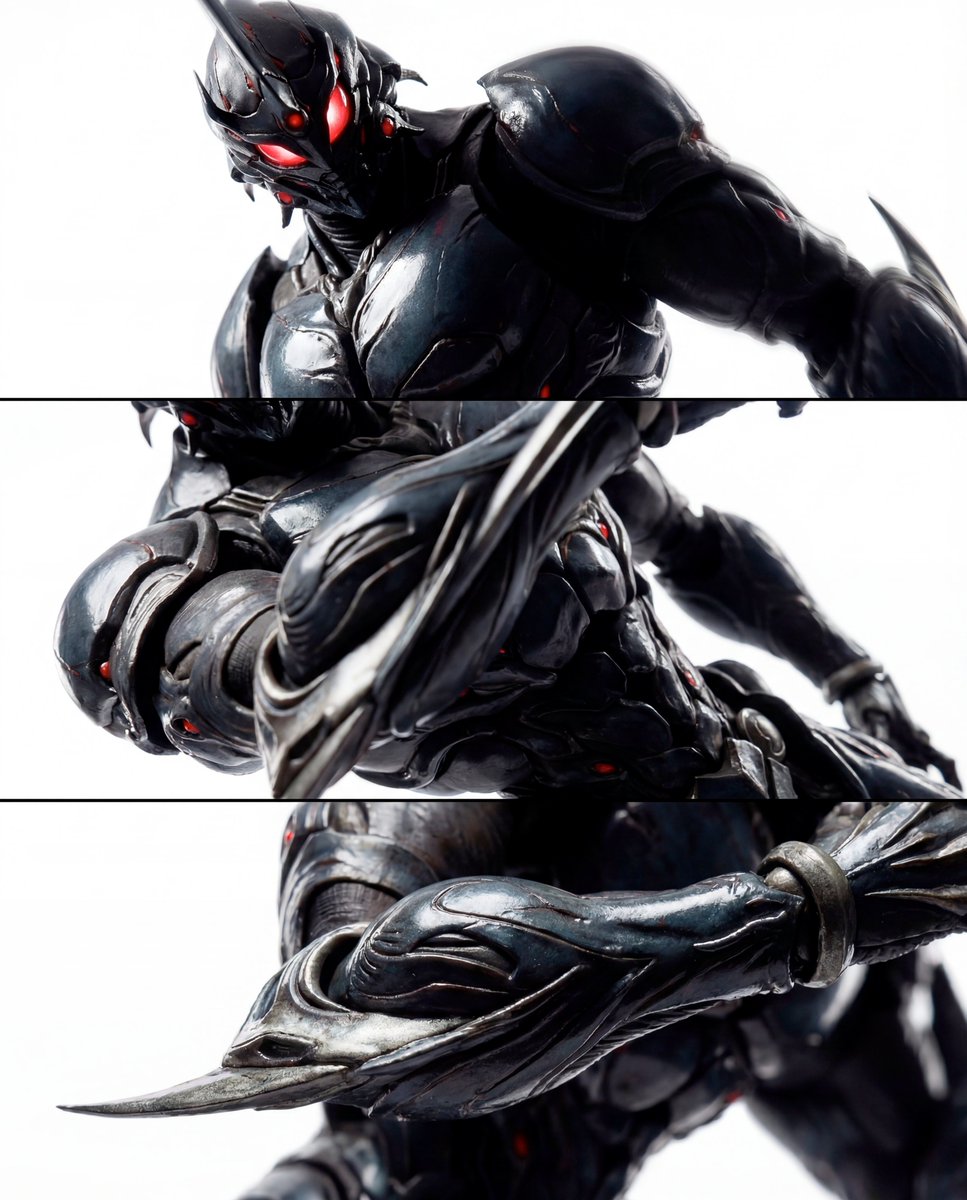
Triptych Composition Prompt for Abstract Fashion Editorial
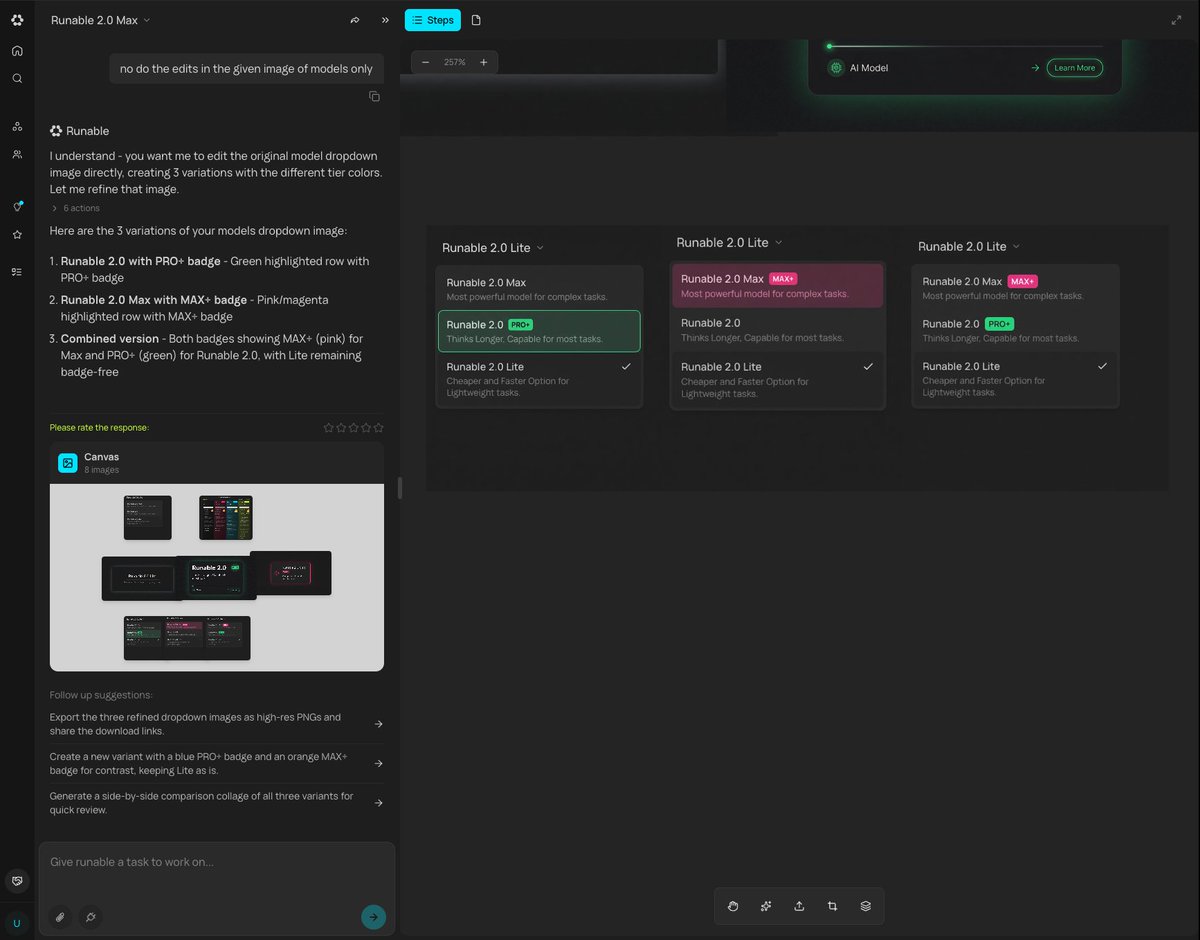
Generating Multiple Runnable Modes/States

3D Urban Skater Character

Anamorphic 3D Fashion Model Billboard

Futuristic Point Cloud Portrait
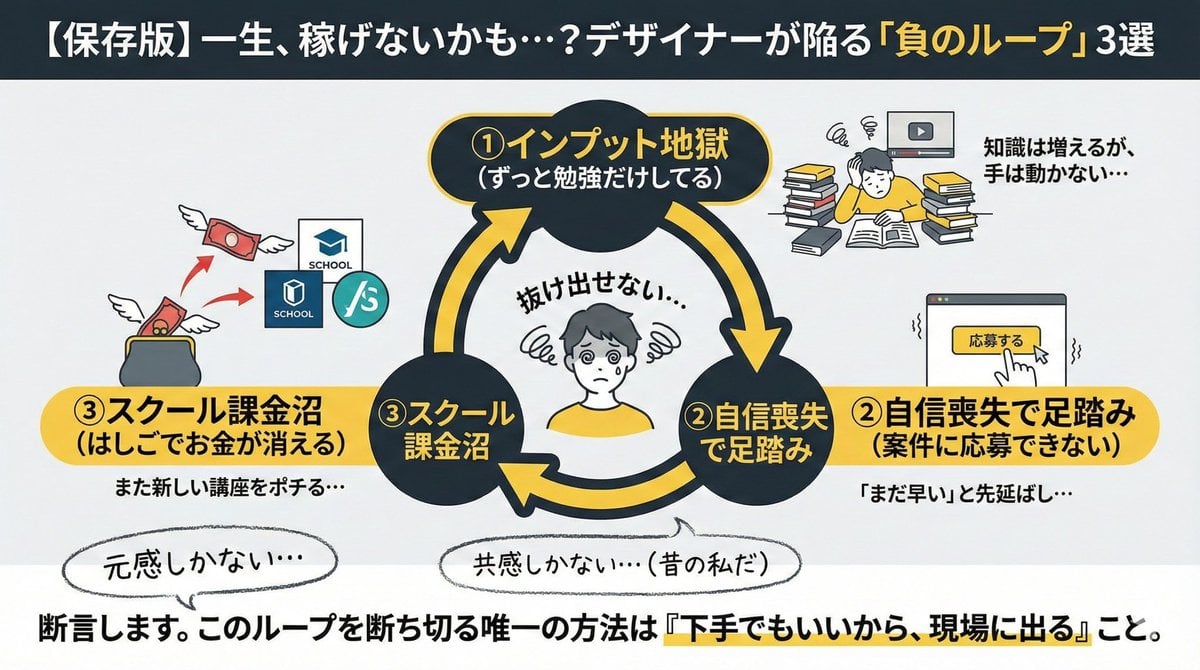
Infographic/Diagram Generation Prompt for Nano Banana Pro
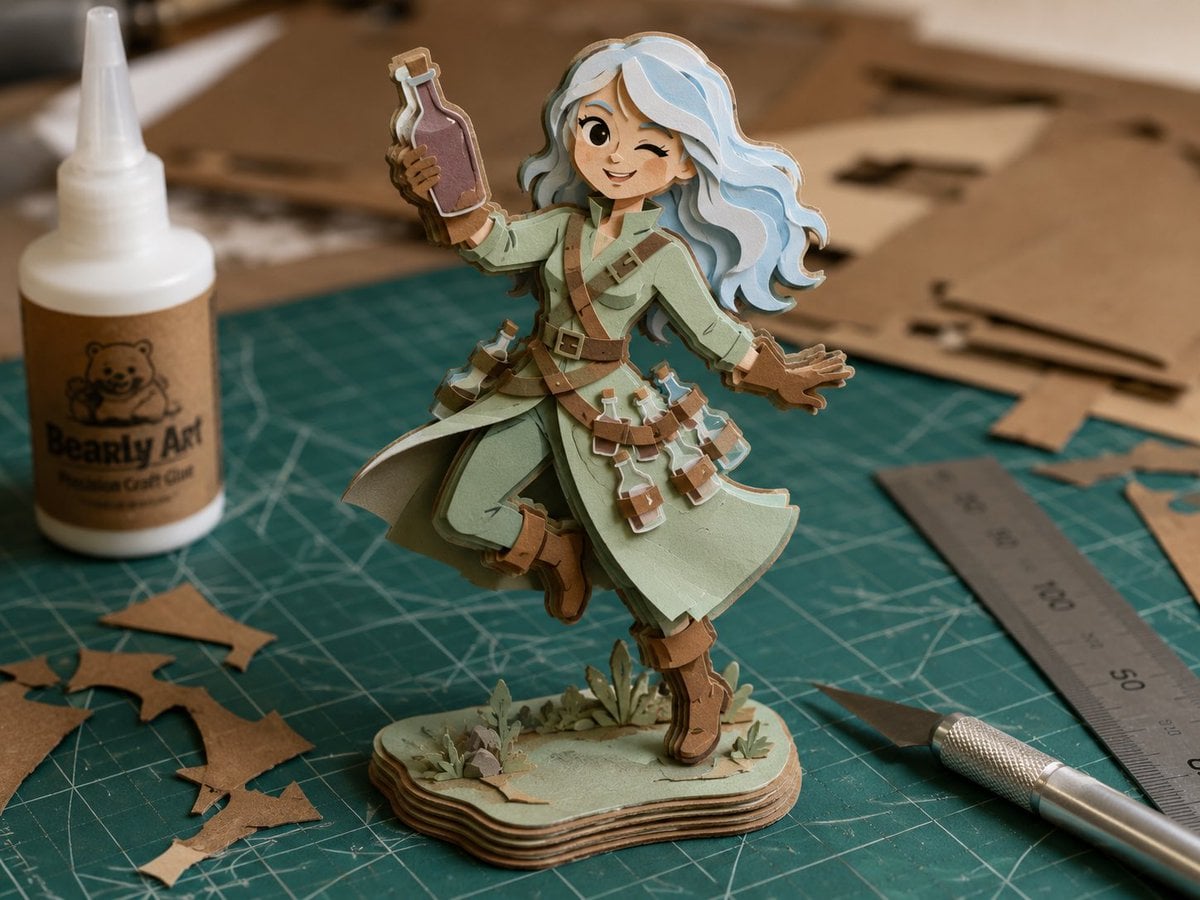
Layered Paper Alchemist Figurine

Unexpected High-End Product Concepts Prompt
Browse template categories
Futuristic Tech Strategy Slide questions
How do I use the Futuristic Tech Strategy Slide template?
Add your photo if the template asks for one, edit the prompt if you like — the template's model and format are already selected — and press Generate. Your version opens in PicX Studio.
Can I customize the Futuristic Tech Strategy Slide template?
Yes. You can change the subject, setting, lighting, mood, format, and available model controls before creating your image.
Is the Futuristic Tech Strategy Slide template free?
Opening and editing this template is free. Generating uses credits, shown on the Generate button when you are signed in.
Which AI model should I use?
Start with GPT Image 2, which is the model associated with this template. You can compare another compatible model for a different finish.
Looking for something else? Browse all templates.

Your photo, any look
Thousands of ready templates for every top image and video model, from one credit balance.