
Realistic Mac Webcam Photo Edit
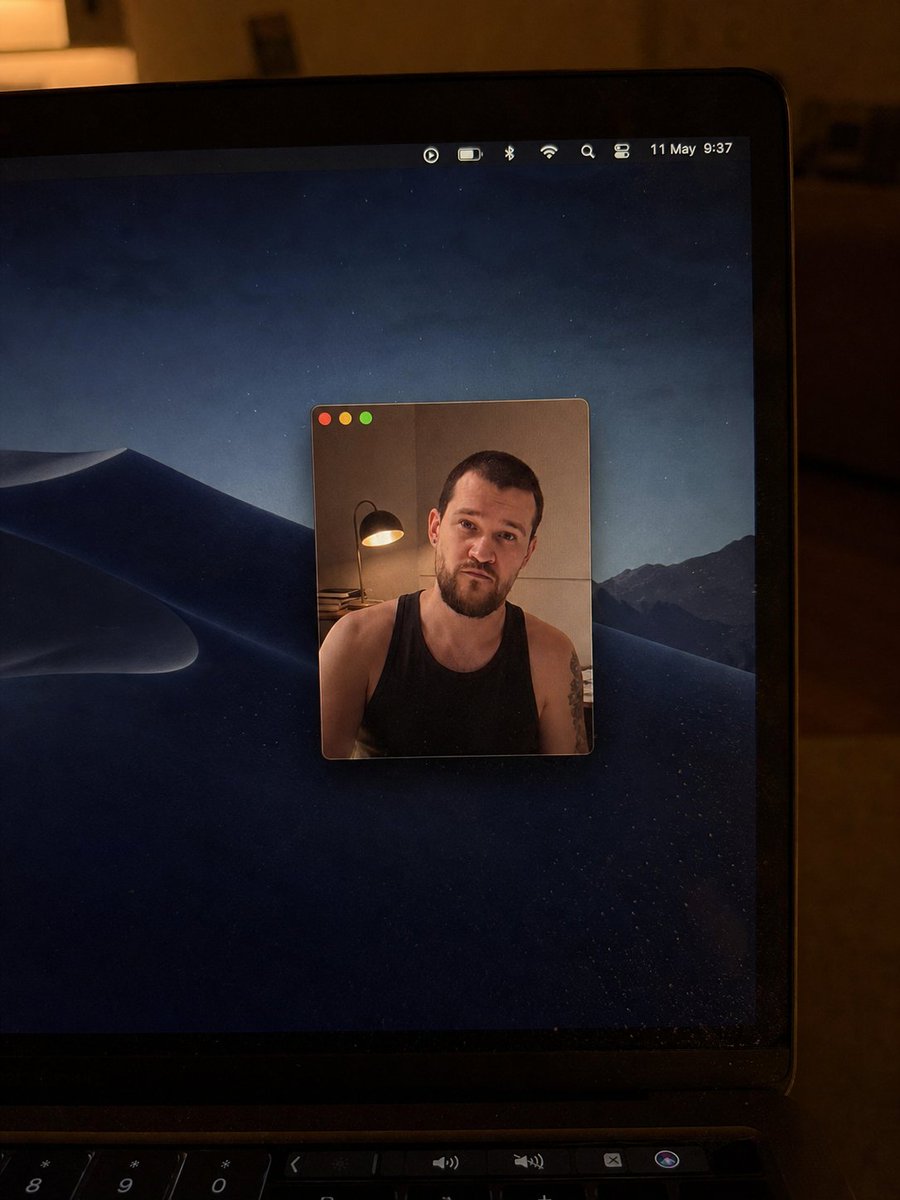
Transforms a reference laptop webcam photo into a cleaner low-light Mac desktop shot with a smaller centered webcam window and updated visual details.
- Prompt included
- Model and format preset
- Free template
The prompt behind this image
Copy the exact prompt behind Realistic Mac Webcam Photo Edit, or open it in the studio and make it yours.
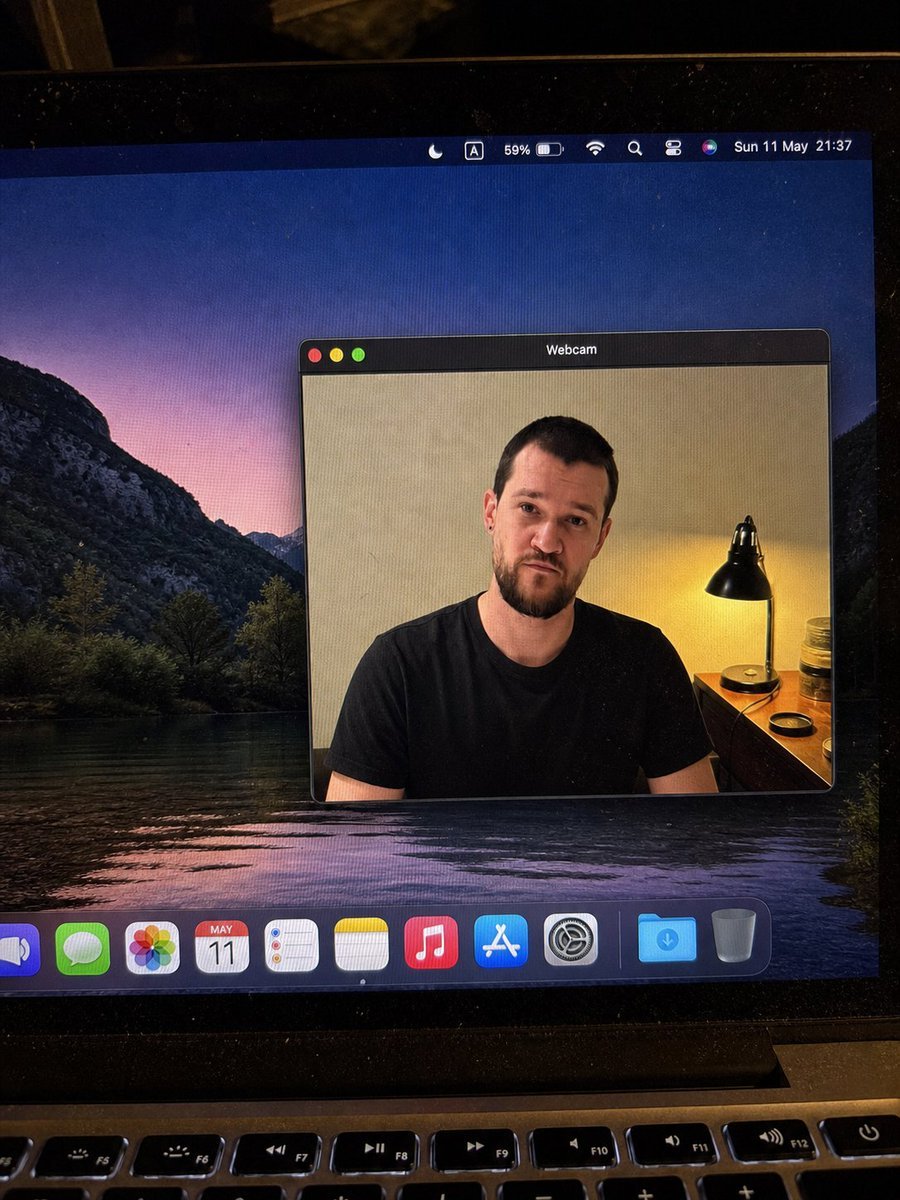
Using the provided reference image as the base, regenerate it as a cleaner, more realistic low-light phone photo of the same laptop screen. Keep the overall concept of a Mac desktop with a floating webcam window and the same anonymized square blur over the face, but change the scene as follows: crop in closer on the laptop so the right side of the screen and bezel dominate the frame, remove the bottom dock from view, and use a dark macOS desert-at-night wallpaper instead of the lake wallpaper. Make the webcam window much smaller and centered on the desktop, with only the three traffic-light buttons visible at the top left and no title text. Inside the webcam window, keep the same person as the subject but change the shirt to a {argument name="shirt style" default="black sleeveless tank top"}, show more shoulders/upper arms, and add a visible tattoo on the subject’s right upper arm. Reposition the desk lamp so it appears on the left side inside the webcam frame with warm light. Update the menu bar so it looks minimal and shows {argument name="date and time" default="11 May 9:37"}. Preserve the candid handheld camera look, warm room lighting, laptop bezel, keyboard edge at the bottom, mild screen dust/reflections, and natural photo imperfections; avoid adding extra UI windows, dock icons, or sharp studio-clean rendering.
Reference images included
Realistic Mac Webcam Photo Edit needs input media to work. They load alongside the prompt when you open it in the studio.
How to use Realistic Mac Webcam Photo Edit in 3 steps
- 1Upload ImagePNG, JPG or paste
Add your photo
Upload the photo the template builds on. The prompt, model and format are already set.
- 2…a portrait of your subject in softgolden-hour light, 85mm…
Personalize
Edit the subject and creative details for your destination.
- 3Generate
Generate
Press Generate — your image is created in PicX Studio, so you can compare it with the original and refine one variable at a time.
More like this
Templates with the same subject, style or setup. Open one to see its prompt.
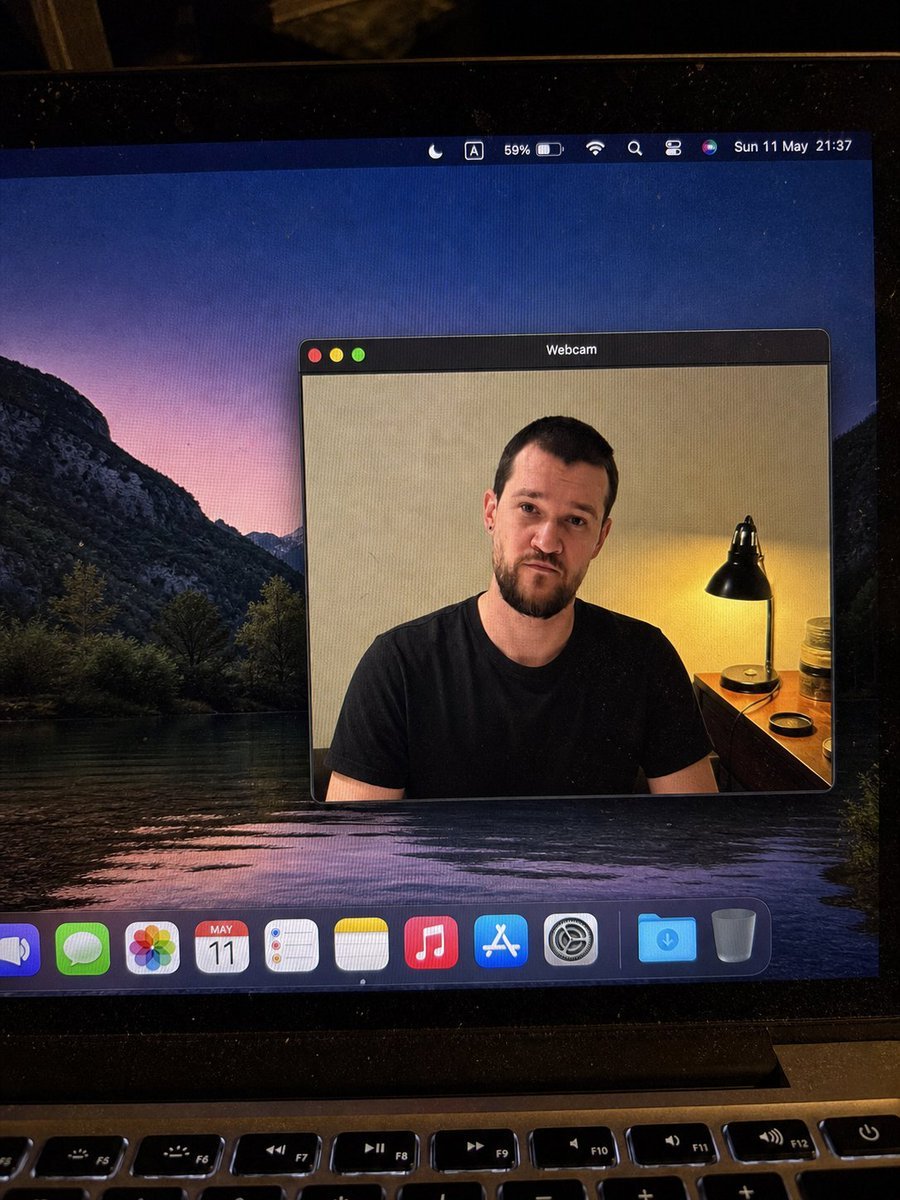
MacBook Webcam Window Photo
Photorealistic Webcam Selfie Portrait
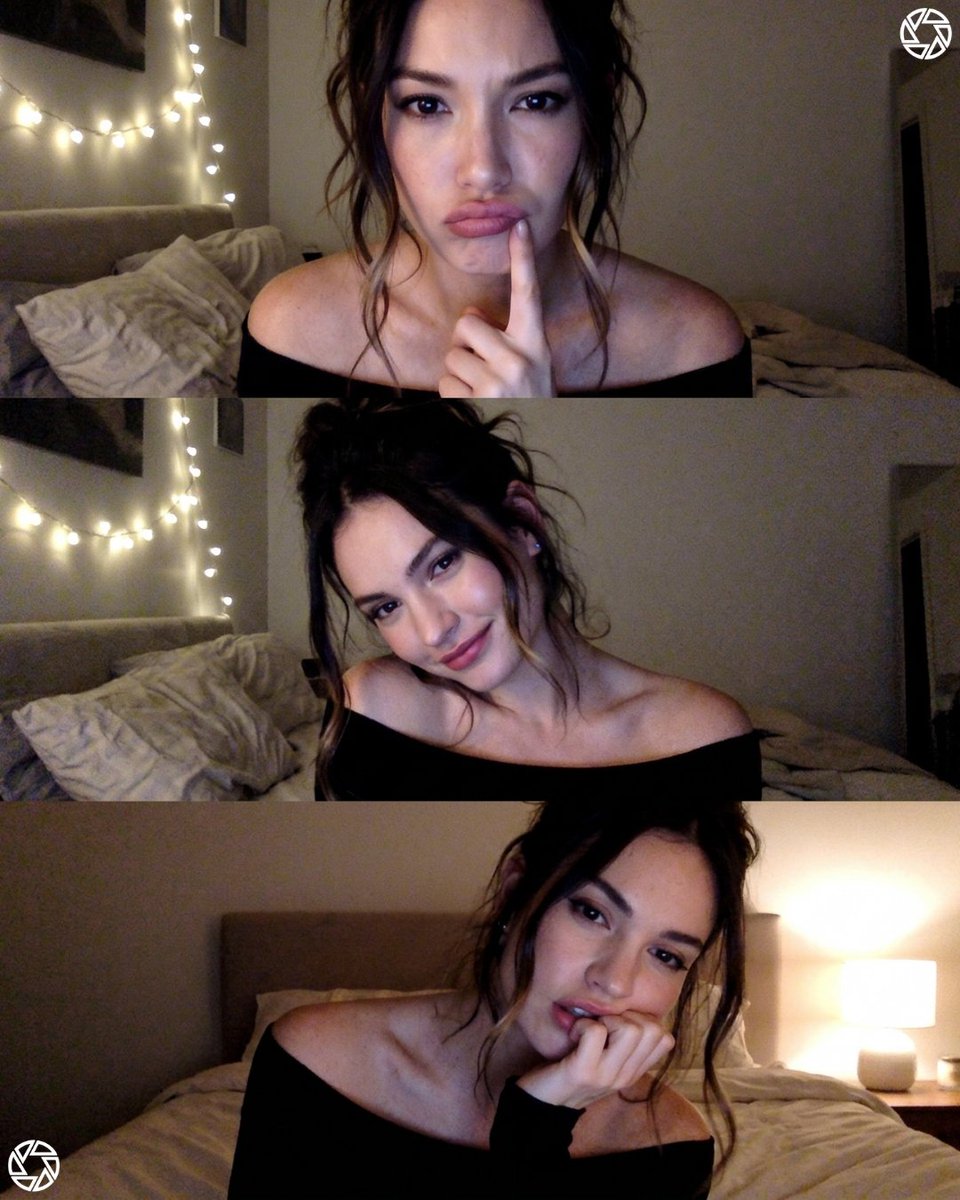
Webcam photobooth grid portrait
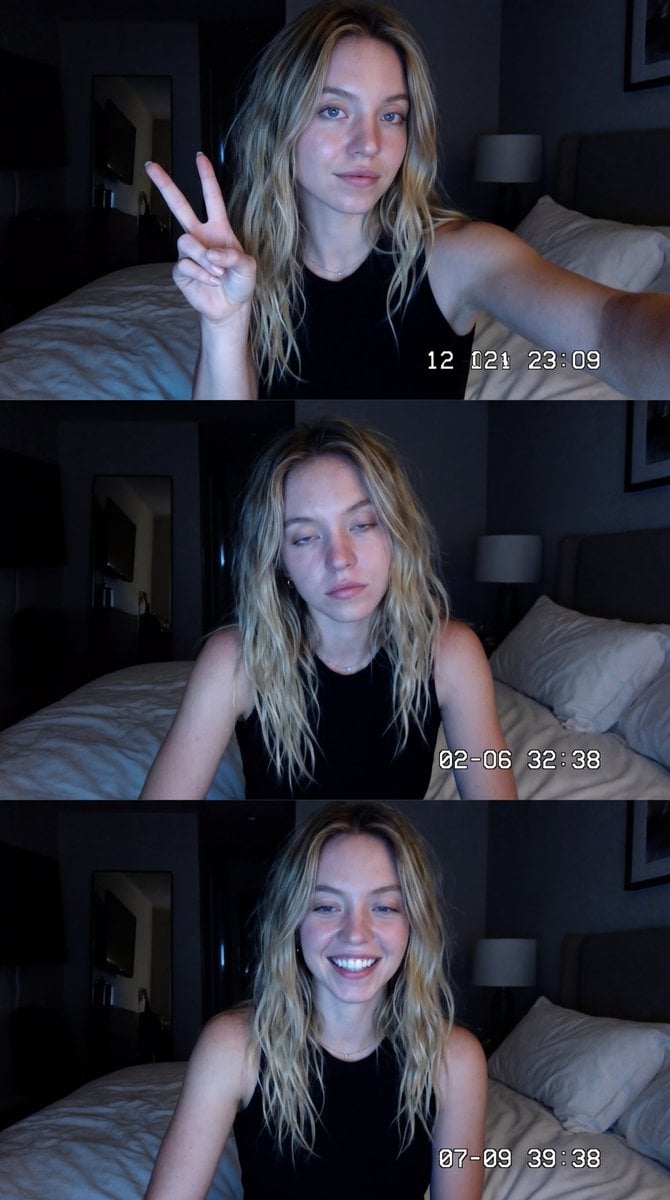
Vintage Y2K Webcam Photo Booth Collage
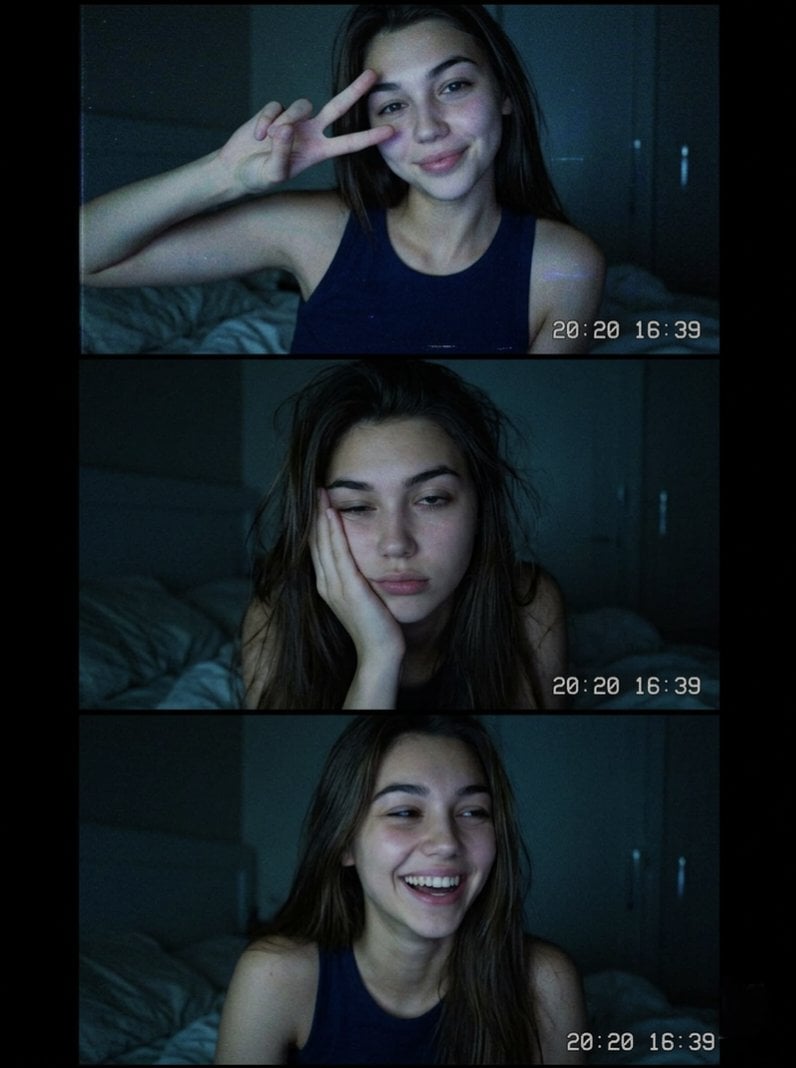
Vintage Webcam Photo Collage
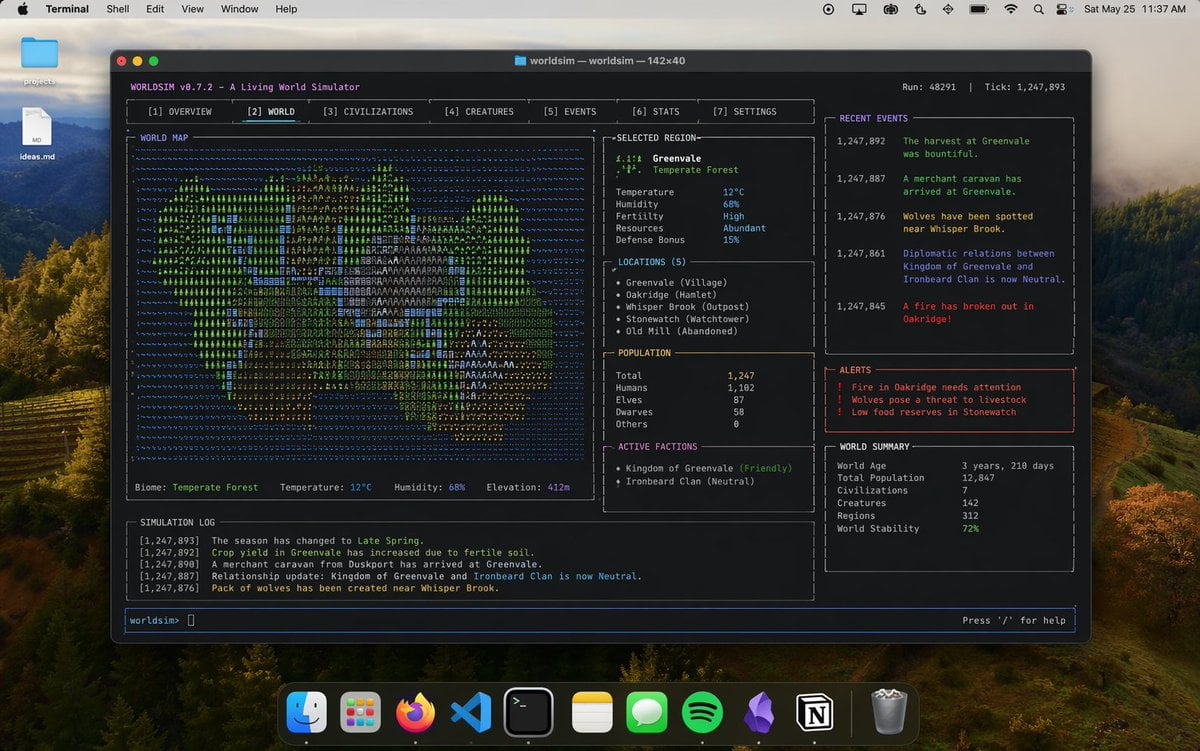
Mac Terminal World Sim UI
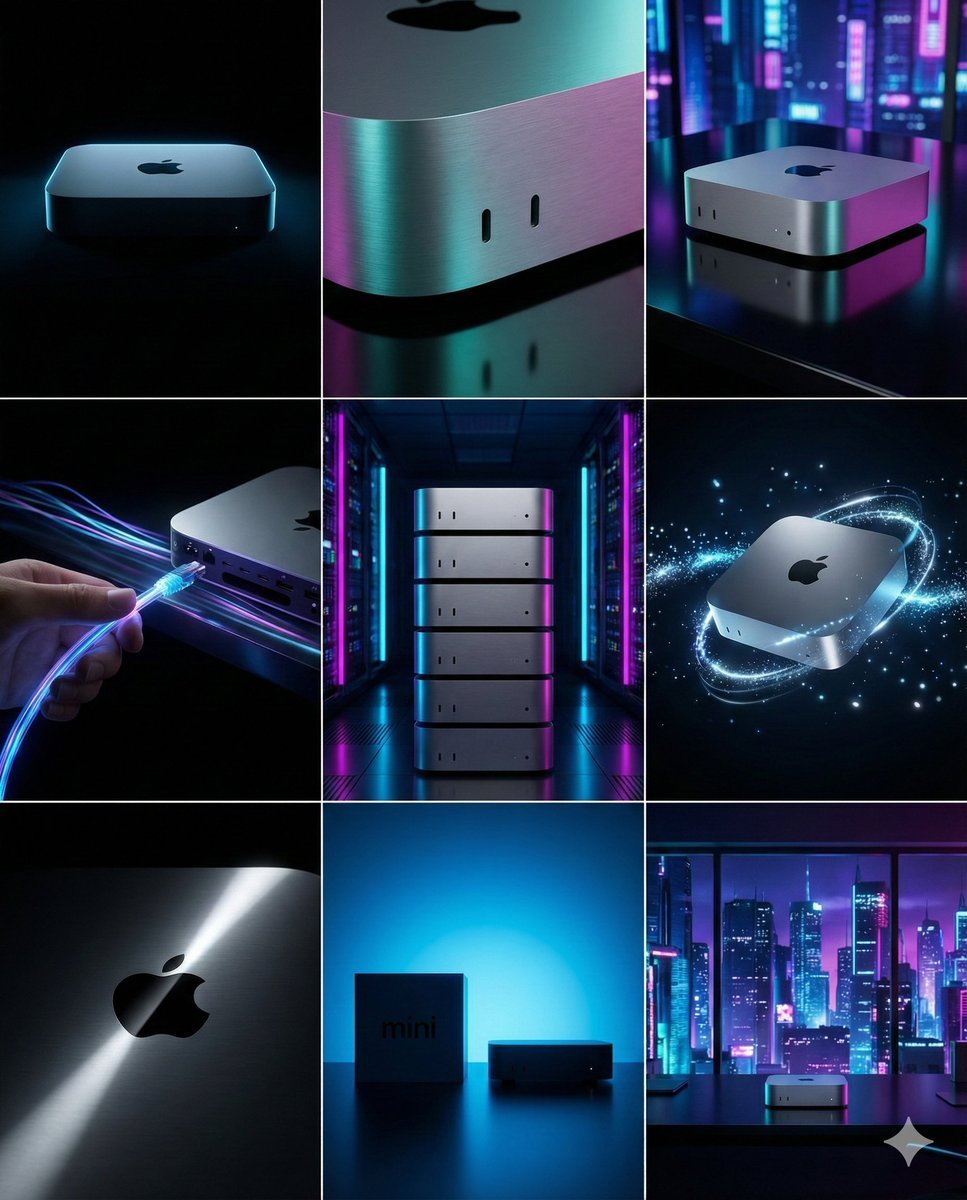
Cyberpunk Tech Visual Storyboard for Mac Mini Branding
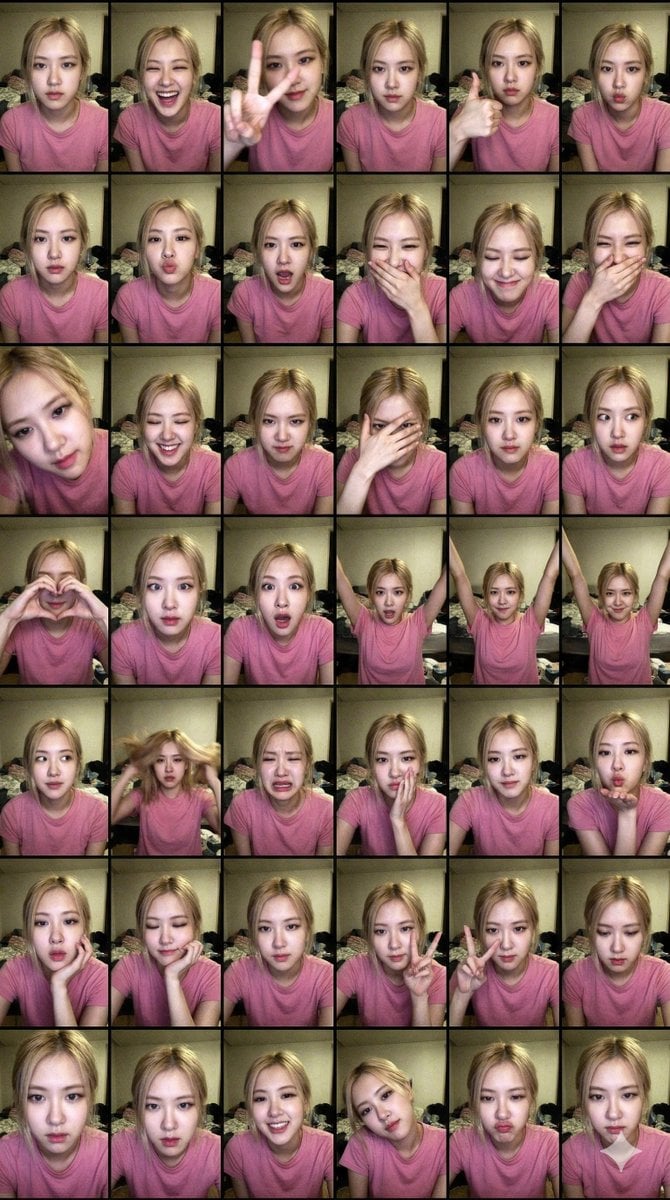
Extreme Lo-Fi Webcam Contact Sheet (Rosé Blackpink)
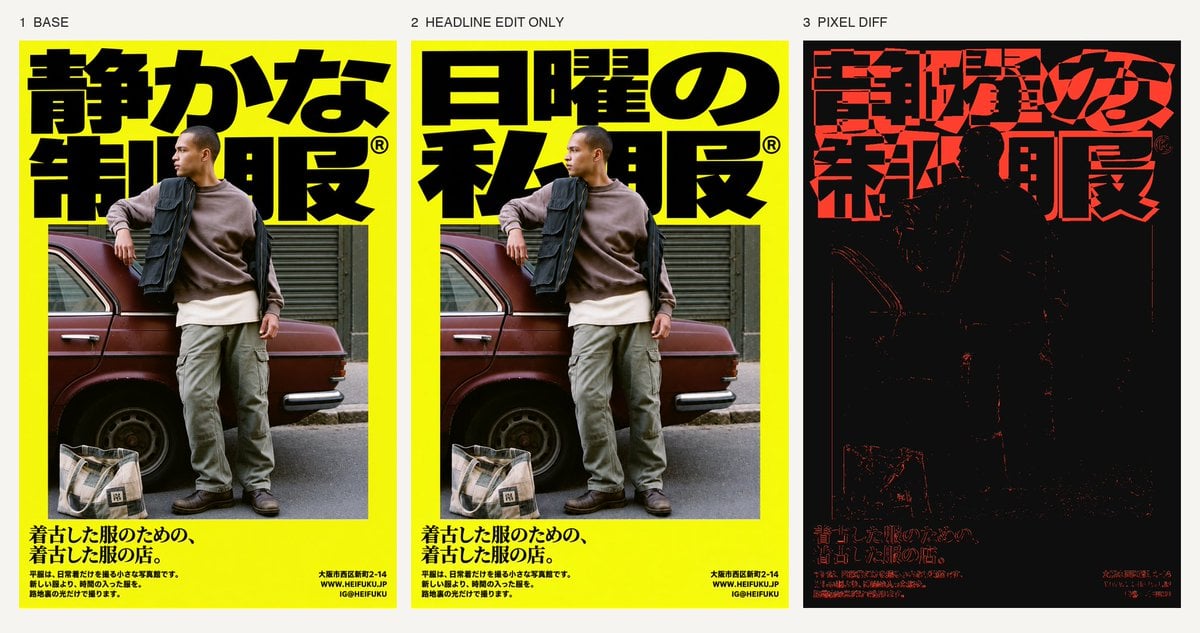
Selective Headline Layout Editing
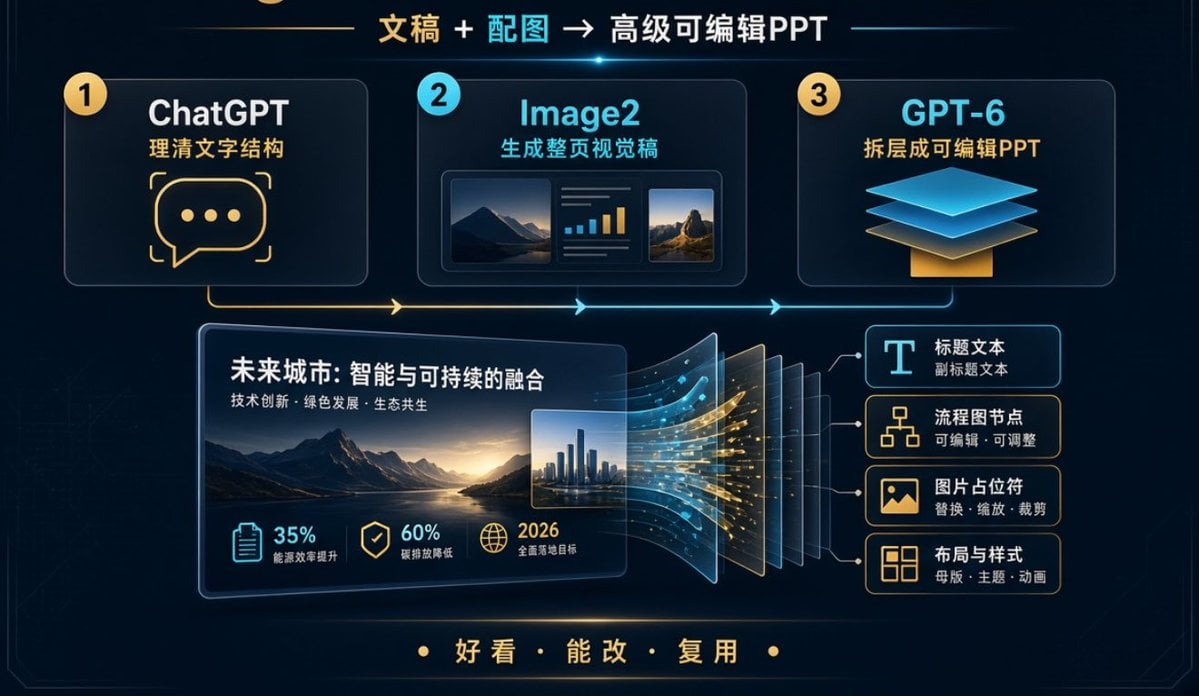
Editable PPT Workflow Infographic
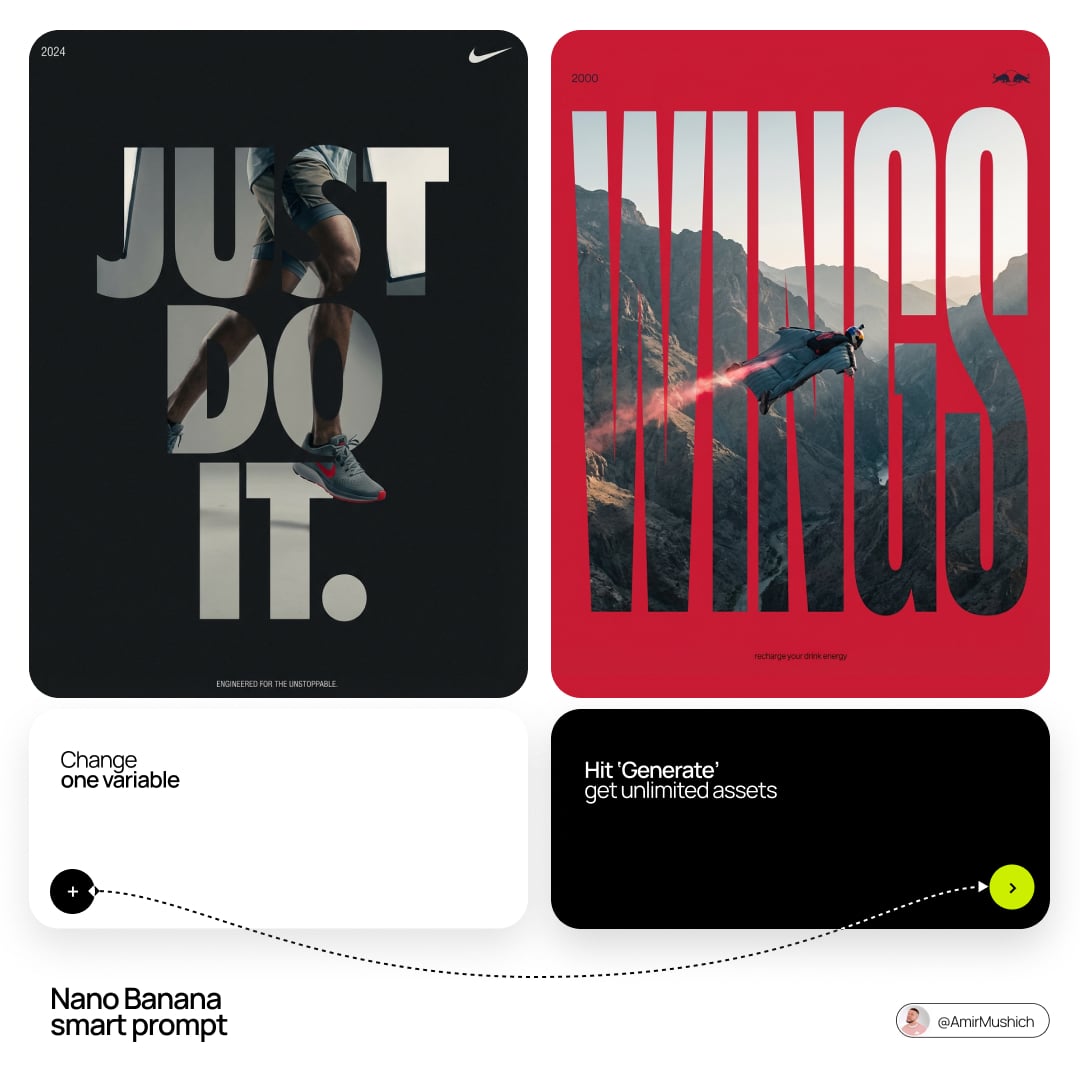
Act as a Senior Editorial Designer and Typographer
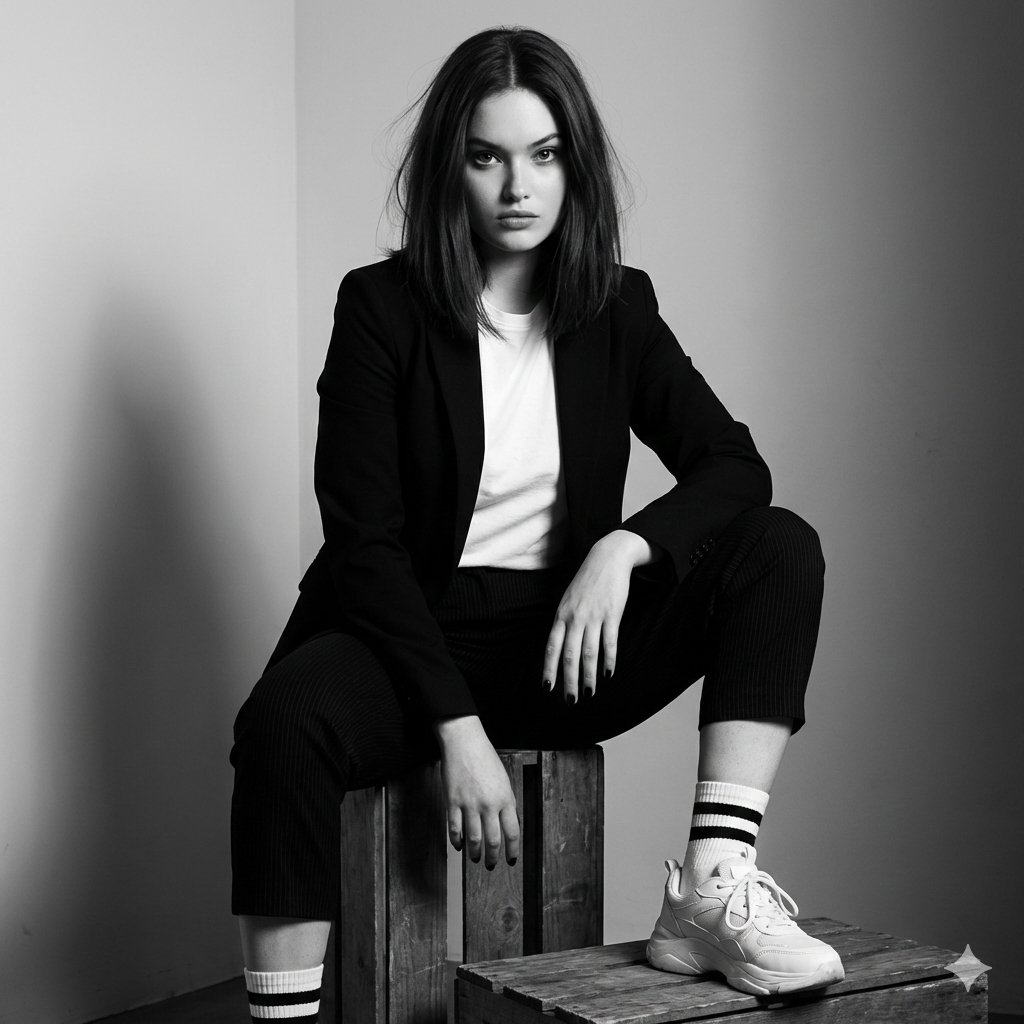
Realistic portrait 100 identical face, no editing allowed
Make it yours
Realistic Mac Webcam Photo Edit works as-is. These are the safest ways to change it without losing the look.
Change one field
Copy a single group, rewrite it, and generate again so you can see what that field is doing.
Keep the frame, change the subject
Hold the composition and light of Realistic Mac Webcam Photo Edit, then swap wardrobe, props or the person for a new take.
| If the result… | Why | Fix |
|---|---|---|
| The result drifts from the preview | Too many fields changed at once. | Reuse Realistic Mac Webcam Photo Edit as-is first, then change one group — subject, light, or setting. |
| The model over-stylizes the scene | The prose prompt leaves finish and camera underspecified. | Add one camera or lighting sentence and stay on GPT Image 2. |
More GPT Image 2 templates
Other prompts made for GPT Image 2.

Six VTuber Japanese Logo Sheet

Realistic Portrait of Woman and Deer

The Vista Modular Condo Poster

AI Model Routing Comparison Infographic

2.5D Anime Art Board

Isometric Productivity Desk Scene

New York Double Exposure Poster

Four-Panel AI Landscape Comparison

Japanese Tatami Lifestyle Magazine Cover

NESCAFÉ Coffee Map Poster
More image prompts
Fresh picks from across the catalog.
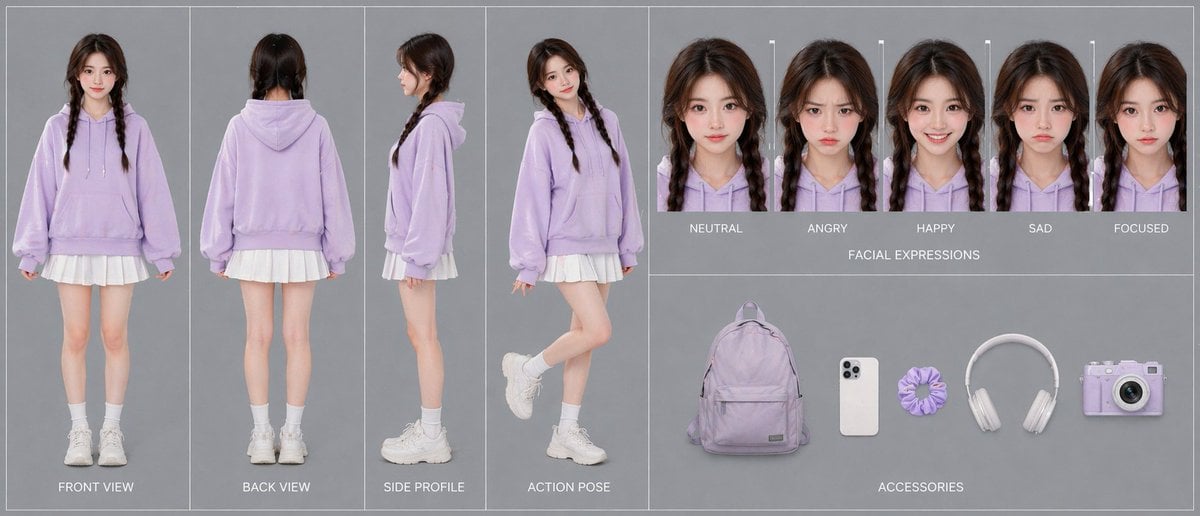
Lavender Hoodie Character Reference Sheet
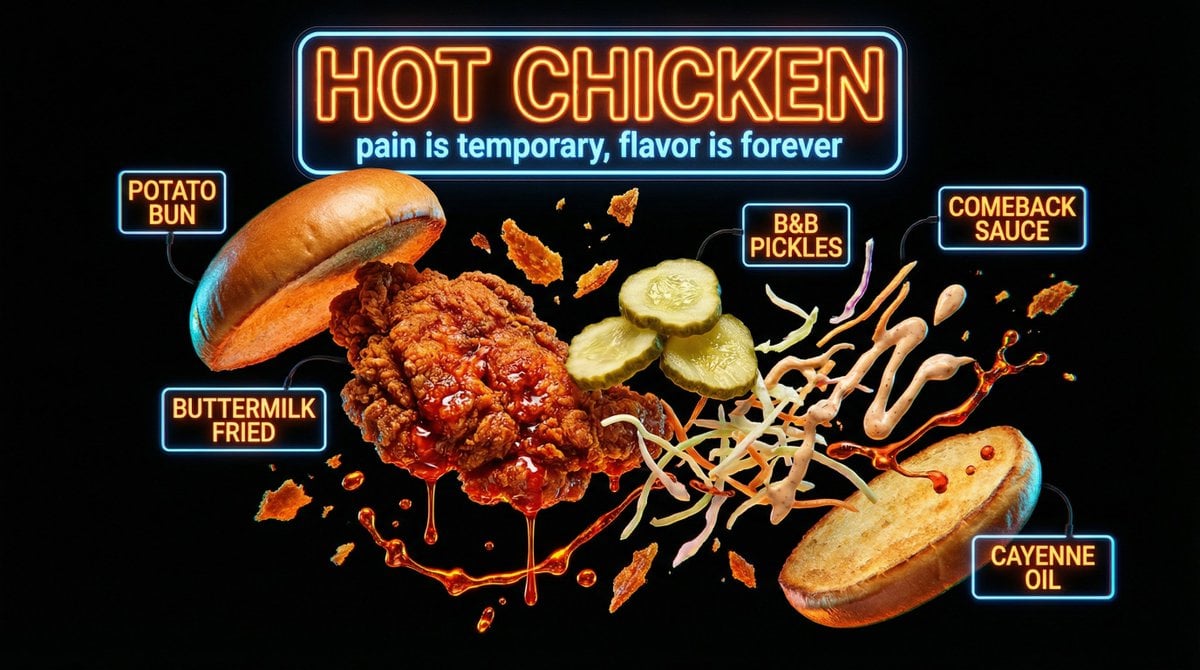
Neon Night Market Food Photography

Futuristic Muscle Car Infographic
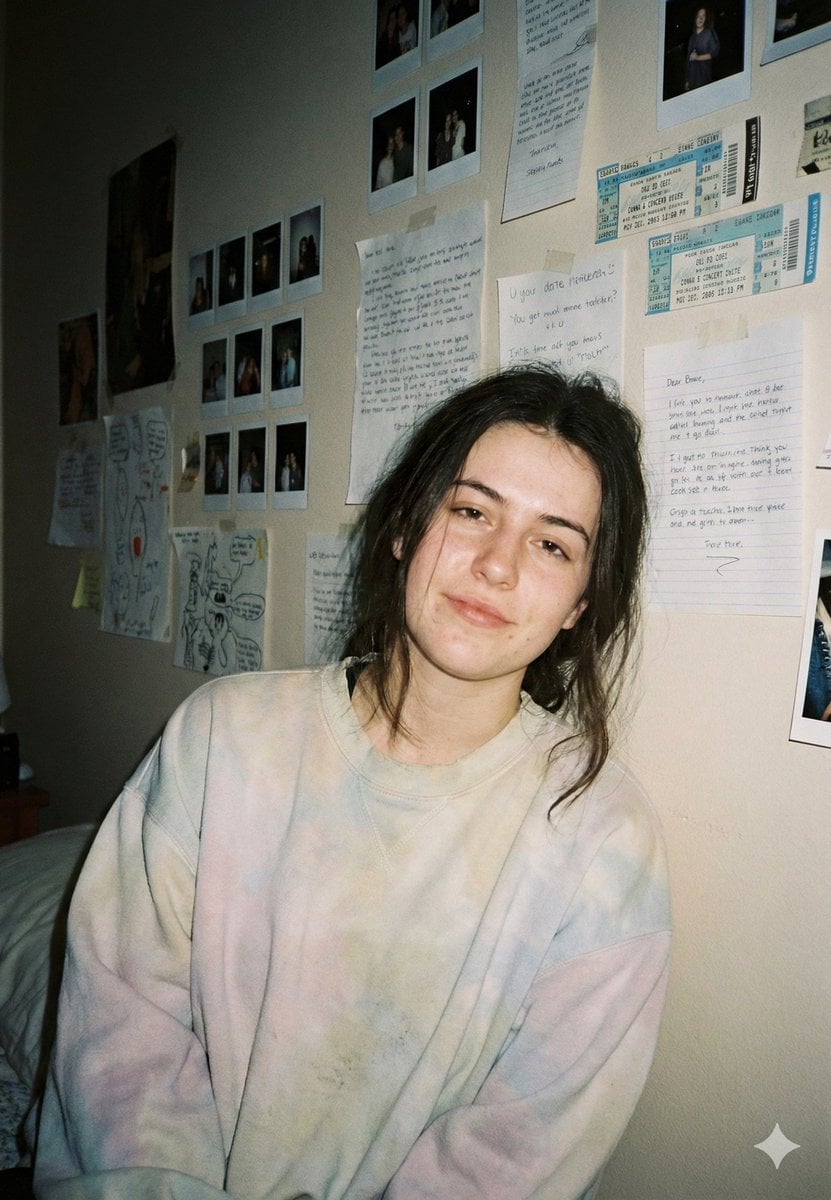
Nostalgic Film Point-and-Shoot Portrait
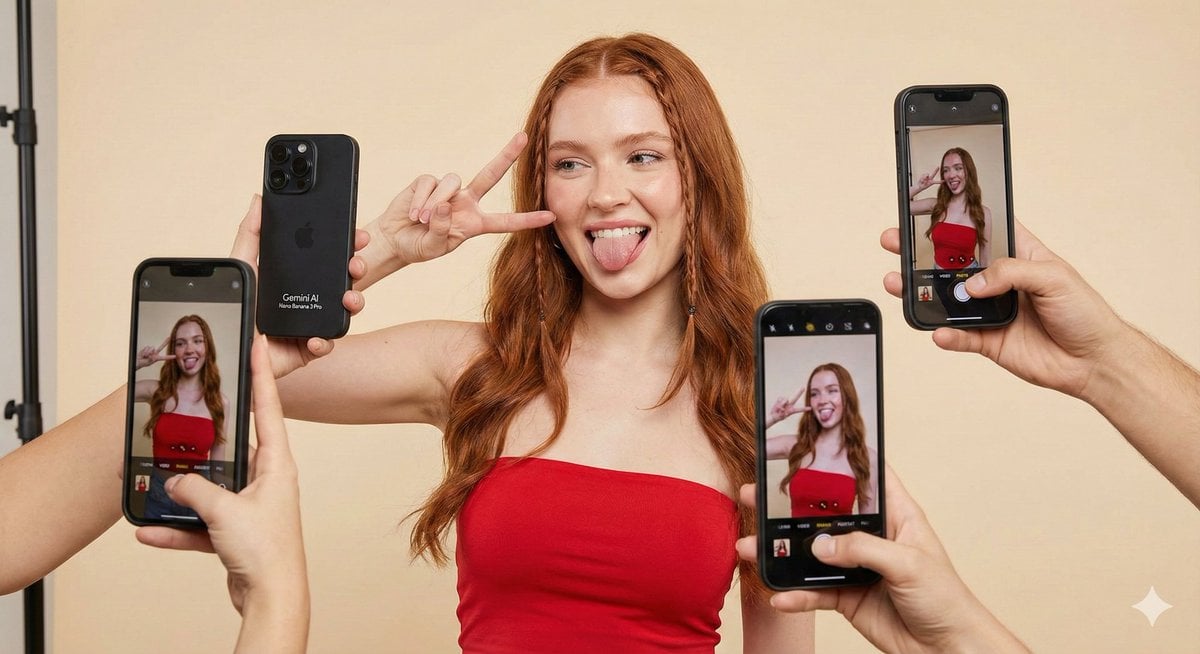
Social Media Influencer Portrait (JSON)
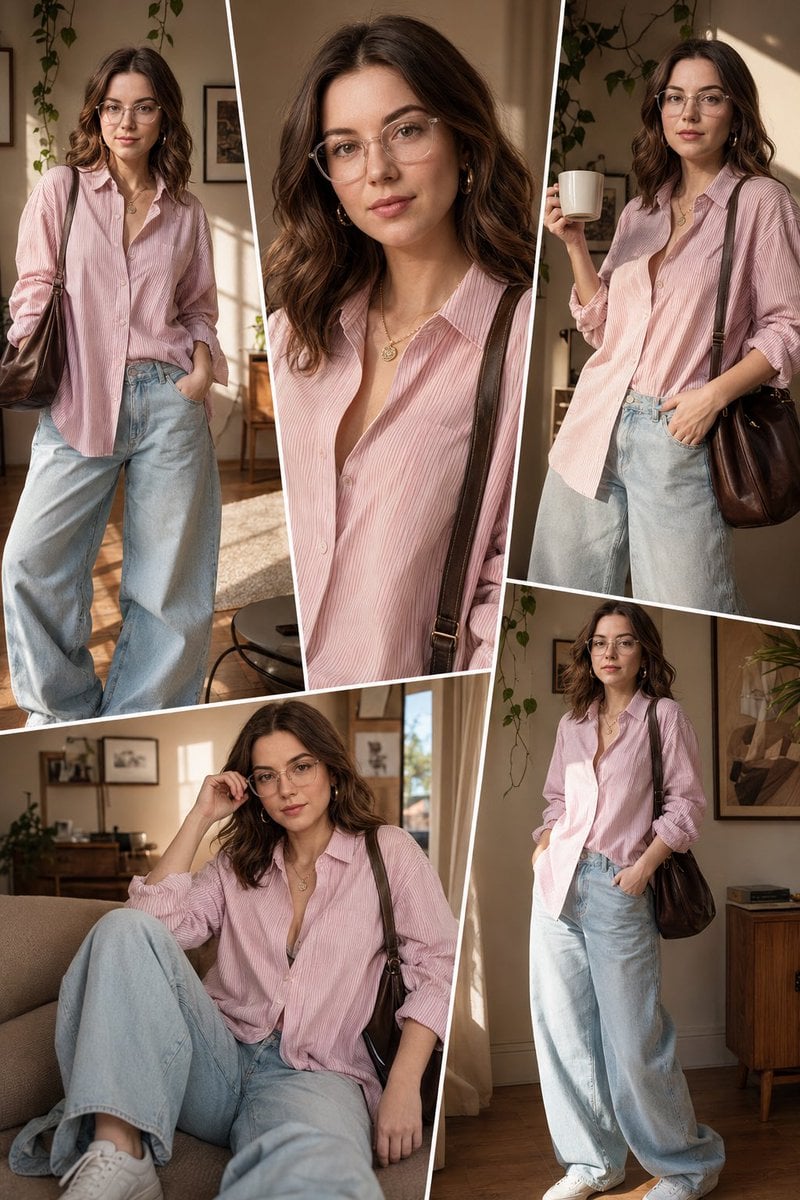
Sunlit Interior Fashion Collage
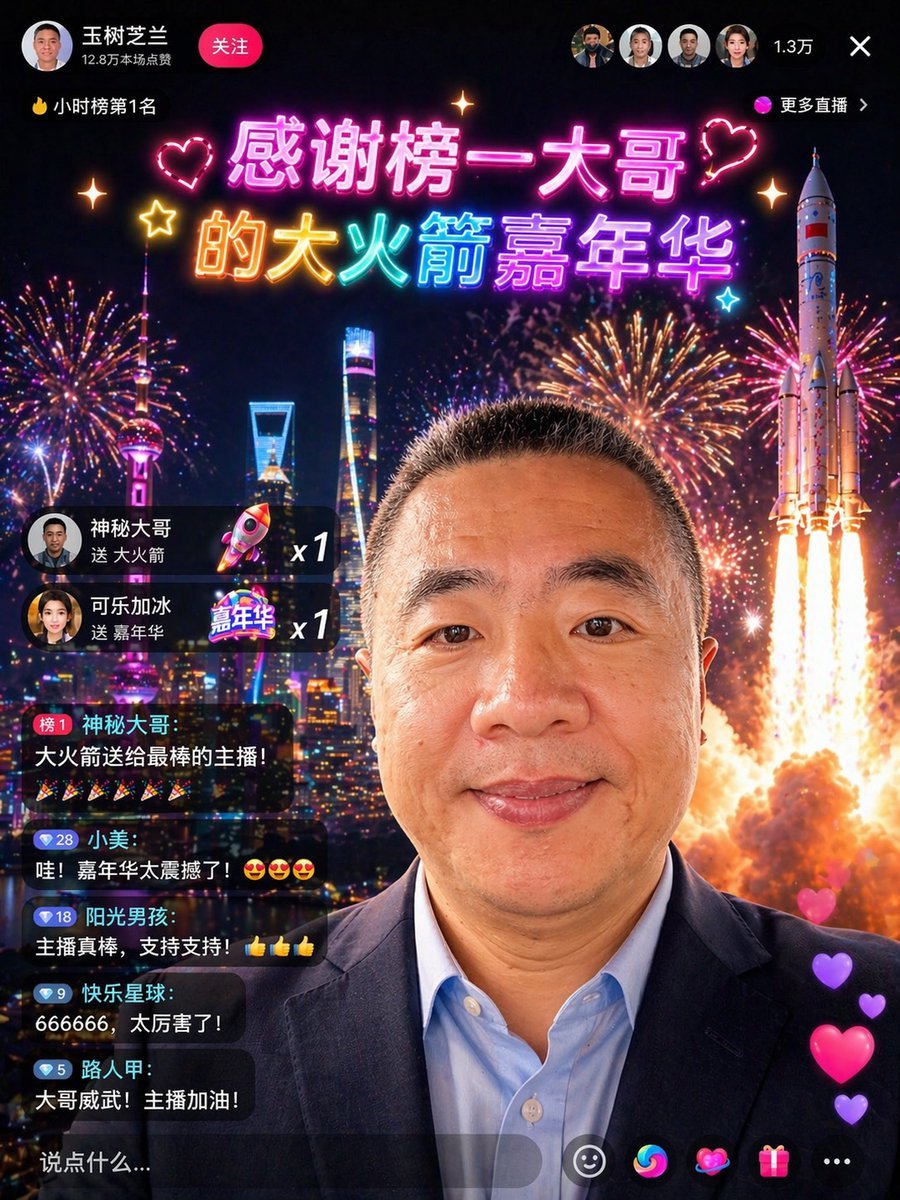
Chinese Livestream Rocket Gala Edit
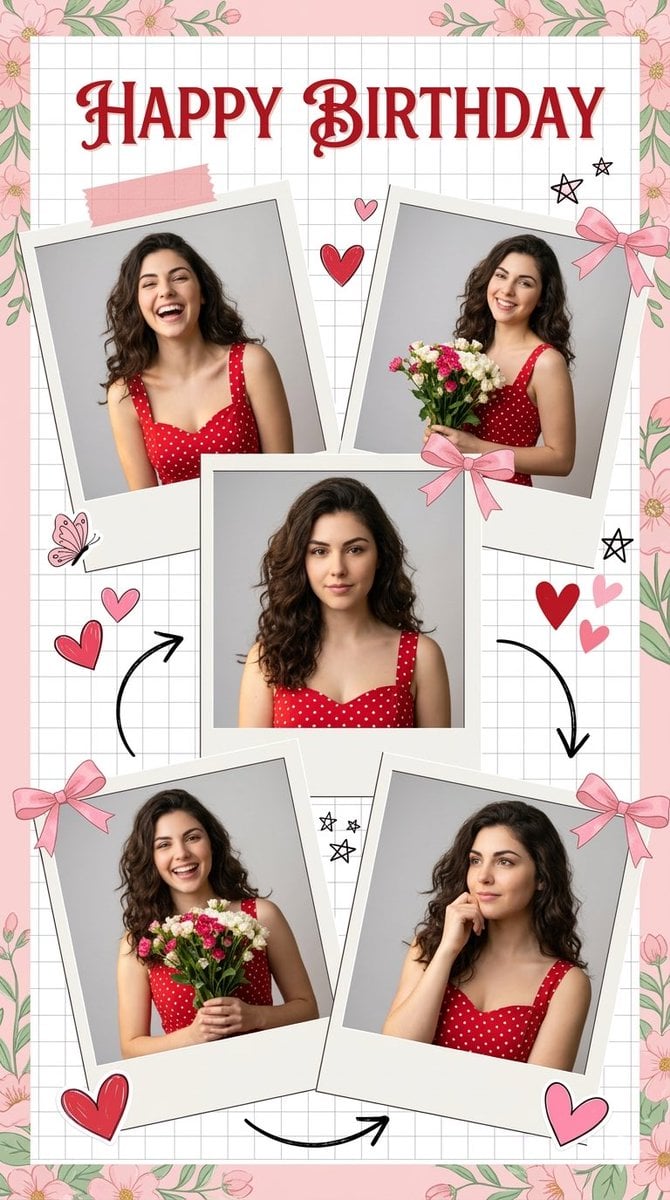
Photorealistic Birthday Scrapbook Collage
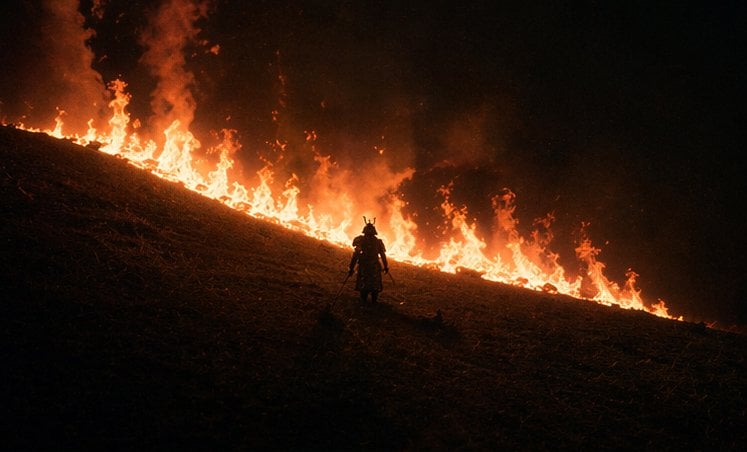
Samurai Before a Hillside Fire

Vibrant Food Photography with Couple and Noodle Boxes
Browse template categories
Realistic Mac Webcam Photo Edit questions
How do I use the Realistic Mac Webcam Photo Edit template?
Add your photo if the template asks for one, edit the prompt if you like — the template's model and format are already selected — and press Generate. Your version opens in PicX Studio.
Can I customize the Realistic Mac Webcam Photo Edit template?
Yes. You can change the subject, setting, lighting, mood, format, and available model controls before creating your image.
Is the Realistic Mac Webcam Photo Edit template free?
Opening and editing this template is free. Generating uses credits, shown on the Generate button when you are signed in.
Which AI model should I use?
Start with GPT Image 2, which is the model associated with this template. You can compare another compatible model for a different finish.
Looking for something else? Browse all templates.

Your photo, any look
Thousands of ready templates for every top image and video model, from one credit balance.