
Japanese Manga Creation App Screenshot
Generates a vertical mobile UI screenshot featuring a completed Japanese anime manga page with festival panels, speech bubbles, and a publish button.
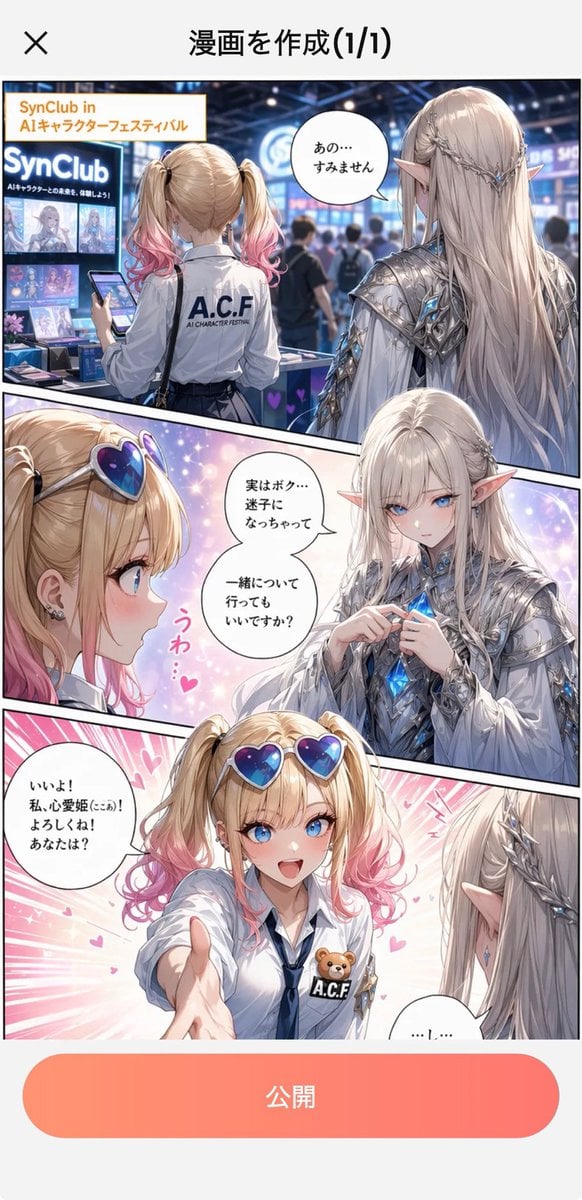
- Prompt included
- Model and format preset
- Free template
The prompt behind this image
Copy the exact prompt behind Japanese Manga Creation App Screenshot, or open it in the studio and make it yours.
Goal: Create a vertical smartphone app screenshot showing a completed manga creation preview inside a Japanese UI, with an anime-style comic page about a blonde schoolgirl meeting an elegant elf-like character at an AI character festival. Canvas: Tall mobile screenshot, approximately 9:16 aspect ratio, white app background. At the very top is a simple app header: a black “×” close icon on the left and the centered Japanese title “漫画を作成(1/1)” in bold black text. At the bottom is a large rounded coral-to-pink gradient button labeled “公開” in white. Main comic layout: The comic page occupies most of the screen between the header and the publish button. Use crisp black manga panel borders. There are exactly 3 visible comic areas: 1) a narrow cropped top-left area showing part of the schoolgirl and a speech bubble, 2) a top section split diagonally between the elf character close-up and the festival booth scene, and 3) one large bottom panel showing a handshake. Characters: Include exactly 2 main characters, repeated across the panels. Character A is a cute blonde teenage schoolgirl with twin ponytails, pink-dipped hair ends, blue eyes, a white short-sleeve shirt, navy tie, dark pleated skirt, and a small teddy-bear badge on her shirt. Character B is a tall beautiful elf-like fantasy person with very long blond hair, pointed ears, blue crystal hair ornaments, pale skin, and ornate silver-white futuristic armor with glowing blue gems and cape-like details. Cover the faces of the close-up characters with flat beige rectangular privacy blocks, as if anonymized. Top comic section: On the right side, show Character A standing in a convention or festival hall holding a smartphone. Behind her is a warm blurred booth sign reading “SynClub” and indistinct people. Add an orange rectangular caption box at the lower right of this top section reading “SynClub in\nAIキャラクターフェスティバル”. On the left/center of the top section, show Character B from the front and back in a dramatic diagonal split-panel composition, with glowing blue fantasy details. Bottom comic panel: Show Character A and Character B facing each other and shaking hands warmly. Character A looks excited and friendly; Character B looks slightly shy or nervous. The background is a bright pastel burst of warm light, sparkles, and celebratory rays. Text content: Use exactly 5 speech bubbles with Japanese text: 1) cropped bubble at left: “一緒について行ってもいいですか?” 2) vertical bubble near Character B in top section: “実はボク…迷子になっちゃって” 3) top-right bubble near Character A: “あの…すみません” 4) bottom-center bubble from Character A: “いいよ!私、心愛姫ここあ!よろしくね!あなたは?” 5) bottom-right bubble from Character B: “…し…シンクラ”. Visual style: Polished modern Japanese anime and webtoon style, clean line art, glossy lighting, soft gradients, warm convention lighting, bright fantasy blue accents, high detail clothing, expressive manga speech bubbles, smartphone screenshot realism. Constraints: Keep the UI text and button clearly legible. Use exactly 5 speech bubbles, exactly 2 main character designs, and the 3 comic areas described. Do not add extra panels, extra major characters, watermarks, or English translations inside the image. Customizable app title: {argument name="app title" default="漫画を作成(1/1)"}. Customizable booth name: {argument name="booth name" default="SynClub"}. Customizable event caption: {argument name="event caption" default="SynClub in AIキャラクターフェスティバル"}. Customizable publish button text: {argument name="publish button text" default="公開"}. Customizable elf name line: {argument name="elf name line" default="…し…シンクラ"}.
How to use Japanese Manga Creation App Screenshot in 3 steps
- 1Upload ImagePNG, JPG or paste
Add your photo
Upload the photo the template builds on. The prompt, model and format are already set.
- 2…a portrait of your subject in softgolden-hour light, 85mm…
Personalize
Edit the subject and creative details for your destination.
- 3Generate
Generate
Press Generate — your image is created in PicX Studio, so you can compare it with the original and refine one variable at a time.
More like this
Templates with the same subject, style or setup. Open one to see its prompt.
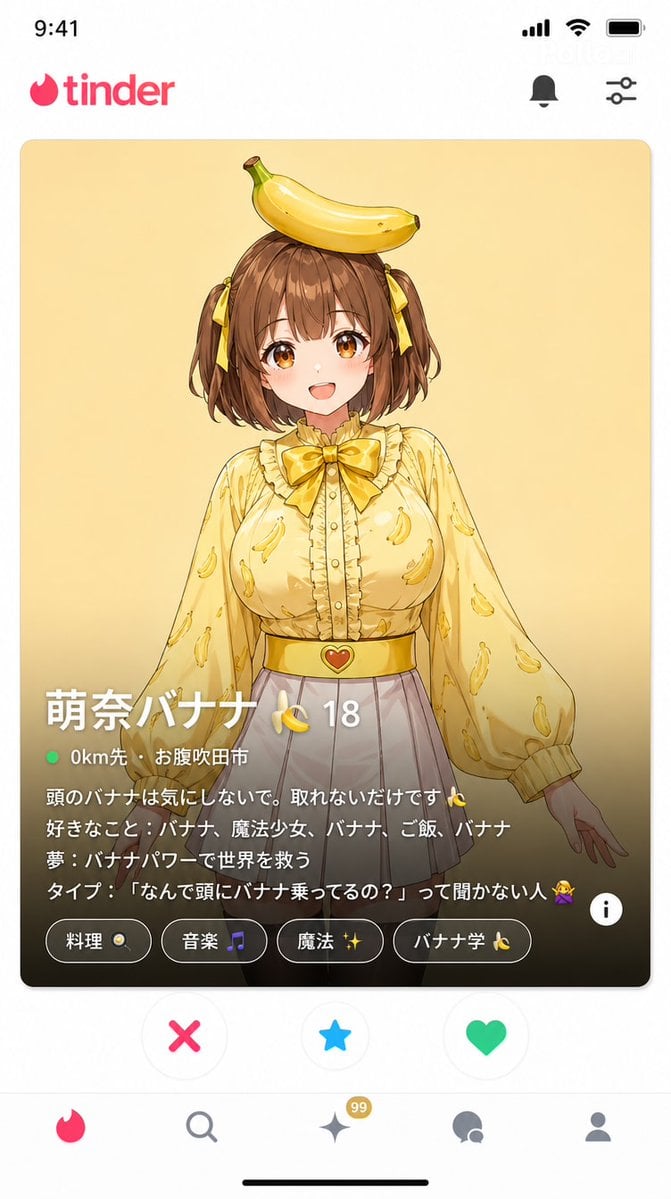
Dating App Screenshot Recreation
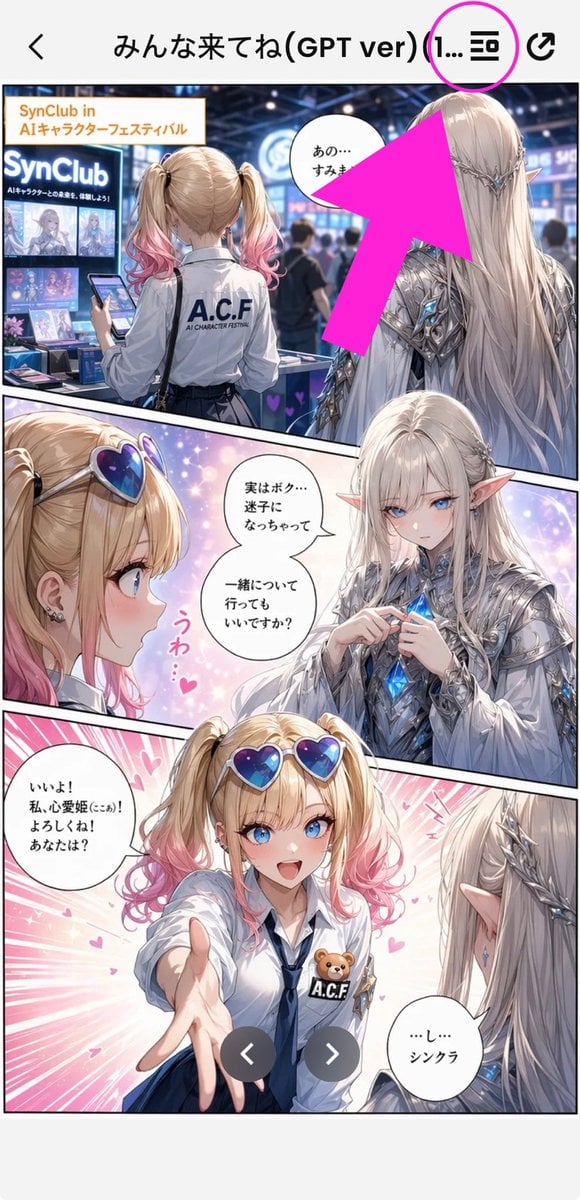
Annotated Manga App Screenshot
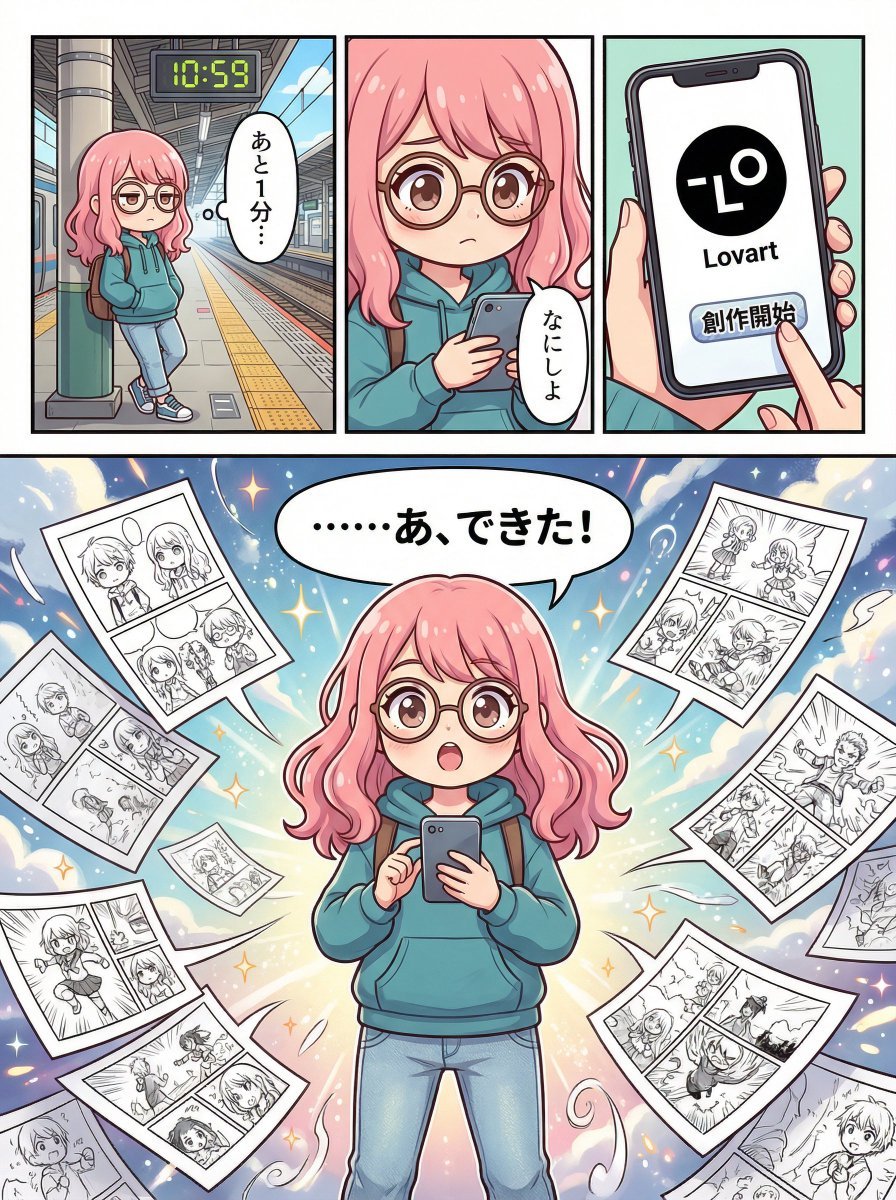
Four-Panel Manga Creation about Lovart App
Minecraft Next-Gen Voxel World Screenshot
Minecraft Japanese Research Lab Exploration
Anime Butler Date Manga Screenshot
Japanese NEWT Travel App Poster
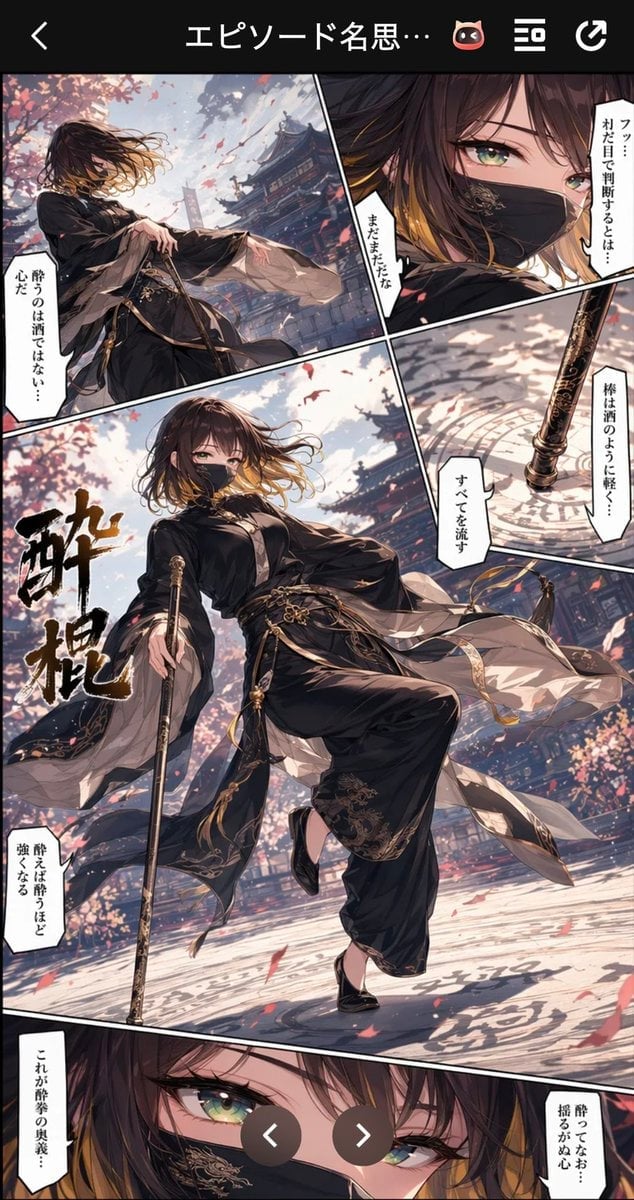
Drunken Staff Manga Screenshot
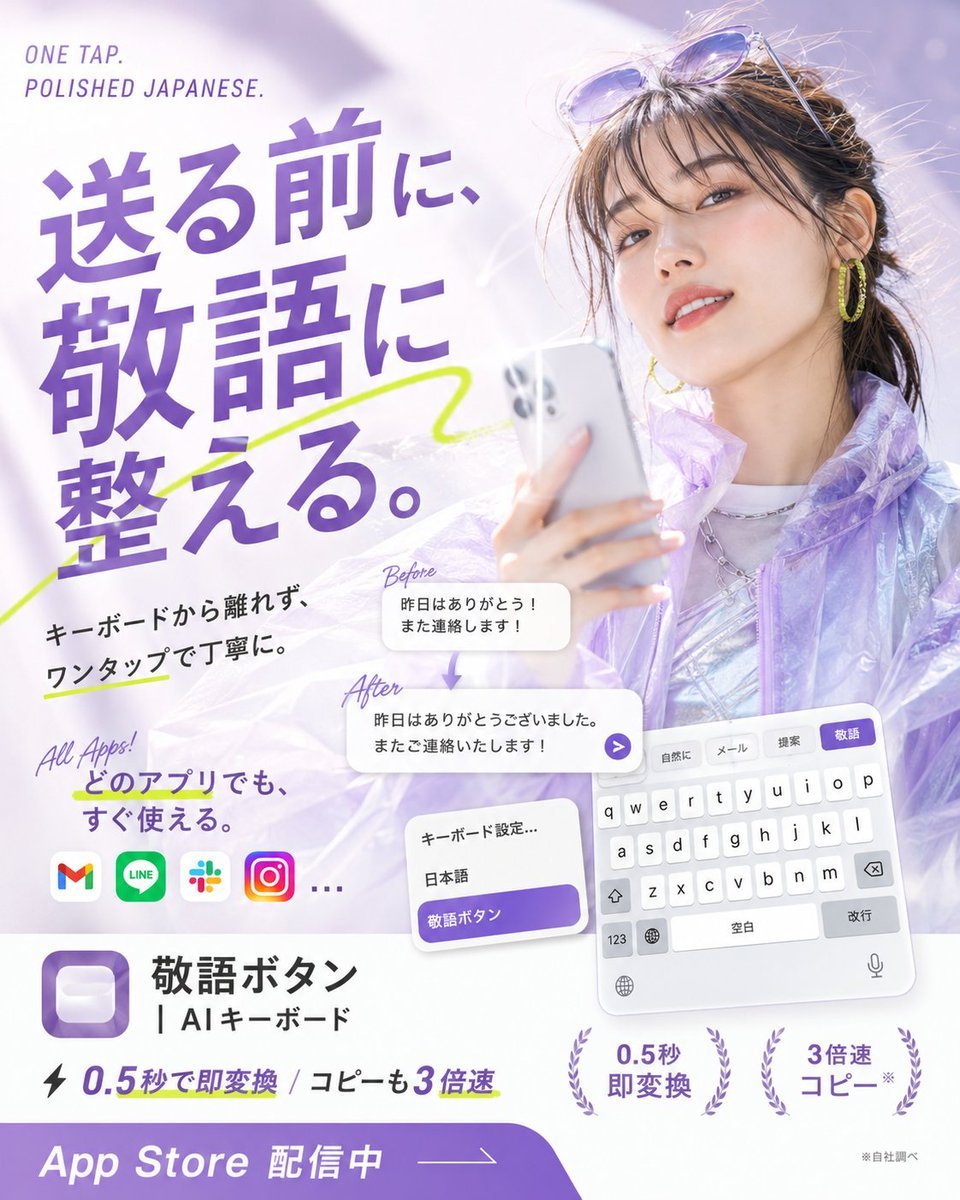
Japanese AI Keyboard App Poster
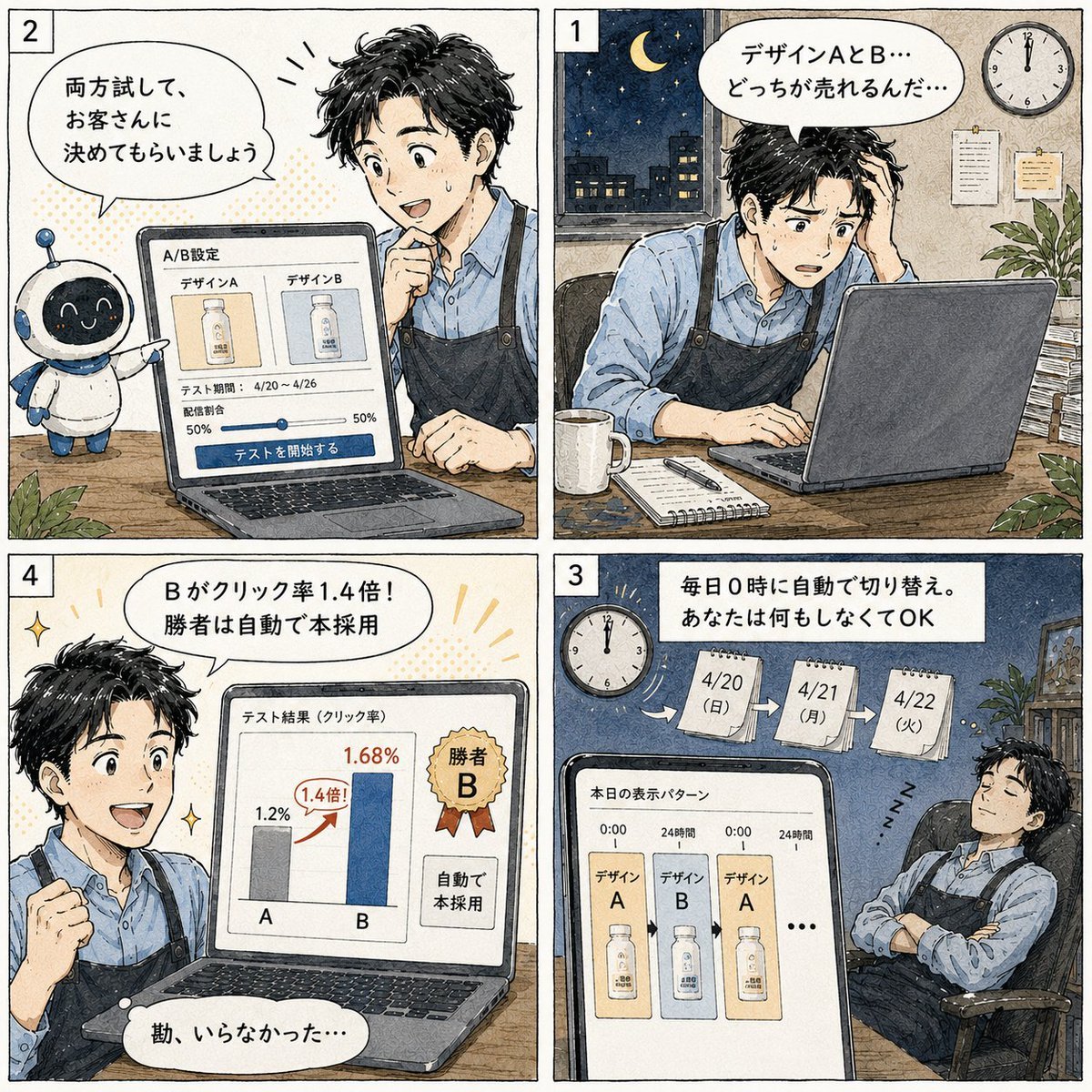
Japanese Manga A/B Testing Comic
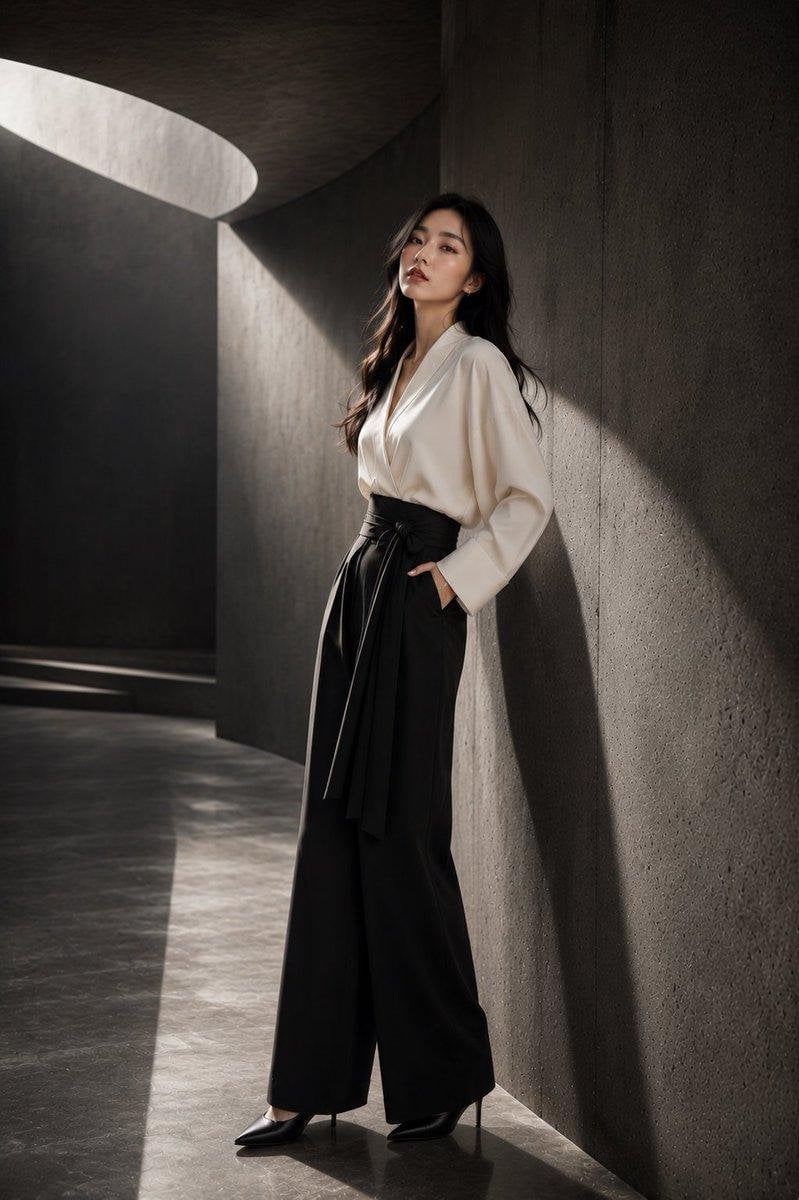
Japanese Architectural Concrete Studio Fashion Campaign
Japanese Minimalist Concrete Studio Fashion Editorial
Make it yours
Japanese Manga Creation App Screenshot works as-is. These are the safest ways to change it without losing the look.
Change one field
Copy a single group, rewrite it, and generate again so you can see what that field is doing.
Keep the frame, change the subject
Hold the composition and light of Japanese Manga Creation App Screenshot, then swap wardrobe, props or the person for a new take.
| If the result… | Why | Fix |
|---|---|---|
| The result drifts from the preview | Too many fields changed at once. | Reuse Japanese Manga Creation App Screenshot as-is first, then change one group — subject, light, or setting. |
| The model over-stylizes the scene | The prose prompt leaves finish and camera underspecified. | Add one camera or lighting sentence and stay on GPT Image 2. |
More GPT Image 2 templates
Other prompts made for GPT Image 2.

Six VTuber Japanese Logo Sheet

Realistic Portrait of Woman and Deer

The Vista Modular Condo Poster

AI Model Routing Comparison Infographic

2.5D Anime Art Board

Isometric Productivity Desk Scene

New York Double Exposure Poster

Four-Panel AI Landscape Comparison

Japanese Tatami Lifestyle Magazine Cover

NESCAFÉ Coffee Map Poster
More image prompts
Fresh picks from across the catalog.
Burj Khalifa Technical Sketch and Real Photo Comparison
Cinematic Fashion Portrait Prompt
Memory Archive Manga Page
Glossy Pink Betta Fish Transformation
Nighttime Outdoor Lounge Portrait
Personal High-Concept Portrait Generator
Edo-period castle town scene
Avant-Garde Sculptural Fabric Portrait
Glossy Anime Shading Transformation
Hyperrealistic Tattooed Elf Couple
Browse template categories
Japanese Manga Creation App Screenshot questions
How do I use the Japanese Manga Creation App Screenshot template?
Add your photo if the template asks for one, edit the prompt if you like — the template's model and format are already selected — and press Generate. Your version opens in PicX Studio.
Can I customize the Japanese Manga Creation App Screenshot template?
Yes. You can change the subject, setting, lighting, mood, format, and available model controls before creating your image.
Is the Japanese Manga Creation App Screenshot template free?
Opening and editing this template is free. Generating uses credits, shown on the Generate button when you are signed in.
Which AI model should I use?
Start with GPT Image 2, which is the model associated with this template. You can compare another compatible model for a different finish.
Looking for something else? Browse all templates.

Your photo, any look
Thousands of ready templates for every top image and video model, from one credit balance.