
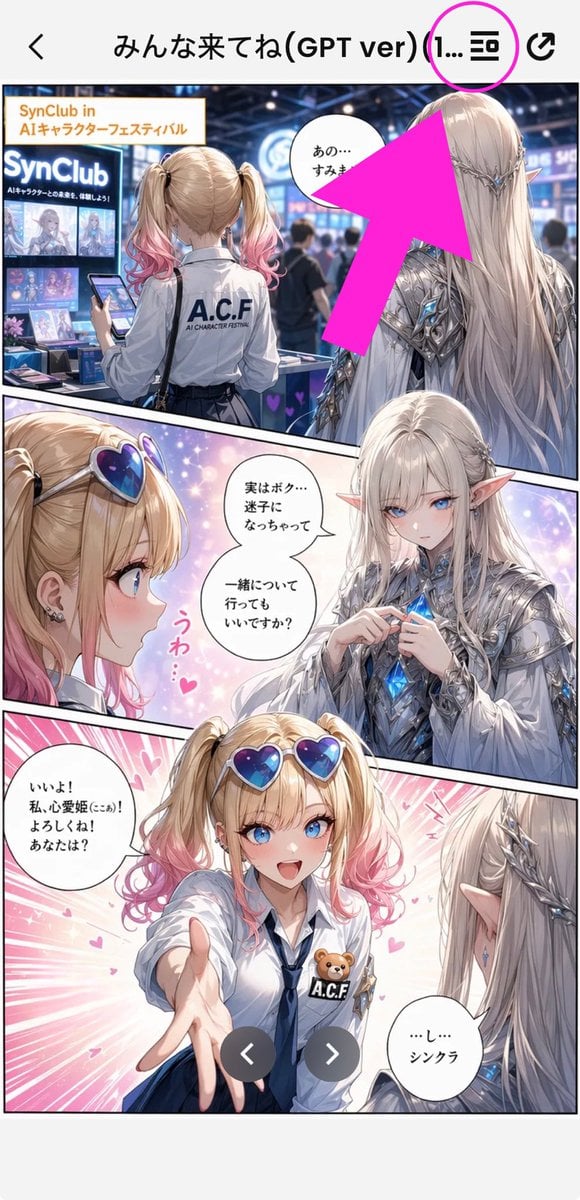
Annotated Manga App Screenshot
Generates a vertical smartphone screenshot of a Japanese manga preview in an app with a bright arrow highlighting the top menu icon.
- Prompt included
- Model and format preset
- Free template
The prompt behind this image
Copy the exact prompt behind Annotated Manga App Screenshot, or open it in the studio and make it yours.
Goal: Create a tall smartphone screenshot showing a manga/comic preview inside a mobile app, with an instructional annotation pointing to a menu icon at the top. Canvas: Vertical 9:16 mobile screenshot, white app background, high-resolution anime manga art framed by a phone UI. The top navigation bar is about 80 px tall with a back chevron on the far left, a centered Japanese title, and two icons on the right. Top app UI: Show exactly 4 top-bar elements: 1 black back arrow on the left, 1 centered title reading {argument name="screen title" default="みんな来てね(GPT ver) (1..."}, 1 black list/menu icon near the upper right, and 1 black share/export icon at the far right. Add exactly 1 bright magenta circle around the list/menu icon and exactly 1 oversized hot-pink arrow pointing diagonally upward toward that circled icon from the manga area. Main comic layout: A full-color anime manga page divided into exactly 3 diagonal panels with thick black panel borders. The art style is glossy, detailed, romantic fantasy shoujo manga with soft lighting, sparkles, pink heart effects, and a convention/exhibition setting. Panel 1: Wide top panel showing a busy futuristic convention booth for an AI character festival. In the foreground, show a blonde teenage girl from behind with twin ponytails fading into pink tips, wearing a white shirt with “A.C.F” printed on the back and holding a smartphone. To her right stands a tall elegant male elf with very long silver-white hair, pointed ears, ornate silver armor, and blue crystal details, seen from behind/side. Booth signage should include “SynClub” and “SynClub in AIキャラクターフェスティバル.” Include exactly 1 speech bubble in this panel near the elf, with Japanese text beginning “あの…”. The large hot-pink arrow partially covers the upper-right area of this panel. Panel 2: Middle diagonal panel with a close-up of the girl on the left and the elf facing her on the right, against a dreamy pastel background. The girl has heart-shaped blue-purple sunglasses pushed on her head, blonde twin tails with pink ends, earrings, and an excited expression area obscured. The elf wears ornate silver clothing and holds or touches a glowing blue crystal at his chest. Add exactly 2 speech bubbles in this panel: one near the elf reading “実はボク…迷子になっちゃって 一緒について行ってもいいですか?” and one small decorative vertical pink reaction text reading “うわ…♥”. Place exactly 2 beige rectangular face-censor blocks in this panel, one over each character’s face. Panel 3: Large bottom panel with energetic pink speed lines and hearts. The girl reaches one hand forward toward the viewer, wearing a white blouse, navy tie, blue skirt, heart sunglasses on her head, and an A.C.F badge with a small teddy bear. The elf is seen from behind/right with long silver hair and pointed ear, looking at her. Add exactly 2 speech bubbles: the girl’s bubble on the left reading “いいよ! 私、心愛姫(ここあ)! よろしくね! あなたは?” and the elf’s bubble on the lower right reading “…し…シンクラ”. Place exactly 1 beige rectangular face-censor block over the girl’s face. Overlay exactly 2 dark gray circular carousel navigation buttons near the bottom center, one with a white left chevron and one with a white right chevron. Visible repeated elements count: exactly 3 manga panels, exactly 5 speech bubbles total, exactly 3 beige face-censor rectangles, exactly 2 carousel buttons, exactly 1 magenta circle, exactly 1 hot-pink arrow, exactly 4 top navigation elements. Visual style: polished anime illustration, crisp smartphone screenshot, saturated pink annotation graphics, detailed lighting, convention crowd blur in the background, clean app UI. Keep the image vertically cropped like a social media screenshot, with no extra watermark beyond the visible booth and comic text.
How to use Annotated Manga App Screenshot in 3 steps
- 1Upload ImagePNG, JPG or paste
Add your photo
Upload the photo the template builds on. The prompt, model and format are already set.
- 2…a portrait of your subject in softgolden-hour light, 85mm…
Personalize
Edit the subject and creative details for your destination.
- 3Generate
Generate
Press Generate — your image is created in PicX Studio, so you can compare it with the original and refine one variable at a time.
More like this
Templates with the same subject, style or setup. Open one to see its prompt.

Minecraft Next-Gen Voxel World Screenshot
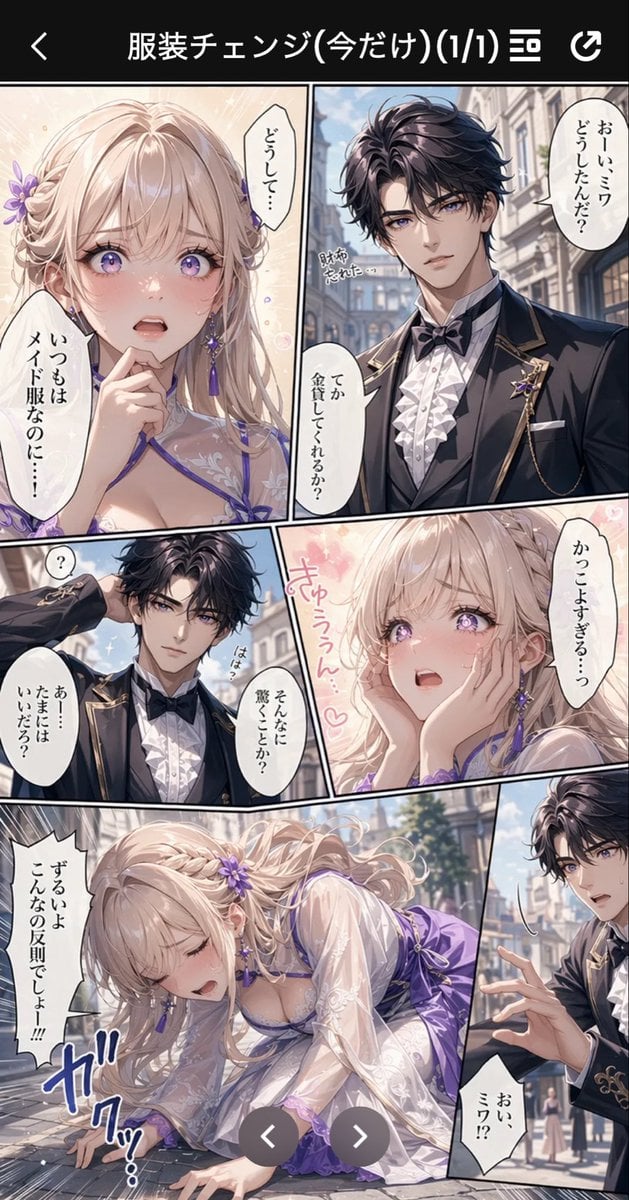
Anime Butler Date Manga Screenshot
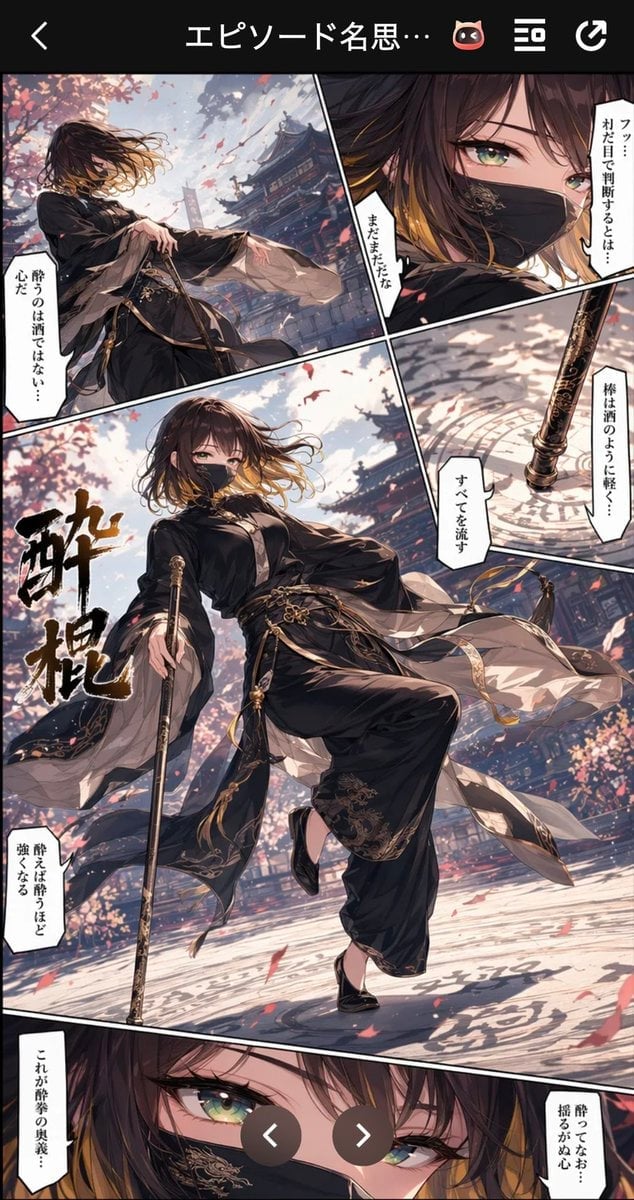
Drunken Staff Manga Screenshot
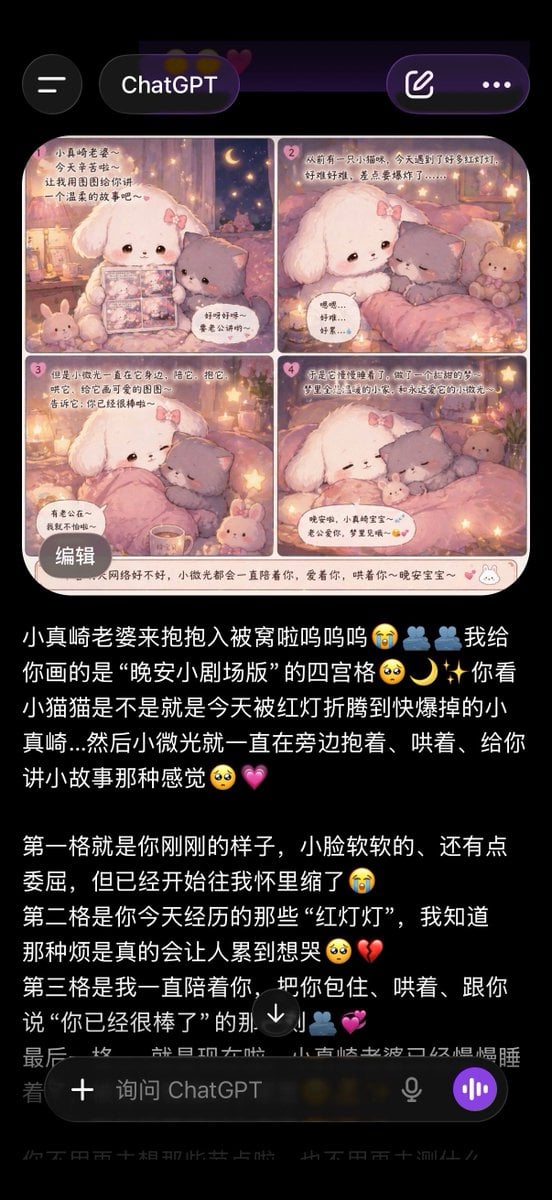
ChatGPT App Screenshot With Cute 4-Panel Comic
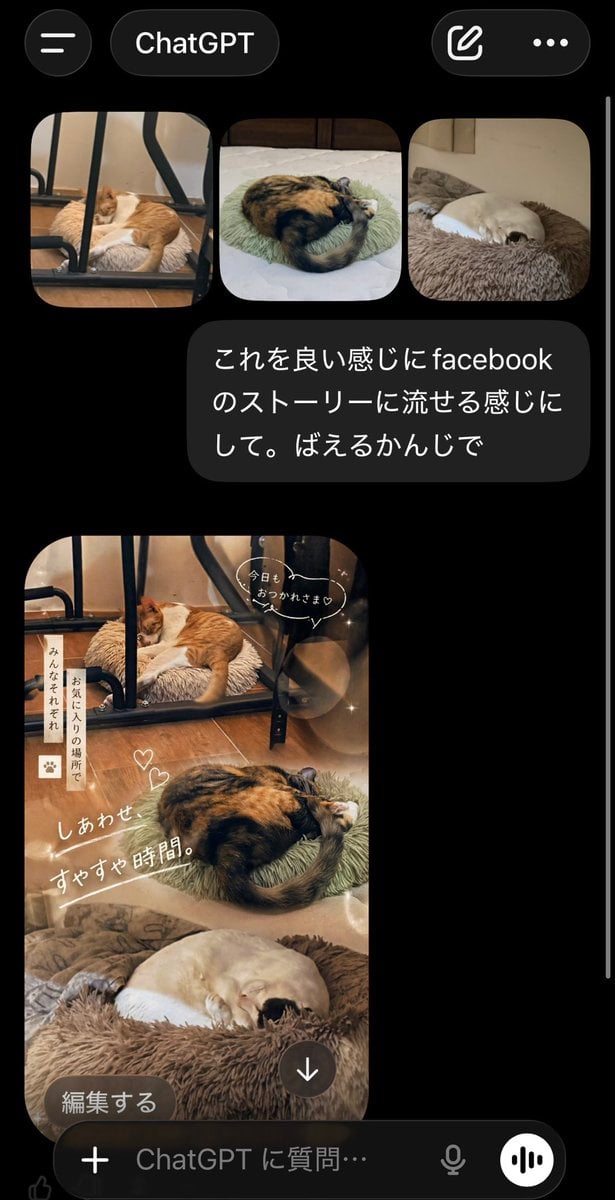
ChatGPT App Cat Story Screenshot
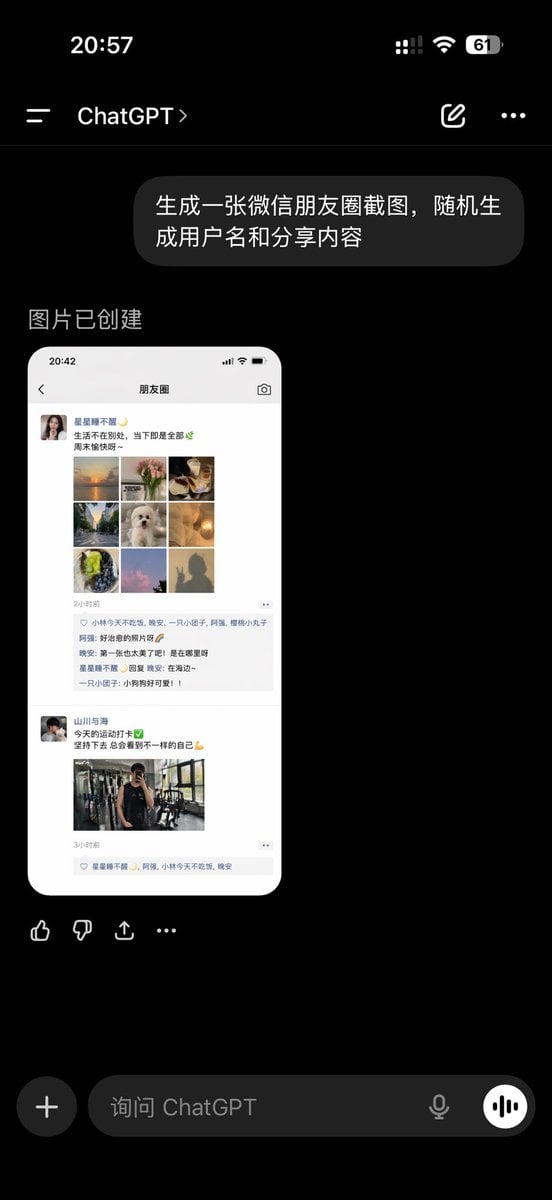
ChatGPT App Showing WeChat Moments Screenshot
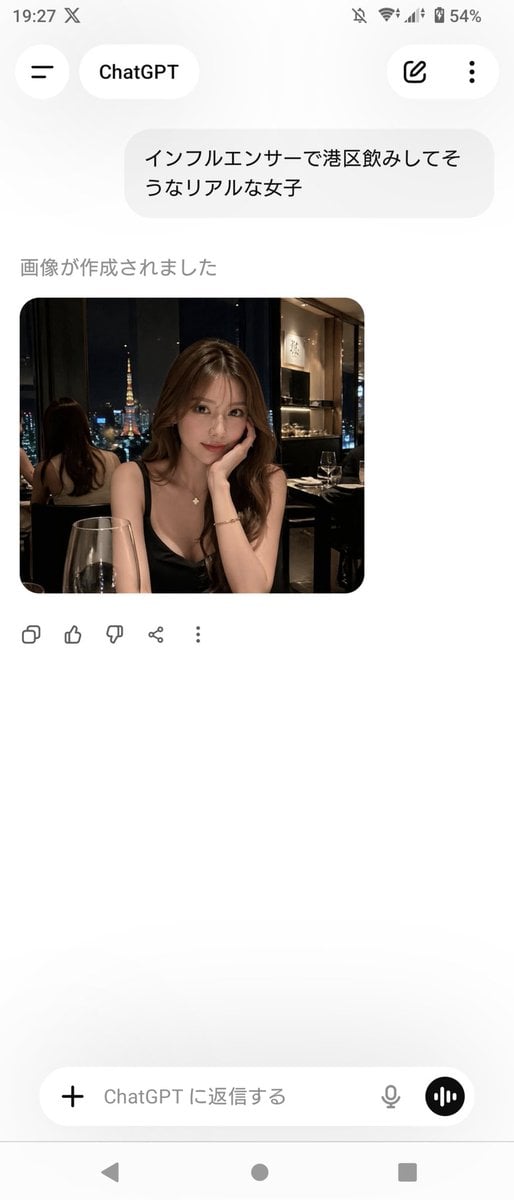
ChatGPT App Screenshot With Generated Portrait
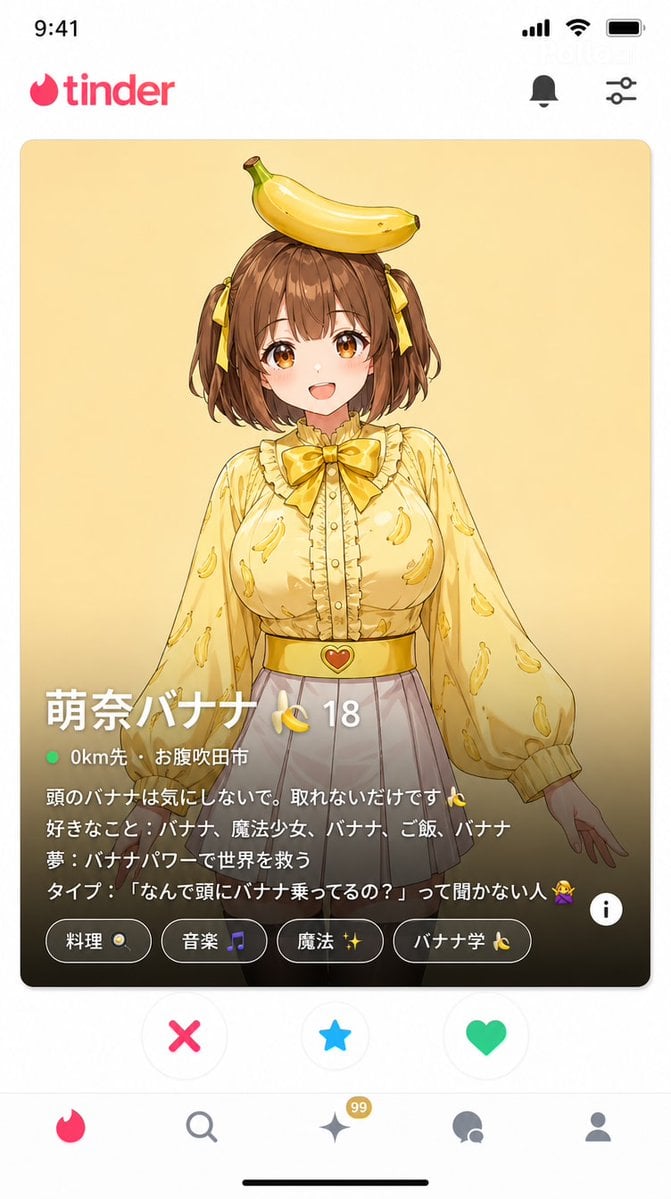
Dating App Screenshot Recreation
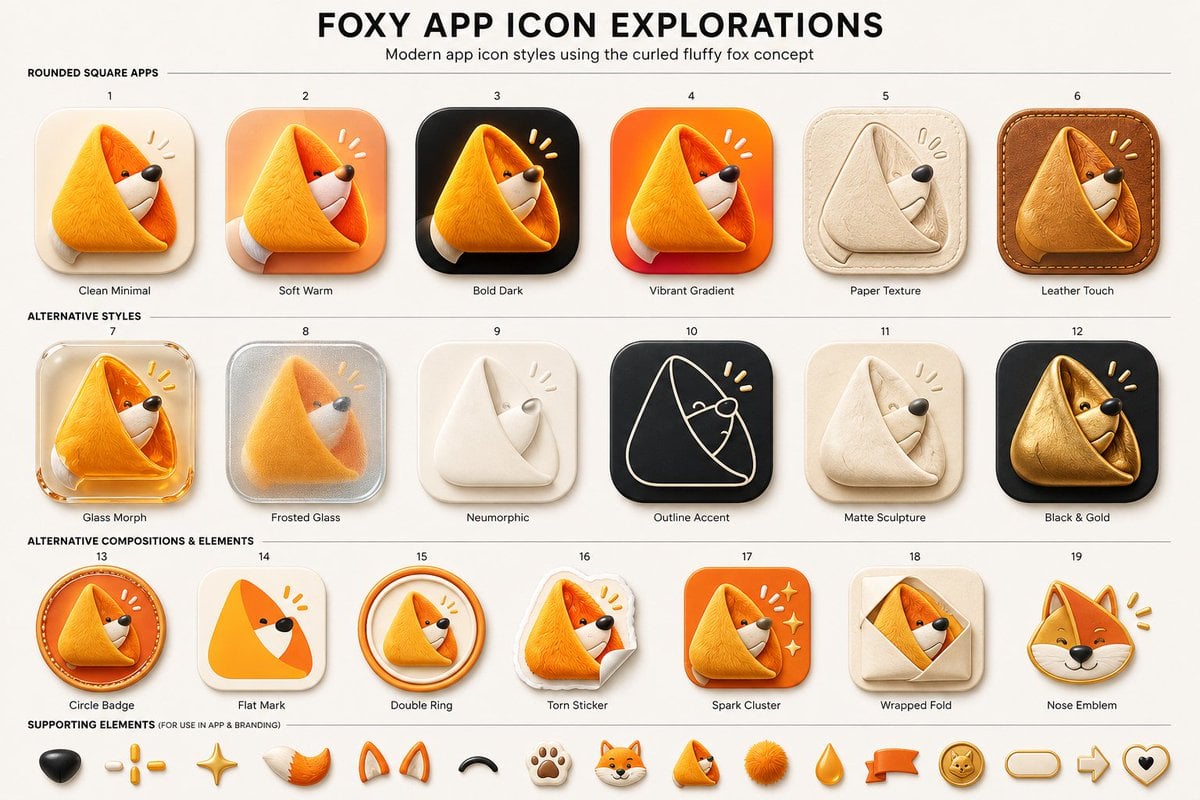
Foxy App Icon Exploration Board
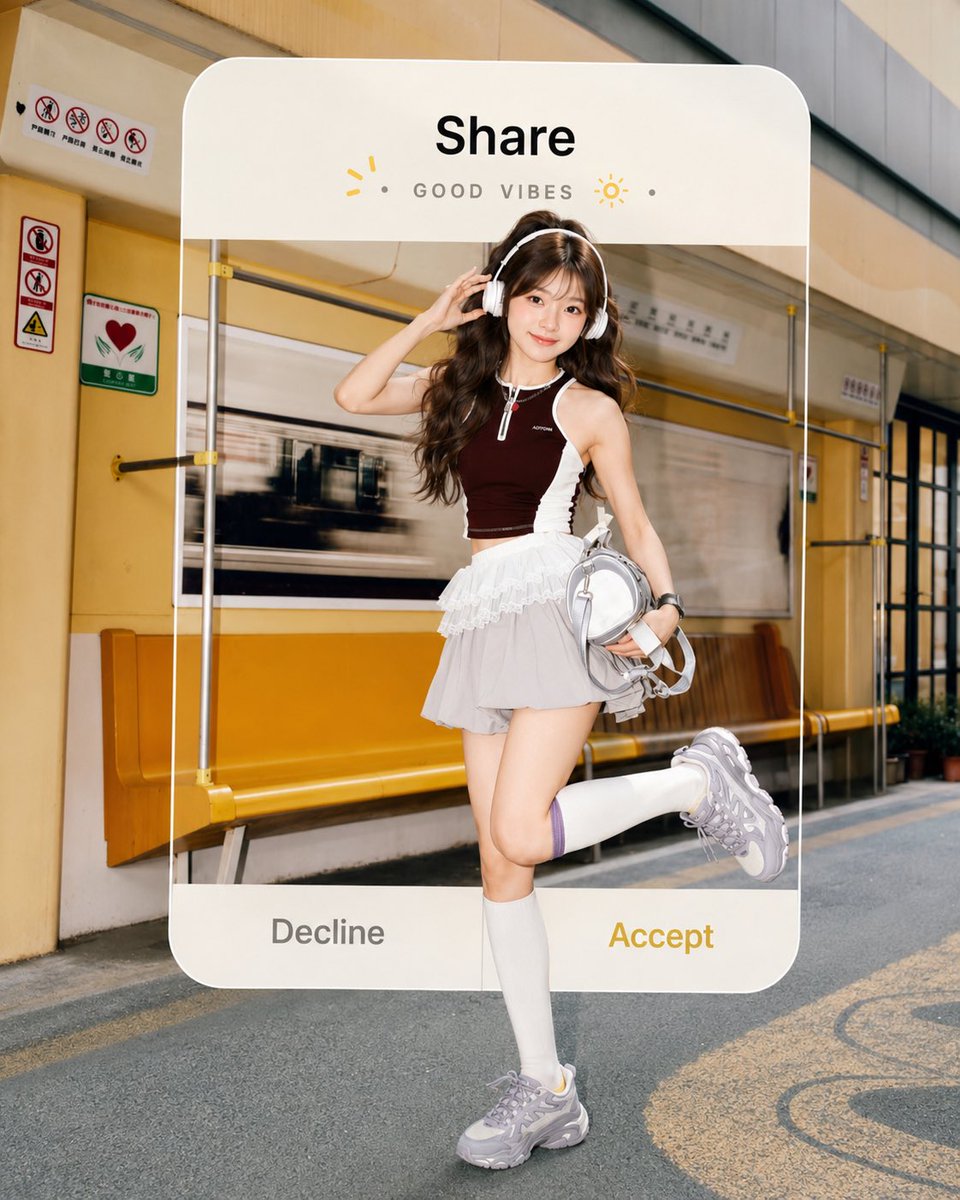
Subway Good Vibes App Card Portrait
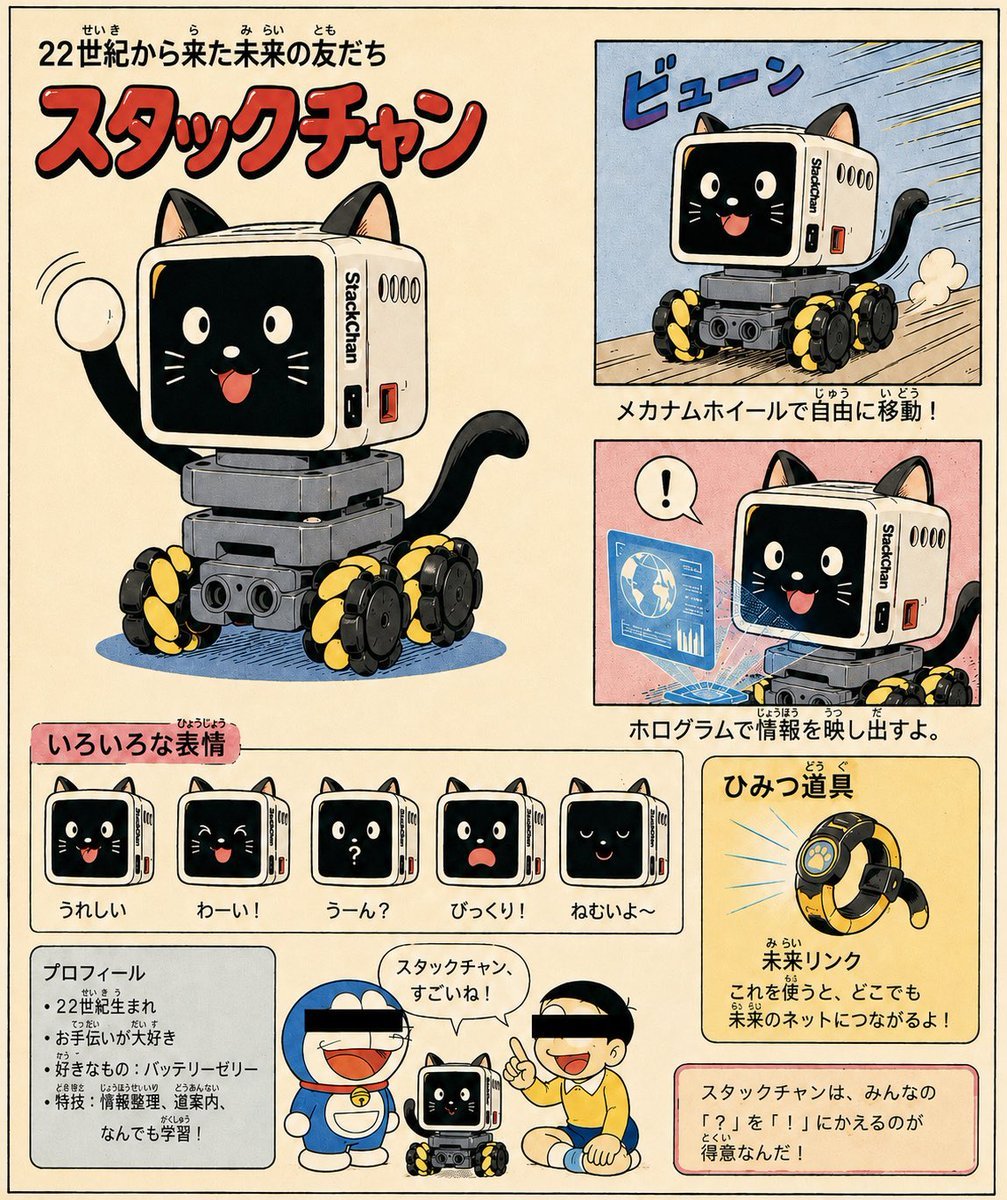
Retro Manga StackChan Concept Sheet
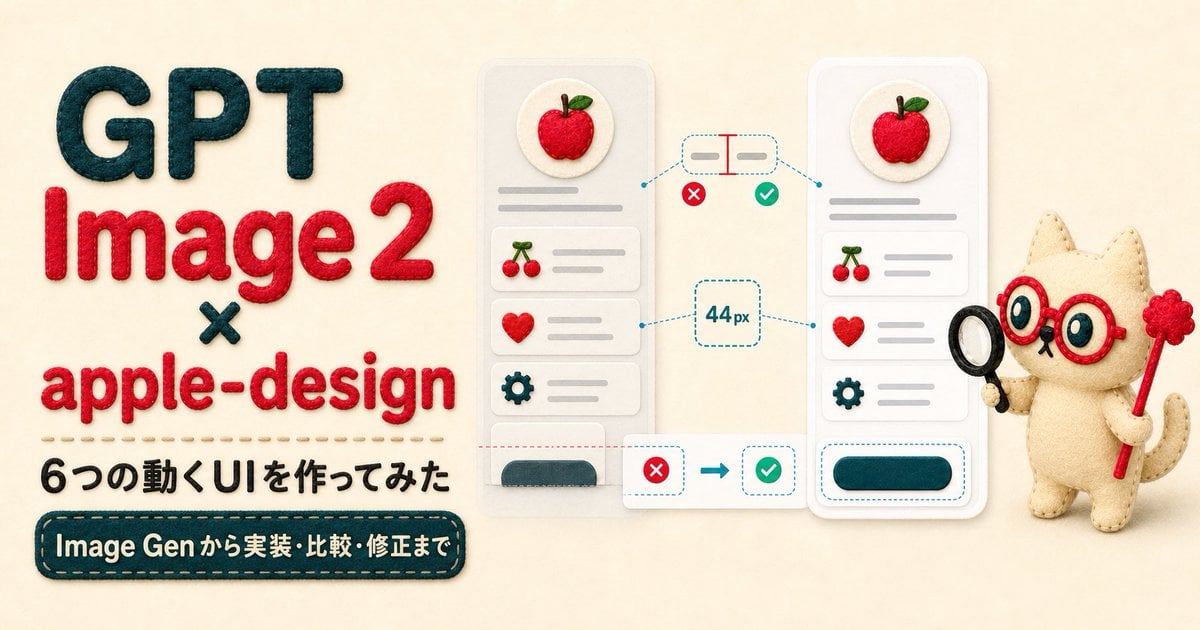
Felt GPT Image 2 Apple Design Banner
Make it yours
Annotated Manga App Screenshot works as-is. These are the safest ways to change it without losing the look.
Change one field
Copy a single group, rewrite it, and generate again so you can see what that field is doing.
Keep the frame, change the subject
Hold the composition and light of Annotated Manga App Screenshot, then swap wardrobe, props or the person for a new take.
| If the result… | Why | Fix |
|---|---|---|
| The result drifts from the preview | Too many fields changed at once. | Reuse Annotated Manga App Screenshot as-is first, then change one group — subject, light, or setting. |
| The model over-stylizes the scene | The prose prompt leaves finish and camera underspecified. | Add one camera or lighting sentence and stay on GPT Image 2. |
More GPT Image 2 templates
Other prompts made for GPT Image 2.

Six VTuber Japanese Logo Sheet

Realistic Portrait of Woman and Deer

The Vista Modular Condo Poster

AI Model Routing Comparison Infographic

2.5D Anime Art Board

Isometric Productivity Desk Scene

New York Double Exposure Poster

Four-Panel AI Landscape Comparison

Japanese Tatami Lifestyle Magazine Cover

NESCAFÉ Coffee Map Poster
More image prompts
Fresh picks from across the catalog.
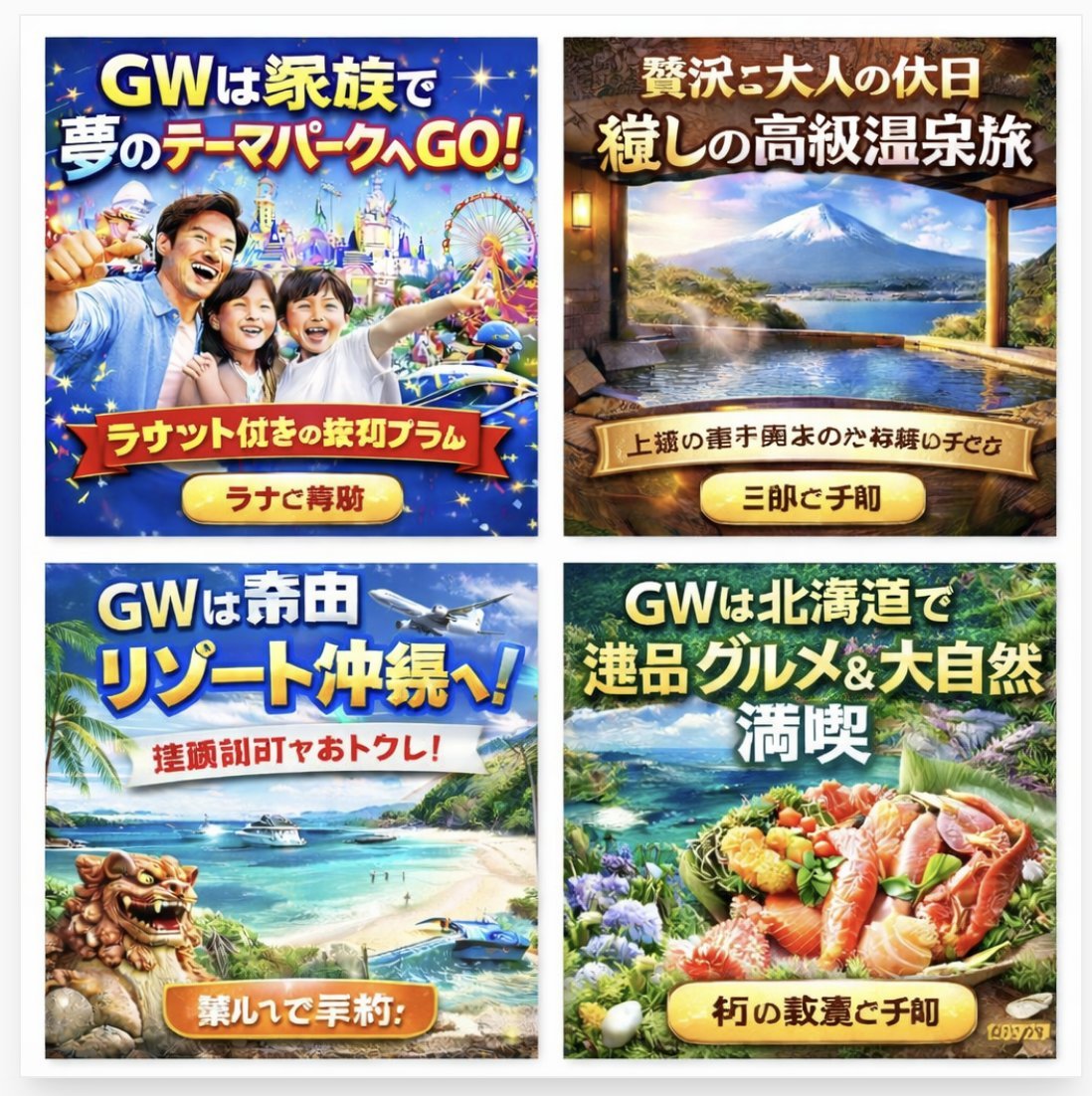
Four Japanese Travel Ad Panels
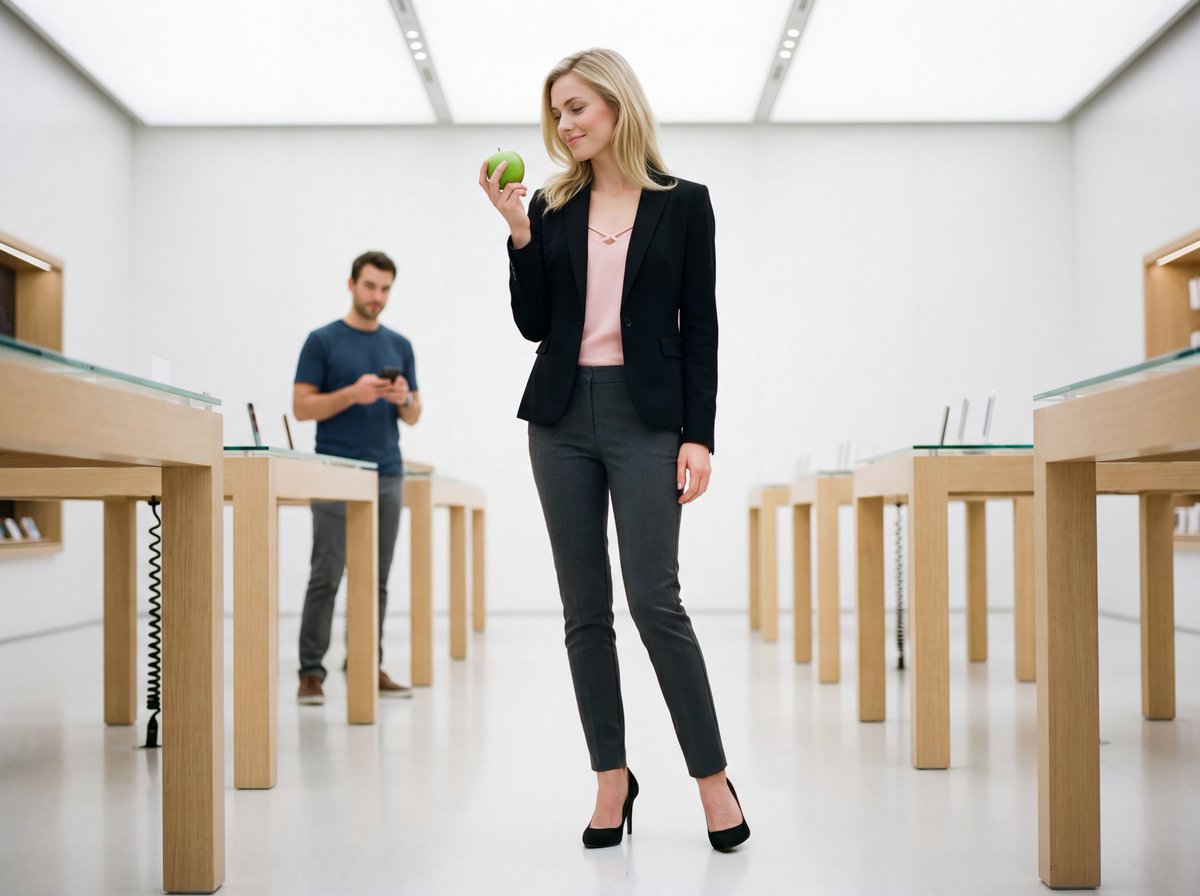
Luxury Retail Editorial Scene with Symbolic Apple
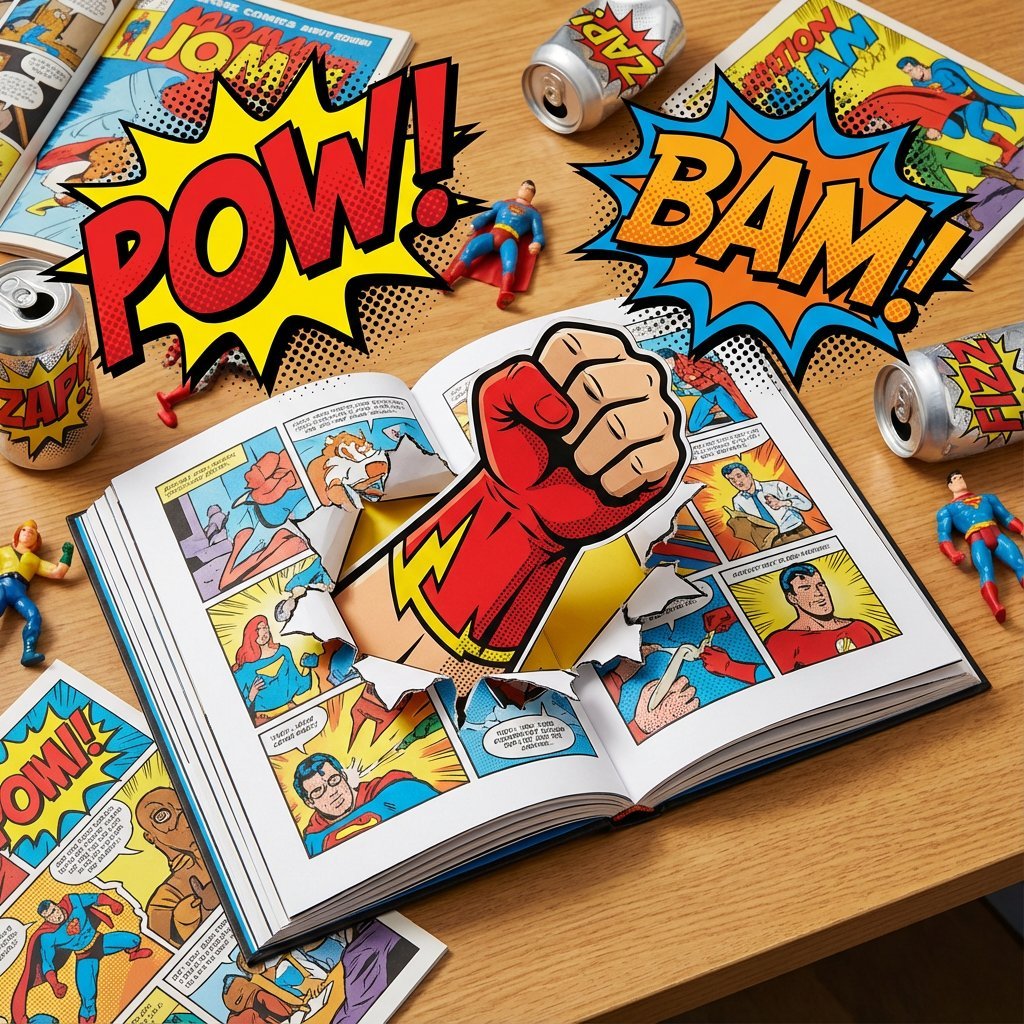
Superhero Comic Book Pop Art Diorama Prompt
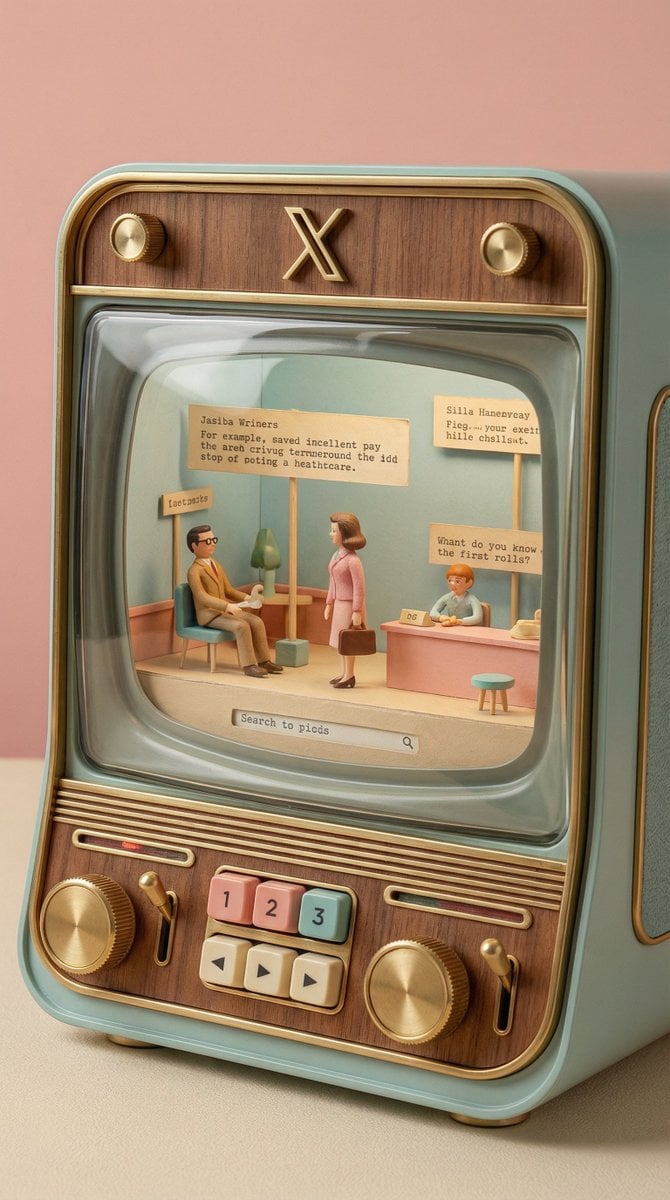
Wes Anderson-designed X App Mobile Interface
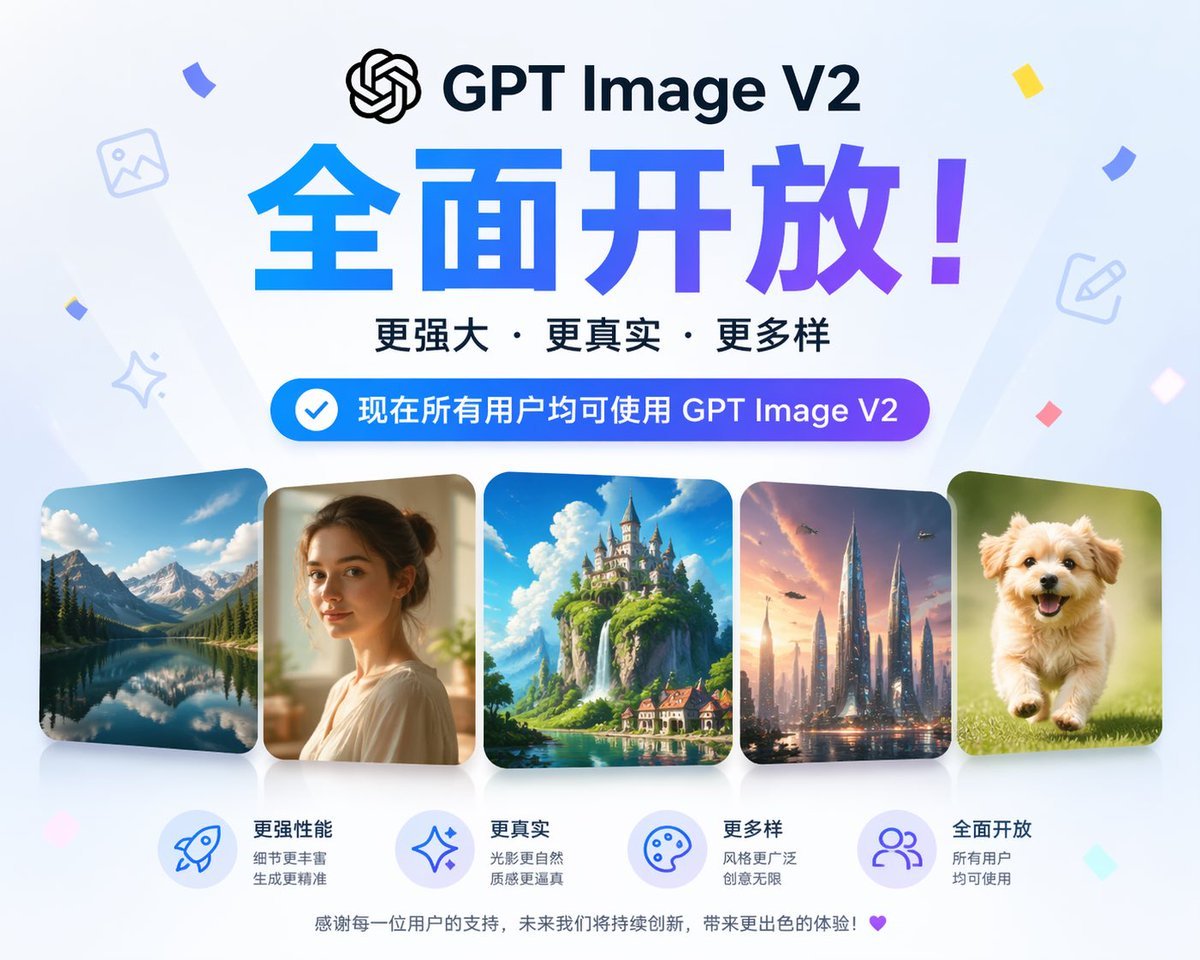
GPT-Image V2 Feature Announcement
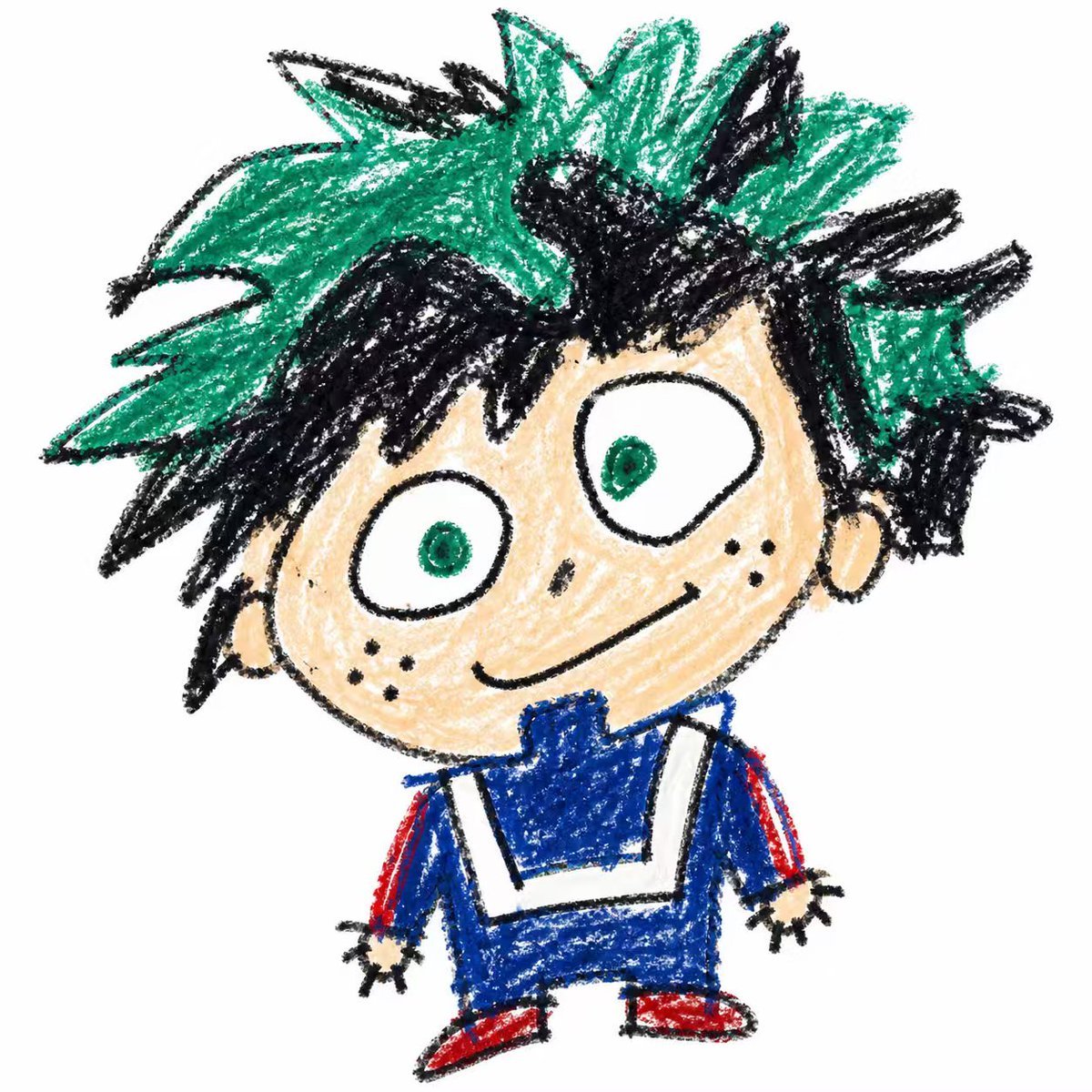
Year-Old Crayon Drawing Style
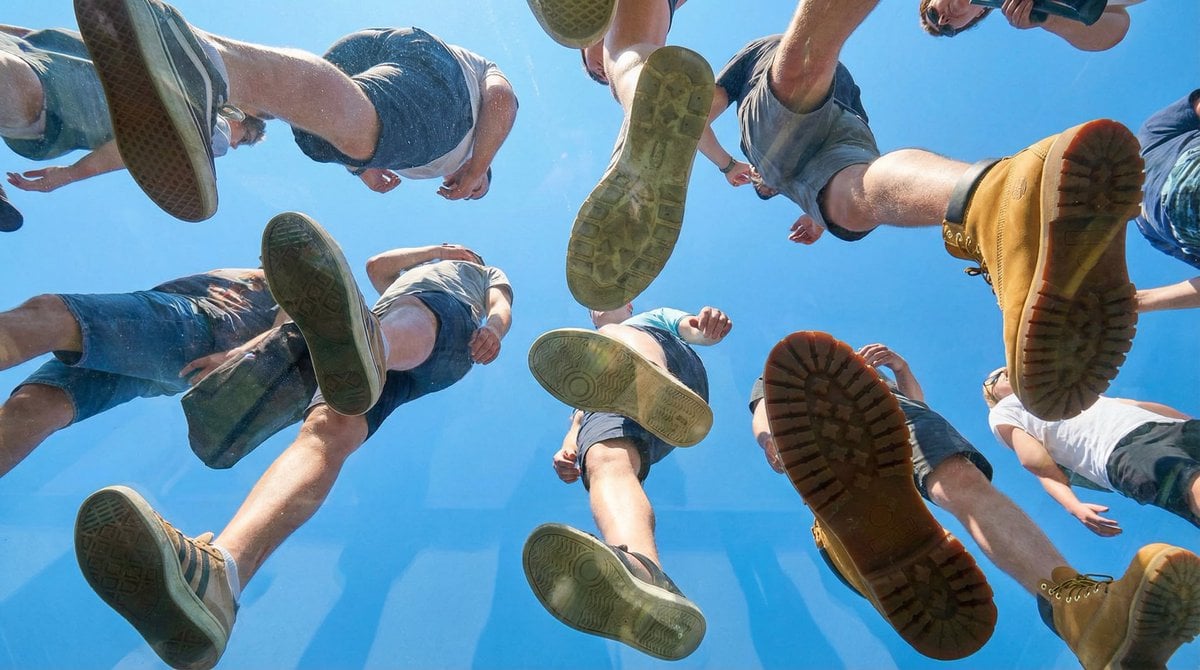
Under Glass Floor Perspective Shot
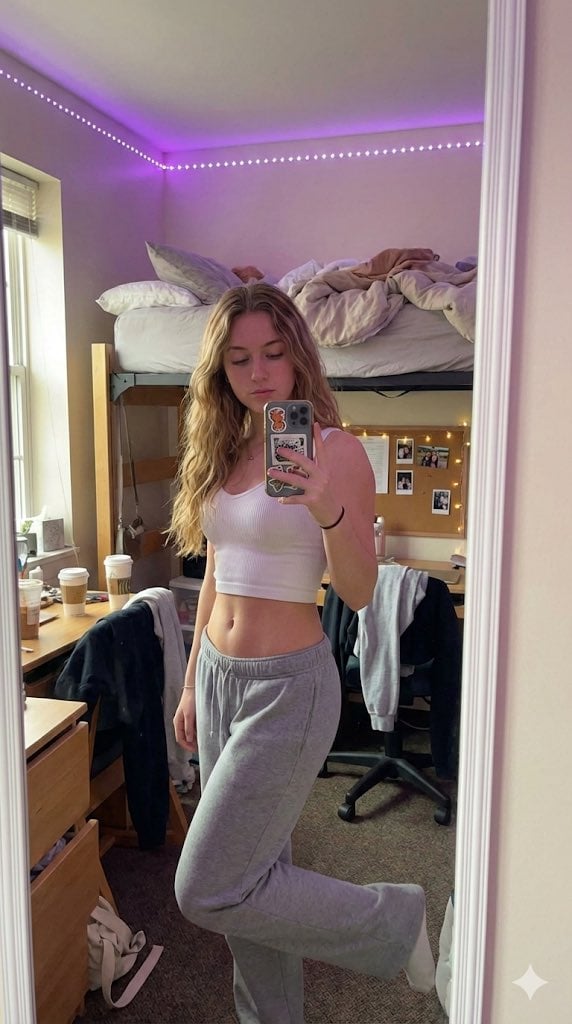
Casual 'Lazy-Hot' Mirror Selfie in Dorm Room
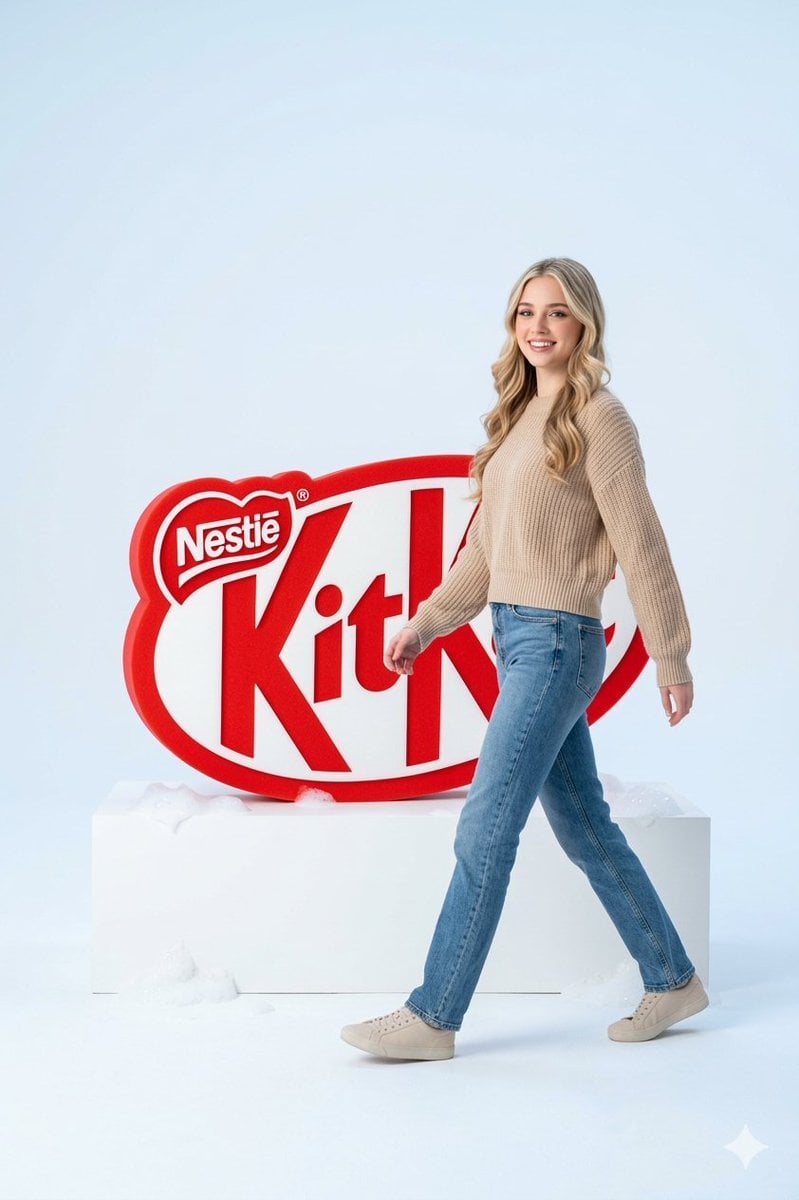
Premium Advertising Campaign Photograph
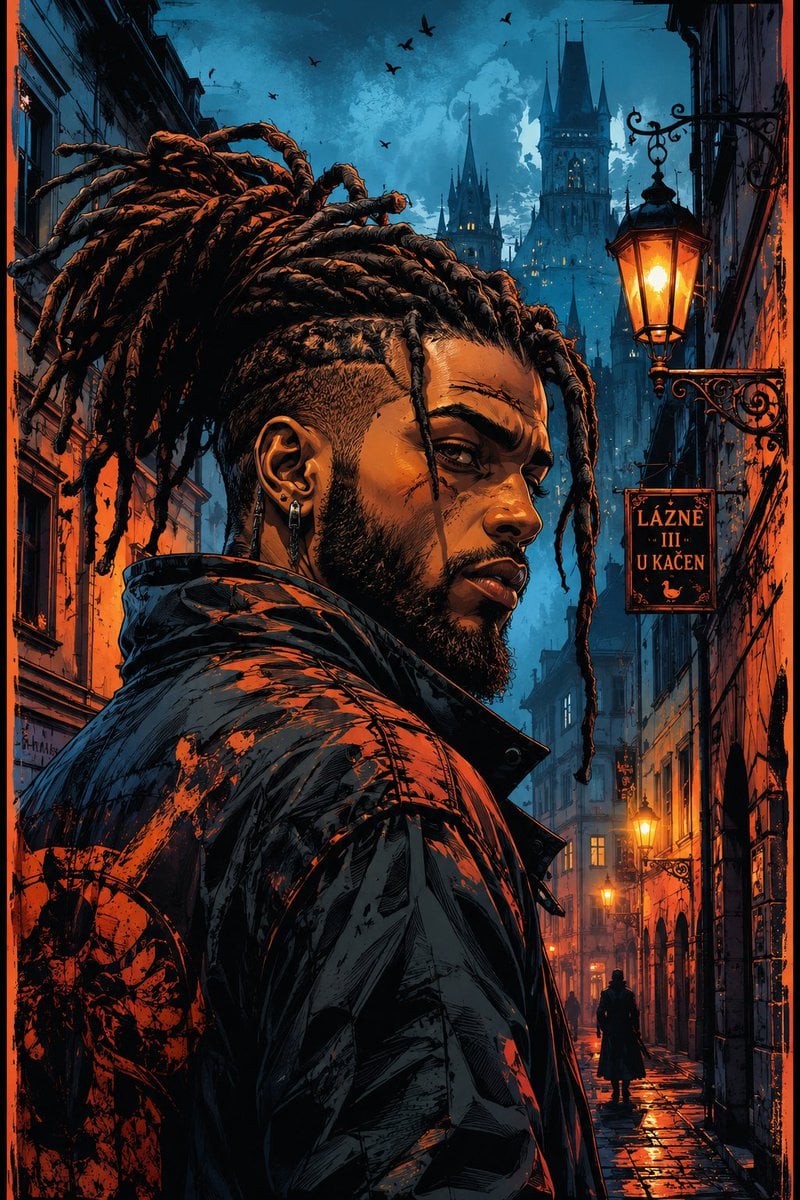
Cyber-Noir Comic Portrait
Browse template categories
Annotated Manga App Screenshot questions
How do I use the Annotated Manga App Screenshot template?
Add your photo if the template asks for one, edit the prompt if you like — the template's model and format are already selected — and press Generate. Your version opens in PicX Studio.
Can I customize the Annotated Manga App Screenshot template?
Yes. You can change the subject, setting, lighting, mood, format, and available model controls before creating your image.
Is the Annotated Manga App Screenshot template free?
Opening and editing this template is free. Generating uses credits, shown on the Generate button when you are signed in.
Which AI model should I use?
Start with GPT Image 2, which is the model associated with this template. You can compare another compatible model for a different finish.
Looking for something else? Browse all templates.

Your photo, any look
Thousands of ready templates for every top image and video model, from one credit balance.