
J.Crew Mascot Fashion Editorial
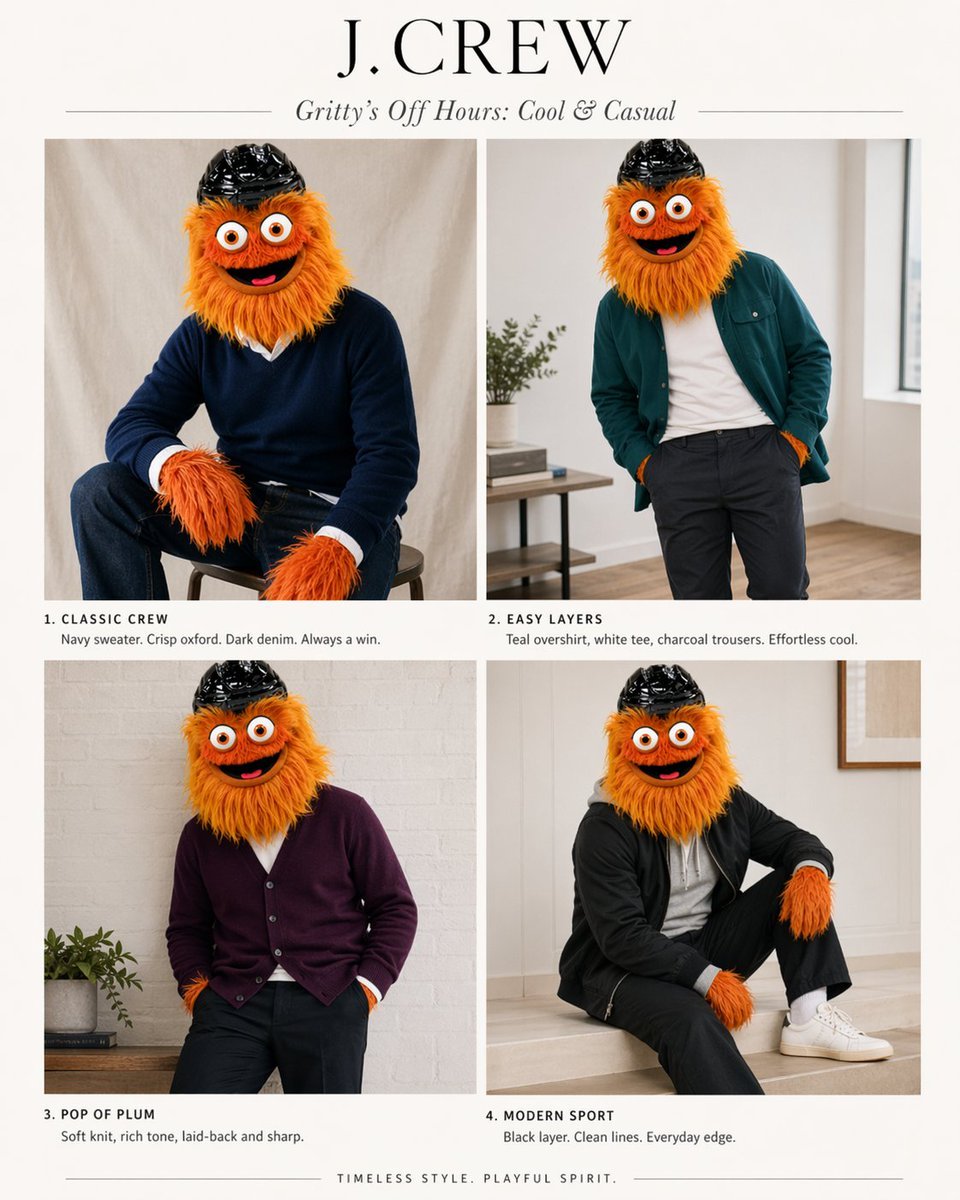
This prompt turns a mascot reference infographic into a four-look J.Crew-style fashion editorial spread for playful brand mockups or character styling concepts.
- Prompt included
- Model and format preset
- Free template
The prompt behind this image
Copy the exact prompt behind J.Crew Mascot Fashion Editorial, or open it in the studio and make it yours.
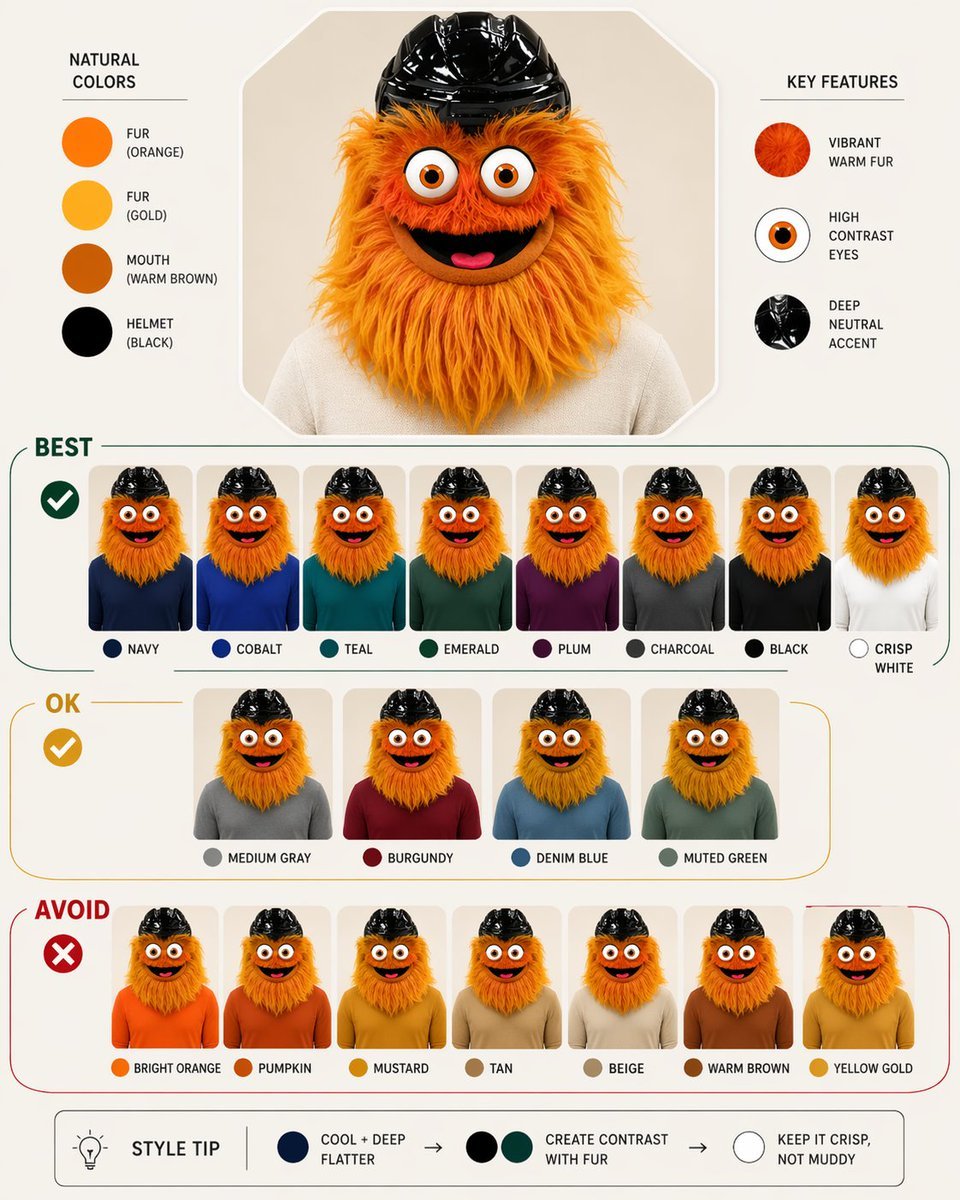
Using the provided reference image as the character and color-palette guide, transform it into a polished J.Crew-style editorial fashion lookbook starring the same mascot. Replace the infographic/chart layout with a clean 2x2 magazine spread on an off-white background. Add a large serif brand header reading {argument name="headline text" default="J.CREW"} and an italic subhead reading {argument name="subhead text" default="Gritty’s Off Hours: Cool & Casual"}. Show exactly 4 styled outfit photos of the same character, keeping the fuzzy orange fur, big eyes, and black helmet, but placing the mascot in modern menswear inspired by the “best” colors from the reference: 1) “CLASSIC CREW” — seated on a stool in a navy sweater over a crisp white oxford with dark denim; 2) “EASY LAYERS” — standing casually in a teal overshirt, white tee, and charcoal trousers; 3) “POP OF PLUM” — relaxed pose in a plum cardigan with dark pants; 4) “MODERN SPORT” — seated in a black sporty layer with black pants, white socks, and white sneakers. Give each panel a short catalog-style caption under it matching those 4 titles and concise fashion copy. Use soft natural indoor lighting, minimal home-interior editorial settings, premium catalog photography, and a tasteful upscale preppy aesthetic. Add a small closing line centered at the bottom: {argument name="footer text" default="TIMELESS STYLE. PLAYFUL SPIRIT."}
Reference images included
J.Crew Mascot Fashion Editorial needs input media to work. They load alongside the prompt when you open it in the studio.
How to use J.Crew Mascot Fashion Editorial in 3 steps
- 1Upload ImagePNG, JPG or paste
Add your photo
Upload the photo the template builds on. The prompt, model and format are already set.
- 2…a portrait of your subject in softgolden-hour light, 85mm…
Personalize
Edit the subject and creative details for your destination.
- 3Generate
Generate
Press Generate — your image is created in PicX Studio, so you can compare it with the original and refine one variable at a time.
More like this
Templates with the same subject, style or setup. Open one to see its prompt.
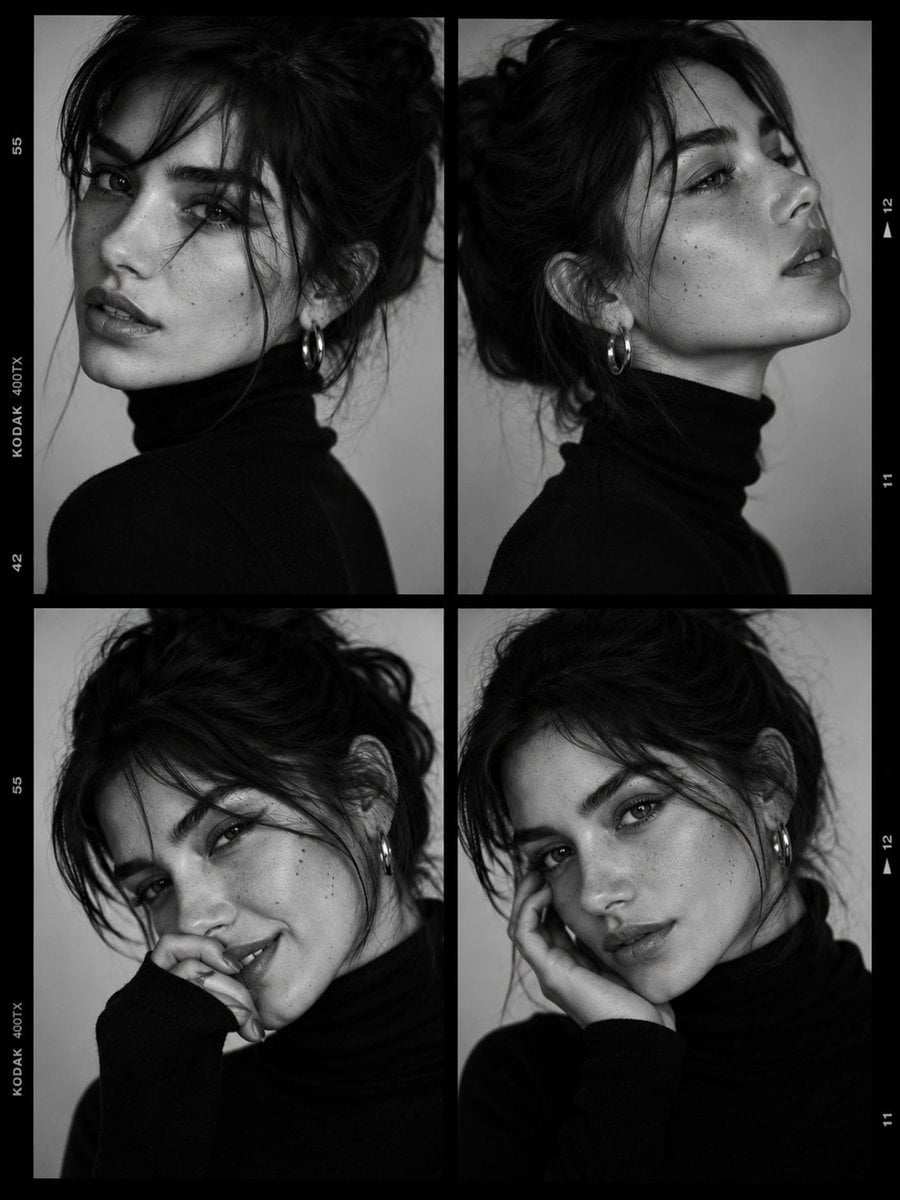
Luxury Black-and-White Fashion Contact Sheet
untitled
Google Gemini Nano Banana Pro
Conceptual Fashion Portrait in Spider We
01 Skincare Split Portrait — Nano Banana 2
24 The Getty Center — California Series
21 Glass Floor Skyscraper — California Series
19 Luxury Helicopter Travel — California Series
08 Rodeo Drive Luxury Exit — California Series
03 Beverly Hills Convertible — California Series
Gpt Image 2 Fashion Portrait
Caution Tape Fashion — Industrial Editorial
Make it yours
J.Crew Mascot Fashion Editorial works as-is. These are the safest ways to change it without losing the look.
Change one field
Copy a single group, rewrite it, and generate again so you can see what that field is doing.
Keep the frame, change the subject
Hold the composition and light of J.Crew Mascot Fashion Editorial, then swap wardrobe, props or the person for a new take.
| If the result… | Why | Fix |
|---|---|---|
| The result drifts from the preview | Too many fields changed at once. | Reuse J.Crew Mascot Fashion Editorial as-is first, then change one group — subject, light, or setting. |
| The model over-stylizes the scene | The prose prompt leaves finish and camera underspecified. | Add one camera or lighting sentence and stay on GPT Image 2. |
More GPT Image 2 templates
Other prompts made for GPT Image 2.

Six VTuber Japanese Logo Sheet

Realistic Portrait of Woman and Deer

The Vista Modular Condo Poster

AI Model Routing Comparison Infographic

2.5D Anime Art Board

Isometric Productivity Desk Scene

New York Double Exposure Poster

Four-Panel AI Landscape Comparison

Japanese Tatami Lifestyle Magazine Cover

NESCAFÉ Coffee Map Poster
More image prompts
Fresh picks from across the catalog.
Cinematic Portrait with Soft Golden Light Prompt
One Piece Marine POV Photography
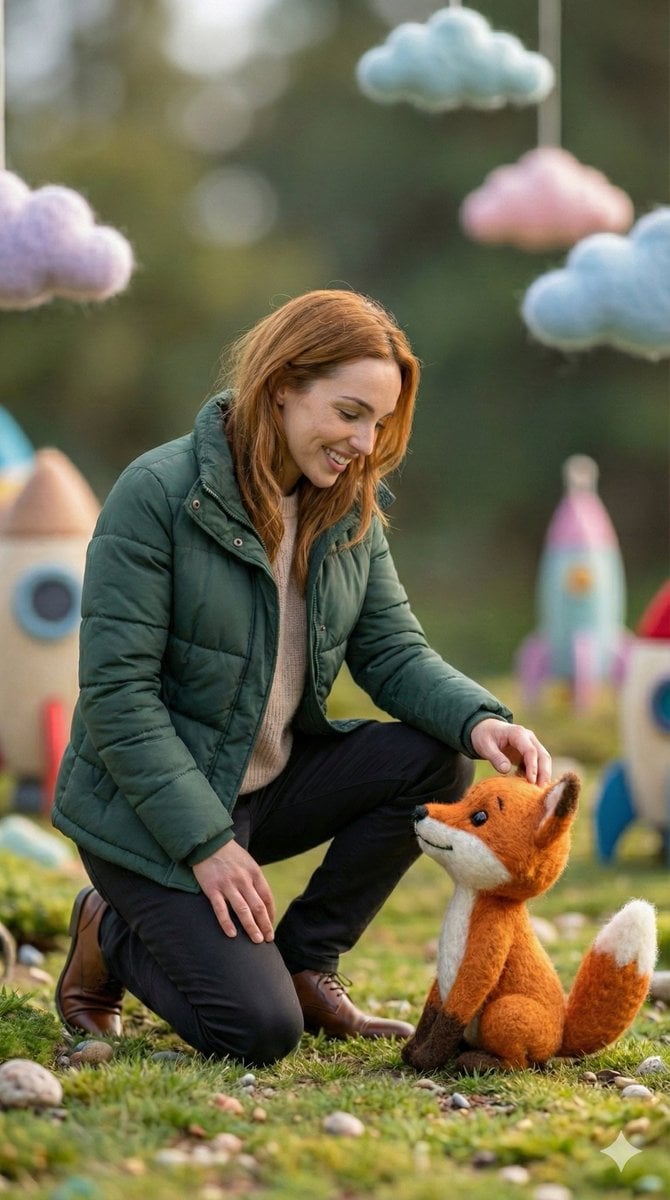
Photorealistic Human and Felt Fox Hybrid
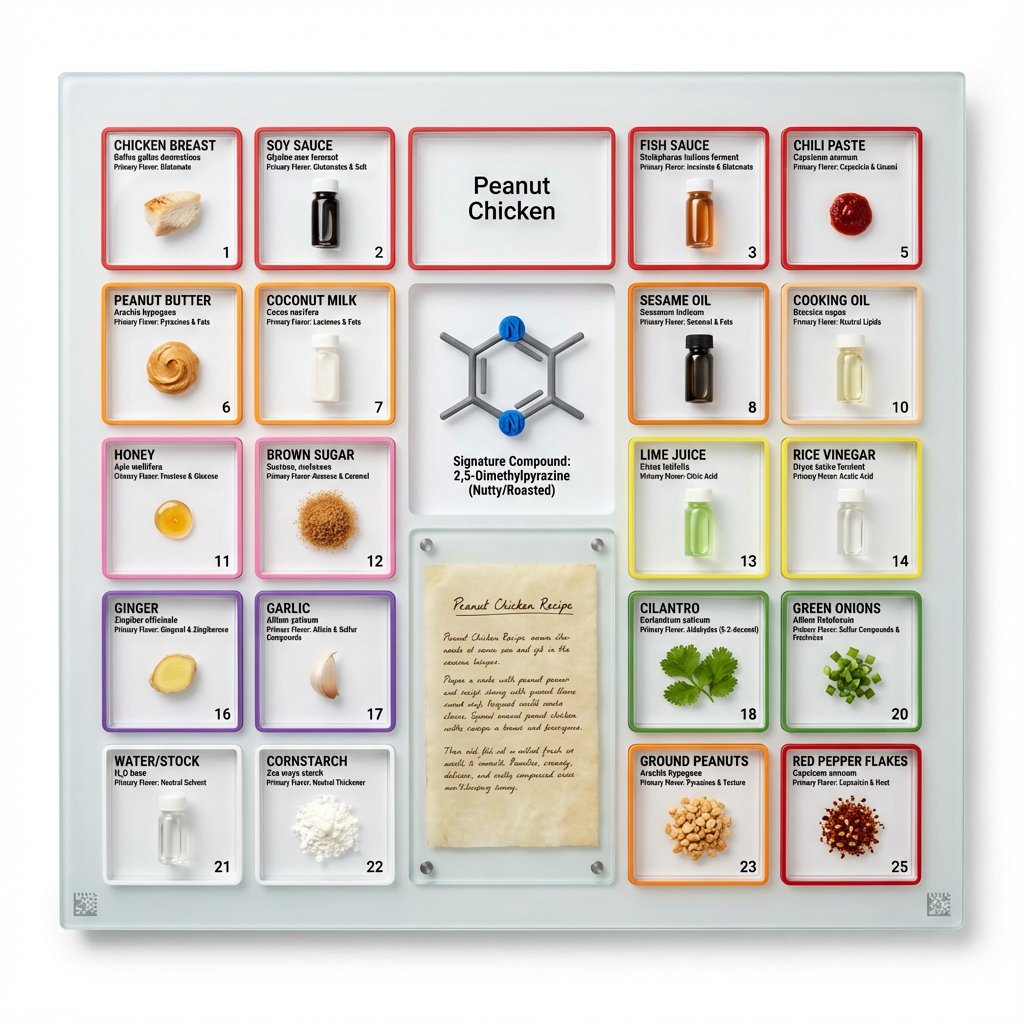
Culinary Periodic Table Display Board Generator
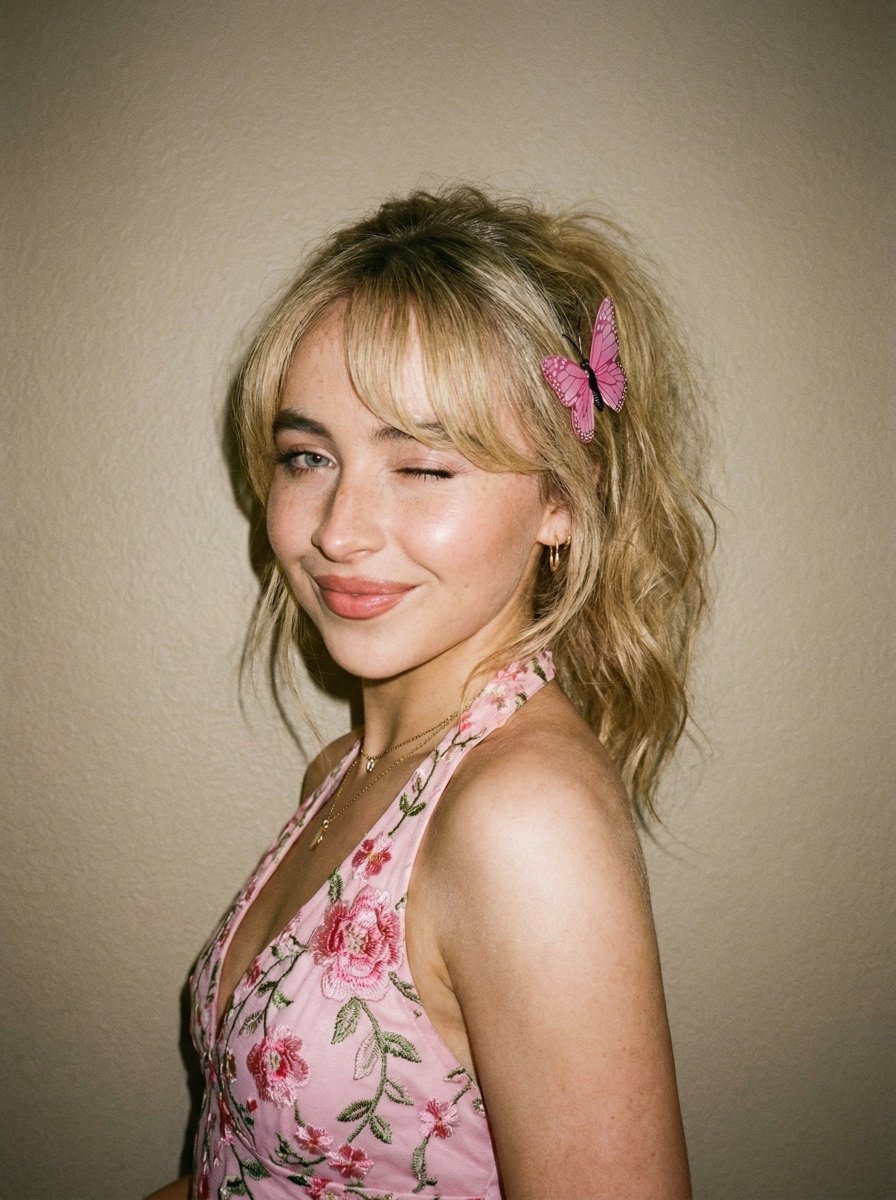
Soft Flash Portrait with Coquette Aesthetic
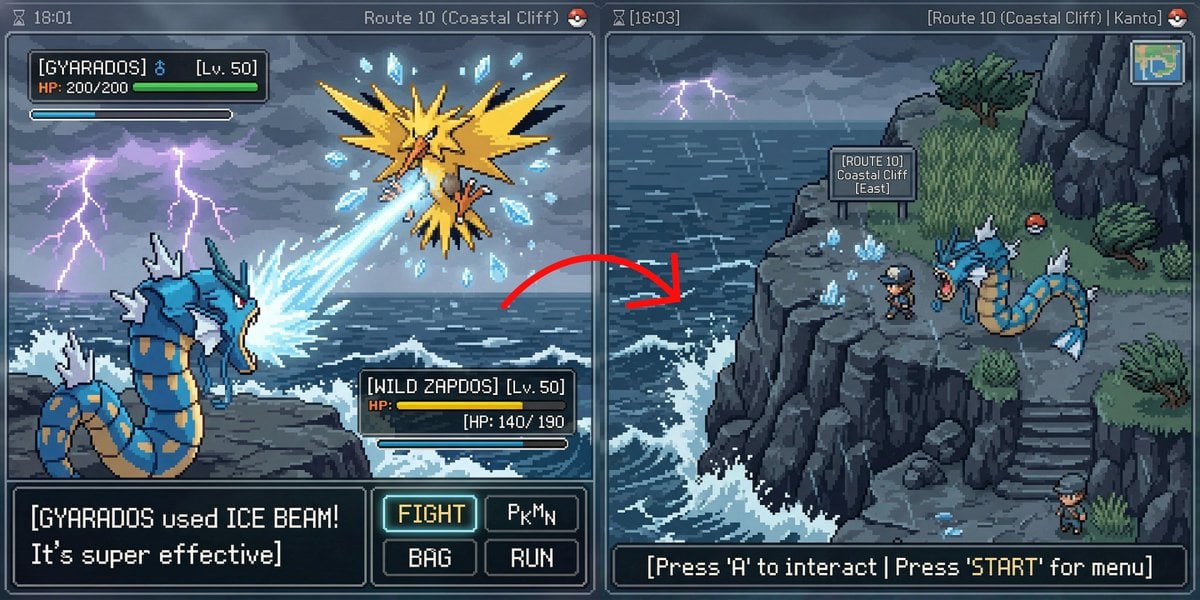
Pokémon Overworld Screenshot Generation
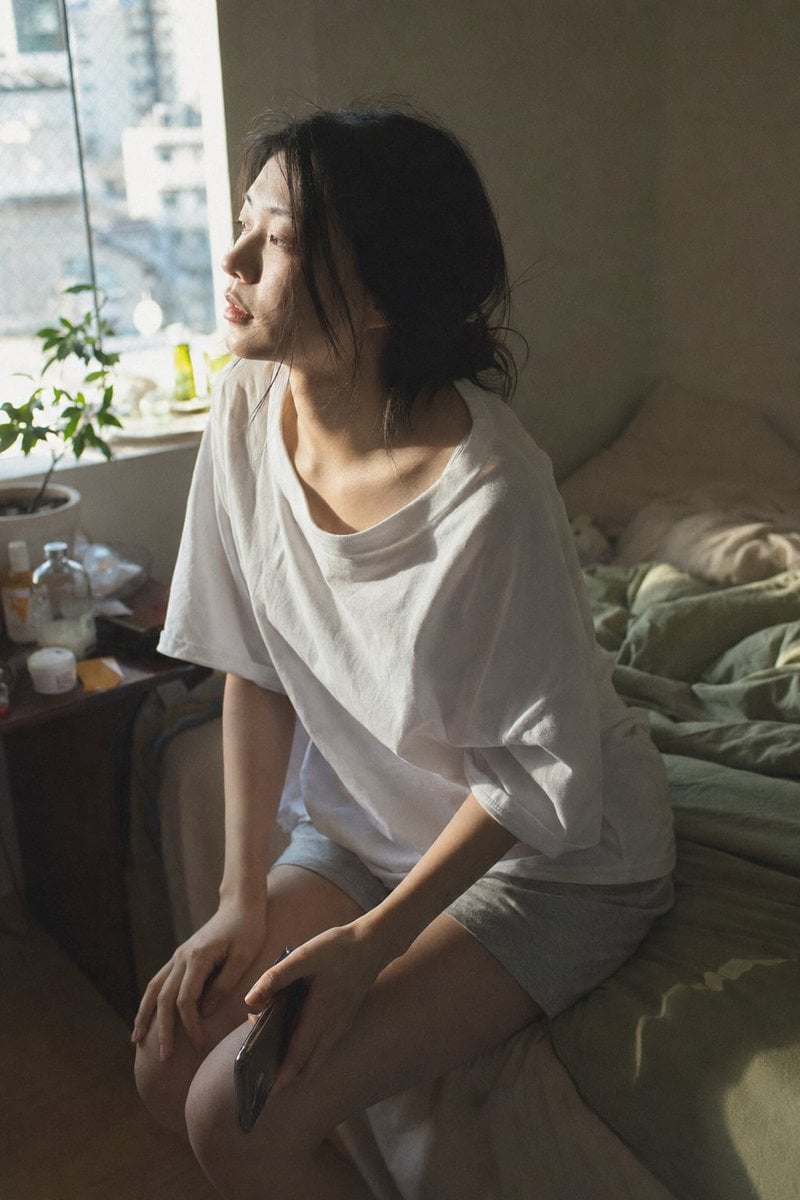
Candid Morning Bedroom Portrait
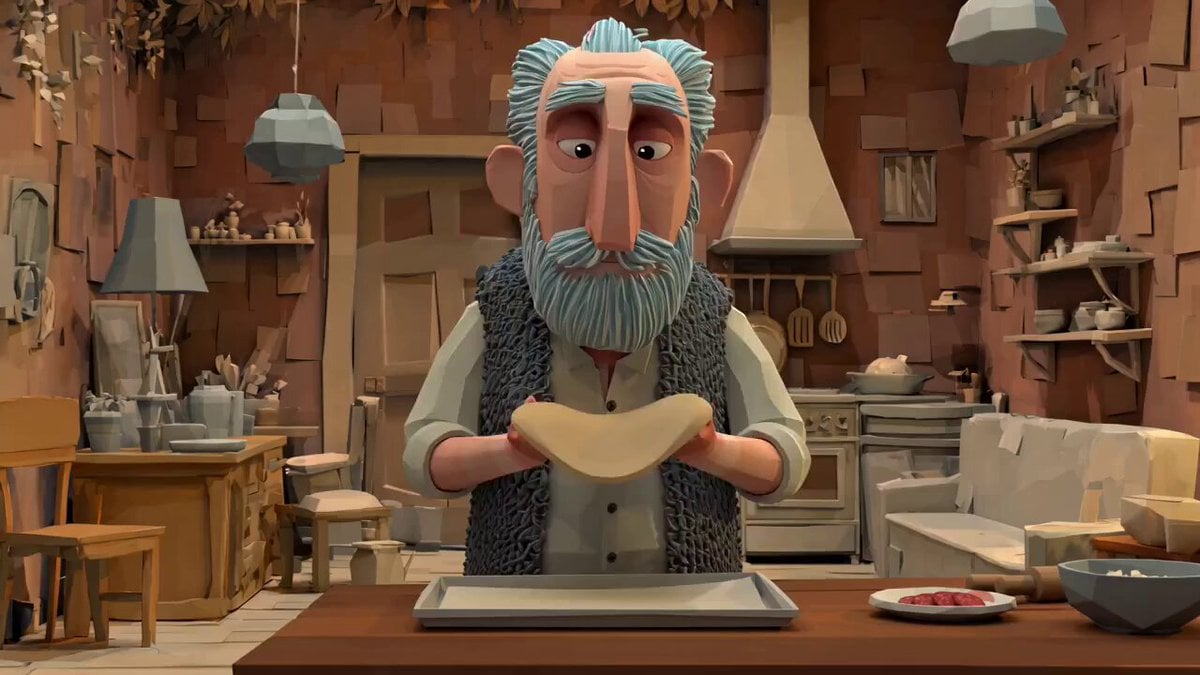
Animation Style - Framer Motion
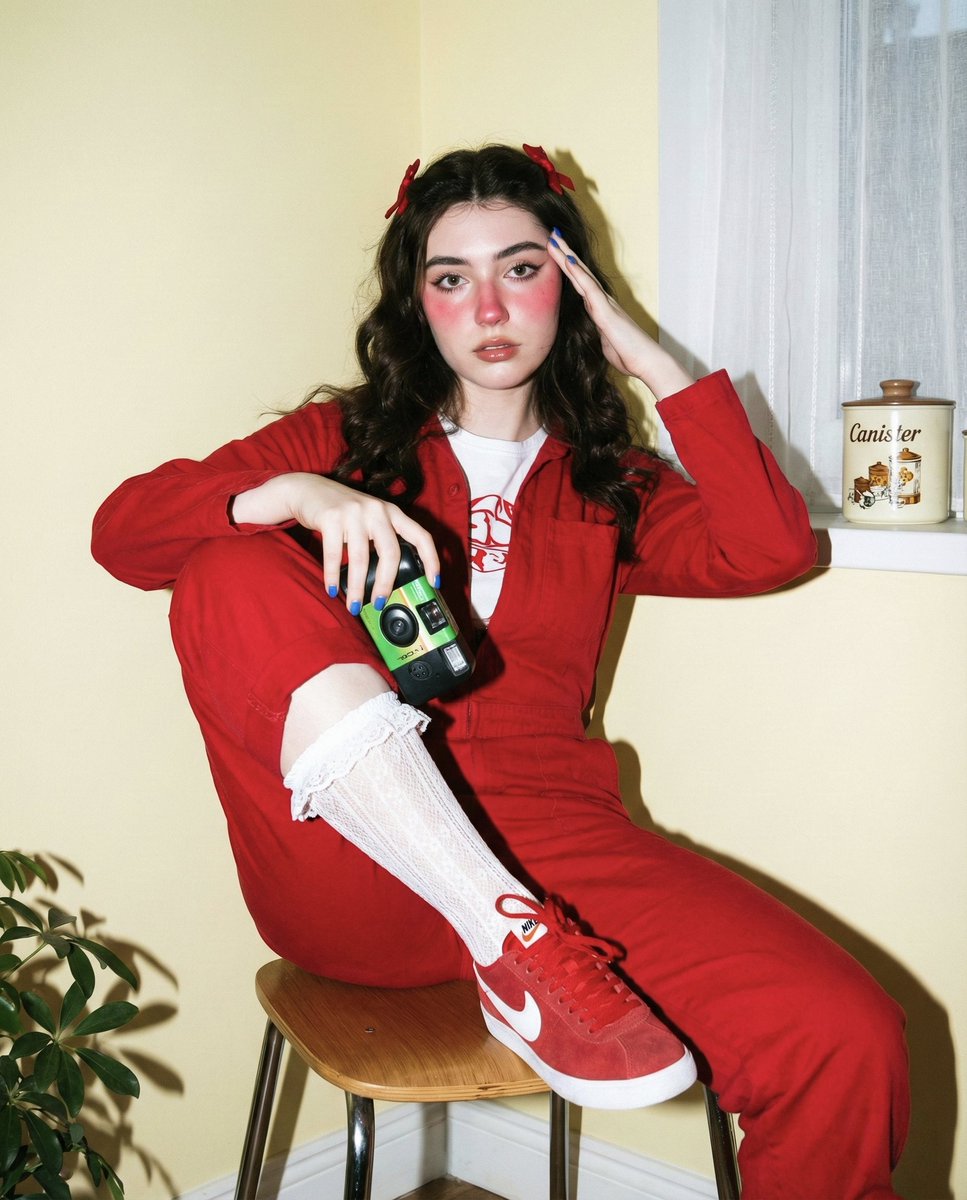
Vintage Film Photography Prompt with Retro Aesthetic
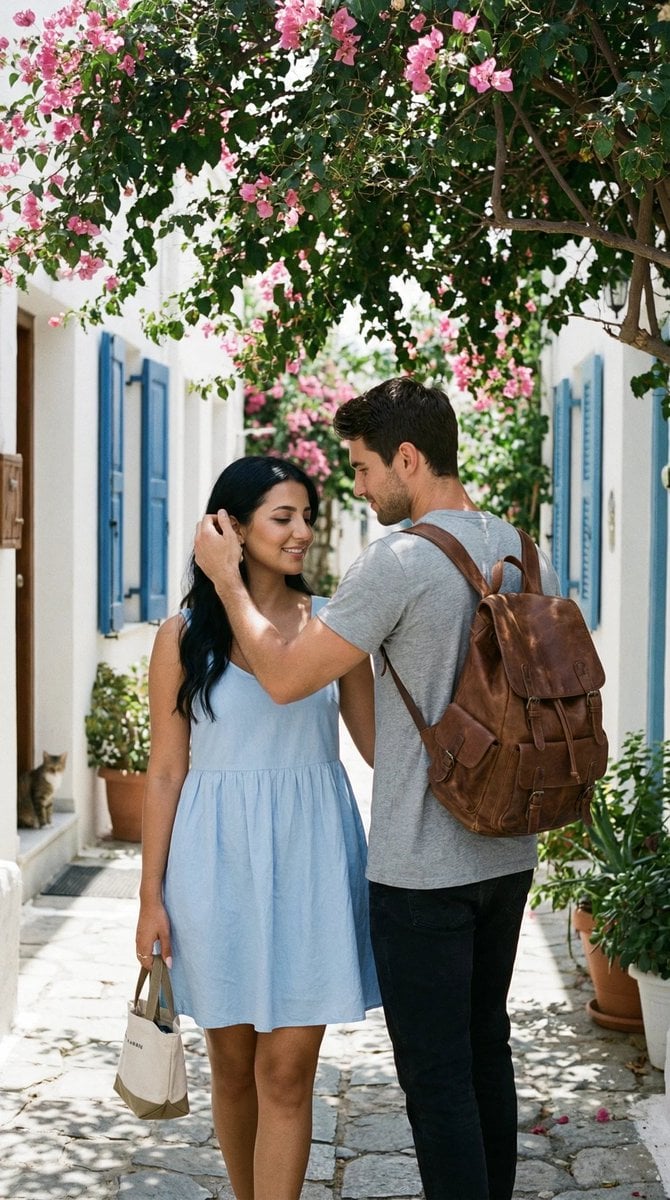
Ultra-Photorealistic Candid Travel Romance Scene: Aegean Stone Street
Browse template categories
J.Crew Mascot Fashion Editorial questions
How do I use the J.Crew Mascot Fashion Editorial template?
Add your photo if the template asks for one, edit the prompt if you like — the template's model and format are already selected — and press Generate. Your version opens in PicX Studio.
Can I customize the J.Crew Mascot Fashion Editorial template?
Yes. You can change the subject, setting, lighting, mood, format, and available model controls before creating your image.
Is the J.Crew Mascot Fashion Editorial template free?
Opening and editing this template is free. Generating uses credits, shown on the Generate button when you are signed in.
Which AI model should I use?
Start with GPT Image 2, which is the model associated with this template. You can compare another compatible model for a different finish.
Looking for something else? Browse all templates.

Your photo, any look
Thousands of ready templates for every top image and video model, from one credit balance.