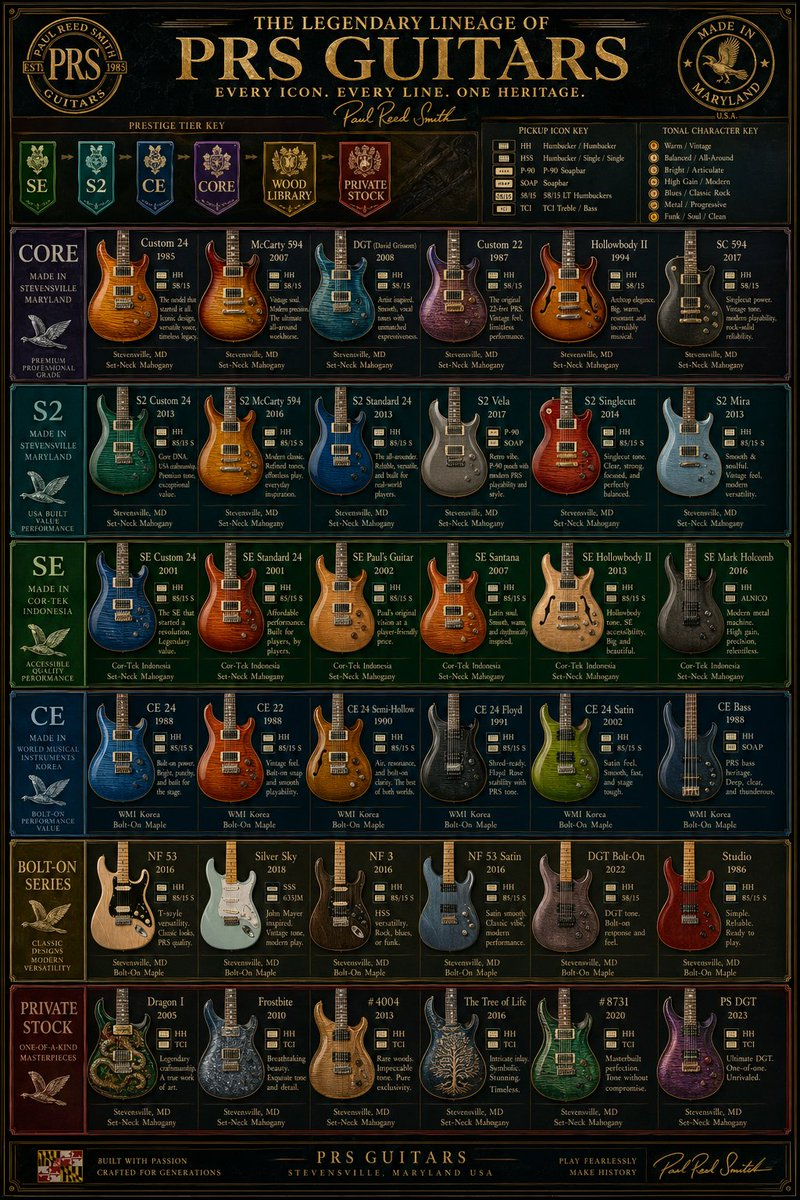
gpt2-infographic-edu-visual-vintage-prs-guitar-lineage-poster
luxury vintage guitar comparison infographic poster · a highly detailed, vertically oriented PRS electric guitar lineup chart designed like a premium museum poster or collector's reference board · ornate, dark, glossy, high-contrast, gold-foil typography, elegant wood-and-metal textures, symmetrical grid layout, premium catalog aesthetic, subtle vintage patina, ultra sharp graphic design · THE LEGENDARY LINEAGE OF {argument name="brand name" default="PRS GUITARS"} · EVERY ICON. EVERY LINE. ONE HERITAGE. · Paul Reed Smith · PAUL REED SMITH GUITARS · MADE IN MARYLAND U.S.A. · black and deep charcoal with dark figured wood accents · antique gold · cream · deep green, teal, royal blue, purple, gold, burgundy · single-page vertical poster · top · large central title, small tagline below, script signature, 2 circular emblems in upper left and upper right, 3 horizontal legend boxes under the title · PRESTIGE TIER KEY · upper left below title · 6 · SE, S2, CE, CORE, WOOD LIBRARY, PRIVATE STOCK · PICKUP ICON KEY · upper center-right below title · 7 · HH, HSH, P-90, SOAP, 58/15, TCI, Bass · TONAL CHARACTER KEY · upper right below title · 7 · Warm / Vintage, Balanced / All-around, Bright / Articulate, High Gain / Modern, Blues / Classic Rock, Metal / Progressive, Funk / Soul / Clean · CORE · first main row left label · 7 · Custom 24, McCarty 594, DGT (David Grissom), Custom 22, Hollowbody II, SC 594, row category panel · S2 · second main row left label · 6 · S2 Custom 24, S2 McCarty 594, S2 Standard 24, S2 Vela, S2 Singlecut, S2 Mira · SE · third main row left label · 6 · SE Custom 24, SE Standard 24, SE Paul's Guitar, SE Santana, SE Hollowbody II, SE Mark Holcomb · CE · fourth main row left label · 6 · CE 24, CE 22, CE 24 Semi-Hollow, CE 24 Floyd, CE 24 Satin, CE Bass · BOLT-ON SERIES · fifth main row left label · 6 · NF 53, Silver Sky, NF 3, NF 53 Satin, DGT Bolt-On, Studio · PRIVATE STOCK · sixth main row left label · 6 · Dragon I, Frostbite, #4004, The Tree of Life, #8731, PS DGT · bottom · small badge at lower left, centered company line, right-side script signature · 37 · each product card contains a guitar render, model name, year, small pickup icons, a short descriptive blurb, and origin/wood specs at the bottom · 6 · front-facing electric guitars with varied body shapes and highly polished figured maple tops, metallic and transparent finishes, some solid colors, some natural wood · all caps serif headlines, small serif body text, script signature accents · thin decorative gold rules around every panel and the full poster · studio-lit instruments against dark panel backgrounds · clean infographic precision with realistic product renders · straight-on flat poster view, no perspective distortion, centered composition · ultra detailed, print-ready, high-resolution editorial infographic, luxury brand poster

![Japan Travel Brochure Poster — Create a vertical vintage travel-brochure infographic poster titled “[COUNTRY/DESTINATION]: [TAGLINE]”, using a warm parchment-pa](/_next/image?url=https%3A%2F%2Fcdn.picxstudio.com%2Fuploads%2Fp0_982bf820-bb34-4c43-8a6d-42d799d7282b.jpg&w=828&q=100)

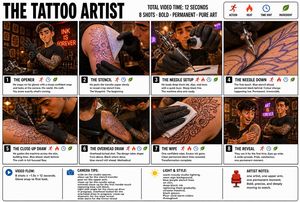
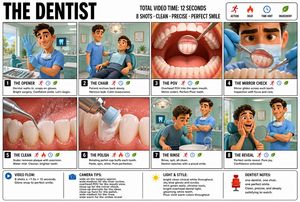
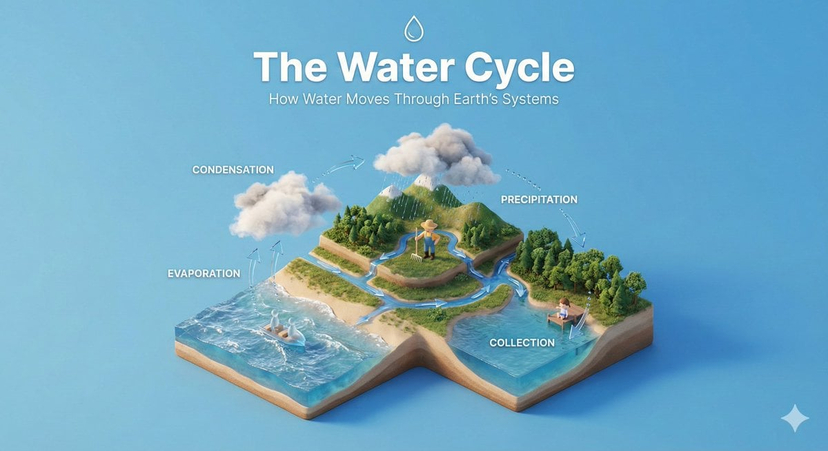
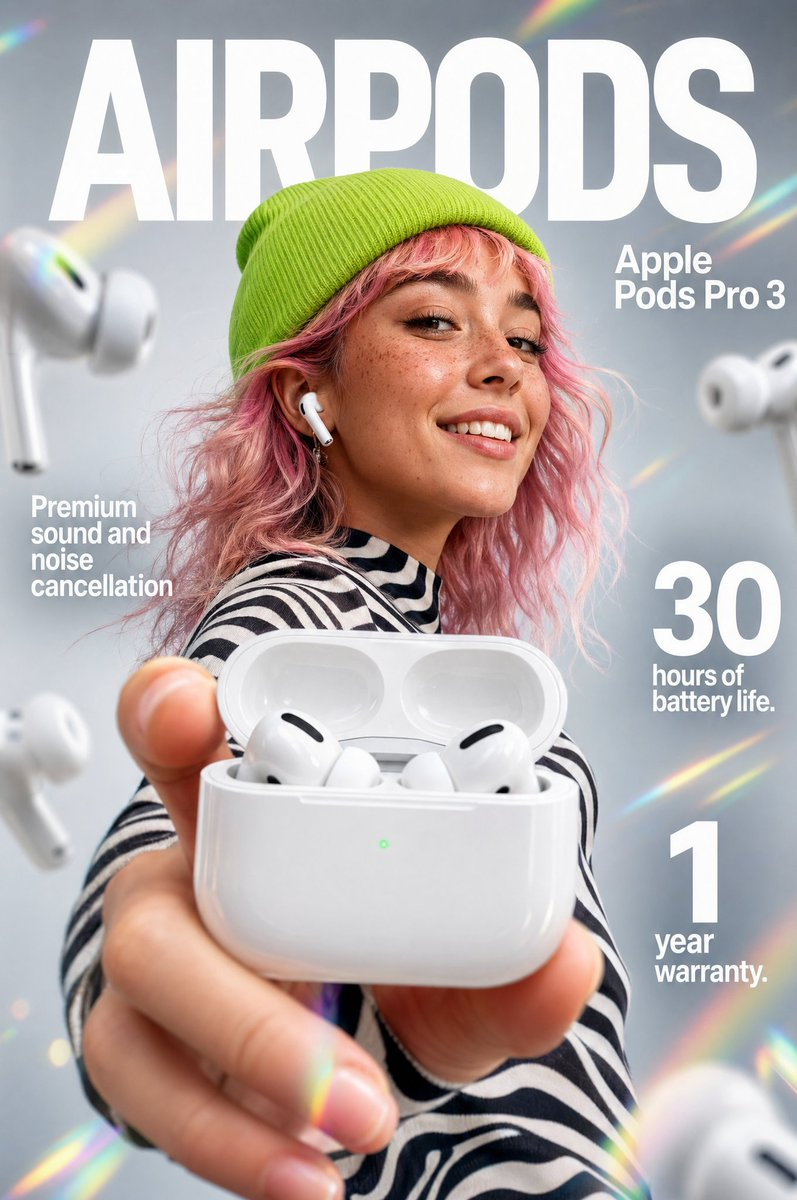
![gpt2-infographic-edu-visual-dance-movement-reference-sheet — [STYLE]
monochromatic grayscale illustration, 3D rendered character, clean instructional reference](/_next/image?url=https%3A%2F%2Fcdn.picxstudio.com%2Fuploads%2Fp53_2bb2c20d_4a8a521c-3b90-453c-9df1-6e66a07a8380.jpg&w=828&q=100)
![Isometric Vehicle Teardown Infographic Template — Create a technical infographic of [VEHICLE] with a 45-degree isometric 3D perspective showing the device sligh](/_next/image?url=https%3A%2F%2Fcdn.picxstudio.com%2Fuploads%2Fmeigen_aecaabc87fba_8dcefeb1-b8c3-4cae-8a57-853d0433c54e.jpg&w=828&q=100)



![Minimalist Flat Vector Travel Poster — Premium minimalist flat-vector travel poster for {argument name="city name" default="[CITY_NAME]"}, 3:4 vertical format.](https://cms-assets.youmind.com/media/1787917359711_3ug846_HQX205cbMAA6F6S-300x400.jpg)






















![Ghibli-Inspired Character Turnaround — use the character turnaround format from [img1] to create {argument name="character description" default="[character name](https://pbs.twimg.com/media/HEBTbrAXwAElna2.jpg)
![Minimalist Modern Magazine Illustration Style — 一张极简主义现代杂志风格插画,主体为[xxx]。画面以干净流畅的线条塑造形象,造型简洁但富有美感,背景保留大面积留白,配色以柔和中性色为主,并加入少量鲜艳色彩作为视觉焦点。整体构图精致平衡,氛围优雅清新,具有高级杂志插画与现](https://cms-assets.youmind.com/media/1780448762845_au1755_HJxtXKDboAA4Abf.jpg)



![Typewriter Art Manifestation Scene — A vintage typewriter on a writer's desk, with the {argument name="subject" default="[SUBJECT]"} mate…](https://pbs.twimg.com/media/G_mDCO4bIAA1bL1.jpg)